Create a Nature Inspired Surrealistic Room in Photoshop

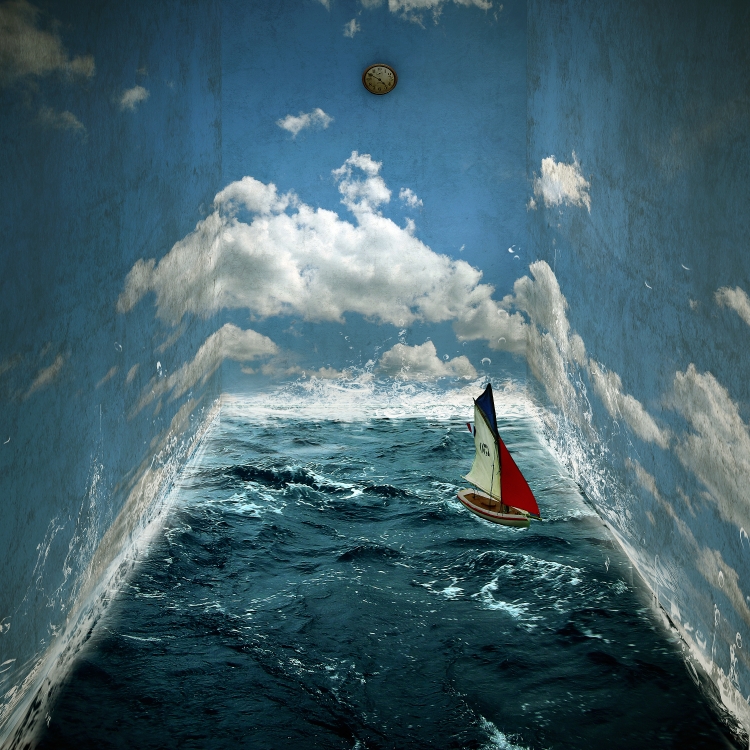
Creating a surreal image composition in Photoshop often involves mastering the various techniques and tools that Photoshop has to offer. In today’s tutorial we will demonstrate how to create a surreal nature inspired room using many of Photoshop’s most useful and popular tools. When we are finished you will have learned how to create a room with realistic water as its floor, real clouds on the walls, and a boat floating in the water with waves crashing in its wake.


Final Image Preview

Let’s take a look at the image we’ll be creating. Want access to the full PSD files and downloadable copies of every tutorial, including this one? Join PSDTUTS PLUS for just $9/month. You can view the final image preview below or view a larger version here.

Resources


Step 1: Creating a New File

Create a new file that is 3000 x 3000 pixels, 300 dpi, 8 bit RGB Color, with a Transparent Background.
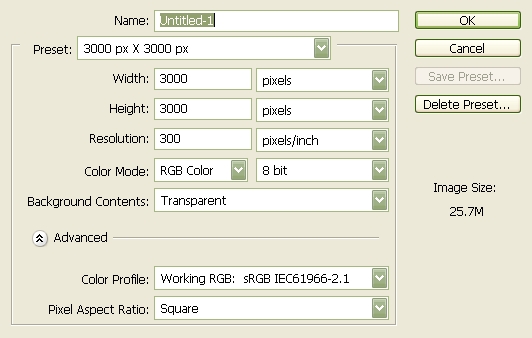

Step 2: Create the Walls

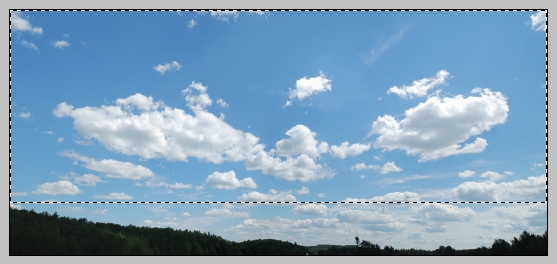
To start off, let’s open Big Blue Sky. We will be using this to create the walls of our room. So let’s transfer it to our 3000 x 3000 layer. Click our stock image, press (M) to activate our Marquee tool and select the sky; making sure to leave the trees outside the marquee box, once you’ve done that press (V) and drag the selected part of the image by holding down the left mouse button to our canvas. See example below:
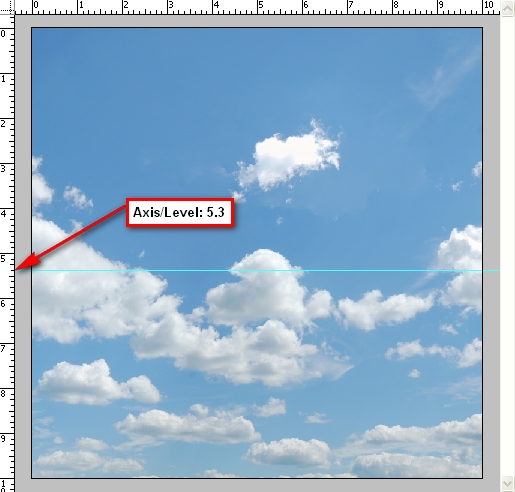
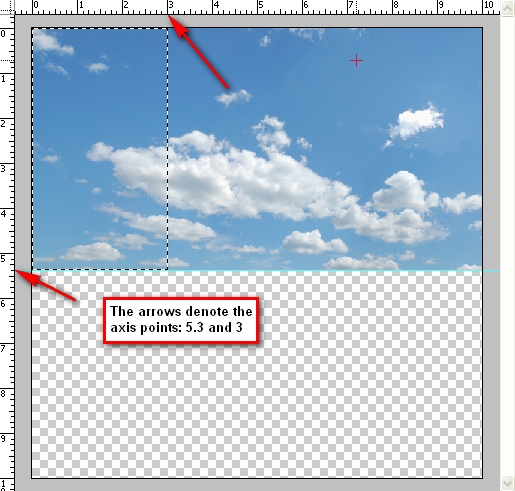
Decrease the size of the Blue Sky image to fit our canvas. Activate our ruler by pressing Cmd+R. Now that the ruler is active, create a guide at 5.3 in. See image below:
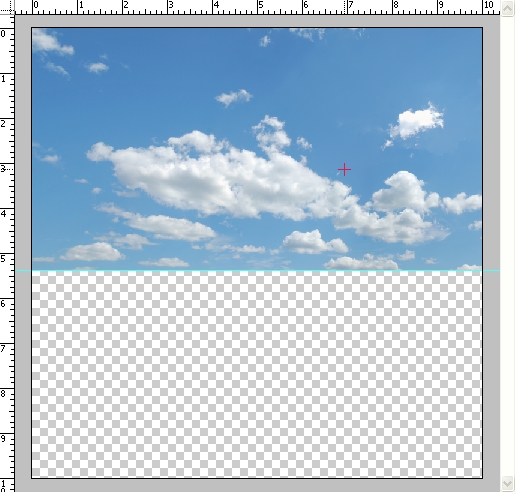
Press Cmd+T to transform our image. Resize it to come up with something similar to the image below:
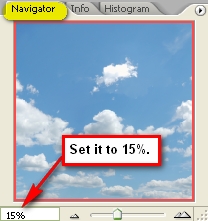
Now it is time to create the room’s perspective. Let’s set the navigator to 15% so the ruler would be counting in 1’s. See image below:
Activate your marquee tool and use it to select the area from axis 5.3 in of the ruler on the left to axis 3 in on the top ruler. An example is shown below:
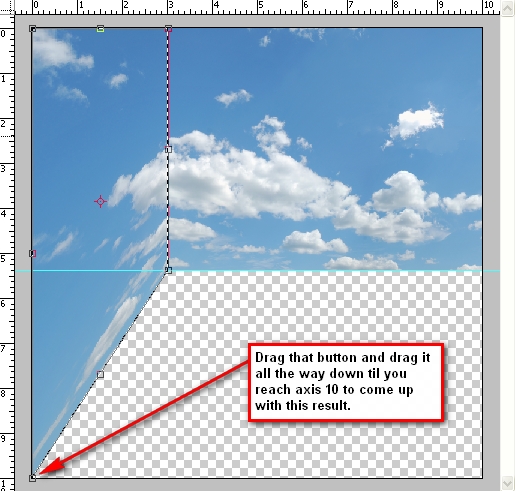
Now use the transform tool and right click anywhere on the canvas and left click on the Distort tool. Follow instructions as seen on the image below:
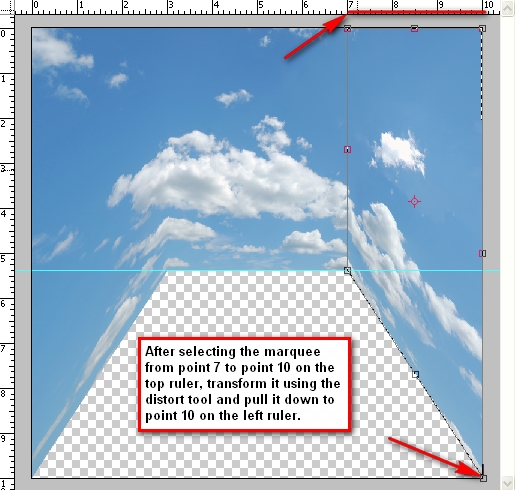
Do the same thing on the axis 5.3 in below and axis 7 in to 10 in on the top ruler. See instructions on the image below:

Step 3: Adding Texture to the Walls

In this Step, we will be adding a texture to the very flat looking wall. We will be putting the texture over the clouds to give it a feel of a dirty wall. Let’s open our 18 Vintage Photoshop Brushes. (Note: After downloading this brush set, extract it to ABR file to “Adobe Photoshop > Presets > Brushes”)

We will need to apply the brush on a clean layer so create a new layer. Press Cmd+N or click on the “Menu bar’s Layer > New > Layer.” You may also create a new layer by pressing the paper button located on our Layer Window. Be sure to rename our new layer as “Wall texture: middle” Changing the layer’s name is easy, just click on the words Layer 1, double click on it and there you have a new name for it.

Press (B) to activate your brush tool and right click anywhere in the image and click on the button that resembles the play button on audio players then left click on Replace Brushes.

Replace your current brush set with our “18 Vintage Photoshop Brushes” which should appear as “vintage-paper-brush” in your Photoshop Brushes folder. Don’t worry you may revert back to your original brush set by loading your choice of brushes or if you’d like to use the original Photoshop brushes just click on the play button again and click on Reset Brushes.

Now you see the brushes have been replaced. We will be using only one of the 18 brushes. The other brushes are nice but the one that I picked fits well with our image. With the proper opacity, it would make our wall look really convincing. Click on the brush that has a size of 1650px. See image below:
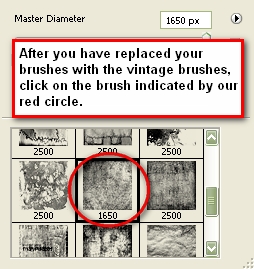
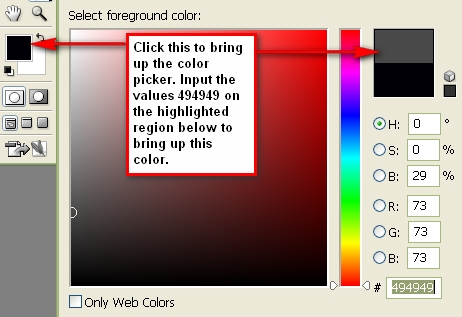
Once you’ve clicked it, the brush will appear on screen ready to be stamped to our canvas. Notice that the brush is on a horizontal position? We need to flip it to a vertical position. First set your brush Opacity to 100%. Set the Brush color to this value: #494949 on the color picker. See Reference below:
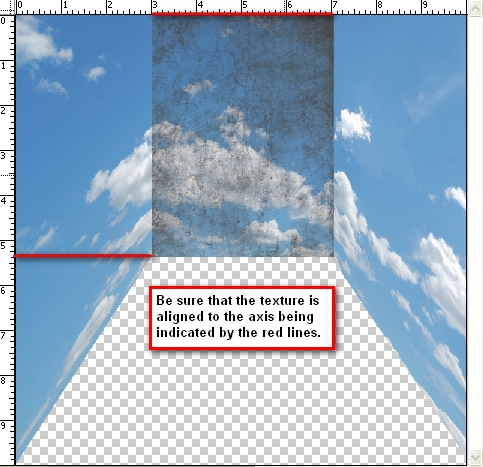
After that, apply the brush anywhere on the image. Next, transform the image by pressing Cmd+T and Rotate 90 degrees CW. Once it has been rotated let us transform it again to make it fit the wall. Be sure to activate the ruler since we will need it throughout. Transform the image and align its width from the axis 3in to 7in on the top ruler and be sure its height is in the axis 5.3in on the left ruler. Reference is below:
After doing that, transform the image and click Flip Horizontal.

Now let’s lower the layer’s opacity. Go to the Layer Window and change the Opacity to 25%.

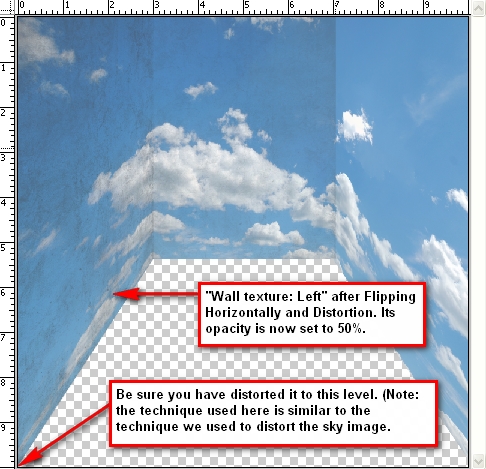
To create the texture for the wall on the left just duplicate “Wall texture: middle” press Cmd+T and click Flip Horizontal and then rename it to: “Wall Texture: Left” We will need to distort it to fit the wall, so let’s transform the image and use the Distort Tool. Distort the texture like we did with our sky image earlier to fit the wall and make sure to align it to axis 10in on the ruler on the left. Set its opacity to 50%. See reference below:
For the wall on the right just duplicate “Wall Texture: Left” rename it to “Wall Texture: Right” and drag it using your Move Tool (V) to the right. It should now look like this:
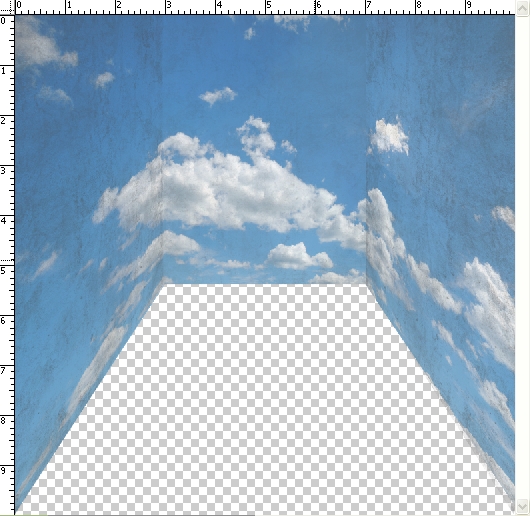
Group all the Wall textures to keep things organized. To create a group, “go to Layer > New > Group” and name it “wall textures.”

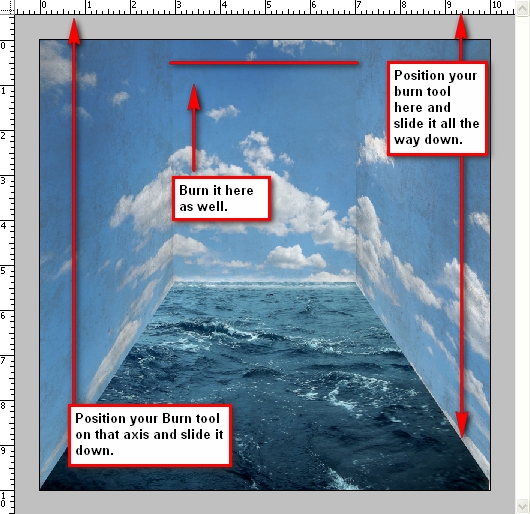
Let’s darken some parts of the wall to enhance the contrast and appearance. Activate your Burn tool by pressing (O) and clicking on that tool to bring out the menu shown on the image below for instructions:
Set the Burn tool values to the following:

  • Brush size: 900px
  • Range: Midtones
  • Exposure: 35%

The reference below shows the region to be burned or darkened.

Step 4: Creating the Floor

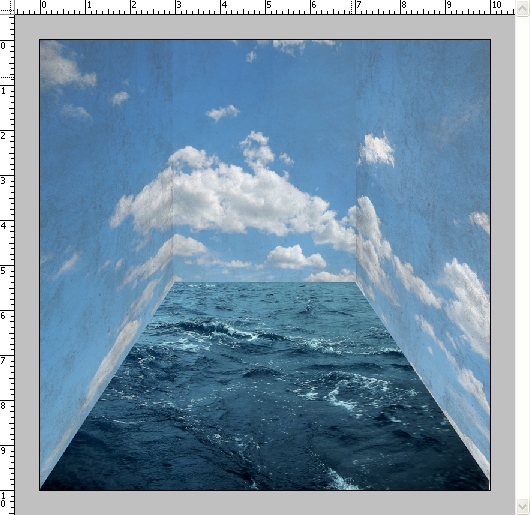
For our floor, we will be using the image Stormy Sea. Open the file, use the marquee tool and select the sea and drag it to our 3000 x 3000px layer and put it under all the layers that we have created. Transform it to fit the canvas and make it look like the room’s floor. See reference below:

Step 5: Creating the Waves

A sea without waves wouldn’t look or feel like a real sea right? So let’s add some waves on the walls to make it feel an authentic sea. Create a new layer, name it “wave1”. Activate your brush tool and replace it with the brush set: Waves Brush by anaRasha. When it opens, pick the wave brush which has a size of 600px. Press (D) to revert the foreground color and background color to its normal state which is black and white and then press (X) to revert back it to their original position. You should now have the color white selected. Press (B) again to activate the brush.

Use these brush values:

  • Brush Opacity: 100%
  • Set its size to 600px (default size of the brush that we’re going to use)

See image below for instructions:
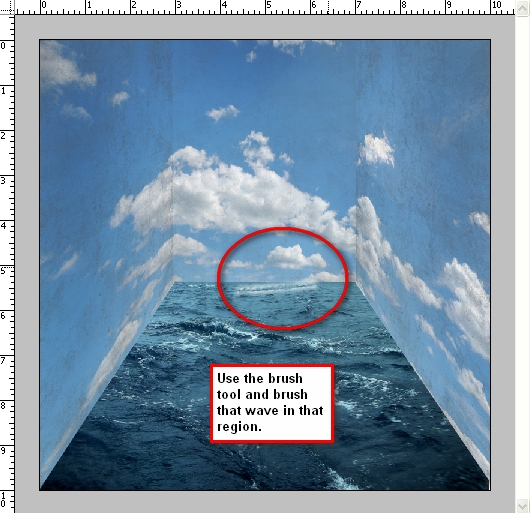
Rotate the image by pressing Cmd+T and clicking Rotate. Rotate it so that is it straight and aligned with the sea; right click on that selected area and stretch the image (press free transform and stretch it) so it fits perfectly with our floor. Instructions are shown below:
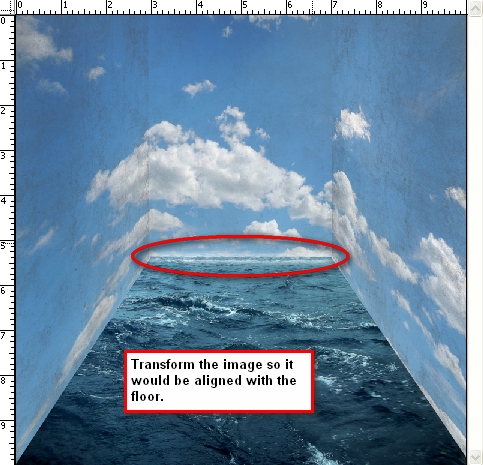
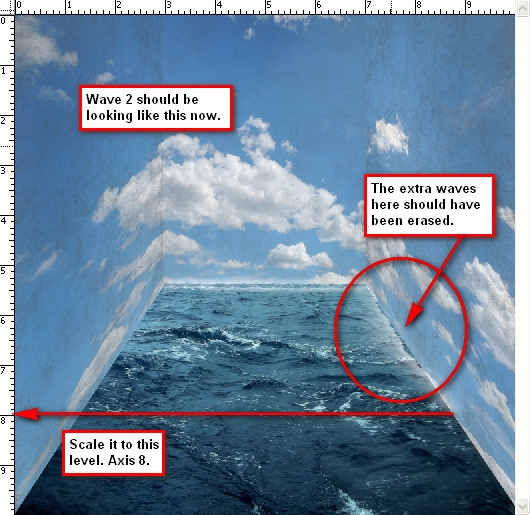
Next, let’s create a new layer for our new wave and name it “wave2.” We will be putting this on the right wall. In total there will be 13 waves. Activate your brush tool, make sure that the brush setting you’re using is still the Waves brush by anaRasha and click the wave brush with the size: 526px. Do not change the brush size, just use the default size and then brush it over the right wall, just beside “wave1.” Make sure to rotate it to be aligned with the wall.

Press Cmd+T to transform it once again and this time click Scale, for we will be resizing it to be aligned until axis 8 of the left ruler. Just erase the unwanted waves that appear. I would recommend using an Eraser Hardness of 0% and a Opacity of 100%. You can do that by clicking the Eraser tool or pressing (E) and then changing the Hardness to 0%. See reference below:
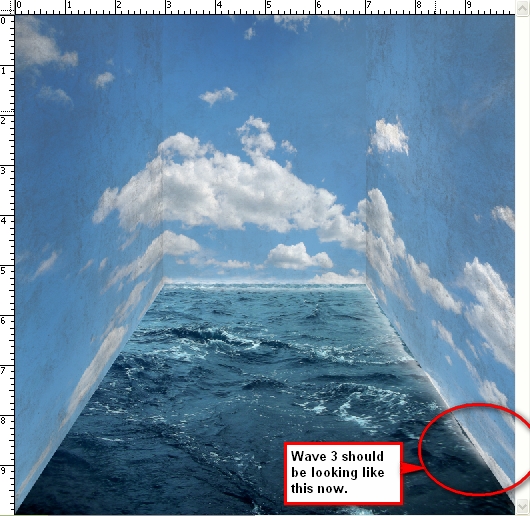
Create a new layer and name it “wave3.” Open your brush tool again and click on the wave brush which has the size 461px. Use the default size and brush it over the right wall just in line with “wave2.” (You can move it using the Move tool or V) Remember to erase the excess waves. See image below:
Create a new layer for “wave4.” Use the same brush we used for “wave3.” Brush it on the right wall just beside “wave3.” Remember to rotate it to be aligned with the present waves and erase the excess waves that you see. See image below:
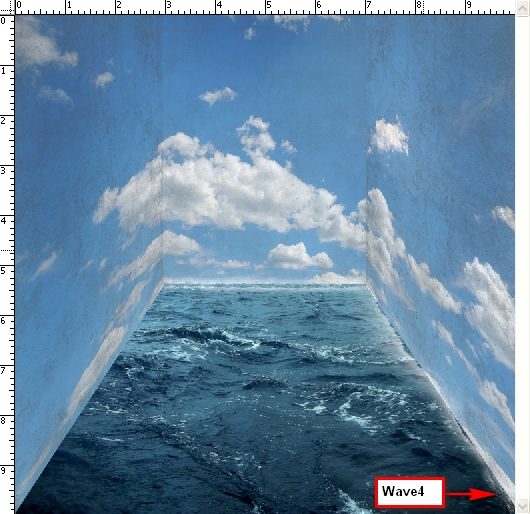
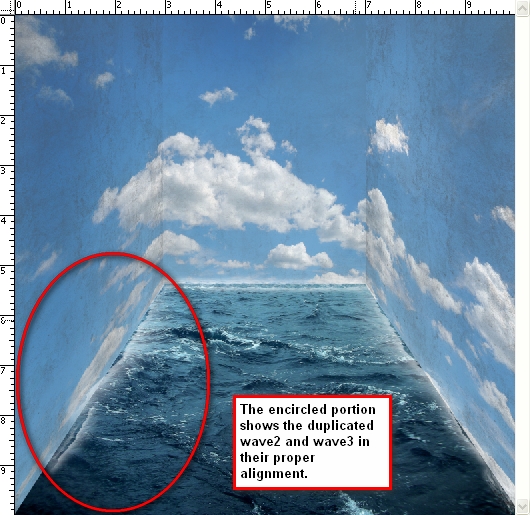
Now for the left wall, just duplicate “wave2” and “wave3” and align them to the left wall. Do the necessary rotations to align it with the wall. See reference below:

Step 6: Creating the Splashes on the Walls

Now we will be creating the splashes on the walls. Activate your brush tool and replace the current brushes with the Water Effects brush by fiftyfivepixels. We will be adding some authentic-looking water splashes with the help of these brushes. Create a new layer and name it “wave5.” Activate your brush tool once again (Take note that the brush opacity should still be set to 100%) and follow instructions from the image below:
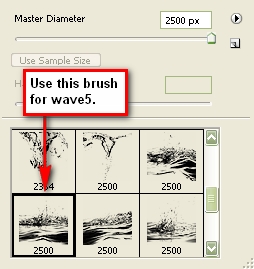
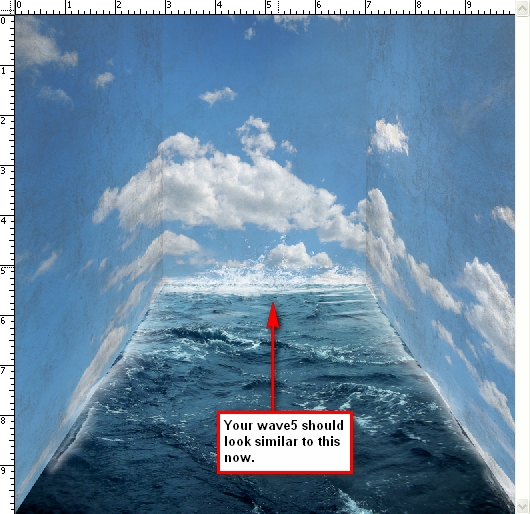
Change the brush size to 1411px and brush it over “wave1.” Erase the excess waves. The result should be similar to this:
Create a new layer and name it “wave6.” Open your brush tool and select the brush indicated by the image below:
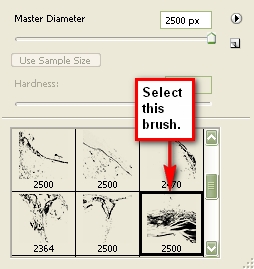
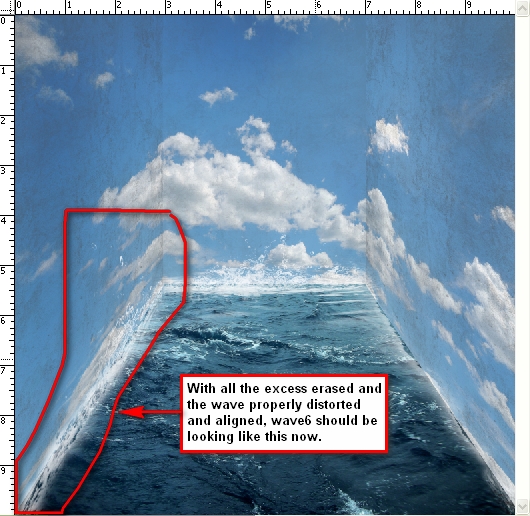
Once you’ve selected your brush, change its size to 1014px. Brush it on the left wall over the duplicated “wave2” and “wave3” layers. Then use your Distort tool via the Transform tools and distort the layer so it is aligned to the wall, making it look like it is splashed on the wall. The result should look something like this:
Create another layer and name it “wave7.” Pick the brush as shown in the image below:
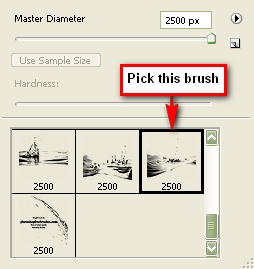
Use the default size which is 2500px. Apply the brush in this manner as seen in the image below:
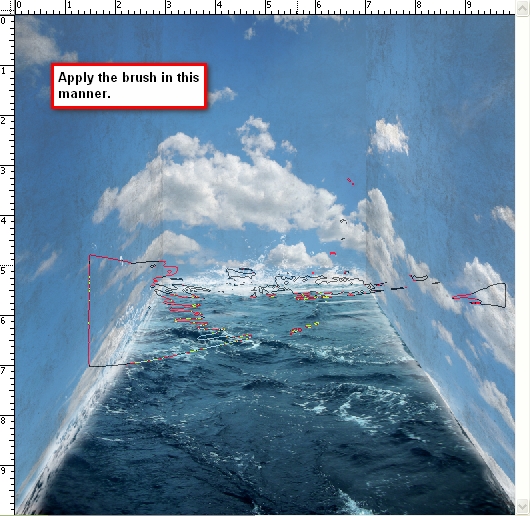
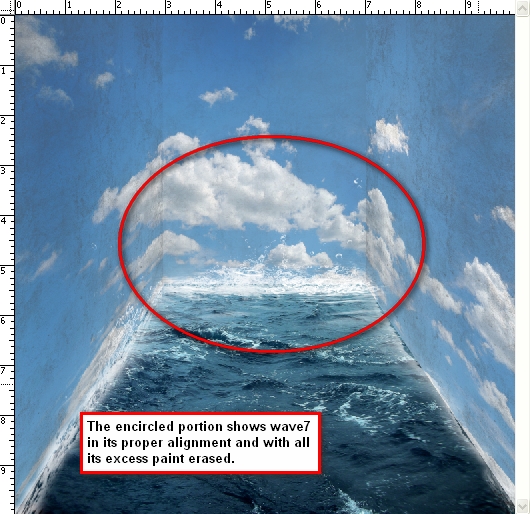
Remember to erase the unwanted waves.

The result should be similar to this image:
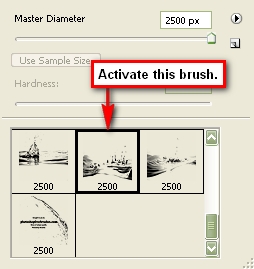
Create a layer and name it “wave8.” Pick this brush from the brush palette (waves brush by anaRasha) as seen in the image below:
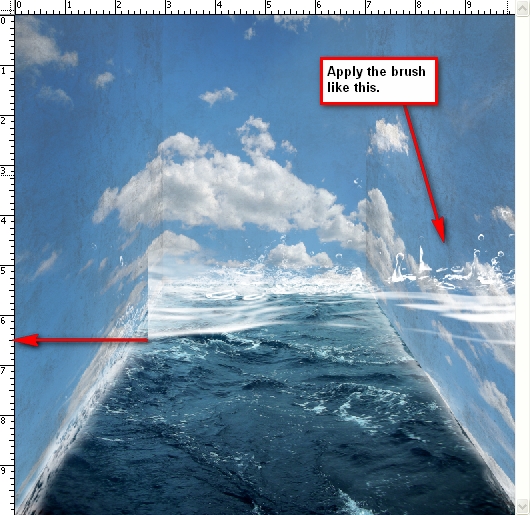
Apply the brush like this:
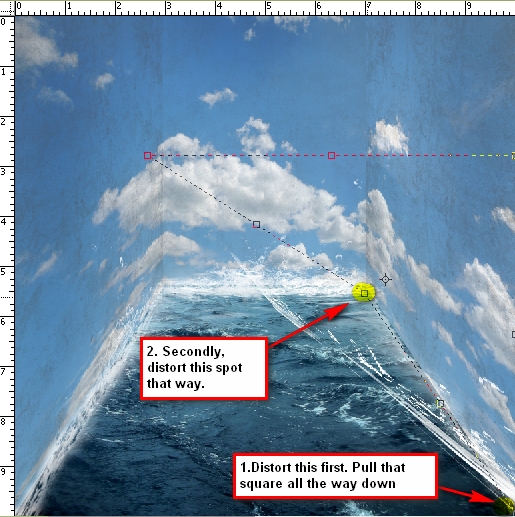
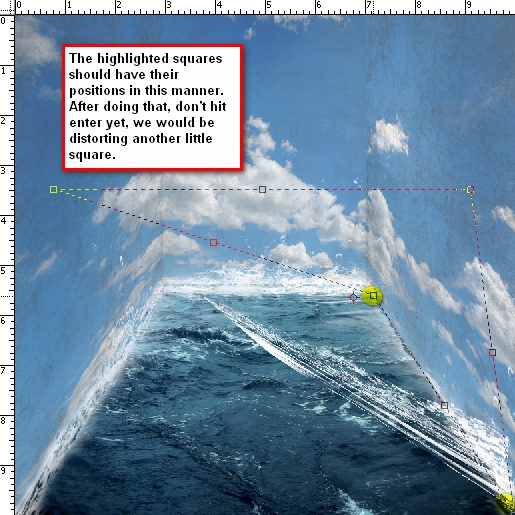
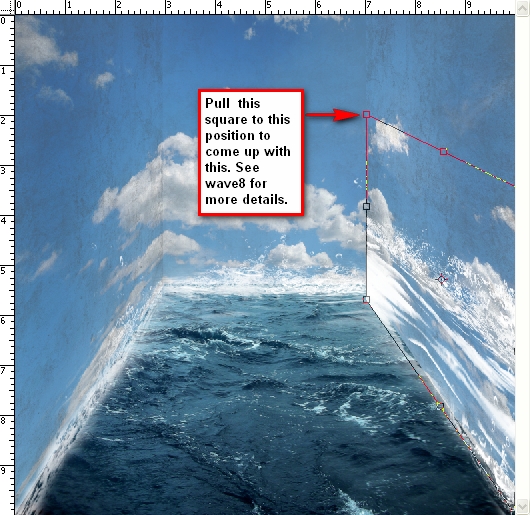
Now we will be distorting “wave8”, this will be a bit tricky so pay close attention to the images shown below:
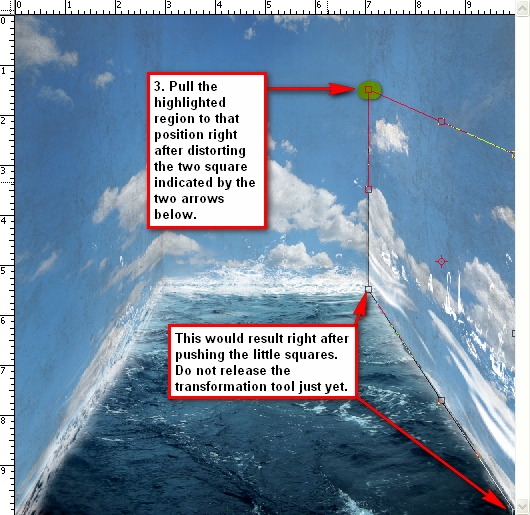
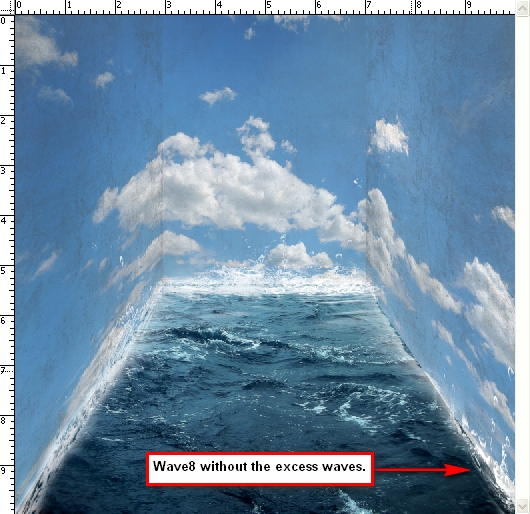
Erase the excess waves.
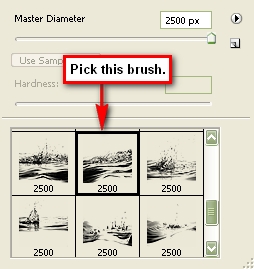
Create another layer and name it “wave9” and pick the brush as shown in the image below:
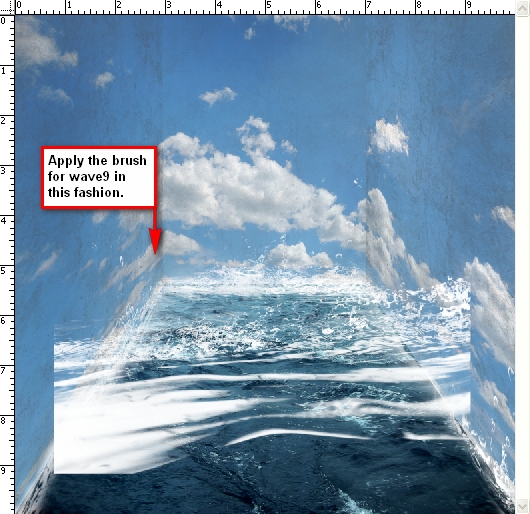
Use its default brush size which is 2500px and apply it to the image as shown below:
Hit the Cmd+T key (transform tool) and click on Distort. We will be using the same distort technique as we used in “wave8.” See reference below:
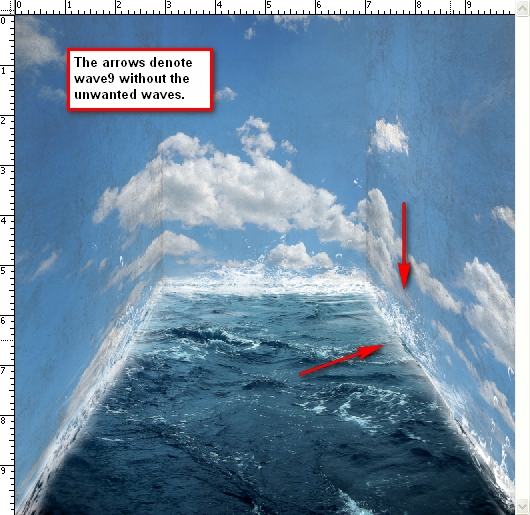
Erase the excess waves to come up with an image similar to this:
Create a layer and name it “wave10.” The brush that we will use is shown in the image below:
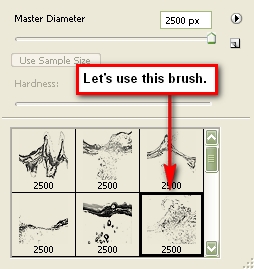
Apply the brush on the center of the image without changing the brush size, and then activate the Transform tool and click Rotate 90 degrees CW. Resize it and move it to the right wall – to where “wave 9” is located. After you’ve done that, transform the image by using the Distort Tool so it would be aligned to the right wall. Scale it to the size of “wave9.” See image below for instructions:

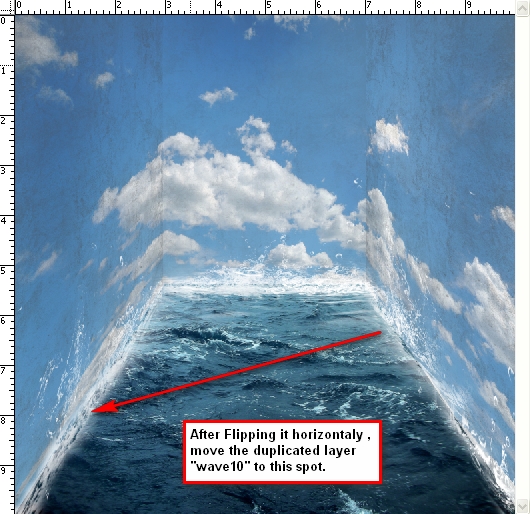
Duplicate “wave10”, activate the Transform tool and click Flip Horizontal. Move the duplicated layer using the Move Tool to the spot shown in the image below:

Step 7: Inserting the Boat and the Clock

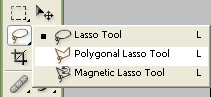
Now that the background is complete, let’s add our subjects. Open Clock by Mind IllusionZ. We’ll be using the Polygonal Lasso Tool to separate the clock from its background. Now, activate the Polygonal Lasso Tool (L). You’ll find it in the Tools Window just below the Marquee Tool. See reference below:
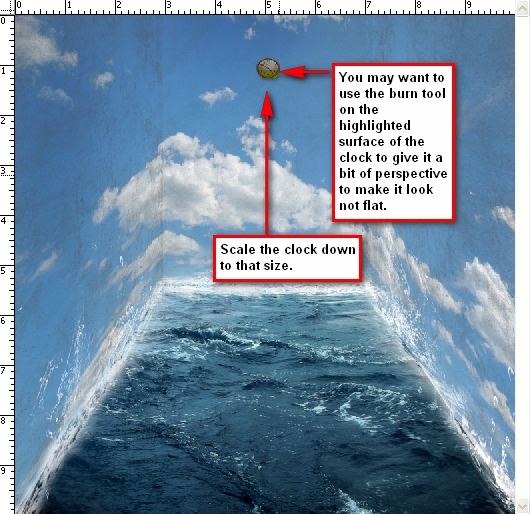
Now that you’ve cut the clock, let’s move it to our canvas by using the Move Tool (V). Rename the layer to “clock.” Activate the Transform tools and scale it down to the level shown in the image below:
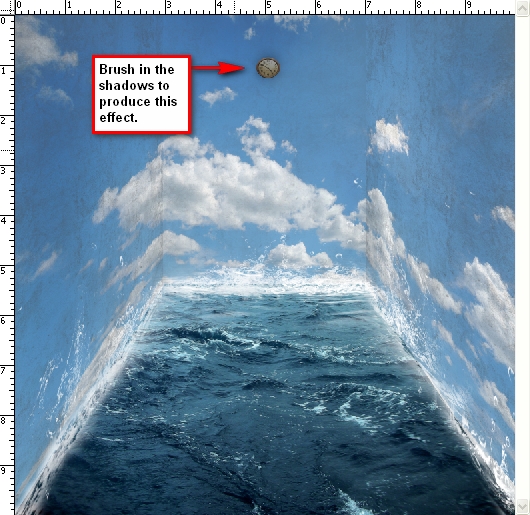
Create a new layer and put it under the clock’s layer and name it clock’s shadow. We will be adding some shadows to the back of the clock to give it depth and to reduce its flatness. Activate your brush tool and right click on the image to bring up the menu and click Reset brushes. Resize your brush to 150px (recommended) and then set its opacity to 25%. See reference below:
Now let’s add the boat. Open Toy Boat and cut it out from its background using the Polygonal Lasso Tool. Once you’ve done that move the boat using the Move tool to our canvas and put it on top of all the layers. We will need to change its Brightness/Contrast, so select the boat’s layer and “go to Image > Adjustments > Brightness/Contrast.” Set its values to:

  • Brightness: -25
  • Contrast: -39

Then Flip the boat horizontally via the Transform tool. Scale it down to the level shown in the image below:
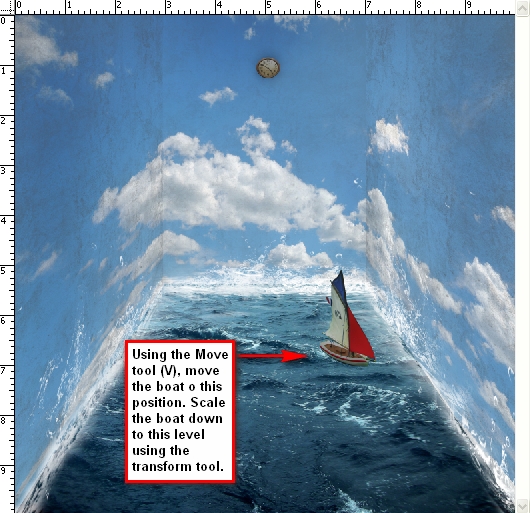
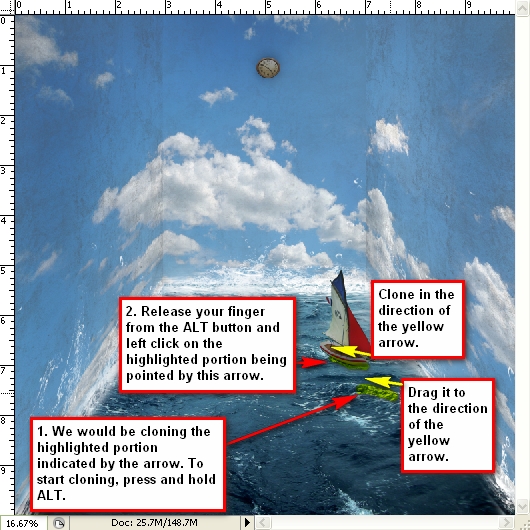
Now let’s add waves to boat. Click the Stormy sea layer which is located under all the layers and activate the Clone Stamp tool (S). Use these values:

  • Brush size: 70px
  • Opacity: 100%

See the image below for instructions on where to clone:

Step 8: Retouching the Image

Technically, our image is complete but let’s spice it up a bit more.

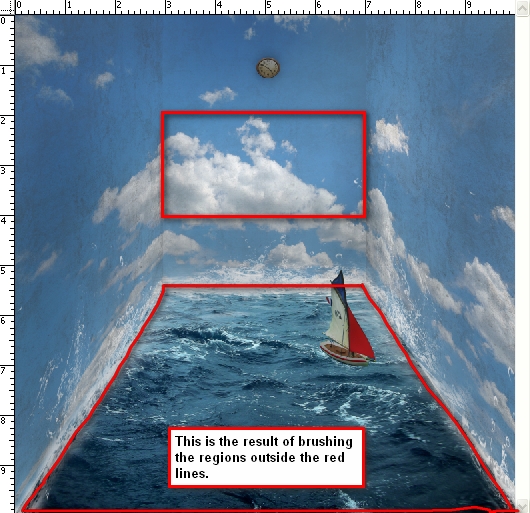
First let’s add more shadows to the walls to give it some more contrast. Create a new layer and name it “shadows.” Just put it under the boat’s layer. Activate your brush tool and use these values:

  • Opacity: 15%

You’ll need a huge brush for this. I would recommend using a brush size of 1400px. See image below for reference as to where we would add the shadows:
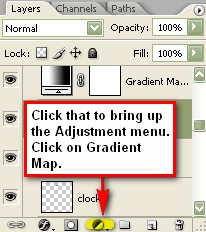
Let’s create a Gradient Map to increase the image’s contrast. “Go to Image > Adjustments > Gradient Map” or you may click on the Create a New Adjustment Layer button (circle button) just beside the “Create a Group” button in the Layer window. See the reference below for the shortcut:
Once you have the gradient map on your Layer window, you will notice that the whole image turns into a high-contrast Black & White image. We don’t want that; so click on the Blending Mode which is found on the Layer window. Click on the word Normal to bring up the menu and find the setting labeled: Luminosity which is found in the bottom most part of the menu. Set the Opacity of the Gradient Map to 100%. The result should be similar to this:
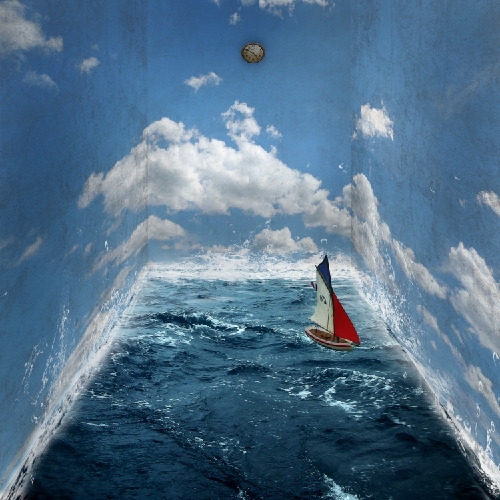
Now let’s make the image a little bit darker to increase its impact. We will be using the curves tool. Click on the “Create a New Adjustment Layer” button and input these values:

  • Input: 137
  • Output: 122

The result should be similar to this:
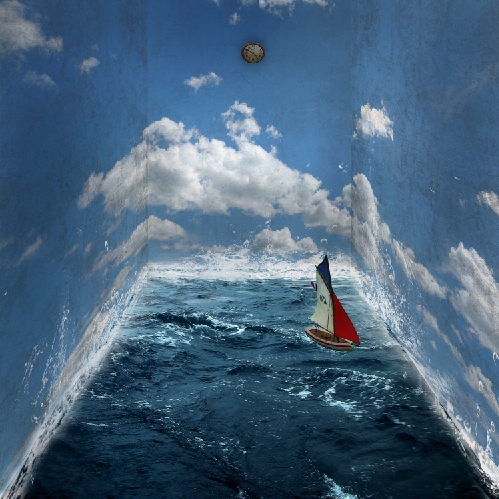

Step 9: Creating the Vignette

Let’s create a vignette to further enhance the perspective of the image. To do that, we need to create a new image. “Go to File > New or press Cmd+N.” Use the same settings as the current image. Create a new file with the same settings as with our canvas except that the background contents should be white (Refer to Step 1)

Once it has been created, “go to Filter > Distort > Lens Correction.” Find the tab Vignette and use these settings:

  • Vignette amount: -100
  • Midpoint: +50

Drag that vignette layer to our original image and put it on top of all the layers that we’ve created, and then use these settings:

  • Blending mode: Multiply
  • Opacity: 75%.

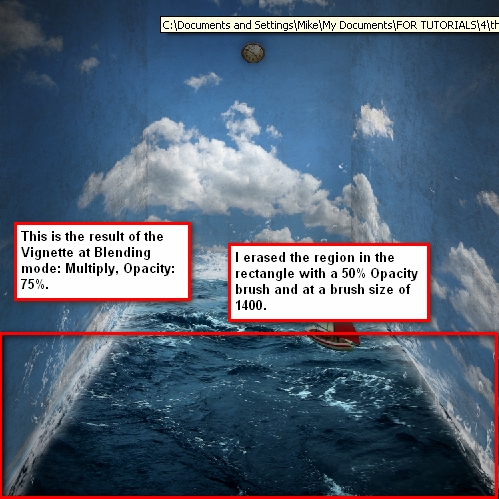
You can adjust the opacity if you wish but I would strongly recommend 75%. Notice that the bottom part of the image seems a little dark. Use your Eraser tool to erase it. Make sure to use the following values.

  • Brush size: 1400px
  • Opacity: 50%

See image below to see where you will need to erase.

Step 10: Giving the Image Another Retouch

At this point our image is mostly complete but let’s add some finishing touches for good measure.

Increase the image’s contrast. Click on the Create a New Adjustment Layer button and pick Brightness/Contrast and enter these values:

  • Brightness: 0
  • Contrast: +7

Now let’s adjust the Color Balance. Click again on the Create a New Adjustment Layer button, and pick Color Balance and enter these values respectively:

  • -6; 0; -14

Create another Gradient Map from the Adjustment layer button and set it to Luminosity, Opacity: 25%.

Adjust the Brightness/Contrast once again but input these values:

  • Brightness: +5
  • Contrast: 0

Let’s add more Cyan and Yellow to our image. Create another Color Balance Adjustment Layer from the Adjustment Layer button and input these values respectively:

  • -6; 0; -6

You may also want to lower the Opacity down to 70% so it is not too green.
Finally, let’s bring out the whites in the image by increasing the contrast. Create another Brightness/Contrast adjustment layer and input these values:

  • Brightness: 0
  • Contrast: +6

Step 11: Sharpening and Saving as PSD

Go ahead and save your file. We can further enhance this image by sharpening it. “Go to Filter > Sharpen > Smart Sharpen” and input these values:

  • Amount: 125%
  • Radius: 1.0
  • Remove: Gaussian Blur
  • Check the More Accurate box

Conclusion

Take a look at the final image that we created.

Subscribe to the PSDTUTS RSS Feed for the best Photoshop tuts and articles on the web.


White Label

We are an ecommerce website partnering with a youtube like website and would like to integrate our online store into their website.

The new website created should be looking like our partner’s website (theme , colours ) and integrate our products , and a shopping cart.
To sum it up , once a customer makes a purchase on the partner’s website, an automated order notification is generated sent to us so we can process the order.

Website will be developed using LAMP, the CMS must be user friendly, must be able to add/remove stock, manage prices,etc.

Keyword Research for Sales and Business

First, a word of warning. This isn’t a keyword research primer for hardcore internet marketers. This is for the rest of us. Most of this will be familiar to anyone seriously involved in internet marketing, but even the most basic keyword research concepts are unfamiliar to 95% of the population.

There are two main ways of making offers for your company’s products or services. You can use your experience to intuit what your customers want, or you can do actual market research. The usual tools for conducting market research are polls and focus groups. Unfortunately, these can be loaded methodologies, since polling makes it hard to avoid positing leading questions and answers, and focus groups tend to generate self-conscious feedback that’s not representative to real-world customers. Both approaches elicit reactive information.

So how can we find out what’s on customers’ minds without asking them? Welcome to the wonderful world of keyword research.

I’m going to create an example in real time without editing it later to prove a point. Suppose I’m a software developer interested in selling a product in the computer security niche. Most vendors like to create a product first, then figure out how to market it. It’s much more efficient to take the opposite approach. We want to find the best marketing angle, then create a product to fill it. That way we don’t have to spend weeks or months creating a product which, we discover in hindsight, nobody wants.

For simplicity’s sake, I’m limiting this example to two types of computer security products: firewall software and antivirus software. Instead of asking myself, “What’s the best way to market these?”, I ask myself a smarter question, “Which one is an easier sell?” The latter question breaks down into two further nuances: “Which one are more people looking for?” and “Which one is more commercial?”

Using the Google AdWords Keyword Tool

To answer these questions, we’re going to use the free Google AdWords Keyword Tool, sometimes called the “Google Keyword Tool” or, less accurately, just “AdWords”. This is the tool advertisers use to determine what search keywords to bid on to trigger their ads. I’ll explain that later, but for now, let’s finish my hypothetical software marketing example.

Go to the Keyword Tool by hitting the link above, or just do a search for “keyword tool”, which usually brings it up as the first search result. If you found it by doing a search, click the “Get keyword ideas” link in the middle of the home page. Now, in the center field captioned, “Enter one keyword or phrase per line”, put in the first keyword, “firewall software”, hit Enter, and on the next line put in the second keyword, “antivirus software”. Now enter the CAPTCHA (a word rendered as a graphic to avoid automated queries) in the box below, and click the “Get keyword ideas” button.

We first need to configure the tool to show the information that’s relevant to what we’re doing, and hide the information that isn’t. In the Match Type dropdown menu, set the type to Exact. In the menu captioned, “Choose columns to display”, select “Show Estimated Avg. CPC”, then select “Hide Advertiser Competition” and “Hide Local Search Volume”. Click the header for Global Search Volume to sort the the data in descending order by this column. Now scroll down to the end of the first keyword list (there are two lists — we’re ignoring the second one in this context), and click “.csv (for excel)” to export the list to Excel.

In the top row of letters, double-click in the separator between the A and B columns to expand the cells of the keyword list. Now click in D2 and enter the following formula: “=b2*c2*.43″, hit Enter, click on D2 again, and double-click the lower right corner of the cell to auto-fill the rest of the column with the same calculation. With the values still highlighted, right-click on the column, select Sort from the context menu, then select Sort Largest to Smallest. This will bring up a Sort Warning that you’ll leave in the default option selected, “Expand the selection”, and click Sort. Then click D1 and type “KW Value” to create a header for keyword value.

The results will vary, since AdWords bids fluctuate like stock prices, but in my spreadsheet, a broad insight stands out: the market for the keyword “antivirus software” is 10 times bigger than the market for “firewall software”: $426K vs. $42K. We’re multiplying the number of searches per month by the cost per click — the amount of money advertisers are willing to pay to capture a reader who clicks on their ad with the respective keyword. The top search result on page 1 of Google statistically gets 43 percent of all of the search traffic, and since advertisers can buy a Sponsored Link directly above this spot, they’re getting roughly the same percentage.

An internet marketer would make further adjustments for clickthrough rates — if you got 43 percent of all search visits, only a tiny percentage of those would actually click on the ad — but that’s beyond the scope of what we’re doing here. We’re only trying to compare the relative size of the markets we’re considering. Between two keywords, the one with the bigger market is either more popular (higher search volume), more commercial (higher cost per click) or both.

What about Competition?

Internet marketers will quickly point out that I’ve left out a key part of the equation: the amount of competition surrounding each keyword. An ideal keyword is one with a search search volume, a high CPC, and a low competition. In this context, “competition” is the number of pages indexed by Google for that keyword relative to the number of searches for it.

Competition is a worthwhile subject to cover in a later post, but I’m skipping it here because we’re not necessarily applying insights from keyword research to internet marketing.

Here’s an example. Suppose you had a law firm in Los Angeles that you wanted to promote with print advertising. Which wording in the Yellow Pages or in the Los Angeles Times’ classifieds would yield better results? Would a headline with “Los Angeles Lawyer” or “Los Angeles Attorney” perform better? Well, “Los Angeles Attorney” has a 20% higher keyword value. As a bonus of extracting our keyword list, we can also discern which niches of legal service are most in demand. “Los Angeles Criminal Defense Attorney” and “Personal Injury Attorney” ace out “Los Angeles DUI Attorney” and “Los Angeles Criminal Attorney” in keyword value by 25%.

Unlike online advertising, where paying for more valuable keywords costs more, there’s no cost difference whatsoever in print, and competition factors are less relevant. Keyword research has an enormous amount of leverage beyond applications to internet marketing. Spend some time experimenting with the Keyword Tool, and see if you can find new ways to create or position your products, your services, or yourself.

How to Create a Vector Baseball Bat and Ball

In this tutorial, you'll learn how to create a baseball bat and a baseball using Illustrator’s 3D tool and blends. We’ll utilize 3D art mapping for texture creation and pathfinder tools to create this classic illustration of a bat and ball.

Step 1

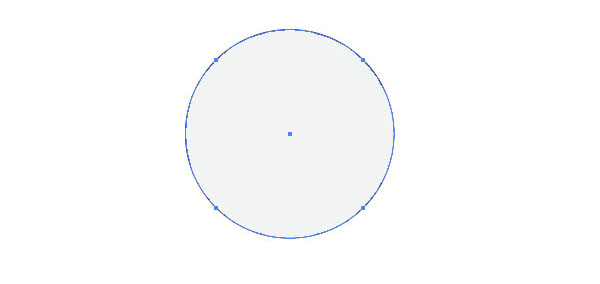
Open up a new document and select the Ellipse Tool (L). Create a circle and fill it with gray for now and a 1pt black stroke.

Step 2

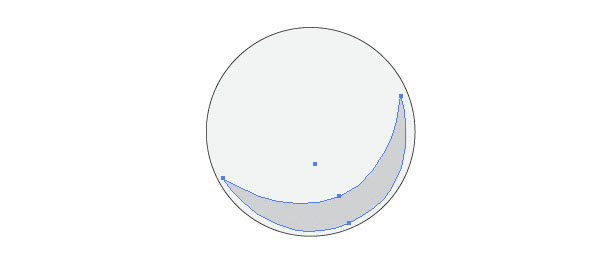
Create a sickle like shape with the Pen Tool (P) and fill it with a darker gray.

Step 3

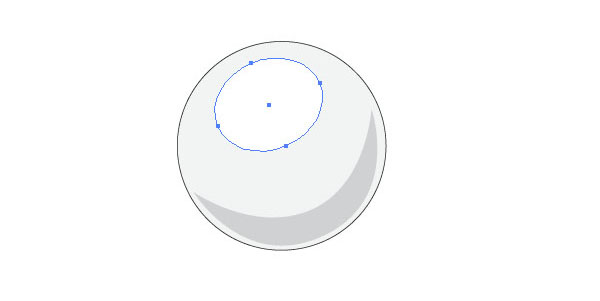
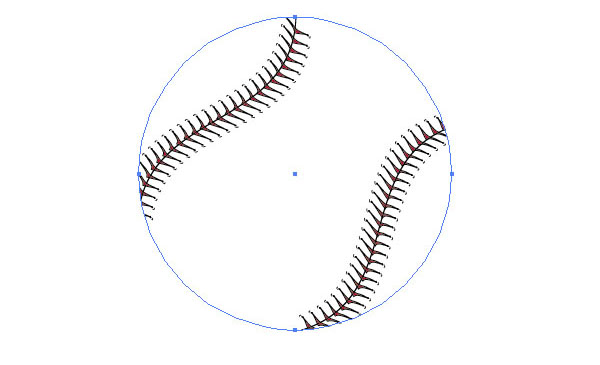
Reselect the Ellipse Tool (L) and create a shape like in the image below. Fill it with white.

Step 4

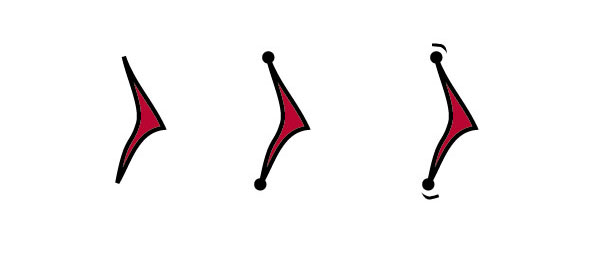
Select the Pencil Tool (N) and start drawing a stitch like shape (A). Make sure the path is closed. Fill it with red and set the stroke to black. Then create two small black circles (B) and place them on the tips. Last, create two small strokes with the Pencil Tool (C) as well.

Step 5

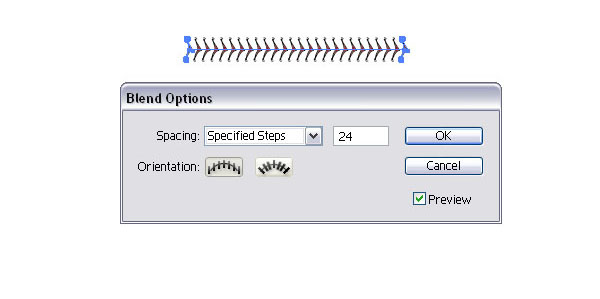
Group the stick (Command + G) and make a duplicate (Option-drag). Place them apart and select both. Create a blend (Command + Option + B). Then open the Blend Options (Object > Blend Options) and set the Specified Steps to 24, or whatever distance you want to achieve.

Step 6

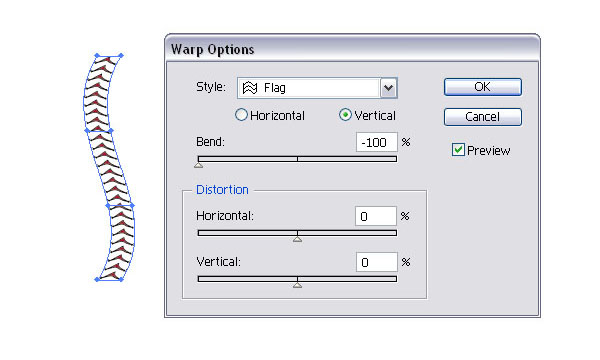
Then select it with the Selection Tool (V) and rotate it 45 degrees. With the selection still active, go to Object > Envelop Distort > Warp Options and apply the settings below.

Step 7

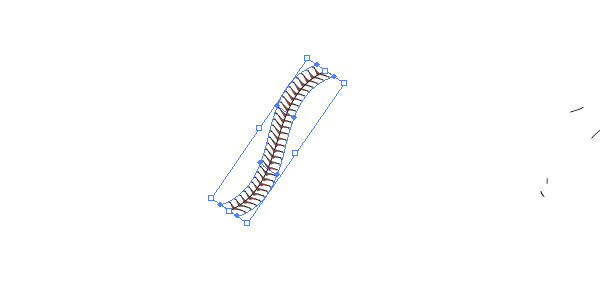
Rotate it slightly clockwise.

Step 8

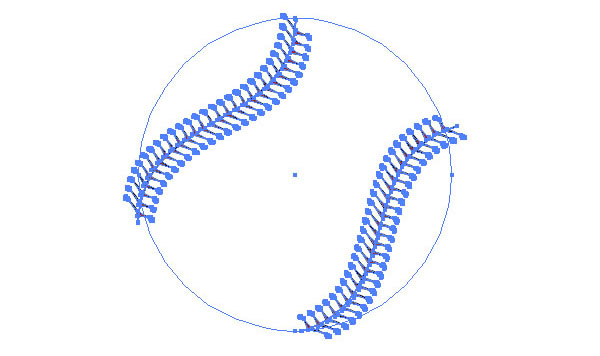
Reflect the stitches (Select object then hit O + Option-drag).

Step 9

Make a copy of the original circle for the baseball and place it above the stitches. Set the fill and stroke to none. Then select the stitches and the circle and apply a Clipping Mask (Command + 7).

Step 10

Now we have the stitches clipped.

Step 11

Place the stitches on top of the baseball objects.

Step 12

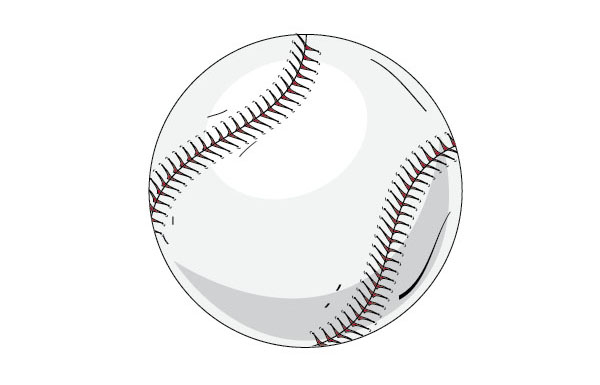
To make the baseball look a little more ragged, add some strokes with the Pencil Tool (N). You can replace the stroke with a brush of your liking.

Step 13

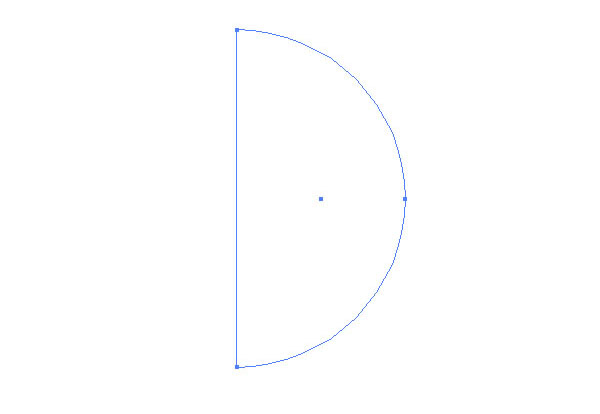
To make the baseball a little bit more flashy, we will had a few highlights. Create a half circle and fill it with white.

Step 14

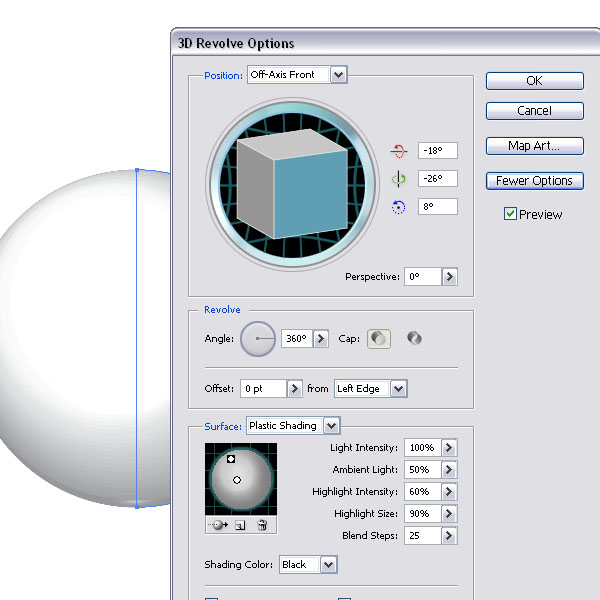
Then with the half circle selected, go to Effect > 3D > Extrude & Revolve and apply the settings below.

Step 15

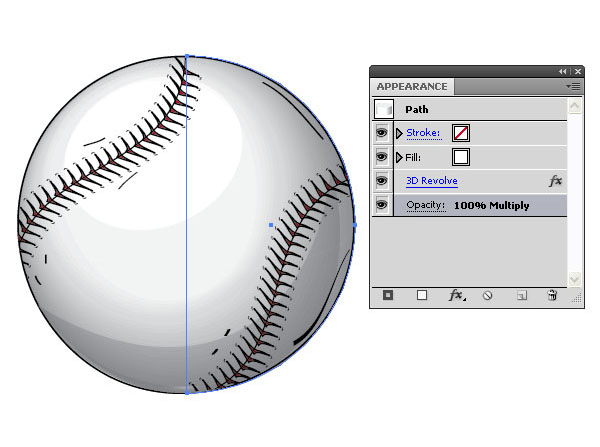
Place the 3D object on top of the baseball and set the Layer Mode to Multiply, 100%. Of course, you could create a circle with a radial gradient fill instead.

Step 16

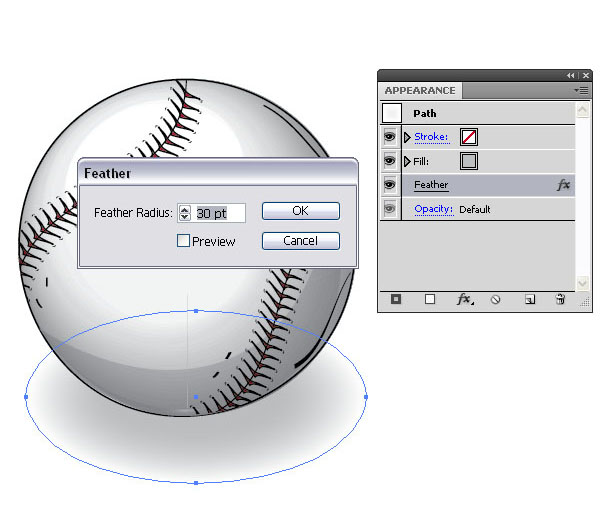
Create a small gray ellipse and place it under the baseball. Then apply a Feather effect of 30pt (Effect > Stylize > Feather).

Step 17

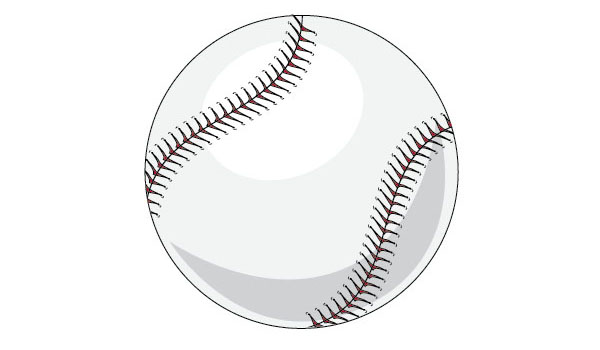
The baseball is ready.

Step 18

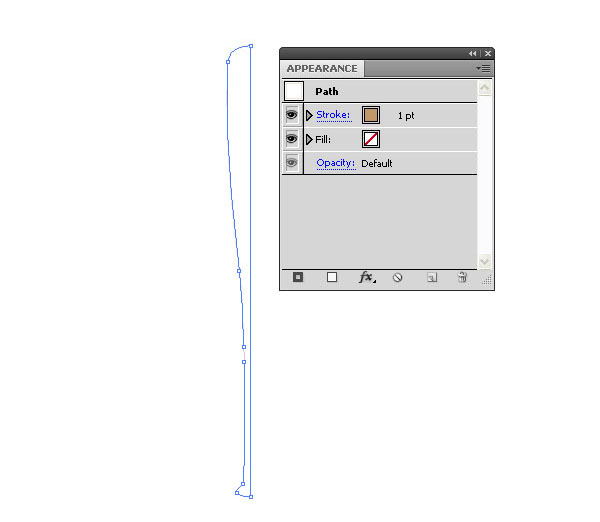
Let’s move on to the baseball bat. Have a look at some baseball bats and pick a nice one for your reference. Then start creating it with the Pen Tool (P) in outline. You need only create half of it. Make sure the path is closed. Set the Stroke to a beige color.

Step 19

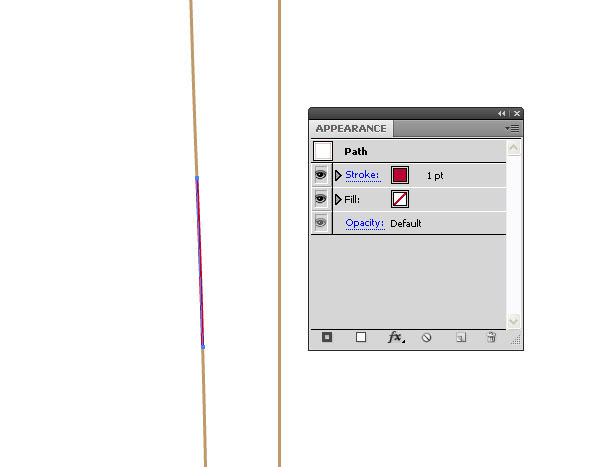
Since we want to add a small detail to the bat, select the Pen Tool (P) again and add two extra points to the outline along the handle. Then with the Scissor Tool (C), cut both points by simple clicking on them. Then select the small path with the Direct Selection Tool (A) and set the stroke to red.

Step 20

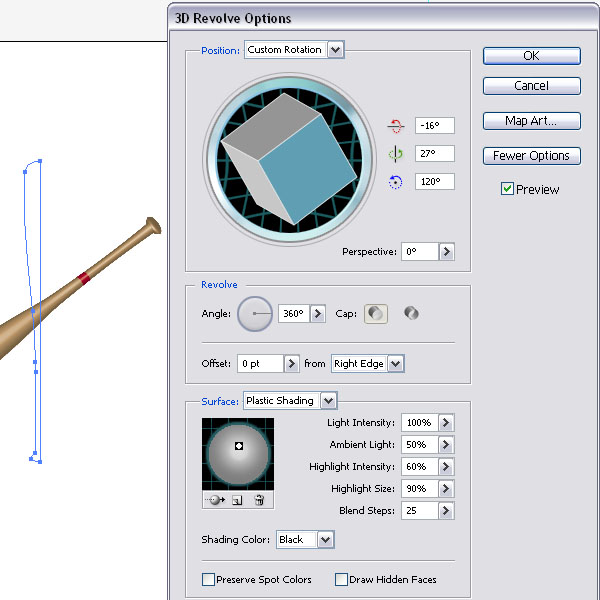
Select the outline and apply the 3D Revolve Options below (Effect > 3D > Revolve). Make sure you place the highlight so it shows a nice end of the baseball bat.

Step 21

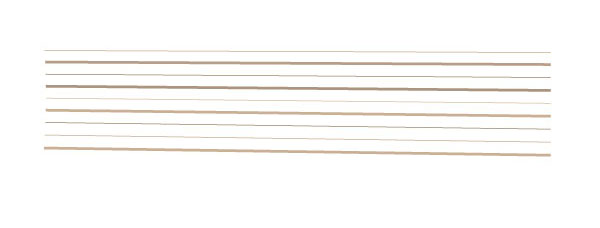
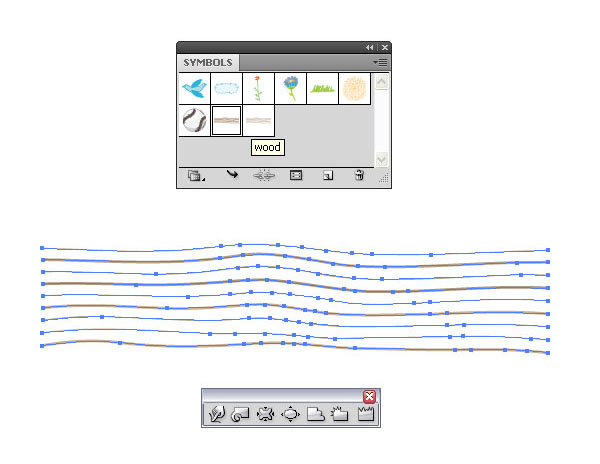
For the wood texture we need to create a symbol so we can apply it as a texture map. Select the Pencil Tool (N) or the Pen Tool (P) and create a few lines, one thin and one thick in a beige and brown.

Step 22

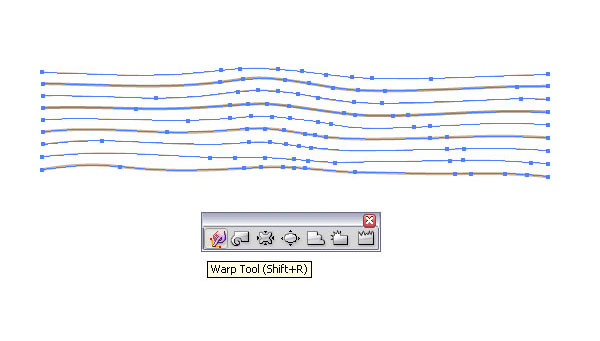
Then select the Warp Tool (Shift + R) and warp the lines a bit.

Step 23

Then select all the lines and drag them into the Symbols Palette.

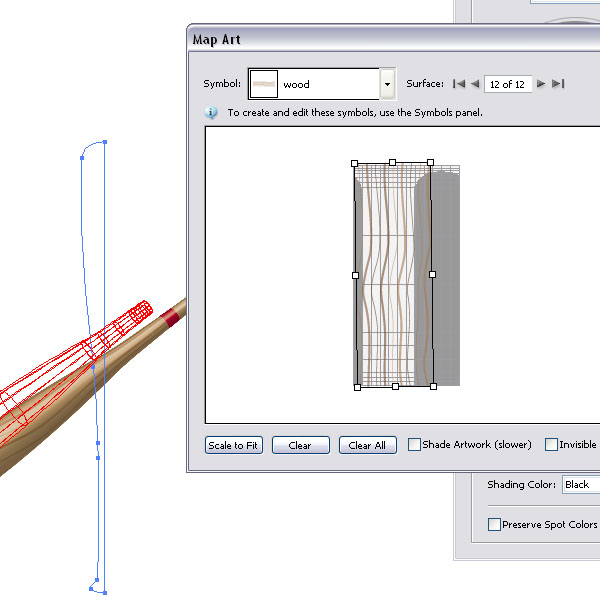
Step 24

Reselect the bat and open the 3D Revolve via the Appearance Palette. Click the Map Art button and add the wood symbol.

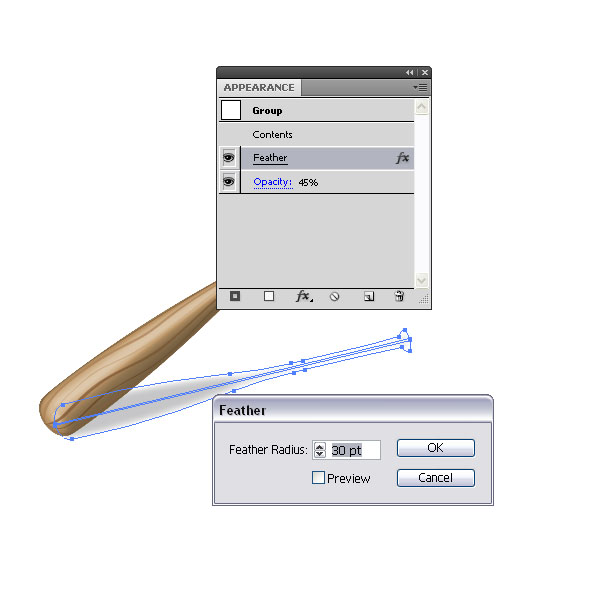
Step 25

Last but not least, add a shadow just like we did in Step 16. You can make a copy of the bat, expand the appearance and fill it with a gray color. Then apply the Feather effect again. Make sure you scale or rotate the shadow shape.

Conclusion

This is the finished artwork. A baseball bat and a baseball. I hope you enjoyed this tutorial.


Rewrite 300 Articles

Hi,

I need some one to rewrite 100 % uniqe 300 article. Each article should be of around 350 words. The budget is very very low. Its a good opportunity for the coder to get thier first review.

Article should pass copyscape. Will keep some % of money in escrow and will be transfering as the work progresss.

Those who can not work with the given budget do not bother to bid.

Please attache your previous writing sample work in .doc file.

Google Data Scrape Script

I need a script to do some data scraping, something that will be used on a regular basis.

For a given search phrase e.g. “cat”, I need the urls for each item in
a) the search results pages
b) the ads.

User Input would be

1) search phrase
2) number of search pages or results to find the urls for
3) include ads display url or not.

Script should be in PHP, should not use a database.

Results should be the list of URLs found in plain text, in two textAreas.

EXAMPLE:

search for “cat” returns:

SEARCH
en.wikipedia.org/wiki/Cat
www.cat.com
icanhascheezburger.com

ADS
www.PetSmartCharities.org
northeastanimalshelter.org
AnythingPaintedOnCanvas.com
….

Graphic/animation/flash

need a graphic dedsigner / animation/flash speaclist to design two 20 second video/animation commercial..

– final format shld be wmv & avi files..
– done needs to be complleted within 24-48hrs…no exception..i have a deadline ..
– animation should look like this ; www.mytaxitv.ca

again i need a very quick turnaround on this..check my feedback i pay 100% on time and i work with professionalism…hence i ve dealt with a lot of time waster…and i wont be paying any escrow..its a big pain cancealin escrow and getting my funds back..

2 animated ads for $20 each..pls send past work and do not bid more than $40..

Php Guru Needed 2

I have an ecommerce program written in PHP that I need to have commented so that I know exactly what each part of the code does. I have the manual to what different pages do, but i want to know what each function, variable, array does and why and i wan it commented in the proggie itself. I need someone fluent in English and loves to teach.

Quick Tip: Using Google App Engine as a Proxy Server

Google App Engine can be used as a free and convenient way around restrictive or missing cross domain policy files. This tutorial will show you how to create a GAE proxy that provides access to restricted resources for your Flash application.


Final Result Preview

Let’s take a look at the final result we will be working towards:

That’s just sent some test data to a remote spreadsheet hosted on Google Docs. This would not work without a crossdomain.xml file on the receiving domain – yet, the cross domain policy file on Google Docs does not allow this, and I can’t change it. Read on to find out how this was done.


Why Use a Proxy?

In my last Quick Tip A Guide to Cross Domain Policy Files I showed you how cross domain policy files are used by Flash to determine what data can be accessed from remote domains. While being able to control access to resources is great for administrators, it is a pain for Flash developers trying to access data on a server that does not have a cross domain policy file, since no policy file means no access. Setting up a cross domain policy file can be easily overlooked, and I have run into more than one web service provider that didn’t think to cater for Flash developers.

I also mentioned that the issue was easily circumvented by use of a proxy. The idea behind a proxy is that it will accept connects from remote Flash applications (by supplying the appropriate crossdomain.xml file), then act as an intermediary passing data back and forth. The only real requirement of a proxy server (as it relates to Flash) is that it should be able to access public resources regardless of the permissions that may or may not be granted by a cross domain policy.

The really good news is that you can setup just such a proxy with no up front costs using Google App Engine (GAE). GAE will host a web application, and assuming your traffic requirements are below their threshold, there is no charge. What I will demonstrate here is how to create a simple GAE web application that can act as a proxy, allowing Flash applications to access resources that would otherwise be off limits.


Step 1: Google Spreadsheets and the Dreaded crossdomain.xml

There is a really neat feature in Google Docs that allows you to create a web form which can be used to populate a spreadsheet. I have set up just such a form here, with the results of this form being published as a public web page here. The form is a standard HTML form, which can be submitted programmatically using a standard HTTP POST operation.

I was recently in a position where I needed to collect some feedback from a Flash application I had distributed. These forms seemed like a great way to do that. There were no hosting costs for me, the results could be easily analyzed directly by the spreadsheet, and I could be pretty sure that a Google service like Docs would be reliable. The only problem was the cross domain policy.

<?xml version="1.0"?>
<!DOCTYPE cross-domain-policy SYSTEM "http://www.macromedia.com/xml/dtds/cross-domain-policy.dtd">
<cross-domain-policy>
<site-control permitted-cross-domain-policies="none" />
</cross-domain-policy>

This particular policy file allows no access to the http://spreadsheets.google.com/ domain for remote Flash applications. And sure enough, if you try to submit a form programmatically from Flash, it will fail.

This is a perfect example where a proxy can help.


Step 2: Create a GAE Application

Sign up for an App Engine account. You will be asked to create a new application. Here I have created an application called activetutsproxydemo. You will have to pick your own unique application name.


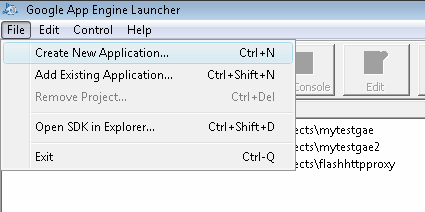
Step 3: Get the GAE SDK

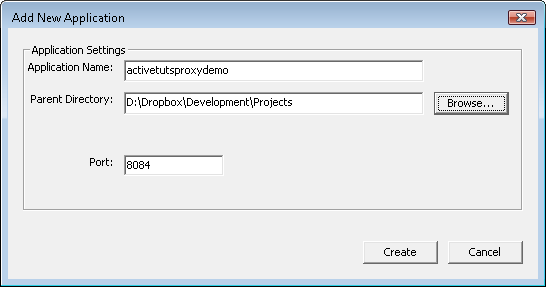
Download and install the App Engine SDK. This will install an application called Google App Engine Launcher. Run it and click File | Create New Application…

Type in the name of the application you created in Step 1, select a location for the application’s files to be stored, and click the Create button.


Step 4: Modify the main.py File

The Google App Engine Launcher will create a default application for you in the directory you specified. You should see a file called main.py. Overwrite the contents of this file with the following Python code:

from google.appengine.ext import webapp
from google.appengine.ext.webapp.util import run_wsgi_app
import urllib
from google.appengine.api import urlfetch

class GoogleForm(webapp.RequestHandler):
	def post(self):
		destinationURL = "http://spreadsheets.google.com/formResponse?formkey=dHh4VTRVbGtSM3ZycUtpbEFKSUJ2Znc6MA&ifq"
		form_fields = {
			"entry.0.single": self.request.get('entry.0.single'),
			"entry.1.single": self.request.get('entry.1.single'),
			"entry.2.single": self.request.get('entry.2.single'),
			"entry.3.single": self.request.get('entry.3.single'),
			"pageNumber": "0",
			"backupCache": "",
			"submit": "Submit"
		}
		form_data = urllib.urlencode(form_fields)
		result = urlfetch.fetch(url=destinationURL, payload=form_data, method=urlfetch.POST, headers={'Content-Type': 'application/x-www-form-urlencoded'})
		print result

class CrossDomain(webapp.RequestHandler):
    def get(self):
		self.response.headers['Content-Type'] = 'text/xml'
		self.response.out.write("""<?xml version="1.0"?> <cross-domain-policy> <allow-access-from domain="*" /> </cross-domain-policy>""")

application = webapp.WSGIApplication([('/googleform', GoogleForm), ('/crossdomain.xml', CrossDomain)], debug=True)

def main():
    run_wsgi_app(application)

if __name__ == "__main__":
    main()

You can find more information about how this code works in the GAE documentation, but I’ll highlight the important bits here.

This line says that the GoogleForm class will be executed when the http://youapplicationname.appspot.com/googleform address is accessed, and the CrossDomain class will be executed when the http://youapplicationname.appspot.com/crossdomain.xml address is accessed.

application = webapp.WSGIApplication([('/googleform', GoogleForm), ('/crossdomain.xml', CrossDomain)], debug=True)

The CrossDomain class will output a cross domain policy file that allows full access to the domain by remote Flash applications.

class CrossDomain(webapp.RequestHandler):
    def get(self):
		self.response.headers['Content-Type'] = 'text/xml'
		self.response.out.write("""<?xml version="1.0"?> <cross-domain-policy> <allow-access-from domain="*" /> </cross-domain-policy>""")

The GoogleForm class is used to pass the incoming HTTP POST request to the Google Docs Form.

class GoogleForm(webapp.RequestHandler):
	def post(self):

The destinationURL variable defines the URL that the form will post to (no, this is not the same as the URL used to view the form, but rather the URL assigned to the form tag’s action attribute.

destinationURL = "http://spreadsheets.google.com/formResponse?formkey=dHh4VTRVbGtSM3ZycUtpbEFKSUJ2Znc6MA&ifq"

The form_fields variable maps the incoming HTTP POST variables with those that need to be supplied to the Google form.

form_fields = {
	"entry.0.single": self.request.get('entry.0.single'),
	"entry.1.single": self.request.get('entry.1.single'),
	"entry.2.single": self.request.get('entry.2.single'),
	"entry.3.single": self.request.get('entry.3.single'),
	"pageNumber": "0",
	"backupCache": "",
	"submit": "Submit"
}

The data in the fields is URL encoded. This is a little redundant, because they should already be encoded by the Flash application when they are sent, but it doesn’t hurt to make sure.

form_data = urllib.urlencode(form_fields)

The data is then re-POSTed to the Google servers, and the result is saved in the result variable.

result = urlfetch.fetch(url=destinationURL, payload=form_data, method=urlfetch.POST, headers={'Content-Type': 'application/x-www-form-urlencoded'})

The result is then printed, which has the effect of sending it back to the Flash application.

print result

Step 5: Upload the Application

Select your GAE application in the Google App Engine Launcher and click the Deploy button.

You will prompted for your Google credentials, and then the application will be uploaded.


Step 6: Test Your Application

Go to http://yourapplicationname.appspot.com/crossdomain.xml (you can see my crossdomain.xml file here). If all went well, you should see an XML file (you may need to view the page source to see the policy file).

If you see something similar to the image above, your GAE web application is up and running.


Step 7: Accessing the Form with Flex

The MXML file below is an example of how to do an HTTP POST action using the HTTPService class.

<?xml version="1.0" encoding="utf-8"?>
<mx:Application
	xmlns:mx="http://www.adobe.com/2006/mxml"
	layout="absolute"
	width="550"
	height="400"
	applicationComplete="onAppComplete()">
	<mx:Script>
		<![CDATA[
			import mx.rpc.events.FaultEvent;
			import mx.controls.Alert;
			import mx.rpc.events.ResultEvent;
			import mx.rpc.http.HTTPService;
			private function onAppComplete():void
			{
				var variables:Object = new Object();
				variables["entry.0.single"] = "test0";
				variables["entry.1.single"] = "test1";
				variables["entry.2.single"] = "test2";
				variables["entry.3.single"] = "test3";

				var service:HTTPService = new HTTPService();
				service.url = "http://spreadsheets.google.com/formResponse?formkey=dHh4VTRVbGtSM3ZycUtpbEFKSUJ2Znc6MA&amp;ifq";
				service.resultFormat = HTTPService.RESULT_FORMAT_TEXT;
				service.method = "POST";
				service.addEventListener(ResultEvent.RESULT, function(event:ResultEvent):void
					{
						Alert.show("Data was sent successfully!");
					}
				);
				service.addEventListener(FaultEvent.FAULT, function(event:FaultEvent):void
					{
						Alert.show("There was an error!");
					}
				);
				service.send(variables);
			}
		]]>
	</mx:Script>
</mx:Application>

The variables variable maps thePOST variable names to the data that will be sent.

var variables:Object = new Object();
variables["entry.0.single"] = "test0";
variables["entry.1.single"] = "test1";
variables["entry.2.single"] = "test2";
variables["entry.3.single"] = "test3";

Next we create a new instance of the HTTPService class.

var service:HTTPService = new HTTPService();

We need to specify which URL we will be POSTing to. For this first test we will try POSTing to the Google form directly. This will actually fail, but it is a good demonstration of why we need to use a proxy in the first place.

service.url = "http://spreadsheets.google.com/formResponse?formkey=dHh4VTRVbGtSM3ZycUtpbEFKSUJ2Znc6MA&amp;ifq";

We tell the HTTPService object that we are expecting plain text in response.

service.resultFormat = HTTPService.RESULT_FORMAT_TEXT;

We also need to tell the HTTPService object that we want to perform an HTTP POST operation.

service.method = "POST";

Some event handlers are set up to let us know if the operation was successful or not.

service.addEventListener(ResultEvent.RESULT, function(event:ResultEvent):void
	{
		Alert.show("Data was sent successfully!");
	}
);
service.addEventListener(FaultEvent.FAULT, function(event:FaultEvent):void
	{
		Alert.show("There was an error!");
	}
);

Finally, we send the data off.

service.send(variables);

Step 8: Compile the Application

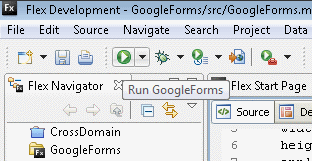
If you compile and run the application using the button with the green arrow on it, you will find that it actually works.

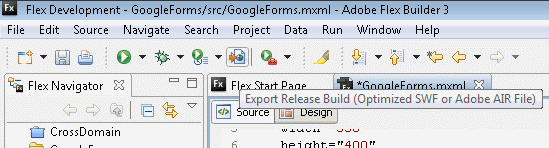
So what is the big deal? Why go to all the trouble of creating a proxy? Well, the application will work on your local machine because the /bin-debug/ directory where Flex places the compiled SWF is a trusted location. This means the application will be able to access the Google server. To simulate how the application would work on a web site though you need to compile a release version.

Now, when you run the SWF from the /bin-release/ folder, you will see that the operation has failed. This is how the SWF will act when it is uploaded to a web site.


Step 9: Using the Proxy

Using the GAE proxy is a simple case of changing the URL that is assigned to the HTTPService object.

service.url = "http://activetutsproxydemo.appspot.com/googleform";

Now when you run the application, either from the bin-debug or bin-release directories, the operation will complete successfully.


Conclusion

Creating a Google App Engine proxy application will allow you to easily access resources on servers that would otherwise exclude Flash applications. As long as your application is not requesting massive resources you should find that you will not cross the thresholds for the free GAE service.

However, don’t be tempted to create a more generalized proxy. While it would be possible to create a proxy that used a special variable to determine the destination URL, making the application capable of acting as a proxy for any resource, such a server would be quickly exploited by other developers. Here we have hard coded the destination url, meaning that at worst someone could use this proxy to pass data to the Google Docs form. This makes it of little use to anyone else, and reduces the likelihood that the service will be abused.

I hope you liked this tutorial, thanks for reading!

New Update Form On Cms

I need a revised edit/update page for my CMS

The structure at the moment has a page which displays the record details as a list and can be filtered in 3 variable.

I want 2 additional pages creating ( different fields on each page) so that this list becomes a form based page displaying 5 records ( with the option to change the number displayed) a list of links to the next pages, and a submit button that updates all the records displayed.

I have a working version of each page displaying a single record , so a lot of the PHP exists.

The PDF shows the existing page and the layout of the 2 new forms

I want the job completing straight away

WordPress Long Term Expert

Hi !

I’m looking for a long term wordpress theme expert.

For a new project i need full featured wordpress themes from given HTML-Templates.

This means :
– integrate every template feature (e.g. sliders, image view) and all javascript
– integrate comments template at the css
– integrate widget css for the default wordpress widgets (e.g. calender)
– integrate pages and/or categories menus (and with WP3.0 the new internal menus)
– integrate different page-templates (e.g. sitemap, archives, blag-template, gallery-template, portfolio-template ….) with the needed options as meta-box fields (e.g. background-image, blog-category, …)
– integrate different home-layouts, if needed
– setup and integrate all the needed admin-options (.e.g logo upload, pages to exclude, categories to exclude, background image ….)
– theme must be W3C-validator ready for CSS and HTML (i will check this)

You will get :
– the HTML-template
– a full featured admin-framework to implement, with meta-box handling, theme-option handling, image resizing functions, image gallery functions
– a full featured theme-framework, with full localization

If my idea works, you have to transform up to 30 templates each month.
It’s also possible to give you a percentage rate of the selled amount.

I got the full rights of the created wordpress themes.

Your bid is per theme.

To get an example on the type of HTML-Templates take a look at the site-templates from themeforest

I’m a programmer for more than 20 years, and i work with wordpress for more than 2 years. For a good programmer this job only takes up to 5 hours, even if you get a full featured framework.

So please.
Make your bids more realistic.

Revise Edit Form On Cms

I need a revised edit/update page for my CMS

The structure at the moment has a page which displays the record details as a list and can be filtered in 3 variable.

I want 2 additional pages creating ( different fields on each page) so that this list becomes a form based page displaying 5 records ( with the option to change the number displayed) a list of links to the next pages, and a submit button that updates all the records displayed.

I have created a static page of each of the forms.

The PDF shows the existing page and the layout of the 2 new forms

I want the job completing straight away