Half of England council votes in

Voter at the ballot box generic

About 20 million electors will be voting in 164 council polls being held in England on Thursday, at the same time as the general election.

These include those for 32 London boroughs, 36 metropolitan authorities and 20 unitary authorties.

A total of 15,785 candidates are fighting 4,222 seats.

Five are already returned unopposed – two Tories at Cherwell and one at Daventry, one Labour at Hartlepool and an independent at Purbeck.

There are mayoral contests at Hackney, Lewisham, Newham and Watford where residents face a triple election on the same day – general, council and mayor.

When the seats being contested this year were last fought in 2006, a BBC survey put Tories 14% ahead.

The latest opinion polls suggest Labour has a chance of overall gains this year.

Polling stations are open between 0700 and 2200BST on Thursday.

This article is from the BBC News website. © British Broadcasting Corporation, The BBC is not responsible for the content of external internet sites.

Brown ‘willing to talk’ to rivals

Gordon Brown

Gordon Brown said he was proud of Labour’s record after 13 years in power as he delivered his victory speech in Kirkcaldy and Cowdenbeath.

He said it was his duty to play a part in Britain "having a strong, stable and principled government".

And he said he wanted that government to be able to lead Britain into "sustained recovery".

BBC political editor Nick Robinson said Mr Brown’s eyes "spoke of defeat" during his victory speech.

Labour said it was "too early to say" if they will do a deal with the Lib Dems.

Mr Brown told supporters and opponents at the count that there was no greater privilege than to serve in parliament the people he had grown up with.

"I’m proud of much that the Labour government has achieved, the minimum wage, the child tax credit, the NHS renewed, more police officers, half a million children out of poverty, two million more jobs than in 1997.

‘Sustained recovery’

"I’m proudest of all to have been returned as MP for Fife now seven elections in a row by the people who know me best, know who I am, what I stand for and what I went into politics to achieve."

In his victory speech, delivered at 0140 BST, Mr Brown said: "The outcome of this country’s vote is not yet known.

"But my duty to the country, coming out of this election, is to play my part in Britain having a strong, stable and principled government, able to lead Britain into sustained economic recovery and able to implement our commitments to far-reaching reform to our political system – upon which there is a growing consensus in our country."

Mr Brown said he entered parliament to fight for jobs, improve schools, fight discrimination and renew the NHS.

Mr Brown said he was "deeply honoured" to have been re-elected and pledged: "I will not let you down."

This article is from the BBC News website. © British Broadcasting Corporation, The BBC is not responsible for the content of external internet sites.

Expert Article Writer Needed

I am looking for an excellent article writer who is good in research on various topics, based on the given keywords. Each article 350 words minimum. You also need to rewrite(spin) 5 times based on your original article. You will be expected to deliver 10-15 unique articles plus the rewritten copies weekly. You will be receiving weekly pay based on number of articles. Your articles must be original, unique, quality, fluent, no plagiarism and pass Copyscape. Msn user preferred for daily follow-up. This weekly job may turn out to be long term if you know what you are doing. Please send me a sample article together with your full name, country of residence and bid.

7 Simple and Useful Command-Line Tips

One of the most useful, but under-used, tools a web developer has is the command-line. The terminal often scares people away; so here’s where we demonstrate some of the most useful day-to-day commands.


1. The Basics

If you’re new to the command-line, you’re going to want to know a few things to help find your way around.

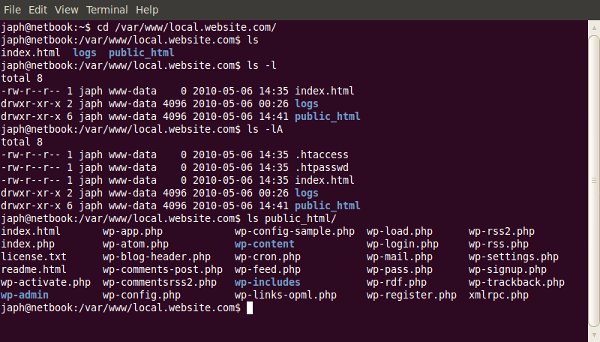
Changing directories

You can change to a different directory with the following:

cd ../relative/path/to/other/directory/or/file
cd /absolute/path/to/other/directory/or/file

If you get lost, you can go back to your “home” directory with the command “cd ~”.

Listing files and directories

If you need to know what files a particular directory contains:

ls ../relative/path/to/other/directory/or/file
ls /absolute/path/to/other/directory/or/file

You can use the “-l” switch to show the contents as a list, and the “-A” switch to also show hidden files (on Linux based machines, files and directories whose name begins with a “.” are considered ‘hidden’).

Showing your current directory

Sometimes you just want to know what directory you’re currently in!

pwd

This will display a path to your current folder.

Copying files

Copying files from one place to another is quick and easy:

cp /files/or/directories/to/copy /directory/to/copy/to/

You can also use the “-R” switch when copying to make it recursive, so all sub-directories and files are also copied.

But typing is slow, and what if I can’t remember the exact path or command?

Most of the time, the command-line has tab-completion enabled, so you can start typing the name of a command or a file path, press tab, and it will complete it for you. If there is more than one option, it won’t complete for you but if you double-press tab, it will list the options.

Tab-completion makes typing out long file paths much faster!

How do you know what options a command has?

There are a few ways to determine what options a command has. Most commands have a –help (or -help, or -h) operator available, which lists the possible arguments and options you can use:

cd --help

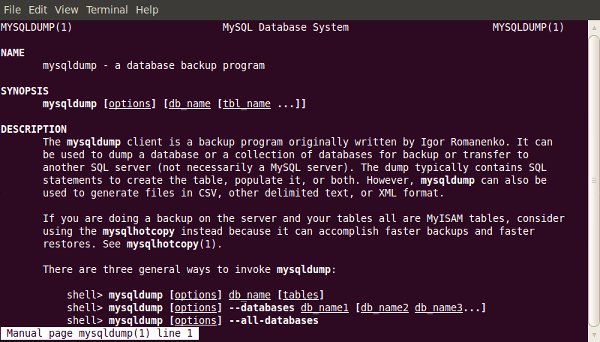
If you find that the brief help given by the –help operator isn’t enough, you can read more detail with the man program:

man mysqldump

Which will tell you all about the “nano” program. Simple commands like “cd” may not have an entry in man.


2. Making a Database Backup (with GZip Compression)

Backing up your database is something you should do often. Like most things, there are a lot of ways to do this, but using the command-line is one of the best. Why? Because it helps you get around potential problems like execution timeouts for tools like phpMyAdmin, and potential network dropouts from using a local administration tool like MySQL Workbench.

The command to run the backup is fairly small, but may require some explaining:

mysqldump -u mysqluser -p mysqldatabase

Now, to explain what’s going on here! The “mysqldump” program is a tool for creating database backups. The parameters being used are:

  • “-u” switch means you’re going to specify a username to connect with, which must follow, like “-u mysqluser” above
  • “-p” switch means you’re either going to immediately specify the password to use (with no space), or it’ll prompt you for one
  • The final parameter used in the example above is the name of the database to backup (of course!)

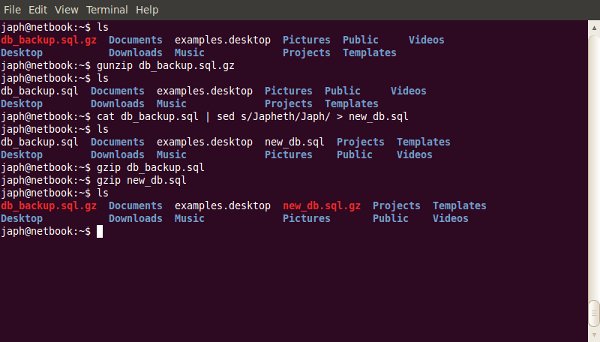
If you ran the command above, you would’ve seen the contents of your database go whizzing by on the screen. That’s good, because we know that part works (actually connecting to the database), but it’s also bad, because… where did it go? Answer: nowhere! It scrolled past, and that was it. Now we need to capture it and put it in a file.

To place the contents of the output into a file, for back-up purposes, we need to use what’s called a redirection.

mysqldump -u mysqluser -p mysqldatabase > db_backup.sql

So we added a redirecter, and the filename we wanted the output to go into. Now you should be able to see a file named “db_backup.sql”, and if you open it you can see a SQL script with the structure and content of your database ready for restoration or migration.

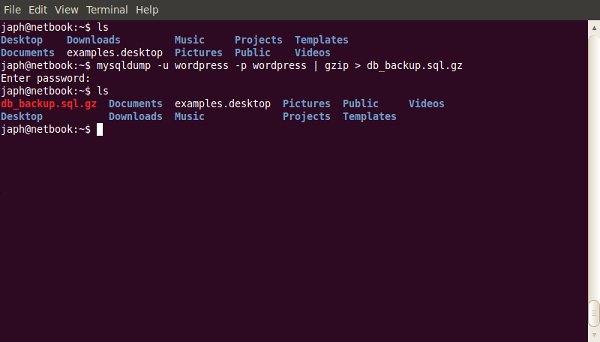
One last thing that could be useful for a backup, is compressing the SQL script. For this example, I’m going to use GZip compression, because it’s quite common, but you could also use Bzip2 or something else.

To add compression into this command, we just do what’s called piping. We pipe the output from the mysqldump through gzip, and then redirect it into the file we want, like so:

mysqldump -u mysqluser -p mysqldatabase | gzip > db_backup.sql.gz

I also added the “.gz” to the filename, so I know it’s compressed and not just plain text anymore (it’ll also be smaller!)


3. Restoring from a Database Backup (with GZip Compression)

So you’ve got a backup of your database (either using the method above, or some other way), and something has gone wrong and you need to restore, or you’re migrating it to a new server. You could use one of the other tools mentioned before, but in the example of phpMyAdmin, what if your database backup file is bigger than the allowed upload size? Well luckily, the command-line doesn’t mind.

The command to restore is very similar to the one for backing up. Firstly, without GZip compression:

cat db_backup.sql | mysql -u mysqluser -p mysqldatabase

We use the “cat” command to output the contents of the backup script, and pipe its contents into the mysql program. As you can see, the mysql program takes the same options as the mysqldump one does in section two.

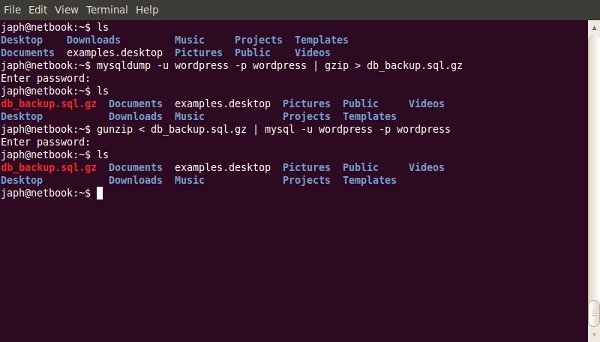
Now if the script was GZip compressed, we can’t just output its contents into mysql, as it will be compressed data instead of a nice SQL script. So we do the following:

gunzip < db_backup.sql.gz | mysql -u mysqluser -p mysqldatabase

See, it’s very familiar, just switched around a bit.

What’s happening here is we run “gunzip” too and redirect the backup script into it to be decompressed. We then pipe the decompressed output into the “mysql” program.


4. Find / Replace in a Text File

Sometimes you have a big file, like maybe a database export, and you need to do some find / replace on it… but it won’t open in any of your text editors, because your machine runs out of memory trying to open it! Well, here’s a way around that, by using the command-line and a little regular expressions.

The way this works is to output the contents of the SQL script (or whatever file you’re using), pipe it through a program called “sed,” which is specifically form manipulating streaming content, and then redirect that output into the new file. Sound complicated? Well… I guess it is a little, but the command itself looks simple!

cat original_dump.sql | sed s/Japheth/Japh/ > new_dump.sql

The new part here is really the “sed” program. Basically what it’s doing is taking input and matching the first pattern (in this case, my name, “Japheth”), and replacing it with the second pattern (in this case, a shortening of my name, “Japh”), then outputting that.


5. Securely Copying Files to / from a Server (over SSH with SCP)

If you’re working on the command-line and need to copy a file, especially if you need to do it securely, why go and fire up your FTP client? Just use a program called Secure Copy, or SCP, which is especially for doing remote file copying securely. Secure Copy uses SSH to copy the files, so you need to make sure you can connect to the remote computer via SSH first (I’ll talk about this a little more at the end of the article, so hold that thought).

The syntax of the scp command is similar to that of the cp command covered in section one, with the addition of the hostname of the remove computer and the username to connect with:

scp /path/to/local/file username@hostname:/path/to/copy/to/

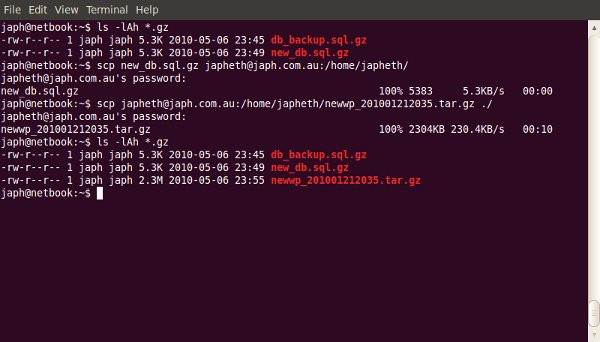
The bits to note are “username@hostname:”, which, as I explained above, are the username to use and hostname to use when connecting. You will be prompted to enter the password for that user, and you also will get a progress indicator for the copying so you can see how it goes.

You can use the “-r” switch (note: it’s lowercase for scp, uppercase for cp) with secure copying to make it recursive. Also, if this is the first time using SCP or SSH to connect to the remote machine, you may be asked to accept an RSA fingerprint for security, which you should accept (assuming you’re certain you’re connecting to the correct server).

It’s worth mentioning that this works both ways. You can also copy files from the remote computer to your local machine by switching the arguments around:

scp username@hostname:/path/to/remote/file /local/path/to/copy/to/

If you’re SSHed into one web server, and you want to copy files to another one, you can use this command to copy the files directly without having to download them to your local computer first!


6. Finding Specific Files in a Large Project

Finding a file with a particular name

Want to find a specific file but not sure where in the many directories of your project it’s hiding? (or even if there’s more than one!)

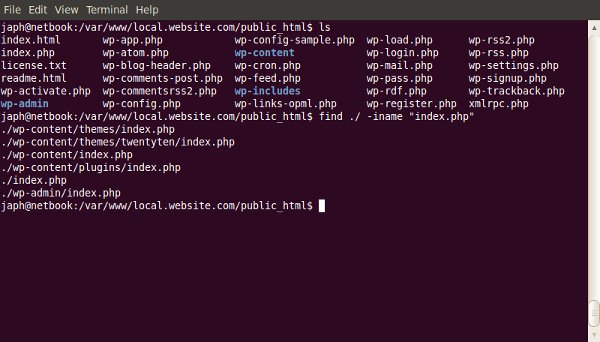
find ./ -iname "index.php"

The “find” command is for locating files within a directory heirarchy. It has many options, so its uses are quite varied. Here I’ve specified to search in the current directory with “./”, and used the “-iname” switch, which means to search for a file with a name like the one I supply. There is also a “-name” switch, but the “-iname” switch is case-insensitive, so it’ll find INDEX.php as well.

Finding a file with particular content

Ever known that you had written a function for something, but can’t remember which file it was in?

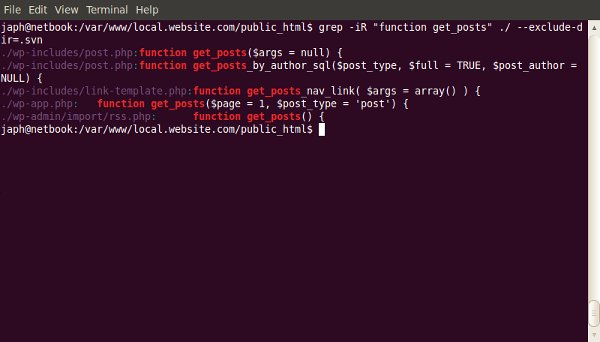
grep -iR myFunction ./

“grep” is a program for printing out lines that match a particular pattern. You can provide it with some switches, like the “-i” for making it case-insensitive, and “-R” for making it recursive in my example. Then provide a pattern, and the path to search in (here I’m searching the current directory with “./”). This example will show the filename and the line in that file for any matches it finds to “myfunction” (case-insensitve because of the “-i”).

If your projects are Subversion working copies, you may find that it’s annoying to see results from the “.svn” directories. To exclude particular directories from the search, use the “–exclude-dir=” switch, for example “–exclude-dir=.svn”.


7. Performing Bulk Actions on Specific Files

Now we know how to find particular files; what if we want to do particular things with those files? For example, I often work on a Mac, and find that when I save files to Windows shares or Linux Samba shares on the network, Mac OS X kindly litters “._filename” files everywhere. So I like to be able to clean these up regularly.

To find such files, I use both methods from the previous section for finding files with a particular name:

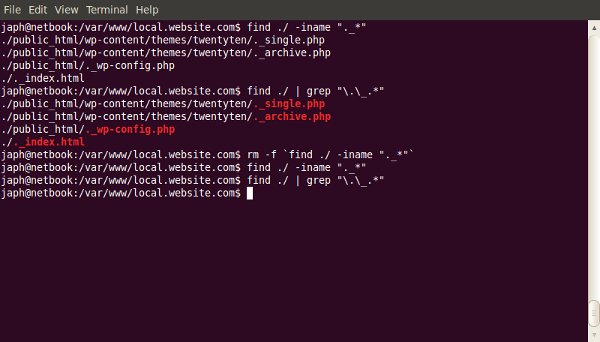
find ./ | grep "\.\_.*"

We’re finding a way to output all files in the current directory (recursively), and are then piping the output to grep, which ensures that it matches my regular expression. The regular expressions just says, “match anything that starts with a literal . followed by a literal _ followed by 0 or more of anything else.” Run it like so to make sure you see the desired files.

Now to do something with all the files you captured from that command, you wrap it with back-quotes (“). If I wanted to delete all of them:

rm -f `find ./ | grep "\.\_.*"`

I have the “rm” command (to remove, or delete, files) with a “-f” switch (which means to force a delete without asking for confirmation), and it will run for each file returned by the command within the back-quotes!

I feel it would be irresponsible not to mention here that you should be very careful using the “rm” command. If you use the “rm” command with the “-f” switch, make sure you know exactly what you’re going to be deleting, and that you really want it gone! If you use “-f”, you won’t get a second-chance.


How do I get Command-line Access to my Web Host?

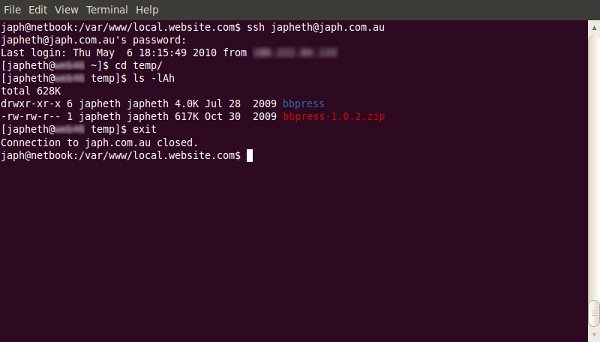
I mentioned earlier in the article about connecting to a remote computer via SSH. A lot of these commands are most useful when used on your web server, which likely runs linux, so you’ll need to be able to connect to the command line. The way to do so is by using a program called SSH, which does it securely.

On Mac OS X, or on linux, you can run SSH from the Terminal application:

ssh username@hostname

If you’re on Windows, you’ll need to use a freely available program called PuTTY.

You will be prompted for your password when you are connecting.

If you do not have SSH access to your web host already, you will most likely be able to request it, and they will set it up for you.


In Summary…

Like most things, “you don’t know, what you don’t know.” It might seem difficult to discover how to use the command-line; but there’s a huge amount of power available to you once you wrap your head around it! Hopefully, this article will get you started exploring! Any questions?


Php Xml Job

I need some pages done php /xml . Need this project done within a day or two .

* A login page should be there. it also should have the sign up link also for new users.
* Upon login, user will be presented with several options: He can… Submit new jobs; View the status of already running jobs; View and from there download the results of completed jobs etc.
* If the user clicks to submit new jobs, he is navigated to the job submission page. This page is a form (submitted through ‘post’ method) to take all the necessary info from the user, along with the job source file (.java file). User can submit multiple jobs by calling this page multiple times. Information of each job will be stored in separate xml files (one xml file for one job, name derived from jobid and username. [like JRL_job10_Dibya.xml]I will provide sample if needed ). This page is already developed, though need be changed. [A job is tagged with a single JRL_job**_********.xml file(on the basis of job id)]
* After submission when the user clicks to execute the jobs, the set of submitted jobs starts executing. (A JEM is initiated in background and starts communicating with the other agents in the framework).
* On clicking Show Results link, the user is presented with the results (presently it may safely be assumed as some text files only). The name of the text files should be derived from the name of the user; name of the job and the time of submission of the job (to make it unique).
* Another arrangement is necessary to display a progress bar indicating the progress of a job submitted. Any simple format is ok
* A user can see only those jobs and those results, which were submitted by that user. He should never be able to see those of others.

Php/zen Cart Changes

I am looking for an expert in php and Zen Cart who can quickly go into a operating website that is used for a fundraising company. There are ongoing changes that need to be done and some critical changes that need to done immediately. The site is www.fundraisingsf.com. Currently the changes that need to be done are listed in the attached pdf. The ongoing support price will be determined after the selected programmer has an opportunity to review the system. A major requirement will be ongoing daily communication as to the progress of the work.

Interview With Fantasy Artist Skam Works

Artist Maksimilijan Gecevic, better known as Skam, is a master of producing fantasy artworks. His visuals show vivid events unfolding in practically every illustration he creates. In our interview Skam talks about the benefits of being in a design collective as well as some of his upcoming projects. So let’s get into another interview with a great artist.

Q Welcome to Psdtuts+, please introduce yourself. Could you tell us where you’re from and how you got started in the field?

Hello, glad to be here! My name is Maksimilijan Gecevic and I am from Zagreb, Croatia. I went to a School of Applied arts and I’m currently finishing Faculty of graphic arts in Zagreb. Before I started doing digital artworks I was more into traditional techniques as it was mostly what we learned in school; the basics of traditional art.

I got more involved in digital art in college where I started to combine those two techniques but later I found myself creating digital art and graphic design. It all started when I was creating some album covers, posters and logos for fun. But now I rarely sit and draw something traditional. I still draw sketches or doodles for some digital works, and knowing the basics really helps to improve digital artworks later on.

Q All your art has amazing imagery in it, where do you get the inspiration to create scenes like “Evil” and “Dreaming?”

Well, it depends. I get inspiration from everywhere, sometimes ideas just pop into my head. I see a movie or read something that gives me an idea. I like to think of a background story for every piece that I make, so basically, I do as much daydreaming as possible so I can come up with great ideas.

Q You are a member of SlashTHREE a great design collective, in your opinion what are the positives of joining a design collective and submitting your work. Has it benefitted you in any way yet?

I joined SlashTHREE about a year ago, and I have definitely improved since then because the artists there push each other to work on a higher level, giving each other critiques, pointing out things you might not notice, and they don’t let up until you show some progress. But seriously, joining collectives are great for artists to improve and grow. In the end, it gives more exposure to your work. So yeah, I definitely benefitted from it.

Q “Devotion” is a beautiful piece that was featured for SlashTHREE’s latest pack. Please talk about how you made this incredible illustration and what this piece is showing us.

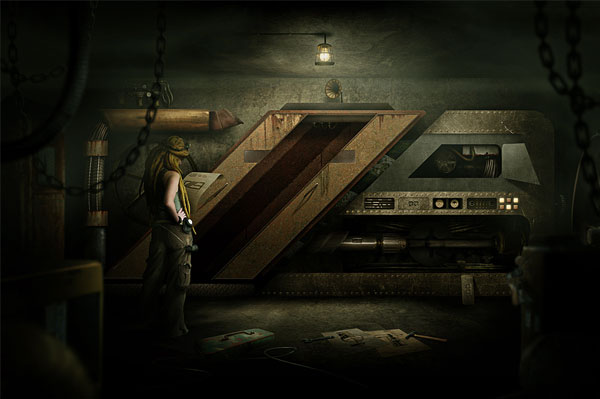
With Devotion, I was inspired by couple of movies I saw with aliens so I wanted to create something with that theme, but in a way to show different kinds of connections, or call it relationship between humans and aliens, in a way I see it if something like that would ever happen.

Basically the story itself is up to viewers to imagine, but one of the ideas was actually a love story behind it all. It was created as half manipulation and half illustration because I’m trying to include more painted and illustrated elements to my works so they could be less "cold“ like when they are 100% manipulated, but still on another level when there is some mixed media in it. The ship was mostly painted with some manipulated details, while cityscape was a stock, same for the girl which was exactly what I was looking for in this piece so in the end it turned out like I wanted to. Glad you liked it!

Q All of your fantasy scenes look absolutely seamless with the photo-manipulation techniques. Talk a little about what you put into them when making these illustrations.

I try to include both manipulated and painted elements in my work and blend them together in the end. The key to making these illustrations work is the details. Correct lighting is very important and it’s something that you can’t really learn from a tutorial; you really have to trust your own eye and make those decisions on your own. It is really important to learn, observe, and explore.

Q What plans do you have for the future of your graphic design career? Any upcoming projects you would like to talk about?

Right now my main goal is to finish college and create as many pieces as possible. I would love to make some kind of art book in the near future and I am working on some projects that are still in preproduction for a computer game but it’s still a bit early to make any announcements at this time. A bit further in the future, I hope to have my own design studio and do what I do now but I suppose we shall see how that goes.

Q Are there any specific techniques you use when designing that you would suggest to someone who is starting out in the same field as you?

I can’t say that there are any specific techniques that I use but I think the most important thing that any designer can do is pay attention to details, highlights, as well as depth of field; which can bring a new dimension to a piece. My best advice to a young designer is to experiment and search for tips on their own. When create something, feel free to make things your own way because that is what will become your signature.

Q Thanks again for providing Psdtuts+ with this opportunity to interview you. Any final thoughts for our readers?

My pleasure, and thank you for having me! Thanks to everyone for reading this and I hope that I have inspired at least some of the young designers out there. Keep working, don’t rush, don’t give up and maybe we can collaborate on some projects in the future!


Where to find on the Web


Private Project

PLEASE HAVE A LOOK AT THESE REQUEST AND LET ME KNOW WHAT YOU THINK, PLEASE CAN YOU SEND ME ONE GOOD CHARGE TO COMPLETE THIS LIST

First can you have a look at this note received from my hosting company and let me know what they are saying and have a look at what need to be done to rectify.

Janet,

Somebody has managed to send several thousand spam
messages through our server. Unfortunately we were
not able to find the leaking spot yet, though your
janetpage.com account activity looked suspicious
because this path
/home/jantpag/public_html/repost_jobs.php
was sending emails too often. However we do not have
jantpag folder at our server, we only have janetpag
folder for your website.
Please be more attentive and ask your webdesigner to
keep everything secured. We have changed your account
Cpanel password justr in case if it was affected,
here is the new one:
P2gXaYh9
We are just working to have everything absolutely
stable and always working for our customers.

Thank you,
ClassyHost.com Staff.
***********************************
10- add an application date field to the database (doesn’t exist right now) and show it on the applicant info page
– for this section I notice that you place a date field on this however, can you make it a date range for example employer can search for candidates registered between the 1st of March 10 to the 1st of April 2010.
http://www.janetpage.com/employers/Search2.php. on this page can you put the date the candidate register.
Can you also put the date the candidate register on this section
http://www.janetpage.com/siteadmin/jobseekers.php
can you allow the administrator to search according to a range that the candidate apply for job.

Here are a list of task, the list is a lot more extensive that planned, so please can you have a look and let me know what it would cost to fix sort out these areas?

1
On search a job page.. at the bottom this section
Search method: or and

Please can you set it to default and instead of or

2
Can you give employer and candidate the ability to search more than one options
– Job category
– Career level
– Town and City

3.
Can you change this section to allow the administrator the delete more that one applicant at a time. Possible you can put in a check box with the option to delete.
http://www.janetpage.com/siteadmin/jobseekers.php
After delete can you redirect admin back to the result page instead of
http://www.janetpage.com/siteadmin/ADU.php?uname=alfred
All the information about jobseeker with username alfred was deleted successfully.

6)
On this page
http://www.janetpage.com/employers/EmployerView.php?uname=alijay
there is a question that ask are you legally entitled to work in Thailand, can you change that to entitle to work in the uk.

Can you trace this back and see if this question is asked on the application for please, because candidate seem to answer this question.

7
On the register me page
http://www.janetpage.com/jobseekers/jobseeker_registration.php
there is a question that ask if you need a work permit, but the answer does not come on the view candidate page or does it comes on the candidate details when employer search, can you amend this.
8
The is a crons jobs scrip that allow to automatic repost jobs every 7 days with a new job reference number, it should also expire the jobs after 7 days….., but it does not seems to be working, can you check this and make sure it working,
Also can you check to see if the 471 jobs that was on the site last week are somewhere in the database and relist them please.
Also can you change the Crons job script to send a notice to the employer when job is relisted.
Can you make it that if the employer has for example 3 jobs relisiting, only one email is sent to them about the three jobs that has been automatically relisted

9)
SET UP OF THE WEBSITE
– Down the left hand side there are three list of options- jobseekers, employers, resources.
– Can you move them to the top
At the top
HOME , SEARCH JOB, JOBSEEKER, EMPLOYER,
AT THE EXTREEME BOTTOM-
About us, Privacy policy, Contact us,

10)
JOB SEARCH PAGE:

Can you amend this to show only the following fields
Job title …………location…….search

Please leave the list of categories below the search facilities

11) remove success story off the home page
12) not that you have moved the options off the left hand page, on the right hand side can we have a list of adds by google ( remember that the website offers free services so the intention is to make revenue from google, so the adds needs to look attractive and well optimise)
http://www.jobisjob.co.uk/surrey-south-east-england/alexander-lloyd/sales-supportparaplanner/job-offer-5tcoayxauws4b7xdxgp6imo3le
please have a look at this layout particularly the adds by google, can you have this layout for janetpage.com

13)
On this page http://www.janetpage.com/jobseekers/JobSearch.php
Can you place 3 adds by google at the top
And then the search facilities then the list of categories and then about 5 adds by google under.

Can you change the adds so that there is one per line instead of the current two.. for example
http://www.gumtree.com/london/secretarial-pa-office-management-jobs_20_1.html
can you make the same changes here
http://www.janetpage.com/jobseekers/JobSearch3.php
14) the job search result page
– can you list the job by 10 jobs per page and can you put at the bottom numbers for example
Page 1, 2, 3 also can you put an NEXT, PREVIOUS,

When you click on a job for the search result page, there is two options, send application, can you add another options that said back to search result.

http://www.janetpage.com/jobseekers/JobInfo.php?job_id=1837
on these page can you place 4 google advert as before one advert per line as before.

14) finally
XML feeds
http://www.oodle.com/info/feed/guidelines/
http://www.indeed.com/intl/en/xmlinfo.html
http://www.simplyhired.com/a/add-jobs/example-xml
http://www.workhound.co.uk/addjobs#
http://www.twitjobsearch.com/static/add-jobs

AS agreed in previous email

Fb Database And Chronjob Setup

Need datafeed file converted to database and chron job to weekly(or more often) populate online store. Would be starting for new website with just a home page and need store setup start to finish. Thousands of products, can provide datafeed and access to tools and modules available on my site. Need to entertain idea of transferring existing osCommerce site to one with more flexability in design, weekly specials, product promotions, etc.

Need good communication, expertise in this type of work. Several programs available to work with. If affordable bids will move forward quickly.

51 After Effects Tutorials From Elsewhere!

    Wow, it really has been a while… What with NAB, and all the other crazyness going on in the After Effects world, I seemed to have forgotten about one of the most popular article subjects on this website… the tuts from elsewhere!

    • Video Copilot – Smoke Trails

      This is one of the first tutorials out showcasing Video Copilots new plugin, Optical Flares. This tutorial shows some cool uses for the plugin mixed up with Trapcode Particular.

      View Tutorial

    • Video Copilot – 3D Ball Dispersion

      Using only built in plugins, and a handy sequencer script, create a cascading, awesome looking effect.

      View Tutorial

    • Video Copilot – Shatterize

      Another tutorial using only the built in effects and the sequencer script, learn how to create a progressive shatter effect.

      View Tutorial

    • Video Copilot – 3D Ledge

      Sam Loya is back on the Video Copilot scene, and now he is contemplating suicide. Well, not really, its just some awesome green screen, tracking, and 3d compositing going on.

      View Tutorial

    • Motionworks – Inglorious Basterds Blood Splatter

      John Dickinson created this tutorial for Digital Juice TV based on the Inglorious Basterds promos seen out there. He manages to recreate the blood splatter effect pretty closely.

      View Tutorial

    • Motionworks – Roto Brush

      John has this cool roto brush tutorial, days after CS5 is announced, showing how it works, and pretty much how amazing it is.

      View Tutorial

    • Motionworks – Adobe Media Encoder

      Adobe Media Encoder has always been kinda… eh, at least for me. But the new CS5 Media Encoder is pretty robust.

      View Tutorial

    • Motionworks – Dynamic Link

      Dynamic Link is back in CS5 and better than ever. John takes a look at using it in the Production Premium CS5 edition.

      View Tutorial

    • Brad Chmielewski – Using Caps Lock When Rendering In After Effects

      Brad decides to put the old “caps lock makes you render faster” AE wive’s tale to rest and runs a sweet little experiment to see just exactly how well it works.

      View Tutorial

    • Artbeats & Steve Holmes – Firestarter

      Using some fire and flame effects from Artbeats, Steve puts together a cool quick tutorial on some simple motion graphics elements.

      View Tutorial

    • Artbeats & Steve Holmes – What’s on the Menu?

      Another Steve tutorial, this time a video one! Here he shows you how to take a cool clip and make a sweet looking looping HD DVD menu background.

      View Tutorial

    • Artbeats & Eran Stern – CLEFT

      Eran shows us how to create some 3D text inside of After Effects, and then use stock footage on some sound effects to really sell the effect you are going for.

      View Tutorial

    • CGtuts+ – Create a Cool Smoking Text Effect using Fluid Mapping with Particle Flow and AE

      Learn how to create some simple 3D text, and then using Particle Flow and FumeFX, create some convincing looking smoke, and composite all of that inside of AE.

      View Tutorial

    • CGtuts+ – Achieving Realism and Depth using Render Layers in Maya and AE

      In this two parter, learn how to use the powerful render layers in Maya 2010 to prepare them for compositing, then bring everything into AE to composite them together for a realistic look with a custom depth of field.

      View Part 1 View Part 2

    • CGtuts+ – Quick Tip – Exporting 3d Camera Data from Maya into After Effects

      In this quick tip, learn how to take camera data from Maya and bring it into After Effects.

      View Tutorial

    • CGtuts+ – Create a Logo Dispersion Effect using Particle Flow and After Effects

      Learn how to create a very simple particle dispersion effects using Particle Flow, then composite everything together in After Effects.

      View Tutorial

    • Amateur Media – Landscape in C4D and AE

      Make the barren landscape and text of this tutorial in C4D, and then bring that into After Effects to tweak your depth of field for the perfect effect.

      View Tutorial

    • Comedy Titles in Cinema 4D and AE

      Using some Optical Flares in compositing within AE, use some mograph-created C4D text and create the comedic titles open.

      View Tutorial

    • Natural & Unnatural Lighting with C4D AND AE

      Learn the difference between natural and unnatural lighting while lighting your scene.

      View Tutorial

    • RGTV – Episode 37: Creating a Holographic Interface Effect

      Aharon Rabinowitz shows you how he created some of the effects in the Holomatrix commercial, a new plugin from Red Giant Software.

      View Tutorial

    • RGTV – Episode 38: Creating a Music to Light Effect

      Learn how to use Trapcode Particular 2 to create the sound to light effect seen in Heroes last season.

      View Tutorial

    • RGTV – Episode 39: Creating a 1980’s Retro Video Game Look

      Using PlaneSpace, Particular, and Text Anarchy, Aharon Rabinowitz shows you how to create a vector style arcade game interface.

      View Tutorial

    • RGTV – Episode 40: Creating a Particular Shooters Effects

      In this tutorial, Harry Frank shows you how to create a Shooters effect using Particular, and also uses some Illustrator and C4D for the final touches.

      View Tutorial

    • RGTV – Episode 41: Creating a Stitch Effect with Trapcode Particular

      Michael Park from over at Creative Cow has this very math-intensive tutorial that might lose you, but stick with it, it has one hell of an outcome.

      View Tutorial

    • AEScripts.com – ArabicText

      One of the new scripts from AEScripts is ArabicText, which lets you properly enter arabic text, which is a difficult task if you have ever tried to do it.

      View Tutorial

    • AEScripts.com – True Comp Duplicator

      This handy script is useful, because not only will it duplicate your comp, but its entire hierarchy as well as subcomps.

      View Tutorial

    • AEScripts.com – Layer Marker Batch Editor

      This script allows you to batch edit all the layer marker attributes on all the selected layers.

      View Tutorial

    • AEScripts.com – LCDeffect

      This is a pretty straightforward script, what it does is allows you to get the look of and LCD screen in one click.

      View Tutorial

    • AEScripts.com – Skydome

      Another very handy script to have in the toolbox, Skydome create a 3D camera aware environment for your AE compositions.

      View Tutorial

    • AEScripts.com – Arrange Project Items Into Folders

      With a little pre-planning with naming images, run this script and it will arrange project items into folders based on a matching prefix.

      View Tutorial

    • AEScripts.com – ProjectInfoListExporter

      If you have a lot of elements and need a nice list of what your project consists of, run this, and it will export a document listing of your AE project assets.

      View Tutorial

    • AEScripts.com – TextReverser

      Very simple. It just reverses text. Pretty plain and simple… oh yeah and handy!

      View Tutorial

    • MaxAfter.com – Motion Graphic Design

      This is a very broad tutorial on just some basics of composition, graphic design and whatnot inside of After Effects.

      View Tutorial

    • Creative Cow – Lens Flare in AE and Premultiplication Explained

      Learn how to give a lens flare an alpha channel in After Effects.

      View Tutorial

    • Creative Cow – Subtract and Divide Blending Modes in AE

      Learn how to subtract and divide blending modes in AE. This is able to be done in CS5 natively, but not CS4 and below, so you need this workaround.

      View Tutorial

    • Creative Cow – After Effects CS5: Rotobrush

      Yet another look at one of the all star features in After Effects CS4 from Richard Harrington.

      View Tutorial

    • Greyscale Gorilla – How to Make the Discovery Channel Rebrand Cube Transition Effect with C4D and AE

      Nick Campbell goes into some in depth coverage on how to create Royale’s awesome transition effects seen on the Discovery Channel’s promo pieces.

      View Part 1 View Part 2

    • Greyscale Gorilla – Reflective and Refractive Glass Block in C4D and AE

      Learn all about reflection and refraction of glass materials for inside of C4D, and then bring that into AE for some final compositing.

      View Part 1 View Part 2

    • Greyscale Gorilla – Fun With Precomping in After Effects

      This is a cool tutorial that uses like, one little set of keyframes and a TON of precomping to make a really cool looking animation.

      View Tutorial

    • Greyscale Gorilla – How to Make a Simple Spin Logo Animation with C4D and AE

      Learn how to create this interesting spin animation in C4D, and then finish up in AE with some glow, curves, blurs and level adjustments to get a desired look.

      View Part 1 View Part 2

    • Greyscale Gorilla – How to Make the 2010 Winter Olympics Ice Cube Event Bumpers

      If you saw the Ice Cube bumpers at the Winter Olympics, Nick recreates that in C4D and composites the scene together in After Effects.

      View Part 1 View Part 2

    • Greyscale Gorilla – How to Make a Cascading Text Animation

      Learn how to create this cool looking effect where different colors and textures cascade up and down an object. Like always, composite it all together in After Effects at the end.

      View Part 1 View Part 2

    • Justin Young – Better Particle Control

      Check out Justin’s tutorial with some handy little tips on having some better control over your particle emissions.

      View Tutorial

    • Justin Young – Collect and Reduce in AE

      Learn some organizational techniques to apply to your projects inside of After Effects to work more efficiently.

      View Tutorial

    • Brad Zimmerman – Vintage Film Grain

      Brad from Church Media Design has this quick tutorial on how to create some vintage film grain on your videos.

      View Tutorial

    • CG Swot – Canyon Dusk Matte Painting in AE

      Dave Scotland walks us through the steps to create this great scene such as distributing layers in 3D Space and adding color correction and lighting effects to make everything work together correctly.

      View Tutorial

    • CG Swot – Cloudy Moonlit Night in AE

      Learn how to make this scene from scratch inside of After Effects using Particular, and some other effects.

      View Tutorial

    • CG Swot – Designing and Compositing a HUD

      With Iron Man releasing today, of course there was something with HUD in it. Learn how to create this effect with Dave Scotland in this five part tutorial.

      View Tutorial

    • CG Swot – Day-Night Earth Globe

      Learn how to build this scene with a little help from 3ds Max to create a falloff material, and otherwise build everything in AE.

      View Part 1 View Part 2

    • CG Swot – Composition is Everything

      Learn the basics of composition for when it comes to laying stuff out, or compositing large scenes inside of 3D and After Effects.

      View Part 1 View Part 2

    • Eran Stern – Look Ma, No Wires

      Learn how to create the look of flying people without having to rig up expensive wires and cranes and just do it on green screen.

      View Tutorial

    • If you enjoyed this post, please give it a vote on Digg or a stumble to say thanks!