100+ Awe Inspiring Black & White Photographs

We have talked at length about the advantages and techniques associated with black and white photography, and thought that it was about time we put together a huge, inspiring collection of monochrome images. Get ready to really appreciate the potential of black and white photography!

Mikko Lagerstedt

Jenna Herman

Christoffer

Marios Tziortzis

Techo

Stéphanie Amesse

Gabriele Caretti

Martin Vlnas

Eric Lafforgue

Hans van de Vorst

Joanna Kustra

Alexandra

Monique

Moises Levy

Philipp Klinger

Jeannette Oerlemans

Bérenger

Yanire Fernandez

Ana

marianna

Ronald Koster

stu mayhew

Wolfram Schubert

Paulete Matos

Joshua Gardner

Brian Chapman

Madhu Gopalan

Dean Forbes

Pierre Sauvignon

Simon

Sushant Chhabria

Abdulla Alfoudry

LimpidD

Andrzej Laskowski

Julius Tjintjelaar

Philipp Klinger

Lauren

Philipp Klinger

Manuel Orero

nu de peau

kimmie

Lawrence Roberts

Nathan Kendall

Toni García

alchimilla

Xavier Fargas

Angela Vicedomini

Aliona

Bahman Farzad

Roger Salvador

Toni Frissell

Rohit S Krishnan

M Al-Ghanim

Michael Seamans

Maggie Cipriano

IM

Sascha D. Rueb

Margherita Ciliberti

Lars Kehrel

Ace

George Bentley

Esnault Olivier

Slim Letaief

mamnaimie

Kara Yerex

Alessandro Vannucci

Andrea Vismara

Michele Catalano

chottouch.com

Emir Ozsahin

Spreng Ben

Ben Heine

Renald Bourque

Tim Corbeel

Mariczka Rubon

Christine Anderson

Marthe Widvey

Luca Napoli

Rino Palma

Travis Price

Johan Lind

Viviana Isca

Django Malone

Tom Bland

Eric Lafforgue

Giovanni Orlando

Suwandi Tan

Antonis

Aliona

Adam

Angelo

fluxxus1

Nilgün Kara

Hikaru Inoue

Frank Taillandier

Janne

Jörg Dickmann

Ageel Alluhaibi

aliZmuh

Maria Strömvik

Rui Palha

Simon Bond

Andri Elfarsson

Federica

Aidan McManus

Paulete Matos

Gilad Benari

Belle

GreenEyePhoto

Donato Buccella

Jonathan Rosser

Claudio Tizzani

Wade Harris

Johnny Wiggla

terence

Mihnea Turcu

Bubela

Mumin Kurtulus

Mio Cade

sweetgirl

Share Your Black & White Photos

I hope you’ve enjoyed browsing through our collection of images. Leave a link in the comments below to your own black and white shots, and feel free to tell us which of the photos above is your favourite!

Managing Sounds with Commands

Sound management is very important for many types of Flash applications, such as interactive websites and games. As long as you want to deliver a rich interactive experience, you might want to consider making use of sound effects and background music. In this tutorial, I’ll present a minimalistic sound management framework that manages sounds into sound tracks. And I’ll show how to integrate the sound framework with the command framework from my previous tutorials.


Introduction

I’ve played games with incautious sound management, and that degrades user experience. Have you ever played a game, say, an action game, where the character’s exclamation voice plays before the previous voice ends, overlapping each other? That’s a result of bad sound management: there shouldn’t be more than one voice of the same character playing at a time. The sound management framework I’m about to cover will take care of this issue by managing sounds with sound tracks.

The examples in this tutorial make use of the command framework and scene management framework from my previous tutorial, Thinking in Commands (Part 1, Part 2), and the examples also use the data manager class from Loading Data with Commands. I highly recommend that you go through these tutorials first before going on. Also, you’ll need the GreenSock Tweening Platform to complete the examples.


Step 1: Theory Sound Tracks

The sound track we’re talking about here has nothing to do with game or movie sound tracks. A sound track is an imaginary “track” associated with a playback of a single sound. One single sound track does not allow more than one sound playing at a time. If a sound track is currently playing a sound, we say it’s occupied. If another sound is to be played on an occupied sound track, the currently playing sound is stopped, and then the new one is played on the track. It is thus reasonable to play a single character’s voices on a single sound track, so as to avoid the sound overlapping issue mentioned earlier. Also, in most cases, there should be only one track for background music.

Let’s take a look at some conceptual figures. A single application can have multiple sound tracks.

Each sound track can hold one single playing sound.

If a sound is to be played on an occupied track, the “old” sound is first stopped, and then the “new” sound is played on the track.


Step 2: Theory The Framework

The Sound Management framework consistes of two classes, the SoundManager class and the SoundTrack class. Each sound track is assigned a unique key string. An occupied sound track’s underlying playing sound is actually a native SoundChannel object obtained from the native Sound.play() method, and the SoundManager class manages sound tracks and organizes the playback of sounds.

Here are some quick previews of the usage of the framework. The following code plays a new sound on a sound track associated with the key string “music”, where MySound is a sound class from the library.

//play a sound on the "music" track
SoundManager.play("music", new MySound());

If the same line of code is executed again before the playback is finished, the original sound is stopped, and a new sound is played on the “music” track.

//stop the original sound on the "music" track and play a new one
SoundManager.play("music", new MySound());

The SoundManager.stop() method stops a sound track associated with a specified key string.

//stop the "music" sound track
SoundManager.stop("music");

In order to transform the sound, like to adjust the volume, we’ll need to obtain a reference to a sound track’s underlying sound channel. The reference can be obtained by accessing the SoundTrack.channel property.

var channel:SoundChannel = SoundManager.getSoundTrack("music").channel;
var transform:SoundTransform = channel.soundTransform;
transform.volume = 0.5;
channel.soundTransform = transform;

Step 3: Classes The SoundTrack Class

Enough theory. Let’s get down to the coding. We are going to use different key strings to distinguish different sound tracks. Here’s the SoundTrack class, which essentially represents a key-channel pair. Details are described in comments.

package sounds {
	import flash.media.SoundChannel;

	/**
	 * A sound track represents a key-channel pair.
	 */
	public class SoundTrack{

		//read-only key value
		private var _key:String;
		public function get key():String { return _key; }

		//read-only sound channel reference
		private var _channel:SoundChannel;
		public function get channel():SoundChannel { return _channel; }

		public function SoundTrack(key:String, channel:SoundChannel) {
			_key = key;
			_channel = channel;
		}

		/**
		 * Stops the underlying sound channel.
		 */
		public function stop():void {
			_channel.stop();
		}
	}
}

Step 4: Classes The SoundManager Class

And here’s the SoundManager class. Note that the key-track association is handled by using the Dictionary class. A track is emptied automatically if a playing sound has reached its end.

package sounds {
	import flash.events.Event;
	import flash.media.Sound;
	import flash.media.SoundChannel;
	import flash.media.SoundTransform;
	import flash.utils.Dictionary;

	/**
	 * This class allows you to manage sounds in terms of sound tracks.
	 */
	public class SoundManager{

		//a dictionary that keeps tracks of all sound tracks
		private static var _soundTracks:Dictionary = new Dictionary();

		//a dictionary that maps a sound channel to its corresponding key for playback completion handling
		private static var _soundKeys:Dictionary = new Dictionary();

		/**
		 * Plays a sound and returns a corresponding sound track object.
		 */
		public static function play(key:String, sound:Sound, startTime:int = 0, loops:int = 0, transform:SoundTransform = null):SoundTrack {

			//if the sound track is occupied, stop the current sound track
			if (isPlaying(key)) stop(key);

			//play the sound, creating a new sound channel
			var channel:SoundChannel = sound.play(startTime, loops, transform);

			//listen for the complete event of the sound channel
			channel.addEventListener(Event.SOUND_COMPLETE, onSoundComplete);

			//create a new sound track
			var soundTrack:SoundTrack = new SoundTrack(key, channel);

			//add the sound track to the dictionary
			_soundTracks[key] = soundTrack;

			//add the channel-key mapping relation
			_soundKeys[channel] = key;

			return soundTrack;
		}

		/**
		 * Returns a reference to the sound track corresponding to the provided key string.
		 */
		public static function getSoundTrack(key:String):SoundTrack {
			return _soundTracks[key];
		}

		/**
		 * Determines if a sound track is currently playing.
		 */
		public static function isPlaying(key:String):Boolean {
			return Boolean(_soundTracks[key]);
		}

		/**
		 * Stops a sound track.
		 */
		public static function stop(key:String):void {
			var soundTrack:SoundTrack = _soundTracks[key];

			//check if the sound track exists
			if (soundTrack) {

				//stop the sound track
				soundTrack.stop();

				//and remove it from the dictionary
				delete _soundTracks[key];

				//along with the channel-key relation
				delete _soundKeys[soundTrack.channel];
			}
		}

		/**
		 * Removes a sound track when the sound playback is complete
		 */
		private static function onSoundComplete(e:Event):void {

			//cast the event dispatcher to a sound channel object
			var channel:SoundChannel = SoundChannel(e.target);

			//remove the event listener
			channel.removeEventListener(Event.SOUND_COMPLETE, onSoundComplete);

			//extract the corresponding key
			var key:String = _soundKeys[channel];

			//remove the sound track
			stop(key);
		}
	}
}

Step 5: Example Sound Manager Testdrive

Now let’s test our sound management framework. We’re going to compare the outcome of repeated requests to play a sound with and without using the sound manager.


Step 6: Example New Flash Document

Create a new Flash document (duh).


Step 7: Example Create Buttons

Create two buttons on the stage. You can draw your own and convert them to symbols, or you can, as in my case, drag two Button components from the Components panel. Name them “boing_btn” and “managedBoing_btn”.


Step 8: Example Import the Sound

Import the sound we’re going to play to the library. You can find the “Boing.wav” file in the example source folder.


Step 9: Example The Document Class

Finally, create an AS file for the document class. The code is rather straightforward, so I just explain everything in the comments.

package  {
	import flash.display.Sprite;
	import flash.events.MouseEvent;
	import flash.media.Sound;
	import sounds.SoundManager;

	public class BoingPlayer extends Sprite {

		public function BoingPlayer() {

			//add the click listeners for both buttons
			boing_btn.addEventListener(MouseEvent.CLICK, onBoing);
			managedBoing_btn.addEventListener(MouseEvent.CLICK, onManagedBoing);
		}

		//play the sound directly by invoking the Sound.play() method.
		private function onBoing(e:MouseEvent):void {
			var sound:Sound = new Boing();
			sound.play();
		}

		//play the sound with the sound manager on the "boing" sound track
		private function onManagedBoing(e:MouseEvent):void {
			var sound:Sound = new Boing();
			SoundManager.play("boing", sound);
		}
	}
}

Step 10: Example Test Drive

We’re done. Press Ctrl+Enter to test the movie, and try rapidly clicking the buttons (remember to turn on your speakers). For the “Boing!” button, multiple sounds are overlapping when played. As for the “Managed Boing!” button, which makes use of the sound manager, one sound is forced to stop before the next one is played, so you won’t hear sounds mixed up together.


Step 11: Framework Integration

Commands, commands, commands. It’s always nice to integrate your work with your previous ones, right? Now we’re going to integrate the sound management framework with the command framework, along with the scene management framework. Again, if you’re not familiar with the command framework and the scene management framework, you’d better check them out in my previous tutorials (Part 1, Part 2) before going on.


Step 12: Framework PlaySound Command

The name of this command is pretty self-explanatory: it plays a sound with the sound manager.

package commands.sounds {
	import commands.Command;
	import flash.media.Sound;
	import flash.media.SoundTransform;
	import sounds.SoundManager;

	/**
	 * This command plays a sound.
	 */
	public class PlaySound extends Command {

		public var key:String;
		public var sound:Sound;
		public var startTime:int;
		public var loops:int;
		public var transform:SoundTransform;

		public function PlaySound(key:String, sound:Sound, startTime:int = 0, loops:int = 0, transform:SoundTransform = null) {
			this.key = key;
			this.sound = sound;
			this.startTime = startTime;
			this.loops = loops;
			this.transform = transform;
		}

		override protected function execute():void {

			//tell the sound manager to play the sound
			SoundManager.play(key, sound, startTime, loops, transform);

			//complete the command
			complete();
		}
	}
}

Step 13: Framework StopSound Command

This is basically the evil cousin of the previous command. This command stops a sound track by using the sound manager.

package commands.sounds {
	import commands.Command;
	import sounds.SoundManager;

	/**
	 * This command stops a sound track corresponding to a given key.
	 */
	public class StopSound extends Command {

		public var key:String;

		public function StopSound(key:String) {
			this.key = key;
		}

		override protected function execute():void {

			//tell the sound manager to stop the sound track, how evil >:]
			SoundManager.stop(key);

			//complete the command
			complete();
		}
	}
}

Step 14: Framework SoundLoad Command

This command loads an external MP3 file into a Sound object. Not until the loading is complete will the command’s complete() method be called. This allows us to easily chain together the command with other commands, without having to worry about handling the loading completion.

package commands.loading {
	import commands.Command;
	import flash.events.Event;
	import flash.media.Sound;
	import flash.net.URLRequest;

	/**
	 * This command loads a sound.
	 */
	public class SoundLoad extends Command {

		public var sound:Sound;
		public var url:URLRequest;

		public function SoundLoad(sound:Sound, url:URLRequest) {
			this.sound = sound;
			this.url = url;
		}

		override protected function execute():void {

			//add the complete listener
			sound.addEventListener(Event.COMPLETE, onComplete);

			//begin loading
			sound.load(url);
		}

		private function onComplete(e:Event):void {

			//remove the complete listener
			sound.removeEventListener(Event.COMPLETE, onComplete);

			//complete the command
			complete();
		}
	}
}

Integration complete. Get prepared for our final example!


Step 15: Example Managing Sounds with Commands

In this example, we’re going to allow users to play two music on the same sound track. If a sound is to be played when the sound track is occupied, the original music is first faded out, and then the new music is played. The fading-out is handled by the TweenMaxTo command, which internally uses the special property volume provided by the TweenMax class from GreenSock Tweening Platform. The two musics are external MP3 files loaded during run-time.

Note that we’re going to use the scene management framework. If you want to refresh your memory, go check it out here.


Step 16: Example Copy Flash Document

Make a copy of the FLA file used in the previous example. Rename the buttons to “music1_btn” and “music2_btn”. You can also change the button labels to “Music 1? and “Music 2?. And add an extra button named “stop_btn”, which is for stopping the music.


Step 17: Example Copy the MP3 Files

The MP3 files can be found in the source folder. Copy them to the same folder as the FLA file.


Step 18: Example Document Class

Create a new AS file for the document class of the new FLA file. Instantiate a scene manager, and initialize it to a loading state, where the two MP3 files are loaded.

package {
	import flash.display.Sprite;
	import scenes.SceneManager;

	public class MusicPlayer extends Sprite {

		public function MusicPlayer() {

			//instantiate a scene manager object
			var sceneManager:SceneManager = new SceneManager();

			//set a loading scene as the initial scene
			sceneManager.setScene(new LoadingScene(this));
		}
	}
}

Step 19: Example The Loading Scene

The loading scene instantiates two Sound objects for loading the two MP3 files. The buttons are set invisible at the beginning, and will be set visible again when the loading is finished. When the loading is complete, the scene immediately instructs the scene manager to transit to the main scene, as written in the overridden onSceneSet() method. Further details are described in the comments.

package {
	import commands.Command;
	import commands.data.RegisterData;
	import commands.loading.SoundLoad;
	import commands.ParallelCommand;
	import commands.SerialCommand;
	import commands.utils.SetProperties;
	import flash.events.Event;
	import flash.media.Sound;
	import flash.net.URLRequest;
	import scenes.Scene;

	public class LoadingScene extends Scene {

		//a reference to the document root container
		private var container:MusicPlayer;

		public function LoadingScene(container:MusicPlayer) {
			this.container = container;
		}

		override public function createIntroCommand():Command {

			//create two sound objects to load the two MP3 files
			var music1:Sound = new Sound();
			var music2:Sound = new Sound();

			var command:Command =
				new ParallelCommand(0, 

					//hide the buttons
					new SetProperties(container.music1_btn, {alpha:0, visible:false}),
					new SetProperties(container.music2_btn, {alpha:0, visible:false}),
					new SetProperties(container.stop_btn, {alpha:0, visible:false}), 

					//register the two sound objects to the data manager
					new RegisterData("music1", music1),
					new RegisterData("music2", music2), 

					//begin the loading of the MP3 files
					new SoundLoad(music1, new URLRequest("Music1.mp3")),
					new SoundLoad(music2, new URLRequest("Music2.mp3"))
				);

			return command;
		}

		override public function onSceneSet():void {

			//tell the scene manager to switch to the main scene directly after the intro command is complete
			sceneManager.setScene(new MainScene(container));
		}
	}
}

Step 20: Example The Main Scene

The main scene brings the hidden buttons back to visible, and registers the playMusic() method and the stopMusic() method as listeners for the click event. In the playMusic() method, a serial command is executed if the “bgm” sound track is occupied. The command first temporarily removes the click listeners, fades out the current music, stops the current music, plays the new music on the now-empty “bgm” sound track, and then finally re-adds the click listeners. The stopMusic method does basically the same thing, only that there’s no new music playback. This complex series of actions is carried out in only a few lines of clean code. Pretty neat, huh?

Note that adding and removing the listeners are common actions that are present in both the playMusic() method and the stopMusic() method. So they are factored out as two private properties, addListeners and removeListeners, initialized in the constructor.

package {
	import commands.Command;
	import commands.events.AddEventListener;
	import commands.events.RemoveEventListener;
	import commands.greensock.TweenMaxTo;
	import commands.ParallelCommand;
	import commands.SerialCommand;
	import commands.sounds.PlaySound;
	import commands.sounds.StopSound;
	import data.DataManager;
	import flash.display.Sprite;
	import flash.events.Event;
	import flash.events.MouseEvent;
	import flash.media.Sound;
	import flash.utils.Dictionary;
	import scenes.Scene;
	import sounds.SoundManager;
	import sounds.SoundTrack;

	/**
	 * The main scene is displayed when the loading is complete.
	 */
	public class MainScene extends Scene {

		//a reference to the document root container
		private var container:MusicPlayer;

		private var btn1:Sprite;
		private var btn2:Sprite;
		private var btn3:Sprite;
		private var dataKeys:Dictionary = new Dictionary();

		private var addListeners:Command;
		private var removeListeners:Command;

		public function MainScene(container:MusicPlayer) {
			this.container = container;

			btn1 = container.music1_btn;
			btn2 = container.music2_btn;
			btn3 = container.stop_btn;

			//data keys used to retrieve sound objects from the data manager in the playMusic() method
			dataKeys[btn1] = "music1";
			dataKeys[btn2] = "music2";

			//this command adds all listeners
			addListeners =
				new ParallelCommand(0,
					new AddEventListener(btn1, MouseEvent.CLICK, playMusic),
					new AddEventListener(btn2, MouseEvent.CLICK, playMusic),
					new AddEventListener(btn3, MouseEvent.CLICK, stopMusic)
				);

			//this command removes all listeners
			removeListeners =
				new ParallelCommand(0,
					new RemoveEventListener(btn1, MouseEvent.CLICK, playMusic),
					new RemoveEventListener(btn2, MouseEvent.CLICK, playMusic),
					new RemoveEventListener(btn3, MouseEvent.CLICK, stopMusic)
				);
		}

		override public function createIntroCommand():Command {

			var command:Command =
				new SerialCommand(0, 

					//fade in the buttons
					new ParallelCommand(0,
						new TweenMaxTo(btn1, 1, {autoAlpha:1}),
						new TweenMaxTo(btn2, 1, {autoAlpha:1}),
						new TweenMaxTo(btn3, 1, {autoAlpha:1})
					), 

					//add click listeners
					addListeners
				);

			return command;
		}

		/**
		 * Plays the music.
		 */
		private function playMusic(e:Event):void {

			//retrieve the sound object corresponding to a data key
			var music:Sound = DataManager.getData(dataKeys[e.target]);

			//check if the BGM sound track is already playing
			if (SoundManager.isPlaying("bgm")) {

				//retrieve the playing sound track
				var soundTrack:SoundTrack = SoundManager.getSoundTrack("bgm");

				var command:Command =
					new SerialCommand(0,
						//temporarily remove click listeners
						removeListeners, 

						//fade out the current sound track
						new TweenMaxTo(soundTrack.channel, 1, {volume:0}), 

						//and then stop the sound track
						new StopSound("bgm"), 

						//play a new sound on the same sound track
						new PlaySound("bgm", music, 0, int.MAX_VALUE), 

						//re-add click listeners
						addListeners
					);

				command.start();
			} else {

				//just play the sound if the sound track is idle
				SoundManager.play("bgm", music, 0, int.MAX_VALUE);
			}
		}

		/**
		 * Stops the music that is currently playing.
		 */
		private function stopMusic(e:Event):void {

			//check if the BGM sound track is already playing
			if (SoundManager.isPlaying("bgm")) {

				//retrieve the playing sound track
				var soundTrack:SoundTrack = SoundManager.getSoundTrack("bgm");

				var command:Command =
					new SerialCommand(0,
						//temporarily remove click listeners
						removeListeners, 

						//fade out the current sound track
						new TweenMaxTo(soundTrack.channel, 1, {volume:0}), 

						//and then stop the sound track
						new StopSound("bgm"), 

						//re-add click listeners
						addListeners
					);

				command.start();
			}
		}
	}
}

Step 21: Example Test the Movie

We’re ready to test the movie. Press CTRL+ENTER to test it. When you click a button, a music begins to play. After clicking another, the music fades out, and then a new one starts from the beginning.


Step 22: Extra Code Jockey Version

It’s the end of the tutorial, I know. But I just couldn’t resist from showing this to you. If you’re a code jockey, I bet you’ve already noticed that there are lots of similarities in the playMusic() method and the stopMusic() method. Why not refactor them into a single one? If you’re not interested in this code jocky version of music player, you may skip to the summary section. Otherwise, just go on reading!

First, replace all the playMusic and stopMusic in the source code with handleMusic, our new event listener. Next, delete the playMusic and the stopMusic method, and add the following handleMusic() method in the main scene class.

/**
 * Plays or stops the music. Code jockey version.
 */
private function handleMusic(e:Event):void {

	var music:Sound = DataManager.getData(dataKeys[e.target]);

	if (SoundManager.isPlaying("bgm")) {

		var soundTrack:SoundTrack = SoundManager.getSoundTrack("bgm");

		var command:Command =
			new SerialCommand(0,
				removeListeners,
				new TweenMaxTo(soundTrack.channel, 1, {volume:0}),
				new StopSound("bgm"), 

				//determine if we're going to play another music
				(music)?
				(new PlaySound("bgm", music, 0, int.MAX_VALUE)):
				(new Dummy()), 

				addListeners
			);

		command.start();
	} else {
		if (music) SoundManager.play("bgm", music, 0, int.MAX_VALUE);
	}
}

You’ll notice that the only major difference between this method and the original listeners, is the following chunk of code:

(music)?
(new PlaySound("bgm", music, 0, int.MAX_VALUE)):
(new Dummy()),

What the hell is this anyway? This is actually the ?: conditional operator. It’s a ternary operator, meaning that it requires three operands, A, B, and C. The statement “A?B:C” evaluates to B if A is true, or C otherwise. The music variable is supposed to hold a reference to a Sound object, so that the variable evaluates to true. However, if the event dispatcher target is the “stop_btn” button, the variable contains a null value, which evaluates to false in the ternary operator. So, if the two music buttons are clicked, the above code chunk is regarded as the single line of code below.

new PlaySound("bgm", music, 0, int.MAX_VALUE)

Otherwise, if the stop button is clicked, the code chunk is regarded as a dummy command, which simply does nothing.

new Dummy()

Just one other thing to notice. The following line of code

SoundManager.play("bgm", music, 0, int.MAX_VALUE);

is changed to

if (music) SoundManager.play("bgm", music, 0, int.MAX_VALUE);

This is for the handling the exception that the sound track is currently empty. If you can understand the code chunk above, I’m pretty sure you could figure out what this line is all about.

Test the movie by pressing Ctrl+Enter, you’ll see the exact same result as the last example. You can regard it as a fulfillment of a code jockey’s coding vanity.


Summary

In this tutorial, you have learned how to manage sounds with sound tracks. One sound track allows only one sound being played at a time, therefore ideal to represent a single character’s voice or background music. Also, you’ve seen how to integrate the sound management framework with the command framework, which gives you a huge maintainability and flexibility boost on your applications.

This is the end of the tutorial. I hope you enjoyed it. Thank you very much for reading!

Put the Sleeper Hold on Boring Meetings

Productivity gurus love to pick on lame meetings.

But let’s be realistic…even top creative professionals have to endure meetings with clients or with project teams. Taking ownership of your work means taking responsibility for the quality of your meetings.

Understand What Your Client (or Boss) Really Wants

If you’re not a freelancer, pretend you’re an internal vendor to your company. Your colleagues are your customers, and your taxi meter’s running whether your sitting through a boring PowerPoint or solving your company’s biggest problems. Instead of focusing on finding your perfect workflow, tackle meeting boredom as a threat to your team’s bottom line. Most of the time, meetings evolve in a company’s culture because key decision makers want one of three things:

  • Control. Some bosses and clients use meetings to maintain a sense of ownership over their teams, regardless of whether anything really happens.
  • Compartmentalization. Some managers use meetings as a stopwatch for the time they allow themselves to think about a certain project or challenge.
  • Accountability. Expect more meetings in organizations where face time has become the only guarantee that things get done.

It’s not enough to just demand an end to unproductive meetings. You’ll have to help your clients and colleagues find other ways to get those three needs met.

Replace Urgency with Transparency

An “around the horn” status meeting can rally teams around major milestones, but few teams really need to meet every day or every week. Try replacing status meetings with real-time dashboards that report your team’s vital statistics. Project tracking systems like Basecamp or ActiveCollab (or the recently reviewed Producteev) make it easy for team members to see who’s responsible for what and by when. Assure your boss or client that these tools give them even more control and accountability than an all-hands sit-down.

Separate Serious from Purely Social

Some organizations use meetings as surrogates for coffeehouses or bars, especially when teams love the same things. When water cooler talk bubbles over into the boardroom, encourage a substitute activity. For instance, if you’re tempted to spend a morning meeting discussing last night’s reality show, set up an offsite viewing party instead. Keep your conference room a shrine to focused productivity, while your boss compartmentalizes happy talk to a different time slot.

Mark Off Time for Meetings

Use some calendar or to-do list jujitsu to reclaim your time from clients and colleagues that don’t understand your workflow. Block off hours for creative tasks, or create some placeholder appointments during your most productive times of day. When you publish your free/busy calendar to the rest of your team, they’ll have fewer choices for potential meeting times. For extra credit, publish a separate calendar featuring just the few hours per week you’ve made available for meetings. Your colleagues will see you’re open to productive conversations, so expect to see those time slots snapped up like hot concert tickets.

When Meetings Are Mandatory…Run Them Well

Now, it’s time for you to shine. Running a meeting effectively can mean the difference between a powerful, productive half hour or a plodding, painful half day.

  • Distribute an agenda. Hammer out the rundown at least a day in advance, giving more time to the most creative or potentially productive conversations. Attendees can frame up their thoughts in advance instead of forcing themselves to come up with something on the spot.
  • Moderate the guest list. Make sure the right people are in the room. Plenty of otherwise fruitful meetings get derailed when a stakeholder makes up their own mind or cancels a budget line item after the fact.
  • Keep time. Set the precedent for honoring each other’s time by using a debate clock. This might sound stiff or formal, but it hones your team’s ability to express ideas under tight constraints.
  • Appoint a moderator. If you want to get the most passionate participation from your next meeting, find a neutral colleague to moderate your discussion. You’ll avoid hearing one voice steamroll the room, and you may open yourself up to new points of view.
  • Bring a scribe. Attendees play fair when they know the conversation’s being recorded, even if just on pad and paper. Adding another person to the room makes the meeting more expensive, driving home the urgency of finishing on time.
  • Offer overflow channels. Great meetings should spark discussions for days. Set up an internal mailing list, chat room, or bulletin board that continue your conversations. Build a culture of creativity outside the conference room.

Shifting the culture of a meeting-driven organization can take time, especially if you face resistance from managers, colleagues, or clients. Take each step slowly, assuring each stakeholder that they’re not going to miss a thing by eliminating one more meeting. When your meetings become rare and powerful gatherings, you’ll know you’ve succeeded.

Create a Hyper Realistic Table Fan in 3ds Max – Day 1

Today you will learn how to model, texture and render a hyper-realistic table fan in 3ds Max. The spline modelling techniques covered are aimed at beginner level learners, but even intermediate students will probably discover something new here. Modelling, texturing, lighting, rendering and compositing in Photoshop will all be covered in this 2 day tutorial.

On Day 1, we’ll focus on spline modeling techniques. Many mechanical and architectural models can be created with only curves or splines, and as such we will discuss curve creation and modification, surface generation, as well as how to use the extrude and bevel operations to generate surfaces. Finally you will be shown how to add “little details” like the wire work, plug, and buttons etc.. The techniques covered can be used when creating advanced mechanical and architectural models of all types.


Video 1

Download

Note: click the ‘Monitor’ icon to view tutorial in full-screen HD.


Don’t miss more CG tutorials and guides, published daily – subscribe to Cgtuts+ by RSS.

Some Great Dropbox Tips and Tricks

We recently touched on how Dropbox could be (and, for yours truly, is) an effiicient and effective means to share files across multiple platforms.  Seems as if we’re not alone in this.

Sister site AppStorm expands upon how the service can be used to share files by offering 15 tips and tricks…plus there’s a chance to win a $100 credit giveaway if you leave your very own tip in the comments at AppStorm!

15 Awesome Dropbox Tips and Tricks with $100 Credit Giveaway

Quick Tip: Extending the Life of Your Camera Battery

Everyone wants a camera battery that lasts forever, but every photographer has encountered the problem of a battery running out of juice when it’s needed the most. Today I’ll be explaining how to extend the battery life of your camera, so that you can always capture those precious moments.


The Start Load

When you start your camera, the starting load is considerably more than what it takes to capture an actual photograph.

Some people take photographs at regular intervals, but have a habit of switching off their camera when they feel that they won’t be using it for a few seconds. This practice decreases the battery life significantly, and should be avoided.


The Lens Movement

Many of us use point and shoot cameras for our day-to-day photography, and the most battery consuming thing in these types of cameras is their optical zoom lenses. Since these lenses use mechanical parts to expand and contract, every time you do so, it eats up significant amount of your battery charge.

Try not to experiment too much with zooming when you’re running low on battery.


Standby Mode

http://www.flickr.com/photos/stevekeys/4057745246/

Almost all cameras out there have a standby mode as an in-built function. This puts your camera in a state of “sleep” if it senses that the device hasn’t been used for a while. This is not remotely similar to turning off your camera and turning it back on, and the standby mode saves a lot of battery power.


The LCD Screen

Another battery life drainer is the LCD screen on the back of your camera. These screens need energy to light them up, and are usually turned on whether or not you’re taking a photograph. This can be a huge drain on battery life, and isn’t always necessary if your camera also has a viewfinder.

The catch for this trick is to dim or turn off your LCD when not in use. The setting can be easily found in your camera’s menu or settings page.


Using Flash Sparingly

http://www.flickr.com/photos/stevekeys/4057745246/

Photo credits

Flash acts as sonic boom, crunching through your battery life. From time to time, you always see someone using flash to photograph a subject 100 meters away from them (at a concert, for instance). Let me tell you – in this situation, using flash will not increase the exposure of your subject in any way, and the only thing you’re doing is wasting your valuable battery power on flash.

Use flash, but wisely and only when necessary.


Conclusion

Although there’s nothing better than a spare battery, there are a number of ways to ensure you don’t drain power necessarily. Use your camera’s standby mode, turn off the flash when it won’t improve an image, avoid zooming unnecessarily, and consider using the viewfinder rather than a bright LCD screen!

Do you have any of your own tips for improving battery life? We’d love to hear them in the comments!

Zaxwerks Challenge Winners

We’d like to say Congrats to the following individuals as winners of the AEtuts+ Zaxwerks Challenge! You can still view all the entries below.

The Winners

1st Place: Ryan Snider (aka Presto from www.tanglewire.tv) from Guelph, Ontario, Canada
2nd Place: Birdy Ben from Paris, France
3rd Place: (Muse Pte Ltd) from Singapore
Honorable Mention: Eyad Abutaha from Long Beach, CA
Honorable Mention: Mohammed Saad Ali from Peoria, IL


The Submissions

Eyad Studio

Brett Perry

Tony Rangel

Greg Back

Mohammed Ali 1

Mohammed Ali 2

Mohammed Ali 3

Agustinus Bambang Eko Mulyono

John Orban

Yasmani Ordonez

Muse Pte Ltd 1

Muse Pte Ltd 2

Muse Pte Ltd 3

Muse Pte Ltd 4

Muse Pte Ltd 5

Muse Pte Ltd 6

Birdy Ben

Ryan Snider

Steve Chiang 1

Steve Chiang 2

Steve Chiang 3


Contest Details

To read all the details about this challenge CLICK HERE.


Quick Tip: How to Make a Glossy Web Style Rounded Button


Have you ever wondered how to make a glossy web button? In this Quick Tip you will learn how to create a simple button with recessed text, in just 11 easy steps. The best thing is, once you’ve made the first one, you can make an entire set in no time!

Continue reading “Quick Tip: How to Make a Glossy Web Style Rounded Button”

From Sketch to Vector, Simple Illustration That’s Not So Simple – Basix


Simplified, clean and minimalist illustration is becoming popular again. This style of illustration is interesting, not only visually but also technically. Successfully achieving this style is less about rendering skills and more about design elements and principles such as balance, harmony, color, proximity and contrast. In this Vector Basix tut you will learn how to take design from a sketch to vector and how to make a minimalist illustration of your own.

Continue reading “From Sketch to Vector, Simple Illustration That’s Not So Simple – Basix”

Open Mic: Tell Us Your Favorite Key

I once wrote a song about dropping a piano down a mine shaft. It was in Abm. But seriously, when you’re playing music, what is your favorite key?

Each Tuesday we open our mic to readers and lurkers alike to come out of the woodwork and tell us your thoughts and opinion, your experiences and mistakes, what you love and what you hate. We want to hear from you, and here’s your chance.


Most guitarists love sharp keys, while many keyboard players prefer flats. Everyone is different.

What is your favorite key and why?


How to Mix Top Line Synth Parts

One of the key parts of making your mix work as a single entity is carving space for each element to live in. In the past I have completed tutorials on mixing bass and drum parts, here we’ll be taking a look at how you can help your synth top lines sit with the rest of your instrumentation.

I have constructed a small mock project and written a step by step a account of how I married the new top line part with the other instruments in the track. I don’t expect the music is going to win any awards here but I hope that it helps demonstrate how easy it is to transform something average into something usable.

I have used Reason 4 here but you should be able to easily translate all of the techniques used to any other major DAW. As usual comments and questions are more than welcome.


Step 1: The Original Project

Ok, so here is the original loop we’ll be using. It’s constructed using about four different parts including drums, percussion, keys and bass. This combination makes for a reasonably full sonic spectrum and the balance is decent enough to producing a pleasing result.

At this point a synth lead is a perfect accompaniment and is a great alternative to a guitar or wind solo. Synth top lines are also much more convenient to record and edit, given that most of us are mixing entirely ‘in the box’. All this said it’s important that enough time is spent preparing our new part so that it marries well with the rest of the mix.

Obviously the following steps only represent one way of producing and mixing a synth lead, this is certainly not intended to be a definitive guide in any way.

The loop in action.

Download audio file (1.mp3)

The loop with no top line synth yet introduced.


Step 2: Our Initial Top Line Recording

The next step was for me to choose a lead sound and I decided to go with a preset from Reason’s excellent ‘Thor’ synth. With the new patch in place I recorded a very simple, rough lead part. At this point things don’t sound too hot, everything is pretty much in key but the timing is a little sloppy and the sound really doesn’t sit well in the mix.

Let’s move on and look at ways we can improve the situation.

The basic top line MIDI pattern I recorded.

Download audio file (2.mp3)

The top line in its raw state, sounding rather rough!


Step 3: Timing and Programming

Before we add any processing to the sound it’s best to pay some attention to it’s timing. As I mentioned earlier my playing was pretty sloppy and leaves a lot to be desired, this not only sounds messy but also makes the sequence stand out from the rest of the mix.

Of course sometimes you will want to apply some groove and swing to your part and this is really personal preference and also can be pretty dependant on what groove you are already working with. In this case however everything was already pretty straight up as far as groove goes, so I felt that some simple 1/16th quantisation would really help.

Although this simple move does help to tidy things up I also took a look a the way the sequence was programmed (or in this case played!). I wanted to make sure that the sequence flowed and felt fluid. This really just involved changing the length of notes until I was comfortable with the overall feel. As I had the Thor set to ‘legato’ mode and automative portamento any overlaps created a nice glide effect here.

The top line pattern now quantised and edited.

The sequence now felt a little tighter and touch closer to what I originally envisaged but the actual sonic character of the part was still lacking and the whole thing felt a little dull. Let’s look at what I did next to combat this issue.

Download audio file (3.mp3)

Some quantisation and editing applied.


Step 4: EQ and Filtering

One of the most important processes when persuading any sound to sit in it’s own space in the mix is equalisation. When treating sounds that live in the higher end of the frequency range, such as this top line, we should be thinking about filtering out any low end. In fact here I removed everything from about 300 Hz.

This technique really has two effects, first up the sound no longer clashes with any of the other instruments fundamental frequencies making it clearer and more defined. Secondly my removing lower frequencies and increasing the sounds level you are effectively boosting the high end and in turn making the sound brighter.

Reason’s MClass EQ removing low end.

To be 100% honest, the EQs in reason are slightly limited, in as far as they don’t actually feature variable high and low pass filters. But saying that, Thor does feature excellent variable state filters. In this instance I used a health mix of the MClass EQ and the Thor’s high pass filter model. You can hear from the example that this processing has really helped the sound on its way.

Thor’s powerful variable state filter in high pass mode.

Download audio file (4.mp3)

The top line with some eq and filtering applied.


Step 5: Patch Edits, Effects and Modulation

With the basics of timing and equalisation in place we are ready to start adding some decorative touches to our sound. Before I started adding any effects I edited the patch slightly to open the sound up a little. I added some extra release to the amplifier stage to make its response a little smoother and also softened the filter section up a touch. This generally made the sound easier to listen to.

The synth patches amp envelope was softened…

… As was it’s filter settings.

Download audio file (5.mp3)

The edited patch.

I then moved onto some processing. I have opted for a full blown effects chain which starts with some valve saturation courtesy of the Scream 4 processor. This adds some grit and also a bit of volume.

Next up I used a simple unison unit for some extra width (this is preceded by the equaliser from step 4). The unison is then fed into a reverb and delay. These are both mixed in very small amounts and add space and dimension to the sound, sort of an essential element for a synth lead in my opinion!

The effects chain used.

To top all of this off I added some very light modulation data to the patch. This was achieved by recording small movements of the mod wheel at key moments in the sequence. As the patch was already set up to create a vibrato effect when it received this data it was a pretty straight forward process. This extra performance effect added a nice touch and made the whole thing a little more varied.

Some vibrato was added using the mod wheel.

Download audio file (5b.mp3)

The patch with effects and modulation.


Step 6: Layering and Mixing

Our sound now sits in the mix considerably better than it did when first recorded. Some may feel that the sound is a little overly effected, of course this is subjective and really down to taste. If you feel you want more control over the direct, dry qualities of the original lead you can try using layering.

I simply copied the MIDI pattern onto a new channel, created a new synth, chose a relatively dry synth patch and mixed in a small amount. This adds a certain depth to the sound and claws back some of the definition after all the processing has been applied to our core patch.

The MIDI part duplicated.

Download audio file (6.mp3)

The patch layered…

Download audio file (6b.mp3)

…and in isolation.


Quick Tip: Create Your Own Leather Texture Using Filters – Screencast


In today’s screencast we will revisit a quick tip tutorial by Mohammad Jeprie and will demonstrate how to create a leather texture from scratch using Lighting effects, Noise, and Stained Glass Photoshop filters.

Here is a link to the written version of the tutorial Quick Tip: Create Your Own Leather Texture Using Filters

Design a Multimedia Website Layout in Photoshop


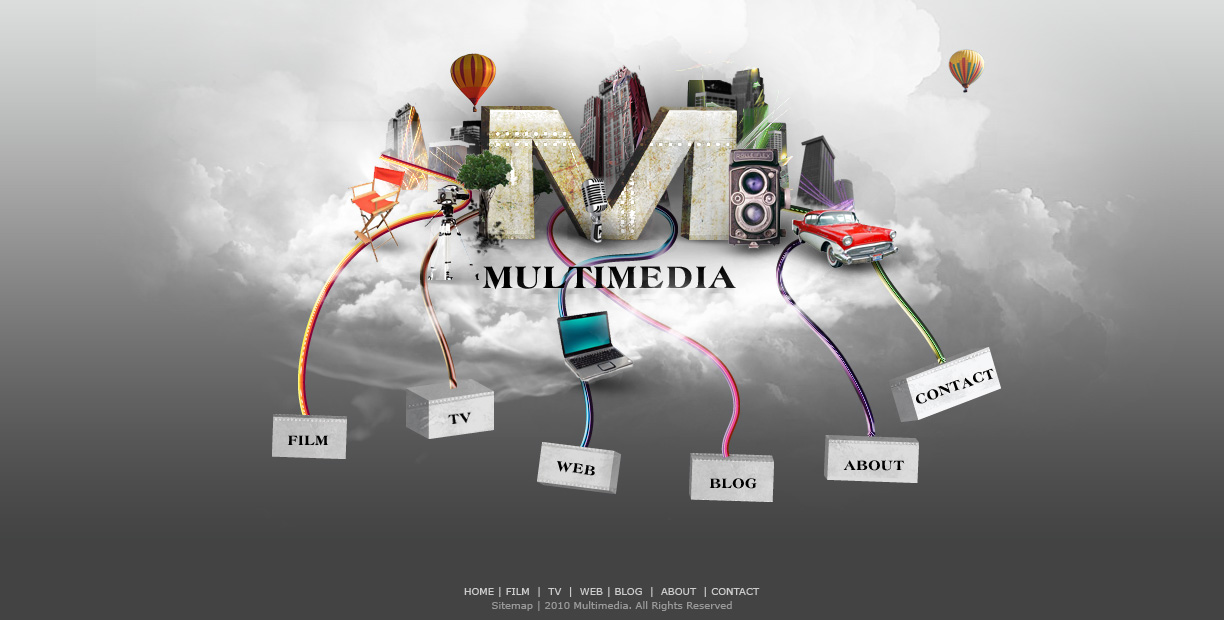
First impressions do count! Stunning our viewers with a visually compelling portfolio is one of the most important things that a designer can do to court a new client. Today we will demonstrate how to use photos, brushes, and textures, and 3D objects to design a creative multimedia website layout in Photoshop. Let’s get started!


Resources

The following resources were used in the production of this tutorial:


Step 1

Create a 960px by 620px canvas in Photoshop. This is a good resolution for websites as most screens can accommodate it.

Press Cmd + R to add the ruler and draw some guides to mark the limits for the main content area. These will be useful to center your design.


Step 2

Now that the main content area is properly delimited, let’s resize the canvas to 1224px by 620px (Image > Canvas Size) to create a bigger background. This spill-over area will be useful for visitors with large screens and create a ‘borderless’ look.


Step 3

The last step in preparing our document is to add a guide in the center. This guide will be handy when you have to center the design elements. A quick way to find the center is to create a new layer and press the Cmd + T shortcut keys to activate "Free Transform".


Step 4

Let’s make the cloud platform on which the main design will sit. Make a grey gradient background. Layer > Layer Style > Gradient Overlay. Gradient #434344 to #EAECEC. Leave all the other settings as default.


Step 5

Create a new layer “Clouds”. Load your Clouds brushes and paint in white a few clouds of various shapes, sizes and opacity until you’ve achieved a similar result as shown below.


Step 6

Create a second layer “clouds 2″, add a few clouds in the center.


Step 7

Create a third layer “clouds 3″. This time use the Abstract glow brushes, the 2nd brush, size 420px. Flip it, press Cmd + T > Flip Horizontal. This will help in giving the clouds a more wispy and ethereal look.


Step 8

Now we’ll create a big 3D “M” for “Multimedia”. You could substitute your company’s initials here.

Open up Illustrator and paste the cloud background that you just created into a new layer. Use it as guide to design the 3D “M”. Type the letter “M”: font Handel Gothic Ex, 181pt, white; you can substitute any other wide thick font. To give the text a 3D effect, go to: Effect > 3D &gt Extrude & Bevel. See image below for the settings.


Step 9

Copy the 3D “M” and go back to Photoshop to paste it in your document. Rename the layer to “m”. We’ll now apply some effects and textures to make it more realistic and interesting. First apply the following Layer Style to layer “m”.


Step 10

Create a New Folder “m textures”. Select the letter “M” with the Magic Wand Tool and with this selection, add a Layer Mask to the folder. We will now have all our textures for the 3D “M” inside this folder.

Use “texture 4.jpg” from the Rust Textures pack. Copy, paste and call the layer “texture”. Duplicate it and scale the duplicated layer “texture2″ down to 12.5%.


Step 11

Adjust the Layer Opacity to 40% and change its Blending Mode to Color Burn for both layers.


Step 12

Add another texture layer “texture3″ using “metal_plaque_bump_seam.jpg” Armored Metal Textures. Adjust the Layer Opacity to 26% and change its Blending Mode to Hard Light. Shift the layer around until you are satisfied with the texture’s position.


Step 13

Use a Soft Round brush with Opacity of about 30% to apply a shadow below the “M”. Use the Smudge Tool to adjust and create a slanted shadow as below.


Step 14

Add your company name, in this case “Multimedia”. Use Heritage Extra Bold, 32px, black. Next add a faint shadow below it.

Duplicate the layer, rename it "multimedia shadow". Cmd + T to access the Transform Tool, right click and select Flip Vertical. Add Motion Blur. Change the Layer Opacity to 50%. Add a Layer Mask and finally, apply a gradient to fade out the bottom.


Step 15

Now we’ll create the cityscape for our Multimedia world. You can use Cityscape Brushes for the buildings. Download a few abstract render packs : Render Pack Textures 1 and Render Pack Textures 2 for the textures. First use the brushes to draw a few buildings. Draw each building on a separate layer, between layers “clouds” and “clouds2″.


Step 16

Resize, position and cut out part of the buildings that you don’t need.


Step 17

For each building, create a New Folder which will contain their respective textures. Using the same method to apply texture for the letter “M”, select each building, one at a time, with the Magic Wand Tool and add the selection as a Layer Mask to the folder. Set the folder layer’s Blending Mode to Lighten.


Step 18

Now apply the abstract textures to the cityscape as below. Move, rotate, resize the textures until you’re satisfied with the effects.


Step 19

It is a good practice to clean up and organize your layers. Though a bit tedious at first, this practice will actually save you precious time when searching for files, let’s say a month later. Place all the buildings layers in a new folder “Buildings”. Bring this folder down between layer “clouds” and “clouds 2″.


Step 20

Use your cloud brushes to paint a few small clouds on layer “clouds2″ to cover up the buildings’ base.


Step 21

Let’s add our multimedia props: Classical camera, Director’s chair, TV camera, Laptop, Microphone, Hotair baloon 1, Hotair baloon 2, Small Tree. For each of these objects extract their background by using the Magic Wand Tool (W) and then click on the button Refine Edge to adjust the edges. To remove any remaining rough edges, use the Eraser Tool (E) with a small round brush.


Step 22

Resize and then apply Filter > Smart Sharpen (Cmd+F) to each object. Position them as below.


Step 23

Add shadows to the chair, TV camera, laptop, microphone, camera and car by following the same techniques used for the letter “M”. For the tree, use natural brushes and adjust the shapes using the Smudge Tool.


Step 24

Spring cleaning time! Link up each object layer with its respective shadow layer so that it will be easy to turn each object on and off as needed. To do this, Press Shift + click on both layers. Right click and select Link Layers. Then place all the props layers in a new folder “Props”.


Step 25

When designing a homepage, the interactive elements play a major role in determining the website’s success. Therefore we should make our main buttons enticing and prominent for users to want to click them. We’ll create 3D boxes that are connected with the cityscape through colorful wires. They will represent our different page sections. Here’s a preview of what you’ll be designing.


Step 26

Go back to Illustrator to draw the 3D boxes and colorful wires. Use the Rectangle Tool (M) to draw 6 white boxes of different width depending on the length of the text the box will contain. Example “Web” will have a smaller box and “Contact” will have a wider box.


Step 27

Apply Effect > 3D > Extrude & Bevel for each box. See image for each box’s effect settings, from left to right.


Step 28

Copy over the artwork you created in Photoshop so far and paste it in a “background” layer as a guide. Draw a few lines with either the Pen Tool (P) or the Pencil Tool (T), whichever is easier for you.


Step 29

We’ll now make some rainbow brushes. Use the Rectangle Tool (M) to draw a rectangle. Then copy and paste four to five rectangles one beside each other vertically. Change their colors. Select all the rectangle and use Align Left to align them.


Step 30

Make a few rainbow variations. Here are some samples.


Step 31

To make the brush, select a rainbow cluster, drag and drop it into your Brushes Panel. Select New Art Brush. Name your Art Brush “Rainbow1″ and keep the default setting with a horizontal right direction.


Step 32

Now apply your rainbow brushes to the different lines.


Step 33

Copy and paste each rainbow wire(line) individually in Photoshop. Paste the layers in front of the buildings but behind your props and the letter “M”. Apply a Layer Mask on the wire layers and use the Cloud brushes to make part of the wires transparent.


Step 34

To give the wires a 3D look and make them shinier, apply a Bevel & Emboss Layer Style with similar settings as shown below. Each wire requires some slight settings tweaking to achieve the desired look.


Step 35

Copy and paste the 3D boxes from Illustrator into individual layers.


Step 36

Apply texture “metal_plaque_bump_seam.jpg” from Armored Metal Textures, using the same techniques as in Step 10 and Step 17. Set the texture layer’s Blending Mode to Hard Light with Opacity 26%.


Step 37

Add text to the boxes. Use Heritage Extra Bold, 14px, black. Rotate the text where needed to follow the angle of the boxes.


Step 38

Clean up your layers and organize the buttons into folders, if you haven’t already done so.


Step 39

The last step!! Add the footer and you’re done! Use Verdana, 10px, #cccccc for the first line and #999999 for the bottom line. These are safe web colors.


Conclusion

I hope you found this tutorial helpful. Do share your opinions, ideas, and I will be glad to help you if you have questions. Be creative and explore the techniques you’ve learned here – I can’t wait to see what you come up with!

3 Ways To Get Unstuck

Sometimes you just get stuck.

Whether you’re a writer and you…just…can’t…find…the next thought or you catch a glimpse of the sunny skies outside your office window and you start to daydream, it happens.  The biggest step to moving ahead is to get “unstuck.”  Here are a few quick tips on how to get your mind on track and get back to the task at hand:

1. Indulge

Just go with it.  If you can’t stop thinking about next weekend, then don’t.  If you can’t get that next sentence on that report, then don’t.  Distract yourself, but do it productively.  Pick up the phone and make plans for the weekend.  If that next sentence won’t come out, then start to write about something else – make plans for what’s to come, perhaps.  Sometimes you have to indulge in what’s got you stuck before you can get out of it.  It’s like quicksand: the more you fight it, the quicker you’ll sink.

2. Insist

You can go the opposite way of indulging and insist you push through what’s on your plate.  It’s not the most pleasant way to go, but the short-term pain leads to long-term gain.  Think about what’s beyond the task at hand; that’ll help you get done what you need to now in order to get to where you need to be next.

3. Inquire

Start asking yourself questions.  Does this happen often?  Does it happen with just this type of work, or with a lot of what you do?  Sometimes searching for the answers to these initial questions will give you a lot of scope as to what really lies beneath.  Sometimes it’ll just get you moving again.  Sometimes it’ll get you moving on.

Do you have strategies that you put into practice when you get stuck?  What do you do to get unstuck?  Let us know in the comments.