Creating a Caricature from a Photo Reference – Vector Premium Tutorial


We have another great Vector Premium tutorial available exclusively for Premium members today. If you want to learn how to create a caricature using a mix of vector and photography, then we have an awesome tutorial for you. This tutorial covers how to use a photo as reference and how to successfully create a vector portrait with a clever twist.

Continue reading “Creating a Caricature from a Photo Reference – Vector Premium Tutorial”

Quick Tip – Using the Blob Brush and Eraser for Character Lines


In this Video Quick Tip you will learn how to use a digital drawing tablet in conjunction with the Blob Brush and Eraser tools to create character outlines. If you don’t own a tablet, don’t worry, you can still follow along with this tut and achieve a great looking result. Let’s begin!

Continue reading “Quick Tip – Using the Blob Brush and Eraser for Character Lines”

Pagination on Vectortuts+


You may have noticed that we’ve been breaking long content down into pages, based on the amount of steps involved. Some may loathe it, some may love it, and some may not have even noticed it, we want to know what you think about pagination.

Use the Poll to cast your vote, and feel free to leave your comments below as well.

Continue reading “Pagination on Vectortuts+”

25 Tempting Music Apps for the iPad

What would it take to tempt you to grab an iPad? These 25 apps might just whet your appetite. And if you can’t afford to buy an iPad, read on for how you can win one in AudioJungle’s new competition.

When iPads were first announced, we asked whether they would revolutionize music production. We – and many of you – couldn’t see it becoming the hub of our musical world, but thought that it might be a good peripheral device or controller.

Well, they’ve been out for a while now, and it’s time to round up a list of useful audio apps. How have they influenced your music making?


Win an iPad in AudioJungle’s iPad Treasure Hunt

AudioJungle have turned two, and to celebrate they are giving away an iPad and other prizes. To win, take part in an iPad Treasure Hunt around the AudioJungle Music Library. It’s all very tricky, and the competition closes on Monday May 31st, so you’ll have to hurry.

First prize is a 16GB Apple iPad, while the runner up wins $150 of AudioJungle marketplace credit. Head over to this thread in the AudioJungle forum to learn more.

Why would you want to win an iPad? Well, it’s a lot more fun than buying one. And you’ll find another 25 cool reasons below if you keep reading.


1. Pianist Pro

Cost: $9.99

“Pianist, the original iPhone piano, turns Professional in an all new iPad-only app with photo-realistic graphics and an unbelievable sound.”

Learn more here.


2. Synth

Cost: $0.99

“An incredible polyphonic synthesizer for your iPad. More than 40 instruments. Mod wheel. Adjustable delay.”

Learn more here.


3. Pro Keys

Cost: $0.99

“This app reached the second place on the US top (free) list! Why? Check out how beautiful is sounds.”

Learn more here.


4. Magic Piano

Cost: $0.99

“Play timeless pieces on spiral and circular keyboards, or follow beams of light – mastery requires only imagination. Play alone, or travel through a warp hole and play Piano Roulette with other performers across the world.”

Learn more here.


5. Guitar Lab

Cost: free

“TrueFire’s Guitar Lab app streams video guitar lessons with text, standard notation and guitar tab to your iPhone, iPad or Ipod Touch.”

Learn more here.


6. iElectribe

Cost: $9.99

“Korg’s ELECTRIBE.R has been coveted by dance musicians for ten years running. Today, this indispensable instrument has been born as a dedicated iPad app – the KORG iELECTRIBE virtual analog beatbox! The regular price is US$19.99; a special introductory price of US$9.99 is being offered until June 30, 2010.”

Learn more here.


7. Looptastic HD

Cost: $9.99

Create your own non-stop remixes in a incredibly intuitive way. Combine over 900 high-quality loops with your own imported samples – without stopping the music! Personalize your performance with 9 touchpad-controlled effects. Capture your moves and export them as CD-ready audio files.”

Learn more here.


8. Piano Accordio Pro

Cost: $3.99

“Awesome piano accordion! If there is one musical instrument that fits perfectly into the iPad’s big screen, you’ve just found it. Piano Accordio Pro sounds like a traditional punchy Italian accordion. It is designed to be exceptionally responsive and fun to play.”

Learn more here.


9. iBone

Cost: $2.99

The Pocket Trombone.

Learn more here.


10. Easybeats LGR

Cost: $4.99

Pro Drum Machine. “easyBeats is built from the ground up to be the quickest and easiest way to create great sounding 4-bar beats.”

Learn more here.


11. SunVox

Cost: $4.99

“SunVox is the most powerful music creation tool for iPhone/iPad.”

Learn more here.


12. bleep!BOX

Cost: $9.99

“bleep!BOX is a combination of drum machine and synthesizer box for your iPhone or iPod Touch. bleep!BOX has no samples – every sound is generated in realtime, so you can tweak to your heart’s content and kiss repetitive, cookie cutter drum beats and loops goodbye. bleep!BOX is not a simple toy – it’s powerful enough for you to make real music.”

Learn more here.


13. Bowls HD

Cost: $3.99

Automatic Tibetan Singing Bowls. “Make relaxing music using authentic Tibetan singing bowls.”

Learn more here.


14. StudioMini XL

Cost: $5.99

Recording Studio. “Check out our site for cool tutorials, video demos by some incredible musicians and more.”

Learn more here.


15. TouchOSC

Cost: $4.99

“TouchOSC is an iPhone/iPad application that lets you send and receive Open Sound Control messages over a Wi-Fi network using the UDP protocol.”

Learn more here.


16. Drum Meister Grand

Cost: $1.99

A realistic drum playing application for iPad.

Learn more here.


17. forScore

Cost: $4.99

The Musical Score Reader for iPad. “forScore was designed as a way to take thousands of pages of score with you on the go. With innovative features like the audible and visual metronome, forScore is more than just a PDF reader – it’s an intiutive experience.”

Learn more here.


18. ProRemote

Cost: $99.99

“ProRemote is the world’s first 32-channel touch-sensitive control surface that fits in the palm of your hand. ProRemote allows you to control your audio applications wirelessly using your existing wifi network. Get realtime meter data and control your rig.”

Learn more here.


19. ELECTRIFY

Cost: $14.99

“ELECTRIFY is a virtual sample-based Groovebox for your iPad. It was designed to combine the best features of existing hardware groveboxes and the ease of use of software applications in one creative touchable app.”

Learn more here.


20. AC-7 Pro Control Surface

Cost: $9.99

“The AC-7 Pro brings full touch control to your music mixing and recording sessions.”

Learn more here.


21. StudioTrack

Cost: $39.99

“StudioTrack is a songwriting tool for musicians who want to capture musical ideas and record songs on their iPad. StudioTrack works with the iPad built-in microphone and headphones. WiFi sync allows StudioTrack recordings to be downloaded to any desktop computer with a browser. Tracks can then be loaded into any recording software (DAW) to continue working on songs.”

Learn more here.


22. TabToolkit

Cost: $9.99

“TabToolkit is an incredibly powerful guitar tablature and music notation viewer, now with multi-track playback! An essential tool for learning and practising music, TabToolkit includes an audio synthesis engine so you can listen to and control the audio for all tracks individually.”

Learn more here.


23. Nota HD

Cost: $7.99

“As seen on Apple’s iPad TV commercial, Gizmodo, CNet, TUAW and Smoking Apples! Nota is a set of indispensable tools for musicians at any level. It has a piano chord and scale browser, a piano and staff note locator, a note quiz and a reference library with over 100 symbols.”

Learn more here.


24. iSequence

Cost: $6.99

“Real time playback/recording, parameter automation, built-in effects, and sound bank upgradable.”

Learn more here.


25. iRig

Cost: $39.99

A hardware/software solution for rocking out with your guitar or bass. Macworld explain:

“The first part of iRig is a small hardware adapter that lets you plug your guitar into your iPhone, iPod touch, or iPad. It also has a one-eight-inch jack for plugging in headphones or running out to an amp or powered speakers.

“Once you get your guitar and device set up, the AmpliTube for iPhone software becomes the real headliner. This app combines customizable stombox effects and amplifiers for making your guitar or bass sound like just about whatever you want. It comes in three editions, too: Free, LE, and Full. AmpliTube’s Free and LE versions come with different sets of effects and amps, and musicians can use in-app purchases to add more effects packages. If you want to go all-out, the Full version includes all effects and amps.”

Learn more here.


Conclusion

If you’re contemplating buying an iPad, which of these apps do you find most tempting? Do you think an iPad will make you a more productive music producer?

Do you already own an iPad? Which audio apps do you find most compelling or useful? Which of your favorite apps have we left out?

In Australia we have to wait another week until we even see an iPad. I’m still on the fence about whether to buy one or not. What can you say to push me over the edge one way or the other. Let us know in the comments.

And don’t forget to enter AudioJungle’s iPad Treasure Hunt – before it’s too late!


Workshop #72: The One That I Adore by Tim McQuay

At Audiotuts+ we irregularly put up a reader track for workshopping and critique (find out how to submit a track). This is how it works: you upload your song, and every week or so we’ll publish one here and step away from the podium. The floor is yours to talk about the track and how the artist can fix problems in and improve upon the mix and the song.

This track has been submitted for your friendly, constructive criticism. They have put their track (and their heart and soul) in your hands to learn and get useful feedback.

  • Do you enjoy the song or track itself? Does it have potential?
  • Can the arrangement be improved?
  • How did you find the mix? What would you do differently?
  • What do you enjoy about the rhythm track? What can be done to improve it?
  • Is the choice of instruments relevant and effective for the style/song?
  • Are the lyrics (if any) effective? Does the style, arrangement and genre of the song suit them?
  • Can you suggest any specific techniques that might improve the track?
  • Do you have any other constructive feedback?

The One That I Adore by Tim McQuay

Artist’s website: www.showcaseyourmusic.com/timmcquay

Description of the track:

This is an instrumental I created while trying out my new Yamaha YPT-210 keyboard. I dedicate this to my wife, Peggy McQuay.

Download audio file (TimMcQuayTheOneIAdore.mp3)

Terms of Use: This track may be downloaded freely.

Have a listen to the track and offer your constructive criticism for this Workshop in the comments section.


Submit Your Tracks for Workshopping

Need constructive criticism on your own tracks? Submit them using this form.


Alphabetic Inspiration: A-Z Experiments with Letters, Hand-Crafted Type, and More


This inspirational post is all about creating non-traditional type, letters, and alphabets. Some of these are made to into functional fonts and others serve as realized concepts. Consider doing some experiments with photographing objects made into full alphabets, hand crafting letters, working with 3D, trying unusual mediums, and more. Construct an image based font you can use in Photoshop, build your first pictorial font, or just have fun hand crafting some letters.


Illustrate the Alphabet Project

For those of you interested in showing off your own illustrated alphabets and letters, jump over to this session’s group project Illustrate the Alphabet where you can post an image of your letter creations and get some feedback on your work.


Object Based Letters and Fonts

There are so many real world objects one can collect and use as the basis for a font. Many of these are collections assembled here into letters, whether it’s vegetables, metal constructions, ties, iPhones, or any other object. Set up a photo shoot in your spare room and make a unique image based font.

5-A-Day Type, by Jimmy Smith

1031791241453754

PillsType, by Vladimir Koncar

788561227090526

HAARSPAN_GE, by Maude P. Lescarbeau

1534471267048080

Tie-pography, by Ed Nacional

753411242499030

Mech type, by Sebastian Gagin

1139511261024333

Paper font, by Jozef Ondrík

1164501248473568

Fuzzy – Font, by Font Soup

1108581248342672

Splinter: 3D Typeface, by Arslan Shahid

1590671269231279

iPhone Font, by urikane parker

899641268826281

Rock Around the Clock, by DASE Roman Sherbakov

rock

emotional book, by ShanSan Art&Design

1104971257397304

Made By – Awareness campaign, by Dolly Rogers

1075281244137858

Multisensory Typography, by Alan Murphy

907671231196186

Hand-Crafted Letters and Alphabets

Wheather it’s drawn, painted, carved, or in one case cut up potatoes used to make letters. The hand crafted feel is prevalent in the alphabets below. From watercolor to calligraphy their are a plethora of mediums and disciplines to choose from when creating unique letters.

Potato Font, Sofie Platou

1508381268995088

Watercolor Typography, Sasha Prood

1445131269824398

Deconstructive Typography, Alper YILDIRIM

1541071267177809

I used to Bitch about my shoes until…, Bruno Santinho

953081267204033

Diploma project1 2005-2006, Balázs Szabó

868391258481082

Blue Plastic Cup Font | my experimental fonts, Sveta Sebyakina

731121234454438

Tring Type, Rheannon Cummins

877721243939723

INK & SIMMETRY :: Tipography, María LaMuy

1567311268505485

Alphabet Studies, Michael Zeyda

1577121268711282

Photographic, Image Based, and Pictorial Letters

The dominant element that makes up these letters below are either photographs or drawn letters made with recognizable images in them. Some are shot from satellites, others are cut up images that are then reconstructed into alphabets. Photography is a medium well suited for those looking to capture unique lettering to use in Photoshop illustrations. Pictorial based fonts are often drawn then vectorized in the construction process, and there are a few of those shown here as well.

We Are Animals Type, POGO

1085351268098694

Google Earth Alphabet, Vladimir Zivkovic

1321841258036840

Photographic light capture typography, by Chris Page

1346501262558405

Typography experiments, Reack

1019301244999210

Typography – Creeps Deco Bold, Moa Nordahl

960251269374563

Bound Type, Gatis Cirulis

1440011264634469

Keeparty, by Irena Zablotska, Eugene Rudyy, and Keepa

589291243011498

Sequences, Jónas Valtýsson

1001951239027215

Experimental Letters and Fonts

There are a million and one ways one can create letters. The inspirational projects below are just a handful of additional alphabet experiments in effects, 3D, and even motion in the first example.

Type Experiments by Roy Eventov

1633311271280487

3D typeface, by Jarrik Muller

1357391260264374

Alphabet, by Jan Vitásek

1115741246348778

Misunderstood, by Adeliya Akhmerova

1405001266983038

MEA BODONI, by Jorge Mendez

1425541264793439

Type Experiment, by Oleg Portnoy

1000411257580137

Title, by Artist

856101260184548

The Roommates, by Giampiero Quaini

924941232752400

Hand Made Fonts

There are some that have taken image based and experimental fonts to a professional level. If your looking for a high end experimental type foundry, then check out Hand Made Fonts. They have a ridiculous amount of amazing image based fonts, over two hundred of them in high resolution. Some are created from 3D, others from images of light in motion, earthly elements, and various objects. Here are just a handful of jaw-dropping letters they’ve constructed.

807371234868549
hmf_2
hmf_3
hmf_5
hmf_4

All images are the copyright of their respective artist.


Further Inspiration


The Rock Solid Reflection Plan

One of the best ways – some would say the only way – to keep tabs on where you’re at and where you’re headed in terms of being productive is by looking back on where you’ve been.  It’s challenging to do this regularly.  Really challenging.  What’s more is that many people don’t do it at all.  Doing this (or, rather, not doing this) is a recipe of mediocrity…or even organizational disaster.

All that aside, you can do this.  You can review, reflect, revisit…whatever you’d like to call it…and you can do it regularly.  I’m not going to outline what this consists of – there’s many different ways to do it and not one particular method works for everyone unilaterally.  What I can do is present to you a plan on how to make sure you get to the act of doing it.

Write it out

Write it down.  Write it ALL down.  Electronically or with a basic pencil and paper, you need to have something to work with if you’re going to be able to reflect on anything.  There’s tons of different ways to do this using either method.  Popular ubiquitous software solutions like Evernote would be one way (yep, there’s even an app for that!), a digital recorder, grabbing a legal pad and jotting stuff down as you go are all effective – but only if you are consistent in doing so.  David Allen deals with “capturing” as a regular practice, so all I’m saying here is to do just that.  It goes hand in hand with reflection.

Read it out

So you’ve written it all down.  Nicely done.  Now you have to read it all.  Of course, there’s a natural absorption that happens when you get it down on paper or on “screen” but you need to really read it to get it to stick.  Much like there’s a significant difference between the terms “hearing” and “listening” – there’s a clear distinction between “note taking” and “reading.”

When you listen to someone – or to something – you really catch all the nuances in the message being sent.  The subtleties are all there.  If you’re a good listener, you rarely miss a beat.  As you get better at it, the beats you used to miss come fewer and farther between.  What’s more is that you generally get better at everything because your ability to pay attention becomes stronger.

When you hear someone, it’s just a noise.  Listening makes the noise identifiable – and great listeners can get incredibly specific when identifying noise.

You have to read what you write.  It’s the only way to separate the noise from what matters.

Block it out

You’ve written, you’ve read.  Now what do you need to do to interpret it all effectively?

Simple.  Block out the time you need to do it.

(Okay, maybe sort of simple.)

You must take the time to reflect.  You’ve also got to take the time to schedule taking the time to reflect.  So it’s not going to be very simple.  It’s going to be quite difficult…at first.

Just like doing the reflection itself, it’s going to be very challenging to make the time you need to reflect in the manner that you’ll need to.  You have to keep in mind that is a task – a responsibility that you owe yourself to fulfill in order to achieve more.  A reflection gives you the tools to make this happen.  You’ll be giving yourself the opportunity to take stock in what you’ve done and apply what you deem necessary to go further than you have before.  A reflection doesn’t just provide a guide for constant growth and development – it provides the ingredients.

As with anything else, you have to make  – and take – the time for this exercise.  If you don’t then you’ll be taking part in another exercise – one in futility.

Act it out

This is the part where you actually do the reflection.  Whichever way you decide to do it is fine.  Just make sure you do it.  ‘Nuff said.

“The unexamined life is not worth living.” – Socrates

As with all good quotes, Socrates hits the nail right on the head.  To take it a step further would be to say that if you don’t examine your life regularly, you really have no life at all.  What you end up with is a series of events that unfold around you while you react to them as best you can.  The idea behind reflecting is that you put yourself into a very advantageous position: one where you become proactive instead of reactive.  While you can never control what goes on around you in a direct manner, you can control how you handle them.  If you reflect on a regularl basis, you will have the ability to control how you handle them in an effective and efficient manner.  You’ll end up doing what suits you and the situation best, not just the latter.

Your ship will be rock solid…thanks to some regular rock solid reflection.

WordPress tip: Automatically empty Trash

Simply open your wp-config.php file (located at the root of your WOrdPress install) and paste the following code:

define('EMPTY_TRASH_DAYS', 10 );

The second parameter is when to empty trash, in days.

Looking for WordPress hosting? Try WP Web Host. Prices starts at $5/month and you can try it for free!

WordPress tip: Automatically empty Trash

Thematic WordPress Theme Toolbox: 10 extremely useful hooks

If you’re looking for a tutorial on how to create a Thematic child theme, you should read this post.

Add a favicon

A favicon is a small image displayed by modern web browsers. It is a must have for all websites, because it allows your visitors to quickly visualize your site among others when they have lots of browser tabs open at the same time.
This handy code will add your favicon to your theme. Make sure a favicon.png file is in your child theme images directory, and then paste the code in your functions.php file:

function childtheme_favicon() { ?>
	<link rel="shortcut icon" href="<?php echo bloginfo('stylesheet_directory') ?>/images/favicon.png" />
<?php }
add_action('wp_head', 'childtheme_favicon');

Source:

Add an Internet Explorer specific stylesheet

Who doesn’t hate Internet Explorer? Unfortunately, most clients will require developers to make their site IE-compliant. And the best way to do so is to use some conditional comments and a dedicated stylesheet.
Create a file named ie.css in your child theme directory, and then insert the following code in your functions.php file:

function childtheme_ie_style() { ?>
	<!--[if IE]>
		<link rel="stylesheet" type="text/css" href="http://www.webdevcat.com/wp-content/themes/webdevcat/ie.css" />
	<![endif]-->
<?php }
add_action('wp_head', 'childtheme_ie_style');

Modify Doctype

By default, Thematic outputs a XHTML 1.0 transitional doctype. If for some reason, you prefer using another kind of doctype, pasting the code below in your functions.php will do the trick.

function childtheme_create_doctype($content) {
 $content = '<!DOCTYPE html PUBLIC "-//W3C//DTD XHTML 1.0 Strict//EN" "http://www.w3.org/TR/xhtml1/DTD/xhtml1-strict.dtd">';
 $content .= "\n";
 $content .= '<html xmlns="http://www.w3.org/1999/xhtml"';
 return $content;
}
add_filter('thematic_create_doctype', 'childtheme_create_doctype');

Use Feedburner RSS feeds

Feedburner is very popular among bloggers. If you want to replace default rss feeds by feedburner feeds in Thematic, this code is for you.

function childtheme_rssfeeds($content) {
	$content = "\t";
	$content .= "<link rel=\"alternate\" type=\"application/rss+xml\" href=\"";
	$content .= "http://feeds2.feedburner.com/Catswhocode";
	$content .= "\" title=\"";
	$content .= wp_specialchars(get_bloginfo('name'), 1);
	$content .= " " . __('RSS feed', 'thematic');
	$content .= "\" />";
	$content .= "\n";
	return $content;
}
add_filter('thematic_rss', 'childtheme_rssfeeds');

Add Google Analytics code to your Thematic child theme

Google Analytics is another free and very useful service. In order to allow GA to collect your visitor information and create your stats, you have to insert a small piece of Javascript on your footer.php file.
Insert this code in your functions.php file, save it, and you’re done. Of course, don’t forget to replace the Google Analytics code with your own!

function ga(){ ?>
	<script type="text/javascript">
	var gaJsHost = (("https:" == document.location.protocol) ? "https://ssl." : "http://www.");
	document.write(unescape("%3Cscript src='" + gaJsHost + "google-analytics.com/ga.js' type='text/javascript'%3E%3C/script%3E"));
	</script>
	<script type="text/javascript">
	try {
	var pageTracker = _gat._getTracker("UA-XXXXX-10");
	pageTracker._trackPageview();
	} catch(err) {}</script>
<?php }
add_action('wp_footer', 'ga');

Modify Thematic footer credit

If you’re building a Thematic child theme for a client, you may want to insert your credit link in the footer text. The following code will do it. Don’t forget to give credit to Ian Stewart for his awesome work on the Thematic theme framework!

function my_footer($thm_footertext) {
	$thm_footertext = 'Copyright &copy; 2010 Jean-Baptiste Jung. <a href="http://www.webdevcat.com">WebDevCat.com</a> is obviously powered by <a href="http://www.wordpress.org">WordPress</a> &amp; the <a href="http://www.themeshaper.com/thematic">Thematic Theme framework</a>.';
	return $thm_footertext;
}
add_filter('thematic_footertext', 'my_footer');

Display Thematic menu above header

Want to have your navigation menu above your site header? That’s not a problem. This code will remove the menu from below the header and then put it above it.

function remove_thematic_actions() {
    remove_action('thematic_header','thematic_access',9);
    add_action('thematic_aboveheader','search_access',9);
}
add_action('wp','remove_thematic_actions');

Change “more” link text

Thematic “Read More” link displays Read More » by default. The following code allow you to change the “Read More” text.

function childtheme_more_text($content) {
	$content = 'Click to read the rest!';
	return $content;
}
add_filter('more_text', 'childtheme_more_text');

Change gravatar size in Thematic comments

By default, Thematic displays 35px*35px gravatars. If you want to change this size, no problem: Just paste this code in, as usual, your beloved functions.php file.

function childtheme_avatarsize() {
    return '56';
}
add_action( 'avatar_size', 'childtheme_avatarsize' );

Source: http://themeshaper.com/forums/topic/on-using-avatars-in-thematic

Remove Thematic menu on specific page template

If you want to make a squeeze page on your site or blog using Thematic, that’s quite easy: You only have to create a page template and remove the menu. To do so, just paste the code below in your functions.php file.
Don’t forget to set your page template name on line 2.

function remove_access() {
    if (is_page_template('affiliate.php')) {
        remove_action('thematic_header','thematic_access',9);
    }

add_action('wp_head','remove_access');
}

Source: http://themeshaper.com/forums/topic/conditionally-removing-thematic_access

By the way, if you’re interested in Thematic Theme help, don’t hesitate to ask me. I just started freelancing and I’m ready to help you for a reasonable price.

Like CatsWhoCode? If yes, don’t hesitate to check my other blog CatsWhoBlog: It’s all about blogging!

Thematic WordPress Theme Toolbox: 10 extremely useful hooks

Quick Tip: Detect User Inactivity in a Flash Movie

In this Quick Tip, you’ll learn how to detect when the user has been inactive for a determined time. Keep reading to find out how!


Final Result Preview

Let’s take a look at the final result we will be working towards:


Step 1: Brief Overview

We’ll detect users interaction using Keyboard and Mouse Events, checking for recent activity using a Timer. We’ll display a message if the determined time has elapsed without activity.


Step 2: Set Up Your Flash File

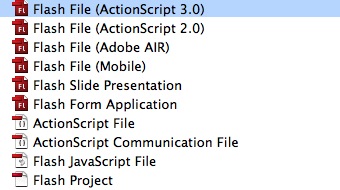
Launch Flash and create a new Flash Document.

Set the stage size to 550×250px.


Step 3: Interface

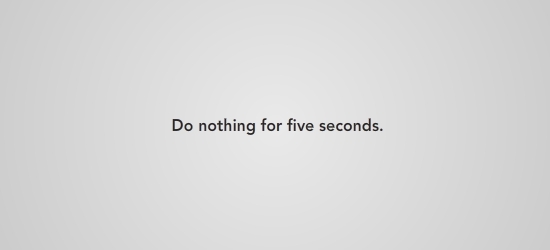
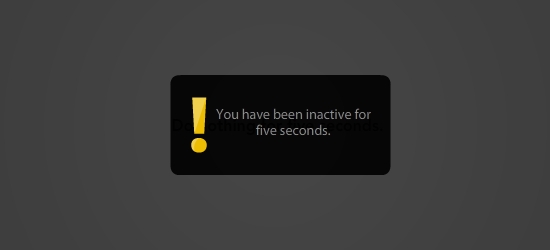
This is the interface we’ll be using, a simple background with a message telling the user to wait for five seconds. The following screen will be shown when the five seconds have passed – convert it to MovieClip and mark the Export for ActionScript box. It’s named TheScreen.

Of course this is only one of the many things you can do when the inactivity time passes, GrooveShark for example, pauses the music and shows a message asking the user if he wants to continue using the application. It’s your call to decide what to do.


Step 4: ActionScript

This is the class that does the work, read the comments in the code to find out about its behavior.

package
{
	import flash.display.Sprite;
	import flash.events.TimerEvent;
	import flash.utils.Timer;
	import flash.events.MouseEvent;
	import flash.events.KeyboardEvent;

	public class Main extends Sprite
	{

		private var screen:TheScreen = new TheScreen(); //Creates a new instance of TheScreen
		private var added:Boolean = false; //A boolean to check if the screen has been added to stage

		/* Timer Object */

		private var timer:Timer = new Timer(5000);//Five seconds for this example

		public function Main():void
		{
			timer.start(); //Starts the timer
			timer.addEventListener(TimerEvent.TIMER, showMsg); //Listens for the timer to complete

			/* Mouse and keyboard listeners, stops the timer when a event occurs, if you are using other input method, like the microphone, add its event here */

			stage.addEventListener(MouseEvent.MOUSE_MOVE, stopTimer);
			stage.addEventListener(MouseEvent.MOUSE_DOWN, stopTimer);
			stage.addEventListener(MouseEvent.MOUSE_UP, stopTimer);

			stage.addEventListener(KeyboardEvent.KEY_DOWN, stopTimerK);
			stage.addEventListener(KeyboardEvent.KEY_UP, stopTimerK);
		}

		/* If there is no activity for 5 seconds, a message will display */

		private function showMsg(e:TimerEvent):void
		{
			addChild(screen); //Adds the screen
			added = true;
		}

		/* If there's activity, we clear the message and reset the timer */

		private function stopTimer(e:MouseEvent):void
		{
			if (added)
			{
				removeChild(screen);
				added = false;
			}

			timer.stop();
			timer.start();
		}

		private function stopTimerK(e:KeyboardEvent):void
		{
			if (added)
			{
				removeChild(screen);
				added = false;
			}

			timer.stop();
			timer.start();
		}
	}
}

Step 5: Document Class

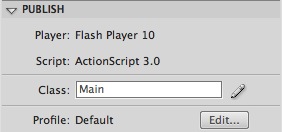
Remember to add the class name to the Class field in the Publish section of the Properties panel.


Conclusion

This is a useful and easy way to detect user activity. In this example the activity detected is based in the Mouse and Keyboard events, but you can easily add a Microphone or other input event to meet your needs.

I hope you liked this Quick Tip, thanks for reading!

Step by Step Guide for Building a Seamless White Backdrop

When focusing on a very specific subject, the last thing you want is a background full of distractions. Studio photography allows you to control every single aspect of the picture, and that’s where a white background comes handy. A smooth white background and some carefully positioned lighting will really help achieve great results. Today we’ll explain how to create your own!

What we want to build is simple: a crisp and smooth white surface, without any angles and bumps. It also needs to be cheap to build, very light and hopefully quick to put together. It will have some limitations of course, for example the size will only allow you to shoot small objects. But how big you make it is entirely up to you.


Step 1: Choose Materials, Plan Carefully

Now that we have a clear idea of what we want, we need to lay it down. This will serve as reference during the project and ensure we don’t miss any details.

For this build I would recommend using timber as the frame material. It’s cheap, light and your local DIY shop should have plenty of different sizes and thickness for you to choose from. Even better, you might be able to recycle some unused furniture. I had a shoe rack hanging around built with thin wooden bars. After taking it apart I ended up with 7 pieces, a bit longer than what I need, which was perfect.

The fixings for the frame will come from left-over Ikea screws and nails. Again I wanted to use as many recycled materials as possible but you can always get some screws, glue or nails for your favourite DIY shop. If you go for screws or nails, choose carefully: too long and they will hang out with a great risk of injuries. Too short and the fixations will not be strong enough.

For the white panel, I went to my local art shop and bought A1 size (594 mm x 841 mm), 1.5 mm thick, snow white cardboard. The extra thickness, compared to a normal paper sheet, will provide a more stable surface and will prevent the background from getting fold marks easily.

The tools you need will be pretty basic and depend on the fixation method you choose: screwdriver/hammer/brush (for the glue), a saw to cut the timber, meter/square, and a pencil. Before getting started, find a place with enough space and remember to protect the cardboard at all times!


Step 2: Measure and Cut

First we need to cut the timber to the right dimensions. Three pieces need to be the same length as the width of the cardboard, minus twice the thickness of the timber. This means that when they are put together, the width will be exactly the same as the width of the cardboard.

In my example, those three shorter bars are 580 mm long (my timber is 7mm thick, so 594 – (7*2) = 580mm).

Then we have the two longer parts forming the base, cut at 700 mm or roughly 3/4 of the cardboard length.

Finally the two bars forming the back of the frame, cut at 450mm long. The height really depends on the size of your cardboard and the curve you want, but I think a good ratio would be around half of the cardboard length. At this point you should also give all the bars a good rub with some sandpaper. That will provide a better finish, but more importantly get rid of the small splinters.


Step 3: Assemble Base

Position your four timbers, two long, two short, on the floor to get a good overview of the structure.

Fix the two short ones on one side and make sure the corners are square. Fix the other side at the free end of the short ones. Leave some space on one side of the structure, as shown in the picture below. This will be used later on to support the back of the frame.

To give you an idea of the dimensions in mine, the first bar is fixed at 25mm and the second one at 510mm on the long ones. Where you fix them will change the curve of cardboard.

To strengthen the frame you can also add small bars in the corners. Here I have added two in two opposite corners. Four would make it even stronger. You can use some of the cuts from earlier with a 45 degree angle at each ends.


Step 4: Assemble Back on Base

The back is based on three pieces of timber, two short, one long, fixed in the bottom corners of the base. It is important to get square corners when fixing the back to the base so make sure you double check that.


Step 5: Add Some Support

We could of course stop here, because the structure has got everything it needs to hold our cardboard. However, some additional support on the back will ensure it will stay in place for a while.

Again, using cuts from earlier, I made two bars with 45 degree angles at each end and fixed them to the back and the base like shown below. That should provide us with a strong frame on which we can fix the cardboard.


Step 6: Fix the Background

The last part is very easy – we just need to place the cardboard on the frame and hold it in place. For the cheap and easy option, use pins. Not pinned through the cardboard, they just serve as stops, hence we can remove the cardboard easily without damaging it. The fold in the cardboard gives it structure and hold it in place.


Finishing Off

If everything goes according to plan you should have something that looks very similar to the following:

Here are a few test shots I took:

If you feel confident with your DIY skills here are a few ideas for improvements:

  • Stronger frame: reinforce every corner to get a very rigid structure with sharp angles.
  • Add lights: as I said at the beginning, good lighting is very important. You can fix some lights and reflectors on the top part of the frame. Even better, turn the frame into a cube by adding two sides to the structure.
  • Folding: once completed, it is not the easiest thing to store and if it could be folded in half it would be great, wouldn’t it?
  • Bigger: of course here, size matters. To be able to shoot larger items you will need a bigger structure and a larger background.

That’s it for the DIY! I hope many of you will give it a go. If you do, please do share the pictures of your finished background in the comments.

Top 50 After Effects Project Files

We’re very proud to say that our sister marketplace VideoHive is now the most popular After Effects marketplace in the world (by traffic, by Alexa’s rankings). The growth in the last year has been phenomenal, and it’s all been thanks to the booming After Effects Project Files category. Whether you’re looking for something for a quick job, a file to build on and customize, or just some neat effects to copy over, we have a *ton* of amazing AE contributors selling some killer files. Today we’re showcasing some of the best files from our marketplaces here on Tuts+, so without further ado, here are our selection of the best project files on offer!


Spectrum

A really cool atmospheric sequence that comes alive to your music. Most of the elements within the sequence are driven by whatever music you add to the project.


Shooting Logo

Intro for your logo, all you need is just insert your logo. You can use any texture, metal or a wall, or the one you want.


Urban Destruct

Set in a future world, a fully customizable, 3D rotting urban environment with steel machine displays and titles swinging on a concrete slab from mecca droids above, this is a scary world, this is Urban Destruct.


Smoke Titles

Smokey title sequence. Great for trailers, promos, or anything else that requires a smooth but suspenseful and creepy title sequence.


Prophecy

Prophecy is atmospheric Hi-Tech, 35 sec long, 1080 HD file. Zip contains editable PSD files witch you simply open, edit, save and reload Also contains Help file witch explains how you can instantly modify the file.


Logo Transforming

Sophisticated animation of transformation of any your logo. Simply insert your logo.


Flashy Logo Reveal

A dynamic and powerful flashy logo reveal animation. The logo holder can be easy changed to fit any company


Energy Wipes

This is a very dynamic and uplifting presentation made in After Effects CS3.


ElegantWAVE Logo

Show your logo, text message in this modern, elegant, and classy opener/closer. This project is prepared in FullHD 1920×1080 and HD1280×720, just select the resolution you need and render. ElegantWave is great opener for trailer promos, video productions, presentations, product showcases, portfolios and more.


Logo Strings & Particles Animation

Here’s a Logo opening animation built in After Effects CS3 but also CS4 compatible. This is good for any intro video or identity logo animation.


Glide

Well over a minute of classy, serene, reflected animation of your images, videos, messages and logos – with a 3D camera ‘follow and fly-by’ at the end.


Top Of The Town

“Top of The town” is Complex 3D Animation made in After Effects CS3 in HD(1280×720)


Requiem

Another great animation with lots of potential uses and variable title and footage animations. Great for your website or business presentation at your office


Vermillion

This project features a clean and dynamic sequence perfect for showing off your professionalism. With ample opportunities for text and media Vermillion is a complete motion graphics showcase.


Typograph

A dynamic and versatile typographic After Effects project.


Logo Box 1

LogoBox1 is a real world project made as a template for amateur or professional motion graphic artists. LogoBox1 is extremely easy to change and customize.


Event Horizon

“Event Horizon” is a generic promo/presentation template without a specific theme in mind. It can serve any type of presentation. It contains 12 footage placeholders, 4 main text placeholders, a logo and a website placeholder. Pictures in the preview are not included.


Sketch

Sketch is my latest After Effects CS3 and CS4 compatible tool. A must have for your effects arsenal. It gives your footage a very cool, hand-drawn animation style.


Space Opener

A great project opener ready for rendering, just add your logo and text (you can easily change the color of the opener).


Light Scribble Intro

Light scribe your logo, text message in this modern, elegant, and classy opener/closer.


Concept Particle

This project does not use any pre renderer. All the elements are animated in the After Effects.


Tritone Business Template

Another useful project to present your company business. This project fits for any kind of activity field, it’s meant to be simple, elegant, dynamic.


Media Wall

This is a 3d image or movie gallery, the file is easy to customize,thanks to the easy set up of the most important controls (Light, Bg colors etc). There no prerender element, in this video display gallery and no extra plugin are used.


Orbs&Strokes Logo Opening

Orbs&StrokesLogoOpening is dynamic logo opening Animation made in After Effects CS4 in FULL HD (1920×1080)


Particle Reveal

Particle Reveal is a cool intro to show off you company logo.


Sunny Titles

This project is completely editable one. All you can see was made by standard After Effects tools. You have full freedom to adjust everything.


Follow The White Rabbit – Epic Style

Follow the White Rabbit is an intense, epic project perfect for Movie Trailers, Presentations, Portfolios, or New Websites. Fast paced and awesome.


Pages

Well over a minute of must-have animation of your images, videos, messages and logos in the style of a ‘3D’ magazine, book or album.


Grunge Template HD

Grunge Template is my latest work. It is perfect for company promos or maybe a photo album with up to 8 placeholders. No plug-ins required


Business People – Corporate Presentation

This sequence is aimed at the corporate sector or anywhere that people, offices or computers are a key factor. This could be used for a presentation or an opener for a conference or business meeting.


News Media Promo

This project is good for presentations with both text and media. You can add your own movies, images and text in a few clicks. No experience in After Effects is needed. A tutorial video is included in the package which explains how to customize this project.


LogoLight

Explosive Logo Animation,in a space atmosphere.Insert your logo, change the text,and you are ready to go.


HD Graphics Package

Great custom title graphics. This is a totally customizable AE CS3 file. Detailed instructions are included as a pdf. Two comps to use in this one. Everything is fully editable from animation to colors, text, length, and anything you want to change.


Mirrors

Another great animation with lots of potential uses and variable title and footage animations. Great for your website or business presentation at your office.


iShow

A full minute of classy 3D camera moves in a world of animated, reflected screens inside which you can show off your images, videos, messages and logos.


Photo Clicks

“Photo Clicks” is photo sequence Animation made in After Effects CS3 in Full HD(1920×1080)


Romeo & Juliet

At this time, let me present to you a project of Romeo & Juliet. It perfectly will approach for your films and presentations. Item “Romeo & Juliet” has two AE-project – Opener movies and Logo intro. Music is included!


White Corporate Showcase

Great for product demonstration and for anykind of business activity field, it’s meant to be classy,modern, and minimalist.


Focal Media Pack

6 uniquely themed and customizable animated sequences with text, abstracts and textures all set out for you.


3D Logo Reveal

3D Logo Reveal is logo opening Animation made in After Effects CS4 in FULL HD (1920×1080)


Sports Motion

A great sports action sequence made in After Effects CS3 in HD ( 1280 X 720 px ).


Hot Titles

The corrected project was made by standard AE tools without any third party plugins, and consists of SEVENS main scenes – each of ones can be easy adjusted by you for your needs.


Glorious

Another great animation with lots of potential uses and variable title and footage animations. Great for your website or business presentation at your office


3D Laptop Animation Bundle

Ideal for TV Ad, commercial, presentation, promotion. Use this project to show your media, video, pictures, portfolio with impressive and realistic animation. Get realistic visualization without third party 3D software or expensive plug-ins.


Elegant Business Template

The project includes a simple but effective company title intro & ending, a catchy Company Text sequence, 6 place holders in three categories (of course more can be added in a few click), 4 Client Main reference Logo(also more can be added).


Fast and effective intro

This project is very easy to edit, all you need is to edit some psd files in photoshop. You have described simple steps in instructions in help.txt file


SoBoxy

SoBoxy is made to present your media in simple, stylish and efficient way. Placeholders for your media are placed in 3d studio, with clean lines and soft shadows. Images are revealed with modern glassy effect which you can see how it is made.


Cinema Opening Sequence

A very cinematic epic opening title sequence in a space like environment. 100% created in After Effects. Easy to edit, modify, and render.


Paper Text HD

This is a cool and original project, made with the version CS3 of After effects, ( it works with the CS4 ) in HD resolution 1280×720, no plugin required, the sounds are not included.


Rhythm In Motion

Rhythm in motion is a full 1:10 promo with 14 image/video/text placeholders. After Effects CS4 in HD 1280 X 720 . All elements are editable within After Effects except for the pre-rendered transition. Just type your text, replace your images/videos, change logo and render.


Quick Tip – Take Cover From Simulated Tracers

In this tutorial I will explain to create simple, but realistic, tracer rounds that you can easily add into your war films using After Effects.


Preview

Want access to the full AE project files and assets for every tutorial on Aetuts+, including this one? Join Ae Premium for just $9/month. You can view the final effect preview video below.

Tutorial

Download Tutorial .flv

File size 146MB


Developing Illustrative Type to Complement Your Style


My name is Jonny Wan and I am a freelance illustrator based in the UK. My style is based upon shape experimentation, patterns and textures and I draw inspiration from ancient cultures and civilizations. More recently I have rekindled my love for type and now developing a way of working with type that is congruent with my illustrative style so the two can work in tandem when applied to commissions that requires both.

Continue reading “Developing Illustrative Type to Complement Your Style”

Keep the File Size Down and Spice-up our Vectors with Bitmap Textures


In a previous tut I covered creating vector textures; but a common concern is that vector textures create extremely large files. In this tutorial I will outline the process of creating and using bitmap textures. This will help you cut the file sizes down without compromising your image.

Continue reading “Keep the File Size Down and Spice-up our Vectors with Bitmap Textures”