Exclusive Freebie: Preloader Pack

Summer has started, so let’s mark the occasion with some more free goodies! This month we’re helping kick-start all your Flash projects with a set of 15 preloaders from Carlos Yanez.

Rotators, masked text, progress bars, percentage indicators; all these preloaders will give you a great foundation on which to build your own.


Preview

Here’s a quick preview of the preloaders available in this exclusive pack:


Plenty of Workfiles to Get Your Teeth Into!

There are 15 preloaders included in this download; each one comprising of an FLA and a Document Class. Take the workfiles as a basis, add your own effects, filters and animations then use them in your own projects!

For more information on using preloaders in your work, check out Carlos’ previous tut Create an Apple Inspired Flash Preloader or Karl Macklin’s Comprehensive Guide to Preloading a Single SWF File.

Enjoy!

Build an Adobe AIR Stopwatch Application – Active Premium

Today, we have another Active Premium tutorial exclusively available to Premium members. If you want to take your ActionScript skills to the next level, then we have an awesome AIR tutorial for you, courtesy of John Reyes


Final Result Preview

Let’s take a look at the final result we will be working towards for this tutorial. Note that the minimize and maximize buttons have been disabled since this is a SWF version. The AIR Application we will build will be fully functional.


This Premium Tutorial is Filled with Creative Tips

In this tutorial, we will build an Analog Timer AIR Application that we can use as a utility to time development work. We will be using a Custom Timer class that has Pause and Resume capabilities. This custom class will help you with a lot of Timer based applications as you’ll see with a few examples. I created this project both with Flash CS4 and FlashDevelop. Although FlashDevelop can greatly speed up code development, everything can be done through Flash alone.


Professional and Detailed Instructions Inside

Premium members can Log in and Download! Otherwise, Join Now! Below are some sample images from this tutorial.


Active Premium Membership

We run a Premium membership system which costs $9 a month (or $22 for 3 months!) which periodically gives members access to extra tutorials, like this one! You’ll also get access to Psd Premium, Vector Premium, Audio Premium, Net Premium, Ae Premium and Cg Premium too. If you’re a Premium member, you can log in and download the tutorial. If you’re not a member, you can of course join today!

Also, don’t forget to follow @activetuts on twitter and grab the Activetuts+ RSS Feed to stay up to date with the latest tutorials and articles.

The Best of Tuts+ – June 2010

June was a stellar month for Tuts+. Mobiletuts+ had recently launched and started off with some great iPhone and Android development tutorials. Creative Sessions focused on Digital Illustration this month and started gearing up for July’s Interface Design session. During June a survey was run across all of Tuts+ to give our readers the opportunity to provide some feedback, over 7000 people participated and one was lucky enough to win a $250 Amazon Voucher. Here’s a small sample of the best from Tuts+ this month!

Activetuts+ – Flash, Flex and Actionscript Tutorials

  • Personal Portfolio Flash Template – Active Premium

    It’s time for some more Active Premium goodies, exclusively available to Premium members. This time, an XML-based Flash Personal Portfolio template is waiting for you to download; read on to check out the demo and find out more about subscribing to Active Premium!

    Continue Reading

  • Advanced Character Customization for Flash Games

    In this tutorial, we’ll delve into Flash game character customization. The result can be used to provide players with the ability to create a unique character, beyond the basic dress-up options of most games. We’ll learn how to let the user add custom colors to different parts of our character, how to add hand-drawn designs to the character’s clothing, and how to modify a basic walking animation that uses the player’s changes.

    Continue Reading

  • Interview with Chris Gross, Plus (Winner Announced) SourceMate License Giveaway!

    SourceMate is a new plugin for FlashBuilder which promises to add a lot of “missing” features some of us have taken for granted in other IDEs.Read on to hear SourceMate Architect Chris Gross answer some questions about the product, plus find out how you can win a free license!

    Continue Reading

Aetuts+ – Adobe After Effects Tutorials

  • Create A Growing Text Animation – Quick Tip

    This is a quick tutorial showing an animation idea if you ever need to animate lots of photos with tag lines. I’ll touch on “Beam” and “Auto-Trace” within After Effect and get you started on creating your own beautiful project!

    Continue Reading

  • Fluidic Designs Using Particular

    This tutorial is based on the Hyundai i45 tv commercial. The effect is rain falling in the shape of various designs, onto a vehichle. The tvc uses a real-world rain rig with a computer driven water delivery system, however we will be showing you how to create the same effect using only After Effects and Particular.

    Continue Reading

  • 41 MORE Killer Typography Works

    I know, I know, I am a day late, but I have quite a good reason… Thank you all for the well wishes, and since I love our readers so much, I was able to finish up this week’s article just for you guys. It’s another roundup of some amazing works of typographical art, that I really think that you are gonna like! You might see that I included one from the comments of last week, so if you have something that you think is worthy… stick it in the comments!

    Continue Reading

Audiotuts+ – Audio and Production Tutorials

  • How to Make the Synth Sound from Lady Gaga’s “Just Dance”

    In this tutorial we are going to cover how to create Lady Gaga’s famous synth sound from “Just Dance”. Despite all the advancements in sound synthesis, sometimes the best sounds are the ones that are most simple. In fact the basis for the entire sound is one simple square wave!

    Continue Reading

  • Open Mic: Tell Us About the Tuts You’d Like to See on Audiotuts+

    What specific topics would you like to see covered in tutorials? Do you prefer written tuts, screencasts, or a mix? And what general areas would you like to see covered: DAW techniques, music theory, how to play an instrument, how to create specific sounds, how to make money with music, something different? Do you have any other suggestions? What can we do to keep you happy and make your day?

    Continue Reading

  • So You Think You’ve Finished Mixing? A Guide to Preparing Your Mix for Mastering

    You know what it feels like to finish a mix. Having spent hours, possibly days, perfecting your track to the nth degree, it feels great to finally have a song to be proud of after all the hard work and effort. But what if you took your mix just that little bit further. Before the crucial mastering stage, there are some very simple, and often overlooked, practices and techniques which can be applied to your mix in order to make sure your track stands out from the crowd and better yet, your final master is as good as it possibly can be.

    Continue Reading

Cgtuts+ – CG and 3D Tutorials

  • Model and Texture a Water Tower in 3ds Max – Day 1

    In the first part of this tutorial, the modeling and texturing process is covered in detail, starting with the creation of a proxy model inside of 3ds max. During this stage we will block out the tower structure using simple geometry and then go through the process of adding resolution and detail, creating an aged weathered look. We’ll make use of some simple poly modeling techniques as well as Max’s paint deformation tools to create the desired effect.

    Continue Reading

  • The Cgtuts+ E3 Games Roundup!

    Being in the CG realm of creativity, I know a lot of you are probably really into games, and probably even have worked on a few of them. I decided to make a nice list of a lot of the games mentioned or announced this past week at the E3 conference, so you can stay up to date, whether or not you followed it.

    Continue Reading

  • Composite a 3D object into video footage with Boujou, Maya and After Effects

    Matchmoving is a visual effects technique that allows the insertion of computer graphics into video footage. In this tutorial we’ll start by taking a look at how we can track our footage using Boujou. We’ll then jump into Maya and use that tracking information, along with a custom HDR image, to create and render a 3D object which we can insert into the scene. We’ll then use After Effects to composite the 3D object into the original video. The techniques used in this tutorial can be applied to almost almost all of your 3D integration shots.

    Continue Reading

Mobiletuts+ – iPhone, Android, Windows and Blackberry Mobile Development Tutorials

  • Introduction to iPhone SDK Development

    Mobiletuts+ will be covering all major mobile platforms – iPhone, Windows, Android and Blackberry. This tutorial looks at development with the iPhone SDK. You will learn information about the iPhone platform, how to setup and configure your development environment, and the steps necessary to create a simple fortune cookie application!

    Continue Reading

  • Introduction to Android Development

    Mobiletuts+ will be covering all major mobile platforms – iPhone, Windows, Android and Blackberry. Today we’ll be taking a look at Android development: explaining why people have choosen to work with Android and providing an overview of the Eclipse IDE and its Java, DDMS and debugging perspectives. Finally, you’ll learn how to get started making your first Android app!

    Continue Reading

  • HTML5 Apps: Positioning with Geolocation

    At the heart of every location-based application is positioning and geolocation. In this tutorial you will learn the geolocation capabilities of HTML5 and the basic principles needed to take advantage of them in your next HTML5 app!

    Continue Reading

Nettuts+ – Web Development Tutorials

  • The 10 HTML Tags Beginners Aren’t Using

    Let’s go back to the basics for this one. Everyone reading this at least knows what HTML is. I believe that, no matter what experience level someone has, reviewing the foundation can help increase knowledge. It also helps to hone skills, especially with the constantly evolving technologies that drives the Internet.

    Continue Reading

  • Inspiration: 40 Unique Footer Designs

    For this week’s stream of inspiration, we’ve collected forty fantastically creative and unique footer designs.

    Continue Reading

  • How to Authenticate Users With Facebook Connect

    Lately, there’s been quite a fuzz about lazy registration. It turns out that the less the user has to think, the higher the conversion rates are! What a thought! If everybody seems to have a Facebook profile, why not add a one-click user registration? I’ll show you how to do that today.

    Continue Reading

Phototuts+ – Photography and post-processing Tutorials

  • 7 Items You Never Thought to Bring to a Shoot

    Today, we’re taking a look at some of the less-obvious items that you may not consider bringing to a photo shoot. Some are tiny things, others are big – all of them will help to make any photography shoot go far smoother!

    Continue Reading

  • The Ultimate Beginner’s Introduction to Exposure

    Today we’ll be walking through the concept of exposure, right from the beginning. This article won’t befuddle you with complicated numbers and jargon, but it will help you feel more confident with your photography and understand a core concept that’s a vital piece of the photography jigsaw.

    Continue Reading

  • DIY: How To Make a Professional Softbox for Under $2

    Nowadays a softbox needn’t be all that expensive – you can get nice results for $100 or even less. But what if there’s a way of making it much cheaper, with the same results? That’s what we’ll be explaining in this DIY tutorial; how to make a softbox with professional results for less than $20.

    Continue Reading

Psdtuts+ – Adobe Photoshop Tutorials

  • Create a Cosmic Love Goddess With Photoshop CS5

    Photoshop CS5 includes several new features to help improve your workflow. In today’s tutorial we will demonstrate how to create a cosmic love goddess using some of Photoshop CS5?s new tools including the Refine Edge Feature which really helps to streamline the process of masking and removing objects from their background.

    Continue Reading

  • Design a Multimedia Website Layout in Photoshop

    First impressions do count! Stunning our viewers with a visually compelling portfolio is one of the most important things that a designer can do to court a new client. Today we will demonstrate how to use photos, brushes, and textures, and 3D objects to design a creative multimedia website layout in Photoshop. Let’s get started!

    Continue Reading

  • More Than 620 Bokeh Background Textures

    As I’m sure you already know, textures can come in very handy; whether you’re using them to subtly add interest to your work, or in full-blown, award-winning photo manipulations. Bokeh is the term used to explain the blur, or the aesthetic quality of the blur in photography, and is usually seen in good quality macro shots, in the areas that lay outside the depth of field.

    Continue Reading

Vectortuts+ – Adobe Illustrator and Vector Tutorials

  • Create a Detailed, Vector-based iPhone Illustration, Part 1

    In this tutorial you will learn how to create a photo-realistic iPhone illustration and every single icon you can find on the iPhone touch screen. That’s 18 icons! With so many fantastic tips and tricks we’ve broken the tutorial into two parts, in part two you will learn how to make the remainder of the icons and finish your illustration. Let’s get started!

    Continue Reading

  • Quick Tip: A Simple Way to Create Vector Fog

    In this tutorial, you will learn how to make a simple yet effective smoke-like illustration. Using this technique you can make smoke, fog and clouds in just a few easy steps. Let’s get started!

    Continue Reading

  • Inspiration: 35 Amazing Vector Landscapes

    Landscapes aren’t necessarily the first thing that come to mind when one thinks of vector artwork. After all, landscapes are often very nuanced and hold a wide variety of shapes, colors, and patterns that can be difficult to mimic in a vector image. But that doesn’t mean there aren’t some incredibly talented vector artists out there creating beautiful landscapes, some of which are almost photo-realistic (especially if viewed from a distance).

    Continue Reading

Creative Sessions

  • Realistic Vecyor Motorcycle Portaits

    Every semester, in my Illustrator classes, my students always want to know how I create the Motorcycle Portraits I am known for. I often give them a brief explanation, but I have never really sat down and described the process in detail…until now. My approach to getting a “realistic” look in my work is a bit tedious, but I think you will agree that the end results are well worth it. Enjoy!

    Continue Reading

  • The Making of Lost – Part 1

    A key to succeed in following this tutorial series is to experiment. I will be teaching the basic techniques but in order to create a strong composition and attractive shapes, you will need to alter the settings, change/redo splines and experiment with other effects. Patience and determination are mandatory skills for any artist. So let’s get started!

    Continue Reading

  • Scratching your Niche Market

    As opposed to discussing just the specific techniques used to target a precise niche market, I would like to start off with a few overarching thoughts. I will cover some basic, yet very useful principles to keep in mind for the bigger picture (Get it? ‘Bigger picture,’ like your career – hehe), and then supply a case study of how I have used them in my work.

    Continue Reading

FreelanceSwitch – Freelance Jobs & Freelancer Directory

  • 18 Smokin’ Hot Business Card Designs

    A good business card design is an essential tool in any freelancer’s arsenal. When you’re at a function networking, meeting new clients, or your work comes up in a conversation, your card is the anchor to make sure the discussion doesn’t come to nothing.

    Continue Reading

  • 5 Ways to Fire A Client

    There are just some clients who you no longer want to work with. It could be that the client in question is difficult to work with or it could be more a matter that you’ve moved on from the type of work you’ve been doing for that client. Whether you’ve only done a little work for the client or you’ve been together a long time, it’s never easy to fire a client. Not only do you have to get past the freelancer’s natural reluctance to give up money, but you’ve got to make the break in such a way that the client will still speak positively about you to other prospective clients.

    Continue Reading

  • 15 Inspiring Home Offices

    Is there such a thing as the perfect home office? From my personal opinion, I’d say that your own office is the perfect one. Then again, this all depends on what we have, what we use and if we’re pleased with it. I’m not even close to satisfied with my office yet, but I’m working on it.

    Continue Reading

The Best of Tuts+ – June 2010

June was a stellar month for Tuts+. Mobiletuts+ had recently launched and started off with some great iPhone and Andriod development tutorials. Creative Sessions focused on Digital Illustration this month and started gearing up for July’s Interface Design session. During June a survey was run across all of Tuts+ to give our readers the opportunity to provide some feedback, over 7000 people participated and one was lucky enough to win a $250 Amazon Voucher. Here’s a small sample of the best from Tuts+ this month!

Activetuts+ – Flash, Flex and Actionscript Tutorials

  • Personal Portfolio Flash Template – Active Premium

    It’s time for some more Active Premium goodies, exclusively available to Premium members. This time, an XML-based Flash Personal Portfolio template is waiting for you to download; read on to check out the demo and find out more about subscribing to Active Premium!

    Continue Reading

  • Advanced Character Customization for Flash Games

    In this tutorial, we’ll delve into Flash game character customization. The result can be used to provide players with the ability to create a unique character, beyond the basic dress-up options of most games. We’ll learn how to let the user add custom colors to different parts of our character, how to add hand-drawn designs to the character’s clothing, and how to modify a basic walking animation that uses the player’s changes.

    Continue Reading

  • Interview with Chris Gross, Plus (Winner Announced) SourceMate License Giveaway!

    SourceMate is a new plugin for FlashBuilder which promises to add a lot of “missing” features some of us have taken for granted in other IDEs.Read on to hear SourceMate Architect Chris Gross answer some questions about the product, plus find out how you can win a free license!

    Continue Reading

Aetuts+ – Adobe After Effects Tutorials

  • Create A Growing Text Animation – Quick Tip

    This is a quick tutorial showing an animation idea if you ever need to animate lots of photos with tag lines. I’ll touch on “Beam” and “Auto-Trace” within After Effect and get you started on creating your own beautiful project!

    Continue Reading

  • Fluidic Designs Using Particular

    This tutorial is based on the Hyundai i45 tv commercial. The effect is rain falling in the shape of various designs, onto a vehichle. The tvc uses a real-world rain rig with a computer driven water delivery system, however we will be showing you how to create the same effect using only After Effects and Particular.

    Continue Reading

  • 41 MORE Killer Typography Works

    I know, I know, I am a day late, but I have quite a good reason… Thank you all for the well wishes, and since I love our readers so much, I was able to finish up this week’s article just for you guys. It’s another roundup of some amazing works of typographical art, that I really think that you are gonna like! You might see that I included one from the comments of last week, so if you have something that you think is worthy… stick it in the comments!

    Continue Reading

Audiotuts+ – Audio and Production Tutorials

  • How to Make the Synth Sound from Lady Gaga’s “Just Dance”

    In this tutorial we are going to cover how to create Lady Gaga’s famous synth sound from “Just Dance”. Despite all the advancements in sound synthesis, sometimes the best sounds are the ones that are most simple. In fact the basis for the entire sound is one simple square wave!

    Continue Reading

  • Open Mic: Tell Us About the Tuts You’d Like to See on Audiotuts+

    What specific topics would you like to see covered in tutorials? Do you prefer written tuts, screencasts, or a mix? And what general areas would you like to see covered: DAW techniques, music theory, how to play an instrument, how to create specific sounds, how to make money with music, something different? Do you have any other suggestions? What can we do to keep you happy and make your day?

    Continue Reading

  • So You Think You’ve Finished Mixing? A Guide to Preparing Your Mix for Mastering

    You know what it feels like to finish a mix. Having spent hours, possibly days, perfecting your track to the nth degree, it feels great to finally have a song to be proud of after all the hard work and effort. But what if you took your mix just that little bit further. Before the crucial mastering stage, there are some very simple, and often overlooked, practices and techniques which can be applied to your mix in order to make sure your track stands out from the crowd and better yet, your final master is as good as it possibly can be.

    Continue Reading

Cgtuts+ – CG and 3D Tutorials

  • Model and Texture a Water Tower in 3ds Max – Day 1

    In the first part of this tutorial, the modeling and texturing process is covered in detail, starting with the creation of a proxy model inside of 3ds max. During this stage we will block out the tower structure using simple geometry and then go through the process of adding resolution and detail, creating an aged weathered look. We’ll make use of some simple poly modeling techniques as well as Max’s paint deformation tools to create the desired effect.

    Continue Reading

  • The Cgtuts+ E3 Games Roundup!

    Being in the CG realm of creativity, I know a lot of you are probably really into games, and probably even have worked on a few of them. I decided to make a nice list of a lot of the games mentioned or announced this past week at the E3 conference, so you can stay up to date, whether or not you followed it.

    Continue Reading

  • Composite a 3D object into video footage with Boujou, Maya and After Effects

    Matchmoving is a visual effects technique that allows the insertion of computer graphics into video footage. In this tutorial we’ll start by taking a look at how we can track our footage using Boujou. We’ll then jump into Maya and use that tracking information, along with a custom HDR image, to create and render a 3D object which we can insert into the scene. We’ll then use After Effects to composite the 3D object into the original video. The techniques used in this tutorial can be applied to almost almost all of your 3D integration shots.

    Continue Reading

Mobiletuts+ – iPhone, Android, Windows and Blackberry Mobile Development Tutorials

  • Introduction to iPhone SDK Development

    Mobiletuts+ will be covering all major mobile platforms – iPhone, Windows, Android and Blackberry. This tutorial looks at development with the iPhone SDK. You will learn information about the iPhone platform, how to setup and configure your development environment, and the steps necessary to create a simple fortune cookie application!

    Continue Reading

  • Introduction to Android Development

    Mobiletuts+ will be covering all major mobile platforms – iPhone, Windows, Android and Blackberry. Today we’ll be taking a look at Android development: explaining why people have choosen to work with Android and providing an overview of the Eclipse IDE and its Java, DDMS and debugging perspectives. Finally, you’ll learn how to get started making your first Android app!

    Continue Reading

  • HTML5 Apps: Positioning with Geolocation

    At the heart of every location-based application is positioning and geolocation. In this tutorial you will learn the geolocation capabilities of HTML5 and the basic principles needed to take advantage of them in your next HTML5 app!

    Continue Reading

Nettuts+ – Web Development Tutorials

  • The 10 HTML Tags Beginners Aren’t Using

    Let’s go back to the basics for this one. Everyone reading this at least knows what HTML is. I believe that, no matter what experience level someone has, reviewing the foundation can help increase knowledge. It also helps to hone skills, especially with the constantly evolving technologies that drives the Internet.

    Continue Reading

  • Inspiration: 40 Unique Footer Designs

    For this week’s stream of inspiration, we’ve collected forty fantastically creative and unique footer designs.

    Continue Reading

  • How to Authenticate Users With Facebook Connect

    Lately, there’s been quite a fuzz about lazy registration. It turns out that the less the user has to think, the higher the conversion rates are! What a thought! If everybody seems to have a Facebook profile, why not add a one-click user registration? I’ll show you how to do that today.

    Continue Reading

Phototuts+ – Photography and post-processing Tutorials

  • 7 Items You Never Thought to Bring to a Shoot

    Today, we’re taking a look at some of the less-obvious items that you may not consider bringing to a photo shoot. Some are tiny things, others are big – all of them will help to make any photography shoot go far smoother!

    Continue Reading

  • The Ultimate Beginner’s Introduction to Exposure

    Today we’ll be walking through the concept of exposure, right from the beginning. This article won’t befuddle you with complicated numbers and jargon, but it will help you feel more confident with your photography and understand a core concept that’s a vital piece of the photography jigsaw.

    Continue Reading

  • DIY: How To Make a Professional Softbox for Under $2

    Nowadays a softbox needn’t be all that expensive – you can get nice results for $100 or even less. But what if there’s a way of making it much cheaper, with the same results? That’s what we’ll be explaining in this DIY tutorial; how to make a softbox with professional results for less than $20.

    Continue Reading

Psdtuts+ – Adobe Photoshop Tutorials

  • Create a Cosmic Love Goddess With Photoshop CS5

    Photoshop CS5 includes several new features to help improve your workflow. In today’s tutorial we will demonstrate how to create a cosmic love goddess using some of Photoshop CS5?s new tools including the Refine Edge Feature which really helps to streamline the process of masking and removing objects from their background.

    Continue Reading

  • Design a Multimedia Website Layout in Photoshop

    First impressions do count! Stunning our viewers with a visually compelling portfolio is one of the most important things that a designer can do to court a new client. Today we will demonstrate how to use photos, brushes, and textures, and 3D objects to design a creative multimedia website layout in Photoshop. Let’s get started!

    Continue Reading

  • More Than 620 Bokeh Background Textures

    As I’m sure you already know, textures can come in very handy; whether you’re using them to subtly add interest to your work, or in full-blown, award-winning photo manipulations. Bokeh is the term used to explain the blur, or the aesthetic quality of the blur in photography, and is usually seen in good quality macro shots, in the areas that lay outside the depth of field.

    Continue Reading

Vectortuts+ – Adobe Illustrator and Vector Tutorials

  • Create a Detailed, Vector-based iPhone Illustration, Part 1

    In this tutorial you will learn how to create a photo-realistic iPhone illustration and every single icon you can find on the iPhone touch screen. That’s 18 icons! With so many fantastic tips and tricks we’ve broken the tutorial into two parts, in part two you will learn how to make the remainder of the icons and finish your illustration. Let’s get started!

    Continue Reading

  • Quick Tip: A Simple Way to Create Vector Fog

    In this tutorial, you will learn how to make a simple yet effective smoke-like illustration. Using this technique you can make smoke, fog and clouds in just a few easy steps. Let’s get started!

    Continue Reading

  • Inspiration: 35 Amazing Vector Landscapes

    Landscapes aren’t necessarily the first thing that come to mind when one thinks of vector artwork. After all, landscapes are often very nuanced and hold a wide variety of shapes, colors, and patterns that can be difficult to mimic in a vector image. But that doesn’t mean there aren’t some incredibly talented vector artists out there creating beautiful landscapes, some of which are almost photo-realistic (especially if viewed from a distance).

    Continue Reading

Creative Sessions

  • Realistic Vecyor Motorcycle Portaits

    Every semester, in my Illustrator classes, my students always want to know how I create the Motorcycle Portraits I am known for. I often give them a brief explanation, but I have never really sat down and described the process in detail…until now. My approach to getting a “realistic” look in my work is a bit tedious, but I think you will agree that the end results are well worth it. Enjoy!

    Continue Reading

  • The Making of Lost – Part 1

    A key to succeed in following this tutorial series is to experiment. I will be teaching the basic techniques but in order to create a strong composition and attractive shapes, you will need to alter the settings, change/redo splines and experiment with other effects. Patience and determination are mandatory skills for any artist. So let’s get started!

    Continue Reading

  • Scratching your Niche Market

    As opposed to discussing just the specific techniques used to target a precise niche market, I would like to start off with a few overarching thoughts. I will cover some basic, yet very useful principles to keep in mind for the bigger picture (Get it? ‘Bigger picture,’ like your career – hehe), and then supply a case study of how I have used them in my work.

    Continue Reading

FreelanceSwitch – Freelance Jobs & Freelancer Directory

  • 18 Smokin’ Hot Business Card Designs

    A good business card design is an essential tool in any freelancer’s arsenal. When you’re at a function networking, meeting new clients, or your work comes up in a conversation, your card is the anchor to make sure the discussion doesn’t come to nothing.

    Continue Reading

  • 5 Ways to Fire A Client

    There are just some clients who you no longer want to work with. It could be that the client in question is difficult to work with or it could be more a matter that you’ve moved on from the type of work you’ve been doing for that client. Whether you’ve only done a little work for the client or you’ve been together a long time, it’s never easy to fire a client. Not only do you have to get past the freelancer’s natural reluctance to give up money, but you’ve got to make the break in such a way that the client will still speak positively about you to other prospective clients.

    Continue Reading

  • 15 Inspiring Home Offices

    Is there such a thing as the perfect home office? From my personal opinion, I’d say that your own office is the perfect one. Then again, this all depends on what we have, what we use and if we’re pleased with it. I’m not even close to satisfied with my office yet, but I’m working on it.

    Continue Reading

Quick Tip: Trigonometry for Flash Game Developers

In Deploy a Tank in an Isometric War Zone, you learned how to make an object rotate to face the pointer and move towards a location on click. In this Quick Tip, we’ll take a general look at the math behind it: trigonometry.


Final Result Preview

This is the final result from my previous tutorial. It makes use of the trigonometry principles we’ll cover in this Quick Tip:

Move the mouse to make the turret aim at it, and click anywhere to get the tank to drive to that point.

Any programmer, especially any game programmer, faces a need to move objects on the screen sooner or later. It’s a simple task if you need to move an object in one direction, for example along the x- or y-axis. But suppose you want to make an object follow your mouse pointer wherever you move it, or create a racing game where you control acceleration of a car by pressing up arrow key and use the left and right arrows to steer.

Let’s say you press the right arrow key once and it adds 10 degrees to your car’s rotation property but you still want the car to move forward (i.e. accelerate) when you press an up arrow key, even if a car is turned towards the bottom of the screen or a left or right side etc. and you don’t want it to look like it’s sliding sideways. So, how would you do that? That’s where a little trigonometry helps!

For those, who are good at math it won’t be a problem, but there are lots of people who don’t understand it at all, or are even scared of it. I’ll try to break it down as clearly as possible in this Quick Tip.

Step 1: The Flash Coordinate System

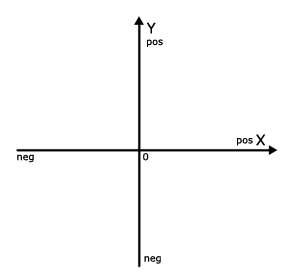
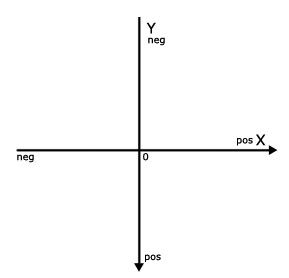
At the outset, let’s remember the Cartesian coordinate system. Sound complicated? If so, just look at the image below and I’m sure it will be familiar:

It has X and Y axes; you can clearly see where X and Y are positive and negative. When it comes to coordinates in Flash, the situation is slightly different. Flash also has its system of coordinates but it looks like the Cartesian system upside down:

It also has X and Y axes and the Point of Origin, the only difference being that the Y axis is positive below the X axis.

Any symbol created in Flash has its own built-in coordinate system. If you create a new symbol, whether it’s a movie clip or a button, you might see a “registration point” property in the symbol creation dialog box. What is it? The registration point is a point of origin of a symbol. The point that the object will rotate around if you change its rotation property.

Note: the origin point of the stage instance is in its left top corner. This means that all points on the stage have positive X and Y coordinates.

In this Quick Tip we’ll look at the three most commonly used trigonometric functions in Flash; Sine, Cosine and Atan2. Some people might ask, how can we use these functions in Flash? Well, let’s look at some practical examples, and understand why we need them and how they can make our life a bit easier.

Step 2: Calculating Angle

Let’s calculate the angle between two points. Create a new Flash File (ActionScript 3.0). Select the first frame of the timeline and hit F9 to open an Actions Panel.

At this point let’s make something simple. Just type this into the Actions Panel:

stage.addEventListener(MouseEvent.CLICK,  calculateAngle)

function calculateAngle(e:MouseEvent):void
{
	trace("stage X " + e.stageX);
	trace("stage Y " + e.stageY)
}

This will give us the position of the mouse pointer every time we click the stage. Not exactly fascinating, is it?

Ok, now suppose you want to “tell” some object your mouse pointer’s coordinates relative to this object, then show it the direction to travel to reach the pointer’s position.

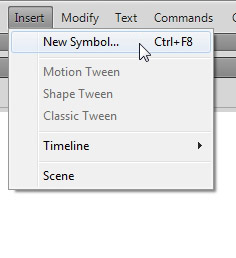
Close the Actions Panel and go to Insert > New Symbol or just hit Ctrl + F8.

Give it any name (or leave a default name) and press OK. The little crosshair in the middle of the screen is the registration point of the symbol or its point of origin. This will be the object’s X and Y positions. Now grab the Oval tool (O key) and draw a circle (with Shift key pressed) anywhere on the screen.

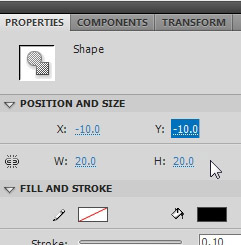
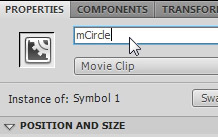
Click the circle to select it and go to its Properties panel > Position and size. For W (width) type in 20, the same for H (height) and for X and Y position type in (-10). This will make the circle 20×20 px and exactly center it to the registration point. Now quit the symbol editing mode (Click Scene 1 above), grab this symbol in your library and simply drag it to the stage (anywhere, we’ll get it’s position dynamically later). Once your object is on the stage, give it an instance name of mCircle.

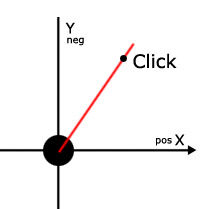
Now we want to calculate the direction from our circle’s Y and X position to the mouse pointer’s Y and X position. The red line in the image below is the direction we need to know. It can be found by using a standard Math.atan2() function.

Let’s do it now. Delete the “trace” statements from the code and create a new variable instead. Then trace this variable to see what you get:

stage.addEventListener(MouseEvent.CLICK, calculateAngle);

var myAtan2:Number;

function calculateAngle(e:MouseEvent):void
{
	myAtan2 = Math.atan2(e.stageY - mCircle.y, e.stageX - mCircle.x);
	trace(myAtan2);
}

Note that e.stageY - mCircle.y is the vertical distance from the mouse to the circle, and e.stageX - mCircle.x is the horizontal distance.

You’ll be getting these types of numbers in the output panel:

-2.419017353128333
3.0118660246925346
2.5704959452340326
1.6726588917423932
1.0238847495551058
0.21368467849101092

These are the relative angles (between the X axis line and the red line) in radians. Why not degrees? Well, Flash uses radians to calculate sine and cosine, but if you want to know what these angles are in degrees you can always multiply “myAtan2″ by 180 and divide it by Math.PI. Like this:

 trace(myAtan2 * 180 / Math.PI) // gives you the angle in degrees;

Editor: As an additional resource, here’s a great set of functions for degree/radian conversion. It’s stored as a snippet on snipplr.com, the latest member of Envato’s network!

Step 3: Understanding Sine and Cosine

As we know the angle between two points we can now calculate how many pixels we have to add to the circle’s X and Y properties every frame until it reaches the click point. Let’s examine what we need to know here:

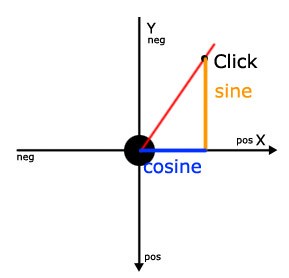
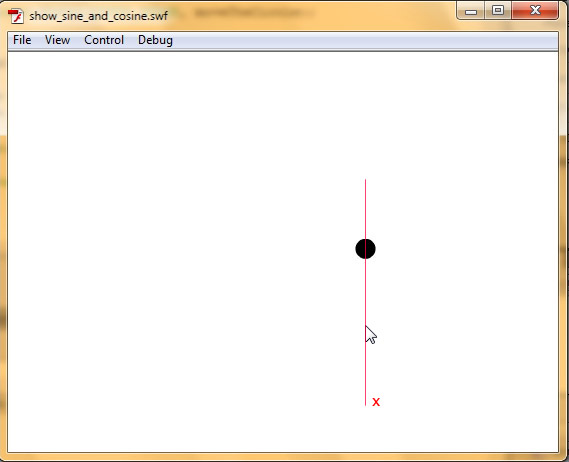
The blue line is the Cosine of the angle, and the the orange is the Sine of the angle. In other words,

  • Sine(angle) == e.stageY – mCircle.y
  • Cosine(angle) == e.stageX – mCircle.x

Rather than explain how sine and cosine work, I’ll demonstrate how to use them with some practical examples. Bluntly speaking the sine and cosine are the relations between Y and X in our angle.

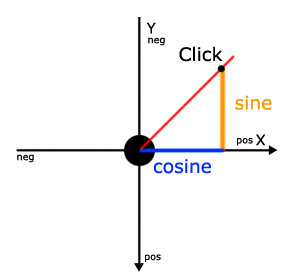
Imagine the angle between two objects is 45 degrees. In this case the relation between sine and cosine is 1:1 (see the image below), which means we have to increase X and Y properties of our circle by the same amount every frame to reach the destination. For example you have to add 5 pixels to X and 5 pixels to Y every frame.

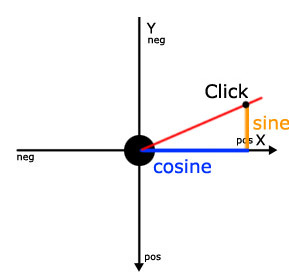
In this diagram, the angle has changed and the relation between sine and cosine has changed too. It’s about 1:2 now.

In this case we must add twice as many pixels to our circle’s X property than to Y. E.g. X += 10, Y += 5;

Step 4: Practical Examples

You will probably ask why we need sine and cosine if we already know the click point’s coordinates – we can just move our mCircle to them right away? Well, you could have done it this way if you wanted your circle (or any other object) to “teleport” at a click point coordinates as soon as click occurs. But what if you want it to move gradually in the direction of the click? To do this you need to add a particular amount of pixels to its X and Y properties, for example, every frame or every second.

Let’s now calculate how many pixels we should add to its X and Y properties based on sine and cosine of the angle between our object and a click point. Remember, Flash knows the angle between them from this operation:

myAtan2 = Math.atan2(e.stageY - mCircle.y, e.stageX - mCircle.x);

For this purpose we should update our code a little bit.

stage.addEventListener(MouseEvent.CLICK, calculateAngle);

// 2 is the maximum amount of pixels to add to the objects X and Y properties every frame
// you can use any number you like
var moveAmount:Number = 2;
var myAtan2:Number;
var mouseClickX:Number;
var mouseClickY:Number;

function calculateAngle(e:MouseEvent):void
{
	mouseClickX = e.stageX;
	mouseClickY = e.stageY;

	myAtan2 = Math.atan2(mouseClickY - mCircle.y, mouseClickX - mCircle.x);

	addEventListener(Event.ENTER_FRAME, moveTheCircle);
}

function moveTheCircle(e:Event):void
{
	mCircle.x += Math.cos(myAtan2) * moveAmount;
	mCircle.y += Math.sin(myAtan2) * moveAmount;
}

Note what I’ve done here: I promoted all of my variables outside any functions, because now I have more than one function and I want these variables to be accessible from every function.

var moveAmount:Number = 2;
var myAtan2:Number;
var mouseClickX:Number;
var mouseClickY:Number;

The stage has an event listener for mouse clicks, so when the click occurs, the method calculateAngle() gets called and the next variables are instantiated:

mouseClickX = e.stageX;
mouseClickY = e.stageY;
myAtan2 = Math.atan2(mouseClickY - mCircle.y, mouseClickX - mCircle.x);

This function also adds an event listener for enter frame to the stage, which calls the moveTheCircle() method every frame.

addEventListener(Event.ENTER_FRAME, moveTheCircle);

Step 5: Calculating Pixels

Now, let’s break down our moveTheCircle() method itself. For now it does only two things:

mCircle.x += Math.cos(myAtan2) * moveAmount;
mCircle.y += Math.sin(myAtan2) * moveAmount;

As you can see, the first line calculates how many pixels it should add to the X property and the second deals with Y. Let me explain. Math.cos finds the cosine (x property) of the “myAtan2″ angle, Math.sin does the same with its sine (y property). If our myAtan2 angle equals roughly 0.785 radians (45 degrees) the cosine and sine will both be equal to about 0.707… You can use a calculator to check it out.

A simple calculation will show how many pixels the code above will add to our object’s X and Y properties if the angle is 45 degrees.

Cosine(45 degrees) = 0.707 * 2 = 1.414;
Sine(45 degrees) = 0.707 * 2 = 1.414;

so the code will work out these results:
mCircle.x += 1.414 pixels;
mCircle.y += 1.414 pixels;

If the angle e.g is. 60 degrees then the results would be like this:

Cosine(60 degrees) = 0.5 * 2 = 1;
Sine(60 degrees) = 0.866 * 2 = 1.732;

And the code would work out this way:
mCircle.x += 1 pixel;
mCircle.y += 1.732 pixels;

Step 6: Fixing a Problem With the Code

Well, we’re almost done. But there is still a little problem with our code. You may have noticed that our object never stops, even if it reaches the click point it still keeps on moving. We can fix this problem very easily. As our object moves towards the click point, the distance between them shortens so the absolute value of the distance lessens too. We can keep track of it like this:

trace(Math.abs(mCircle.x - mouseClickX) );
trace(Math.abs(mCircle.y - mouseClickY) );

(Math.abs() turns negative numbers into positive ones by simply multiplying them by -1. It doesn’t do anything to numbers that are already positive.)

You don’t need to add this trace statement to your code, I’ve put it here just to show you the way you can see the absolute value. In this case both absolute values are less than 3 when the object reaches the click point. So what we need now is to add one if statement inside our moveTheCircle() function.

function moveTheCircle(e:Event):void
{
	mCircle.x += Math.cos(myAtan2) * moveAmount;
	mCircle.y += Math.sin(myAtan2) * moveAmount;

	//Check if the horizontal and vertical distances from the circle to the mouse point are very close
	if (Math.abs(mCircle.x - mouseClickX) < 3 && Math.abs(mCircle.y - mouseClickY) < 3)
	{
		removeEventListener(Event.ENTER_FRAME, moveTheCircle);
	}
}

When the absolute value gets below 3, the enter frame listener is removed. We must check both the X and Y’s absolute values because one of them might reach 3 even when the second hasn’t. This means the objects might stop like this:

The image above shows the version in which only X’s absolute value is checked. The X distance’s absolute value is already less than 3 so it stopped paying any attention to the the Y value.


Conclusion

Well, that’s it. I hope this Quick Tip will help you understand some trigonometry used in Flash development :)

Create a Futuristic Airship Scene in C4D – Day 1

In this intermediate 2-day tutorial we’ll be looking at how to create this futuristic aircraft model using Cinema4D’s primitives, structure tools, Hyper/SweepNURBS, and the Landscape and Sky Shader objects. We’ll also cover how to create simple but effective materials, how to use the Camera shader from MoGraph 2, and take a look at how Advanced Render post-effects such as Highlights and Glow can be used when compositing in Photoshop.


Part 1 – The Camera Ship


Step 1

We’ll start by creating a Sphere object (Object > Primitive > Sphere) with a Radius of 100m, 10 Segments and the Type set to Hexahedron. With this done, make it editable by pressing C on your keyboard. (This tutorial will only include exact values when absolutely needed, and in all other cases it’s down to what YOU think looks good!)


Step 2

Select these 6 polygons at the back of the sphere object and Extrude (Structure > Extrude or D) them slightly.


Step 3

Select the center 2 polygons of extruded surface and Extrude them again as shown.


Step 4

We now need to move the two newly extruded polygons to form the tail of the ship.


Step 5

Select the upper edge of the tail and move it so that the back of the tail now lies flat.


Step 6

Select these two edges underneath where the tail meets the main body and Stitch and Sew (Structure > Stitch and Sew or M~P) them starting from the upper edge.


Step 7

I then tweaked my model to acheive the overall shape I wanted. Move the points until you get a similar result.


Step 8

Using the Knife tool (Structure > Knife or K) with Mode set to Plane and Plane set to Y-Z, cut the tail vertically two times as shown, splitting it into 3 sections.


Step 9

Select these 6 edges on the top of the model.


Step 10

Move the selected edges back along the X-axis. I’ve also moved some of them up on the Y-axis to slightly flatten out the top of the tail section.


Step 11

Select the lowest edge at the bottom of the tail section and move it forward slightly to add a slope to the back of our model.


Step 12

Select the 2 polygons at the very end of the tail and use Extrude Inner on them (Structure >Extrude Inner). Then slightly scale the selected polygons down on the Z-axis.


Step 13

Optional step: Here I’ve tweaked the overall shape of the ship in order to make it a little more aerodynamic. (You can use HyperNURBS (Objects > NURBS > HyperNURBS) to check this how your alterations will look when smoothed.)


Step 14

Select these 6 polygons on the bottom of the front part of the ship and move them up to slightly flatten out the bottom of the main body section.


Step 15

Create a HyperNURBS object (Objects > NURBS > HyperNURBS) and add the ship object to it. Alternatively, if you already added HyperNURBS in step 13 above, simply ensure that it’s enabled.


Step 16

Select the 2 polygons at the end of the tail. Use Extrude to create the nozzle shape, and then Extrude Inner to flatten out the inside section.


Step 17

Select these polygons on the bottom of the ship.


Step 18

Now use Extrude Inner on the selected polygons, and then move them up slightly into the main body.


Step 19

Using the Iron tool (Structure > Iron or M~G) flatten out the selected polygons.


Step 20

Define the shape further by tweaking points and polygons.


Step 21

Select these inner polygons and Set Selection (Selection > Set Selection). An orange triangle will appear next to the ships layer in the objects list. This represents a single selection set. In the selection set properties, give the set a name (in my case Nozzles), and then click the Phong tag for the current layer. Then create a copy of the ship, we’ll need it later.


Step 22

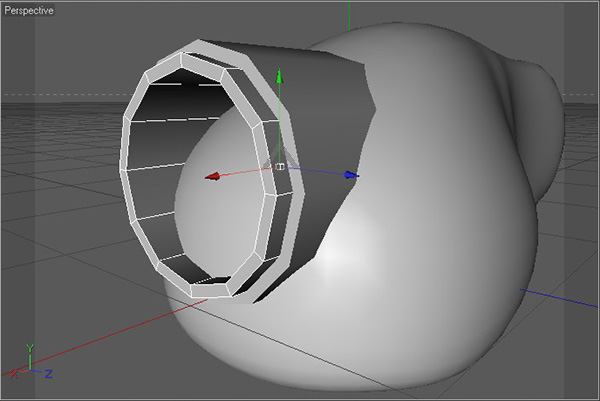
Now we’re going to create the lens objects. Start by creating a Tube object (Objects > Primitive > Tube) with an Inner Radius of approx 45m, an Outer Radius of approx 50m, 12 Rotation Segments, a Height of 120-140 and set the Orientation to +X.


Step 23

Duplicate the tube object created above and slighty lower the radius values (here I’ve used 40m and 45m) so that it sits just inside of the larger tube. Then move it forward slightly.


Step 24

Duplicate the tube object again and lower the radius values even further (here I’ve used 38m and 40m) to create another, even thinner tube. Then move it forward slightly so that it matches the image.


Step 25

Create a Disk object (Objects > Primitive > Disk) with an Outer Radius of 38m, and an +X Orientation and place it inside of smallest tube object.


Step 26

Make the disk editable and then select the smallest segment in the center. Move this forward, ensuring to check Soft selection at the Move tool attributes (using a Radius of around 40m and a Linear or Dome Falloff) to make a more lens-like shape.


Step 27

Select all four lens objects (3 tubes and 1 disk) and group them together (Alt+G) under a null object.


Step 28

Add the new null object to the HyperNURBS, to smooth out the lens meshes.


Step 29

We’re now going to add further details to the camera ship, starting with the ribs running around the sides. Make the HyperNURBS object containing the ship body editable and select polygons as shown using Loop Selection (Selection > Loop Selection or U~L).


Step 30

Refine the selection by deselecting polygons inside the ‘nozzle’ area.


Step 31

Extrude the selected polygons with an Offset of around 7m.


Step 32

Now use Extrude Inner on the selected polygons (use Offset lower than 1m).


Step 33

Finally we Extrude the selected polygons back into the body using a negative offset around 6m. With this done, Set Selection (Selection > Set Selection) as before to create a second orange triangle next to your layer name.


Step 34

Here I’ve slightly rotated the main body and moved the lens down into position.


Step 35

Now we’re going to start work on the side nozzles. First create a Cylinder object (Objects > Primitive > Cylinder) with a Radius around 20m and a Height around 130m. Move it into position as shown below :


Step 36

Make the cylinder editable, and then Optimize it (Functions > Optimize, default settings). Select some side polygons as shown.


Step 37

Enable Soft Selection (check Rubber for easier tweaking) and scale the polygons down on the Z-axis.


Step 38

Select the cap polys on both sides of the cylinder and use Extrude Inner on them.


Step 39

Extrude the still selected polygons inwards with a negative offset value. Now create another selection set (and another orange triangle in the tags list) using Set Selection as before.


Step 40

Select the edges running around the outer cap polys at both ends of the cylinder.


Step 41

Use Bevel (M~S) on the selected edges, using a Subdivision of approximately 5 and the Type set to Convex.


Step 42

Tweak the cylinder’s shape to make it more compressed at the back, using the Scale tool with Soft Selection turned on.


Step 43

Now we’ll move onto the lens area details. First create a B-spline object (Objects > Spline > B-Spline) and draw out this arc-like shape.


Step 44

Now create a Circle spline (Objects > Spline > Circle), check the Ring option, change the Radius to 5m, and the Inner radius to 6m. Finally, create a SweepNURBS object and add both the circle and the b-spline objects to it.


Step 45

Duplicate the disk we created earlier from the lens objects, scale it down and place it inside our new tube object. Add it to HyperNURBS to smooth it out.


Step 46

Optional step – placing a camera object for use with the camera shader (only available in Cinema 4D R11.5 with the Mograph 2 module) : Create a Camera object (Objects > Scene > Camera) and place it so that it just sticks out of the lens area, and make sure it’s facing the right way!


Step 47

Now we’ll move onto the materials. First create a new material by double clicking in the Material Manager. In the Material Editor, we want to change the Color to a mid-grey (I’ve used 193 196 199), and change the Brightness to approximately 5%.


Step 48

Turn on the Reflection check-box, change the Brightness to approximately 26%, and check the Additive option.


Step 49

In the Specular options, change the Width to 100%, the Height to approximately 56% and the Falloff to approximately -14%. This will be our base metal material, so name it appropriately.


Step 50

Duplicate the base metal material, and in the Reflection settings, set the Blurriness to about 15% and the Max Samples to 12. This will be the material we apply to all of our details.


Step 51

Create a new material and in the Color settings, apply a Fresnel texture with white to dark grey gradient, and then change the Mix Mode to Multiply.


Step 52

Check Reflection and change Brightness to 20%.


Step 53

At Specular change Height to 150%, Fallof to -20%; this will be lens material.


Step 54

Create a new material. In the Material Editor, change the Color to a light blue (I’ve used 147 204 255).


Step 55

Turn on Luminance and change the Color to a light blue (I used 141 178 255) and the Brightness to 200%. Finally, uncheck Specular and our nozzle material is now ready.


Step 56

Duplicate the nozzle material. In the Luminance settings, change the Color to blue (I used 39 104 255) and the Brightness to 100%. This will be the material we use on our lights.


Step 57

Create another new material, and change the Color to red (in my case 255 42 0).


Step 58

Turn on Luminance, change the Color to red (I used 255 33 0) and the Brightness to 150%.


Step 59

Turn on Reflection, and change the Brightness to approximately 20%.


Step 60

In the Specular settings, change Height to approximately 130% and the Falloff to approximately -25%. Our lens targeting material is complete!


Step 61

Assign the base metal material to the ship body and the side nozzles as per normal.


Step 62

Now we need to recall our Nozzle selection set, so click the first orange triangle in the tags list for the main body layer, and then, in the Set Selection properties, click Restore Selection to select our desired polygons. Assign the nozzle material to the selected polys, and then repeat the process for the center section of the side nozzles object.


Step 63

Using the same process described above, first select the selection set containing the polys inside the ribs, and then assign the lights materials to your selection.


Step 64

Assign the details metal material to all of the objects in the lens area (including the SweepNURBS), except for both of the disk objects.


Step 65

Finally assign the lens material to the bigger disk, and the lens target material to the smaller disk as shown. With this done we can group ALL of the objects together under a single null object. Our camera ship is complete!


Don’t miss more CG tutorials and guides, published daily – subscribe to Cgtuts+ by RSS.

Quick Tip: Creating Custom Marking Menus in Maya

Whether created for a specific project or even if you’ve had the same ones for years, marking menus form an essential part of the Maya interface. In this time-saving quick tip tutorial, Pratik Gulati will be walking us through how to create our own marking menus from scratch in Maya 2009.


Step 1

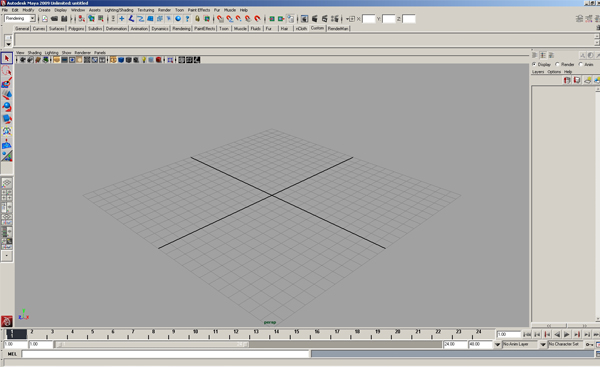
Open up Maya.


Step 2

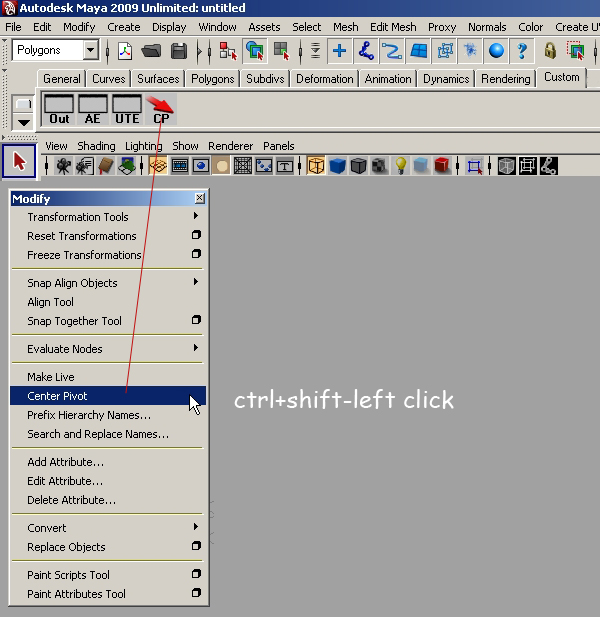
Select the Custom shelf. (We’ll just be using this shelf to store our desired commands temporarily, and we can always delete them once the marking menu has been created.) We’re going to add the shortcuts we want to appear in the marking menu to the custom shelf. To do so, find each command in the top menus, and then Ctrl+Shift+Click it to create a shortcut on the currently selected shelf, as shown below.


Step 3

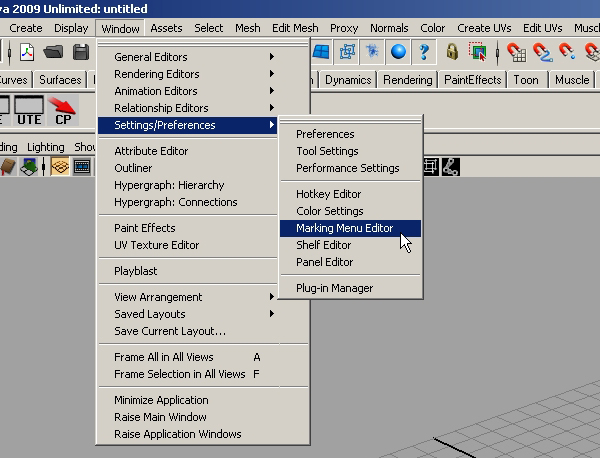
With all of our shortcuts in place on the Custom shelf, go to Window > Settings/Preferences > Marking Menu Editor.


Step 4

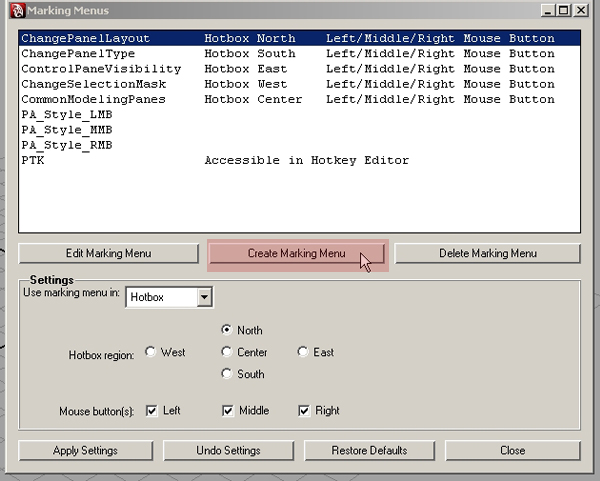
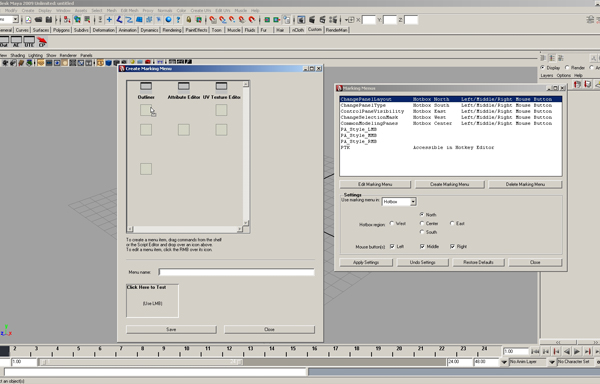
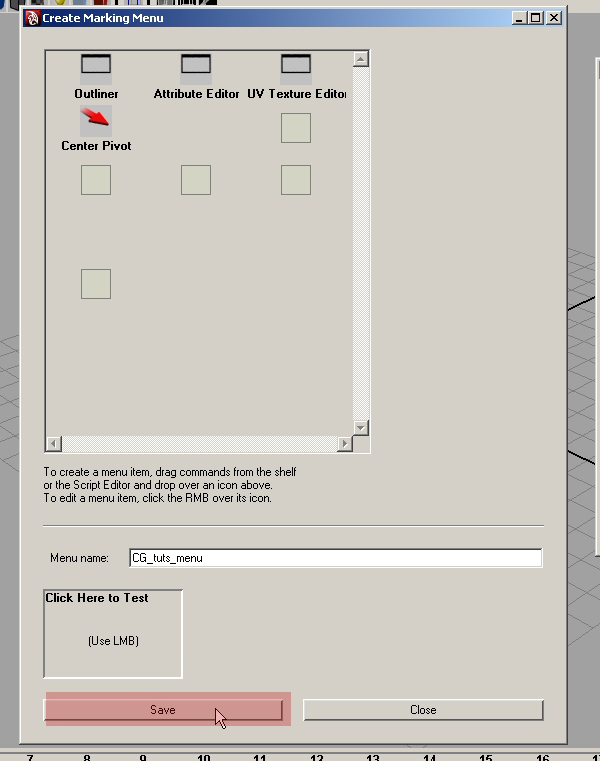
In the Marking Menus dialog box, click Create Marking Menu to bring up the new window shown below.


Step 5

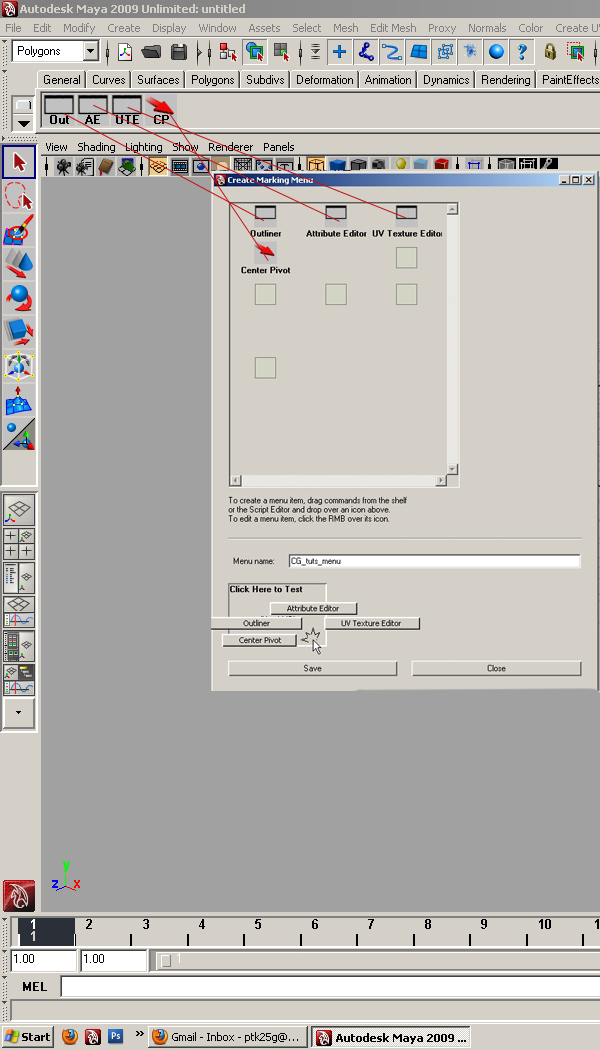
Now, Middle-Mouse-Drag each command from the Custom shelf to a slot in the Create Marking Menu window as shown. Once done, give your new marking menu a name by filling in the Menu name text field. Here I’ve used CG_tuts_menu.


Step 6

With everything in place, we can now click Save.


Step 7

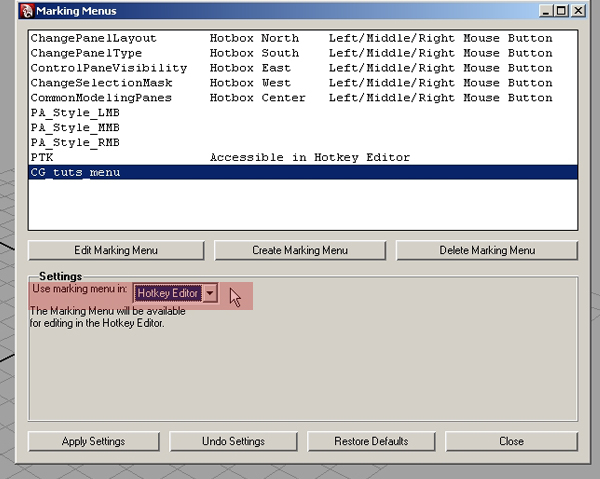
As we want to be able to invoke our new menu with a hotkey, make sure to choose Hotkey Editor from the Use marking menu in dropdown. Now click Apply Settings and close the window. With that done, our menu is now complete. We just need a way of accessing it!


Step 8

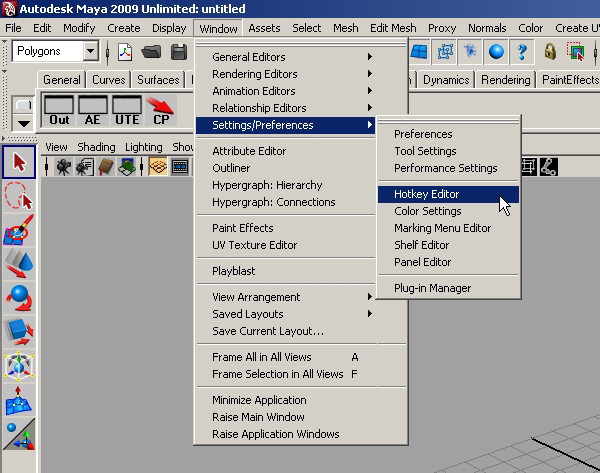
To assign a hotkey to our menu, go to Window > Settings/Preferences > Hotkey Editor.


Step 9

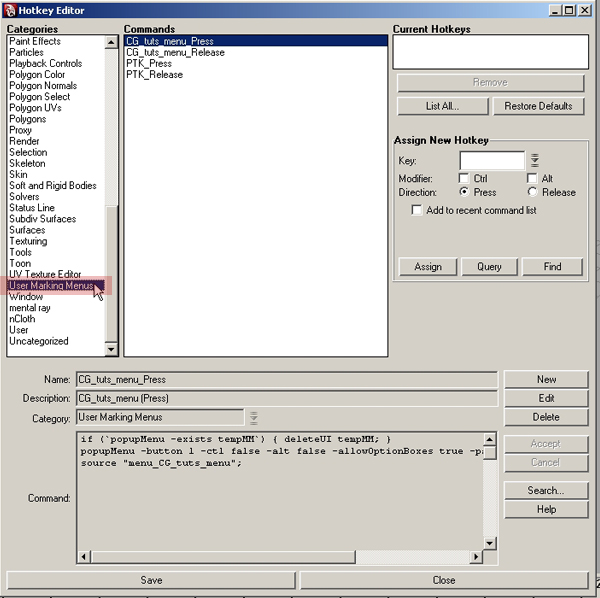
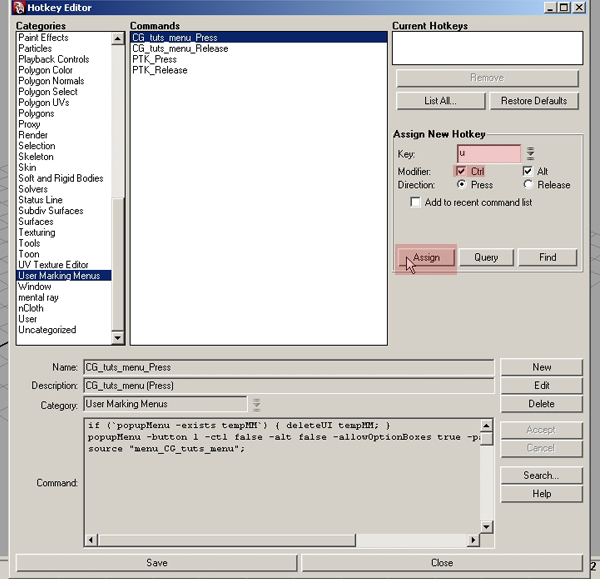
Select User Marking Menus from the categories list on the left, and then select your custom marking menu from the resulting Commands list.


Step 10

Now we can assign a hotkey combination to our brand new marking menu. Here I’m assigning Ctrl-Alt-U by checking the Ctrl and Alt checkboxes, entering a U into the Key field, and hitting Assign. If, like me, you have a lot of keyboard shortcuts, you may want to check that you’re not overwriting an existing hotkey combination. To do this, enter your shortcut as above, but instead of hitting Assign hit Query. Info text just above the Query button will inform you if that combo is taken (and if so what it is currently assigned to) or if it is assigned to “nothing”.


Step 11

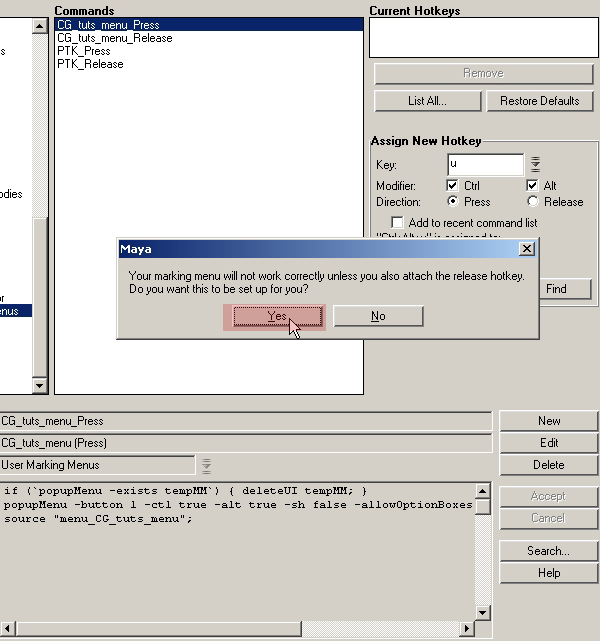
Click Yes in this dialog box. This ensures that our marking menu will appear and disappear correctly.


Step 12

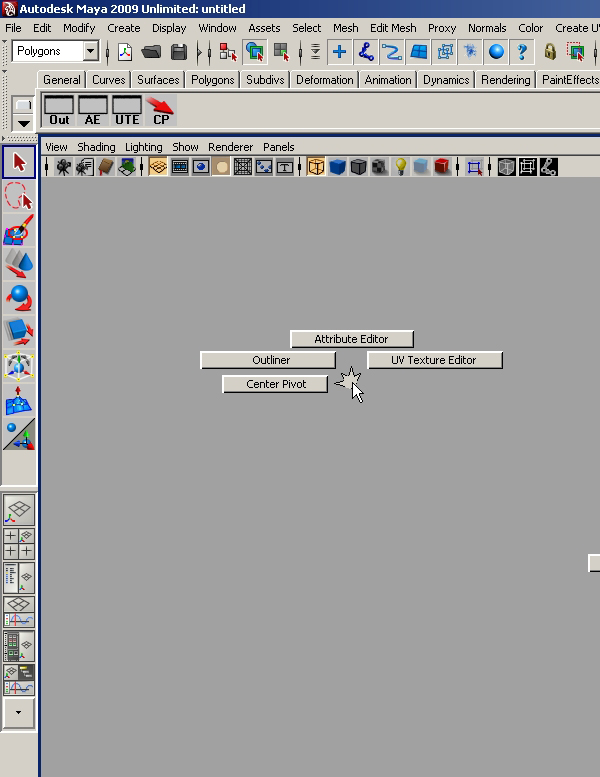
Now click Save and close the window. It’s time to test! Hit the hotkey combo you previously assigned and Voila! Your custom marking menu is complete.


Step 13

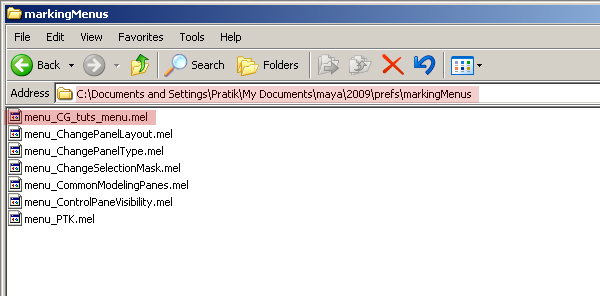
If you want to take your new marking menu from one installation to another, you can simply copy the .mel file from Maya’s Marking Menus folder and paste it into the Marking Menus folder on the second machine. One restart of Maya later and your menu will be there, although you will have to reassign the hotkey combo.

The default path to the Marking Menus folder is :

C:\Documents and Settings\YOURNAME\My Documents\maya\2009\prefs\markingMenus


Don’t miss more CG tutorials and guides, published daily – subscribe to Cgtuts+ by RSS.

Working Like A Deep Sea Diver

Deep sea divers strain to survive in the depths of their work environment. There’s a lot to be won in those deep waters, but they need a long, meticulous preparation ritual to ward themselves from the intense pressure of their workplace. After the job is done, it takes a long time to “decompress” from their daily routine and recover from the effort.

Surface level work can feel exactly the same. High expectations, low resources and constantly changing priorities can leave you reaching for the nearest oxygen mask. Frequently, workers struggle to hold themselves in “working stiff” mode during the week. As a result, their weekends are mostly spent “decompressing” from the past week and preparing for the next.

Deep sea diving isn’t exactly safe or healthy, but to some it’s a way of life. They wouldn’t have it any other way. Maybe it’s crazy; maybe it’s just good, hard work.

Does your work ever feel like deep sea diving? Have you got a winning formula to prepare for – or recover from – the pressure of intense work? Are you the cautious kind that fishes stress-free on the surface, or do you take the plunge for the big game?

What Should Be In Every Designer’s Portfolio (but probably isn’t)

In this article, Harrison Ambs shares his thoughts on the pitfalls involved with being a designer, 3D or otherwise, and gives some excellent advice on making your portfolio stand out from the crowd. A must-read for anyone looking to make a living from their love of design.


So you’ve knocked out a few tutorials…
now you want to do this and get paid.

So you’ve knocked out a few tutorials, you have item after item that looks slick and shows off a wide swatch of knowledge about the programs you’re running, and you’ve even thrown in a few things of your own. Now you want to do this and get paid. But it seems that every Art Director you go to responds with a rejection, leaving you out in the cold and wondering what you’re doing wrong. As a former Art Director myself, I’ll explain one of the most common pitfalls a new designer faces when starting out in the world of design.

Let’s jump right in with the question you’re invariably asking : “what did I do wrong?” Unfortunately, that’s the wrong question. The issue isn’t what you’re doing wrong, it’s what you’re lacking as a designer. Most Art Directors and managers are ultimately interested in one thing and one thing only : are you able to solve a problem?

Most Art Directors and managers are ultimately interested in one thing, and one thing only : are you able to solve a problem?

I’ll give you an example of something I faced recently. We had a new client who needed a design package. The only caveat was that this package had to be used for all of their affiliates with a variety of styles and situations. So now I’m not designing something for one client; I’m essentially dealing with multiple clients each with their own needs, what they are expecting and what they can use. To put it bluntly, it was a nightmare. I’m going to have no contact with any of these affiliates, and any one of them can come back with notes that could upset a different affiliate….well, you get the idea.

Now, I’m not expecting a new designer or one with limited experience to know right off the bat what they should do, but at the very least you should be able to identify and rank the problems that you’ll be facing with a situation like that. At the end of the day, when we strip away the Photoshops, Cinema 4D’s, Illustrators, Wacoms, InDesigns – we are all simply problem solvers. Each of our clients have needs, and we are paid to address them.

…and if you try to sneak in something you made using a tutorial as your own original work, you go from ‘inbox’ to ‘trash can’ faster than OS X can make it happen.

So how does this relate to you? Well, imagine you’re in my position. I’m looking to hire a freelancer to help me out with an affiliate project. I have a pile of resumes sitting next to me and they are all starting to merge into one. Yes, you all have a sense of composition. Yes, you all know how to use color. Yes, I can tell you subscribe to Cgtuts+, because I recognize some of the techniques in there (and if you try to sneak in something you made using a tutorial as your own original work, you go from ‘inbox’ to ‘trash can’ faster than OS X can make it happen). But lets say you want to stand out, rise to the top of the resume pile. How do you grab my attention?

Short answer is a case study. Take a project where you had to solve a problem and, starting from the beginning, walk me through your process. Go back to the project that caused you the largest headache; that one that where sat with your head in your hands, staring at your keyboard, struggling to come up with the answer. That’s the project I want to see. Any designer can be a good one when they’re given the opportunity; I want to hire the designer that makes that opportunity.

Make your voice heard, ask if you can help out anyone or simply find out what they did to fix their own problems.

Where do you go from here? Good question. It’s difficult starting out, but the opportunities exist. You have to be savvy, keep your head up, and know what you’re dealing with going in. Cruise places like CGtalk to see what other people are doing, and to help with problems if you can. Make your voice heard, ask if you can help out anyone or simply find out what they did to fix their own problems. Or put that stipulation in your resume – offer to have someone take you for a test drive. Have them toss you a sample project and see what you can come up with; I actually started out on my path to Art Director in a situation much like that.

So yes, learn the programs, learn design. Make pretty things that move. Wow your friends, impress your enemies. But at the end of the day when it’s ‘crunch-time’, and we’re in the trenches with a deadline storming on the horizon and a client who has to deal with 15 different affiliates, I want be able to look over at you and know you’re with me.

Problem solving. It’s what we do.


Don’t miss more CG tutorials and guides, published daily – subscribe to Cgtuts+ by RSS.
The Only Way to Overcome Procrastination

If you can do it now…then do it now.

You know it, right? Yet we still we continue to procrastinate everyday saying, “I will do it in future.”  The old adage of “why put off until tomorrow what you can do today” often turns into a far more humorous – yet far less effective one:

“Never put off until tomorrow what you can do the day after tomorrow.” – Mark Twain

The Simple Dollar has an excellent article on why saying “I will do it in the future” is an excuse for failure. It proclaims that if you don’t want to do it now, the chances are high that you won’t want to do it in future.  You’re also less likely to do it at all because you’ve told yourself before that it’s “okay to delay.”  Your future self is often more unreliable than your present self.  It’s better to get started with the task now and let that pattern get established than to not bother and watch a far less productive one take shape.

Saying “I Will Do It In The Future” Is an Excuse for Failure

Google Voice Tips for More Productive Communication

Last week was a big week in the world of phone services. The Apple faithful got their hands on the iPhone 4. New Droid phones were announced. And Google Voice announced that anyone can sign up for its free service.

What, you don’t know about Google Voice? That’s probably because it has only been open to people who get invited to use it. You had to know someone who knew someone who invited them.

Not anymore. No one has to wait for an invitation to use this service which can help you organize your telephone use.

How does it do that? Well, at the heart of it is the free number you can create and use to make free calls in the United States. And cheap international calls. But sorry, for now you have to be in the United States to use it – or at least have a United States number.

Once you register and get your GV number, you can use this Google Voice tips:

Never miss a call

This is for those of you who have multiple phone numbers – work, home “landline” and mobile, for example. By creating a GV number, you can set it so every call to it can ring every real phone you have.

Great.

That means you can’t escape any callers. As if the lines between work and home aren’t blurred already.

Relax. This only works if someone calls the GV number. If you work for the kind of boss who wants you to give out that GV number, you still have a pretty good call screening function.

Duck calls you don’t want

When voicemail kicks in, you have the ability to listen to the caller’s message. Yes, this is like the days when you owned a machine in your home that took the calls and let you listen as they were recorded.

And of course you have the option of answering if the caller says something that persuades you that the call is worth your time.

Block the callers you really don’t want

If you’re really determined to avoid a caller, you can block them. Really block them. The blocked callers hear a call disconnection message when they call again.

Create a free business phone line

I only have one phone. Period. All of my calls are made and received on my cell phone.

Now I can use the GV number as my business number rather than my cell phone number. That phone screening feature is handy for avoiding the calls that I don’t want to invade my personal time.

Plus, Google’s number selection tool is pretty cool if you’re trying to spell something out. Enter your target word and the tool will try to get you the right number. It may take a lot of trial and error depending on how picky you are about your number…especially now that the service has opened up to anyone.

(Warning: There are reports that Google Voice isn’t working on the iPhone 4. When the GV number is called, the brand new iPhones aren’t ringing – no matter how you hold them.)

If you have a Blackberry or phone running Google’s Android operating system. You can use the mobile version of the web page on the iPhone. That puts all these features on your cell phone. Which, in effect, gives you two lines on one device.

Manage your voicemail

Now you don’t need an iPhone or to pay extra to Verizon to get visual voicemail. GV will create a transcript of the voicemail message and file it in a directory that you can read.

You can clearly see everyone who has called at once instead of listening to every message and trying to remember if you want to press 7 or 9. GV allows you to review everything in a web browser. It’s a work of art.

Unfortunately the same can’t be said for the transcript. It has its hilarious moments. But Google is working on improving it, and it’s free. Plus, each transcript includes a link to the audio. So you can hear what the caller actually said.

The main reason I’m willing to forgive the transcription quality is that I can have that text sent to me via SMS and/or e-mail. It’s quicker to read one of those than to log onto a voicemail system to learn who called.

Text for free

Speaking of texting, all texts to and from your GV number are free. No limits. This is one of the best Google Voice tricks.

GV has a browser interface that will reduce the strain on your thumbs. It lets you use a real keyboard to send SMS. The browser tool also lets you send a text to more than one recipient.
If that isn’t convenient enough, you can have texts forwarded to your e-mail. Then respond to the texts from your e-mail app.

Offer free calls from your Web page

You can install a widget on your Web page or blog that allows people to call your GV number free. It’s not VoIP though. Here’s what happens:

  1. Caller clicks on “Call Me” button.
  2. Caller enters name and phone number to call from.
  3. Caller clicks connect.
  4. That phone with the entered number gets a call from the 650 (Mountainview, Calif.) area code.
  5. When the caller answers, your GV number rings.
  6. You are connected to the caller looking at your web page.

OK, it’s a little cumbersome. But it gives people a free way to call you without you paying for a 1-800 number.

Record calls

This is a key feature for writers or anyone doing interviews. When you receive a call on your GV number, you can have it recorded by pressing the number 4 on your phone. Pressing 4 again will turn it off. For privacy and legal reasons, there will be a message warning that the call is being recorded. Check with your state laws. Google will save the audio for you.

Now this is where there is a lot of room for improvement. First, you can only record incoming calls. You can’t do this for calls you make, which can be limiting. If I call a source and they pick up, I can’t record the call. While I’m sure this isn’t the intent, I’m guessing I’ll have to call when I know they are busy.

Second, there isn’t a transcript of the recording.  Less than perfect or not, I would love to have all this transcribed for me. It would be a place to start – right now ti’s simply not an option.

Would I recommend Google Voice?  For the right user, the voicemail management and transcription tools of Google Voice are worth the time by itself.  Considering you’re still getting the service free, it’s not too shabby. In fact, all the features listed are pretty good considering the price tag.  All in all, Google Voice is worth a look – and a listen.

Thanking in Advance

Have you ever sent or received an email that ends with “Thanks in advance”? It’s sort of a half-request/half-mandate commonly used between equally-ranked workers. As in, “Do what I’d like you to do, and you’ll have my gratitude.”

Managers and executives have no need for the phrase; they have their own more direct, more concise one. I find their version so much better. It’s unhindered by nuance and there’s no reading between the lines.  It cuts to the chase; it gives you a clear objective in mind.  It’s two simple words, really:

“Do it.”

You might want to be careful about “thanking in advance.” it doesn’t always sound very sincere, and it might delay your request instead of expediting it. Having a genuinely friendly relationship (and a genuinely friendly correspondence to match) is much more effective.

Does the phrase “thanks in advance” irk you? Do you find it effective? We’re going to need you to “weigh in” on the issue with a comment below.

Thanks in advance! – Peter

Stuck With a Steady Job

It sounds backwards, doesn’t it? How could you be “stuck” with a fairly decent job? In today’s economy, millions of unemployed workers would be delighted to be “stuck” with a steady stream of tolerable work.

But does that mean that we should be satisfied with “steady”?

The difference between a “steady” job and a great job involves the ability to personally invest yourself in your work: If you draw enthusiasm from what you’re doing, and you feel a personal stake in the success of your efforts, then you have a great job.  Keep this in mind:

Great jobs are part of your identity; steady jobs are just part of your resume.

Steady jobs are dangerous; they might be just barely good enough to keep you in a permanent holding pattern and stop you from pursuing that dream job. Your boss and your customers are never happy with the bare minimum, so why should you be happy with a job that is just good enough?

Ask yourself this: Is your job great, or just “steady”?

10 Ways to Liven Up Your Lunch Hour

Never underestimate the power of a satisfying lunch hour. It can improve your overall job satisfaction and your work performance. Plus, making time for a little R&R will help you become a better co-worker. No one wants to work with Mr. McGrumpy. People want to connect with you on a personal level, and having fun excursions to talk about will make you more approachable and help you bond with your co-workers.

Shaking up your routine can also be an amazing source of energy and inspiration. If you are stuck in the middle of a big project, you may unknowingly adopt self-imposed limits and lose your creative edge. Taking a break can give you fresh eyes. Those lightning bolt ideas often strike when you’re busy doing something non-work related. So step away from your desk and take time for you. You’ll be grateful you did. Here are ten ideas to get you started.

1. Play a sport

Get outside. Play volleyball, tennis, or even ping pong. Throw a Frisbee. Start a game of horse on the basketball court. Playing sports is an ideal way to bond with co-workers. You may not have much in common with them, but when you’re playing a sport, it doesn’t matter. You’ll be laughing and smiling before you know it.

2. Go for a walk

If you’re looking for some solo time, try something simple like going for a walk. It doesn’t cost anything, but it will lift your spirits and clear your head. Poke around a nearby neighborhood and soak in the sights. Noticing all the different people around you can help put things in perspective. Your workplace is just a small drop in the bucket. Even though it may feel all-consuming at times, there is so much more out there.

3. Get a massage

Just do it! You know you want one. Getting a massage is like buying a little piece of heaven. It’s that amazing. If you’re hesitant to invest a lot of money and time, go for a chair massage. They’re offered in some pharmacies, grocery stores and malls. A chair massage can sometimes feel even more amazing than a traditional sixty minute massage because you really savor every second of it.

4. Catch up with a friend

You may think you never have time to catch up with all your buddies, but what about lunch? Even if they live in a different city, schedule a phone date. Having a great conversation with someone you know and trust is a hundred times better than anything you’ll find in the vending machine.

5. Relax in a coffee shop

Coffee shops have it all – an eclectic mix of people, funky art, cool music, comfy chairs, and the most beloved pick-me-up of all time: caffeine. Whether you feel like staring out the window for a while or working on the next great American novel, coffee shops are the place to be.

6. Save a life

It can be tough to find the time and energy to do the kind of volunteer work you care about. One way to directly help others in a big way is to donate blood. A little effort can go a long way towards helping someone in serious distress. You’ll literally be giving a part of yourself to someone else in need. What a gift.

7. Get crafty

Find a place where you feel comfortable and break out your knitting needles, crochet hook or scrapbooking materials. It can feel so good to make something unique with your own hands. The rhythmic, meditative qualities of knitting and crochet are a powerful source of stress relief. If you have a friend or co-worker who shares your passion it can be even more fun.

8. Work out

Making time for exercise can be very difficult, especially if you are a parent. Many people find working out during lunch to be the perfect solution. Go for a run or a swim. Take a yoga class. Ride your bike. Even twenty minutes of exercise can make a big difference in your day. The important thing is to do an exercise that is convenient and enjoyable so you stick with it.

9. Listen to music

Do you still listen to the same music you listened to ten years ago? You are missing out! Don’t let yourself get stuck in a rut. Use your lunch hour to explore new music. Trade playlists with your friends. Browse a CD store or listen to Pandora. Check out concert dates and make plans to see your favorite bands live.

10. Eat something tasty

It’s lunch, after-all! Treat yourself to something you know you will truly love whether it’s a hot dog or sushi. Dining out is the perfect opportunity to spend time with friends and co-workers. After a long morning in your cube, a change of scenery can make all the difference.

Social Bookmarking: The New Search Engine?

Search engines seem to be increasingly useless in producing relevant results when users search for something specific. Even Google – which used to solve all query problems – often produces mediocre results, giving users paid search results that aren’t quite what they’re looking for.

Social bookmarking often produces not only relevant but also better results, wasting much less of a user’s time. Searching on StumbleUpon for example, saves a user from going through pages of irrelevant Google results.  Other popular examples of social bookmarking websites are:

  • Reddit
  • Digg
  • Delicious
  • Metafilter
  • Squidoo
  • Slashdot

…but there are a lot more out there for you to use.  Each one has its own feature set that enhances the user experience, but ultimately it just boils down to user preference when it comes to picking a favorite.

What’s your experience with social bookmarking?  Do you use it?