How to Make a Wedding Menu Template in InDesign

Final product image
What You’ll Be Creating

Make a statement with your wedding stationery by learning how to make an InDesign menu template in just a few easy steps.

In this tutorial, we will cover how to set up a wedding menu template through the use of Layers and Paragraph styles. You will also learn how to prepare your wedding menu template in an InDesign template that users can edit easily. This menu format measures 9 in x 4 in, which makes it easy for you and other users to print at home.   

In a hurry? We’ve got amazing dinner menu templates and menu card templates over at Envato Elements and GraphicRiver. Go check them out!

What You Will Need for Your InDesign Menu Template

You’ll need access to Adobe InDesign. If you don’t have the software, you can download a trial from the Adobe website. We’ll also be using:

Download the assets and make sure the fonts are installed on your system before starting. When you are ready, we can dive in! 

1. Setting Up a Wedding Menu Template File in InDesign

Step 1

In InDesign, go to File > New. Name the document wedding menu template. Set the file to the following dimensions:

  • Width to 4 in
  • Height to 9 in 
  • Orientation to Portrait
  • Units to Inches
  • Pages to 1
  • Uncheck Facing Pages
  • Columns to 1
  • Margins to 0.5 in
  • Bleeds to 0.125 in (it’s best to seek your professional printer’s preference)

Click Create.

create a new file

Step 2

Organizing layers is an important practice when designing an InDesign template. Bring up the Layers panel by going to Window > Layers. Double-click on Layer 1 and rename it Background. 

rename layer 1 to background

Step 3

On the Layers panel main menu, select New Layer. Name it Copy. Click OK.

Create a new layer named Images. Click OK.

create new layers

2. Designing Your Wedding Menu Layout in InDesign

Step 1

On the Layers panel, select the Background layer.

To Place an image, press Command-D. Locate the Watercolor pink backgrounds folder and select the 7.jpg file. Click Place.

place the background image

Step 2

Click on the InDesign menu template to place the image. Using the Direct Selection Tool (V), resize the frame to cover the width of the wedding menu template and extend it to the bleed.

resize the image

Step 3

Head over to the Layers panel and lock the Background layer. Select the Copy layer. 

lock the background layer and select the copy layer

Step 4

Using the Text Tool (T), create a text frame at the very top of the InDesign menu template. Use the side margins to help you place the text box in the center of the page. Add text—in this case, I’ve added ‘Let’s Dine!’

using the text tool add a title

Step 5

Open the Character panel by going to Window > Type & Tables > Character panel.

On the Character panel, set the Font to Cest Lavie Regular and the Size to 40 pt. 

On the Control bar, set the Alignment to Center.

use the character panel to format the text frame

Step 6

Create a text box under the title using the Text Tool (T). Here, we will include the couple’s name and date on two lines. 

On the Character panel, set the Font to Cest Lavie Serif and the Size to 10 pt. 

On the Control bar, set the Alignment to Center.

add names and date under the title on the menu design

Step 7

Create a text box under the names using the Text Tool (T). Here, we will include the menu for the day. We will use a combination of the Regular and Serif family. Add copy, and let’s start formatting:

  • Subtitle: Add a hyphen before and after each subtitle as this will help create emphasis.  Set the Font to Cest Lavie Regular and the Size to 20 pt.
  • Menu items: set the Font to  Cest Lavie Serif and the Size to 8 pt.

On the Control bar, set the Alignment to Center.

add the menu copy and use the character panel to format the menu template

Step 8

Create a text box under the menu with the Text Tool (T). Include a line such as ‘Bon Appetit’.

On the Character panel, set the Font to Cest Lavie Serif and the Size to 10 pt. 

On the Control bar, set the Alignment to Center.

add a final line on the menu card template

Step 9

Head over to the Layers panel and lock the Copy layer. Select the Images layer.

lock the copy layer and select the images layer

Step 10

Press Command-D to Place an image on the InDesign menu template. Locate the arrange_6.png file and click Open.

place the flower arrangement on the menu template

Step 11

Click on the menu layout to place the image. 

Head over to the Control panel and activate the Constrain Proportions button. Set the Percentage to 45%. 

Place the image on the bottom left corner of the menu. Make sure that the image is touching the bleed marks.

place the image on the bottom left corner of the menu template

Step 12

Press Command-D to Place an image on the menu card template. Locate the arrange_5.png file and click Open.

Click on the InDesign menu template to place the image. 

Head over to the Control panel and activate the Constrain Proportions button. Set the Percentage to 55%. 

Place the image on the bottom right corner of the menu. Make sure that the image is touching the bleed mark.

place a second arrangement on the food menu template

3. Converting Your Menu Layout Into an InDesign Template

Once you’ve finished designing your menu layout, it’s time to get it ready for easy customization. In this particular InDesign menu template, we will create Paragraph Styles for the content. The rest of the elements are JPEG files that don’t require specific formatting.

Step 1

Go to Window > Styles > Paragraph Styles. On the Paragraph Styles panel, we will create a number of formatting styles based on our menu design. 

Select and activate the text box at the top of the page. Head over to the Paragraph Styles panel and click on the Create New Style button. This will create a new style based on the text you selected. 

open the paragraph styles panel

Step 2

Double-click on Paragraph Style 1 to open the Paragraph Style Options window. 

Change the Style Name to Title. You will notice that the Style Settings will include the settings you used on the text—this is a great way to double-check everything is in order. Click OK. 

create paragraph styles

Step 3

Select the couple’s name and date using the Text Tool (T). Head over to the Paragraph Styles panel and click on the Create New Style button. 

Double-click on the new Paragraph Style and set the Style Name to Couple name. 

Repeat the same procedure for the rest of the menu and create styles for the Subtitle and Menu Description. 

Now your InDesign menu template is ready to be shared with others. Users will have the option to easily change the fonts and content through the paragraph styles. Users will also be able to change the images if they desire through the organized Layers panel. 

create paragraph styles for the rest of the menu design template

4. How to Export a File for Printing

Before exporting a file for printing, it is useful to take a look around all the edges of the menu design. This is to make sure all the images bleeding out are touching the bleeds.

Step 1

To export the file, go to File > Export. Name the file Wedding Menu Template and choose Adobe PDF (Print) from the Format dropdown menu. Click Save. 

expor the file as a PDF for print

Step 2

In the Export Adobe PDF window, set the Adobe PDF Preset to Press Quality.

use the press quality preset

On the left side of the panel, select Marks and Bleeds. Check All Printer’s Marks and Use Document Bleed Settings. Click Export. You will have a ready-to-print PDF file.

check all printers marks and document bleed settings

Great Job! You’ve Finished Your Wedding Menu Template!

In this tutorial, we learned how to make a wedding menu template in InDesign. We covered key tools that will help you create a ready-to-edit menu design. Today, we learned to:

  • set up a ready-to-print InDesign menu template
  • organize and create different layers
  • use paragraph styles to create a template
  • export a PDF file for printing

If you are new to InDesign and need menu layout ideas or menu design templates right away, head over to Envato Elements and GraphicRiver. We’ve got many options to explore! 
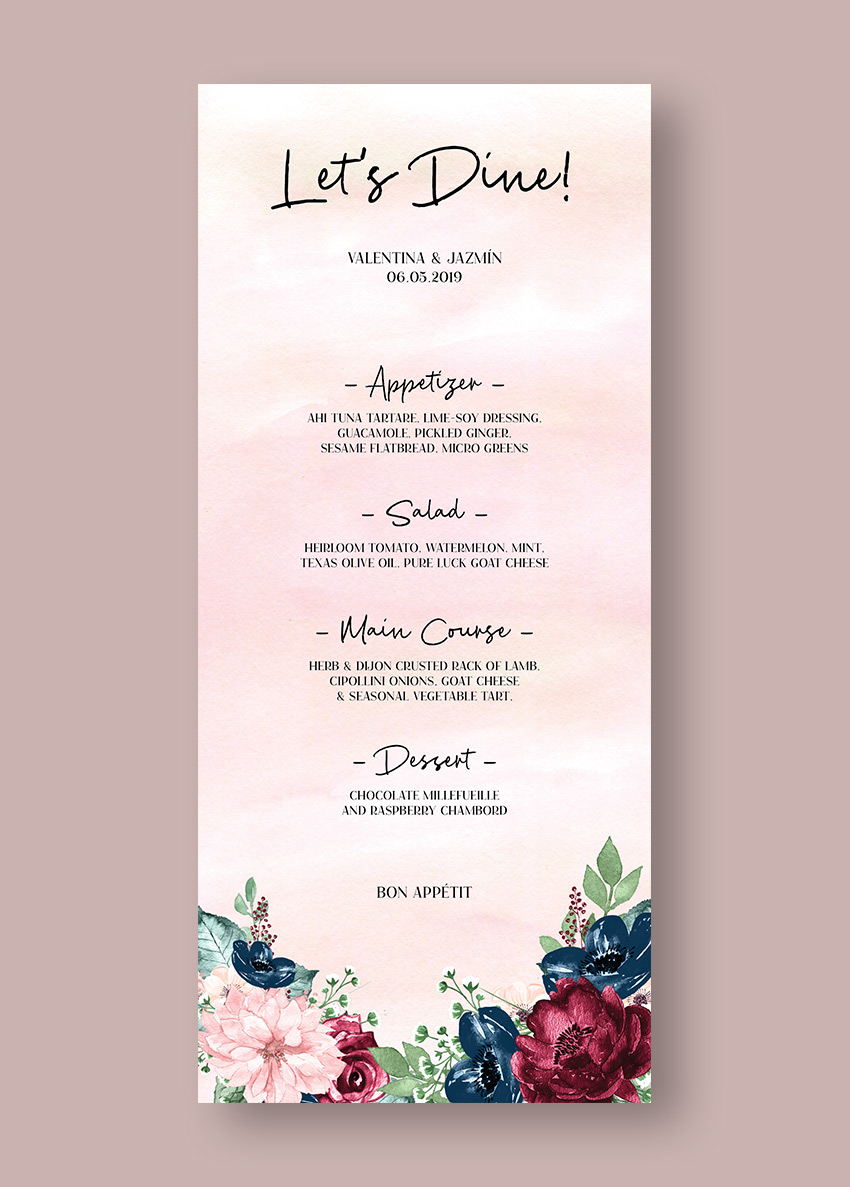
Final wedding menu template

If you liked this tutorial, you might like these:

{excerpt}
Read More

20 T-Shirt Mockup PSD Templates (With Photorealistic Results)

When presenting your T-shirt design to your clients or displaying your apparel products on your website, it’s important to showcase them realistically and with creative taste. This leads to more sales and happy clients.

How are you displaying your T-shirt and apparel designs? Do they come across as inviting and realistic? Can your customers visualize what they will look like when they put them on?

Photorealistic PSD T-Shirt Mockup Examples
Photorealistic T-Shirt mockups.

A high-quality PSD mockup, if made creatively in Photoshop, can take your T-shirt design and transform it into an asset that feels tangible. It’s a time-saving alternative to a costly photo shoot. It comes across as authentic when it has realistic materials, textures, creases, colors, and just the right lighting effects applied.

Here we showcase a curated selection of stylish T-Shirt Mockup PSD templates with creative, photorealistic designs (and a ton of finishing touches included). With different color options, you have multi-colored, white and black t shirt templates. These are some of the best t-shirt mockups from Envato Market (GraphicRiver), such as those shown trending below:

Best Selling Photoshop TShirt Mockup Templates
Best Selling T-Shirt PSD Mockups – available for sale on Envato Market (GraphicRiver)

Give your digital T-shirt artwork a realistic presentation and personal touch. We include a ton of display options such as men’s, women’s, and children’s T-shirts. Also, black, white, and multiple color options. As well as a variety of styles to work with, from short sleeve and long sleeve to tank and polo, so you can find just the style you need.

These Photoshop mockups come with background settings and themes varying from urban T-shirt collections to apparel fashion mockups and more. They’re displayed as worn on a real person or hanging in a tangible setting against a solid background.

20 T-Shirt Photoshop Templates

On Envato Elements, you can download hundreds of stylish and easy-to-use T-shirt mockups, all for a single monthly fee. 

For example, this Summer T-Shirt Mockup allows you to showcase your T-shirt designs in four different summer scenes.

Summer T-Shirt Mockup on Envato Elements

With an Elements subscription, you get not only T-shirt mockups, but also unlimited access to a library of thousands of icons, illustrations, Photoshop add-ons, website templates, and more.

If a subscription is not for you and you’re looking for individual creative WordPress themes, read on for the full selection of the best ones from Envato Market.

Realistic T-Shirt Mockup Photoshop Templates

Here are a number of Photoshop T-shirt mockup templates, with 21 professional PSD sets in all. These apparel mockup designs come in a ton of creative styles and photorealistic options. Browse through them to find the one that fits your T-shirt design best—helping you make your artwork connect better with your audience.

1. T-Shirt Mock-Up 2 – Simple PSD Template Set

If you need to display your T-shirt design professionally, with coordinated brand elements like tags and labels, this PSD set has creative options packed in. It contains everything you’d need to make a realistic apparel presentation.

Save time with this set and get a quality T-shirt display made. It comes with nine high-resolution photorealistic presentation views, which you can edit quickly via smart objects and organized Photoshop layers.

You can readily change the lights and reflections and automate the perspective if you swap in a custom background image. There are multiple colors to work with, from warm to retro, to give your unique shirt design the custom look you’re after.

T-Shirt Mock-up 2 PSD Template Set

2. T-Shirt PSD Mock-Up Template – Street Edition

If you have a bunch of t-shirts for sale, then you need a way to grab your customer’s attention with great product images. It can be time-consuming to take quality photos of your apparel in use, so save time with this set of Photoshop display files. Show off your artwork with only a few clicks, and simply customize the final look of your shirts!

This highly rated set of Street Edition PSD t-shirt mockup templates is designed by Elite Author Genetic96. There are a number of casual poses from both male and female models to work with. It includes 12 mockup template files, changeable t-shirt colors, multiple textures, and cross-process vintage color effects, from multi-color to white and black t shirt templates.

Street T-Shirt PSD Mock-Up Template Designs

3. T-Shirt Photoshop Collection – Black Edition Mockup

With this set of t-shirt mockup PSD files, you can display your shirt inside a package and with high-definition boxes—making your apparel design look elegant and like it’s ready for customers to order. It comes with 10 high-resolution Photoshop files at 3000 by 2000 pixel resolution, organized layers, and easy-to-work-with smart objects. It’s packed with awesome details!

T-Shirt PSD Collection Black Edition Mock up

4. Creative Female T-Shirt PSD Fashion Mock-Up

This creative set of t-shirt mockup PSD files has a fashionable design. It includes 11 template files with female models wearing shirts that you can readily change. There are multiple scene locations, from casual indoor settings to poses outside in urban areas. 

It’s easy to edit the mockup Photoshop files, apply the displacement map to your design so it looks realistic, and work with the dual option lighting variations. You can have your t-shirt design added and a professional result made quickly!

Authentic Female T-Shirt PSD Fashion Mock-Up

5. Realistic Photoshop T-Shirt Mock-Up Pack

This realistic set of t-shirt mockups includes 16 unique PSD files, with multiple categories of shirt types to use. You can display your t-shirt close up, on a hanger, or lying on a neutral ground. Styles vary from v-neck to large neck, basic t-shirt, and polo with multiple display options for each. Quickly add your design, adjust the displacement map, and insert your custom background image!

Realistic Photoshop T-Shirt Mock-up Designs

6. Urban T-Shirt Photoshop Template Mockups

If you need to display your fresh t-shirt designs in a hipster urban setting, then this set of Photoshop mockup templates has the premium style you’re looking for. You can quickly apply your artwork, text, images, logo and graphics onto men or women casually hanging out in a city environment with a variety of poses.

There are 10 PSD files included, and they’re made with easy-to-work-with smart object replacement and can quickly be customized. Create an apparel showcase for your eCommerce site or custom images for a fashion magazine ad. Also included is a vintage distress effect option, to take your t-shirt design from classic to well worn—adding another layer of realism!

Urban T-Shirt PSD Template Mockups

7. Classic Male Retro PSD T-shirt Mock-ups

There are eight high-quality photorealistic male t-shirt mockups in this Photoshop file set. Save time by making a realistic apparel mockup instead of taking costly pictures. It comes with a grunge wall background, vintage pre-set photo effect, and smart object setup. You can quickly add your artwork, change the t-shirt colors to your branding needs, control the shadows, and present your designs with classic style.

Classic Vintage PSD T-shirt Mock-ups

8. Long Shirt Realistic Mock-Up Template Designs

If you need to display your design on a long t-shirt, this PSD mockup set will save you time and give great quality results. This set of eight photorealistic presentation files comes with options for adding selective varnish, custom branded labels, and other realistic apparel details.

You can readily control the lighting, shadows, and direction of reflections. Add your custom artwork perfectly, insert unique background images, and take advantage of the elegant look of these t-shirt mockups.

Long Shirt Realistic Mock-up PSD Templates

9. Hipster Men T-Shirt Mock-Up PSD Files

This realistic t-shirt mockup PSD template comes with 12 professional backgrounds and four unique views, as well as creative options. You can customize the designs with your artwork quickly, working with Photoshop’s smart object file setup, control the colors and effects, and apply the displacement maps to get all those authentic folds and shadows. Get just the look you’re after!

Hipster Men T-Shirt Mock-Up Photoshop Files

10. Women T-Shirt Mockup Photorealistic Designs

If you want to display your t-shirt designs in retro quality on photorealistic female models, then grab this Photoshop set. It comes with all the graphic resources you need to display your apparel artwork with your unique text, art, or branding.

This is a vibrant set of Photoshop t-shirt mockups to work with to add product images to your Facebook feed or display for sale on your site. It comes with eight PSD files, organized layers, smart object setup, fully editable effects, and vintage distress options. Showcase your shirt designs on bright backgrounds with compellingly cropped models.

Women T-Shirt PSD Mockup Photorealistic Designs

11. Teenage Girl T-Shirt Mockup PSD Designs

If you have a younger demographic and are targeting your design at teenage girls, then this set of eight high-quality PSD t-shirt mockups is just what you need. It’s a great solution to save you time and give you photorealistic mockups to add to your marketing materials. Change the colors quickly, modify the backgrounds, and adjust the effects to fit your brand.

Teenage Girl T-shirt Mockup Photoshop Designs

12. Man and Woman T-Shirt Mock-Up Bundle

This t-shirt template Photoshop mockup set delivers six photorealistic results. It’s easy to use and includes man and woman models and multiple dynamic poses. There are five background options and unlimited color options. Also, you can mix and match and combine your result for group shots. Use your results to drive apparel sales online or through more traditional marketing channels.

Man and Woman T-Shirt Mock-Up PSD Designs

13. Photorealistic T-Shirt Fashion Photoshop Mock-Up

These gorgeous, fashion-casual, professional t-shirt mockups include 12 files with male and female models and multiple poses. The locations are mostly outside and varied, from street shots to posing in front of elegant cars and in bright areas at the height of summer. This is a great collection for presenting your t-shirt designs with!

Photorealistic T-Shirt Fashion Photoshop Mockup Designs

14. Simple T-Shirt Photoshop Mockup Template

This simple t-shirt design template comes with 10 PSD mockups to help you quickly showcase your best designs. You can realistically display your artwork on t-shirts laid against flat backgrounds. Each file features textures, patterns, labels, and engaging shirt presentations to work with. It includes the options and quick customization setup you’d expect in a professional Photoshop template.

Simple T-Shirt PSD Mockup Templates

15. Photorealistic T-Shirt Packaging Design PSD Mockups

This unique set of t-shirt packaging mockups includes 10 photorealistic display options with multiple presents. If you need to showcase your t-shirts inside of branded mockups, then this is a great set to grab.

The included user guide can walk you through how to add your branding details and display your t-shirts for sale. It’s great for selling online, custom t-shirt shops, or for designers with important client demands to meet!

Realistic T-Shirt Packaging Design Photoshop Mockups

16. Sport T-Shirt Mock-Up Photoshop Templates

Get this realistic set of athletic t-shirt mockup templates with multiple male and female gym poses. It comes with nine high-resolution Photoshop files, organized layers, displacement map, colors, effects, and the options you need to get professional results. It’s easy to place your designs using smart objects—just double-click the layer and place your artwork in.

Sporty T-Shirt Mock-Up PSD Realistic Templates

17. Mens T-Shirt Designs With Animated Mockup

This is a unique t-shirt mockup PSD template with photorealistic views and a high-tech, modern style. If your t-shirt designs are next-level or aimed at a sport-savvy audience, then grab this set. It includes seven PSD files, as well as three live shots and FX controllers for outputting animations and GIF files.

Mens PSD T-Shirt Designs With Animated Mockup

18. T-Shirt Branding Design Photoshop Mock-Up

This t-shirt branding mockup set comes with seven professional photo retouched files. It has beautiful t-shirt templates inside full brand packages, so you can display your company’s apparel designs and branding side by side. The files are well layered, easy to navigate, and fast to customize.

T-Shirt PSD Mock-Up Reatlistic Branding Design Bundle

19. T-Shirt Mock-Up Realistic Branding Designs

Save a ton of time and make your designs look gorgeous with this large set of t-shirt mockup PSD bundle. It comes with 10 male and female models in multiple professional poses, as well as 10 Photoshop files of shirts mocked up on hangers.

There are a variety of styles to work with, such as v-neck tank tops, crew neck, and more t-shirt models. Control your artwork placement, customize the shirt color, adjust the displacement map and texture, and put the included backgrounds to great use.

Get your photo mockups up on your eCommerce site, out in your social channels, or making you money in your ads or marketing campaigns.

PSD T-Shirt Mock-Up Reatlistic Branding Designs

20. T-Shirt Mockup on Placeit

Customizing this t-shirt mockup with your own design is as easy as it gets—just upload your image to the template, choose a color for the garment, and hit download! Placeit has tons of apparel mockups to help you promote your t-shirt business or clothing brand with stunning graphics that you can create straight from your browser. 

T-Shirt Mockup on Placeit

Use a T-Shirt Mockup PSD to Display Your Work Realistically!

Your T-shirt designs should display as real to your customers. 

You need the authentic touches that a professional mockup comes with, such as genuine scenes and models that look casual and real, as well as lighting and texture brought to life.

Grab a professionally designed T-Shirt Mockup PSD template. Then use it to display your work realistically to seize attention, allow your audience to visualize themselves wearing your artwork, and increase your apparel sales (or that of your clients).

Discover how to use Photoshop product mockups of all types more effectively:

Also, if you need to display other apparel items, artwork, or products, we have thousands of professional PSD mockup templates on Envato Market to choose from. Browse through them to discover the best one for your designs. 

You can also get assistance from hand-picked design professionals from Envato Studio to assist you with creating unique mockups and custom graphics.

{excerpt}
Read More