Top WordPress hacks of early 2010

Top WordPress hacks of early 2010

Display an incrementing number on each post

I always loved how A List Apart numbers its posts. The following hack will let you do the same with your own blog, using a custom field.

Implementing this hack is quite simple. First, paste the following function into your functions.php file:

function updateNumbers() {
  global $wpdb;
  $querystr = "SELECT $wpdb->posts.* FROM $wpdb->posts WHERE $wpdb->posts.post_status = 'publish' AND $wpdb->posts.post_type = 'post' ";
$pageposts = $wpdb->get_results($querystr, OBJECT);
  $counts = 0 ;
  if ($pageposts):
    foreach ($pageposts as $post):
      setup_postdata($post);
      $counts++;
      add_post_meta($post->ID, 'incr_number', $counts, true);
      update_post_meta($post->ID, 'incr_number', $counts);
    endforeach;
  endif;
}  

add_action ( 'publish_post', 'updateNumbers' );
add_action ( 'deleted_post', 'updateNumbers' );
add_action ( 'edit_post', 'updateNumbers' );

Once done, you can display the post number with the following code. Note that it have to be used within the loop.

<?php echo get_post_meta($post->ID,'incr_number',true); ?>

Source: http://www.wprecipes.com/how-to-display-an-incrementing-number-next-to-each-published-post

Allow your contributors to upload files

If you’re like me, you have guest contributing articles on your blog and you might be annoyed that the contributor role doesn’t allow file uploads. Most blog posts need images to stand out of the crowd so
this hack is extremely handy: Just paste it on your function.php file and your contributors will be allowed to upload files in the WordPress dashboard. How cool is that?

if ( current_user_can('contributor') && !current_user_can('upload_files') )
    add_action('admin_init', 'allow_contributor_uploads');

function allow_contributor_uploads() {
    $contributor = get_role('contributor');
    $contributor->add_cap('upload_files');
}

Source: http://www.wprecipes.com/wordpress-tip-allow-contributors-to-upload-files

Display “time ago” dates

Twitter has a very cool function which displays the elapsed time since a tweet has been published. What about doing the same with WordPress? Of course it’s possible!
This code just needs to be pasted in your functions.php file. Once you saved the file, posts that were published less than 24 hours ago will display “Published XX ago” instead of regular dates.

add_filter('the_time', 'timeago');

function timeago() {
    global $post;
    $date = $post->post_date;
    $time = get_post_time('G', true, $post);
    $time_diff = time() - $time;
    if ( $time_diff > 0 && $time_diff < 24*60*60 )
        $display = sprintf( __('%s ago'), human_time_diff( $time ) );
    else
        $display = date(get_option('date_format'), strtotime($date) );

    return $display;
}

By the way, if you’re on Twitter do not hesitate to follow me!
Source: http://aext.net/2010/04/display-timeago-for-wordpress-if-less-than-24-hours/

WordPress navigation outside the loop

WordPress provides some functions which allow you to link to the next and previous posts. However, those functions have to be used within the loop. Jeff Starr, who wrote the Digging into WordPress book, has the solution to this problem.
Simply paste the code below on your single.php file, where you’d like to link to the next and previous posts. Or even better, put the code in a php file and then include it in your theme file.

<?php if(is_single()) { // single-view navigation ?>
	<?php $posts = query_posts($query_string); if (have_posts()) : while (have_posts()) : the_post(); ?>
		<?php previous_post_link(); ?> | <?php next_post_link(); ?>
	<?php endwhile; endif; ?>
<?php } else { // archive view navigation ?>
		<?php posts_nav_link(); ?>
<?php } ?>

Source: http://digwp.com/2010/04/post-navigation-outside-loop/

Disallow theme switching

If you’re like me, you’ve created WordPress themes for your clients and already face a problem: The client “explored” the WordPress dashboard and “accidentally” switched the theme.
Using WordPress actions, we can easily remove the “themes” menu and consequently prevent the risk of having a client switching the theme. The code below just has to be pasted in your functions.php. The “themes” menu will be removed once the file is saved.

add_action('admin_init', 'remove_theme_menus');
function remove_theme_menus() {
	global $submenu;	

	unset($submenu['themes.php'][5]);
	unset($submenu['themes.php'][15]);
}

Source: http://soulsizzle.com/quick-tips/stopping-clients-from-switching-their-wordpress-theme/

Get rid of unused shortcodes in your posts

WordPress shortcodes are extremely useful, but they have a weak point: If you use a shortcode in your posts and then stop to use it for some reason, the shortcode code (Like [shortcode] for example) will stay in your posts.

To get rid of unused shortcodes, you just have to execute this line of SQL code. This can be done using PhpMyAdmin or the SQL command line interpreter. Don’t forget to replace [tweet] by the unused shortcode you’d like to delete from your posts.

UPDATE wp_post SET post_content = replace(post_content, '[tweet]', '' );

Source: http://www.wprecipes.com/wordpress-tip-get-rid-of-unused-shortcodes

Switch WordPress theme programmatically

Recently, I worked on an interesting project where I had to switch the blog theme automatically. As the current WordPress theme name is saved in the wp_options table of your WordPress database, we can easily change it.
The cleanest way to do it is definitely to use the update_option() function, as shown in the function below. Paste it in your functions.php file.

function updateTheme($theme){
    update_option('template', $theme);
    update_option('stylesheet', $theme);
    update_option('current_theme', $theme);
}

Once you’ve added the function to your functions.php file, you can call it wherever you need it:

<php updateTheme('default'); ?>

Modify WordPress dashboard footer text

Another good tip for those who create WordPress themes for clients is to modify the WordPress dashboard footer text, and add (for example) a link to your support forum. The only thing you have to do is to copy this code and paste it in functions.php:

function remove_footer_admin () {
    echo "Your own text";
} 

add_filter('admin_footer_text', 'remove_footer_admin');

Source: http://www.wprecipes.com/wordpress-tip-how-to-change-the-dashboard-footer-text

Programmatically Creating Posts in WordPress

If for some reason you need to programmatically insert posts in WordPress database, you’ll be amazed to see how easy is it. The wp_insert_post() takes an array of data as a parameter, and then return the post ID.

global $user_ID;
$new_post = array(
'post_title' => 'My New Post',
'post_content' => 'Lorem ipsum dolor sit amet...',
'post_status' => 'publish',
'post_date' => date('Y-m-d H:i:s'),
'post_author' => $user_ID,
'post_type' => 'post',
'post_category' => array(0)
);
$post_id = wp_insert_post($new_post);

Source: http://www.webmaster-source.com/2010/02/09/programmatically-creating-posts-in-wordpress

WordPress 3.0: Query custom post types

WordPress 3.0 should be released soon. And I don’t know about you, but personally, I can’t wait. Lots of exiting features are scheduled. One of them is particularly interesting in my opinion: the custom post types, which allow you to define a custom type for a post.
In order to be able to retrieve posts of a specific type from a WordPress database, you can use the following loop, which will get the albums post type:

<ul>
<?php global $wp_query;
$wp_query = new WP_Query("post_type=albums&post_status=publish");

while ($wp_query->have_posts()) : $wp_query->the_post(); ?>
    <li><a href="<?php the_permalink() ?>" rel="bookmark"><?php the_title(); ?></a></li>
<?php endwhile; ?>

</ul>

Source: http://www.catswhocode.com/blog/8-useful-code-snippets-to-get-started-with-wordpress-3-0

Please note that I’m currently accepting freelance work; so if you need any kind of WordPress help, I’ll be happy to help you. Simply send me an email and I’ll get back to you.

Like CatsWhoCode? If yes, don’t hesitate to check my other blog CatsWhoBlog: It’s all about blogging!

Top WordPress hacks of early 2010

Quick Tip: Ever Thought About Using @Font-face for Icons?

Quick Tip: Ever Thought About Using @Font-face for Icons?

The evolution of Internet technologies never ceases to amaze. Seemingly daily, new concepts and techniques are being thought up by creative and talented people. With modern browsers being adopted at a greater rate, systems like CSS3 are becoming more and more viable for use on projects of all sizes. Clearly, this can be seen by looking at new services sprouting on-line like TypeKit. Conceptually, if we deconstruct a font down to it’s basic elements, we can make use of this technology for things other than type, icons.


The Need for Speed

For a short period of time, developers began producing websites with little regard for bandwidth consumption. HTML and CSS where restrictive and Adobe Flash was an open canvas for designers and developers to stuff animations and complex layouts into. This resulted in some extremely bandwidth heavy sites—we all remember a few. Those were the days before the proliferation of mobile smart phones.

With smart phones accessing the Internet more frequently, bandwidth and page load speeds have suddenly returned to the forefront. Thankfully, advances in HTML, CSS, and JavaScript have made that all possible. Central to webpage speed and responsiveness is the number of HTTP requests a page load must make. Modern browsers limit the number of requests to a single server. The W3C HTTP 1.1 specification reads

“A single-user client SHOULD NOT maintain more than 2 connections with any server or proxy. A proxy SHOULD use up to 2*N connections to another server or proxy, where N is the number of simultaneously active users. These guidelines are intended to improve HTTP response times and avoid congestion.”

One technique that has become increasingly popular is the use of CSS sprites. CSS sprites are designed to reduce the number of HTTP requests to the web server by combining many smaller images into a single larger image and defining a block level CSS element to only show a defined portion of the larger image. The technique is simple, but ingenious.


Deconstructing the Font

Fonts at their most basic molecular level are a series of vector glyphs packaged up into a single “glyph archive”.

CSS3 has introduced to the web development world the ability to embed fonts with the @face-face declaration. Without question, this advancement in Internet technologies is one of the most exciting and important stages in our brief history. With developers able to embed fonts of their choice, designers can produce layouts that will render far more consistently from platform to platform bringing the art of interactive layout closer to it’s print cousin.

If we take a closer look at the technology behind a font, we can gain a far better understanding of how they can be used and deployed. Fonts at their most basic molecular level are a series of vector glyphs packaged up into a single “glyph archive”. We can then reference each glyph by its corresponding character code. Theoretically, it’s very similar to the way in which we reference an array in almost any programming language—through a key/value pair.

With this in mind, the glyphs we reference can really be any vector-based single color image. This is nothing new—we’ve all seen Dingbats and Webdings. They are two examples of non-type fonts, that is, a series of vector based images compiled into a single font archive.


Abstracting and Expanding @font-face

With the advent of font embedding and the realization that fonts are essentially a series of simple vector glyphs, I began to experiment on how to use this format to my advantage. Conceptually, if I placed all required icons for a particular site into a custom font, I would then be able to use those icons anywhere on the site with the ability to change size and color, add backgrounds, shadows and rotation, and just about anything else CSS will allow for text. The added advantage being a single CSS sprite-like HTTP request.

To illustrate, I’ve compiled a new font with a few of the great icons from Brightmix.

Sample glyph chart

I’ve used the lower case slots for plain icons, and the uppercase slots for the same icon in a circular treatment.

To use my new Icon Pack, I’ll first have to export my font set as a number of different font files (.eot, .woff, .ttf, .svg) to be compatible with all browsers. The topic of font embedding and file format converting is covered elsewhere, so I will avoid a detailed explanation here. However, the CSS would look something like this.


@font-face {
  font-family: 'IconPack';
  src: url('iconpack.eot');
  src: local('IconPack'),
    url('iconpack.woff') format('woff'),
    url('iconpack.ttf') format('truetype'),
    url('iconpack.svg#IconPack') format('svg');
}

Once embedded, I now have a complete icon set in vector format to reference. To reference an icon I simply need a style that includes the font-family of “IconPack”.


<style>
.staricon {
  font-family: 'IconPack';
}
</style>

<div class="staricon">a</div>

The above example would render a star and is the most basic use of the Icon Pack concept, however it’s not very intuative from a development perspective, not SEO friendly, nor does it gracefully degrade in the case of non-CSS support.

To remedy the situation, I’m going to include a :before pseudo-element and wrap the content in a span tag.


<style>
.staricon {
  font-family: 'IconPack';
}
.staricon:before {
  content: 'a';
}
.show {
  display:block;
}
.hide {
  display:none;
}
</style>

<div class="staricon">
  <span class="show">star</span>
</div>

Now, the star is added to the display and I can toggle the visiblility of the text by using the show and hide classes. The result is an easy to reference CSS class that degrades gracefully and is optimized for search engines. For my entire set of icons, I can write something like below.


<style>
.show {
  display:block;
}
.hide {
  display:none;
}
.icon {
  font-family: 'IconPack';
}
.star:before {
  content: 'a';
}
.rss:before {
  content: 'b';
}
.screen:before {
  content: 'c';
}
.talkbubble:before {
  content: 'd';
}
<!--
... and so on ...
-->
</style>

<div class="icon screen">
  <span class="hide">screen icon</span>
</div>

Icon Pack Usage

The benefit here is that the icon will scale with the font size. In fact, all icons will scale and maintain perfect clarity.

So far, we’ve only touched the tip of the iceberg, nothing groundbreaking here, although you may start to see the possibilities. A real world scenerio would be the replacement of the list-item-style. As apposed to using an image, we can now use a vector icon from our Icon Pack. The benefit here is that the icon will scale with the font size. In fact, all icons will scale and maintain perfect clarity.

Since the icons are now placed on our page as if they were text, we can apply any valid CSS style to them without downloading any other assets. We could apply color, font-size, text-shadow, etc and make use of the :hover pseudo-element for mouse over effects—all with a single glyph.

As with anything, there are some unfortunate limitations. As of this writing, there is no way to display a single glyph with multiple colors. There has been some CSS trickery to get gradients over live text, however complex shapes with varying colors in a single glyph is a limitation. Having said that, there are ways to approximate multi-colored glyphs by segragating the parts of a vector graphic into individual glyphs then assembling and coloring them on the page through CSS.

Another interesting usage is a simple CAPTCHA validation. By replacing the glyphs for the alphabet with numbers, users will see numbers, but the page code will be letters. Some simple computation to translate between the two, and you have an easy to read CAPTCHA.

To better illustrate these concepts, I’ve assembled a sample page made up of two HTTP requests—the page code and a single Icon Pack. Included as well is the ability to scale the font size of the page to clearly demonstrate the flexibility of embedding vector glyphs. The company logo, navigation, imagery, and CAPTCHA are all using glyphs. Please note, the CAPTCHA included here is for illustration only. To use this on a production site, I would recommend validating on the server side with a dynamic algorithm as apposed to JavaScript.

This sample page also demostrates the use of a glyph as a scalable “repeating” background. I’ll be the first to admit this implementation is hack-ish at best, however I think it demonstrates the flexibility and versatility of the Icon Pack.

Clearly, this opens up some possiblities. Designers can develop Icon Packs for sale, corporate entities can host a single Icon Pack to be used on all corporate media. Template designers can easily distribute multiple color options of the same template all without having to save and export a single extra file. Web designers can easily scale existing sites to be compatible with hand held devices. Furthermore, this technique exposes our icons to the DOM enabling animated Flash-like effects with your favourite JavaScript API.

As usage and browser support for CSS3 penetrates further, Icon Packs will soon have a large impact on content delivery furthering the light weight, scalable, multi-device trends that are starting to become a necessity.


A jQuery UI and .Net Image Organizer

A jQuery UI and .Net Image Organizer

Over the course of this tutorial we’ll look at how to create a simple image organizer that lets users reorder a series of images; this functionality could be useful on any kind of image-based site where users have a collection of images that they have uploaded or otherwise added to their profile or account. We’ll use .net to retrieve and store the order of images in a SQL database on the server, and jQuery UI to handle the reordering of the images on the client.

Image Organizer

Getting Started

The page we create will be of the type aspx; we can create and edit these files with a simple text editor if necessary, but it’s far more efficient to use a proper .Net IDE. Visual Web Developer Express from Microsoft is a great .Net IDE and it’s completely free; grab a copy now from http://www.microsoft.com/express/Web/. It can be downloaded as part of the Web Platform; you can choose a range of different products when you download it, for the purposes of this tutorial we’ll be using the following components:

  • Visual Web Developer Express 2008
  • SQL Server Express 2008 (with SQL Server 2008 Management Studio Express)

The Web Platform is actually pretty good and gives you access to a wide range of popular web applications and frameworks, such as dotNetNuke, Joomla, Umbraco and many others, and the platform installer downloads and configures everything you need. It’ll take a little while to download and install, so while it’s doing its thing we can set up a development area; create a new folder and call it image_organiser, then inside this folder create two new folders and call them js and css.

You should also grab a copy of the latest release of jQuery UI; head over to the download builder at http://jqueryui.com/download and make sure the following components at the left of the page are checked:

  • Core
  • Widget
  • Mouse
  • Sortable

A theme isn’t required but make sure version 1.8 is selected at the right of the page and then hit the download button. Once the archive has downloaded open it up and copy the following files from the js folder in the archive to the js folder we just created:

  • jquery-1.4.2.min.js
  • jquery-ui-1.8.custom.min.js

We also make use of Doug Crockford’s excellent JSON utility, which can be downloaded from http://www.JSON.org/json2.js. Save a copy of this file to our js folder and be sure to remove the alert from the top of the file.

Once the platform installer has finished, fire up Visual Web Developer Express and go to File » Open Web Site and then choose the image_organiser project folder that we just created. You’ll get a prompt asking whether to upgrade the site to use .net 3.5; choose Yes.


Creating a Database

We’ll create a new database and table for this example; open the SQL Server Management Studio and connect to the local instance of SQL Server (it will be called something like COMPUTERNAME\SQLEXPRESS). To create a new database right-click on the Databases folder and choose New Database. In the dialog that appears set the Database name to image_organiser and then click Ok. You should then see the new database listed in the left pane of the manager.

We now need to create a new table within our new database; expand the new database, then right-click on the Tables folder and choose New table. The management console will give you a couple of extra panels; one showing the table columns and one showing the table properties. Add three columns to the table, the first should have the name src and be of type varchar(50), the second should have the name alt and also be of type varchar(50). The final column is called [order] and is of the type int. Only the alt column should allow null values.

Click the disk icon on the toolbar and choose the name images. When you expand the Tables folder in the Object Explorer on the left, the new table should be listed. In a full implementation, each user of the application would have their own set of images, and there would no doubt be other tables in the database for usernames and passwords and other information associated with the user. For the purpose of this tutorial, imagine that we’re a single authenticated user manipulating our own set of images.

Now we need to populate the table with some data; right-click on the new table and choose Edit Top 200 Rows; the console will change again so that you have an editable view of the table. An id column is inserted into the table automatically; in this example I’ve simply used a zero-based index number for the values in this column, but this should match the file names of the images in use. Use the data shown here:


The aspx File

To create a new aspx page, right click the root of the site in the Solution Explorer at the right of the application and choose Add New Item. In the dialog that appears choose Web Form in the top section and Visual C# in the Language select box. Click Add.

This will give a new page called Default.aspx, which will open up in the IDE automatically. The new page is listed in the Solution Explorer at the right and it has a plus icon beside it indicating that it contains something. For those of you that have never worked with .Net before, it contains the code-behind aspx.cs file which we can use to add the server-side logic for the page a little later on.

The aspx file will have a few elements inside it already, including a <form>; add the following code within the <form> element:

<div id="outerWrap">
	<div id="left">
		<h1>Image Organiser</h1>
		<p>Re-order the images by dragging an image to a new location. Your changes will be saved automatically.</p>
	</div>
	<div id="images"></div>
</div>

We’ve got a simple outer container with two <div> elements inside it; one holds some brief instructions while the other will be used to hold the sortable image elements. In order to populate the images container with the images from the database we can use the handy .Net Repeater control; add the following code inside the images container:

<asp:Repeater id="imageRepeat" runat="server">
	<ItemTemplate>
      		<li id="<%# DataBinder.Eval(Container.DataItem, "id") %>">
			<img src="<%# DataBinder.Eval(Container.DataItem, "src") %>" alt="<%# DataBinder.Eval(Container.DataItem, "alt") %>" />
		</li>
	</ItemTemplate>
</asp:Repeater>

We use the <asp:Repeater> element whichrepeater control we just added to the page. When you open up the Default.aspx.cs file you’ll see that there are several items in the file already; there are a series of using directives at the top of the file which indicate to the server the namespaces of the .Net components that are required by the aspx file. As well as those included in the file, we’ll also need to add the following:

using System.Data;
using System.Data.SqlClient;

Following this we have a class definition and a Page_Load event handler which we can use to execute server-side code when the aspx page loads. Within this event handler add the following code:

//define connection
SqlConnection dbCon = new SqlConnection("Server=DESKTOP\\SQLEXPRESS;UID=sa;PWD=your_password;Database=image_organiser");

//define query
string sSQL = "Select * from images";

//define command
SqlCommand cmd = new SqlCommand(sSQL, dbCon);

//open connection
dbCon.Open();  

//read data
SqlDataReader ds = cmd.ExecuteReader(); 

//bind to repeater
imageRepeat.DataSource = ds;
imageRepeat.DataBind();

//close connection
dbCon.Close();

The code is very straight-forward, let’s walk through it; we define a new SqlConnection using the variable dbCon. The value of this variable is the connection string we use to connect to the database and consists of the server name, user name (sa is the default), password and database name. Don’t forget to replace your_password in the above code with the password you set when installing SQL.

Next we define our query, which in this case is just to select everything in the database using the * wildcard. We also store the SqlCommand in a variable which consists of the query and the connection. Following this we can then open the connection with the Open() method and read the data into a SqlDataReader variable with the ExecuteReader() method called on the SqlCommand.

Lastly we bind the data to our repeater control by setting the ds variable as the repeater’s DataSource and calling the DataBind() method on it, before finally closing the database connection. We don’t need to select the repeater control, we can just refer to it directly using the ID we specified in the aspx page. The first stage of our code is now complete, the repeater will display an <li> and <img> for each row of our database. It’ll look a little bland at this point however so let’s add some basic styling.


Styling the Page

To add a new style sheet to the site right-click on the css folder in the Solution Explorer at the right and choose Add New Item; select Style Sheet in the top pane of the dialog and set the Name field to image_organiser.css, then hit Add. The new file will automatically open in the IDE; add the following code to it:

#outerWrap { width:1004px; margin:auto; position:relative; background-color:#eee; border:1px solid #999; }
#outerWrap:after { content:"."; display:block; visibility:hidden; clear:both; }
h1 { font:italic normal 24px Georgia, Serif; text-align:center; margin:10px 0; }
p { margin:0; font:12px Arial, Sans-serif; padding:0 10px; }
#left { width:218px; float:left; }
#images { margin:0; padding:0; float:left; width:786px; }
#images li { list-style-type:none; float:left; cursor:move; margin:10px 10px 0 0; width:250px; height:250px; border:1px solid #999; }
#images .vacant { border:3px dotted #66d164; width:246px; height:246px; background-color:#fff; }
.success, .failure { margin:0 0 0 10px; padding:4px 0 4px 26px; position:absolute; bottom:18px; font-weight:bold; }
.success { background:url('../img/tick.png') no-repeat 0 1px; color:#12751c; }
.failure { background:url('../img/cross.png') no-repeat 0 0; color:#861b16; }

These basic styles simply lay the page out in the format we want for this example. There’s nothing really important here, any of it could easily be changed to suit other requirements. Don’t forget to link to the new stylesheet in the <head> of the page with the following:

<link rel="stylesheet" type="text/css" href="css/image_organiser.css" />

At this point, the page should now appear like this when it first loads in the browser:

You can view the page by right-clicking the aspx file in the Solution Explorer and choosing View in browser. This will use the IDE’s built-in web server to display the page.


Making the Images Sortable

The point to the page is to make the images sortable so that the user can reorder them, to do this we need to link to the jQuery UI files in our js folder; add the following <script> tags directly before the closing </body> tag:

<script type="text/javascript" src="js/jquery-1.4.2.js"></script>
<script type="text/javascript" src="js/jquery-ui-1.8.custom.min.js"></script>

Making the images sortable is extremely easy; after the above <script> elements add the following code:

<script type="text/javascript">
	$(function() {

		//make li sortable
		$("#images").sortable({
			placeholder: "vacant",
			update: function(e, ui) {

				//code to save new order      			

	      		}
      		});
	});
</script>

All we do is call the sortable() method on the container of the items we would like to be able to sort. We supply a configuration object to the method specifying the class name that should be applied to the empty slot that the item being sorted can be dropped into using the placeholder option, and a callback function that should be executed whenever a sort occurs and the order of the items changes. When we run the page at this point, we should find that the images are sortable and that our vacant styles are applied:


Saving the New Order

All we need to do now in the main .aspx file is send the new order of the images to the server whenever the images are sorted; replace the comment in the update callback with the following code:

//create vars
var orderArray = [], wrap = {};

//reset 'saved' message
$(".success", $("#left")).remove();

//process each image
$("#images img").each(function(i) {

	//build img object
	var imgObj = {
		"id": $(this).parent().attr("id").split("_")[1],
		"order": i + 1
	};

	//add object to array
	orderArray.push(imgObj);
});

//wrap in object
wrap.d = orderArray;

//pass to server
$.ajax({
	type: "POST",
	url: "WebService.asmx/updateOrder",
	data: JSON.stringify(wrap),
	contentType: "application/json; charset=utf-8",
	success: function(data) {
		if (data.d === "saved") {
			$("<p>").text("New order saved!")
				.addClass("success").appendTo("#left");
		} else {
			$("<p>").text("Save failed")
				.addClass("failure").appendTo("#left");
		}
	}
});

Let’s look at what this code does; first we create a couple of variables which we’ll need later on in the script, the first is an array literal, the second an object literal. We then remove any success messages that may be present from previous sort interactions. We then process each of the images in the image grid using jQuery’s each() method, which will execute the anonymous function we specify once for each image in the list. This function is automatically passed an index number for the current item, which we need to make use of.

Within this function we create a new object literal and give it two properties; the id of the current image, and the index number of the current each() iteration. We then insert this object into the array we created a moment ago. Once we have done this for each image on the page we insert the array into a wrapping object. This object will be passed to the server, which is done using jQuery’s low-level ajax() method.

We need to use the ajax() method instead of, say, the post() or getJSON() methods, because we need to specify the contentType in order for the server to process the data correctly. We set the request type to POST, specify the server-side file with the name of the method that will handle the request as a query string parameter. We also pass in our prepared wrap object. In order to convert the object fully into JSON syntax we use the stringify() method of the json2.js file.

We also specify a success handler which will be executed once the request is completed; we can see the string returned by the server by accessing the data passed back to this success handler. The actual string will be contained in a propery of the data object labelled d. Data returned to a page via AJAX in .Net is usually accessed via a d object in this way.

We can add a different message and class name to the page depending on whether the server indicates the request was a success or failure. You can test this and see the different messages by using Firebug to change the id attribute of one of the image containers to a value that doesn’t exist in the database, and then sorting an image. This is how our messages should appear:


The Active Server Method File

To receive the JSON object passed to the server via AJAX following a sort interaction we can use an asmx file; right-click the root of the site in the Solution Explorer and choose Add New Item. In the dialog that appears choose Web Service in the top section and Visual C# in the Language select box, then click Add.

This will give you a new WebService.asmx file in your site, but the code-behind for this file will go into an automatically created folder called App_code. We don’t need to update the asmx file at all, everything will be done in the code-behind WebService.asmx.cs file. Open it up and you’ll see that there is already of lot of code in the file; change it so that the file in its entirety appears as follows:

using System;
using System.Collections.Generic;
using System.Data;
using System.Data.SqlClient;
using System.Linq;
using System.Web;
using System.Web.Services;
using System.Web.Script.Services;

/// <summary>
/// Receives and saves new order of images
/// </summary>

[WebServiceBinding(ConformsTo = WsiProfiles.BasicProfile1_1)]

// To allow this Web Service to be called from script, using ASP.NET AJAX, uncomment the following line.
[System.Web.Script.Services.ScriptService]

public class WebService : System.Web.Services.WebService {

    public class ImageDTO
    {
        public string id { get; set; }
        public int order { get; set; }
    }

    [WebMethod]
    public string updateOrder(List<ImageDTO> d)
    {
        //define connection
        SqlConnection dbCon = new SqlConnection("Server=DESKTOP\\SQLEXPRESS;UID=sa;PWD=your_password;Database=image_organiser");

        //process JSON object
        foreach (ImageDTO img in d)
        {
            //define procedure
            string sSQL = "Update images set [order] = " + img.order + "where id = " + img.id;

            try
            {
                //open connection
                dbCon.Open();

                //update data
                cmd.ExecuteNonQuery();

                //close connection
                dbCon.Close();
            }
            catch (SqlException ex)
            {
                return "failed";
            }
        }        

        //success!
        return "saved";

    }

}

We need to add several namespaces to the using section at the top of the file in order to work with our SQL database. We’ll also need to ensure we uncomment the line that allows our web service to be called from the script in the main aspx page (it’s clearly marked with a comment in the default version of the file).

Within the WebService class we need to add a new class that represents each of the inner objects within the array passed to the web service. We do this with the ImageDTO class and give each object id and order properties and assign getter and setter methods for working with the values of these properties.

Next comes the method that is called from our script; the updateOrder web method. This method receives the d object which we cast as a list of ImageDTO objects; we’ll then be able to use the methods defined in our class to access each property.

We define the connection information needed to connect to our database and then process each object in our ImageDTO list. We extract the new order and the id of the image and use this to update the order column for the corresponding row in the MSSQL table.

This code is relatively similar to the code we used to get the information out of the database on page load, we just use a different connection string and use the ExecuteNonQuery() method instead of ExecuteReader() because we’re updating the database instead of just reading from it. We also wrap our connection execution in a try…catch statement and either output the string failed or saved depending on whether the update succeeds.


Summary

We used the c# flavour of .Net combined with jQuery UI in this tutorial to create a page that remembers the order of images on it and allows the images to be reordered according the whims and desires of the visitor to the page. In this example it is a simple page but don’t forget that in a proper implementation this would probably be accessible only by the authenticated user; each user would have access to his or her own images and be able to sort them, while the images would be fixed on the publicly accessible version of the page.

We didn’t do any sanitization of the data being passed into the server-side file that updates the database; although the user doesn’t enter the data in a text field, the outgoing request from the page could easily be manipulated in order to send malicious code to the server. The danger of this kind of attack would be limited as we would probably only be allowing sorting in the first place to registered, authenticated users. Although security is beyond the scope of this tutorial, it should always be a primary concern when dealing with live code.


Photoshop to HTML: Slice your Designs Like a Pro

Photoshop to HTML: Slice your Designs Like a Pro

Hey, everyone! I have some exciting news (at least for me)! Late last year, I was asked to prepare a book and video series that covers exactly how to convert PSDs into standards-compliant HTML/CSS websites. This is what web designers do day-in and day-out. I’m proud to announce that it’s now been released by Rockable Press! So, if you’re at the point in your learning where this might be helpful, please do read on and consider checking it out.


Slice Your Designs Like a Pro!

Within its pages, Nettuts+ editor Jeffrey Way takes you through the entire process of converting a design from Photoshop into a complete HTML/CSS website. If you can create gorgeous designs in Photoshop but don’t know how to convert them into solid, functioning website, this book will teach you how. With these skills in your arsenal you can begin working as a professional web designer, or increase the money you earn for every web design gig you do.

But this is NOT just an eBook. It also comes packed with extras, like a directory of Photoshop, HTML and CSS files for you to use as you work through the book AND a series of 14 screencasts (over 4 hours of training) taking you through the whole project from beginning to end. The eBook and training were created by Jeffrey Way, a superstar in front-end development and veteran editor of Nettuts+, one of the biggest web development learning sites on the internet.


You get a 145 page eBook + Example Photoshop, HTML and CSS files + 4 hours of screencasts


What’s Covered?

This eBook is for anyone who has an elementary understanding of HTML and CSS. You should be familiar with HTML tags and the most common CSS properties. Some of the topics covered in the book are as follows:

  • Different methods for slicing a PSD.
  • Create semantic mark-up, and learn how this HTML relates to the original PSD.
  • How to utilize techniques, such as background replacement and sprite generation.
  • Use custom fonts with Cufon font replacement.
  • The differences between absolute and relative positioning.
  • How to compensate for the dreaded Internet Explorer 6.
  • Take advantage of advanced CSS3 features.
  • How to take advantage of a variety of helpful browser extensions to expedite your coding.
  • Utilize the jQuery library to add a touch of interactivity.

And there’s plenty more!


Sample Pages

If you’re undecided, you can Download the Sample Pages (17 pages). But, don’t forget, it also comes with four hours of video training that covers the entire book. So you have your choice: read or watch!


About the Author

Jeffrey Way is part of the Envato team. He is the Editor of Nettuts+, a web development tutorials blog with over 50,000 daily readers, and he’s also the manager of two marketplaces for web developers: ThemeForest and CodeCanyon. He has been in the web industry for over 5 years, with expertise in HTML, CSS, PHP, JavaScript, jQuery, CodeIgniter, Database Development and WordPress.


PDF eBook, $29 – Purchase


Using Twitter’s @Anywhere Service in 6 Steps

Using Twitter’s @Anywhere Service in 6 Steps

Last week, Twitter released @Anywhere, which, with only a few added lines in your code, can bring all of Twitter’s platform functionalities into your website. @Anywhere can allow for anything, ranging from converting a simple @username into a clickable link, to even creating new tweets directly from your personal site. I’ll show you exactly how to do so in this tutorial!

Twitter Anywhere

Before you Begin, Create an Application

In order to begin using @Anywhere, you must have an API key. What? You don’t have it? No problem. Just go here and register a new application  (don’t register it from here).

  • If you have a local server installed, set it to a domain (developertutorial.com, for example), as it won’t work with your localhost (if you don’t know how, check out this tutorial, the hosts file part is particularly important).
  • If you don’t have a local server, then leave this section blank. Just remember that for production, you will have to set it to the domain you are working on.

And finally, set the default access type to Read & Write. This is very important!

Now, you will be redirected to the application settings page. Copy the consumer key (API Key), and let’s get started using @Anywhere.


Including @Anywhere’s Javascript

Open your new HTML file, and, inside the <head> tag, include:

<script src="http://platform.twitter.com/anywhere.js?id=APIKey&v=1" type="text/javascript"></script>

Your code should look like:

<!DOCTYPE HTML>
<html>
<head>
<title>@Anywhere</title>
<meta http-equiv="Content-Type" content="text/html; charset=UTF-8" />
<link href="styles.css" rel="stylesheet" type="text/css" />
<script src="http://platform.twitter.com/anywhere.js?id=APIKey&v=1" type="text/javascript"></script>
</head>
<body>
...
</body>
</html>

Replace APIKey with the Application’s API Key you got in the previous step. The parameter v=1 is the version. Perhaps in the future, Twitter will add new features and maybe new syntaxes. To prevent breaking the existing @Anywhere code, they will be preserving old code if specified. Version 1 supports every major browser, including IE6.

After including this JavaScript file, we can access the twttr object, which will invoke the anywhere() function with a parameter when @Anywhere is ready:

twttr.anywhere(function(twitter) {
	// Actions when @Anywhere is ready
});

The parameter (in this case twitter) is the object we will be using, similar to jQuery’s $.

Next, we need to create an HTML base. Copy and paste the following code, and place it within the “body” tag.

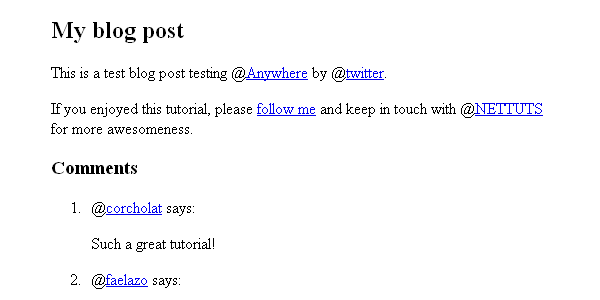
<div id="main">
	<div class="post">
		<h2>My blog post</h2>
		<div class="content">
			<p>This is a test blog post testing @Anywhere by @twitter.</p>
			<p>If you enjoyed this tutorial, please <a href="http://twitter.com/faelazo" class="hovercard">follow me</a> and keep in touch with @NETTUTS for more awesomeness.</p>
		</div>
	</div>
	<div class="comments">
	<h3>Comments</h3>
	<ol>
		<li><span class="author">@corcholat</span> says:
			<p>Such a great tutorial! </p>
		</li>
		<li><span class="author">@faelazo</span> says:
			<p>You should also follow @smashingmag</p>
		</li>
	</ol>
	</div>
</div>

Now let’s dig in.


1. linkifyUsers: Convert @something into Links

@Anywhere lets us to convert @mentions into links. This functionality is called linkifyUsers, and is pretty straight-forward: it sets the HTML element you wish to convert to a link.

Since we want all the document’s @mentions to be converted into links, we just call the linkifyUsers() function in the body element:

twttr.anywhere(function(twitter) {
	twitter("body").linkifyUsers();
});
linkifyUsers result

As mentioned previously, the “twitter” parameter, inside the callback function, is much like jQuery’s “$” alias; f we want to convert @mentions into links, but only those within a certain section, we can use a CSS selector, as shown below.

twttr.anywhere(function(twitter) {
	twitter(".post").linkifyUsers();
});

linkifyUsers() accepts an object as a parameter, with two properties: className and success. With className, you can specify a class to be applied when the @mentions are found; so, for example, you could add an unsemantic ‘red’ class and specify in your CSS:

	.red { color:#f00; }

Here’s the code.

twttr.anywhere(function(twitter) {
	twitter("body").linkifyUsers({
		className:'red'
	});
});

2. hovercards: Display Additional Information on Hover

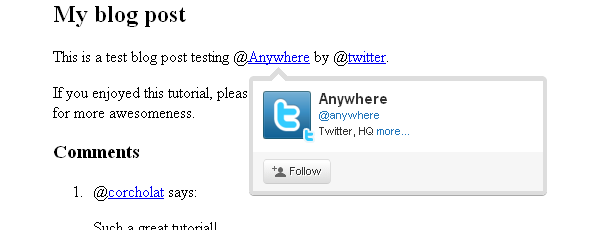
hovercards() converts @mentions to links, but also loads a small pop-up tooltip on mouseover. Here’s a basic example of its usage.

twttr.anywhere(function(twitter) {
	twitter.hovercards();
});
hovercards result

However, hovercards() is flexible enough to include certain elements even if they don’t have a @mention in them. In the HTML, I’m linking “follow me” to http://twitter.com/faelazo; but @anywhere is smart enough to convert this link to a hovercard. By adding a class of “hovercard” to the anchor tag, Twitter will handle the rest!

twttr.anywhere(function(twitter) {
    // Find the @mentions and linkify as usual
    twitter("body").hovercards();

    // Let's find the elements which has a hovercard class
    twitter(".hovercard").hovercards({
        username: function(node){
            var twitter_regexp = /twitter\.com\/([a-z0-9_]*)\/?(.*)?/gi;
            if(node.href.match(twitter_regexp) && (twitter_match = twitter_regexp.exec(node.href))){
                return twitter_match[1];
            }
            return '';
        }
    });
});

The username parameter takes a function with a parameter that will be the object found (in this case node). Here’s what happens inside the function, line by line.

var twitter_regexp = /twitter\.com\/([a-z0-9_]*)/gi;

This is a regular expression. It will match a twitter.com/ string with alphanumeric values and an underscore.

if(node.href.match(twitter_regexp) && (twitter_match = twitter_regexp.exec(node.href))){

If the regexp matches the href property from the node element, then set the variable twitter_match to capture the values in an array.

return twitter_match[1];

It will return the match found.

We add a “return” just in case the element does have a class, but does not refer to twitter.com; so there will be no match. If it returns false or NULL, the script throws an error. With an empty string, it shows a hovercard but with no user found.

Now, if this is a bit too complicated, you can always simplify the process, and add the username as the title attribute of the anchor tag.

<a href="http://twitter.com/faelazo" class="hovercard" title="faelazo">follow me</a>

And just return the node’s title attribute. Much easier, right?

twitter(".hovercard").hovercards({
    username: function(node){
        return node.title;
    }
});

“hovercards” can be applied to any element (even a div), just as long as it specifies a username.

twitter("#main").hovercards({ username: function(){ return 'therrorcom'; }});

3. followButton: Invite to Follow with Just One Click

followButton() will append a button to follow the username parameter in the element previously specified.

The following code will append a button to follow Nettuts+ in the #main div.

twttr.anywhere(function(twitter) {
    twitter("#main").followButton("nettuts");
});
followButton result

followButton() expects one parameter: the username to follow. Simple enough, eh?


4. tweetBox: Tweets From your Site

tweetBox() will append a box in which the users can enter their comments and tweet them via your site.
tweetBox can receive an object as parameter, with the following properites:

  • counter (boolean, default true)
    Whether or not to show the counter for remaining characters.
  • height (integer, default 65)
    The height of the box, in pixels.
  • width (integer, default 515)
    The widht of the box, in pixels.
  • label (string, default “What’s happening?”)
    The text above the box.
  • defaultContent (string, default none)
    You can enter by default the URL, a @mention, a #hashtag, etc.
  • onTweet (function)
    It’s called after the tweet button is pressed. It receives two arguments: plain text tweet and HTML tweet.

A default tweetBox can be called after the element with the comments class with the following snippet.

twttr.anywhere(function(twitter) {
    twitter(".comments").tweetBox();
});

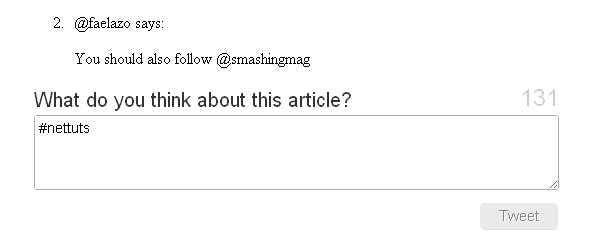
So if you want a custom label, content, and a callback when the tweet has been sent, use this code.

twitter(".comments").tweetBox({
    label: 'What do you think about this article?',
    defaultContent: '#nettuts ',
    onTweet: function(plain, html){
        // Actions when tweet is sent
    }
});
custom tweetBox result

onTweet might be useful if you are planning to replace the default comment area with the CMS you are using. You would still need a database and a table to show the comments, right? So you can hack the CMS a little and make a AJAX request with the onTweet event to insert the tweet into your database.


5. connect: Sign in a User to your Application

As you probably saw, the two last methods require confirmation to grant permission to the application. @Anywhere has a method to check if the user is logged in with the application (not on twitter). You can use conditionals to whether or not to show certain elements.

This snippet will append the connect button in the element with a comments class.

twttr.anywhere(function(twitter) {
	twitter(".comments").connectButton();
});
custom tweetBox result

If you need a button with a different size, you can pass an object literal with the property size and value small, medium, large or xlarge. Note that “medium” is the default value.

twttr.anywhere(function(twitter) {
	twitter(".comments").connectButton({ size: 'large' });
});

The Twitter object includes some extra goodies; one is currentUser, which is an object; the other is isConnected(), which is a function that returns a boolean. From here, we can create some conditional statements.

twttr.anywhere(function(twitter) {
	if(twitter.isConnected()){
		alert('Welcome, you are connected');
	} else {
		twitter(".comments").connectButton();
	}
});

If isConnected() returns true, we can show some user information, such as the username (screen_name), profile picture (profile_image_url), followers or following. Here’s a list for the information that the application can access. Let’s see the currentUser object in the final roundup.


6. Final Roundup: Mixing it All Together

I will be modifying the div with the comments class.

<div class="comments">
	<h3>Comments</h3>
	<ol>
		<li><span class="author">@corcholat</span> says:
			<p>Such a great tutorial! </p>
		</li>
		<li><span class="author">@faelazo</span> says:
			<p>You should also follow @smashingmag</p>
		</li>
	</ol>
	<div class="add">
		<h3>Add comment</h3>
		<div class="author"></div>
		<div class="box"></div>
	</div>
</div>

Now let’s include jQuery to make things a bit easier. Insert, between <head> and </head>, the following code:

<script src="http://ajax.googleapis.com/ajax/libs/jquery/1.4.2/jquery.min.js" type="text/javascript"></script>

Now we have a space to add comments. First, let’s use the isConnected() conditional to show a button if the user is not signed into our application; this button will be appended to the element with an "add" class.

if(twitter.isConnected()){
    twitter(".comments").connectButton();
}

Now let’s use Twitter’s currentUser object. This object can retrieve information with the data() method. So the following snippet will retrieve the user’s screen_name.

twitter.currentUser.data('screen_name');

@Anywhere lets us specify callback functions for the connectButton feature. As an argument, it accepts an object with two properties: authComplete and signOut; both are functions, so when signOut is invoked, we could refresh the page. The same holds true for authComplete. Let’s replace the connectButton() line with this snippet:

twitter(".comments > .add").connectButton({
    authComplete: function(user) {
        location.reload();
    },
    signOut: function() {
        location.reload();
    }
});

This is pretty straightfoward: we pass an object as the argument, then set both the signOut and authComplete functions to reload the page. Note that I’ve dropped the else clause for the isConnected() conditional in order to set the signOut event.

Next, let’s add a tweetBox inside the conditional.

if(twitter.isConnected()){
    $(".comments > .add > .author").html('<img src="'+ twitter.currentUser.data('profile_image_url') +'" /> <a href="http://twitter.com/'+ twitter.currentUser.data('screen_name') +'">'+ twitter.currentUser.data('screen_name') +'</a> | <a href="javascript:twttr.anywhere.signOut();">Sign out</a>');
    twitter(".comments > .add").tweetBox({
        label: 'What do you think about this article?',
        defaultContent: '#nettuts '
    });
}

If the user is logged in, a follow button should be there. Again, inside the conditional:

twitter(".comments > .add").followButton("nettuts");

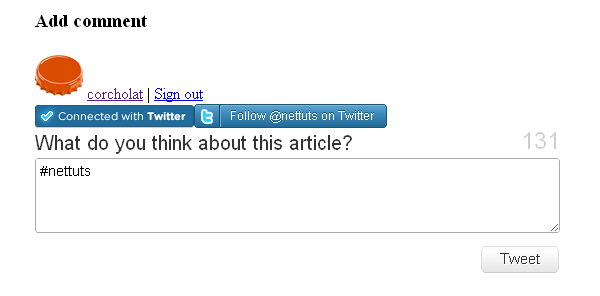
Here is the whole conditional, rounding up all of the @Anywhere features.

if(twitter.isConnected()){
    $(".comments > .add > .author").html('<img src="'+ twitter.currentUser.data('profile_image_url') +'" /> <a href="http://twitter.com/'+ twitter.currentUser.data('screen_name') +'">'+ twitter.currentUser.data('screen_name') +'</a> | <a href="javascript:twttr.anywhere.signOut();">Sign out</a>');
    twitter(".comments > .add").tweetBox({
        label: 'What do you think about this article?',
        defaultContent: '#nettuts '
    });
    twitter(".comments > .add").followButton("nettuts");
}
Final roundup

Conclusion

@Anywhere is obviously Twitter’s response to Facebook Connect. They’re hoping to bring this platform to as many sites on the web as possible; and while the service is still young, and the documentation could definitely be improved, it’s definitely promising! Please show us what you’ve done with @Anywhere in your own websites!

How To Integrate Google Analytics Tracking Into Your Apps In 7 Minutes

How To Integrate Google Analytics Tracking Into Your Apps In 7 Minutes

Ok, maybe that title is +- 3 minutes depending on how efficient you are ;) .
What?

So, why would you want to integrate Google Analytics into your iPhone application.  Duh, for the same reasons you would integrate it into your site.  Google has extended their killer analytics platform to include mobile devices including the iPhone and Android devices.
The analytics API gives you some very powerful options to get as nitty gritty as you would like in your application tracking.

Why?

Uhh, because stats are freakin sweet.  Even if you don’t have a million+ downloads of your app, it is still interesting to know how your users are using your application.  Being able to track every single action made by a user is priceless when thinking about the direction of your app including what features to add, improve, or scrap.

Imaging spending all of your time on some complex feature to find out that only 1% of your users even care about that feature.  How could you know that only 1% of your users actually care about that feature unless you are doing some sort of tracking.

So before you add that super duper all in one end all be all 1337 feature to your app, consider reading the rest of this tutorial and add stat tracking first.  It is quick and painless and I promise that it will be totally worth it.

Configuring your Google Analytics Account

Google Analytics is a free server provided by Google.  If you dont already have an account, you can sign up for one with your existing Gmail account.  http://google.com/analytics. Sign up and log in.

The first thing you will want to do is Add a new Website Profile.

On the next page:

  • Select Add a Profile for a new domain
  • Enter in some URL – This doesn’t really matter since google doesn’t use it to identify your app.  A good convention is iphone.yoursite.com or appname.yoursite.com so that you know these stats are for your iPhone app.
  • Select your country and timezone
  • Click Finish

Pretty simple… On the next screen, make sure you copy the Web Property ID. This number (begins with UA) is what we will be using to uniquely identify your application.

That’s all for the web side of things!  Now on to the iPhone part.

Download the Google Analytics Library and Add It To Your Application

This could not be easier.  Head on Over to http://code.google.com/apis/analytics/docs/tracking/mobileAppsTracking.html . They explain much of the steps  so you could read the rest there, but I will lay them out in detail here with screesnhots.  Download the Analytics SDK for iPhone and extract it.

There are 2 files that are important.  Drag both files from the Library folder into your XCode project.  These files are GANTracker.h and libGoogleAnalytics.a.

When XCode pops up the confirmation box, make sure that you check the box that says “Copy items into destination group’s folder (if needed)”.  This will ensure that the code gets place in your project directory.

Include CFNetwork and Link Against the sqlite framework

The google analytics framework requires the use of CFNetwork (for interent connection detection) and the sqlite framework (most likely to store events when the user does not have internet).

Let’s start by adding CFNetwork to the project. Right click on the frameworks folder and select Add -> Existing Frameworks.  Next, select CFNetwork.framework from the list and click Add.

Now we need to link the project against libsqlite3.0.dylib.  To do this Click Project -> Edit Active Target “<project name>” where <project name> is the name of your XCode project.

Next, click the + button at the bottom to bring up the library picker. Select libsqlite3.0.dylib and click Add

Including and Initializing the Tracker

Since the Analytics tracker is a singleton class, we only have to initialize it once and the rest of the application can use the same instance.

Let’s start by opening up the app delegate and adding the code to import the Google Analytics framework.

#import "GANTracker.h"

Now you need to initialize the tracker… Make sure you have the UA number handy that you received from Google earlier.  Add the following code to you applicationDidFinishLaunching method.

[[GANTracker sharedTracker] startTrackerWithAccountID:@"UA-15609865-3"
				dispatchPeriod:10
				delegate:nil];

Make sure you replace my UA number with yours. The dispatchPeriod variable tells the tracker how often to report back to Google. Google suggests using 10 seconds in their example so we’ll stick to that.

Tracking Pageviews and Custom Events

Google gives you 2 different ways to track how your users use the application.  The first way is via pageviews.  Pageviews work just like they do in the browser as if the user navigated to a new page in your website.  Some examples of when to use pageview are when you have a tab interface or a flipside view controller.  I would not suggest using a pageview every time the user performs an action such as click a button.

The second way is via custom events.  These are really cool.  With custom events, you can easily see HOW your users are using your application.  Examples of events are button clicks, typing in a textbox, submitting high scores, etc…

We will see an example of implementing each of these methods and take a look at how they appear inside of the Google Analytics website.

Pageview method

Here is an example of a pageview when the user first launches the app.  Put this code inside of your applicationDidFinishLaunching method.

NSError *error;
if (![[GANTracker sharedTracker] trackPageview:@"/app_launched"
                                        withError:&amp;error]) {
     // Handle error here
   }

Note that the “app_launched” is essentially our page name similar to index.html or aboutus.php. You can add this code anywhere in you app that you want to add a page view. Make sure you include the GANTrack.h file and change the pagename for each new location.

Event method
Here is an example of an event that gets fired when the user presses a Save button.

- (IBAction) saveTheWorld:(id) sender
{
	NSError *error;
	if (![[GANTracker sharedTracker] trackEvent:@"button_click"
				             action:@"save_the_world"
					      label:@"my_label"
					      value:-1
					  withError:&amp;error]) {
		// Handle error here
	}
}

What’s really cool about event tracking is you have 3 levels of customization. You have the category, the action, and the label. How you organize it is up to you, but make sure the grouping makes sense. In the example above, I will use the category “button_click” every time a user clicks any button. The action will determine which button was clicked (in this case, it’s “save_the_world”). Finally, the label is just another level. I’d suggest using the UDID of the users device.

Now that we have implemented our code, let’s take a look inside of our Google Analytics account and see what the stats look like.

This is just some of our sample data from another app.  Notice the interface is exactly the same as it is when you are tracking website statistics.  It shows you unique visits as well as pageviews.  You get all of the advanced reporting too including time spent on each “page”.

Now we take a look at events.  To find the actions click Content -> Event Tracking inside of your Google Analytics Page.

In the above screenshot, we see tracking for an event called “clap”.  It shows us the number of times the users “clapped” within a given day.

Conclusion

One last thing I want to mention before concluding this tutorial. Google Analytics stats are 1 day behind.  What this means is, you won’t see your stats appear immediately.  So, before you comment here because you don’t see the stats appearing, please please please wait one day and check your stats again.  That is all :)

Be one of the cool kids, follow me on Twitter.

Happy iCoding

Exclusive Free PSD Templates for Premium Members

Exclusive Free PSD Templates for Premium Members

We’re going to try something a bit different this week for our Premium members. I have three exclusive, and fantastically designed PSD web templates available, built by the very talented Dany Duchaine. Help give back to Tuts+ by signing up for a Premium account.

Each of these three PSD themes are fully-featured, containing at least five subpages. If you’re ready to build your next website, but aren’t much of a designer, one of these templates, exclusive to our Premium members, will surely do the trick!

A&D
A&D
A&D

Join Net Premium

NETTUTS+ Screencasts and Bonus Tutorials

For those unfamiliar, the family of TUTS sites runs a premium membership service. For $9 per month, you gain access to exclusive premium tutorials, screencasts, and freebies from Nettuts+, Psdtuts+, Aetuts+, Audiotuts+, and Vectortuts+! For the price of a pizza, you’ll learn from some of the best minds in the business. Sign up for a Premium account!


The Intricacy of Simplicity: CSS3

The Intricacy of Simplicity: CSS3

Ever wondered how a particular effect was achieved in a web design, and, after zooming in several clicks, you found that the author added several subtle shadows, borders, gradients, etc? In the past, this was achieved simply by slicing out an image, and setting it as a background of some element. Luckily, with CSS3, we can be afforded much more flexibility. Now, while the code for such a simple effect might be a bit tedious, it’s well worth it, and that’s what we’ll review in today’s written and video quick tip!


Video Version

Rather watch this screencast on Screenr.com?


Text Version

It’s amazing that something this simple requires that much code, but, it’s not too rough, and can easily be abstracted away to a snippet for future use.


Step 1. Create the Mark-up

To make our project as cut-and-paste as possible, we’re only working with an empty div. Create a new index.html file, and paste in the following:

<body>
     <div id="box">

	</div>
</body>

Step 2. Create the Canvas

Next, we’ll add some basic styling for the body element. This is just for the presentation, and can easily be removed. Within style tags in your header, add:

/* Nothing special here. Just the canvas. */
body {
	width: 500px;
	margin: 60px auto 0;
	background: #666;
}
Body Styling

Step 3. Styling the Box

Now, we’ll create our box, supplying a width and height.

#box {
	/* Just a box */
	width: 500px;
	height: 500px;
}
Box

Step 4. Rounded Corners

We should all know about CSS rounded corners by now. Let’s go ahead and implement that.

/* Rounded corners */
-moz-border-radius: 3px;
-webkit-border-radius: 3px;
border-radius: 3px;
Rounded corners

Note that we’re also supplying the final spec, of “border-radius,” in addition to Mozilla and Webkit’s versions.


Step 5. Border Colors

Mozilla offers a handy property, called “-moz-border-*-colors.” This allows us to set an infinite number of colors for a border. To achieve a subtle “double-border” effect, let’s implement this property.

/* Set a base border and color */
border: 2px solid white;

/* Multiple border colors in Gecko */
-moz-border-top-colors: #292929 white;
-moz-border-right-colors: #292929 white;
-moz-border-bottom-colors: #292929 white;
-moz-border-left-colors: #292929 white;

Note how the number of colors we supply are the same as the border width that we set at the beginning (2px). Also, don’t place commas after each hex value; I made that mistake at first!

Border Colors

Step 6. Compensating for Webkit

To the best of my knowledge, webkit doesn’t currently support border-colors, though it’s possible that I’m wrong. If I am, please leave a comment and let me know! Anyhow, to mimic this effect as best as we can in Safari and Chrome, we’ll use box-shadow.

/* Compensate for Webkit. Not as nice, but works. */
-webkit-box-shadow: 0 -1px 2px #292929;

Note that the provided values refer to the X offset, Y offset, blur, and shadow color, respectively. By passing -1px as the Y offset, we can push the shadow upwards.

In Safari

Step 7. CSS Background Gradients

The final step is to supply a subtle background gradient for our box. However, we must be sure to provide a fallback solid color for the browsers that don’t support CSS gradients.

/* Background subtle gradient, with fallback to solid color */
background: #e3e3e3;
background: -moz-linear-gradient(top, #a4a4a4, #e3e3e3);
background: -webkit-gradient(linear, left top, left bottom, from(#a4a4a4), to(#e3e3e3));

Unfortunately, Mozilla and Webkit don’t quite agree on the syntax for gradients, which makes the process extra irritating. If it’s too confusing, you can use a new service called CSS3 Please to auto generate each browser’s syntax; it’s very cool!

Final Product

You’re Done!

It’s amazing; looking over our final image, it’s hard to tell what we actually did! But this is a good thing; subtlety is key in all aspects of design. Thanks for reading/viewing!


Final Code

/* Nothing special here. Just the canvas. */
body {
	width: 500px;
	margin: 60px auto 0;
	background: #666;
}

#box {
	/* Just a box */
	width: 500px;
	height: 500px;

	/* Rounded corners */
	-moz-border-radius: 3px;
	-webkit-border-radius: 3px;
	border-radius: 3px;

	border: 2px solid white;

	/* Multiple border colors in Gecko */
	-moz-border-top-colors: #292929 white;
	-moz-border-right-colors: #292929 white;
	-moz-border-bottom-colors: #292929 white;
	-moz-border-left-colors: #292929 white;

	/* Compensate for Webkit. Not as nice, but works. */
	-webkit-box-shadow: 0 -1px 2px #292929;

	/* Background subtle gradient, with fallback to solid color */
	background: #e3e3e3;
	background: -moz-linear-gradient(top, #a4a4a4, #e3e3e3);
	background: -webkit-gradient(linear, left top, left bottom, from(#a4a4a4), to(#e3e3e3));
}


Integrating the Piecemaker 3D Gallery into your WordPress Theme

Integrating the Piecemaker 3D Gallery into your WordPress Theme

This tutorial will show you how to successfully integrate the Piecemaker 3D Flash image rotator into your WordPress theme. We’ll also discuss setting up a custom admin panel which will make it super easy for your users to make customizations to the rotator.

Piecemaker is a gorgeous, open-source, 3D Flash image rotator created by Björn Crüger from Modularweb. You can preview the piecemaker in action on Sansation, the first premium WordPress theme on ThemeForest to incorporate Piecemaker.

Piecemaker

Preview


Brief Overview

All of the files included in the ZIP file are already modified for you. We’ve also included a folder which has all of the default unmodified Piecemaker files. I recommend that you go check out the Piecemaker site and familiarize yourself with it before proceeding with the tutorial.


Step 1. Modify the ActionScript

The first step is to modify the ActionScript so that it’ll play nicely with WordPress. The ActionScript that comes with Piecemaker defines three values that the Piecemaker needs in order to function properly:

  • the XML Source
  • the CSS Source
  • the path to the images folder.

The XML Source defines the Picemaker’s various settings and allows you to define images and their descriptions. The CSS file styles the Piecemaker’s description panels, and the images directory tells the Piecemaker where to pull the images from.

Open up the FLA file named “piecemakerNoShadow.fla” and open the Actions window. In frame 1 you will see the actions below. Please note that you need Flash CS4 to open the source file.

In order for the Piecemaker to work properly within our WordPress theme, we need to dynamically set these variables. To achieve this, we will be using FlashVars. FlashVars are variables the we’ll set within our WordPress page template that will get passed to the flash movie when the page loads. Go ahead and delete the default actions in frame 1 of the flash file, and replace them with the following code:

stage.scaleMode = StageScaleMode.NO_SCALE;

// Pull in the Flashvars
var allFlashVars:Object = LoaderInfo(this.root.loaderInfo).parameters;

// Set the required variables for piecemaker
piecemaker.xmlSource = String(allFlashVars.xmlSource);
piecemaker.cssSource = String(allFlashVars.cssSource);
piecemaker.imageSource = String(allFlashVars.imageSource);
piecemaker.dispatchEvent(new Event("properties"));

The above ActionScript first loads in the FlashVars, and then replaces the default Piecemaker values with these new variables. Our Flash file is now all set to go. Publish the SWF and load your FTP client of choice.


Step 2. Upload Files and Folders

The next step is to upload the required files and folders into your WordPress theme’s directory. This tutorial assumes that you will be uploading everything directly into your theme’s main directory. Here is a list of the required items:

  • piecemakerCSS.css
  • piecemakerNoShadow.swf
  • piecemakerXML.xml
  • ‘images’ folder (with your images in it)
  • ’swfobject’ folder (plus contents)
  • piecemakerXML.php (needde for use with the custom admin panel)

Step 3. Embed the SWF and set the FlashVars

The next step is to embed the SWF movie into your WordPress page template. We’ll be using SWFObject 2 to embed the movie, and we’ll also define the three FlashVars that we referenced in step one.

You first need to reference swfobject within the head of your page. To do so, open up your theme’s “header.php” file in your code editor of choice (mine’s BBEdit), and add the following code in the head of your page:

<script type="text/javascript" src="<?php bloginfo('template_url'); ?>/swfobject/swfobject.js"></script>

Next, open up the WordPress page template where you’d like the Piecemaker 3D Rotator to display, and paste the following code:

<div id="flashcontent">
<p>You need to <a href="http://www.adobe.com/products/flashplayer/" target="_blank">upgrade your Flash Player</a> to version 10 or newer.</p>
</div><!-- end flashcontent -->

<script type="text/javascript">
		var flashvars = {};
		flashvars.xmlSource = "<?php bloginfo('template_url'); ?>/piecemakerXML.xml";
		flashvars.cssSource = "<?php bloginfo('template_url'); ?>/piecemakerCSS.css";
		flashvars.imageSource = "<?php bloginfo('template_url'); ?>/images";
		var attributes = {};
		attributes.wmode = "transparent";
		swfobject.embedSWF("<?php bloginfo('template_url'); ?>/piecemakerNoShadow.swf", "flashcontent", "960", "610", "10", "<?php bloginfo('template_url'); ?>/swfobject/expressInstall.swf", flashvars, attributes);
</script>

Code Explaination

The bulk of the code is just your standard swfobject code used to embed a flash movie onto any webpage. The important stuff we need to be concerned with are the FlashVars:

flashvars.xmlSource = "<?php bloginfo('template_url'); ?>/piecemakerXML.xml";
flashvars.cssSource = "<?php bloginfo('template_url'); ?>/piecemakerCSS.css";
flashvars.imageSource = "<?php bloginfo('template_url'); ?>/images";

Notice that we have named our FlashVars just as we defined them in the ActionScript in step on4. We are also using WordPress’ built-in bloginfo() function to reference the exact locations of the three required files.

That’s it! Well, Sort of…

The above steps will enable you to successfully deploy the Piecemaker 3D Image Rotator into your WordPress theme, but we’re going to take it a step further. In the following steps, we will discuss how to create a custom admin panel that will allow you to customize Piecemaker’s settings right from the WordPress back-end.

If you’re not interested in setting up the admin panel, you can go over to the Piecemaker website to read the documentation and start making some really kick-awesome animations.


Step 4. Create The Admin Panel

We will not be covering how to create the entire admin panel from scratch. Instead, we’ll expand upon an already in-depth tutorial here on Nettuts: How to Create a Better WordPress Panel.

Once you have followed that tutorial and you have your admin panel setup, please proceed to the next step.


Step 5. Define Our New Options Panel

We now need to add additional options to the admin panel you just created in the tutorial. Open your theme’s “functions.php” file, and replace the first chunk of code with the following:

<?php
$themename = "Nettuts";
$shortname = "nt";

$categories = get_categories('hide_empty=0&orderby=name');
$wp_cats = array();
foreach ($categories as $category_list ) {
       $wp_cats[$category_list->cat_ID] = $category_list->cat_name;
}
array_unshift($wp_cats, "Choose a category");
$tween_types = array("linear","easeInSine","easeOutSine", "easeInOutSine", "easeInCubic", "easeOutCubic", "easeInOutCubic", "easeOutInCubic", "easeInQuint", "easeOutQuint", "easeInOutQuint", "easeOutInQuint", "easeInCirc", "easeOutCirc", "easeInOutCirc", "easeOutInCirc", "easeInBack", "easeOutBack", "easeInOutBack", "easeOutInBack", "easeInQuad", "easeOutQuad", "easeInOutQuad", "easeOutInQuad", "easeInQuart", "easeOutQuart", "easeInOutQuart", "easeOutInQuart", "easeInExpo", "easeOutExpo", "easeInOutExpo", "easeOutInExpo", "easeInElastic", "easeOutElastic", "easeInOutElastic", "easeOutInElastic", "easeInBounce", "easeOutBounce", "easeInOutBounce", "easeOutInBounce");

The bulk of the above code is identical to the tutorial, but we’ve added a new array named $tween_types. This array holds all of the various animation effects that are available with PieceMaker. We will use this array to generate a dropdown list of the various animation effects in our custom options panel. You can check out the Tweener Documentation to review a visual representation of the various Piecemaker animation effects.

Still within the functions.php file, add the following array below the ones you’ve already created in the tutorial.

This will create a new sliding options panel similar to the ones you created in the tutorial. It’s a long bit of code, but it follows the same exact logic as the tutorial. We are simply creating variables for all of the different settings that we’ll need to define in the Piecemaker’s XML file. An important thing to note is that we made sure to define default values for each option (the values in ’std’ are the default values). There are a decent amount of settings for the Piecemaker and we don’t want to force our users to set up all those options if they don’t want to.

array( "name" => "3D Rotator Options",
"type" => "section"),
array( "type" => "open"),

array( "name" => "Segments",
"desc" => "Number of segments in which the image will be sliced.",
"id" => $shortname."_segments",
"type" => "text",
"std" => "9"),

array( "name" => "Tween Time",
"desc" => "Number of seconds for each element to be turned.",
"id" => $shortname."_tween_time",
"type" => "text",
"std" => "3"),

array( "name" => "Tween Delay",
"desc" => "Number of seconds from one element starting to turn to the next element starting.",
"id" => $shortname."_tween_delay",
"type" => "text",
"std" => "0.1"),

array( "name" => "Tween Type",
"desc" => "Type of animation transition.",
"id" => $shortname."_tween_type",
"type" => "select",
"options" => $tween_types,
"std" => "Choose a category"),

array( "name" => "Z Distance",
"desc" => "to which extend are the cubes moved on z axis when being tweened. Negative values bring the cube closer to the camera, positive values take it further away. A good range is roughly between -200 and 700.",
"id" => $shortname."_z_distance",
"type" => "text",
"std" => "25"),

array( "name" => "Expand",
"desc" => "To which etxend are the cubes moved away from each other when tweening.",
"id" => $shortname."_expand",
"type" => "text",
"std" => "9"),

array( "name" => "Inner Color",
"desc" => "Color of the sides of the elements in hex values (e.g. 0x000000 for black)",
"id" => $shortname."_inner_color",
"type" => "text",
"std" => "0x000000"),

array( "name" => "Text Background Color",
"desc" => "Color of the description text background in hex values (e.g. 0xFF0000 for red)",
"id" => $shortname."_text_background",
"type" => "text",
"std" => "0x666666"),

array( "name" => "Text Distance",
"desc" => "Distance of the info text to the borders of its background.",
"id" => $shortname."_text_distance",
"type" => "text",
"std" => "25"),

array( "name" => "Shadow Darkness",
"desc" => "To which extend are the sides shadowed, when the elements are tweening and the sided move towards the background. 100 is black, 0 is no darkening.",
"id" => $shortname."_shadow_darkness",
"type" => "text",
"std" => "25"),

array( "name" => "Auto Play",
"desc" => "Number of seconds to the next image when autoplay is on. Set 0, if you don't want autoplay.",
"id" => $shortname."_autoplay",
"type" => "text",
"std" => "2"),

array( "type" => "close"),

Step 6. Update Our Page Template

In this step, we need to slightly modify our WordPress page template from Step three. Instead of pointing our xmlSource to an XML file, we need to point it to a PHP file. By using a PHP file instead of an XML file, we can pull in all of the values that were set by the user in our custom options panel. It’s just the one line of code that needs to be replaced:

flashvars.xmlSource = "<?php bloginfo('template_url'); ?>/piecemakerXML.php";

Step 7. Generate our XML File with PHP

We’re almost there! In this step, we’ll create the PHP file that we just referenced in the code above. This PHP file will be used to pull in all of the values from our custom options panel and generate the XML file that the Piecemaker needs in order to function properly. The code is somewhat lengthy, so I’ll try to break it up into more digestable chunks.

Create a blank PHP file, name it “piecemakerXML.php”, and paste the following code at the start of the file:

<?php require_once( '../../../wp-load.php' );
$segments = get_option('nt_segments');
$tweentime = get_option('nt_tween_time');
$tweendelay = get_option('nt_tween_delay');
$tweentype = get_option('nt_tween_type');
$zdistance = get_option('nt_z_distance');
$expand = get_option('nt_expand');
$innercolor = get_option('nt_inner_color');
$textbackground = get_option('nt_text_background');
$textdistance = get_option('nt_text_distance');
$shadow = get_option('nt_shadow_darknent');
$autoplay = get_option('nt_autoplay');
?>
  • The first line loads WordPress into our PHP file. This allows us to have access to all of the default WordPress functions, as well as any values stored within our database.
  • The rest of the code pulls in the data from our custom options panel and stores those values into variables. We will use these variables to generate the rest of the Piecemaker’s settings.
  • Next, we need to set the content-type header so that the browser knows we are going to output XML content rather than the default text/html. We will also include some initial Piecemaker settings tags.

    <?php
    header("Content-type: text/xml");
    echo '<?xml version="1.0" encoding="utf-8" ?>
    <Piecemaker>
      <Settings>
    	<imageWidth>830</imageWidth>
    	<imageHeight>360</imageHeight>';
    

    We are now going to output the variables we stored into their correct XML tags, and close out the Piecemaker settings tag.

    echo '<segments>'. $segments . '</segments>';
    echo '<tweenTime>'. $tweentime . '</tweenTime>';
    echo '<tweenDelay>'. $tweendelay . '</tweenDelay>';
    echo '<tweenType>'. $tweentype . '</tweenType>';
    echo '<zDistance>'. $zdistance . '</zDistance>';
    echo '<expand>'. $expand . '</expand>';
    echo '<innerColor>'. $innercolor . '</innerColor>';
    echo '<textBackground>'. $textbackground . '</textBackground>';
    echo '<textDistance>'. $textdistance . '</textDistance>';
    echo '<shadowDarknent>' . $shadow . '</shadowDarknent>';
    echo '<autoplay>' . $autoplay .  '</autoplay>';
    echo '
    </Settings>
    

    The final step is to output the images that we want to include in the rotator along with their descriptions, and we’ll also close out the Piecemaker XML tag.

    <Image Filename="image1.jpg">
        <Text>
          <headline>Description Text</headline>
          <break>?</break>
          <paragraph>Here you can add a description text for every single slide.</paragraph>
          <break>?</break>
          <inline>Lorem ipsum dolor sit amet, consectetur adipiscing elit. Aliquam eu quam dolor, a venenatis nisl. Praesent scelerisque iaculis fringilla. Sed congue placerat eleifend.</inline>
          ?<a href="http://themes.5-squared.com/sansation/?style=cool_blue" target="_blank">hyperlinks</a>
        </Text>
      </Image>
    
      <Image Filename="image2.jpg">
        <Text>
          <headline>Description Text</headline>
          <break>?</break>
          <paragraph>Here you can add a description text for every single slide.</paragraph>
          <break>?</break>
          <inline>Lorem ipsum dolor sit amet, consectetur adipiscing elit. Aliquam eu quam dolor, a venenatis nisl. Praesent scelerisque iaculis fringilla. Sed congue placerat eleifend.</inline>
          ?<a href="http://themes.5-squared.com/sansation/?style=cool_blue" target="_blank">hyperlinks</a>
        </Text>
      </Image>
    
      <Image Filename="image3.jpg">
        <Text>
          <headline>Description Text</headline>
          <break>?</break>
          <paragraph>Here you can add a description text for every single slide.</paragraph>
          <break>?</break>
          <inline>Lorem ipsum dolor sit amet, consectetur adipiscing elit. Aliquam eu quam dolor, a venenatis nisl. Praesent scelerisque iaculis fringilla. Sed congue placerat eleifend.</inline>
          ?<a href="http://themes.5-squared.com/sansation/?style=cool_blue" target="_blank">hyperlinks</a>
        </Text>
      </Image>
    
      <Image Filename="image4.jpg">
        <Text>
          <headline>Description Text</headline>
          <break>?</break>
          <paragraph>Here you can add a description text for every single slide.</paragraph>
          <break>?</break>
          <inline>Lorem ipsum dolor sit amet, consectetur adipiscing elit. Aliquam eu quam dolor, a venenatis nisl. Praesent scelerisque iaculis fringilla. Sed congue placerat eleifend.</inline>
          ?<a href="http://themes.5-squared.com/sansation/?style=cool_blue" target="_blank">hyperlinks</a>
        </Text>
      </Image>
    </Piecemaker>';
    ?>
    

    Conclusion

    I hope you learned something useful in this tutorial. By combining various different technologies, we’re able to add powerful functionality to our WordPress themes. More importantly, we made it easy for the average user to make customizations to our theme.


Manipulating the DOM with jQuery: 10+ useful code snippets

Manipulating the DOM with jQuery: 10+ useful code snippets

Add a CSS class to a specific element

A very clean way to change an element look and feel is to add a css class, instead of adding inline styles. Using jQuery, this is pretty easy to do:

$('#myelement').addClass('myclass');

Removing a CSS class from a specific element

It’s great to be able to add some CSS classes, but we also need to know how to remove unwanted classes. The following line of code will do that:

$('#myelement').removeClass('myclass');

Check if a specific element has a CSS class

If your application or site is frequently adding and removing classes to a particular element, it can be very useful to be able to check out if an element has a certain CSS class.

$(id).hasClass(class)

Switch CSS using jQuery

As we saw with the previous examples, adding or removing css styles to an element is very simple using jQuery. But what if you want to completely remove the document css file and attach a new stylesheet? Good news, it is extremely simple as well, as shown in the following example:

$('link[media='screen']').attr('href', 'Alternative.css');

Source: http://addyosmani.com/blog/50-jquery-snippets-for-developers/

Append HTML to an element

When you need to append some html to an element, the append() method is a life saver:

$('#lal').append('sometext');

Check if an element exists

When working with Javascript, we often need to check if an element exists or not. Using jQuery and the length property, it is very simple to do: If length == 0, no elements are used on the page. Otherwise, some are used.

if ($('img').length) {
    log('We found img elements on the page using "img"');
} else {
    log('No img elements found');
}

Source: http://jqueryfordesigners.com/element-exists/

Get the parent element of an element

When working with the DOM, you may need to know which element is the direct parent of another element. The closest() method will let you know:

var id = $("button").closest("div").attr("id");

Source: http://stackoverflow.com/questions/545978/finding-the-id-of-a-parent-div-using-jquery

Get element siblings

The siblings() method is a very handy tool to get siblings of an element. As shown below, using this method is extremely simple:

$("div").siblings()

Remove an option from a select list

When working with select lists, you may want to update the content according to the user actions. To remove an option from a select list, the following code will do the trick:

$("#selectList option[value='2']").remove();

Source: http://calisza.wordpress.com/2009/03/29/6-jquery-snippets-you-can-use-to-manipulate-select-inputs/

Get the selected option as text

Extremely useful when you need to quickly check out what a visitor selected from your select list.

$('#selectList :selected').text();

Apply a “zebra” effect on tables

When using tables, it is a good idea, for better readability, to give a different style to one line out of two. Using jQuery, this can be done easily, without any additional html markup.

$("tr:odd").addClass("odd");

Source: http://web.enavu.com/tutorials/top-10-jquery-snippets-including-jquery-1-4/

Count children of an element

If you’d like to count how many div elements are children of #foo, the following line will let you know. Simple and efficient!

$("#foo > div").length

Source: http://tympanus.net/codrops/2010/01/05/some-useful-javascript-jquery-snippets/

Like CatsWhoCode? If yes, don’t hesitate to check my other blog CatsWhoBlog: It’s all about blogging!

Manipulating the DOM with jQuery: 10+ useful code snippets

Tweet Mapper in the App Store

Tweet Mapper in the App Store

I recently decided to look into the Stream API that is provided by Twitter. Though this API, you can specify a request with certain parameters and be stream tweets as they are posted live. I decided to make my first iPad app using it called Tweet Mapper. Tweet Mapper is meant to be a window into the live world of Twitter. It doesn’t require a Twitter account to use and is free in the store. The app looks at 10 major cities; Los Angeles, San Francisco, Chicago, New York, Miami, Barcelona, London, Tokyo, Rome and Mexico City.

You can find Tweet Mapper in the App Store.

Any time a tweet is posted in one of those cities with a geotag the tweet is posted on the map. If the tweet has a URL included in it, a detail disclosure option is shown to bring up the web page. I will be doing posts on how I accomplished this using NSURLConnection in a post very soon. Thanks for the support!

10 Kick-Ass Magento Templates

10 Kick-Ass Magento Templates

I’m proud to announce that ThemeForest is now selling Magento eCommerce templates at cheap prices that any business or individual can afford. We’ve launched with thirty-five awesome Magento templates, but we’re just scratching the surface. By the end of the year, ThemeForest will be the premier location for buying and selling Magento templates! Here are some of the best that we’ve launched with.


1. Woodrow

Woodrow

2. Organic

Organic

3. Acumen

Acumen

4. Boho

Boho

5. Media Store

Media Store

6. Contemporary Design

Contemporary Design

7. Tribeca

Tribeca

8. Tecknica

Tecknica

9. Gnarly

Gnarly

10. Guise

Guise

So if you have a spare moment, and are in the market for an incredible Magento template, I hope you’ll stop by your neighborhood ThemeForest and take a look around! And don’t forget, if you’re a developer of eCommerce themes, now might be the perfect time to look into signing up for a free author account, and earning 40-70% of every sale you make!


Magento for Designers: Part 3

Magento for Designers: Part 3

Magento is a stunningly powerful e-commerce platform. In this miniseries, we’ll learn how to get started with the platform, getting to know the terminologies, setting up a store and all related aspects of it and finally learn how to customize it to make it our very own.

In this third part, we’ll focus on the process behind theming Magento: how to install themes, the various concepts you’ll need to understand to create a theme and the general file structure. Excited? Let’s get started!

The Full Series


A Quick Recap

In the last part, we saw how to get your Magento store from installed to ready for deployment including how to set up your products, product categories, taxes, shipping, payment gateways and many more.

Today, we’ll look at the basics of Magento theming. We’ll learn the general idea behind Magento themes, the various terminologies behind it and the basic structure of a theme.


Magento Theme Basics

First up, theming Magento isn’t really as hard as it is purported. It’s a little different from how WordPress or Joomla handles themes, yes, but definitely not difficult. All you need to know is a little know how to start theming like a pro!

To make it brutally simple, a Magento theme is a collection of PHTML, CSS and JS files thrown in together along with XML files to define the structure. A PHTML file consists of regular HTML markup interspersed by PHP code for the functionality. In case, you’re confused, a random block of code looks like so:

<div class="quick-access">
        <?php echo $this->getChildHtml('store_language') ?>
        <p class="welcome-msg"><?php echo $this->getWelcome()?></p>
        <?php echo $this->getChildHtml('topLinks') ?>
</div>

See? It’s really simple once you wrap your head around it. If you’ve worked with creating themes for other systems, great, you’ll pick this up rather quickly. If not, no worries, I’ll walk you through the entire process.

Note that in Magento, the front end and the back end are skinned completely separately. I’m assuming most of you won’t need to skin the backend so I’ll stick to theming the front end alone.


Installing a Theme

Before we start, a number of people DMed me through Twitter/emailed me asking the same question: how to install a theme. I’ll talk about it first.

There are two ways to install a Magento theme:

  • The traditional method where you can just copy the packaged theme to appropriate folder
  • Magento Connect

I’ll talk briefly about both.

Direct Upload/Copy

The first method is the one you’re used to. Download a theme, upload it and done. But you’ll need to know where to upload since this works a little differently than you’d assume.

Themes are packaged differently according to the source but at it’s core, you have 2 folders:

  • app
  • skin

You can just drag these to the root of the installation and let it merge with the existing data.

If by chance, you get the theme packaged as a collection of 3 folders, don’t worry.

The folder containing the PHTML files and the one containing the XML files go into root/app/design/frontend/default/themename while the one containing the CSS files, images and other assets goes into root/skin/frontend/default/themename.

Right now, this is all you need to do. I’ll explain why each part goes to a specific location later below. You can activate your theme now.

Tutorial Image

Navigate to System -> Design and click on Add Design Change.

Tutorial Image

Choose the theme you want, click on save and you’re done.

Magento Connect

Using Magento Connect is easier provided it is available there. Navigate to System ->Magento Connect -> Magento Connect Manager.

After logging in, you’ll be asked to enter the extension key of the theme you want to install. Enter the key and wait for the system to do it’s thing.

Tutorial Image
Tutorial Image

After it has downloaded the necessary files and placed them where they need to be, you can now activate the theme like before.


Magento Design Concepts You Need to Master

When working with Magento, there are a few design related concepts you need to wrap your mind around before you can even start modifying the default theme.

Layouts

Layouts is a clever, new idea in Magento. This system lets you define a page’s, any page’s, structure through properly formed XML tags.

Essentially, you can dictate which section of the page goes where by changing just a few attributes in an XML file. Each view or module gets it’s layout specified by its own XML file.

Layouts in Magento is a big topic and just a few paragraphs here won’t do it justice. Along the way, I’ll cover all the necessary information you need to build your own theme along with a detailed article on layouts to cover all the advanced things you can do with this functionality.

For now, if you’re interested, here is a small snippet to get an idea of what layouts are:

<block type="page/html_notices" name="global_notices" as="global_notices" template="page/html/notices.phtml" />

            <block type="page/html_header" name="header" as="header">
                <block type="page/template_links" name="top.links" as="topLinks"/>
                <block type="page/switch" name="store_language" as="store_language" template="page/switch/languages.phtml"/>
                <block type="core/text_list" name="top.menu" as="topMenu"/>
                <block type="page/html_wrapper" name="top.container" as="topContainer" translate="label">
                    <label>Page Header</label>
                    <action method="setElementClass"><value>top-container</value></action>
                </block>
            </block>

            <block type="page/html_breadcrumbs" name="breadcrumbs" as="breadcrumbs"/>

            <block type="core/text_list" name="left" as="left" translate="label">
                <label>Left Column</label>
            </block>

            <block type="core/messages" name="global_messages" as="global_messages"/>
            <block type="core/messages" name="messages" as="messages"/>

Templates

Templates consist of PHTML files filled with regular HTML markup and PHP code. Similar to WordPress, you use a number of predefined methods to specify the output. Just like with other popular systems, important sections like the header, footer and the sidebar are placed in separate files and pulled in when necessary.

You can have different templates for each view of Magento. For example, you can have different code for a wish list or a checkout page instead of using the same look for the entire site.

Here is a piece of a template for the curious:

<ul class="products-grid">

         <li class="item">
              <p class="product-image">
                    <a href="<?php echo $_product->getProductUrl() ?>"
		        title="<?php echo $this->htmlEscape($this->getImageLabel($_product, 'small_image')) ?>">
                        <img src="<?php echo $this->helper('catalog/image')
				         ->init($_product, 'small_image')
				         ->resize(100, 100); ?>"
		                          width="100" height="100"
		                          alt="<?php echo $this->htmlEscape($this
				         ->getImageLabel($_product, 'small_image')) ?>"
		                          title="<?php echo $this->htmlEscape($this
			          	 ->getImageLabel($_product, 'small_image')) ?>" />
                    </a>
              </p>
              <h5 class="product-name">
				<a href="<?php echo $_product->getProductUrl() ?>"
				title="<?php echo $this->htmlEscape($_product->getName()) ?>">
				<?php echo $this->htmlEscape($_product->getName()) ?></a>
	     </h5>
                <?php echo $this->getReviewsSummaryHtml($_product, 'short') ?>
                <?php echo $this->getPriceHtml($_product, true, '-new') ?>

            </li>
        <?php if ($i%$_columnCount==0 || $i==count($_products)): ?>
</ul>

Looks a little messy, I know but strip out the PHP parts and you’ll see how similar it is to other systems.

Skins

Skins are nothing but the CSS files, JavaScript files, images and other assets you’re using in the markup to create your design. Essentially all non PHP assets go here. Fonts for embedding? Some swanky flash demo? A spiffy piece of SVG? All of those fall under this category.

Blocks

Blocks are the integral building blocks of a theme and let you build your theme in a modular fashion.

As part of layouts, this forms the backbone of Magento’s strong templating system. Blocks are essentially sections which you can move around using the XML mentioned above to modify how a page is presented.

Blocks need to reference a relevant template file so that Magento can pull in the required file. A little confused? Here is an example.

<block type="page/html_breadcrumbs" name="breadcrumbs" as="breadcrumbs"/>

We essentially define a new block, which template to load by specifying the type of block and a name. It’s a little different from what we’ve been used to but trust me you’ll get it once you get started developing. Either way, I’ll cover blocks a bit more in detail when we’re building our theme and still more I’ll do a full write up on layouts and blocks down the line so don’t worry if it doesn’t make complete sense now. Just get a general feel for the topics at hand.

Structural Blocks

A structural block defines the basic structure of a page. Think HTML 5 header, footer and aside sections. They were created for the sole purpose of visual demarcation of a design.

Tutorial Image

From the Magento docs

Content Blocks

Content blocks are similar to your regular container/wrapper DIV elements you use in a design. Just like with design, each content block contains a specific functionality or purpose. A menu in your header, a callout in the sidebar, legal clarifications in the footer all go into separate content blocks.

Remember, content blocks are still blocks and map to a specific PHTML file to generate and render its HTML contents.

Tutorial Image

From the Magento docs

Interface

Mentioned finally because from a strict theming perspective of a beginner, this shouldn’t come into play for quite a while.

To be simple, an interface is a named collection of themes you can leverage to define the look of your store.


Important Locations to Keep in Mind Whilst Theming

Just like other powerful software, Magento has a complex file structure. However, for theming along, you can narrow your focus down considerably.

Tutorial ImageTutorial Image

Here are the locations you’ll be working on when creating a theme:

  • root/app/design/frontend/default – The folder of the default interface. Aptly named default, by default. (Heh!)
  • root/app/design/frontend/default/Cirrus – The folder for the theme we will be building. I’ve named our theme, Cirrus
  • root/skin/frontend/default – The folder of the default interface.
  • root/skin/frontend/default/Cirrus – The folder where all the assets for our theme will be placed.

A Theme’s Directory Structure

Magento requires that your executable PHP content be placed seperately from your static assets which is why you have a separate skin directory on your root. While this may seem counter-productive at first, once you’ve slightly adapted your workflow, you’ll realize that this move increases the general security of your installation..

Nevertheless, a theme is typically split into the following parts.

  • Layouts – root/app/design/frontend/default/Cirrus/layouts
  • Templates – root/app/design/frontend/default/Cirrus/templates
  • Skins – root/skin/frontend/default/Cirrus

The [Second to] Last Word

And we are done! We looked at the basic concepts behind theming Magento and managing themes. Hopefully this has been useful to you and you found it interesting. Since this is a rather new topic for a lot of readers I’ll be closely watching the comments section so chime in there if you’re having any doubts.

Questions? Nice things to say? Criticisms? Hit the comments section and leave me a comment. Happy coding!


What We’ll Build in the Upcoming Parts

So far, we’ve been dealing strictly theoretically with the platform. A necessity considering Magento’s size and scope. But now that we have all the basics nailed down we can move on to the fun part.

Remember how when creating a skin for a CMS/generic system you always start from a skeleton and build outwards? Like Kubrick for WordPress? If you thought we were going to take one and start building a theme out of it, you thought wrong. No, sir. We’re going to build a custom, bare bones skin similar to the Blank skin completely from scratch. A skin you can use yourselves as a base for your own skin.

All this and more in the upcoming parts. Stay tuned!


The Full Series


Purchase Magento Themes from ThemeForest

ThemeForest

Did you know that your friendly neighborhood ThemeForest sells premium quality Magento themes? Whether you’re a skilled Magento developer looking to start profiting from your efforts, or a buyer, hoping to build your first eCommerce store, we’ve got you covered!


Quick Tip: HTML5 Features you Should be Using Right Now

Quick Tip: HTML5 Features you Should be Using Right Now

With all this talk about HTML5 not being complete until 2022, many people disregard it entirely – which is a big mistake. In fact, there are a handful of HTML5 features that we can use in all our projects right now! Simpler, cleaner code is always a good thing. In today’s video quick tip, I’ll show you a handful of options.

Or, watch this video on Screenr.com.


Best of the Web: First Quarter

Best of the Web: First Quarter

It’s hard to believe that 2010 is already one quarter over. With a seemingly never-ending supply of developer goodness, it’s hard not to miss some incredible articles. To catch up, check out our list of top articles from January, February, and March. Don’t forget to share your own favorites within comments!


January 2010

Scheduling Tasks with Cron Jobs

Cron Jobs are used for scheduling tasks to run on the server. They’re most commonly used for automating system maintenance or administration. However, they are also relevant to web application development. There are many situations when a web application may need certain tasks to run periodically. Today we are going to explore the fundamentals of Cron Jobs.

How to Make All Browsers Render HTML5 Mark-up Correctly — Even IE6

HTML 5 provides some great new features for web designers who want to code readable, semantically-meaningful layouts. However, support for HTML 5 is still evolving, and Internet Explorer is the last to add support. In this tutorial, we’ll create a common layout using some of HTML 5’s new semantic elements, then use JavaScript and CSS to make our design backwards-compatible with Internet Explorer. Yes, even IE 6.

Getting Started with XSL(T)

In this tutorial, we will adventure into the world of XSL(T) and explain what it is, how to pull data from an XML document, basic iteration and basic login and conditional statements.

jQuery 1.4 Released: The 15 New Features you Must Know

jQuery 1.4 was recently released. This wasn’t simply a maintenance release as some had speculated; there are many new features, enhancements and performance improvements included in 1.4! This post covers the new features and enhancements that you may find beneficial.
You can download jQuery 1.4 right now, here: http://code.jquery.com/jquery-1.4.js

Zero-to-Sixty: Creating and Deploying a Rails App in Under an Hour

Give me an hour of your time, and I’ll take you on a fly by of the Ruby on Rails framework. We’ll create controllers, models, views, add admin logins, and deploy using Heroku’s service in under an hour! In this article we’ll create a simple bookshelf application where you can add books and write thoughts about them. Then we’ll deploy the application in just a few minutes. So buckle up because this article moves fast!

This article assumes that you may know what Ruby on Rails is, but not exactly how it works. This article doesn’t describe in-depth how each step works, but it does describe what we need to do, then the code to do that.

10 Tips for Better Print Style Sheets

Print style sheets have been somewhat forgotten, and yet they remain important all the same. Many people print out articles to read while traveling or when they have no access to the Internet.
Print style sheets have definite benefits. For example, reading on paper is less tiring on the eyes than reading on screen.

Also, following tutorials is easier if you have one next to you, with your code editor open on the screen; that way, you don’t have to switch windows every time to look something up.

In this article we’ll point out 10 easy tips that will help you create better print style sheets.

Unleashing the Power of Website Analytics

Most people use web analytics—you’d have to be crazy not to—especially with such powerful free solutions out there. However, for many people, analyzing their stats goes no further than rejoicing at having a few more visitors and repeating the figures to potential advertisers.

But analytics, used properly, is so much more – it’s a marketing tool, an error checker, a usability tool, an ROI calculator, an eCommerce tracker, an ad tool and the list goes on.

So we’re going to take a look at the basic ways of getting more from your analytics.

How To Create an IE-Only Stylesheet

If you read this blog, there is a 99% chance you’ve had a hair-pulling experience with IE. But if you are worth your salt as a CSS coder, you should be able to deal with it. I am of the opinion that you can handle anything IE can throw at you without the use of hacks. Hacks are dangerous, since they are based on non-standard exploits, you can’t predict how they are going to behave in future browsers. The tool of choice for fighting IE problems is the conditional stylesheet. IE provides comment tags, supported all the way up to the current IE 8 to target specific versions, as well as greater-than/less-than stuff for targeting multiple versions at once.

Hot Effect: MooTools Drag Opacity

As you should already know, the best visual features of a website are usually held within the most subtle of details. one simple trick that usually makes a big different is the use of opacity and fading. another awesome mootools functionality is dragging. why not double the awesomeness of element dragging by adding fading?

Tips for Coding and Designing Usable Web Forms

The web form has been one of the most discussed elements in web design for more than ten years now. We can’t help it. Call-to-action functionality often leads users to a form; purchases are made using forms; users register or subscribe using forms — the uses for forms are endless.

While it is fairly easy to slap together a form in HTML, it’s not as easy to code, style, and design your form in a manner that makes it usable and accessible to the majority of users. Since forms play such a large role in website conversions and success rates, the tips below, as well as the resources provided at the end of this article, should prove valuable for developers creating and coding web forms.


February 2010

24 Best Practices for AJAX Implementations

Implementing AJAX technology can be a hit or miss thing. Do it well and you’ll have users raving over the slickness it provides to the general user experience while if you mess it up, you’ll be at the receiving end of their wrath. Here are 24 tips to guide you with implementing AJAX technology within your web application.

How to Test your JavaScript Code with QUnit

QUnit, developed by the jQuery team, is a great framework for unit testing your JavaScript. In this tutorial, I’ll introduce what QUnit specifically is, and why you should care about rigorously testing your code.

How to Create a Better WordPress Options Panel

Today, we’ll go through the entire process of creating an admin options panel for a WordPress theme, using the excellent WooFramework as an example. Then, we’ll take things a step further, as we implement jQuery to improve some of the functionality.

CodeIgniter from Scratch, day 8, day 9, and day 10

Three new episodes to the “CodeIgniter from Scratch” Series came out in February. If you use this framework, you’ll be sure to learn a lot from these screencasts!

Design a Prettier Web Form with CSS 3

Thanks to advanced CSS properties, such as gradients and shadows, it’s now quite easy to turn a dull web form into something beautiful – with minimal effort. I’ll show you how in today’s tutorial!

Create an Animated Sliding Button Using MooTools

Buttons (or links) are usually the elements on our sites that we want to draw a lot of attention to. Unfortunately many times they end up looking the most boring. You don’t have to let that happen though! I recently found a Tympanus post which provided a great method for making button have an unexpected pop. Here’s a quick tutorial on how to duplicate that look using MooTools.

How nth-child Works

There is a CSS selector, really a pseudo-selector, called nth-child. Here is an example of using it:

ul li:nth-child(3n+3) {
  color: #ccc;
}

What the above CSS does, is select every third list item inside unordered lists. That is, the 3rd, 6th, 9th, 12th, etc. But how does that work? And what other kinds of things can you do with nth-child? Let’s take a look.

Share Feedback with Twitter and the Bit.ly API

Regular blog readers probably notice the wide range of social media “hare this” links found on most sites. With everyone from CNN to ESPN integrating ways of sharing content, one of the most popular techniques is using a URL shortener to neaten up and condense the link.

Today we’re going to explore this idea of sharing content a little bit more. Sharing links to content is just one piece of the social media equation. Capturing the response to it is quite another.

The Life, Times (and Death?) of Internet Explorer 6

In recent years Internet Explorer 6 has become the browser web designers love to hate. Security issues, JavaScript errors and inexplicable CSS rendering quirks have made it the brunt of many jokes. With IE6 in its twilight and big companies like Google dropping support, it seems like a good time …

How iPad Affects the Way we Design Websites?

The iPad has received mixed reviews. While the geeks (people like you and me) have looked at it with disdain for being “just” what we expected, the media publishing industry (read print media) has seen it as the salvation they had been waiting for. Whether the iPad is able to change the world or not, is not the issue of this article. But the fact of the matter is that it is here and sooner or later we need to learn to design the web keeping it in our minds. So what are the things we need to consider?


March 2010

How to Create an Infinite Scrolling Web Gallery

When working my way through a web gallery, I find it annoying when I must change pages; so in today’s tutorial, we will learn how to create an auto-generating, one-page, infinite scrolling gallery with PHP and AJAX. Let’s get started!

MVC for Noobs

Model-View-Controller (MVC) is probably one of the most quoted patterns in the web programming world in recent years. Anyone currently working in anything related to web application development will have heard or read the acronym hundreds of times. Today, we’ll clarify what MVC means, and why it has become so popular.

Image Resizing Made Easy with PHP

Ever wanted an all purpose, easy to use method of resizing your images in PHP? Well that’s what PHP classes are for—reusable pieces of functionality that we call to do the dirty work behind the scenes. We’re going to learn how to create our own class that will be well constructed, as well as expandable. Resizing should be easy. How easy? How about three steps!

How to Build a Lava-Lamp Style Navigation Menu

A couple weeks ago, I created a screencast that demonstrated how to build a three-level navigation menu. In a response email, one of our readers requested a tutorial on how to build a lava-lamp style menu. Luckily, it’s quite a simple task, especially when using a JavaScript library. We’ll build one from scratch today.

Uncovering jQuery’s Hidden Features

jQuery is not always as it appears. There’s a lot of cool stuff going on under the surface, and there are many methods just waiting to be discovered, and many potential usages of jQuery’s API that you may not have considered before. In this article I’ll be taking you through a few of the not-so-obvious things I’ve discovered about jQuery.

3D Text Tower

Have you seen David Desandro’s site? It’s pretty slick. His footer is especially fun. The technique is clever in it’s simplicity. Let’s take a look.

jQuery Dropdown Navigation in WordPress

Today, we will learn how to enhance you WordPress in a whole new way. Multi-Level or Multi-Dimensional navigation menus can offer your theme and users 2 new things. One, add a nice new type of effect to enhance your theme. Two, allow the users to find things more easily. We will start off by making a HTML version, then making it compatible with WordPress.

Labelled Blocks, Useful?

I was recently playing around with labels and blocks (as one does) and found that they could be used as a way to annotate/contain chunks of JavaScript without using ugly comments (or abstraction?). I can see its appeal—it offers a sense of containment that is hard to get with just comments.

Creating Unique Styles for WordPress Pages

In WordPress 2.8, there is one small but very useful feature, both for WP web developers, and for bloggers. This is an opportunity to change the appearance of any individual page or group of pages without the need to write either the functions/conditions on php or install plugins. All you need to do is simply add your desired style to your css file.

How to Find and Remove Broken Links in Your Website

Broken links are links that lead to pages that do not exist. When clicking on a broken link, the page you land on is called a 404 error page, a standard HTTP response that indicates that the requested URL doesn’t exist.

What do you do when you happily surf the web and suddenly come across a 404 error? For most of us, the immediate response would be to simply leave the current site in favor of another one because both people and search engines consider broken links as unprofessional.


That’s it!

Of course, be sure to share the best articles you’ve seen in 2010 so far in the comments!