
Category: Tutorials
Tutorials,freelance,projects,joomla,php,mysql,wordpress,blancer.com
Tell us your best memories of the NES

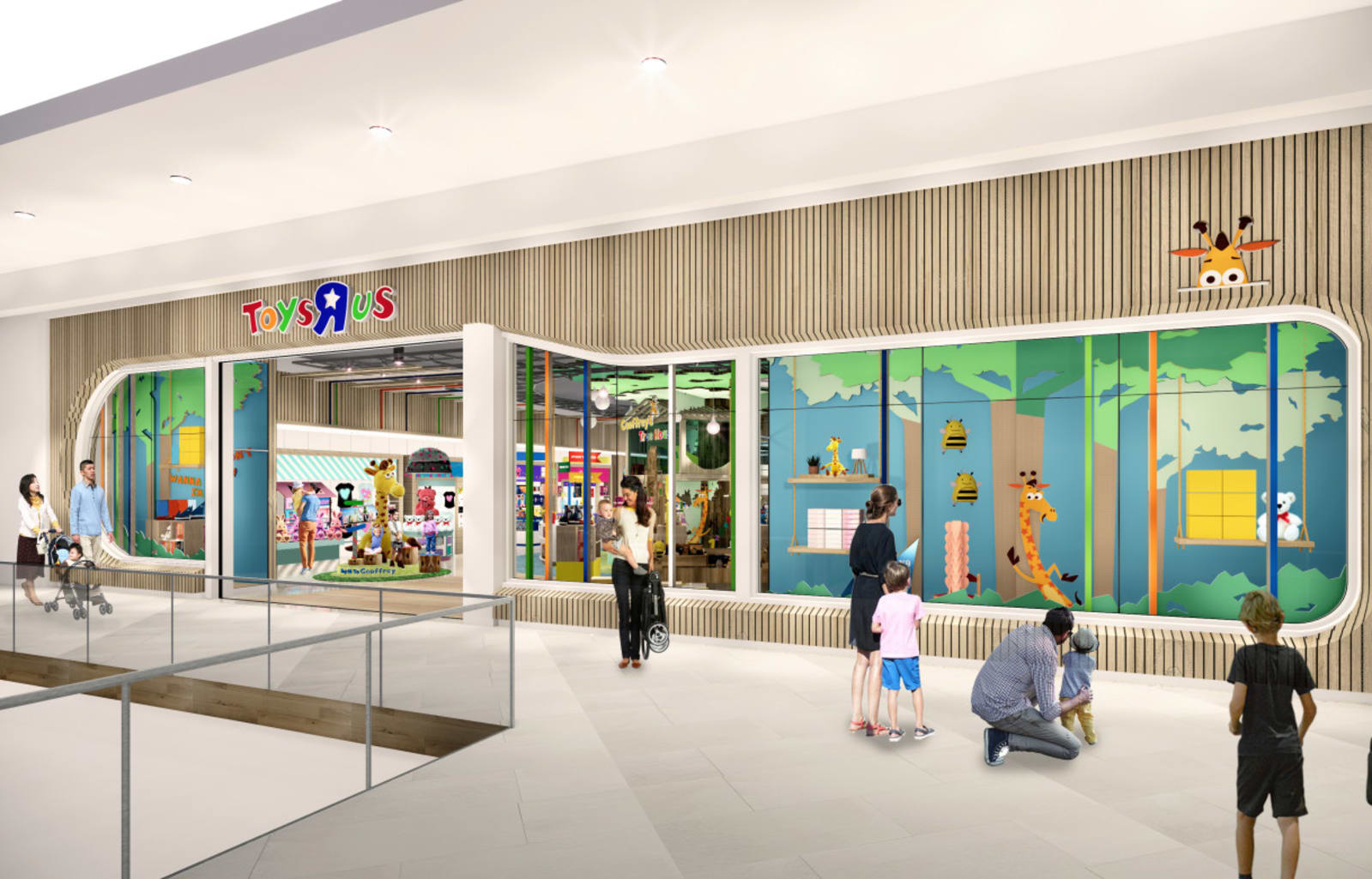
Toys ‘R’ Us returns with ‘STEAM’ workshops and smaller stores
The latest Google Doodle celebrates the Apollo 11 anniversary

29+ Simple PowerPoint (PPT) Templates to Make Basic Presentations Quickly
Less can really be more when you’re building a PowerPoint presentation.
You don’t need a lot of graphics and fancy designs to get your point across. In today’s fast-paced world, simple elegant PowerPoint templates are worth more than ever.
Simple presentation designs have everything you need to convey your message to your audience. Just as importantly, simple slide designs don’t have many distractions and unnecessary decorations.

Simple PowerPoint templates are truly versatile, and you’ll find that they can be used for almost any subject.
Plus, simple presentations are quick to build, without many complicated designs that take time to work out. What’s more: clean and simple presentation designs last forever. They never go out of style.
The Best Source for Simple PowerPoint Templates (With Unlimited Use)
Envato Elements is the perfect place to find winning simple PowerPoint templates. For a low monthly fee, you can unlock unlimited downloads of PowerPoint themes, photos, videos, fonts, and other resources to use in your next project.

Elements is truly one of the best values out there for creatives today. And with the unlimited downloads, you’ve got the freedom to try out a variety of options as you build out your new simple PowerPoint presentation.

With Envato Elements simple, elegant PowerPoint templates you’ll find key items such as:
- bold text and title slides to capture audience attention
- rich image placeholders to show off photos and videos
- simple charts to illustrate data
- customizable layouts to make every theme your own
As you can see from the example image below, Elements templates like this one deliver a modern and simple style that’s ready to present your content.
5 Top Simple PowerPoint Templates From Envato Elements (With Modern Designs)
Let’s dive in and check out five simple, clean PowerPoint templates available now on Envato Elements.
1. Agio: Simple PowerPoint PPT Presentation Design

With ten stylish color options and dozens of customized slides, Agio is the perfect starting point as you explore simple presentation designs. Make sure to try out several of them to find a look and feel that suits your message. There are even cool chart templates if you’ve got data to share.
2. Raffel – Multipurpose & Creative PPT Template

When you think of clean PowerPoint templates, it might be tempting to imagine them as flat and colorless. But that isn’t the case, as the Raffel template vividly illustrates. With a dark, moody feel and flashy bright data styling, Raffel is easy to use, but packs a powerful visual punch. It’s especially suited for a corporate setting, with a variety of custom corporate layouts built in.
3. Fluent – Simple Elegant PowerPoint Template

Fluent keeps the focus on words and pictures with its use of refined white space. This minimalist PowerPoint template is ideal for cases where you truly need to minimize all distractions and maintain laser focus on the task at hand. Be sure to check out the master slides in the Slide Master to easily edit the entire slide deck in just a few clicks.
4. Simple PowerPoint Template Design

For another example of dark contrast, turn to this dark and simple presentation design. It’s great if you intend to share your slides in a low-light setting where bright backgrounds would be blinding. Explore the powerful assortment of creative charts and make even the dullest data into something both beautiful and unforgettable.
5. Fortuna Simple Template With Modern Design

Fortuna is one of the best simple PowerPoint templates, with modern style and colors inspired by natural light. Perfect for bright and clean corporate pitch decks and marketing presentations alike, all content is fully editable to help you bring out the best in any message you’re trying to deliver.
Envato Elements (Design Without Limits)

Envato Elements has a single compelling (all inclusive) offer:
Sign up for Envato Elements and you get access to thousands of unlimited use graphics and templates (with unlimited use). Get great web themes, simple presentation templates, and more—all for one low price.

That’s right! Download as many simple presentation templates and graphics as you want, then customize them to fit any of your project needs. Easy PowerPoint presentation templates will let you re-focus on the work of writing content.
While Envato Elements is a powerful option, if you prefer to buy simple PowerPoint templates one at a time (instead of getting unlimited access to hundreds of creative designs), check out the selection from our GraphicRiver marketplace below.
25 Simple PowerPoint Templates From GraphicRiver (With Elegant Designs)
You can already tell how easy it is to use simple PowerPoint templates to quickly create basic presentations. And with GraphicRiver, you unlock even more stunning professional options.

GraphicRiver allows you to purchase templates individually, rather than paying a flat fee. It’s a great way to control costs without paying a subscription. Each of these 15 simple PowerPoint designs includes everything you need to create your next presentation.
1. Minimal Simple PPT Templates

Premium minimalist themes like this one are built by professionals. Free simple PowerPoint templates simply can’t measure up to designs like this. Minimal includes a full suite of expert simple layouts. You’ll find infographics, charts, mockups, columns, and more.
2. Maven – Creative Simple PPT Template

Maven is a colorful and sleek simple template with a variety of slide designs. Included are over four dozen unique slides. These can be quickly customized to meet your needs. You’ll also find:
- flexible graphics to support your message
- PPT and PPTX formatted files
- multiple color options
3. Simple Point Presentation Template

A leading contender among simple PowerPoint templates, Simple Point is one of the best professional layouts available today. Free simple PowerPoint templates can’t match the quality of this type of premium PPT designs. It beautifully merges simplicity with powerful design elements that you can customize in a flash. There are over 20 unique layouts, and these are driven through master slides, allowing for rapid bulk edits.
4. Simple PowerPoint

This simple PPT template shows that you don’t have to give up style when you choose simplicity. One of the most popular trends right now in presentations is the use of custom image masks, which can re-shape how your images appear. This template features them and is a breeze to use for your next simple presentation.
5. Minimal Triangle Presentation Template

This simple PowerPoint presentation download is just waiting to save you hours of design work. With 10 color themes and 352 unique slide designs, you’ll never design exactly the same simple presentation twice. Mix and match the slides in this template to build a simple and impactful presentation.
6. Simple Market PowerPoint

A simple presentation can also be bold and impactful, and this template shows you just how. With simple presentations like this one, a few slide elements stand alone to really tell the story. This package includes fewer slides than some others in this article, but all of them feel like they were professionally designed to help you build the perfect simple presentation.
7. Simple PRO PowerPoint

It’s hard to beat this minimalist PowerPoint template for both style and ease of use. This is a perfect reminder that choosing a simple, clean presentation design doesn’t mean giving up fashion and style. Tailored to meet the needs of any business, this template lets you build a basic presentation with a global feel. You’ll find that it includes:
- dozens of easily customizable slides
- 15 maps to highlight your presence at home and abroad
- hundreds of editable icons
8. SIMPLE Easy PowerPoint Presentation – As SIMPLE As I’m

Simple elegance never fails to impress, and that fact is vividly illustrated right here. SIMPLE is right in the name, and with a few clicks you can build this clean presentation to meet every need. The amazing visual graphics are professionally designed but can be edited right inside of PowerPoint. No graphic design experience required!
- hip graphics introduce you and your team to the world
- tech mockups let you show your apps and websites off in style
- infographics transform data from bland into beautiful
9. Simple and Clean Presentation

As you develop your next basic presentation with premium templates, it really pays to capture all the value that you can in a single template. This free Simple Presentation does just that, with hundreds of unique slides that fit every mission. Each one’s fully editable, making your design options virtually limitless.
- 1,000 unique icons for new style
- 20+ unique color schemes
- maps, charts, and tables to dress up data
10. Minimal PowerPoint

Another inspired white PowerPoint template is this minimalist offering. It incorporates stylistic use of whitespace with vibrant color contrasts to maintain interest. Try it out for your next presentation for a simple and clean look.
- 500+ unique slides
- modern image placeholders to enhance photos
- custom mockups and infographics
11. Simple Vision Easy PowerPoint Presentation

A simple presentation design is often the best way to introduce your organization to the world. Naturally, you want the focus to remain on you instead of on your fancy custom slides. They should complement rather than surpass your message. This introductory vision template captures this idea in refined style. It’s perfect for use as a venture capital pitch deck, marketing presentation, or informational overview.
- quote placeholders to announce your guiding principles
- introductory image slides to meet your team
- task and objective highlights to focus on the mission
12. Simple Elegant PowerPoint Template

Sometimes, it’s easy to abandon what’s stylish for what’s easy. No need with this elegant clean design; you can truly focus on both style and ease here. This template brings modern polish to any setting and includes a full set of editable tables and charts.
- maps to highlight your niche in the global environment
- data visualizations to make visions into images
- dynamic image placeholders to illustrate people and products
13. Minimal and Easy PowerPoint Presentation

True minimalism focuses on binary colors. Such as the case here, with this grayscale simple PowerPoint template. If bright colors distract from your key ideas, choose this one and deliver it with confidence. And remember—printouts will exactly match what’s on-screen, no need to use expensive ink!
- large image placeholders add a retro vibe
- text offsets beautifully against a stark background
- charts highlight the data instead of themselves
14. Simple Triangle

Bold special style statements need not be complex. Put that idea to work with Simple Triangle, a clear and concise presentation template suited for any business use. Whether you’re a global corporation or a tiny nonprofit, your sense of style will be complemented by this minimalist, inspired template.
- 100+ slides deliver unbeatable versatility
- standard and widescreen versions suit any device
- 3 color themes enable instant changes in appearance
15. Motagua – Multipurpose PowerPoint Template

As you explore simple presentation designs, Motagua is truly a creative powerhouse in a single download. It’s got slides designed to suit almost any topic you can imagine, and each is customizable with a variety of color and layout options. Custom icons and polished infographics deliver even more valuable to this winning basic PowerPoint template.
- social media layouts to highlight your online presence
- dozens of color themes and thousands of icons, all fully editable
- tens of thousands of slides in total
16. Simplicity 2.0 – Premium and Easy to Edit Template

Simplicity 2.0 strips away distracting graphics and visuals to deliver a clean look to any subject. What doesn’t disappear is an expert appearance that inspires confidence in your words and message. Modern PowerPoint templates like this one deliver results by making every piece of content count.
- product showcases bring your brand to life
- analysis charts drive deliberation and decisions
- infographics indisputably convey results through data
17. Mark Multipurpose PowerPoint Template

Mark is a diverse and customizable minimalist PowerPoint template that you can make all your own. With an array of editable options, hundreds of themes, and bright and dark designs, you can transform the very essence of your slide deck in a single click. This one works well for almost any purpose: business, personal, or anything in between.
- 176 unique slides
- thousands of custom icons
- custom help files to guide your creative journey
18. Space PowerPoint

One of the best and most versatile basic PowerPoint templates available today, Space PowerPoint encompasses boundless possibilities in a single package. If you’re looking for a single template usable for a variety of different purposes, you’ve found just the right one. As diverse as they are, every slide shares a unified design that you can customize, courtesy of the robust icons and placeholders.
- 150+ unique slide layouts
- customizable colors, icons, and infographics
- design elements themed around time and space
19. Startup Pitch Presentation

Pitching your startup business is all about making a great first impression. And to do that, you need a simple PowerPoint template to support your offer. This one’s the ideal choice: it includes all the basic elements you’ll need, with text, images, and charts ready to go. It’s simple enough to fit any business, yet robust enough to focus on any detail.
- market maps illustrate the competitive landscape
- device mockups bring software and sites to life
- infographics bring confirmed power to promises
20. Project Timeline PowerPoint Template

Projects can get very complex but talking about them doesn’t have to. Simple clean PowerPoint templates like this one provide project updates to stakeholders quickly and smoothly. Use this to track work from start to finish efficiently.
- 10 custom color schemes to easily style your slide deck
- 83 unique designs to highlight any business case
- dark and light versions to invert style quickly
21. Clean & Creative Bundle PowerPoint 2019

Want a basic PowerPoint template design, but have a fun and quirky sense of style? Choose this template that meets both needs. You’ll find everything from full image slides to infographics and maps right here. Each of the ten included themes delivers a full-color palette, which when coupled with your content delivers a specialized and unique vibe to your new slide deck.
- minimalist styling refines any content
- 8 color themes for added versatility
- 1000+ icons for use on any slide
22. Simple Pitch Deck

A pitch deck is a specific type of presentation format that helps you show off your big idea to potential investors or employees. And there’s no reason that your pitch deck can’t embody all of the best principles of a simple presentation. Use this template to slim down your pitch to the key points that set you apart.
To learn more about pitch decks, check out the link below:
23. Simple PowerPoint Business Presentation

Rounding out our selections, this simple presentation template has all of the elements you’ve come to expect in a top template. Use the 24 layouts, 86 slide designs, and multiple color schemes to build out your next simple presentation in less time than ever.
24. LORA – PowerPoint Modern & Simple Elegant PowerPoint

LORA is a clean and crisp simple PowerPoint presentation download ready to help you with all your projects. Included are over 1,000 icons, powerful vectors, and high-resolution device mockups. You won’t find those in a simple PowerPoint template free download.
25. Verzus Minimal PowerPoint Template

Verzus is one of the most powerful simple PPT templates to be found. Its value comes from the incredible creative variety it delivers to you. Inside Verzus, you’ll be able to build a professional simple PowerPoint in moments. Explore design features such as:
- Excel-based charts and graphs for easy data visualization
- editable world maps to show off your global reach
- mockups and pricing charts to drive your marketing
5 Quick PowerPoint Tips to Make Simple (+Effective) Presentations
As you can see, amazing simple PowerPoint templates are waiting for you. No matter which one you choose, there are a few things to always keep in mind when you’re building your next easy PowerPoint presentation. By following these, your slides will look their best, and you can count on keeping your audience engaged.
1. Focus on Your Message
The key to making any great presentation is for your slides to complement your message.
This is really just a matter of planning. Try outlining your key points and highlights before you ever open PowerPoint. By doing this, you can ensure you build slides that support your big ideas.
Use images where appropriate, and always try to present data in charts, rather than textual format. This is easier for audiences to follow and makes sure they stay focused.

2. Keep it Concise
Ever been in a meeting with a similarly endless slide deck?
We all have, and the last thing you want is to give a presentation like this yourself. By using your presentation to reinforce points and illustrate details, you can ensure it doesn’t run too long.
If you find yourself drifting in boredom while creating a slide, chances are your future audience will as well. Brevity is the trick.
Learn more about making simple PowerPoint presentations quickly:
 Microsoft PowerPointHow to Quickly Make Simple PowerPoint PresentationsAndrew Childress
 PresentationsHow to Make Snappy 5-Minute Presentations (+Quick Ideas & Tips)Laura Spencer
3. Keep Your Slides Neat & Clean
Nothing is more frustrating to see than a cluttered PowerPoint slide. Messy layouts hint at sloppy design—and they’re also impossible to read from the back of a room.
It’s usually best to build slides with larger fonts and graphics, with plenty of open space. This makes for a neat and clean appearance and ensures anyone in sight can comfortably view and understand every element.

4. Don’t Settle for Default PPT Designs
Each of the simple PowerPoint templates featured above starts off with a default design. Colors, layouts, and fonts are pre-selected. But that doesn’t mean you’ve got to use that exact design! Each one includes an array of customization options, including layout adjustments, colors, fonts, and more.
Plus, you can always use PowerPoint’s built-in suite of edits and adjustments. It helps to build out your content first, and then experiment with different appearances. When you find the perfect one, you’re all set to use it on other slides.

5. Pick a Linear Flow
Even with the best planning, sometimes your slides won’t turn out in a perfect order. That’s okay, because with PowerPoint’s powerful built-in Slide Sorter, you can instantly rearrange your entire presentation at a glance.
Just go to the View tab on PowerPoint’s ribbon and click to launch Slide Sorter. All of your slides will display on a single screen, and you can just click and drag to reorder them. It’s worth it to try out a few sequences to get a feel for what flows best.

Check out this guide to learn more top PowerPoint tips that our readers use to build confidence in their presentations:

How to Quickly Make Simple PowerPoint Slide Layouts
Using one of the simple PowerPoint templates from Envato Elements is the perfect way to learn how easy it is to quickly make simple PowerPoint slide layouts.
Designs from Elements and GraphicRiver have layouts already custom-built by professionals. You don’t have to spend valuable time doing your own design work. These types of templates are much more polished than most free simple PowerPoint templates.
At the same time, they’re fully customizable, so you can easily make any changes that you need. Let’s learn how. We’ll use the Kite Simple PowerPoint Template to illustrate quickly making a simple slide layout in just a few simple steps.
1. Customize the Text

We’ll start on slide 3 of the Kite template. As you can see, the layout has various text boxes along with an image placeholder.
First, we’ll start by customizing the text. To do that, simply select the text in each text box and type over it with your own. In this case, we’ll do that for the subtitle, main title, and the paragraph below it.
Remember, you can always adjust font styles, sizes, and colors on the Font menu.

2. Insert a Photo
Professional simple PowerPoint templates from Envato Elements make adding images a breeze. To add an image, simply click inside the placeholder.
A Browse menu will pop up, where you can then quickly navigate to where your chosen image is stored on your computer. Then, you’ll click to insert the image into your simple presentation.

As you can see, PowerPoint will instantly drop the image in, scaled perfectly.
3. Delete Unnecessary Placeholders
Remember that just because your slide layout has a placeholder or object on it, doesn’t mean you have to use it. In this case, let’s say we want to delete the text overlays on the photo.
To do that, hold down Control on Windows, or Command on Mac. Then click to select each item you want to remove, and then press Delete on your keyboard. Just like that, the overlays disappear.

4. Move Objects on the Layout
We just learned how to delete objects. It also pays to remember that objects aren’t fixed on slide layouts. You can move them easily.
To do so, click and drag to reposition text boxes, images, and more. Or, grab a corner to resize and scale.

As you can see, by using a professional simple PPT template from Envato Elements, you can quickly make simple PowerPoint slide layouts that look amazing and work great.
Make sure to check out the tutorial below to learn more about how to use simple, elegant PowerPoint templates and customize their layouts:
Learn PowerPoint: Simple PowerPoint Beginner Tutorials
Building simple presentations is easier with templates, but it also helps to know your way around apps. That’s why we’ve put together a complete set of tutorials that can help you develop into a PowerPoint pro!
Check out How to Learn PowerPoint Quickly (Complete Beginner’s Guide) as the perfect jumping off point for the PowerPoint process. And when you graduate from that level of learning, go deeper with the How to Use PowerPoint: Ultimate Tutorial Guide.
These individual tutorials are another ideal way to start learning how to build simple presentations:
 PresentationsHow to Write a Professional PowerPoint Presentation (Discover the Writing Process)Brad Smith
 Microsoft PowerPointHow to Make Great Charts (& Graphs) in Microsoft PowerPointAndrew Childress
 Microsoft PowerPointHow to Make Winning Pitch Decks (With PowerPoint Templates)Andrew Childress
Simple PowerPoint Designs Made Easy
As you’ve seen, it’s easy to quickly create beautiful, simple PowerPoint presentations in just a few minutes.
This article focused on some of the top simple presentation designs available today. Simple PowerPoint templates jumpstart your creative process by providing you all the tools you need to get started.
And now, building simple, elegant PowerPoint presentations is easier than ever, thanks to professional custom themes from Elements and GraphicRiver.
Whether you prefer a subscription model or a pay-per-download platform, Envato has something for everyone. Start exploring today to bring your presentation style to a higher level!
Editorial Note: Our staff updates this post regularly—adding new simple PowerPoint template designs so you can present yourself in the best possible way.

{excerpt}
Read More
How to Become a Professional Web Developer in 7 Simple Steps
Let’s keep it straight! Being a web developer is one of the best jobs you can have! Asides the huge pay you can earn per project once you become a professional, there are lots of other benefits of being a web developer.
25+ Best (Beautiful) Business Cards With Unique (Stand Out) Designs
Your business card speaks volumes about you and your company. You need unique business cards that’ll:
- leave a lasting impression
- distinguish your business from the competition
- communicate what your company stands for
- encourage people to reach out to you when they’ve got a need that your product or service can fulfill

If you’re looking to create business cards that stand out but you’ve got no idea where to begin, we’ll explain the components of a great business card, share the best and most beautiful business card template designs on Envato Elements, and show you how you can create your very own beautiful business card templates with the help of the Placeit Business Card Maker.
6 Key Components of the Best Business Card Designs
When you think about it, business cards are very simple objects, but simple things are often the hardest to make. So here we’ll break down the component elements you need to get right to create beautiful cards.

Here are some business card components you’ll need to consider as you design your unique business card:
1. Orientation
Generally speaking, business cards are rectangles with either a landscape or a portrait orientation, but they can also come in various other shapes like circles, ovals, squares, and customised shapes. The thing to remember, though, is that the shape and consequently the layout you use should always match your company’s brand message.

2. Card Stock
Once you’ve decided on the best business card orientation, you need to decide on the type of material you want your card printed on. Typically, business cards are printed on 14- or 16-point card stock with glossy, matte, or pearl surfaces. Glossy surfaces tend to make colours pop, while pearl and matte surfaces can look more sophisticated. Choose a finish that works for the overall design of the card and again complements your brand identity.
3. Logo Design
You really should have a logo before you even start the process of creating a business card, but if you don’t, the articles below will help you get started.
 Logo DesignHow to Make Your Own Logo Design (Do It Yourself Guide)Nona Blackman
 Logo Design21 Creative Logo Design Ideas (Cool + Modern Inspiration for 2019)Nona Blackman
4. Colour
The colours you use in your business cards should centre around your logo and reflect your brand colour scheme to create a unified look. If you want to learn more about the impact of colour in design. The following article will help you understand how to work with colour to construct a logo and brand identity that you can then use to create the most elegant business cards:

5. Fonts
The font you use says as much about you and your company as any other element that goes into creating your business card. You can choose a sans-serif font for a clean, bold, modern look or a serif font to give your design a more traditional feel. If you want to bring a contemporary vibe to your beautiful cards, try using a cursive font to highlight your name.
6. Business Information
Finally, you need to add information that allows business prospects to get in touch with you. Most people include basics like their name, the name and address of their company, telephone numbers, e-mail address, website, and sometimes the company’s tagline. The best business cards combine these six elements well.

In the next section, we share 25 unique and beautiful business cards from Envato Elements and Placeit as examples, so if you’re looking for business cards that stand out, you’re bound to find just the design you’re looking for in this list.
Best Beautiful Business Card Templates on Envato Elements (With Unlimited Use)
If you know your way around Adobe Photoshop and/or Illustrator, Envato Elements is another great site for unique and beautiful business card templates.

These unique business cards come in EPS, AI and PSD file formats, and once you’ve downloaded a template, you can easily adapt it to a wide range of business purposes. Just replace text placeholders with your own text, adjust colours, and you’ve got a terrific business card ready to print. What’s more, you can download as many beautiful cards as you want for one low monthly price. Here are just three terrific business card template choices to get you started.

5 Unique Beautiful Business Cards From Envato Elements
Grab one of these cool, creative and professional unique business card design ideas, customize it to fit your chosen business colours, add your company details as well as your logo and you’re ready to go out and market your business!
Here are five best unique business card ideas from Envato Elements to inspire your business card design.
1. Collage – Unique Business Card Layout Idea

Are you into many genres?
Collage—a unique business card layout Idea is perfect got you. Just include an image of each genre to show how diverse your skills are. Give potential clients a feel for your work even before having a look at their portfolio.
2. Photographer in Shot – Unique Business Card

Create unique business cards that stand out by including your own portrait. This business card template is clean, simple and elegant.
Template details:
- 3.5″ x 2″ Paper size with +0.25″ bleeds
- 300 DPI (Dot per inch) resolution & CMYK colour mode
- professional and clean structured files
- quick and easy to customize templates
- fully editable in Photoshop
- documented instructions and font file web links
3. Modern Concept – Beautiful Business Card Layout Idea

Looking for modern concept business card layout ideas?
This clean and professional beautiful business card design is available in front and rear landscape format. The template is perfect for fashion and lifestyle photographers. Layers and Smart Objects are very well-organized and structured so you can easily edit this template to make it your own. Just drop in your logo, images and texts. It’s that simple and quick.
4. Wedding Photographer Business Card

This wedding photographer template is in theme with the general look and feel most traditional wedding has. Showcase four of your best wedding images in this clean, simple, elegant and professional template, helping you create a great first impression with the wedding party.
5. Models in Black – Unique Business Cards

This minimalistic design in black gives your images a chance to create business cards that stand out and speak for itself. Your images can be in black and white or even colour. It’ll look great either way. Wow your potential client by showing them the kind of strong images you can capture.
Envato Elements (Design Without Limits)

Envato Elements has a single compelling (all inclusive) offer:
Sign up for Envato Elements and you get access to thousands of unlimited use graphics and templates (with unlimited use). Get great web themes, modern business card templates, and more—all for one low price.

That’s right! Download as many professional templates and graphics as you want, then customize them to fit any of your project needs.
While Envato Elements is a powerful option, if you prefer to design business cards using an online logo creator (instead of using popular tools like Adobe Illustrator and InDesign), check out the selection of unique business cards from our Placeit Business Card maker below.
Inspiration: 20 Best Beautiful Business Cards (Unique Design Ideas)
Here are 20 business card logo maker ideas for designing beautiful business cards:
1. Business Card Template for an HR Company

This most elegant business card layout is designed for human resources professionals who need a card that’ll stand out from the rest. If you’re handing out cards at conferences, business meetings, and recruitment drives, rest assured that this is one card that’ll make colleagues pause and take note.
2. Bakery Business Card Maker With Pastry Images

If you run a bakery or pastry shop, you know how important the most elegant business card layout is to your business. Don’t miss out! Try out this wonderful card by adding your own details, uploading your own image, and selecting appropriate fonts and colours for your brand.
3. Business Card Template for Oculists With Eye Icon

All eyes will be on your card when you use this unique business card template to make your next design. Select graphics that most appeal to you and represent your brand.
4. Online Business Card Maker to Design a Jewelry Business Card

This bold and colourful business card is perfect for jewelers and/or watchmakers. It features the most beautiful card and eye-catching graphics, plus a number of wonderful modern and traditional fonts.
5. Business Card Template for Photographers

If you’re a photographer in the market for the best business card designs you can find, this template may just be the thing for you. It features a gorgeous graphic of a camera in minimalist style and combines that with a clean and bold font.
6. Business Card Maker for House Painters

A great card for a house painter, this template features gorgeous, warm colours and combines them with a wonderful graphic of a brick wall being painted with a roller brush. This is a charming card that gets the point across efficiently.
7. Online Business Card Maker for Organic Farmers with Fruit Graphics

Looking for unique business card ideas for your organic farming business? Then try this portrait-oriented business card with its lovely hand-drawn illustrations and textured background.
8. Business Card Template for Publishing Industry With Typewriter Images

This minimalist business card is designed specifically for those in the publishing industry. Of course, to make it fully useful, you’ll need to add both your name and some contact details, but just the minimum so you don’t ruin the deliberately pared-back style.
9. Babysitting Business Card Template

This is a sweet and lighthearted design specifically for babysitters or those working in the childcare industry. It communicates friendly, caring, approachable, and professional.
10. Business Card Template for Catering Businesses

The best business card designs are able to communicate what you do without their recipient even having to read your title. This business card for chefs is a great example of that, with its motifs of kitchen utensils that form the background of the card combined with kitchen knives used as a central logo and motif.
11. Tree-Service-Business-Card-Maker

This beautiful card for gardeners is another example of layering motifs to communicate a theme. This time, the background is a wonderful photo of plants, topped by a beautifully rendered drawing that shows leaves combined to create a flower.
12. Online Business Card Maker for a Craft Brewery

If you’ve decided to get into craft beer and need to make a business card to start promoting your creation, this template might be a good choice. Customise it as much or as little as you like by adding your details, your own background photo, and your logo. You can also change the fonts and the colours, and in a matter of minutes you’ll have a great business card ready for the printers.
13. Business Card Maker for Movers and Packers

A terrific business card design inspiration for those in the moving business, the template features a photo background, a strong font, and your pick of moving-related graphics and logos.
14. Business Card Template for Psychologists with Pink Theme

Not to be left out, here’s a business card for those in the mental health care industry. The template features a number of abstract backgrounds, so you can pick just the right one that matches your business brand. Then you can also change the graphic, fonts, and colours.
15. Online Business Card Maker for Gentlemen Barber Shop

If you run a barber shop and need a choice of unique business card designs to create the perfect card, check out this cool template with its abstract background, bold text, and wonderful motif of a moustache. If you love the design but the motif doesn’t work for you, don’t worry—you can always swap it out for another.
16. School Professor Business Card Template

A playful yet professional card, this most elegant business card layout uses a series of lines and shapes to frame your vital information. You can change the colours of the graphic elements as well as the font.
17. Yoga Studio Vertical Business Card Maker

This yoga studio business card is a great example of using a portrait-oriented card effectively. The shape allows users to really take advantage of the business card dimensions to upload gorgeous images without sacrificing important information.
18. Business Card Maker for Writer with Ink Texture

Many writers may no longer use ink pens, but there’s no denying that this most elegant business card layout harkens back to a more romantic pre-computer time. Capture some of the magic of that bygone era when you select this unique business card template and customise it as you like to truly make it your own.
19. Business Card Generator for Plumbers

Never have pipes, faucets and mains looked so good. For all the plumbers out there, this is one of the best business card templates in your category. Add your details, adjust the colours and font, and you’re ready to go.
20. Fashion Sales Manager Business Card Template

Are you a clothing store owner looking for unique business card ideas? This template will help you explore the diversity provided by beautiful business cards templates at Placeit! Take your time and explore the many opportunities for customisation, and you’ll see quite how versatile just one template can be.
5 Quick Tips: Make Beautiful Business Cards (Online)
Once you’ve decided on the best business card for your company, you’ll need to customise it to make it your own. Here are five quick tips for personalising unique business card templates using the Placeit business card maker.
1. Select a Font
Starting with the controls on the left, add your business details and select a font style and colour to match your brand.

2. Upload Your Logo
Moving to the controls on the right, you can upload your logo, or if you won’t be using a logo on your card, select a graphic from those offered that best represents your brand.
With this particular template, you’ll also need to select a textured frame.

3. Select Colours That Match Your Brand
Using the controls on both the left and the right, you can change the colour of the business card background, as well as the colour of the fonts and other aspects of the business card design to match your brand.

4. Resize and Move the Elements in Your Business Card Design
If you’re not happy with the changes you’ve made, move the elements around to see what works best. Or you can hit the Reset Layout button to return the design to its original layout.

5. Download Your New Business Card and Send It Off to the Printers

For more information:
 Business CardsHow to Design Your Business Card Quickly (With a Pro Online Maker App)Brenda Barron
 Business Cards10 Quick Tips: How to Design Good Business Cards (With Guidelines for 2019)Nona Blackman
Create Your Own Unique Business Card Today
That’s it for our list of 25+ unique business card ideas from Placeit and Envato Elements. These are just a small selection of hundreds of the best business card designs that are available, so if you haven’t found one here that quite fits your needs, there are plenty of other great options to choose from. Check them out and let us know in the comments below if you’ve found the perfect business card for your company and which one it is. We’d love to hear from you.
Editorial Note: Our staff updates this post regularly—adding new and beautiful business card templates and designs.

{excerpt}
Read More
How to Make a Marketing Flyer Template in InDesign

Promote your next business venture or current products with this super-easy tutorial that will help you attract more consumers. In this tutorial, I’ll show you how to make a flyer template.
Corporate business flyers are cost-effective advertising that you can use. Having an easy-to-use business flyer whose format you or your clients can quickly change is a huge advantage.
In this tutorial, I’ll show you how to make a flyer with the most essential tools. You’ll learn how to successfully set up a template with layers, Color Swatches, and Paragraph styles. These three components will make trouble-free business flyers that can be formatted in just minutes.
In a hurry? We’ve got amazing InDesign marketing flyer templates and business flyer templates over at Envato Elements and GraphicRiver. Go check them out!
What You Will Need for Your InDesign Flyer Template
You’ll need access to Adobe InDesign and Adobe Illustrator. If you don’t have the software, you can download a trial from the Adobe website. You’ll also need:
Download the assets and make sure the font is installed on your system before starting. When you are ready, we can start designing the business flyer template!
1. Setting Up a Marketing Flyer Template InDesign File
Step 1
In InDesign, go to File > New. In the New Document window, select the Print Tab. Select the A4 preset and name the document “Marketing Flyer Template”. Change the settings to the following:
- Width to 21 cm
- Height to 29.7 cm
- Orientation to Portrait
- Units to Centimeters
- Pages to 1
- Uncheck Facing Pages
- Margins to 1.27 cm
- Bleeds to 0.3 cm (it’s best to seek your professional printer’s preference)
Click Create.

Step 2
For this open marketing flyer template, we will work with three Layers. Organizing layers is an important practice when designing a template as they will make it easier for the user to edit.
Bring up the Layers panel by going to Window > Layers. Double-click on Layer 1 and rename it Background.
In the Layers panel main menu, select New Layer. Name it Images. Click OK.
Additionally, create a new layer named Copy. Click OK.

Step 3
Head over to Window > Color > Swatches to expand the Swatches panel. Choose New Color Swatch from the main menu. Set the Swatch Name and values to the following:
- Teal: C=60 M=0 Y=30 K=0
- Dark Blue: C=100 M=80 Y=0 K=70
Click Add and OK after you input each color value.

Step 4
For this tutorial, we will create a list of Paragraph Styles that we will use to format the marketing flyer template.
Head over to Window > Styles > Paragraph Styles to open the Paragraph Styles panel. On the main menu, select New Paragraph Style and set the Style Name to Copy. Select the Basic Character Formats option from the left side menu. Use the following settings:
- Font Family: RNS Sanz
- Font Style: Normal
- Size: 9 pt
Select the Character Color option from the left side menu. Set the color to the Blue swatch. Click OK.

Create a New Paragraph Style, setting the Style Name to Headline. Set the Basic Character Formats option to the following:
- Font Family: RNS Sanz
- Font Style: Extra Bold
- Size: 14 pt
Select the Character Color option from the left side menu. Set the color to the Teal swatch. Click OK.
Create a New Paragraph Style, setting the Style Name to Subheadline. Set the Basic Character Formats option to the following:
- Font Family: RNS Sanz
- Font Style: Extra Bold
- Size: 9 pt
Select the Character Color option from the left side menu. Set the color to the Teal swatch. Click OK.
Create a New Paragraph Style, setting the Style Name to Tagline. Set the Basic Character Formats option to the following:
- Font Family: RNS Sanz
- Font Style: Extra Bold
- Size: 18 pt
Select the Character Color option from the left side menu. Set the color to the Blue swatch. Click OK.

Step 5
Go to Layout > Create Guides. In the Create Guides option window, use the following settings:
- Rows Number: 5
- Rows Gutter: 0.5 cm
- Columns Number: 2
- Columns Gutter: 0.5 cm
- Fit Guides to: Margins
Click OK.

 FlyersHow to Create an Event Flyer Template in InDesignGrace Fussell
 FlyersHow to Make an InDesign Flyer TemplateLaura Keung
 FlyersHow to Make a Fundraiser Flyer TemplateLaura Keung
 Flyers38 Best InDesign Flyer Templates (for Business, Events, Parties, and More!)Melody Nieves
2. How to Design a Marketing Flyer Template in InDesign
Step 1
Select the Background layer from the Layers panel.
Using the Rectangle Tool (M), create a rectangle that measures 15 cm in Width and 5 cm in Height.
On the Swatches panel, select the Blue swatch. Set the Tint to 10%.

Create a small text frame over the element and on the top right corner of the marketing flyer. Here, you can include contact information. Use the Paragraph Styles panel to format the frame into the Copy style. On the Control bar, select the Align Right button.

Step 2
Select the Images layer from the Layers panel.
Press Command-D to Place an image. Select the Social Media Logo EPS file and click Open.
Use the Selection Tool (V) to crop the frame to the preferred logo. Place the logo on the top left corner of the flyer design.

Step 3
Press Command-D to Place an image. Select the Female Asian Architect JPG file and click Open.
Place the image on the top guide of the first gutter. Use the Selection Tool (V) to crop the frame to the fourth row.
Use the Direct Selection Tool (A) to resize the image to 50%. Check for the Scale percentage on the Control bar.

Step 4
Select the Rectangle Tool (M) from the toolbar. Click on the document to open the Rectangle Option Window.
Create a rectangle that measures 10.55 cm in Width and 3.45 cm in Height. Click OK.

Step 5
On the Swatches panel, select the [Paper] swatch for the rectangle. Set the Opacity to 90%. Align the rectangle to the top left corner of the image.

Step 6
Select the Copy layer from the Layers panel.
Select the Text Tool (T) from the toolbar. Create a text frame over the rectangle that extends over the first column.

Step 7
Add content to the frame and use the Paragraph Styles panel to style the text. Use the Tagline style for the first two lines—this is great for a catchphrase to attract customers.
Use the Copy style for the description under the tagline.

Step 8
While selecting the text frame, press Command-B to open the Text Frame Options window. Under Inset Spacing, set the Right option to 0.5 cm. Click OK.

Step 9
Using the Text Tool (T), create a one-column text frame under the image. This frame can extend all the way to the bottom margin.
Add content and use the Paragraph Styles panel to style the frame. Use the Headline and Copy styles. Select the copy and change the color on the Swatches panel to [Paper].
Press Command-B to open the Text Frame Options window. Under Inset Spacing, set the Left side to 0.5 cm.
Using the Rectangle Tool (M), create a rectangle that covers the text frame we created in this step. On the Swatches panel, set the color to Blue. Place this element on the Background layer.

Step 10
Select the Text Tool (T) from the toolbar. Create a square text frame that measures 1 cm on all sides.
Set the color of the frame to Blue on the Swatches panel.
Add a number to the frame and use the Paragraph Styles panel to style it. Select the Headline style and change the color to [Paper] on the Swatches panel.

Step 11
Head over to the Control bar and select the Align Center button.
While selecting the text frame, press Command-B to open the Text Frame Options window. Under Inset Spacing, add 0.5 cm to all sides. Click OK.

Step 12
Open the Text Wrap panel by going to Window > Text Wrap. On the panel, set the Offset to 0.3 cm on all sides.

Step 13
Duplicate the text frame by pressing Option and dragging. Change the numbers to “2” and “3”. Place the frames over the full-column frame created previously.

Step 14
Using the Text Tool (T), create a second text frame on the opposite column.
Use the Paragraph Styles panel to design the frame with the Headline and Copy styles.

Step 15
Open the Digital Marketing Icons in Illustrator. Select three icons and copy/paste them onto the marketing flyer template in InDesign.
Resize the icons on the Control bar. Set the Percentage Scale to 20%.

Step 16
You’ll notice the colors don’t match our design. On the Swatches panel, select the cream color and click on the Delete button. In the Delete Swatch options window, select the Replacement to Defined Swatch. In the dropdown menu, select the [Paper} swatch. Click OK.
Select the RGB teal color on the Swatches panel. Delete it and replace it with the Blue swatch.

Step 17
Place each icon at the top of each gutter on the last three rows.
Create a text frame with the Text Tool (T) for each icon/row. Add content and use the Paragraph Styles panel to style it. Use the Subheadline and Copy styles.

Step 18
Using the Line Tool (/), create a stroke between each text frame.
Open the Stroke panel by going to Window > Stroke. Set the Stroke Weight to 1 pt and the Type to Dotted.
On the Swatches panel, set the Stroke color to Blue.

3. How to Export an InDesign Flyer Template File for Printing
Before exporting a file for printing, it is useful to take a look around all the edges to make sure all the images and vectors bleeding out are touching the bleeds.
Step 1
To export the file, go to File > Export. Name the file “Marketing Flyer Template” and choose Adobe PDF (Print) from the Format dropdown menu. Click Save.

Step 2
In the Export Adobe PDF window, set the Adobe PDF Preset to Press Quality.

On the left side of the panel, select Marks and Bleeds. Check All Printer’s Marks and Use Document Bleed Settings. Click Export. You will have a ready-to-print PDF file.

Great Job! You’ve Finished Your Business Flyer!
In this tutorial, we learned how to make a flyer template. We covered key tools that will help anyone edit this template fast and easy. Today, we learned to:
- set up a ready-to-print InDesign file
- create layers to keep an organized file
- add color swatches and replace colors
- create Paragraph styles to style text frames
- use the Text Frame options and Text Wrap tool on text frames
If you are new to InDesign and need flyer templates or flyer design inspiration right away, head over to Envato Elements and GraphicRiver. We’ve got many options to explore!

If you liked this tutorial, you might like these:
 Print DesignHow Do I Open and Edit a Template in InDesign?Laura Keung
 BrochureHow to Make a BrochureGrace Fussell
 Brochure25 Best Pamphlet Templates (Tri-Fold Brochures, Bi-Fold, and More!)Melody Nieves
 Print DesignHow to Make a Marketing Brochure Template in InDesignLaura Keung
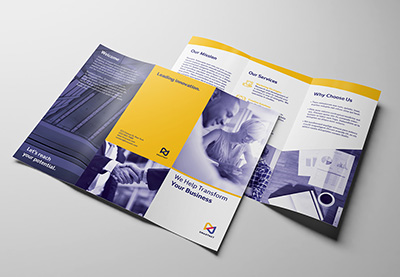 BrochureHow to Make a Trifold Brochure Pamphlet TemplateLaura Keung
 InDesign TemplatesHow to Create a Book Jacket Template in InDesignLaura Keung

{excerpt}
Read More
19 Best Cartoon Photo Effects & Comic Text Photoshop Actions
Create cartoons faster than ever before. Check out this list of helpful resources below.
19 Best Cartoon Photo Effects & Comic Text Actions
Do you love cartoons? Now you can turn yourself into one! Photoshop actions make it possible to create the coolest photo effects without any prior software knowledge.
We know how hard it is to feel confident designing your own cartoons, so that’s why we’ve put together this list of the best cartoon photo effects and comic text actions that are easy to use.
Just open your photo and run these actions to enjoy quirky and hilarious cartoon effects. Color them with high-quality presets and customize them with text and more!
Enjoy this selection of top-notch resources hand-picked from Envato Elements and Envato Market.
Want to see these resources in action? Check out our examples below.
Make Amazing Cartoon Effects Fast: See Our Examples!
To give you an idea of how easy it is to use these resources, here are two fun examples we’ve tried out!
Soft Cartoon Photoshop Action
Let’s begin with this inspiring soft cartoon Photoshop action. Giving your portraits a colorful cartoon effect, this one-click action is incredibly fun to use.

Here, I tried this action on this Cat Stock from Pixabay. I adjusted the eyes and head myself in Liquify, and then allowed the action to do the rest. Check out the result! Pretty funny!

Cartoon Melted Drips Action
Add a unique effect to your photos with this cartoon melted drips action. Experiment with different shapes and colors to create organic dripping fluid right on your work. This action is compatible with Photoshop versions CS6 and above and uses 25 color scripts.

Here I tried this action on this Man Stock from Pixabay. First, I painted the shoulder, arm, and head areas to apply the effect, and then I pressed play. Check out the result below!

Want to see more options? Check out the rest of these amazing resources below.
Cartoon Vector Photoshop Action
Create one-of-a-kind vector cartoons in only a few steps! This awesome Photoshop action can be used to transform your pictures for posters, albums, or social media covers. Choose from 25 unique color combinations to apply to your final artwork before saving.

Vector Cartoon Photoshop Action
Upload a cool cartoon effect to your social media profiles with this simple Photoshop action. Designed to give your photos that vector cartoonish look, this action can be used with versions CS5 and above. A quick user guide is also included for more information.

10 Geometric Style Text Effects
Try out these modern geometric text effects to create beautifully designed comics! Featuring 10 PSD files with fully layered graphics, these text effects are easy to update and place into your work. Just replace the names with your own text to see the magical result!

Glitch Cartoon Effect
Turn your pictures into funny cartoons! This Photoshop action delivers awesome caricature-styled portraits without all the hassle. It even applies a cool glitch-inspired texture for added appeal. It’s totally non-destructive and easy to use, so make sure to try it out!

Gradient Duotone Design Photoshop Action
Make your illustrations and photos look super psychedelic with this gradient duotone action. With just one click, this action generates 25 colorful duotone effects decorated with large halftone blobs. Use it for presenting your work online or for traditional media.

3D Cartoon Text Effects
Create stunning 3D text just like your favorite animated features! Included in this download are eight professional Photoshop files created at 300 dpi. Easily change the font or text by selecting the smart objects, and then make your edits. Add this effect to any movie or poster!

Cartoon Art Photoshop Action
Add a little texture to your cartoons to help them stand out! This awesome Photoshop action delivers a unique alternative to flat, boring cartoons. Not only do you get a quality Photoshop action to apply the effect, but you also get a bonus texture image to create a weathered look like the one below. Try it out on your photos!

Vintage Comic Creator
Rough out your ideas with this smart vintage comic creator. This simple action creates a comic book-inspired text effect you can efficiently apply to any logo or text. Included in this download are several patterns, layer styles, and overlays that are completely editable.

Cartoon Art Photoshop Action
Surprise your kids and family with a custom cartoon of their own. This Photoshop action creates a quick and easy cartoon effect inspired by Impressionist paintings. Get access to fully organized folders and layers, all in one convenient download. Check it out!

Ultra Realistic 3D Space Effect
Love space? Then create a brilliant space-inspired text effect for your comic designs! This cool Photoshop action creates fully editable text effects featuring fun cartoon themes. You’ll get one main file with several examples and even a link to the free font used.

Painting & Comics Photoshop Actions
Get two amazing effects in one incredible download! This Photoshop action pack features 12 professional actions to create stunning painting and comic book-inspired results. They’re fully compatible with Mac and PC devices and even include an easy-to-follow user guide.

Cell Shader Photoshop Action
Cell shading is a traditional art technique used to create amazing cartoons. You can achieve that same look with this one-step action. Just open up the photo you’d like to use, and then press play to see it shaded. Try it out on friends, animals, and stock photos for a brilliant effect!

Foil Balloon Text Effect Action
Spell out a quirky message to your followers with this epic foil balloon text effect. Featuring one Photoshop file that works with any text or shape, this action lets you experiment with different colors and textures for the desired result. Use it on logos, posters, and headers!

Caricature Maker Photoshop Actions
Discover hilarious Photoshop actions to twist and warp your photos. This splendid caricature maker turns your portraits into awesome caricatures in less time. Control the face distortion yourself before applying one of many different color presets. Give it a try!

Comic Book Ink Actions
Finalize
your comic book designs with some cool text effects. This Photoshop
action set contains two wicked actions to create high-resolution text.
They’re fully customizable and contain super helpful extras like
patterns and brushes for more incredible texture.

Cell Shader 2 Photoshop Action
A sequel to the original cell shader action, this Photoshop action creates a gorgeous cartoon look! To use it on your photos, simply fill the subject with color before pressing play. In seconds, a cell-shaded result will appear which you further customize with more colors. Give it a go!

Show Us Your Cartoon Effects!
Tried any of these assets? Let us know! Tell us your favorite cartoon effects in the comments below.
This has been a collection of premium resources perfect for the avid designer and photographer. For more cool cartoon effects, check out Envato Market and Envato Elements, or enlist the help of our talented professionals at Envato Studio. Happy designing!

{excerpt}
Read More
22+ Best Free Nature PowerPoint PPT Templates (Spring, Summer, Fall & Winter)
You can’t take your audience outdoors when you’re giving a presentation. But you can use premium nature PPT templates to bring the outdoors inside.


If you’re in an office on a beautiful day, it’s hard to focus when you look outside and see the great weather.
Even if you’re in a conference room, you can still incorporate the best of nature in your presentation. Templates like these are perfect for a nature-based business or any topic that benefits from a taste of the outdoors.
In this article, you’ll see the best free PowerPoint templates with nature themes. You’ll also see the best premium nature PowerPoint templates from graphic designers on Envato Elements. Then we’ll check out the best premium nature PPT designs from GraphicRiver.
Download Top Premium Nature PowerPoint Templates From Envato Elements (With Unlimited Use)
We’ll dive into the free PowerPoint templates with nature themes. But first let’s check out the best options from professional graphic designers. When you use premium nature and plants PowerPoint templates, you skip the work of designing a nature PPT from scratch. Best of all, premium templates usually have a higher quality and more features than nature PPT templates for free download.
Above all, check out Envato Elements, a flat-rate download source for the best premium nature PPT templates. The full library is perfect for creatives that want to experiment with nature PowerPoint nature templates. And it’s all unlimited.


On Envato Elements, a single license covers usage of more than a million assets. There’s more than just PowerPoint templates on nature. You also unlock great resources to use in your presentation like stock photography, graphics, and video clips.
Is the all-you-can-download model on Envato Elements not your style? Check out nature PPT templates on GraphicRiver. The library is just as deep, filled with the best nature PPT templates, but you’ll pay only for the templates you choose.
It doesn’t matter whether you source nature PPT templates from Envato Elements or GraphicRiver. The point is that you can use templates to design an excellent presentation. Choose a pre-built design, add your details, and prepare to present your best work yet.
5 Best Premium Nature PowerPoint Templates From Envato Elements (Premium PPT 2021)
The best free PowerPoint templates with nature themes are in this article! But first let’s look at some popular premium nature PPT templates from Envato Elements:
1. Foress – Nature PowerPoint Presentation Template


If you’re making a PPT on nature, you’ll enjoy the options provided by Foress. Each of the more than 30 slides has a minimal design that makes nature photos stand out and is fully editable.
This forest PowerPoint template has vector icons help you drive your point home in this image-focused template. Try out Foress if you’re making a client or customer nature presentation. It’s better than most free nature PowerPoint backgrounds.
2. Tyra – Nature PowerPoint Template


A certain frog once said it’s not easy being green, but it’s undeniable that it’s easy on the eye in this template. Tyra is a unique nature PowerPoint with 30 creative slides for you to use.
This creative presentation uses white space well and is fully editable. Try out this nature theme PowerPoint for your personal and professional creative projects.
3. Nature – Plants PowerPoint Template


This attractive forest or plants PowerPoint template from Envato Elements promotes nature. But it could easily work for any business presentation.
The plants PowerPoint template is based on master slides and you’ll find 35 unique slide layouts. As a bonus, this nature PPT includes 381 vector icons. Instead of PowerPoint templates about nature that are free downloads, try this premium PPT.
4. Minimalist Nature PowerPoint Presentation Template


Nature is one of your top choices for a forest PowerPoint theme. This clean nature-themed PowerPoint template from Envato Elements includes the following features:
- 30 minimalist slides
- 5 color variations
- based on a free font
- HD screen ratio (16:9)
If you’re looking for minimalist nature-themed PowerPoint templates, don’t miss this!
5. Nature Themed PowerPoint Templates


This Elements Nature themed PowerPoint template is sure to catch the eye of any nature-loving audience. Plus, this PPT on nature comes with many options so that you can craft the right presentation for your needs. Choose between over 150 total slide layouts with five pre-made color variations. It even includes a handcrafted PowerPoint infographic.
5 More Premium Nature PowerPoint PPT Templates From GraphicRiver (For 2021)
If you want nature PowerPoint templates without the commitment of a membership, Envato Market has you covered. With GraphicRiver, find premium nature PPT template options with no membership.
We’ve rounded up five premium nature presentation templates available from GraphicRiver. They’re all great alternatives to free nature PowerPoint backgrounds found elsewhere online:
1. Minimaleaf – Minimalist Multipurpose Business PowerPoint Template


Minimaleaf blends simple layouts with nature for a stunning PowerPoint template. It features a nice contrast between the white backgrounds. Minimaleaf is easy to use thanks to image placeholders and resizable vector graphics. It’s a really nice nature PowerPoint template for fans of minimalist style. Free nature PowerPoint backgrounds struggle to match up with Minimaleaf.
2. Nellyta Natural Presentation Template


Nellyta is a great, modern choice if you’re looking for nature PowerPoint templates. With 62 unique slides and many color options, make your content look its best.
Each slide has custom animations and transitions. The template also has themed vector icons. This level of professional design is hard to find in nature PPT templates available for free download.
3. WinForest – Nature PowerPoint Template


You don’t have to sacrifice stylish design when you make a nature PowerPoint. Just look at WinForest for instance. It’s got neat lines and organized images. This PowerPoint template about nature also features:
- light and dark versions
- editable graphics
- drag and drop image placing
- 30+ unique slides
Free nature PowerPoint templates with designs like WinForest are hard to come by.
4. Ecological PowerPoint Presentation on Nature


This gorgeous nature presentation template is one of our top-rated templates on GraphicRiver. With five stars for flexibility and four stars for quality, it’s easy to see why this template is so popular. You also get a massive number of slides to choose from. There are 7200 in all. Plus, you’ll find a rich icon library to help your nature PowerPoint presentation be all that it can be.
5. Monsterra – PowerPoint Template


Monsterra doesn’t look like your typical nature PPT template. It has dark slides that complement the lush greens of your nature photos. This versatile PPT on nature includes 52 unique slides, media placeholders, and vector icons. It also has maps, infographics, and mockups to play around with. You’ll have a hard time finding free nature PowerPoint backgrounds with this much quality.
22+ Best Free Nature PowerPoint PPT Templates for 2021
Before looking for free nature PowerPoint template on the web, check Envato’s free offerings first. Try out various premium template files (not always nature templates for PowerPoint) at no cost to you.


Here’s the deal:
-
Every month Envato Elements offers 12 different hand-selected files. This includes fonts, presentations, videos, and more. Create a free account to download this month’s free premium files now.
-
Or try Envato Market for free. They offer seven handpicked monthly freebies. Log in with your Envato Market account to get this month’s handpicked premium freebies.
Sometimes, you don’t have the budget to source a premium nature PPT template. In that case, turn to free PowerPoint templates with nature themes from across the web. Let’s look at over 20 of the best free nature PowerPoint backgrounds in the group below:
1. Tree Line – Green Nature PowerPoint Templates Free Download


Nature PowerPoint themes like this one use trees to signify growth and progress. One is offset in purple for a bit of contrast. Use built-in layouts for quick customizations. If your nature presentation needs plants, this PowerPoint template is a good option.
2. Spring – Nature PPT Template Free Download
This spring theme is one of the many nature PowerPoint templates for free download you should check out. Leaves and butterflies are featured in this spring seasonal nature presentation template. It’s a fun free option for spring PowerPoint templates.
3. Spring Butterflies – Green Nature PowerPoint Templates Free Download
This spring nature PowerPoint template is more abstract, designed for creatives and artists. It’s got basic placeholder layouts for your content. If you like spring nature PPT templates for free download, this butterfly theme is right up your alley.
4. Green Leaves – Free PowerPoint Presentation on Nature
This Green Leaves – Free PowerPoint Presentation on Nature was built for agricultural slideshows. The simple elements are perfect for anyone who needs a touch of green life in their presentation.
5. Botany Design Slides


This Botany nature PPT template for free download is styled around flora. It shows a succulent plant on its title slide. This is a great plants PowerPoint template. It features different flowers on its slides. It’s a nice option if you like spring PowerPoint templates.
6. Leaf Close Up – Free Nature PowerPoint Templates Design
A macro view of a leaf is used as the backdrop for this nature theme template for PPT. On other free PowerPoint template layouts, it becomes a border. Use this with a nature theme for a fall leaves PowerPoint presentation template.
7. Polar Bear – Nature PPT Template Free Download
Polar bears represent the grandeur of the natural world. One is featured in this PowerPoint templates nature free download. This is a flexible winter template inspired by the power of nature.
8. Painted Hills – Free Nature PowerPoint Templates
This desert presentation sets the stage for your next project. It features a photograph of mountains over standard PowerPoint content boxes. The default colors matches the landscape, but you can change this for spring or fall PowerPoint templates.
9. Solanio – Free PowerPoint Presentation About Nature
Solanio is a minimalistic free PowerPoint presentation about nature. It comes with a leaves pattern and green color palette. Use this free nature PowerPoint template’s design for different types of presentations.
10. Summer – Free Nature Background for PPT
Use this multipurpose Summer – Free Nature Background for PPT across a variety of projects. Use PowerPoint’s tools to make this deck your own. It’s a nice free choice if you’ve needed PowerPoint summer templates.
11. Desert – Free Nature Background for PPT


This free nature background for PPT, brings your content to the forefront. It’s present across the full array of PowerPoint’s built-in slide layouts, which you can easily swap out. Make sure to mix and match fonts in this free PPT on nature as well.
12. Outdoors – Green Nature PowerPoint Templates Free Download
An outdoor nature PowerPoint themed presentation like this has nature in the design. Swap in your content to style the nature PPT template to your liking. If you’re presentation has an outdoors theme, then why not try this free forest PowerPoint template?
13. Winter Trees – Free Nature PowerPoint Templates
These free PowerPoint template nature themes complement winter projects well. Three slides are built-in: one cover slide and two free nature PowerPoint backgrounds. Not a bad option for a free winter PowerPoint template.
14. Woodville – Free Nature PowerPoint Presentation
Here’s a beautiful nature PowerPoint presentation template. It features a green and blue color palette. It’s suitable for any season and any PPT on nature, environment or climate-related presentations.
15. Ceres – Green Nature PowerPoint Templates Free Download


Ceres, a free nature presentation template, is a fully customizable design. Ceres’ color options make this a good choice if you’re looking for spring or fall PowerPoint templates. The free nature PowerPoint template’s design is built for widescreen projectors and displays.
16. Ariel – Free Plants PowerPoint Template
Nature factors heavily into the design of this seasonal nature PowerPoint template theme. Edits can be made to the nature template by the end-user. The bright green tones make Ariel one of the great free spring PowerPoint templates.
17. Starfish – Free PowerPoint Presentation on Nature
The sea is part of nature. It factors into this landscape PPT nature theme. The focal points are starfish and pearls. Starfish’s beach vibes make this a fun theme if you’re looking for PowerPoint summer templates.
18. Rainbow Presentation – Free Nature PowerPoint Backgrounds
Rainbow is one of the delightful free spring PowerPoint templates. Customize these slides to fit any season. The free nature PowerPoint backgrounds are in 16:9 format, commonly used on many modern projectors.
19. Four Seasons – Free Nature PowerPoint Templates (Widescreen)


It can be difficult to decide a season to feature when building a PPT on nature. Basic charts, graphs, and tables are added for data visualization. It’s nice that these free nature PowerPoint backgrounds fit all four seasons.
20. Serenity – Free PowerPoint Presentation About Nature (Widescreen)
Try a tranquil nature PPT templates for free download like Serenity. This blue nature presentation theme for PPT provides a light background for your next project. A collection of layouts is displayed in the initial PPT on nature download.
21. Autumn – Free PowerPoint Presentation on Nature
This is another one of those free fall autumn PowerPoint templates we recommend for you. It derives a color palette from nature’s autumn leaves. Choose this theme if you’re looking for fall PowerPoint templates for autumn sales or events.
22. Sunflowers – Free Plants PowerPoint Template
Use sunflowers with this simple plant PowerPoint template. PowerPoint summer templates for free download are very popular. Keep this one in your creative arsenal.
23. Leaves on Yellow – Free PowerPoint Presentation on Nature


Suitable for spring, summer, or fall projects, green leaves are overlaid here against a yellow-orange backdrop. If you’ve had trouble finding free fall autumn PowerPoint templates or want a versatile option, this one is for you.
How to Customize Your Nature Presentation Template
You’ve now chosen your nature presentation template. Next, you’ll be shown how to customize your PPT on nature. For this mini-tutorial, the premium Biltare – Nature Presentation Template will be used.


Let’s get started. Here’s slide two of the premium nature PPT template with no edits:


Now, let’s edit slide two to meet our needs.
1. How to Change an Object’s Color


To change an object’s color on your nature presentation slide, begin by selecting the object that you want to change the color of.
Once an object is selected a Shape Format tab appears above the toolbar. Next, select the Shape Fill button. Selecting this button causes a color menu to drop down. Select the color of your choice from the drop-down menu.
2. How Change the Background Color


To change the background on your nature presentation template, click on the Design tab above your toolbar. Click on the Format Background button. This opens a side panel.
Under the fill section in the side panel select the Color button. Clicking the color button causes a color menu to drop down. Select the color of your choice from the drop-down menu.
3. How to Change the Font Color


To begin changing your font color select the font that you want to change the color of. Make sure that you’re on the Home tab. Click on the Font Color button.
4. How to Add More Text


To add new text, you’ll need to find a blank part of your slide to create a text box on. On the Home tab in the toolbar select the Text Box button. To create a text box, draw a diagonal line in the blank space on your slide.
5. How to Add an Image


There are two ways to add an image:
- Use the image placeholder. Using an image placeholder is easy. In the middle of the image placeholder is the Insert Picture from File button. Click on the button to open your files. Select the image that you want to use.
- Use the Insert tab. From the Insert tab select the Pictures button. This opens a menu. Download your image from its location on your computer.
5 Nature PowerPoint PPT Presentation Design Tips for 2021
There are many options to design a nature PPT. Whether you source PowerPoint templates with a nature theme or a more premium option, some tips can help you capture the spirit of the outdoors.
Here are some of my favorite tips to create the best nature PPT:
1. Think Seasonal
Nature has a powerful way of shifting how it shows itself each season. To display the best of the outdoors, try out the spring, winter, summer, or fall PowerPoint templates.


Envato Elements has such a deep library that you can source designs for practically any time of the year. You’ll find PowerPoint summer templates and templates for each season that show the shifts that occur in nature. It’s a great way to put your audience in the midst of a specific time of year.
2. Stock Photos Make a Difference
Another essential technique to put the audience in a season’s mood is to use matching stock photography. This is yet another reason that choosing Envato Elements delivers a ton of value.
Stock photography is a must but using it can be tricky. One mistake that many presenters make is going to Google Images and sourcing all stock with a few simple searches. Often, these images aren’t licensed for use and can create a usage issue.


The solution is to use Envato Elements for all stock photography. The library is extremely deep. Plus, all images are fully licensed for unlimited use.
The same subscription that unlocks nature PowerPoint themes also grants you access to the best stock imagery. Again, the flat-rate subscription model means that each high-resolution photo costs you nothing.
This tip is helpful for more than just plant PowerPoint templates. For a complete guide to using images in Microsoft PowerPoint, make sure to check out the set of quick screencasts below:

 Microsoft PowerPointHow to Quickly Add Pictures to PowerPoint in 60 SecondsAndrew Childress

 Microsoft PowerPointHow to Resize Multiple Images in Microsoft PowerPoint in 60 SecondsAndrew Childress

 Microsoft PowerPointHow to Crop an Image in PowerPoint in 60 SecondsAndrew Childress
3. Color Schemes Capture the Spirit of the Outdoors
Nature PowerPoint templates often feature strong color schemes. Using a nature PowerPoint template with a fitting color palette can help you create the perfect nature presentation.


Remember, nature can include a lot of different settings. The term “nature” to some inspires seaside views, while others associate it with a hike in the mountains. The key is to choose a color scheme that fits your idea of nature.
To take the audience (virtually) outdoors, sample a nature PPT that features an outdoorsy color scheme. The color scheme might vary with the season you’re representing, but make sure it fits with the stock photos and intended design.
4. Integrate The Nature Graphics as Part of Your Presentation


Get creative and integrate elements like trees, animals, or even scenery with your presentation content. If you’re presenting about nature, then make the best of your nature PPT template. Include appropriate elements as part of your infographics.
Above are some examples from a premium template on Envato Elements that show different graphics of trees as part of infographics. They illustrate facts and figures creatively. This integration allows the natural elements to not just be a background image on every slide, but a vital component of your presentation.
Creative designs like these will impress your audience. They’ll also help keep their attention throughout your presentation.
5. Add Background Music to Your Nature Presentation
Easily add premium nature audio background music to your PPT designs. A soothing nature background music that’s in theme with your template could set the tone for your nature presentation.


Impress your audience with an engaging visual and auditory presentation that takes them right back to nature.


5 Nature Themes PowerPoint Design Trends for 2021
What’s popular in the graphic design world evolves and shifts every year. These changes affect everything from fashion to nature presentation templates. So, it’s helpful to know the latest trends.
If you want to make your PowerPoint presentation about nature even better, we’ve rounded up some of those design ideas here:
1. Earth Tones
Vibrant colors are a popular trend in the design world at large. But in many modern nature presentations, earthier colors reign supreme. When putting together your PowerPoint presentation about nature, use colors like dirt brown, leafy green, sky blue, or clay red.


2. Wild Fonts
Nature is untamed. Why not reflect that in your presentation? Follow this trend and find custom fonts with characters that reflect the content of your nature presentation. We’ve rounded up some fonts that you could use on Envato Tuts+:


3. Full-Slide Images
Your PowerPoint on nature should be filled with images. But you should also mix it up and make images that take up the entire slide. A popular layout choice in nature and travel magazines, full-screen photos look good in presentations, too.


4. Minimal Design
Minimalism is a powerful design movement and style that’s instantly appreciated. Many nature PowerPoint templates use minimal design to create presentations that are easily read. When you add images and text to your nature PPT, keep the layout clean and simple.


5. Say It With Icons and Charts
There’s a lot said in text that can be replaced by an icon or a graph. This trend is useful to not only engage your audience visually but to also reduce space taken up by text. Use custom icons, charts, and infographics to make a modern nature PowerPoint presentation.
More Nature Presentation Templates
If you didn’t see what you were looking for here are more fall, winter, and plants PowerPoint templates that could work for your project:

 Microsoft PowerPoint25 Best Free Fall Themed PowerPoint Template Slides & Backgrounds 2020Barni Rajah

 Microsoft PowerPoint25 Best Free Winter PowerPoint PPT Templates Slide & Backgrounds 2020Andrew Childress

 Flowers25 Free Flower PowerPoint PPT Templates to Download for 2021 PresentationsSarah Joy
Learn More About Microsoft PowerPoint
It helps to know as much as possible about PowerPoint as you create your nature PPT. The key is knowing the app well enough to work quickly in it.
At Tuts+, we’ve been building a library of the best PowerPoint tutorials. Each guide is designed to teach you a different skill to work effectively. They’re combined in a single resource, How to Use PowerPoint (Ultimate Tutorial Guide). This guide can serve as the best starting point for your next nature-themed presentation.
Check out the three beginner tutorials below to learn more about PPT:

 PresentationsHow to Write a Professional PowerPoint Presentation (Discover the Writing Process)Brad Smith

 PresentationsHow to Make a Persuasive PowerPoint Presentation (With Powerful Tips)Celine (CX) Roque

 Microsoft PowerPointHow to Make Good PowerPoint Slide Designs Even Better in 2021Sven Lenaerts
5 Benefits of Using the Best PowerPoint Presentation Templates With Pro Designs (In 2021)
Are you still deciding whether to use a free nature PPT background template? Or are you considering a premium nature PowerPoint background design template?
Here are five benefits of using our premium nature PowerPoint templates:
- You save time. Leave the design work to the pros and save yourself loads of time. Buying a pre-built nature template for PowerPoint lets you cut down the time spent on designing. You can focus on other vital aspects of your nature presentation like its content.
- Professional components. Easily edit and customize all infographics, animation, and graphics directly in PowerPoint. You don’t need any other software besides PowerPoint.
- Be memorable and different. Free nature PPT template found online are generally the first go-to for anyone looking for choices. If you use a built-in PPT template on nature, it’s likely you’ll make a cookie cutter slideshow. Be unique and create a memorable presentation by using a premium template.
- Pre-built slides come with ideas. Starting with a professional template gets you on the right track and guides you at every step. A good premium nature PPT background comes full of ideas for the content and even infographics that use natural elements.
- Create the best possible presentation. These pre-built templates give you a glimpse of how a finished nature presentation will look and let you see the features included in it. Pick the best nature PPT template for your presentation and customize it to create the best deck for your audience.
Benefits of Envato Elements (The Power of Unlimited Use)


Envato Elements is a subscription service. You pay a low monthly fee that gives you access to thousands of great nature PowerPoint templates (and more) for a flat-rate price.
Sign up for Envato Elements now and get access to thousands of nature templates for PowerPoint and graphics with unlimited use.
Common PowerPoint Questions Answered (FAQ)
PowerPoint is a robust program with lots of useful features. But not everyone knows how to find them. If you’ve got questions about how to use these features or how to use PowerPoint in general, we’ve got you covered. Here are some common questions users have about the program answered:
1. Can I Add Excel Data to PowerPoint?
It’s easy to work between Excel and PowerPoint to add data. You can actually copy and paste Excel charts right into your presentation. There are lots of copy and paste options between the two programs. Here’s a nice breakdown of the choices you’ve got:


2. What Size PowerPoint Template Should I Have?
You’ll usually have two choices for PowerPoint dimensions: 16:9 and 4:3. 16:9 is a widescreen size, and 4:3 is square. Which one is best for you is determined by a few factors you can learn about here:


3. How Do I See Changes Someone Made to My Presentation?
Click on the Review tab, then choose the Compare button under the Compare group. But first, you’ll need to have a copy of your presentation made. This tutorial walks your through everything you need to know to track changes:


4. What Is the Ruler Used For?
The Ruler, found in the Stencils group in the Draw tab, is used to draw straight lines and align shapes, images, and other objects in PowerPoint. It’s a useful tool for fine-tuning the look of your presentation.
5. Can I Add Audio to My Nature PowerPoint?
Narration is possible in PowerPoint, and easy to use. Envato Tuts+ has made a tutorial to teach you how to narrate with a short video:


Go Design a Nature PPT Today
In this article, you saw the best of both free and premium nature PowerPoint templates. All the templates and tips you saw in this tutorial are the best way to bring outdoor elements to your next presentation.
So, what are you waiting for? Take the best elements of the outdoors and bring them to your next presentation. Use the best nature PowerPoint templates from Envato Elements. You can also source single nature PPTs from GraphicRiver. Or use a free PowerPoint template with nature themes listed here when budgets don’t allow for a premium option.
No matter what your situation, why not get started now? Download a nature PPT template and start creating your nature-themed PowerPoint.
Editorial Note: This post has been updated with contributions from Barni Rajah, Sarah Joy, and Nathan Umoh. Barni and Sarah are freelance instructors for Envato Tuts+. Nathan is a staff writer with Envato Tuts+.

{excerpt}
Read More
How to Make a Sports YouTube Banner With a YouTube Banner Maker

If you want to be a successful YouTuber, you need a professional banner for your channel. Placeit is an online tool that allows you to design your own creation with a special banner generator. It offers hundreds of YouTube banner templates that you can modify for your needs.
In this tutorial, I’ll show you how to make a banner with this digital banner maker, using a banner template and customizing it for a sports-themed channel. With a YouTube channel banner maker, this will be easy and fast!
Follow along with us over on our Envato Tuts+ YouTube channel:
How to Make a Sports YouTube Banner With a YouTube Banner Maker
Step 1
Go to Placeit.net. Go to the Designs tab and click YouTube Banner Maker.

Step 2
Scroll through the gallery to find a proposition that looks the closest to what you envision for your channel, or simply choose something that looks cool. You can use filters to narrow down the results to specific topics. This banner with race cars caught my attention, so let’s see what we can do with it.

Step 3
Once you click on your choice, you’ll be redirected to the custom YouTube banner maker. Every banner template has slightly different customization options. Here you can add two photos, up to four text fields, a colorful banner, and an arrow symbol.
First, let’s change the photos. You can pick one of the options, but if your channel isn’t about cars, you’ll have to upload custom images. For high-quality images that will make your YouTube banner look professional, visit Envato Elements. I used these photos:
Click Custom Image to upload your photo.

Step 4
Give it a moment to load, and then crop it. You can resize it and move it to get the best frame. When you’re ready, click Crop and wait a few seconds.

Step 5
By default, the other photo will simply be uploaded in its rectangular form. If you want to create a cool slash effect like in the original template, you need to edit your photo manually. When you have it ready, upload it just like the other.

Step 6
Let’s change the text now. I like the font of the title, but if you want, you can pick any other font from the list. Change the title to the name or motto of your channel. You can also modify the other text fields, or turn them off if you don’t need them.


Step 7
There’s a call to action element on the right, with a customizable arrow. There are many different styles of arrows on the list, so pick the one that fits your style the best.

Step 8
Finally, let’s adjust the colors. I want to go for a modern, clean, minimalistic look, so I chose a black font on a white banner, with a blue accent. However, feel free to experiment and try many color schemes before you settle for one. You never know what cool, unexpected schemes you may discover!


Step 9
This banner template supports interactive editing, so if you want to move or resize any of the elements, you can do it directly in the preview. I moved the player on the right to create a better composition, and resized the text of the title to make it more visible.

Step 10
If you’re happy with your banner design, just scroll up and click the Download button.

Step 11
You can purchase your design with a one-time payment, or get yourself an unlimited subscription to create and download as many designs as you wish.

Good Job!
Now you know how to make a YouTube banner with a YouTube channel banner maker. If you’re interested in banners for social media, you may also want to check out these posts:
 Photo ManipulationHow to Create a Design-Inspired Photo Manipulation for Twitter/Facebook BannersMelody Nieves
 Adobe Photoshop41 Creative YouTube Banner TemplatesMelody Nieves
 Resources28 Inspiring Instagram Graphics, Banners & ThemesMelody Nieves
 Social Media40 Best Social Media Banner TemplatesMelody Nieves
 Social MediaHow to Create a YouTube Banner in Adobe PhotoshopHector Heredia


{excerpt}
Read More
High Fliers: Top 3 Drone/UAV Stock Video Files from Envato Elements
{excerpt}
Read More
Create an Online Community for Your WordPress Site With UserPro
{excerpt}
Read More
15 Best Royalty-Free Corporate Music Tracks of 2019
Whether your company is creating a multimedia project to advertise, build up the companies brand, or provide training for employees, the project will need to include music.
But not just any type of music.
The music used in corporate multimedia projects must inspire and motivate people to take action.
I’ve collected 10 of most motivational and inspiring royalty-free corporate music tracks from AudioJungle‘s library that you can download to add to a project now.
1. Inspiring
This first one on the list is an inspiring song that contains beautiful guitar and piano melodies. This royalty-free track is ideal for a feel-good audiovisual project.
2. Uplifting and Inspiring Corporate
This next track has a similar feel-good vibe as the previous one but has a more uplifting vibe. The song starts with a catchy guitar melody and builds up into an inspiring upbeat chorus.
3. Upbeat Corporate & Inspiring Uplifting Technology
Add a more serious tone to your next corporate project with this royalty-free corporate music. As the title says, it is also upbeat and inspiring and is the ideal song to present your companies next product release.
4. Live My Life
‘Live My Life’ brings a light-hearted and feel-good vibe to any audiovisual project. This summertime tune is a must have if you are looking to bring a smile to the audience.
5. Clouds
If you are looking for a royalty-free corporate song with a positive vibe, listen to ‘Clouds’.
6. Your Little Planet Corp
If you are looking to convey honesty and sincerity in your next multimedia project then have a listen to ‘Your Little Planet Corp.’ The combination of the strumming guitars, the uplifting ukulele melody, and catchy piano melody are sure to strike an emotional chord with your audience.
7. This is How You Advertise!
The title says it all! If you are looking to add a song that will inspire your customers to take action on your next corporate audiovisual project, then don’t miss out on the royalty-free corporate music track, ‘This Is How You Advertise!’
8. Corporate Motivational Inspiring Upbeat & Uplifting
‘Corporate Motivational Inspiring Upbeat & Uplifting’ gives you a sense of hope and positivity right from the start. This would be a great song to add to any corporate multimedia project.
9. A Way To The Top
Upon listening to this song, you will feel like you can accomplish anything. Out of all the royalty-free corporate tracks in this list, ‘A Way To The Top,’ provides the most energy and uplifting vibe.
10. Successful Business Venture
Next on the list is the carefree royalty-free corporate song, ‘Successful Business Venture.’ This song is a must-have if you need to add an emotional lift to your next multimedia project.
11. On Top Of The World
Introduce your next audiovisual project with ‘On Top Of The World’. Catchy lyrics, upbeat drums, and strummed guitar chords are what you will find in this royalty-free song for corporate presentations.
12. That Positive Feeling
You can’t go wrong with this corporate royalty-free song. ‘That Positive Feeling’ gives you exactly what the title says.
13. Upbeat Ukulele
Ukuleles are an excellent way to start of any corporate project you are creating. Set up the audience for a memorable experience with this little tune.
14. Feel Good Journey
Unlike any other royalty-free tracks on this list, ‘Feel Good Journey,’ adds a few electronic elements to the mix which blend together nicely with the melodic and heartfelt string and guitar melodies.
15. A Fortunate Day
Last on the list is the royalty-free corporate music track, ‘A Fortunate Day.’ The song centers around a beautiful grand piano. Immerse the viewer into the blissful and enchanting arpeggiated pianos and give them an audiovisual experience they will remember.
Conclusion
To create a professional audiovisual project that will connect with your potential customers and clients, you will need to add a high-quality music track to your visuals.
By listening through this list of the best royalty-free corporate music tracks, you’ll be able to start your search for the perfect track for your project.
If you can’t seem to find a track that fits your particular needs in the list above, feel free to browse through the thousands of other songs offered on AudioJungle.

{excerpt}
Read More
What’s on TV: Shazam!
