Rules for Perfect Lighting: Understanding The Inverse-Square Law

In technical terms, an inverse-square law is defined as “any physical law stating that some physical quantity or strength is inversely proportional to the square of the distance from the source of that physical quantity.” With a definition like that, you’re probably wondering what on earth this could possibly have to do with photography (and no one could blame you). Inverse-square laws apply to many, many things in the world. Today however, we’re only going to be looking at one of them: light.


Explaining The Concept

For those of us without an intense knowledge of advanced mathematics (or even very basic mathematics for that matter) something such as the inverse-square law can seem incredibly daunting. There are equations with numbers and variables, references to physics and many more things which quite frankly seem very boring. For that reason we’re going to try to cover this in a very practical way, rather than a technical one.

The law itself, in photography, applies to lighting. It applies to any sort of lighting really but its most relevant application is with off camera lighting. In a nutshell, the inverse-square law teaches us how light works over distance and why the distance between your light source and your subject is so important.

Let’s say we have a light source which is on full power and our subject is 1 meter away it. If we move our subject double the distance away from the light (2 meters), how much of the light’s power will reach it? The natural reaction is to think “half power” – but unfortunately that’s now how light works, it follows an inverse-square law.

According to the law, the power of the light will be inversely proportional to the square of the distance. So if we take a distance of 2 and square it, we get 4, the inverse of which would be 1/4 or rather, a quarter of the original power – not half.

Moving our subject 3 meters from the light (3 * 3 = 9, so 1/9) the power of our light source now becomes 1/9th of what it originally was.

Here’s how the drops in light power work from 1 to 10 meters, remember that each one is simply the distance squared, over 1.

The inverse square law explains the dramatic drop-off in light over distance. We can use this information to better understand how our lights are affecting our subject and by that measure, how to control them better.


Putting It to Work

So knowing about light fall-off is fun and everything… but how can we put it to good use in our photography? Well, it’s all about exposure and relative positioning. When a light shines in a particular direction, initially the drop-off in light is very quick, then it slows down the further it goes.

Remember that with a square law, the numbers get bigger more and more quickly, however with an inverse square law the numbers get smaller more and more slowly.

If we look at our light drop-off from 1 meter to 10 meters in percentages to the nearest whole number, it would look like this:

There’s a 75% drop in light from 1 meter to 2 meters, but only a 5% drop in light from 4 meters to 10 meters.

Exposure

So we understand that there’s lots of power very close to the light source, but only a very small amount of power far away from it. On that basis, to get a correct exposure (assuming we use a consistent shutter speed), if the subject was very close to the light then we would need to set our aperture to around F16, to block out all the excess light.

If, on the other hand, the subject was very far away from the light, then we’d set our aperture to around F4 in order to let much more light in. Both photographs should look identical because we’ve adjusted our camera to let in the same amount of light for each one.

So on that basis, we can plot out a rough estimate of where all the correct F-Stops are to get a correct exposure level. Remember that the light drops off very fast at first, then slower. In the same way, we open up our aperture very fast to start with, then slow down the further we get away from the light.

Lighting One Subject

Let’s move those F-Stop reference numbers up to the top of our diagram as a handy point of reference. Now, some subjects don’t move, which means that once you place it a certain distance from the light source you set your exposure and that’s it.

However, if you’re shooting another person (especially a standing person) they have a tendency to move around. If your model is very close to your light source and she (or he) moves a half step in either direction then she’ll immediately be massively under or over exposed.

However if the model is further away from the light then she can move several steps in either direction without you needing to change any settings on your camera at all.

Lighting Groups

The previous rule works in a very similar way with groups of subjects. If you have all of your subjects very close to the light, then the one furthest away from the light will be very under-exposed compared to the one which is closest to it – covering the range from F22 all the way through to F11.

But if you move all the subjects away from the light source, then they become lit pretty evenly around F4.

Lighting Backgrounds

Of course sometimes you actually want one element of your photo to be bright and one to be dark, such as with a background. So, if you were to place your model very close to the light source with a backdrop some distance away, then (assuming your model is exposed correctly) the backdrop would be very under exposed.

If you instead wanted to have a bright subject with a bright background, then you would have both of them further away from the light source, but close to each other.


Conclusion

This has only been a very brief introduction to the inverse-square law as it applies to light sources in photography. There are many, many variables that can all be tweaked for different effects, such as shutter speed, the brightness of the light source, and adding multiple lights.

Hopefully however, you now understand the basics of the inverse-square law and you can start applying them to your photography to achieve better, more consistent lighting.

If you have any hot tips to help people out with understanding this subject, or anything else you’d like to share, then please do let us know in the comments below!

CSS: Noob to Ninja – The Complete Video Series


This exclusive premium video series will take you from a state of absolute CSS “noobness,” all the way up to ninja-status, capable of taking advantage of the latest CSS3 techniques. The series begins with the basics: the syntax, properties, etc. However, each new video expands upon the previous, as you work your way up and improve your skills. In this final week, you’ll complete the series, as you gain access to Parts 8-12: five new episodes.

In these final video tutorials, you’ll learn about a variety of CSS3 techniques, how to use custom fonts, working with CSS frameworks, and how to extend CSS with applications like LESS. Don’t fall behind! Become a Premium member!


The Full Screencast Series: Exclusive to Premium Members

  • Part 1: Preparation
  • Part 2: CSS Properties
  • Part 3: Typography
  • Part 4: Floats
  • Part 5: Positioning
  • Part 6: Semantics, List Items, and Menus
  • Part 7: CSS Organizational Techniques
  • Part 8: Rounded Corners, Box Shadows, and Text Shadows
  • Part 9: CSS3 Gradients
  • Part 10: Custom Fonts with @font-face
  • Part 11: Taking Advantage of CSS Frameworks
  • Part 12: Extending CSS with LESS
Video Sample

Join Net Premium

NETTUTS+ Screencasts and Bonus Tutorials

For those unfamiliar, the family of TUTS sites runs a premium membership service. For $9 per month, you gain access to exclusive premium tutorials, screencasts, and freebies from Nettuts+, Psdtuts+, Aetuts+, Audiotuts+, and Vectortuts+! For the price of a pizza, you’ll learn from some of the best minds in the business. Become a Premium member!

Incredible Services and Products


Okay, okay; this may be a thank you posting for the wonderful sponsors of our massive HTML5 competition, however, it’s important for me to note that I refused to accept sponsors of any product that I didn’t honestly feel was fantastic. What this means is that, as the editor of Nettuts+, I fully endorse each and every one of the following services and products, and, in fact, use many of them on a daily basis! That’s why I asked these companies to sponsor the competition!


1. TechSmith

TechSmith

TechSmith has been extremely generous to Envato in the last few years. Luckily, that has no effect on the fact that the products they provide — everything from Camtasia Studio to Jing Pro, are amazing.

Did you know that I personally use their products every single day? When you watch screencasts from Nettuts+, they were recorded with Camtasia Studio for Mac. When I send out quickie videos and images, I use Jing Pro to distribute them on Twitter. Not only that, but they’re constantly updating their products, and support both Windows and Mac.

“We’ve stayed on top of the screen capture and recording game since the launch of Snagit nearly 20-years-ago.”


2. Media Temple

Media Temple

In addition to being my personal web host of choice, Media Temple is hugely respected around the web as being one of the premier web hosts. Whether hosting jQuery, or Starbucks, or even Django’s site, MediaTemple can handle the load! They come highly recommended.

Media Temple hosts websites. Big and Small. For years we’ve taken complex technology and simplified it for the everyday website owner. Our products are designed to be powerful, affordable and relevant. Please take a look around; perhaps (mt) is a good choice for your next project.”


3. FormStack

FormStack

Do we recommend FormStack? Well consider this; the submission form to enter the HTML5 competition…was created with FormStack. Their service is incredibly simple to use.

“Formstack’s easy form builder gives businesses and organizations an easy way to build any type of online form, integrate it with their website and begin collecting data. ”


4. Wufoo

Wufoo

At Envato, we use Wufoo as well. If you haven’t heard Chris, from CSS-Tricks praise Wufoo enough, let us assure you that their service comes with the highest recommendation from Nettuts+. I even use them on my own personal sites!

“What is Wufoo? Wufoo strives to be the easiest way to collect information over the Internet. Our HTML form builder helps you create contact forms, online surveys, and invitations so you can collect the data, registrations and online payments you need without writing a single line of code.


5. FusionCharts

Fusion Charts

FusionCharts has long been regarded as the premier solution for rendering animated graphs and charts for your business. Just browse through their various demos if you don’t believe me!

“FusionCharts v3 helps you create animated and interactive Flash charts for web and desktop applications. It livens up your applications by converting monotonous data into exciting visuals. “


6. Pagelime

PageLime

We’ve published PageLime tutorials a couple of times on Nettuts+ recently. The huge advantage with their service is that zero coding is required on your part. This makes it significantly appealing to non-tech savvy folks. Most recently, they’ve launched a reseller program, as well as a new navigation manager.

Pagelime is a brandable CMS that lets your clients manage their content. No installation, no coding to integrate, and no wasted time. Just add the cms-editable CSS class to any HTML element on your site and Pagelime does the rest.”


7. Campaign Monitor

Campaign Monitor

There’s a reason why Facebook, Ebay, and Twitter utilize Campaign Monitor’s services: they’re the best! In fact, their email CSS guide has been proven to be a bible for me, when creating designs optimized for email. They even contributed a tutorial to Nettuts+ not too long ago on the state of CSS3 in email designs.

Send beautiful email campaigns, track the results, and manage your subscribers.”


8. Snippets

Snippets

If you’ve watched my tutorials, you might have noticed a little scissors icon in my menu bar. That’s for Snippets. It’s an incredible code snippet management tool for Mac, that I use on a daily basis. Even better, it has support for Snipplr uploading — which Envato recently purchased!

“Snippets is a powerful application for Mac OS X that stores the most valuable pieces of code you can reuse in different projects many times.”


9. Querious

Querious

In need of a kick-ass MySQL database management app for Mac? I was, and Querious proved to be the best tool for the job. I use it often in my SQL-based video tutorials.

“Querious is a MySQL database management application written from the ground up for Mac OS X. Unlike mindless Mac OS X ports of applications originally made for Windows or Linux, Querious works the way you’d naturally expect it to as a Mac OS X app.”


10. Miva Merchant

Miva Merchant

Miva Merchant has been around for a long time, and is one of the top providers of e-commerce solutions on the web.

Miva Merchant is a leading supplier of e-commerce software and services to small and medium-sized businesses. We provide online merchants, developers, web designers and web hosts with the information and technology needed to be successful in today’s online selling environment.


11. Rockable Press

Rockable Press

Envato’s publishing branch, Rockable Press, is in full force these days — especially with the release of our CEO’s newest book, “How to Build a Successful Blog Business,” which I’m currently reading through. To be objective…it’s fantastic.

“At Rockable Press, we produce simple, straight forward how-to guides and resources for web and creative professionals. We are a small web publishing outfit operated by Envato with authors based around the world. ”


12. jQuery Enlightenment

jQuery Enlightenment

To this day, jQuery Enlightement holds the spot as my most recommended book on jQuery. Written by Cody Lindley, the book is succinct, and cuts out all of the fluff. As a result, you learn everything you need to know…as quickly as possible. Not only that, but he utilizes JSBin to provide clickable code examples for all of the demos. This has proven to be an extremely smart decision on his part, and you’ll surely see others adopting this same method in the future.

jQuery Enlightenment was written to express, in short-order, the concepts essential to intermediate and advanced jQuery development. Its purpose is to instill in you, the reader, practices that jQuery developers take as common knowledge. Each chapter contains concepts essential to becoming a seasoned jQuery developer.”


13. WP Structure Theme

WP Structure Theme

Chris Robinson is far and away one of the best authors on ThemeForest, and this theme is a perfect example of his talents.

“Months in development WP Structure is a highly flexible and heavily optioned premium theme, to be used for almost anything business, portfolio, blog, magazine & more!”

Start Using HTML5 WebSockets Today


One of the cool new features of HTML5 is WebSockets, which let us talk to the server without using AJAX requests. In this tutorial, we’ll review the process of running a WebSocket server in PHP, and then building a client to send and receive messages to it over the WebSocket protocol.


What are WebSockets?

WebSockets is a technique for two-way communication over one (TCP) socket, a type of PUSH technology. At the moment, it’s still being standardized by the W3C; however, the latest versions of Chrome and Safari have support for WebSockets.


What do WebSockets Replace?

Websockets can replace long-polling. This is an interesting concept; the client sends a request to the server – now, rather than the server responding with data it may not have, it essentially keeps the connection open until the fresh, up-to-date data is ready to be sent – the client next receives this, and sends another request. This has its benefits: decreased latency being one of them, as a connection which has already been opened does not require a new connection to be established. However, long-polling isn’t really a piece of fancy technology: it’s also possible for a request to time-out, and thus a new connection will be needed anyway.

Many Ajax applications makes use of the above – this can often be attributed to poor resource utilization.

Wouldn’t it be great if the server could wake up one morning and send its data to clients who are willing to listen without some sort of pre established connection? Welcome to the world of PUSH technology!


Step 1: Get the WebSocket Server

This tutorial will focus more on the client building rather than server implementation.

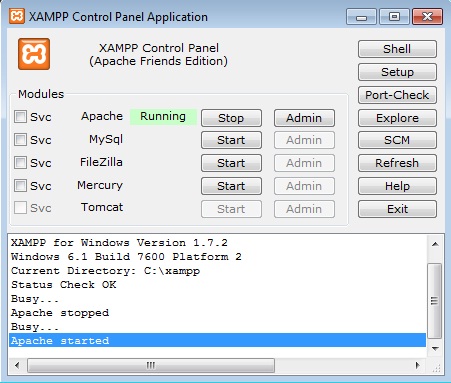
I’m using XAMPP on Windows 7 to run the PHP server locally. Grab a copy of phpwebsockets which is a WebSocket server in PHP. (Note: I experienced some problems with this version, I made some changes to it and will including it in the source files) There are various WebSocket implementations; if one doesn’t work, you can try another or just continue with the tutorial.

Start the Apache server


Step 2: Change URLs and Ports

Change the server according to your setup, for example in setup.class.php:

public function __construct($host='localhost',$port=8000,$max=100)
{
	$this->createSocket($host,$port);
}

Browse through the files and make changes where appropriate.


Step 3: Start Building the Client

Lets get a basic template up; this is my client.php file:

<!DOCTYPE html>
<html>
<head>
<script src="http://ajax.googleapis.com/ajax/libs/jquery/1.4.2/jquery.min.js"></script>

<title>WebSockets Client</title>

</head>
<body>
<div id="wrapper">

    <div id="container">

        <h1>WebSockets Client</h1>

        <div id="chatLog">

        </div><!-- #chatLog -->
        <p id="examples">e.g. try 'hi', 'name', 'age', 'today'</p>

        <input id="text" type="text" />
        <button id="disconnect">Disconnect</button>

    </div><!-- #container -->

</div>
</body>
</html>?

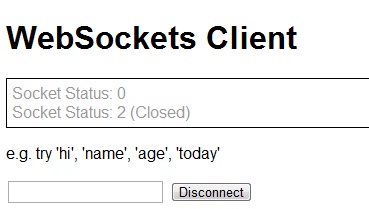
So in this code we’re creating a simple template: we have a box for the chat log, an input box, and one disconnect button.


Step 4: Add Some CSS

Nothing fancy, just space some elements out.

body {
	font-family:Arial, Helvetica, sans-serif;
}
#container{
	border:5px solid grey;
	width:800px;
	margin:0 auto;
	padding:10px;
}
#chatLog{
	padding:5px;
	border:1px solid black;
}
#chatLog p {
	margin:0;
}
.event {
	color:#999;
}
.warning{
	font-weight:bold;
	color:#CCC;
}

Step 5: WebSocket Events

First, let’s try and understand the idea of WebSocket events.

The Events

We’ll be using three events:

  • onopen: When a socket has opened
  • onmessage: When a message has been received
  • onclose: When a socket has been closed

But how can we implement this?

First create a WebSocket object

var socket = new WebSocket("ws://localhost:8000/socket/server/startDaemon.php");

And checking for events is as simple as:

socket.onopen = function(){
	alert("Socket has been opened!");
}

But what about when we receive a message?

socket.onmessage = function(msg){
	alert(msg);	//Awesome!
}

However, let’s avoid using alert boxes, and actually integrate what we’ve learned into the client page.


Step 6: JavaScript

Ok, so let’s get started. First we put our code in jQuery’s document ready function, then we check whether the user has a WebSockets-enabled browser. If they do not, we append a link to Chrome in the HTML.

$(document).ready(function() {
	if(!("WebSocket" in window)){
		$('#chatLog, input, button, #examples').fadeOut("fast");
		$('<p>Oh no, you need a browser that supports WebSockets. How about <a href="http://www.google.com/chrome">Google Chrome</a>?</p>').appendTo('#container');
	}else{

	//The user has WebSockets

	connect();

	function connect(){
    	//the connect function code is below

	}
});

As you can see, if the user has WebSockets then we call a connect() function. This is the core of the functionality: we’ll start with the open, close and receive events.

We’ll define the URL of our server

var socket;
var host = "ws://localhost:8000/socket/server/startDaemon.php";

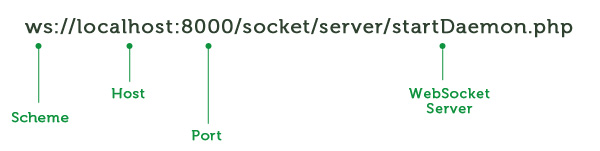
Wait, where’s the http in that URL? Oh right, it’s a WebSocket URL, so it’s using a different protocol. Here’s a breakdown of the pieces of our URL:

Let’s continue with our connect() function. We will put our code within a try/catch block; so if something goes wrong, we can let the user know. We create a new WebSocket, and pass the message to a message function which I’ll explain later. We create our onopen, onmessage and onclose functions. Note that we also show the user the socket status; this is not necessary, but I’m including it here as it can be helpful for debugging.

  • CONNECTING = 0
  • OPEN = 1
  • CLOSED = 2
function connect(){
    try{

	var socket;
	var host = "ws://localhost:8000/socket/server/startDaemon.php";
    var socket = new WebSocket(host);

        message('<p class="event">Socket Status: '+socket.readyState);

        socket.onopen = function(){
       		 message('<p class="event">Socket Status: '+socket.readyState+' (open)');
        }

        socket.onmessage = function(msg){
       		 message('<p class="message">Received: '+msg.data);
        }

        socket.onclose = function(){
       		 message('<p class="event">Socket Status: '+socket.readyState+' (Closed)');
        }			

    } catch(exception){
   		 message('<p>Error'+exception);
    }
}

The message() function is fairly simple, it takes in some text that we want to show the user and appends it to the chatLog. We create the appropriate class for paragraph tags in the socket event functions which is why there is only one closing paragraph tag in the message function.

function message(msg){
	$('#chatLog').append(msg+'</p>');
}

So Far…

If you’ve been following up to this point, well done! We’ve managed to create a basic HTML/CSS template, create and establish a WebSocket connection and keep the user updated as progress was made with the connection.


Step 7: Sending Data

Now rather than having a submit button, we can detect when the user presses return on their keyboard, and run the send function. The ’13′ you see below is the ASCII key for the enter button.

$('#text').keypress(function(event) {
    if (event.keyCode == '13') {
   		send();
    }
});

And here’s the send() function:

function send(){

    var text = $('#text').val();
    if(text==""){
        message('<p class="warning">Please enter a message');
        return ;
    }
    try{
        socket.send(text);
        message('<p class="event">Sent: '+text)
    } catch(exception){
   	message('<p class="warning"> Error:' + exception);
    }

    $('#text').val("");

}

Remember what you see above may be a chunky bit of code, but in reality, the code we really need is:

socket.send(); //Thanks JavaScript

The extra code is doing a number of things: detecting if the user didn’t enter anything but still hit return, clearing the input box, and calling the message functions.


Step 8: Closing the Socket

Closing the socket is fairly straightforward: attach a click handler to our disconnect button and we’re done!

$('#disconnect').click(function(){
	socket.close();
});

The Completed JavaScript

$(document).ready(function() {

  if(!("WebSocket" in window)){
  $('#chatLog, input, button, #examples').fadeOut("fast");
  $('<p>Oh no, you need a browser that supports WebSockets. How about <a href="http://www.google.com/chrome">Google Chrome</a>?</p>').appendTo('#container');
  }else{
      //The user has WebSockets

      connect();

      function connect(){
          var socket;
          var host = "ws://localhost:8000/socket/server/startDaemon.php";

          try{
              var socket = new WebSocket(host);

              message('<p class="event">Socket Status: '+socket.readyState);

              socket.onopen = function(){
             	 message('<p class="event">Socket Status: '+socket.readyState+' (open)');
              }

              socket.onmessage = function(msg){
             	 message('<p class="message">Received: '+msg.data);
              }

              socket.onclose = function(){
              	message('<p class="event">Socket Status: '+socket.readyState+' (Closed)');
              }			

          } catch(exception){
             message('<p>Error'+exception);
          }

          function send(){
              var text = $('#text').val();

              if(text==""){
                  message('<p class="warning">Please enter a message');
                  return ;
              }
              try{
                  socket.send(text);
                  message('<p class="event">Sent: '+text)

              } catch(exception){
                 message('<p class="warning">');
              }
              $('#text').val("");
          }

          function message(msg){
            $('#chatLog').append(msg+'</p>');
          }

          $('#text').keypress(function(event) {
              if (event.keyCode == '13') {
                send();
              }
          });	

          $('#disconnect').click(function(){
             socket.close();
          });

      }//End connect

  }//End else

});

Step 9: Run the WebSocket Server

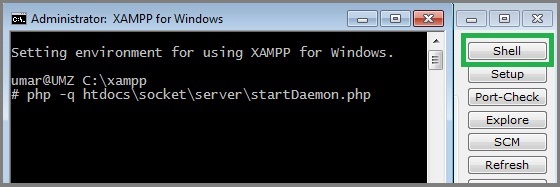
We will need command line access. Luckily, XAMPP has a handy shell option. Click ‘Shell’ on the XAMPP control panel, and type in:

php -q path\to\server.php

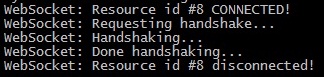
You have now started a WebSocket server!


Finished

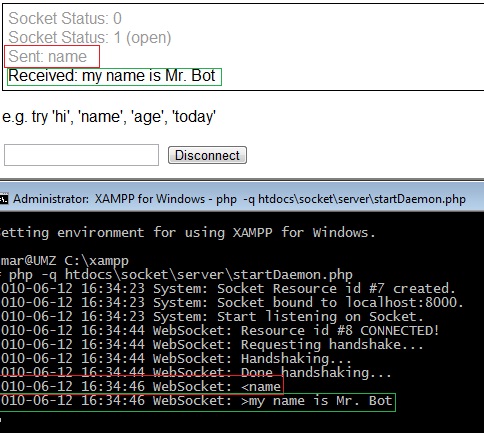
When the page loads, a WebSocket connection will attempt to be established (try editing the code so the user has connect/disconnect option). Then, the user can enter messages and receive messages from the server.


That’s it!

Thanks for reading; I hope you enjoyed this tutorial! Remember, as exciting as WebSockets may be, things may change. You can refer here to keep up to date on the W3C WebSocket API.

Behind the Scenes of Nettuts with Collis!


Here at Envato we’re pretty famous for building a lot of successful blogs, like this one! We’ve done quite a few now, so last year I decided other people might find our techniques and systems useful. Today I’m really happy to announce my new book How to Build a Successful Blog Business which is a step by step guide to doing what we do, and it comes packed with case studies for our blogs including Nettuts!

The book covers everything from picking a niche to hiring staff, monetizing to building traffic. Like all my books it’s very practical, but I think the best part is the case studies because they include things like our income and expense graphs, detailed backstories about how our sites came to be, and much more. To give you a taste of what the book is like, I thought you might like to read a little part of the case study about Tuts:


Extract The Tuts Case Study

… Nine months after launching Psdtuts+, it was time to expand out the clearly successful formula to other types of tutorials. Beginning with web development and Nettuts+, we launched over the course of two years a total of seven more sites. Each one applies the same overall editorial concept into a different niche, with a different editor and different writers.

The plus side of this is that the Tuts+ franchise as a whole has now grown far beyond just Photoshop tutorials. The down side is that whenever our revenue looked like it was going to pass costs, we would launch a new site driving our costs up again.

To manage a suite of blogs also introduces an additional layer of complexity as you now need a business capable of:

  • Managing a team of editors each with a team of writers
  • Hiring, training and occasionally replacing editors
  • Handling hundreds of invoices from writers and freelance staff every month
  • Managing servers, installations and themes

These requirements meant we brought on first a Tuts+ manager by the name of Skellie, who was a former editor of FreelanceSwitch. Then secondly, we hired a WordPress developer named Derek Herman who took over building and managing the themes on all the blogs. Thirdly we hired a freelance and later a full-time PHP developer to manage the servers, optimize performance and handle emergencies.

Because Tuts+ is run as part of a larger startup, we have had the benefit of piggy-backing accounting, management and legal costs from our parent business Envato. For an independent blog business however these are significant costs not to be discounted.

Increasing Costs

As the network grew it also became apparent that we needed to pay our writers and contributors more. While the base submission payment is still $150, the payments for regular writers and special one-off contributors has increased so that we now pay a range of $200 – $800 per tutorial depending on the experience and fame of the author and the depth, length and quality of the content.

Similarly the additional burden of managing the growing enterprise also led to greater and greater costs as we hired more staff, more management overhead and of course the ever present hosting costs.

In fact by late 2009 our monthly bandwidth had passed 40 Terrabytes of data a month leading to hosting costs in the many thousands of dollars…

Extracted from How to Build a Successful Blog Business, by Collis Ta’eed


Read More Extracts

You can read more extracts from the other case studies over on FreelanceSwitch, Psdtuts+ and Mac.AppStorm (the other sites covered in the case studies). You can also read a sample chapter by heading to our sales page for the book.


Get the Book!

You can learn more about the book, as well as find out what top100 bloggers like Darren Rowse from Problogger and Daniel Scocco from DailyBlogTips are saying about it over on the epic sales page that we’ve constructed! Get Blog Business!


Also Envato Birthday Bundle 2010!

And while I’m here with news about my book, I thought I’d also mention that next month we’re running our annual Envato Birthday Bundle for 2010 and it’s going to be EVEN bigger than last year with over $400 of value selling for just $20! Find Out about Envato Birthday Bundle 2010.

So watch out, it’s going to be a big August!

Build an Incredible HTML5 App: $7000 Competition


As HTML5′s popularity continues to increase, we at Tuts+ and CodeCanyon would like to do our part in promoting and rewarding those who are on the cutting edge of what’s possible with HTML5, local storage, geolocation, SVG, and CSS3. Not only that, but we’re also, at the conclusion of this competition, launching a brand new category on our coding marketplace, CodeCanyon, specifically for HTML5 apps.

We have $7000 worth of prizes from some of the most respected companies in our industry, but the creators of the best items will also profit by selling their HTML apps on CodeCanyon. Authors: you have one month to prepare the coolest, cutting edge HTML5 app that you’re capable of. What prizes are we offering??


Grand Prize Winner

I’m pleased to announce that I can personally recommend every single one of the following sponsors who offered items and services to this competition. We wouldn’t promote them if we didn’t feel that way!


2 Runners-Up Prizes


How Does it Work?

The rules are quite simple. Using HTML5 technologies (and feel free to throw in some CSS3 goodness while you’re at it), we want you to build a cutting edge app. It could be similar to something along the lines of:

  • The recent HTML5 presentation app
  • An awesome cross-browser HTML5 video player, with full screen support, Flash fallback, etc.
  • A kick-ass to-do list with offline storage support.
  • An HTML5 website that people would swear was created with Flash
  • etc.

Feel free to combine all modern technologies when building your item, including HTML5, geolocation, offline storage, CSS3, SVG, and any other acronym that is applicable to your project. Once you have finished building your “app,” — and you have a month to make it — return to this page, where there will be a contest submission form to fill out.

Most Importantly: We want you to build an item that people will actually use. Particle effects are great, but unless you have an argument for why others would have a need for your particle item in their project, it most likely won’t be in the running for the grand prize spot. Think wide-spread, when building your app. A presentation app is wide-spread, video players are wide-spread. Use your imagination!


Selling on CodeCanyon

In late August, CodeCanyon.net will be launching a new “HTML5 Apps” category, which we fully expect to be monstrously popular. After we select the best items from this contest — including the ones that didn’t win one of the top three prizes — we will contact the authors about selling their items on CodeCanyon in this new category, where they’ll earn between 40-70% for each sale. Considering Envato’s 430,000 marketplace members, and the fact that many of these authors make thousands of dollars each month, you’ll do quite well if your item appeals to a wide variety of people. By entering this competition, you agree that, if your item is chosen, it will be uploaded to CodeCanyon under your account, and will help to serve as seed content for the category.


Frequently Asked Questions

Please note that this section will sporadically be updated as questions come in from the community.

  1. When is the deadline? You have until August 23rd, 2010, at 11:59 PM (USA Central Standard time).
  2. How do I enter? When ready, submit your item here.
  3. If I win the contest, how will my item be sold on CodeCanyon? At that point, we will contact you about creating your free author account (if you don’t already have one), and submitting your item. It’s quite easy. Plus, because your item will be part of the new category’s seed content, you’ll get a tremendous amount of exposure as we advertise the category like crazy!
  4. Can I submit to the upcoming “HTML5 Apps” category even if I don’t win? Absolutely…and I hope you do!
  5. Can Envato staff enter this competition? Unfortunately not.
  6. Must my item support all browsers? No; we fully understand that these are items that simply won’t work in all browsers. However, do your best to provide some level of support for as many browsers as possible.

Terms and Conditions

  • This competition is open to anyone and everyone, excluding Envato staff.
  • You have until August 23rd, 2010, at 11:59 PM (USA Central Standard time) to submit your item
  • The winners of the contest will be determined by a team of no less than three judges.
  • Items must officially be submitted here to be considered for the prizes.

Good Luck!!

We can’t wait to see what you come up with. There are a lot of prizes at stake here, so submit the best possible item you’re capable of! And remember, even if you don’t win, if your item is of a high quality, you can still profit from every sale on CodeCanyon. Many authors make thousands upon thousands of dollars each month by doing this!

The deadline is August 23rd. Ready…set…go!!

Quick Tip: 4 Ways to Auto-Refresh your Browser when Designing new Sites


You know the drill: make some edits to your document, click save, switch over to your browser, refresh it, and then observe the changes. Wouldn’t it be convenient if there was to auto-refresh your browser at a provided interval? That way, for instance, every three seconds, the browser will automatically refresh. Granted, this isn’t too practical for heavy websites, however, when you’re first beginning the design of a new website, it’s quite convenient! I’ll show you a couple of ways of achieving this.


Option 1: Meta Tag

Did you know that, with the addition of a single meta tag into your document, you can instruct the browser to automatically reload at a provided interval?

<meta http-equiv="refresh" content="3" />

Placed within the head tag of your document, this meta tag will instruct the browser to refresh every three seconds. Pretty nifty!

You must remove this tag before you launch your site! It should only be used for initial development purposes.


Option 2: TextMate Commands

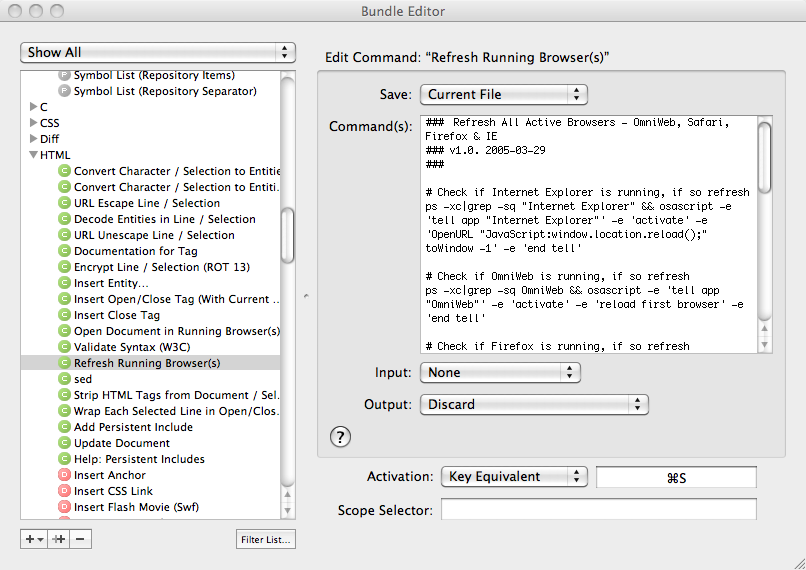
Those of you who use TextMate, or E-Text-Editor on the PC, may not be taking advantage of commands as much as you should. Did you know that there is a shell script built in to TextMate that will also force the browser to reload as soon as you press the applicable key trigger?

Simply open the “Bundles” menu, and load the bundle editor.

TextMate Bundle Editor

Within the HTML tab, you’ll find a “Refresh Running Browsers” script. Memorize, or change the activation key (in my case, Apple + R), return to your document, and try it out. This is the preferred solution if you use either of these two code editors.


Option 3: XRefresh

XRefresh

A Firefox Add-on, called XRefresh, will monitor your project folder, and, every time it detects a change to the source files, it’ll reload Firefox. This one works great, but requires a bit of work to get up and running.


Option 4: Coda: Lively

Coda users may not be familiar with one of my favorite plugins, called Lively. Like the options above, this allows Coda users to immediately observe the changes they make to their projects in real-time. If you use Coda, this is a must-have.


So what’s your preferred method? Personally, I tend to stick with options two and four. How about you?

Magento for Designers: Part 6


Magento is a stunningly powerful e-commerce platform. In this miniseries, we’ll learn how to get started with the platform, get to know the terminologies, set up a store and all related aspects of it and finally learn how to customize it to make it our very own.

In this sixth part, we’ll be building one of the most reader requested feature: getting a featured product slider in the home page. Excited? Let’s get started!

The Full Series


A Quick Recap

In the last part, we built the product information page and took a good look at how data is extracted and displayed in a typical Magento theme.

We also took a look at the various core methods that our theme uses to get various media and data about our product. I hope you remember at least a sliver of that information because we’ll be using it again today.


What are We Building Today?

Today, we’ll build the all important home page. As always, I’ll keep it as simple as possible and omit any extraneous features. Different stores have different content in their home pages. One of the most popular and definitely one of the most requested features is displaying a JavaScript powered content slider featuring special featured products. I know it sounds interesting and you’re itching to get started. Let’s get started!


Goals for the Page

As with our other pages, our goals for this specific page are relatively simple. We want a simple slider that displays specific products in a neat slider. Thus, I’ve drawn up a short list of elements that I think it needs:

  • JavaScript slider on the home page
  • Slider needs a catchy image on the left to attract attention to the product
  • In the right portion, we’ll be including the product’s name, price and a short description
  • A mini navigation within the slider to switch between different slides
  • And most important of all, not rely on an extension to obtain the featured items

That’s it. I want to keep it as simple as possible and thus opted to not over do it. We will of course need to work with both the front end and back end to accomplish all our goals.


The Basic Look

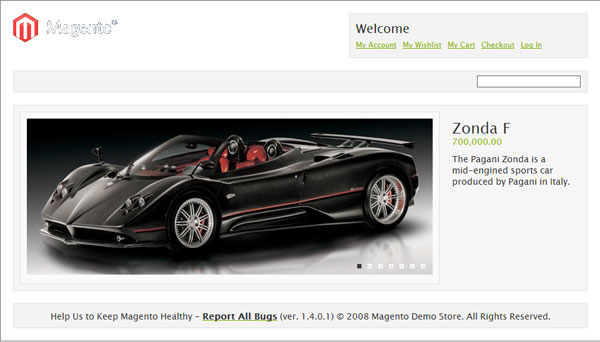
The page basically has to look like so:


Step 1 – The HTML

We’ll first look at the HTML for the content part alone. I’m assuming you’re fairly fluent in HTML and CSS so I’ll skip to the fairly important parts.

<div id="home-slideshow">

    <div class="slide">

        <div class="product-image">
            <a href="#" title="Zonda F">
                <img src="images/zonda.jpg" alt="Zonda F" title="Zonda F" />
            </a>
        </div>

        <div class="product-details">
            <h2>Zonda F</h2>
            <div class="price">700,000.00 </div>
            <p>The Pagani Zonda is a mid-engined sports car produced by Pagani in Italy. </p>
        </div>

    </div>

<!-- More slides for successive products -->

</div>

At this point, this is all pretty basic. home-slideshow is the container we’re wrapping the entire slideshow with and will be passed on to the JavaScript responsible for the slider.

Each slide is wrapped by a div called slide. Inside we have two floated containers: one for the image and the second for the information about the product itself.

That’s about all there is to it. We can move on to the styling part now.


Step 2 – The CSS

/* Home page */

.slide {
    clear: both;
    overflow: auto;
    padding: 10px;
    width: 898px;
    border: 1px solid #E1E1E1;
    background: #F6F6F6;
}

.product-image {
    float: left;
    width: 650px;
    padding: 10px;
    border: 1px solid #E1E1E1;
    background: #FAFAFA;

}

.product-details {
    float: left;
    width: 190px;
    margin: 0 0 0 20px;
}

.product-details .price {
    margin: -15px 0 0 0;
    color : #7db000;
}

.product-details p{
    margin: 10px 0 0 0;
}

#nav {
    position: absolute;
    top: 255px;
    right: 250px;
    z-index: 2000;
}

#nav a {
    margin-right: 10px;
    height: 5px;
    width: 5px;
    z-index: 1000;
    float: left;
    text-indent: -9999px;
    cursor: pointer;
    border: 1px solid #fff;
    background:  #eee;
}

#nav a:hover {
    border: 1px solid #fff;
    background:  #999;
}

#nav a.activeSlide {
    border: 1px solid #444;
    background:  #333;
}

Nothing fancy here. Very basic CSS to place the elements in position.

The only point to note is the declaration for the class activeSlide. This class is assigned to the current slide’s respective navigation anchor.


Step 3 – Setting up Our Store

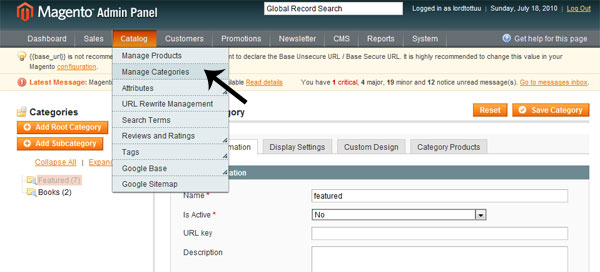
The first thing we need to do is setup a separate category to which we can assign all the products that we need to appear on our slider. Click on the catalog menu and then on categories. Choose add new root category.

Magento for Designer: Part VI

Key in a name of your choice and then choose no for the is active dropdown. We don’t want it displaying in other parts of the site.

Magento for Designer: Part VI

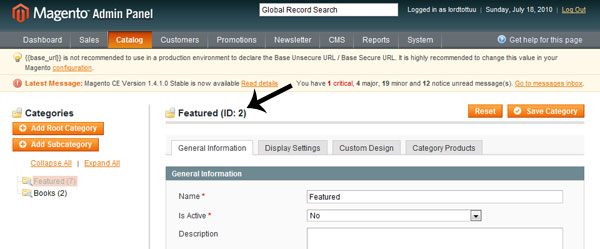
Once the new category has been saved, you can find the ID it has been assigned to. Note this down. We’ll need it for later.


Step 4 – Creating Our Core Code

We’ll be using a single template file to pull out the relevant information, format it as needed and display everything. You have complete freedom regarding the name and location of this file but in the interest of keeping it simple, I’ve named it featured.phtml and placed it in catalog/product/featured.phtml. Remember, this goes into your template folder, not your layout folder.

The contents of the file looks like so. Don’t worry about the length, we’ll look at each part works after the code.

<?php
$cat_id = "2";
$_productCollection = Mage::getResourceModel('catalog/product_collection')
->addAttributeToSelect(array('name', 'price', 'small_image', 'short_description'), 'inner')
->addCategoryFilter(Mage::getModel('catalog/category')->load($cat_id));

if(!$_productCollection->count()):
    echo $this->__('There are no products matching the selection.');
else: ?>

    <div id="home-slideshow">
        <?php $i=0; foreach ($_productCollection as $_product): ?>

        <div class="slide">

            <div class="product-image">
                <a href="<?php echo $_product->getProductUrl() ?>" title="<?php echo $this->htmlEscape($this->getImageLabel($_product, 'small_image')) ?>">
                <img src="<?php echo $this->helper('catalog/image')->init($_product, 'small_image')->resize(650, 250); ?>" alt="<?php echo $this->htmlEscape($this->getImageLabel($_product, 'small_image')) ?>" title="<?php echo $this->htmlEscape($this->getImageLabel($_product, 'small_image')) ?>" /></a>
            </div>

            <div class="product-details">
                <h2><?php echo $_product->getName(); ?></h2>
                <div class="price"><?php echo number_format($_product->getFinalPrice(),2);?> </div>
                <p><?php echo $_product->getShortDescription(); ?></p>
            </div>

        </div>
        <?php endforeach ?>

    </div>

<?php endif; ?>

Here’s the first piece:

$cat_id = "2";

First, we’ll need to specify the ID of the category from which we want to pull in our products. In our case, this will be 2, the ID of the category we just created.

$_productCollection = Mage::getResourceModel('catalog/product_collection')
->addAttributeToSelect(array('name', 'price', 'small_image', 'short_description'), 'inner')
->addCategoryFilter(Mage::getModel('catalog/category')->load($cat_id));

This looks slightly complicated but let me assure you, it’s very simple. To put it in layman’s terms, we essentially pass in the ID of the category we need through the variable cat_id and ask Magento to retrieve the name, price, image and short description of the products that match. Right now, I’d advise you to not fiddle with the rest unless you’re well versed in MVC and other aspects of Magento’s architecture.

if(!$_productCollection->count()):
echo $this->__('Sorry, no items matched your selection criteria');
else: ?>

We will need to check whether we have matching items, don’t we? That’s what we’re doing here. Just making sure we have matching items. If not, we display an error.

<?php $i=0; foreach ($_productCollection as $_product): ?>

Let’s start looping through our product collection!

<a href="<?php echo $_product->getProductUrl() ?>" title="<?php echo $this->htmlEscape($this->getImageLabel($_product, 'small_image')) ?>">
<img src="<?php echo $this->helper('catalog/image')->init($_product, 'small_image')->resize(650, 250); ?>" alt="<?php echo $this->htmlEscape($this->getImageLabel($_product, 'small_image')) ?>" title="<?php echo $this->htmlEscape($this->getImageLabel($_product, 'small_image')) ?>" /></a>
<h2><?php echo $_product->getName(); ?></h2>
<div class="price"><?php echo number_format($_product->getFinalPrice(),2);?> </div>
<p><?php echo $_product->getShortDescription(); ?></p>

If you’ve read the previous part of this series, this code must be pretty familiar to you. We use Magento’s baked in methods to retrieve media pertaining to our product.

The second snippet may look a little different because instead of using slightly more abstracted methods, I used closer-to-bone methods to directly acquire the data we need.

If you’re feeling a little confused here, just go through the above code one more. The name of the methods are pretty explanatory. The only stumbling block should be how we acquire the image itself: we ask one of our helpers to acquire the image and resize it to the size we need. Nothing more to it.

Note that we open and close a slide div each time our loop runs. This is to encapsulate each product’s information with a container element to make it easy for us to create a slider later.

And with this, our base PHP code is complete.


Step 5 – The JavaScript

It makes no sense to completely reinvent the wheel here since the core focus of this series is on Magento. Thus, we’ll be using an excellent plugin to create our slider today: the jQuery Cycle plugin.

But first, go to root/js and create a folder named cirrus. Different people have different methods of organizing here. I prefer having a theme’s JS separate instead of organizing them by source. We’ll need a copy of jQuery [1.4 hopefully], the latest cycle plugin and a custom script file, which I’m naming mocha.

Here’s the content of our JS file.

(function($) { 

$(document).ready(function(){
     $('#home-slideshow')
	 	.before('<div id="nav">')
		.cycle({
		fx: 'fade',
		speed:    1500,
 		timeout:  5000,
 		pause: 1,
 		delay:  5000,
		pager: '#nav'
	});
});
 })(jQuery)

First up, notice that we’re wrapping everything inside a (function($) { //Code })(jQuery) block. This is make sure jQuery doesn’t conflict with any other included library.

The document ready block, as always, is to make sure that our code runs only after all the page’s assets are loaded since Magento likes to put our JavaScript files at the top.

Initializing the plugin is pretty simple. Just type in the ID of the main container, home-slideshow in our case, and away we go. I’ve just tweaked some of the options to make it do our bidding.

Something to take note of is that we’re dynamically creating and positioning our container for the navigation elements inside the DOM with JavaScriptS. This element is only needed if JavaScript is enabled. If it isn’t, we don’t want empty, useless code in our page.

We also pass in the selector the navigation container to the slider plugin.

That’s it. The JavaScript part of our code is done.


Step 6 – Setting up Our Home Page

Now that all our groundwork has been completed, we can finally configure our home page now.

Magento for Designer: Part VI

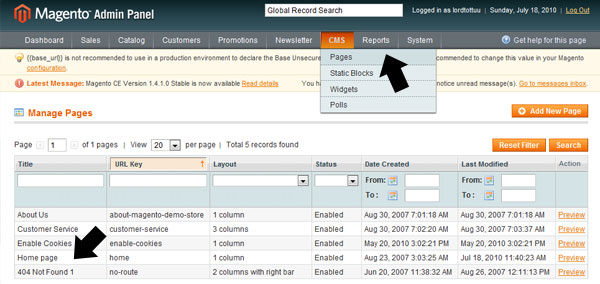
Click on the CMS menu and choose the pages option. Click on home page in the resulting page.

Magento for Designer: Part VI

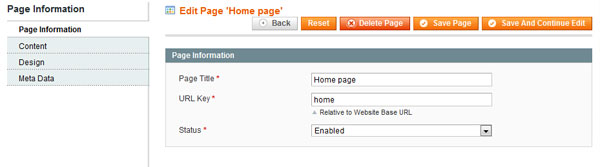
The first tab should be pretty self explanatory. Make sure that our page is enabled.

Magento for Designer: Part VI

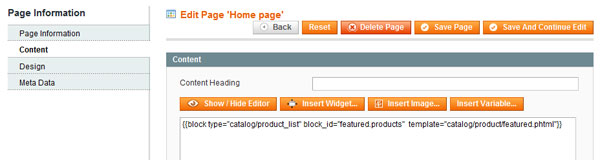
In the content tab, make sure you enter the following after disabling the editor:

{{block type="catalog/product_list" block_id="featured.products"  template="catalog/product/featured.phtml"}}

This is Magento’s method of including required blocks. We just give it an ID to refer it by and point it to our custom template.

Magento for Designer: Part VI

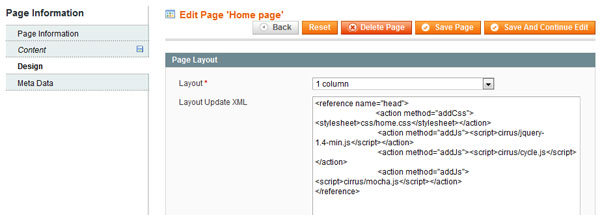
In the design tab, change the layout template to 1 column since we’re using it for everything and then enter the following into the layout update xml field.

<reference name="head">
          <action method="addCss"><stylesheet>css/home.css</stylesheet></action>
          <action method="addJs"><script>cirrus/jquery-1.4-min.js</script></action>
          <action method="addJs"><script>cirrus/cycle.js</script></action>
          <action method="addJs"><script>cirrus/mocha.js</script></action>
</reference>

Remember how when building the product page, we included custom CSS in the page’s layout file to make sure the entire codebase isn’t loaded for every page? We’re doing essentially the same here. Instead of creating a XML file just for this, Magento lets us enter this directly through the interface.

We just load our custom CSS, our JS libraries and the script file that contains all our code.

Click on “save” to save up all our progress, empty Magento’s cache and watch the beautiful slider on your home page slide through in its excruciatingly lovely glory!


What We’ll be Building in the Next Part

.. is completely up to you. I’ve already covered almost all relevant information for customizing any view and going through each and every view is completely counter-intuitive. Thus, I’ve concluded that all that’s left is how to create a custom module and I think by then this series will have runs its course. I may write a quick Magento tweaks and optimization how-to if enough people show interest for such an article.

If you do feel that something else needs to be covered before this series comes to a close, don’t hesitate to leave a comment below to let me know!


The Last Word

And we are done! Today, we learnt how to create a custom home page complete with a slider displaying featured products. We also learnt to do all this without relying on a third party extension and instead coding all this ourselves. Hopefully this has been useful to you and you found it interesting. Since this is a rather new topic for a lot of readers I’ll be closely watching the comments section so chime in there if you’re having any doubts.

Questions? Nice things to say? Criticisms? Hit the comments section and leave me a note. Happy coding!

Quick Tip: Improve Site Performance in 3 Easy Steps


We all know we should do it, but how many of us do? I’m talking about minifying JavaScript, CSS, and optimizing images to reduce load times. Today, I’ll show you three quick and easy methods that all of us should implement to improve our site’s performance.


So what other techniques do you use to improve load times?

20 Steps to a Flexible and Secure WordPress Installation


A comprehensive WordPress installation, albeit simple to produce, often requires multiple steps — many of which can easily be omitted accidentally. How many times have you forgotten to customize your permalink structure? How about adding in a sitemap plugin? What about changing your timezone? If you’ve installed WordPress more than once, chances are you’ve missed something. Take the following steps and you’ll never miss anything again.


Step 1: Get WordPress from SVN

The number one mistake for a flexible WordPress installation happens right from the get-go. I’ve seen numerous developers manually download, unzip, and upload WordPress to their site. This is not only a waste of time, but it also reduces flexibility.

If you download WordPress from SVN, all you need to do is run the following in command-line:

svn co http://core.svn.wordpress.org/tags/3.0 .

Maybe you want the latest developer version. That’s even simpler:

svn co http://core.svn.wordpress.org/trunk/ .

Why is this so useful? For starters, all it takes is one command. Looking at WordPress in a long-term perspective reveals that SVN also provides the simplest, hassle-free way to update to a new stable version (or even downgrade). For example, let’s say you want to update to version 3.0. All you need to do is run the SVN switch command:

svn sw http://core.svn.wordpress.org/tags/3.0/ .

How easy was that? Note that if you’re using the developer version, updating is even easier:

svn up

That’s all it takes. If you ever need the URL to a new stable version repository, visit the WordPress Codex. You can also find full instructions on using SVN there.

“Looking at WordPress in a long-term perspective reveals that SVN also provides the simplest, hassle-free way to update to a new stable version (or even downgrade).”


Step 2: Secure .svn Directories

Directory

Now that you’re using SVN, you must ensure that your .svn directories are protected from the public. One main reason lies in the .svn/entries file, which can give out sensitive information to attackers. For further information regarding this subject, please take a look at Smashing Magazine’s article on the SVN server admin issue.

To secure .svn directories using .htaccess, just apply the following redirect rule:

RewriteRule ^(.*/)?\.svn/ - [F,L]

Step 3: Create wp-config.php

As outlined in the famous 5-minute WordPress installation, you’ll need to rename wp-config-sample.php to wp-config.php and add in your database information.


Step 4: Add a Unique Database Prefix and Authentication Keys

Keys

Leaving your wp-config.php file only with database information and no other configuration is a security issue. Make sure to generate authentication keys, as outlined in the comments. To do so, visit https://api.wordpress.org/secret-key/1.1/salt/ and copy-paste the randomly-created keys into the file.

Note that you should also change the default WordPress database table prefix. This is to secure your installation against hacks, such as the recent outbreak of the Pharma Hack. Visit random.org to generate a random prefix string which you’ll need to set as the $table_prefix in wp-config.php. In addition, make sure to add an underscore at the end of the prefix.


Step 5: Install Using wp-admin/install.php

As usual, visit wp-admin/install.php in your browser and follow the instructions. When filling out the form, change the default administrator username (“admin”) in order to increase security. Note that most attackers will target a WordPress installation with default settings. Thus, changing this username is a must.

“Note that most attackers will target a WordPress installation with default settings.”


Step 6: Remove wp-admin/install.php

This is a commonly-omitted step which only takes a few seconds to execute. Simply remove the wp-admin/install.php script after installing WordPress for further security.


Step 7: Login to the Dashboard and Complete User Profile

Login to your WordPress installation at http://example.com/wp-admin, click your username in the top-right corner, and fill out your user profile.


Step 8: Edit Tagline and Timezone

Timezone

Under the Settings > General tab, make sure to edit your blog’s timeline as well as timezone.


Step 9: Review Writing, Reading, and Discussion Settings

Although you might not have to change anything, looking over Settings > Writing, Settings > Reading, and Settings > Discussion is always a good idea. Ensure that the configuration meets your standards.


Step 10: Change Permalink Structure

Permalink

A default WordPress installation comes with query-string permalinks that look like http://example.com/?p=1 for each article. Not only is this not search-engine friendly, but it’s also not even human-friendly. Change this to a permalink structure that contains the title of the post (%postname% if you’re using a custom configuration).


Step 11: Add .htaccess Rules

An .htaccess file is necessary for your WordPress site to function correctly. To begin, turn on the RewriteEngine:

RewriteEngine On

Disable directory listings for security purposes:

Options -Indexes

Add/Remove www to prevent content duplication (replace example.com with your domain):

# Add www (change www.example.com to example.com to remove www)
RewriteCond %{HTTP_HOST} !^www.example.com$ [NC]
RewriteRule ^(.*)$ http://www.example.com/$1 [R=301,L]

WordPress requires you to redirect all non-files and directories to index.php:

RewriteCond %{REQUEST_FILENAME} !-f
RewriteCond %{REQUEST_FILENAME} !-d
RewriteRule . index.php [PT]

Disable ETags:

Header unset ETag
FileETag None

Suppress PHP errors (note that this might not work on all hosts):

php_flag display_startup_errors off
php_flag display_errors off
php_flag html_errors off
php_value docref_root 0
php_value docref_ext 0

Control caching on files to speed up your site:

ExpiresActive On
ExpiresDefault A0
<FilesMatch "\.(gif|jpg|jpeg|png|swf)$">
# 2 weeks
ExpiresDefault A1209600
Header append Cache-Control "public"
</FilesMatch>
<FilesMatch "\.(xml|txt|html)$">
# 2 hours
ExpiresDefault A7200
Header append Cache-Control "proxy-revalidate"
</FilesMatch>
<FilesMatch "\.(js|css)$">
# 3 days
ExpiresDefault A259200
Header append Cache-Control "proxy-revalidate"
</FilesMatch>

Secure the .htaccess file:

<Files .htaccess>
 Order Allow,Deny
 Deny from all
</Files>

Secure the wp-config.php file:

<Files wp-config.php>
 Order Deny,Allow
 Deny from all
</Files>

Secure .svn directories, as explained in step #2:

RewriteRule ^(.*/)?\.svn/ - [F,L]

If you would like to add more configuration for your website and are looking for a general tutorial, consider Nettuts’ Ultimate Guide to htaccess Files or Stupid htaccess Tricks on Perishable Press.


Step 12: Use gzip

Gzip

Applying gzip can compress text files up to 80% and greatly save bandwidth. Making it active on your site only requires a PHP file and a bit of .htaccess. Note that the following code is referenced from a gzip tutorial on Lateral Code.

PHP (gzip.php):

<?php
	if( isset( $_SERVER['HTTP_ACCEPT_ENCODING'] ) && substr_count( $_SERVER['HTTP_ACCEPT_ENCODING'], 'gzip' ) && !preg_match( '/(load-styles|load-scripts)\.php/', $_SERVER[ 'SCRIPT_NAME' ] ) )
		ob_start( 'ob_gzhandler' );
	else
		ob_start();
?>

This may look a bit daunting at first, but it really isn’t too bad. The large boolean expression checks whether gzip is available and, if so, it’s applied. Unfortunately, I have found that this gzip method doesn’t function well with WordPress’ load-styles.php and load-scripts.php. As a result, the preg_match is used to exclude them.

.htaccess:

<FilesMatch "\.js$">
AddHandler application/x-httpd-php .js
php_value default_mimetype "text/javascript"
</FilesMatch>
<FilesMatch "\.css$">
AddHandler application/x-httpd-php .css
php_value default_mimetype "text/css"
</FilesMatch>
<FilesMatch "\.(htm|html|shtml)$">
AddHandler application/x-httpd-php .html
php_value default_mimetype "text/html"
</FilesMatch>
php_value auto_prepend_file /absolute/path/to/gzip.php

This snippet adds the php handler to .html, .css, and .js files so that they can be gzipped. It also prepends the previously mentioned gzip.php file. Make sure to change /absolute/path/to/gzip.php to the correct path.


Step 13: Apply the 4G Blacklist

Perishable Press’ 4G Blacklist will prevent numerous attacks on your website through .htaccess. I’ve included the code below (edited for WordPress). You can learn about how it works by reading the article on Perishable Press:

### PERISHABLE PRESS 4G BLACKLIST ###

# ESSENTIALS
RewriteEngine on
ServerSignature Off
Options All -Indexes
Options +FollowSymLinks

# FILTER REQUEST METHODS
<IfModule mod_rewrite.c>
 RewriteCond %{REQUEST_METHOD} ^(TRACE|DELETE|TRACK) [NC]
 RewriteRule ^(.*)$ - [F,L]
</IfModule>

# BLACKLIST CANDIDATES
<Limit GET POST PUT>
 Order Allow,Deny
 Allow from all
 Deny from 75.126.85.215   "# blacklist candidate 2008-01-02 = admin-ajax.php attack "
 Deny from 128.111.48.138  "# blacklist candidate 2008-02-10 = cryptic character strings "
 Deny from 87.248.163.54   "# blacklist candidate 2008-03-09 = block administrative attacks "
 Deny from 84.122.143.99   "# blacklist candidate 2008-04-27 = block clam store loser "
 Deny from 210.210.119.145 "# blacklist candidate 2008-05-31 = block _vpi.xml attacks "
 Deny from 66.74.199.125   "# blacklist candidate 2008-10-19 = block mindless spider running "
 Deny from 203.55.231.100  "# 1048 attacks in 60 minutes"
 Deny from 24.19.202.10    "# 1629 attacks in 90 minutes"
</Limit>

# QUERY STRING EXPLOITS
<IfModule mod_rewrite.c>
 RewriteCond %{QUERY_STRING} \.\.\/    [NC,OR]
 RewriteCond %{QUERY_STRING} boot\.ini [NC,OR]
 RewriteCond %{QUERY_STRING} tag\=     [NC,OR]
 RewriteCond %{QUERY_STRING} ftp\:     [NC,OR]
 RewriteCond %{QUERY_STRING} http\:    [NC,OR]
 RewriteCond %{QUERY_STRING} https\:   [NC,OR]
 RewriteCond %{QUERY_STRING} mosConfig [NC,OR]
# RewriteCond %{QUERY_STRING} ^.*(\[|\]|\(|\)||'|"|;|\?|\*).* [NC,OR]
# RewriteCond %{QUERY_STRING} ^.*(%22|%27|%3C|%3E|%5C|%7B|%7C).* [NC,OR]
 RewriteCond %{QUERY_STRING} ^.*(%0|%A|%B|%C|%D|%E|%F|127\.0).* [NC,OR]
 RewriteCond %{QUERY_STRING} ^.*(globals|encode|localhost|loopback).* [NC,OR]
 RewriteCond %{QUERY_STRING} ^.*(request|select|insert|union|declare|drop).* [NC]
 RewriteRule ^(.*)$ - [F,L]
</IfModule>

# CHARACTER STRINGS
<IfModule mod_alias.c>
 # BASIC CHARACTERS
 RedirectMatch 403 \,
 RedirectMatch 403 \:
 RedirectMatch 403 \;
# RedirectMatch 403 \=
 RedirectMatch 403 \@
 RedirectMatch 403 \[
 RedirectMatch 403 \]
 RedirectMatch 403 \^
 RedirectMatch 403 \`
 RedirectMatch 403 \{
 RedirectMatch 403 \}
 RedirectMatch 403 \~
 RedirectMatch 403 \"
 RedirectMatch 403 \$
 RedirectMatch 403 \
 RedirectMatch 403 \|
 RedirectMatch 403 \.\.
# RedirectMatch 403 \/\/
 RedirectMatch 403 \%0
 RedirectMatch 403 \%A
 RedirectMatch 403 \%B
 RedirectMatch 403 \%C
 RedirectMatch 403 \%D
 RedirectMatch 403 \%E
 RedirectMatch 403 \%F
 RedirectMatch 403 \%22
 RedirectMatch 403 \%27
 RedirectMatch 403 \%28
 RedirectMatch 403 \%29
 RedirectMatch 403 \%3C
 RedirectMatch 403 \%3E
# RedirectMatch 403 \%3F
 RedirectMatch 403 \%5B
 RedirectMatch 403 \%5C
 RedirectMatch 403 \%5D
 RedirectMatch 403 \%7B
 RedirectMatch 403 \%7C
 RedirectMatch 403 \%7D
 # COMMON PATTERNS
 Redirectmatch 403 \_vpi
 RedirectMatch 403 \.inc
 Redirectmatch 403 xAou6
 Redirectmatch 403 db\_name
 Redirectmatch 403 select\(
 Redirectmatch 403 convert\(
 Redirectmatch 403 \/query\/
 RedirectMatch 403 ImpEvData
 Redirectmatch 403 \.XMLHTTP
 Redirectmatch 403 proxydeny
 RedirectMatch 403 function\.
 Redirectmatch 403 remoteFile
 Redirectmatch 403 servername
 Redirectmatch 403 \&rptmode\=
 Redirectmatch 403 sys\_cpanel
 RedirectMatch 403 db\_connect
 RedirectMatch 403 doeditconfig
 RedirectMatch 403 check\_proxy
 Redirectmatch 403 system\_user
 Redirectmatch 403 \/\(null\)\/
 Redirectmatch 403 clientrequest
 Redirectmatch 403 option\_value
 RedirectMatch 403 ref\.outcontrol
 # SPECIFIC EXPLOITS
 RedirectMatch 403 errors\.
# RedirectMatch 403 config\.
 RedirectMatch 403 include\.
 RedirectMatch 403 display\.
 RedirectMatch 403 register\.
 Redirectmatch 403 password\.
 RedirectMatch 403 maincore\.
 RedirectMatch 403 authorize\.
 Redirectmatch 403 macromates\.
 RedirectMatch 403 head\_auth\.
 RedirectMatch 403 submit\_links\.
 RedirectMatch 403 change\_action\.
 Redirectmatch 403 com\_facileforms\/
 RedirectMatch 403 admin\_db\_utilities\.
 RedirectMatch 403 admin\.webring\.docs\.
 Redirectmatch 403 Table\/Latest\/index\.
</IfModule>

A few of these rules are commented out or edited because they interfere with WordPress. If you are having problems with certain URLs, fix them by prepending a “#” (comment) to the corresponding rule.


Step 14: Activate Akismet

“Activating Akismet is a must in order to prevent comment spam.”

Activating Akismet is a must in order to prevent comment spam. Do so by registering for an API key at akismet.com. Note that a WordPress.com account API key will also work.

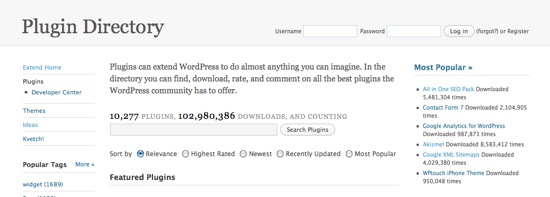
Once you obtain a key, visit Plugins > Akismet Configuration in your dashboard and paste it in the corresponding box.


Step 15: Download Plugins

Plugins

The following plugins are a great help to any WordPress blog:

For further security, these plugins, referenced from DigWP’s WordPress lockdown article, are also important:

To make installation easy, you can run the following in command-line under your plugins directory:

wget http://downloads.wordpress.org/plugin/all-in-one-seo-pack.zip
wget http://downloads.wordpress.org/plugin/google-sitemap-generator.3.2.4.zip
wget http://downloads.wordpress.org/plugin/wordpress-file-monitor.2.3.3.zip
wget http://downloads.wordpress.org/plugin/wp-security-scan.zip
wget http://downloads.wordpress.org/plugin/ultimate-security-check.1.2.zip
wget http://downloads.wordpress.org/plugin/secure-wordpress.zip
find . -name '*.zip' -exec unzip {} \;
rm *.zip

This will retrieve zip files for the plugins, unzip them, and delete the .zips

These download links may not be correct later on due to plugin updates. As a result, you can visit the wordpress.org plugin pages listed above in order to find the updated links.

After you finish installing the plugins, make sure to enable them through the WordPress dashboard.


Step 16: Configure All in One SEO Pack

Before All in One SEO Pack becomes active, you’ll need to configure it. Go to Settings > All in One SEO to do so. Make sure to mark the “enabled” radio button. In addition, add in a home title, description, and keywords. Finally, set the rest of the options to your liking.


Step 17: Generate a Sitemap

Visit Settings > XML-Sitemap to generate your first sitemap that will be sent to search engines. Before doing so, ensure that the options on the page are what you desire. For example, I often edit the change frequencies, as my posts are modified quite often.

Once you are ready, scroll to the top of the page and click the build link (“Click here”). You might have to create two blank files—sitemap.xml and sitemap.xml.gz—in your root directory depending on the directory permissions. Nevertheless, once you finish building it for the first time, it should automatically update as long as you have “Rebuild sitemap if you change the content of your blog ” checked.


Step 18: Add Security

Security

At this point, you’ve already installed four security plugins. You should now put them into use.

Visit Settings > WordPress File Monitor and add wp-content/uploads in the exclude path. Change the other information if necessary. Note that this plugin will inform you whenever it notices a change in your file system.

Under Settings > Secure WP, check Error Messages and Windows Live Writer for extra protection.

Note that there is a new “Security” tab created by WP Security Scan. Fix items in red under Security > Security and Security > Scanner. When you visit Security > Scanner, make sure to chmod all of your individual plugins with 755 as well. Furthermore, you can use the password tool to generate a strong password.

Finally, fix the errors under Tools > Ultimate Security Check and ensure your site receives an A.


Step 19: Customize Theme and Sidebar

Now that you’ve setup a flexible, secure WordPress installation, you’ll need to make it comprehensive by customizing the theme and sidebar to fit your site’s needs. Of course, there is no set method to accomplish this; each site is unique in it’s own way. Make a theme that appeals to both you and your readers.


Step 20: Write Content

Write

All that’s left now is to write genuine content that appeals to your user base. You now have a flexible, secure, and comprehensive WordPress installation. Use it wisely.


Congratulations! You now have a flexible, secure, and comprehensive WordPress installation. Use it wisely!

Workshop #99: Intellecture by Artotaku

At Audiotuts+ we irregularly put up a reader track for workshopping and critique (find out how to submit a track). This is how it works: you upload your song, and every week or so we’ll publish one here and step away from the podium. The floor is yours to talk about the track and how the artist can fix problems in and improve upon the mix and the song.

This track has been submitted for your friendly, constructive criticism. They have put their track (and their heart and soul) in your hands to learn and get useful feedback.

  • Do you enjoy the song or track itself? Does it have potential?
  • Can the arrangement be improved?
  • How did you find the mix? What would you do differently?
  • What do you enjoy about the rhythm track? What can be done to improve it?
  • Is the choice of instruments relevant and effective for the style/song?
  • Are the lyrics (if any) effective? Does the style, arrangement and genre of the song suit them?
  • Can you suggest any specific techniques that might improve the track?
  • Do you have any other constructive feedback?

Intellecture by Artotaku

Description of the track:

A calm, easy listening, Cafe del Mar like track.

Download audio file (artotaku__Intellecture.mp3)

Terms of Use: Users can stream the track for the purposes of giving feedback but cannot download or redistribute it.

Have a listen to the track and offer your constructive criticism for this Workshop in the comments section.


Submit Your Tracks for Workshopping

Need constructive criticism on your own tracks? Submit them using this form.


Behind the Scenes of Psdtuts with Collis!


Here at Envato we’re pretty famous for building a lot of successful blogs, like this one! We’ve done quite a few now, so last year I decided other people might find our techniques and systems useful. Today I’m really happy to announce my new book How to Build a Successful Blog Business which is a step by step guide to doing what we do, and it comes packed with case studies for our blogs including Psdtuts!

The book covers everything from picking a niche to hiring staff, monetizing to building traffic. Like all my books it’s very practical, but I think the best part is the case studies because they include things like our income and expense graphs, detailed backstories about how our sites came to be, and much more. To give you a taste of what the book is like, I thought you might like to read a little part of the case study about Tuts:


Extract The Tuts Case Study

…While the official launch of Psdtuts+ was in August, the real beginnings of the site date back to late February. At that time I was fascinated to learn that there were entrepreneurs out there who bought websites, gave them a makeover and resold them for a profit. This practice, known as ‘flipping’, was particularly common on a site called the Sitepoint Marketplace (which has since been rebranded as Flippa).

So I decided to try this out for myself, and began searching through the marketplace for a good site to purchase. Because I knew a lot about Photoshop and had written a few tutorials some years prior, I was very excited to find a listing for a basic Photoshop tutorial site called Psdtuts.com. It had some very average tutorials on it, was plastered with ads, and was selling for the grand sum of $1200. While this may not sound like a lot of money, it sure was for me back then. Money was very tight and we were meant to be focusing on our nascent startup Envato, not buying websites to do up. Still, in a moment of wild abandon, I bought the site anyway!

??Fig 10-1: The original Psdtuts.com site that I bought

When I told my wife Cyan about the purchase she was horrified. It must be said, the site really was not much to look at, and though the listing claimed it made a good amount of money from text ads, it turned out those numbers had been inflated. In fact during the following three months the site earned less than $100 and even those monthly returns were steadily declining!
It also turned out that I wasn’t very good at giving sites a once-over. I tried with a quick and dirty design overhaul, but the result was just another not-worth-visiting tutorial site, and the statistics showed. They didn’t go anywhere, in fact they continued to slide downhill.

This incident taught me a valuable lesson in web entrepreneurship. You have to really add value if you want to get anywhere. There’s no such thing as a quick buck – at least not for me …

Extracted from How to Build a Successful Blog Business, by Collis Ta’eed


Read More Extracts

You can read more extracts from the other case studies over on FreelanceSwitch, Nettuts+ and Mac.AppStorm (the other sites covered in the case studies). You can also read a sample chapter by heading to our sales page for the book.


Get the Book!

You can learn more about the book, as well as find out what top100 bloggers like Darren Rowse from Problogger and Daniel Scocco from DailyBlogTips are saying about it over on the epic sales page that we’ve constructed! Get Blog Business!


Also Envato Birthday Bundle 2010!

And while I’m here with news about my book, I thought I’d also mention that next month we’re running our annual Envato Birthday Bundle for 2010 and it’s going to be EVEN bigger than last year with over $400 of value selling for just $20! Find Out about Envato Birthday Bundle 2010.

So watch out, it’s going to be a big August!

Ignite A Sizzlin’ Hot Fire Burst

Have Fire? Have People? Have desire to be awesome? Learn to composite stock footage of various fire elements and have your friends burst into flames. In addition, learn to use the fire as a displacement map to create a unique “Heat Haze” effect from the fire.


Tutorial

Download Tutorial .flv

File size 249MB

Additional Resources


Working with Various Types of Vector Line Art


Line art is the use of lines or stretched shapes to create an illustration or enhance its appearance. Within this technique there are a variety of styles that are often found within the vector art community. In this article, I will show you a variety of illustrations made from vector which contain line art and explain why this element works well. We’ll also read what the artists say about the pieces, which tools they use, and what advice they give to those wishing to venture into line art.

Continue reading “Working with Various Types of Vector Line Art”

Quick Tip: How to Use the Opacity Mask to Make High Gloss Icons and Reflections


The Opacity Mask is a somewhat hidden feature in Adobe Illustrator. Mask work like Photoshop’s alpha channels to obscure parts of your artwork. In this Quick Tip, you’ll learn how to use Opacity Masks to make reflections and highlights on a vector icon.

Continue reading “Quick Tip: How to Use the Opacity Mask to Make High Gloss Icons and Reflections”