A Non-Designer’s Guide to Creating Great Business Cards in 2019

You’re a small business owner or solopreneur, and you need a business card ASAP. Cash is limited and so you decided to have a go at creating your very own card. Good for you! 

No matter where you are on the scale of ‘no experience designing anything’ to ‘some design knowhow,’ you can figure out how to design a business card with a little patience and the help of this handy guide.

Redsquare Creative Business Card Template
Redsquare Creative Business Card, one of many fabulous business card templates at Envato Elements

This guide is aimed at nondesigners like yourself who want to create a business card. It’ll teach you all about business card design and how to create business cards that you’ll be proud of. We’ll also share some great business card design templates from Envato Elements and a bit about the online business card maker, Placeit.

Design Language Decoded

Before we get started, let’s take a look at the key graphic design and printing terminology you’re likely to encounter or should have a good grasp of when learning how to design a business card. For your convenience, I’ve divided this section into six categories:

1. Business Card Shape & Orientation

Business card shape and orientation refers to the physical appearance of your card. 

  • Horizontal. The classic business card layout design. Also known as landscape orientation
  • Vertical. Portrait-style orientation
  • Folded. Can be a portrait or landscape orientation, but with a crease
  • Die-cut. An unconventional shape created with the help of a special cutting machine
Business Card Shape
Flore Meier at Behance

2. Design

Design refers to all the elements that go into creating a card.

  • Brand identity. Includes the logo, typography, colours, packaging, and messaging that are used to identify and reinforce a business’s brand. 
  • Layout. Your business card layout design is how all the elements on the card—text and graphics—are arranged. A successful layout guides the eye across the design. 
  • Grids. Intersecting horizontal and vertical lines that help a designer to organise elements on a card and achieve balance.
  • Hierarchy. The organisation of text and graphics on a card by level of importance.
  • Balance. Balance refers to the placement of elements on the card so that the text and graphic elements are evenly distributed. 
  • Alignment. Alignment is all about the position of text or graphic elements on the card. These elements are usually left aligned, right aligned, centered, or justified. 
  • Negative Space. Sometimes called white space, negative space is the amount of space around the text and graphics used in a design piece
Design
Konstantin Yakovlev at Behance

3. Typography

Typography is the art of arranging letters called fonts so that they’re readable, and appealing when displayed.

Fonts. Fonts can be organised in four different styles, each with their own personalities: 

  • Serif fonts use small lines at the ends of the strokes—called serifs—in some letters 
  • Sans serif fonts don’t use lines at the ends of its strokes. Sans means “without,” so sans serif means without serifs
  • Slab serif is distinguished by thick, block-like serifs
  • Script fonts use cursive strokes. They communicate a personal touch
Photography Business Card
Photography Business Card from Envato Elements

4. Graphics

A graphic is an image or visual representation of an object. There are many different graphics that can be used in business card design, the most common of which are logos.

  • Logo. A logo is essentially a symbol that helps identify and promote a business, product, organisation, etc.
Graphics
Bradley at Behance

5. Colour

Colour scheme. This is the selection of colours used in a business card design. These are colours that work well together and are often aesthetically pleasing. Palette colours are made up of the following elements. 

  • Hue – pure color
  • Tint – a hue with white added
  • Tone – a hue with gray added
  • Shade – a hue with black added
  • Saturation – defined by the intensity of colour
Business Card Colour
Joshua Krohn for Focus Lab on Dribbble

6. Printing

There are a number of terms that are helpful to know regarding setting up a document for printing.

  • RGB. A light-based mode used in on-screen projects.
  • CMYK. An ink-based mode used in printing projects.
  • Safe Area. The border that contains all printable text. Keep all important information, like names, addresses, phone numbers or logos within this safe area so that they won’t be cut off when the card is trimmed.
  • Trim Line. Where the printer will cut your card after printing.
  • Bleed Area. The very edges of the document are called the bleed area. Any design elements or colour that comes close to this outer border should be extended to spill over the outer border so that when the card is cut by the printer, there’ll be a clean edge.
  • DPI. Translates as dots per inch. It’s important that when you set up your business card file in Photoshop, you set the resolution to 300DPI to ensure that your cards print at a high quality.
  • Proof. This refers to a copy or preview of what your design will look like. Another term used for this is ‘mockup.’ A proof is often printed out or sent to a client so that they can review the material before having it printed.
  • Material. Refers to what your design is printed on. Usually matte or glossy card stock,  but can be other unconventional materials like plastic, steel, wood, fabric, etc.
Fashion Business Card
Fashion Business Card from Envato Elements

Business Card Size and Specifications

Business card dimensions vary from country to country, often influenced by tradition and/or convenience. For example, in Western Europe business cards are usually 85 x 55mm and share similar dimensions to credit cards, which allow them to be easily stored in wallets of the same size. On the other hand, Canada has adopted the same business card size as its neighbour the U.S. (89 x 51mm), ostensibly to make it easier when exchanging cards with American business contacts. 

Here’s a sample of business card layout sizes in a selection of countries around the world.

Country Standard Dimensions in Millimeters
Australia and New Zealand 90mm × 55mm
United Kingdom, Western Europe, Turkey 85mm × 55mm
Eastern Europe  90mm × 50mm
Hong Kong, China, Singapore, Malaysia 90mm × 54mm
Canada and the U.S. 89mm × 51mm

 As you can see, they vary ever so slightly, but if you’re using business card design templates from an online vendor like Envato Elements, it’s critical to know the dimensions of the template as it relates to the standard business card size in your country so that you can resize the template to fit your needs to ensure the integrity of the design. 

For more on business card dimensions, check out the following articles:

Business Card Design Best Practices

Now that you’ve got some idea of key graphic design and printing terminology, let’s delve into the most important business card design tips guidelines every non-designer should know.

1. Stay on Brand

Stay on Brand
TRÜF Creative at Behance

Before you start to design your business card, you should decide on your brand logo, typography, and colour scheme. These are the foundation of your brand identity. They should play a big part in the style and layout of your card and should be consistent across your website and other promotional materials.

2. Apply Basic Design Principles

Business Card Template
Business Card Template from Envato Elements

The basic principles of paper-based design apply to good business card design. This means that you need to adhere to key business card specs like keeping all your key copy at least 5mm from the trim edge of your card, and maintaining a minimum business card font size of 10-11 pt for body text and 7-8 pt for the contact information so your text remains legible. Finally, be sure to design in CMYK and work at 300dpi to achieve the best quality reproduction. 

It’s also helpful to use a grid to achieve proper business card layout of all the elements you use. This will help you to achieve the right hierarchy of information and ensure good alignment of different elements.

3. Choose the Best Shape and Size Card for Your Needs

Business Card
Business Card from Envato Elements

Business cards are traditionally rectangular cards with horizontal layout, but that doesn’t mean that yours has to be. Depending on your industry, the brand image you want to project and the audience you’re communicating with, your card can take on a number of other shapes, from organic to geometrical. Really you want to consider what shape and size card best represents your brand. Even if you don’t want to step too far out of the box, consider a rectangular card with a vertical layout. They’re less common than horizontals and can differentiate you from the competition. 

4. Don’t Forget Key Contact Details

Brad Cuzen at Dribbble
Brad Cuzen at Dribbble

There’s some basic text that every business card should have. This will vary from company to company and individual to individual, but the most standard information on effective business cards is generally:

  • company name
  • your name
  • job title
  • contact information: phone number, email, address, one or two key social media channels 

For some businesses, just the name, title and a telephone number might be relevant, while for others all the above information will be included. 

5. Keep Your Design Simple

Margarita D at Behance

There’s a belief among design novices that simple equals boring, but this is far from the case. Minimal designs can be quite elegant, and best of all, creating breathing room on your card allows important information to stand out and catch the eye. 

6. Proofread Carefully

There’s nothing more off-putting or more likely to damage a prospective business relationship than a business card with spelling mistakes or incorrect contact information, so proofread your card carefully and get others to proofread it for you. Double and triple check your contact details and make sure everything is legible.

7. Use Professionally Printers and First-Rate Materials
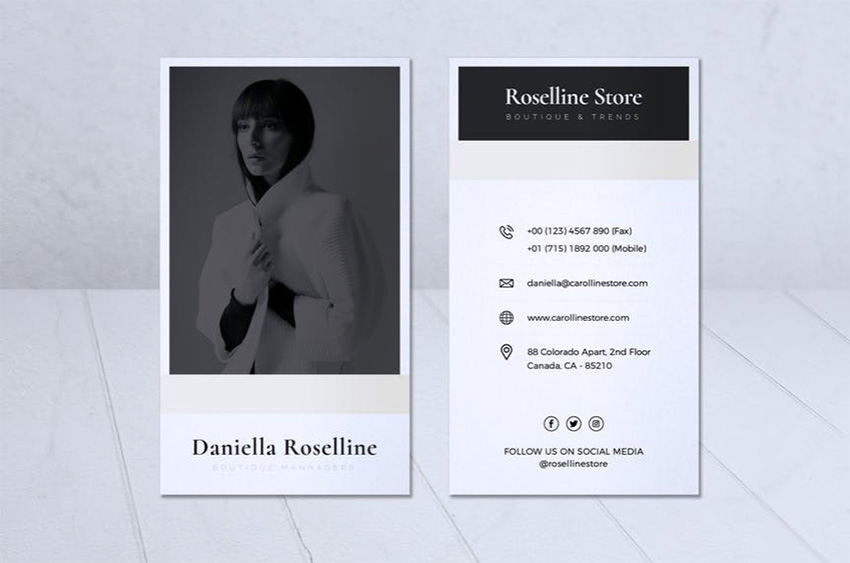
Modern Minimalist Business Card Vol 05
Modern Minimalist Business Card Vol. 05 at Envato Elements

A well-designed and professionally printed card inspires trust and sets a relationship off to a good start. So, don’t let down a terrific business card design with shoddy printing on poor card stock. Once your design is complete, be sure to print your card professionally on good card stock. This will not only make a good impression, but will help with card durability. 

Business Card Design Templates on Envato Elements

Finally, if you know your way around Adobe Photoshop and/or Illustrator, one of the best ways to create business cards that stand out is to make use of business card size templates like these terrific business card design templates found at Envato Elements. 

Envato Elements
Business card design templates from Envato Elements

Not only are there thousands of unique templates for every type of business to choose from, but best of all you can download as many templates as you want for one low price.

Here are a few curated business card designs to give an idea of what’s available:

Travel  Lifestyle Business Card
Travel + Lifestyle Business Card 

What’s more, the templates come in EPS, AI and PSD file formats, and once downloaded, you can easily adapt them to a wide range of business purposes. 

Mount Business Cards

Just replace the text placeholders with your own text, adjust colours, and you’ve got a terrific business card ready to print. 

Business Card
Business Card 

Business Card Design Templates on GraphicRiver

Sign up to Envato Elements and get access to thousands of graphics and templates (with unlimited use) all for one low price. 

But if you’re just interested in one-off purchases of PSD and AI business card templates, then GraphicRiver may be a better choice for you. You can download a single template for one-time use for a low fee.

Business Card Templates GraphicRiver
Great business card templates on GraphicRiver

Online Business Cards Design

Alternatively, if you’re looking for a simpler and easier alternative to create business cards, you should try the online business card maker at Placeit. It offers tons of business card design templates and is a cost-effective way to design your own business cards quickly and easily. 

Online Business Card Maker at Placeit

The benefit of the Placeit approach is that you don’t have to download and learn any complicated design software. All you need is your browser and a few minutes, and in no time at all you can have your own customised business card file ready to send to the printers.  

Preparing Business Cards for Print

Whether you’re using a template from Envato Elements, GraphicRiver, the Placeit Online Business Card Maker or creating your own file from scratch, there are a few things you need to check before you can send your file off to the printers. 

1. Proof Your Document

We’ve talked about the importance of proofreading your business card earlier, but it’s always a good idea to give your card another go over before you send it off to the printers, because once your card is printed, any typos and incorrect information will be there to stay and will hurt your image and your pocket.

2. Check Your Business Card Size

As mentioned earlier, business card layout sizes vary quite a bit around the world, so you need to know how to lay out business cards for printing. The first thing you want to do is make sure that your template size is consistent with local business card layout sizes, that your important information falls within the Safe Area mentioned earlier, and that the edges of your card are spilling over the bleed area.

Business Card Printing Areas

3. Check the File Resolution Is Set to 300 DPI

At the beginning of your file preparation process, you should have set your file resolution to 300 DPI to keep print quality high. Before you send your file to the printers, check that your resolution is set correctly.

4. Set Your Document to CMYK 

As mentioned above, CMYK is an ink-based mode used in printing, and if you want the colours in your card to print faithfully, you need to set your document mode to CMYK. If you’ve designed your business card in RGB colour, don’t panic. You can convert it to CMYK in both Photoshop and Illustrator via the Edit menu. 

5. Save Your Design as PDF & TIFF

Finally, make sure you save your document as both a PDF file and TIFF file. Sending your business card as both ensures your fonts can print correctly.

While most PDF files will embed fonts automatically, they can sometimes display incorrectly when your print shop opens them. Sending your files in TIFF format as well ensures your text displays the way it should.

Create Your Own Business Card Today 

With this guide at hand and so many great business card templates to choose from, you know exactly how to design a business card that’ll impress clients and contacts.  

If you’re proficient in Photoshop or Illustrator, there are thousands of professionally designed business card templates available at Envato Elements or you can buy individual business card design templates from Graphic River. Alternatively, if you’re looking for simpler and more intuitive business card design ideas, why not try the Placeit Business Card Maker? 

I hope these business card design ideas have made you excited about the possibility of making your own business cards. Why not select your favourite template and create your business cards today? We’d love to see which one you choose. 

{excerpt}
Read More

How to Improve Remote Team Communication With monday.com

You check your email again.

It’s been more than 24 hours since you emailed your colleague. Although he lives in another continent with a time zone five hours behind yours, he should’ve seen your email by now.

At last, you can’t wait any longer. You private message him. “Hey there, just checking, did you see my email?”

“Nope, sorry, I must’ve missed it. I’ll look for it now. What was the subject line?” he replies.

This is just one example of the many communication challenges remote teams face every day.

Use monday.com to keep the lines of communication open for your remote teams.

Communication is difficult enough in a traditional team. Being scattered all over the globe adds layers of complexity. 

When a question pops into your mind, you can’t just skip over to a team member’s cubicle to ask.

Sure, you could fire off a quick email or private message… but if it’s the middle of the night for her right now, who knows when she’ll even see it?

Fortunately, collaboration platforms like monday.com help remote teams overcome these challenges. 

monday.com provides a centralized, visual hub for all your remote team’s communication. Send context-specific messages, share files, delegate and monitor tasks, have ongoing virtual discussions—all in one place. 

Communication Challenges of Remote Teams (and How to Overcome Them With monday.com)

Geographical distance, time zone differences, and sometimes even language barriers pose daily challenges to remote teams. All this can cause misunderstanding, missed deadlines, lost productivity, and disengagement from work.

These challenges manifest in different ways:

  • Email inbox overwhelm. You receive—and send—too many emails and struggle to stay on top of an overflowing inbox and mile-long email threads. 
  • Lost emails and messages. For whatever reason, the recipient doesn’t see your email or PM, and you don’t find out until you’re desperate enough to pester them. Or, you thought you’d already replied to a message when, in fact, you’d forgotten.
  • Inefficient file sharing. Back-and-forth emailing of files, only to have a hard time finding them when you need them. Sure, email and chat apps have a search function, but they don’t work well when you can’t remember anything about the file name.
  • Lack of visibility. Without a real-life water cooler or hallways where colleagues can bump into each other and share stories, teams and individuals end up in silos. People don’t know what other people in the organization are working on.
  • Disjointed conversations. With people checking in and out of work at different times, it’s easy to lose track of the context of any discussion.

Any remote team can address these challenges by centralizing their communication on monday.com. 

Read on to find out how.

1. Send Context-Specific Messages

Your main communication tool on monday.com is the Update.

An Update is a note, comment, or message that’s always context-specific because it’s posted through a board item.

How to Post an Update

To post an Update, click on the speech icon of an item or task. The Update box slides open.

Remote Team Communication - Mondaycom Updates

Type your message in the text box.

Address Specific People to Get Their Attention

Use @mention so that your message appears in the recipient’s Notifications Bell when they log into their monday.com account.

You can @mention individuals, teams, or everyone on the account.

To see who’s seen an Update, hover over the eye icon.

Remote Team Communication - Mondaycom Updates Views

Do More in an Update

There’s plenty you can do in an Update. You can:

  • Add a checklist, which is perfect for tasks with subtasks that are too small to be their own item on the board.
  • Insert hyperlinks to easily share web pages.
  • Embed a GIF from the Giphy library without having to leave monday.com.
Remote Team Communication - GIF Updates Mondaycom
  • Attach files from your computer, Google Drive, Dropbox, or Box.com (Although, for better files management, I prefer to use File Boxes. More on that below.) 

2. Never Miss a Message

As long as you and your colleagues are logging into your account and have your notifications set up, it’s nearly impossible to miss a message sent through monday.com.

Right off the bat, monday.com delivers two kinds of notifications when you log into your account: the Inbox and Notifications Bell. By always checking these two items, you won’t miss anything.

Check Your monday.com Inbox

By default, the Inbox gives you a newsfeed of all communication within boards you’re subscribed to. This includes items that haven’t been assigned to you or that don’t mention you. 

To view your Inbox, from your main monday.com dashboard, click Inbox in the left sidebar. Click the checkmark beside an Update to mark it as read and remove it from the feed.

Mondaycom Inbox - Remote Team Communication

Make sure you’re subscribed to boards that you want to stay in the loop about. To subscribe to a board, open the board. Click on the people icon on top of the board. A dialog box opens.

Mondaycom - Subscribe to a Board

Type your name in the field or select your name from the drop-down list.

Mondaycom - How to Subscribe to a Board

You’re now added to the list of this board’s subscribers. As such, you’ll see this board’s Updates in your monday.com Inbox.

Alternatively, with your Inbox open, you can switch to one of four Inbox View Options. These are located on the right side of your Inbox.

Mondaycom Inbox View Options-Remote Team Communication
  • Inbox Updates. See Updates of all the boards you’re subscribed to (this is the default view).
  • I Was Mentioned. See only the Updates that @mention you.
  • All Updates of [Account Name]. See all the Updates in your monday.com account.
  • Bookmarked Updates. See Updates you’ve bookmarked.

Underneath the Inbox View Options, you’re also able to filter your Inbox by board. Click on a board’s name to see only the Updates in that board.

Within your Inbox, you can read and respond to Updates—without having to go to individual boards. You won’t have text formatting, hyperlinks, or checklists. However, you’ll still be able to attach files, embed a GIF, and @mention people.

Mondaycom reply in Inbox - Remote Team Communication

Check Your Notifications Bell

The Notifications Bell lets you know about any activity in your monday.com account that relates to you. These include times when someone: 

  • added you to a board
  • assigned a task to you
  • @mentioned you in an Update
  • replied to your Update
  • liked your Update

To view your notifications, click on the Notifications Bell icon in the upper-left side of your monday.com screen. The number beside the bell indicates the number of new notifications.

Mondaycom Notifications Bell - Remote Team Communication

Clicking on the message (in bold) brings you to the Update.

Set Up Email Notifications

In addition to the Inbox and Notifications Bell, you can also get notifications by email. 

To set up your email notifications, go to your profile. Click on your profile image on the left sidebar. Then click My profile.

Mondaycom Profile

Click Notifications and place check next to the email notifications you want to receive.

Mondaycom Email Notifications

As you can see, you can also Enable Desktop Notifications and opt for daily Updates via email.

Find Items That Need A Response

Here’s another easy way for you to never miss communication that may be waiting for a response: use Search Everything.

Click the search icon in the left sidebar. This brings you to the Search Everything view.

Mondaycom Search Everything

Under Quick Searches, click @ I was mentioned and didn’t reply. 

Remote Team Communication - Mondaycom

Now you see all the Updates that @mention you, which you haven’t replied to yet. Clicking on the message itself brings you to the Update where you can then post a reply.

3. Share Information and Files With Info Boxes

Beyond exchanging messages with your teammates, you can post information they can access any time through Info Boxes. Info Boxes can hold notes, files, or Q&As.

To open Info Boxes, click on the speech bubble icon in an item. The Updates dialog slides open on the right. Click Info Boxes.

Mondaycom Info Boxes - Remote Team Info and File Sharing

Share Context-Based Notes

To share Notes, from the Info Boxes dialog box, click Add a note. 

Mondaycom Add a Note - Remote Team Communication

The Note box opens. As with the Updates box, you can add text formatting, hyperlinks, tables, and attachments. There’s no option to add a checklist, however.

When you’re done, click Save.

Share Files

As I mentioned above, monday.com also streamlines file sharing and makes it easy for you and your colleagues to find files any time—without wading through streams of email or chat conversations. This is why it’s better to share files through Info Boxes than by attaching them to an Update.

To share a file, from Info Boxes, click Add files > Add file. Then, locate the file in your computer and click Open.

Sharing files on Mondaycom

You can also add a note to the file, to let others know what it’s about and why it may be useful to them. Click on the field under the Notes column and type your note.

Add note to a file

Add Q&A

A Q&A box may be helpful in some board items. For example, you can use this to post frequently asked questions about an item. This frees you from having to respond to the same questions over and over again.

To add a Q&A, from Info Boxes, click Add Q&A. Type the question in the Question field and its corresponding answer in the Answer text field.

QA on Mondaycom - Remote Team Communication

The Answer text field is similar to the Notes box. You can format the text, add bulleted or numbered lists, insert a table, and include hyperlinks. 

When you’re done, click Save.

4. Communicate On the Go

If you spend a lot of time outside your monday.com account or away from your keyboard, you can still communicate with the rest of your distributed teammates.

Respond To Updates Through Email

Follow the steps above to receive email notifications. An email notification looks like this:

Email Notification - Remote Team Communication

When you receive an email notification about an Update that mentions you, you can reply to the Update without logging into monday.com by replying to the email notification. Hit Reply in your email app; clicking on a link within the email will bring you to the Update in your monday.com account. (Note: As of this writing, you cannot use @mention in your email reply.)

The message you emailed gets added to the conversation in the Update. It also appears in the Inbox of the person who posted the original Update. 

Email Update Posted - Remote Team Communication

Post Updates and Add Items Through Email

You can also post Updates to an item and add items to a board by simply sending an email. All you’ve got to do is to get the unique email address for the item or board. This entails a number of steps, which I break down for you below.

Go to your monday.com profile. Click Email Integration and then click the Copy Address button.

Mondaycom Email Integration

Copy the top address, if you want to be able to email Updates to an item. Copy the bottom address, if you want to be able to email new items to a board.

Paste the address into a text editor.

Email Integration Item Address

In this example, I’m getting the unique email address for Updates to an item. Open the item Updates by clicking on its speech bubble icon, then copy the item’s unique ID. This is the set of numbers at the end of the item’s URL.

Email Integration Item Unique ID

Note: To get the email address of a board, follow the same steps but navigate to the board, instead of to an Update, to get its unique ID.

Go back to the text editor and replace (#ID) with the Update’s unique ID.

Email Integration Item Email Address with Unique ID

Now, you’ve got the email address for this item’s Updates. To post a new Update to this item, simply send an email to this email address.

Email Integration with Item Email Address

Your email message gets posted as an Update to that specific item:

Update Sent Via Email on Mondaycom

Stay In Touch with the monday.com Mobile App

Finally, you can always stay in touch wherever you are, by installing the monday.com iOS or Android app on your smartphone. Here’s how:

Go to your profile. Under Personal Info, click the Phone field. 

Get the Mondaycom smartphone app

If you haven’t done so yet, type your mobile phone number and check the box for Send me monday app download link. Then click Save.

Get Monday App Download Link

You’ll receive a text message with the link to download the monday.com app on your smartphone. Follow the rest of the instructions to install it and log into your monday.com account.

Mondaycom iOS App Screenshots

From the monday.com smartphone app, you can receive notifications, access your Inbox and Notifications Bell, edit boards and items, and invite people to your account or board.

Communication Tips for Remote Teams

Follow these tips to make the most of monday.com’s robust communication tools.

1. Have Clear Guidelines

Agree with your team on when it’s appropriate to use monday.com, email, chat, text, phone calls, and other means of communication. For example, you may decide to keep everything on monday.com (highly recommended) and let each person decide whether or not they want to get notifications outside the platform, such as through email or desktop notifications. You may also make it a policy to never share files as email attachments (also highly recommended).

2. Err on the Side of Over-Communicating

The physical distance dividing remote team members often results in under-communication. To compensate for this, create a culture where everyone feels safe to ask questions freely. Make it clear that there are no stupid questions. Don’t make assumptions about what other team members know. Anticipate what information they might need and share it even before anyone asks. And, make it easy for them to find it what they need on their own.

3. Aim for Transparency

Create communication channels so that everyone in your organization knows what everyone else is working on. For example, use monday.com for project management and make project boards visible to everyone in your monday.com account. You can also create specific boards, such as a Weekly Updates board, to increase visibility across teams.

Weekly Updates Board - Remote Team Communication

Enhance Communication in Your Remote Team With monday.com

Remote teams can communicate and collaborate better with the help of a platform like monday.com. 

With the Updates feature, you can post entire conversations and share files within the context of a specific item. Notifications both within and outside the application ensure that you never miss messages and activities important to you. monday.com even lets you know if your colleague has seen your message.

Plus, even though your teammates may be asleep while you’re working, you can still easily find what they’ve shared through Search Everything.

See for yourself whether monday.com can make you a better remote team. Sign up for a free trial account. You get 14 days to test-drive the platform on a Pro account, which includes all of its features. This way, you can experience the full potential of monday.com for your team.

{excerpt}
Read More

30 Best InDesign Brochure Templates – Creative Business Marketing (2019 Update)

You might think that brochures are an afterthought these days due to the penetration of digital marketing, but that couldn’t be further from the truth. 

Brochure  One of the InDesign brochure templates that is trending in 2019
Brochure – One of the InDesign brochure templates that’s trending in 2019.

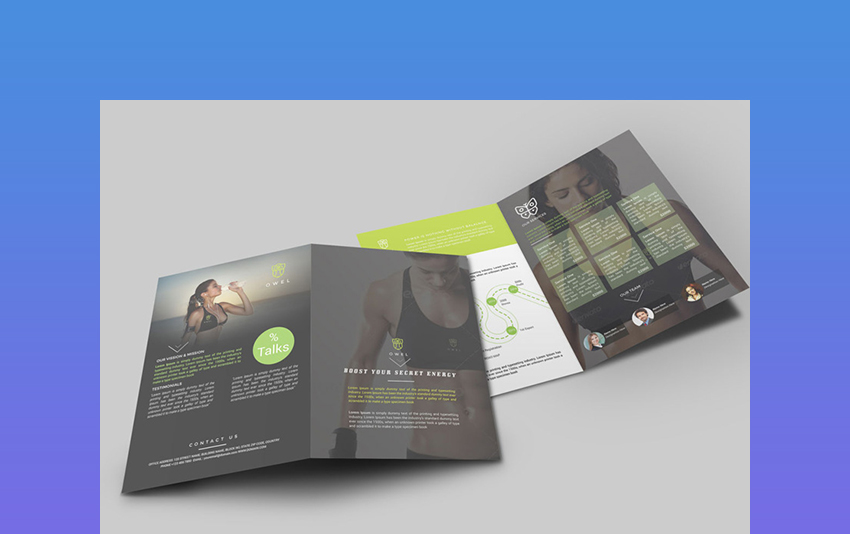
Let’s take a look at the creative options you’ve got in 2019 when it comes to brochure design. We’ll explore some of the best InDesign templates available from Envato Elements and GraphicRiver.

The Best InDesign Brochure Templates on Envato Elements (With Unlimited Use)

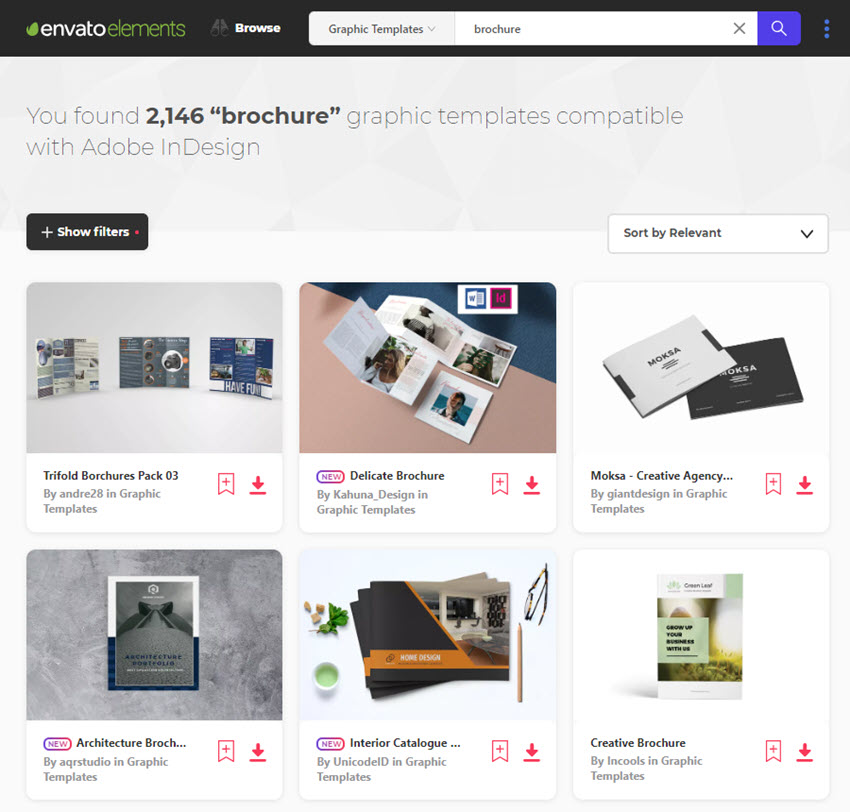
Discover tons of well-designed InDesign brochure templates on Envato Elements, with a great offer: download as many as you want for one low price.

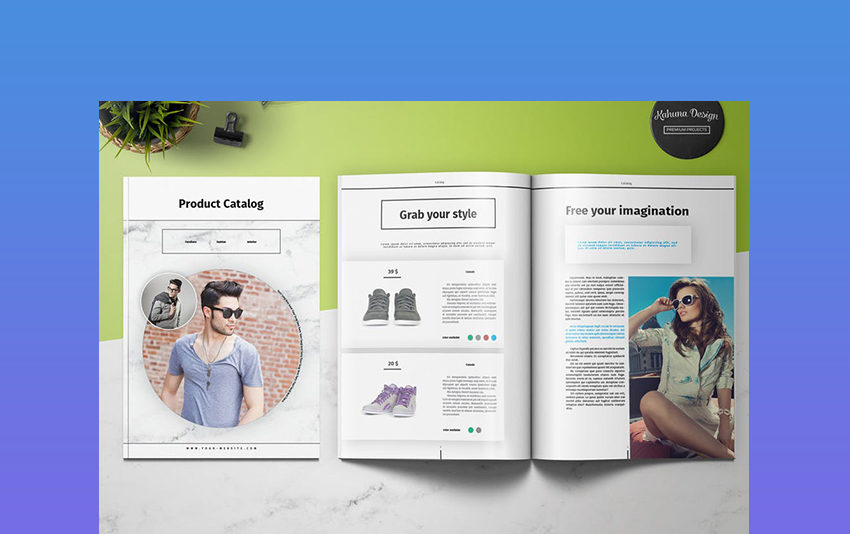
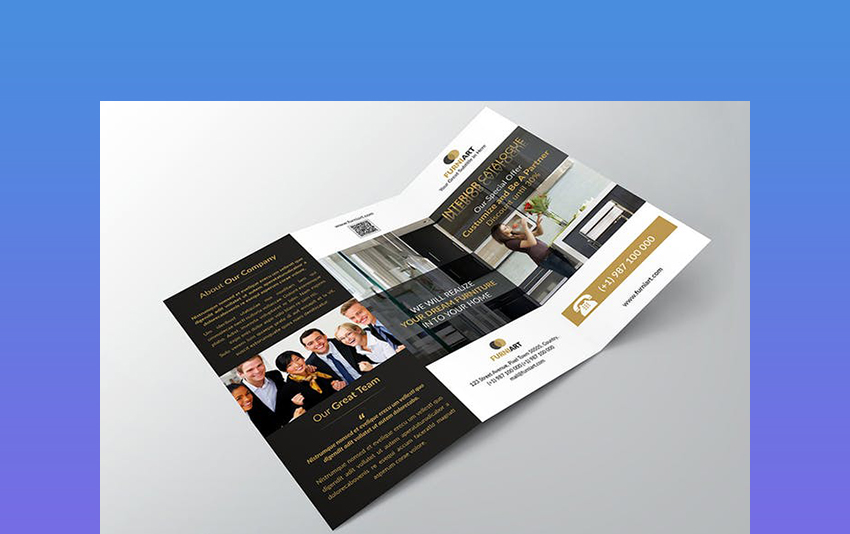
Each of these top creative marketing brochure ideas from Envato Elements has tons of professional and creative design options. While stacked with pro design features, they’re also quick and easy to work with. 

When using a premium template, you’re sure to get a high-quality template. When you use a free template, you don’t know what kind of quality you’re going to get. So, download a premium template from Envato Elements to save time to be sure that you’re getting a high-quality template.

Creative Marketing Brochure Ideas on Envato Elements for 2019
Creative Marketing Brochure Ideas on Envato Elements, for 2019.

Brochures help you get more customers by boosting your credibility. They’re still one of the most effective ways to market your business. Here are just of few uses for brochures:

  • Local clients that you meet with in person will expect you to hand them printed ad material like brochures because that’s what a legitimate business does. They want something visually engaging to take home with them, that they can easily refer to, which highlights your best messaging and key offers. Without brochures as part of your marketing arsenal, your trustworthiness and effectiveness simply drop off.
  • Smart small business owners use brochures in conjunction with a well-planned digital-marketing campaign for the greatest effectiveness. You can also attach brochures as PDFs to your emails or distribute them from your website.
Adobe InDesign Brochure Template
One of many Adobe InDesign brochure templates that’ll look good printed or attached as a PDF to your emails.

Entrepreneurs, designers, marketers and creative agencies can all benefit from using brochures as part of their advertising, too. Why not use one marketing tactic to complement another?

Grab one of these best InDesign templates and increase your marketing results. These easy to customize and editable InDesign brochure templates help you create clean and modern brochures.

Just add your company logo, text, images and preferred colors to these already visually-impactful creative business brochures. Swiftly complete your marketing project with one of these professionally created creative business brochures. Print your brochure and you’re all ready to impress. It’s that easy!      

5 Creative Marketing Brochure Ideas 
(New From Envato Elements – For 2019)

Here are a handful of Adobe InDesign templates for 2019 (with creative and professional designs to represent your brand) that are trending on Envato Elements:

1. Product 4P Brochure InDesign

Product 4P Brochure InDesign

This creative business brochures template is based on a 12-column grid. It was designed as a universal template. Use it for any type of business content. Contains the components you need to create a professional brochure.

2. Creative Business Brochures Template Vol.16

Creative Business Brochures Template Vol16

With its top-notch professional design, the Creative Business Brochures template will help you to effectively promote your business. Use 12-page design for any type of promotional project.

3. Portfolio – Best InDesign Brochure Template

Portfolio  Best InDesign Brochure Template

This professional and clean InDesign brochure template is a great choice for many different types of businesses. All 20 A5 pages can be edited and customized to meet your needs. You’ll love this brochure created InDesign.

4. Creative Agency – Square Portfolio Brochure

Creative Agency Square Portfolio Brochure InDesign Template

Use the Creative Agency brochure InDesign template Vol2 for any type of creative business where a portfolio is needed such as in photography, design studio, web development and many more. The minimalist information flyer template and clean-cut design also works for many other industries.

This brochure will effectively showcase the work you’ve done. It comes with a 24-page catalog portfolio that includes an about section, a portfolio section, an illustrator section, and a photography quote. Customize the template colors according to your brand. 

5. Georgyno – Elegant Trifold InDesign CC Brochure Templates

Georgyno  Elegant Trifold InDesign CC Brochure Templates

Here’s one of our most elegant InDesign brochure templates. This creative, clean, minimal and professional trifold brochure works well for modern companies, businesses, groups, organizations and corporations. This template is a wonderful multipurpose brochure design Adobe InDesign template. Use this creative business brochure for various marketing projects such as catalogs, products, art, portfolios, photography, food—or any other need you’ve got.

Envato Elements (Unlimited Design Assets)

Envato Elements - Unlimited digital assets for one low price
Envato Elements – Unlimited digital assets for one low price.

Envato Elements has a single compelling (all inclusive) offer:

Sign up for Envato Elements and you get access to thousands of creative graphics and templates (with unlimited use), from brochure design InDesign templates to royalty free audio tracks, and more—all for one low price.

Get unlimited downloads from a massive digital warehouse of creative assets
Get unlimited downloads from a massive digital warehouse of creative assets.

That’s right! Download as many creative templates, graphics and royalty free audio as you want, then customize them to fit any of your project needs.

While Envato Elements is a powerful option, if you prefer to buy a new brochure design InDesign templates one at a time (instead of getting unlimited access to hundreds of creative designs), check out the selection from our Envato Market below.

Best InDesign Brochure Templates for 2019 on Envato Market (Buy It One At A Time)

We also have you covered if you need to buy InDesign CC brochure templates one at a time, in our brochure InDesign template category of GraphicRiver, which is part of our Envato Market. Here are a few of the best InDesign brochure templates from our best-selling creative marketing brochure ideas from this year (2019):

Business Flyers on GraphicRiver
Some of our best InDesign brochure templates for 2019, available for sale on Envato Market.

25 Creative InDesign Brochure Templates (GraphicRiver)

Here’s a detailed rundown of our best-selling, most creative InDesign business brochure templates on GraphicRiver from this year:

1. Portrait Brochure • Elegant Series

Elegant Series

This brochure has a modern and elegant design. With the flexible design of this business proposal template brochure, you can easily customize the information flyer template to fit your needs. This template comes with 16 pages. This template comes in two sizes A4 and letter size and is print ready. You can use this template in Adobe InDesign CS4 and above.

2. Brand Logo Guidelines Template

Brand Logo Guidelines Template

This business brochure template is perfect for any company just starting out or an established company that’s looking to rebrand. All 20 pages of this brochure are customizable. This template comes in A4 landscape style. Any colors can be changed with just one click.

3. The Company Profile InDesign Template

The Company Profile InDesign Template

Impress your leads and clients with this powerful and effective marketing brochure. With a minimalist design and a contrasting color scheme, its bold look will capture the attention of your readers in no time flat. 

Easily communicate what your small business is all about and what your product or service can do for your target market. It comes in two sizes, A4 and Letter, and is compatible with Adobe InDesign CS4, CS5, CS5.5 and CS6.

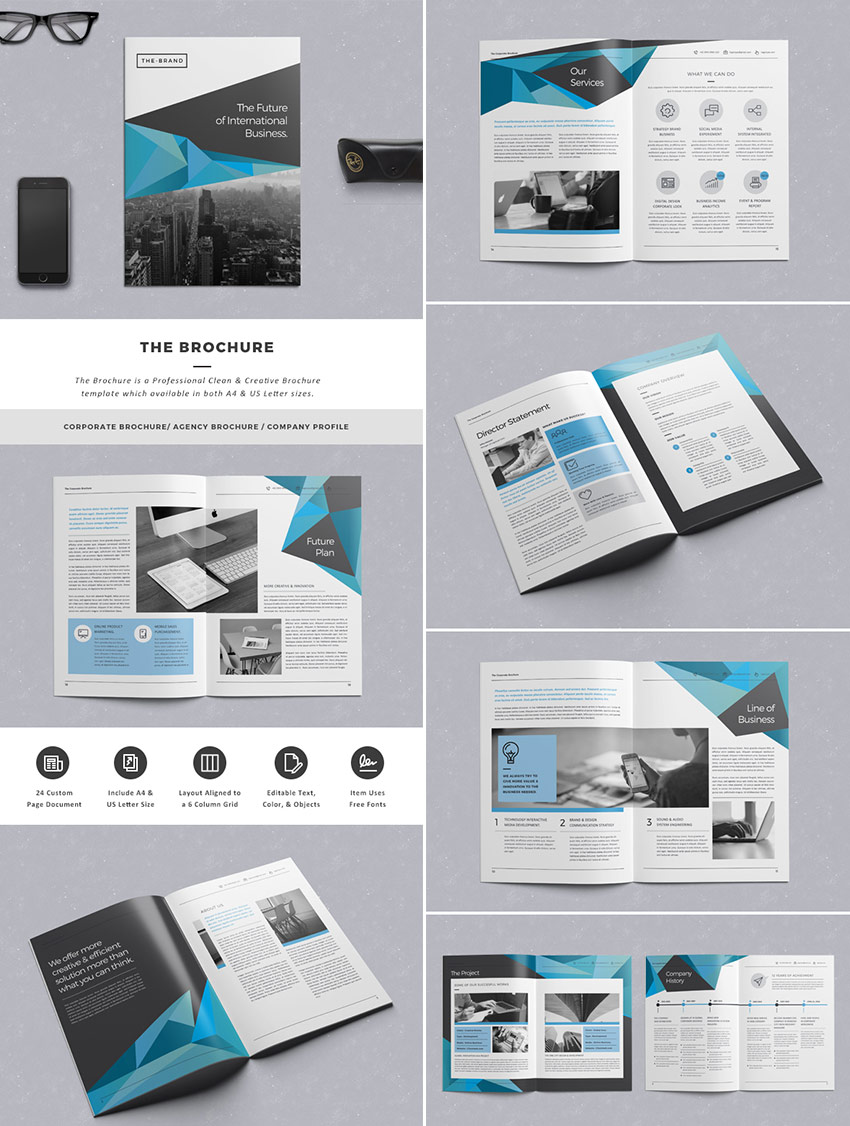
4. The Brochure – INDD Print Template

The Brochure - INDD Print Template

Creative and clean in its presentation style, this professional brochure is a highly effective way of conveying your marketing message. Featuring generous white space and padding, the layout makes it easy for your readers to absorb and retain information. 

Its creative layout is ideal for any type of small business, agency, designer or marketer to use to land more clients. It’s print-ready design is set up in both A4 and US letter sizes. It’s compatible with Adobe InDesign CS4, CS5, CS5.5 & CS6. It also has vector graphics, free fonts, and more packaged inside the information flyer template files for easy customization.

5. Company Profile InDesign Square Brochure

Company Profile Square INDD Brochure

If you’re looking for a unique take on the marketing brochure, try this square company flyer template in all its aesthetic effectiveness. Its grid-column layout increases the readability of your marketing message, making it likelier that your audience remembers key points of information. 

Its bright and eye-catching design is suitable for showcasing the creativity of your small business. With 20 customizable pages, this square brochure puts you in control of your print marketing.

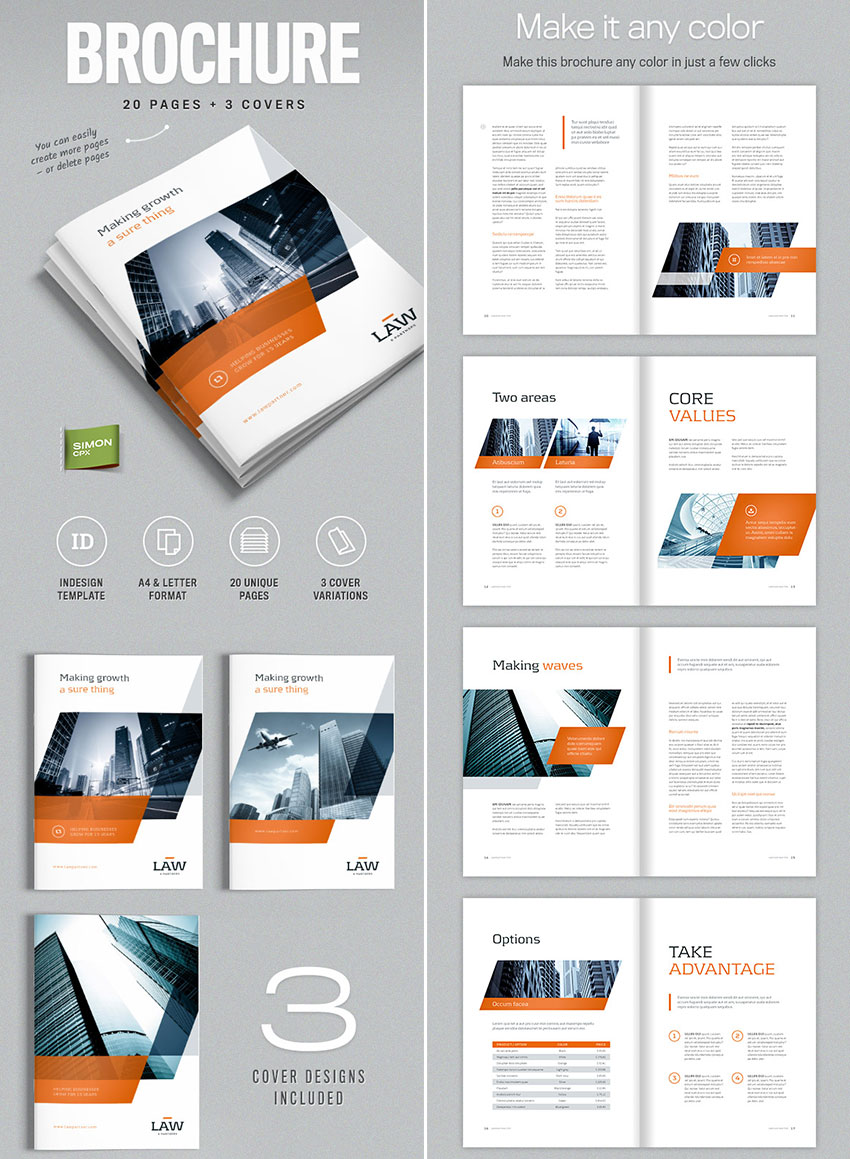
6. Brochure Template for InDesign – A4 and Letter

Brochure Template for InDesign - A4 and Letter

As far as InDesign brochure templates go, this one has you covered with 20 pages and three, unique covers. Showcase your latest products or services to your target market, or simply humanize your small business by featuring various employees that work for you. 

Whatever you choose to do, this brochure’s clean and sophisticated look makes your marketing message more attractive and persuasive. You can even extend its use as a PDF email attachment or distribute it as an online brochure.

7. Company Profile Brochure – INDD Template

Company Profile Brochure - INDD Template

This creative company brochure template features 24 pages of fully customizable content, is print-ready, and requires a minimum of Adobe InDesign CS4. 

Its easy editing capacity makes it quick to use, as you can tailor your marketing approach to how you see fit in snagging more leads and clients. Its cool, blue, color tones, and triangular design elements make it stand out with a modern creative design. It comes in A4 paper size.

8. Trifold Brochure – InDesign Template

Trifold Brochure - InDesign Template

With a classic quality brochure design, this trifold layout has stood the test of time, and is still ideal for your marketing efforts. Put the power of your messaging communication directly into the hands of your clients and customers with this clean and well-thought-out design. 

Readers will appreciate the beautiful tracking in between letters of the typeface for maximum legibility. Featuring full editing capabilities and two fonts (Roboto and Montserrat), this creative template is ready to go!

9. 2-in-1/Corporate Brochure + Annual Report

2-in-1 Corporate Brochure InDesign Annual Report

Available in bold, striking cover colors, this InDesign brochure template satisfies both your marketing and report-tracking needs. It comes with 36 pages in total, all of which are subject to full customization, so that you can get your marketing message across just the way you want it! 

Some of its attributes are three unique color schemes, four distinct fonts, print-ready status, and various character and paragraph styles from which to choose.

10. Multicorp Brochure Template – INDD

Multicorp Brochure Template INDD

Suitable for all sorts of small businesses, this corporate style template is the difference between delivering your marketing effectively and failing to successfully tell the marketplace about your product or service. 

Everything on this company flyer template can be efficiently customized to your liking, from the typography to the content’s messaging. The designs inclusion of many images adds to the legible quality and creative feel. It’s available in Letter and A4 sizes.

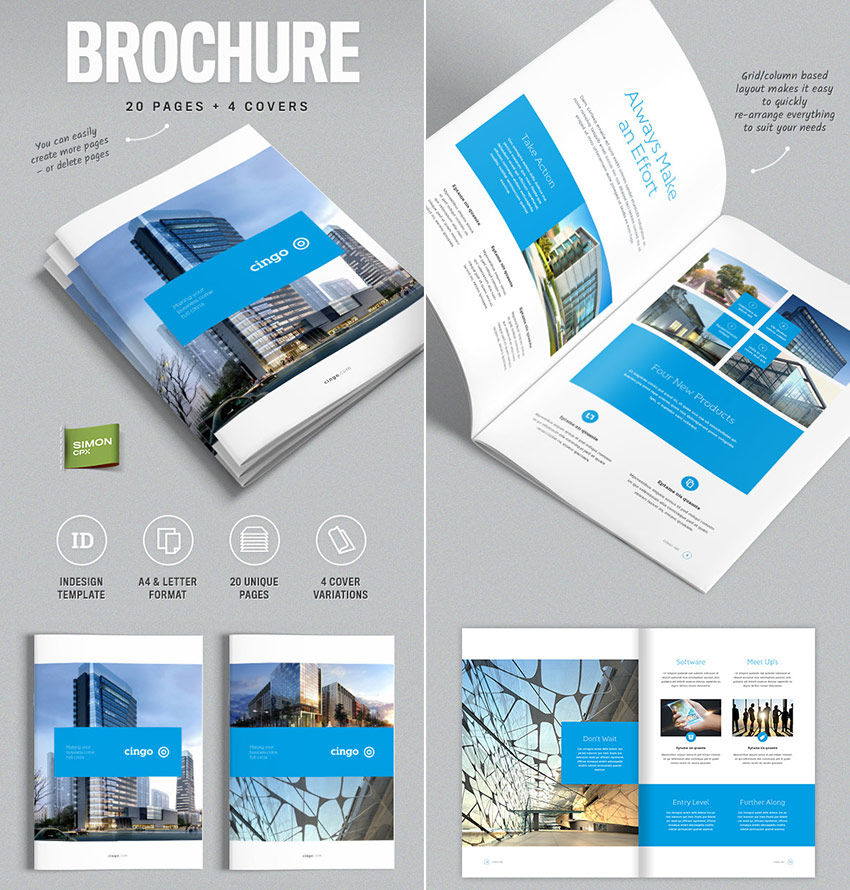
11. Brochure Template for InDesign – Cingo

Brochure Template for InDesign  Cingo

Empowering you to create or delete pages at will, this handy brochure template comes with 20 unique pages overall. This makes it well-suited to handle your marketing message, whether that’s explaining your newest product launch or simply telling customers about the culture at your small business! You only need a minimum Adobe InDesign version of CS3 to make this work, and it comes with print-ready colors.

12. The Business Brochure Template File

The Business Brochure Template File

Using copious color contrast to highlight the most important elements on a page and guide the readers’ eyes, the Business Brochure is a great example of both a creative and clean template that’s designed for multipurpose use. 

It features free fonts, 24 pages in total, a six-column grid layout, full customization of text and colors, and Letter and A4 sizes. Educate your consumers about your products just as easily as you share your company profile and spread your brand!

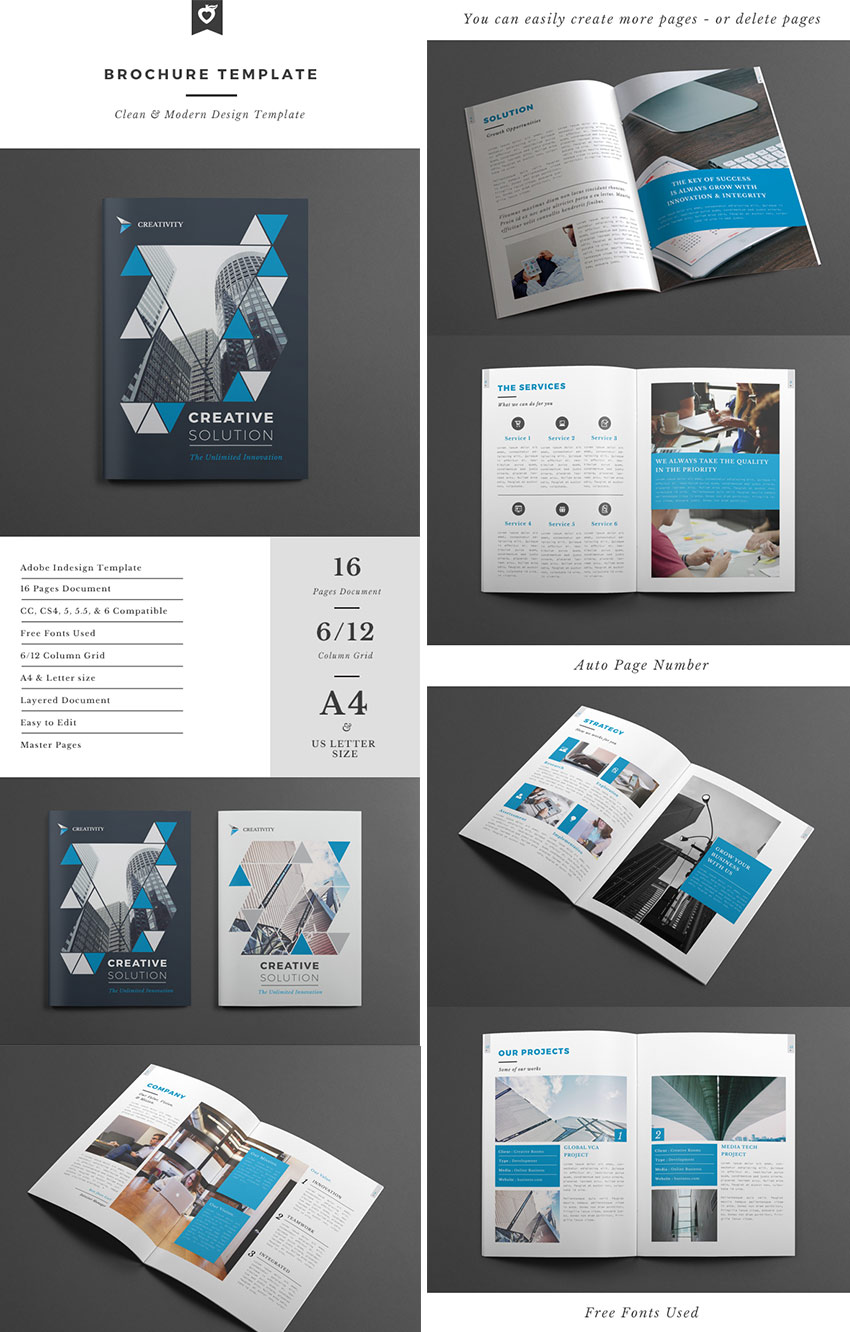
13. Creative Business Brochure Template

Creative Business Brochure Template INDD

This 16-page document is sure to solve your promotional needs. Presented in a 6/12 grid column and armed with various free fonts, this brochure template has quality appeal to your prospects’ aesthetic side. 

Since this brochure design is fully editable, you can be sure to communicate your small business brand exactly the way you want to your leads and customers. With generous white space and tracking between letters, your marketing message comes through loud and clear!

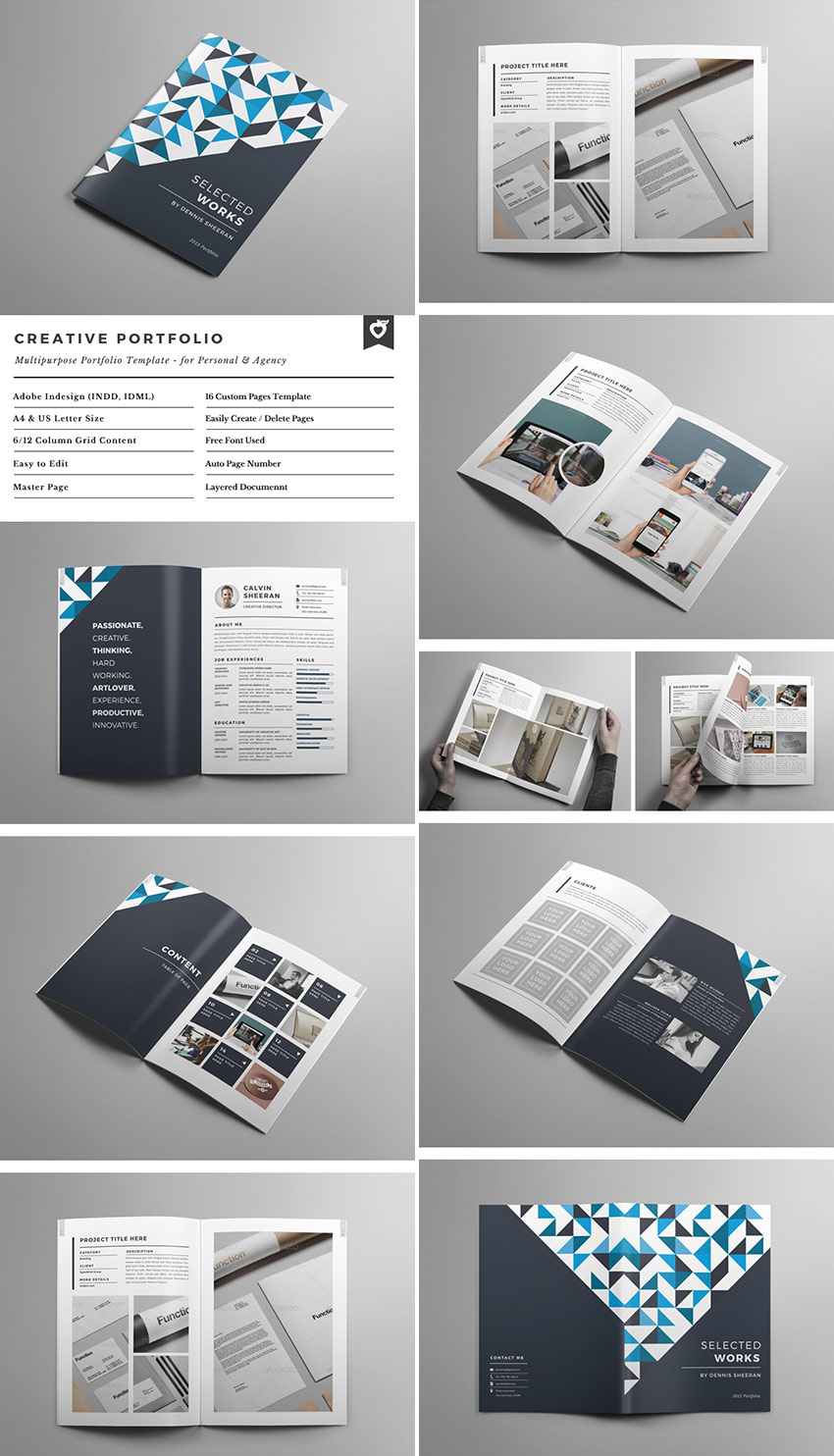
14. Creative Portfolio Brochure – INDD

Creative Portfolio Brochure INDD

This layered document gives you the opportunity to make your business shine. Its 16 pages are totally customizable, so you’re in 100% control of your print advertising campaign. 

Show off this brochure to leads, or even use it as part of a strategic, direct-mail campaign to increase your brand awareness for your small business. However you use it, know that it’s going to make a great impression for your brand in the marketplace.

15. The Trifold Modern Brochure Template

The Trifold Modern Brochure Template

Modern, sophisticated and eye-catching, this trifold brochure relies on a classic layout and combines it with today’s sleek design to create a great product flyer template for your print advertising campaign. 

Due to its multipurpose design, this template is a great fit for any small business in any industry. Its fully editable scheme lets you customize it to the marketing message that you want to send out to your developing client base. It comes with free fonts and in size A4.

16. Go Creative InDesign Trifold Brochure

Go Creative InDesign Trifold Brochure

With a classic style of brochure design, this trifold layout is easy to handle and turn over in your readers’ hands. This brochure is a convenient way to promote your small business and control your marketing message. 

Its stand-out, red color strongly contrasts with the neutral tones of the brochure, ensuring that your message pops and can’t be missed by your target audience! It features easy-to-edit pages, organized layers and print-readiness.

17. Multipurpose INDD Corporate Brochure

Multipurpose INDD Corporate Brochure

No matter what industry your small business is in, you can efficiently adapt this brochure template to your marketing message and target customers. InDesign brochure templates like this one are completely customizable, so that you can ensure full control of your promotional advertising. 

Tell your customers about new products, services and your small business philosophy. It comes with four free fonts and is print-ready for immediate use.

18. Brand Manual and Identity InDesign Template

Brand Manual and Identity InDesign Template

Every business comes to the point of growing and scaling. To keep your message and standards consistent, you must establish a clear brand manual. You can do that with this brand manual and identity template with 40 different pages and detailed documentation.

19. Proposal and Portfolio InDesign Template

Proposal and Portfolio InDesign Template

If you’re looking for a clean and professional look to represent your business, look no further. Use this minimal and professional 36-page proposal brochure template designed for creative businesses. It’s compatible with Adobe InDesign, Microsoft Word and Apple Pages in International DIN A4 and US Letter format.

20. Corporate Business Brochure Template

Corporate Business Brochure Template

You can’t go wrong with this professional, clean and modern 16-page corporate business brochure template. Just drop in your own pictures and texts, and it’s ready for print. Or use it as a professional online PDF or email attachment.

21. Annual Report InDesign Template

Annual Report InDesign Template

An annual report is a comprehensive report on a company’s activities throughout the preceding year. Annual reports are intended to give shareholders and other interested people information about the company’s activities and financial performance. With this 26-page InDesign template, you’ll have your report ready in no time.

22. How We Look – Brand Guidelines InDesign Template

How We Look - Brand Guidelines InDesign Template

Here’s another brand manual InDesign template you can use for your business. The brochure template includes logo, color, typography and style guide pages so you can easily customize to fit your needs.

23. A3 + A4 Trifold Brochure + Business Card

Brochure Template

This business proposal template can be bifold or trifold. Along with the brochure you get a information flyer template and business card template. This presentation flyer template set ensures that all of your materials match. This template can be used in Adobe InDesign, Photoshop and Adobe Illustrator. This template has a nice clean design that makes it easy to read.

24. Brochure Pack A4 Trifold Leaflet Business Card

Brochure

This brochure template is a four-page template that comes with a bifold brochure and trifold brochure. Along with the bifold and trifold brochure you get a company flyer template and a business card template. This gives you the chance to have all your media match your brand. You can easily edit this print ready brochure in Adobe InDesign, Photoshop and Adobe Illustrator.

25. A5 Brochure

A5 Brochure

This brochure template is an eye-catching multi-purpose template. You can fully edit the template from the layout to the colors. This brochure is great if you’re looking for a minimal and clean design. You can easily edit this print ready brochure in Adobe InDesign, Photoshop and Adobe Illustrator.

How to Design a Brochure for Powerful Marketing Results

Our wonderful collection of Envato Market InDesign brochure templates offers small businesses of all industries the marketing tools they need to succeed. 

Even in today’s digital marketing-obsessed world, print ads like brochures are still consistently effective. By placing something palpable and substantial into your customers’ hands, they can easily refer to it and get in touch with your small business at any time.

But even with a high-quality template, you still need the design savvy to correctly frame your marketing message within your brochure.

Here are a few quick pointers to ensure you’ve got the best brochure design:

1. Design for Your Prospects

IMPALA - InDesign Brochure Template
When designing for your prospects don’t forget to keep their interests in your mind instead of your preferences.

Make the brochure about your leads and potential customers instead of all about your brand. By positioning your small business as the solution to your prospects’ problem, you stand to persuade them to choose your business with greater success.

2. Write Stellar Sales Copy

Often an afterthought in brochure design, nailing the copy is essential to your messaging success. What does that mean? Make sure the font is readable, there’s adequate spacing between letters, the copy is chunked into smaller paragraphs, and sentences communicate your brand’s benefits and value proposition clearly.

3. Make It Evergreen

Company Profile InDesign Template
This evergreen InDesign template can be used over and over again.

Focus on timeless information if possible and make it so useful that your readers want to keep or share the brochure. Some things you may want to include are checklists, cheat sheets and any other useful information in your industry that’ll be relevant in the years to come.

4. Include a Strong Call-To-Action

No matter how beautiful your brochure design and smart your copy, always include a clear call to action. Don’t leave it to chance and make sure your potential clients take action right away before they forget about you forever.

5. Present With High-Quality Graphics

Company Brochure

Wow your readers right off the bat. Use high-quality, professional images in your brochure, and ensure that your brochure’s appearance is appropriate for your brand positioning. For instance: 

Learn more about how to make a creative business brochure in this ultimate guide, whether from a template, or from scratch in InDesign: 

Learn More About Brochures & Other Print Documents

Still have questions? Still looking for a information flyer template that catches your eye? If you want to learn more about brochures check out the links below:

Grab a Creative Brochure Template Today!

Now’s a great time to add marketing brochure templates to your pipeline. Put together a piece of sales literature that your potential clients can take home with them, or that you can email to their inbox. 

There are plenty of ways to create that professional and modern brochure with these easy to use brochure design Adobe InDesign templates. Browse our wide-selection of brochure design InDesign templates for 2019 from Envato Elements, or Envato Market and grab the ones that are right for you and get to market your brand with a creative professional touch.

Editorial Note: Our staff updates this post regularly—adding brochure design InDesign templates with the best new creative and professional designs.

{excerpt}
Read More

Best Fonts for Dyslexia

Dyslexia

Our job as graphic designers is to design legible, clean, and aesthetically pleasing printed and digital pieces. We’ve spent years studying the best fonts for legibility and learning how to use grids for a balanced design and color psychology. 

But, we must ask ourselves, are we overlooking some groups when we designing a project? Part of our job should also be creating accessible content to engage a wider and more inclusive audience. About 17% of the world’s population are classified as dyslexic, so why aren’t we paying more attention to making design accessible to more people?

In this article, we’ll look at the relationship between dyslexia and design. I’ll outline a few layout tips that you can include in your next project to improve its accessibility. I’ll also provide you with a list of dyslexia-friendly fonts that can help reduce some processing errors for dyslexic readers. 

What Is Dyslexia?

Dyslexia is a common learning difficulty that affects an estimated 17% of the world’s population. It’s a neurological learning disorder in which some of our brains have trouble identifying letters and words and matching them up with sounds. This results in slow reading and can have other secondary consequences like understanding what’s being read and remembering information.

The way designers treat content, font choices, typographic details and color combinations can affect the way a user with dyslexia experiences a printed piece or a website. The most common problems for dyslexic readers are due to letters swapping, mirroring, and melting together. 

Daniel Britton, a student at the London School of Communications, was diagnosed with dyslexia in his last year of university. Britton designed the font Dyslexia to show the difficulties dyslexic readers face when trying to read text. Using Helvetica, one of the most readable typefaces, as a base, he reduced each character’s anatomy to have just enough information to decode it. The result is a font that can cause readers the kind of stress and frustration that dyslexic readers face every day. 

Dyslexia shows the difficult dyslexic readers face everyday
Dyslexia shows the difficulties dyslexic readers face every day

Type Specifications

You have a plethora of fonts to choose from, and they all come in different weights, heights, widths, and shapes. Many people with dyslexia find some fonts easier to read than others. For most non-dyslexic people, fonts that include serifs (e.g. Times New Roman or Garamond) are easier to read due to the “feet” that help connect one letter to the next. 

For people with dyslexia, serifs tend to melt the shapes of the letters. In this case, sans serif fonts (e.g. Arial or Comic Sans—yep, you read it right) are preferred because each character can stand on its own, and they look the most similar to handwriting. However, there are a few sans serif fonts that can be more difficult to read than others. 

There are some letter combinations that can cause confusion—for instance, pairs like “rn” and “m” look too similar in shape, or a capital “I” can be mistaken for a lowercase “l”. Ascenders and descenders on letters like “b” and “p” need to be prominent as many dyslexic readers rely on remembering visual shapes. Mirrored letters like “b” and “d” can slow down reading. 

So how can we help? There are some characteristics that can help with legibility. When you are designing print or on-screen work, pay special attention to these points:

  • Use a larger than usual font size, between 12 and 15 points.
  • Avoid using all capitals as they can blend in together. 
  • Italics and underlined words are also found to impair reading.
  • Set headings to be 20% larger than the body copy. 
  • Set the style of headings to bold to help distinguish it from the rest of the text. 
  • Keep text aligned left and use an appropriate column width (45–75 characters).
  • Avoid tight tracking and leading as letters and text lines can look as if they are merging. 
  • Use lightly colored backgrounds and avoid printing on glossy paper.
Some type anatomy that can cause confusion in dyslexic readers
Some type anatomy that can cause confusion in dyslexic readers 

Best Fonts for Dyslexia

Over the years, there have been several fonts designed specifically for dyslexic readers. There are two studies (Good Fonts for Dyslexia and the thesis Special Font for Dyslexia?) that looked into the effect of using exclusive dyslexia-friendly fonts amongst students who have the disability. Both dyslexia font research papers didn’t find significant improvement in using special fonts, but they may help with some related errors. It is important to say that dyslexia isn’t the same for everyone—some may experience it differently than others. 

You can use the following fonts for printing or on screen (computer and even smartphones!). Let’s take a look at some of the dyslexia-friendly fonts that have been developed in the last few years:

Dyslexie

Dyslexie was specially developed and designed for dyslexic readers by Christian Boer in 2008. While it is informal, it was originally designed to make learning more fun. In this font designed for dyslexia, each letter is individually shaped so every character is unique to avoid confusion with other characters that might look similar.

This dyslexia-friendly font includes higher x-heights, large openings in each character, and longer ascenders and descenders. A few of its special features are bold punctuation marks to emphasize when sentences start and end and different heights for letters that look alike (v, w, and y) to avoid letter swapping. 

dyslexie is a dyslexia friendly font
Dyslexie

Open Dyslexic

Open Dyslexic is a dyslexia-friendly font designed to reduce a few of the common errors caused by dyslexia. This open-source font includes several font styles: regular, bold, italic, bold-italic, and even a monospaced style. 

This font is an optional choice in many websites and formats such as Wikipedia, Kobo eReader, Amazon Kindle, and a few children’s books. You can also find instructions on their website to install this dyslexia-friendly font on Android. 

open dyslexic is a font designed for dyslexia
Open Dyslexic

Sylexiad

This dyslexia-friendly font was developed by Robert Hillier from the dyslexic point of view and for adult dyslexic readers. As part of his research, observation and tests with non-dyslexic and dyslexic individuals, Hillier has found new knowledge within the field of dyslexia typographic research. 

This font includes a combination of handwritten style, long ascenders and descenders, uniform strokes, and generous word spacing.

sylexiad is a dyslexia font
Sylexiad

Read Regular

Read Regular was designed by Natascha Frensch. She took an individual approach to the characters and designed distinct shapes to create even more differentiation to avoid mirroring. 

The design of the overall font is clear and simple. She eliminated unnecessary details like the two-story “a” and a two-eyed “g”. The ascenders and descenders are longer than usual to avoid confusion. The counter space is more open to prevent it from visually closing. 

read regular type design specifics
Read Regular

There are a few other fonts that already come installed in our computers that are dyslexia-friendly. As I said before, none of these fonts will completely solve or cure dyslexia, but they can help make something. Some of the fonts that the British Dyslexia Association recommends are the following:

Arial

Fonts like Arial have been used by dyslexic and non-dyslexic readers for a long time. This popular font is available on both Windows and Mac computers. The sans serif font has soft curves and open counters, making it easier to read. Arial is evenly spaced and plain.

arial has open counters making it dyslexia friendly font
Arial

Comic Sans

While not loved by many designers, Comic Sans is doing something right. The AIGA mentioned it as the best font for dyslexia due to the variation in character heights. Comic Sans is not a designer’s first option—it looks unprofessional and childish—but we can’t ignore the fact that it is working for some readers. 

While other fonts use a repetition of some shapes for many characters, Comic Sans only repeats itself once (mirrored “b” and “d”). For this reason, Comic Sans makes its characters easily distinguishable.

comic sans is amongst the best font for dyslexia
Comic Sans

Verdana

Verdana was designed to be readable at a small size. Verdana has a large x-height—this could be why it is so popular amongst dyslexic readers. It also includes wide proportions compared to other sans serif fonts and loose tracking, which helps when dyslexic readers need to identify separate letters. 

Since Verdana has a large x-height, it allows for wide apertures and keeps strokes separate from one another. Characters that might look similar in other fonts are designed to do the opposite in Verdana—this increases legibility in body text. 

The uppercase “I” has two horizontal strokes at the top and bottom, helping to differentiate it from the lowercase “l”. Additionally, the number 1 includes a horizontal stroke at the bottom to set it apart from both aforementioned letters. 

verdana is a dyslexia friendly font
Verdana

How Can We Help?

In the last few years, we’ve seen an improvement with web accessibility breaking down barriers that prevent access to online content. From keyboard-friendly websites to images with alternative text to resizable copy, these small steps help greatly. 

As designers, we can help improve our projects for wider inclusivity. While there isn’t a “one size fits all” solution due to the fact that dyslexia is different for everyone, we can surely take some steps. 

I’ve mentioned a few tips that can help you design more carefully by keeping in mind your audience. I’ve also listed fonts that are specifically designed for dyslexic readers and some that are already included in your operating system. While they might not solve and cure dyslexia, they do help in reducing some of the difficulties that readers might be facing.

best fonts for dyslexia

If you liked this tutorial, you might like these:

{excerpt}
Read More

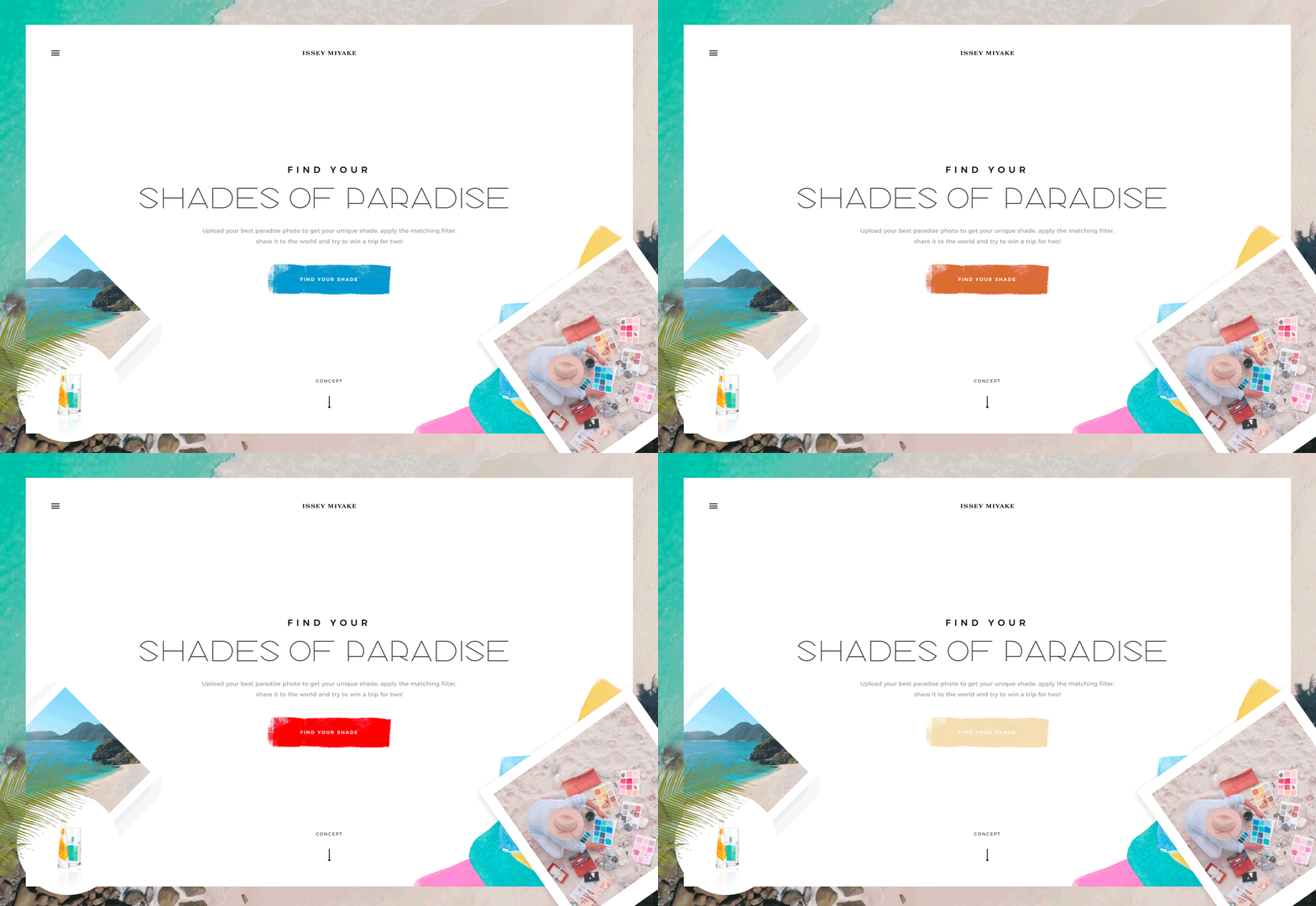
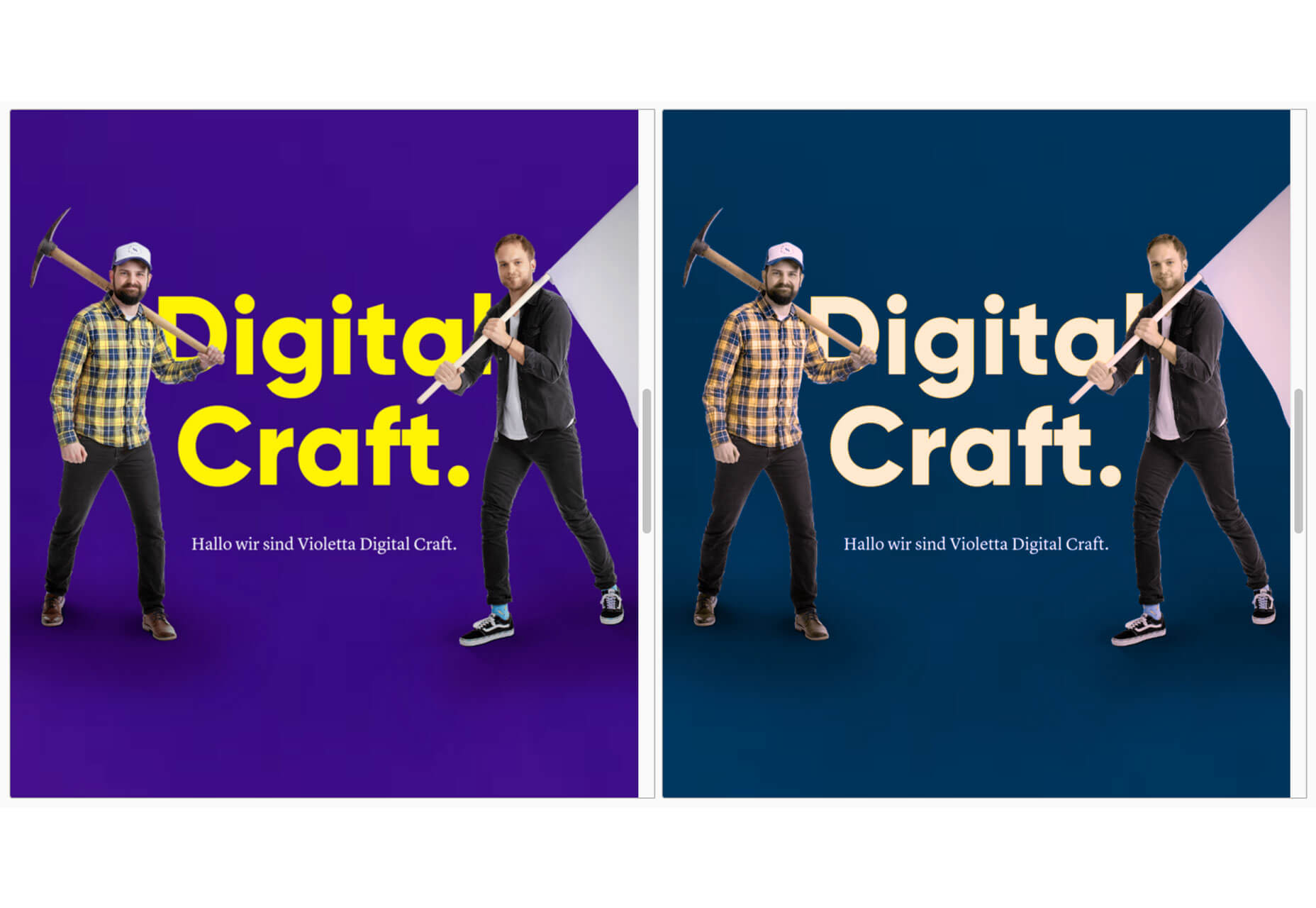
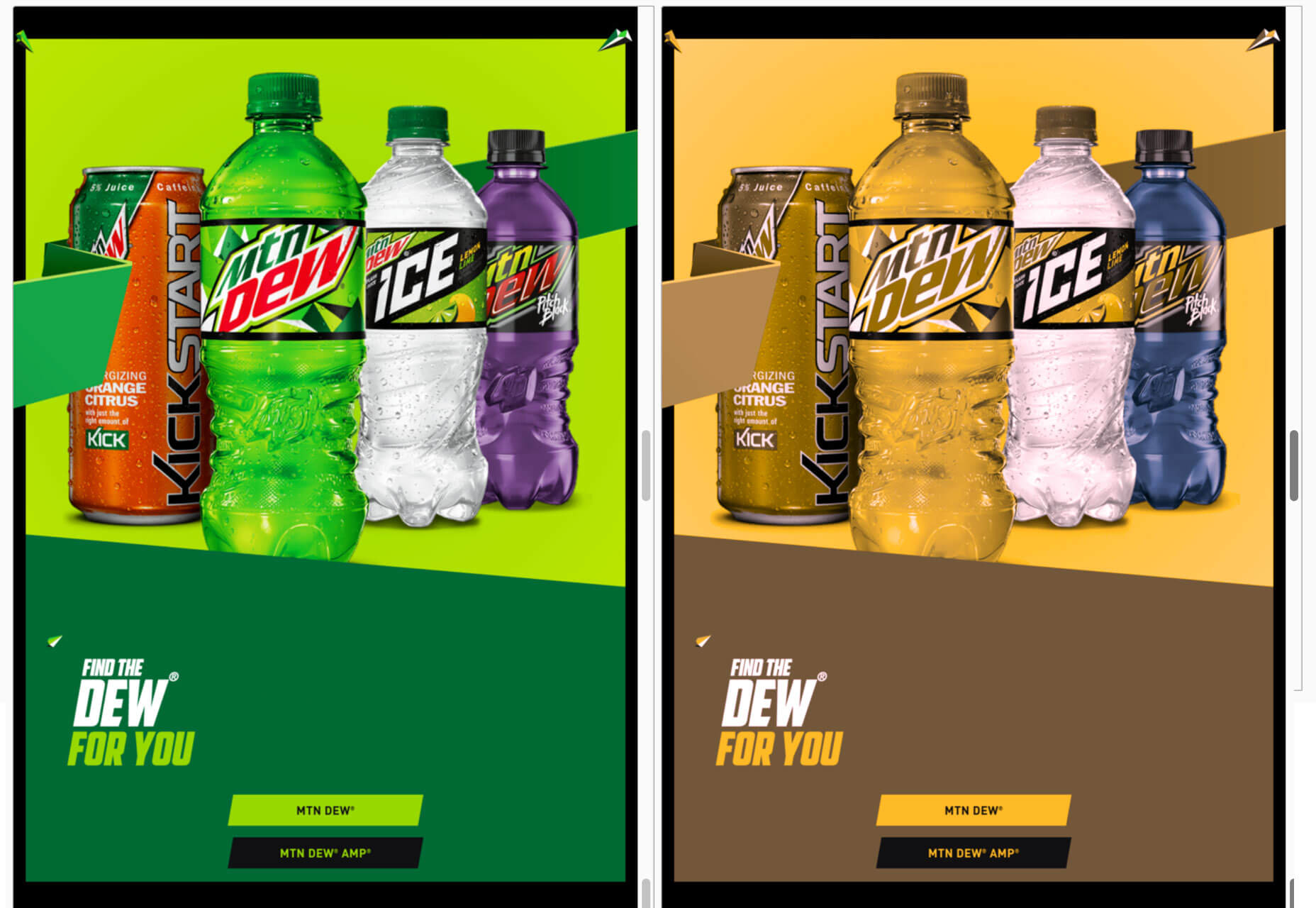
How Color Impacts UX

Let’s start with a common example: You’ve just finished a website design for someone. It looks and functions exactly like the wireframe. Everyone on the design team has praised the project. The client hates it, but they can’t explain why.

The culprit might be color. Different colors can evoke such strong emotions that people have sharp reactions to them. It’s part personal preference, part psychological, and even part social norms. Understanding these tendencies and user preferences can greatly impact user experience.

Here’s what you need to know.

User Expectations and Preferences

User experience starts with the type of user your website or app is designed for. Basic demographics such as gender or region where a user lives can impact their perception of your design based on color. (You can read more about color and cultural considerations here.)

One of the most interesting impacts from color on UX is linked to gender. Studies have shown that men and women tend to like and dislike certain types of color.

Men tend to interact more with websites that have darker design schemes and more saturated colors, such as the design for VLNC Studio, above.

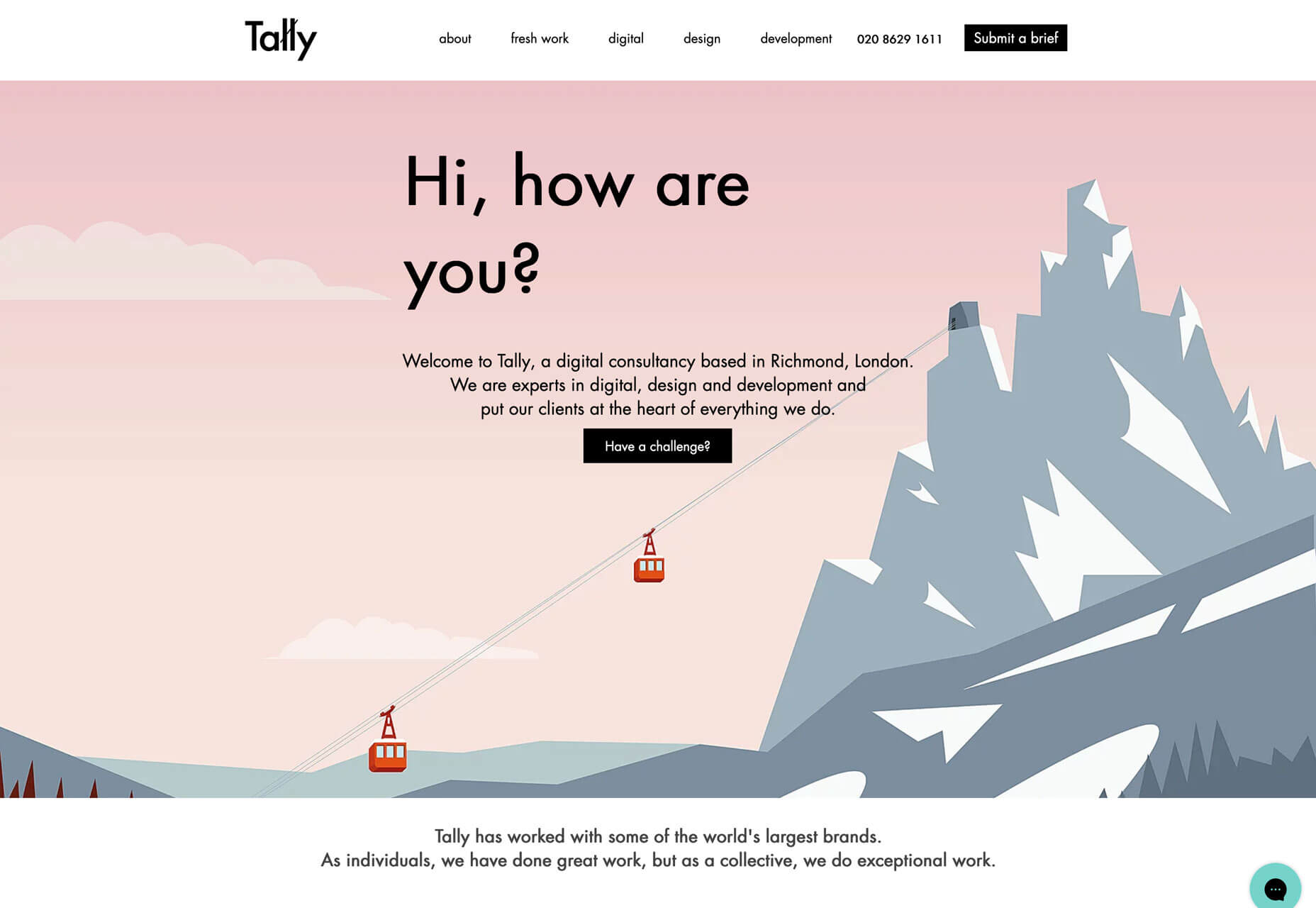
Women tend to prefer to interact with websites that have lighter design schemes and more muted color palettes, such as Tally, below.

Some men have a sharp reaction to websites using distinctly feminine colors such as pastel pinks, purples, and yellows.

More women tend to be put off by websites with harsh color schemes such as dark background with fully saturated red accents.
Mid-tone palettes are the most generally appealing to everyone.

Color Associations and Meanings

While it’s not an exact science, colors have fairly distinct emotional associations. Note that some colors can fall into categories of extremes. These associations tend to work with other design elements to create an overall vibe.

When a user sees a certain color or combination of colors, it creates an immediate response in the brain.

  • Red: Power, danger, love/passion, hunger
  • Yellow: Energy, happiness, light, warmth
  • Orange: Creativity, determination, stimulation, encouragement
  • Green: Nature, growth, harmony, freshness
  • Blue: Confidence, trust, serenity, calmness
  • Purple: Magic, royalty, ambition, independence

Establishing Brand Recognition

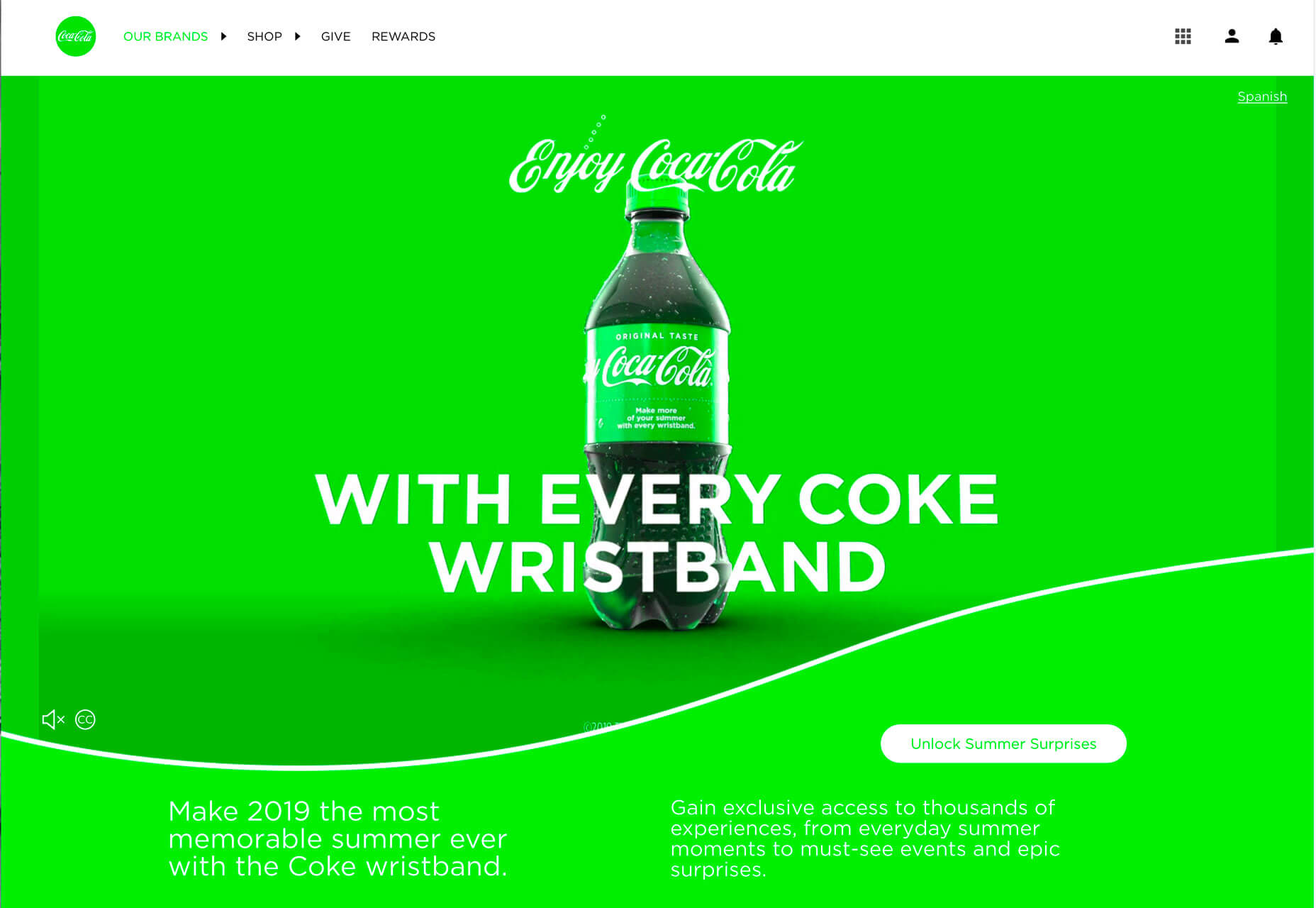
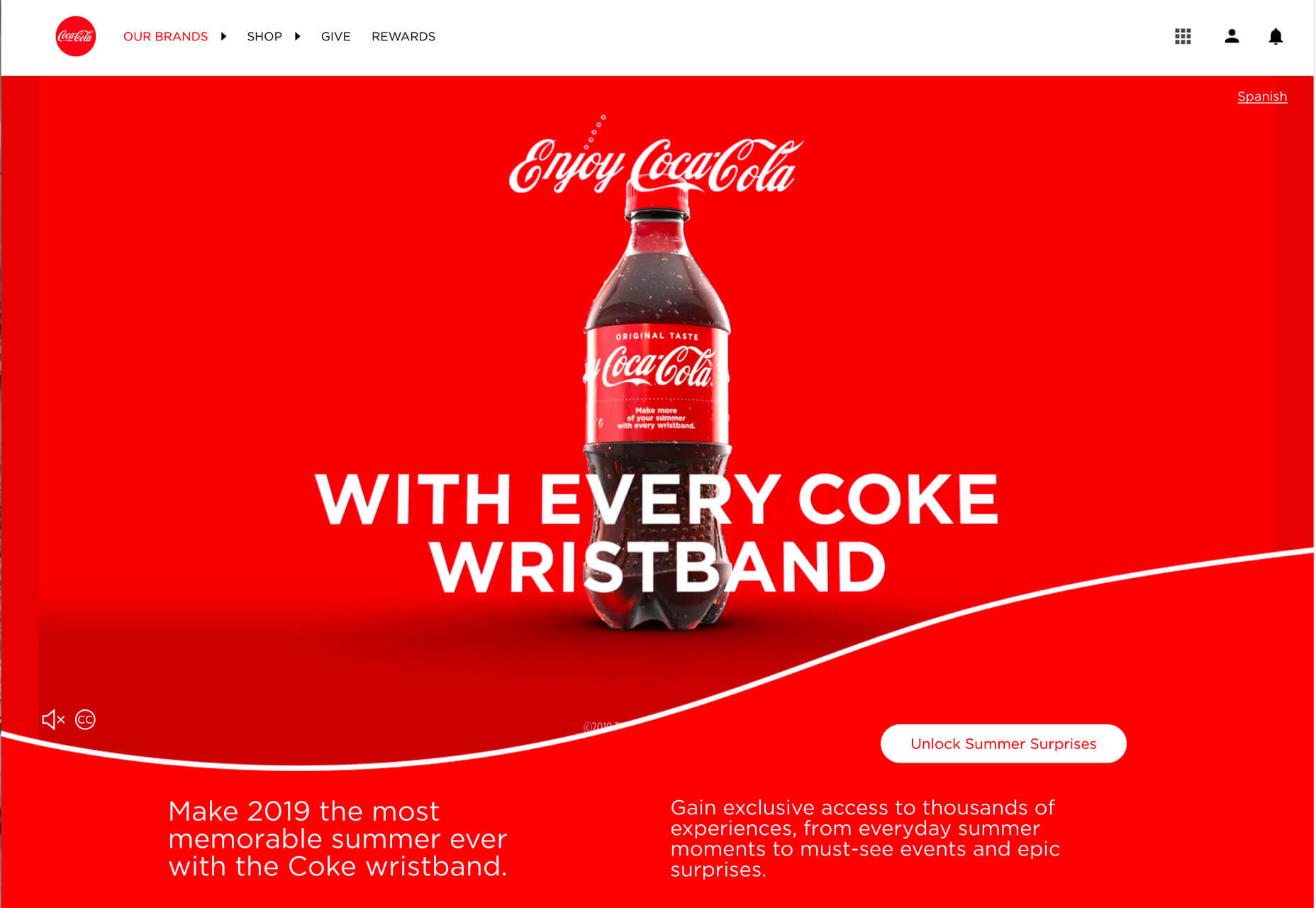
You expect design elements for Coca-Cola to be red. The color is so synonymous with the brand that it’s referred to as “Coke red.” Change the color and the brand is confusing. You don’t recognize it right away. The user is jarred and doesn’t quite react in the expected fashion. The drink might even seem to taste different.

All of those feelings come from changing the color. You might have felt yourself say “what?” when you saw the first image with green Coca-Cola branding.

It impacted the user experience you would have with the brand moving forward.

Color is an important element in branding because it creates that distinct connected between a user and a design. Color tells users what the brand is about. It tells users about the thing they are about to engage with.

Change that color, or use something off brand, and the user experience suffers because website visitors are suddenly confused or uncertain about the brand they thought they knew.

User Patterns Connect to Color

Have you noticed how many websites use red or orange buttons?

There’s a reason for that.

Bright colored buttons that contrast with the background of a website – red and orange often stand out from either light or dark backgrounds. Can help users find, understand, and want to engage with click- or tappable elements because they visually, and immediately, know what their expectation of that element is.

A key part of user experience is providing easy opportunities for users to interact that they enjoy and understand.

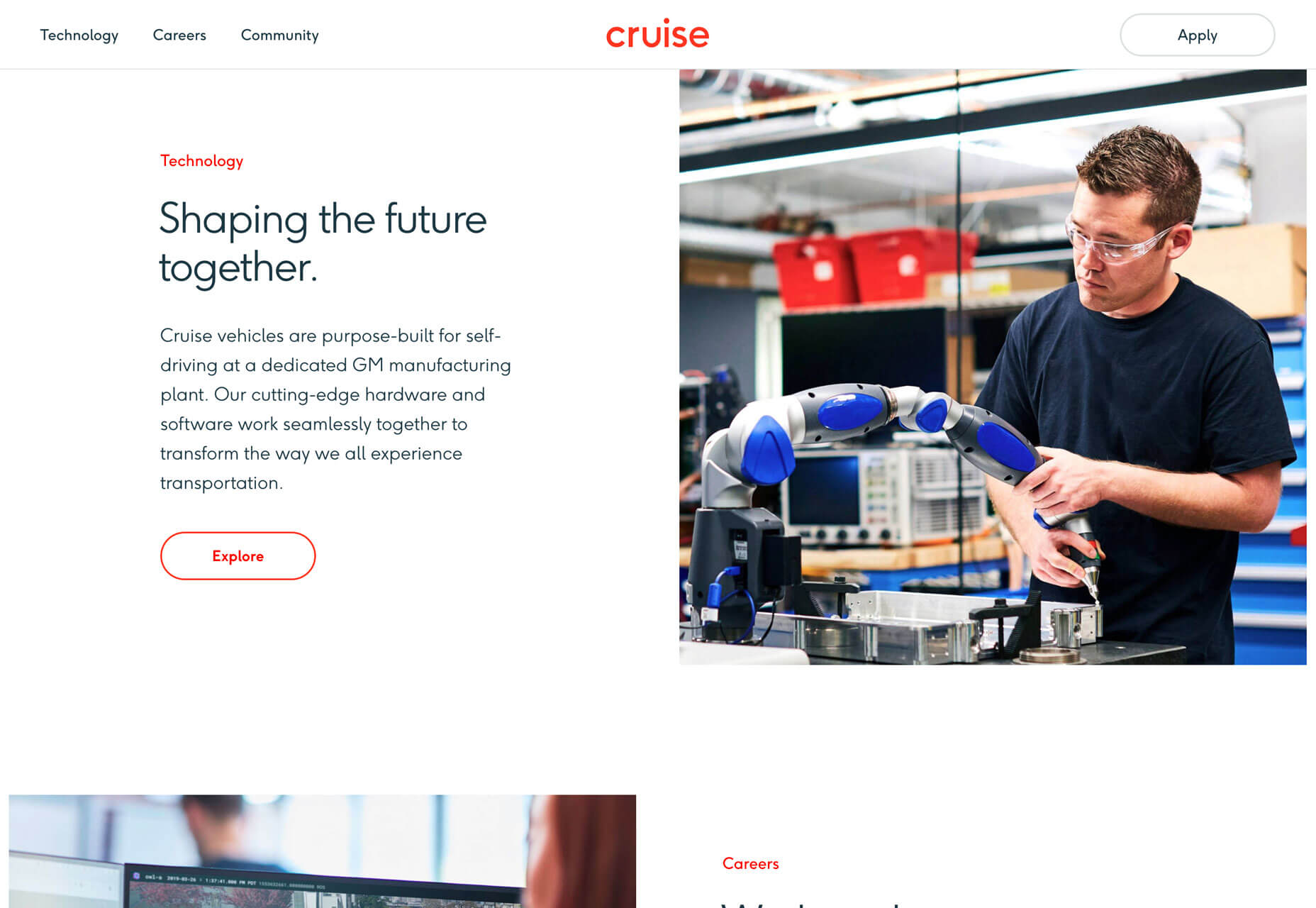
Cruise uses a ghost-style button with red text and a red hover state. It’s a different spin on traditional solid-color buttons, but there’s little question as to how to interact with it. Color draws users to the button.

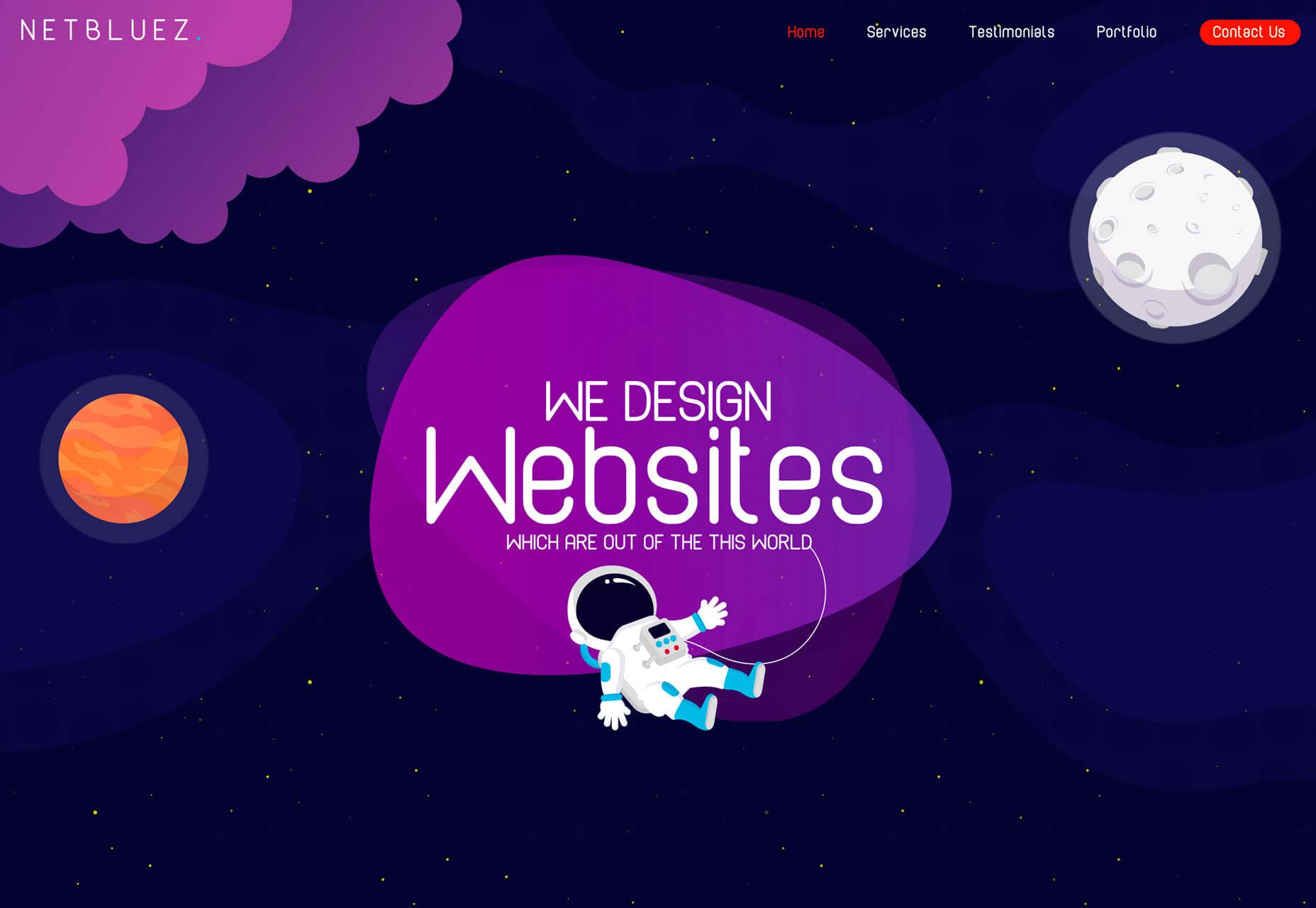
Net Bluez uses a bright orange button for the most important element in the navigation menu. Notice how that element tends to jump off the screen begging to be clicked.

Increasing Conversion Rates

Challenge yourself in the design process to A/B Test button color. You’ll likely find that one color has a distinctly higher conversion rate than the other. (And it might not be the color you expect.)

Conversion rates tend to increase when the color of buttons or links is in stark contrast to the rest of the design. So, while you want to use a brand palette, picking a contrast color is key to generating conversions that contribute to overall user experience.

Look at the website below for a minute. Which color button is most likely to make you click? (The original color is blue.)

Providing Accessibility to All Users

Finally, color impacts UX in a way that’s not emotional or rooted in psychology. It’s much more practical than that.

Color impacts user experience because it can make a design accessible or not.

In order for everyone to understand a design fully, and engage with content, they must be able to see and read it with ease. Using color palettes and contrast ratios that fall in line with Web Content Accessibility Guidelines (WCAG 2.1) can ensure that every user can understand your color choices.

Use a color-blind filter, such as those in the comparisons below, to help simulate what other users might see when they look at your website. How could that impact usability?

Conclusion

Think of color as a tool to help users better interact and experience the content on your website. It impacts user experience on an emotional and usability level.

The key to figuring out if color is impacting UX in the right way is through user testing. A/B color tests can be a valuable tool.

Source

The post How Color Impacts UX appeared first on Hidden Pixels.

15 Best Royalty-Free Funk and Groove Music Tracks of 2019

In this article, I’ve collected 15 of the best royalty-free Funk-and-Groove music tracks from AudioJungle so you can add only the best to a multimedia project.

1. Fun & Quirky Upbeat Retro

‘Fun & Quirky Upbeat Retro’ is a royalty-free background music track that has a fun and funky groove. This one’s sure to lighten the mood in any multimedia project.
2. True Fun Maker

Kick an audiovisual project off with a bang. This royalty-free Funk-and-Groove track delivers an upbeat start and keeps the energy high. Flutes, organs, trumpets, guitars, and drums are the instruments found in this song. 

3. Funky Brothers

‘Funky Brothers’ is an inspiring track with a thick beat, heavy distorted bass guitar, funky guitars, a quick piano progression, and trumpets playing a staccato rhythm. This makes a perfect background, intro, or outro track for any project. 

4. Funky Boom

‘Funky Boom’ is a royalty-free Funk-and-Groove track that has an easy going vibe that can work as background music for your next multimedia project. 

5. Upbeat & Energetic Funky Groove

‘Upbeat & Energetic Funky Groove’ is a smooth Funk-and-Groove Music track that features a funky guitar, electronic beats, and organs.

6. Upbeat Funk Commercial

Picture yourself in a movie scene from the 70s where you are strolling down the street in style with this track. Add a bit of groove and flare to your next audiovisual project with ‘Upbeat Funk commercial.’

7. Panic at the Casino

This royalty-free funk song makes you feel like you’re standing right next to Danny Ocean in the Oceans Eleven movie. The quick-paced bass-line and upbeat trumpets in this track make quite the background song. 

8. Gimme Beat

Chunky beats, scattered trumpets, hip hip scratching effects, an electronic bass-line, and a soothing flute are the instruments that ‘Gimme Beat’ feature. This song won’t disappoint, so press play and let the music take over!

9. That Funky Feeling

This classic Funk-and-Groove track is a must-have if you’re looking to bring an old school vibe to a multimedia project. 

10. Rush

A royalty-free Funk-and-Groove song with a bit of an edge, ‘Rush’ is an optimal choice for adding an aural sense of excitement into a project. 

11. Show Opener

The title of this royalty-free Funk-and-Groove song says it all. Open an audiovisual project with a festive atmosphere. 

12. Da Groove

‘Da Groove’ combines the Funk-and-Groove genre with electronic music. You’ll find all the classic instruments of the style in this track with an added electronic twist. 

13. Disco

This Funk-and-Groove royalty-free song starts with a bass guitar and kick and transitions to a funky guitar line. If you’re looking for a song that delivers all the elements of a disco song, give this track a listen.

14. Casino

Listening to this song makes you feel like you’re entering one of Las Vegas’s luxurious casinos. If you wish to add a sophisticated and optimistic vibe to your next audiovisual project, choose ‘Casino.’

15. Twist

Last on the list is ‘Twist.’ This late night groovy song makes a great addition to a project needing to convey a light but serious tone. 

Conclusion 

These 15 best royalty-free Funk-and-Groove music tracks are just a small sample of the thousands of tracks available on AudioJungle. If any of these 15 tracks above does not work for your next project, head on over to the funk and groove section of AudioJungle  

If you are looking to take a hands-on experience to your musical productions and get involved in the creating and editing process, check out some of the in-depth music and audio tutorials that Envato Tuts+ has to offer.

{excerpt}
Read More