How to Make Your Photoshop File Size Smaller (Best Tips and Tricks!)

reducing the psd file size preview

Working with large files in Photoshop can take too much space from your disk, and it can also be a problem to send or download a big PSD file. Today, I am going to show you how to reduce the file size in Photoshop. I’ll take one of my PSDs with 180 MB size and reduce it, so you can see how these methods decrease the file size of my template.

At a Glance: How to Reduce File Sizes in Photoshop

Here are 14 tips and tricks on how to reduce your file size in Photoshop. If you want to learn more, scroll down and we’ll get more into it.

  1. Add a white layer in Photoshop to shrink large files.
  2. Decrease the file size by making layers invisible.
  3. Flatten layers in Photoshop to reduce the file size.
  4. Make a Photoshop file smaller by optimizing the layer structure.
  5. Decrease the file size in Photoshop by rasterizing Smart Objects.
  6. Reduce file size by cropping the layers to the canvas.
  7. Decrease file size with the Merge Layers function.
  8. Make a Photoshop file smaller by creating adjustment layers.
  9. Change the size of the artboard in Photoshop to reduce the file size.
  10. Use online tools to reduce the size of a Photoshop file.
  11. Change the Photoshop preferences for decreasing the size of files.
  12. Save the document as a layered Tiff with a small file size.
  13. Make a Photoshop file smaller with WinZip.
  14. Combine a few methods of file compression.

If you want to learn these techniques via video, check out our lesson on the Envato Tuts+ YouTube channel:

How to Make Your Photoshop File Size Smaller (Best Tips and Tricks!)

1. How to Add a White Layer in Photoshop to Shrink the File Size

One of the simplest and most effective techniques for shrinking large files is to simply add a solid color layer on the top of your Layers panel. Press Shift-Control-N to create a new layer on top, and then fill it with white by pressing Shift-F5. After that, you just need to save your PSD file.

creating a new white layer on top of layers

As you can see, using this method allows us to shrink the file size from 181 MB to 171 MB. The main plus of this technique is that it’s super fast and easy to create a solid color layer. But the results of the file compression vary, so in some cases, it gives us just a small compression and in other cases, it can shrink large files up to 50%. Also, it’s important to inform your clients about this solid color layer, because not all people are familiar with Photoshop, and they can get confused by seeing the white canvas of the document without any design elements.

comparing the original file size to white solid layer method

2. How to Make the File Size Smaller by Making Layers Invisible

Another similar way to reduce the size of PSD files is to make all the layers Invisible before saving. So all you need to do is Uncheck all the eye icons in the Layers panel.

Making the layers invisible to make the psd size smaller

As you can see, this method gives us the same result as the previous one. So the pros and cons are the same here.

comparing the original file size to invisible size method

3. How to Flatten Layers in Photoshop to Reduce a PSD File Size

Let’s use another effective technique for file size reduction. Right Click > Flatten Image on any layer. After that, all your layers will be combined into one.

flattening the layers to decrease the files size in Photoshop

The flatten layers Photoshop size reduction method is super effective. As you can see, the file size is 98% smaller now, but the main minus is that now you don’t have access to any of your layers, and you can’t edit them. So, although this is a very effective technique, at the same time, it’s pretty destructive to the structure of your PSD layers.

comparing the original file size to flatten layers file

4. How to Make a Photoshop File Smaller by Optimizing the Layer Structure

In case you want to know how to decrease the file size without losing the possibility of editing essential layers, let’s try one more method. In my template, there are a lot of invisible texture layers that actually are not used. Let’s press Shift and select all these layers, and then hit the Delete button.

deleting the layers to reduce the file size of the photoshop document

As you can see, working with large files in Photoshop such as painting templates, print templates and other PSDs with a lot of elements, which are sometimes not needed for our specific design task, can give us big file sizes. Just by deleting the invisible layers, which are not used in my final version of the project, I reduced the file size by 76 MB.

comparing the original file size to optimized layers file

5. How to Decrease File Size in Photoshop by Rasterizing the Smart Objects

The next Photoshop file size reduction technique is rasterizing the smart object layers. A smart object is a layer that contains the data of raster or vector images and allows you to apply Photoshop filters in a non-destructive way. Also, smart objects are used for creating placeholders in Photoshop templates.

Let’s rasterize the smart objects by hitting Right Click > Rasterize Layer. We could also delete the placeholder layer, if it’s invisible, to make the file even smaller.

rasterizing the smart objects to reduce the psd file size

This method lets us decrease the file size by 33 MB, which is a pretty good result. But don’t forget that if you rasterize the smart object, you will not be able to edit the filters or change the content of the placeholder. You can also use the “rasterize layer style” function on a layer with any layer style applied to it in the same way.

comparing the original file size to rasterized smart objects psd file size

6. How to Make a Layer Smaller in Photoshop to Decrease File Size

Another great way to shrink large files in Photoshop is by using the crop function. The textures in my template are actually bigger than the canvas of the document. We can easily delete the parts of the textures which are outside of the document, to decrease the size of the Photoshop file.

Click M to activate the Rectangular Marquee Tool, and then select the whole canvas of the document, with the background layer selected in the Layers panel. After that, go to Image > Crop.

cropping the layers ouside the document

Cropping the image helped us to reduce the file size by 74 MB. The main plus of this method is that we don’t lose anything important in the layers, and we can still work with smart objects and other layers.

comparing the original file size to cropped psd file size

7. How to Save a Large Photoshop File With Decreased Size by Using the Merge Function

Another great option to decrease the file size in Photoshop is by merging the layers. In my template, I have two smart objects which I will merge into one layer in the following way: keep the Shift key pressed and select both layers, and then Right Click > Merge. Also, we could easily merge the textures with the same Blending Mode—just don’t forget that you will need to change the Blending Mode of your merged layer again.

merging the textures and smart object to reduce the file size

Merging the layers helped us to shrink the file size by 35 MB. The only minus of this method is that you can’t change the smart object filters or work with each texture separately once you have merged the layers.

comparing the original file size to a merged layers file size

8. How to Reduce File Size in Photoshop by Creating Adjustment Layers

Instead of duplicating your layer and applying a brightness/contrast, hue/saturation, or any other adjustment filter to it, you can create a special layer that will decrease the file size. In my template here, I made some color correction layers by using adjustment layers.

You could make your own the following way: go to Layer > New Adjustment Layer and then select the one you need for your project.

creating the adjutments layers to reduce the size of photoshop file

I created a copy of the main image layer to add the adjustments to it, and it immediately increased the file size by 10 MB. If, instead of creating duplicates, we use an adjustment layer, it will keep the file size the same.

comparing the original file with duplicated layer and file with adjustments layer

9. How to Make the File Size Smaller by Changing the Size of the Artboard

To make a file smaller, Photoshop also offers a very obvious solution. Change the canvas size of your document! You can do it by hitting Alt-Control-I (or go to Image > Image Size) and then change the size to something smaller. In my case, I have 1500 by 1000 px size. So I will change it to 800 by 533 px.

changing the size of the canvas to reduce the file size

As you can see, this method allows us to reduce the PSD file size by 113 MB, which is a great result. But, if you are working with a print template, you will not want to change the size of your artboard—this technique is more suitable for digital design projects.

comparing the original file with a smaller canvas size file

10. Decreasing the File Size With Online Tools 

Users are appealing to Adobe to know how to reduce the file size, but sometimes the answer comes from other applications. One of my favorite techniques for decreasing the size of your Photoshop file is by compressing the images and/or textures used in your project. You can do it by using online compression tools, such as Optimizilla.

I’ve uploaded the images and textures from my template to Optimizilla, and then changed the quality of the images to 90%. After that, I put these new compressed textures into my template instead of the original files.

Compressing the images and textures to reduce Photoshop file size

As you can see, replacing the original images with the compressed JPEGs helped us to save 77 MB. The only minus of this method is that compressed images lose a bit of the quality, and they look slightly different. In my case, it made my picture have less contrast, but you can always fix it using adjustment layers, without increasing the size.

compare original PSD to PSD with compressed textures and images

11. How to Make a Photoshop FIle Smaller by Changing the Photoshop Preferences

The next method we’ll use for reducing the file size is changing the preferences. Go to Edit > Preferences > File Handling and then set Maximize PSD File Compatibility to Never. Or set it to Ask if you want to decide whether to use this function or not each time you save the image.

disabling the compatibility of the psd files

This method can give us different results in the file size reduction, like the first technique with the solid color layer. In my case, it helped me to decrease the size by only 3 MB. The main minus is that your file can give errors in earlier versions of Photoshop and other applications. So I think this one is not the best choice in most cases.

maximize compatibility off method file size comparison

12. How to Shrink the File Size by Saving the File as a Layered Tiff

You can also save your project as a layered TIFF file to make the file smaller. All you need to do is to go to File > Save As and select the .tiff file format, and then set Image and Layer Compression to ZIP before hitting the OK button.

saving the file as a tiff to decrease the image size

The layered TIFF file format let me save 46 MB of my disk space. The best thing is that you could easily open this TIFF file with all your adjustment layers and smart objects still fully editable. For the minuses, I would say that it takes more time to save the file, and some applications don’t work with layered TIFF files (especially if you use specific Photoshop layers such as smart objects, adjustments layers, etc.).

compare original PSD to a layred tiff file

13. How to Reduce the File Size by Compressing It to a Zip Archive

Another obvious solution for reducing the size of the Photoshop files is using archive tools such as WinZip. I archived my file with WinRar using the “best” compression option on, and it gave me a 38 MB size reduction. This is a super easy way of reducing the size.

compressing the file to a zip archive

14. Combining the Reduction Techniques for the Best Result

And finally, I decided to use a few techniques at once, to see how it changed the size of my PSD template. So, I’ve used the following methods: I compressed all the images and textures, then cropped all the unnecessary elements of my textures. After that, I merged the layers (excluding the smart objects) and deleted all the invisible layers that I didn’t need. Then I changed the size of the canvas from 1500 to 1200 px. Before saving the file, I made all the layers invisible, and finally, I compressed the final file to the .zip format with maximum compression.

Using all these methods at once reduced the size of the file to just 28 MB! And, what’s most important, all the smart objects are still fully editable, and we didn’t lose too much of the quality.

Using a few methods at once to reduce the file size

Conclusion

Today, we’ve looked at how to reduce the file size in Photoshop using 14 different methods. Depending on your task, you could use one of the methods listed above or combine them to get the perfect file size for your needs!

What is your favorite way to reduce the file size in Adobe Photoshop? Let us know in the comments below!

Want to learn more Photoshop tips and tricks? Check these awesome tutorials:

{excerpt}
Read More

100+ Free Photoshop Overlays and Textures

The right photo overlay can really take an image from ordinary to extraordinary. In this article, we’ll take a look at some free photo overlays that you can download right now. We’ll also take a look at some awesome textures, because they’re a reason why texture overlay effects are so popular—they’re amazing! 

Looking for a premium collection of textures and overlays for Adobe Photoshop? Envato Elements is a great resource to check out, too.

Envato Elements
A Sample of Textures on Envato Elements

100+ Free Photoshop Overlay Textures

Who doesn’t love a good freebie? Well, I hope you like 100 freebies, because this list includes over 100 texture overlay Photoshop add-ons, images, and effects—and they’re free!

Not sure how to add a texture overlay to your work in Adobe Photoshop? Check out this video walk-through over on our Envato Tuts+ YouTube channel:

Now, let’s dig into some free Photoshop overlays and textures you can download and use today.

Grunge Texture Overlay Freebies

Grunge textures can make for the perfect overlay addition when you’re looking to add a weathered look and feel to your imagery or photography. Check out these amazing free Photoshop textures and overlays that you can take right into Photoshop, for free, right now.

15 Free Worn Textures for Photoshop

This free bundle includes 15 textures that you can download right now—absolutely free. They’re high resolution and even free for commercial usage.

15 Free Worn Textures for Photoshop

12 Free Film Texture Overlay Bundle

These 12 textures are perfectly designed for your Photoshop overlays. Just add a touch of dust, or really push the weathered look.

12 Free Film Dust Grunge Textures for Overlays

10 Free Grungy Watercolor Texture Brushes

These textured brushes make adding a grunge aesthetic to your work easier than ever. Rather than an image, just install the brushes and easily add organic texture to your work.

10 Free Grungy Watercolor Texture Brushes

32 Amazing Grunge Textures and Overlays

This pack of textures and overlays is jam-packed with content—and for free too! These beautifully crafted textures really need to be seen to believed. Download them today and leave the author a like.

32 Amazing Grunge Textures and Overlays

20 Free Mixed Grunge Textures and Overlays

This mixed set of textures has so many different grungy textures to experiment with! Add them to your favorite photos or use the included Photoshop brushes.

20 Free Mixed Grunge Textures and Overlays

3 Free Scratches Textures Overlays

Add some scratches and variation to your work with this pack of three scratch textures. Remember, there’s lots you can do with textures in Photoshop—try starting out with the layer blending modes.

3 Free Scratches Textures Overlays

10 Free Hand Drawn Textures

This collection of hand-drawn textures comes in two convenient formats—free to download and use! They’re perfect for photos, artwork, and more.

10 Free Hand Drawn Textures

Paper Texture Overlay Photoshop Freebies

Paper textures can be some of the most versatile additions to your toolkit, and paper texture overlays can be very diverse—both in their execution and in their creation! Dig right in and start creating today with these amazing free resources.

16 High Resolution Paper Texture Set

These old paper textures are great for adding some character to your work. Whether you’re looking to create a vintage photo overlay or you’re just looking for an organic feel, these assets are worth the download.

16 High Resolution Paper Texture Set

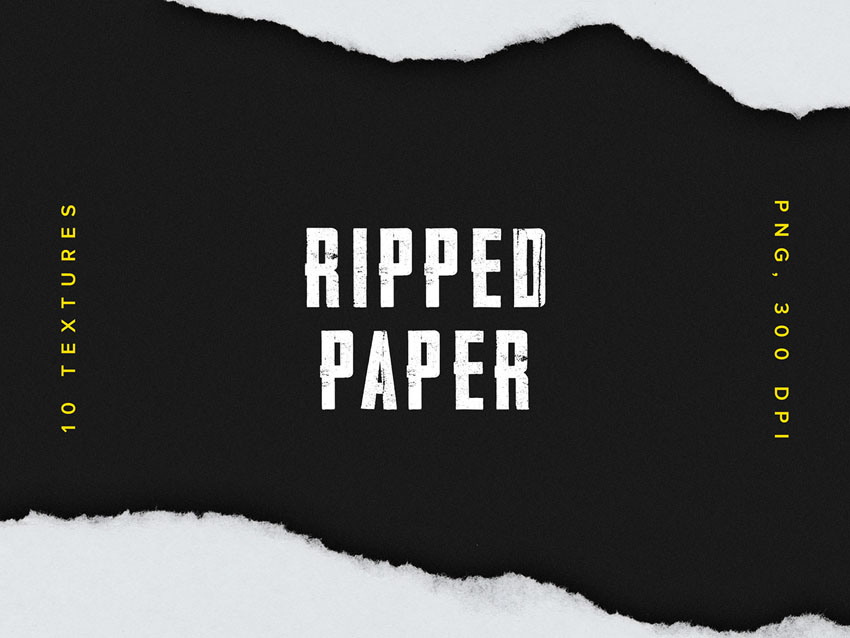
10 Free Ripped Paper Textures

Use these free ripped paper textures for overlays, additions, or even to create a ripped edge on your photo or artwork.

10 Free Ripped Paper Textures

8 Free High Res Paper Textures

These free high-resolution paper textures are perfect for adding soft texture overlays to your work. Or use them as a background or starting point for another effect.

8 Free High Res Paper Textures

15 Free Paper Texture Overlay Freebies

If you’re looking to work with a folded paper texture overlay, look no further. This collection of free paper textures has 15 different textures to work with. This is such an awesome bundle—it could work for so many projects!

15 Free Paper Texture Overlay Freebies

6 Free Foil Paper Texture Overlays

These foil textures are super stylish and free to use. Download them today and use them as photo overlay effects or as abstract additions to your latest creation.

6 Free Foil Paper Texture Overlays

12 Free Digital Paper Textures

These beautifully textured watercolor assets are perfect for paper overlay photo effects. Use them in layer masks or use them with different layer blending modes.

12 Free Digital Paper Textures

5 Free Vintage Paper Textures

These vintage paper textures are perfect for creating the perfect paper texture overlay. Download them now, for free.

5 Free Vintage Paper Textures

Even More Photo Overlay Effects and Textures

But guess what? There’s even more to see! Here’s even more free Photoshop textures and overlays ready to use and ready to download. Download them today and get designing—enjoy!

16 Free Photoshop Shadow Overlays

This bundle of 16 free photo overlays is perfect for adding some extra light and shadow to your work. Give them a try with your favorite photos or mockups.

16 Free Photoshop Shadow Overlays

Free Rose Petal Overlay for Photoshop

Working on wedding photos? Maybe your work could use a little extra romance. Try out these free rose petal photo overlay effects.

Free Rose Petal Overlay for Photoshop

500 Free Textures in this Ultimate Texture Pack

This is such a useful pack of texture overlay assets! Download these 500 amazing textures today—there’s so much to see!

500 Free Textures in this Ultimate Texture Pack

10 Free Photoshop Overlay Backgrounds

Find the perfect overlay for photo projects in this set of ten free Photoshop overlay backgrounds. It’s free to download and start experimenting with your imagery.

10 Free Photoshop Overlay Backgrounds

10 Free Film Grain Texture Photo Overlays

Looking for a film grain texture overlay? Check out these ten free grain textures. They’re high resolution, and have a very natural look and feel.

10 Free Film Grain Texture Photo Overlays

7 Free 35mm Film Grain Texture Set

Here’s another awesome set for grain texture overlay additions. High quality and created from actual film shots, they’re a great addition to any texture collection.

7 Free 35mm Film Grain Texture Set

5 Free Wood Textures

Wood textures can be a great addition to a wide variety of projects—from backgrounds to photo effects. Download these high-resolution textures for free.

5 Free Wood Textures

96 Free Texture Pack

This is another amazing texture pack—there are 96 textures here to experiment with! Mix them, match them, and experiment with blending them together in Adobe Photoshop.

96 Free Texture Pack

8 Free Holographic Texture Overlays

Maybe your project could use a touch of holographic shine. Look no further than this pack of free holographic texture overlays.

8 Free Holographic Texture Overlays

20 Free Snow Photo Overlays

When it comes to free snow texture overlays, this bundle can’t be beat! Easily add the snow to your photo, and utilize Photoshop’s filters to blur them, to help create focus or depth.

20 Free Snow Photo Overlays

10 Free Dot Textures for Photo Overlays

Check out these free dot patterns—they could add stylish texture to any photo or image! Here’s a tip: place one on top of your photo and change the blending mode to get started.

10 Free Dot Textures for Photo Overlays

25+ Premium Photoshop Overlays and Textures

Looking for even more photo textures and overlays? Check out these premium, professional photo overlays and texture overlay bundles from Envato Elements

Dust and Scratch Photoshop Overlays

Looking for some vintage flair or a touch of grunge? This could be the perfect overlay for photo projects, especially if you’re working with old photo overlay effects.

Dust and Scratch Photoshop Overlays

15 Dust and Hair Particles Textures

These textures are the perfect subtle addition of texture and organic imperfection. Give them a look!

15 Dust and Hair Particles Textures

20 Folded Paper Textures

These are perfect for high-quality paper texture overlay effects. Open these textures up, place them over your work, and then adjust the blending modes in Adobe Photoshop, for a simple effect in a flash.

20 Folded Paper Textures

Shadow Overlay & Stationery Mockup Set

Add some striking shadows to your next product mockup or your favorite photo to change the overall look and feel. There are stationery mockups included in this set, too!

Shadow Overlay  Stationery Mockup Set

Photoshop Dust Texture Mockup

This dust texture overlay mockup is perfect for bringing a grunge look to your work. It’s easy to get started in this set, using Smart Objects in Adobe Photoshop.

Photoshop Dust Texture Mockup

Photoshop Wood Grain Textures Template

These wood grain textures come ready to go in Photoshop PSD files. Dig right into 30 different textures today.

Photoshop Wood Grain Textures Template

Instagram Textured Mask Effects for Photoshop

How about a textured mask effect overlay for your next photo project? This is perfect for Instagram or your next social media avatar. 

Instagram Textured Mask Effects for Photoshop

Photoshop Ice Frozen Texture Overlay Mockup

Looking for a snow photo effect? These are literally some cool photo overlays—use this texture mockup to add an icy effect to your imagery.

Photoshop Ice Frozen Texture Overlay Mockup

Spray Textures Overlays for Adobe Photoshop

These spray textures are both realistic and versatile. The included PNG files have such beautiful, organic variation to them. Take a look!

Spray Textures Overlays for Adobe Photoshop

High Quality Paper Textures

Looking for high-quality paper textures at super high resolutions? This set is exactly what you’re looking for. Choose from 21 textures, all in one convenient set.

High Quality Paper Textures

Vintage Book Textures

This is such a unique collection of textures! They were found and repurposed from vintage books—cool, right? These could be perfect overlays for illustrations, backgrounds, and more.

Vintage Book Textures

Photoshop Plastic Foil Wrap Overlays

Add a plastic foil effect to your work in a snap with these plastic texture overlays. They’re transparent, so it’s easy to add this overlay to your work.

Photoshop Plastic Foil Wrap Overlays

High Resolution Cloth Textures

These cloth textures are high res and can make some really interesting textured overlays. Take a look at the example below—cool, right?

High Resolution Cloth Textures

Transparent Grunge Textures High Resolution

This grunge texture overlay is particularly awesome because the included textures are transparent—it’s easier than ever to add these worn details to your imagery. Adjust the blending mode to experiment with different looks.

Transparent Grunge Textures High Resolution

Photoshop Overlay Broken Glass Texture Mockup

Make an impact with this broken glass overlay effect. Place your work in the mockup to create a dramatic image in a flash.

Photoshop Overlay Broken Glass Texture Mockup

Geometric Photoshop Overlay Effects

Simplicity can be really beautiful, as you can see in this Photoshop overlay. Add a simple but elegant geometric texture to your work today.

Geometric Photoshop Overlay Effects

100 Snow Overlays for Adobe Photoshop

Snowy day, but didn’t quite catch the snowfall in your photo? Try out one of the texture overlays from this pack of 100 snow overlays. 

100 Snow Overlays for Adobe Photoshop

Photoshop Grunge Textures Kit

This grunge texture kit is packed with 35 different textures to use in your next project. It even comes with bonus stamp brushes.

Photoshop Grunge Textures Kit

Hand Painted Watercolour Textures

Watercolor textures can have such a welcoming, organic feel. Test one out with this awesome collection of 64 watercolor textures, perfect for photos, artwork, and more.

Hand Painted Watercolour Textures

Photoshop Wood Grain Textures

Push your rustic, earthy project further with these awesome wood-grain textures. There are 44 to choose from, each with plenty of variety and character.

Photoshop Wood Grain Textures

Photoshop Rain Overlay Effect

Add some rain to your photo with this photograph rain overlay texture effect. There are 50 to choose from, varying in both angle and intensity.

Photoshop Rain Overlay Effect

50 Smoke Overlays for Adobe Photoshop

Smoke can make such a dramatic addition to a photograph—check out the amazing example below! How would you use this awesome overlay effect?

50 Smoke Overlays for Adobe Photoshop

Photoshop Fire Overlays

Really command attention with this smoking-hot fire overlay. This overlay effect is perfect for sports or any project that’s all about bringing intensity and heat.

Photoshop Fire Overlays

50 Photoshop Overlays Bundle

Sometimes, a project calls for some imperfections, but they need to be subtle and strategic. This bundle of dust overlays is perfect for situations like that.

50 Photoshop Overlays Bundle

Photoshop Bokeh Overlays

How about adding a fun bokeh effect to your photos? These Photoshop bokeh overlays make it easy to add that aesthetic to all of your favorite photographs.

Photoshop Bokeh Overlays

Photoshop Texture and Overlay Resources

I hope you found some awesome assets in this list to use in your next creative project! If you didn’t quite find the perfect freebie, keep in mind that there are plenty more premium options to see on Envato Elements.

Curious about how to create a photo overlay? Check out these free tutorials from Envato Tuts+! There are so many different ways to create photo overlays—with so many possible outcomes. Use these tutorials to help you get started.

{excerpt}
Read More

How to Create Advanced Isometric Illustrations Using the SSR Method

Final product image
What You’ll Be Creating

This is the second part of a series of tutorials I’m doing about creating isometric illustrations in Adobe Illustrator. If you missed that first tutorial, I suggest you start with Working with Orthographic Projections and Basic Isometrics. Let’s get started!

Get inspired! Create epic designs with Isometric Illustrations from Envato Market.

Find more vector isometric tutorials and resources, over on our popular article:


Introduction

In the last tutorial, I covered how to make an isometric grid and build simple blocky shapes on it. In this tutorial, I’m going to talk about another method of creating isometric shapes that doesn’t require a grid and is much more useful if your objects are complex or curvy.

When creating a complicated isometric illustration, it’s best to begin by breaking down your object into its simplest parts. This will help to make the project more approachable. It’s possible to make the most complex objects entirely on an isometric grid using the method I discussed in the last tutorial. There is another method that is much more useful for creating curvy or complex isometric objects in Adobe Illustrator. I’m going to call this method scale, shear, rotate, or SSR.

The basic idea behind the SSR method is that by using tools in Adobe Illustrator, you can place an object onto an isometric plane without using a grid. This method is most useful for curvy or complex objects, but it will work for anything. I’ll begin simply by making an isometric cube. Follow the steps below for the SSR Method.


1. How to Create an Isometric Cube

Step 1

Create a 4-inch square with your Rectangle Tool.

rectangle tool

Step 2

With the square selected, double-click on your Scale tool. Scale the square 86.062% vertically.

scale tool

Step 3

With your object selected, double-click on the Shear tool and shear the object 30 degrees.

shear tool

Step 4

With the object selected, double-click on the Rotate tool and rotate it -30 degrees. You have now created the top of your cube.

rotate tool

Step 5

To create the left side of the cube, begin with a 4-inch square. Scale vertically 86.062%, Shear -30 degrees, and Rotate -30 degrees.

left side

Step 6

Use the Selection Tool (black arrow) to line up the front corner with the top of the cube.

To create the right side of the cube, begin with a 4-inch square. Scale vertically 86.062%, Shear 30 degrees, and Rotate 30 degrees.

right side

Step 7

Next, move the pieces into place with your Selection Tool. You have now created an isometric cube without using a grid.

Create an Isometric Cube

The power of this method becomes apparent when you try to create an object that would be very difficult to construct on a grid. This method only works if you have a set of orthographic projections to work with.


2. How to Make a Stratocaster Using the SSR Method

For this example I’m going to build the body of a guitar. To make this complex shape in isometric using only a grid would be a challenge. The complex curves and compound shapes would be very difficult to recreate accurately.

Step 1

There are many ways to make an orthographic projection, depending on your object. You can look online for a set of blueprints, you could trace a photo, and if you own the object you could take it apart and measure it. Use whatever method works best for your project.

One quick Google search, and I’ve found the perfect set of factory blueprints for the “62 vintage re-issue Fender Stratocaster.” These blueprints are much more detailed than I need, but you can be as precise as you’d like for your own projects. Having too much information about your object is never a bad thing.

blueprint

Step 2

Trace your blueprints. I’m going to trace just the information I need to complete my isometric, and I’m going to simplify parts of the design.

isometric

Step 3

Once you’ve chosen your orientation, you can scale, shear, rotate (SSR) your bottom plane.

scale shear rotate SSR
SSR method
SSR method
SSR method

You can check your work by comparing any edges that in the orthographic are 90 degrees or 180 degrees. These edges will now fall onto an isometric grid; they will either be on the 30-degree or 150-degree angle.

SSR method

Step 4

Now that you’ve created your base, you have something to work from. If you take the side view of the orthographic and scale, shear, rotate (SSR) it onto the isometric plane, you can figure out the thickness of the guitar body.

ortographic

Step 5

Line up the bottom edge of the guitar body with the corner of the orthographic side view.

ortographic side view

Step 6

Next, you want to copy the outline of the guitar body and move it up to the top edge of the side view. To do this, use your Selection Tool and click and drag on the edge of the outline. Before letting go, engage the Option key to make a copy. You should also use the Shift key to constrain the movement. Holding the Shift key while moving the shape will ensure it stays lined up with the original.

isometric guitar

Step 7

Now, you’ve blocked out the top and bottom planes of the guitar body. The next step is to cut out the spot where the neck is inset. Start by connecting the top and bottom planes of the neck opening so that it’s easier to see the area that you are working on.

isometric guitar

Step 8

Using the side view, you can mark off how deep the neck cutaway goes into the body. You now have three planes: the top, bottom, and depth of the cutaway.

isometric guitar
isometric guitar

Step 9

The next step is to use the Scissors tool to cut away all the excess lines you don’t need anymore. This is often the hardest part for an artist new to technical drawing. All the overlapping lines and shapes can be overwhelming. But if you take your time and start with the big, clear shapes, it will help to clean up the more complex areas.

scissors tool

Step 10

After clearing away all the lines you don’t need anymore, connect your corners and finish the shapes.

connect corner

Add some line quality, and you’re finished.

Create an Isometric Guitar

Conclusion

You have now finished the body of the guitar. You could continue and complete the entire guitar—the same steps would apply for each part. This is an example of an exploded isometric of a Stratocaster I did a few years ago with this method.

Isometric SSR Method

Isometric Generators From Envato Market

Need a faster way to create an isometric illustration? Then check out our awesome selection of Isometric Generators available on Envato Market.

SmartIcon Generator 2 – Isometric 3D Icons

Designing an isometric icon takes incredible skill. Cut out the hassle by using this isometric generator instead! This generator allows you to create 3D icons in seconds by creating the basic shape first before choosing a direction and style. It’s really that simple!

SmartIcon Generator 2 - Isometric 3D Icons

Isometric Illustration – 3D Generator

Creating 3D isometric illustrations from shapes and vectors can be a lot easier when you’re using a generator. Check out this isometric illustration generator and create your own isometric designs with only one click! It’s that fast!

SmartIcon Generator 2 - Isometric 3D Icons

Isometric Screen Generator

Isometric generators can also be used to add a bit of dynamism to your UI and web design presentations. All you need is a screenshot of your design, and this isometric screen generator will do the job.

SmartIcon Generator 2 - Isometric 3D Icons

Want to Learn More?

Learn more about isometric vector art with these tutorials and resources:

{excerpt}
Read More

42 Best Marijuana Logo Designs & Graphic Templates (Using a Cannabis Logo Maker)

If you’re looking for cannabis graphics or marijuana logos, you’re in the right place.

Placeit
One of the many marijuana leaf logos available at Placeit

There are two sources for creating first-class logos. One is Placeit, an online cannabis logo maker that provides you with hundreds of awesome cannabis graphics and helps you to customise them quickly and easily. 

The other is Envato Elements, which is a great resource for those with a good knowledge of Adobe Photoshop who have the skill and time to spend on customisation.  

Let’s start by taking a look at Placeit.

Easy Customisation and Unlimited Downloads at Placeit 

Placeit

Placeit is an affordable online design generator that makes premium professional branding, promotion and marketing tools accessible to everyone, regardless of skill level. What makes Placeit so indispensable is: 

  1. Easy to Use: Placeit provides design novices, as well as those with more experience, with high-quality designs, logos, videos, and mockups that they can customise online and download in a matter of seconds.
  2. Unlimited Downloads: One of the great things about Placeit is that it is designed to suit a range of budgets. If you regularly need mockups, logos, and various designs, you can sign up for a low monthly or yearly plan. This gives you access to unlimited downloads of any and all of the digital assets available at Placeit. 
  3. Affordability: If you’re on a budget and can only afford to buy one digital resource at a time, then you can create the design you want and pay a small fee to download just that one design. 

Now let’s take a look at how easy it is to use Placeit.

How to Make a Marijuana Plant Logo Using a Cannabis Logo Maker

1. Navigate to Placeit’s Cannabis Logo Maker

How to Make a Marijuana Plant Logo using a Cannabis Logo Maker

2. Enter Your Business Name

The cannabis logo maker will update the templates with your business’s name. Look through the templates and choose one you like.

How to Make a Marijuana Plant Logo using a Cannabis Logo Maker

2. Change the Text

Starting on the left side of the cannabis logo maker, you can modify your business title and any additional text you care to. Here you can also change the font style and colour.

How to Make a Marijuana Plant Logo using a Cannabis Logo Maker

3. Customise the Graphics

When you’re done, move to the right side of the cannabis logo maker to choose a graphic for your logo, or you can upload your own graphic. You can also change the colour of your graphic to reflect your brand or taste.

How to Make a Marijuana Plant Logo using a Cannabis Logo Maker

4. Download Your Cannabis Graphic

When you’re happy with your image, you can download it for a small fee. And just like that, you can create a cannabis graphic in a couple of minutes.

How to Make a Marijuana Plant Logo using a Cannabis Logo Maker

27 Best Marijuana Logo Designs at Placeit

Now let’s take a look at the 27 best cannabis graphics at Placeit.

1. Medical Marijuana Logo Maker for a Medical Cannabis Company

Cannabis Leaf Template

If your business is selling marijuana for medicinal purposes and you’re looking for a marijuana business logo, take a look at this cannabis logo design. You can customise the colours, text and logo as much or as little as you need to in order to make the template consistent with your brand.

2. Logo Generator for a Cannabis Infusions Store

Cannabis Leaf Template

Makers of cannabis infusions will love this template, which provides you with cannabis logo designs that you won’t be able to resist. Choose the graphic that most appeals to you, then choose your font and add your business colour scheme, and just like that you have a new logo for your business.

3. Hemp Logo Generator

Cannabis Leaf Template

This weed leaf template can be used with different types of businesses that make and sell marijuana products. The elegant cannabis logo sits on a solid background, while the name of your business fits boldly under it.

4. Weed Logo Maker

Cannabis Leaf Template

Cannabis brand logos can take many forms. For example, this one is more abstract than the others we’ve shown so far. A great choice for businesses that sell a number of different marijuana-derived products.

5. Cannabis Logo Generator

Cannabis Leaf Template

Need a more straightforward marijuana leaf logo? Well, here it is: a bold and simple illustration of a marijuana leaf against a solid background, paired with bold text. You have complete control of the customisation of this template, so exchange the logo with another offered by the template if you don’t like it. Change the text and colours until you are satisfied with the results. 

6. Logo Maker for a Cannabis Desserts Market

Cannabis Leaf Template

Cannabis startups will be very happy with this template, which is designed specifically for bakeries that incorporate cannabis infusions in their baked goods. Choose the weed graphic design you like the most, add your text and colour scheme, and in no time your new cannabis company logo is ready for download. 

7. Logo Template Featuring a Cannabis Extract Dropper

Cannabis Leaf Template

Need a CBD logo for your new shop? Check out this retro logo, which borrows its style from old chemists’ shops. Use the graphic provided or experiment with others provided by the logo to see which you like best. 

8. Logo Template for a Cannabis Edibles Shop

Cannabis Leaf Template

Do you make or sell cannabis-based snacks? This cannabis brand logo may be just the thing you need. The template offers a number of cool images, so take a look and take your pick.

9. Logo Template Featuring a Cannabis-Infused Tea Cup

Cannabis Leaf Template

Here’s a terrific weed graphic design for cannabis tea makers. The template features a lovely illustration of a teacup with a cannabis leaf poking over the top. This graphic is surrounded by text where you can place the name of your brand and other relevant information.

10. Logo Template for a Cannabis Edibles Brand

Cannabis Leaf Template

CBD brands will appreciate this simple and classic marijuana leaf graphic, surrounded by equally classic text. Add your company info, adjust the template’s colour scheme to reflect your brand, and your job is done. 

11. Weed Logo Maker for a Cannabis Dispensary

Cannabis Leaf Template

If you’re a dispensary looking for a simple but stylish logo, check out this marijuana dispensary logo. The template offers a range of cannabis leaf templates that you can choose from to find the illustration that most appeals to you. 

12. Cannabis-Themed Logo Maker for a Munchies Store

Cannabis Leaf Template

If you create cannabis-infused treats, you may be looking for the perfect cannabis logo to market your products. How about this cookie and marijuana design? After you add the name of your company and choose the text you like the most, change the colour scheme to reflect your taste. 

13. Hemp Logo Maker With Weed Icon

Cannabis Leaf Template

The delicate vintage illustration is inspired by the illustrations from old-school chemists, and it’s a great choice for a contemporary marijuana dispensary logo. Add your text and brand colours, and you have a terrific logo ready to use. 

14. Logo Template for a Cannabis Sweets Bakery

Cannabis Leaf Template

An awesome marijuana business logo for a bakery that specialises in cannabis-infused baked goods, this template is easy to customise. Keep this splendid graphic or choose one you prefer, add your business name and change the colours of the background, graphic, and text, and your job is done.

15. Cannabis-Themed Logo Template for Chocolate Munchies Products

Cannabis Leaf Template

If you’re a cannabis startup combining chocolate and marijuana in interesting ways and need just the right logo for your new business, check out this chocolate cannabis graphic. It features an illustration of a chocolate bar with a marijuana leaf graphic on the outside. Customise it as much or as little as you like to make the template your own.

16. Weed Logo Maker With a Cannabis Leaf Icon

Cannabis Leaf Template

How fabulous is the illustration on this cannabis leaf template? This terrific marijuana plant logo can serve a number of businesses that specialise in cannabis-infused products. 

17. Weed Logo Maker for a Cannabis Shop

Cannabis Leaf Template

It doesn’t get more simple and straightforward than this logo. If you are a minimalist and want that reflected in your marijuana business logo, this is the design for you. 

18. Cannabis Logo Maker for an Organic Market

Cannabis Leaf Template

Create your own unique weed designs when you use the marijuana logo maker to modify a marijuana design template like this one by adding a graphic of your choice, your company details, and your brand colour scheme.

19. Minimalistic Weed Logo Maker

Cannabis Leaf Template

Simplicity is key in good design, and it doesn’t get more simple than this stunning design, which combines a dancing marijuana leaf graphic with bold and eye-catching text against a contrasting background.

20. Logo Generator for Marijuana Products Brands

Cannabis Leaf Template

Bring a chilled out vibe to your cannabis company logo with soft colours and delicate graphics. This cannabis leaf template is a great illustration of just that, with its wonderfully dusky pink background, minimal touch of florescent green for the graphic and small area of secondary text, and the bold but elegant main text.

21. Logo Maker With a Minimalistic Marijuana Clipart

Cannabis Leaf Template

Add a bit of creative flair when you choose this weed design for your marijuana business logo. Add clean, strong text and an appealing background colour, and you just like that you have a simple and tasteful design.

22. Cannabis Logo Maker With Simple Marijuana Icons

Cannabis Leaf Template

Here’s another example of a simple and tasteful weed graphic design which follows the same principles as the marijuana business logo above. You can scale the text and the graphic as much as you need to create the balance between the two that you prefer. 

23. Elegant Logo Maker for a Cannabis Products Brand

Cannabis Leaf Template

If you’re a luxury brand looking for simple cannabis brand logos that reflect your brand identity, you may like this template, which combines a simple but stylish graphic with clean and bold text. All you need to do is change the colours to reflect your brand, and your job is done. 

24. Online Logo Maker for a Bong Shop

Cannabis Leaf Template

Cannabis startups planning to open up a bong shop and looking for the perfect logo will appreciate this cannabis logo design. All you need to do to customise it is add your business name and adjust the colour scheme, and your marijuana design will be ready to download.

25. Medical Marijuana Logo Template With Weed Symbol

Cannabis Leaf Template

This cannabis logo design is specifically for medical marijuana businesses looking for just the right logo to represent their brand. Customise the logo in a matter of minutes using the marijuana logo maker.

26. Logo Maker Featuring a Cannabis Beer Graphic

Cannabis Leaf Template

Do you produce cannabis beer and cannabis-infused beer? Then you’re going to need a great logo for your product. Check out this cannabis graphic designed specifically for cannabis beer makers. Use the marijuana logo maker to customise it as much or as little as you like.

27. Minimalist Weed Logo Creator

Cannabis Leaf Template

The last marijuana plant logo we’ll feature from Placeit is this classic design, which can be used for various kinds of cannabis companies and CBD brands. Just add your company details, change the colour scheme as needed, and your job is done. 

Unlimited Downloads at Envato Elements

Unlimited Downloads at Envato Elements

Envato Elements is an excellent source for top-quality cannabis leaf templates. Like Placeit, one of the advantages of this service is that it offers you thousands of gorgeous graphics, and you can download as many as you want, as often as you want, for one flat monthly fee. 

That monthly fee also allows you to access thousands of other premium digital assets like fonts, graphic templates, mockups, photos, business card templates, and much more. 

The main difference between the two services is that with Envato Elements you need to have a working knowledge of Adobe software like Photoshop, Illustrator, InDesign, etc., whereas with Placeit you do not.

Let’s take a look at the best marijuana business logos and graphics available at Envato Elements. 

15 Best Marijuana Logo Designs & Graphic Templates at Envato Elements

28. Cannabis Marijuana Leaf Logo

Cannabis Leaf Template

This cannabis logo vector is a versatile choice for a number of businesses. The files are fully editable in Illustrator and can easily be scaled without losing quality. A help file is included to assist you. 

29. Marijuana Sport and Esports Logos

Cannabis Leaf Template

This somewhat comical marijuana plant logo is a great choice for sports teams looking for a new logo. The package contains both AI and EPS files which you can edit using Illustrator. 

30. Magical Green Cannabis Logo Template

Cannabis Leaf Template

This beautiful marijuana logo vector is a terrific option, whether you’re running a bakery that specialises in marijuana-infused treats or a business that offers medical marijuana. The package contains EPS and AI files that are fully editable in Illustrator. 

31. MARIJUANA Cloud

Cannabis Leaf Template

MARIJUANA Cloud is a fully editable and scalable cannabis logo vector. The files are delivered in AI and EPS formats, and links are provided for all fonts used in the design. Use this clean and modern template to create a marijuana leaf logo for a wide variety of businesses.

32. Heaven Weed Logo

Cannabis Leaf Template

This simple weed leaf template is a great choice for cannabis startups looking for a stylish logo for their business. The EPS and AI files are fully editable using illustrator, so you can change just about every element of the logo to really make it your own. 

33. Releaf

Cannabis Leaf Template

This interesting interpretation of a marijuana leaf graphic is another versatile design that can be adapted to any business. Just add your text and change the colours to match your brands, and your logo is ready to use. This cannabis logo vector is delivered in fully scalable AI and EPS files. 

34. Cannabliss

Cannabis Leaf Template

Cannabliss is a variation of the cannabis leaf template above. This version uses a more colourful background, a rounder font, and a heart at the centre of the marijuana leaf graphic instead of a cross. A nice alternative to the previous design. The cannabis logo vector is also delivered in fully scalable and editable AI and EPS files. 

35. Naturalis Logo Template

Cannabis Leaf Template

This cannabis leaf template offers a modern, minimalist approach to logo design, which makes it incredibly versatile and adaptable for a number of businesses. The Illustrator files are fully editable and scalable, and a help file is included.

36. Health Plant Logo Template

Cannabis Leaf Template

This marijuana leaf graphic is another simple and modern template that you can customise quickly and easily using Illustrator. The cannabis logo vector can be adapted to suit many businesses. 

37. Cannabis Angel

Cannabis Leaf Template

Cannabis Angel is a clever combination of an angle and a marijuana leaf graphic. The cannabis company logo package contains versions for different backgrounds, horizontal and vertical arrangements, and one colour mode. The EPS and AI files are easy to edit using Illustrator. 

38. Cannabis Logo

Cannabis Leaf Template

Stylish, simple, and modern are all words that describe this marijuana logo vector perfectly. Edit the EPS and AI files using Illustrator to change the colour and text of the graphic. 

39. Cannabis Logo

Cannabis Leaf Template

CBD brands looking for a stand-out marijuana logo vector will love this terrific logo, which is offered in both EPS and AI files. Both are fully scalable and editable, so you can change the colour and text as needed. 

40. Health Green Logo Template

Cannabis Leaf Template

Use this cannabis graphic to build a brand for your cannabis startup. The clean and modern marijuana logo vector is available in both AI and EPS files.  

41. MARIJUANA BOOK

Cannabis Leaf Template

Create a distinct and distinguishable brand with this weed leaf template. The cannabis logo vector is, of course, both scalable and editable using Illustrator. Add your business name and adjust the colours as needed. 

42. MARIJUANA LAB

Cannabis Leaf Template

An excellent marijuana dispensary logo that references the language of a test tube, this simple but impressive marijuana design is super easy to customise, providing that you have a working knowledge of Illustrator. You can scale the vector file and edit the text and colour. 

Make Your Own Cannabis Logo Design Today

That’s it for your list of the best cannabis logos available at Placeit and Envato Elements. Now that you know how to make your own logo using the Placeit marijuana logo maker or a marijuana logo vector from Envato, why not create a cannabis graphic and share your design with us in the comments below? We’d love to see what you come up with. 

And if you’re interested in other designs, check out these handy roundups of the best resources in different categories that you can find at Placeit and Envato Elements:

{excerpt}
Read More

42 Best Child-Friendly Fonts (Kids’ Handwriting Styles)

If you design or create products for children, chances are you’ll need a ready supply of child-friendly fonts at your fingertips. 

Kid-like Fonts
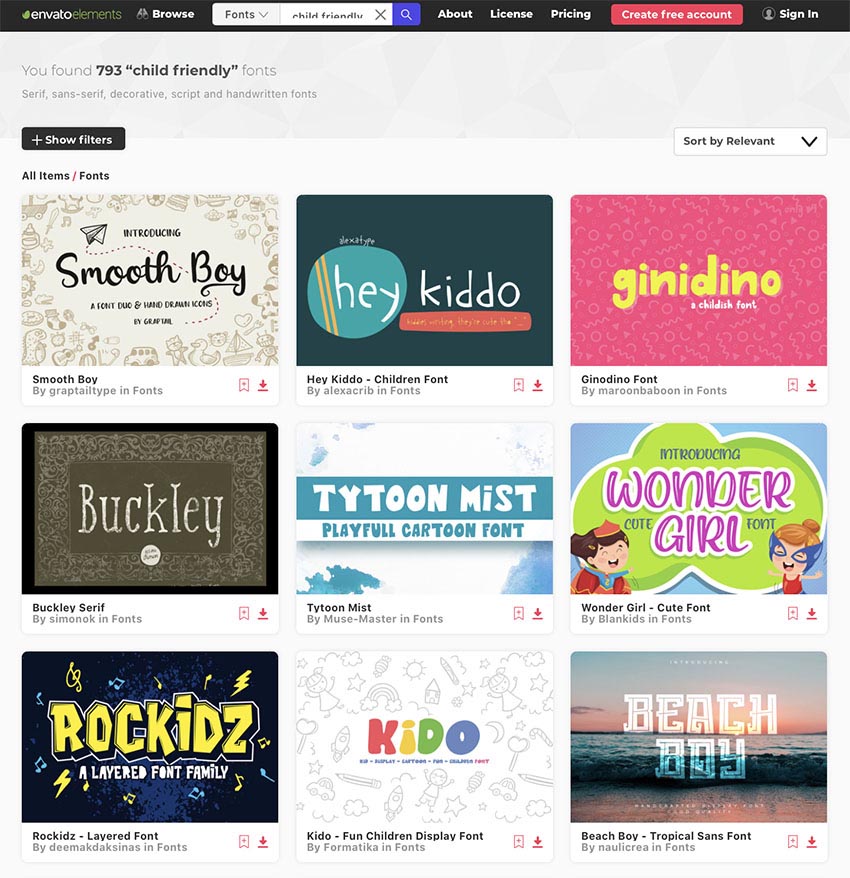
Hey Kiddo is just one of the great child font styles available at Envato Elements and GraphicRiver

Well, we’ve got just the thing for you. Here’s an impressive list of the 42 best child font styles to be found at Envato Elements and GraphicRiver. Take a look. We promise you won’t be disappointed.

Unlimited Font Downloads at Envato Elements

Envato Elements is a great source for high-quality child fonts, and what makes this service truly outstanding is that you can also download as many fonts as you want, as often as you want, for one low monthly fee.  

What’s more, that monthly fee also allows you to access thousands of other premium digital assets like logos, graphic templates, mockups, photos, business card templates, and much more.

Let’s take a look at some of those child font styles available at Envato Elements.

1. Monster World

Kid-like Fonts

Monster World is a playful child font that kids will love. This fresh and fun font is available in three styles: light, bold, and bounce bold. What’s more, the set comes with a fun vector pack of awesome monsters that you can use to complement your designs. 

2. Batboo

Kid-like Fonts

Batboo is a faux-scary, kid-friendly font, perfect for Halloween celebrations of all kinds. Add it to cards, invitations, T-shirts, games, and other products that target children. The font includes uppercase Latin alphabet and foreign language characters, numbers, punctuation, and a bonus of five Halloween monster vector objects.

3. Escape

Kid-like Fonts

Here’s another terrific child font style for Halloween. Escape is a display font that you can use to emphasise the eeriness of Halloween when you are creating birthday cards, signs, and posters for kid-related events. Uppercase Latin alphabet and foreign language characters, numbers, and punctuation are all included.

4. Button Crafts

Kid-like Fonts

How sweet is this child font style, which uses crafts as its style reference? The font includes both lower case and uppercase Latin letters, numbers, and punctuation. Use this kid-like font for any and all products that target a younger audience.  

5. Happy Kid Creative Font

Kid-like Fonts

Need a fun, creative, kid-like font for your next project for children? How about the aptly named Happy Kid Creative Font? This display font is bold, playful, and colourful, all the qualities you need in a font designed for children.

6. Hello Lijo Font

Kid-like Fonts

Hello Lijo isn’t just designed for children—it borrows the charm of a child’s penmanship to create a font that looks like handwriting. This kid-like font includes a set of playful graphics that you can include in your designs.

7. Graham Cracker

Kid-like Fonts

Graham Cracker font is everything that the American snack is famed to be: fun, familiar, and versatile. It was inspired by a 1960s movie poster, and it contains over 175 interlocking ligatures that give it a hand-lettered feel and allow you to create a font that looks like handwriting.

8. Book Worm Typeface

Child Font Style

Here’s a kids’ handwriting font that’s simple, fun, and very easy to read. Based on hand lettering with a paintbrush, the kid-like font includes upper and lowercase Latin characters, numbers, punctuation, and simple ligatures. Use it for book titles, greeting cards, posters, and other child-friendly projects. 

9. Kido

Child Font Style

Kido is another cool font that, though not exactly a kids’ handwriting font, is inspired by children’s handwriting. This fun display font offers tons of glyphs and ligatures so you can create a style that is all your own. Use it wherever you need a bold, eye-catching font.

10. Funkie Bunny

Child Font Style

Need a kids’ font with a bit of funk? Then check out Funkie Bunny. Inspired by child handwriting fonts, this bold yet playful font is all kinds of awesome. Use it in family-friendly projects that target young kids. They’ll love it.

11. Pagi Ceria Extraordinary Display Font

Child Font Style

Need fonts that look like handwriting? Pagi Ceria is an exciting display font that will make your child-themed design stand out! With bold, eye-catching letters and tons of glyphs, this child writing font is a great choice for branding projects, logos, T-shirt designs, book cover designs, etc.

12. Kids Zone

Child Font Style

How about Kids Zone for a standout kids’ font that will make your child audience stop and take notice? This playful cartoon font is great for posters, cards, T-shirts, and other projects designed for children. 

13. Blendstripe

Looking for a kids’ handwriting font with a bit of a twist? Check out Blendstripe, a hand-drawn inline font that is perfect for your children’s projects. The font features the kind of inconsistent lettering you find in simple handwriting fonts and softly rounded corners that add a warm and friendly touch. 

14. BABELGAMEE

Child Font Style

You have to admit that this chubby kid-like font is super cute. Round and shiny, Babelgamee is an excellent choice for all child-friendly projects, including posters, book covers, wall art, T-shirts, and much more. The font offers four styles: regular, shadow, base, and shine.

15. Rocketboy

Child Font Style

Fonts that look like handwriting can be quite charming, and when you add the naive touch of a child’s penmanship, they are are simply endearing. Rocketboy is one such font you need to try if you’re looking for a child writing font. The font includes upper and lower case Latin letters, numbers, and punctuation. Give it a try. 

16. Anima

Child Font Style

And speaking of charming and endearing fonts, how absolutely adorable is Anima? With a wonderful collection of upper and lower case letters, numbers, and punctuation, plus a bonus addition of ten sweet animal vector objects, Anima is a font that you need in your toolbox if you design anything for children. 

17. Caramelia

Caramelia is a quintessential kids’ writing font that’s hard to resist. The font offers uppercase and lowercase Latin letters, numbers, and punctuation. Use it to create lettering for all sorts of kid-friendly projects, from birthday cards to posters to advertising banners. 

18. Kindergarten

Child Font Style

How about Kindergarten, a bold and fun child font style that children will love? The font offers both upper and lower case letters, numbers, and punctuation. Use it to create eye-catching signage, cute greeting cards, and awesome T-shirt logos. 

19. Puzzle

Child Font Style

How clever is this font, which takes its inspiration from the shape and style of puzzles? This sweet child font style is only offered in uppercase letters, numbers, and punctuation, but that’s all you’ll need to create bold and distinct letters for attention-getting messages. 

20. Kiddo Handwriting

Kiddo Handwriting is an easy handwriting font that offers uppercase letters only. Obviously this would not be appropriate for all projects, but if you’re looking for a simple kids’ writing font for your next project, check it out. 

21. Trexos Font

Child Font Style

Inspired by a friendly T-Rex, Trexos is a bold and playful font that looks like handwriting—a kid’s handwriting, that is. So if you are looking for a great child writing font for your next project, this is a charming and readable choice that is offered in two weights that can easily be mixed and matched. 

22. Suga Rush

Child Font Style

Suga Rush is everything its name suggests, a super sweet confectionery-inspired child font. Aside from uppercase Latin characters, numbers, and punctuation, there are 79 sweet vector objects included with the font that you can add to your designs to increase the sugar rush. 

23. Ginidino Font

Child Font Style

Here’s another kids’ writing font to fall in love with. Ginidino is a quirky child handwriting font that’s offered in bold lowercase letters. Use it for child-targeted projects like cards, signs, T-shirts, product packaging, and more. 

24. Wonder Girl

Child Font Style

All girls are wonder girls, so of course there’s a child font style named after them. Wonder Girl is a cute child handwriting font that features soft, rounded curves in uppercase lettering. It would complement a wider range of projects, so take it for a whirl and see what you think. My bet is: you’ll love it. 

25. King Crayon Font

Child Font Style

Another cool kids’ writing font, but this time one that’s angular rather than rounded. This fabulous child writing font is offered in upper and lowercase Latin characters, numbers, and punctuation. A variety of symbols are also included to add to your projects. 

26. Hey Kiddo

Child Font Style

Hey Kiddo is exactly what you would expect a kids’ writing font to be: playful, a bit awkward, and completely lovable. This adorable font, which looks like handwriting from a child, is offered in five styles: regular, scribble, cloze, ink, and cloze ink. Check them all out to see which works best for you. 

27. Kidsjone Fun For Kids

Child Font Style

Add Kidsjone to your signs, cards, T-shirts, and other projects for children, and capture some of the joy and spontaneity of childhood. The font includes tons of glyphs and ligatures so that you can create a look that is uniquely yours. 

28. Mighty Worm Font

Child Font Style

Can you imagine this kids’ writing font on the cover of a book? How awesome would that be? Mighty Worm is a slightly messy handwriting font that exudes the spirit of childhood. It is offered in both upper and lowercase Latin letters and includes numbers and punctuation. Have fun incorporating it in your next project.

29. Monster Squad

Child Font Style

When you’re looking for a child font that is scary but not too scary, Monster Squad is the answer. The bold display font was made with children and Halloween in mind, but it can be used in other projects and at other times of the year as well. 

30. Hidalgo

With its irregular lines and slight awkwardness, Hidalgo is a sloppy handwriting font that captures the quality of a child working on their penmanship. Use it in any project where you require a child-friendly font and where you want to communicate youthfulness.

31. Potato Kukiry

Child Font Style

Quirky is not a word usually associated with potato, but don’t let that stop you from trying Potato Kukiry. Here’s a fun serif font that captures the spirit of a child’s handwriting to create a fun kids’ handwriting font. Use it in your child-targeted crafts, projects, banners, video projects, and more.

32. Hailyland Fun Children Typeface

Child Font Style

They don’t come more beautiful than Hailyland, a beautiful, fun children’s font which is perfect for all types of kid-friendly projects. An excellent choice for product packaging, stationery, invitations, branding projects, etc., this child font style comes with extra glyphs and ligatures which allow you to experiment and create something truly unique. 

More Premium Child Friendly Fonts From GraphicRiver

GraphicRiver is another service that offers thousands of premium child-friendly fonts. But it works differently from Elements. 

While Elements is the best source when you want to buy many fonts and other resources, GraphicRiver is better for those who are on a budget and only want to buy one font set at a time. 

So if you’re interested in purchasing just one font instead of experimenting with several, then GraphicRiver may be a better choice for you. You can download a single font for one-time use for a low fee. Let’s take a look at some of the top-quality offerings there. 

33. Child’s Brush

Fonts that look like handwriting from kids come in all shapes and styles, so we wanted to include a more traditional child handwriting font style here. Child’s Brush isn’t as fancy as other fonts offered here, and it only comes in one style, but when you’re looking for a classic child writing font, you can’t go wrong with this one. 

34. Blue Ocean

Child Font Style

Running the gamut, Blue Ocean is a fun display font that’s designed to appeal to children. The font comes in three styles and includes a bonus of several beautiful doodles. 

35. Happy Kids

Child Font Style

Happy Kids is a serif child font that can be used for children’s books, product packaging, stationery, invitations, branding projects, etc.

36. Chirrup Typeface

Child Font Style

Chirrup is a messy handwriting font painted with a brush and watercolors. It includes upper and lowercase letters, numbers, special characters, accents, and alternates, and it’s perfect for cards, prints, logos, wedding invitations, and more.

37. Xiluman

Child Font Style

Check out Xiluman, a hand-crafted child font that comes in three styles. Inspired by a love of textiles and hand stitching, this cool font would look great on invitations, games, packaging, T-shirts, and other projects created for children. 

38. School Type Lettering

School Type Lettering is a chalkboard font that is perfect for child-friendly projects like games, posters, flyers, and more. The font is offered in both upper and lowercase letters and includes numbers and punctuation.

39. Creative Kids

Child Font Style

Looking for a child crayon font? Check out Creative Kids, an absolutely smashing handwriting font that is modern, playful, and oh so creative. This is the font to use when you’re looking for a standout child font for logos, apparel, signage, branding, and so on. 

40. Candys Typeface

Child Font Style

A typeface inspired by candy canes, Candys Font is oh so special. It offers upper and lowercase letters, numbers, punctuation, and loads of swashes and ligatures that you can use to create your own signature look.

41. Spring Dreams Typeface

Child Font Style

Spring Dreams Typeface is a gorgeous handwritten font that is quirky and imaginative and so perfectly captures some of the best qualities of both spring and childhood. Use it for cards, prints, logos, and whenever you need to add a little lightness and magic to your designs. 

42. Summer Day Typeface

Child Font Style

Summer days are often filled with great light, laughter, and playful moments, and that is exactly what this font attempts to capture: all the things that make summers great. Summer Day Typeface is a terrific way to bring the long, sultry days of summer to all your projects, no matter the time of year. 

Choose Your Favourite Child-Friendly Font Style Today 

Envato Elements is an excellent resource for fabulous child-friendly fonts. If you also regularly need mockups, icons, and other design resources, Elements offers unlimited downloads for one low monthly fee. 

Alternatively, if you just want to buy a single kid-friendly font, GraphicRiver is an excellent source for high-quality fonts. Head over to either site today to choose your favourite font

And finally, if you want more information on other terrific font styles, check out these really helpful articles below:

{excerpt}
Read More