Save Everything with SpringPad


Do you like movies? Books? Cooking? Eating? Remembering stuff? Do you hate it when you just can’t seem to remember that name or that thing you have to do. You wrote it down somewhere, but where?

If you’re not lucky enough to have a personal assistant that follows you around recording anything that mildly interests you, then you might want to check out Springpad.

Where to Begin?

First things first: get set up with Springpad’s online service by jaunting over to their website and registering for an account if you haven’t already. Sure, you can register directly from the app, but it would be well worth checking out their video that explains the Springpad concept and how it works, as well as browsing around the information they have on their site.

Springpad’s services extend far beyond the reach of this humble review, so I’ll be focusing more on the actually app and less on the rest. It’s also worth noting that the app is free, so you may as well just get it now and follow along with me!

What Was That Movie Called Again?

So you’re hanging out with the gang and someone mentions a movie that you just have to see. Sounds interesting, but by the time you’re back home and get around to browsing Amazon, you’ve forgotten what that movie was called. So, you settle for that other movie and are forever frustrated at your lack of listening skills.

What do I do? Why it’s simple! I just fire up Springpad on my iPhone and add the movie while it’s still fresh on my mind. Then, without leaving the app, I add it to my Amazon shopping list and I’m back in the conversation, ready to complete my purchase in the car on the way home (someone else is driving of course), or from my iPad while I’m on the couch, or maybe from my computer at work. Now that’s a personal assistant!

How Did You Do That!?

You may be thinking that such an efficient process must involve a superior mind and astute attention to details (which I do not deny possessing), but the fact is that the Springpad syncing system makes it convenient and quick for anyone! Let me show you how it’s done:

You start out by choosing either the “Login” or “Register” option as it applies to you. Then, if you haven’t added anything already via the Springpad website or another device (such as your iPad, iPod Touch, etc…), you will have the simple option of adding stuff to your collection(s).

screenshot

Getting Started

Once you’ve clicked the “+” button, you’ll be ushered to a screen with a straightforward list. Just pick what you want to “Add to My Stuff”- in my case, I selected “Add by Type” to add a movie.

screenshot

Adding items

After selecting “Movie” from the list, I put in the name of the one that I’m looking for and choose “Search for it”. I chose to search instead of just saving the movie because searching allows me to find actual instances of the film from an online service such as Amazon.

Next, I get to choose from a list of suggestions that match my search and I’m almost done!

screenshot

Searching for an item

I chose the first suggestion, which took me to a screen with a summary of the selected movie including a cover image, source (Netflix in this case), rating, etc… With a touch to the “Add This” button up top, I’ve successfully added my movie.

Now comes the real hidden power of this portable assistant. By scrolling down the screen, I am offered a really nice selection of options related to the movie called the “Quicklinks” menu. From here I can add the movie to a list (coming up), watch a trailer, or even buy the it from within the app!

screenshot

Movie info and Quicklinks

Make It A List

One of the nice features of Springpad is the ability to create lists to help organize your stuff. It’s easy to add something to a list or create a new one, by simply selecting the “Add to List” button from the “Quicklinks” menu. If you already have any lists, they will show up for your selection. If not, you just put in a name for your new list and hit save! That’s all there is to it.

screenshot

Adding to a list

The Hidden Menu

Now, just when you think you’ve seen it all, I’ll surprise you with one more feature- what I call the “Hidden Menu”.
You can access this menu by scrolling beyond the top of the movie summary page. (Drag your finger down until you reach the top of the page and then keep dragging.) You’ll see a row of white icons contrasting a dark gray patterned background. (See below)

From this menu, you can flag the current item for quick access at a later time, give it a rating (1-5 stars), check that you’ve already seen it, make it visible to the public (your Facebook friends, etc…), or delete it from your Springpad.

screenshot

The Hidden Menu

Final Thoughts

At first use, I was a little intimidated by Springpad, but once I played around with it, it became very apparent how useful it could be! I love adding movies, but you can do so much more such as: add books, tasks, packing lists, music, photos, restaurants, contacts, recipes, notes, etc…

Since there’s no way I could have the time to go into detail on all of those, I’ll leave you with some of my favorite features of the iPhone app: (Keep in mind that Springpad is available on the iPad and from the web among other things.)

  1. My “stuff” is cached and therefore available for offline browsing and use.
  2. The app has a barcode scanning feature that lets you add stuff quickly using the camera.
  3. It’s quick and easy to save a short note that I won’t easily lose and can access from anywhere.

So, that in mind, plus the incredible free pricetag, puts Springpad on the top of my productivity apps and it could do the same for you!

Adding Local Weather Conditions To Your App (Part 2/2: Accessing Google’s XML Weather API)


In this Part 2 of ‘Adding Local Weather Conditions To Your App’, I’ll show you how to quickly add current temp, conditions, and today’s high / low temperature to your app.

If you’re lucky enough to already have the user’s zipcode or city and state, this should go very quickly for you. Otherwise, check out Part 1 (Integrating CoreLocation).

Let’s get started.

There are a handful of solid XML Weather APIs out there. The best one I’ve seen so far is Wunderground’s (it’s extremely well documented) but for the purposes of this tutorial, I decided to use Google’s “super secret” Weather API. It’s incredibly simple and should take care of all your basic weather needs. Though if you’re planning on releasing a production App, be sure to pick a public API and check out their TOS (some require API keys, or fees for production use). Here’s a good list of Weather APIs

Let’s look at some example calls to Google:

http://www.google.com/ig/api?weather=01451

http://www.google.com/ig/api?weather=nyc

http://www.google.com/ig/api?weather=Portland,OR

http://www.google.com/ig/api?weather=Jamaica

As you can see, there’s a bit of flexibility in how you can query the service. The one piece it’s lacking is querying by latitude and longitude. Lucky for you, I’ll show you how to use MKReverseGeocoder to determine your user’s City/State, which you can then plug right into the GET request. First, let’s take a quick look at the XML that comes back from the API:

<?xml version="1.0"?>
  <xml_api_reply version="1">
    <weather module_id="0" tab_id="0" mobile_row="0" mobile_zipped="1" row="0" section="0">
      <forecast_information>
        <city data="Portland, OR"/>
        <postal_code data="97217"/>
        <latitude_e6 data=""/>
        <longitude_e6 data=""/>
        <forecast_date data="2010-09-20"/>
        <current_date_time data="2010-09-20 23:46:50 +0000"/>
        <unit_system data="US"/>
      </forecast_information>
      <current_conditions>
        <condition data="Cloudy"/>
        <temp_f data="64"/>
        <temp_c data="18"/>
        <humidity data="Humidity: 55%"/>
        <icon data="/ig/images/weather/cloudy.gif"/>
        <wind_condition data="Wind: SW at 8 mph"/>
      </current_conditions>
      <forecast_conditions>
        <day_of_week data="Mon"/>
        <low data="51"/>
        <high data="66"/>
        <icon data="/ig/images/weather/partly_cloudy.gif"/>
        <condition data="Partly Cloudy"/>
      </forecast_conditions>
      <forecast_conditions>
        <day_of_week data="Tue"/>
        <low data="50"/>
        <high data="68"/>
        <icon data="/ig/images/weather/partly_cloudy.gif"/>
        <condition data="Partly Cloudy"/>
      </forecast_conditions>
      <forecast_conditions>
        <day_of_week data="Wed"/>
        <low data="53"/>
        <high data="68"/>
        <icon data="/ig/images/weather/sunny.gif"/>
        <condition data="Sunny"/>
     </forecast_conditions>
    <forecast_conditions>
      <day_of_week data="Thu"/>
      <low data="53"/>
      <high data="65"/>
      <icon data="/ig/images/weather/rain.gif"/>
      <condition data="Showers"/>
    </forecast_conditions>
  </weather>
</xml_api_reply>

All this should be pretty self explanatory. The two pieces to pay attention to here are current_conditions, and forecast_conditions. For our demo app, we’re simply going to display current temperature, conditions, a conditionsIcon, and today’s high and low temp. We’ll be able to pull all this information out of current_conditions and the first forecast_conditions (which is the forecast for today). In the interest of keeping everything organized, let’s build a class to hold our weather info.

//
//  ICB_WeatherConditions.h
//  LocalWeather
//
//  Created by Matt Tuzzolo on 9/28/10.
//  Copyright 2010 iCodeBlog. All rights reserved.
//
 
@interface ICB_WeatherConditions : NSObject {
    NSString *condition, *location;
    NSURL *conditionImageURL;
    NSInteger currentTemp,lowTemp,highTemp;
}
 
@property (nonatomic,retain) NSString *condition, *location;
@property (nonatomic,retain) NSURL *conditionImageURL;
@property (nonatomic) NSInteger currentTemp, lowTemp, highTemp;
 
- (ICB_WeatherConditions *)initWithQuery:(NSString *)query;
 
@end

In the .m we’re going to pull the data out of the XML and store it in our properties. There are several 3rd party Objective-C XML parsers. I’ve chosen to use Jonathan Wight’s TouchXML as it’s become somewhat of a standard for parsing XML on iOS. You can find it here. You’ll have to jump through a couple hoops to get TouchXML into your project. Here’s an excellent tutorial on installing TouchXML that will walk you through the whole process if you’ve never done it before.

//
//  ICB_WeatherConditions.m
//  LocalWeather
//
//  Created by Matt Tuzzolo on 9/28/10.
//  Copyright 2010 iCodeBlog. All rights reserved.
//
 
#import "ICB_WeatherConditions.h"
#import "TouchXML.h"
 
@implementation ICB_WeatherConditions
 
@synthesize currentTemp, condition, conditionImageURL, location, lowTemp, highTemp;
 
- (ICB_WeatherConditions *)initWithQuery:(NSString *)query
{
    if (self = [super init])
    {
        CXMLDocument *parser = [[[CXMLDocument alloc] initWithContentsOfURL:[NSURL URLWithString:[NSString stringWithFormat:@"http://www.google.com/ig/api?weather=%@", query]] options:0 error:nil] autorelease];
 
        condition         = [[[[[parser nodesForXPath:@"/xml_api_reply/weather/current_conditions/condition" error:nil] objectAtIndex:0] attributeForName:@"data"] stringValue] retain];        
        location          = [[[[[parser nodesForXPath:@"/xml_api_reply/weather/forecast_information/city" error:nil] objectAtIndex:0] attributeForName:@"data"] stringValue] retain];
 
        currentTemp       = [[[[[parser nodesForXPath:@"/xml_api_reply/weather/current_conditions/temp_f" error:nil] objectAtIndex:0] attributeForName:@"data"] stringValue] integerValue];
        lowTemp           = [[[[[parser nodesForXPath:@"/xml_api_reply/weather/forecast_conditions/low" error:nil] objectAtIndex:0] attributeForName:@"data"] stringValue] integerValue];
        highTemp          = [[[[[parser nodesForXPath:@"/xml_api_reply/weather/forecast_conditions/high" error:nil] objectAtIndex:0] attributeForName:@"data"] stringValue] integerValue];
 
        conditionImageURL = [[NSURL URLWithString:[NSString stringWithFormat:@"http://www.google.com%@", [[[[parser nodesForXPath:@"/xml_api_reply/weather/current_conditions/icon" error:nil] objectAtIndex:0] attributeForName:@"data"] stringValue]]] retain];
    }
 
    return self;
}
 
- (void)dealloc {    
    [conditionImageURL release];
    [condition release];
    [location release];
    [super dealloc];
}
 
@end

I’ve decided to write my own init method to handle making the request to our API. This will make for a clean implementation in our view controller.

Before we get to implementing ICB_WeatherConditions, I’ll touch briefly on location. Part 1/2 of this tutorial covered finding your user’s latitude and longitude with Core Location. Use MKReverseGeocoder to find city/state from coordinates. Start by adding both the MapKit and CoreLocation frameworks to your project.

MKReverseGeocoder works asynchronously to resolve location info; it has a delegate. In our example we set the delegate to the view controller (self). Be sure to add to your header as well. Since your view controller is now the delegate for the geocoder, make sure to implement the delegate methods for the MKReverseGeocoderDelegate protocol:

#pragma mark MKReverseGeocoder Delegate Methods
- (void)reverseGeocoder:(MKReverseGeocoder *)geocoder didFindPlacemark:(MKPlacemark *)placemark
{
    [geocoder release];
    [self performSelectorInBackground:@selector(showWeatherFor:) withObject:[placemark.addressDictionary objectForKey:@"ZIP"]];
}
 
- (void)reverseGeocoder:(MKReverseGeocoder *)geocoder didFailWithError:(NSError *)error
{    
    NSLog(@"reverseGeocoder:%@ didFailWithError:%@", geocoder, error);
    [geocoder release];
}

Now we’re ready to implement ICB_WeatherConditions. I usually populate UILabels in viewDidLoad, but since we’re making API calls and downloading a remote image (the weather conditions icon), I decided to write a method to execute in the background. This lets us use synchronous requests (which a lot easier to deal with) to handle network requests without locking up the main thread. Once our network calls have finished, we call back to the main thread to update the UI accordingly.

// This will run in the background
- (void)showWeatherFor:(NSString *)query
{
    NSAutoreleasePool *pool = [[NSAutoreleasePool alloc] init];
 
    ICB_WeatherConditions *weather = [[ICB_WeatherConditions alloc] initWithQuery:query];
 
    self.conditionsImage = [[UIImage imageWithData:[NSData dataWithContentsOfURL:weather.conditionImageURL]] retain];
 
    [self performSelectorOnMainThread:@selector(updateUI:) withObject:weather waitUntilDone:NO];
 
    [pool release];
}
 
// This happens in the main thread
- (void)updateUI:(ICB_WeatherConditions *)weather
{
    self.conditionsImageView.image = self.conditionsImage;
    [self.conditionsImage release];
 
    [self.currentTempLabel setText:[NSString stringWithFormat:@"%d", weather.currentTemp]];
    [self.highTempLabel setText:[NSString stringWithFormat:@"%d", weather.highTemp]];
    [self.lowTempLabel setText:[NSString stringWithFormat:@"%d", weather.lowTemp]];
    [self.conditionsLabel setText:weather.condition];
    [self.cityLabel setText:weather.location];
 
    [weather release];
}

Of course make sure your NIB is connected to your IBOutlets properly.

Now the final piece:

[self performSelectorInBackground:@selector(showWeatherFor:) withObject:@"97217"];

Build and Run:

And you’re done!

You can see the complete class below. I’ve also posted a demo project to github.

My name is Matt Tuzzolo (@matt_tuzzolo). I hope you found this post helpful.

//
//  LocalWeatherViewController.h
//  LocalWeather
//
//  Created by Matt Tuzzolo on 8/30/10.
//  Copyright iCodeBlog LLC 2010. All rights reserved.
//
 
#import <UIKit/UIKit.h>
#import "MapKit/MapKit.h"
 
@interface LocalWeatherViewController : UIViewController <MKReverseGeocoderDelegate> {
    IBOutlet UILabel *currentTempLabel, *highTempLabel, *lowTempLabel, *conditionsLabel, *cityLabel;
    IBOutlet UIImageView *conditionsImageView;
    UIImage *conditionsImage;
}
 
@property (nonatomic,retain) IBOutlet UILabel *currentTempLabel, *highTempLabel, *lowTempLabel, *conditionsLabel, *cityLabel;
@property (nonatomic,retain) IBOutlet UIImageView *conditionsImageView;
@property (nonatomic,retain) UIImage *conditionsImage;
 
- (void)updateUI:(ICB_WeatherConditions *)weather;
 
@end

And the .m:

//
//  LocalWeatherViewController.m
//  LocalWeather
//
//  Created by Matt Tuzzolo on 8/30/10.
//  Copyright iCodeBlog LLC 2010. All rights reserved.
//
 
#import "LocalWeatherViewController.h"
#import "ICB_WeatherConditions.h"
#import "MapKit/MapKit.h"
 
@implementation LocalWeatherViewController
 
@synthesize currentTempLabel, highTempLabel, lowTempLabel, conditionsLabel, cityLabel;
@synthesize conditionsImageView;
@synthesize conditionsImage;
 
- (void)viewDidLoad {
    [super viewDidLoad];
 
    if (1) //you have coordinates but need a city
    {
        // Check out Part 1 of the tutorial to see how to find your Location with CoreLocation
        CLLocationCoordinate2D coord;    
        coord.latitude = 45.574779;
        coord.longitude = -122.685366;
 
        // Geocode coordinate (normally we'd use location.coordinate here instead of coord).
        // This will get us something we can query Google's Weather API with
        MKReverseGeocoder *geocoder = [[MKReverseGeocoder alloc] initWithCoordinate:coord];
        geocoder.delegate = self;
        [geocoder start];
    }
    else // You already know your users zipcode, city, or otherwise.
    {
        // Do this in the background so we don't lock up the UI.
        [self performSelectorInBackground:@selector(showWeatherFor:) withObject:@"97217"];
    }
}
 
- (void)showWeatherFor:(NSString *)query
{
    NSAutoreleasePool *pool = [[NSAutoreleasePool alloc] init];
 
    ICB_WeatherConditions *weather = [[ICB_WeatherConditions alloc] initWithQuery:query];
 
    [self.currentTempLabel setText:[NSString stringWithFormat:@"%d", weather.currentTemp]];
    [self.highTempLabel setText:[NSString stringWithFormat:@"%d", weather.highTemp]];
    [self.lowTempLabel setText:[NSString stringWithFormat:@"%d", weather.lowTemp]];
    [self.conditionsLabel setText:weather.condition];
    [self.cityLabel setText:weather.location];
 
    self.conditionsImageView.image = [UIImage imageWithData:[NSData dataWithContentsOfURL:weather.conditionImageURL]];
 
    [weather release];
 
    [pool release];
}
 
#pragma mark MKReverseGeocoder Delegate Methods
- (void)reverseGeocoder:(MKReverseGeocoder *)geocoder didFindPlacemark:(MKPlacemark *)placemark
{
    [geocoder release];
    [self performSelectorInBackground:@selector(showWeatherFor:) withObject:[placemark.addressDictionary objectForKey:@"ZIP"]];
}
 
- (void)reverseGeocoder:(MKReverseGeocoder *)geocoder didFailWithError:(NSError *)error
{    
    NSLog(@"reverseGeocoder:%@ didFailWithError:%@", geocoder, error);
    [geocoder release];
}
 
- (void)didReceiveMemoryWarning {
     [super didReceiveMemoryWarning];
}
 
- (void)viewDidUnload {
	// Release any retained subviews of the main view.
	// e.g. self.myOutlet = nil;
}
 
- (void)dealloc {
    [super dealloc];
}
 
@end

50 More Flash Twitterers Worth Following

We love Twitter at Envato 🙂 It’s an invaluable medium keeping us up to date and in touch with our respective industries. In recognition of that, this roundup is a continuation of the 50 Flash twitterers list we posted over a year ago. This new list includes twitterers who were overlooked last time, twitterers who have since entered our radar and all of whom are regularly RT-ed by @activetuts and @activeden..

As with last time, if you feel someone (perhaps even yourself) should have been on the list, leave their twitter name in the comments!


Look Who’s Tweeting!

@activetuts and @activeden have joined forces. From now on Michael, Lance from ActiveDen and I will be in control of both Twitter accounts. The two accounts won’t churn out identical tweets, but with three of us working on links and news you’ll be sure not to miss anything Active related!

Any personal tweets will be signed with CoTags (check out the legend shown below) so if you see Just been punched in the face, again. ^LS you know it wasn’t me..

Look Who's Tweeting!

Magnifying Glass by stre_kaza on GraphicRiver.


    Individuals

    These are the developers, animators, game creators and bloggers who get down and dirty with cutting edge techniques, then tell us all about it.

  • @andremichelle

    Name: Andre Michelle
    Location: Germay, Cologne
    Web: http://www.andre-michelle.com

  • @aral

    Name: Aral Balkan
    Web: http://aralbalkan.com
    Bio: Experience Designer & developer with a passion for crafting beautiful experiences. Keynote speaker, teacher, and author of Feathers & ‘Avit iPhone apps.

  • @photonstorm

    Name: Richard Davey
    Location: Bristol, UK
    Web: http://www.photonstorm.com
    Bio: AS3 Games Developer / Retro Gaming Geek

  • @fbindie

  • Read More

Building Frogger with Flixel: Game Basics and Sprites

This is part one of two tutorials detailing how to use Fixel to build Frogger for the web and AIR on Android.


Introduction

Welcome to my two part series on how to build Frogger for the Web and AIR on Android. As soon as I started playing with Flash on Android I begin building games, it seemed like the most logical choice. Normally building a game is a monumental task but we are going to use the excellent game framework Flixel to get up and running quickly.

Flixel is perfect for retro 8-bit looking games since it uses bitmaps called Sprites (not to be confused with the Sprite class) for all of the in game graphics. On the desktop/web blitting (drawing bitmaps to the display) is incredibly fast and one of the best techniques to use when looking to maximize performance. On Flash mobile it is slower then you may expect. To combat this, I will cover some optimization techniques to help get great performance across any platform you target. Let’s get started!


FDT

For this tutorial I am going to use FDT which is an excellent AS3 editor based on Eclipse and is similar to Flash Builder. Currently you can get a 30 day trial or an extended preview of FDT 4. To make things more appealing, FDT pure is very affordable.

This project will also work in FlashBuilder or any editor that supports running ANT. One of the reasons I chose FDT is because its AS3 editor is light years ahead of Flash Builder or the Flash IDE, making it perfect for AS3 only projects like games. And if you are familiar with Flash Builder making the switch to FDT should come naturally.

fdt4

Final Result Preview

Here is a preview of what we will build in this tutorial:

We will cover how to build different States in Flixel and build out a full level for the game. Let’s get started.


Step 1: Download The Project

I have already set up a simple project for us to begin with, you can download it from the source link at the top of the page. Don’t worry if you are unfamiliar with how ANT works, I’m going to show you exactly how to set this project up in FDT to help you get comfortable with working with ANT.

Once you have downloaded the project, fire up FDT and create a new workspace, if you have not already done so. Make sure you take note of where this is on your computer. Go to your finder and locate the Workspace. Drag the project file over to the workspace and in FDT select new Project from the menu.

Lets name it FlxFroggerTutorial.

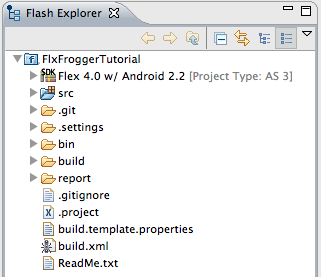
Now you should see the following project and all the required resources.

project_folder

Step 2: Set Up AntBuild

Ant may seem intimidating at first but I have taken all of the guess work out for you. This project is a modified version of my ANTPile template which you can get on GitHub here. It’s designed to help you get up and running in a matter of mins in any editor that supports ANT.

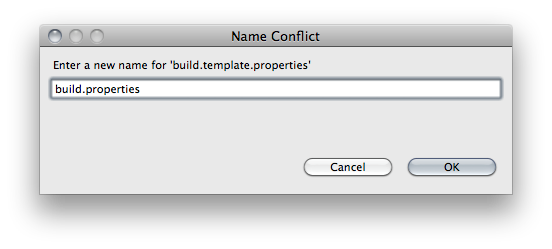
The first thing we need to do is copy the build.template.properties file and rename it to build.properties. This is the main file that contains all the configuration for you build. Let’s open it up and see what we need to set up.

rename_prop_file

To give you a point of reference I have left my configuration settings in here. The first thing you should look at is FLEX_HOME. Make sure that it is pointed to the Flex SDK on your computer. I have a copy of FlashBuilder on my computer so I point it to that. If you don’t have FlashBuilder you can download the SDK from here and put it anywhere on your computer you want then point to that path. If you are on windows you should make all the paths forward facing.

Next we want to check the correct browser, look for the “browser” variable. As you can see on the Mac I have it set up for Safari

browser = Safari

If you are on windows you will need to point it to a browser executable. Here is an example of how to set it up for FireFox.

browser = C:/Program Files/Mozilla Firefox/firefox.exe

The final thing you may want to do is set up a path for the Android SDK. You can download it from here, as you can see I keep my copy in /Users/jfreeman/Documents/AndroidDev/. I also named mine based on the version of Android I am building for. In this case I am using 2.2. You can skip this step for right now since I will go into more detail in part 2 on how to build AIR for Android using ANT.

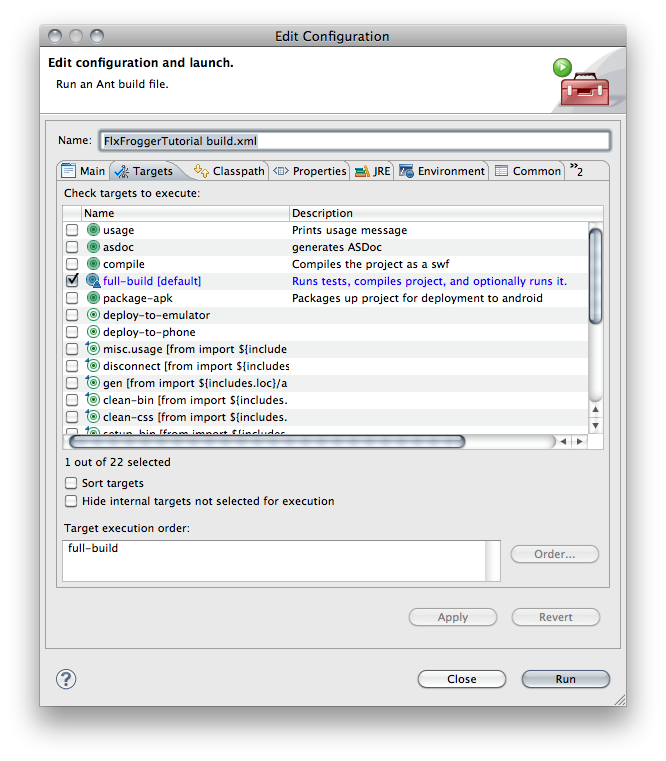
So now you have all the paths set up, let’s look at how to run this. Setting up a Ant build is very easy in FDT. Simply right-click on the build.xml. Select “Run as Ant Build… and you will see the following window.

run_as_ant

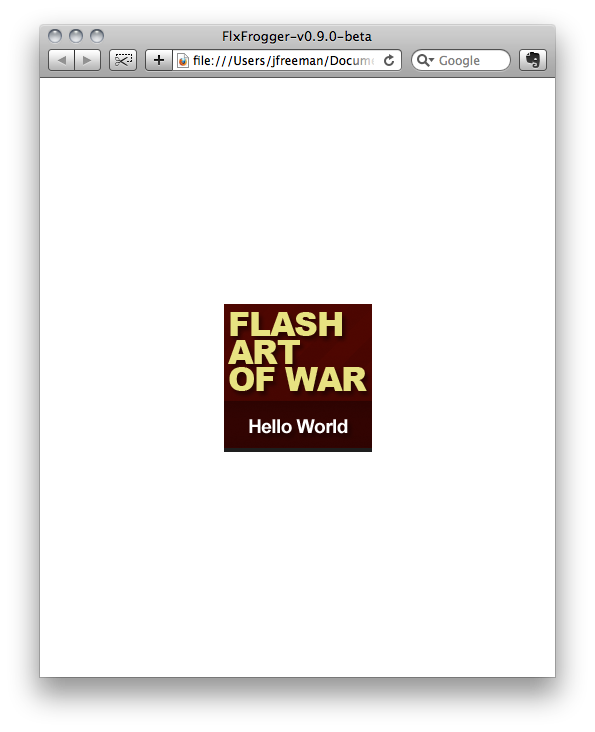
As you see FDT has automatically set everything up for you. All you have to do is select run; you will see Ant begin the build and your browser should pop up with the following swf:

FlxFrogger-hello-world

This is the default screen of Ant Pile. Congratulations, this was probably the hardest part of the entire tutorial. If you had any issues building, make sure you set the correct path to FLEX_HOME and your Browser. If you are new to Ant you may be thinking that this is a lot of work, and for some things you are correct. This kind of setup is used on very large projects but knowing how to use ANT can make your life easier. This build does a lot of things the IDE would not normally do for you. It can be set up to auto generate ASDocs, move files around, and as you will see later it will build a swf and apk (Android app) with one click.

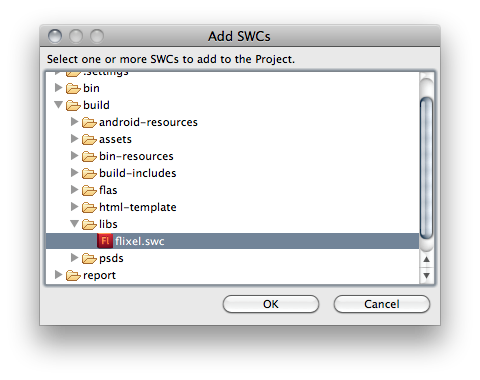
We just have to do one more thing before we can make our first game, we need to tell FDT where the Flixel swc is. To make things easy, I have included a build of Flixel in the build/libs folder which is where you should put all of your swc libraries for your project. The ANT Build automatically looks in this folder for these libs but FDT has no idea. Right-click on your project and select Properties from the contextual menu. Next select FDT Build Path and click on the Library tab. From here you can select Add SWCs… from the right and find the flixel.swc in our libs folder.

add_swcs

Now we can reference Flixel classes and FDT will know where to find them. Also this will help with our code completion.


Step 3: Create Start State

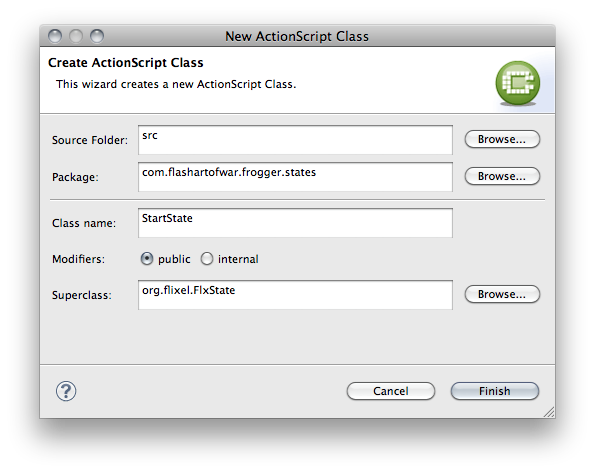
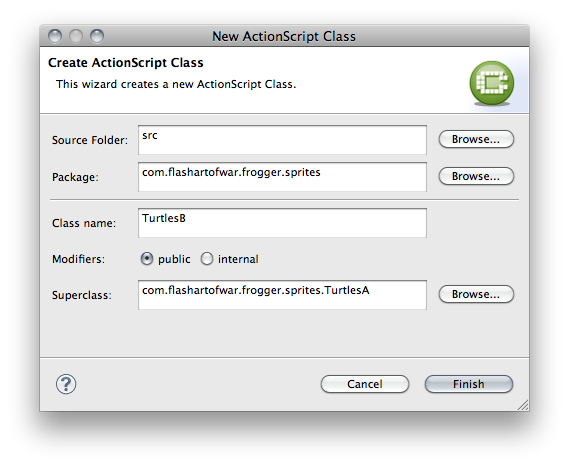
Before we can do anything with Flixel we need to create a State. A State is similar to a screen or scene in your game. You may have a start, end, and credit State and you can also make States for each level of your game. Lets make a Start state so we can setup Flixel. Right-click on the src folder and select New AS Class. You will want to fill in everything like this:

configure_start_state

Now we can fill in the basics for our Start Screen. Let’s copy and past the following code in:

package com.flashartofwar.frogger.states
{

	import flash.events.MouseEvent;

    import org.flixel.FlxG;
    import org.flixel.FlxSprite;
    import org.flixel.FlxState;
    import org.flixel.FlxText;

    public class StartState extends FlxState
    {

        /**
         * This is the first game state the player sees. Simply lets them click anywhere to start.
         */
        public function StartState()
        {
            super();
        }

        /**
         * Goes through and creates the graphics needed to display the start message
         */
        override public function create():void
        {
            var sprite:FlxSprite = new FlxSprite();
            sprite.createGraphic(FlxG.width, FlxG.height / 2, 0xff000047);
            add(sprite);

            stage.addEventListener(MouseEvent.CLICK, onClick);

            add(new FlxText(0, 200, FlxG.width, "PUSH").setFormat(null, 18, 0xffffffff, "center"));
            add(new FlxText(0, 300, FlxG.width, "ANYWHERE TO START").setFormat(null, 18, 0xd33bd1, "center"));
        }

        /**
         * Handles when the user clicks and changes to the PlayState.
         * @param event MouseEvent
         */
        private function onClick(event:MouseEvent):void
        {
        }

        /**
         * This removed the click listener.
         */
        override public function destroy():void
        {
            stage.removeEventListener(MouseEvent.CLICK, onClick);
            super.destroy();
        }

    }
}

Right now this isn’t going to make much sense if you have not used Flixel before. I will talk a little more about how this works when we begin building out the Play state a few steps for now. I have commented what is going on so you can get the general Idea.

Once we have our first state, let’s go into our Main Class FlxFrogger and replace everything with this:

package
{
	import com.flashartofwar.frogger.states.StartState;

	import org.flixel.FlxGame;

	[SWF(width="480", height="800", backgroundColor="#000000")]
    [Frame(factoryClass="Preloader")]

    public class FlxFrogger extends FlxGame
    {
        /**
         * This is the main game constructor.
         */
        public function FlxFrogger()
        {
            // Create Flixel Game.
            super(480, 800, StartState, 1);
        }
    }
}

This is all the code we need to start Flixel and begin our game. As you can see we simply extend FlxGame and pass the dimensions and our StartState up to the super. The last value, 1, represents the scale mode. Flixel can “upscale” your game to help achieve a cool retro pixelated look. We are not going to use that in this game since the source images are pixelated enough.

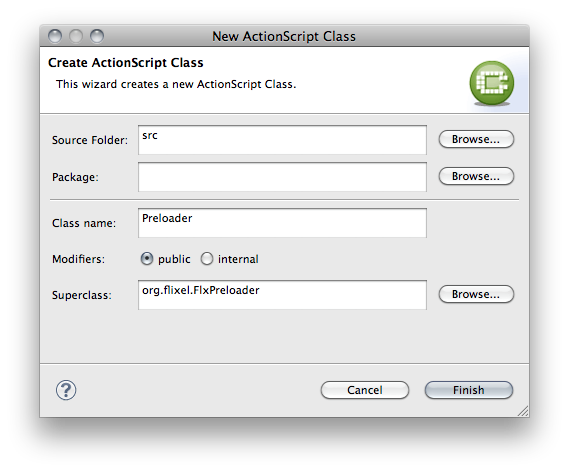
You will also need to make a default Preloader class. Create a new class called Preloader and configure it like this:

configure_preloader

Then copy this code into it:

package
{
    import org.flixel.*;

    public class Preloader extends FlxPreloader
    {
        public function Preloader()
        {
            className = "FlxFrogger";
            super();
        }
    }
}

This simply tells Flixel and the compiler what class is the main class to create once preload is completed.

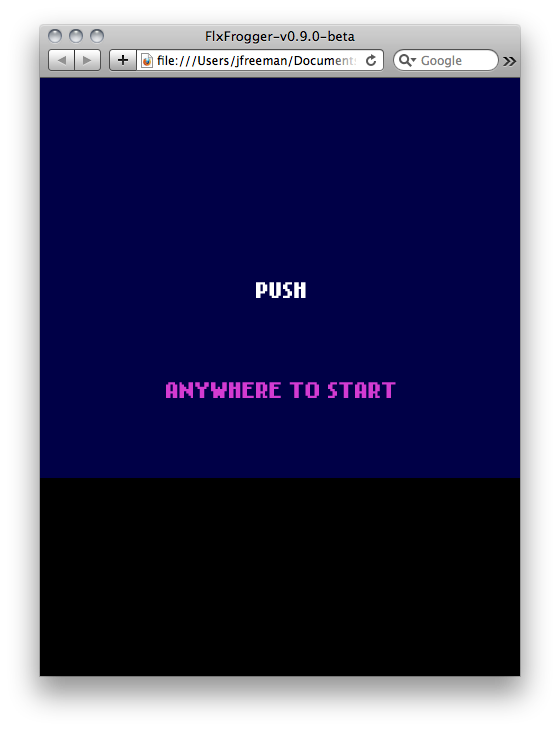
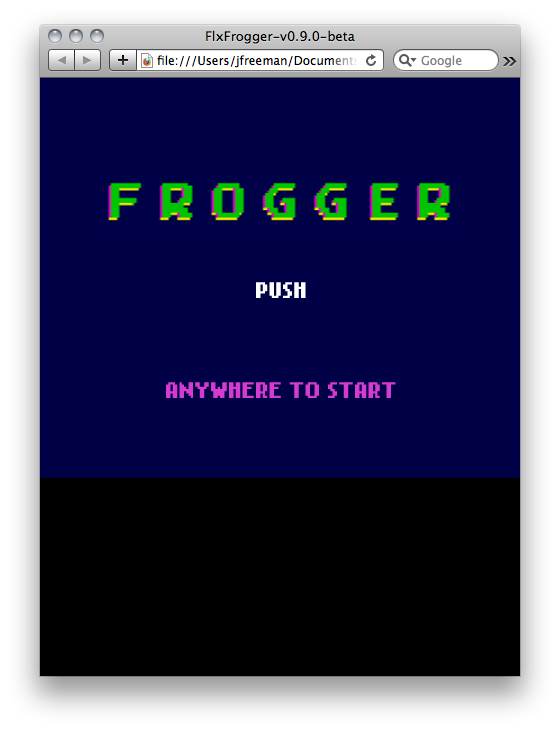
Now let’s run the ANT Build to see our start screen. You are doing great if you see this:

preview_start_state

If you click, nothing will happen. We will need to make our Play State. Before we do that, let’s set up all of our game graphics and sounds.


Step 4: Create a GameAssets Class

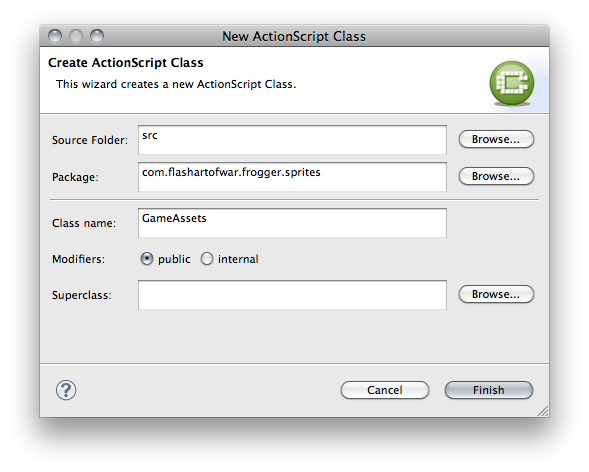
In the past you may have put all of your assets in a FLA and used the timeline. In this project we are going to do everything through code. Since Flixel handles animations through Sprite sheets we don’t need a timeline or a MovieClip. Let’s create a new class called GameAssets and set it up like this:

create_game_assets

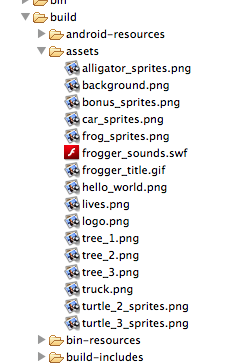
If you look in our build/assets folder you will see all of our images are ready for us to import.

game_assets

Since we don’t have a library when using the Flex SDK we will need to use the Embed Tag. Here is an example of what one of our assets will look like when we embed it. Add this to the GameAssets class.

[Embed(source="../../../../../build/assets/frogger_title.gif")]
public static var TitleSprite:Class;

As you can see we need to provide a path to the graphic and give it a variable name. This is similar to adding a linkage ID in the library of a SWF. The path is always relative to the location of your Class in the project. Since this class is in several packages you will notice the ../ denoting that the compiler should look a level higher from the current location. Let’s add this to our GameAssets class. One last thing to notice is that the variable is static. We will be using this class all over our application to gain access to asset class reference. Once you have this asset added and saved, lets open our StartState and add a title.

After the line with stage.addEventListener in the create() method, add the following lines of code:

var title:FlxSprite = new FlxSprite(0, 100, GameAssets.TitleSprite);
title.x = (FlxG.width * .5) - (title.width * .5);
add(title);

As you can see we are creating a new FlxSprte which is the base image type in Flixel and passing in a reference to the TitleSprite from our GameAssets class. You will also need to import GameAssets at the top:

import com.flashartofwar.frogger.sprites.GameAssets;

FDT can help you manage your imports and should have prompted you to add it for you. You can press Command 1 on a Mac to get the quick fix dialog box to popup. Now let’s run the ANT Build and see our game title:

preview_game_title

Great, you have just learned how to import a Bitmap into your app and how to display it in Flixel. Let’s go back into our GameAssets class and fill in the rest of the graphics we will need:

[Embed(source="../../../../../build/assets/background.png")]
public static var LevelSprite:Class;

[Embed(source="../../../../../build/assets/lives.png")]
public static var LivesSprite:Class;

[Embed(source="../../../../../build/assets/alligator_sprites.png")]
public static var AlligatorSprite:Class;

[Embed(source="../../../../../build/assets/car_sprites.png")]
public static var CarSpriteImage:Class;

[Embed(source="../../../../../build/assets/frog_sprites.png")]
public static var FrogSpriteImage:Class;

[Embed(source="../../../../../build/assets/bonus_sprites.png")]
public static var HomeSpriteImage:Class;

[Embed(source="../../../../../build/assets/tree_1.png")]
public static var LogSpriteImage1:Class;

[Embed(source="../../../../../build/assets/tree_2.png")]
public static var LogSpriteImage2:Class;

[Embed(source="../../../../../build/assets/tree_3.png")]
public static var LogSpriteImage3:Class;

[Embed(source="../../../../../build/assets/truck.png")]
public static var TruckSpriteImage:Class;

[Embed(source="../../../../../build/assets/turtle_2_sprites.png")]
public static var TurtlesSpriteImage:Class;

[Embed(source="../../../../../build/assets/turtle_3_sprites.png")]
public static var TurtlesBSpriteImage:Class;

Now that we have all of our game graphic set up we can set up a few sounds.


Step 5: Adding Sounds

Embedding sounds directly into a Class is a no win situation. This is one of the times I actually use the Flash IDE to make my life easier. The other time I use it is for embedding fonts but luckily Flixel has all the fonts we need already part of the framework. To embed a sound file we will need to add it to the library of a FLA and add a linkage ID. I have already created a swf for us in the assets folder called frogger_sounds. If you would like to see how I did this, I included a FLA in the build/flas folder. Let’s add some sounds to our GameAssets class.

[Embed(source="../../../../../build/assets/frogger_sounds.swf", symbol="FroggerExtraSound")]
public static var FroggerExtraSound:Class;

[Embed(source="../../../../../build/assets/frogger_sounds.swf", symbol="FroggerPlunkSound")]
public static var FroggerPlunkSound:Class;

[Embed(source="../../../../../build/assets/frogger_sounds.swf", symbol="FroggerSquashSound")]
public static var FroggerSquashSound:Class;

[Embed(source="../../../../../build/assets/frogger_sounds.swf", symbol="FroggerTimeSound")]
public static var FroggerTimeSound:Class;

[Embed(source="../../../../../build/assets/frogger_sounds.swf", symbol="FroggerHopSound")]
public static var FroggerHopSound:Class;

[Embed(source="../../../../../build/assets/frogger_sounds.swf", symbol="FroggerThemeSound")]
public static var FroggerThemeSound:Class;

So this works similar to how we embed an image but as you can see all of our sounds are coming from our swf. Also we reference the linkage ID as the symbol value. Now that you have these in place, let’s give it a test. Open up our StartState class and look for the onClick() method. Add the following line of code:

// Sound is played after the state switch to keep it from being destroyed
FlxG.play(GameAssets.FroggerThemeSound);

Flixel makes playing sound incredibly easy. You simply ask FlxG, which is a Singleton in the framework, to play and pass it a reference to the sound Class. We can test this by running the ANT build and clicking anywhere on the screen.

Now we are ready to add our PlayState so we can actually do something when the user tries to start the game.


Step 6: Create A Play State

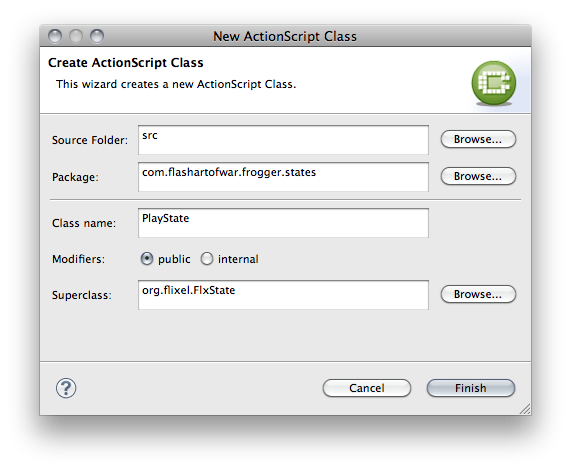
Earlier when we created our StartState I kind of glossed over what was going on under the hood. Let’s take it a little slower this time so you can get a better idea of how States work in Flixel. Create a new class called PlayState and configure it like this:

configure_play_state

Next add some stub code:

package com.flashartofwar.frogger.states
{
	import com.flashartofwar.frogger.sprites.GameAssets;

    import org.flixel.FlxSprite;
    import org.flixel.FlxState;

    public class PlayState extends FlxState
    {

        /**
         * This is the main level of Frogger.
         */
        public function PlayState()
        {
            super();
        }

        /**
         * This is the main method responsible for creating all of the game pieces and layout out the level.
         */
        override public function create():void
        {
			// Create the BG sprite
            var bg:FlxSprite = new FlxSprite(0, 0, GameAssets.LevelSprite);
            add(bg);
        }

    }
}

So here we have two methods, our constructor which doesn’t do anything and an overridden create() method. In Flixel the FlxState class, which we are extending, has this default method called “create”. This is where all of our initialization logic goes. Think of it as init. As you can see we are creating the background image for our game level. Another thing you should pay attention to is the add() call when we want to attach sprites to the renderer. This is similar to how addChild() works but in Flixel since all of our display elements are drawn to the screen during each “render cycle” we have nothing to really add to the Display List.

Before we can see this, we are going to need a way to switch to this state. Let’s go int our StartState class and add the following in the onClick handler:

FlxG.state = new PlayState();

This is how we change between states in Flixel. It’s really easy to move from State to State. Once you tell FlxG its new state class the display automatically renders it. There are ways of animating between states but that is out of the scope of this tutorial. Let’s run the demo and when you click to start you should see the following empty level.

preview_empty_play_state

It’s looking really empty in there, let’s add some characters.


Step 7: Create The WrappingSprite

In Frogger there are 3 basic “actors”:

  • The Player: This is the frog, he can move up, down, left and right. On land he can not walk past the bottom, left and right borders. In the water if he goes off screen he dies.
  • Wrapping Objects: These are cars, trucks, logs, and turtles. All moving objects in the game can “wrap”. This means when they go off screen they appear on the opposite side and keep moving in the same direction. Moving objects can go left or right.
  • Timer Objects: These are objects that move, or in the case of the home bases don’t move, and are on a timer. When the timer is up they change state. Turtles go under water and home show a bonus or an alligator.

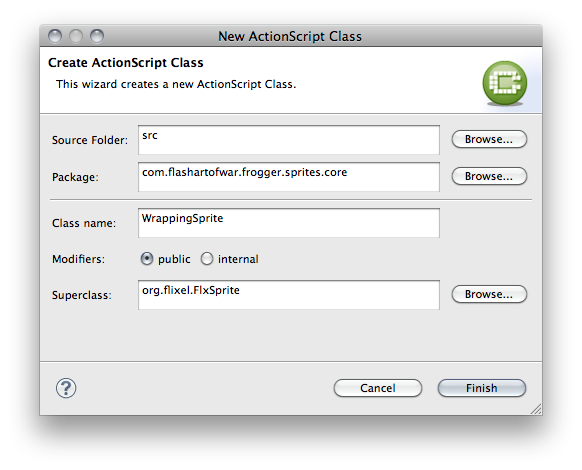
For now let’s focus on wrapping objects. Create a new class called WrappingSprite and configure it like this:

create_wrapping_sprite

And here is the code for this class:

package com.flashartofwar.frogger.sprites.core
{
    import com.flashartofwar.frogger.enum.GameStates;
    import com.flashartofwar.frogger.states.PlayState;

    import org.flixel.FlxG;
    import org.flixel.FlxSprite;

    public class WrappingSprite extends FlxSprite
    {

        protected var leftBounds:int;
        protected var rightBounds:int;
        protected var state:PlayState;

        public var speed:int;

        /**
         * This is a base class for any sprite that needs to wrap around the screen when it goes out of
         * bounds. This kind of sprite watches for when it is off screen the resets it's X position to
         * the opposite site based on it's direction.
         *
         * @param X start X
         * @param Y start Y
         * @param SimpleGraphic Use for sprites with no animations
         * @param dir Direction, supports Right (1) and Left (0)
         * @param speed how many pixel sprite will move each update.
         */
        public function WrappingSprite(X:Number = 0, Y:Number = 0, SimpleGraphic:Class = null, dir:uint = RIGHT, speed:int = 1)
        {
            super(X, Y, SimpleGraphic);
            this.leftBounds = 0;
            this.rightBounds = FlxG.width;

            this.speed = speed;

            facing = dir;

            state = FlxG.state as PlayState;
        }

        /**
         * This update methods analyzes the direction and x position of the instance to see if it should
         * be repositioned to the opposite side of the screen. If instance is facing right, it will restart
         * on the left of the screen. The opposite will happen for anything facing left.
         */
        override public function update():void
        {

            // Make sure the game state is Playing. If not exit out of update since we should be paused.
            if (state.gameState != GameStates.PLAYING)
            {
                return;
            }
            else
            {
                // Add speed to instance's x based on direction
                x += (facing == LEFT) ? -speed : speed;

                // Check to see if instance is out of bounds. If so, put it on the opposite side of the screen
                if (x > (rightBounds))
                {

                    if (facing == RIGHT)
                    {
                        x = leftBounds - frameWidth;
                    }

                }
                else if (x < (leftBounds - frameWidth))
                {

                    {
                        x = rightBounds + frameWidth;
                    }
                }

            }

            // Call update
            super.update();
        }
    }
}

I am not going to go over all of the logic here but I want to highlight the update() method. All FlxSprites have an update() method. Flixel uses something called a Game Loop. What this means is that everything in the framework is synced up to the same loop to perform all of its commands. This may be rendering instructions, pre-render calculations or simply game logic. In this update method we check the state of the game, more on this in a sec, if we are playing it is safe to move the Object.

Our moving logic checks to see our direction and moves along its X axis. If we reach our bounds, the instance moves to the opposite side of the screen. It may look like a lot but the logic is very simple. It will make more sense when we create our first WrappingSprite. Let’s set up our game state constants first.

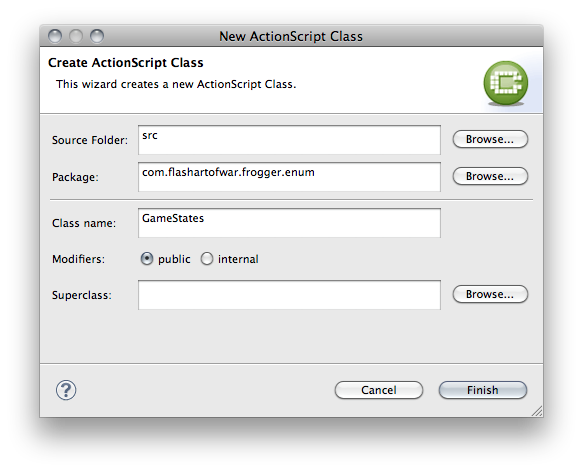
Create a new class called GameStates and configure it like this:

create_game_state

Here are our states:

public static const PLAYING:uint = 0; // Game is playing so animation is allowed
public static const COLLISION:uint = 1; // A collision has occurred, stop all animation
public static const RESTART:uint = 2; // Restart the game animations
public static const GAME_OVER:uint = 3; // Game is over
public static const DEATH_OVER:uint = 4; // A death animation is over
public static const LEVEL_OVER:uint = 5; // A level is over

We will also need to add a place to store the game state in our PlayState. Add the following property and import statement:

public var gameState:uint;

Now our PlayState can keep track of the global state of the entire game. We will use this to allow/disable animations from happening when major events happen in the game. Finally let’s add the correct state to our create() method:

// Activate game by setting the correct state
gameState = GameStates.PLAYING;

So this will set our game in motion once everything has been created. Let’s look at how to add cars to our game.


Step 8: Create Cars

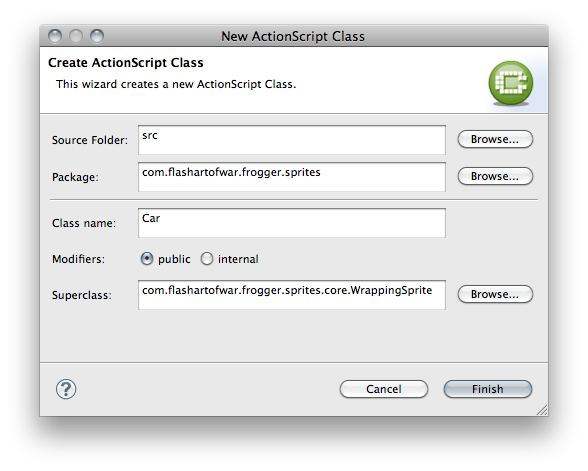
We are finally ready to make something move. There was a lot of build up to get to this point but now we have all the key classes in place for a solid foundation to build on. Create a Car class and configure it like this:

create_car_class

And here is our code:

package com.flashartofwar.frogger.sprites
{
    import com.flashartofwar.frogger.sprites.core.WrappingSprite;

    public class Car extends WrappingSprite
    {
		public static const SPRITE_WIDTH:int = 40;
        public static const SPRITE_HEIGHT:int = 40;

        public static const TYPE_A:int = 0;
        public static const TYPE_B:int = 1;
        public static const TYPE_C:int = 2;
        public static const TYPE_D:int = 3;

        /**
         * Simple sprite to represent a car. There are 4 types of cars, represented by TYPE_A, _B,
         * _C, and _D constant.
         *
         * @param x start X
         * @param y start Y
         * @param type type of car to use. Type_A, _b, _c, and _d are referenced as constants on the class
         * @param direction the direction the sprite will move in
         * @param speed the speed in pixels in which the sprite will move on update
         */
        public function Car(x:Number, y:Number, type:int, direction:int, speed:int)
        {
            super(x, y, null, direction, speed);

            loadGraphic(GameAssets.CarSpriteImage, false, false, SPRITE_WIDTH, SPRITE_HEIGHT);

            frame = type;
        }
    }
}

As you can see, we are simply extending WrappingSprite here and outside of storing a few values, we simply define the graphic to use for the Car’s sprite. As you can see there are 3 types of cars. We also have a constant for the Car’s width and height which you will use to help lay it out when setting up the level. Before we move on let’s talk about how loadGraphic() works.

As I have mentioned a few times before, Flixel uses its own custom class to represent visual elements of your game. You need to load a graphic in order for the FlxSprite to know how to render itself. When it comes to simple Sprites such as this car which has no animation it is relatively easy to set up. We pass in a reference to the graphic’s Class, set animation to false, set reverse to false and supply its width and height. On the following line we set the frame to the car type. This is a little trick you can do with Sprites in order to cut down on having several resources to input. Take a look at the car sprite:

car_sprites

I have added all the different types of cars to the Sprite image and simply tell the Car instance what frame to use based on the constants at the top of the class. This will make more sense when you see it in action.


Step 9: Adding Sprites to the PlayState

Let’s move over to our PlayState and add the following methods:

/**
 * Helper function to find the X position of a column on the game's grid
 * @param value column number
 * @return returns number based on the value * TILE_SIZE
 */
public function calculateColumn(value:int):int
{
    return value * TILE_SIZE;
}

/**
 * Helper function to find the Y position of a row on the game's grid
 * @param value row number
 * @return returns number based on the value * TILE_SIZE
 */
public function calculateRow(value:int):int
{
    return calculateColumn(value);
}

These two helper methods will allow us to quickly and consistently place our game Sprite in the game world. At first glance it may not be obvious but Frogger is actually based on a grid.

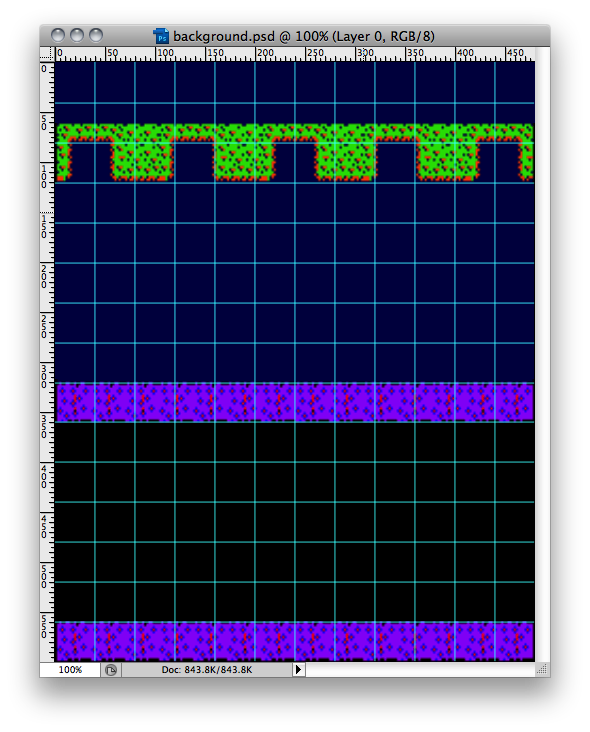
frogger-background

Each tile is 40 x 40 and there are 12 columns by 16 rows. Only 15 rows are in our background because the last row where the frog starts is black and there is no point in adding an extra row to the png to increase the file size.

You also want to keep sprites as small as possible since Flixel will paint this entire bitmap to the display before it does anything else. The larger your background, the longer it takes to render it and all the other FlxSprites. We could break this image down even more but to keep this tutorial easy to follow, I kept the background as one large image.

Since we know the tile’s dimensions, let’s add a constant to our PlayState class.

private const TILE_SIZE:int = 40;

Now we are ready to start adding Cars to our level. Go to the create() method and add the following lines above where we set the state variable.

// Create Cars
carGroup = add(new FlxGroup()) as FlxGroup;

carGroup.add(new Car(0, calculateRow(10), Car.TYPE_C, FlxSprite.RIGHT, 1));
carGroup.add(new Car(270, calculateRow(10), Car.TYPE_C, FlxSprite.RIGHT, 1));

carGroup.add(new Car(0, calculateRow(11), Car.TYPE_D, FlxSprite.LEFT, 1));
carGroup.add(new Car(270, calculateRow(11), Car.TYPE_D, FlxSprite.LEFT, 1));

carGroup.add(new Car(0, calculateRow(12), Car.TYPE_B, FlxSprite.RIGHT, 1));
carGroup.add(new Car((Car.SPRITE_WIDTH + 138) * 1, calculateRow(12), Car.TYPE_B, FlxSprite.RIGHT, 1));
carGroup.add(new Car((Car.SPRITE_WIDTH + 138) * 2, calculateRow(12), Car.TYPE_B, FlxSprite.RIGHT, 1));

carGroup.add(new Car(0, calculateRow(13), Car.TYPE_A, FlxSprite.LEFT, 1));
carGroup.add(new Car((Car.SPRITE_WIDTH + 138) * 1, calculateRow(13), Car.TYPE_A, FlxSprite.LEFT, 1));
carGroup.add(new Car((Car.SPRITE_WIDTH + 138) * 2, calculateRow(13), Car.TYPE_A, FlxSprite.LEFT, 1));

We have now added all of our cars. There is a lot of code but it should be easy to follow. We create what is called a FlxGroup. This is a great way to group similar sprites together and comes in handy when we begin doing our collision detection in part 2 of this tutorial. Each car is added to our carGroup and it gets a start X, Y, type, direction and speed. Since we want all of our cars to always be correctly lined up on the rows, we use the calculatRow method to help put it in the right place.

You will need to import the FlxGroup and Car classes then add the following property:

private var carGroup:FlxGroup;

You will also need to import the Car and FlxGroup classes.

import com.flashartofwar.frogger.sprites.Car;
import org.flixel.FlxGroup;

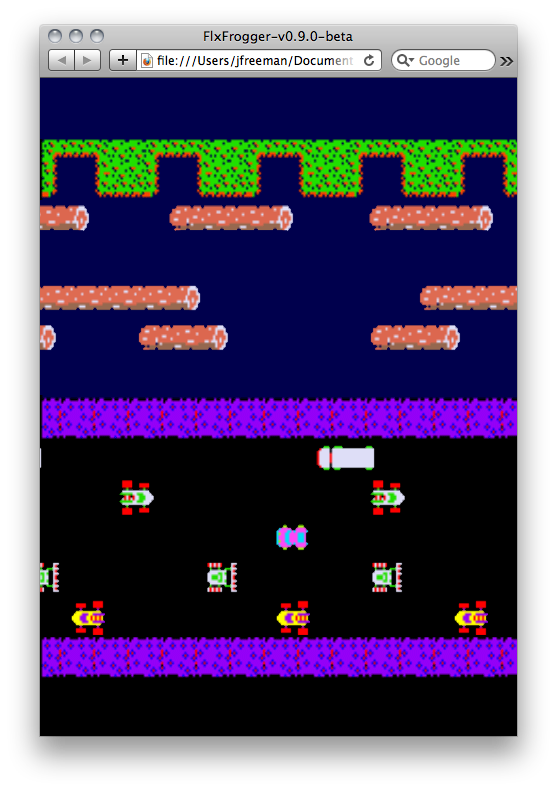
Now if we run the ANT build you will see all of our cars in their correct place and as each one goes off screen, it will reappear on the opposite side.

preview_cars

Let’s add in some trucks.


Step 10: Creating Trucks

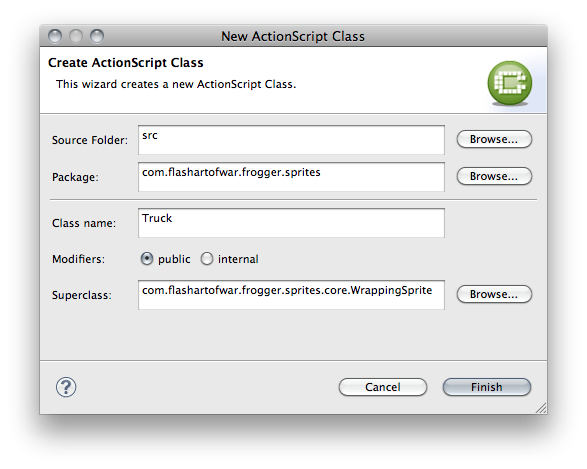
Creating a Truck is easier than the car since there is only one type of truck. Let’s create a new Truck class and configure it like this:

create_truck_class

And here is the code for the class:

package com.flashartofwar.frogger.sprites
{
    import com.flashartofwar.frogger.sprites.core.WrappingSprite;

    public class Truck extends WrappingSprite
    {
		/**
         * This is a simple sprite which represents the Truck.
         *
         * @param X start X
         * @param Y start Y
         * @param dir direction the sprite will move in
         * @param speed speed in pixels the sprite will move on update
         */
        public function Truck(x:Number, y:Number, direction:uint, velocity:int)
        {
            super(x, y, GameAssets.TruckSpriteImage, direction, velocity);
        }
    }
}

See how easy this was? Since we don’t have any animation and there is only one type of truck we can make this a simple sprite and pass a reference to the Truck asset to the constructor.

We can add some trucks by going into our PlayState class and adding the following code in above where we create our first car, making sure it is below where we create our carGroup.

carGroup.add(new Truck(0, calculateRow(9), FlxSprite.LEFT, 1));
carGroup.add(new Truck(270, calculateRow(9), FlxSprite.LEFT, 1));

If you run the game you will now see all of our trucks and cars zipping by.

preview_trucks

Step 11: Create Logs

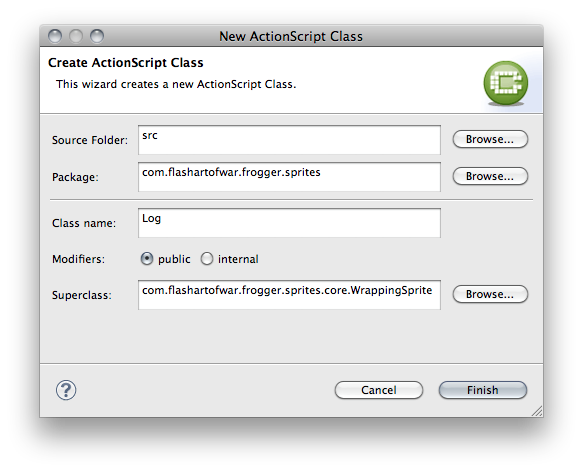
Logs are just as easy to add as our Trucks. Let’s create a new Trucks class and configure it like this:

create_logs

Here is the code for the Log class:

package com.flashartofwar.frogger.sprites
{
    import com.flashartofwar.frogger.sprites.core.WrappingSprite;

    public class Log extends WrappingSprite
    {
        public static const TYPE_A:int = 0;
        public static const TYPE_B:int = 1;
        public static const TYPE_C:int = 2;

        public static const TYPE_A_WIDTH:int = 95;
        public static const TYPE_B_WIDTH:int = 196;
        public static const TYPE_C_WIDTH:int = 127;

        /**
         * Simple sprite to represent a log. There are 3 types of logs, represented by TYPE_A, _B, and
         * _C constant.
         *
         * @param x start X
         * @param y start Y
         * @param type type of car to use. Type_A, _b, _c, and _d are referenced as constants on the class
         * @param direction the direction the sprite will move in
         * @param speed the speed in pixels in which the sprite will move on update
         */
        public function Log(x:Number, y:Number, type:int, dir:int, velocity:int)
        {

            var graphicClass:Class;

            switch (type)
            {
                case TYPE_A:
                    graphicClass = GameAssets.LogSpriteImage1;
                    break;
                case TYPE_B:
                    graphicClass = GameAssets.LogSpriteImage2;
                    break;
                case TYPE_C:
                    graphicClass = GameAssets.LogSpriteImage3;
                    break;
            }

            super(x, y, graphicClass, dir, velocity);

        }
    }
}

And we can add our logs to the PlayState above where we created our cars and trucks.

// Create logs
logGroup = add(new FlxGroup()) as FlxGroup;

logGroup.add(new Log(0, calculateRow(3), Log.TYPE_C, FlxSprite.RIGHT, 1));
logGroup.add(new Log(Log.TYPE_C_WIDTH + 77, calculateRow(3), Log.TYPE_C, FlxSprite.RIGHT, 1));
logGroup.add(new Log((Log.TYPE_C_WIDTH + 77) * 2, calculateRow(3), Log.TYPE_C, FlxSprite.RIGHT, 1));

logGroup.add(new Log(50, calculateRow(5), Log.TYPE_B, FlxSprite.RIGHT, 1));
logGroup.add(new Log(Log.TYPE_B_WIDTH + 120, calculateRow(5), Log.TYPE_B, FlxSprite.RIGHT, 1));

logGroup.add(new Log(0, calculateRow(6), Log.TYPE_A, FlxSprite.RIGHT, 1));
logGroup.add(new Log(Log.TYPE_A_WIDTH + 77, calculateRow(6), Log.TYPE_A, FlxSprite.RIGHT, 1));
logGroup.add(new Log((Log.TYPE_A_WIDTH + 77) * 2, calculateRow(6), Log.TYPE_A, FlxSprite.RIGHT, 1));

You will also need to create a new logGroup property.

private var logGroup:FlxGroup;

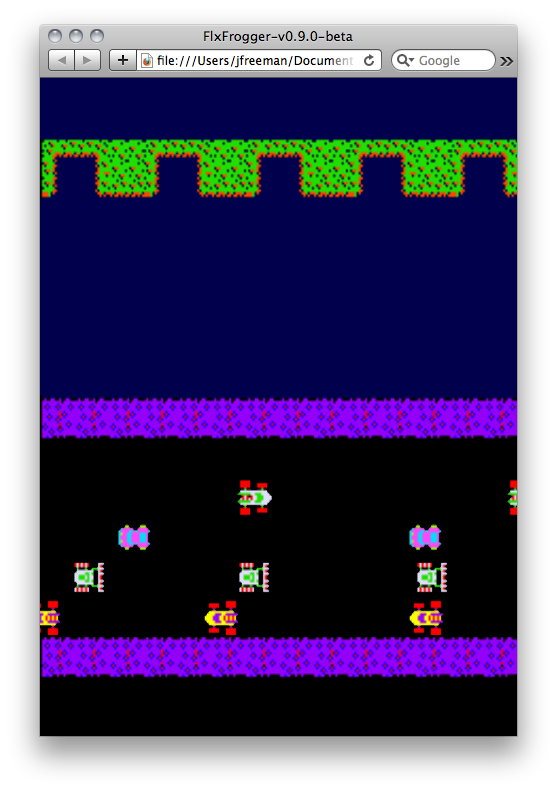
Now you can run the ANT build to see the logs floating at the top of the screen.

preview-logs

As you can see we spent most of our time upfront building base classes for our game so adding new Sprites would be very easy to do. Also Flixel handles a lot of the difficult stuff for you so you can focus on making great Flash games.


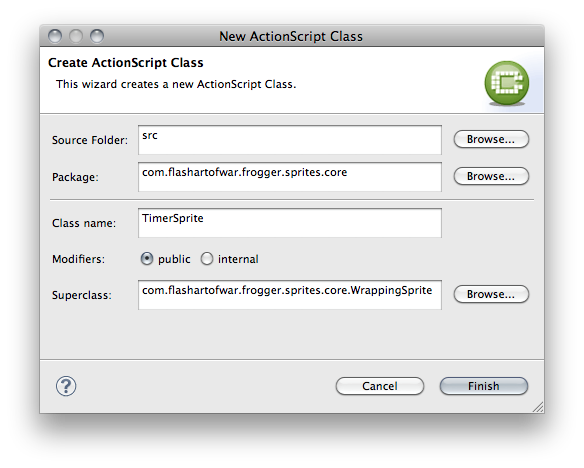
Step 13: Create TimerSprite

We are now ready to create our second type of game object, the TimerSprite. Let’s create a new class called TimerSprite and configure it like this:

create_timersprite

Here is the code for the sprite:

package com.flashartofwar.frogger.sprites.core {
	import com.flashartofwar.frogger.enum.GameStates;

	import org.flixel.FlxG;

	public class TimerSprite extends WrappingSprite
    {

        public static const DEFAULT_TIME:int = 400;

        protected var timer:int;
        protected var hideTimer:int;
        protected var _active:Boolean = true;

        /**
         * The TimerSprite allows you to change states from active to inactive based on an internal timer.
         * This is useful for sprites that need to hide/show themselves at certain intervals. If you want
         * to disable the internal timer, simply pass in -1 for the start time.
         *
         * @param x start x
         * @param y start y
         * @param SimpleGraphic used for sprites that don't need to show an animation
         * @param delay this represents the delay between switching states
         * @param startTime this is the time in which the timer starts. Use -1 to disable.
         * @param dir This represents the direction the sprite will be facing
         * @param speed This is the speed in pixels the sprite will move on update
         */
        public function TimerSprite(x:Number, y:Number, SimpleGraphic:Class = null, delay:int = DEFAULT_TIME, startTime:int = DEFAULT_TIME, dir:uint = RIGHT, speed:int = 1)
        {

            super(x, y, SimpleGraphic, dir, speed);

            this.hideTimer = delay;
            timer = startTime;
        }

        /**
         * This updates the internal timer and triggers toggle when equal to 0
         */
        override public function update():void
        {

            if (state.gameState == GameStates.PLAYING)
            {
                if (timer > 0)
                    timer -= FlxG.elapsed;

                if (timer == 0)
                {
                    toggle();
                }
            }

            super.update();

        }

        /**
         * Getter returns if the instance is active or not.
         *
         * @return a boolean, true is active and false is inactive
         */
        public function get isActive():Boolean
        {
            return _active;
        }

        /**
         * This is a simple toggle between active and deactivated states.
         */
        protected function toggle():void
        {
            if (!isActive)
            {
                onActivate();
            }
            else
            {
                onDeactivate();
            }

            timer = hideTimer;
        }

        /**
         *  Toggles the _activate variable signaling that it is no longer active.
         */
        protected function onDeactivate():void
        {
            _active = false;
        }

        /**
         * Toggles the _activate variable signaling that it is now active.
         */
        protected function onActivate():void
        {
            _active = true;
        }
    }
}

As you can see we are extending our WrappingSprite so that TimerSprite can wrap but also adding in logic to activate/deactivate. You’ll also notice in the update() method that in order to keep track of how much time has elapsed we rely on the Flixel’s internal clock. Your first instinct may have been to do:

timer --;

But when dealing with Flixel you want your time to always be in sync with the main game loop. That is why FlxG makes an elapsed getter available.

When the timer hits 0 we call toggle() and some action is put in motion. This class is an AbstractClass and simply has enough code to help setup children classes that extend it. Children classes are responsible for overriding the supplied methods with their own logic. It is also important to note that if you set the timer value to -1 the timer will not count down and all the timer logic will be ignored. This is a great way to disable a TimerSprite. Let’s look at how we can use this class by adding in turtles.


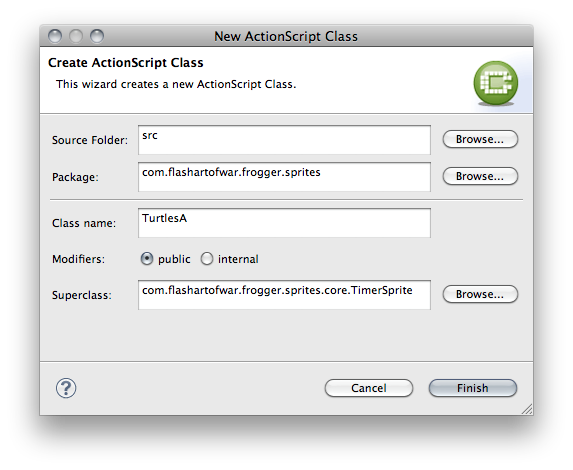
Step 13: Create Turtles

We are now ready to create our Turtles. Nothing new here, it is the same as our other Sprites. Create a new TurtlesA class and configure it like this:

create_turtles_a

The reason we gave this class an “A” as a suffix is because there are two types of turtles in our game; ones that float like logs and ones that can go under water. This is the basic Turtle so we can keep the logic simple. We just need to know how many turtles to render and this is done similarly to how we set up our cars. Here is the code:

package com.flashartofwar.frogger.sprites
{
    import com.flashartofwar.frogger.sprites.core.TimerSprite;

    public class TurtlesA extends TimerSprite
    {

		public static const SPRITE_WIDTH:int = 65;
        public static const SPRITE_HEIGHT:int = 40;
        public static const DEFAULT_TIME:int = 300;

        /**
         * This represents the Turtles the player can land on.
         *
         * @param x start X
         * @param y start Y
         * @param delay This represents the amount of time before toggling active/deactivate
         * @param startTime where the timer should start. Pass in -1 to disable the timer.
         * @param speed speed in pixels the turtle will move in
         */
        public function TurtlesA(x:Number, y:Number, delay:int = DEFAULT_TIME, startTime:int = DEFAULT_TIME, dir:uint = RIGHT, speed:int = 1)
        {
            super(x, y, null, delay, startTime, dir, speed);

            loadGraphic(GameAssets.TurtlesSpriteImage, true, false, SPRITE_WIDTH, SPRITE_HEIGHT);

            addAnimation("idle", [0], 0, false);
            addAnimation("hide", [1, 2, 3], 3, false);
            addAnimation("show", [3, 2, 1, 0], 3, false);
        }

        /**
         * Checks to see what frame the turtle is on and can be used to see if turtle is underwater or not.
         * @return if frog is totally underwater it will return false, if not true
         */
        override public function get isActive():Boolean
        {
            return (frame == 3) ? false : true;
        }

        /**
         * Makes turtle appear out of water.
         */
        override protected function onActivate():void
        {
            super.onActivate();
            play("show");
        }

        /**
         * Makes turtle go underwater
         */
        override protected function onDeactivate():void
        {
            super.onDeactivate();
            play("hide");
        }

    }
}

We finally have some animation to setup. By using the addAnimation() method built into Flixel we can tell the game engine which frames to play based on the Sprite’s state. Let’s take a look at the turtle sprite.

turtle_2_sprites

Here you will see we have several frames for our turtle’s animation. Animations get tied to a label, here we have idle, hide, and show. We also tell Flixel what order to animate the frames and at what speed. We can play an animation at any time by calling play() and supplying the animation name. If you notice in our onActivate() and onDeactivate we trigger the show/hide animations so the turtle can go under water.

Now let’s add some turtles to our PlayState. Put this code just above your logGroup code.

// Create turtles
turtleGroup = add(new FlxGroup()) as FlxGroup;

turtleGroup.add(new TurtlesA(0, calculateRow(4), -1, -1, FlxSprite.LEFT, 1));
turtleGroup.add(new TurtlesA((TurtlesA.SPRITE_WIDTH + 123) * 1, calculateRow(4), TurtlesA.DEFAULT_TIME, 200, FlxSprite.LEFT, 1));
turtleGroup.add(new TurtlesA((TurtlesA.SPRITE_WIDTH + 123) * 2, calculateRow(4), -1, -1, FlxSprite.LEFT, 1));

You will also need to import the TurtlesA class and add the following property.

private var turtleGroup:FlxGroup;

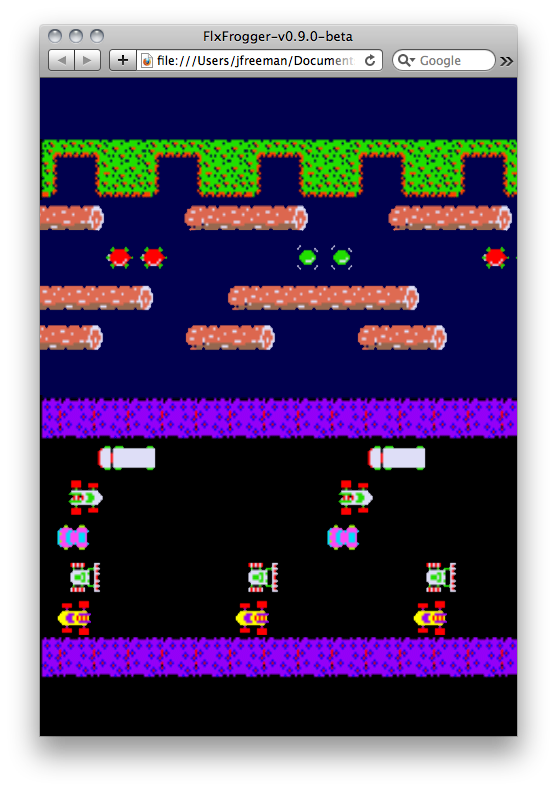
If you run the ANT build you will see our Turtles and can watch them dive under the water.

preview_turtles

Next up we will add our 3 Turtles sprites.


Step 14: Create Turtles B

Now it is time for us to add the other set of Turtles. This is the 3 turtle group and will work exactly how our two turtle group did. Let’s create a new class TurtlesB and set it up like this:

create_turtles_b

Now add the following code.

package com.flashartofwar.frogger.sprites
{
    public class TurtlesB extends TurtlesA
    {

		public static const SPRITE_WIDTH:int = 99;
        public static const SPRITE_HEIGHT:int = 40;
        public static const DEFAULT_TIME:int = 300;

        /**
         * This represents the Turtles the player can land on.
         *
         * @param x start X
         * @param y start Y
         * @param delay This represents the amount of time before toggling active/deactivate
         * @param startTime where the timer should start. Pass in -1 to disable the timer.
         * @param speed speed in pixels the turtle will move in
         */
        public function TurtlesB(x:Number, y:Number, hideTimer:int = DEFAULT_TIME, startTime:int = DEFAULT_TIME, dir:uint = RIGHT, velocity:int = 40)
        {
            super(x, y, hideTimer, startTime, dir, velocity);

            loadGraphic(GameAssets.TurtlesBSpriteImage, true, false, SPRITE_WIDTH, SPRITE_HEIGHT);

        }

    }
}

Since TurtlesA has all of the basic logic we need to run the turtle sprites, we simply change the graphics to our 3 turtle sprite. All of our animation sets will be retained as well. Add the following code to your PlayState class below the TurtleA references we added in the last step.

turtleGroup.add(new TurtlesB(0, calculateRow(7), TurtlesA.DEFAULT_TIME, 0, FlxSprite.LEFT, 1));
turtleGroup.add(new TurtlesB((TurtlesB.SPRITE_WIDTH + 95) * 1, calculateRow(7), -1, -1, FlxSprite.LEFT, 1));
turtleGroup.add(new TurtlesB((TurtlesB.SPRITE_WIDTH + 95) * 2, calculateRow(7), -1, -1, FlxSprite.LEFT, 1));

Once you have imported the TurtlesB class, you can run the ANT build and see all the turtles.

preview_turtles_b

Step 15: Create Home Bases

It’s now time to add our last actor in the level, the home bases. At the top of the screen are 5 places where the Player must jump into in order to move to the next level. These bases have 4 kinds of animation states: a fly for a bonus, an alligator to kill the player, a frog that has been saved, and an empty slot. Here is the image we will be using for this sprite:

bonus_sprites

Let’s create a Home class and set it up like this:
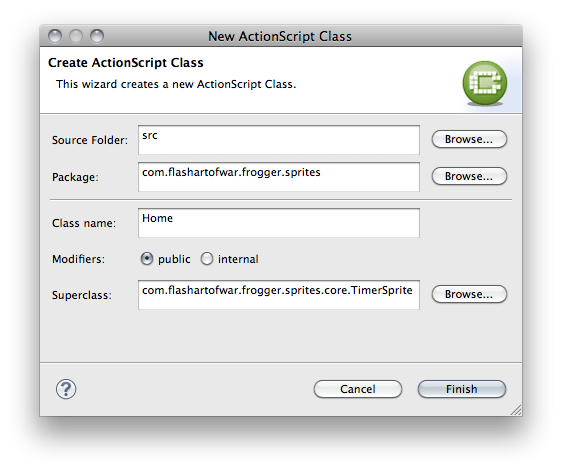
create_home
package com.flashartofwar.frogger.sprites
{
    import com.flashartofwar.frogger.sprites.core.TimerSprite;

    public class Home extends TimerSprite
    {

        public static const SPRITE_WIDTH:int = 40;
        public static const SPRITE_HEIGHT:int = 40;
        public static const BONUS:int = 0;
        public static const NO_BONUS:int = 1;
        public static const SUCCESS:int = 2;
        public static const EMPTY:int = 3;
		public var mode:uint;
        public var odds:uint;

        /**
         * Home represents the sprite the player lands on to score points and help complete a level.
         * The home has 4 states Empty, Success, No Bonus, and Bonus
         *
         * @param x start X
         * @param y start Y
         * @param delay This represents the amount of time before toggling active/deactivate
         * @param startTime where the timer should start. Pass in -1 to disable the timer.
         * @param odds the randomness that one of the 3 states will be reached (empty, bonus, or no bonus)
         */
        public function Home(x:Number, y:Number, delay:int = TimerSprite.DEFAULT_TIME, startTime:int = TimerSprite.DEFAULT_TIME, odds:int = 10)
        {
            super(x, y, null, delay, startTime, 0, 0);

            this.odds = odds;

            loadGraphic(GameAssets.HomeSpriteImage, false, false, SPRITE_WIDTH, SPRITE_HEIGHT);
            addAnimation("empty", [EMPTY], 0, false);
            addAnimation("bonus", [BONUS], 0, false);
            addAnimation("noBonus", [NO_BONUS], 0, false);
            addAnimation("success", [SUCCESS], 0, false);

            play("empty");

        }

        override protected function onDeactivate():void
        {
            super.onDeactivate();
            showEmpty();
        }

        /**
         * On active draw a random number based on the odds and see what state should be shown.
         */
        override protected function onActivate():void
        {
            super.onActivate();

            var id:uint = Math.random() * odds;

            switch (id)
            {
                case(BONUS):
                    showBonus();
                    break;
                case(NO_BONUS):
                    showNoBonus();
                    break;
                default:
                    showEmpty();
                    break;
            }
        }

        /**
         * Shows empty state
         */
        private function showEmpty():void
        {
            play("empty");
        }

        /**
         * Shows no bonus state
         */
        private function showNoBonus():void
        {
            play("noBonus");
        }

        /**
         * Show bonus state
         */
        private function showBonus():void
        {
            play("bonus");
        }

        /**
         * Show success state
         */
        public function success():void
        {
            play("success");
            timer = -1;
        }

        /**
         * Reset the sprite to the empty state and restart the timer.
         */
        public function empty():void
        {
            setMode(EMPTY, "empty");
            timer = hideTimer;
        }

        /**
         * private method to set the state of the sprite.
         *
         * @param mode what mode should the sprite be in Empty, Bonus, No Bonus or Success
         * @param animationSet What animation set should it use to display the state
         */
        protected function setMode(mode:int, animationSet:String):void
        {
            //TODO This should be consolidated to use the same mode int
            this.mode = mode;
            play(animationSet);
        }

    }
}

I have commented this class to better explain what is going on. The basic idea is that when the timer goes off we randomly pick a state for the sprite. Once the state has been selected the correct animation is called. Let’s add the bases to our PlayState. Add the following code above our Turtles.

// Create home bases sprites and an array to store references to them
bases = new Array();
homeBaseGroup = new FlxGroup();
add(homeBaseGroup);
bases.push(homeBaseGroup.add(new Home(calculateColumn(0) + 15, calculateRow(2), 200, 200)));
bases.push(homeBaseGroup.add(new Home(calculateColumn(3) - 5, calculateRow(2), 200, 200)));
bases.push(homeBaseGroup.add(new Home(calculateColumn(5) + 20, calculateRow(2), 200, 200)));
bases.push(homeBaseGroup.add(new Home(calculateColumn(8), calculateRow(2), 200, 200)));
bases.push(homeBaseGroup.add(new Home(calculateColumn(11) - 15, calculateRow(2), 200, 200)));

We are doing this group a little differently because in Part 2 we will need a reference to the bases to validate a level has been completed. You will need to import the Home class and add the following properties.

private var bases:Array;
private var homeBaseGroup:FlxGroup;

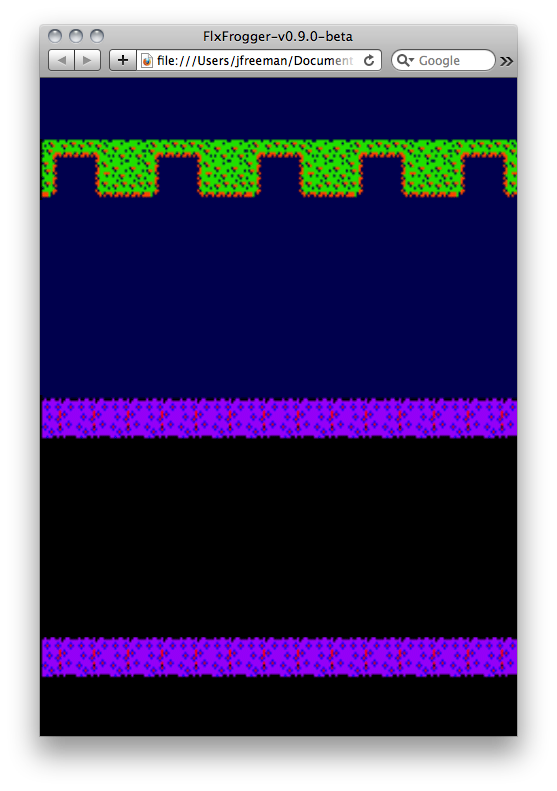
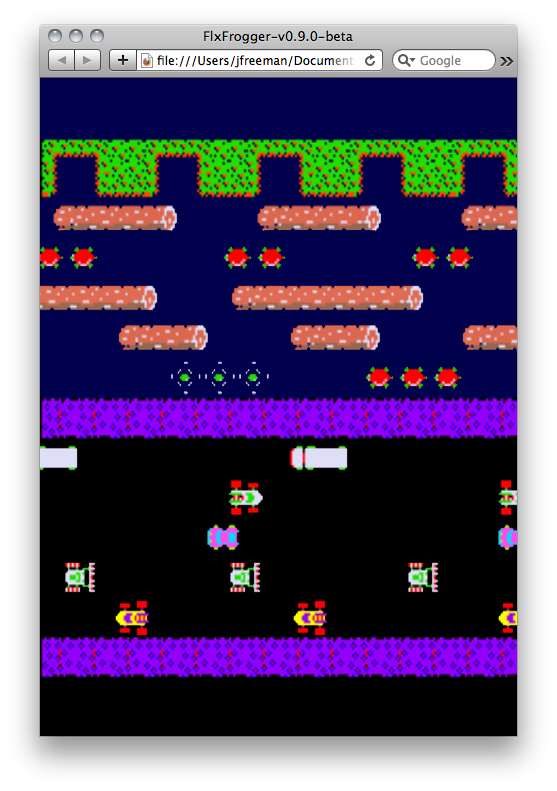
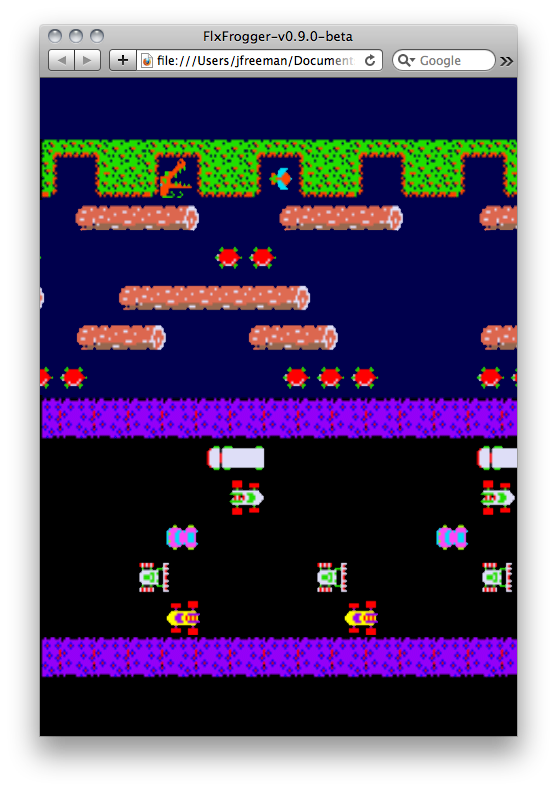
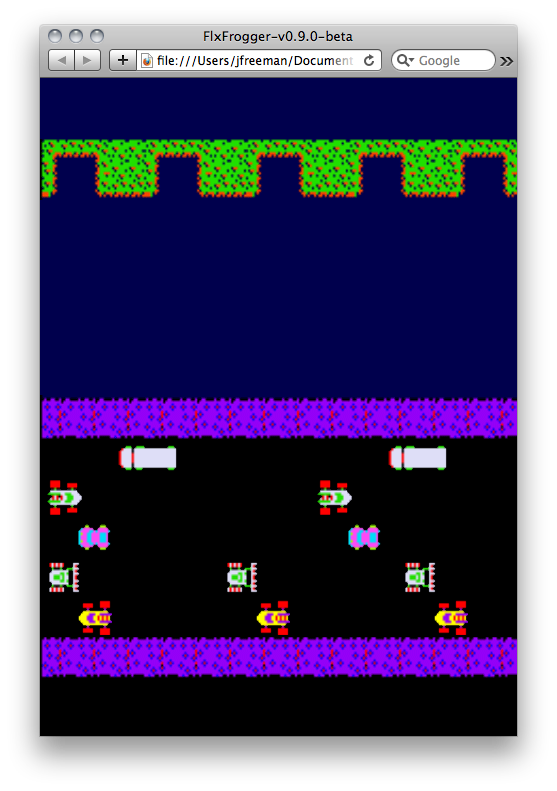
Now run the ANT Build and you will see the top rows fill in with random base graphic.

preview_home

Conclusion

So, we have covered a lot in this tutorial! You learned how to start up Flixel, create and switch between game States, and finally the basics of creating new Sprites and attaching them to a level. In the next tutorial we will cover how to create the player, move him, add collision detection and more. If you don’t have the patience to wait for the next part (Editor: We’re only talking a week Jesse!), you can always check out the full FlxFrogger source code from GitHub.

Create an ‘Auto-Fence’ asset in Houdini – The Asset

In the concluding part of our very first Houdini tutorial, Alvaro Castaneda shows us how to take the nodes we created from part 1 and convert them into an amazing Auto-Fence digital asset – something that shows just why Houdini can be such a powerful part of the VFX workflow.
This tutorial is Day 2 in a series – Go to Day 1 now to see Alvaro create the node network.


Video 1

Download

Note: click the ‘Monitor’ icon to view tutorial in full-screen HD.


Video 2

Download

Note: click the ‘Monitor’ icon to view tutorial in full-screen HD.

This tutorial is Day 2 in a series – Go to Day 1 now to see Alvaro create the node network.


Don’t miss more CG tutorials and guides, published daily – subscribe to Cgtuts+ by RSS.

Motivational Music: Songs That Get Me Going


I was reading an article on music motivation and I started thinking about when I listen to music at work and what I seek out for motivation.

To be honest, I have a hard time listening to music when I’m writing — even classical music. But there are times when I’m not writing or editing and I need a pick me up. That’s when I turn on my iTunes and tune in. I try to keep it at a normal decibel level during normal office hours, but when I’m working late and the only one in the office I can turn it up and even — gasp! — sing along.

I’m a child of the 80s and 90s, and having graduated from high school during the “Jock Jams” era and grunge, my taste varies. Here are some of my favorite pump-me-up tunes:

I Like to Move it Move it (Reel 2 Reel)

This song has actually permeated my 3-year-old niece’s musical repetoire thanks to the movie, Madagascar.

Two Step (Dave Matthews)

I spent many a summer planning trips to Dave Matthews concerts with my friends during my college years. They’re some of my best memories of my early 20′s and his music always gets me revved up.

Fired Up (Ralph Falcon)

I also spent many a summer working at restaurants and nightclubs in the Boston area during college, so dance music always gets my body moving. The beat to this song is simply infectious.

Send Me On My Way (Rusted Root)

This is a great song to listen to in the car, but beware. I’ve caught myself speeding every time it comes on. It just makes you want to go fast!

What songs do you listen to when you need a little extra oomph?

How to Practice the 2-Item To-Do List


Are there any other type-A personalities out there who read with disdain blog posts about eliminating the to-do list? Do you roll your eyes like I do when you read things like, “do less and you’ll get more done.” Or, “just choose the one most important thing to focus on for the day and don’t do anything else.”

The little voice inside my head always screams,

“Yeah, right! I don’t know what planet you’re living on, but my planet sure doesn’t function that way.”

But then again, my to-do list is an ever-growing monster. It seems like every time I cross one thing off, two new things get added. Now if that isn’t the epitome of counter-productive, I don’t know what is.

The to-do list is one of the most overwhelming, self-imposed guilt trips there is. So why do we do it to ourselves? Because, of course, we are a bunch of overachievers who live in a culture that tells us that the more we do, the more valued and successful we will be.

Lately I’ve been attempting to embrace a new mantra: Reject the status quo.

When the status quo tells me to book up my calendar, add things to my to-do list, and run around like a mad woman, I stop and give my head a shake. It boils down to just being tired of feeling like I’m not accomplishing enough with my time. Yes, the “status quo thing” does have something to do with it, but self-flagellation really isn’t sustainable.

I also realized that if I really stop and think about it, most of the things I put on my to-do list aren’t the most important things I should be focusing on. Instead, they distract me from those important things. It’s like a false feeling of importance; staying busy makes us feel important, even if we aren’t doing anything that truly matters.

So last week, I decided to try an experiment — just for one week, to see how I would do with a 2-item daily quota. Here’s a rough outline of my process:

First, I took stock of the things I needed to accomplish for the week:

  • Project A, with client phone call on Tuesday
  • Project B, due Monday
  • Project C, due Friday
  • Project D, weekly on Wednesday
  • Plus one morning of helping a friend pack for a move

Then, I evaluated each item and pre-determined deadlines and allocated 2 items per each day of the week:

Monday

  1. Project A
  2. Project B

Tuesday

  1. Help friend pack
  2. Project A client phone call

Wednesday

  1. Project D
  2. Continue work on Project A (new deadline for Monday)

Thursday

  1. Project C
  2. Project A

Friday

  1. Finish and deliver Project C
  2. Project A

By the end of the day Monday, I felt incredibly accomplished. I had to wait for some information from my client before I could begin work on Project A, so I was at my computer and writing by 9 am, worked on Project B and didn’t check my email until after lunch. When I checked my email, I had the information I needed for Project A, which I worked on and finished before 3 pm.  When all was said and done, I had accomplished my 2-item quota, plus some.

Now, being a pragmatist, I wouldn’t be doing you much service if I told you that every day went just like Monday. The rest of the week got off course right around Thursday (as a result of Wednesday night’s insomnia), but the beauty of this system is that I bumped the Thursday items to Friday, delivered Project C on Saturday, and still met Project A deadline the following Monday.

So while I haven’t exactly done away with my to-do list entirely, I’m at least sticking with the pared-down system for week 2. It looks like this system is going to be the way to go for me in terms of taming that monster list of things that I need to get done.

Quick Tip: Taking Beautiful Candlelight Photos

Light is one of a photographer’s greatest assets and, when used effectively, can transform otherwise dull scenes into photographic masterpieces. Candles offer a unique source of light which can produce stunning results if used creatively. In today’s Quick Tip, we’re exploring a few techniques for making the most of candlelight photography!


Step 1 – Remove Other Light Sources

Candles produce light with a warmth that is rarely found from natural sunlight, a bulb or a flash, so it is important to try to optimise its affect. Try removing all other light sources from the room – this will not only enhance the affect of the candle’s light, but will also help you understand the strength of the light and how it behaves in the room.


Step 2 – Camera Settings

There are a number of difficulties involved with photographing candles, namely the low light. With this in mind, be prepared to knock up the ISO, select a low f-number and a fairly long shutter speed, but don’t be afraid to experiment to get the shutter speed as quick as you can. A longer shutter speed will inevitably lead to problems with camera shake, so either find something to lean against, or preferably use a tripod.

Another thing to consider is the movement of the flame. If there is even a light breeze, the flame will flicker at it’s own pleasure. Although this can be used to your creative advantage, if you’re going for the still hopeful flame vibe, then get rid of the draught!


Step 3 – Use a Candle as a Light Source

Candles are often used as the focal point of an image, but you might also want to consider using them as a light source for your shot. You may want to light a subject in darkness, but with a particularly warm light, which a candle could provide.

Try using a single candle to start with, experiment with proximity and also the angle in relation to the subject (without getting too close!). You may then want to add more candles to the scene, in or out of shot, to enhance and adapt the light.


Step 4 – Candle Composition

When using candles as the subject for your shot, there are few compositional elements to consider. Firstly, the angle at which you approach the subject. Many candles are round, but look at how the wax is melting and whether there is anything of particular interest or distraction in the background.

If you are using a single candle, think about how to maximise the affect of singularity – the lone flame in the darkness – and whether you want the shot to be predominantly light or predominantly dark.

If you are shooting multiple candles, look at how they are arranged. Is there a pattern or layout from a certain angle? With a low f-number, you may also want to consider the focal length, looking down a line of little flames with only one in focus can be very effective.


Have Fun, and Play Safe!

Photographing candles is not always easy due to the low light situation but they provide a great opportunity for creativity and will hopefully help you to understand more about light. Don’t be afraid to experiment – spend an hour in a dark room with a few candle flames and I’m sure you’ll be surprised at what you can come up with.

Finally, play safe, be careful with candles in your home and remember to always blow them out before you leave the room!

Updated: Who Needs University? The Best Nettuts+ Screencast Training Courses


Education is expensive…very expensive! But, luckily, 95% of the tutorials and courses on Nettuts+ are free! And, should you require more training, a Tuts+ premium subscription is extremely cheap, at only $9 per month. Alternatively, you can purchase a wide selection of screencasts, eBooks, and tutorials on the Tuts+ marketplace. Whether you’re hoping to learn jQuery, WordPress, CSS, Tumblr, ASP.NET, PHP, CodeIgniter, or JavaScript, we’ve got you covered!


1. Diving Into PHP

Diving Into PHP

Just as with the “jQuery for Absolute Beginners” series, you’ll start from scratch and slowly work your way up to some more advanced PHP topics; this is another incredible series that first aired on the ThemeForest Blog.

The Complete Series


2. Magento for Designers

Magento for Designers

Magento is a stunningly powerful e-commerce platform. In celebration of ThemeForest’s new Magento category, this mini-series will you teach how to get started with the platform: you’ll get to know the terminologies and learn how to set up a store and all related aspects of it; finally you’ll learn how to customize it to make it your very own.

The Complete Series


3. JavaScript from Null

JavaScript from Null

Thanks to the wide adoption of libraries like jQuery and Mootools, JavaScript’s popularity has skyrocketed in the last few years. However, in the process, an interesting thing occurred: many newer developers are learning these libraries without taking the time to actually learn about raw JavaScript techniques. What percentage of jQuery users don’t know how to fade out an element with only raw JS? My guess is that it’s much higher than many would think.

If you want to truly understand the library you’re working with, and improve your skill-set, it’s vital that you learn the fundamentals of raw JavaScript. And this series will teach you what you need to know!

The Complete Series


4. Tumblr Theme Design – Start to Finish (Premium or Tuts+ Marketplace)

Tumblr Theme Design – Start to Finish (Premium)

Tumblr’s popularity over the last year has increased exponentially. The reason why is quite simple: Tumblr is flexible, powerful, and, most importantly, a pleasure to work with. Unfortunately, there aren’t many training resources available for the platform yet. In this video series, we’ll go through the process of taking a Tumblr theme, designed in Photoshop, and converting it into a fully working theme – in just a few hours.

The Complete Series

If you’re not already a Nettuts+ Premium member, you’ll want to sign up to get this course. You can view an introduction to it here.

Alternatively, you can purchase this series on the Tuts+ marketplace.

  • Chapter 1: Intro
  • Chapter 2: Slicing the Design
  • Chapter 3: Creating the Markup and Adding the Tumblr Template Tags
  • Chapter 4: Adding the CSS
  • Chapter 5: Configuration Options
  • Chapter 6: @Font-Face and Custom Fonts
  • Chapter 7: Slide-out Panel – HTML and CSS
  • Chapter 8: Slide-out Panel – jQuery

5. CodeIgniter from Scratch

CodeIgniter from Scratch

After numerous requests, we launched a new screencast series on Nettuts+ that will focus exclusively on the CodeIgniter PHP framework. Over the course of 15 videos (so far!), you’ll learn how to use this framework.

The Complete Series


6. Regular Expressions for Dummies

If there’s one topic that most people agree is difficult to get into, it’s regular expressions. But fear not: you’ll get comfortable using this sometimes-confusing technology with these five screencasts.

The Complete Series

You can see the whole series here, and this is what you’ll get:


7. CSS: Noob to Ninja (Premium or Tuts+ Marketplace)

This exclusive premium video series will take you from a state of absolute CSS “noobness,” all the way up to ninja-status, capable of taking advantage of the latest CSS3 techniques. The series begins with the basics: the syntax, properties, etc. However, each new video expands upon the previous, as you work your way up and improve your skills.

The Complete Series

This series is for Premium members, but if you aren’t familiar with CSS, there’s no better way to learn! Get it here!

Alternatively, you can purchase this series on the Tuts+ marketplace.

  • Part 1: Preparation
  • Part 2: CSS Properties
  • Part 3: Typography
  • Part 4: Floats
  • Part 5: Positioning
  • Part 6: Semantics, List Items, and Menus
  • Part 7: CSS Organizational Techniques
  • Part 8: Rounded Corners, Box Shadows, and Text Shadows
  • Part 9: CSS3 Gradients
  • Part 10: Custom Fonts with @font-face
  • Part 11: Taking Advantage of CSS Frameworks
  • Part 12: Extending CSS with LESS

8. jQuery for Absolute Beginners

jQuery for Absolute Beginners

So, everywhere you look, you see “jQuery this” and “jQuery that.” For the last year or so, this library has been the darling of the JavaScript world. But do you feel that you just can’t seem to learn the dang thing? Do you hate how the existing tutorials assume that you know WAY more than you actually do? If this rings true for you, I can help: check out the jQuery for absolute beginners series that first showed on the old ThemeForest Blog, and has since joined the Nettuts’ arsenal.

The Complete Series


9. WordPress for Designers

If you want to get into the WordPress community, we’ve got a great way to start: the WordPress for Designers series, from the old Themeforest Blog. You’ll learn everything from installing the platform to slicing a PSD file and turning it into a complete theme.

The Complete Series


10. The Ultimate Guide to Creating a Design and Converting it to HTML and CSS

The Ultimate Guide to Creating a Design and Converting it to HTML and CSS

This was a multi-part series across the Tuts+ sites, which demonstrated how to build a beautiful home page for a fictional business. We learned how to create the wireframe on Vectortuts+; we added color, textures, and effects on Psdtuts+; and we took our completed PSD, and converted it into a nicely coded HTML and CSS website.

The Complete Series


11. ASP.NET from Scratch

ASP.NET from Scratch

Nettuts+ is primarily a PHP haven; however, I’m sure we can all agree that there are many fantastic, and technically more powerful languages and frameworks at our disposal. Jeremy McPeak, author of Professional AJAX, and Beginning JavaScript: 4th Edition, will teach you how to build ASP.NET applications from scratch over the course of the next several video tutorials. Enjoy!

The Series Thus Far


12. Become a Master of Object-Oriented Programming in PHP (Tuts+ Marketplace)

Become a Master of Object-Oriented Programming in PHP (Tuts+ Marketplace)

Though not free, this in depth video series, split into three parts ($3 per set), we’ll demonstrate exactly how to get up and running with OOP techniques. And more importantly, we’ll focus on a real world application, rather than confusing unrelated metaphors.

The Full Series

  1. Chapter 1 – Introduction and OOP First Steps
  2. Chapter 2 – What are Objects and Classes. What’s the relationship between the two.
  3. Chapter 3 – How to Perfectly Document your Code with DocBlocks
  4. Chapter 4 – What is Encapsulation
  5. Chapter 5 – The Static Keyword
  6. Chapter 6 – Inheritance / Creating Child Classes
  7. Chapter 7 – Building a MySQL Wrapper Class (Parts 1 and 2)
  8. Chapter 8, 9, 10, 11 – Building a MySQL DB Class from Scratch

13. Dissecting jQuery

Dissecting jQuery

Sporadically, over the course of each month, we’ll post a “Dissecting jQuery” video quick tip. The idea behind these is that we’ll take a single chunk of the jQuery source at a time, break it down, and determine exactly what’s going on under the hood, so to speak. Then, with that knowledge, we’ll learn how to better utilize the library in our coding. Today, we’ll review filters.

The Series Thus Far

  1. Filters
  2. Grep
  3. Text

You’ll be a Pro in No Time!

Well, now you’re well on your way to becoming a well-trained web developer. What’s your favorite tutorial here on Nettuts+? Let us know in the comments!

If you enjoyed these screencasts over the last year or so, and would like to give back to Nettuts+, please do consider signing up for a Premium Tuts+ subscription. In addition to helping us out, you’ll gain access to source files, extra advanced tutorials and video series, and freebies…from all of the Tuts+ sites!

ASP.NET from Scratch: Routing in MVC


In today’s episode of ASP.NET from Scratch, we’ll look into URL routing in the MVC framework, and examine how a request can be routed to a controller and action method. You’ll learn how to use constraints to gain better control over your routers, and also discuss best practices in adding routes to the route table.


The Complete Series

Premium Members: Download this Video ( Must be logged in)

Sell ASP.NET Components on CodeCanyon

Did you know that you can sell your ASP.NET scripts and components on CodeCanyon? Simply sign-up for a free author account, and start selling!

5 Biggest Copyright Pitfalls for Web Designers


When it comes to design, copyright is often a very muddled gray area. Just as the lines between plagiarism and homage are often confusing, so too is the line between infringing and non-infringing use of copyrighted material. Since it is natural and even expected of Web designers to incorporate elements from other sites and other creations, it is important to understand the risks and hazards when it comes to copyright in Web design. As such, here are five of the most common copyright pitfalls Web designers face and how to best avoid them.


1. Images

The most common issue many web designers face when it comes to copyright law has to do with the images they use in their layouts. For some designers, it is common practice to find images they need by doing a Google search or pulling an unlicensed image from a stock photo library.

The problem with this is that, as Google itself warns, these images are usually protected by copyrights, and their use as part of a layout almost certainly constitutes an infringement. Historically, artists have not had many resources for finding such infringements, but as detection tools improve in quality and drop in price, more infringements are being detected.

It is important that you always make sure you have the rights to use an image in your layout, even if it is just a placeholder.

If you need to locate free images that you can use legally, search for Creative Commons-licensed work on Flickr or visit StockXchng (sxc.hu) to find high-resolution images you can use legally – as long as you are sure to follow the terms of the licenses carefully.


2. HTML/Source Code

Most Web designers are expected to crib some of their source code, either from other sites or their previous work. But where taking a portion of a page to get a table format or a few CSS elements from a stylesheet likely won’t raise any alarm, large scale copying, such as taking an entire style sheet or whole theme elements, likely constitutes copyright infringement.

The problem is that HTML code, much like computer software, is considered an original work of authorship, even if it is created with the help of tools, and enjoys copyright protection. Though you can’t copyright the general look of the site, meaning Google can’t copyright a white background with a center logo, you can protect the code that created that work.

The best way to avoid any issues over your source code is to create as much of it yourself as possible and limit any copying to only things that you could trivially reproduce but wanted to save time on. The more it becomes clear where your code came from, the more likely the copyright holder may become upset.


3. Platform Licensing

The days of static websites went out nearly a decade ago. Most sites today are built on top of a platform of some variety or another, be it WordPress, Joomla, Presta Shop or some other software. However, many of these tools have strict and/or unusual licensing requirements and it is easy for designers to run afoul of their terms when setting up a new site.

The most common mistake is installing a purchased application on too many sites; for example, by buying a one-domain license on ThemeForest for an application, but using it with multiple clients.

However, even open source applications carry risks as many designers, in an attempt to keep the site clean, remove attribution lines in the code and files on the server that are required as part of the license.

When using any software to build a site, take a moment to read thorough the license and understand what it means. Follow those terms closely. Developers are constantly becoming more savvy about tracking down those who violate their licenses and even authors that license under the GPL are becoming more aggressive about enforcing their terms.


4. Open Source Blunders

A related mistake comes when web designers use and publish works based on open source code, particularly GPLed code (which includes many WordPress themes) and forget to either retain the license information and/or fail to donate their modified code back to the GPL.

If you create a derivative work of a GPL-licensed one, such as making a GPL WordPress theme a different color, the new theme has to be licensed under the GPL.

If you are unsure of whether your new work meets the requirement for GPL “inheritance”, this 2001 article by Lawrence Rosen (http://www.sitepoint.com/article/public-license-explained/) explains it quite nicely.


5. Dummy Copy

Though the use of dummy text is largely a hold over from the print design world, many web designers continue to use it for various reasons. It can pose a great risk if the dummy copy is pulled from another site. Even if the copy is just for testing purposes, it still constitutes an infringement. It may be unwittingly harming the original authors if the search engines have detected the test site.

Generally speaking, it is best to either use content from the client’s current site if possible, or true lorem ipsum text if it isn’t (http://www.lipsum.com/). Considering that lorem ipsum text is actually more flexible than using articles and content from other sites, it makes sense in nearly every regard.

Be especially careful of scraping RSS feeds for the purpose of filling up a test application or blog, this is especially frowned upon by bloggers and may have your test site mistaken for a spam blog.


Bottom Line

In the end, it is important to keep copyright infringement in mind when designing websites and services. This is especially crucial if your test sites are public facing or may be indexed by the search engines – as you may find your test pages taken down by your host.

However, even if you test solely on a private server, it’s worth keeping these issues in mind so you do not pass along an infringing site to your clients, even by accident. Nothing will sour a relationship with a client faster than them receiving cease and desist letters or take-down notices for content in your layout.

Given the minimal amount of effort that it takes to remain on the right side of copyright law, it doesn’t make sense to even take the chance. It only takes a few minutes to do things correctly but it takes just one copyright infringement complaint to sandbag an entire design career.

This article was originally posted on the ThemeForest blog. We are currently porting over some of the more popular articles to Nettuts+.

Quick Tip: Dissecting jQuery – Text


In this latest episode of “Dissecting jQuery,” we’ll discuss the text() method, as well as a new feature, as of jQuery 1.4, that you may not be aware of yet.

jQuery Source for the text Method

text: function( text ) {
		if ( jQuery.isFunction(text) ) {
			return this.each(function(i) {
				var self = jQuery(this);
				self.text( text.call(this, i, self.text()) );
			});
		}

		if ( typeof text !== "object" && text !== undefined ) {
			return this.empty().append( (this[0] && this[0].ownerDocument || document).createTextNode( text ) );
		}

		return jQuery.text( this );
	}

Keep in mind that the ability to pass a function to the text() method is only available, via the user of version 1.4 or higher. But that’s no problem; and if you’re still using 1.3, you should really stop! :)


Other Episodes in the “Dissecting jQuery” Series

  1. Filters
  2. Grep

20 Excellent Coda Tips


I’ve been using Coda for a while now, and it’s become my web development application of choice. There are quite a few great web development applications out there (read “18 Wonderful IDEs for Windows, Mac, and Linux“) but if you’re a Mac user, Coda is easily one of the best.

Here are 20 excellent Coda tips to increase productivity that I’ve gathered during my use of Coda so far.


1. Set Your Preferences

There are a few things I had to change right away when I first started using Coda. These are all found in Coda’s preferences.

I never use a GUI CSS editor so I set Coda to always open CSS files with the text editor.

Coda Preferences General Tab

Under the Editor tab I’ve check-marked “Show line numbers” and “Use tabs” for indenting. You can hide/show line numbers by pushing Command + Option + L as well.

Coda Preferences Editor Tab

Under the Colors tab I’ve check-marked “Highlight Current line” to make it easier to see where the cursor is when switching back and fourth between applications.

Under the files tab I set files to open when double clicked instead of a single click. You may also need to setup your external editors. Coda automatically used Photoshop for the image formats I use.

Coda Preferences Files Tab

This is how Coda’s navigation bar at the top is by default. This is just a waste of space in my opinion although it is pretty.

Coda Nav Bar Big

I’ve changed mine to display only text titles and as small as possible. Since I don’t use the buttons I have that section minimized most of the time anyway. Instead I use the shortcut keys which I’ll cover next.

Coda Nav Bar Small

Aside from these changes, I’ve left everything else at the default settings. I’ve played around with the color schemes a little but I didn’t find anything I was really happy with so I’ve kept the default color scheme.


2. Switching Modes

If you aren’t using shortcut keys to change modes, now is a good time to learn. Pushing Command + 1-6 changes the mode you’re in. You can switch between your sites, editor, preview, etc. modes very quickly this way.


3. Navigating Open Documents

Pushing Command + Shift + Left or Right Bracket will navigate through your open documents.


4. Line Indenting

Coda automatically indents certain markup for you by default but you’ll still find yourself using the Tab button pretty frequently. Instead of jumping to the front of a line to indent it you can push Command + Left or Right Bracket to indent the line the cursor is currently in.


5. Clips and Text Inserts

Pushing Command + Control + C will open up Coda’s clips. Clips is a place to store snippets of code for quickly inserting into documents. You can save snippets for use in all documents or just site specific clips.

Coda Clips General

You can assign tags to quickly insert clips. For example, I’ve set “htmltemp” to insert an HTML 4.01 Template when I start a new document. I would type “htmltemp” into the blank document and push Tab to insert the clip. You can also insert a selection placeholder if the cursor needs to go somewhere specific in the clip after being inserted.

Coda Clips General

6. Inline HTML Validation

Validate your HTML while you’re working. Okay, if you’re experienced with HTML you might only want to use the validation feature when you’re ready to validate, otherwise you’ll have errors popup as you’re typing which can be pretty annoying.

Coda Inline Validation

Coda will tell you what needs to be fixed. Sometimes there is a little orange “snapback” button in the balloon that will take you to the beginning of the error when clicked.

Coda Inline Validation Example

7. Use Coda’s Hints

If you aren’t quite comfortable with HTML or CSS yet you can use Coda’s Hints feature to give you a little extra guidance.

Coda Hints

8. Use Coda Books

Highlighting something and pushing Command + ‘ will search the books you have available in Coda for the highlighted text. You can also just hold Command and double click a word you want to search for.

Coda's Books

9. Setup More Coda Books

Add more books to reference more information. You can read more about adding more Coda books here.

Coda Books

10. Block Edit Text

If you need to edit multiple lines you can do a block edit to do them all at once. You can highlight the text you want to edit and push Command + Shift + B or you can hold down Option and select the lines you want to block edit that way.

Block Edit Text

11. Shift Text

Highlighting text and pushing Command + Left or Right Bracket will shift the highlighted text left or right. This is great for shifting a whole section of markup for good looking markup formatting.


12. Preview in a Browser

You can preview files in Coda’s built in Preview mode (which uses the same engine as Safari) and while in that mode you can click the Preview in Browser button in the top right to open the file in the browser of your choice.

You can also push Command + Option + B while in any mode to open and preview the file in the default browser (Safari). When you make changes to the document you can use this shortcut to refresh the preview in the browser a little faster.

Coda Browser Preview

13. Use the Preview Tools

There are three tools included with Coda’s preview mode. These can be helpful for quick development issues (although I still find myself using Firebug :-P ).

Preview Tools

The left button lets you preview the source code. Kind of strange since you’re just in the preview mode and you could just switch back to the edit mode. However, this lets you edit the source code and preview the changes without actually editing the document. A great feature for testing and debugging.

The center button is the JavaScript log and the right button is the DOM hierarchy inspector. You can quickly find and see elements with this which is helpful if you aren’t sure what’s going on.

DOM Inspector

14. Split Windows

You can split windows using the icon in the top right of the window (the plus with lines). Pushing Option will change the direction of the lines meaning the split will change from horizontal to vertical (or the opposite if changed in preferences). You can also push Command + Control + L to split the window using shortcut keys (hold option to split the other direction).

Coda Split Windows

Within each window you can independently change modes.

Coda Window Previews

15. Open Separate Files in Split Window

You can also open separate files in split windows by right clicking files in the File Browser and selecting “Open in Split” or by dragging the file into an already open split. Now you can edit two separate files in a split window.


16. Hide/Show File Browser

Coda’s file browser is great but you won’t be using it the majority of the time so you can quickly hide/show it by pushing Command + Control + B.


17. Hide/Show Code Navigator

If you need a little help jumping around a document you can pop open the code navigator.

Code Navigator

A little hidden feature with Coda and the code navigator is that you can create “bookmarks” within your code to jump around your document faster using the code navigator. For example.

<!-- !THIS IS AN HTML BOOKMARK -->

This would create a bookmark in the code navigator that looks like this.

Bookmarks

Basically the bookmark is created with markup comments that use an exclamation point before the bookmark text. You can do this for HTML, CSS, PHP, etc.


18. Use the Find Features

Instead of using the code navigator to find things, I use the find features. Pushing Command + F opens the bar to search. Then just type in what you’re looking for and push enter. Coda will scroll the document to the first matching text and highlight it. There are several more shortcut keys for searching and several options you can change if needed. Using the find feature is much faster for me than using the code navigator since my hands never have to leave the keyboard.

Find

19. Quick Close Tag Shortcut

By default Coda will automatically close a tag once you’ve opened one. However, that doesn’t always work and I still find myself needing to close HTML tags manually all the time. Pushing Command + Option + . (period) will automatically close the current HTML tag (wherever the cursor is).


20. Get Plugins

While Coda has a lot of great features, there are many features developers still want. There are a few plugins available from third party developers that you can install to give Coda extra functionality. Here is a list of third-party plugins available.


Final Thoughts

These are some great tips for using Coda but like any great web development application, there are plenty more, so take some time to explore. With some practice, you can pick up tons of keyboard shortcuts that will keep your hands on the keyboard instead of wasting time mousing around. ;-)

For video tutorials, tips, guides and other information, visit Panic’s Coda Developer Zone.

If you have some great tips, feel free to share them with us by leaving a comment below.

This article was originally posted on the ThemeForest blog late last year. We are currently porting over some of the more popular articles to Nettuts+.

Display Anything you want from the Envato API using PHP


If you’re unaware, Envato has a stable and fantastic API to work with that is super powerful and super simple. The latest version (at the time of writing) is release v2. In this article, we’ll review how to access every single public set from the Envato API.


Learning the Basics

First things first: you need to know where to find the API, what it is, and how exactly it works. You can find the official API release on the forums, as well as the update to the API thread and the v1 update information.

The API works by making requests to custom URLs containing data that you wish to be returned. The data can also be returned in two formats, xml or JSON, which is returned is up to you. I prefer returning as JSON and using PHPs json_decode to turn the data into nested arrays.


What we will Accomplish

Below, you will see a screenshot of all of the currently available public sets. We will go through each and everyone of these today, individually, and with a working code example and preview of the final result!

Release Table

For each set we cover today, I will briefly describe what the point of the set is, post the code, and then later explain each step of the code below. Be sure to ask any questions about any of the code snippets you find below.

Also, feel free to use the this code and techniques learned in this tutorial however you wish!


1. Blog Posts

The blog-posts set allows you to query and display a list of blog posts for any particular market. It requires one parameter, which is the marketplace you would like the recent blog posts from.

//Initialize curl
$ch = curl_init();
curl_setopt($ch, CURLOPT_URL, 'http://marketplace.envato.com/api/v1/blog-posts:themeforest.json');
curl_setopt($ch, CURLOPT_CONNECTTIMEOUT, 5);
curl_setopt($ch, CURLOPT_RETURNTRANSFER, true);
$ch_data = curl_exec($ch);
curl_close($ch);

if(!empty($ch_data))
{
	$json_data = json_decode($ch_data, true);
	//print_r($json_data);
	$data_count = count($json_data['blog-posts']) -1;

	echo '


';
}
else
{
	echo 'Sorry, but there was a problem connecting to the API.';
}

Lets walk through the above snippet in detail, as the rest of our snippets will look very similar.

  • We start off by initiating a new curl handle. cURL will allows us to query the API with whatever parameters we like. You could use file_get_contents, but you will gain a performance boost with cURL.
  • We set our target URL. Notice how we passed in the set blog-posts and then themeforest for the parameter. Also, note we are requesting the data is JSON format.
  • Next, we set two more cURL options. CURLOPT_CONNECTTIMEOUT allows us to set the timeout time for our request, which we set to 5 seconds. The other option is CURLOPT_RETURNTRANSFER tells cURL to return the data as a string instead of outputting it directly.
  • We store the results of the cURL request in $ch_data.
  • Now we check if there was indeed some data returned, if so we decode the json and turn it into a nested array.
  • Lastly, we loop through the array elements and print out some basic data.

Keep these details in mind; like I said, you will see this pattern in almost every set we cover, though they will vary slightly.

And a demo of the output:

Blog Posts

2. Active Threads

The active-threads set allows you to pull out some recently active forum threads.

$ch = curl_init();
curl_setopt($ch, CURLOPT_URL, 'http://marketplace.envato.com/api/v1/active-threads:themeforest.json');
curl_setopt($ch, CURLOPT_CONNECTTIMEOUT, 5);
curl_setopt($ch, CURLOPT_RETURNTRANSFER, true);
$ch_data = curl_exec($ch);
curl_close($ch);

if(!empty($ch_data))
{
	$json_data = json_decode($ch_data, true);
	//print_r($json_data);
	$data_count = count($json_data['active-threads']) -1;

	echo '


';
}
else
{
	echo 'Sorry, but there was a problem connecting to the API.';
}

Note a few things here; one, we have changed our request URL to reflect the new set we want to obtain. Secondly, note the array namings have changed as they will with each new set we request. Lastly, notice how print_r is commented out. This is very helpful for debugging and viewing the structure and hierarchy of the data.

And a demo of the output:

Active Threads

3. Number of Files

Don’t let the name of the number-of-files set fool you. It is not the number of a users files (but we will cover this!) but rather the number of files in a given category from a given market. For example, this would let you find out how many total site templates we have on ThemeForest, which we’ll do now.

$ch = curl_init();
curl_setopt($ch, CURLOPT_URL, 'http://marketplace.envato.com/api/v1/number-of-files:themeforest.json');
curl_setopt($ch, CURLOPT_CONNECTTIMEOUT, 5);
curl_setopt($ch, CURLOPT_RETURNTRANSFER, true);
$ch_data = curl_exec($ch);
curl_close($ch);

if(!empty($ch_data))
{
	$json_data = json_decode($ch_data, true);
	//print_r($json_data);
	$data_count = count($json_data['number-of-files']) -1;

	echo '


';
}
else
{
	echo 'Sorry, but there was a problem connecting to the API.';
}

Of course, our URL request has changed and we have passed the parameter of themeforest, which is the marketplace we will pull the data from. An example of the output from this snippet is below:

Number of Files

4. New Files

Just like the ThemeForest homepage displays a list of new files, you, too, can access new files from a given marketplace from the using new-files set. A nice addition from this set, is the ability to also display the item thumbnail, as you’ll shortly see.

$ch = curl_init();
curl_setopt($ch, CURLOPT_URL, 'http://marketplace.envato.com/api/v1/new-files:themeforest,wordpress.json');
curl_setopt($ch, CURLOPT_CONNECTTIMEOUT, 5);
curl_setopt($ch, CURLOPT_RETURNTRANSFER, true);
$ch_data = curl_exec($ch);
curl_close($ch);

if(!empty($ch_data))
{
	$json_data = json_decode($ch_data, true);
	//print_r($json_data);
	$data_count = count($json_data['new-files']) -1;

	echo '


';
}
else
{
	echo 'Sorry, but there was a problem connecting to the API.';
}

Unlike our previous snippets, this set requires two parameters. It requires the marketplace and the desired category respectively. Notice that we have added some PHP and markup inside of our for loop. This allows us to display a thumbnail of the item.

A sample output of this snippet is below:

New Files

5. Popular

Similar to displaying recently uploaded items to a given marketplace, we can also display popular items from a given marketplace. Perhaps you want to display a list of popular ThemeForest files on your blog. This snippet would accomplish that goal.

$ch = curl_init();
curl_setopt($ch, CURLOPT_URL, 'http://marketplace.envato.com/api/v1/popular:themeforest.json');
curl_setopt($ch, CURLOPT_CONNECTTIMEOUT, 5);
curl_setopt($ch, CURLOPT_RETURNTRANSFER, true);
$ch_data = curl_exec($ch);
curl_close($ch);

if(!empty($ch_data))
{
	$json_data = json_decode($ch_data, true);
	//print_r($json_data);
	$json_short = $json_data['popular']['items_last_week'];//Save us some typing.
	$data_count = count($json_short) -1;

	echo '


';
}
else
{
	echo 'Sorry, but there was a problem connecting to the API.';
}

Note how we have added an additional variable named json_short to save us some typing while traversing through the nested array of returned data. In just a few lines of code, we are able to display the thumbnail, name, and link of the item as demonstrated below:

Popular Files

6. New Files From User

The new-files-from-user is a popular set that we used a while back when we created a WordPress plugin with the Envato API. This set allows you to retrieve the 10 newest files a user has uploaded, and the data that goes along with it. You could use this set to promote yourself on your blog automatically every time you upload a new item.

$ch = curl_init();
curl_setopt($ch, CURLOPT_URL, 'http://marketplace.envato.com/api/v1/new-files-from-user:creatingdrew,themeforest.json');
curl_setopt($ch, CURLOPT_CONNECTTIMEOUT, 5);
curl_setopt($ch, CURLOPT_RETURNTRANSFER, true);
$ch_data = curl_exec($ch);
curl_close($ch);

if(!empty($ch_data))
{
	$json_data = json_decode($ch_data, true);
	//print_r($json_data);
	$data_count = count($json_data['new-files-from-user']) -1;

	echo '


';
}
else
{
	echo 'Sorry, but there was a problem connecting to the API.';
}

The parameters required are the username and the marketplace desired. The rest of the snippet follows the same logic that we have been discussing. Below is an example of the output two of my recent files.

New Files From User

7. Random New Files

The random-new-files set is pretty self explanatory and acts as expected. It returns a random list of newly uploaded files from a given marketplace. It also returns meta data about the file you are free to use and manipulate.

$ch = curl_init();
curl_setopt($ch, CURLOPT_URL, 'http://marketplace.envato.com/api/v1/random-new-files:themeforest.json');
curl_setopt($ch, CURLOPT_CONNECTTIMEOUT, 5);
curl_setopt($ch, CURLOPT_RETURNTRANSFER, true);
$ch_data = curl_exec($ch);
curl_close($ch);

if(!empty($ch_data))
{
	$json_data = json_decode($ch_data, true);
	//print_r($json_data);
	$data_count = count($json_data['random-new-files']) -1;

	echo '


';
}
else
{
	echo 'Sorry, but there was a problem connecting to the API.';
}

There’s nothing you haven’t seen already here. We are using this set to display some thumbnails and the title. Be sure to check out all the data that is returned though, you may be interested in it. A screenshot of the output is below:

Random New Files

8. Search

That’s right, you can actually use the API to search for custom data in custom categories from custom marketplaces! The devs really thought the API through, and the search set is perfect proof of that. Let’s take a look at a short search snippet. Keep in mind you would could take all this data from user input and setup a custom Envato search on your site, but that is beyond the scope of this tutorial.

$ch = curl_init();
curl_setopt($ch, CURLOPT_URL, 'http://marketplace.envato.com/api/v1/search:themeforest,wordpress,clean.json');
curl_setopt($ch, CURLOPT_CONNECTTIMEOUT, 5);
curl_setopt($ch, CURLOPT_RETURNTRANSFER, true);
$ch_data = curl_exec($ch);
curl_close($ch);

if(!empty($ch_data))
{
	$json_data = json_decode($ch_data, true);
	//print_r($json_data);
	$data_count = count($json_data['search']) -1;

	echo '


';
}
else
{
	echo 'Sorry, but there was a problem connecting to the API.';
}

Above bears some explaining.

  • We have changed our request URL to the search set.
  • The search set takes three parameters, the marketplace, the category to search, and the term to search for.
  • Here, we have searched for the term clean

I recommend checking out the API documentation and check out everything that is possible with the search set.

Search

9. User

The user data set returns a small amount of information about a given user. Note that the API key is not required.

$ch = curl_init();
curl_setopt($ch, CURLOPT_URL, 'http://marketplace.envato.com/api/v1/user:collis.json');
curl_setopt($ch, CURLOPT_CONNECTTIMEOUT, 5);
curl_setopt($ch, CURLOPT_RETURNTRANSFER, true);
$ch_data = curl_exec($ch);
curl_close($ch);

if(!empty($ch_data))
{
	$json_data = json_decode($ch_data, true);
	//print_r($json_data);
	echo '
    '; echo '
  • Location =',$json_data['user']['location'],'
  • '; echo '
  • Username =',$json_data['user']['username'],'
  • '; echo '
  • Sales =',$json_data['user']['sales'],'
  • '; echo '
'; } else { echo 'Sorry, but there was a problem connecting to the API.'; }

Since we are returning information from one user only, there is no need to perform any looping — just output the data.

User

10. Releases

You’ll probably never need to use the releases set, but I said we would cover every public set, and that’s what well do. The releases set returns release and set information for the API. Basically, it is simply used to generate documentation. Just in case you desire the snippet to display this information, you may find it below:

$ch = curl_init();
curl_setopt($ch, CURLOPT_URL, 'http://marketplace.envato.com/api/v1/releases.json');
curl_setopt($ch, CURLOPT_CONNECTTIMEOUT, 5);
curl_setopt($ch, CURLOPT_RETURNTRANSFER, true);
$ch_data = curl_exec($ch);
curl_close($ch);

if(!empty($ch_data))
{
	$json_data = json_decode($ch_data, true);
	print_r($json_data);
}
else
{
	echo 'Sorry, but there was a problem connecting to the API.';
}

Thanks for Reading

We have covered every single set listed in the public set of v1 of the API! Feel free to pat yourself on the back and go eat some bacon, you deserve it.

This article was originally posted on the ThemeForest blog late last year. We are currently porting over some of the more popular articles to Nettuts+.

Speeding Up Websites With YSlow


We all know there are countless reasons why web page load-times skyrocket, however, pinpointing the problem may be costly in both time and money. So why waste the effort when someone else—or something else—can do all the dirty work for you?

Meet Yahoo’s YSlow, a free web page analyzer for Firefox.


Getting Started

YSlow has two requirements:

YSlow piggybacks onto Firebug, so you will need to install the add-ons in the order listed above before continuing.


The Problem

Web designers, developers and copywriters strive to have the most unique and interesting content when compared to their competitors.

You may have spent days perfecting your new blog post and nearly fallen off your chair with excitement when viewing it for the first time. But, after a torrent of visitors flood your website, you notice things are no longer running smoothly. Under pressure, your new website might respond like a Commadore 64.


The Solution: Yahoo’s YSlow for Firefox

Yahoo's YSlow for Firefox

Website analysis tools generally fall into two categories:

  1. Search engine optimization
  2. Analysis of the Document Object Model’s (DOM) performance.

YSlow fits into the latter. It uses predefined rule sets to grade the performance of a web page, and third-party tools (such as Smush.it and JS Minifiers) to help resolve any problems.

There are three views:

  1. Grade
  2. Components
  3. Statistics.

YSlow includes six helpful tools: these range from JavaScript code testing to image optimization through Smush.It (another free web application from Yahoo). The entire application is wrapped up inside Firebug’s pop-up window, which can be opened and closed by a handy icon on the task bar of the browser.

Let’s jump right in with a closer look at the ‘Grade’ view.


1. Grade View

Yahoo! YSlow's Grade View

Using Envato’s home page as an example, which is a relatively low traffic site, we see the overall performance score is rated at 74 out of 100, with a yellow “C” Grade. But what does this really mean? After all, the web page renders perfectly well in the browser. Well, we need to take a closer look at the rules on the left of the view to figure this out.

Rules are divided into categories: content, cookies, CSS, images, JavaScript and server. As YSlow inspected elements of the DOM, it graded each one on a predefined rule-set (in this case YSlow V2). The closer an element stuck to the rules, the higher it scored. After all of the scores are collected, the final grade was awarded.

In the case of Envato, all of the user interface rules scored highly, but the server rules performed less efficiently. This lowered the final grade.

Thankfully each rule explains where the problem lies and provides a detailed explanation on how to resolve the issue. This feature will provide a huge relief to anyone new to optimizing websites.


Rule-sets

To some, certain rules are more important than others. YSlow provides you with a default rule-set, but also allows you to switch to ‘classic’, ‘small site or blog’ or create your own. If you do not care about using Content Delivery Networks, then simply edit a rule-set and remove that function. It really couldn’t be easier.


Components View

Yahoo YSlow's Components View

The components view lists the elements from an analysis in a clean, expandable data table.

While this section provides a more in-depth analysis, data such as a file expiration date or response time, may be helpful to understand problematic areas. If you have GZIP compression enabled, you can view the file size difference here.


Statistics View

YSlow statistics view showing graph data

Everyone loves a graph. YSlow does too.

The statistics page is a fast and simple way of understanding the total weight of your HTTP requests. Put simply, there are two graphs: empty cache and primed cache. These graphs break your website down into HTML, JavaScript, images and so on. The file sizes of each are then displayed as pie segments. Empty Cache represents a browser’s first visit to the web page. Prime Cache indicates which components would or would not be in the browser’s cache when revisiting. Clean, clear and effective.


Tools

Finally, we have tools. Immediately, you will notice a lack of specificity toward the analyzed web page, but don’t be fooled. Each tool is a powerful time saver when it comes to shrinking, minifying and compressing your content. If you are familiar with the concept of optimization, then you may have come across similar tools before.

When reducing page load times, it is important to remove white space and comments from your documents, and optimize your images.

Thankfully these tools perform all the hard work for you, because doing this by hand will undoubtedly take you deep into the night. No amount of energy drinks will keep you from going insane after you delete a JavaScript function by accident for the hundredth time.

There are eight tools altogether; covering all of them would take a couple of articles. So, I will concentrate on Yahoo! Smush.it as an example.

YSlow will automatically upload images for compression

Yahoo! Smush.it is a small web application, which can be used with YSlow or straight from your browser.

Quite simply, Smush.it is a lossless image optimiser. YSlow uploads the images for you, which are ‘smushed’ and presented in a table where you can view the new image, size, and compression savings percentage.

You can even keep the files in the same directory structure and download them all as a handy zip file.

There are plenty of free applications with similar tools, but the ones packaged with YSlow are a welcomed addition.


Working on Envato’s YSlow Grade

As I mentioned earlier, Envato’s YSlow performance score is 74 with a grade of C. Let’s take some time to analyze YSlow’s results, and what could be done to improve the final score.

Here are their suggested improvements, starting from the top:

Make Fewer HTTP Requests: Grade E

This rule goes on to detail that there are six external JavaScript scripts and 17 external background images. Their suggestion is to combine the files and use CSS sprites to resolve the issue.

The first thing to do is take a look at the Components View, and in particular, the JS files.

As the URLs show, only one JavaScript file is hosted on the same server as the analyzed page, this contains customized JavaScript for WordPress. Two are required for JQuery, and Google Analytics, and the final three are from formspring.com.

If the JavaScript files were my own, I might consider combining the custom applications.js and formspring JS files into one and hosting them locally. However, only the application.js file appears to be customized. So, I really don’t want to be playing around with someone else’s work. Especially as some of those files are lacking license/copyright information.

Using Google’s hosting for jQuery is also considered to be good practice, however, they should update to the most recent version of jQuery: 1.4.2.

So in this case, it’s probably best to ignore this rule as any modification to the current methods could result in some problems further down the line. My only real concern is the response time for two of the FormStack files, at this time, they each talk over 360 ms to respond. If this continues, it may be worth finding a method to host them locally.

Images

Next we review the images; all are hosted locally, respond within 40 ms and are quite small in size. This tells us that individually, these files are already optimized for this page. YSlow suggests that we combine these images and use CSS sprites to improve our grade.

If you’re unfamiliar with CSS sprites, you can click on the “Read more” link, which will take you to Yahoo!’s Best Practices for Speeding up Your Website page.

In this case, by using one optimized image we should see an improvement in image response time. CSS sprites work by combining your background images to one and then using CSS to align that image with background-image and background-position. There is nothing special about the CSS used, so it should be compatible with all major browsers.

Use a Content Delivery Network (CDN): Grade F

Many websites will have an F grade for this rule, due to the fact that it takes a bit of work to setup; however, the benefits are more than worth the time cost. Additionally, services like Amazon offer surprisingly cheap hosting. While Envato absolutely uses CDNs for its high traffic sites, like Nettuts+, they may have decided that it’s not necessary for a lower traffic site.

Add Expires Headers: Grade F

Again, we are confronted by a rule which is concerned with HTTP requests. Expires headers are common, because they allow components to become cacheable. Cached components (images, JavaScript, etc) save time and bandwidth for repeated visits to a web page. So it is worth implementing expiration dates for your content.

YSlow found 55 components “without a far-future expiration date” after analyzing Envato.com. Most of the components are background images. We know from the first suggestion, “Make fewer HTTP requests,” that we can use CSS sprites to reduce the number of background images, automatically improving this grade.

Setting up “Expires” headers is generally a simple process, and typically only requires a quick addition to your .htaccess file. Once applied, all of your components should now have appropriate expires headers without any further file manipulation or modification. In order to gain full insight into working with your .htaccess file and headers requires an article unto itself. Rather than go into detail here, I have included a set of helpful links for further reading:

Put CSS at Top: Grade B

YSlow found one stylesheet outside of the Head element for Envato. Thankfully, this is the simplest rule to rectify. By keeping style sheets at the top of your web page, you automatically increase the speed at which your web page will load. Once moved, YSlow should report a grade A for this rule.

Minify JavaScript and CSS: Grade D

Removing unused white space in your documents reduces the size of the document, and thus increases the speed at which the file is downloaded. As I mentioned earlier, YSlow provides us with a minification tool, so all the hard work can be done for us.

Head over to the Tools view and select YUI CSS Compressor. In the blink of an eye, your CSS files are minified and available for download. Quick, clean, and simple.

Configure Entity Tags (ETags): Grade C

ETags provide a way to validate a specific version of a web page component (images, JavaScript, etc). They work with the web server to match a browser’s cached content against the content on the web server. Unfortunately, YSlow has picked up on two missing ETags for files hosted on formspring.com. Due to this, it might be best to follow YSlow’s suggestion and remove ETags altogether. This can be done by adding “FileETag none” to your Apache configuration file. You should now see an improvement in this rules grade.


Alternatives

There are many alternatives when it comes to website analysis, and I wouldn’t be surprised if you had your favorites. Along with YSlow, I use another four free analyzers. As you might expect, each one offers unique features, and, for this reason alone, I think it is important to remember that no one tool can provide an absolute bullet-proof report.

To provide you with an idea of how different each of these generates a final outcome, I have included a brief description and the score given to Envato’s website.

Web Page Test

Provided by AOL, this application adds a variety of settings to your analysis. You can simulate browser version, connection speed, and perform visual comparisons to other URLs. It’s a great feature if you wish to start A/B Testing.

Score: N/A. Provides an optimization checklist and load timings.

PageSpeed

PageSpeed is another add-on for Firefox and Firebug. This even shows up in the same menu as YSlow and provides a similar analysis. Like YSlow, it uses rules and reports back on how well each component performs. It will even optimize and minify your content.

Score: 76/100

WooRank

Still in beta, this free web application will check your content, Alexa ranking, traffic, search engine optimization, geo metadata and more. Again, helpful hints are added with each analysis. You can even add a widget to your website, showing off your ‘woorank score’.

Score: 65.8/100

Website Grader

Grader is another free web application, also available for the iPhone. This tool is quite similar to WooRank, with a clean and detailed interface. There is even a dedicated tool for analyzing blogs: a unique feature out of the five listed in this article.

Score: 99/100


Pros of YSlow

  • Includes the option to automatically analyze web pages.
  • Costs nothing and is free from advertising.
  • Rule sets are customizable. For example, if you’re not concerned with content delivery networks, you can simply turn this option off.
  • Automatically uploads all the images from web pages when working with Yahoo! Smush.it. This alone is a huge timesaver.
  • All rules are backed with extensive documentation and offer explanations for improvement.

Cons of YSlow

  • YSlow only works with remotely hosted webpages. Trying to analyze an HTML document on your desktop will often result in false feedback.
  • Errors in JavaScript or HTML may cause YSlow to hang. This is rare, but a simple close and reopen works just fine.
  • YSlow lacks the ability to add your own rules for testing. I would like to add some personalized rule sets, such as Alexa Ranking or Google Page Rank.
  • Only available for Firefox and requires Firebug to work. If you don’t like Firefox or Firebug, this might be a problem.

Summary

Applications like YSlow offer a quick and effective analysis of web pages. They can generate detailed reports from the information they gather, provide suggestions or tools to resolve issues, and they may end up teaching you something along the way. But YSlow and its alternatives will always have competition: a dedicated, seasoned and qualified web developer or SEO analyst.

Nothing beats knowledge and practice; as we saw, several analysis tools will always come up with several different reports.

There is no one true solution when it comes to search engine optimization or increasing web page load times. However, a helping hand like YSlow may ease your workload and save you or your client a lot of time and, more importantly, money, in the long run.