Static songs aren’t attractive to listen to. By adding dynamics to your mix, you’ll be able to hold the listener’s attention. This tutorial will show you two ways how to add stereo dynamics to your beats, using the Malström as a modulator.
Step 1
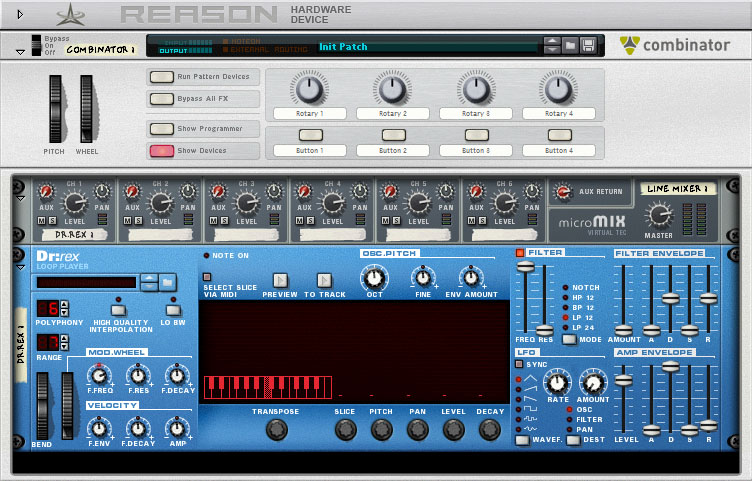
In this tutorial we start from scratch. Load up an empty rack (delete all the devices if there are any). Then create a Combinator, which will be the environment of this tutorial: nothing will happen outside this device. In the Combinator, first create a Line Mixer 6:2 followed by a Dr.Rex Loop Player.
Step 2
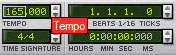
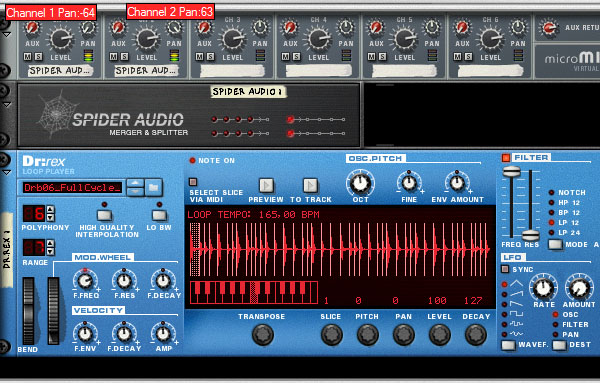
Load up a drum loop in the Dr.Rex player. For this tutorial the drum n bass loop FullCycle is used, which can be found in the Reason Factory Sound Bank -> Dr Rex Drum Loops -> Drum N Bass. The tempo of the loop is 165 bpm. In the Transport Panel, we’ll also adjust the tempo of the project to 165 bpm.
When clicking the ‘To Track’ button on the Dr.Rex, the loop is exported to a lane in the sequencer.
Download audio file (audioclip_1.mp3)
Step 3
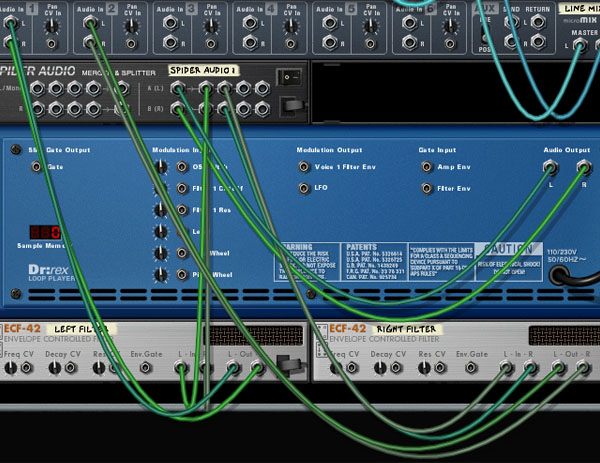
Split the output signal of the Dr.Rex player into two signals, a left and right one. To do this, create a Spider Audio Merger & Splitter. Flip the rack and connect the Dr.Rex output to the input of the splitter. Then connect two outputs of the splitter to the first two channels of the Line Mixer 6:2. Flip the rack again and pan the first channel of the mixer all the way left and the second channel all the way right.
Step 4
Now, we can start with the dynamics. Create two ECF-42 Envelope Controlled Filter units while holding down the Shift key to bypass auto-routing. Name them respectively Left Filter and Right Filter. The frequency rotaries of the filter units should be all the way to the right, at a value of 127. Leave the rest as it is.
Flip the rack and connect the filter units with the outputs of the splitter. Now, connect the filter outputs back to the mixer: Left Filter to the first channel and Right Filter to the second.
Step 5
Now it’s time to add the first stereo dynamics to the drums. Create a Malström Graintable Synthesizer while holding Shift, so the Malström doesn’t get routed to the Line Mixer. Change the name of the device to Filter Control. The Malström will function as a modulator, so all we need of this device are Mod A and Mod B.
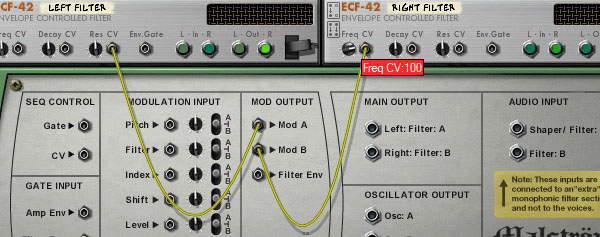
First we start with the routing, so flip to the back of the rack. Connect the Modulator A Control Output to the Res CV of the Left Filter and the Modulator B Control Output to Freq CV of the Right Filter. Change the value of the Freq CV to 100 and leave the rest as it is.
When we play the loop we already notice some changes in the stereo field.
Download audio file (audioclip_2.mp3)
Step 6
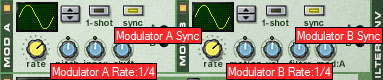
Time to add some more dynamic filtering. The modulators of the Filter Control Malström are now sine waves with default values. Sync the modulators and change their rate to 1/4, as shown in the following figure:
Now play the loop:
Download audio file (audioclip_3.mp3)
Step 7
Another way to add dynamics is to use Programmer of the Combinator. Hold the Shift button and create two Scream 4 Distortion units. Flip to the back of the rack and connect a Scream 4 to each filter output. Now, connect the outputs of the Scream 4′s back to the mixer: to the first and the second channel respectively. The Scream 4 connected to the first channel of the mixer should be named ‘Left Scream’. Name the other Scream 4 ‘Right Scream’.
Now make a ‘digitalizing’ effect both of the Scream4 devices:
- If not already done, initialize the patch
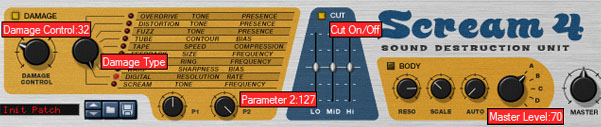
- Damage Control: 32
- Damage Type: Digital
- Parameter 2: 127
- Turn on Cut
- Master Level: 70
If you followed these instructions, both your Scream 4 units will look like this:
With the distortion patch we’ve just created, Parameter 2 will ‘digitalize’ the signal as we decrease its value. Furthermore we can cut off certain frequencies if we want to.
Step 8
To change the value of the Parameter 2 while playing the loop, the same thing as described with the filter units can be done. However, it’s not always possible to directly change parameters. Not all devices have CV inputs for all their features. With the Scream 4 units, for example, the Cut frequencies can’t be controlled directly using CV. But Reason always has a workaround, which will be shown here.
Create another Malström Graintable Synthesizer while holding Shift, so the auto-routing will be bypassed. Change the name to Scream Control. Flip the rack by pressing Tab and connect the Control Output of Mod A to Rotary 1 CV In of the Combinator. Do the same for Mod B: connect the Control Output of Mod B to Rotary 2 CV In of the Combinator. Change the Rotary CV In values of both to 80.
Step 9
To enhance the stereo dynamics, we fine tune the modulators of the second Malström. Our goal is to modulate the Left signal a bit different than the Right signal. By doing this, we’ll create a stereo effect that will catch the listener’s attention.
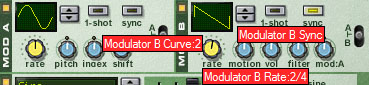
For this tutorial Mod A will have the default settings. Now change Curve of Modulator B to Curve 2, turn on the Sync button and change its rate to 2/4. It’s important to have a different rate then Modulator A if you want to achieve this stereo effect.
Step 10
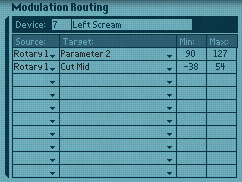
Until now the Scream 4 Distortion units have been just static effects. Let’s change that. The second Malström, named Scream Control, is CV routed to two of the rotaries of the Combinator. Let’s program the Combinator to do something with these signals. Go to the Programmer of the Combinator by clicking the ‘Show Programmer’ button. We want to associate the Left Scream with the CV signal routed in the Rotary 1 CV In of the Combinator and the Right Scream with the second rotary. This can be done by making use of the Programmer. Select the Target and its values for the Left Scream as shown in the figure below:
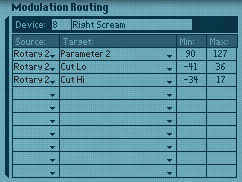
Similar for the Right Scream, which will process the CV signals of Rotary 2.
Now take a look at the two Scream 4 devices and you’ll notice that some of the sliders and rotaries started moving. The Combinator is causing these movements and the CV signals going into the Combinator, together with the values assigned in the Programmer, determine the way the movements are made.
Step 11
Let’s compare the result with the original drum loop, which sounded like this:
Download audio file (audioclip_1.mp3)
With the stereo effects added in the previous steps, we’ve created a loop that is much more interesting to listen to:
Download audio file (audioclip_4.mp3)
Additional Notes
In this tutorial, we focused on a drum loop from a Dr.REX player. Of course, any instrument can be used. Also, the Filter units and the Scream 4 Distortion units can be chosen differently. Try to experiment with different instruments and effects. This tutorial shows you the tricks to modulate the effects to create a dynamic mix that will attract everyone’s attention.
Also, the effects in this tutorial are quite noticeable. Mostly, very small changes in the stereo field are already enough to make a song more interesting.