The Benefits of Wide Aperture (And Choosing a Lens for Under $500)

Today we’ll look at a few of the benefits of shooting with a wide aperture. If you’re new to photography there will be some key insight here into one of the biggest factors for taking professional quality photos that will stun your friends and family. After this, we’ll take a look at several lenses that will help you get to f/2.0 and wider without forcing you to give up food and electricity for the next six months to make the purchase!


Why Don’t My Photos Look Amazing?

So you finally decided to get serious about photography and went out and bought a new camera. If you’re like most beginners, you picked up something high quality but affordable like a Canon Rebel or Nikon D80.

These types of cameras often come with a basic “kit lens.” In the case of my own Rebel T1i, the kit lens was an 18-55mm f/3.5-5.6. I want to be clear that there’s absolutely nothing wrong with shooting with this lens. It’s versatile and can be used in a number of different situations containing varying lighting and distance factors.

However, you’ve probably noticed that the photos, in particular the portraits, you’ve been taking with your kit lens are good, but not great. They’re far better than what you could get with a cell phone or flash and trash camera from the drug store, but not quite something that you could make a living selling.

As an example, consider the image below.

This is a nice shot. It’s cute, engaging, bright and crisp. However, the subject doesn’t quite pop the way you see in many professional portraits.

Now consider this next image:

There’s something fundamentally different about this image isn’t there? Something that immediately makes it seem high quality and professional. Something beyond the closer crop and even the lighting in the scene.

The answer is completely obvious to some but remains somewhat elusive to others. In case you missed it, it’s the background. In the first image, the background is slightly blurred, but is still perfectly decipherable and therefore demands much of your attention. The house in this shot detracts from the main subject, which is of course the boy. It’s not that the house is ugly or uncommonly busy, just that it’s in-focus enough to make your brain feel like it’s an important part of the composition.

In the second image, the background has been blurred out so much that it’s actually difficult to even decipher what’s going on back there. This causes your brain to interpret this space very differently than the sharper space in the foreground. By mimicking the way your eyes focus, this shot creates the subtle illusion of depth in a two-dimensional image.


Depth Of Field

The term used to describe the primary difference between the two images above is “depth of field.” Put simply, images with a shallow depth of field (like the second photograph) have very little in-focus while images with a greater depth of field (like the first photograph) are in-focus over a much great area.

You can manipulate the depth of field in your photographs by adjusting your aperture. A wider aperture produces a shallower depth of field and a narrow aperture produces greater depth of field. As an example, consider the spliced image below. According to the photographer, the left portion was shot at f/29 and the right portion at f/4.5.
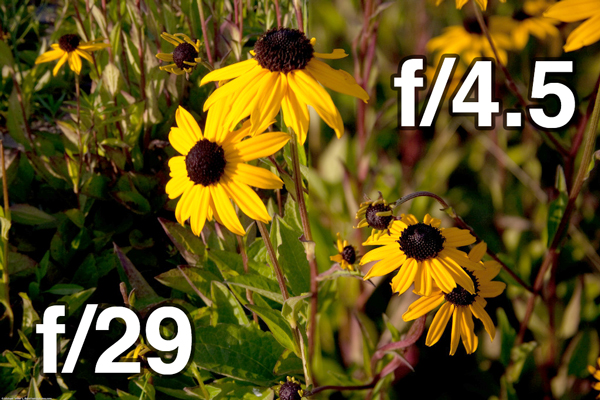
As you can clearly see, the background gets much blurrier as the aperture widens (the lower the number, the wider the hole that lets in light will be).


Shooting in Low Light

Perhaps even more of an issue for many photographers is the need to shoot in poor lighting conditions. Whether you’re getting paid to photograph a wedding in a dark church or just want to take some nice indoor shots of your family on Thanksgiving, a lens that can grab a lot of light is a necessity.

Obviously, a flash is mounted on your camera for this very purpose. However, built-in flashes tend to be quite harsh if not diffused properly. You can and should invest in portable lighting equipment, but there are still plenty of opportunities where you either won’t want to or won’t be allowed to use a flash.

One of the benefits of a lens with a wide aperture is that it can collect a ton of light. If you’ve ever shot during sunset as the available light is decreasing, you know that there are plenty of times when you need to capture every photon you possibly can!

In these instances, the shallow depth of field again has an impact. Just be sure to zoom in and take a look at your photos to make sure the important parts of the image are staying crisp. If you’re shooting people, it’s a good rule of thumb to focus on the eyes.


Can I Afford A Good Lens?

After reading the information above, you’re probably ready to grab your camera, blast open your aperture and go to town. The trick is, every lens has its limit for just how wide the aperture can go. As I stated above, the kit lens that comes with a Rebel T1i tops out at f/3.5. This is fine for many purposes but definitely not ideal for capturing blurry, rich-bokeh backgrounds.

The solution is of course to go shopping for a new lens. Unfortunately, this can be quite straining on your checking account. Take for instance the lens below, which retails at a whopping $1,830. Also consider that this is by no means the far end of the quality or price spectrum as many professional photographers spend several thousand dollars for each lens they use.

Canon EF II Telephoto lens – 85 mm – F/1.2 – Canon E
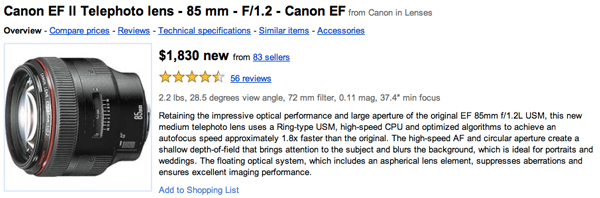
If you’ve got the budget, a lens like this can really bump up the professional quality of your photographs. However, I’ll bet that most of you are like me and would rather read about something a little more affordable.

Fortunately, there are a few options available for the budget conscious photographer looking to hit f/2.0 and wider for less than $500. All prices are estimates based on those listed on the manufacturer’s websites.


The Thrifty Fifty

If you’re really set on achieving a fairly wide aperture but don’t really have much money to burn, look no further than the Canon EF 50mm f/1.8 II, also lovingly referred to by many photographers as the “thrifty fifty.”

Short of a pirated copy of Photoshop and the Lens Blur filter, this is by far the cheapest way for Canon users to achieve nice blurry backgrounds in their photos (around $100 brand new).

This lens produces beautifully crisp images with decent (but not great) color and is as compact and light as any lens you’ll find.

The downside is that the construction mirrors the price. It’s a fairly cheap feeling lens comprised mostly of plastic. Further, many users report that the less than optimal five aperture blades tend to produce relatively poor bokeh.

Still, at a hundred bucks it’s definitely not a bad place to start.


AF NIKKOR 50mm f/1.8D

The Nikon users out there definitely have an excellent answer to the Canon 50mm f/1.8 in the Nikkor equivalent.

It’s a very similar lens in all respects to the Canon version. The construction is mostly plastic, making it feeling cheap but also super lightweight. Further, the autofocus is super fast and critics rave on the surprising crispness of the image quality for a lens so affordable.

If you’re a hobbyist and don’t really see yourself ever making money from photography this is a perfect first lens purchase.


Canon EF 50mm f/1.4 USM

Canon’s next step up takes a rather large leap in price up to $389 (if you look around, it’s fairly easy to find in the $350 range). I own this lens and simply can’t say enough about it. In fact, it was used for the image of the woman above.
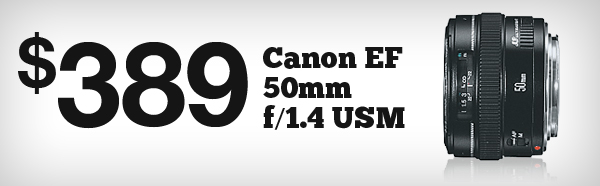
The images are crystal clear, the construction feels solid, there are eight aperture blades instead of five, and it’s still really small and lightweight, though obviously not quite as much as the 1.8 above.

I was initially worried about the lack of a zoom, but I found that I really like the 50mm prime because it makes focusing much faster. It’s a perfect zoom for shooting what you see and it’s occasionally nice to have one less variable to worry about.

The USM (Ultrasonic Motor) is much quieter than my kit lens, but not quite as quiet as I was hoping it would be. I’ve used some of the pricier Canon USM lenses that were ridiculously smooth and the 50mm f/1.4 certainly falls well beneath these.

Tons of photographers all over the web agree with me that this lens is really an excellent buy for anyone with a low to mid-range budget. If you can afford to choose this option over the thrifty fifty, go with it and never look back.


AF NIKKOR 50mm f/1.4D

All of the conclusions drawn for the jump from the Canon f/1.8 to the f/1.4 apply here as well. If you’re really strapped for cash, go with the f/1.8, but if you can scrounge up the extra couple hundred bucks, absolutely go with the f/1.4 instead.
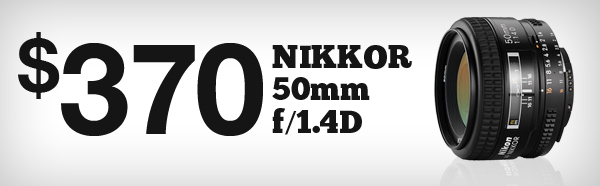
The leap from 1.8 to 1.4 might not sound like much, but when you’re shooting low light, you’ll never be sorry you spent the extra money.

This lens is extremely fast and produces images that are sharp enough to rival lenses three times its price. As far as I can tell, you’ll be every bit as happy with this lens as I am with my Canon 1.4.


More Lenses Under $500

Due to their affordability, the selections above represent my suggestions for where to start your search. However, for $500, you can find several more outstanding lenses even higher in quality than those we’ve already seen. Here are a few to check out:

Canon EF 85mm f/1.8 USM

AF-S NIKKOR 50mm f/1.4G

Canon EF 100mm f/2 USM

AF NIKKOR 85mm f/1.8D


What’s Your Favorite Lens?

I hope this article has helped make the decision for your next lens purchase a little easier. Keep in mind that the lenses above are straight from Canon and Nikon and that even more affordable alternatives can often be found from other manufacturers such as Sigma and Vivitar.

Leave a comment below and let us know your recommendations for a good lens below $500. Tell us about that one affordable but high quality lens that you simply couldn’t be without and why.

Envato’s Newest Site: The Netsetter


If you’re a freelancer writer, web developer, illustrator, or anyone looking to make money online, then you need to check out The Netsetter.

The Netsetter

The Netsetter is part of the Plus Network, featuring other sites you’re familiar with such as WorkAwesome and FreelanceSwitch. The focus of The Netsetter is to help you achieve your goals of making a living through online business. We have a list of 50 Netsetters You Should Know About.

Make Money Online

If you’re a freelance web developer, then you’re also a businessperson, and maybe you’re struggling to land jobs. The Netsetter will give you what you need to take your business to the next level.

A netsetter is an entrepreneur who understands what the Internet means for making money, starting businesses and changing the way they live.

A new feature is the Netsetter Directory, listing people who have had influence over the internet, such as Envato founder and CEO, Collis Ta’eed, Envato publication manager Joel Falconer, Matt Lambert, the owner of Cardeo and contributor to many start up projects and many more. If you think you’ve got what it takes to be a Netsetter then tell us why you should be in the directory.

Visit The Netsetter today!

A Deeper Look at Advanced Select Queries: New Premium Tutorial


To a SQL novice, JOINs can be intimidating and somewhat frustrating. Even when you think you have the query nailed, along comes an unexpected result which make you throw up your arms in surrender to the SQL gods. In this tutorial, we are going to build upon the excellent quick tip of working with MySQL and INNER JOIN recently posted and crack open the real power of a SELECT statement. Become a Premium member to access this tutorial, and all of the other fantastic articles and screencasts across all of the Tuts sites.


What you’ll Learn About:

  • Why being specific with your queries is so important
  • INNER JOINs
  • OUTER JOINs
  • Sub-Selects
  • UNIONs
  • …and plenty more

Join Net Premium

NETTUTS+ Screencasts and Bonus Tutorials

For those unfamiliar, the family of Tuts+ sites runs a premium membership service. For $9 per month, you gain access to exclusive premium tutorials, screencasts, and freebies from Nettuts+, Psdtuts+, Aetuts+, Audiotuts+, and Vectortuts+! For the price of a pizza, you’ll learn from some of the best minds in the business. Become a Premium member.

How to Create Blog Excerpts with PHP


Ever visited a blog, and noticed that each posting’s overview only contained a hundred characters or so, which is then followed by “…”? Ever wondered how to do that yourself? It’s not quite as easy as you might think. What if character number 100 occurs in the middle of a word? Do you want to display half of a word on the page? Of course not. In this video tutorial, I’ll show you how to compensate for this, as well as a host of other neat little things, like working with MySQL’s LEFT() function, using PHP’s strrpos, and substr, creating the beginning’s of an actual blog, and more.


What You’ll Learn

  • Use MySQL’s LEFT() function to create temporary columns
  • Use PHP prepared statements to query the database
  • How to create an “excerpts” section for your blog
  • PHP’s strrpos and substr functions
  • The process of creating the beginnings of a blog

Interface Design – Creative Session Wrap


It’s a wrap. This session has covered a mix of interface design topics. We’ve looked at quite a bit of inspirational icon and graphic user interface design articles, after reviewing theory on topics like creating user friendly interfaces. We’ve reviewed both in depth detailed tutorials and case studies. This session posted across numerous Tuts+ sites: Nettuts+, Psdtuts+, and Mobiletuts+. We’ll continue to expand each session as we cover new topics and integrate your feedback. Let us know what you think of this session’s material.


Interface Design – CS Content

  • Getting Started with Interface Design

    In this article we look at five fields that you should aim to learn more about in order to rock at interface design. These fields include Experience Design, Interaction Design, Information Architecture, User-Centered Design, and Graphic User Interface (GUI) Design.

    Visit Article

  • Three Steps to Fostering a User-Centered Design Culture

    As responsible designers we must educate clients on the importance – both the validity as well as the viability – of the user-centered design process, one that gives due consideration to the needs of potential users. With the three steps that follow, we’ll go over techniques that you can use to get your team thinking about what’s really important with regards to the design of their websites you’ll help them create.

    Visit Article

  • Roughly Speaking: Working within Mobile UI Design Limitations

    Today we chat with two mobile user interface designers about how they design successful mobile interfaces and intuitive navigation solutions. We’ll learn how Sacha Greif works with the limited space of the iPad by using space saving UI Elements. Eryk Pastwa discusses how to design for multiple mobile sizes, and how to properly test designs for maximum real world uses. Take a peek at their workflows, and the best practices they both put into place in their projects.

    Visit Article

  • Showcase of Macintosh Dashboard Widget UI Designs

    This inspirational compilation post showcases a collection of 32 creative, unique and easy to use Apple Macintosh Dashboard Widgets, including a selection of default widgets that ship with your Apple Mac, and a good handful or two of third party widgets.

    Visit Article

  • Designing Realistic Interfaces – Part 1

    You have to be great in many areas of Photoshop to be good at interface design. So along with the actual steps needed to create this particular interface, in this series I will also provide as many references to other tutorials, resources and concepts as possible. That way, you can have access to some of the tools that will allow you to create completely original interfaces utilizing the same methods I teach in collaboration with your own creativity. Let’s get started with Part 1 of this two part series.

    Visit Tutorial

  • Designing Realistic Interfaces – Part 2

    You have to be great in many areas of Photoshop to be good at interface design. So along with the actual steps needed to create this particular interface, in this series I will also provide as many references to other tutorials, resources and concepts as possible. That way, you can have access to some of the tools that will allow you to create completely original interfaces utilizing the same methods I teach in collaboration with your own creativity. Let’s move on with Part 2 of this two part series.

    Visit Tutorial

  • Know Your Icons Part 1 – A Brief History of Computer Icons

    As with great works of art, you must look into the past to appreciate the future. With roots as far back as the 1970?s, the humble icon has come a long way. Following is a collection of icons though history. Although there have been many other operating systems in the time between 1981 – 2010, I’ve hand picked the ones of the most significance to modern icon design. These designs show just a small fraction of the icons in the many and varied User Interfaces throughout the years.

    Visit Article

  • Know Your Icons Part 2 – Modern Icon Design

    In the last installment you learned about the history of icon design and how it has evolved from black and white representations of office items into full colored, glassy, hyper-rendered, isometric representations of… office items. In this installment I will be delving further into the world of icons and exploring what icons mean to us today.

    Visit Article

  • Exploring Graphic User Interface Styles – from Minimal to Futuristic

    A user interface (UI) can come in many styles ranging graphically from very simple, all the way to extremely complex. In this article we are going to explore a range of styles demonstrating that there isn’t just one recipe for creating a good looking, and ultimately successful user interface. Of course, not every style is represented in this article; we will be exploring several high-quality examples, representing a wide range of graphical styles from simple to complex. Enjoy!

    Visit Article

  • iPad Magazine Interface Design

    A great magazine is more than just a collection of articles around a theme or idea, it’s a curated editorial experience. Through layout design and copy it can take you to different places and teach you new things. The release of the iPad has kicked off the latest chapter in the history of magazine design. I’ve been working with a startup, Sideways.com, to create our own magazine publishing platform and here is what we’ve done.

    Visit Article


Your Thoughts on this Digital Illustration Session

We’d love to here your feedback and suggestions on how to improve Creative Sessions. We’re actively working to improve this project, by consistently adding more high quality material, and new intensive two week sessions releasing each month. We look forward to your comments.

20+ Required Windows Apps: Web Designer’s Choice


In April, Jeffrey Way provided us with a list of the “20 Mac Apps You’ll Use Every Day.” Not one to be biased, if you prefer Windows, this article rounds up the best programs available for boosting your productivity as a web designer.

1. Skybound Stylizer

Skybound Stylizer

While I prefer to use Firebug, I’m finding this “out of the box” CSS editor to be really helpful. Skybound Stylizer has been out for a while, but the latest version, 4.0, is now out with a lot of incredible features to help you in the development process. One of the core features is that it supports Google Chrome, Firefox 2 – 3.6, and Internet Explorer 6 – 8.

Stylizer is an exotic visual CSS editor that keeps you in the drivers seat while delivering enormous productivity gains.


2. Notepad++

Notepad++

Notepad++ is by far my favorite text editor for Windows. It’s fast, flexible and offers a variety of plugins. If you want to increase your productivity with this editor, be sure to install the ZenCoding plugin. You can download the plugin here.

Notepad++ is a text editor and source code editor for Windows, one main advantage of Notepad++ over the built-in Windows text editor, Notepad, is tabbed editing, to easily work with multiple open files.

Alternative


3. IETester

IETester

IETester is the most stable and useful IE test tool available for Windows. With tabbing navigation, a source code viewer, and the debug bar, it’ll help you through the process of “happy” IE debugging.

name of tut

IETester is a free WebBrowser that allows you to have the rendering and javascript engines of IE9 preview, IE8, IE7 IE 6 and IE5.5 on Windows 7, Vista and XP, as well as the installed IE in the same process.

Alternative


4. Filezilla

Filezilla

Filezilla is the most popular and free FTP for Windows, and, of course, is my favorite FTP client for this platform. It’s lightweight and easy to use.

FileZilla Client is a fast and reliable cross-platform FTP, FTPS and SFTP client with lots of useful features and an intuitive graphical user interface.

Alternative


5. Dropbox

Dropbox

Dropbox is a multi-platform sync system, which is available for Windows, Mac and Linux. You can use it as a backup folder to transfer files to your friends and family. It’s amazingly intuitive and fast.

Dropbox allows you to sync your files online and across your computers automatically.


6. Jing

Jing

Jing is a great tool to share images or videos in the Windows platform. It’s free, but you can order the Pro version with even more features.

Use Jing to capture anything you see on your computer screen and share it instantly… as an image or short movie.


7. XAMPP

Xampp

For PHP/MySQL development, Xampp automatically installs MySQL, Apache and PHP in your PC.

XAMPP is an easy to install Apache distribution containing MySQL, PHP and Perl. XAMPP is really very easy to install and to use – just download, extract and start.

Alternative


8. FoxitReader

FoxitReader

FoxitReader is the primary PDF reader in my PC; it’s very fast, and supports tabs to read my PDF files.

Foxit Reader is a multilingual PDF reader. Both the basic and full version readers can be downloaded for free. Foxit Reader is notable for its short load time and small filesize, and has been compared favorably to Adobe Reader.


9. doPDF

doPDF

Print-as-PDF isn’t installed by default on Windows. That makes this tool particular handy when you need to quickly send a document.

doPDF installs itself as a virtual PDF printer driver so after a successful installation will appear in your Printers and Faxes list. To convert to PDF, you just have to print the document to doPDF, the free pdf converter.


10. Breevy – Text Expander for Windows

Breevy

Breevy is one of the most responsive, intuitive text expander applications for Windows. Whether you’re a web developer, blogger or {your-occupation-here}, you’ll find this one very useful. It’s not free, but will save you hours upon hours of typing! It’s worth the cost.

Breevy is a text expander and AutoText program for Windows that helps you type faster and more accurately by allowing you to abbreviate long words and phrases — saving you time and money.

Free Alternative


11. Everything

Everything

Everything is a search program. As LifeHacker said, “It does what you really want when you hit Search in Windows.”

“Everything” is an administrative tool that locates files and folders by filename instantly for Windows, 20,000 files will take about 1 second to index. 1,000,000 files will take about 1 minute.


12. Miro

Miro

Miro lets you play nearly every single video format in the world; but it’s not just a video player: you can even subscribe to podcasts, video channels, etc. It’s my video player of choice. And yes! It’s free!

Miro is the only internet TV you’ll need—it’s an application that brings together thousands of shows from all over the web. There’s TONS of great content, lots of it in HD, and fresh shows are added all the time. You can watch and organize video feeds when you’re offline or traveling, find TV programs on sites like Hulu, and download from sites like YouTube. Miro downloads in HD, whenever it’s available!

Alternative


13. KeePass

KeePass

KeePass is a nice and lightweight password manager for Windows. The amazing thing about it is that you can sync the database with Dropbox – But what if I own a Mac as well? Okay, just install KeePassX. There are numerous cross-platform password managers available (even one more in this round-up), but KeePass is simple and effective enough to get the job done.

KeePass is a free open source password manager, which helps you to manage your passwords in a secure way. You can put all your passwords in one database, which is locked with one master key or a key file.


14. Sobees

Sobees

Sobee is one of those applications you’ll always love. It allows you to get the most out of your social sites. You can choose multiple layouts to display your social data, as it offers LinkedIn, Facebook, Twitter and MySpace support — even a New York Trending News widget. Be sure to check this one out!

Enjoy the convenience of tracking all your different social networks and news from a single place and share, like or tweet what’s on your mind easily.


15. Aptana

Aptana

Aptana is, in my humble opinion, one of the best Integrated Development Enviroments (IDE) for Windows. It has great HTML, CSS, and JavaScript intellisense, JavaScript debugging tools, built-in support for JavaScript libraries, a DOM outline viewer, file transfer & synchronization, live previewing (Safari and Firefox), and much more.

Aptana Studio is the industry leading web development environment that combines powerful authoring tools for HTML, CSS, and JavaScript, along with thousands of additional plugins created by the community.

(Available for Linux and Mac)


16. Picasa

Picasa

Picasa is a must have if you want to organize and share your photos on the internet. It’s light-weight, free, and just works!

Picasa is free photo editing software from Google that makes your pictures look great. Sharing your best photos with friends and family is as easy as pressing a button!

(Available for Linux and Mac)


17. Google Talk

Gtalk

If you’re one of the GMail lovers (like me), then Gtalk is the perfect Gmail notifier for you. And of course, you can chat with your buddies as well!

Google Talk (GTalk) is a free-of-charge Windows web-based application for instant messaging and voice over internet protocol (VOIP), offered by Google Inc.


18. Adobe Photoshop CS5

Photoshop

Adobe Photoshop CS5 is, for obvious reasons, the greatest tool available for graphics / web design available in the industry. Photoshop is open on all of my computers… at all times.

Adobe Photoshop CS5 software is the ultimate solution for advanced digital imaging, delivering all the editing and compositing capabilities of Photoshop CS4, plus breakthrough tools that let you create and edit 3D and motion-based content.


19. Pidgin

Pidgin

Pidgin is a simple instant messenger. I use it to chat with my friends and family, similar to Adium for the Mac. AIM, MSN, Yahoo, and Facebook are supported.

Pidgin is an easy to use and free chat client used by millions. Connect to AIM, MSN, Yahoo, and more chat networks all at once.


20. InstallPad

InstallPad

Although I don’t use InstallPad every day, it’s still a great tool, and is worthy of being listed here. It helps you to install all of your favorite Windows applications at once.

InstallPad takes a list of your favorite programs and will download and install the ones you pick. It doesn’t need to ask any questions, so you can go do more important things. InstallPad can resume downloads you’ve canceled, and can even try and find the latest version of your program online.

Alternative


21. 1Password PC (Beta)

1Password

The hugely popular Mac password manager, 1Password, is currently in Beta mode for Windows! Whether you need to store hundreds of website passwords, or track your software licenses, 1Password will do the trick!

“1Password for Windows has been a dream of ours for a long time and we’re thrilled to open beta testing to everyone!”

Free Alternative


22. Bubbles

Bubbles

Mac users have access to a nifty app, called Fluid, which allows them to turn any website (Mint.com, Producteev.com, etc) into a desktop app. It’s very helpful. PC offers its own version of this service, via an app, called Bubbles.

“Bubbles is an application platform, based on Browser technologies. It detaches Web Applications from the classic Browser and offers them with the familiar accessibility, capabilities and always-on nature of Desktop applications.”

Conclusion

These are the applications I use nearly every day on my PC. Did I miss any? Don’t agree with me? What do you recommend?

Quick Tip: The Best Way to Run Internet Explorer on your Mac


While Mac users do have a handful of resources available, when viewing new web designs in Internet Explorer, the quickest solution is to use Wine, which can create a “wrapper” for the native PC Internet Explorer app! Even better, an app, called Wine Bottler makes adding the IE icon to your dock amazingly simple. I’ll show you what to do in today’s video quick tip!

Be sure to check out our sister-site, MacAppStorm for the full details on how to work with Wine and Wine Bottler!

Creating Custom Fields for Attachments in WordPress


Custom fields in WordPress make it easy to customize your theme in a variety of ways; plus, they are simple to implement for posts and pages. Attachments, on the other hand, take a bit more work to implement, requiring you to read through and decipher core source code in order to make them work. We’ll be walking through the use of a couple undocumented WordPress hooks in this tutorial to make this process much easier.


Preface: About The Hooks

Both these hooks have been around since WordPress 2.5, and are applied in wp-admin/includes/media.php, but remain underused in the community most likely because they’re undocumented in the Codex. Below is where the hooks are applied in the core code, letting us know what will be passed to the functions we add to each hook.

attachment_fields_to_edit

function get_attachment_fields_to_edit($post, $errors = null) {
	// ...
	$form_fields = apply_filters("attachment_fields_to_edit", $form_fields, $post);
	// ...
}
  • $form_fields is a special array which will be described in detail in a moment.
  • $post is the attachment as an object (attachments are treated as post objects in WordPress).

attachment_fields_to_save

function media_upload_form_handler() {
	// ...
	$post = apply_filters("attachment_fields_to_save", $post, $attachment);
	// ...
}
  • $post is the attachment as an array (attachments are treated as post objects in WordPress).
  • $attachment is the attachment part of the form $_POST which will include the fields setup through the attachment_fields_to_edit hook.

Note: Be careful in your code, as $post is sent to one function as an object and to the other as an array.

Custom Field Naming Tips

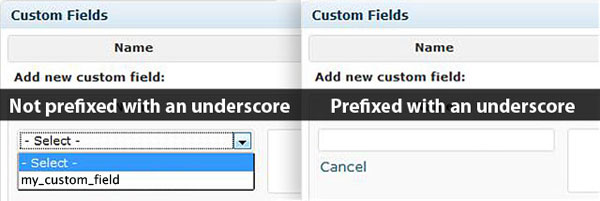
The new fields being added will be saved as post meta, just like the custom fields section of the post/page edit screen. Fields prefixed with an underscore (_my_custom_field) will not be listed in the drop down of available custom fields on the post/page screen; all other existing post meta fields will be listed. We can use this knowledge to hide the fields we’re adding to the media form, since they aren’t relevant for posts/pages.

There is a similar rule to keep in mind when choosing the $form_fields array key to use for your new field. Here, if you use an underscore ($form_fields[‘_my_custom_field’]) your field will be skipped and will not be added to the form.

So in order to show our fields in the media form, but also not list them in the page/post custom fields drop down, we must combine both methods. This will invlove both the edit and save functions we’ll be creating. For the ‘attachment_fields_to_edit‘ hook we’ll set the $form_fields keys up to not have underscore prefixes, and for the ‘attachment_fields_to_save‘ hook we’ll prefix our fields with an underscore before saving them as post meta. This is a workaround worth doing in order to not muddy our users’ interface with unneeded info.


Hook 1: attachment_fields_to_edit

Below is an example of how to add your own custom fields to the attachment form.

/**
 * Adding our custom fields to the $form_fields array
 *
 * @param array $form_fields
 * @param object $post
 * @return array
 */
function my_image_attachment_fields_to_edit($form_fields, $post) {
	// $form_fields is a special array of fields to include in the attachment form
	// $post is the attachment record in the database
	//     $post->post_type == 'attachment'
	// (attachments are treated as posts in WordPress)

	// add our custom field to the $form_fields array
	// input type="text" name/id="attachments[$attachment->ID][custom1]"
	$form_fields["custom1"] = array(
		"label" => __("Custom Text Field"),
		"input" => "text", // this is default if "input" is omitted
		"value" => get_post_meta($post->ID, "_custom1", true)
	);
	// if you will be adding error messages for your field,
	// then in order to not overwrite them, as they are pre-attached
	// to this array, you would need to set the field up like this:
	$form_fields["custom1"]["label"] = __("Custom Text Field");
	$form_fields["custom1"]["input"] = "text";
	$form_fields["custom1"]["value"] = get_post_meta($post->ID, "_custom1", true);

	return $form_fields;
}
// attach our function to the correct hook
add_filter("attachment_fields_to_edit", "my_image_attachment_fields_to_edit", null, 2);

The $form_fields array has several options for including different types of inputs and custom content. I’ve compiled the various methods below with notes and screenshots of how they render in the form.

Text Input

// input type="text"
$form_fields["custom1"]["label"] = __("Custom Text Field");
$form_fields["custom1"]["input"] = "text"; // this is default if "input" is omitted
$form_fields["custom1"]["value"] = get_post_meta($post->ID, "_custom1", true);

Renders in the form as:

Textarea

// textarea
$form_fields["custom2"]["label"] = __("Custom Textarea");
$form_fields["custom2"]["input"] = "textarea";
$form_fields["custom2"]["value"] = get_post_meta($post->ID, "_custom2", true);

Renders in the form as:

Hidden Field

Hidden fields are compiled together and output at the end of the form.

// input type="hidden"
// no need for a label
$form_fields["custom3"]["input"] = "hidden";
$form_fields["custom3"]["value"] = get_post_meta($post->ID, "_custom3", true);

Other Field Types

If you need an input type other than ‘text’, ‘textarea’, or ‘hidden,’ then use ‘html’ which allows you to pass your own custom content to use for the input element of your choice. When you create your own input html, it’s important to set the ‘name’ attribute on the element correctly, in order for the field to be passed to our save function later. You want something like this: name = "attachments[$post->ID][my_custom_key]" .

$form_fields["custom4"]["label"] = __("Custom Select");
$form_fields["custom4"]["input"] = "html";
$form_fields["custom4"]["html"] = "
<select name='attachments[{$post->ID}][custom4]' id='attachments[{$post->ID}][custom4]'>
	<option value='1'>Option 1</option>
	<option value='2'>Option 2</option>
	<option value='3'>Option 3</option>
</select>";

// another example
$form_fields["custom5"]["label"] = __("Custom Checkbox");
$form_fields["custom5"]["input"] = "html";
$form_fields["custom5"]["html"] = "the html output goes here, like a checkbox:
<input type='checkbox' value='1'
	name='attachments[{$post->ID}][custom5]'
	id='attachments[{$post->ID}][custom5]' />";

Renders in the form as:

Special Attributes

There are several special attributes you can add to your custom fields to enhance them.

helps – This attribute adds a help string to your custom field.

$form_fields["custom6"]["label"] = __("Custom Field with Helpful Text");
$form_fields["custom6"]["value"] = get_post_meta($post->ID, "_custom6", true);
$form_fields["custom6"]["helps"] = "Put helpful text here.";

This renders in the form as:

required – This attribute will mark the field as required; but it is only a visual reference. We’ll have to write code later in the save function to enforce it.

$form_fields["custom7"]["label"] = __("Required Field");
$form_fields["custom7"]["value"] = get_post_meta($post->ID, "_custom7", true);
$form_fields["custom7"]["required"] = TRUE; // default is FALSE

Renders in the form as:

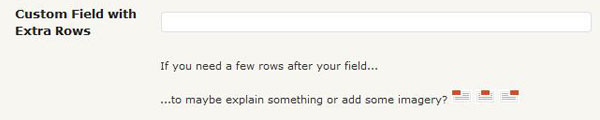
extra_rows – This attribute lets you add an array of rows right after your custom field. The markup for each array item is shown below: the array key will become the class of the td, and the value is the content:

// extra_rows markup:
// <tr>
//		<td></td>
//		<td class="{arrayItemKey}">{arrayItemValue}</td>
// </tr>
$form_fields["custom8"]["label"] = __("Custom Field with Extra Rows");
$form_fields["custom8"]["value"] = get_post_meta($post->ID, "_custom8", true);
// extra_rows must be an associative array $cssClass => $content
$form_fields["custom8"]["extra_rows"] = array(
	"cssClass1" => "If you need a few rows after your field...",
	"cssClass2" => "...to maybe explain something or add some imagery?
			<img src='".get_bloginfo("wpurl")."/wp-admin/images/align-left.png' />
			<img src='".get_bloginfo("wpurl")."/wp-admin/images/align-center.png' />
			<img src='".get_bloginfo("wpurl")."/wp-admin/images/align-right.png' />",
);

Renders in the form as:

tr – While extra_rows only lets you add table cells directly under your custom field’s input element, this attribute lets you create entire rows.

The table we’re adding a row to has two columns, so keep that in mind when using this method. And this doesn’t have to be a form field, you could just add a row that explains the next few fields, add all of your fields manually, or something else entirely.

$form_fields["custom8"]["tr"] = "
<tr id='MySpecialRow'>
	<td colspan='2' style='background:#000;color:#fff;'>
		Can do whatever you want, style it, add some fields, display a table of data...sky's the limit
	</td>
</tr>";

Renders in the form as:


Hook 2: attachment_fields_to_save

Saving your custom fields is a much simpler process than adding them to the form; just check if your field is set and update its value as post meta. Remeber to prefix your field with an underscore when saving to hide it on the post/page edit screen.

/**
 * @param array $post
 * @param array $attachment
 * @return array
 */
function my_image_attachment_fields_to_save($post, $attachment) {
	// $attachment part of the form $_POST ($_POST[attachments][postID])
	// $post attachments wp post array - will be saved after returned
	//     $post['post_type'] == 'attachment'
	if( isset($attachment['my_field']) ){
		// update_post_meta(postID, meta_key, meta_value);
		update_post_meta($post['ID'], '_my_field', $attachment['my_field']);
	}
	return $post;
}

You can also add errors here that will automatically be displayed below your field in the form. The $post['errors'] array gets merged with the $form_fields array before being sent through the attachment_fields_to_edit hook.

/**
 * @param array $post
 * @param array $attachment
 * @return array
 */
function my_image_attachment_fields_to_save($post, $attachment) {
	if( isset($attachment['my_field']) ){
		if( trim($attachment['my_field']) == '' ){
			// adding our custom error
			$post['errors']['my_field']['errors'][] = __('Error text here.');
		}else{
			update_post_meta($post['ID'], 'my_field', $attachment['my_field']);
		}
	}
	return $post;
}

Note Regarding Custom Errors: There are a couple long standing bugs in WordPress (as of version 3.0-RC3) that have to do with the display of custom errors.

  1. One will prevent your custom error messages from showing up on the single media edit page.
  2. The other bug is in the modal popup for media items used on the post/page edit screen. The errors do display
    here, it’s just the problem of initially seeing them. After saving you’re automatically switched to the
    ‘Gallery’ tab where there’s a minimized list of media items. If you click on ‘show’ to open your new item,
    you’ll see your error messages in the form. The problem is that if there are errors, that items form is supposed to
    be open by default. There’s a bug in the css where the class ‘startopen’ (which is present on the item if
    there are errors to show) has the value of ‘display:none’ in a few places in the core stylesheets.

I have submitted patches for both of these issues (#13810 & #13838), and have been told they should be reviewed and included by version 3.1. So for now, don’t rely on your error messages too much, just be glad you know how to work with them for when they become more useful in the near future.


Other Ideas

You may want to include some of your fields on only audio attachments, or just images attached to the front page. To further customize your attachment forms, just wrap your special fields in distinguishing statements for both the edit and save functions.

// for audio files
if( substr($post->post_mime_type, 0, 5) == 'audio' ){
	// add your custom fields for audio files
}

// OR for images on a specific page

$page_id = 5; // set the id to whatever page you want these applied to
if( $post->post_parent == $page_id && substr($post->post_mime_type, 0, 5) == 'image' ){
	// add your image specific custom fields for this particular page
}

If you think of any clever ways to use custom fields with attachments, share it with us in the comments!

Forex Support Ticket Handler by ashleybaker

Hey, We’re looking for English speaking & writing assistants, who can become our support team for an upcoming Forex launch. You will need to have extensive knowledge of MetaTrader, and the principle of how EA’s work, and how to install them etc… (Budget: $30-250, Jobs: Customer Support, Data Processing, Metatrader, Technical Writing, Virtual Assistant)


Modify Pop3 Email Bounce Script.

Hello,

I need this php script modified to work as needed.

What the script does it login to a pop3 account and read all the bounced email. This part works great. The problem is the script is not getting the proper information(bounced email address) from the bounced email to process it. It gets the email address the return come from which is server generated such as Mailer-Daemon(at)server.com I need it to search the body of the return email and get the actual email address that has bounced.

I have attached 2 files here. pop3.php which does the connecting, it seems to be working fine. And bounce_cron.php which processes the email and should be gathering the correct email address.