Audiotuts+ Reader Survey

Our recent Tuts+ Survey showed that many of you have feedback on how we can make Audiotuts+ better for you. Now is your chance to let us know what you want from Audiotuts+. Please take a few minutes to complete our reader survey. All questions are optional. You only need to provide a response when you have something to say.

You’ll have the chance to tell us what you like, don’t like, and to make suggestions for the site. Every completed survey will be read, and your feedback will lead to real, tangible changes in the kinds of content we publish.

Thank you!
Take the Audiotuts+ Survey


Seven Steps To Writing Memorable Melodies – Part 2

Welcome to the second part of this mini-series. If you missed part one, I recommend reading that first to get a better understanding of what is going to be covered in the following steps in this tutorial. You can read Part 1 here.

So far we’ve worked out which notes we should use to get a ‘pleasant’ sound and avoid random or ‘clashing’ melody sounds. In the next two steps, we’ll learn techniques to add subtle interest to the melody by applying small ‘techniques’ to the order in which we play the selected notes.


Step 3: Jumping Over The ‘Desired’ Note By a Whole Tone

First of all I’m assuming you understand a whole tone? Basically, from C to D, D to E and so on. So what do I mean by jumping over the desired note? Well, lets look at the example audio and use this to better explain.

In step 2 of the previous example, we decided that the featured melody note in the second bar would be G. What we can do now, is plan ahead a little in bar 1. As we are playing the notes working up toward the G… we first jump over the G note by a whole tone, to play an A first, before finally landing on the desired G in bar 2.

Download audio file (audio-3-1.mp3)

In other words, we’re avoiding the natural instinct of simply to travelling up the scale from E to G, by jumping over the G note by a whole tone first to play a A, and then finally completing the sound by settling on the featured note of the G in bar 2. Remember, if we were playing a melody where the notes were travelling down the scale, we’d jump down over the desired note first before finally going back up to that note.

This technique involves you planning ahead a little, but, once mastered is a very effective way to add some interest to a melody line. The next step again utilises the ‘jumping’ technique between notes, but this time by 6 whole tones!


Step 4: Jumping Six Whole Tones

Another tip great tip for spicing up your melody is to jump six whole tones, either up or down the scale. This rather large jump between notes can be extremely effective when used at the right moment in a melodic phrase.

If we continue with the melody from the previous example, one place we could include a six note jump is after the G in the second bar. We jump from the G down the B (from G, we hop over F, E, D, C, and fall on B) before finally moving in bar three and playing the C note.

Download audio file (audio-4-1.mp3)

I hope you notice how this six note jump really adds something special to the melody, and indeed now, with these three bars alone, we have the start of a very beautiful and rather memorable melody line.

We can use the same technique to continue the melody with another six note jump, this time perhaps going up the scale, from the C note that we finished on in bar 4 to an A (at the start of bar 5). We know that this will sound good, because the A note we’re going to jump to is part of the F Major triad – which is the chord being played at the time we fall on the featured A note! Here’s how this would look and sound as I’ve then continued in to bars 5, 6, 7, and 8.

Download audio file (audio-4-2.mp3)


Step 5: Repeating Patterns

So why did bars 5, 6, and 7 work so well with the example melody in step 4? Well, firstly, because they make use of the previous steps in this tutorial. But also, they work specifically alongside the phrase in the first three bars, because they make use of the same ‘pattern’ of notes.

Repeating patterns of notes is a trick which great classical composers often used with great effect. You’re not necessarily repeating the same notes (although this is also an effective technique), but you’re using the same pattern of notes from a previous phrase, just shifted along the scale, either up or down. If you compare bars 1 and 2 in the score using our example, you can hopefully see that the notes in bars 5 and 6 follow the same pattern, only they’re using notes which are six whole tones higher.

Repeating patterns of notes like this makes the already pleasant melody become more memorable to the listener, and therefore a little more ‘catchy’ after only a few listens.

A great example of what I consider to be a fabulous melody line, which uses repeating phrases so effectively is the “Glasgow Love Theme” from the Love Actually sound track (below). Listen carefully to the melody, you’ll see how the composer has crafted an extremely moving melody line from only a few basic melodic phrases. Carefully repeated over various chord harmonies and different parts the scale, this is a wonderful example of how to use this ‘repeating patterns’ technique to great effect!


Review Stage

Using the steps in this (part two), of the tutorial series, alongside those in part one, you should now be able to see how the five techniques learned thus far offer you the basic ground tools for composing a wonderful melody line. By hopping over the ‘obvious’ note by a whole tone, creating new moods by jumping up or down 6 whole tones, and then cleverly repeating patterns of notes in musical phrases.

In the third part of this series we’ll look at the final two steps in this seven step guide, as well as a ‘bonus’ tip about creativity.


Add Depth of Field to a 3D Scene with Lens Blur


In today’s quick tip tutorial, we will demonstrate how to add depth of field to a scene that we will be creating with 3D objects to help improve a presentation to a client.


Step 1

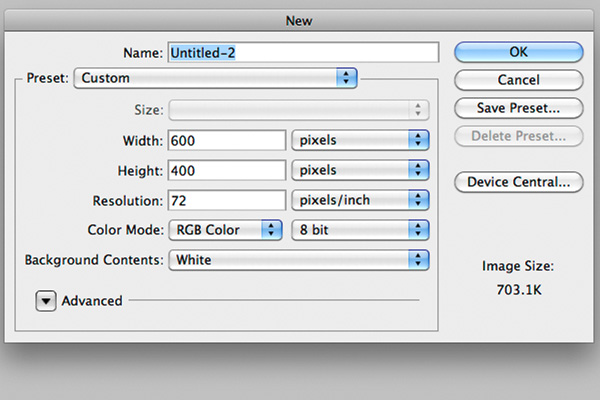
First, create a new document (Cmd/Ctrl + N) and make it 600 pixels by 400 pixels. You could of course set the resolution up to 300 pixels per inch for any printed document, but we’ll keep it down to 72 for this tutorial.


Step 2

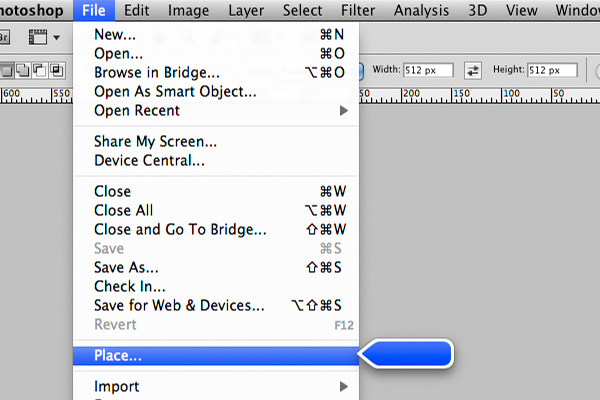
Then, we need to place the major part of this tutorial onto the scene, our business card. Choose File > Place and select your image.

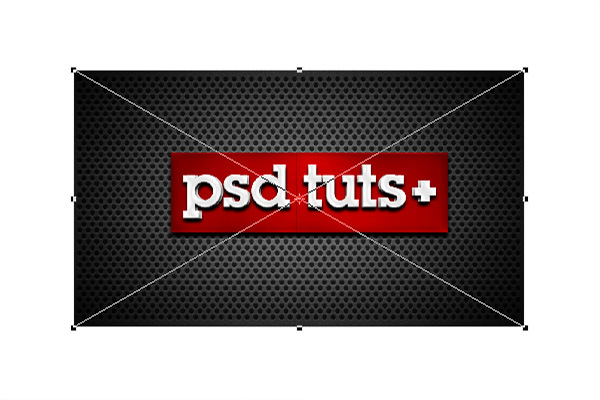
Place it onto your canvas and make sure it’s big enough, we could still scale it down if it doesn’t fit well, but scaling up is something we don’t want to do because of the pixel loss.


Step 3

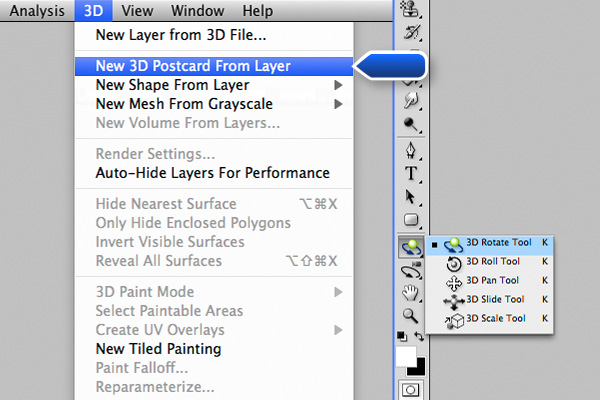
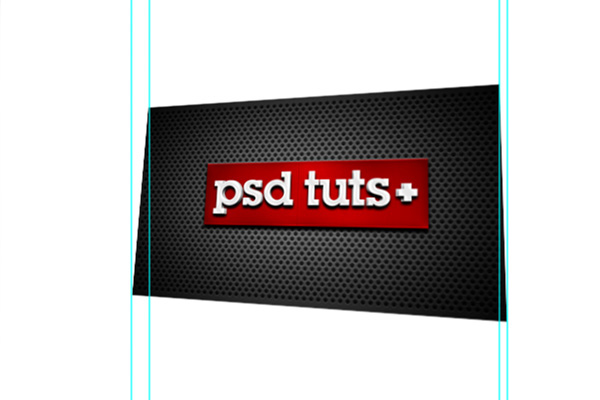
Now, in order to distort it in a certain perspective, you need to convert it to a 3D layer using the New 3D Postcard From Layer command. Select your layer and select 3D > New 3D Postcard From Layer. Once it’s done, take the 3D Rotate Tool in your tool palette and start playing around by simply dragging your card in any direction. A similar result can be achieved in earlier versions of Photoshop using the Distort tool or the Perspective tool, but the 3D Rotate Tool makes sure everything looks right.

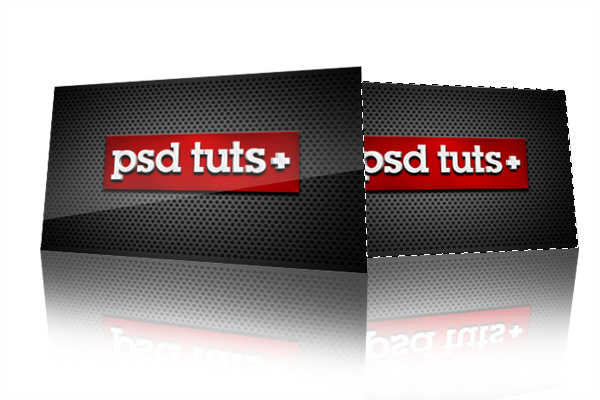
Place your card as shown below. We don’t want too much inclination, only a subtle effect. You can now drag some guides on each corner of the layer to prepare the next step where we’ll need to create a reflection to this postcard.


Step 4

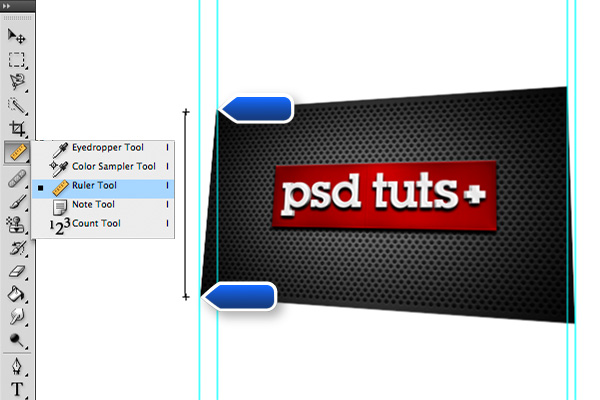
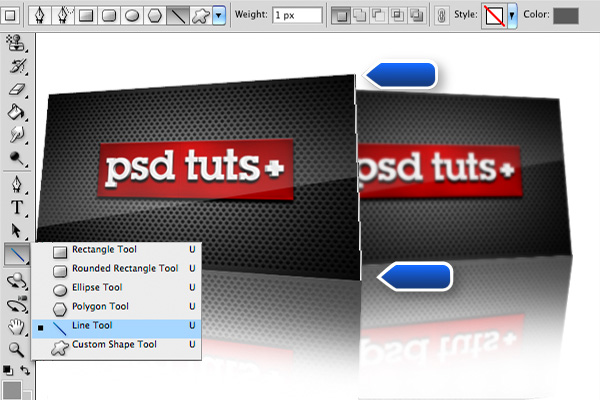
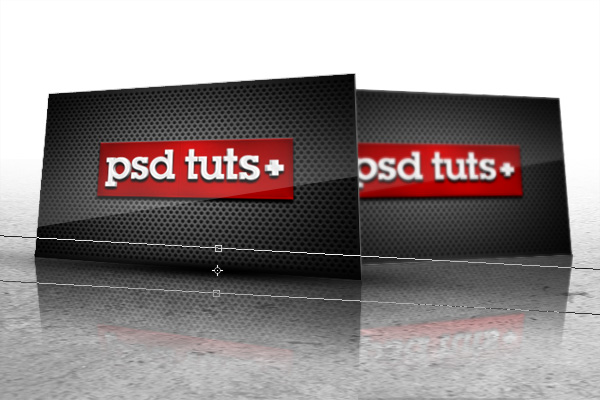
Use the Ruler Tool to create a straight line that joins the two corners on the left. This is going to help create a reflection that has the same height as your 3D layer.

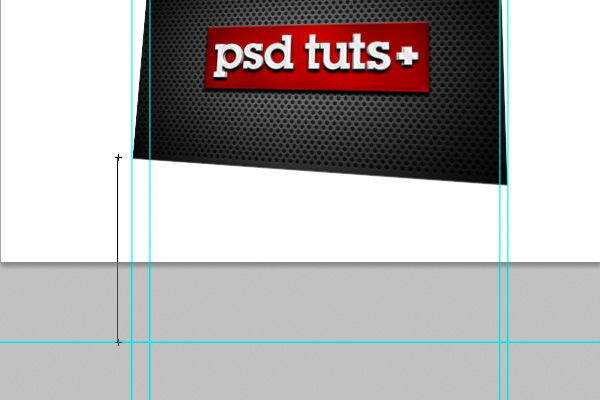
Now, simply drag it down to the next corner and create a new guide at the new intersection. Do the exact same for the two remaining corners on the right.


Step 5

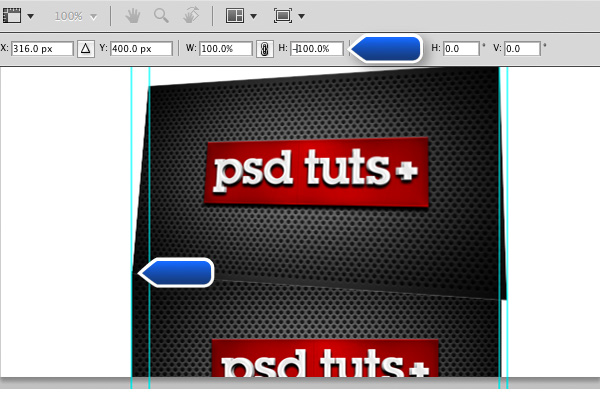
Place a second card onto a new layer and name it "reflection". An easy way to flip your image out is to simple add a "-" operator before the height dimension. Align the top left corner of the reflection to the bottom left corner of the card.


Step 6

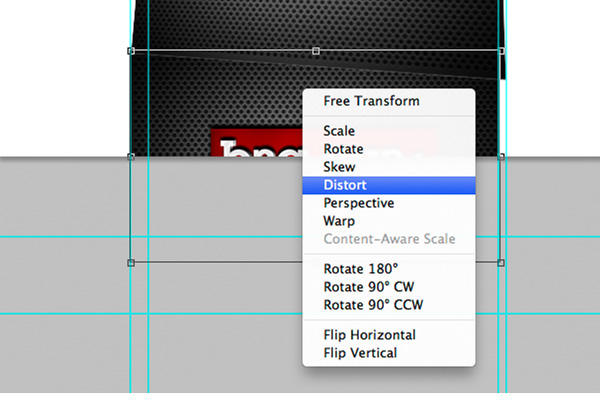
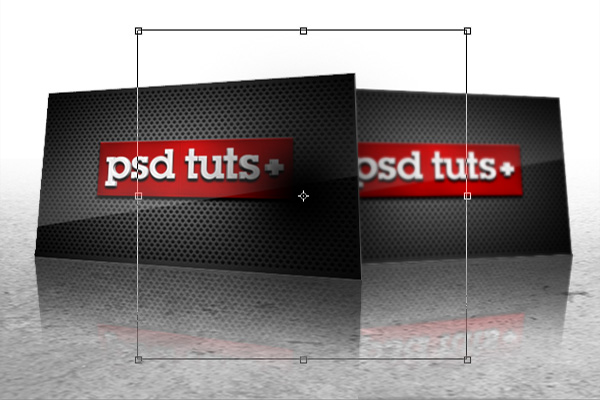
Press Cmd/Ctrl + T, then right click, we’ll be able to bring up the transformation menu.

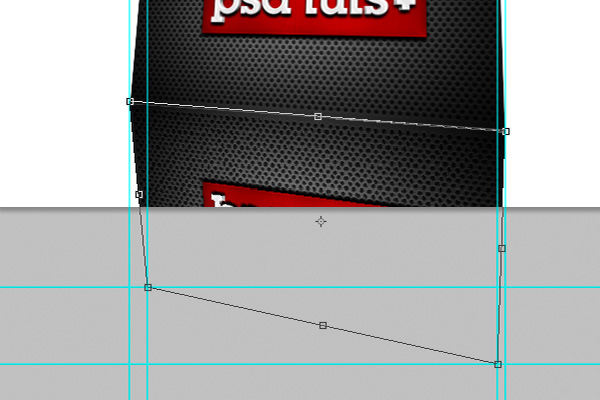
Select Distort and start dragging your anchor points to the appropriate intersections we just made with the Ruler Tool.


Step 7

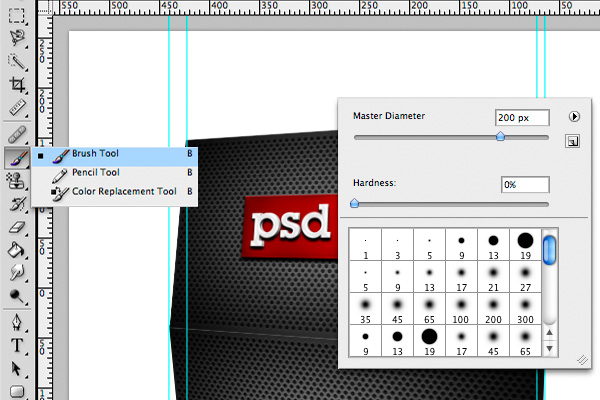
The next step is how to make it fade to transparent. Select a big and soft brush about 200 pixels. We could also be using the Gradient Tool for this part, but I prefer the brush because it gives us a little bit of control we don’t get with the Gradient Tool.

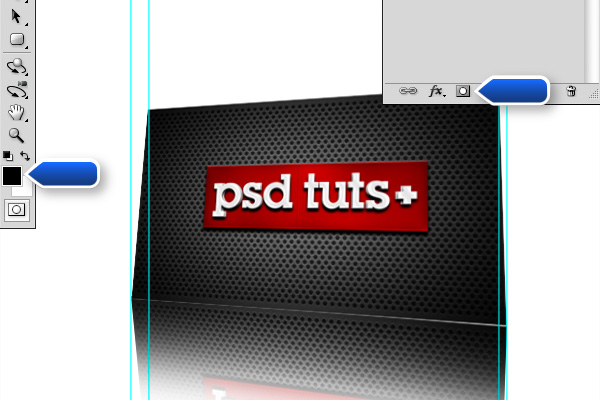
Create a new layer mask to this layer by clicking the little mask icon at the bottom of your palette. Select this newly made mask and start brushing with a pure black the bottom area of the reflection. Bring down the Opacity value to about 20% the get a more subtle effect.


Step 8

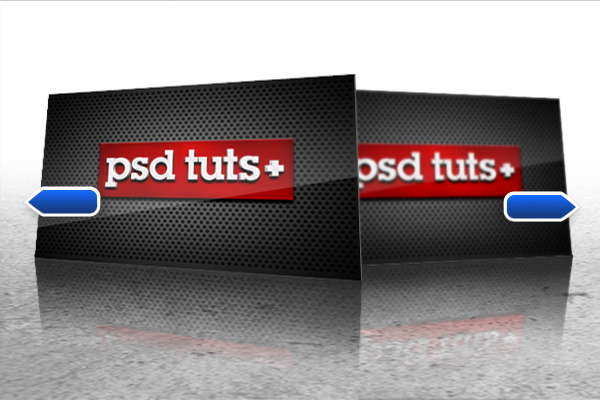
We wouldn’t have so much depth in our scene if we didn’t have at least two elements in our 3D space, so repeat the process we just explained with another card. You should make it a little smaller since it’s farther into the Z space.


Step 9

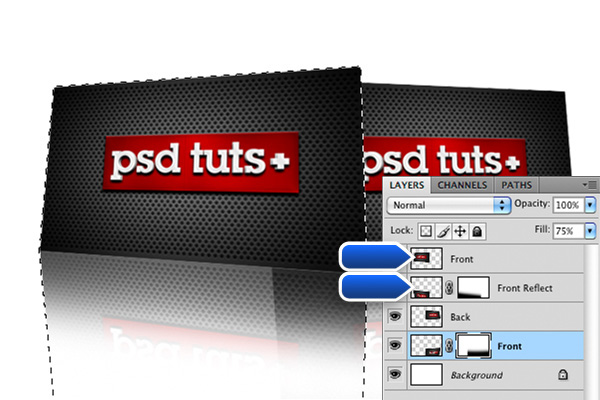
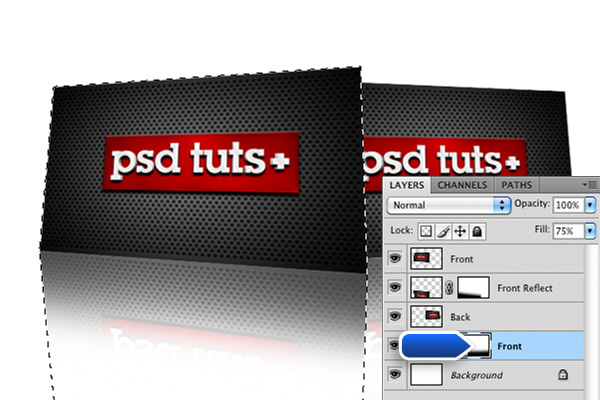
Since our reflections are now transparent, there is a new problem which can be solved quite easily. What we need to do is to mask out the area of the front element’s reflection on the second one. To do this, Cmd/Ctrl – click the first element preview in the palette and Shift + Cmd/Ctrl – click on it’s reflection. What’s that does is it create a new selection from the selected layer and it adds the other selection to the actual selection.

Once your selection is ready, select the mask of the back element’s reflection and fill your selection with black.


Step 10

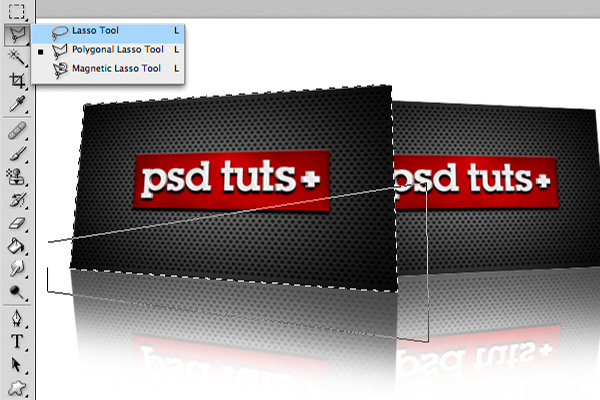
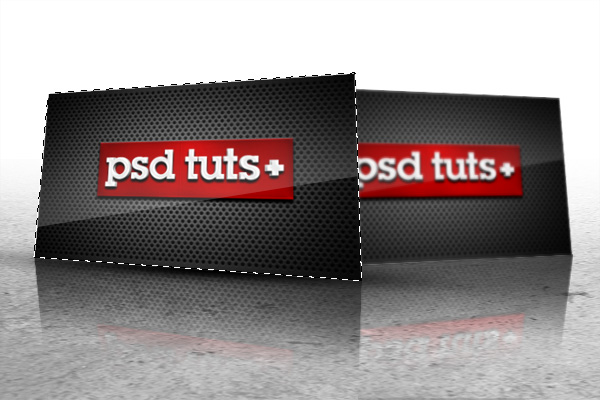
To simulate a nice laminated shine on your card, we need to create a new layer and name it "Shine". By pressing Cmd/Ctrl – click on the preview icon again, select your card and subtract a part of it using the Polygonal Lasso Tool. To do so, hold Alt and start clicking around to create your shape, once closed, it will subtract this shape to the current selection.

Fill your selection with white and mask it as we masked out the reflection using the Mask and the Brush. Bring the Opacity value down again so that it’s more subtle. Repeat the process for the second element but this time press Alt + Cmd/Ctrl – click on the front element’s preview icon to subtract it from the selection.


Step 11

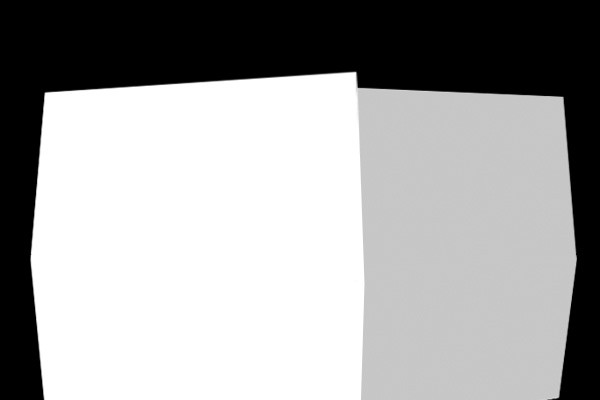
It is now time to add depth of field to our scene. For those who don’t know much about depth maps, it’s a black and white map that represent the depth of each element with a value that goes from white to black, white being the focused elements. Create a new layer and fill it black because there is nothing to be focused on in the back of our scene. Using the selection method we discussed in step 9, fill the front element with white and the rear with gray. You don’t need to choose your gray well because we’ll be adjusting the blur settings in few moments, don’t worry if it’s too dark or too pale.


Step 12

Since the Lens Blur effect only affects one layer, we need to create a copy of our layers and make a single one out of them. Select all your layers (excluding the depth map we just created) and drag them onto the new layer icon at the bottom right of the layer palette. Press Cmd/Ctrl + E to merge them in a single layer or right click and select Merge Layers.

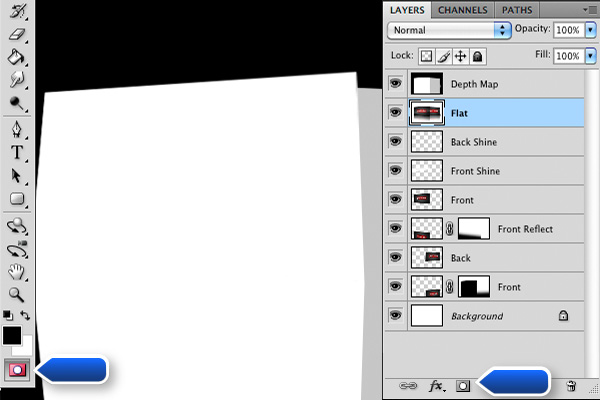
To apply the depth map on the flattened layer, hit Cmd/Ctrl + A with your depth map selected, this will select everything on the layer. Hit Cmd/Ctrl + C to copy it, we’ll need it in few seconds. The upcoming part is a great way to import black and white values to a layer mask, simply add a layer mask to the flattened image, be sure to hit Cmd/Ctrl + I to make it black and then press the Edit in Quick Mask Mode icon at the complete bottom of your tool palette.

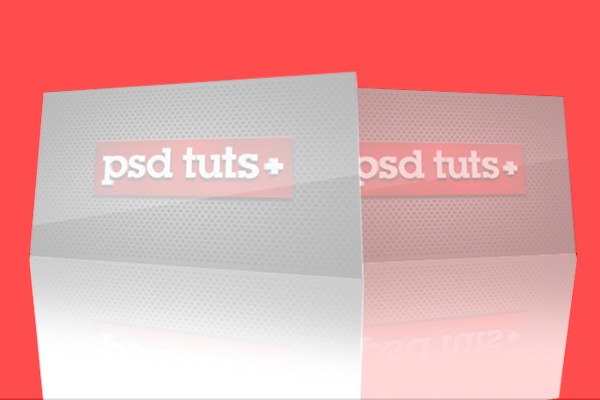
Once the Quick Mask Mode is activated, hit Cmd/Ctrl + V to bring out the depth map we copied before, it should give you something like that. If it’s all right, press the Quick Mask Mode icon again to make a selection out of this. Click on the layer mask and fill the selection with white.


Step 13

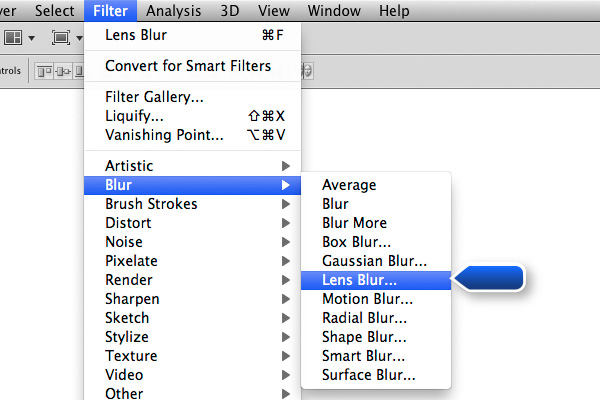
Then, having the flattened layer selected, choose Filter > Blur > Lens Blur to bring up the effect settings.

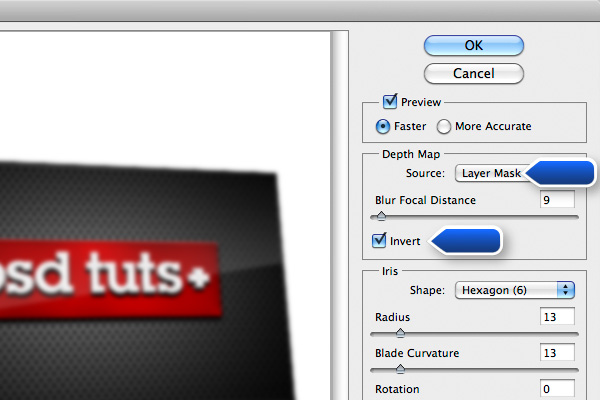
Make sure when you adjust your settings that your source is set to "Layer Mask" in the drop down menu and that the "Invert" checkbox is checked (for some reason, Photoshop is using black as focus instead of white).


Step 14

To add dimension to the card, draw a simple dark gray line around the edge of the first card to create the impression of an extruded layer.


Step 15

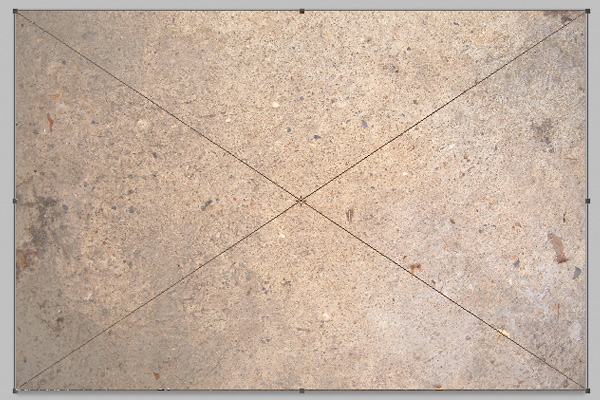
Adding a floor is a great way to make it more realistic because the eye will understand more easily that the business cards aren’t floating in space but sitting on the ground. For this tutorial, I am using a texture you can easily get since it’s given in the Psdtuts+ freebies. I used "stonetexture5.jpg" that you can find in the Stone Texture Pack.


Step 16

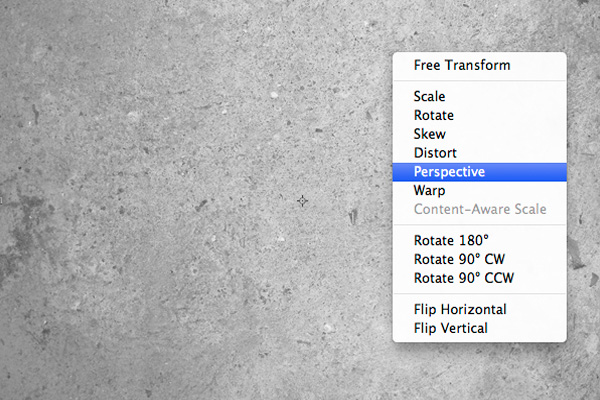
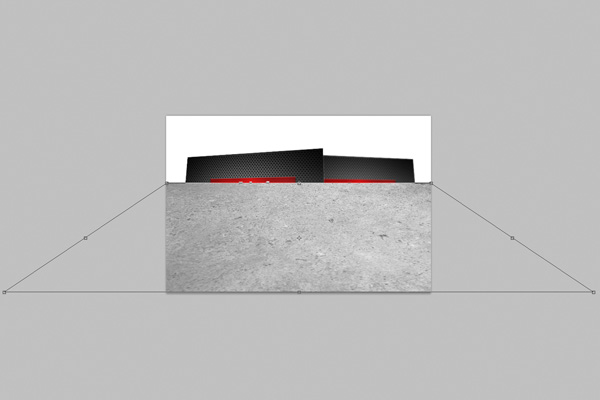
Desaturate it by hitting Cmd/Ctrl + Shift + U, if it does not work, you might need to rasterize your layer. Choose Layer > Rasterize. Hit Cmd/Ctrl + T to bring the transformation tools and select perspective.

Scale it down about the third of your image and bring out the bottom left or bottom right anchor point to create a perspective.


Step 17

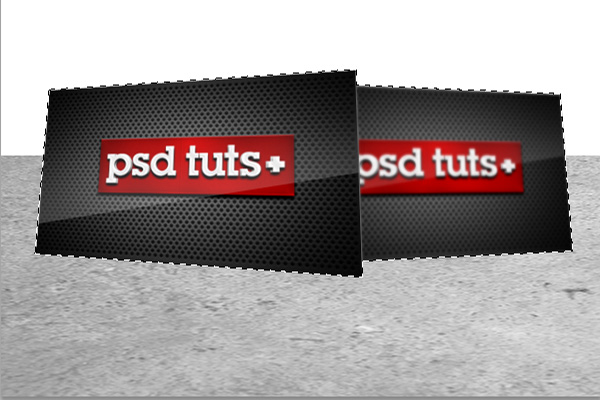
Mask out cards using the same selection method we’ve been using quite a lot before.


Step 18

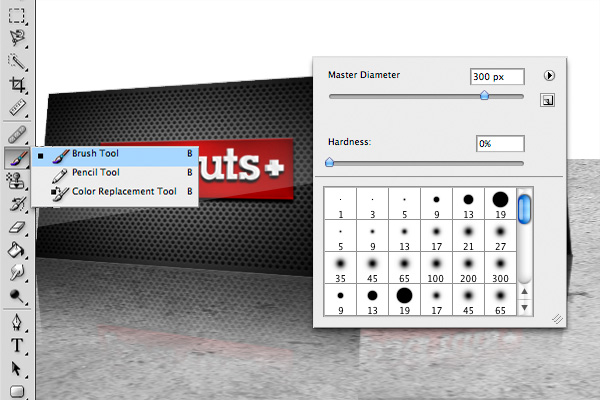
Using a big soft brush, around 300px, mask out some areas we want to soften out.


Step 19

To add a quick shadow under those cards, create a new layer a paint a black spot using a soft brush.

Hit Cmd/Ctrl + T and start stretching it and rotating it so that it matches well with the card.


Step 20

Mask out the overlapping areas and repeat for the second card.


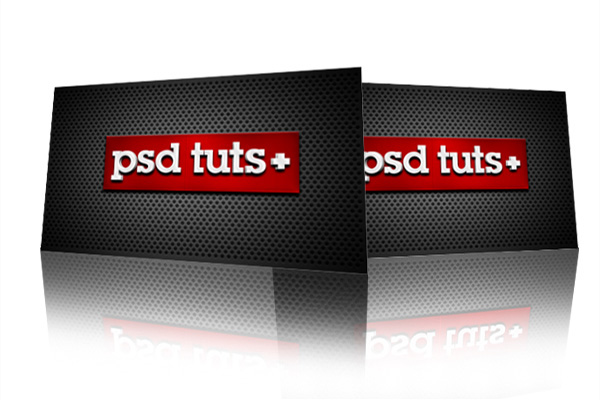
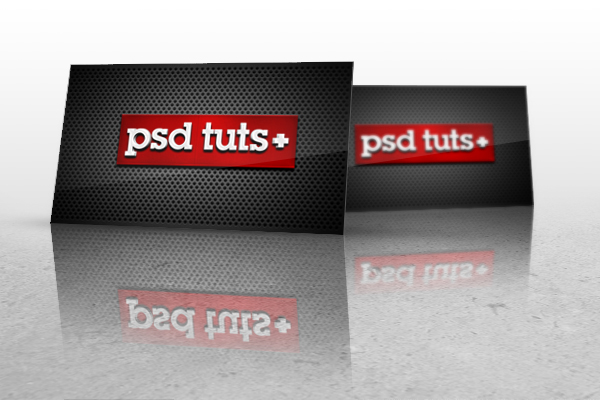
Final Image

You might want to play with these settings to get the desired effect, you could bring the opacity of the ground down a bit to make it less grungy.

Here is a similar attempt using the same exact method.

Letterhead On Word Document

Hello,

We need a microsoft word based letterhead (header and footer) created based on a scanned copy of an existing old letterhead of our company. The new one needs to be exactly similar to the old one, with just a change of address. The font needs to be similar to the existing one, and the logo is very simple, nothing complex. This should be a quick job.

Thanks

Test Your Observation Skills With an AS3 Difference Game – Active Premium

Today, we have another Active Premium tutorial exclusively available to Premium members. If you want to take your ActionScript skills to the next level, then we have an awesome tutorial for you, courtesy of Stephan Meesters.


Preview

Test your skills of observation with the demo below!


This Premium Tutorial is Filled with Creative Tips

During this tutorial we’ll create the core gameplay of a difference game. This includes all the main functionality and two levels to play around with. After this we will also add a main menu and an ending screen.

To summarize, we will be using two images: one with a clean background and one with all the differences. We create markers that determine the position and dimension of each difference and use BitmapData operations to copy this on the screen. Randomization will keep the gameplay interesting and increase replayability.


Professional and Detailed Instructions Inside

Premium members can Log in and Download! Otherwise, Join Now! Below are some sample images from this tutorial.


Active Premium Membership

We run a Premium membership system which costs $9 a month (or $22 for 3 months!) which periodically gives members access to extra tutorials, like this one! You’ll also get access to Psd Premium, Vector Premium, Audio Premium, Net Premium, Ae Premium and Cg Premium too. If you’re a Premium member, you can log in and download the tutorial. If you’re not a member, you can of course join today!

Also, don’t forget to follow @activetuts on twitter and grab the Activetuts+ RSS Feed to stay up to date with the latest tutorials and articles.

Develop an Age Verification Form Using ActionScript 3

In this tutorial, we’ll learn how to develop and implement an Age Verification form for use in your websites or applications. Read on to find out more!

Final Result Preview

Let’s take a look at the final result we will be working towards:


Step 1: Overview

Making use of the Date class we’ll compare the user birthdate to the current date. Firstly though, we’ll pull together a nice looking interface using Flash CS5 and the drawing tools.


Step 2: Document Settings

Launch Flash and create a new document. Set the stage size to 600x300px, and the frame rate to 24fps.


Step 3: Interface

This is the interface we’ll use, a gradient background with a semi-transparent black panel. This panel contains a series of TextFields that will display feedback to the user and will capture the user input.

There is also a button to perform the age verification.


Step 4: Background

Select the Rectangle Tool (R) and create a 600×300 px rectangle. Place it on the center of the stage and fill with this radial gradient: #F2DC57 to #E9B31B.


Step 5: Panel Background

Select the Rectangle Primitive Tool (R) then create a 350×180 px rounded rectangle with a 7px corner radius and fill it with #111111 60% alpha. Center it in stage.

Convert the shape to MovieClip and add the following filter:

You should end with something like this:

Step 6: Static TextFields

We’ll create a series of static Textfields that will tell the user where to enter the data. Nothing too difficult. The format used is: DIN Bold, 17px, #DDDDDD.


Step 7: Dynamic and Input TextFields

Four more TextFields are needed in the interface, the first one is a Dynamic TextField that will display different messages, it has “Date of Birth” written by default, name this field messages.

The other three are Input TextFields, needed to capture the user birthdate, the instance names are: monthField, dayField, yearField.


Step 8: Action Button

A button will be used to call the function that will verify the user age.

Use the Text Tool to create a basic character-based button and name it enterButton.


Step 9: New ActionScript Class

Create a new (Cmd + N) ActionScript 3.0 Class and save it as Main.as in your class folder.


Step 10: Package

The package keyword allows you to organize your code into groups that can be imported by other scripts, it’s recommended to name them starting with a lowercase letter and use intercaps for subsequent words for example: myClasses. It’s also common to name them using your company’s website: com.mycompany.classesType.myClass.

In this example, we’re using a single class, so there isn’t really a need to create a classes folder.

package
{

Step 11: Import Directive

These are the classes we’ll need to import for our class to work, the import directive makes externally defined classes and packages available to your code.

import flash.display.Sprite;
import flash.events.MouseEvent;
import fl.transitions.Tween;
import fl.transitions.easing.Strong;
import fl.transitions.easing.Back;
import flash.net.URLRequest;

Step 12: Declare and Extend the Class

Here we declare the class using the class definition keyword followed by the name that we want for the class, remember that you have to save the file using this name.

The extends keyword defines a class that is a subclass of another class. The subclass inherits all the methods, properties and functions, that way we can use them in our class.

public class Main extends Sprite
{

Step 13: Variables

These are the variables we’ll use, read the comments in the code to find out more about them.

private var tween:Tween; //A tween object to perform animations

private var minimumAge:int = 21; //The minimum age required to display the content
private var tooOldAge:int = 130; //A person can't be this old (and if it is it probably will not be using an app like this ;)
private var months:Array = ["Jan","Feb","Mar","Apr","May","Jun","Jul","Aug","Sep","Oct","Nov","Dec"]; //An array of the abbreviations of the months
private var currentDate:Date = new Date(); //The current date
private var userBirth:Date; //Will store the user birthdate
private var userAge:Number; //Will store the user age
Step 14: Constructor

The constructor is a function that runs when an object is created from a class, this code is the first to execute when you make an instance of an object or runs using the Document Class.

public function Main():void
{
	//Tweens the panel from up to the center
	tween = new Tween(panel,"y",Strong.easeOut, -  panel.height,stage.stageHeight / 2,0.5,true);
	//Adds an event listener to the Enter button and calls the verifyAge function when activated
	panel.enterButton.addEventListener(MouseEvent.MOUSE_UP, verifyAge);
}

Step 15: Handle Months

The following function converts the month string written by the user to the month number, this way it can be used in the Date class.

private function monthToNumber(month:String):int //A string of the month abbreviation is needed
{
	var monthNumber:int; //Will store the month number

	//The next for will loop through the array comparing the array months to the one written by the user

	for (var i:int = 0; i < months.length; i++)
	{
		if (panel.monthField.text == months[i])
		{
			monthNumber = i; //If the month matches is stored
		}
	}

	return monthNumber; //And then returned as the function value
}

Step 16: Verify Age

The next function will be executed when the user clicks the Enter button, it contains most of the main code so it will be analyzed in parts.

private function verifyAge(e:MouseEvent):void
{

Step 17: Convert Strings to Date

This line converts the strings written in the Input TextFields to a valid date object, this way we can compare the dates later.

Notice the use of the monthToNumber function here.

userBirth = new Date(int(panel.yearField.text),monthToNumber(panel.monthField.text),int(panel.dayField.text));

Step 18: Calculate User Age

Another important part, the next line calculates the user age by subtracting the Dates and dividing the result.

userAge = Math.floor((Number(currentDate) - Number(userBirth)) / (1000*60*60*24) / 365);

You’re probably wondering why we are dividing using (1000*60*60*24) / 365, this is (milliseconds*seconds*minutes*hours) / days. That’s why we get the years.


Step 19: Check for Too Old People

Time to check user age, but first let’s add some error testing.

The next lines will check the tooOldAge to see if the user input is a realistic age.

if (userAge > tooOldAge)
{
	panel.messages.textColor = 0xAA0000;
	panel.messages.text = "You can't be " + userAge + " years";
}

Step 20: Let User Pass

If the user age is over the minimum age (in this case 21), display a welcome message and load the actual app content.

else if (userAge >= minimumAge)
{
	panel.messages.textColor = 0xF2DC57;
	panel.messages.text = "WELCOME";
	tween = new Tween(panel,"x",Back.easeIn,panel.x,stage.stageWidth + panel.width / 2 + 10,0.3,true); //Animates the panel
	loadContent();
}

Step 21: Check for People from the Future

Another error test, this time for people claiming to be from the future.

else if (userBirth.getFullYear() > currentDate.getFullYear())
{
	panel.messages.textColor = 0xAA0000;
	panel.messages.text = "Are you from the future?";
}

Step 22: Under Required Age

And lastly, a message to the user that hasn’t the required age to enter the site.

else
{
	panel.messages.textColor = 0xAA0000;
	panel.messages.text = "You must be " + minimumAge + " or over";
	redirect();
}

Step 23: Load Actual Content

This function is called when the user passes the age verification, it’s the place to start loading the actual site content.

private function loadContent():void
{
	//Content goes here
}

Step 24: Redirect

If the user fails the age verification (is under age) it will be redirected to another site.

private function redirect():void
{
	//navigateToURL(new URLRequest("http://www.tutsplus.com"));
}

Conclusion

Try modifying the parameters of the file, the minimum age, the maximum age and add some real content, use it in your projects!

Thanks for reading this tutorial, I hope you’ve found it useful!

Manipulating Particle Motion with Stardust Particle Engine – Part 2

This is the second part of this tutorial. I’m going to show you how to manipulate particle motion with deflectors.

Prior knowledge of motion basics and vector fields is required. I highly recommend that you complete the first part of this tutorial before moving on.


Final Result Preview

Take a look at the final result we will be working towards. It’s an example of a floor effect, with particles bouncing off the floor.


Deflectors

Pretty much like gravity fields, a deflector takes a particle’s current motion data as input. Afterwards, the deflector overwrites the particle’s motion with its output, only that the output now contains velocity data in addition to position data. Thus, in 2D space, a deflector’s output is a 4D vector; the first two components of the 4D vector represent the x- and y-component of the position vector (denoted x and y), respectively, and the last two components represent the x- and y-component of the velocity vector (denoted vx and vy).


How To Use Deflectors

Remember the Field class and the Gravity action from the first part of this tutorial? Well, the procedure is similar. You create Deflector objects that manipulate particle motions, and then add them to the Deflect action, just like you would add Field objects to the Gravity action. Now let’s look at a quick example.


Floor Effect

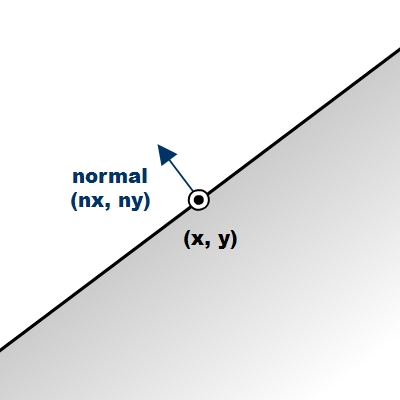
In this example, we’re going to use the LineDeflector class to create a particle-bouncing-off-floor effect. A line deflector essentially simulates an infinitely long line in 2D space, with one side being open space, and the other side solid; particles are only allowed to be in the open space and not allowed in the solid space. When particles come from the open space side, hitting the line, they’ll bounce back. The Particle.collisionRadius property, representing the radius of a particle, is taken into account.

The line deflector uses a normal vector and a point the line passes through in 2D space to determine the line. Here’s an illustration to give you a better idea.


Step 1: Floor Effect Circle Symbol

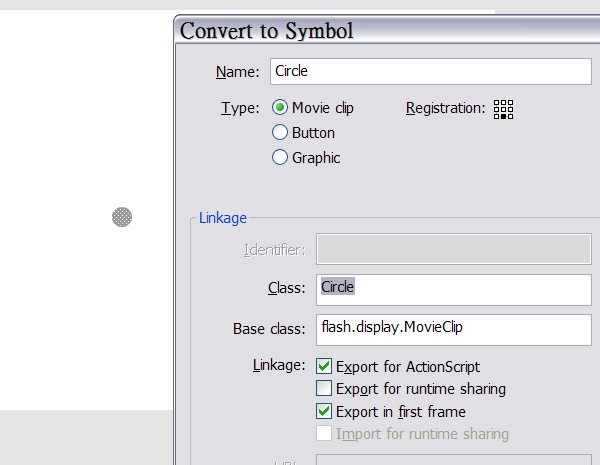
Create a new Flash document, draw a circle of radius of 10, and then convert it to a symbol, exported for ActionScript with a class name Circle.


Step 2: Floor Effect The Document Class

Create an AS file for the document class. The class creates an emitter and a renderer. If you feel like needing a refresher on Stardust’s basic usage, you may check out this tutorial.

package {
	import flash.display.Sprite;
	import flash.events.Event;
	import idv.cjcat.stardust.common.emitters.Emitter;
	import idv.cjcat.stardust.common.renderers.Renderer;
	import idv.cjcat.stardust.twoD.renderers.DisplayObjectRenderer;

	public class FloorEffect extends Sprite {

		private var emitter:Emitter;
		private var renderer:Renderer;

		public function FloorEffect() {
			emitter = new CircleEmitter();
			renderer = new DisplayObjectRenderer(this);
			renderer.addEmitter(emitter);

			addEventListener(Event.ENTER_FRAME, mainLoop);
		}

		private function mainLoop(e:Event):void {
			emitter.step();
		}
	}
}

The emitter class is shown below. It basically shoots out circle particles and the particles are affected by a uniform gravity field, pointing downward.

package {
	import idv.cjcat.stardust.common.actions.Age;
	import idv.cjcat.stardust.common.actions.DeathLife;
	import idv.cjcat.stardust.common.actions.ScaleCurve;
	import idv.cjcat.stardust.common.clocks.SteadyClock;
	import idv.cjcat.stardust.common.initializers.Life;
	import idv.cjcat.stardust.common.initializers.Scale;
	import idv.cjcat.stardust.common.math.UniformRandom;
	import idv.cjcat.stardust.twoD.actions.Gravity;
	import idv.cjcat.stardust.twoD.actions.Move;
	import idv.cjcat.stardust.twoD.emitters.Emitter2D;
	import idv.cjcat.stardust.twoD.fields.Field;
	import idv.cjcat.stardust.twoD.fields.UniformField;
	import idv.cjcat.stardust.twoD.initializers.DisplayObjectClass;
	import idv.cjcat.stardust.twoD.initializers.Position;
	import idv.cjcat.stardust.twoD.initializers.Velocity;
	import idv.cjcat.stardust.twoD.zones.LazySectorZone;
	import idv.cjcat.stardust.twoD.zones.SinglePoint;

	public class CircleEmitter extends Emitter2D {

		public function CircleEmitter() {
			super(new SteadyClock(1));

			//initializers
			addInitializer(new DisplayObjectClass(Circle));
			addInitializer(new Life(new UniformRandom(60, 10)));
			addInitializer(new Position(new SinglePoint(320, 100)));
			addInitializer(new Velocity(new LazySectorZone(8, 4)));
			addInitializer(new Scale(new UniformRandom(1, 0.4)));
			addInitializer(new CollisionRadius(10));

			//actions
			addAction(new Age());
			addAction(new DeathLife());
			addAction(new Move());
			addAction(new ScaleCurve(0, 10));

			//gravity
			var field:Field = new UniformField(0, 0.5);
			var gravity:Gravity = new Gravity();
			gravity.addField(field);
			addAction(gravity);
		}
	}
}

Now you have created an effect with particles shooting out from the center of the stage, being pulled down by gravity. This is what it looks like:


Step 3: Floor Effect Add the Deflector

Add the folloing code in the emitter constructor. It creates a line deflector, adds it to the Deflector action, and then adds the action to the emitter, thus activating the deflector effect. The first two constructor paramters for the LineDeflector class is the coordinate of a point on the line, and the last two parameters are the x- and y-components of the line’s normal vector. The Deflector.bounce property determines the “bounciness” of the line, 1 causing complete rebound, and 0 meaning no rebound at all.

//create a line deflector passing through point (320, 320) and normal (0, -1)
var deflector:Deflector = new LineDeflector(320, 320, 0, -1);
deflector.bounce = 0.6;
var deflect:Deflect = new Deflect();
deflect.addDeflector(deflector);
addAction(deflect);

You may also draw a visual representation of the line on the stage to have a better look.

Alright, we’re done with this example. Now let’s take a look of our final outcome.


Bounding Box

In this example, we’re going to use the BoundingBox deflector to constrain particles inside a rectangular area.


Step 1: Bounding Box The Emitter Class

The document class remains the same as the previous example, but we are going to change the emitter class. This is the base emitter class of this example. Compared to the emitter class in the previous example, the SteadClock is changed to a ImpulseClock to instantly create 20 particles at the beginning, the position zone is changed from a single point to a rectangular zone that matches the stage size, the Velocity initializer is slowed down a bit, the Life initializer is removed because we want particles to stay permanently on the stage, the Age and DeathLife actions are in turn not required and removed, and the ScaleCurve is also removed. Some imports are also added and removed; you may just copy the code below for convenience.

package {
	import idv.cjcat.stardust.common.clocks.ImpulseClock;
	import idv.cjcat.stardust.common.initializers.CollisionRadius;
	import idv.cjcat.stardust.common.initializers.Scale;
	import idv.cjcat.stardust.common.math.UniformRandom;
	import idv.cjcat.stardust.twoD.actions.Deflect;
	import idv.cjcat.stardust.twoD.actions.Move;
	import idv.cjcat.stardust.twoD.deflectors.BoundingBox;
	import idv.cjcat.stardust.twoD.deflectors.Deflector;
	import idv.cjcat.stardust.twoD.emitters.Emitter2D;
	import idv.cjcat.stardust.twoD.initializers.DisplayObjectClass;
	import idv.cjcat.stardust.twoD.initializers.Position;
	import idv.cjcat.stardust.twoD.initializers.Velocity;
	import idv.cjcat.stardust.twoD.zones.LazySectorZone;
	import idv.cjcat.stardust.twoD.zones.RectZone;
	import idv.cjcat.stardust.twoD.zones.SinglePoint;

	public class CircleEmitter extends Emitter2D {

		private var impulseClock:ImpulseClock;

		public function CircleEmitter() {
			super(impulseClock = new ImpulseClock(20));
			impulseClock.impulse();

			//initializers
			addInitializer(new DisplayObjectClass(Circle));
			addInitializer(new Position(new RectZone(0, 0, 640, 400)));
			addInitializer(new Velocity(new LazySectorZone(3, 2)));
			addInitializer(new Scale(new UniformRandom(1, 0.4)));
			addInitializer(new CollisionRadius(10));

			//actions
			addAction(new Move());
		}
	}
}

Step 2: Bounding Box Add the Deflector

Pretty much like the previous example, we now add the following code in the emitter constructor to use the Deflect action, only that this time we use the BoundingBox deflector to constrain particles inside a rectangular region that matches the stage size.

//deflector
var deflector:Deflector = new BoundingBox(0, 0, 640, 400);
var deflect:Deflect = new Deflect();
deflect.addDeflector(deflector);
addAction(deflect);

Step 3: Bounding Box Test the Movie

That’s it. Nothing much is changed, and now we have constrained particles in a bounding box. Test the movie and you shall see the result.


Custom Deflectors

Now, we are going to create custom deflectors on our own. Let’s first understand the Deflector class we’re about to extend.

The Deflector class is the base class for all deflectors. In order to create custom deflectors, you should extend this class and override the calculateMotionData4D() method, and then return a MotionData4D object representing the 4D vector output of the deflector. The input at your disposal, just like the Field class, is included in the Particle2D object passed into the method as parameter. You may use this Particle2D object to determine your output. By the way, if this method returns a null value, the Deflect action would assume that you do not want to change the current particle’s motion, ignore the particle, and then go on to processing the next particle.

For instance, the following deflector would rotate each particle’s velocity vector by one degree clock-wise.

package {
	import idv.cjcat.stardust.twoD.geom.Vec2D;
	import idv.cjcat.stardust.twoD.particles.Particle2D;
	import idv.cjcat.stardust.twoD.deflectors.Deflector;
	import idv.cjcat.stardust.twoD.geom.MotionData4D;

	public class Rotator extends Deflector {

		override protected function calculateMotionData4D(particle:Particle2D):MotionData4D {
			var velocity:Vec2D = new Vec2D(particle.vx, particle.vy);
			velocity.rotateThis(1);
			return new MotionData4D(particle.x, particle.y, velocity.x, velocity.y);
		}
	}
}

Tube Deflector Effect

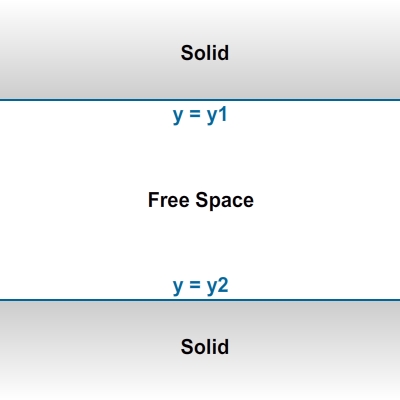
In this example, we are going to extend the Deflector class and create our own deflector, simulating a tube, which is essentially two line deflectors sandwiching a tube-shaped free space.


Step 1: Tube Deflector Effect The Emitter Class

Copy the Flash document, along with the Circle symbol, and the document from the first example. Here we are going to create another emitter class, still named CircleEmitter. This time the emitter emits particles from the center of the stage, and no gravity field is applied.

package {
	import idv.cjcat.stardust.common.actions.Age;
	import idv.cjcat.stardust.common.actions.DeathLife;
	import idv.cjcat.stardust.common.actions.ScaleCurve;
	import idv.cjcat.stardust.common.clocks.SteadyClock;
	import idv.cjcat.stardust.common.initializers.CollisionRadius;
	import idv.cjcat.stardust.common.initializers.Life;
	import idv.cjcat.stardust.common.initializers.Scale;
	import idv.cjcat.stardust.common.math.UniformRandom;
	import idv.cjcat.stardust.twoD.actions.Deflect;
	import idv.cjcat.stardust.twoD.actions.Move;
	import idv.cjcat.stardust.twoD.deflectors.Deflector;
	import idv.cjcat.stardust.twoD.emitters.Emitter2D;
	import idv.cjcat.stardust.twoD.initializers.DisplayObjectClass;
	import idv.cjcat.stardust.twoD.initializers.Position;
	import idv.cjcat.stardust.twoD.initializers.Velocity;
	import idv.cjcat.stardust.twoD.zones.LazySectorZone;
	import idv.cjcat.stardust.twoD.zones.SinglePoint;

	public class CircleEmitter extends Emitter2D {

		public function CircleEmitter() {
			super(new SteadyClock(1));

			//initializers
			addInitializer(new DisplayObjectClass(Circle));
			addInitializer(new Life(new UniformRandom(60, 10)));
			addInitializer(new Position(new SinglePoint(320, 200))); //stage center
			addInitializer(new Velocity(new LazySectorZone(8, 4)));
			addInitializer(new Scale(new UniformRandom(1, 0.4)));
			addInitializer(new CollisionRadius(10));

			//actions
			addAction(new Age());
			addAction(new DeathLife());
			addAction(new Move());
			addAction(new ScaleCurve(0, 10));
		}
	}
}

Step 2: Tube Deflector Effect The Tube Deflector

Now we are going to create our tube deflector class. Details are explained in comments.

package {
	import idv.cjcat.stardust.twoD.particles.Particle2D;
	import idv.cjcat.stardust.twoD.deflectors.Deflector;
	import idv.cjcat.stardust.twoD.geom.MotionData4D;

	public class TubeDeflector extends Deflector {

		private var y1:Number;
		private var y2:Number;

		public function TubeDeflector(y1:Number, y2:Number) {
			//y2 should be larger than y2
			if (y1 > y2) {
				//swap y1 and y2 if y1 is larger
				var temp:Number = y1;
				y1 = y2;
				y2 = temp;
			}

			this.y1 = y1;
			this.y2 = y2;
		}

		override protected function calculateMotionData4D(particle:Particle2D):MotionData4D {
			//output components, initialized to the particle's original motion data
			var x:Number = particle.x;
			var y:Number = particle.y;
			var vx:Number = particle.vx;
			var vy:Number = particle.vy;

			//caluculate actual collsion radius
			var radius:Number = particle.collisionRadius * particle.scale;

			//flag for whether the deflector takes effect
			var deflected:Boolean = false;

			if (particle.y < (y1 + radius)) {
				//particle y-coordinate is less than lower limit
				//set proper new y-coordinate
				y = y1 + radius;

				//set flag
				deflected = true;
			} else if (particle.y > (y2 - radius)) {
				//particle y-coordinate is greater than upper limit
				//set proper new y-coordinate
				y = y2 - radius;

				//set flag
				deflected = true;
			}

			if (deflected) {
				return new MotionData4D(x, y, vx, vy);
			} else {
				//ignore the particle and not update its motion data
				return null;
			}
		}
	}
}

Step 3: Tube Deflector Effect Add the Deflector

You should know what we’re going to do next very well by now. That’s right, we’re going to add the deflector to a Deflect action and then add the action to the emitter. Add the following code in the emitter constructor.

//create a tube deflector
var deflector:Deflector = new TubeDeflector(100, 300);
var deflect:Deflect = new Deflect();
deflect.addDeflector(deflector);
addAction(deflect);

Step 4: Tube Deflector Effect Test the Movie

You can now test the movie. Again, you may also draw some visual representation of the deflector on the stage for a better look.


Conclusion

This is the end of the entire tutorial. In the first part you have learned about gravitational fields. In the second part, you have learned the concept of deflectors and the actual usage of the Deflect action. Also, you’ve learned how to extend the Deflector class to create custom deflectors. Now you’re able to perform advanced particle motion manipulation in Stardust.

Thank you very much for reading!