Dear Programmers,
I’m looking to modify our WP Login page that has the RPX (Janrain – Facebook/Google/AOL login) plugin installed.
I would like to use the BM Custom Login plugin (already installed) and modify it to look like the image attached.

Freelance Projects, Design and Programming Tutorials
Dear Programmers,
I’m looking to modify our WP Login page that has the RPX (Janrain – Facebook/Google/AOL login) plugin installed.
I would like to use the BM Custom Login plugin (already installed) and modify it to look like the image attached.
I need 3 link wheels created by Monday.
You need to create accounts at 15 web 2.0 properties (a list will be provided to you), confirm the account, log in and post an article to each account. (3 articles will be provided). Each article should have a couple links in the text and at the bottom, the link wheels should be connected, one to another. Please don’t bid if you don’t know what a link wheel is. I need 3 different ones created for 3 different articles.
I am looking for a PHP guru to make some changes to my classified site.
I am using Xzero classified script, so the bidder must have experience in Xzero classified script.
See image
http://img842.imageshack.us/img842/6416/city.gif
1. AJAX style List Box selection for Country/Cities and Categories/Subcategories ( CHAINED SELECTION ) on ONE PAGE
Currently my site requires user to select city then select category then subcategories in 3 steps ( there pages). I want to combine them into 1 page ONLY by using AJAX
a. I have multiple countries and multiple cities associated with each country. I want to have a List Box so that when user selects countries, the other box will display associated cities for selection. Users are allowed to select 1 city only ( disable CTRL + SELECT for multiple selections )
b. Below the Select Cities list box is the select category and sub-categories list box. Users are allow to select 1 categories only.
c. When user is already selected city and sub-cat, a note display the price for posting ads.
i. The price feature is already included. All developer need to do is to call the price to display once the city and sub-cat are BOTH selected. Developer can see Post.php file to get the price value.
d. When the user select the city, and categories, they click ‘next’ button to take them to the next page post.php. If they don’t select city or sub-category, prompt them to do so
2. Developer must make sure that all the current functions of the site remain intact.
3. Developer must provide me the documentation about the changes and steps because I will re-install the script.
a. prices associated with them. The developer must ensure that these existing functions are intact.
• If City price field is set ( in admin site ) , it will overwrite the price set in country level
• If Sub-cat price field is set, it will overwrite the price set in categories level
4. Multiple cities posting: currently, the site only allow users to post ads , images or event in only 1 cities. I want to have a check box option on the ‘Post.php’ file. If user select the ‘multiple cities’ check box, the site will allow them to select multiple state or multiple cities
Guys
need this theme for a client
https://www.northamericanpharmacal.com/professional/index.php?main_page=login
or can be seen here aswell
http://www.4yourtype.com/basket.asp
I am sure this is a free script – if you have it and can install it great – let me know cost and time frame this is urgent
I have a script I purchased from GetMyContacts.com, I’d like to have this ported over to a CodeIgniter library. It can be simplified. The only functionality should be:
1 – Enter username/password – Validate
2 – Retrieve list
We would like to have a full body cartoon drawing using our school logo of a RAM with each of the sports that we field with the RAM dressed appropriately for each sport using appropriate equipment for the sport as well. See attached graphic of the RAM logo for a headshot.
Here is the list of our teams…
Digital Harbor High School Sports Teams
1. Varsity Football
2. JV Football
3. Varsity Volleyball
4. JV Volleyball
5. Varsity Boys Soccer
6. JV Boys Soccer
7. Varsity Girls Soccer
8. Girls Cross Country
9. Boys Cross Country
10. Cheerleading
11. Varsity Boys Basketball
12. JV Boys Basketball
13. Varsity Girls Basketball
14. JV Girls Basketball
15. Varsity Wrestling
16. Varsity Swimming
17. JV Swimming
18. Varsity Boys Indoor Trak
19. Varsity Girls Indoor Track
20. Varsity Dance
21. Cheerleading
22. Varsity Baseball
23. JV Baseball (not paid for by the city)
24. Varsity Softball
25. JV softball
26. Varsity Girls Tennis
27. Varsity Boys Tennis
28. Varsity Boys Lacrosse
29. Varsity Girls Lacrosse
30. Varsity Badminton
31. JV Badminton
32. Varsity Boys Track and Field
33. Varsity Girls Track and Field
I want someone to convert database from a phone book to an excel sheet. like (name ,address, phone number, fax number) i want it in a short time from 2 to 5 days.
http://www.viphonebook.com
I basically need ecovers done… cds reports,audio,boxes, etc I just need it filled up real basic job I have design work so you dont need to design stuff either. I just need the cds boxes ecovers etc… bid fairly
T-Shirt Designer for on-Line Web Site. This is for Screen Printing and not Digital Printing. Must be a complete package with shopping cart. Check out ossdesigner.com Something similar. This project will not be accepted by anyone out of the United States… (Budget: $3000-5000, Jobs: AJAX, Javascript, Linux, MySQL, PHP)
Hello, I m looking to hire content writer to my websites and for article writing. The main subject of those sites is emoticons/smiley/winks. Content example can be found at myemoticons.com -I will provide you with the different categories you will need to write on… (Budget: $30-250, Jobs: Academic Writing, Articles, Blog, Copywriting)
THIS PROJECT – Payment Via Freelancer.com only You need to write 7 articles in next 24 hours. THIS PROJECT will be AWARDED IN next 8 HOURS I am looking for 3 writers. This is a TRIAL project so everyone starts at $1.25 / 500-600 words… (Budget: $30-250, Jobs: Article Rewriting, Articles, Copywriting, Ghostwriting, Report Writing)
I need a team of captcha workers with high speed internet connection. Please pm me for details, how many workers you have. I’ll accept only for serious, hard and regular providers. (Budget: $30-250, Jobs: BPO, Customer Support, Data Entry, Data Processing, Excel)
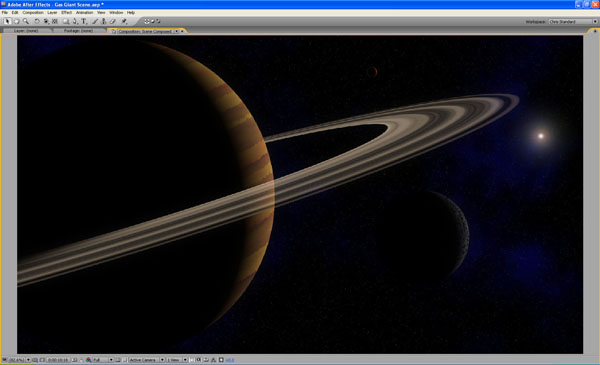
In this tutorial you’ll learn how to create a Gas Giant planet, moons, sun and starfield totally in After Effects. This tutorial makes extensive use of Fractal Noise which can be used to create a whole host of visuals, and some expressions to link the light direction on the different elements we create.
Start a new project and save it as ‘Gas Giant Scene’.
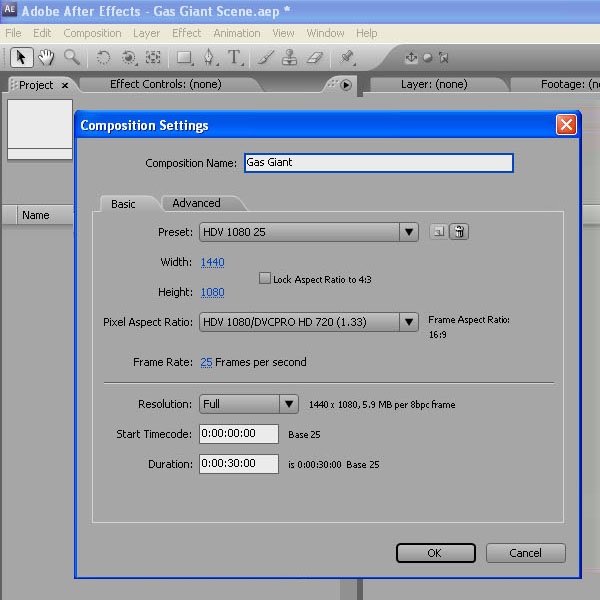
Create a new HDV 1080 25 Composition and make it 30 seconds long.
Save this as ‘Gas Giant ’.
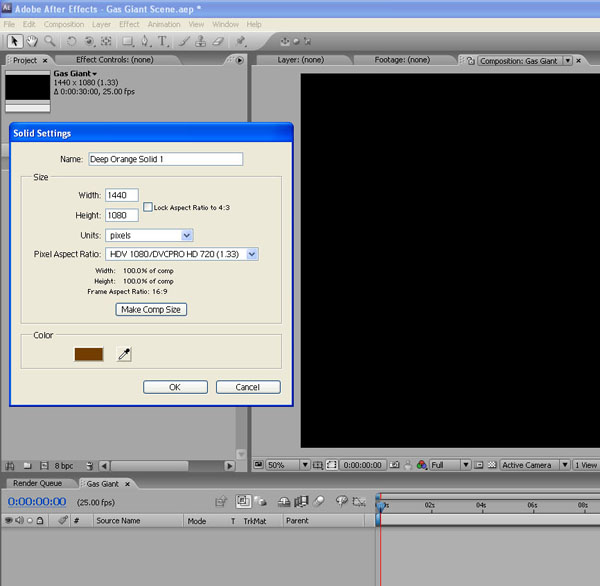
Create a new Solid (Layer / New / Solid) and choose a deep orange colour.
Click ‘Make Comp Size’ then click ‘OK’.
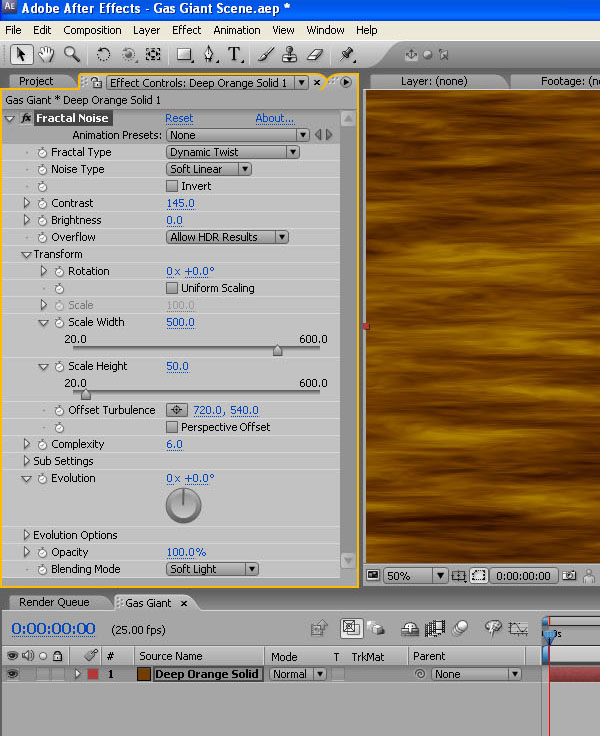
In the timeline, click on this layer, then go to Effect / Noise & Grain / Fractal Noise.
The Fractal Noise effect is a great way to create clouds, random patterns and textures.
Set Fractal Type to Dynamic Twist and boost the contrast to around 145 to add some definition to the clouds.
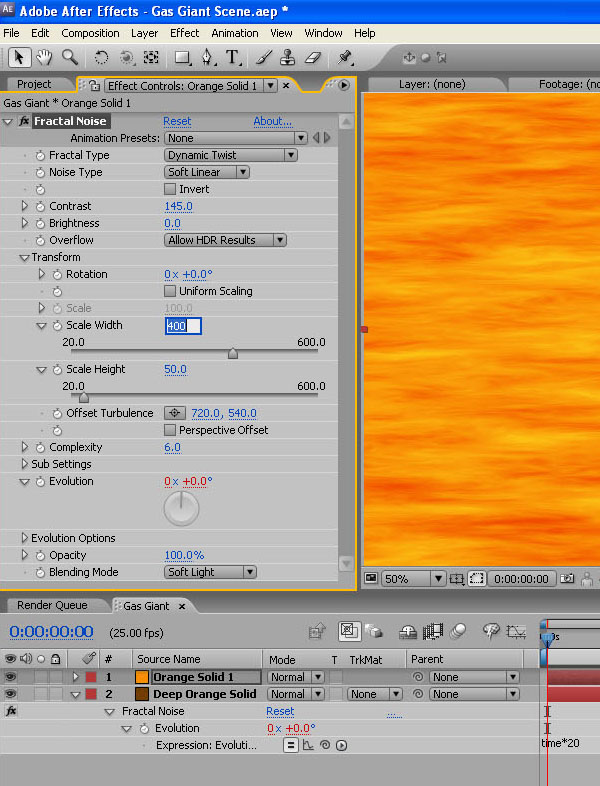
Twirl down the Transform property and uncheck the Uniform Scaling checkbox. Set the Scale Width to around 500 to stretch out the clouds, and the Scale Height to 50 to compress them.
Then at the bottom of the Effects Panel, set the Blending Mode to Soft Light.
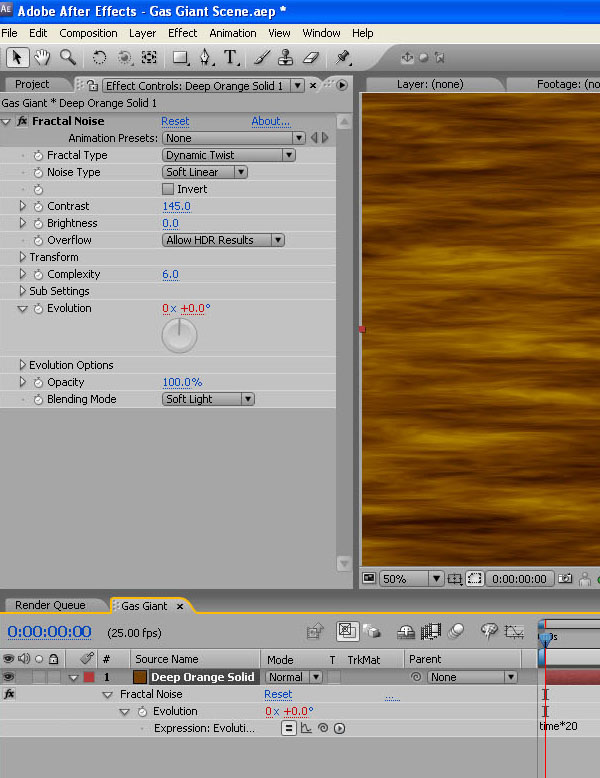
Now to add a simple expression to animate the cloud movement.
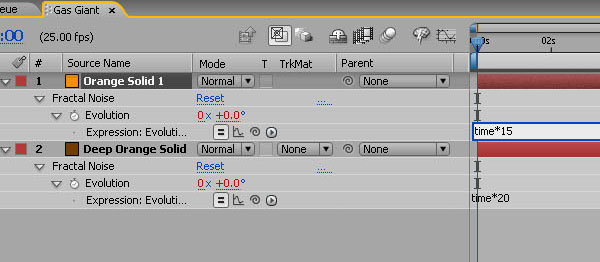
Staying in the Effect Controls panel, Alt-Click the Stopwatch icon next to Evolution to open an expressions field in the timeline widow below.
In here type: time*20.
This will sample the current time and multiply it by 20 and then apply this to the Evolution setting of the clouds.
Do a quick RAM Preview to see how this looks.
Duplicate this layer (Edit / Duplicate).
Now go into the Solid Settings (Layer / Solid Settings) and change the colour to a lighter orange tone.
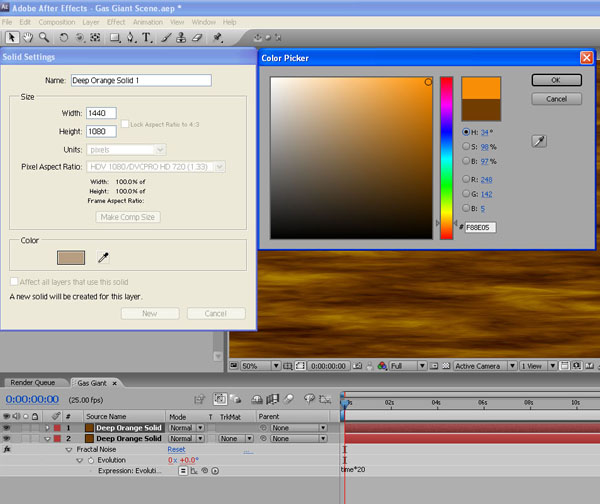
Open up the Effects Panel and in the Fractal Noise Transform settings, change the Scale Width to 400, just to add variation from the first layer.
With the top layer selected, hit ‘U’ to bring up the expression, and change it to Time*15 – again to add some variety of animation.
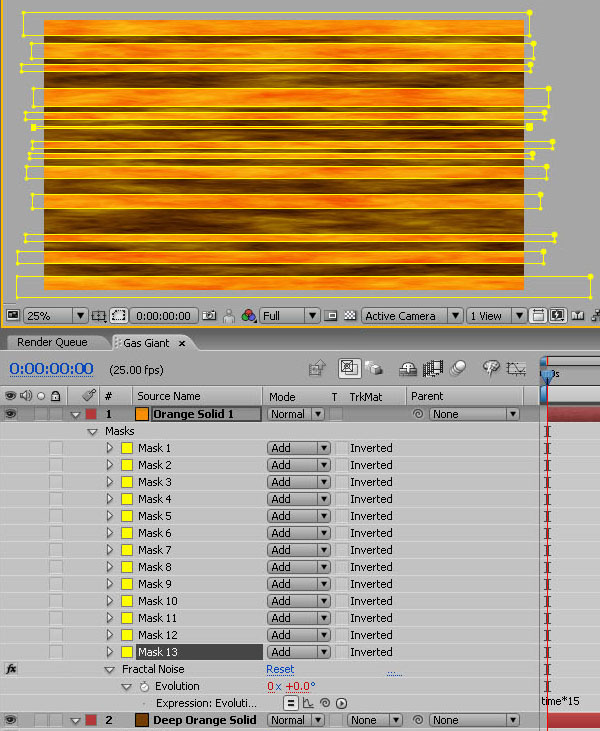
We’ll create the bands of cloud seen on Gas Giants by masking out sections of the top layer.
With the top layer selected, and using the mask tool, draw a series of horizontal rectangle masks , varying the height and position. Don’t do too many and be aware that the ones in the middle will appear thicker when applied to the sphere later.
Create a new adjustment layer (Layer / New / Adjustment Layer) and add Effect / Distort / Turbulent Displace.
In the Turbulent Displace Effect Controls panel, set the Amount to 150 and the Size to 2.
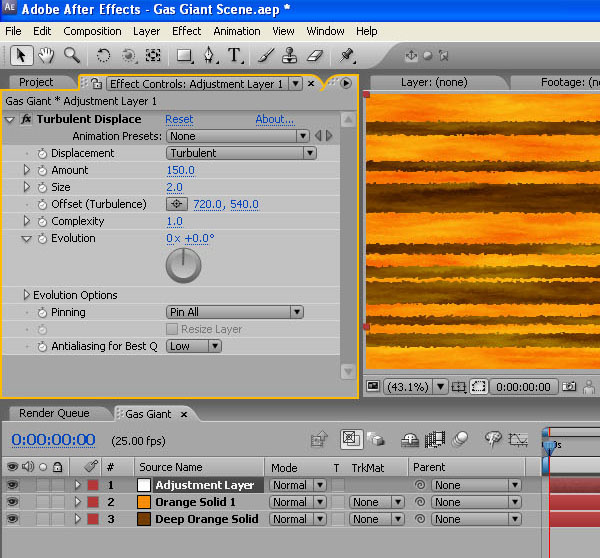
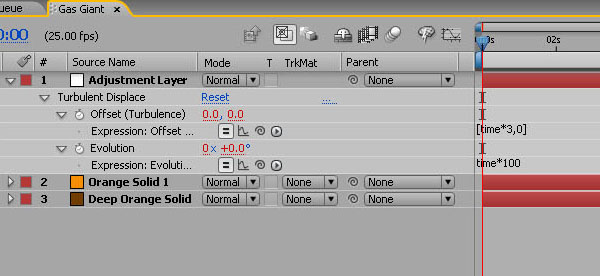
Now to create a couple more expressions to drive the cloud turbulence.
In the Turbulent Displace Effect Controls panel, Alt-Click the Stopwatch icon next to Offset (Turbulence). In the layer’s expression field type: [time*3,0]. This will animate only the horizontal offset and leave the vertical untouched.
Now Alt-Click the Stopwatch icon next to Evolution and in the expression field, type: time*100.
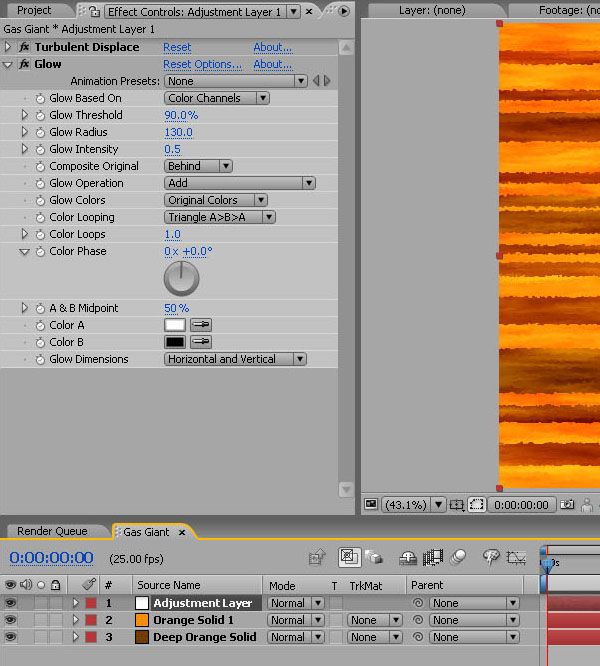
With the Adjustment Layer selected, choose Effects / Stylize / Glow and apply these settings: Glow Threshold 90%; Glow Radius 130; Glow Intensity 0.5.
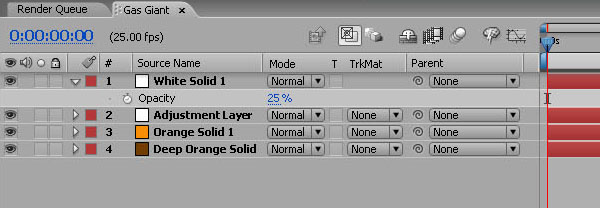
Create a new White Solid (Layer / New / Solid) and set the opacity of this to 25% to add a hazy atmosphere feel.
Next we’ll create the planet’s rings.
Create a new Composition called ‘Ring’. Make it 1000×1000 pixels and change the ‘Pixel Aspect Ratio’ to ‘Square Pixels’.
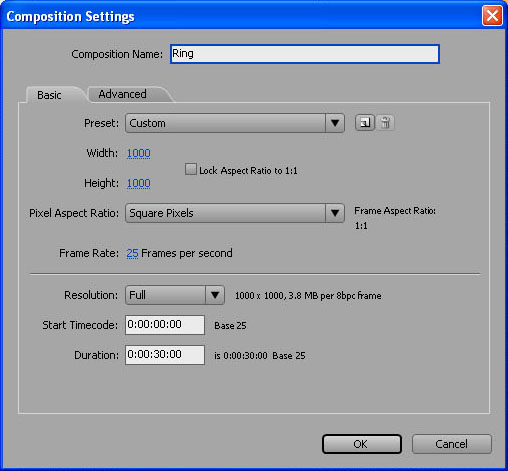
Create a new Black Solid, 3 pixels wide and 300 high.
Change its scale properties to 100,000% wide (click the chain icon to disconnect the horizontal and vertical scale) and 100% high.
Don’t worry – it will make sense in a second!
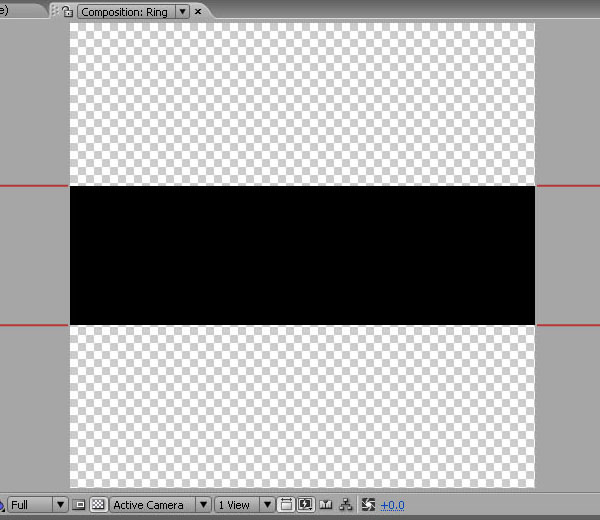
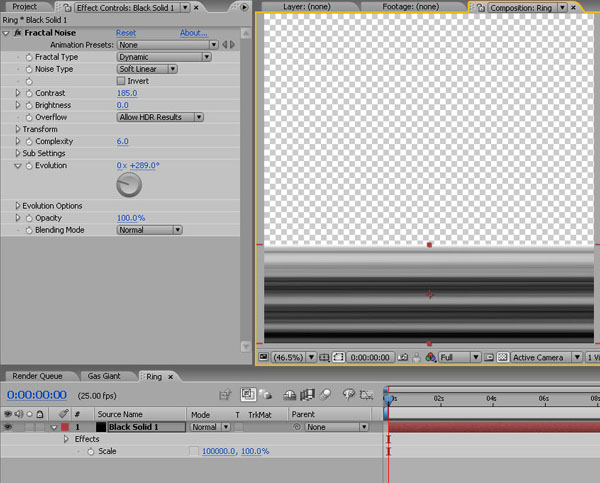
Now add Fractal Noise to the layer, changing the ‘Fractal Type’ to ‘Dynamic’. This should create a series of lines stretched across the layer.
Increase the contrast to 185 then play around with the Fractal Noise Evolution until you get an effect you like.
Move the layer down so it sits on the bottom of the frame.
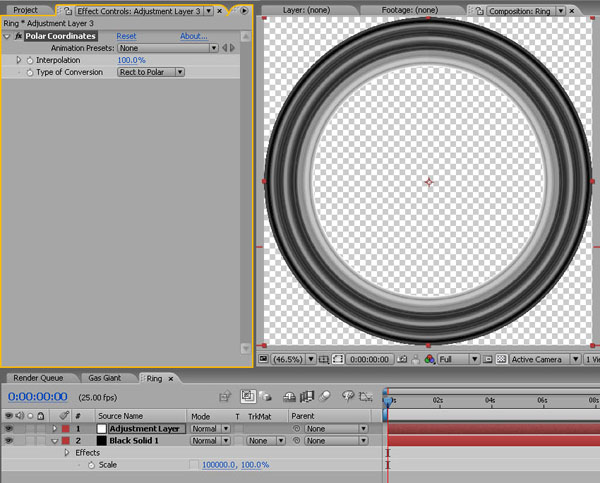
Add an adjustment layer and choose Effect / Distort / Polar Coordinates.
Push the Interpolation up to 100% and change the Type of Conversion to ‘Rect to Polar’.
And there you are – a nice, fractal based ring system.
Before we put the planet together, we’ll make a couple of moons using Fractal Noise in a slightly different way.
Create a new HDV 1080 25 composition called ‘Moon 01′. Make it 30 seconds long.
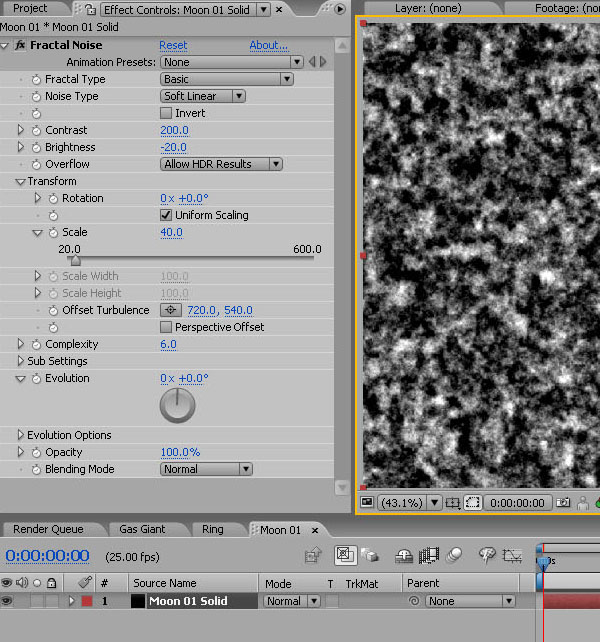
Add a new Black Solid, call it ‘Moon 01 Texture’ and make it Comp Size. Then go to Effect / Noise and Grain / Fractal Noise.
Increase the Contrast to 200, drop the Brightness to -20, and twirl down the Transform button and take the Scale down to 40.
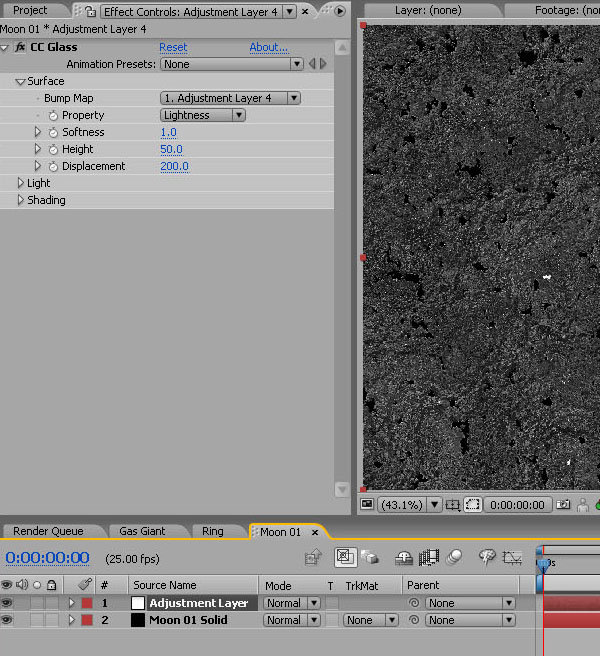
Create a new adjustment layer and choose Effect / Stylize / CC Glass.
Input these settings in the ‘Surface’ properties: Softness 1; Height 50; Displacement 200.
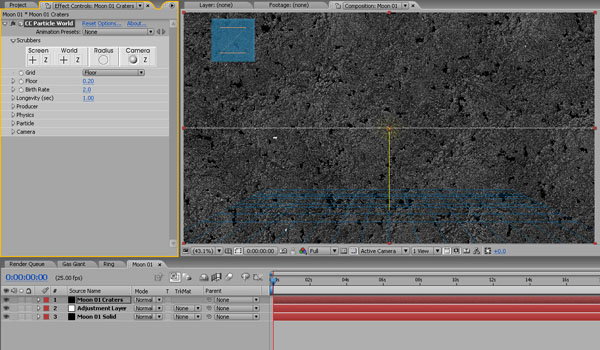
Next we’ll add some craters. Create a new Black Solid (Layer / New / Solid), call it ‘Moon 01 Craters’ and add Effect / Simulation / CC Particle World.
Click the Options at the top of the Effects window. Then go into Opacity Map and in the Presets drop-down choose ‘Constant’. OK that and the options window.
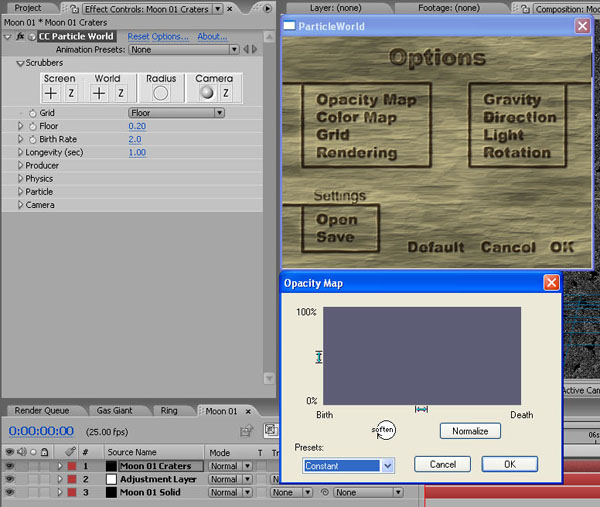
Switch the Grid from Floor to Off.
Make sure you are at the start of the composition, set the Birth Rate to 1000 and click the stopwatch.
Move forward one frame (press Page Down once) and set the Birth Rate back to 0.
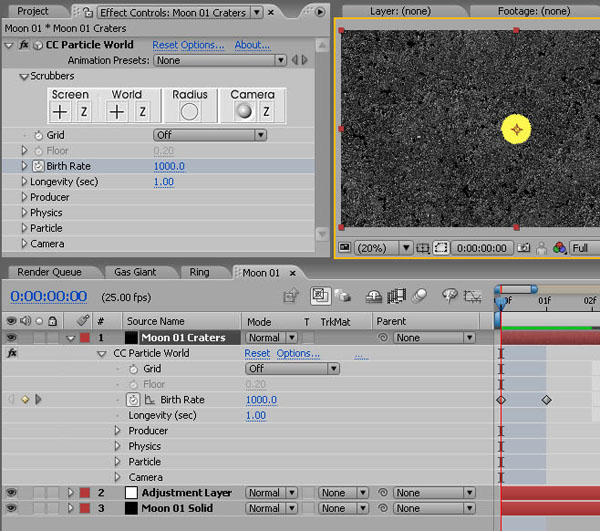
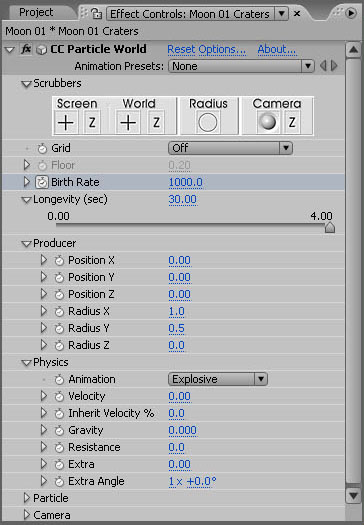
Set Longevity to 30 seconds. This will create a bunch of particles at the first frame which will last for the whole of the composition.
Now make them more spread out by twirling down the Producer options and set Radius X as 1, and Radius Y as 0.5.
Twirl down Physics and set the velocity to 0 – freezing the particles in one place.
Take the Gravity and Extra down to 0 too.
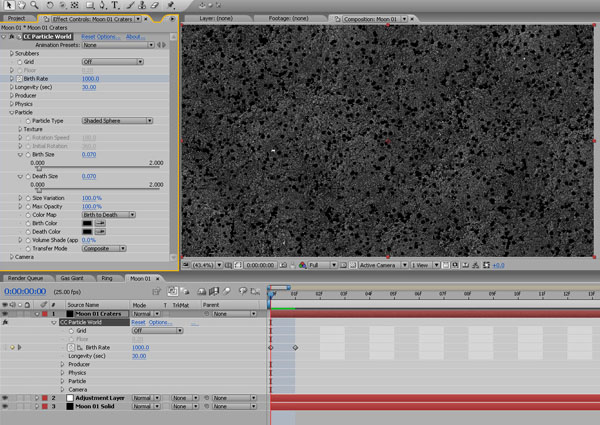
Twirl down the Particle options and set the Particle Type to Shaded Sphere.
Set the Birth and Death Sizes to 0.07, and the Size Variation and Max Opacity to 100%.
Set the Birth Color and Death Color to Black and you’ve created a nice rocky moon texture map.
Let’s make another moon – this time a volcanic one.
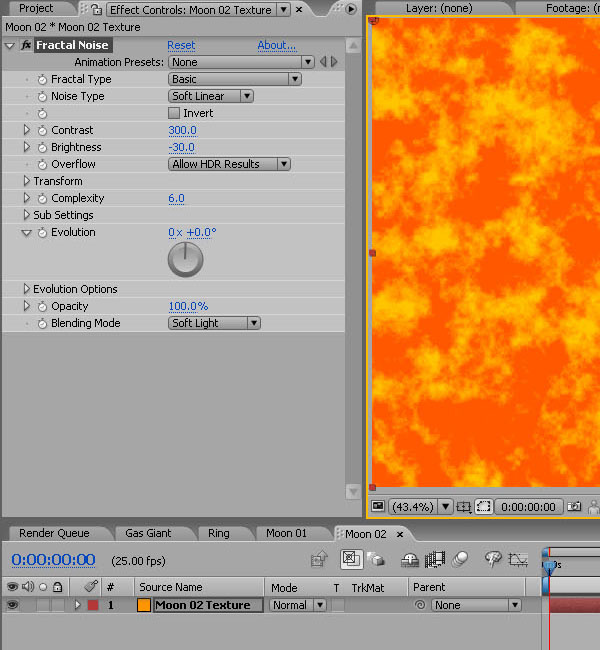
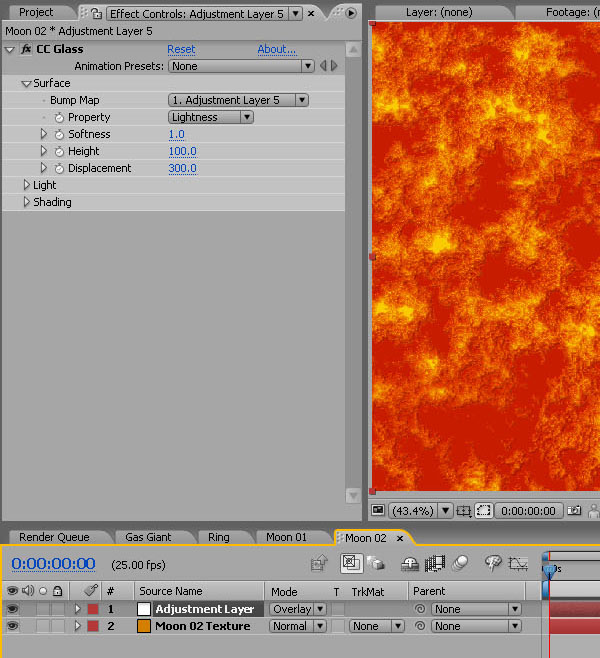
Create a new composition and call it ‘Moon 02′. Add a new Orange Solid, call it ‘Moon 02 Texture’, then choose Effect / Noise and Grain / Fractal Noise.
Set the Contrast to 300, the Brightness to -30, and the Blending Mode to Soft Light.
Create a new Adjustment Layer and add Effects / Stylize / CC Glass. Set this layer’s blending mode to Overlay.
Under the Surface properties, set the Softness to 1, Height to 100 and Displacement to 300.
If you are getting bright yellow patches coming through, knock down the Fractal Noise contrast until they disappear.
And that is your Volcanic Moon texture map. Okay – let’s put all these elements together in the final composition!
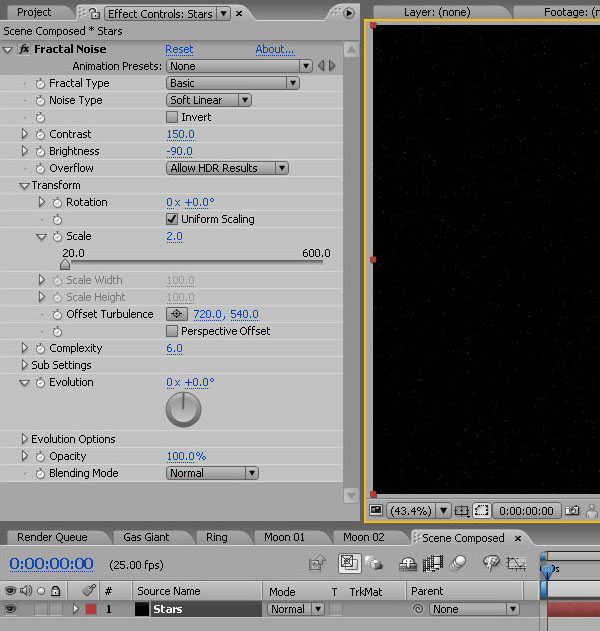
Create a new HDV 1080 25 composition and label it ‘Scene Composed’, 30 secs long.
We’ll make a starfield background first.
Create a new Black Solid, call it ‘Stars’, and add Effect / Noise and Grain / Fractal noise (again!).
Set the Contrast to 150, Brightness to -90, and in the Transform properties, the Scale to 2.
For more or fewer stars, just adjust the brightness.
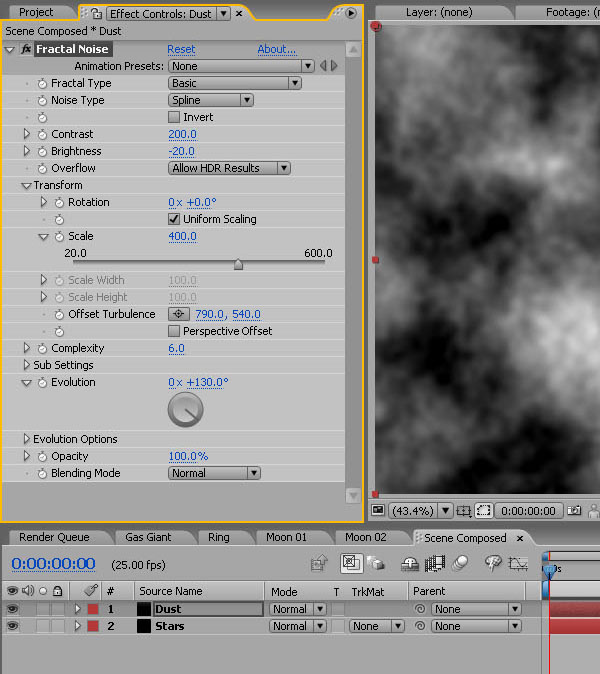
Create a new Black Solid called ‘Dust’.
Add Fractal noise with Noise Type set to ‘Spline’, Contrast at 200, Brightness at -20, and Scale at 400. You can play about with the Evolution settings to adjust the feel of the clouds, and change the Offset Turbulence to move them about until you are happy.
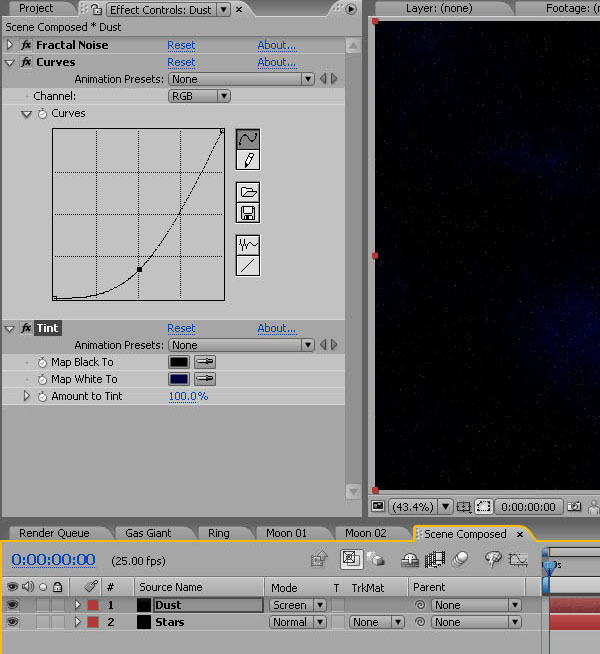
Next add Effect / Color Correction / Curves. Create a steep curve, crushing the blacks.
Then add Effect / Color Correction / Tint. Use the colour picker to ‘Map White To’ a deep blue.
Set this layer to Screen over the stars layer.
From the Project Window, drag the ‘Gas Giant ‘ composition onto the timeline. Make this layer 3d by ticking the 3D layer checkbox.
Go to Effect / Perspective / CC Sphere and apply it to the layer. In the Effect Controls / CC Sphere options, set the Render dropdown to ‘Outside’. This will speed up render time a little by only drawing the outside of the sphere.
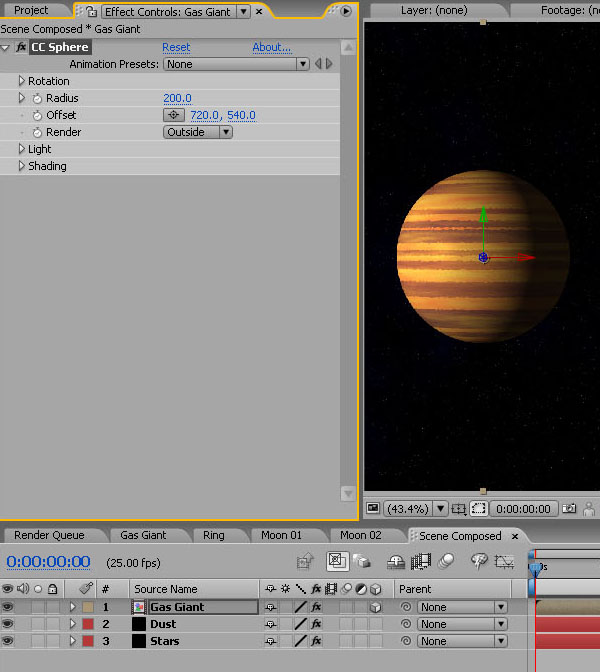
Drag in the ‘Ring’ composition and make this layer 3d also. Set its opacity to 50%.
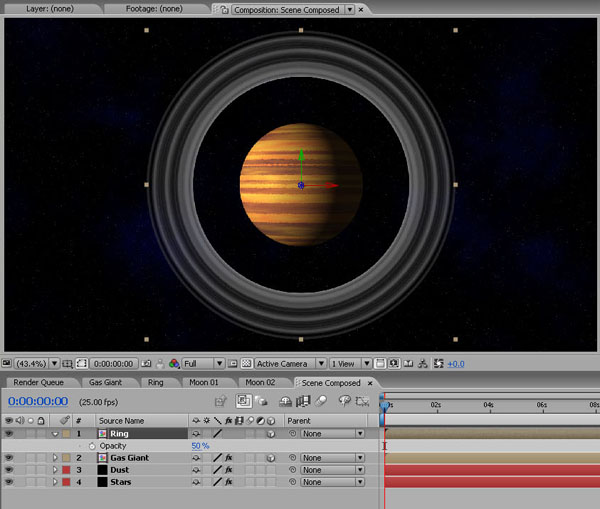
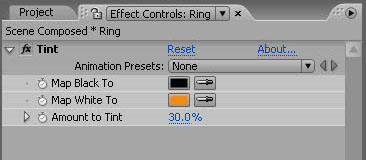
With the ‘Ring’ layer selected, choose Effect / Color Correction / Tint and ‘Map White to’ an orange/brown, knocking ‘Amount to Tint’ down to 30%.
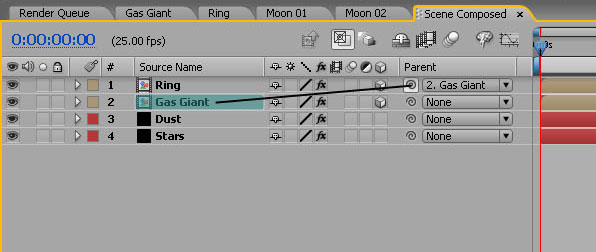
Then take the pick whip and parent the Rings layer to the Gas Giant Texture Map layer to lock them together.
We now need to link the Scale, X-Rotation and Y-Rotation of the Ring to the properties of the Gas Giant.
Open the Effect Controls panel for the Gas Giant by clicking on its layer. Now click the little padlock icon in the top left of the Effect Controls panel to lock it open.
In the CC Sphere options, twirl down the Rotation properties.
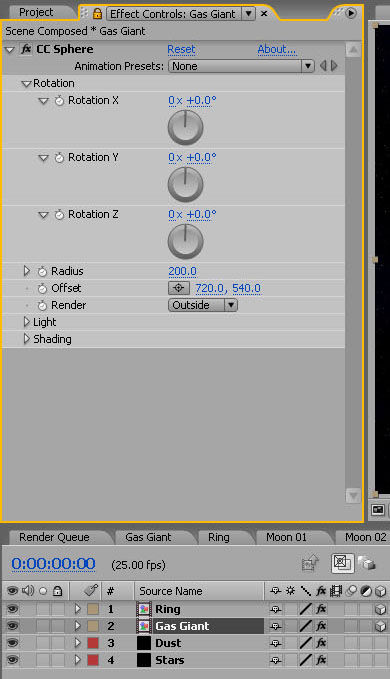
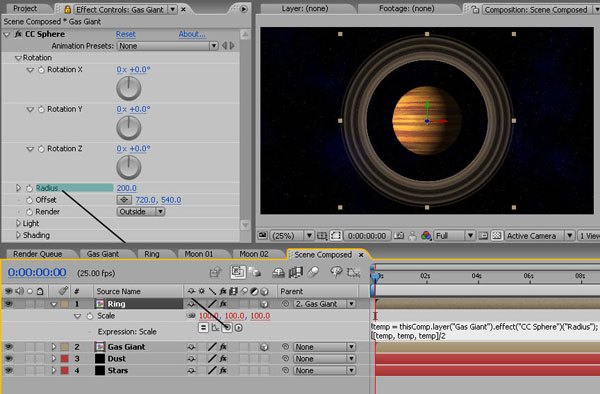
Drop down the Ring Layer’s transform properties on the timeline, and Alt-Click the Ring’s Scale stopwatch to open up the Expressions window.
Take the pickwhip from the Ring’s Scale properties and link it with the Gas Giant’s CC Sphere Radius. This makes the rings rather too big, so add ‘/2′ to the end of the expression to divide the size by 2.
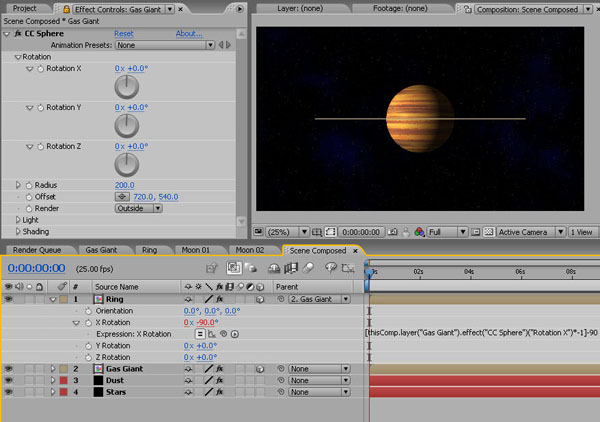
Alt-Click the Ring layer’s X-Rotation stopwatch, take the pickwhip and link it with the Gas Giant’s CC Sphere X-Rotation. This will link the rotation but you’ll notice the rings are still vertical and rotate in the opposite direction to the planet. We need to adjust the expression with a couple of variables.
At the start of the expression, add a square bracket ( [ ). At the end add ‘*-1’ – this will reverse the rotation of the rings. Close the expression with another square bracket ( ] ) and then add ‘-90′ to rotate the rings to the horizontal.
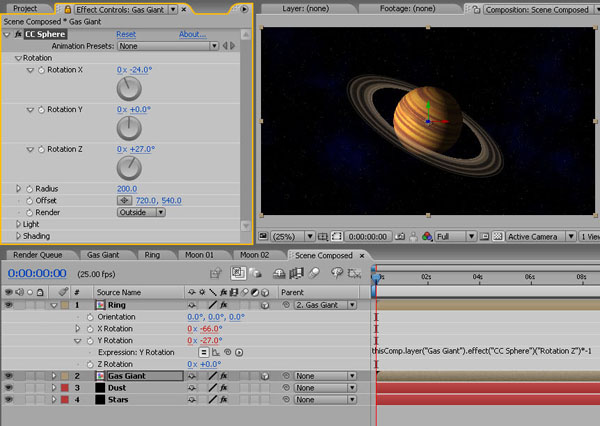
Now link the Ring’s Y-Rotation with the Gas Giant’s CC Sphere Z-Rotation and add ‘*-1′ at the end of this expression.
In the Gas Giant’s CC Sphere Effect Controls, play around with the X and Z rotation values and see how the Ring stays locked to the planet’s rotation.
Avoid rotating too much as we’ll see the back of the planet where the texture map joins, and the same goes for using the Y rotation.
Now bring the ‘Moon 01′ composition onto the timeline. Make the layer 3d and add Effect / Perspective / CC Sphere. Again, drop down the Render options and set to ‘Outside’.
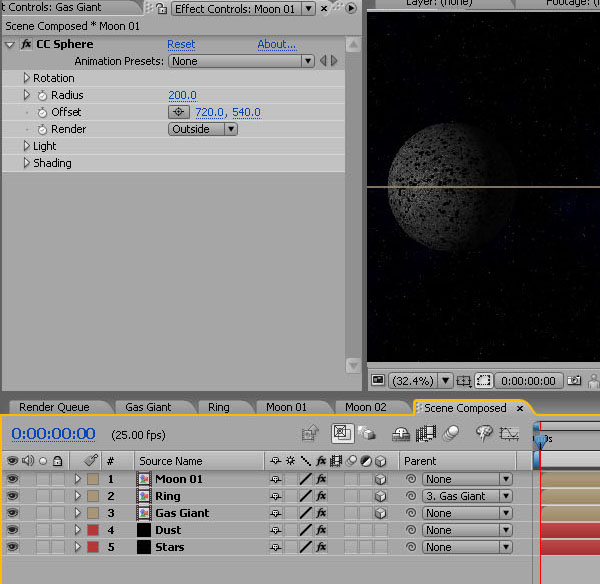
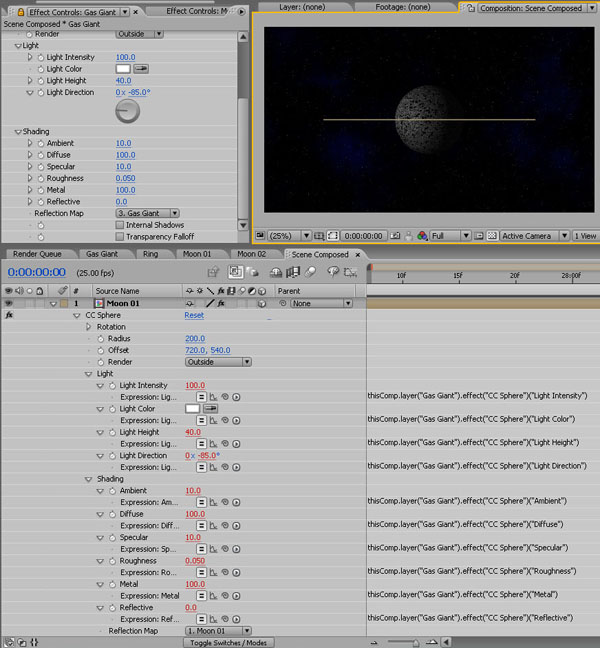
Now we will link the light properties of the Gas Giant and Moon 01 together so that we can change the lighting settings on the planet, and the moon’s will automatically update. This takes a little while and uses pickwhips, but it’s worth doing for the versatility it adds later.
Click the Gas Giant Effect Controls panel and make sure it is still locked open.
On the ‘Moon 01′ layer, drop down the CC Sphere Effect options. Now pickwhip the following properties to those of the Gas Giant’s: Light Intensity; Light Color; Light Height; Light Direction; and in the Shading options: Ambient; Diffuse; Specular; Roughness; Metal and Reflective.
We won’t be altering all of these variables in this tutorial, but it’s good to have the option built in.
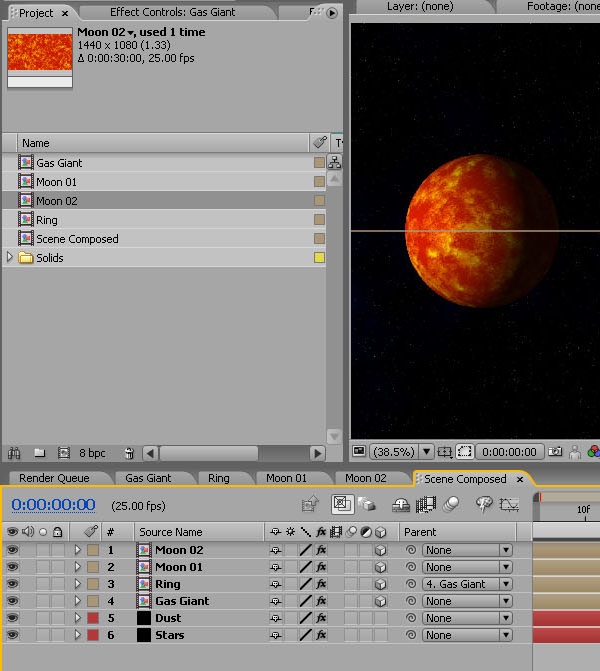
Now duplicate the Moon 01 layer. With the duplicate copy selected, hold down Alt and drag the ‘Moon 02′ composition from the project window onto the layer, replacing the Moon 01 map with the Moon 02 map, but keeping all of your expressions intact!
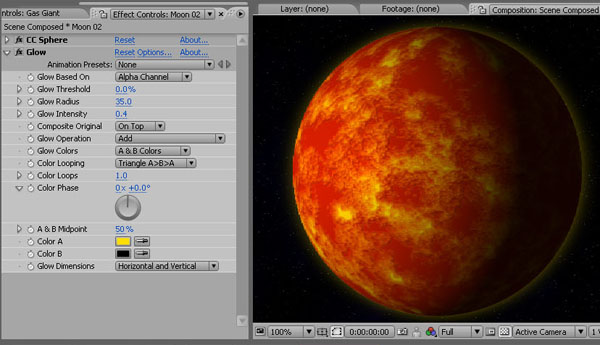
Now add an Effect / Stylize / Glow to Moon 02 to create a sulphur-rich atmosphere. Set Glow Based On to Alpha Channel; the Glow Threshold to 0, Glow Radius to 35, Glow Intensity to 0.4, Composite Original to ‘On Top’, and choose and sulphur-yellow for Color A.
So now, any properties for lighting that you change in the Gas Giant CC Sphere options will change on the moons too. So go into the Effect Controls for the Gas Giant and in the ‘Shading ‘options, drop the ‘Ambient’ and the ‘Specular’ to 0, to really darken the ‘dark side’ of the planet and moons.
Then increase the ‘Light Intensity’ in the ‘Light’ options to 120.
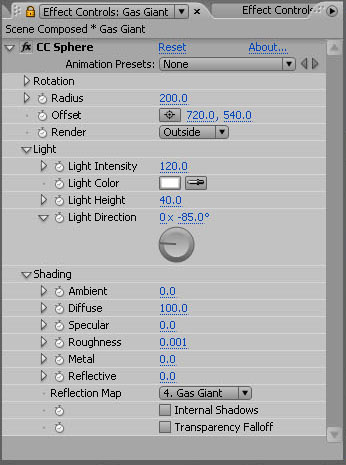
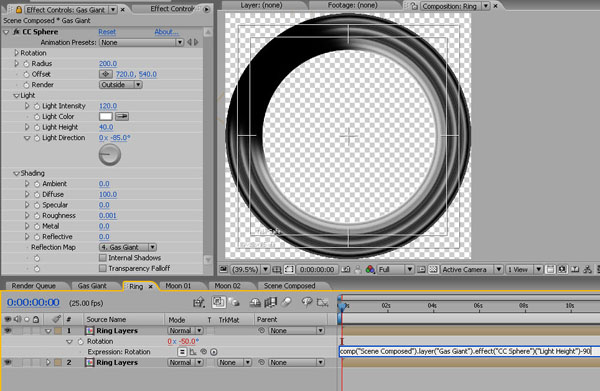
Now we need to create a shadow on the rings that is linked to the light direction, giving the impression of the Planet casting a shadow.
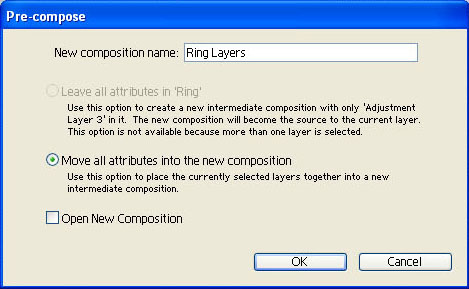
Pre-Compose the Ring layers by going into the Ring composition holding down CTRL and clicking on both layers. With both selected choose Layer / Pre-Compose, call the new composition ‘Ring Layers’, tick ‘Move all attributes into the new composition’ and click OK.
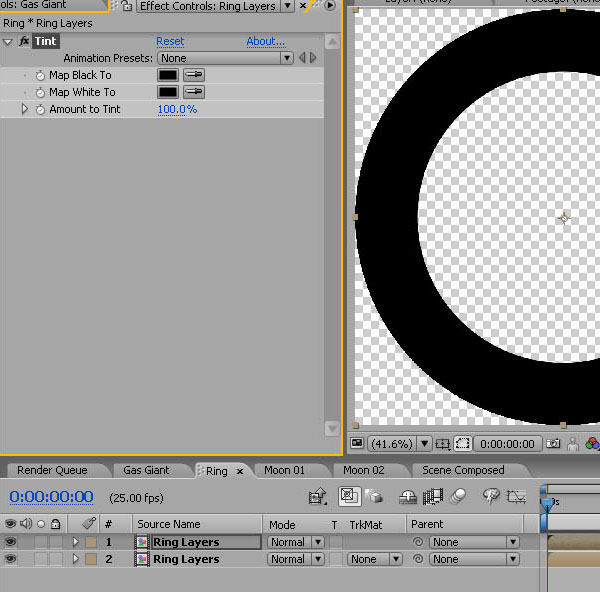
Duplicate the new Rings layer. On the top layer choose Effect / Color Correction / Tint and ‘Map White to’ black, turning the ring black.
Now draw a rectangular mask so that just the top of the rings is black. Feather the mask by 70 pixels.
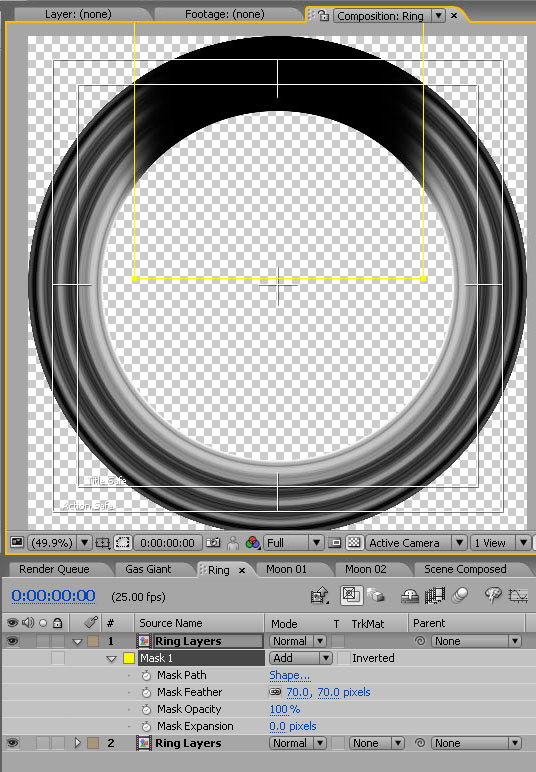
Alt-Click the rotation of this layer and pick whip it to the Light Height of the Gas Giant CC Sphere effect. Add a ‘-90′ to the end of the expression that is created.
Now we have a shadow cast onto the rings that is related to the light height.
Just as a note – this isn’t perfect as both Light Height and Light direction alter the way the light hits the sphere, as does the rotation of the sphere itself. But it gives pretty good results as long as you don’t go rotation crazy!
Phew. Okay – let’s compose this into a scene.
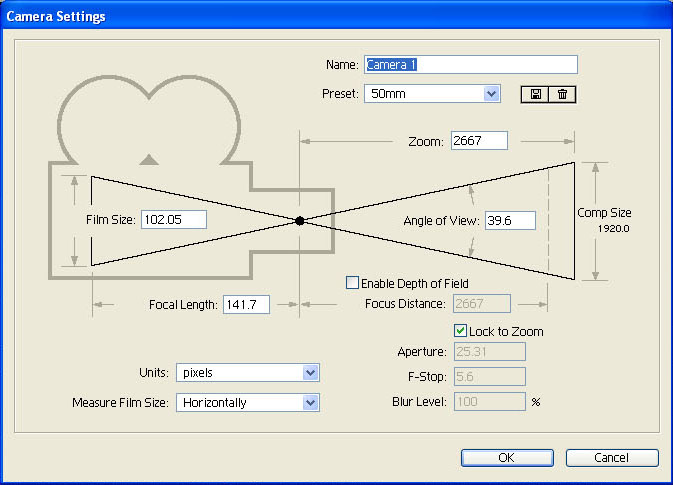
In the ‘Scene Composed’ composition, create a 50mm camera (Layer / New / Camera)
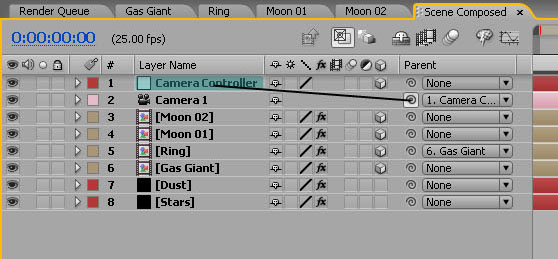
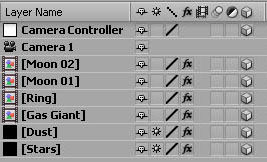
Create a new Null (Layer / New / Null Object). Make the null 3d. Parent the camera to the null to give easier control of it, and rename the Null ‘Camera Controller’.
Now we need to get some Z-space between all of our elements.
Parent the Dust layer to the Stars, make both 3d, and set the Z position on the Stars layer to 5000. Then scale it up to where it’s just bigger than the composition window, about 350%.
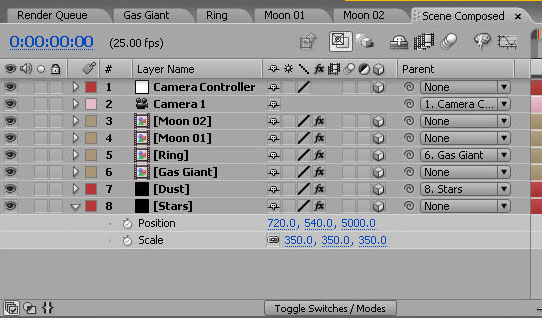
To keep the quality of the stars and the clouds which has been reduced due to the increase in scale, tick the ‘Collapse Transformations’ box for both the ‘Dust’ and ‘Stars’ layers.
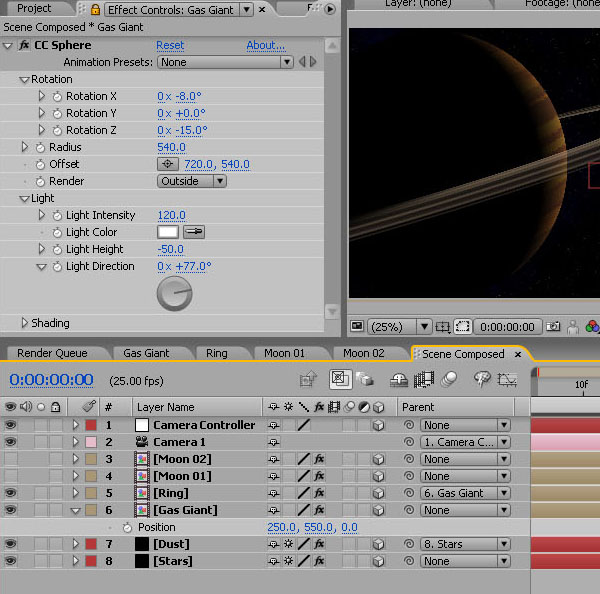
In the Gas Giant CC Sphere controls, increase the radius to 540 (this is as big as the radius can get without the planet getting too big for the composition), set the Rotation X as -8, Rotation Z as -15, Light height as -50 and Light Direction as 77 (or just whatever you like – this is just how I have set it up for the final render).
Place the layer to the left side of the composition about 250, 550, 0.
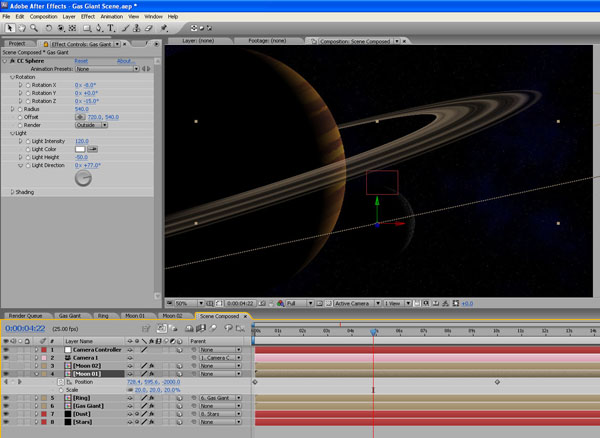
Position Moon 1 closer to the camera by changing its Z Position to -2000. Take its scale done to 20%.
Set position keyframes so that it comes in from the right, and drifts across the scene, going off the left. Give it about 10 secs of movement.
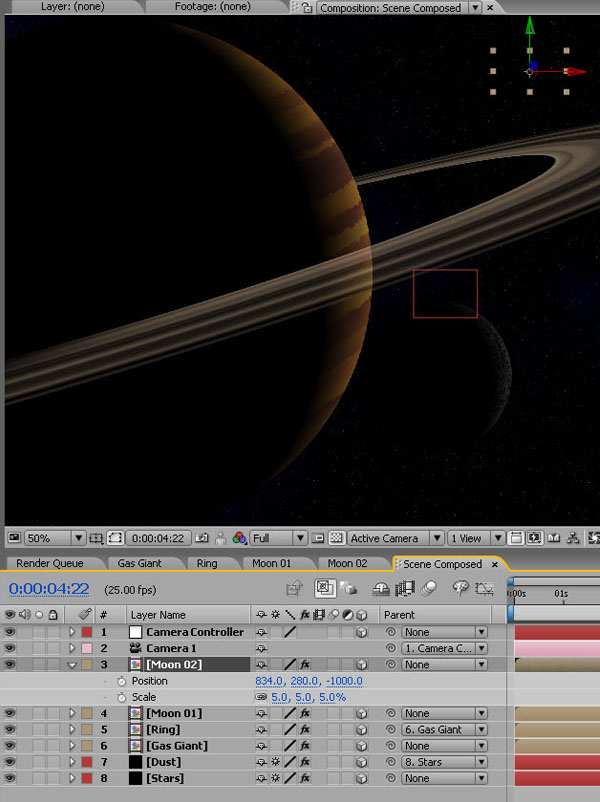
Position Moon 02 at -1000 in Z-space and reduce down to 5%. Place it above the rings, somewhere in front of the Gas Giant.
Lastly, create a new Black Solid and call it ‘Sun’. Make it 3d. Then add Effect / Generate / Lens Flare, and select a 105mm Prime Lens Type. Reduce the brightness to 10% and position the light in the top right of the frame to match the light direction on the Planet and Moons. Now set the blending mode to screen.
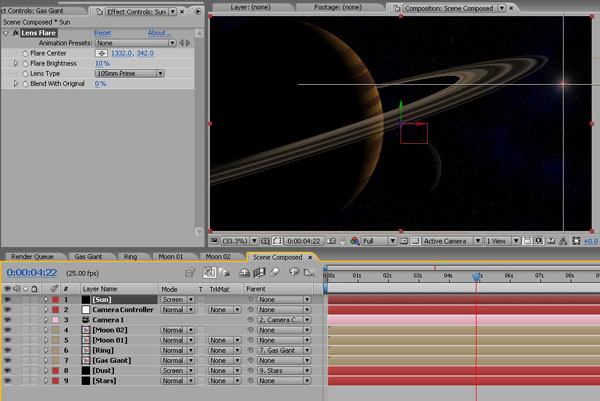
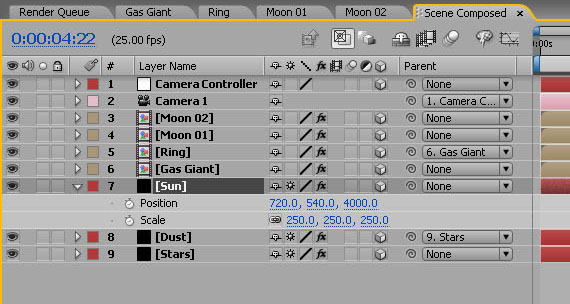
Set this layer’s Z position to 4000, scale it up to 250% and click the ‘Collapse Transformations’ box.
Drop the layer down in the stack to above the Dust layer.
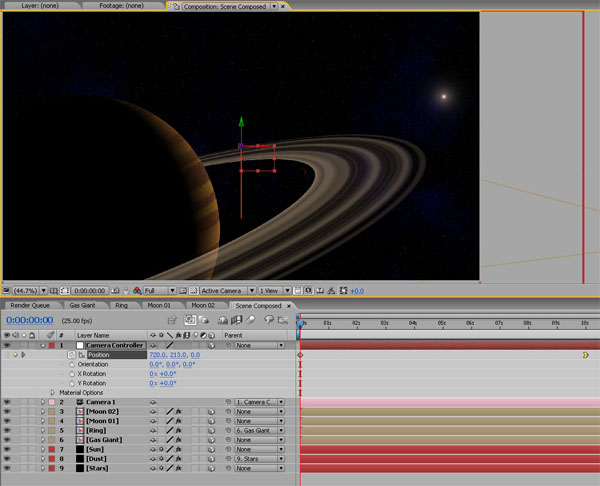
Set a position keyframe on the Camera Controller layer at 10 secs in. Go back to the start and set another keyframe, this time altering the Y position to move the camera up so that the Gas Giant sits towards the bottom of the frame. Go back to the second keyframe, make it an easy ease in keyframe (Right Click / Keyframe Assistant / Easy Ease In).
You may have to tweak the position or timing of Moon 01 now, just to get it to come into shot at the right time.
To brighten things up a little, add an Adjustment Layer with a Glow effect. Set the Glow Threshold to 0%, the Glow Radius to 50, and the Glow Intensity to 0.1.
Then change the Adjustment Layer’s blending mode to Screen and reduce the opacity to 50%.
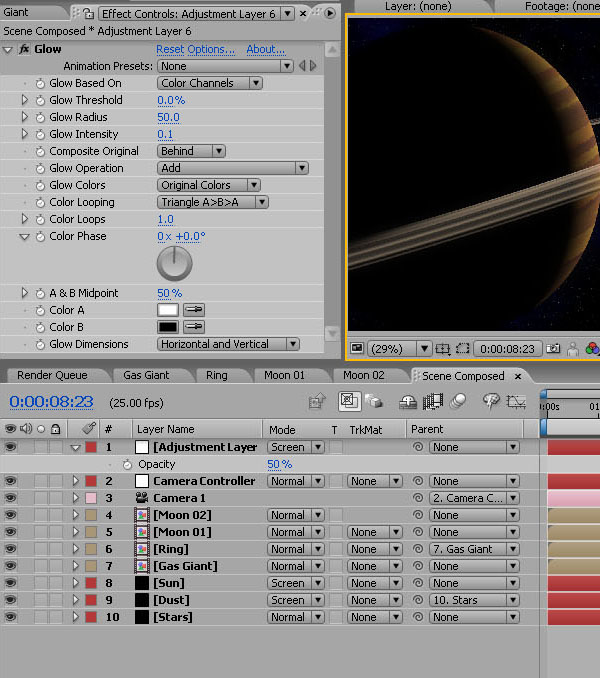
And there you have it. You can alter the position of the Planet and moons as you like, and by adjusting the light height on the planet, you’ll automatically adjust it on the moons too.
Now you can render it out and add some suitable spacey sound effects. I’ve just used some guitar feedback slowed down to create that classic ‘Alien’ drone sound.
Damask is a style of pattern that is easy to recognize, but not so easy to replicate. In this tutorial you will learn that with the right tools, anybody can make their own damask pattern that looks just as good as the ones you see on fancy hotel wallpaper, with the help of a template file.
Continue reading “Quick Tip: Create a Damask Pattern Using the MadPattern Illustrator Template”
We have another great Vector Premium tutorial available exclusively for Premium members today. If you want to learn how to use a combination of the new Illustrator CS5 features – including the Perspective Grid and Natural Media Brushes – to create a 100% vector illustration with a painted finish, then we have an awesome tutorial for you.
Continue reading “Using Illustrator CS5 Tools to Create a Painted House – Vector Premium Tutorial”