ThinkGeek’s iCade gaming cabinet for iPad moves closer to reality

ThinkGeek iCade gaming cabinetSince 2001, ThinkGeek has been compiling gag products for April Fool’s Day. Some products are silly, some outrageous, and some are conceptually cool and show promise as a real product. The iCade gaming cabinet, one star of April Fool’s 2010, falls into this latter category. The iCade is a retro gaming cabinet that hearkens back to the 80s and its arcade gaming craze. The table-top unit lets you mount your iPad as the display, while the cabinet itself includes a joystick, arcade buttons and Bluetooth to connect to your iPad.

After a few copycat versions hit the scene, ThinkGeek realized there is genuine interest in such a product and is working with Atari and ION to bring this concept to fruition. Atari is planning to release iCade-friendly versions of its classic arcade games, like Asteroids. These games will run on the iPad, and the action will be controlled by the BT-connected joystick and gaming buttons. An API will also be released so that current game developers can create iCade-compatible versions of their games.

The unit will start shipping April 2011 and will retail for US$99.99. Are any of you gamers out there interested in scooping one up when it becomes available?

[Via the gadgeteer]

ThinkGeek’s iCade gaming cabinet for iPad moves closer to reality originally appeared on TUAW on Tue, 11 Jan 2011 09:30:00 EST. Please see our terms for use of feeds.

Source | Permalink | Email this | Comments

eBay’s mobile app strategy shared at CES

When I went to meet up with eBay at last week’s CES conference, I went to a booth run not by that company, but by a company called RedLaser. Started by two U of Michigan grads, RedLaser is an eBay acquisition that has released a barcode scanning app for the iPhone that will scan your products and give you back consumer information about them. Rob Veres is the Senior Director of eBay Mobile and General Manager of RedLaser, and he kindly sat down to tell us about the trading site’s current apps and future in the mobile space.

“We try new things all the time,” Veres told me. “In the case of mobile, we had a pretty strong conviction early that mobile was going to be big.” And indeed it is — the eBay app has gone through a few changes and updates since it was released a while ago, but there have been 15 million total downloads of eBay’s mobile apps so far. Last year, the company saw a whopping $2 billion in sales come through mobile devices alone. Back in November, the company merged what were two separate buying and selling apps, and that’s when the RedLaser technology was added to the main app.

Click on to read more about what eBay’s up to on the iPhone, as well as see a video of the “See it On” augmented reality feature seen above.

Continue reading eBay’s mobile app strategy shared at CES

eBay’s mobile app strategy shared at CES originally appeared on TUAW on Tue, 11 Jan 2011 09:00:00 EST. Please see our terms for use of feeds.

Source | Permalink | Email this | Comments

iOS 4.3 to Bring Personal Hotspot Feature to All iPhones?

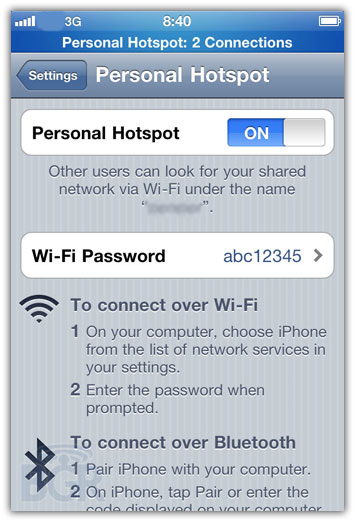
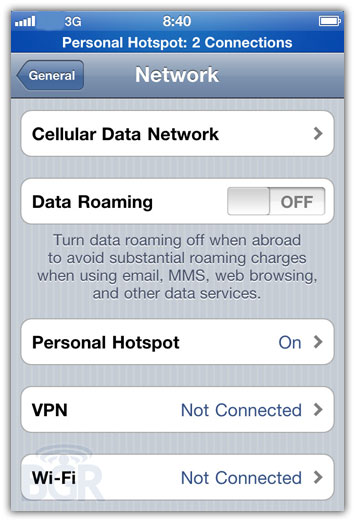
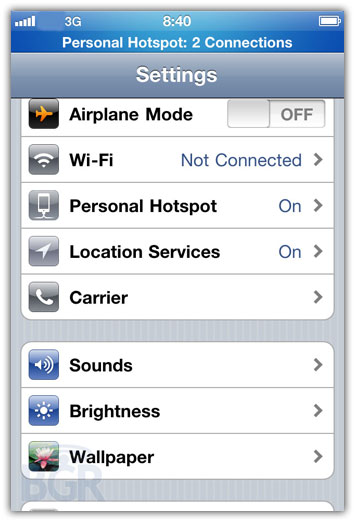
BGR reports that, according to their source, iOS 4.3 will bring personal Hotspot feature to all iPhones in March, subject to the approval of individual carriers. If true, iOS 4.3 will support personal Hotspot out of the box, but it’s upto the carriers like AT&T to enable support for it.

Verizon iPhone 4, which is running a new iOS 4.2.5, comes with the support for turning the device into a personal Wi-Fi hotspot allowing up to five Wi-Fi devices to share the iPhone’s cellular data connection.

BGR also reports iOS 4.3 build version will be 8F5148b, baseband will be 04.08.00 and technical acceptance is planned for March.

via [BGR]

You can follow us on Twitter, Join us at Facebook, and also Subscribed to RSS Feed to receive latest updates.

Digg
Twitter
StumbleUpon
Facebook
Reddit
del.icio.us

Jailbreak Apple TV 2G iOS 4.2.1 with Seas0nPass [Custom Firmware]

Seas0nPass is a new open source jailbreak tool for Apple TV 2G that jailbreaks ATV 2G by creating a custom firmware just like PwnageTool. In this guide you’ll learn how to jailbreak Apple TV 2G iOS 4.2.1 with Seas0nPass jailbreak. Follow the detailed step-by-step guide below to create a custom iOS 4.2.1 firmware.

NOTE

  • Currently the jailbreak for the 4.1.1 (iOS 4.2.1) software is ‘tethered’. A tethered jailbreak requires the AppleTV to be connected to a computer for a brief moment during startup.
  • Seas0nPass makes this as easy as possible, but please do not proceed unless you are comfortable with this process.

Requirements

How to Jailbreak Apple TV 2G iOS 4.2.1 with Seas0nPress [Custom Firmware]

Step 1

Unzip the ‘Seas0nPass.zip’ file and launch Seas0nPass.

Step 2

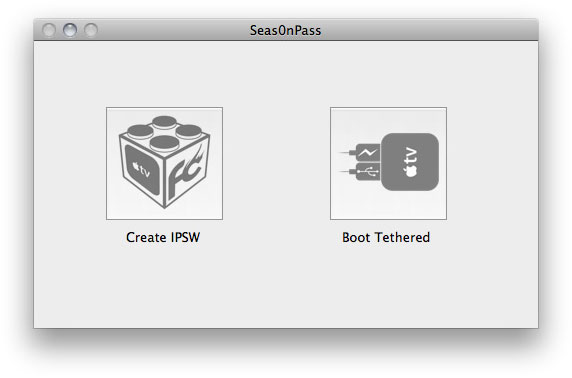
If your Apple TV 2G is not yet jailbroken, select ‘Create IPSW’.
(if already jailbroken, and you just need to do a ‘tethered boot’ scroll down).
seas0npass Apple TV 2G Jailbreak

Step 3

Seas0nPass will download the latest Apple TV firmware which will be used to create a custom ‘jailbroken’ firmware file. You can also download Apple TV 2G iOS 4.2.1 from here.

seas0npass Apple TV 2G Jailbreak

Step 4

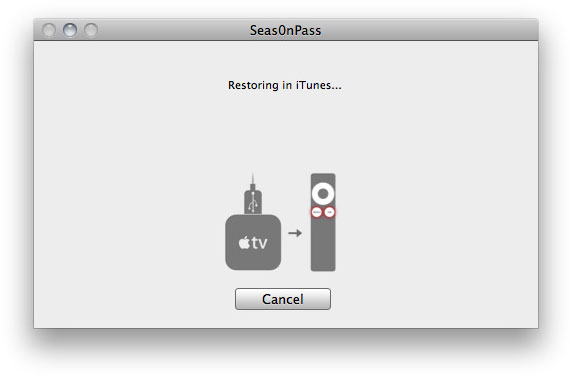
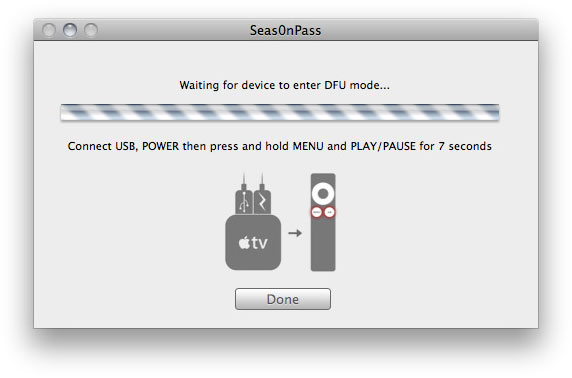
When prompted, connect your AppleTV 2G using a micro-USB cable (leave power disconnected), and hold both the ‘MENU’ and ‘PLAY/PAUSE’ buttons for 7 seven seconds.

seas0npass Apple TV 2G Jailbreak

Step 5

iTunes will open automatically and start the restore process.

seas0npass Apple TV 2G Jailbreak

Once the restore process has been completed, your AppleTV will be jailbroken. Now you need to ‘tethered boot’ your Apple TV 2G. follow the tethered boot instructions below.

How to tethered boot Apple TV 2G with Seas0nPass

iOS 4.2.1 (4.1.1) for AppleTV requires a tethered boot. This means the AppleTV must be connected to a computer for a brief moment during startup.

Note: once the restore process via iTunes has been completed, disconnect your AppleTV from computer (for at least a brief moment) and reconnect to ensure that the tethered boot process below works properly.

Step 1

Open Seas0nPass and select the ‘Boot Tethered’ option.

seas0npass Apple TV 2G Jailbreak

Step 2

When prompted, connect the AppleTV to your computer via USB. Wait for the rapid flashing light then connect the power. Once both are connected hold both the ‘MENU’ and ‘PLAY/PAUSE’ buttons for 7 seven seconds.

seas0npass Apple TV 2G Jailbreak

Step 3

Seas0n Pass will complete the tethered boot automatically. Once complete, remove the USB cable and connect the HDMI cable.

seas0npass Apple TV 2G Jailbreak

via [firecore]

You can follow us on Twitter, Join us at Facebook, and also Subscribed to RSS Feed to receive latest updates.

Digg
Twitter
StumbleUpon
Facebook
Reddit
del.icio.us

Download Seas0nPass – Jailbreak Apple TV 2G with Custom iOS/Firmware

Seas0nPass is a new jailbreak for Apple TV 2G that creates custom iOS/firmware just like PwnageTool or Sn0wBreeze. Seas0nPass jailbreak for Apple TV 2G is developed by Firecore group and available for MAC OS only.

Steps to create custom firmware for Apple TV 2G are quite similar to PwnageTool. It will even download the firmware (IPSW) if you don’t have it saved on your computer.

NOTE

  • Currently the jailbreak for the iOS 4.1.1 (iOS 4.2.1) software is ‘tethered’. A tethered jailbreak requires the AppleTV to be connected to a computer for a brief moment during startup. (Seas0nPass also features a tethered boot tool)
  • A micro USB cable will be required to complete the jailbreak.

Download Seas0nPass

You can download Seas0nPass for Mac from here: [Mirror 1][Mirror 2]

seas0npass

via [FSM]

You can follow us on Twitter, Join us at Facebook, and also Subscribed to RSS Feed to receive latest updates.

Digg
Twitter
StumbleUpon
Facebook
Reddit
del.icio.us

iPhone 4 Finally Comes to Verizon

After years of speculation, iPhone 4 has finally come to Verizon Wireless. At the special media event in New York, Verizon Wireless President & COO Lowell McAdam has announced that they will finally be carrying the Apple iPhone 4 starting early Feb 2011.

we’re partnering with a giant of the industry, and that’s Apple.

Late in 2010 we started offering the iPad… today, we are extremely gratified to announce that the iPhone 4 will be available early next month.

The iPhone 4 is already listed on Verizon’s website, coming in February as a CDMA (no LTE) phone. It’s the same iPhone 4 with FaceTime, Retina Display, A4 processor, 5 megapixel camera, HD video recording, App Store, etc. It can’t do voice and internet browsing at the same time. Verizon iPhone has different antenna cuts.

Pricing

  • iPhone 4 CDMA 32GB – $299
  • iPhone 4 CDMA 16GB – $199.99

With 2 years contract. Mobile hotspot included! Up to 5 devices.

Availability

Verizon iPhone will be available on Feburary 10, 2011. Pre-orders will start on January 3.

Apple’s Press Release

Verizon Wireless & Apple Team Up to Deliver iPhone 4 on Verizon

BASKING RIDGE, New Jersey and CUPERTINO, California—January 11, 2011—Verizon Wireless and Apple® today announced that the iPhone® 4 will be available on the Verizon Wireless network beginning on Thursday, February 10. Qualified Verizon Wireless customers will be given the exclusive opportunity to pre-order iPhone 4 online on February 3, ahead of general availability.

iPhone 4 is the most innovative phone in the world, featuring Apple’s stunning Retina™ display, the highest resolution display ever built into a phone resulting in super crisp text, images and video, and FaceTime®, which makes video calling a reality. iPhone 4 on Verizon Wireless will also include new Personal Hotspot capabilities allowing customers to use iPhone 4 to connect up to five Wi-Fi enabled devices.

“We are pleased to introduce millions of wireless users to the industry leading iPhone 4 on the nation’s most reliable network,” said Lowell McAdam, president and chief operating officer of Verizon. “This is an important step for the industry as two great companies join forces to give wireless customers one of the most important technological additions to the mobile landscape this century.”

“Verizon Wireless customers have told us they can’t wait to get their hands on iPhone 4, and we think they are going to love it,” said Tim Cook, Apple’s chief operating officer. “We have enormous respect for the company Verizon has built and the loyalty they have earned from their customers.”

iPhone 4 features a 5 megapixel camera with LED flash, HD video recording, Apple’s A4 chip, a 3-axis gyro and a beautiful glass and stainless steel design like no other mobile phone. iPhone 4 also comes with iOS 4, the world’s most advanced mobile operating system, which includes multitasking, folders, Game Center, AirPlay® and AirPrint wireless printing. iPhone 4 customers have access to the world’s most popular App Store? with more than 300,000 apps available in an incredible range of 20 categories, including games, business, news, sports, health and reference.

Pricing & Availability

iPhone 4 will be available on the Verizon Wireless network beginning Thursday, February 10 for a suggested retail price of $199.99 for the 16GB model and $299.99 for the 32GB model with a new two year customer agreement. iPhone 4 will be available at more than 2,000 Verizon Wireless Communications Stores nationwide, online at www.verizonwireless.com/iphone, at Apple Retail Stores, at the Apple Store® (www.apple.com), at Apple Authorized Resellers, and by calling 1-800-2 JOIN IN.

(EDITOR’S NOTE: Media can access high-resolution images in the Verizon Wireless Multimedia Library at www.verizonwireless.com/multimedia.)

Verizon Wireless operates the nation’s most reliable and largest wireless voice and 3G data network, serving more than 93 million customers. Headquartered in Basking Ridge, N.J., with 79,000 employees nationwide, Verizon Wireless is a joint venture of Verizon Communications (NYSE, NASDAQ: VZ) and Vodafone (LSE, NASDAQ: VOD). For more information, visit www.verizonwireless.com.

Apple designs Macs, the best personal computers in the world, along with OS X, iLife, iWork, and professional software. Apple leads the digital music revolution with its iPods and iTunes online store. Apple is reinventing the mobile phone with its revolutionary iPhone and App Store, and has recently introduced its magical iPad which is defining the future of mobile media and computing devices.

via [Engadget]

You can follow us on Twitter, Join us at Facebook, and also Subscribed to RSS Feed to receive latest updates.

Digg
Twitter
StumbleUpon
Facebook
Reddit
del.icio.us

Android App Development – Using Android resources part 2: Image, Color, Arrays and Dimensions Resources

Image Resources:

Android provides us with the ability to use image resources in our applications. We can put image files in res/drawable directory and access them from the xml layout or by the generated ID from R.java class file.

You can use image files of the following formats:

  • PNG
  • JPEG
  • GIF

we have three drawable folders:

  1. drawable-hdpi.
  2. drawable-mdpi
  3. drawable-ldpi.

These folders are used to put your images in to adapt to different screen sizes. For example you may create two files of the same image, one for high density screens (hdpi) and the other with smaller resolution for less dense screens (mdpi or ldpi).

Note that there are two restrictions:

  • If you use two files with the same base name you will receive an error. You cannot use two files like Hello.jpeg and Hello.png.
  • If you create any subdirectory under res/drawable directory any image files in it will be ignored.

Now let’s demonstrate how can we use image resources.

We will place an image called android.jpeg in te res/drawable directory and use it from xml layout as this:

<imageview android:layout_height="wrap_content" android:layout_width="wrap_content" android:src="@drawable/android" />

Or from code like this

ImageView img=(ImageView)findViewById(R.id.img);
img.setImageResource(R.drawable.android);

Or like this to get the image as a drawable object

ImageView img2=(ImageView)findViewById(R.id.img2);
Drawable drawable=this.getResources().getDrawable(R.drawable.android);
img2.setBackgroundDrawable(drawable);

Color drawable Resources:

You can define XML files that contain definitions for color drawable resources which are color rectangles that can be used as backgrounds.

You can define the color drawable resources in values/strings.xml file or by creating a custom xml file to hold these resources.

Define color drawable resources like this:

<drawable name="redBox">#f00</drawable>

Or from code like this:

TextView txt=(TextView)findViewById(R.id.txt);
txt.setBackgroundResource(R.drawable.redBox);

Or like this:

ColorDrawable drawable2=(ColorDrawable)this.getResources().getDrawable(R.drawable.redBox);
txt.setBackgroundDrawable(drawable2);

And finally like this:

txt.setBackgroundResource(R.drawable.redBox);

Notice that if the textview does not have text the background color will not appear.

Color Resources:

Color resources are defined as string resources in res/values directory
You can define XML files that contain definitions for colors that can be used in your application.

Colors in Android are hexadecimal RGB values, also optionally specifying an alpha channel (transparency).

You have your choice of single-character hex values or double-character hex values, leaving you with four styles:

  • #RGB (Red: #F00).
  • #ARGB (Red with Alpha 5: #5F00).
  • #RRGGBB (Red : #FF0000).
  • #AARRGGBB (Red with Alpha 50: 50FF0000 #).

You define colors in the xml file as follows:

<color name="Red">#FF0000</color>

Now you can use it from code like this:

TextView txtColor=(TextView)findViewById(R.id.txtColor);
txtColor.setTextColor(this.getResources().getColor(R.color.Red));

Or from the layout as this:

<textview android:layout_height="wrap_content" android:layout_width="fill_parent" android:text="This is a color string from layout" android:textcolor="@color/Red" />

Dimensions Resources:

You can define Dimension resources to use them with your widgets to define padding, width or height.

The dimension resources can be defined in the following units:

  • Pixels: (px).
  • Inches: (in).
  • Millimeters: (mm).
  • Points: (pt).
  • Density: (dp) density-independent pixels based on 160 dpi (dot per inch).
  • Scale: (sp) Scale-independent pixels (dimensions that allow for user sizing; helpful for use in
    fonts).

To define dimension resources in xml files you can write it like this:

<dimen name="PixelDim">10px</dimen>
<dimen name="PointsDim">10pt</dimen>
<dimen name="InchesDim">0.2in</dimen>
<dimen name="MilliDim">5mm</dimen>
<dimen name="DensityDim">20dp</dimen>
<dimen name="ScaleDim">20sp</dimen>

And you can use them from the xml layout definition like this

<textview android:id="@+id/txtInches" android:layout_height="wrap_content" android:layout_width="fill_parent" android:text="Font size is 0.2 Inches" android:textsize="@dimen/InchesDim" />

Or from code like this:

TextView txtdp=(TextView)findViewById(R.id.txtdp);
txtdp.setTextSize(this.getResources().getDimension(R.dimen.DensityDim));

Array Resources:

Array resources allow you to define custom string arrays that hold values you can use in your application such as a countries list or a list of names.

An Array resource is defined using string-array element while items are defined using item element.

<string-array name="countries">
<item>USA</item>
<item>UK</item>
<item>Canada</item>
</string-array>

and you can use them from code like this:

String [] Countries=this.getResources().getStringArray(R.array.countries);
You can define more than one string-array in the same file.
That was it for Android Resources. Please ask any questions you may have in the comments and don’t forget to check next week for another Android development tutorial.

Will the iPhone punish Verizon’s network?

Now that it is official that the iPhone is coming to Verizon we get to move on to other things. One of the big questions floating around is whether or not the iPhone will do to Verizon’s network what it did to AT&T’s.

Gizmodo has a great article investigating this very thing, here is an excerpt:

Probably not, says Gartner wireless analyst Phil Redman. Verizon’s “had more time to plan than anybody else and knows the repercussions of not preparing enough.” Just look at how much some people loathe AT&T. Verizon’s already “put in more work than AT&T did at the start of their venture.” Not only has Verizon “increased their CDMA capacity over the last 12-18 months” to be ready for the iPhone and other smartphones, says Redman, they’ve been “more aggressive than others increasing their backhaul capacity.” Specifically, they’ve been more aggressive about running more fiber to their towers than any other carrier. All these points, Verizon hammered on during the iPhone announcement as well.

If this is true it is great news for those already on Verizon and for all those people that will switch in the coming months.

You can read the full Gizmodo article here.

Interview with app developers from Sketch & Scotch

The guys from Sketch & Scotch were nice enough to give us some promo codes to give to our readers. The first five people to comment requesting the app will get on

I recently had the opportunity to interview the guys from Sketch & Scotch, developers of the Comic Strip app.

Mobile Orchard: Please tell us about Sketch and Scotch. How did the company start?

Sketch & Scotch: The three of us (Jon Demidio, Simon Chao, Q. Lam) met at work. We quickly discovered that we had an affinity for technology, design, and cool innovative ideas. We’re also big Apple geeks. After a couple years of talking various ideas and products at the poker table, we decided to put our money where our mouths were. The goal of Sketch & Scotch for us is to actually deliver on our ideas and not just talk about them. We officially formed Sketch & Scotch in the summer of 2010.

MO: How many iOS apps have you released?

S&S: So far we have released ComicStrip and have a few other ideas in the works as well as constantly striving to improve ComicStrip.

MO: Where did you get the idea for ComicStrip?

S&S: Being in our late 20′s and early 30′s we remembered the good old days of reading comic books and seeing how much those few words in a caption adds to the overall story of the comic.

We also noticed that a lot of applications were being developed around sharing memories specifically through photos. For us it was a natural fit. What better way to tell your story than in a format that everyone recognized and that almost everyone has a fond memory of.

MO: How long did it take for you from the time you came up with the idea to it being accepted in the app store?

S&S: After a few start and stops, I’d say it took us about 7-8 months starting from story boarding through development and submission to Apple working on the app in the evenings and on the weekends.

MO: What was the approval process like for the app store?

S&S: The approval process for us went by without a hitch. Apple has very carefully implemented a thorough process and provided all the tools necessary. It took our app a little over a week to get approved. Having heard and read some of the horror stories out there we were a bit nervous heading into it but looking back, we had nothing to worry about.

MO: Any changes you would like to see in this process?

S&S: I can’t really see any major process improvements that I’d want changed. I believe that as long as you’re within the guidelines that Apple provides, you shouldn’t have a problem getting your app approved.

MO: Do you plan to start developing for the iPad?

S&S: The initial release of ComicStrip is universal so it works on iPad as it exists. We wanted to provide the extra flexibility and value to our customers from the beginning. Having said that we do think there are some interesting ways we can take advantage of the iPad with ComicStrip.

Right now it’s a matter of prioritizing where we should focus our energy but we definitely want to work on iPad specific development going forward.

MO: What advice would you give to someone interested in getting into app development for iOS?

S&S: Get started, the tools are free! One of the things that helped us tremendously is simply starting out with a pen and paper. Sketch out your idea and ask why you would want to use the application. Research the store for similar ideas and find applications that inspire you or that you admire to help you narrow your focus. Don’t get too caught up in the technology or solution,
make sure your application does what it does intuitively and elegantly.

MO: What tools do you use in the app development process?

S&S: Xcode is a great tool set for developers. For the design, Adobe’s Photoshop and Fireworks were used predominantly. We also used Google Docs often to share documents between us.

MO: Any tips or advice you would like to give to new developers on marketing their app?

S&S: We haven’t marketed our app very much in the traditional sense, however, what has helped us tremendously is the power of our social network. Facebook and twitter served us tremendously well. Your friends and family are more often than not more excited about your apps then you are so make sure you let them know. It’s not really a tip but we have found that Apple itself is the best marketing you could ever get. We were fortunate to have our app mentioned in the Apple store in the U.S. and U.K.

MO: What is your favorite app?

S&S: Our favorite apps are Reeder, Flipboard, and Facebook.

The guys from Sketch & Scotch were nice enough to give us some promo codes to give to our readers. The first five people to comment requesting the app will get one. Good luck!

iPhone on Verizon announcement expected today

Today is the day the Wall Street Journal reported that an announcement would be made that iPhone is on its way to Verizon. Apple’s stock was on the rise yesterday in anticipation of this long awaited partnership.

It is also being said that the Verizon iPhone will have an unlimited data plan and possibly work on their LTE network, but it probably won’t be the iPhone 5.

Engagdet will have full coverage of the event, which you can follow here.

Tutorial: Bringing Flash Games To iOS With The Corona SDK

Since I’ve seen the topic of Flash, and Flash games be searched for on this site I thought I would mention an excellent tutorial that has been posted for those with Flash experience looking to write iPhone and iPad apps.  You could of course use the Flash packager, but here’s another solution.

This tutorial utilizes the Corona SDK which I have mentioned several times. If you haven’t checked it out you may want to give it a look.

You can get the trial edition on their website here if interested.

The tutorial provides an excellent overview of how to import graphic and audio assets that were created for Flash games, and some very useful info for those who are just beginning with Lua.

You can find the tutorial here:
Flash to Corona SDK Porting Guide

If you’re a Flash guy this may be something to check out if you are still deciding which solution to use.

©2011 iPhone, iOS 4, iPad SDK Development Tutorial and Programming Tips. All Rights Reserved.

.

DeliciousTwitterTechnoratiFacebookLinkedInEmail

How to automatically add a search field to your navigation menu

Open your functions.php file, and paste the following code. The search field will be displayed once you saved the file.

add_filter('wp_nav_menu_items','add_search_box', 10, 2);
function add_search_box($items, $args) {

        ob_start();
        get_search_form();
        $searchform = ob_get_contents();
        ob_end_clean();

        $items .= '<li>' . $searchform . '</li>';

    return $items;
}

Thanks to Ronald for the cool tip!

Looking for WordPress hosting? Try WP Web Host. Prices starts at $5/month and you can try it for free!

How to automatically add a search field to your navigation menu

8 useful sites for web developers

Min.us: The easiest way to upload images


Any developer, designer or webmaster have to share images online with clients and co-workers. Min.us is an all new service that allow you to upload images extremely easily: Just drag and drop them into Min.us and the image will be saved on their servers. A short url will be automatically created so you can share it across the web.
» Visit Min.us

Wirify: Transform any web page into wireframes


Wireframes are extremely useful when designing a website. Wirify is a bookmarklet that allow you to instantly convert any web page into wireframes that you can study or use for your own work.
» Visit Wirify

CSS Resetr: View and compare CSS resets


CSS resets are a must have in any stylesheet in order to render differences between browsers. Since 2004, a lot of differents CSS resets has been published. So, which one is the best for your project? CSS Resetr let you compare the result of the most popular resets on a web page.
» Visit CSS Resetr

Head JS: Speed up your site with 2.30 kb of Javascript


Head JS is a simple and light (2.3 kb) script that will make your site faster by loading other scripts as images. Head JS can do a lot more to modernize your site: CSS3 support, dynamic CSS, etc.
» Visit http://headjs.com/

Copy Paste Character: Use special characters with ease


Special characters are often a pain to deal with, because they’re not on your keyboard, and because you don’t know the related ASCII code. Of course, you can grab an ASCII table and keep it on your desktop, or you can use a new service called Copy Paste Character: Simply click on the selected character to have it copied to your clipboard.
» Visit Copy Paste Character

DB Designr: Create database schemas online


Here is a very great tool to easily create database schemas online. No need to create an account, you can loggin using your Google account (Well, I guess any CWC reader have a Google account!)
» Visit DB Designr

Web 2 pdf convert: Convert any web page to PDF


Web2PDF Converter is a very useful tool that convert any webpage into a PDF file. It works great: I’ve converted 5 pages and all where the exact copy of the html version.
This very handy tool have more to offer: You can email an url and receive the PDF back. You can also add a bookmarklet to your browser for faster archiving.
» Visit web 2 pdf convert

Easily link your html page to your JS library


Are you tired of hunting the Internet in order to find the script tag for the latest version of the Javascript library of your choice? ScriptSrc.net has compiled all the latest versions of jQuery, Mootools, Prototype and more in a single page which lets you copy it in your browser clipboard with a single click.
» Visit ScriptSrc

Like CatsWhoCode? If yes, don’t hesitate to check my other blog CatsWhoBlog: It’s all about blogging!

8 useful sites for web developers

Get Tangled Up In Twisted Wire Text

In this tutorial I will demonstrate a very simple way to trace text and then recreate it using multiple Trapcode Particular layers wobbling and shivering in 3D space. A very simple technique which results in a stunning look that could easily be modified into roots, veins, or any number of other ideas.


Tutorial

Download Tutorial .mp4

File size: 35.7MB


Read More

Optimizing Performance for Production Premium CS5

Adobe has a live presentation & Q&A on Optimizing Performance for Production Premium CS5, scheduled on January 24, Noon PST. You have to sign up on Facebook for now.

If you can’t wait for this, check out Setting Up After Effects for Optimum Performance on AE Portal. Here’s Setting Up After Effects for Optimum Performance with 64-Bit Systems by Todd Kopriva from Adobe After Effects CS5: Learn by Video:


Read More