Doodle Jump Drama Continues

In case you weren’t aware of it, in the recent past some developers using the word “Doodle” had been threatened with legal action due to a trademark claim by the makers of the Doodle Jump app.

While  the Doodle Jump makers have apparently backed off from their trademark claims it still makes for an interesting story, and a conversation that is fun to participate in, and really shows how ridiculous many technology lawsuits are.

Some developers had even threatened to make Doodle games just to spite.  I wish I could draw well enough to Doodle.  Anyways, if you’d like to catch up on the story the following article and thread make for interesting reads:

Lima Sky Flexes Legal Muscle Claims Trademark on The Word Doodle

Lima Sky Bringing Down The Hammer – Message Board Thread

It’s amazing what topics bring out the passion in the iOS dev community.

Read More: iPhone Dev News

©2011 iPhone, iOS 4, iPad SDK Development Tutorial and Programming Tips. All Rights Reserved.

.

DeliciousTwitterTechnoratiFacebookLinkedInEmail

Lip Sync in After Effects

Angie Taylor posted Lip Sync in After Effects, teaching a task that most animators will be asked to do at some point in their career. The technique in this video (from Adobe After Effects CS5: Learn by Video) automates the process and uses only built-in features of After Effects CS5 (AE 10.0.1). Tutorial files and a text-based version of the tutorial (from AE 5.5) are available if you want to follow along with older versions.

But wait there’s more…

Here’s some recent lip sync video tutorials for After Effects; they’re very similar in using time remapping, basic expressions or converting audio to keyframes, etc. instead of Reshape, CC Split, or other effects:

If you’re trying to sync up audio recorded separately, Premiere has an Audio Units mode for its Timeline that allows for easy fine-tuning. Back to AE, Here’s Robert Powers on lip sync:


Read More

Tuts+ Quiz: Winners Announced!

From the bottom of our creative little hearts, we want to thank you all for making the Tuts+ Quiz so much fun! We had over 1,500 entries, and 27 prizes. We’re sorry you can’t all win a prize, but we hope you had a lot of fun and got to know Tuts+ a little bit better! We certainly got to know you better, and we learned that Tuts+ readers are clever and good-looking.

Read on to see who won!


Yay! Winners

Adobe CS5 (courtesy of Adobe Business Catalyst) – Pavol Bigos.

Wacom Tablet – Elena Poleacova, Erin Goh.

Rockable Library – Andres Hernandez.

Smashing Library – Daniel Tan, Branden Schaffer, Jason Anello.

Magic Bullet Looks 1.4 – Owen Conti.

Trapcode Form – Romain Capelle.

Billings 3 – Lisianne Marzani, Amit Kumar, Lucian Ciortan.

Pixelmator – Pablo Lara H, Serina Brown, Ed Werdyl.

Little Snapper – Philo Hermans, George Elias, Gram Riisgaard, Andrew George, Michelle Boule.

Courier – Alex Cuncannon, Samuel Naki, Petra Horing, Javier Barrera, Irmantas Pocius.

Symmetry Works – Sami Kangasniemi.

Symmetry Shop – Miha Vukovic.


So… How Were Winners Picked?

We assembled each person who chose a particular prize, and chose a winner among them using Random.org’s random number generator. Once we had a ‘winner’, we checked for duplicate IPs and/or email addresses to make sure all winners entered only once. Then we verified the winner entered before the cut-off date.

All the above winners will receive an email shortly on how to claim their prize.


Again, Thank You…

We hope that even if you didn’t win a prize this time, you had fun. Solving the quiz was an achievement in itself, and we suspect you’re smarter than the average person. In fact, we’re sure of it! :-)


Read More

An Animated Arrow To Rule Them All

An Animated Arrow (Tutorial) To Rule Them All is a new tutorial from Monologue, a motion design studio based in Athens, Greece now sharing tips in English and Greek.

There’s probably more in the sea of Google arrows, but here’s a small fortune of other precious resources for creating and animating 2D and 3D arrows in After Effects…

  • In Animated Cartoon Arrows, Brad Chmielewski shows you how to use Trapcode 3D Stroke to create the arrows and lines he did in the Animate Objects music video ”El Dorado.”
  • Motionworks creates animated arrows as a finishing touch for a nice long tutorial, After Effects: Jumbotron Column.
  • Arrows are often found in stock resources, for example VideoCopilot Evolution, which is a collection of design elements, tutorial, presets, and AE projects that features arrows. Mylenium has a free arrow project that might be handy.
  • Zaxwerks Serpentine is an AE filter that creates path extrusions for 3D effects like arrow pointers as well as moving film strips, shooting stars, animated marquee signs, swirling tubes, winding helixes, twisting extruded text, and self-tying ribbons. Less complicated 3D arrows could be done with the usual mass-copying extrusion technique without 3rd-party support.
  • AE 3D arrow Tutorial from Being Studios creates a 3D arrow using Trapcode Particular in After Effects (the project file is on Motion Graphics Exchange).
  • Map Your Destination in AE by Jorrit Schulte at AEtuts+ uses an arrow to travel a map in AE 3D.

There’s also a Free Animated Vector Arrow Bundle by Stefan Surmabojov for Tuts+ Premium users! To get immediate access to all the tutorials in the TUTS+ network, join the Premium members group for as little as $9.


Read More

Fantastic InDesign Tuts from Vectortuts+


At Vectortuts+ we love your feedback, it helps us bring you the very best tutorials and articles about the things that you want to learn. Once request that’s been coming though loud and clear has been that you would like to read more fantastic tutorials and Quick Tips about InDesign. So today, I bring you a selection of Vectortuts+ Tutorials, Quick Tips and Premium Tuts all about InDesign.

Continue reading “Fantastic InDesign Tuts from Vectortuts+”

Tuts+ Quiz: Winners Announced!


From the bottom of our creative little hearts, we want to thank you all for making the Tuts+ Quiz so much fun! We had over 1,500 entries, and 27 prizes. We’re sorry you can’t all win a prize, but we hope you had a lot of fun and got to know Tuts+ a little bit better! We certainly got to know you better, and we learned that Tuts+ readers are clever and good-looking.

Read on to see who won! Continue reading “Tuts+ Quiz: Winners Announced!”

Quick Tip: How to Create a Smooth Navigation Menu in Adobe Illustrator


In the following tutorial you will learn to create a nice navigation menu. This is particularly useful for people who want to make perfectly aligned rollover states for websites and applications.

Continue reading “Quick Tip: How to Create a Smooth Navigation Menu in Adobe Illustrator”

Music and Passion

Just because you didn’t get to go to that awesome conference doesn’t mean that you can’t still watch the lectures! Each weekend, we’ll feature a recommended audio lecture on Audiotuts+.

Benjamin Zander has two infectious passions: classical music, and helping us all realize our untapped love for it – and by extension, our untapped love for all new possibilities, new experiences, new connections.


Read More

Tuts+ Quiz: Winners Announced!

From the bottom of our creative little hearts, we want to thank you all for making the Tuts+ Quiz so much fun! We had over 1,500 entries, and 27 prizes. We’re sorry you can’t all win a prize, but we hope you had a lot of fun and got to know Tuts+ a little bit better! We certainly got to know you better, and we learned that Tuts+ readers are clever and good-looking.

Read on to see who won!


Yay! Winners

Adobe CS5 (courtesy of Adobe Business Catalyst) – Pavol Bigos.

Wacom Tablet – Elena Poleacova, Erin Goh.

Rockable Library – Andres Hernandez.

Smashing Library – Daniel Tan, Branden Schaffer, Jason Anello.

Magic Bullet Looks 1.4 – Owen Conti.

Trapcode Form – Romain Capelle.

Billings 3 – Lisianne Marzani, Amit Kumar, Lucian Ciortan.

Pixelmator – Pablo Lara H, Serina Brown, Ed Werdyl.

Little Snapper – Philo Hermans, George Elias, Gram Riisgaard, Andrew George, Michelle Boule.

Courier – Alex Cuncannon, Samuel Naki, Petra Horing, Javier Barrera, Irmantas Pocius.

Symmetry Works – Sami Kangasniemi.

Symmetry Shop – Miha Vukovic.


So… How Were Winners Picked?

We assembled each person who chose a particular prize, and chose a winner among them using Random.org’s random number generator. Once we had a ‘winner’, we checked for duplicate IPs and/or email addresses to make sure all winners entered only once. Then we verified the winner entered before the cut-off date.

All the above winners will receive an email shortly on how to claim their prize.


Again, Thank You…

We hope that even if you didn’t win a prize this time, you had fun. Solving the quiz was an achievement in itself, and we suspect you’re smarter than the average person. In fact, we’re sure of it! :-)


Read More

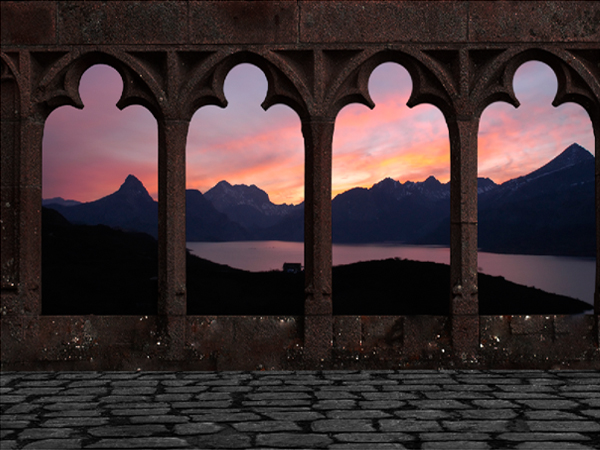
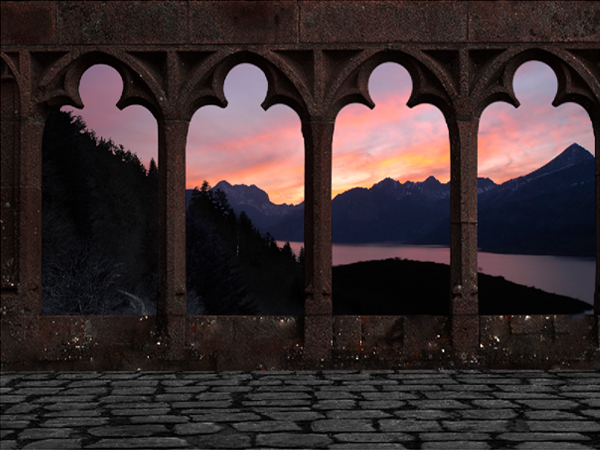
Create a Scenic Castle Hallway in Photoshop

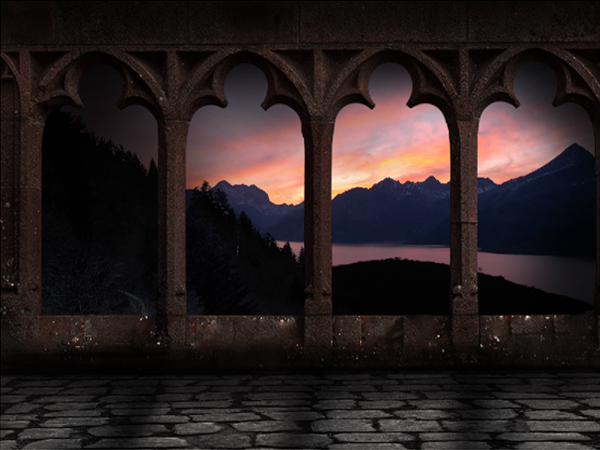
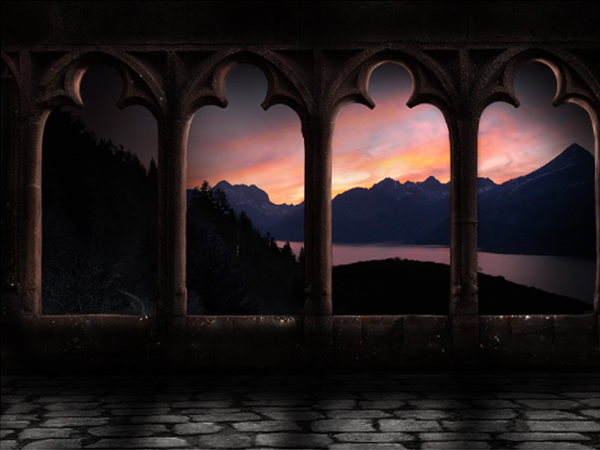
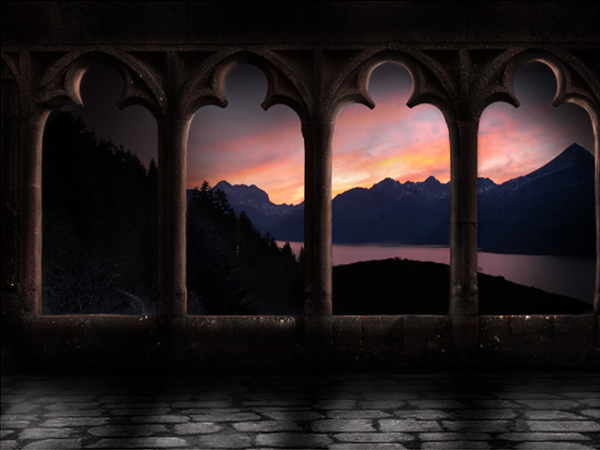
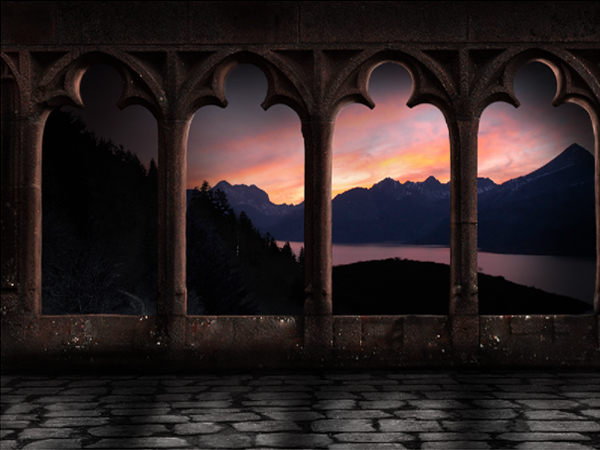
In today’s tutorial, we will combine stock photography and some basic digital painting techniques to create a scenic castle hallway in Photoshop. Let’s get started!


Tutorial Assets


Step 1

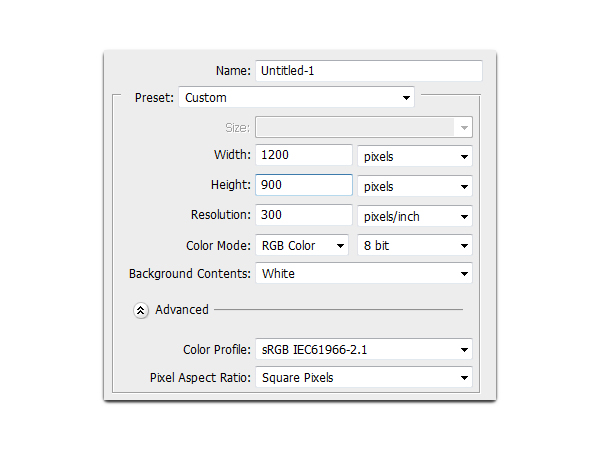
First, start by creating a new file, 1200 x 900px with a resolution of 300ppi.


Step 2

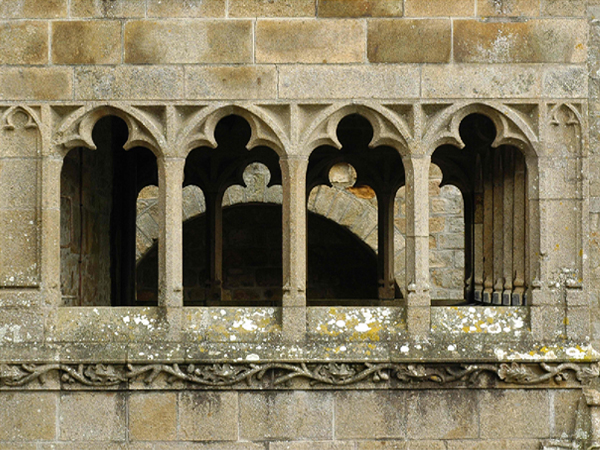
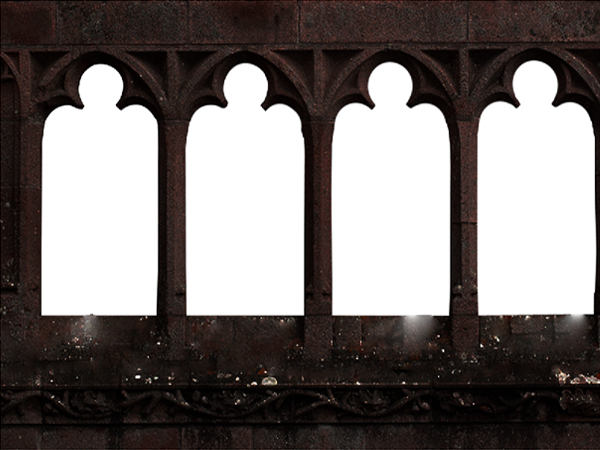
Next, open the Castle’s Window.jpg. Let’s rename this layer as "Pillars."

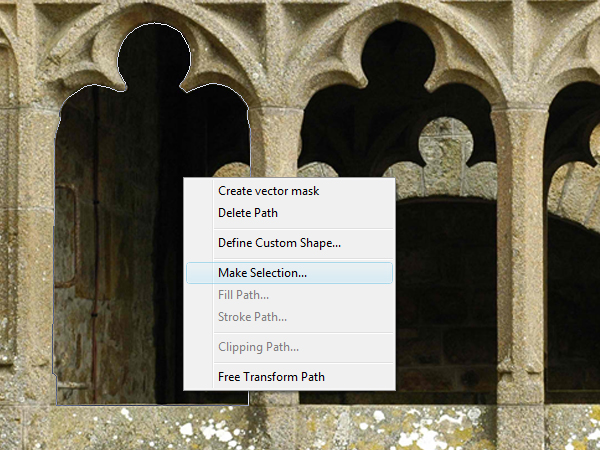
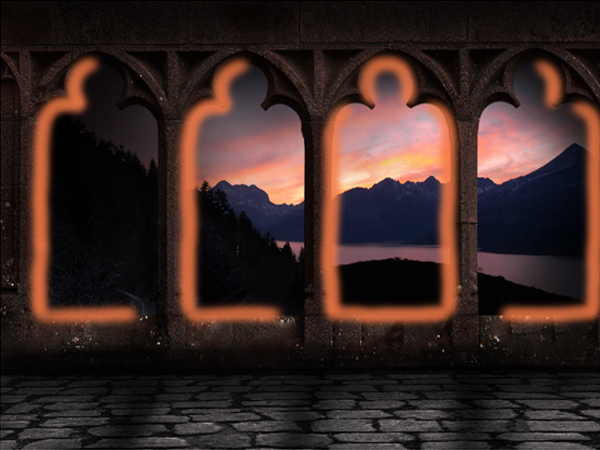
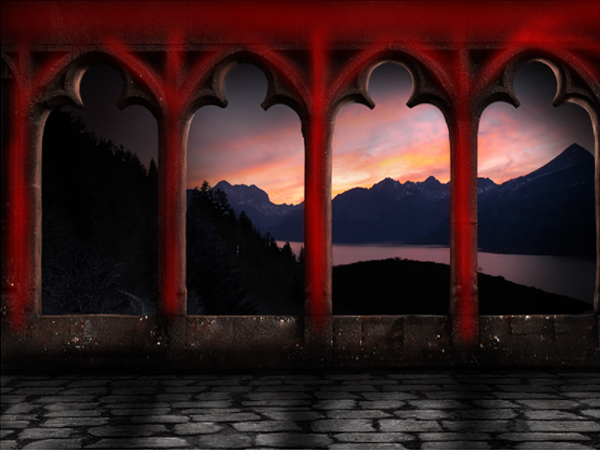
Then, by using the Pen tool (P), trace the outline of the main “arches” disregarding the interior parts like as shown below. Once the shape has been defined, press right-click then select Make Selection from the dropdown menu, then press delete.

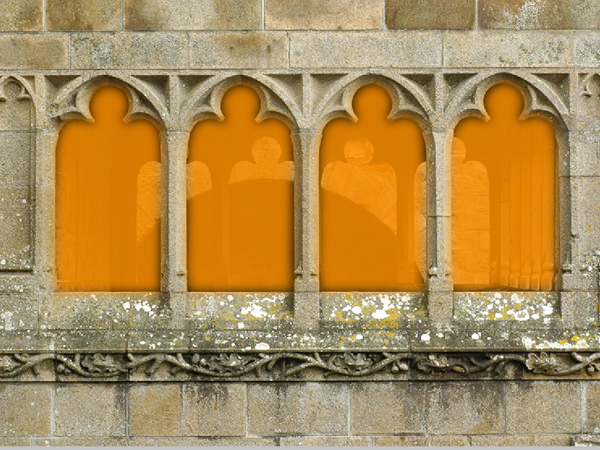
Repeat the same process for the remaining three "windows."


Step 3

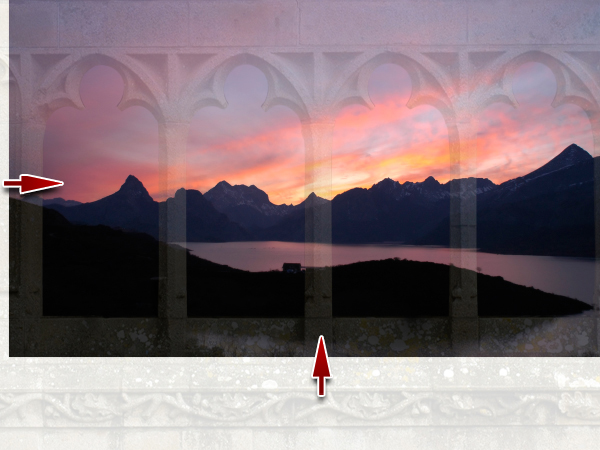
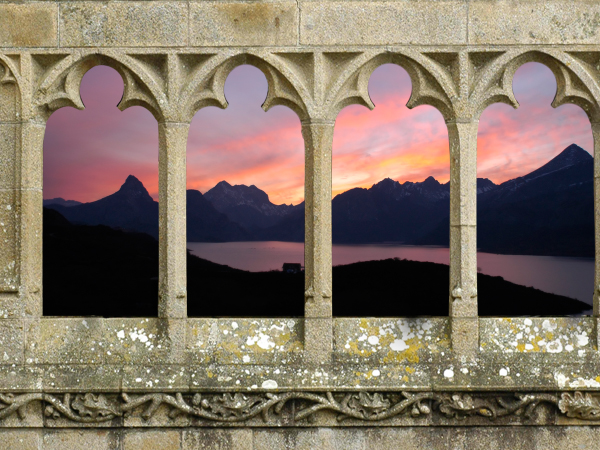
Next, open the Purple Mountains.jpg. For this step I decreased the "Pillar" layer’s opacity so I can see and estimate whether the size of the mountains is just right and the view of it is maximized.

Here you can see the final effect we want to achieve.


Step 4

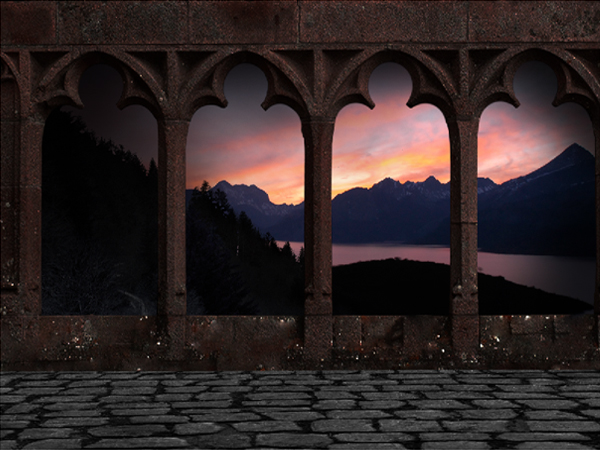
We can see that the pillars’ color is off in comparison to our background, which has a dominant hue of purple. To correct this, apply different adjustments to both Hue/Saturation (Ctrl/Cmd + U) and Levels (Ctrl/Cmd + L) to match the colors. But, since the light source is coming from behind, it should have a darker shade of purple close to being black. The effect should look like the one below.


Step 5

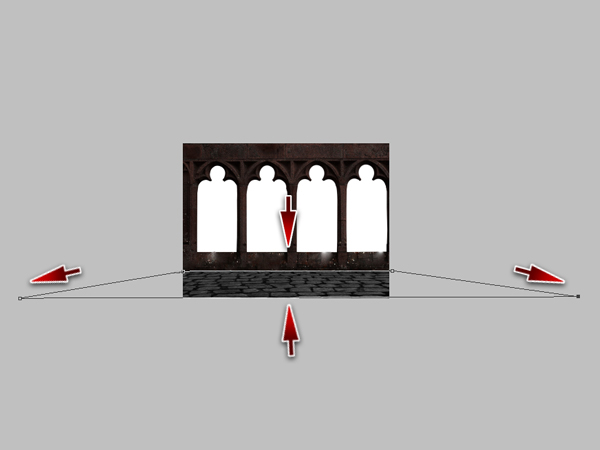
Next, is to add the floor. To do this open the Stonefloor.jpg then press Ctrl/Cmd + T to activate the resizing handles. Transform the selection just like as shown below. Just like what we did in the pillars, do some adjustments in the Hue/Saturation and Levels of the Stone floor just to blend it with the colors of its surroundings.

Here you can see the final effect of the steps we’ve done so far.


Step 6

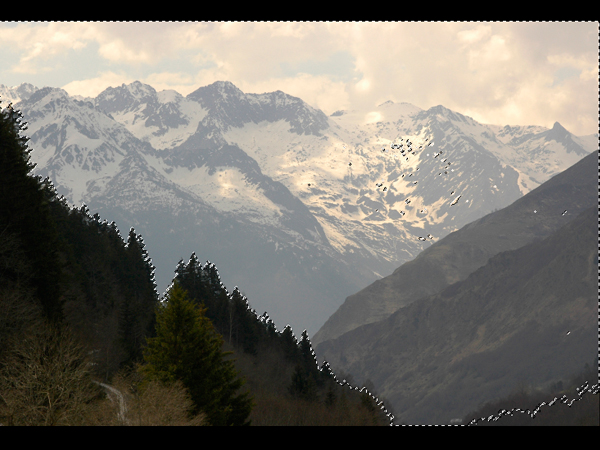
I want the effect that our castle’s hallway is extending from a mountainside. So to add this illusion, open the Mountainforest.jpg. Using the Magic Wand tool (W), select the areas indicated below. At first, use a higher tolerance for the Magic Wand then slowly decreasing it as you get closer to trees on the lower left side.

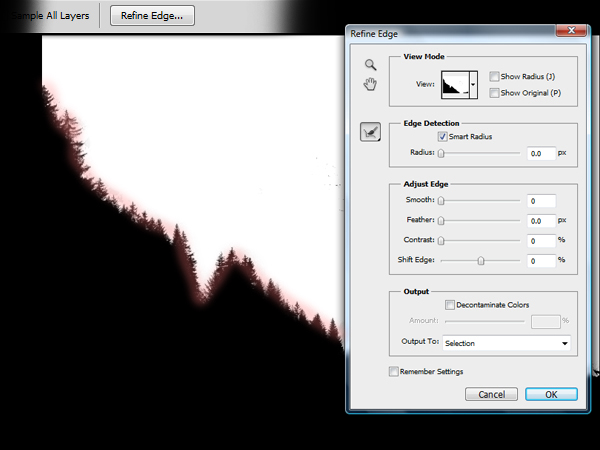
Once the areas needed to be removed have been defined, press the Refine Edge button to further refine the selection we just made. In Adobe Photoshop CS5 there is a tool called smart radius that intelligently selects the areas you want to retain and to remove just by following the outline of the area you want to retain, just like as shown below.

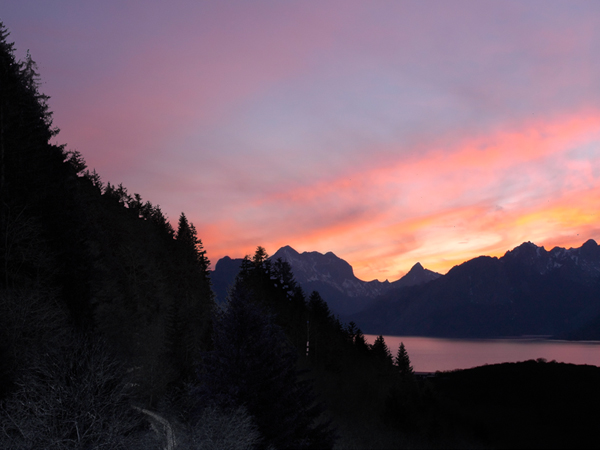
Just like from the previous steps, adjust the Hue/Saturation and Levels of the Mountain forest’s layer to blend with the background. In addition, I also use the Burn tool (O) to darken the light parts on the tips of the trees.

Next do some minor adjustments to complete the effect.


Step 7

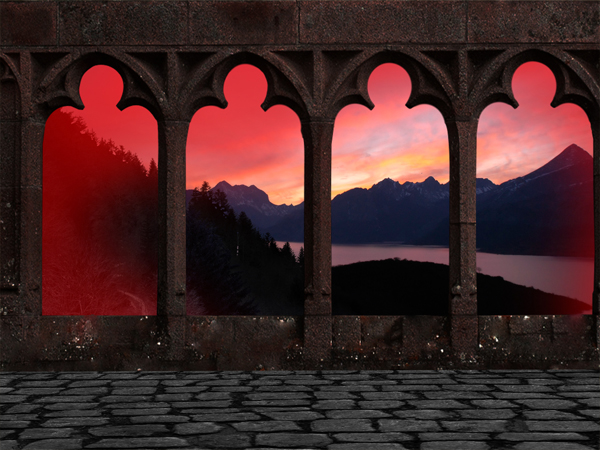
I want to add an effect that the night sky is slowly creeping towards the setting sun. To do this, add a new layer just below the Pillars layer, then by using a soft, large size brush with color #000000 or any dark color you want close to the color of purple and blue, brush the side areas of the image indicated in red below.

The effect should look like the one shown below.


Step 8

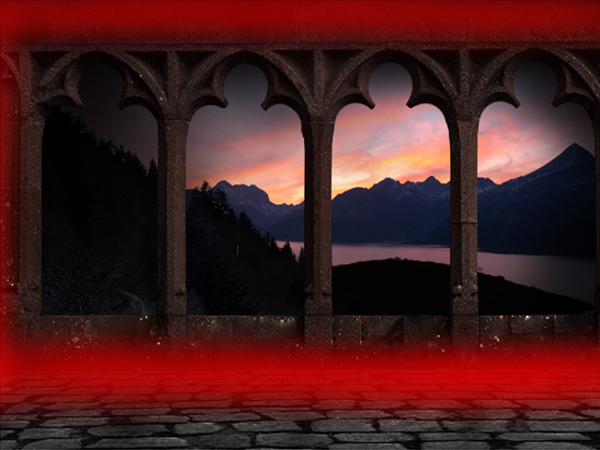
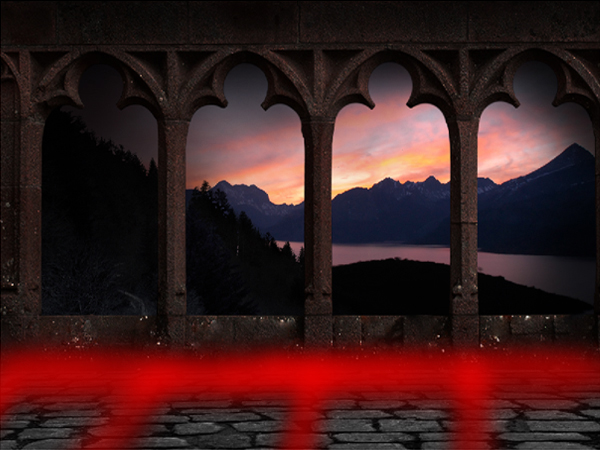
Next, add some shadows and shading. Using a soft, small brush with an opacity of about 50% and Flow of 40%, brush the areas indicated in red below.


Step 9

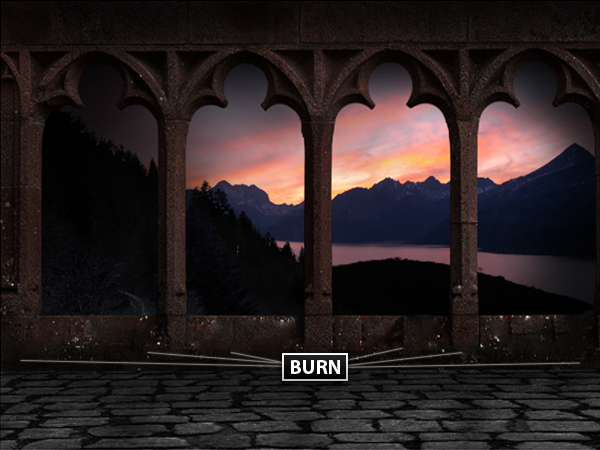
Then using the Burn tool (O), burn the areas indicated below for both the Pillars layer and Stone floor layer enhancing the shadows we made in Step 8.


Step 10

Next, add a new layer and name it as "Pillars’ Shadows." Like what we did in Step 8, use a soft, small brush with opacity of 70% and flow of 30%, then brush the parts indicated in red with color #000000, followed by minor shadings using colors numbers close to the colors of the wall and the floor.


Step 11

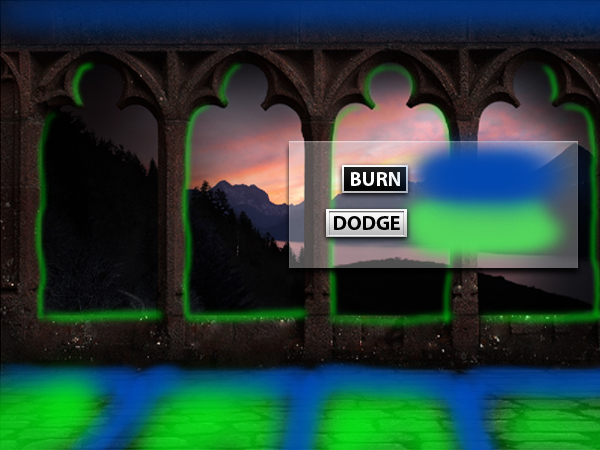
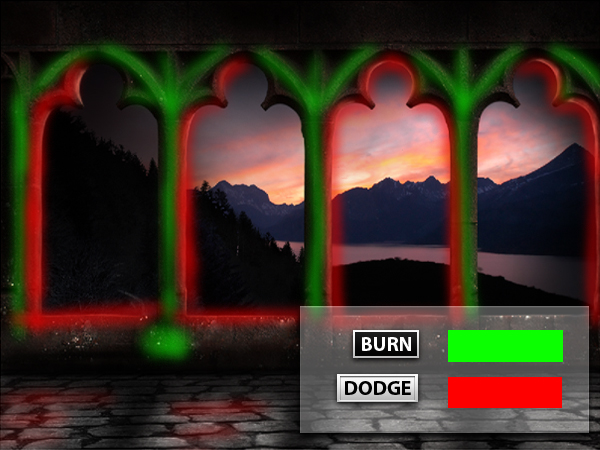
Burn and Dodge (O) the areas indicated below.


Step 12

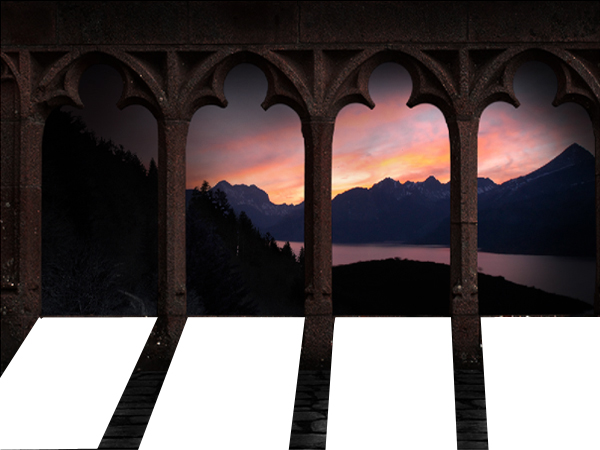
Next, add a new layer and name it as "Rays." Using the Polygonal Lasso tool (L) make slanted rectangular shapes then fill it with color #ffffff with the Paint Bucket tool (G) like as shown below

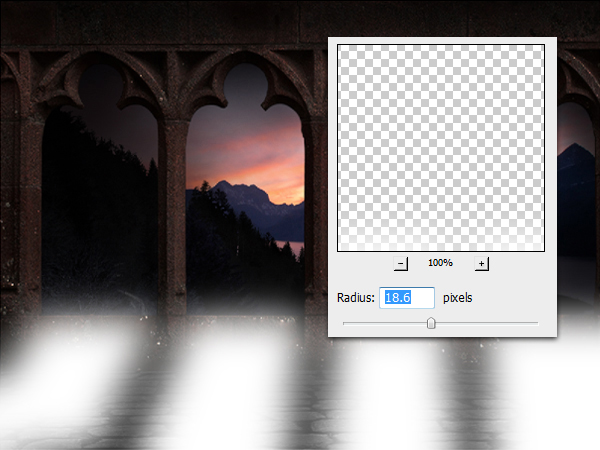
Next go to Filter > Blur > Gaussian Blur and apply the values indicated below.

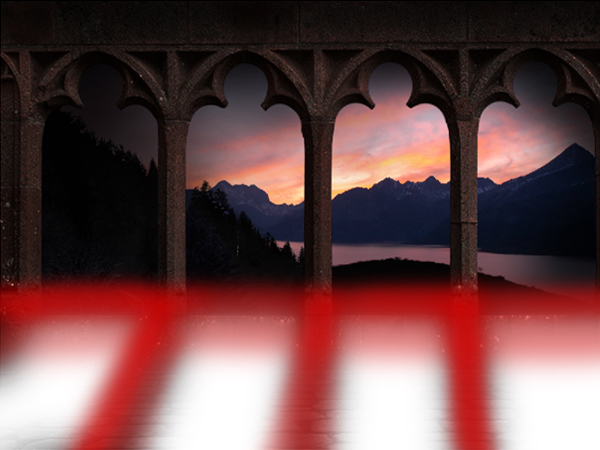
Using the Eraser tool (E), erase the areas indicated in red as shown below.

Next, duplicate the "Rays" layer. Decrease the Opacity level of the original layer to 5% then change the Blend mode of the duplicate layer to Overlay and increase its Opacity level to 30%.


Step 13

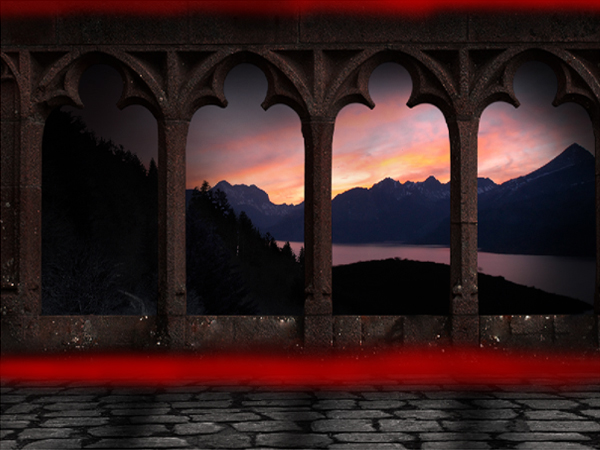
Next, using a small, 50% hard brush, brush the areas indicated in red with color #000000.

The final effect should look like the one shown below.


Step 14

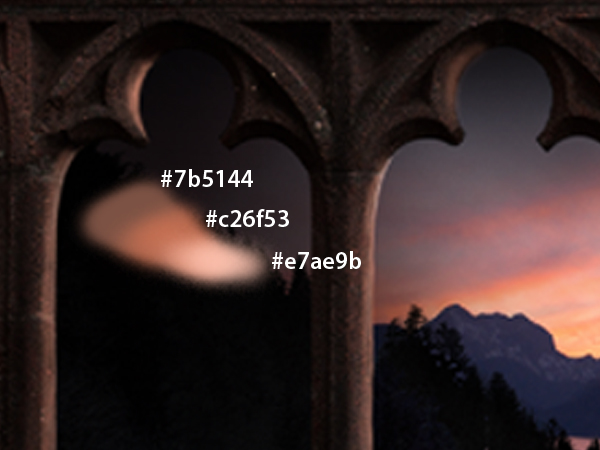
Next step is to digitally paint the highlights of the pillars. First change the settings of your brush to about 3-5px in diameter, 10% hardness, 70% opacity and 50% flow. Then using the color numbers indicated below, following the positioning of the colors, start painting the highlights.

As you may notice I picked a number of color shades that are close to the color of the light coming from the setting sun, the cloud and the pillar. Using those colors, paint the areas indicated below. Sometimes you have to change some of the brush settings in different areas, so try to experiment on different values and levels of the Brush tool (B). Once you have painted the indicated areas, you can use the Mixer Brush tool (B), which I think is only available in CS5 to mix the colors but if you’re using CS4 and lower you can use the Smudge tool and Liquify instead.


Step 15

Using the same technique in Step 14, paint the edges of the stone to add a light shiny effect just like as shown below.

The overall effect is shown below.


Step 16

Using a small diameter brush with a hardness of about 40-50% and color #000000, paint the areas indicated in red below.

Then Burn and Dodge (O) the “Pillar” and “Stonefloor” layer just like as shown below.


Step 17

Next step is to add the last shadow layer. Using a small size brush with hardness of 10-40%, brush the areas indicated below with color #000000. For this step, watch for areas that need to be highlighted and shaded.

The overall effect is shown below.


Step 18

Next, using a medium size brush with 5-10% hardness and color #ffffff, brush the indicated areas below to add a subtle glow effect.

The overall effect is shown below.


Step 19

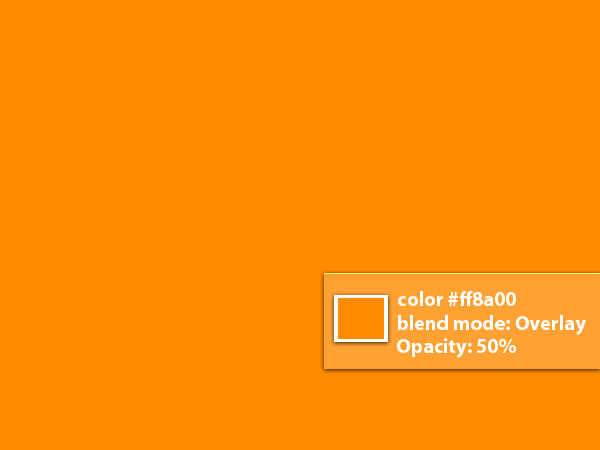
Next add a new layer then fill it using the Paint Bucket tool (G) using the indicated values and settings below.

We used this color because we want to add the feeling of warmth to the atmosphere of our design.


Step 20

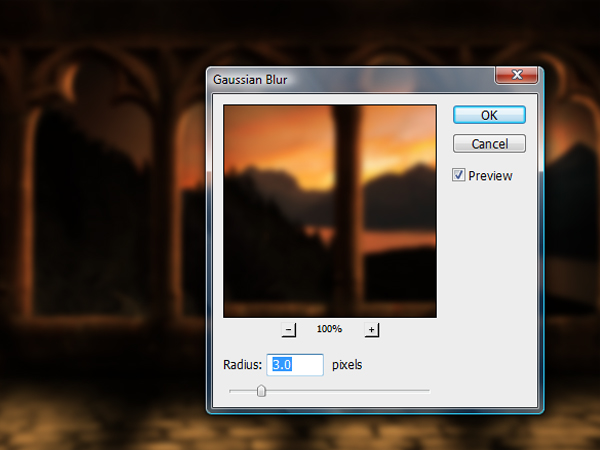
Next, save the entire file as JPEG then open it and place it on the top most position in the layers tab. Next go to Filter > Blur > Gaussian Blur and apply the indicated value below.

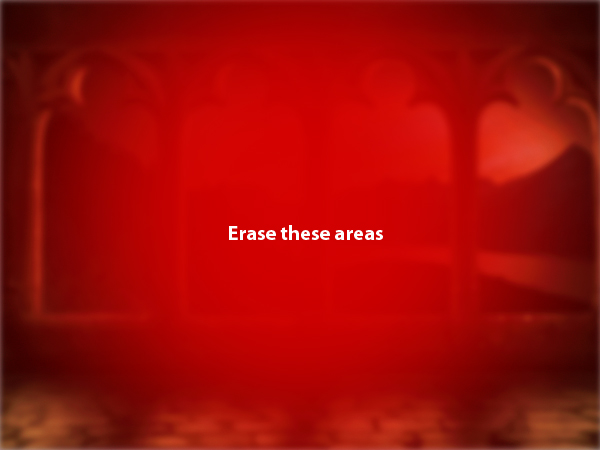
Lastly, using the Eraser tool (E), erase the areas indicated below.


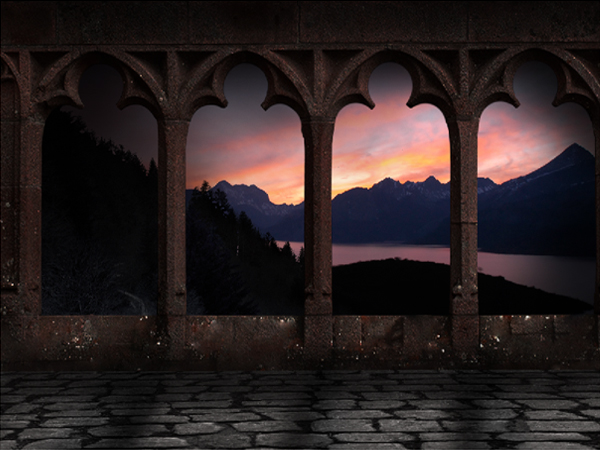
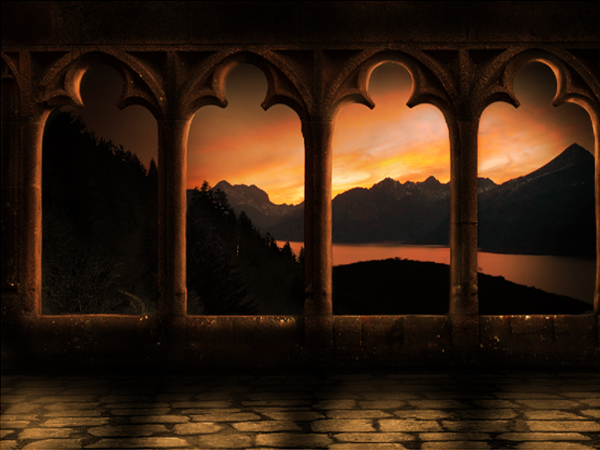
Final Image

Read More

Tuts+ Quiz: Winners Announced!

From the bottom of our creative little hearts, we want to thank you all for making the Tuts+ Quiz so much fun! We had over 1,500 entries, and 27 prizes. We’re sorry you can’t all win a prize, but we hope you had a lot of fun and got to know Tuts+ a little bit better! We certainly got to know you better, and we learned that Tuts+ readers are clever and good-looking.

Read on to see who won!


Yay! Winners

Adobe CS5 (courtesy of Adobe Business Catalyst) – Pavol Bigos.

Wacom Tablet – Elena Poleacova, Erin Goh.

Rockable Library – Andres Hernandez.

Smashing Library – Daniel Tan, Branden Schaffer, Jason Anello.

Magic Bullet Looks 1.4 – Owen Conti.

Trapcode Form – Romain Capelle.

Billings 3 – Lisianne Marzani, Amit Kumar, Lucian Ciortan.

Pixelmator – Pablo Lara H, Serina Brown, Ed Werdyl.

Little Snapper – Philo Hermans, George Elias, Gram Riisgaard, Andrew George, Michelle Boule.

Courier – Alex Cuncannon, Samuel Naki, Petra Horing, Javier Barrera, Irmantas Pocius.

Symmetry Works – Sami Kangasniemi.

Symmetry Shop – Miha Vukovic.


So… How Were Winners Picked?

We assembled each person who chose a particular prize, and chose a winner among them using Random.org’s random number generator. Once we had a ‘winner’, we checked for duplicate IPs and/or email addresses to make sure all winners entered only once. Then we verified the winner entered before the cut-off date.

All the above winners will receive an email shortly on how to claim their prize.


Again, Thank You…

We hope that even if you didn’t win a prize this time, you had fun. Solving the quiz was an achievement in itself, and we suspect you’re smarter than the average person. In fact, we’re sure of it! :-)

Read More

Esl/bible Book Webpage/indesign/illustrations Needed

I am working on a book to teach English through the Bible using art/photography. I would like to setup a webpage for the book, where people can begin using the pages for their classroom.
Since each page uses a variety of illustrations, I could also use some artwork. The book is primarily for adults, though children will also be able to use it (thus children’s book illustrators could also work). For example, one page I would like illustrated teaches the sounds of American English using high frequency words (such as ask, day, up, down, etc.) so will just be a small drawing for each word. I would also like a comic style format of the Parable of the Good Samaritan. These are just 2 examples of a 200 page book, so there are many other opportunities. I would like to see your work first, however, so I can match up your particular style with the page I’m working on.

In addition to illustrations and photos, I also am looking for assistance in laying out pages. I have a basic format of the book (currently 60 pages), but I need someone to layout the pages and add them to the book on an on-going basis. (I am currently using InDesign CS5 on IBM.)

Thanks!

Need Help With Php Mail Script

I have a contact form that gives users on our site the ability to contact one or more people from our coaching department. The form collects the user’s information, then allows them to select on or more recipients from a list with check-boxes for each name.

Once submitted, the script creates a list of all the email addresses to send the email to and drops them in the To: section of the mail script.

What I have been unsuccessfully trying to do is change this around to where the list of recipients gets inserted into the Bcc: field instead of the To: field.

I need help from a programmer out there to make this work, as I am unable to get the Bcc: function to work properly in this script.

Please bid accordingly, this is a small project but could lead to additional projects if completed quickly and successfully.