How to Make Professional PowerPoint Presentations (With PPT Templates)

Are you anxious about preparing for an upcoming presentation? You need to present something professionally to gain your audience’s trust or a breakthrough in your career.

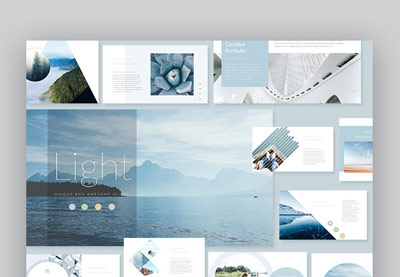
Remember: presentations are a skill, and skills can be built. Inspiring speakers practice and learn their craft. A big part of this is having a professional PowerPoint theme design that you feel confident about, such as one of these:

If you’re short on time, this tutorial is the perfect way to get going. I’ll share some of my favorite tried and true professional PowerPoint tips for creating presentations, and we’ll walk through building one together using a professional PPT theme.

Motagua Services Slide
In this tutorial, we’ll build a professional presentation using the Motagua PowerPoint template.

Guide to Making Great Presentations (Free eBook Download)

Before you read on, be sure to grab our free eBook: The Complete Guide to Making Great Presentations. It’ll help you master the presentation process, from: initial idea through to writing, design, and delivering with impact.

Free eBook PDF Download Make a Great Presentation

Now, let’s jump into a few quick techniques that’ll help up your presentation results. Then, learn how to build a professional PowerPoint presentation quickly using a template. 

5 Quick-Fire Tips for More Professional Presentations

Let’s start off by reviewing five of my favorite professional PowerPoint presentation tips. These are great reminders to start with when you’re preparing to speak.

1. Practice Really Does Make Perfect

It’s a well-known piece of advice, but you’ve got to practice your presentation to make it successful. A well-rehearsed presentation helps you come across confidently and resonate with the audience.

Not all practice is created equally though. Here are professional PowerPoint presentation tips for how to get the most out of your preparation time:

  • If possible, rehearse in the same room that you plan to present in. This gives you a sense of familiarity for your presentation.
  • Use speaker notes in PowerPoint to keep your key talking points in view while presenting.
  • Use a cell phone to record an audience perspective on your presentation to take notes on how you’ll appear to your audience.

2. Stick to “One Big Idea”

Many presentations will overwhelm you with data and details. In an attempt to persuade, presenters will include every possible reason you should agree with them.

By the time the presentation reaches its conclusion, your audience may be so overwhelmed with ideas that they’ll have missed your most important points.

As a presenter, it’s your job to be clear. Stick to the key idea that you’re presenting to make sure that your audience doesn’t get lost in the details.

3. Don’t be Afraid to BLUF

Sharing a big idea is important, but where you put it is also essential. That’s why you should put your Bottom Line Up Front, also known as the BLUF principle. Put the bottom line (the key idea) near the beginning of your presentation.

Books and movies take you through a journey that ends with a conclusion. Presentations should give you the answer up front and explain that conclusion with the subsequent slides. 

PowerPoint Presentation BLUF Example
Skip straight to the chase by giving your audience the key idea near the beginning of your presentation.

The BLUF principle reminds me to cut to the chase when sharing the most important part of a presentation. Get straight to the heart of the message before your audience is distracted or exhausts their limited supply of attention.

4. Include Professional Presentation Graphics

For professional presentations, your audience might be more analytical than the average viewer. They’re more inclined to view PowerPoint charts and graphs and derive meaning from them than talking points.

Professional PowerPoint presentation chart example
A graphic like a bar chart can convey data more quickly than speaking points can.

Graphics and charts are the quickest way to convey a point. Consider using bar charts and line graphs to show trends and key statistics that reinforce your point.

For more bite-sized tips on how to give great presentations, check out Brad Smith’s tutorial below with tons of other professional PowerPoint tips. I frequently read these before I start building a presentation to put good presentation ideas in my short-term memory bank:

5. Use Presenter View

My final tip is one that enables every other professional PowerPoint presentation tip we’ve already shared. By using Presenter View, you’ll have a view of all the key tools and features in a single view. That means you’ll have your speaker notes, a preview of the next slide, and a timer that helps you stay on track.

Most presentations are delivered in rooms with multiple screens. Presenter View shows your presentation on one screen that your audience sees and shows helpful information to presenters on a second screen.

To turn on Presenter View, jump to the Slide Show tab, and make sure that Use Presenter View is ticked. When you start to present, you’ll see two different views.

Turn on presenter view
Turn on Presenter View on the Slide Show tab by ticking Use Presenter View. 

In Presenter View, keep your eye on a few key features as you can see in the screenshot below. Speaker notes live on the right side and help cue up your key talking points. The next slide preview is also a great prompt to help you direct your speaking flow. And finally, don’t forget to keep an eye on the timer to stay on track.

Presenter View
Presenter View puts all of the key tools that every speaker needs for a professional presentation right in front of you.

Check out the tutorial below to start making the most of Presenter View:

The Shortcut to Making Professional PowerPoint Presentations

Even if you know exactly what you want to say, building out the supporting PowerPoint slide designs is a serious effort. Opening the app and starting off with blank slides is a major challenge.

Time is always short when preparing for a presentation. Instead of building something from scratch or using a limited built-in PowerPoint theme, I turn to pre-built, professional  PowerPoint templates time and time again. You can buy and download these Premium designs, then add your own content to them quickly: 

The real value of these pro PPT templates is the presentation slide design ideas that they include. Use those pre-built designs for ideas of how to present your own content. 

Motagua PowerPoint Theme
The Motagua PowerPoint theme has 200 slide designs and two different color variants to build professional presentations.

In this tutorial, I use the Motagua PowerPoint theme. This is the all-time best-selling presentation theme on GraphicRiver, and it’s easy to see why. It’s packed with a great looking set of PowerPoint slide designs, which you can work with quickly.

Professional PowerPoint Templates on Envato Elements (With Unlimited Use)

To try out more great PowerPoint themes, check out the PowerPoint presentation designs available on Envato Elements. 

Instead of buying a single PowerPoint theme, subscribe to Elements and choose from thousands of PPT template designs, web themes, professional graphics, and more. Download as many as you want for one low price. 

Now, let’s walk through building a professional PowerPoint presentation from a PPT template. 

How to Make a Professional PowerPoint Presentation (With a PPT Template)

For this example, we’re going to pretend that we’re building a slide deck to encourage someone to invest in our company. This could be for your startup company or even for a small, local business to get things off the ground. 

Professionalism matters when you’re asking for funding. I’m going to highlight five key slide designs that you’ll find in decks like these. Even if your presentation idea is totally unrelated, these ideas might help you design your own. 

Motagua promo image
We’ll customize slides from the premium Motagua PowerPoint template, the perfect example of a professional PowerPoint presentation.

1. Introduce Your Team

It’s often said that investors invest in teams, not products. While both are required to secure financing for your idea, the point is that investors often focus on the team and their background.

To do this, I’m going to recommend Motagua slide design #77. This is a slide with four placeholders for your team’s photo and descriptions.

Team Pic in professional PowerPoint presentation slide design
Show off the team and their roles to build familiarity with your potential investors.

I almost always recommend that a presentation about a product or service includes the team. Build that level of comfort with your audience so that they’ll think of you first when they’re ready to invest or buy.

Other Options: also check out slide design #80, ideal for larger teams.

2. Share Your Product’s Vision

It’s not about where your product or service has been, but where it’s going. If you’re expecting investment or growth in your business, the investors are betting that the future holds more promise than the present.

One idea for showing this visually is to use slide design 149, which is an Arrows Infographic. This is a nice-looking design with multiple points for how your product may evolve.
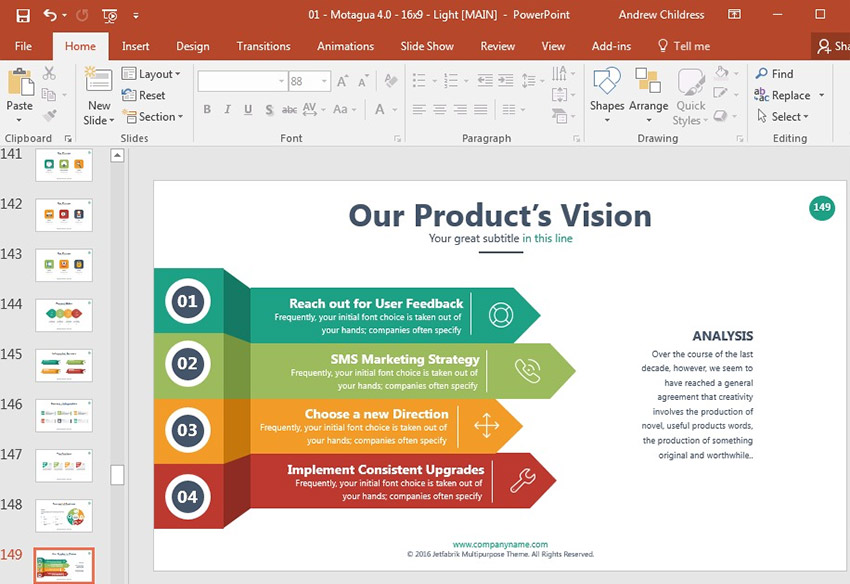
Product Vision slide design in PowerPoint template

This is a general-purpose slide that could be used for showing any key points about your business, but the numbers make it ideal for showing a progression. Sharing the vision for your product near the beginning of the presentation is a great application of the BLUF mindset.

Another Related Option: Slide 155, with three simple graphics to drop your own key ideas into.

3. Show Key Statistics in Data With Charts

For startups, one of the most important things to show is your company growth with good data. For businesses that aren’t yet earning revenue, investors are betting that a large userbase will eventually lead to customers.

A chart is a great way to tell a story without any bullet points involved. For the analytical minds in the audience, a well-placed chart may be the “aha!” moment that they need to see your vision.

Slide design 138 has overlapping circles that you can show the opportunity for your startup. Use the smallest circle to show your current revenue base, while larger circles show the potential if you expand to a new market or develop new products.

Overlapping circles in professional PPT presentation template

If your idea hasn’t even started yet, consider showing statistics or data on how the need for your product is growing. You could include data about the size of the potential customer base, or the growth of similar services.

Another Option: Presentation Slide 57 in Motagua is a bar chart that uses a linear curve to show the progression across the bars.

4. Use Graphic Timelines to Illustrate the Future

Again, investing in a business is all about the future. A timeline can illustrate not only the history of a product, but the future development timeline of the features you plan to add.

Slide 60 is the perfect way to show the road map for the product. You can use the points to illustrate new features you’ve recently added or plan to add in the future.

Timeline slide in PowerPoint template
Use each of the milestones on slide 60 to mark a new feature or recent addition.

More Options: Motagua Slides 15 through 19 are a vertical timeline presentation that could allow you to focus more on each individual step.

5. Make Your “Ask” Clear

You’ve built up a vision and you’re ready to reach a major conclusion. This could be the make or break moment to inspire action in your audience.

For our example, let’s assume that you’re going to ask for investment in your company. Near the end of a presentation, you could use a simple slide design like 21 to make the fundraising goal clear.

For startups, this is often expressed as “$x at $x valuation.” This means that a company raising $1 million wants to be valued as being worth as $10 million, effectively giving 10% of the company to investors.

Raising funding professional slide design
Raising funding professional presentation slide design.

If you’re building a persuasive presentation that’s designed to inspire action, you’ve got to make your “ask” clear. What are you asking the audience to do, if anything? 

5 Professional PowerPoint PPT Templates From Envato Elements

We’ve already checked out GraphicRiver, the pay-as-you-go option to source professional PowerPoint presentation templates. But there’s another solution that gives you even more creative freedom to source unlimited presentation designs: Envato Elements.

Envato Elements Professional PowerPoint templates
All of these professional PowerPoint templates are included when you subscribe to Envato Elements.

If you want to learn how to make a PowerPoint look professional, studying templates and borrowing the best elements from each one is surefire solution.

Let’s check out five of my favorite professional presentation templates from Elements below:

1. Project Professional PowerPoint Template

Project Professional Template

Managing projects is a key part of most professional careers. When you’re showing off your project to key decision makers, it’s crucial that you build a professional presentation. This template helps you capture just that, showcasing key project steps that can help you win the support of your peers.

2. Business PowerPoint Presentation

Business PowerPoint Presentation

One of my favorite professional PowerPoint tips is to use the same template in all of your presentations so that you develop a consistent design style that your audience will recognize. Use a flexible template with plenty of versatility like this one for exactly that purpose.

3. Skyfy Professional PowerPoint

Skyfy Professional PowerPoint

Even a professional presentation can have a slick and modern design style. Skyfy is a great choice for professional presentations that show off creative companies, like design agencies, video production studios, photographers, and more.

4. Melbourne Professional PowerPoint Presentation

Melbourne Professional Template

Melbourne is a clear and clean professional PowerPoint template that any business could use. With a few simple tweaks to the color scheme and placeholders, you can use Melbourne to put your business idea in a beautiful format.

5. Pitch Volume 3 – Professional PowerPoint Template

Pitch Volume 3

A pitch deck is a special type of template that entrepreneurs and startup companies will use to get their idea off the ground. A pitch deck has some specifics to it that great templates like Pitch Volume 3 captures perfectly. Drop in your new company concept to launch your new venture into the future.

If you want even more professional template options, jump over to our guide, 22+ Professional PowerPoint Templates: For Better Business Presentations.

Learn More About Using PowerPoint Professionally

If you need more ideas on how to build out a better PowerPoint presentation, check out these guides as well, or download our free eBook that follows:
Need Help? Grab Our Making Great Presentations eBook (Free)

You can find more information in our new eBook on making great presentations. Download this PDF eBook now for FREE with your subscription to the Tuts+ Business Newsletter. 

Making Great Presentations Free Guide Download PDF

It’ll help you master the presentation process, from: initial creative ideas, through to writing, design, and delivering with impact.

Go Design Your Professional Presentation Today

You’ve just learned how to make a professional presentation using some of my favorite professional PowerPoint presentation tips. My top tip for how to make a professional presentation will always be to source templates from sites like Envato Elements and GraphicRiver. It skips you ahead in the process and helps you build the perfect presentation.

Remember: your PowerPoint file just reinforces your presentation. Content trumps style every time. But if you can take good content and put it into a professional theme, you reach your audience better.

What are your best tips for creating a professional PowerPoint presentation? Let me know in the comments section.

Editorial Note: Our staff updates this post regularly—adding new professional PowerPoint presentation templates with the best, trending designs.

{excerpt}
Read More

25 Must-Have Packaging Mockups for Product Designers

If you’ve created a great product and are looking for the perfect packaging mockup to test your label designs or to promote your product, then this list of 25 must-have mockups will make you very happy. It features mockups created with the Placeit Mockup Generator, which allows you to add your designs to a variety of realistic packaging mockups so you can get an idea of how they’ll look in real-life scenarios.   

25 Must-Have Packaging Mockups for Product Designers

1. Packaging Mockup of a Young Woman Holding a Shopping Bag

Packaging Mockup of a Young Woman Holding a Shopping Bag

Show off your designs with this terrific gift bag mockup featuring a young woman holding a small gift bag so that the label is clearly displayed, and smiling as she looks inside. 

2. Packaging Mockup of a Liquid Soap Bag Next to a Kitchen Sink

 Packaging Mockup of a Liquid Soap Bag Next to a Kitchen Sink

Looking to test your label for a new organic brand of washing-up liquid in an earth-friendly container? Then is mockup is just the thing for you. It features a domestic scene with hands washing dishes at a kitchen sink, with a liquid soap bag fully visible in the background ready for your design. 

3. Packaging Mockup Featuring a Coffee Can in a Cupboard

Packaging Mockup Featuring a Coffee Can in a Cupboard

This cylindrical packaging mockup is perfect for those who want to see how their coffee or hot chocolate label designs look in a real-life scenario. The mockup could also be useful for advertising other food items like breadcrumbs, grains, or various sorts of ready-made soup. 

4. Packaging Mockup of a Glass Container on Top of a Kitchen Counter

Packaging Mockup of a Glass Container on Top of a Kitchen Counter

This is a terrific jar packaging mockup that would make a great alternative to the cylindrical packaging mockup for testing or displaying a label for coffee, hot chocolate, or various spices. 

5. Packaging Mockup Featuring a Girl Opening a Present

Packaging Mockup Featuring a Girl Opening a Present

You can put this gorgeous box packaging mockup to use in a number of ways. You could test label packaging designs for jewellery, watches, a new type of phone, gadget, or something else entirely. The sky’s the limit.

6. Gift Bags Mockup Featuring a Woman on a Bench

Gift Bags Mockup Featuring a Woman on a Bench

What could be better than being able to display your product design labels in a number of styles and dimensions? This gift bag packaging mockup allows you to do just that, with gift bags that range from small to medium to very large. 

7. Woman Doing Exercises With an Aluminium Water Bottle Template Nearby

 Woman Doing Exercises With an Aluminium Water Bottle Template Nearby

If you’ve created a terrific label design for a sports company and are looking for just the right bottle packaging mockup to test it on, look no further than this mockup featuring an aluminium water bottle in the foreground with a woman doing stretches in the background. 

8. Label Mockup Featuring a Set of Two Spray Bottles

Label Mockup Featuring a Set of Two Spray Bottles

These two spray bottles in different sizes give you an excellent opportunity to display two different label design ideas for a new beauty or skin care product or to test the same label at different sizes. You can change the background colour of the mockup to match or complement the brand. 

9. Label Mockup of a Set of Soap Bottles Over a Flat Backdrop

Label Mockup of a Set of Soap Bottles Over a Flat Backdrop

If you’re looking for mockups for a set of pump bottles instead of spray bottles, then this mockup is perfect for you. It offers a lot more customisation features than the spray bottle packaging mockup above. Not only can you change the background, but you can also change the colour of each bottle and its cap.

10. Template of a Red Wine on a Wooden Table With Grapes

Template of a Red Wine on a Wooden Table With Grapes

No matter how great the wine, no one will find it if it doesn’t stand out on a shop’s self. This gorgeous red wine bottle mockup will help you to test out your best ideas and see how they stand up in real life. 

11. Template of a White Wine Bottle and a Glass with Grapes Nearby on a Wooden Table

Template of a White Wine Bottle and a Glass with Grapes Nearby on a Wooden Table

If you’re looking for a wine bottle mockup for white wine instead of red, this packaging mockup is the white wine equivalent to the red wine bottle mockup above. The light falls on the grapes, bottle and wine glass beautifully to show off your designs to the best effect. 

12. Label Mockup Featuring Two Medical Containers on Top of a Table

Label Mockup Featuring Two Medical Containers on Top of a Table

Looking for just the right packaging mockup for your supplements? This medicine packaging mockup features two bottles on a wooden table with a blurred background that will allow your package label design to stand out.

13. Label Mockup of a Beer Standing on Top of a Restaurant Table

Label Mockup of a Beer Standing on Top of a Restaurant Table

If you’re looking for a drink packaging mockup to test your beer label design then you’re in the right place. We’ve got two terrific mockups for you to choose from. This one allows you to see your label in a real-life scenario of someone having a beer with their burger and fries. The beer bottle is dark, and your label design would sit on a silver background. 

14. Very Cold Bottle of Lager Beer on a Blue Surface Mockup

Very Cold Bottle of Lager Beer on a Blue Surface Mockup

With this mockup, the beer is in a transparent bottle so that the colour shows and is isolated against a cold blue contrasting background. Your label design in this case would sit directly on the transparent bottle as opposed to on a silver background as is the case with the mockup above. 

15. Label Mockup of a Juice Bottle Sitting on Top of a Table at a Patio

Label Mockup of a Juice Bottle Sitting on Top of a Table at a Patio

You’ve created the most delicious juice in the world, designed a couple of labels, and all you need to do now is to test your designs using a juice bottle packaging mockup to see which one works best for you. This juice bottle packaging mockup is exactly what you need. It features a closeup of a juice bottle with the placement for the label clearly visible and the background softly blurred so that the label holds the attention.

16. Label Mockup Featuring Two Shampoo Bottles in a Shower

Label Mockup Featuring Two Shampoo Bottles in a Shower

If you’ve been tasked with creating labels for shampoo and conditioner, this packaging mockup featuring twin bottles in a blue tiled shower is a great choice. Upload your images, adjust the colour of the bottle, and you’re done. 

17. Label Mockup Featuring a Milk Bottle at a Breakfast Table

Label Mockup Featuring a Milk Bottle at a Breakfast Table

A great drink packaging mockup to display your milk or juice label, this mockup features a young woman sitting at a breakfast table with pancakes, juice and coffee in front of her. And, of course, a nice big bottle with the area for your label clearly displayed sits in the foreground. 

18. Label Mockup Featuring a Plastic Jar

Label Mockup Featuring a Plastic Jar

This jar packaging mockup is ideal for beauty creams and potions as well as hair products.  Upload your beautifully designed label, change the background colour, and you have a great mockup ready for testing designs and showing clients.

19. Motion Photo Mockup of a Young Woman Drinking Water

Motion Photo Mockup of a Young Woman Drinking Water

This dynamic stop-motion photograph featuring a young woman drinking from a bottle is a terrific drink packaging mockup to show off your latest designs for various kinds of flavoured water, juices, or just still and sparkling water. 

20. White Spray Bottle Mockup On Wooden Table With Man Cleaning

White Spray Bottle Mockup On Wooden Table With Man Cleaning

Have you designed a new environmentally friendly all-purpose cleaner and need a mockup to display your product in a real-world scenario? Then check out this spray bottle packaging mockup that displays a household spray bottle sitting on a table in the foreground of the photo, while a man cleans a window in the softly blurred background. 

21. Mockup of a Gift Bag on a Solid Background

Mockup of a Gift Bag on a Solid Background

Sometimes you just need a gift bag packaging mockup against a plain background that you can colour however you need to. For those times, there is this mockup, which not only allows you to adjust the background colour, but also allows you to adjust the colour of the gift bag. 

22. Template of a Pizza Box Beside Ingredients on a Wooden Table

Template of a Pizza Box Beside Ingredients on a Wooden Table

Pizza and fresh ingredients are a marriage made in heaven, so you’ll be happy with this pizza box packaging mockup that shows a pizza box sitting on a rustic wooden table alongside olive oil, tomato sauce, and a bunch of fresh ingredients. Just upload your beautiful design, change the box colour or leave as is, and your job is done. 

23. Jar of Marmalade Label Mockup with Fresh Bread

 Jar of Marmalade Label Mockup with Fresh Bread

Promote your delicious homemade jams with this jar packaging mockup, which pairs a jam jar with bread smeared with jam. The scene is shot outside to communicate freshness and wholesomeness. What could be better?

24. Label Mockup Featuring a Soap Dispenser in a Bathroom

 Label Mockup Featuring a Soap Dispenser in a Bathroom

Display your new, natural, additive-free liquid hand soap or lotion with this packaging mockup, which shows a pump bottle sitting on a bathroom sink next to someone’s hands that are about to be washed. 

25. Paper Bag Template Standing on Table While Girl Drinks Frappuccino

aper Bag Template Standing on Table While Girl Drinks Frappuccino

What does the bag in this brown bag packaging mockup hold? Well, anything you want it to, really. You can use this mockup to advertise a clothing store, a gift shop, a shoe shop, a speciality goods store, or whatever purpose you need it for. 

Choose the Right Product Packaging Mockup for You

These 25 terrific packaging mockups are just a few of the hundreds available at Placeit, so if you don’t see just what you’re looking for, head on over there and check out the other great mockups available. When you’ve found just the right mockup for your needs, do show us how you’ve used it by dropping us a note in the comment section. We’d love to hear from you.

{excerpt}
Read More

Envato Tuts+ Community Challenge: Created by You, April 2019 Edition

Welcome to our monthly feature of fantastic tutorial results created by
you, the Envato Tuts+ community! 

Every day, visitors like you take the
time not only to read our tutorials but also to try them out. This is an
assortment of those comment submissions found throughout the Design
& Illustration section. Check out this set of results and join in
for the next roundup, published next month!

Vector Tutorial Results

Taken from the
comments section of your favorite tutorials, these first pieces are an
assortment of results created with vector drawing programs. Check out
these amazing results!

How to Create a Line Art Based Skateboarder Kit in Adobe Illustrator

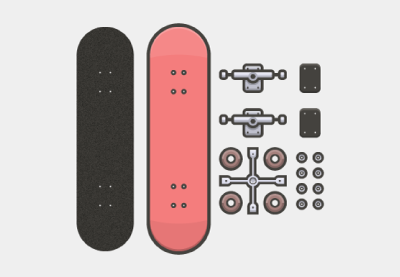
You can easily customize our tutorials with your favorite colors. Ziv Yang took on this cool Line Art Skateboard tutorial by and made it their own. Love the yellow!

How to Create a Line Art Based Skateboarder Kit in Adobe Illustrator

How to Create a Piggy-Bank Illustration in Adobe Illustrator

Have you ever had a piggy bank? Hannah Mary made a super cute Piggy Bank Illustration inspired by a tutorial from . Check out their result!

How to Create a Piggy-Bank Illustration in Adobe Illustrator

How to Use Gradient Mesh to Create Strawberries in a Milk Splash in Adobe Illustrator

The Gradient Mesh tool can help you make beautiful, realistic textures in Adobe Illustrator. Orsi had amazing success with this Strawberries & Milk Splash tutorial from 

How to Use Gradient Mesh to Create Strawberries in a Milk Splash in Adobe Illustrator

How to Create a Set of Organic, Hand-Drawn, Retro Patterns in Adobe Illustrator

Lovely colors! User Sphuxis recreated these Organic, Hand-Drawn Patterns from an Adobe Illustrator tutorial by instructor . Which colors would you use?

How to Create a Set of Organic Hand-Drawn Retro Patterns in Adobe Illustrator

How to Weave a Bedouin Sadu Fabric Pattern Using Adobe Illustrator

Our tutorials will help introduce you to many amazing art techniques from around the world. Grigory Bortnik made this incredible Bedouin Sadu Fabric with a lesson from

How to Weave a Bedouin Sadu Fabric Pattern Using Adobe Illustrator

How to Use Brushes in Adobe Illustrator to Create a Colorful Flamingo

Flamingos are such stunning and elegant animals! Imran made this lovely Colorful, Vector Flamingo Illustration with the help of a lesson by instructor . Check it out!

How to Use Brushes in Adobe Illustrator to Create a Colorful Flamingo

How to Create Cinderella’s Pumpkin Carriage in Affinity Designer

Don’t be afraid to update our tutorials with your own details! Inspired by , Erica Stan played with the color palette of this Cinderella Pumpkin Carriage Illustration for a 3D result. Looks awesome!

How to Create Cinderellas Pumpkin Carriage in Affinity Designer

How to Create a Cute Illustration of the Janus House Using Adobe Illustrator

Many tutorials are also based on real-life events and people! User Nobby made a wonderful recreation of this Janus House Illustration by . Nice job!

How to Create a Cute Illustration of the Janus House Using Adobe Illustrator

Create a Baseball-Inspired Text Effect in Adobe Illustrator

Play ball! Sonia made a spectacular recreation of this Baseball Text Effect from . We think it’s pretty impressive! What is your favorite sport?

Create a Baseball-Inspired Text Effect in Adobe Illustrator

How to Create a “BBQ Time” Concept Illustration in Adobe Illustrator

Do you love the trend of flat, minimalist illustrations? Deniz used this Flat Mountain Landscape tutorial from as the base to create a little world of their own. Great work with the background!

How to Create a BBQ Time Concept Illustration in Adobe Illustrator

Adobe Photoshop Tutorial Results

Let’s
take a look at this next set of results inspired by Adobe Photoshop
tutorials published here on Envato Tuts+. Contributions range from photo
manipulations to text effects and more! Check out these wicked results
below!

How to Create an Abstract Diamond Lens Effect in Photoshop

Get trippy with this Photoshop lesson from Abdul Rehman used it to create an awesome Abstract Diamond Lens Effect in which you can apply a cool distortion to many styles of portraits.

How to Create an Abstract Diamond Lens Effect in Photoshop

Quick Tip: Create a Metallic Copper Text Effect Using Layer Styles in Photoshop

Make an epic text effect like Andy! Get a similar shiny result using this Metallic Copper Text Effect tutorial from . Feel free to try it out on movie titles and more! What would you spell out?

Quick Tip Create a Metallic Copper Text Effect Using Layer Styles in Photoshop

How to Create a Trippy Head Tunnel Effect in Adobe Photoshop

Here’s another trippy photo effect to inspire you! Ali Moaz made this wicked Head Tunnel Effect using a Photoshop lesson from instructor . Check it out!

How to Create a Trippy Head Tunnel Effect in Adobe Photoshop

How to Create a Sketch vs. Camera Effect in Adobe Photoshop

Merge two mediums into one photo! Jael used this clever Sketch vs. Camera Effect from to make a perfect recreation! See how they flipped the subject around?

How to Create a Sketch vs Camera Effect in Adobe Photoshop

How to Make a 3D Text Effect Action With Layer Styles in Photoshop

Did you know that Photoshop also has helpful 3D tools? Sanam T. learned how to make amazing, minimalist 3D Text Effect using layers styles and more. See their work below!

How to Make a 3D Text Effect Action With Layer Styles in Photoshop

How to Create an Awesome Dispersion Action in Adobe Photoshop

Or make a trendy Dispersion Action with instructor . Khaled Diab used this tutorial to make a pretty wicked dispersion effect with a nice dancer shot. Check it out!

How to Create an Awesome Dispersion Action in Adobe Photoshop

How to Create an Abstract Portrait With Rocks and Lava in Adobe Photoshop

Envato Tuts+ regular, Susana González Gutierrez, is back at it with another wonderful photo manipulation! This time they made this Abstract Rock Portrait using a Photoshop tutorial by

How to Create an Abstract Portrait With Rocks and Lava in Adobe Photoshop

Design Tutorial Results

These final
pieces are inspired by an assortment of design tutorials that don’t quite
fit the previous categories. They include everything from print design
to drawing and more! Enjoy these beautiful pieces created by the
community below!

Create a Thistle Infographic to Celebrate Burns Night in Adobe InDesign

Creative infographics will help you learn a lot about design. Narcisa Didoaca took on this cool Thistle Infographic from to learn more about Adobe InDesign. What is your favorite design software?

Create a Thistle Infographic to Celebrate Burns Night in Adobe InDesign

How to Draw a Sugar Skull

Love to draw? Take on this incredible Sugar Skull tutorial from just like Kaleb Kalinowski. They made this brilliant black and white pencil version below!

How to Draw a Sugar Skull

Design a Hardback Cover for a Young Adult Fiction Book in Adobe InDesign

Stay inspired! Our final feature belongs to Jared S. They made this colorful Fiction Hardback Book Cover using a helpful tutorial from . Fantastic job!

Design a Hardback Cover for a Young Adult Fiction Book in Adobe InDesign

How to Be Involved in the Next Showcase

Have
you created a piece based on one of our tutorials here in the Design
& Illustration section of Envato Tuts+? We’re keen for you to share
your results with us! Check out the general guidelines below to join in
with our community:

  • Your artwork should be similar in some
    way to the tutorial that you followed or that inspired it. The aim of
    these showcases is to share what readers have created after following
    the tutorial.
  • Comment on the tutorial you used, attaching an
    image of your result. We’re keen on all levels of ability: from beginner
    to advanced!
  • Include a comment about your result, yourself, or your process. We like knowing about you and what you’re sharing.
  • Share
    the tutorial when you share that artwork elsewhere on the web. If
    you’ve posted your piece on sites like Facebook, Tumblr or Behance, link
    back to the tutorial so that other users know your source and can join
    in on the fun.

Thanks to everyone who was highlighted above for sharing your results with the Envato Tuts+ community. We look forward
to checking out your brilliant versions of our tutorials in the near
future, and welcome users new and old to participate in upcoming
showcases.

{excerpt}
Read More