
Category: Tutorials
Tutorials,freelance,projects,joomla,php,mysql,wordpress,blancer.com
Over 34 million people use Amazon Fire TV

ARM display chip design could lead to better stand-alone VR

Ticketmaster fights ticket fraud with ‘refreshing’ barcodes

The Galaxy S10 5G goes on sale in the UK June 7th

Senators ask the FCC to limit 5G auction to protect weather forecasts

Facebook, Google and others join Christchurch Call to curb extremism

Google confirms ads are coming to your Discover feed for the first time

Oppo’s mid-range Realme X is inspired by garlic and onions

Spotify brings back its 99-cent Premium offer

Sound off on the OnePlus 6T!

eBay’s improved AI translation boosts Spanish-language sales

What Is Apple Keynote Software? +How to Start Using It to Make Presentations
Keynote for Mac makes it easy to make and present beautiful presentations. In this article, we cover the basics of Keynote, as well as how you can improve your Keynote software skills. Learn how to get up and running with Keynote and get your presentation started.

Need Help? Download Our eBook on Making Great Presentations (Free)

Also, if you need to learn the process of making top presentations, then download our FREE eBook: The Complete Guide to Making Great Presentations. It’ll help you write, design, and deliver the perfect presentation.
Now let’s learn all about Apple Keynote presentation software:
What Is Apple Keynote (Software)?
If you’re unfamiliar with Keynote, then let’s first take a quick look at what it is and why it’s such a useful tool.
Keynote is slideshow presentation software developed by Apple. You can use it to create a well-designed presentation with. Here are a few of the features that are packed into Keynote software:
- Simplicity in design, so you can make a presentation more easily.
- Packed with powerful features you need to craft a quality presentation.
- Easy-to-use visual tools, such as drag-and-drop functions.
- Animation options to add subtle effects and cinema-quality transitions.
- Device synchronization, to move from your Mac to iPhone or iPad and vice versa.
- Impressive charts, from column, bar, pie, scatter, bubble charts, and more.
To give you some ideas how Keynote is being used, here are examples of use cases:
- I need to present a new product to my audience.
- I need to create a sales deck I can send to people.
- I need to follow our company design guidelines and use their Keynote template to create my reports.
- I’m giving a talk and want to display visuals to support my story.
The possibilities are endless. As long as a slideshow is involved and you’re working on a Mac device, often Keynote software is the ideal tool to get the job done. Best of all, it’s free for macOS and iOS!

Check out the tutorial below for a complete guide to creating your first Keynote presentation:

Compare Keynote vs. PowerPoint
Keynote software is a good alternative to PowerPoint. If you’re trying to choose between the two presentation software packages, here’s a quick comparison.
Why Use Keynote Instead of PowerPoint?
Most of us who have worked with a Windows device at some point are familiar with PowerPoint. PowerPoint is known for creating slideshow presentations and is supported both on Windows and Mac. Keynote has a few tricks up its sleeve that make it a viable alternative to PowerPoint. Noticeable is its simplicity of use and easy cross-device compatibility.
Apple prides itself in only showing relevant tools based on what you’ve selected in the user interface. This makes working in Keynote software feel more intuitive, but for power users PowerPoint packs more features.
PowerPoint does offer more advanced functionality than Keynote. For example, the ability to merge shapes in PowerPoint makes it more powerful if you want to customize your slides to the tiniest of details. Using charts in Keynote is incredibly simple, while in PowerPoint it’s more complex but with a lot more flexibility.
To have an elegant presentation up and running very quickly, Keynote is still the clear winner. Apple’s ready-made templates are gorgeous and assure you can focus on the content instead of the design of your slides.
Bottom line:
- Use Keynote software because it’s packed with intuitive design tools and is built into your Mac devices.
- Also, use Keynote because it’s easier to work with to create a quality presentation quickly.
- Use PowerPoint if you’re an advanced power user that needs more robust functionality and the learning curve is worth investing your time in.
Check out the two tutorials below to learn more about what is Keynote and how it differs from other apps:
 App TrainingThe Keynote AdvantageAlex Spencer
 KeynoteKeynote vs PowerPoint: The Best Presentation Tools ComparedAndrew Childress
Keynote and PowerPoint Compatibility
Another point to consider is compatibility between Keynote and PowerPoint. Keynote files can readily be ported over to PowerPoint. You can save a Keynote file as a PowerPoint doc. Or you can edit PowerPoint documents right in Keynote. So, you’re not locked in by choosing to work with Keynote or PowerPoint in any case.
Keynote and iCloud

Keynote, as part of the iWork software suite, is supported by iCloud. iCloud offers you the ability to save your Keynote files online, which then can be accessed from any device. While you’re working on a Keynote file saved in iCloud, it synchronizes automatically.
iCloud offers the ability to collaborate online on a Keynote file as well, directly from your browser. You can access Keynote in iCloud by surfing to the iCloud website.
Keynote Basics: 5 Quick Tips to Get Up & Running
Let’s cover the basic functions of Keynote software in order to understand how Keynote can be used.
1. Create Slides in Keynote

Everything you do in Keynote always starts from slides. A slide, in essence, is your working canvas. You can add text, media, charts, and more on your slides to display the content you want to present.
You can add a slide easily by clicking the Add Slide button in the Keynote toolbar. You notice a new menu appearing, giving you the option to choose between different master slides. A master slide is a slide template.
You can easily create master slides yourself, as explained in a tutorial covering how you make Keynote presentation templates.
2. Work With Photos and Media
You can add media to your slides, including photos, music and movies. The easiest way to do this is to drag the file you would like to use in your slide directly into Keynote. Then, using the Format tab, located on the right in Keynote, you can format the media as you please.
If you’re using a master slide, dragging media on top of a placeholder will format the media automatically.
3. Use Text, Shapes and More
Besides the use of visual assets, you can add text, charts, tables and shapes. Add this type of content by selecting one of the options in the Keynote toolbar. You can choose what type of table, shape or chart you would like to use.
When you select an element in Keynote, on the right you can see the Format tab. Here, you can tweak the formatting of your selected element, whether it’s text, media or something else.

For text for example, you can tweak the font size and the font color. For a table, you can change the colors of the table or edit the typography.
Finally, there’s also the Comment feature. You can use comments to collaborate on a document or write helpful reminders for yourself while you’re working on a Keynote file. These aren’t displayed during a presentation.
To write reminders you’d like to see while you’re presenting you can use Presenter Notes. To access presenter notes, in the Keynote toolbar click the View button located upper left. Then, click Show Presenter Notes. Directly under a slide, a white note area pops up. Use this section to write presenter notes that are visible to you while giving a presentation. The notes that you write are specific for each slide.
4. Apply Keynote Animation
A different tab on the right is the Animate tab. Here, you can handle different types of animations. There are two different animations to keep in mind:
- slide animations
- element animations
When you click on a slide in the slide overview menu on your left, any animation you’ll add will affect the transition between slides.

While if you click an element in your slide, it’ll affect the animation of the element in your slide. For example, you can do this to animate a chart in the slide.
Check out the complete guide to animation below:

5. Add Presenter Notes
What is Apple Keynote presentation software? When used properly, it’s a tool that sets speakers up with confidence.
That’s why Presenter Notes is one of my favorite features. When presenting, you’ll see speaking cues that remind you of your key talking points. On the View Menu, click Show Presenter Notes, then add your notes below the presentation. You’ll see these when in Presentation view, or in certain printing modes.

Learn more about how to use Presenter Notes in the screencast below:

Learn More About Using Apple Keynote (Tutorials and Resources)
Below are tutorials and resources to help you master the basics of Keynote: create a great presentation, work with professional designs, and present to your audience.
1. Keynote Basics
First, here’s a tutorial that walks you through all the basics of creating a Keynote presentation. It’ll walk you through each step of creating your first presentation:
2. Keynote Templates
A useful feature to save a lot of time in Keynote is to use templates. Templates can be used to quickly put a beautiful presentation together, by only changing the content of the presentation and sticking to the design of the presentation.

Keynote comes with a number of basic templates to start working with. But you can do so much more when you use premium templates from Envato Elements, an all-you-can-download service with thousands of Keynote templates. Here are three of the best:
1. Look Book Keynote

Featured throughout this tutorial, Look Book makes beautiful use of custom image masks and fancy script for a fashionable Keynote template. It’s easy to customize and you can use it for any presentation where style is the focus.
2. Hornette Keynote

Minimalism is as popular in design as ever before, and Hornette has the perfect implementation of it in a Keynote presentation template. Use the yellow and black slides to create a buzz around your content. It’s easy to customize and match to your content, so try Hornette for your next Keynote presentation.
3. Rockstar Keynote

With five color variants, Rockstar can be re-used for multiple presentations. Dip into the more than 150 unique slide designs to craft your next Keynote presentation, using the custom animations and slick slide designs to save time.
We also have a pay-as-you-go option for Keynote templates on Envato Market. Browse through them and purchase one at an affordable price. Also, here are some useful related links to help you find more about using templates:
 KeynoteHow to Create a Keynote Presentation Template DesignSven Lenaerts
 Presentations20 Best Keynote Presentation Templates (Designs For Mac Users)Sean Hodge
3. Keynote Presentation
Creating a Keynote presentation is half the battle. Giving a presentation can be just as challenging. To help you become a better presenter, below are some useful resources to get you started.
 OS XPreparing Your Mac for a PresentationConnor Turnbull
 App TrainingKeynote for Apple Mac: 15+ Top Presentation Tips & Tricks for 2019Jay Inman
Be sure to relax and focus on your key messages. Preparing your presentation and practicing goes a long way to improve your presentation skills.
To keep learning more about using Keynote software for presentations, check out our guide, How to Use Apple Keynote: Ultimate Tutorial Guide.
Make Great Presentations (Free eBook Download)
We’ve got the perfect complement to this tutorial, which will walk you through the complete presentation process. Learn how to write your presentation, design it like a pro, and prepare it to present powerfully.

Download our eBook: The Complete Guide to Making Great Presentations. It’s available for free with a subscription to the Tuts+ Business Newsletter.
Keynote From Beginner to Beyond
Learning the basics of Keynote is simple. The intuitive interface and elegant design tools make sure you can create a presentation rapidly.
Mastering Keynote is a bit trickier. There’s a lot you can do with Keynote. Using sequences of different animations for example, or even going so far to use Keynote as the tool to prototype design interfaces. You can also conquer the learning curve quickly with templates from Envato Elements and Envato Market.
But, without a doubt, as a Mac user, having basic knowledge of Keynote software is useful on many occasions.
This tutorial was originally published in March of 2016. It’s been updated to include new information—with special assistance from Andrew Childress.

{excerpt}
Read More
20+ Best Free PowerPoint Timeline and Roadmap Templates
Whether
you’re pitching a new product or service or reporting on the progress of an
existing project, you could use a timeline PowerPoint slide to showcase important
dates and milestones. Timeline PowerPoint slides are a great way to visually illustrate time,
but they can be time-consuming to create.

Fortunately, there are many PPT timeline templates
that you can easily customize with your own information to create a timeline PowerPoint slide. The best PPT timeline templates are professionally
designed, but if money is tight you can download a time line PPT template free.
In
this article, I share some awesome premium PPT timeline templates from Envato Elements and high-quality premium PPT roadmap templates from GraphicRiver.
I’ll also share over 20 timelines for PowerPoint templates you can download for
free.
Why
Use a Premium Presentation Template in 2019?
You
may be wondering why I’m writing about premium presentation templates in an
article on how to get PPT timeline templates free. The answer is simple.
Premium
templates are quick way to get great-looking presentations. If you’ve ever
tried to design a PowerPoint slide yourself, you know that it can be
time-consuming. And unless you’re a professional designer, the results may not
be quite what you hoped for. With a premium template, you’ll get professional
results. Plus, when you take into consideration the time you’ll be saving and
the number of options available, premium templates are quite reasonably priced.

At Envato, we offer two options for premium presentation templates. Our first option, Envato Elements, is the best if you create presentations often. For a low monthly fee, you’ll receive unlimited access to hundreds of professionally-designed presentation templates. Plus, you’ll get access to other helpful assets such as our WordPress themes and our premium Tuts+ courses.
If
you just need a single premium presentation template, don’t worry. We’ve got an
option for that too. Simply pay for a one-time presentation template download from GraphicRiver to get all the benefits of using
a premium template.
Let’s
go ahead and look at some premium template examples so you can see what I’m
talking about.
5 Timeline and Roadmap PowerPoint Templates (Premium from Envato Elements)
Here’s
a selection of some of our best premium roadmap and timeline on PowerPoint templates:
1. 50 in 1 Timeline Template PowerPoint (Pack)

Whatever
type of timeline PPT template you need, you’ll find a template for it in this
pack with 50 unique slides. Choose from between 3-D graphic timeline PPT template and more traditional types of timeline on PowerPoint template. This retina-ready time line PPT template is simple to customize. Simply type in your
own information and you’re ready to go.
2. Timeline PPT Template

The Timeline PPT Template is ideal for marketing and business presentations. It comes with seven pre-made color schemes. Choose between 30 different slide designs. This retina-ready time line PPT template is available in three common aspect ratios: 16:9 HD, 16:10, and 4:3. You’ll get .ppt templates and .xml files with your download.
3. Rubick Presentation Template

With its brightly colored, modern design, you’ll capture your audience’s attention with the Rubick Presentation template. Plus, it’s full of features. Here’s just some of what you’ll get from this eye-catching template:
- Over 100 different slides
- Files for both PowerPoint and Keynote
- Easy-to-edit charts and infographics
- And much more!
4. Oriola: Business Template (with Timeline Template PPT)

This general-purpose business PowerPoint template has some great easy-to-use timeline in PPT templates. Choose between dark and light theme variations and 50 different slide designs including screen mockups for tablets and smart phones. Create the presentation you need by quickly adding your own text and images.
5. Leaf Multipurpose PPT (with Timeline in PPT Template)

Give your presentation a fresh look with this gorgeous presentation template. There are eleven color variations of this template and it’s got 150 different slides to choose from. Plus, there’s animation and transitions with this template to help you engage your audience. This easy-to-use PowerPoint template comes with PDF documentation.
10 Best Premium Roadmap and Timeline PowerPoint Template Examples From GraphicRiver
1. Process & Timeline Template PPT
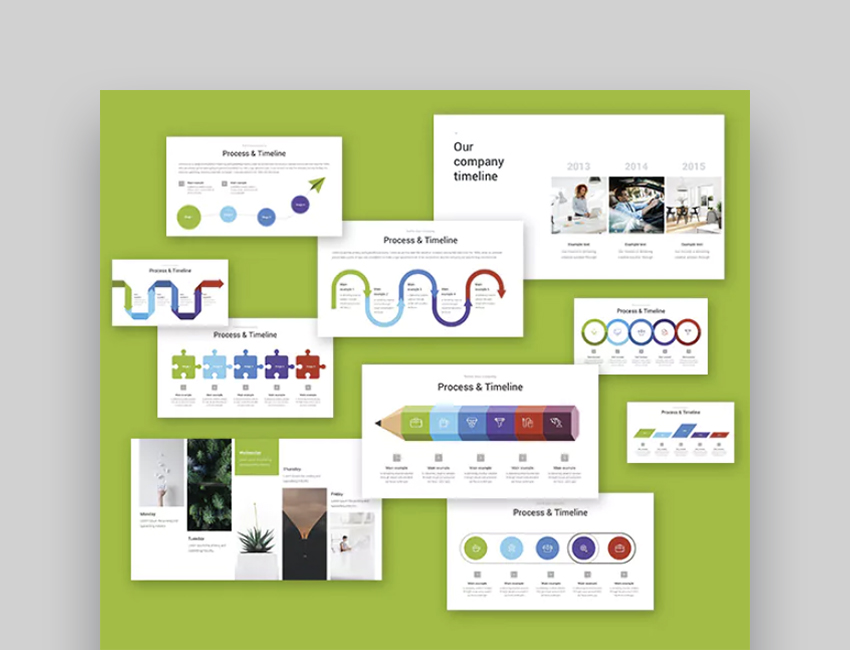
This Process and Timeline Template PPT comes with 80+ professional slides that include tons of presentation goodies like graphs, charts, tables, and diagrams. These elements can be easily edited to suit your needs and create any timeline or roadmap you may require. A good template pack to have handy.
2. Infographics – Timeline on PowerPoint Template
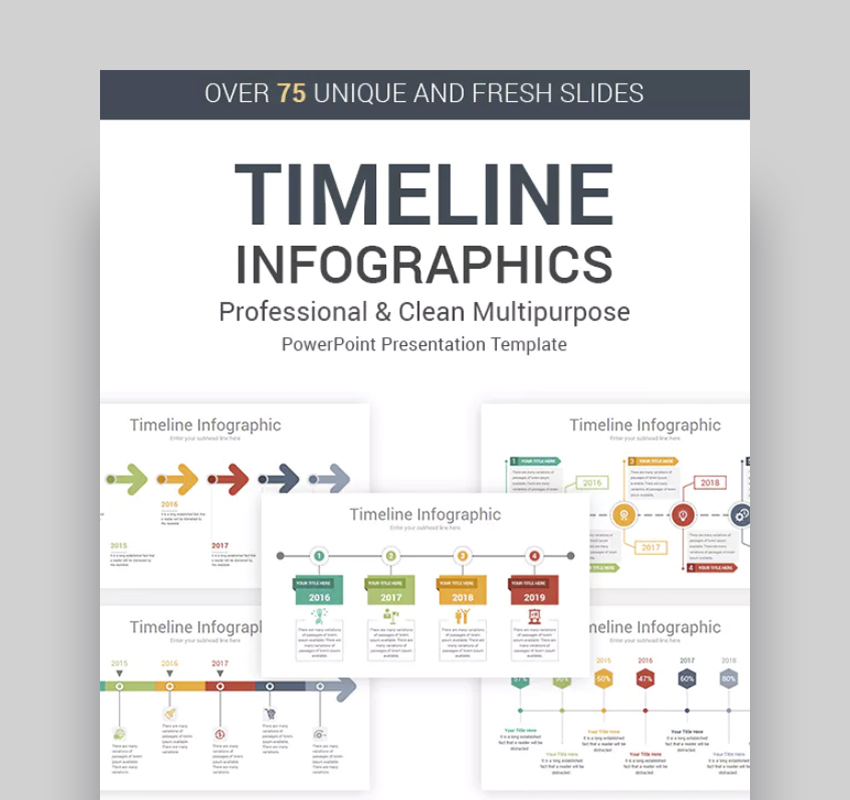
This premium template comes with 75 unique slides to convert your data visually into an amazing presentation. If you’re someone who created timelines often in your presentations, rest assured that with this professional and clean multipurpose timeline template PowerPoint you’ll be spoilt with all the choices.
3. Tables, Plan & Timeline Template PowerPoint
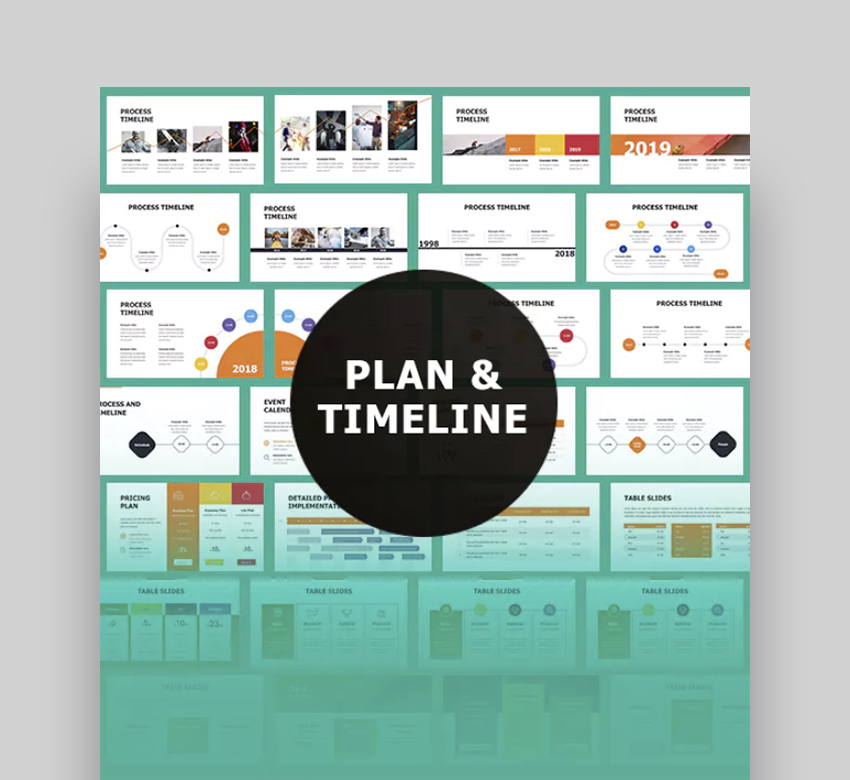
This is a premium tables, plan and timeline template. These 10+ professional slides allow you to change colors, modify shapes, text and charts. As with any premium template, this item offers you upcoming updates for free—never pay again. Get free support—a response within 30 minutes.
4. Roadmap Template in PowerPoint

The
Roadmap Template in PowerPoint offers two presentation file sizes (4:3 and
16:9). The download includes icons. It’s
easy to edit these professionally designed PPT roadmap templates
to add your own information and details. Plus, you can easily replace the image
placeholders with your own images.
5. Product PPT Roadmap Template

Here’s
an attractive PowerPoint template that’s just full of PPT roadmap templates for your
product development presentations. This highly editable PPT roadmap template makes it easy
to create good-looking product roadmaps. Type in your own text details and
replace the image placeholders with your own photos and images to create a
top-notch presentation.
6. Business Pitch Template (with Timeline PowerPoint Slides)

Although
this template was designed for business pitches, you’ll find that it also
includes a professionally designed product timeline on PowerPoint template. This
template includes both the 4:3 and 16:9 aspect ratios. Plus, it’s easy to
customize and make it your own. In addition to the time line PPT template slides, you’ll
also find many other attractive slide templates for your slideshow.
7. Project Timeline PowerPoint Template

Customers
love this versatile roadmap template in PowerPoint. And with 83
unique slide designs and 10 color schemes to choose from, it’s no wonder this
template is so popular. Here’s just some of what our customers have to say:
“The quality of the material is amazing. Recommended to all the one who
needs to prepare professional and stunning presentations!”
“Absolutely love these PowerPoint templates. Really flexible and of fantastic
quality. Love them so much I’ve purchased two more from the vendor. Thanks for
all your hard work. It has saved me masses of time!”
8.
Success – Timeline for PowerPoint Template

The Success – Timeline for PowerPoint Template comes packed with great
features to help your presentation succeed. Here’s just some of what you’ll get
when you choose this template:
- 19
different slides - 10
different color schemes - Over
2000 icons - And
much more!
9. 3D Infographic & Timeline Presentation Template
 Over 1200 slides of 3D infographic and timeline elements. Create awesome and professional presentations with these creative layouts. These 3D elements will take your presentations to the next level and impress your audience by showing how professional and organized you are.
10. Conservative – PowerPoint Timeline Example

A highly editable presentation template that includes a few unique and professional timeline slides in the same theme as the whole presentation. A clean and simple template that’s multipurpose and impressive.
20+
Free Roadmap and Timeline PowerPoint Templates for 2019
Getting a timeline or roadmap template PowerPoint free of charge might seem like a good
idea. But, free presentation templates are often not as full featured as
premium templates.
For
many free templates, “what you see is what you get.” They may not
include support or documentation. So, there’s no one to turn to if things go
wrong. And remember, many people are looking for free templates to use—so it’s
possible that many others will pick the exact same free template that you use. Your presentation may wind up looking just like everyone else’s, when you
were hoping it would stand out.
Still, I know that many
startups, students, and other small business don’t have a budget for a premium
template. If that’s the case, there are plenty of free PowerPoint roadmap templates available.
Sources for the best free PowerPoint roadmap templates on this list include:
Note: The
free Microsoft PowerPoint templates linked to here are hosted by their
respective sites. Their availability depends on the hosting site. Also, some of
these free templates have special requirements, such as that you provide attribution for your
presentation. Read the terms of use carefully.
Here’s
your list of free PowerPoint roadmap templates:
1. Serpentine – PowerPoint Roadmap Template Free. You can edit this colorful timeline
diagram that resembles a winding road. The timeline can be used horizontally,
vertically, or reversed for a different look.
2. Blue – Free PowerPoint Timeline Example

This
timeline template from Microsoft Office features a blue background with
horizontal chevrons where you add details. The aspect ratio for this PowerPoint
template is 16:9.
3. Spheres – Free Roadmap Templates. This free timeline for PowerPoint template slide comes with a
light and dark version. In this template each milestone is represented by a
sphere. Available for widescreen (16:9) and standard (4:3) aspect ratio.
4. 4 Years – Free Timeline in PPT Template. This timeline in PPT template is pre-designed with
four time slots, making it great for four-year plans, or any timeline that
needs to show progression over four time periods.
5. Simple – Roadmap Template PowerPoint Free. This seven-level linear timeline
shows milestones as colorful circles. It comes with a light and dark version.
You can change the color scheme if you want to.
6. Berlin Theme – Roadmap Template Free. This interesting PowerPoint timeline theme from Microsoft
shows the milestones as flags against a green background. This template is
available in a 16:9 aspect ratio.
7. 6 Years Arrow – Free Roadmap Template in PowerPoint

This
linear free timeline diagram features six milestone placeholders along a horizontal
arrow. The template comes with a light and dark version and is available in
both 16:9 and 4:30 aspect ratios.
8. 3D – PowerPoint Roadmap Template Free with Arrow. On this timeline
your milestones are represented by spheres along an upward sloping arrow. The
design is in 3D to give the elements added depth.
9. Milestone Shapes & Roadmap Template Free. With this time template, design your milestones are shown as traffic cone shapes along a roadway. The
endpoint (goal) is a round sphere.
10. Free PowerPoint Roadmap Templates. This PowerPoint roadmap template free is fully
editable. It features colorful milestones against a gray background depicted
along a linear timeline.
11. Five Data Points – PowerPoint Roadmap Template Free. This flat design timeline slide from
Microsoft Office features five round colored milestone markers along a
horizontal curved pathway.
12.
Project – Roadmap Template PowerPoint Free. This timeline chart resembles a calendar
week in a planner. With this download you get two background and two internal
slides. Available for widescreen (16:9) and standard (4:3) aspect ratios.
13.
Road to Success – Free PowerPoint Timeline Example

The
Road to Success PowerPoint Template uses the illustration of a road to denote
progress. The red yield-sign shapes represent fails, while success is pictured as a
green sphere.
14.
Roll Film – Free Roadmap Templates. In this PowerPoint timeline
template, time is shown as a strip of film with seven frames. Each frame in the
film strip is a milestone. Edit the text to add your own details.
15.
Infographic – Free Timeline Template PPT. This horizontal timeline from Microsoft Office uses
infographics to depict the timeline milestones. Use as is or change the colors
and add text to customize it.
16.
5 Agenda – Free Timeline Template PowerPoint. This free PowerPoint slide design can be used as
a vertical timeline with five points. It comes in a light or dark version and
is available for widescreen (16:9) or standard (4:3) aspect ratio.
17.
Creative – Free Roadmap Templates. Here’s a colorful horizontal
timeline PowerPoint template that comes with three different slide layouts.
There are slots for four milestones or levels in this design.
18.
Bomb – Free Timeline PowerPoint Template. This free PowerPoint template comes in
several different layouts. Use the bomb illustrations to represent milestones
on your timeline or other crucial points.
19.
GrowthTimeline w/Trees – Free Roadmap Templates

This horizontal PowerPoint timeline slide design has a
growth theme, which is shown by trees on the slide. This PowerPoint timeline
template is available in both a light and dark version.
20.
Timeline SmartArt Diagram – Free PowerPoint Timeline Example. This horizontal timeline from Microsoft Office uses the illustration of colored circles along an arrow to show the
passage of time. Add your own tasks or goals.
21.
Simple Table – Roadmap Template PowerPoint Free. This PowerPoint
timeline slide includes a horizontal timeline with a table beneath it where you
can provide additional details.
Learn
More About PowerPoint Templates
I’ve
just provided you with some great resources that’ll help you to create
PowerPoint timelines and roadmaps using a template. To learn more about using
PowerPoint, study these tutorials:
 Microsoft PowerPointHow to Make Professional PowerPoint Presentations (With PPT Templates)Andrew Childress
 Microsoft PowerPointHow to Quickly Customize a PowerPoint Template DesignAndrew Childress
 Microsoft PowerPointHow to Make a Timeline in PowerPoint With TemplatesAndrew Childress
Learn More About Presentations
Now that you’ve discovered where to find PowerPoint timeline and roadmap templates, you’re ready to start creating your presentation. You’ll want to take care to make sure that your presentation is the very best it can be. The right templates are just the first step in making sure that your presentation makes a good impression.
Another
way to improve your presentation is to learn more about how to make a good
presentation. To do that, you can grab our eBook: The Complete Guide to Making Great Presentations. It’s available to download for free with a subscription to the Tuts+ Business Newsletter.

3 Roadmap and PowerPoint Timeline Template Tips
Do you want to get the most from your timeline PowerPoint template? Follow these easy tips:
1. Convey a Single Growth or Roadmap Message

For each timeline template, it’s best to stick to a single growth or roadmap message per slide. It gets confusing for the audience when you try to cramp up a few different topics into a single slide. This also allows you to get creative with the images or way your present it.
2. Effective Content and Typography
Clear and concise content is the way to go for any presentation. This is especially important when it comes to a timeline slide. It also matters that the right typography is used on these timeline template PPT slides. Generally, the use of a sans-serif font is highly recommended as it tends to be more readable on digital screens.
Stay away from too many words, lengthy sentences and hard to read typography.
3. Use the Right Amount of White Space and Animation

It’s important to give your slides enough breathing room. Don’t put too many elements on a single slide. Every element on the slide needs enough space so the slide is easier to read and digest. You can also use a little animation to hide and show sections of the timeline as you go along in the presentation. This professional and organized way of creating your timeline makes it easy to digest and doesn’t confuse your audience.
Create
PowerPoint Timelines and Roadmaps in 2019
Although
you may be convinced that getting a PowerPoint timeline template for free is what
you need in 2019, don’t overlook the benefits of using a premium PowerPoint timeline
template such as those available through Envato
Elements and GraphicRiver.
Using premium PowerPoint templates means you’re basing your presentation on
professionally designed templates that not everyone has access to. Plus, you’ll
be able to put together a professional presentation more quickly.
Good luck on
your presentation this 2019!
Editorial Note: Our staff updates this post regularly—adding new Premium and Free PowerPoint Timeline and Roadmap templates with the best, trending designs.

{excerpt}
Read More
New Course: Create a Rain Scene With Envato Elements
{excerpt}
Read More