
Category: Tutorials
Tutorials,freelance,projects,joomla,php,mysql,wordpress,blancer.com
25 PPT Templates: To Make Simple Modern PowerPoint Presentations in 2019
Is your presentation deadline fast approaching?
You’ve got a room to deliver an engaging presentation to, and (to do that well) a message to practice and hone. The last thing you want to wrestle with are the complexities of designing simple presentation slides from scratch in PowerPoint.
You need is a clean PowerPoint presentation template that makes things simple—like a breath of fresh air. So, you can create a modern PowerPoint design that feels inviting and on target for your brand.

It can take time to compile all the elements that make a great presentation:
- craft a compelling narrative
- simplify your data
- pull together your graphics
- get your slides designed
Save time and create your presentation more quickly with modern PPT templates from Envato Market or use Envato Elements.
Simple PPT Templates on Envato Elements (With Unlimited Use)
In this article, we feature a curated selection of simple PowerPoint templates. These PPT templates feature a compelling blend of modern features and easy to use presentation options. And they all have creative designs crafted in a minimal style. So, you can quickly make a presentation in PowerPoint with a beautiful result.

If you’re looking for simple and flexible modern PowerPoint templates, a great place to start is with the simple PowerPoint presentation templates on Envato Elements. This all-you-can-download subscription service for creatives unlocks millions of assets, including excellent PPT templates with simple designs.

Simple Modern PPT Template Inspiration (From Envato Elements in 2019)
Elements library is so deep that it helps to have a guide to the top PPT templates with simple and stunning designs. Here are five of our favorites:
1. Simpleco – Fully Animated Template

The Simpleco fully animated template offers a simple, minimalist design with a huge range of 93 slide templates to choose from. All the charts, infographics, maps and pricing tables you could want are included, and it’s easy to update the text with your own information.
2. Fortuna Simple Template

Functional design is all about facilitating your content. This PPT template for simple presentations is all about staying out of the way of your big ideas. Use Fortuna for a bold and punchy presentation.
3. Banoe Minimal PPT
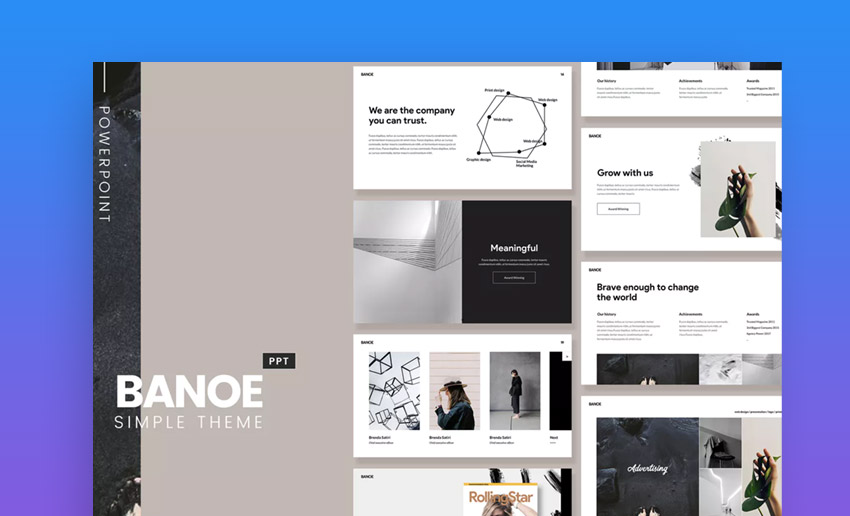
The best templates are usable across practically any category. That’s the case with the simple PowerPoint templates like Banoe. Each of the 40 simple presentation slides have great drag-and-drop image masks that are easy to fill in for visual presentations.
4. Authoer Modern PPT Template

Modern PPT templates use bold, punchy fonts to make an impact. Authoer implements this perfectly with the incredible typography and clean slides. One of the slickest designs in this round-up, Authoer is sure to reach your audience.
5. Mirror Modern PowerPoint Template

Rounding out our selections, Mirror has more than 10 color themes to perfectly match your branding. It’s easy to drag and drop your images into custom masks so that you build presentations come to life quickly.
Envato Elements (Design Without Limits)
Envato Elements has a single compelling (all inclusive) offer:
Sign up for Envato Elements and you get access to thousands of graphics and templates (with unlimited use), from creative website themes to simple templates for PowerPoint, and more—all for one low price.

That’s right! Download as many professional templates and graphics as you want, then customize them to fit any of your project needs.
Simple PPT Templates With Minimal Designs (From GraphicRiver for 2019)
If the clean PowerPoint templates above aren’t quite what you’re looking for, you can find plenty more elegant PowerPoint templates over on Envato Market. While Elements is an all-you-can-download model for grabbing assets, Envato Market allows you to buy individual templates.

Take advantage of the beauty of simplicity. Here are twenty modern PowerPoint templates with beautiful, minimal style designs:
1. Simplicity – Premium and Easy to Edit PPT Template

If you need a flexible presentation template, that’s extremely easy to customize, then Simplicity is a great choice. It’s got a clean, minimal design, and a number of professional presentation options. It blends versatile designs with simple style.
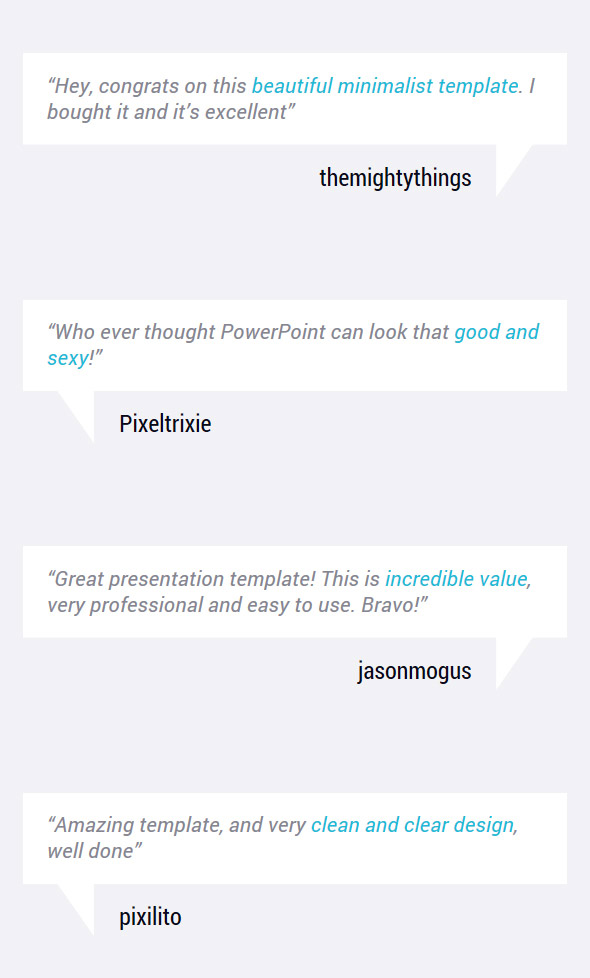
It’s also highly rated by the GraphicRiver community. You can see how positive the customer feedback is for this template:
2. Minimal PowerPoint Template

The stark black-and-white contrast in this minimal PPT template is the perfect way to build a simple presentation. Just use any of the 160 unique slide designs to craft your content into an impactful and straightforward presentation.
3. Balance – PowerPoint Presentation Template

If you’re looking for a creative PPT Template, with a minimal design, then Balance is stunning choice. It features modern slides with dynamic use of shapes to crop photos and present your slides with balanced grace. It features bold use of fonts and title cards with image overlays.
Whether you’re preparing to pitch a creative business idea, or need to give an important talk, you can create a beautiful PowerPoint presentation with this template. It comes with over 100 unique PowerPoint slides, 50 shape infographics, device mockups. and more. And it’s setup for ease of customization with features like drag-n-drop object placeholders.
4. Eureka – Minimal PPT Template

This PowerPoint template features a clean, modern design. It’s comes with easy to change colors, shapes, texts, and charts. It has a full array of over 200 minimal style template slides. With simple and dynamic shapes, like brush strokes, there are a number of creative presentation options.
It also has high ratings and great comments from users, like “Excellent quality and flexible structure. The perfect choice for marketing presentation.” Also, another customer, “The large number of graphics and design allows unlimited ways to customize your presentation.” This is an easy to use, versatile, creative PPT template to use for your next presentation.
5. Prism – Minimal PowerPoint Template Builder

Building a beautiful presentation design is so much easier with a high quality PPT template. Prism is a robust theme, with over 2,000 unique slide designs, and an attractive minimal design. It’s got over 3,000 vector icons, data charts, galleries, mockups, and more. All elements are editable in PowerPoint, without needing any additional software like Photoshop.
It’s got drag-and-drop ready placeholders and friendly features to work with. With the Prism PowerPoint template builder, you can create a professional deck with a great modern PowerPoint design quickly—without it having to take days to design!
6. Vidova – Modern PPT Presentation Template Design

Win business and impress audiences with this minimal style PowerPoint template. It’s a simple, elegant design with modern layouts and composed type use. It also has dynamic shapes that make up its variety of slide designs, from: circle-based layouts, to triangles, squares, hexagons, and angled photo crops. There are over 100 slide designs to put to use to engage your audience and create an impressive presentation!
7. Summit 2 – Multi Design PowerPoint Template

This is a multipurpose PPT template with a clean and creative design. There are five themes and hundreds of unique slide designs. It’s got a compelling mix of layouts that use photos, as well as those that use data, and vector icons.
All the graphics are resizable and editable. You can readily change the color scheme, drag-and-drop in your elements, and get a minimal style presentation designed quickly!
8. Chiara – Modern PowerPoint Template

Chiara is modern PPT template with uncomplicated sophistication. It’s easy to customize with no software other than PowerPoint needed. There are a little over 50 unique slide designs, so a healthy assortment of layouts, but not so many as to overwhelm you.
If you need to get a poised presentation done by tomorrow, this is a beautiful modern PowerPoint design to work with. You can display your team and business ideas in style.
9. ProStar – Simple PowerPoint Template
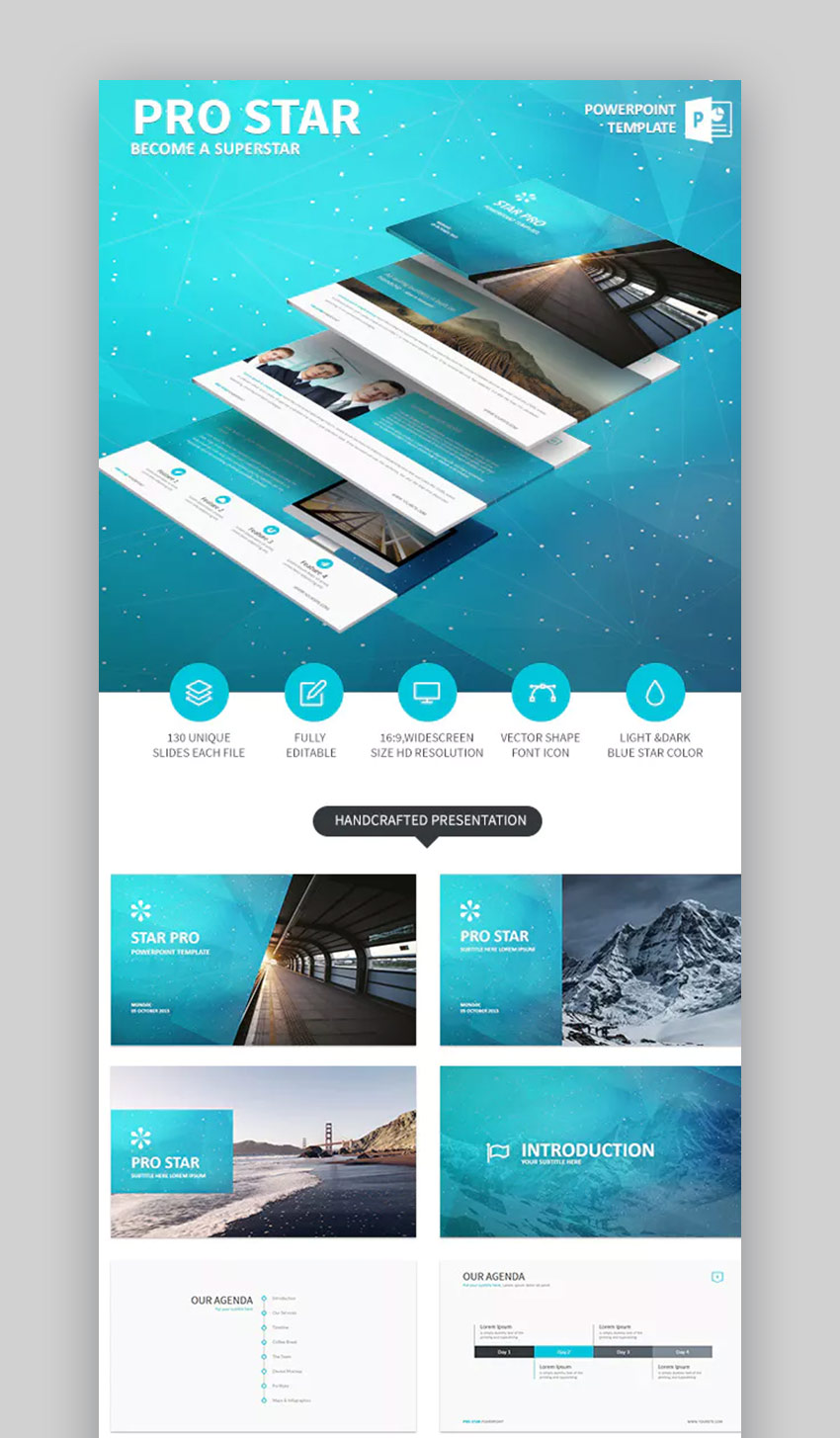
This clean PowerPoint business template is great for updating your team with an annual report, giving business plan presentations, or making a sales proposal. It’s versatile and packed with enough unique slide designs to fit a variety of presentation needs.
The fresh and modern PowerPoint design is complemented by a textured background that’s styled after a bright blue star. Show your simple PowerPoint presentation to your audience professionally—with just a whisper of creativity!
10. Lotus – Simple Multipurpose PPT Template

This light-themed, minimal PPT template, is quiet and professional—allowing you to craft a presentation that patiently approaches your audience and builds to crescendo. It’s simple and well-crafted layouts give you a bevy of layout options to work with.
It includes a number of unique slide designs to showcase your company and team, five ready-made color themes, as well as easy to edit infographic layouts, maps, and thousands of icons. Whether you’re an innovative agency or an inventive entrepreneur, Lotus offers a creative solution to your presentation needs!
11. Square – Modern PowerPoint Template

This minimal PPT Template features 50 high quality slide designs. There’s a linear square and line motif that runs through the designs. It’s a striking element that ties the variety of modern PowerPoint slide layouts together.
Make a stunning presentation with ease! If you run an innovative company, or are presenting a creative concept, this template is a great choice to use. And it’s got plenty of creative options, but not so many that it’s overwhelming.
12. Komand – PPT Business Theme

A successful presentation requires that you bring your ideas together cohesively to make comprehensible and compelling points. Romand is a minimal PPT business template that helps you keep your slide designs clean and your message clear.
This template has a little over 100 unique slides, with clean full animations, master slide setup, multiple slide layouts, infographic presentation options, and more—with a minimal, modern design!
13. Socran – Clean & Modern PowerPoint Template

Whether you need to stand out as a thought leader or land a new client sale, your ideas need to be heard. Saran is a modern PPT template, with plenty of functionality, but a minimal design style that helps focus your message. It’s got a creative, but uncluttered design, to keep your audience engaged and your message delivered clearly.
This creative PPT template has over 100 unique slides, a number of data-driven charts, device mockups, and infographics. And it’s fully-editable in PowerPoint so you can work faster—including features like picture auto-adjustments (size, transparency, shape, drag-and-drop, and more). Grab it now!
14. Helix – Simple PPT Presentation Template

This minimal PowerPoint presentation template has a simple design. There are 80 unique slide designs to work with and over 400 fonts. This template has a few robust features, without including a dizzying number of options.
It’s designed for ease of use, so you can quickly make adjusts to the professional layouts, infographics, device mockups, or image placeholders. Get your business presentation created today!
15. Cascada – PowerPoint Business Theme

Cascada is a versatile PowerPoint template with a simple, functional aesthetic. With it you can create just about any presentation, from funding requests, post launch reviews, market research, or team training. There are 120 creative slides with a variety of layouts. It’s built with clean, easy to change color styles, and includes a Smart Icon Library.
16. Swiss Style – Minimal PowerPoint Template

This Swiss-style PowerPoint template is a classic from our Envato Market archive. It’s built by Elite author DMXdesign. The layout style is minimal, and it features bold use of typography and shapes.
This contemporary PPT template is great for personal or corporate use. It includes slick, subtle animations, image and text placeholders, and smart objects that are easy to edit with the included Photoshop File.
17. Mevo – PowerPoint Presentation Template

Mevo PPT presentation template has 100 unique slides. It’s designed with a minimal style, but is composed of a number of creative features, including a full assortment of slide layouts, multiple color choices, icons, infographic options, charts, graphs, and more.
If you’ve got complex information to deliver, this template can help you simplify it down with just the right slide for each component of your info. This way, you can pack compelling ideas into your presentation, and grab your audience!
18. Mark02 – Modern PowerPoint Template

If you need to deliver a creative concept, grip a business audience, or impress your colleagues, this multipurpose presentation template is a great choice. Mark02 has a minimal, creative aesthetic with over 280 unique slide designs.
It’s great if you need a large number of slide layout options to build your simple PowerPoint presentation with. It features a compelling mix of slide designs, such as: team, timelines, service pages, devices, pricing tables, gallery showcases, infographics, charts, cycles, structured data, clustered info, maps, and more.
19. Simple PPT – PowerPoint Presentation Design

The Simple PowerPoint template is designed by Elite author inspirasign. Use it for corporate finance presentations or more creative business presentations. While it’s packed with design options, it’s setup to be easy to work with. The PPT file is based on Master Slides, easy to edit SmartArt, and one-click color changes.
There are over 100 unique slide designs, with a full selection of creative layouts. If you want a clean theme with a mix of illustrations, infographics, and business slides, then this Simple PPT template is a winner—get it now!
20. Hipster – Modern PowerPoint Presentation Template

This is a beautiful PPT template, with a stylish minimal design, and excellent balance of creative elements. It’s packed with energetic designs against a pristine canvas. And it features over 100 handcrafted slide designs, irresistible use of layered photography, modern fonts, and clean layouts. If you’ve got a creative or innovative business presentation to deliver, this simple PowerPoint template is compelling to work with!
5 Simple PowerPoint PPT Presentation Tips
Here are five quick presentation tips. They’ll help you design a clear presentation with a minimal design. Also, tell a memorable visual story with a focused presentation.
1. Start With a Minimal PPT Template
You want to choose a simple PowerPoint template that fits your needs well. It should also be on-style for your brand, with a modern PowerPoint design that’s not only attractive, but a great match to you or your business.

The templates above all have a minimal style, with creative slide designs, but they range in complexity. Some are packed with features, while others are streamlined.
If you’ve got to give your presentation by the end of the week, then choose a template that’s really easy to work with and has limited features, like these:
- Warlock Minimal is a good choice in this case, because it gives you simple, functional designs, but not an overwhelming number of options.
- Or the Minimal Maska is a stylish choice with a limited feature set.
Both are quick to work with to build a great presentation fast. Either of these PPT templates can be customized quickly with a professional workflow.
Whereas, if you’re designing presentations for your agency or startup and need multiple options, you can get a clean minimal style PowerPoint that’s packed with a bevy of features, such as: multiple slide design options, infographics, device mockups, drag-and-drop workflows, and more. In this case, the modern PowerPoint template Socran would be an excellent choice. It’s packed with functionality but features a minimal style design.
Also, when choosing a template, don’t feel like you’ve got to make use of every feature they come with. Instead, only use the components that fit your message well.
Learn more about how to customize a PowerPoint template in this tutorial:

2. Remember: Less Is Often More Effective
Use design to pull together your points and lead your audience through your presentation.
For each slide choose a modern PowerPoint design that best fits the material. An infographic may be best for presenting data, whereas a comparative slide may be right for showing how your offer differs from the competition, and a gallery can showcase your team or products. Work with the slide layouts that best fit your message.
Keep in mind though, a minimal slide design is easier for an audience to read and understand. They can keep track of your points and follow along with your presentation. Take care that you don’t try to pack too much information into your slide designs or overdo it. You don’t want too many visuals or walls of text that would overwhelm your audience, instead keep your slide designs focused.
Avoid clutter and confusion and aim for clarity. Learn more about how to design an effective presentation in this tutorial:

3. Focus Your Presentation Message
Design isn’t the only concern when crafting your presentation. Your message is the driver, whereas design is just the vehicle it travels in. Design supports your points, but first, you need a well-honed narrative.

To begin crafting a compelling story for your presentation, put your audience first. You need to keep their attention, address their needs, and meet their expectations. Consider:
- Why they’re coming to your presentation?
- What questions they could have?
- How they might react to your primary message?
The more of these points you address, the better your presentation will resonate with them. Learn more about how to craft a persuasive presentation:

And don’t begin designing until you’ve got your presentation written, your message clear, and the data you want to present ready to work with. And make sure you’ve got a compelling hook and story to tell.
Then spend time simplifying your presentation so that it’s easy to understand. If your message is unclear, then simplify it. If you packed too much into a slide, then cut it down for clarity. Learn more about how to write a PowerPoint presentation:

4. Add Infographics to Simply Explain
Too many presentations lose the audience due to the content’s complexity. Detailed slides with too much text will fail to reach your viewers.
That’s why I always recommend using infographics to explain. Combining the information with graphics helps the visual learners in your audience to quickly understand ideas that text alone can’t explain.
Use the infographic round-up below for the best graphics that explain complex concepts:

5. Animate Just One Slide Element
Animations might seem to add more complexity, but they can bring simplistic focus to the most important elements.
It’s best to use animation to reveal just one key point. Click on an object, then jump to the Animations tab and choose an effect. As you advance through slides, this key point will stand out.

Check out the round-up below for the best animation templates:
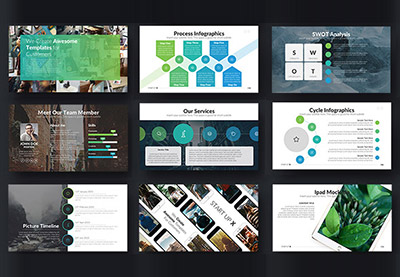
Create a Simple, Effective PowerPoint Presentation (In 2019)
Presenting with clarity helps you establish authority and trust with your audience. And a connection with your audience allows you to make your concepts clear and your points ring true, which leads to changing minds and winning deals!
Free eBook on Making Great Presentations
Download The Complete Guide to Making Great Presentations now for FREE with a subscription to the Tuts+ Business Newsletter. Get your ideas formed into a powerful presentation that’ll move your audience.

More Great PowerPoint Tutorial Resources
If you need further information about how to craft a compelling presentation, here are additional PowerPoint tutorials and tips:
 Microsoft PowerPointHow to Make & Give Great PowerPoint Presentations (In 5 Simple Steps)Andrew Childress
 Microsoft PowerPoint43 Effective PowerPoint Presentation Tips (To Improve Your Skills)Brad Smith
 Microsoft PowerPoint19+ Best PowerPoint PPT Template Designs for 2019Sean Hodge
Grab a Simple PowerPoint Template Today!
A minimal style PowerPoint is a great choice for a wide variety of presentations. We’ve got a number of simple PPT Templates to choose from on Envato Market or use Envato Elements to download all of the PowerPoint templates you need for a single flat rate.
Learn how to quickly customize your PowerPoint template and start your presentation off with a professional design!
Editorial Note: Our staff updates this post regularly—adding new, exciting infographic PowerPoint templates with the best, trending presentation designs.

{excerpt}
Read More
25 Best PowerPoint Slide Design Templates (PPTs for 2019)
In today’s instantly interconnected world, communication is more important than ever. No matter the subject, innovative PowerPoint presentations are a must to carry your message to an audience.

In this article, we’re going to focus on 25 of the best modern, trendy PowerPoint template designs that are perfect for your presentations in 2019. Each one helps you project a cool and professional image to your audience—before you ever say a word.
PowerPoint Presentation Design Challenges for 2019
The problem in 2019 will be communication overload, and the question for you, the presenter, becomes: “how do I stand out above the crowd and make my message heard?”
The trick is to use trendy, modern PowerPoint slide design templates. Memorable and effective, the best design for PowerPoint presentations is truly multisensory—it’s not just what the audience hears, but what they see. In other words, you might have the best message ever, but if it looks bad, audiences may judge harshly or even forget what you had to say.
Another fundamental truth is the constant hustle and bustle of modern life. Most of us don’t have the time, resources, or skillset to build new PowerPoint slide designs from scratch.
That’s why it pays to use stunning pre-built templates from Envato. They take the hard work out of building presentations. All you’ve got to do is choose one that fits your message and style, drop in your content, and give an epic presentation.
Best PowerPoint Slide Design Templates on Envato Elements (With Unlimited Use)
You can find hundreds of the best PowerPoint presentation templates on Envato Elements, with a great offer: download as many as you want for one low price.

The premium PowerPoint design slides we feature here from Envato Elements are designed specifically for communicating your ideas quickly. If you need the best PowerPoint design template that you can customize quickly, we’ve got the best ones to work with in this article.
You can swiftly add your business ideas, insert your data, showcase your innovative solution, and craft exactly the slides you need to win the room.
These ready-to-use templates have unique slide designs for PPT and great visuals to choose from. You can use them to showcase the concepts in your PowerPoint presentation with pre-built slides for your:
- business plan
- product vision
- business model
- market size
- infographics
When you’re preparing your presentation, you need all of the help you can get to save time and impress the audience. Starting with designs for PPT will save you hours of design work and increase your performance.
Just add your business ideas and key data to these already visually impactful business plan PPT slides, quickly prep your business template, and you’re ready to win over your audience.

Best PowerPoint Slide Design Templates (Envato Elements)
Imagine you’re presenting research findings to your college class. Or suppose you’re a corporate executive pitching a concept in search of funding. No matter what you’re presenting about, and who you’re presenting to, the goal is really the same: persuasion.
By getting a favorable impression, you’re seeking understanding, approval, and agreement. With pre-built PowerPoint slide design templates, leave styling to the professionals. You’ll have more time to focus on your message.
My favorite source for the best PowerPoint templates in 2019 is Envato Elements. Elements
provides an incredible all-you-can-download resource for creatives, with a low
monthly fee.
Elements has such a huge selection, so it really helps to have a starting point for choosing a PowerPoint slide design template. I’ve focused on five of the best below:
1. Evolution – Modern PowerPoint Template
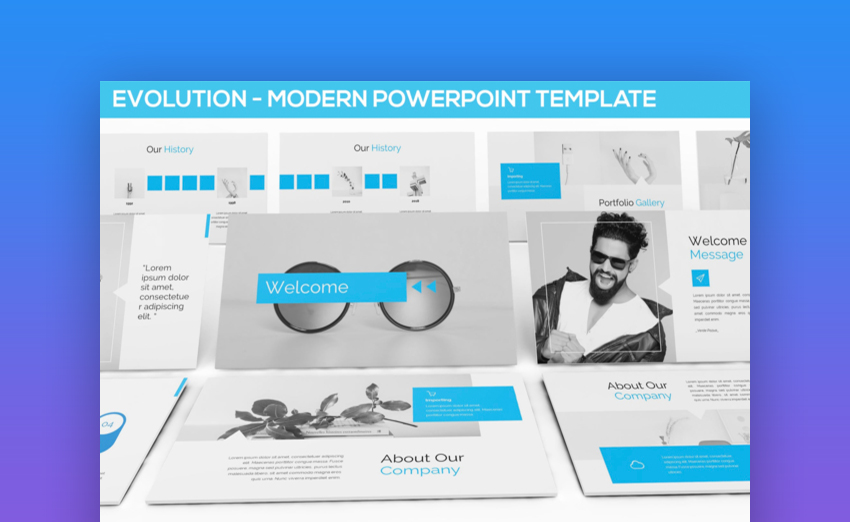
When I’m choosing a template for my own projects, it’s key to find one that offers a lot of creative flexibility. Evolution is a prime example. This sleek, modern PowerPoint design is geared toward those building a comprehensive slide deck in 2019.
With a vast assortment of layouts, color options, and content placeholders, your work will become really simple. Simply download the template and insert your own content, and this professional template from Elements does the hard work for you.
2. ONE Modern PowerPoint Template

Nothing speaks to timeless elegance quite like the style of classic newsprint. Black and white colors provide stunning contrasts, with vivid images to illustrate the story. This vibe is captured perfectly by the ONE—one of the best PowerPoint templates from Elements.
This slide design template also includes all the modern touches you’re looking for, with placeholders for photos, video, and a collection of charts and graphs. Although it’s almost 2019, some things never go out of fashion, a fact captured perfectly right here.
3. BePro PowerPoint Business Template

BePro is the perfect starting point for anyone looking to build a cool, professional presentation design for their business. It includes all kinds of content placeholders built around stunning visualizations of data.
Simply drop in your text, numbers, images, and graphics, and feel confident that your business is getting the portrayal it deserves.
4. Adren – PowerPoint Template

This PowerPoint slide design themes stands out for pastel colors and graphics inspired by the natural environment. Similar in styling to a modern magazine, Adren allows you to envelop your PowerPoint slides in the true essence of style.
Don’t forget to check out the many slide layouts and animation options included to bring additional customization to your presentation.
5. Kintel Modern Portfolio PowerPoint

With its unforgettable styling and bold fonts, Kintel is a top design PowerPoint theme for 2019. The vibe is modern, yet rustic—this one’s perfectly suited for showcasing art and all of your other graphic design work.
You’ll also find hundreds of icons and dozens of uniquely themed slide layouts. It’s up to you to choose what works best for your slide design and transform your vision into reality.
Envato Elements (Design Without Limits)
Envato Elements has a single compelling (all inclusive) offer:
Sign up for Envato Elements and you get access to thousands of graphics and templates (with unlimited use), from creative website themes to presentation slide deck templates, and more—all for one low price.
That’s right! Download as many professional templates and graphics as you want, then customize them to fit any of your project needs.
20 GraphicRiver Designs for PowerPoint Slides
While Elements is an incredible resource for creative projects, it isn’t the only option Envato offers. GraphicRiver is another great choice for designs for PowerPoint slides. Rather than paying for a membership with unlimited downloads, GraphicRiver is pay-as-you-go; simply find a PowerPoint slide template you like, purchase it, and start filling it in.

What’s more, GraphicRiver has countless incredible trendy and modern slide designs. Here are 20 of my favorites.
1. Getren Creative PowerPoint Template

This PPT slide design set includes 475+ slides for every purpose. The modern designs for PPT are editable and customizable, and include maps, infographics, and more. You’ll wow your audience with these professional looking PowerPoint design slides.
2. Space PowerPoint Template

These PowerPoint design templates have a cool, modern look. It includes 45 master slides with 150 slide design templates. These are ideal for business infographics, company data presentations, and more. You’ll find them easy to customize to match your branding and purpose.
3. Modern – PowerPoint Template

With 80 unique and creative PowerPoint design slides, you’ll be able to showcase trends, data, and facts as part of attention-getting presentations. This PowerPoint design slide set is easy and quick to customize, and includes image placeholders, and free fonts.
4. Motagua – Multipurpose PowerPoint Template

Motagua is the ultimate in multipurpose templates, with over 40,000 slide designs included. It also includes a ton of chart and graph examples and is perfect for data-driven presentations. Choose between dark and light themes and dozens of color palettes to add even more variety to your presentation in 2019.
5. Simplicity 3.0 – Premium and Easy to Edit Template

This template is the perfect choice if you want to keep your styling clean and simple. It’s built in the minimalistic tradition to make your text pop. Optional bold color flashes bring emphasis to the many pre-built content placeholders.
6. Verzus Minimal PowerPoint Template

Verzus is another great option for clean styling. One thing that sets this template apart is the dark theme—a somewhat unusual feature in minimalism-inspired templates. The vibrant contrast this inspires is sure to engage your audience. It’s a frontrunner among favorite new slide designs for 2019.
7. i9 Template System

Easily edited and elegantly refined, this modern PowerPoint theme offers over 13,000 custom PowerPoint slides and a vast array of color and image customizations. Idea trees, pyramids, and geographic maps are but a few of the slide designs included here. This one is ideally suited for globally centered and worldly presentations built around a wide outlook.
8. Business Proposal PowerPoint Template

This corporate-themed PowerPoint template is one of the best choices in this round-up for a proposal pitch deck. Pitch decks are used to pitch big ideas to investors and other interested parties. This template includes all the pre-built PPT slides designs essential to conveying all the vital details about your company in a sleek, professional style.
9. Massive X Presentation Template

Looking for total customization options, fun animations, and dynamic fonts? All can be found here, in this vector graphic-driven PowerPoint design theme. There are over 300 slides to choose from to hit just the right notes in your presentation. The high-resolution graphics ensure the presentation looks great, even on 4K and retina displays—ever more common in 2019 and beyond.
10. Stunning Company Profile PowerPoint Presentation Template

A corporate profile theme is well-suited for sharing general details about your business. This example encompasses a wide array of organizations with almost 8,000 PowerPoint slides and dozens of color themes. In the modern business environment, it pays to have a profile slide deck ready to roll out in a flash. Build one quickly with this professional theme. Just drop in your content and go.
11. Business Data 3 in 1 Pitch Deck Bundle

Another prime choice for business pitch decks, this PowerPoint presentation design includes some nifty special features. One example: device mockups. Perfect for app and software developers, these allow you to illustrate your products as they would appear on the screens of computers, tablets, and even watches. Once, such mockups would’ve required considerable creative prowess. Now, you can achieve them in seconds.
12. Zembra Multipurpose PowerPoint Template

Zembra is an easy catch-all template positioned to suit a variety of circumstances. It includes everything from text-heavy PPT slides to image placeholders, charts, graphs, and more. Even if you’re giving a niche presentation, chances are you’ll find slides here that work for you. Remember to try out the 40 color themes to jazz up your slides even more.
13. be PowerPoint

The be template is a powerful and inspired evolution from minimalistic whitespace. The style is clean and elegant, but emptiness is filled by an emphasis on imagery. Gradient backgrounds and dynamic custom charts wrap your message in a trendy vibe of modern cool.
14. Marketofy – Ultimate PowerPoint Template

No time for picking and choosing different slide layouts from many sources? Marketofy is a perfect fix. You’ll find virtually every layout imaginable, with placeholders for every type of content you might present in 2019. All the thematic diversity is boosted by the fact that all elements are fully editable and customizable, making the possibilities truly limitless.
15. PowerPoint Template Professional Pack

In need of charts, graphics, and a visually-driven layout? Many contemporary, modern charts are included, including Gantt charts, SWOT matrices, and fishbones. Each of these serves as a method of visualizing data and putting it into perspective. It’s time to up your PowerPoint visual-aid game for 2019!
16. Startup Business Plan PPT Pitch Deck

This pitch-deck template is geared toward startups and entrepreneurs eager to share their big idea. As a startup, potential investors need to know all they can. Most aren’t willing to invest cash in unfamiliar or poorly explained ventures. It’s up to the founders to convey all relevant details in an honest, open, and modern PowerPoint presentation to get the money flowing. Everything necessary is right here. Drop in your own story and go forth.
17. Ready – Pitch Deck Multipurpose PowerPoint Template

Another solid pitch deck option, Ready is customizable for many uses. Noteworthy are the industry and message-specific pitch deck slide design themes. Included are elevator speeches, problem and solution testimonials, marketing strategies, and competitive analyses. Those make this custom theme ideally suited to business cases far in excess of mere pitch decks.
18. Wow Slides for PowerPoint

This 100+ slide theme features hundreds of custom icons, engaging animations, and sleek transitions, so this pack can meet nearly every need. PSD files are included if you need edits to exacting specifications.
19. Project Status PowerPoint Presentation Template

If you’re looking for bright, attractive slides, Project Status has some of the best PowerPoint design slides. These let you easily show the progress of your project, from conception to realization, highlighting milestones and achievements along the way. These designs for PPT are simple to customize for every business need.
20. Prism Minimal PowerPoint Template Builder

Prism Minimal is one of the best PowerPoint designs for those who like to keep things simple in their presentations. Most slides are black and white, with just a hint of color, so your audience can easily focus on your message. The PowerPoint slide design set includes thousands of icons, plus slides to help you present your business and team at a glance.
PowerPoint (PPT) Slide Design Tips
As you can see, Envato has countless PowerPoint slide design templates to offer in 2019. But no matter which one you choose, there are a few tips and tricks that can help you build the best presentation possible. Here are some of my favorites:
- Choose a theme that fits your message. Bright colors and whimsical graphics might not fit a corporate pitch deck but might be ideal if you’re talking to kids. Before making your choice, think about 1) who you’re presenting to and 2) what message you’re trying to convey. By doing this, you’ll pick a slide design template that’s fully complementary to your presentation.
- Keep your PowerPoint slides clean. What looks good on your computer screen might turn into a cluttered mess on a giant wall projector. Be sure you use fonts that are large and clear enough to be readable from the back of a room. Avoid filling PPT slides with text and be sure chart labels are easy to see.
- Avoid dizzying animations. Even though PowerPoint’s fancy animations and transitions might look cool to you, they can distract and annoy your audience. When changing slides, or animating objects onto a slide, it pays to keep things simple. Elegant fades and pushes ease content on and off the screen in a calm, non-distracting way.
- Set a clear objective. Each PPT slide should have a clear purpose. Be sure text aligns thematically with a slide title, and that charts and images have a clear relation to the content around them. Nothing is worse than a confused audience. Always remember that a PowerPoint presentation is meant to be a visual aid and not a puzzle!
For even more design tips, check out this tutorial from Envato Tuts+:

Download Our Free PDF eBook on Making Great Presentations
We’ve got the perfect complement to a professional PowerPoint template, that’ll help you learn how to write, design, and deliver great presentations.
Download The Complete Guide to Making Great Presentations now for FREE with a subscription to the Tuts+ Business Newsletter. Get your ideas formed into a powerful presentation that’ll move your audience.

Get a Head Start on Your Slide Design: Grab a Professional PowerPoint Template Design
In 2019’s hustle and bustle, you don’t have the time and energy to build a PowerPoint presentation design from scratch. So, it pays to use pre-built slide design themes like these.
Whether you choose Envato Elements’ unlimited downloads, or purchase individual PowerPoint template designs from GraphicRiver, you’ll find a plethora of dynamic slide templates at your fingertips. So now, it’s time to get started! Download your favorites today and begin building trendy, modern presentations for 2019.
Editorial Note: Our staff updates this post regularly—adding the best new PowerPoint template designs.

{excerpt}
Read More
This week in tech history: Google Assistant is born

The Morning After: ‘Minecraft Earth’ remakes our world into a blocky AR sandbox

Welcome to your weekend! Microsoft is hoping that its augmented reality Minecraft game will top Pokémon Go this summer, and did Lenovo really steal a fan-made video to promote a foldable RAZR? Check out s…
International Artist Feature: Belarus
Welcome back to our International Artist Series.
Today,
we’re catching up with four amazing artists from the Eastern European country of Belarus. I
asked each artist how
their region and culture influenced their work, and they delivered
great
responses.
Control Terminus
Our first feature belongs to Control Terminus, an intriguing artist from the capital of Belarus. Their exquisite traditional portraits know how to draw you in, and Control’s work is a great mixture of texture and finesse. Check them out below.
See more in their portfolio and follow them on Instagram.
End
What I love about Belarus is the sky—like the color of television, tuned to a dead channel.

Drawing
In my work, I have always tried to overcome the personal in order to reach an archetypal. But I am also a part of a specific cultural matrix and it’s the heritage of my ancestors.

The Woman Clothed With Sun

Ink & Watercolor on Paper
As far as I can see my country
is isolated from the world’s cultural process. Regrettably.
I believe that the whole cultural situation
is absurd and is nonsense. There is no such thing as the
art-market in this country, so young artists have no
opportunity to find support if his works do not satisfy
the conjuncture and/or commercial trends.

Iulia Radishevskaya
Next is Iulia Radishevskaya, a brilliant illustrator from Minsk, Belarus. Her work is delightful and cheerful, inviting you into worlds that you could absolutely get lost in. Just check out these select few.
See more in her portfolio and follow her on Instagram.
Magic Forest
I was born in Belarus, Minsk, and, of course, I love the place where I
grew up. I am glad that nowadays the training of creative specialties is more
accessible and various events are held with artists from
other countries.

Office Yoga
For example, thanks to the Vulitsa Brazil Festival, the city
has some great murals. All these movements inspire us to join in on cultural life
and create.

Magic Forest

New Year Team
In the era of the
Internet, artists from the other side of the world
have a great influence on someone’s creativity. This allows us all to
take a broader look at our work and other people’s art, in order to develop
dynamically.

Yuliya Seif
2D artist Yuliya Seif brings us her charming digital and traditional illustrations influenced by her beautiful surroundings. Enjoy these fun characters to inspire some happy vibes.
See more in her portfolio.
Meeting of Two Friends
I am not a staunch patriot, but I love my country and, of course, the
capital – Minsk in which I grew up and live. There is no feeling of eternal hurried life since Belarus is known for its beautiful
and clean natural lakes, rivers and forests.

Jim Character Design
Our
country is rich in talented people. Belarusians have managed to preserve their traditions and folk customs. But modern art is also developing very well,
new art galleries are opening and various cultural events and festivals have been
organized.

My Book

Sea ??Dreams
Only your skill, experience and understanding in a
particular area are needed here. Belarus is still a young country and the art
community is just starting. So I think in the near future this
area will be more developed.

Pavel Aksionau
Our final feature goes to animation and motion designer, Pavel Aksionau. You’ll love his fluid and creative style. We could only fit the images here, so be sure to click on them to visit the official animations.
See more in his portfolio.
GeometricMan
Belarus is a country that has absorbed the unique features of the West and East. There is a moderate pace of life that allows you to
concentrate on creativity and personal attitude.

Light Bird
My work is influenced by various cultures, including Belarus. In
particular, the Ethnas of Belarus are full of symbolism and
abstractionism.

Happy Halloween Behance

Mask Vol.1
I am in two art communities on Behance. The Belarusian Community and Belarus, The Best. Here, there are many
interesting artists, designers, and animators with their own unique vision
and style. In general, they are very friendly within the art community.

Many thanks to the artists who took the time to answer my
questions and share a bit about themselves and how their country and/or culture
has affected their work. You can check out more of their work in the links
below:
Love these features? Check out more from this series:
 Global InfluencesInternational Artist Feature: PanamaMelody Nieves
 Global InfluencesInternational Artist Feature: JordanMelody Nieves

{excerpt}
Read More
Next ‘Apex Legends’ update addresses audio issues

Google is shutting down the Jump VR platform in June

An Easy Way to Code a Mega Menu in WordPress
In this tutorial, I’ll show you how to code a mega menu and add it to your theme.
What You’ll Need
To follow along with this tutorial, you’ll need the following:
- A development installation of WordPress (don’t add this to your live site until it’s all working correctly).
- Your own theme that you can edit, or if you’re using a third-party theme, a child theme for that theme.
- A code editor.
I’m using a third-party theme (ColorMag), so I’m going to create a child theme of that and add my styling to that.
How the Mega Menu Works
Our mega menu will take the code output by the menus system in WordPress and display it as a mega menu. I won’t be adding an additional menu to the site: you could do this if you wanted to, but as this mega menu won’t work on smaller screens, I prefer to stick to the same menu. This is because I like to give users on mobile and on desktop access to the same navigation.
The mega menu will be styled to only work on larger screens. For smaller screens, I recommend using a burger menu, which is invisible until the user taps on a burger (three horizontal lines) icon. You can find out how to code a burger menu in our tutorial on coding a burger menu.
 WordPressCode a Burger Menu for Mobile Users in WordPressRachel McCollin
Getting Started
The first step is to add plenty of menu items to your menu. This means you will have lots of content to fill your mega menu with.
I’ve added lots of links to my menu, with three levels of navigation. When the user hovers over a top-level menu item, the items below that will appear in a mega menu. Right now, they appear in the standard layout:

Let’s start by identifying the code that’s output by this menu in the front end of the site. Here’s the (edited) code for my menu. I’ve taken out some of the li elements and removed most of the CSS classes so you can see the structure of the HTML:
<nav id="site-navigation" class="main-navigation clearfix" role="navigation">
    <div class="inner-wrap clearfix">

        <p class="menu-toggle"></p>
        <div class="menu-primary-container">
            <ul id="menu-main-nav" class="menunav-menu" aria-expanded="false">
                <li><a>Home</a></li>
                <li>
                    <a>Top Level Item</a>
                    <ul class="sub-menu">
                        <li><a>Second Level Item 1</a>
                            <ul class="sub-menu">
                                <li><a>Third Level Item 1</a></li>
                                <!-- more li elements -->
                            </ul>
                        </li>
                        <li>
                            <a>Second Level Item 2</a>
                            <ul class="sub-menu">
                                <li><a>Third Level Item 5</a></li>
                                <!-- more li elements -->
                            </ul>
                        </li>
                        <li><a>Second Level Item 3</a>
                            <ul class="sub-menu">
                                <li>
                                    <a>Third Level Item 7</a>
                                </li>
                                <!-- more li elements -->
                            </ul>
                        </li>
                    </ul>
                </li>
                <li>
                    <a>Another Top Level Item</a>
                    <ul class="sub-menu">
                        <li>
                            <a>Second Level Item 4</a>
                            <ul class="sub-menu">
                                <li><a>Third Level Item 12</a></li>
                                <!-- more li elements -->
                            </ul>
                        </li>
                    </ul>
                </li>
            </ul>
        </div>
    </div>
</nav>
There’s a lot of code there, but I recommend taking a moment to study it as it helps us identify the classes and elements (and sub-elements) we’ll need to target with CSS in order to create our mega menu.
We can use the CSS classes generated by WordPress to style our mega menu and to ensure it’s laid out correctly. We’ll use a media query to ensure that the menu appears only on screens that are large enough.
The specific elements we’ll be targeting are:
.main-navigationulelements beneath that (includingul ulandul ul ul)liandaelements inside the ul elements.
On smaller screens, I’ll make the default menu visible, although I recommend using a mobile alternative such as a burger menu on very small screens. My theme already has a burger menu coded into it for small screens, so I don’t need to worry about that.
Note: the HTML output by your theme will be similar to mine as it’s generated by WordPress. But there will be differences, such as the class or ID of the main navigation element. It pays to check it first, just to be sure.
Setting Up the Media Query
The first step is to add a media query for the mega menu styling (if you need it). In your theme’s stylesheet, add this:
@media screen and ( min-width: 500px ) {

}
You can change the min-width value to whatever works on your theme and corresponds to the media queries already present for any burger menu.
Styling the Layout
My existing menu is styled so that third-level items are only displayed when I hover over the second-level item immediately above them. I want to change this so that all menu items appear. I’ll then style them so that they’re laid out correctly.
Let’s start by making second- and third-level menu items visible when the user hovers over the top-level item.
Add this to your stylesheet, inside the media query:
.main-navigation ul:hover li ul,
.main-navigation ul:hover li ul li ul {
    display: inherit;
}
Now, when you refresh the page and hover over a menu item, it looks a bit like this:

The second- and third-level items are visible, but they look very messy, to put it mildly. Let’s fix that.
We’ll do that firstly by making the li element under each top-level item full width. To make this work, we’ll have to remove any relative or absolute positioning for elements above those by making them static. We’ll also add display:inherit to ensure lower-level menu items are visible when the top-level item is hovered over.
Add this to your stylesheet:
.main-navigation {
    position: relative;
}
.main-navigation li {
    position: static;
}
.main-navigation ul li:hover ul {
    display: inherit;
    position: absolute;
    left: 0;
    right: 0;
    width: 100%;
}
.main-navigation ul li:hover ul li ul {
    display: inherit;
    position: relative;
    left: 0;
}
The menu now looks like this:

It’s full width, but we need to do something to improve the layout. Let’s add a float to the second-level lists so that they appear next to each other.
Add this to your stylesheet:
.main-navigation ul li:hover ul li {
    float: left;
    position: static;
    display: block;
    padding-top: 1em;
}
.main-navigation ul li:hover ul li ul li {
    float: none;
    padding-top: 0;
}
Now the menu is looking better:

The float is working, but the background color is off. Edit your styling for the .main-navigation ul li:hover ul element to add background styling. The specific color you use will depend on what your theme is using.
.main-navigation ul li:hover ul {
    display: inherit;
    position: absolute;
    left: 0;
    right: 0;
    width: 100%;
    background-color: #bababa;
}
Now the menu looks better:

Let’s add some color and layout styling to the individual lists, to make the second-level items more prominent. Add this to your stylesheet:
.main-navigation ul:hover ul li a:link,
.main-navigation ul:hover ul li a:visited {
    color: #b01b1b;
    text-decoration: underline;
}
.main-navigation ul:hover ul li ul li a:link,
.main-navigation ul:hover ul li ul li a:visited {
    color: #fff;
    text-decoration: none;
}
This makes the lists look better, with second-level items being underlined and red. Feel free to amend these colors to fit with your theme.

Finally, let’s remove the top margin on third-level items so they are bunched together more closely. Edit the code for them as follows:
.main-navigation ul:hover ul li ul li a {
    padding-left: 1em;
    padding-top: 0;
}
Now the menu looks much tidier:

We now have a functioning mega menu, using the main navigation menu from our theme.
You Don’t Need a Plugin to Create a Simple Mega Menu
If you want to create a simple mega menu using the contents of the WordPress navigation menu, this technique will let you add one to your theme without too much extra code.
However, if you want to add extra features such as custom styling and images, using a plugin will probably be quicker. You’re sure to find one that meets your needs in our list of the top mega menu plugins.
 WordPressUberMenu and 7 Other Best Mega Menu PluginsJane Baker
 WordPressHow to Make a Sticky Menu in WordPressRachel McCollin
 WordPressWhen to Use (and Not Use) a Mega Menu for NavigationRachel McCollin
 WordPressHow to Make a Drop-Down Menu in WordPressRachel McCollin
Source:: Net Tuts
The post An Easy Way to Code a Mega Menu in WordPress appeared first on Hidden Pixels.
Gmail’s log of all of your purchases pops up in the privacy debate

EU approves cyber-attack sanctions ahead of election

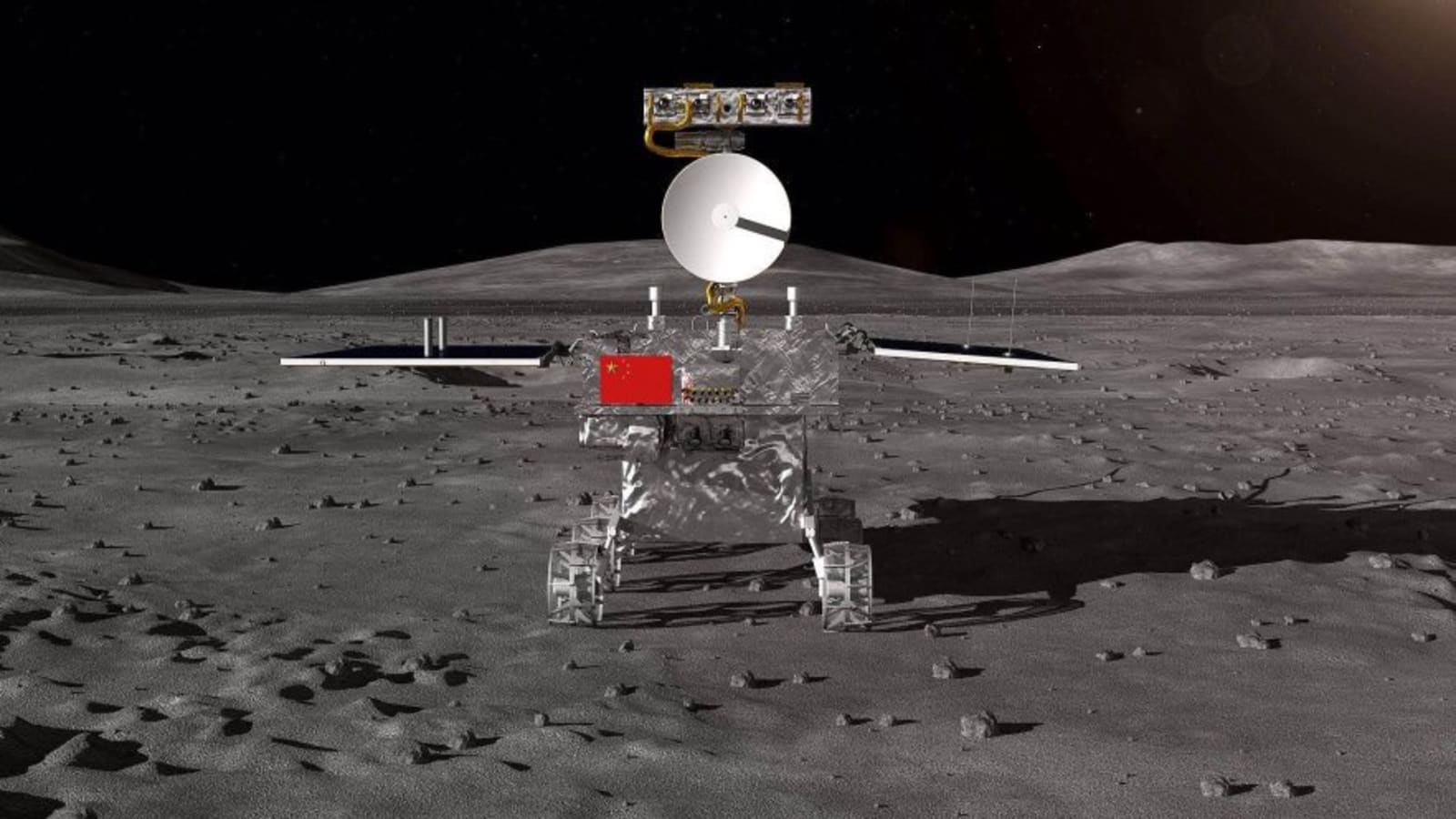
China’s rover finds mysterious minerals on the far side of the moon
US carriers say they’ve stopped selling location data

On May 20th, the kilogram will no longer be defined by a lump in France
Amazon is building dedicated warehouses for hazardous goods
