Test Drive Unlimited Solar Crown, the long-awaited third open-world entry in the Test Drive series, at last has a release date, but fans are in for quite the wait. Publisher Nacon plans to release the game on September 22nd, 2022.
The company made the announcement during a Nacon Connect livestream. Developer KT Racing says the automotive MMO will take place in Hong Kong, following the Oahu and Ibiza settings of previous games, and it's recreating the region in a 1:1 scale. Along with urban areas, you can expect to explore forests, mountains, marshes and beaches.
The game will feature a racing tournament as well as a conflict between two clans, the Streets and the Sharps. You'll join one of them, try to rise through the ranks and attempt to overthrow your rival clan. More details about the first Test Drive Unlimited game in over a decade will emerge in the coming months.
Meanwhile, Nacon and developer Daedalic provided another look at The Lord of the Rings: Gollum, which is scheduled to arrive in fall 2022. It mixes stealth and parkour, and takes place in parts of Middle-earth that you might not have seen before. You'll encounter some other familiar characters, including Legolas' father Thranduil and Gandalf.
There was also an announcement and brief teaser for RoboCop: Rogue City, in which the legendary cyborg is tasked with cleaning up the streets of Old Detroit. It's a first-person shooter from developer Teyon and it's coming to PC and consoles in 2023.
Smart grill maker Traeger has bought wireless meat thermometer company Meater, which it says marks the next step in creating the "ultimate connected grilling experience." Traeger allows users to monitor and control connected grills through a smartphone or Apple Watch. Bringing Meater on board will help people to get an accurate temperature reading for their food from just about anywhere, Traeger said.
Meater makes several Bluetooth and WiFi-enabled thermometers, while Traeger currently only sells wired thermometers. Traeger said the acquisition will enable it to "accelerate entry into the adjacent accessories market with a highly complementary technology-enabled product." It's unclear whether Traeger plans to bundle Meater products with its grills or sell them separately — Meater will continue to run as a standalone company. Still, it wouldn't be surprising to see Traeger integrate Meater readings into its own apps for a more seamless outdoor cooking experience.
First, find the event poster template you’ve downloaded from Envato Elements in your Downloads folder. Unzip the file by double-clicking it, and open the folder.
Open the A2-US_Medium folder, and open the A2.psd file in Photoshop.
The project should be in CMYK Color mode, 8 Bits/Channel. To check this, go to Image > Mode.
For best results, your photo size should be 5031–7087 px wide/high. To check this, go to Image > Image Size.
Delete the REMOVE THIS LAYER layer by clicking on it in the Layers section and pressing Delete.
With the event flyer design now visible, get a feel for the template by going through the layers and flicking the Eye icon on and off to see which layer corresponds to which element on screen. Many of the layers are grouped in folders. Expand the folders and go through the layers that make them up.
2. How to Insert Your Copy
Step 1
Expand the Textsfolder and insert your copy in the relevant placeholders. Some of your copy may bleed off the canvas at this point, but we’ll fix this shortly.
Step 2
To edit the hero text that currently says “CORE”, double-click on the TEXT_EDIT layer. This will take you to a separate Photoshop file. Double-click the T symbol in the layer to edit the text. When finished, go to File > Save and head back to the main Photoshop file.
3. How to Refine Your Structure
At this point, things should be looking a little messy. Which is perfectly fine, because we’ll start refining the structure now.
Step 1
Double-click on the TEXT_EDIT layer icon. This should take you back to the other Photoshop file you added your hero text into before. Reduce the size of your text by double-clicking on the T icon to the left of the layer, and reducing the Character size in the Properties module.
Step 2
Select the Rectangle Tool (U) by clicking it on the left of the screen, or hitting the U key. If the toolbar doesn’t show a rectangle, long-press on whatever shape is being shown and select the Rectangle option from the menu that pops up. Draw a Rectangle to fit the size of the canvas. Hit Command-T to adjust the size if it doesn’t quite fit.
Then hold the Command key and click the Rectangle symbol next to the Rectangle layer to select the shape. Once dotted lines border the Rectangle, select the DJ HALCYON text layer and use the Align tools at the top of the screen to center the text. Hide the Rectangle layer by clicking the Eye icon next to it. Click File > Save and return to the main Photoshop file.
Step 3
Resize your other text in the Texts folder by adjusting the size, letter spacing, and line spacing of each text box in the Character module. For the text that’s rotated -90 degrees, select the respective text layers, hit Command-T, and hover over the top-right corner of the layer to see the Rotate symbol appear. Hold Shift and drag it to the right and down to straighten the text.
Step 4
Once the text fits on the screen and is sized more to your liking, move all the copy other than the hero text and “BIRDY TOURS PRESENTS” to the right of the canvas. Select the DJ HALCYON text by holding Command and clicking the layer icon to the left of the TEXT_EFFECT layer. Select the TICKETS text box and align it to the base of the DJ HALCYON text. From there, stack the FEATURING and APRIL 20-22 text boxes above, trying to space them out evenly.
Step 5
Double-click each of these text boxes and, in the Paragraph module, Right Align them. Then Command-click the IN THE TRANCE layer and use the Align tools to align the text boxes to the right edge of this text.
Step 6
Hide the QR code by clicking the Eye icon next to the layer.
4. How to Add Original Fonts
Step 1
Open and install the font we’ve provided. Go to your Downloads folder, unzip the file, and install the Devant Horgen font on your computer.
Step 2
Head back to Photoshop. Go to the TEXT_EDIT layer and double-click to open a separate Photoshop file. Select the text and, in the Character module, change the font to Devant Horgen. Resize the text to fill as much of the canvas as possible.
Step 3
Return to the main Photoshop file. Go through the Texts folder of layers and add the Devant Horgen font to the “APRIL 20-22 THE FORUM, MELBOURNE” copy, adding the names of the support acts and the web address.
Step 4
Resize the text to your liking, then hold Command and click on the TEXT_EDIT layer to align the TICKETS text box to the bottom of the hero DJ HALCYON text again. Adjust the text boxes stacked above to be evenly spaced.
5. How to Add a Logo
Step 1
Unzip and open the folder for the logo you’ve downloaded in your Downloads folder. Find the Illustrator or .ai file and double-click to open it.
Step 2
When the project opens in Illustrator, click on the bird logo and copy it by holding Command-C or by going to Edit > Copy.
Step 3
Go to File > New and create a New Document. Make the size 1440 x 1440 pixels.
Step 4
Press Command-V or go to Edit > Paste to paste the bird logo.
Step 5
Scale the bird to fill the canvas by grabbing a corner of the logo, holding Shift-Option and dragging your mouse until you’re happy with the size.
Step 6
Save this file as “Bird Logo” by going to File > Save or pressing Command-S. Save it as an Illustrator or .ai file.
Step 7
Return to the main Photoshop file and drag and drop the Bird Logo file you’ve just created into the Photoshop window.
Step 8
Scale down the bird to fit next to the BIRDY TOURS PRESENTS text by pressing Command-T and dragging the logo from the sides and hitting Return when you’re happy with the size. Resize the BIRDY TOURS PRESENTS text the same way to make room for the logo.
Step 9
Align the logo with the BIRDY TOURS PRESENTS text at the top of the screen by holding Command and clicking the layer, selecting the Bird Logo layer and using the Align tools to center the logo vertically.
Step 10
Group the logo and BIRDY TOURS PRESENTS text by selecting both layers and hitting Command-G. Command-click the PHOTO_EDIT_HERE layer in the Background folder. Horizontally center your Bird Logo and Text group to that layer using the Align tool.
6. How to Add a Stock Image
Step 1
Next, find the stock image you’ve downloaded in your Downloads folder and drag it into the main Photoshop project.
Step 2
In the Layers module, drag the photo into the Background folder, in front of the PHOTO_EDIT_HERE layer. Command-click the PHOTO_EDIT_HERE layer and center your photo to it using the Align tools. Hit Command-T to scale the image to fit the canvas, hitting Return when you’re happy with the size.
The image should fit nicely between the two streams of text, with the DJ’s head sitting in between.
7. How to Refine the Design
The stock image’s vivid pink color scheme will now be clashing with the hero text and making the other copy hard to ready. So let’s address this by adjusting the colors and effects of our content.
Step 1
Open the TEXT_EFFECT folder in the Layers module, and double-click on the TEXT layer. Turn the Inner Shadow and Drop Shadow effects off. Turn the Color Overlay effect on, and change the color to white or #ffffff.
Step 2
Command-click the TEXT layer and select the dmt_blurred layer, also in the TEXT_EFFECT folder. Align the dmt_blurred layer vertically to bring the streaks effect in line with the hero text. Double-click the dmt_blurred layer and change the Color Overlay to white or #ffffff. Turn the Opacity of the effect down to 10%.
Step 3
Turn the Background layers off by switching off the Eye symbol next to the Background folder. Hide the NATION_Letters-Background folder by pressing the Eye symbol. Open the Elements folder and hide the two circle layers and the Elements subfolder inside. Hide the Texture_Overlay folder.
Step 4
Group the stream of text on the right-hand side together by selecting each layer and hitting Command-G. Double-click on the group to bring up the Layer Style window, and turn the Drop Shadow effect on. Adjust the Opacity to be at 100%, the Distance at 0%, the Spread at 6%, and the Size at 9%.
Step 5
Switch the Background folder back on. Draw a Rectangle the size of the canvas using the Rectangle Tool, hitting the U key, or selecting the Shape Tool from the toolbar. Place that layer behind the stock image and double-click on it to bring up the Layer Style window. Switch on the Gradient Overlay effect and create a linear gradient using a vivid orange (#ef3e23) and pink (#ed2071).
Step 6
Reduce the Opacity of the stock image to 70% in the Layers module.
8. How to Edit a Color Overlay
Finally, bring the whole composition together by adjusting the Color Overlay layer.
Go to the Layers module and select the OVERLAY_COLOR_EDIT layer. Once selected, the Hue, Saturation and Lightness faders should pop up in the Properties module. Adjust the Hue fader side to side and see the way it inverts the colors of this event poster template. Simply adjust back and forth until you find a color combination you like.
9. How to Export the Project
Once you’re happy with the result, it’s time to get the project ready to be exported.
Step 1
Make sure you save the file to ensure all your work won’t be lost. Do this by going to File > Save, naming the file, and placing it in a location you’ll remember.
Step 2
Head to File > Export and choose the best option for you. If you want to share this event poster design digitally, you can do Quick Export as PNG. Or you can export it as another file type for the web or click Export to change the file type to suit print.
You Made It!
Congratulations, you’re all done! Now you can share your event with the world. Here’s our final result:
5 Best Event Poster Design Templates
Want to create more high-quality event poster designs in Photoshop? Check out some of these templates from Envato Elements.
Easily create bright, playful music event posters with this template by Envato Elements author graphicook. The template is fully customizable and works with Adobe Illustrator and Photoshop. It features a placeholder for a feature image, room for your event name, headline entertainment, support acts, and venue details. It’s colorful, bold, and easy to use.
Doing a theatre or cabaret performance? This flyer template by creativeartx will promote it perfectly. It features your event name at the center of a lit-up placeholder, with bold fonts and a slick red, orange, and yellow color scheme. You’ll get passers-by booking tickets in no time.
Hosting an event focused on innovation? This creative poster by MotionMediaGroup features an extremely modern aesthetic with an orange and blue background image, and minimal white and blue text placeholders. The layout is sparse, with placeholders for event dates, hashtags, and social media handles. It’s a great choice for a technology conference or startup meetup.
This event Photoshop template is a great mix of minimalistic text placeholders and beautiful photography. The gray of the background, overlapping of the text and image, and spread-out copy create a rustic feel. It’s easy to edit, and by adding your own image, easy to make your own.
Create a warm and inviting flyer for Thanksgiving with this template by Guuver. With a red, orange, and cream color scheme, a mix of font styles, and a hand-drawn illustration style, it’s a gorgeous way to mark one of the most iconic days of the year.
The Department of Defense is canceling its $10 billion Joint Enterprise Defense Infrastructure (JEDI) cloud contract. The Pentagon said it “initiated contract termination procedures” in a press release it shared on Tuesday, noting “the Department has determined that, due to evolving requirements, increased cloud conversancy, and industry advances, the JEDI Cloud contract no longer meets its needs.”
With JEDI, the Defense Department had planned to modernize its IT infrastructure, but the contract hadn’t moved forward since the Pentagon awarded it to Microsoft in 2019 on account of a legal challenge from Amazon. One month after JEDI went to Redmond, Amazon filed a formal challenge with the US Court of Federal Claims, alleging the Pentagon showed “unmistakable bias” when it evaluated the two companies.
When the lawsuit was eventually unsealed later that same year, it came out that Amazon believed it lost the contract due to interference from former President Donald Trump. According to the company, Trump “used his power to ‘screw Amazon’ out of the JEDI Contract as part of his highly public personal vendetta against Mr. Bezos, Amazon and The Washington Post.”
Following an internal audit, the Pentagon's inspector general released a report that said it found no evidence that the Trump Administration had interfered with the procurement process. At the same time, it noted that several White House officials did not cooperate with the probe. As such, it could not definitively determine whether the administration had affected the process.
Shortly after the Defense Department announced it wasn’t moving forward with JEDI, Microsoft published a blog post on the decision. “We understand the DOD’s rationale, and we support them and every military member who needs the mission-critical 21st century technology JEDI would have provided. The DOD faced a difficult choice: continue with what could be a years-long litigation battle or find another path forward,” the company said. “The security of the United States is more important than any single contract, and we know that Microsoft will do well when the nation does well.”
Microsoft went on to say the episode highlights the need for lawmakers to look at the challenge process. "The 20 months since DOD selected Microsoft as its JEDI partner highlights issues that warrant the attention of policymakers: when one company can delay, for years, critical technology upgrades for those who defend our nation, the protest process needs reform," it said.
"We understand and agree with the DOD’s decision. Unfortunately, the contract award was not based on the merits of the proposals and instead was the result of outside influence that has no place in government procurement," a spokesperson for Amazon said. "Our commitment to supporting our nation’s military and ensuring that our warfighters and defense partners have access to the best technology at the best price is stronger than ever. We look forward to continuing to support the DOD’s modernization efforts and building solutions that help accomplish their critical missions.”
Alongside the cancelation, the Pentagon announced a new multi-vendor contract called the Joint Warfighter Cloud Capability (JWCC). The agency plans to collect proposals from both Amazon and Microsoft. It contends they're the two vendors best suited to meet its needs, though it also plans to see if other companies can help it modernize its IT infrastructure. The Defense Department told CNBCand other outlets during a call that it expects to award the first direct JWCC contracts in 2022, with the procurement process to open more broadly as soon as 2025. It also said the litigation with Amazon wasn't the primary reason for the cancelation of JEDI. “The mission needs have been our primary driver on this,” John Sherman, the DOD acting chief information officer, said.
Just when you think Sony doesn’t have any more weird and fanciful designs left in it, the company surprises you. Building on devices like the SRS-WS1, it announced the SRS-NB10 on Tuesday. It's a neckband speaker the company says it designed with remote workers in mind. Set to cost $150 when it goes on sale later this year, the NB10 promises up to 20 hours of audio playback “optimized for your ears alone” with drivers that are angled upward.
Sony
As long as you’re listening to something at a relatively low volume, Sony says you “don’t need to worry about distracting colleagues, roommates or family.” But let’s be real here, you’re wearing a speaker on your shoulders. That’s the kind of energy that’s matched only by the co-worker who insists on bringing their mechanical keyboard to work.
The SRS-NB10 isn't only a speaker, however. You can also use it for voice and video calls. Thanks to two beamforming microphones and its built-in voice processing technology, Sony claims the NB10 will make it easy for people on the other end of a call to hear you. What’s more, the “open-ear” design makes it so that you can hear what’s going on around you.
Sony
The NB10 can connect to two Bluetooth-capable devices simultaneously, allowing you to switch between them as needed. Should you have the courage to wear the NB10 to say the gym, they’re also IPX4-certified water-resistant. And thanks to USB-C charging, you can get an additional hour of playback after 10 minutes at the outlet.
The SRS-NB10 will be available in two colors — charcoal grey and white — when it goes on sale in September.
Sony's next State of Play showcase will focus on Deathloop, the upcoming PlayStation 5 console exclusive from Arkane Studios. The stream will feature a nine-minute look at the first-person time-loop adventure, with the stealth and combat features getting some time to shine.
Following a couple of delays, Deathloop should arrive on PS5 and PC on September 14th. Microsoft and Bethesda will be in an unusual situation where they're releasing a game you can't play on Xbox for an entire year.
Also on the docket for the 30-minute State of Play are updates on other third-party games, as well as some indie titles. What you won't see during the showcase is anything about Horizon Forbidden West, the God of War sequel or the next PlayStation VR hardware. Even though Sony recently showed off 19 minutes of Horizon Forbidden West gameplay, it's smart of the company to set expectations about what won't be featured to mitigate disappointment. That said, Sony urged fans to "stay tuned throughout the summer" as updates are on the way soon.
Sony skipped E3 once again this year, but PlayStation was announced as a partner for Summer Game Fest, which suggested a State of Play was imminent. You'll be able to watch the stream on Thursday, July 8th, at 5PM ET on Twitch or YouTube.
Roblox is rushing to strike official music deals in the wake of a $200 million lawsuit over alleged copyright violations. TechCrunchreports that Roblox has unveiled a team-up with Sony Music that will bring more of the label's artists to the game platform. The two will collaborate on "innovative music experiences" beyond what you've seen so far, including a Lil Nas X concert in November and a Zara Larsson launch party in May.
The companies didn't say what kind of events you might expect, or when you might see them. The deal also includes a settlement with Sony.
This isn't Roblox's first such deal. The gaming giant reached a similar agreement with BMG in June, and Warner before that. It does represent Roblox's largest music pact to date, however, and leaves Universal as the only heavyweight label that hasn't signed an agreement.
Roblox might not have much choice but to keep making these arrangements. The music industry sued Roblox for allegedly doing little to stop gamers from making virtual boomboxes that stream copyrighted music. That's not including Robloxcore and other music designed for game worlds. The developer maintains that it screens uploaded music and cracks down on violators, but that clearly hasn't been enough for labels convinced Roblox is enabling piracy. Deals could help Roblox persuade Sony, BMG and others to call off their lawsuit, or at least soften the blow.
It’s almost Halloween! That special time of the year when stores pack their shelves with candy and we all dress up as our favorite ghouls.
And what better way to celebrate our favorite monsters and urban legends than with a spooktacular collection of Halloween flyers and invitations you can only find on Envato Elements and Market?
Where to Find the Best Halloween Flyer Templates With Unlimited Use
Are you a graphic designer and avid Photoshop user? Are you a freelance designer with many clients? Do you enjoy making the best flyers and invitations for your events? Then you’ll love Envato Elements.
10 Best Halloween Flyer Templates From Envato Elements
To show you what I’m talking about, here’s a selection of ten top Halloween party flyer templates from Envato Elements. There are hundreds of Halloween flyer ideas to choose from!
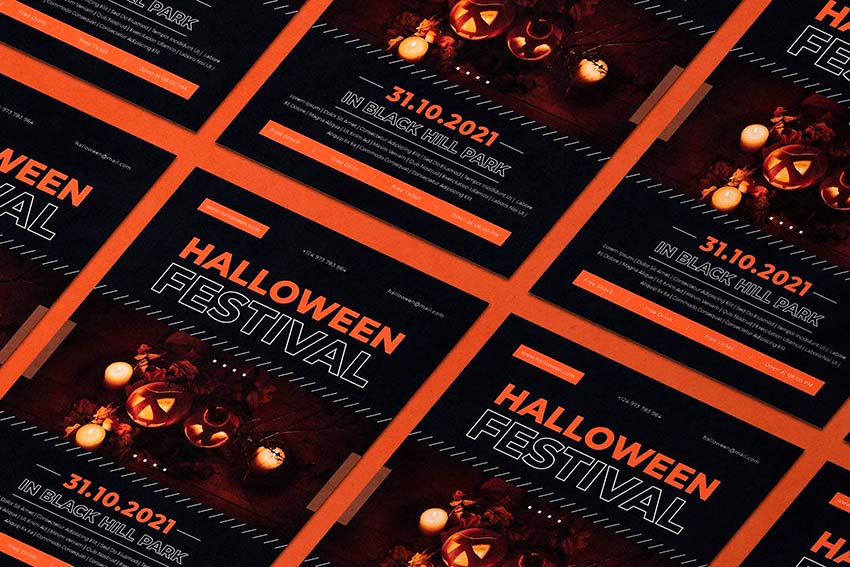
This Halloween party flyer template features classic colors: orange, white, and black. The clean design makes it perfect for your next spooky party. You can edit this Halloween flyer template in Photoshop. It’s 100% vector, print-ready, and A4 size.
Are you looking for Halloween flyer ideas for your business? This Halloween party flyer is waiting for you.
If you’re having a seasonal sale, this is the perfect template bundle. You’ll get three Halloween flyers: A4, Instagram post (1080×1080), and Instagram story (1080×1920). Edit them in Photoshop and Illustrator.
If you like more artistic Halloween flyers, check this out. This Halloween flyer template features a stylized skull and watercolor flowers. You can use it for all types of spooky events. You’ll get two PSD files: a flyer (8.7×13.2 inch) and a Facebook event cover.
This Halloween party flyer template is another classic design. It features classic elements like a witch, a graveyard, and a big moon. This is a fully editable PSD file in A4 size.
Do you like colorful Halloween flyer ideas? Check this out. This Halloween party flyer template is an attention-grabber. It comes in A4 size, and it’s print-ready.
This Halloween party flyer template features a simple yet effective design. The colors and typography make it a clear spooky flyer. You can edit this A4 Halloween flyer in Photoshop and Illustrator.
10 Top Halloween Invitation Templates From Envato Elements
Are you looking for the best Halloween invitations for your parties? Here’s a hand-picked selection of Halloween invitation templates.
This template will help you make the best Halloween invitations. It’s postcard size (5×7 inches) and editable in Photoshop. Halloween party invitations are easy to create with this template.
Are you hosting a Halloween dinner? You need the best invitations for the occasion.
This is a really cool and different Halloween invitation template. It comes in size 5×7 inches, so it’s easy to mail. Your guests will love Halloween party invitations like this.
Keep it simple with this stylish invitation. This invite contains spooky ghosts against a starry sky. Enjoy the delightful design for a sweet take on Halloween invitations.
Halloween invitations with different sizes are a great way to grab attention. This Halloween invitation template is a great example. This template is 4×9 inches, and you can edit it in Photoshop. It’s one of our best Halloween invitations for dinners!
Looking for funny Halloween invitations? This Halloween invitation template is a great option. This is one of our best Halloween invitations for costume parties. This Halloween party invitation template is 5×7 inches.
Hosting a trick or treat? Get funny Halloween invitations like this one. This Halloween party invitation template is great because you can share it on Instagram.
You’ll get two Halloween invitation templates: A4 and Instagram post (1080×1080). It’s easily editable in PSD and Illustrator.
Looking for simple Halloween party invitations? This is a cool idea. This Halloween party invitation template comes in A4 size, and it’s fully editable.
Create funny Halloween invitations to share on social media with this template. This cool Halloween party invitation template comes in three sizes: A4, Instagram post, and Instagram story. Edit it in Photoshop and Illustrator.
34 Cool Halloween Flyers From Envato Market
If a subscription isn’t your thing, we’ve got your back. Here’s a big selection of Halloween flyer templates from Envato Market. You don’t need a subscription; just buy the Halloween party flyer template you like. This is perfect if you just need a single item.
Whether you’re staying home with friends or dancing the night away, these Halloween flyers will make you want to get up off your feet!
Kick off the holiday with the party of the year! This flyer features an awesome club theme with 3D text and more. Download several print-ready files available in two convenient sizes.
Create a big impact with this bold and beautiful Halloween flyer. This template features a colorful design with neon text elements you can easily adjust. Enjoy one fully layered Photoshop file with links to the fonts used.
Get ready to dance all night with this show-stopping party flyer. This flyer contains impressive abstract elements combined with a Halloween theme. Download this print-ready file and get ready to use it right away!
If you’re holding a party for the adults, try out this Halloween flyer for your nightclub or party events. It includes links to the fonts used and several design variations, so just insert your own beautiful vixens to bring in your sinfully good times.
Create chills up the spines of your party-goers with this party flyer. This template features a haunted forest vibe with chunky, grunge text. Update it easily with the help of Adobe Photoshop. It’s a flyer that’s perfect for beginners.
Care to dance with a flaming scarecrow? Creep out your friends with this haunting design, which includes six awesome scarecrows, two predesigned versions, and more custom elements to choose from.
If you’re looking for a grunge look for your flyer, then look no further. This illustrative poster design features a fun grunge look that is matched with unique fonts and elements. Interchange your details with this easy-to-use template.
Don’t get caught in the spooky cobwebs! This cool flyer design features a black and white color theme for a nice, minimalist vibe. Simply switch out the party details to add your own in a matter of minutes!
Having a zombie-themed party at your place? Try out this Halloween flyer to creep out your friends and let them know of the shenanigans ahead. Available in three colors styles and organized layers, this flyer is sure to wake the undead.
Rock out at this year’s festival with this epic flyer template. This template features a rock and roll skull design with minimalist vector details. Choose from three different colors to enjoy this flyer in gold, white, and blue designs.
Feeling a little slimy? Chances are you’ve gotten yourself into a sticky situation with this Halloween flyer. This design features an organized PSD file for easy editing and free fonts you can download in seconds. So get slimy in no time with this fun party flyer!
Celebrate the night the dead walk the earth with this quirky zombie flyer. Choose from three different versions, and even a different hand position to promote your zombie event.
If you’re looking for a kid-friendly design, then this is the flyer for you. With adorable vector elements and different monster cartoons to choose from, your child will have a blast knowing they have the coolest flyer on the block.
Enter at your own risk. This flyer features a dark haunted house along with a spooky design. With its elements so easy to customize, all you’ll need to is add your own text below and get ready to party!
Add some shiny elements to your flyer for a hot design. This template features gold 3D elements like skulls and pumpkins for a sophisticated alternative. Swap out the title and additional text elements to get started with this flyer today!
Want to keep your friends up at night? Scare them with this super spooky Halloween template before they even show up to your party. Edit the text easily in Adobe Photoshop, and switch out the main photo with a choice of your own possessed model from PhotoDune.
Bbbbraaainnns! This Halloween flyer features a bright design and colorful zombie that will be sure to charm the limbs off your friends. With two color options available, check out this flyer in its easily editable PSD format.
Did anyone invite zombies to this party? This bloody flyer design features dripping text and customizable elements you can edit in Adobe Photoshop. Change out the images with your own zombies or download some stocks from PhotoDune.
It’s alive! If you’ve been hiding out in a secret laboratory, then this flyer may be for you. Surprise your friends with your deadly creation with this fun Halloween design. Edit in Adobe Photoshop and choose from several different colors to finalize your monster creation.
Looking for a simple design that’s easy to print? Check out this grunge Halloween party flyer with graphic elements. Customize the text to fit your party details and celebrate your festivities in style.
Zombies like parties too! Bring in Halloween this year with a fun zombie party using this flyer design. It features colorful Halloween elements and splashes of grunge to keep things a little dirty.
Feeling a little vintage? Celebrate your feelings of nostalgia with this spooky flyer design. With its fully editable file and easy-to-use PSD format, you can change the colors to reflect your theme with this print-ready poster.
Yes, this awesome skull is included! With an explosive pink design, everyone will be ready to dance the night away at your Halloween event. Included with this template are links to the fonts used for this easy-to-edit PSD file.
This flyer has all your favorite Halloween elements in one. With fun, ghoulish text atop a skull backdrop, you can let your event shine with this simple design and bold color. It’s fully editable in Adobe Photoshop, so just change out the colors or keep this beautiful yellow to go with your Halloween theme.
If simple elements are more your style, check out this retro design featuring adorable Halloween elements like bats, pumpkins, and even your very own Dracula. Invite your friends to your next horror party with this quick and easy flyer.
Don’t get too close or you just might end up for dinner! This Halloween flyer features a large vector design that is easily resizable in Photoshop. Choose from several vibrant colors and scare your friends with this monstrous design.
Trick or Treat? This Halloween design features a cool nighttime color palette with glowing pumpkins. Kick off your party or event with this ready-to-print flyer.
Allude to your love of voodoo with this fun Halloween design. With a giant spider web, voodoo doll, and additional spooky elements, you can easily customize this illustrative poster with different colors and unique fonts.
Invite the neighbors over for a fun game of trunk or treat. Packed with three design variations, this template features ghost, pumpkin, and fire themes. Get access to six files and free fonts in one convenient download!
Need a hand? This Halloween flyer features a mysterious spooky hand that slashes through the poster design. And with the image included, all you’ll need to do is switch out the text with your own party information!
If the other designs aren’t quite your speed, then try out this gorgeous Halloween flyer, featuring a large skull with an elegant flower headpiece. Show off your love of fashion and style with this unique event poster. Customize the colors to your liking and take relief in knowing that all the images are included!
Need a quick flyer design with realistic elements? Check out this impressive Halloween flyer packed with all the resources that you see. Easily modify the text, switch the colors around, and add or remove objects in the layered PSD file.
30 Halloween Invitations From Envato Market
You can’t have a party without sending out a few invites. These Halloween invitations will make you want to throw your very own costume party and celebrate in style.
Great for kids’ parties, this Halloween invitation is super cute and bright. Enjoy the playful design complete with a tombstone, pumpkin, and witch hat.
Kick off your ghoulish celebrations with this invitation template. This simple design features dripping font and a creepy graveyard design at the bottom.
Inspired by the classics, this Halloween invite features several stills from horror classics with some fantastic fonts you can download for free. Pick from three versions and several color combinations.
Monster mash, anyone? Summon your friends to eat, drink, and be scary with this fun and simple Halloween party invite. With two themes available and ready-to-edit text, you can choose from portrait or landscape orientation for your invites.
Add some retro charm to your holiday invites! This awesome collection includes four different designs to choose from. They go great with spooky Halloween themes and are sure to impress your party-goers.
This creative set of invitations provides three fun designs to choose from. Pick from designs like Frankenstein, a werewolf, and a creepy pumpkin to bring a simple, quirky flair to your invites.
Are you a rebellious trick or treater wreaking havoc in the night? Then kick off your Halloween celebrations with this simple invite design. It’s editable in both Photoshop and Illustrator, so you can customize this design no matter your Adobe product preferences.
Choose from different party themes to set your invite apart from others. This pack features spooky, minimalist designs with witch, ghost, and skull elements. Customize it easily by changing the fully editable text.
Looking for a simple design that’s haunting yet straight to the point? Check out this Halloween invitation that features an elegant cemetery silhouette that is subtle enough to fill you with fear. With a fully layered PSD file, you can choose to customize the colors and text to fill your needs.
This 2-for-1 deal packs a punch with a simple design you can use for either an invitation or party flyer. Change the background color to switch up the design or edit the text to fill your needs with Adobe Illustrator.
Love the simplicity of black and white? This chalkboard design features a simple composition that allows the typography and details of your party to shine. It’s fully customizable and even comes with free fonts!
Get your friends and family together for a fun costume party with this flyer invitation. This design features a cartoon theme perfect for all ages. Get access to three different color schemes to fit the style of your party.
What fun designs will you carve on your pumpkins this Halloween? Invite your friends over for a messy good time, and reward the winners with candy. Use this simple design for your invitations featuring a pumpkin, black cat, and simple yellow ribbons.
This beautiful and simple design showcases several fun fonts to highlight all your party details. It’s available in the format for Adobe Illustrator, so just customize this invite with your own text and location.
Need something short and sweet? This simple design features a beautiful purple night sky with creepy elements from a church cemetery. Create your invites quickly and easily by just switching out the bottom text with your own location and contact details.
Watch out for the zombie attack with this wicked invitation flyer. This flyer features an apocalyptic theme with fire, destruction, and zombies, of course. Entertain your friends with the invite of the year!
Do you like pumpkins, bats, or haunted houses? Choose from three simple designs with this set of Halloween party invitations. These designs use the vector EPS format, and you can easily customize the text for your celebration.
You don’t always have to creep everyone out to have a good time. This simple party invitation features a cute trio of characters that you can interchange with several different colors. It’s editable in several formats. Use this design for your kid’s party and school celebrations.
If you love bold colors and witches, then this is the invite for you! Choose this invite made from 100% vector elements with easily resizable vectors. Shock your friends with these bold neon colors and choose something a little out of the box for this Halloween.
Business card or spooky party invite? This unique design features a layout and composition specially made for business card printing. It uses a standard 3.5 x 2 inch design with high resolution for a fantastic, high-quality result.
Check out this colorful party invite featuring interchangeable skull and pumpkin designs. Edit your text with free fonts and put your celebrations into effect with this easy-to-use layout.
Having a costume party for all your friends? Pick this fun card that features a flyer full of fun cartoon characters taking their own spin on your favorite Halloween costumes.
This unique Halloween invitation gives you the option of giving admission tickets to your friends. Simply bring the entire invite, and include an admission number for your exclusive party.
Here is another great admission ticket design, using a traditional Halloween pumpkin instead. Choose a pumpkin on either a simple background or an intricate backdrop to celebrate your Halloween bash.
Cast a spell on all your friends with this clean Halloween invitation. This design features beautiful calligraphy along with an easy-to-use design you can customize in Adobe Illustrator.
Who knew zombies could be so beautiful? This vector design features two deadly zombie hands reaching out of their grave to celebrate your upcoming party. With fun details like bats, gravestones, and an owl, impress your friends with this beautiful yet simple design.
Boil, boil, toil, and trouble! Impress your friends with this Halloween invite featuring a scary pumpkin and fierce green fire. Choose to keep the fonts as is or incorporate your own for added customization.
Celebrate your favorite holiday in the comfort of your home with this haunted house theme. This template features a clean, modern design with bold text against a candlelit background. Just add your address and official event date to get your party started.
Discover More Awesome Halloween Design Content
I hope you liked the selection of the best Halloween invitations and flyers. But if Halloween is your favorite time of the year, then I’m sure you’ll love these cool resources and tutorials:
This list is jam-packed with Halloween resources for the avid designer familiar with Adobe Photoshop and Illustrator. But with thousands of Halloween flyers available at your fingertips, chances are we’ve missed a few to add to your personal collection. Be sure to browse Envato Elements and Envato Market for more spooky flyers.
Editorial Note: This post has been updated with contributions from Maria Villanueva. Maria is a staff writer with Envato Tuts+.
Muse Group, the new owner of audio-editing app Audacity, caused a stir in recent days with an update to the software's privacy policy. It stated that Muse Group will collect users' personal data and possibly share that information with third parties, including law enforcement and potential buyers. That led to claims from users that the software was becoming "spyware."
The company has attempted to clear up the controversy, which it says is primarily down to "unclear phrasing in the Privacy Policy,” as Music Radar reported. Muse Group says it will only collect "very limited" data (operating system version, processor type, IP address and opt-in error reports) from Audacity users. Users' IP addresses are stored in a readable format for 24 hours before they become "pseudonymized and irretrievable."
Muse Group added it will only share data if required by a court in a jurisdiction in which it operates. It won't hand over user information following a law enforcement request or otherwise sell or share data. The data collection is "a standard policy requirement for providing services in many jurisdictions, regardless of the depth of data collected or nature of service," the company said.
"We do understand that unclear phrasing of the Privacy Policy and lack of context regarding introduction has led to major concerns about how we use and store the very limited data we collect," Muse Group's head of strategy Daniel Ray wrote on GitHub. The company is working with its legal team on a revised, clearer version of the policy, which it plans to publish soon.
The limited data collection is necessary because of two new features in the upcoming version of Audacity, according to Ray: a way to automatically check for updates, and the optional error reporting. Ray didn't address a privacy policy request for users aged under 13 not to use the app. The General Public License under which Audacity is distributed doesn't allow restrictions on the use of software.
The updated privacy policy does not apply "to offline use of the application," so if you block Audacity's access to the internet, it shouldn't be an issue. The policy will only come into force with the next version of the software, 3.0.3. Current and older versions don't have any networking features and they won't collect any data.
At best, this was a case of miscommunication which caused concern among Audacity users. Nevertheless, many community members are pushing for a fork of the open-source app without any data collection requirements.
The OnePlus 9 Pro holds its own against the stiff competition from Apple and Samsung, and that's more than most competing smartphones can say. If you're looking for a different sort of handset with all the premium features typically found in a smartphone made by the usual suspects, the OnePlus 9 Pro could fit the bill. But just like Apple's and Samsung's flagships, the 9 Pro doesn't come cheap with a starting price of $1,070. But Amazon has the 9 Pro for $100 less right now, bringing it down to $970 — the cheapest we've seen it since launch. And if you want to spend even less, the regular OnePlus 9 is on sale for $650, or $80 off its normal price.
The OnePlus 9 Pro impressed us with its comprehensive set of features and (for the most part) it's excellent cameras. While slimmer than previous models, the 9 Pro doesn't look drastically different than other OnePlus smartphones and that's a good thing. It has a lovely 6.7-inch, 3,216 x 1,440 AMOLED display that supports up to a 120Hz refresh rate and a brightness up to 1,300 nits. OnePlus also includes a bunch of customizable screen settings that can help you do things like get the best mobile gaming experience or increase battery life when necessary. The IP68-rated handset also has dual speakers, a microSIM card slot and one Warp Charge-compatible USB-C port.
OnePlus collaborated with Hasselblad on the 9 Pro's rear camera array, which includes a 48-megapixel main camera, 50MP ultra-wide lens and an 8MP telephoto lens. Overall, the system produces lovely images with true-to-life colors, and it's capable of shooting video in up to 8K 30fps. Our biggest gripe was with the telephoto lens, which had a tendency to take overexposed images in bright environments.
Thankfully, we had no complaints about the OnePlus 9 Pro's performance. It runs on a Snapdragon 888 processor, 12GB of RAM and 256GB of storage, and there's very little that combination of specs can't handle. The 9 Pro's highly responsive display only helps the smartphone feel ever fast, too. Battery life is also quite good as the dual 4,500mAh cells lasted at least a full day without breaking a sweat, and you'll get even more juice out of them if you leave the display on Full HD.
Follow @EngadgetDeals on Twitter for the latest tech deals and buying advice.
If you've ever wanted to see a pro baseball player's at-bat through their eyes, you're about to get your chance. T-Mobile is marketing its 5G network by equipping players at the 2021 Home Run Derby with 5G point-of-view cameras on their helmets, including the catchers' masks. Watch the live competition through a special T-Mobile website and you can witness both batting practice and the derby itself as if you were on the field, with 5G (hopefully) keeping everything in sync.
The event kicks off July 12th, starting with practice at 6:30PM Eastern and the derby itself at 8PM. The POV cameras are also coming alongside a new MLB AR mobile app to explore Coors Field in 3D and get detailed stats for each swing. People with 5G phones will also get extra stats like hang time and exit velocity, although this is clearly just an incentive to upgrade your device. You don't need 5G to get a few extra numbers.
The footage is 'only' in HD, and it's not clear which players will have 5G cameras. T-Mobile says they'll have three or four hat cameras during batting practice, and then they'll have two during the derby (one for the American League, one for the National League) in addition to a catcher camera. If all goes well, though, you'll see what it's like for stars like Shohei Ohtani when they knock one out of the park. Look at it this way — even if the cameras are limited, this is one of the few 5G tie-ins that's more than just a gimmick.
Google came out with the latest version of the Nest Thermostat at the end of last year. While it was already a tempting gadget for those looking to save energy and make their homes smarter, Google sweetened the deal by pricing the thermostat at $130. It has since gone on sale a few times, but today you can grab the snow color option for $88, which is 32 percent off its normal price and a record low. Also, the snow Thermostat with a Trim Kit is on sale for $103, or $12 less than the other Trim Kit packages. Other colors are down to $100, which is the same sale price we saw back in April around Earth Day.
Compared to previous Nest thermostats, this one is slimmer, has a touch-sensitive edge and a mirrored display that both looks lovely and automatically wakes up when you approach it. In addition to looking better than most conventional thermostats, the Nest Thermostat is much smarter as well, allowing you to control via on-device controls, Google's Home app and even with Assistant or Alexa voice commands. The device itself has a redesigned controller view too, which makes it easier to quickly set the temperature in your home.
But the automatic features are likely the biggest selling points for a device like the Nest Thermostat. It recognizes when you've left your home and will automatically go into Eco mode, keeping your home at a specific temperature until you return when it will either raise or lower the temperature based on your preferences. This Nest Thermostat also has Savings Finder, a feature that continuously looks for ways to reduce your energy bill throughout the year. For example, the device will suggest adjustments based on weather conditions — think reducing your home heat usage during a particularly warm winter — that you can choose to accept in order to potentially decrease your energy costs. Although a smart thermostat like Nest's takes a bit more installation that a standard smart light bulb, it's a good entry point into the smart home world — and it's even better when on sale like this.
Follow @EngadgetDeals on Twitter for the latest tech deals and buying advice.
Nothing is borrowing a strategy from its founder Carl Pei's previous gig at OnePlus: dribbling technical details ahead of a product launch. The startup has revealed that its Ear 1 true wireless earbuds will include three-microphone active noise cancellation at a price of $99 (£99). That's not dramatically more affordable than value-for-money rivals like Amazon's second-gen Echo Buds, but it's certainly low enough to get your attention if you're cost-conscious.
The company will formally unveil the Ear 1 at a launch event on July 27th. To date, the buds are known to include a partially transparent Teenage Engineering design and will boast "leading specs," although it's not clear what that entails beyond ANC.
The challenge, as you might guess, is delivering quality that matches the hype. ANC will help isolate music and podcasts, but it won't matter as much if the sound quality is merely so-so. Nothing will have to show that it can deliver solid sound at its asking price, particularly if it's going to compete against the likes of the Echo Buds or Google's Pixel Buds A.
Four years after unleashing the Switch upon the world, Nintendo is releasing an upgraded version of its phenomenally successful console. After years of rumors, the company has at last confirmed the existence of a new Switch model with an OLED display. It'll cost $349.99 and arrive on October 8th.
As expected, the latest model has a larger, seven-inch screen. The 720p OLED display, which Nintendo claims is more vivid, is a step up from the 6.2-inch LCD screen on the original Switch. The console has significantly reduced bezels and 64GB of storage, while the dock has a wired LAN port.
Nintendo is promising "enhanced audio" with the new Switch, which works with all existing Joy-Con controllers. The company is offering it in the traditional neon red/blue color scheme with a black dock, or in a white/black color scheme with a white dock.
The new Switch also has what looks like a massively improved kickstand that spans the entire width of the back of the console. It can be propped up at any angle and looks far sturdier than the tiny, fragile piece of plastic that propped up the old Switch.
However, there's no 4K output while docked, as reports had widely suggested. You'll still only play at a maximum resolution of 1080p on your TV. Nor is Nintendo upgrading any other internal components. The OLED device was rumored to have a new chipset with support for NVIDIA's DLSS upscaling tech, but that's not the case this time around. The company also warned that tweaks such as the larger screen mean the new Switch might not work as neatly with Nintendo Labo products.
The original Switch is still selling like hot cakes, so there’s a case to be made that Nintendo didn't need to upgrade the console just yet. But the original Switch's display and huge bezels are starting to look a little bit dated in 2021; this OLED screen should modernize the experience significantly. That said, for people who want to save some cash, Nintendo will continue selling the original Switch, at least for now.
It's highly likely that demand will far exceed supply. Nintendo president Shuntaro Furukawa told investors in a call in May that the company was still contending with shortages and production issues. The current global scarcity of semiconductors will also limit production capacity. So, the new Switch might be even harder to find than the current console has been at various points.
Since it released the original Switch in 2017, Nintendo has issued a revised model with a battery upgrade. It also released the handheld-only Switch Lite in 2019. Two years later, moving in the other direction with an upgraded Switch is a logical move. Good luck getting your hands on one any time soon, though.