
Category: Tutorials
Tutorials,freelance,projects,joomla,php,mysql,wordpress,blancer.com
‘Tales of Arise’ launches on Xbox One and PS4 in 2020

Microsoft’s ‘Project Scarlett’ Xbox arrives holiday 2020

Microsoft unveils an even more customizable Elite controller

‘Forza Horizon 4’ gets a Lego expansion this week

‘Dragon Ball Project Z’ is now ‘Kakarot,’ arriving early 2020

Double Fine joins Microsoft Studios

‘Gears 5’ arrives on September 10th

Microsoft’s new ‘Flight Simulator’ looks like a wild 4K ride

Here’s your first look at ‘Battletoads’ for Xbox One

‘Blair Witch’ returns as a survival horror game

‘Cyberpunk 2077’ comes out next April, and Keanu Reeves is in it

21 Best Brochure Mockups (Using an Online Mockup Generator)
Brochures are an inexpensive and effective tool for communicating information to a wider audience. These single foldable sheets are perfect for highlighting products and services, making announcements and presentations, creating menus, or breaking down lengthy information with images, charts, maps, and text.
If you’re looking for modern and versatile brochure mockups to show your brochure designs to a client or to display your brochure on your website, here are 21 fabulous mockups that you need to see.
21 Best Brochure Mockups
Young Girl Reading a Vertical Restaurant Menu Mockup

This terrific rectangular brochure mockup of a woman reading a menu is easy to customise. Just upload your image, change the colour of your brochure, and your job is done.
Mockup of a Bifold Brochure Lying on a Solid Color Surface

If
you’re looking for a bifold brochure mockup that allows you to adjust
the background colour, check out this A4 bifold brochure mockup, which
features a slightly open brochure lying on a plain background. After
you’ve uploaded your brochure cover image, you can change the background
to any colour you need.
Bifold Brochure Mockup Lying on a Bicolor Surface

This
A4 bifold brochure mockup is a variation of the bifold brochure mockup
featured above. With this mockup, the brochure is opened to show the
inside content, and the background is split in two so that you can adjust
the colour of the top and bottom half separately.
Young Girl Reading a Restaurant Menu While Sitting Down Template

This A4 bifold brochure mockup is an excellent template for restaurants looking for an image that allows them to show a client perusing their menu or for designers who want to show clients a photorealistic image of their menu design.
Square Booklet Standing in a Black Environment Mockup

Sometimes, you need to display your brochure design without any distractions. This sleek and sophisticated square brochure mockup is perfect for such occasions. Set against a black background, the standing brochure mockup is super easy to use.
Square Booklet Lying Over a White Surface Mockup

This square brochure mockup is a variation of the bifold brochure mockup featured above, with the main differences being that this brochure is lying on the surface as opposed to standing and the background is light grey rather than black.
Brochure Mockup Featuring a Woman Sitting on a Stairway

Use
this gatefold brochure mockup to show an employee reading a company
brochure. This template is even easier to use than the other trifold
brochure mockup featured here because, instead of needing to upload
three images, you only need to upload one that will cover all three
sections of the brochure.
Mockup of a Trifold Brochure Open Against a Transparent Backdrop

Transparent backgrounds are awesome because they allow you to add your mockup quickly and easily to any background you choose. To use this trifold brochure mockup, make sure your images are divided into three equal parts, and then upload each one in order.
Menu Template Lying Over Dishes Near a Glass of White Wine on a Wooden Table

Looking for a rectangular brochure mockup to show off a menu cover design? Then check out this bifold brochure mockup, which features a rustic table setting with a menu sitting on a set of plates.
Mockup of a Woman About to Open a Booklet While Sitting Down in a Wooden Desk

This A4 bifold brochure mockup features an over-the-shoulder shot of a woman looking at the cover of a brochure while sitting at a wooden table. It’s a great template for those looking for a creative way to display their brochure cover design.
Coffee Shop Menu Lying Next to a Latte Coffee Template

This rectangular brochure mockup is billed as a template for a coffee shop menu. And indeed, it is an excellent menu mockup, but the template could also be used for any number of other types of brochures.
Set of Three Brochures Template Lying on a Transparent Surface

These rectangular brochure mockups are great for testing three versions of a design or for a related series of brochures. The slightly open brochure in the foreground also allows you to upload an interior image, which increases the mockup’s photorealistic quality.
Trifold Brochure Template Floating Over a Multicolor Surface

Jazz up your brochure presentation with this funky gatefold brochure mockup. Each leaf of the brochure is clearly marked to make it super easy to upload your design. When you’re done, have some fun choosing four different colours for the mockup background.
Girl Covering Her Face While Showing a Booklet Catalog Template

A
playful way to display your brochure cover, this A4 landscape brochure
mockup shows a woman holding a brochure so that it covers her face.
Mockup Featuring a Brochure Standing On Top of a Wooden Surface

Set against a plain wood background, this accordion fold brochure mockup allows you to show off three sides of your brochure layout. Each panel of the standing brochure mockup is clearly marked for ease of use.
Closed Booklet on a Black Surface Mockup

Use this elegant A4 landscape brochure mockup with its slate grey background for corporate brochures, high-end fashion, a jewellery business, or any other category where you want to communicate sophistication.
Mockup of a Trendy Young Girl Reading a Menu While Sitting in a Restaurant

Showcase your awesome menu design with this beautiful A4 bifold brochure mockup featuring an over-the-shoulder image of a young woman studying a menu in a restaurant.
Brochure Mockup Template of Two Brochures Being Hung by Paper Clips

Another cool and playful mockup, this A4 bifold brochure mockup is a clever way to showcase your designs. The template allows you to customise both the brochure colour and the background colour.
Brochure Mockup of Three Brochures Hung With Paper Clips

If you like the concept of the previous mockup but need an A5 bifold brochure mockup instead of A4, then check out this mockup, which offers three brochures as compared to two in the case of the template above. Another great feature of this template is that each brochure can be coloured separately.
Woman Holding a 3 Panel Brochure Mockup

This gorgeous trifold brochure mockup is perfect when you want your design or message to hold centre stage. The gatefold brochure mockup can serve myriad uses, including sales announcements and instructions for using a product or service.
Top Shot Mockup of a Horizontal Catalogue About to be Opened by a Girl While on a Wooden Table

Here’s another mockup which would work just as well when you want your design to stand out. The A4 landscape brochure mockup features an overhead shot of hands framing a brochure.
How to Use an Online Brochure Mockup Generator
1. Navigate to Placeit’s Brochure Mockup Page. Sign Up for Free!

2. Select a Mockup Template You Like
Now look through the mockups available and select the one that will allow you to show off your design to the best advantage.

3. Upload Your Design
When you select your brochure mockup, it will open up in the Brochure Mockup Maker. Upload your design using the button to the left of the mockup, and select your brochure colour if needed.

4. Download Your Completed Mockup
That’s all there is to creating a terrific brochure mockup. Now you can download your mockup, and just like that you’ve got a great mockup ready to use.

Make Your Own Terrific Brochure Mockup
As you can see from these fabulous brochure mockups, Placeit has a great selection of mockups you can use to show off your designs or promote your business. I hope these examples have made you excited about all the possible ways you can display your designs.
Why not add your design to your favourite mockup and share it with us here? We’d love to see which you choose.
And if you’re interested in other cool mockups for computers, iPads, sweatshirts, and more, check out this roundup of the best mockups in different categories, all available at Placeit:
 Book Cover27 Best Book Mockups Using a Book Mockup GeneratorNona Blackman
 Product Mockup26 Best Coffee Mug Mockups (Using a Mug Mockup Generator)Nona Blackman
 Product Mockup31+ Best iPad Mockup Templates (PSD & PNG) With Realistic ResultsNona Blackman
 Designing22 Best Hoodie Mockup Templates (Pullover and Zip Up)Nona Blackman
 Designing24 Best New Crew Neck Sweatshirt Mockup TemplatesNona Blackman
 Mac21 Best MacBook & Laptop Mockup Templates (Including iMac & MacBook Pro PNG Mockups)Nona Blackman

{excerpt}
Read More
Envato Tuts+ Community Challenge: Created by You, June 2019 Edition
Welcome to our monthly feature of fantastic tutorial results created by
you, the Envato Tuts+ community!
Every day, visitors like you take the
time not only to read our tutorials but also to try them out. This is an
assortment of those comment submissions found throughout the Design
& Illustration section. Check out this set of results and join in
for the next roundup, published next month!
Vector Tutorial Results
Taken from the
comments section of your favorite tutorials, these first pieces are an
assortment of results created with vector drawing programs. Check out
these amazing results!
How to Create a Geometric Flamingo Bird in Adobe Illustrator

Lovely design! Amanda Rogers mastered this Geometric Flamingo Bird illustration from Andrei Stefan, and even added a bold color choice for the background. Check it out below.

How to Create a Group of International Friends in Adobe Illustrator

Want to make some international friends? Samana Ghimire took on the challenge with this Illustrator International Friends tutorial by Nataliya Dolotko. Try it out to learn incredible Illustrator tips and tricks!

How to Create a Mountain Rescue Unit Badge in Adobe Illustrator

Go on an adventure just like Jenny Andaya Ulstein. She remade this brilliant Mountain Rescue Unit Badge from a lesson by Andrei Marius. Have you ever thought of visiting the Himalayas?

How to Create Mooncake and Dim Sum Icons for Chinese New Year

Or celebrate the Chinese New Year with instructor Mary Winkler. KiwiKat created a full, delicious spread that’s fit for any party with this cool Mooncake and Dim Sum Icon tutorial. Enjoy it below!

How to Create a Furry Cheshire Cat Inspired Text Effect in Adobe Illustrator

Meow! Alice in Wonderland has inspired many creatives throughout time. Lerra Baum took on this super cute Cheshire Cat-Inspired Text Effect from a lesson by Diana Toma. What would you write in furry cat hair?

How to Create Vector Floral Typography in Adobe Illustrator

Do you feel wild and free? Marmorea Diatom recreated this awesome Vector Floral Typography tutorial from Yulia Sokolova. How would you interpret it in Adobe Illustrator?

How to Create a Saudi City Landmark in Adobe Illustrator

Ever wanted to be an architect? Create a gorgeous Saudi City Landmark with these helpful Illustrator tips from Miss ChatZ. Sylvie Lejeune had major success with this beauty! Check it out below.

How to Create an Isometric Text Effect in Adobe Illustrator

User Lazy_Nugu wasn’t feeling too lazy when they achieved this epic Isometric Text Effect from a tutorial by Andrei Marius. Love how these words seem to fit the text effect pretty perfectly!

How to Draw a Nature Scene With Dandelions and a Butterfly in Adobe Illustrator

Become one with nature. Le Tuyen tried this lovely Nature Scene Illustration from Vladimir Galantsev and achieved stunning results! There are so many incredible details and colors!

How to Create a Poltergeist TV Silhouette Scene in Adobe Illustrator

Are you afraid of the dark? If not, try out this amazing Poltergeist TV Silhouette tutorial just like Toothlover. They made a pretty awesome recreation of this Adobe Illustrator tutorial from Sharon Milne.

Adobe Photoshop Tutorial Results
Let’s
take a look at this next set of results inspired by Adobe Photoshop
tutorials published here on Envato Tuts+. Contributions range from photo
manipulations to text effects and more! Check out these wicked results
below!
How to Create a Leather Stamp Logo Mockup in Adobe Photoshop

Leather stamp effects are great for stationery, websites, and more. Holly J did a wonderful job with this Leather Stamp Logo Mockup from Tom Piccarreda. Check it out!

How to Make a Photoshop Action to Create a Stitched Jeans Text Effect

You can easily achieve the look of a stitched jeans text effect with a little patience. Onto Kisworo took on this fun Photoshop Action tutorial from Jan Stverak and ended up with this result. Looking good!

How to Create a Gzhel Pottery Russian Pattern in Adobe Illustrator

You don’t have to follow our tutorials strictly to achieve mind-blowing effects. Caroll Boubou used this Russian Pottery Pattern from Elizaveta Akimova to decorate her own adorable dolls. So cute!

How to Create a Realistic Neon Light Text Effect in Adobe Photoshop

Leave a message in any place just like Jochem. Using this epic Neon Light Text Effect from Rose, they were able to achieve these dramatic colors and mood. Great work and manipulation!

How to Create an Editable Animated RGB Glitch Effect in Adobe Photoshop

If you’re ever in need of an Animated Glitch Effect, try out this lesson from Mohammad Jeprie. Jorge Alberto Restrepo Fernand was able to get pretty wicked results which pair awesomely with city photography.

How to Create a Quick Sparkling Diamonds Text Effect in Adobe Photoshop

Very clever Bob! He was able to create a Sparkling Diamonds Text Effect that wrote out the lyrics to a famous Beatles song. Check out how it’s done from the talented Rose.

How to Create a Sunburst Effect Action in Adobe Photoshop

You can also add beaming bursts of sun to any effect just like zh419. They made this bold Sunburst Effect using a Photoshop action tutorial from John Negoita. Check it out!

Design Tutorial Results
These final
pieces are inspired by an assortment of design tutorials that don’t quite
fit the previous categories. They include everything from print design
to drawing and more! Enjoy these beautiful pieces created by the
community below!
Create a Super Simple Infographic Template in Adobe InDesign
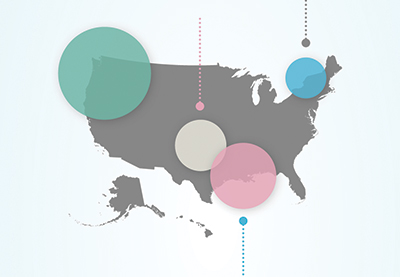
Design tutorials can help you succeed in school and work. Agri-Tech East remade this Simple Infographic Template using a lesson by Grace Fussell. What information would you include?

How to Draw a Realistic Eye

Want to get your drawing skills up like Yong Won Kim? Then check out this Realistic Eye tutorial from Monika Zagrobelna to see how it’s done. Great job with this one!

Create a BBQ Flyer to Celebrate Australia Day in Adobe InDesign

Our very own Mary Winkler took a stab at this next InDesign tutorial from Grace Fussell. By switching out a few of the squares, she was able to create her own unique and smart design. Awesome work!

How to Be Involved in the Next Showcase
Have
you created a piece based on one of our tutorials here in the Design
& Illustration section of Envato Tuts+? We’re keen for you to share
your results with us! Check out the general guidelines below to join in
with our community:
- Your artwork should be similar in some
way to the tutorial that you followed or that inspired it. The aim of
these showcases is to share what readers have created after following
the tutorial. - Comment on the tutorial you used, attaching an
image of your result. We’re keen on all levels of ability: from beginner
to advanced! - Include a comment about your result, yourself, or your process. We like knowing about you and what you’re sharing.
- Share
the tutorial when you share that artwork elsewhere on the web. If
you’ve posted your piece on sites like Facebook, Tumblr or Behance, link
back to the tutorial so that other users know your source and can join
in on the fun.
Thanks to everyone who was highlighted above for sharing your results with the Envato Tuts+ community. We look forward
to checking out your brilliant versions of our tutorials in the near
future, and welcome users new and old to participate in upcoming
showcases.

{excerpt}
Read More
10 Top Tips for Creating Amazing Infographics
Want to convey statistics, facts or survey information in a more exciting way than using text alone? Infographic templates are a beautiful and compelling way to present data, and they are fantastic for making complicated or even dull concepts clearer and more exciting.

In this article, you’ll discover ten top tips for creating infographic design templates that are easy to read and look amazing too. From choosing the right software to create your infographic layout to sourcing stylish icons and charts, this is your one-stop shop for getting started with creating your own infographic template.
You can find a wide range of infographic templates on Envato Elements and GraphicRiver to help you make a quick start on creating your own infographic designs.
1. Get Started With Publishing and Vector Software
An infographic template can be created using a wide range of programs, but generally software that supports vector graphics will be the wisest choice.
Vector programs like Adobe Illustrator or Inkscape will give you maximum control over importing, editing and creating vector graphics and type, allowing you to scale designs easily without compromising on quality.

Publishing software like Adobe InDesign and QuarkXPress also allow you to treat an infographic design as a complete layout, which can be helpful if you’re creating designs for print or multi-page documents like reports. These tutorials show you how you can create beautifully designed infographics using InDesign:
-

How to Create a Climate Change Infographic in Adobe InDesign
Help spread awareness about the effects of global warming with this informative climate change infographic, which we’ll create in Adobe InDesign. -

How to Create a Russia Infographic in Adobe InDesign
Learn how to put together this stylish infographic in Adobe InDesign. In this tutorial for relative beginners to InDesign, we’ll look at how to set up a…
You can also find a wide range of infographic templates for Keynote and PowerPoint, which can be adapted into dynamic presentations with animations and transitions.

2. Collect Your Data and Create a Concept
At the core of every great infographic design is a narrative.
You might be handling a large range of data, but it’s likely that the information will have a common unifying theme. Ask yourself—what message do you want to convey to your viewers? How can I condense this range of data into a single idea or concept?
If you have a single strong message to convey, such as an environmental message, or have a single topic in mind, such as education, choosing a graphic to represent the theme can be a helpful starting point.
These infographic templates use this idea effectively, using a single Earth or pencil illustration at the core of the design, before structuring the data around it.

3. Consider a Timeline Infographic Template
Perhaps a single image doesn’t feel like quite the right choice for your infographic design. If you’re dealing instead with a wide range of data that can’t be condensed into one visual element, you can look into alternative ways of presenting the information.
Timeline infographics are a tried-and-tested, effective style that works particularly well for communicating progression, such as history or travel.
A timeline is also simple to set up and is a helpful method for structuring your infographic design. Begin by drafting a line or arrow down the center of your layout, and build up your data around the perimeter.

Alternatively, you may want to use a grid-based layout for your design, which can include a variety of charts, icons, and callouts. This is particularly effective when you are dealing with a large quantity of varied data, or data that is more statistical, such as quantities or percentages.
Simply break your layout up into square sections, rows or columns and place a single item of data, whether a graph, icon or statistic, inside each section.

4. Size Your Infographic Template for Online Sharing
Before you begin putting your infographic design together, take a moment to consider the end purpose of your design. Who is the infographic intended for? Will it need to be adapted for multiple purposes?
For example, you might want to incorporate your infographic into a PowerPoint presentation as well as a print poster. With this in mind, you will need to make sure your design can be adapted to a slide size as well as to a portrait sheet of paper.
Infographics are also fantastic for communicating concepts to an online audience. With the ability to quickly catch a browser’s eye and hold their attention for longer than a text-based article, infographics can be a clever way to raise awareness about a topic or issue.

If you would like to share your finished infographic online, you will need to size your page appropriately before you start designing. Visual social media like Pinterest will automatically readjust the size of your images to fit them into their feed, so it’s key to ensure your images aren’t going to be warped or too difficult to read.
Expanded pins on Pinterest are sized to 735 pixels in width, but pins in the feed are reduced even further to a minuscule width of 238 px.
Images that are too tall will also lose their visual impact on a Pinterest feed, so it’s important to ensure your infographic looks just as good with a 238 px width as it does at full size.
5. You Don’t Have to Create Everything From Scratch!
Infographics can be very complex, with one design often made up of numerous icons, charts, and other images. If you’re happy to create all your graphics from scratch, then good for you, but you’ll need to put aside a decent chunk of time to do so.
Most infographic designers opt instead to incorporate and adapt ready-made graphics into their designs to save time. Downloading a set of simple vector icons or charts can save you a ton of time and effort, and help to create an overall more polished and professional effect.
This tutorial, for example, uses a range of themed vector icons to help reinforce each item of information.


You can find a wide range of vector icons and infographic elements on Envato Elements, which can be opened in Illustrator or other vector software and used straight away in your designs.


6. Layer Your Infographic Template
As you start working on your infographic design, you might start to feel a little overwhelmed with the sheer amount of stuff on the layout.
Don’t panic! A simple, sensible tactic for tackling any infographic template is to layer your design, splitting the design into easily separated and lockable layers, allowing you to edit individual elements without mistakenly moving or deleting other items on your design.
In Illustrator or InDesign, you can create layers in the Layers panel. Begin with a background layer, before building up separate layers for images, icons, and text. It’s a simple tip, but it will really help you to organise your work process and avoid any hair-pulling moments.
In this example, the infographic template is split into a large number of layers, which separates everything from the cars to the trees to the color of the buildings.


7. Don’t Neglect Your Type
While infographics might be in large part visual and image-based, text is actually a really intrinsic part of any successful infographic design.
The visual elements might entice the viewer to take a closer look, but it’s the facts and figures that will really hammer your point home. With this in mind, it’s important to give just as much attention to the presentation of your text as you do to the visuals.
For starters, a clear and well-sized header is arguably one of the most important elements on your infographic design. After all, if a viewer can’t read your title, the theme and meaning of the infographic will be lost on them. Place your header at the top of your infographic (centered or to the left side for English-language designs), and make the sizing nice and generous.
This space travel infographic uses a bold and creative header title, which has been converted to outlines and filled with a starry sky image.


Choosing the right font to use on your infographic can be tricky. The choice of fonts can be overwhelming, and some fonts which look beautiful on other types of layouts can suddenly look illegible or clunky on an infographic design.
A good tip is to always stick to ultra-clear and minimal sans serif typefaces. This is an almost universal feature of good infographic designs, because sans serifs are super easy to read and look clean and modern. They allow the visuals to take center stage too, while serif fonts can feel a little distracting and fussy.
My personal favorite font to use on infographic designs is Bw Modelica, which has a clean, rounded style which is highly legible at almost any size. You can find a wide range of alternative sans serif fonts on Envato Elements if you fancy trying something different.

8. Use Eye-Catching Color on Your Infographic Template
Color plays such a key part in attracting a viewer’s eye, but it’s often one of the last things designers consider when creating infographics. Stand out in a sea of washed-out browns and greys with an attention-grabbing color palette.
This infographic template uses a simple and striking combination of primary colors to create a stylish and on-trend effect.

Gradient swatches are another fantastic technique for both catching the eye and building a sense of depth on your infographic layout.
In this tutorial, I show you how you can create a multi-colored gradient swatch in InDesign to create a rainbow road effect for a Pride infographic.


Color can also be a helpful tool for making your design more readable and compelling. Color coding elements on your design is a great idea for giving order and legibility to complex designs.
In this example, a detailed religious calendar infographic is given more structure and order with a color-coded key at the bottom of the design.

9. Experiment With 3D and Photographic Elements
Infographic trends have recently been dominated by illustration, with flat design being the most popular with designers of late.
However, new approaches to infographic design are now presenting fresh and novel ways to craft an infographic style. If you want a break from the dominance of flat design, look to emerging trends in infographic illustration, such as isometric design and 3D styles, to give your design an aesthetic overhaul.
These 3D infographic elements use shadows and highlights to merge the legible appeal of flat design with a more immersive style.

You certainly don’t need to take a purely illustrated approach to your infographic designs either. Photography might be less commonly used, but it can be incredibly effective, especially when blended with illustrated elements and softened with overlay effects.
This climate change infographic uses a striking photo at the top of the design to create a visual anchor to the whole design. When teamed with condensed typography and flat illustration, it looks particularly contemporary.

10. Reach Your Audience
When you’ve finished working on your infographic layout template, it’s time to export it and share it with others.
The final stage in creating an effective infographic design is to make it visible to the right audience. Marketers often use infographics as an effective tool in building brand awareness or to raise awareness of key topics and issues.
The final tip to take away from this article is to know your audience and target them effectively using a marketing strategy. For example, an infographic celebrating International Women’s Day might have more impact and views on a social media channel that is female-dominated, and it would also be wiser to share and promote the infographic in the days leading up to the event.
Themed infographics will also benefit from a captive audience. For example, try sharing a beer-themed infographic with breweries on Twitter, or share with craft ale groups on Facebook.

Conclusion: Ready to Share Your Infographic With the World?
In this article, we’ve looked at ten tips and tricks for designing amazing infographic templates. Infographics can be as conceptual and creative as you like, as long as the information content is clear, so design with confidence and you’ll be sure to catch someone’s eye.
Looking for a fantastic infographic template to help you get started? You can find a wide range of infographic templates on Envato Elements and GraphicRiver to help you make a quick start on creating your own infographic designs.
Don’t miss these infographic tutorials for InDesign and Illustrator:
-
How to Create a Climate Change Infographic in Adobe InDesign
Help spread awareness about the effects of global warming with this informative climate change infographic, which we’ll create in Adobe InDesign. -

20 Best Infographic Template Designs on GraphicRiver
Do you need to tell a compelling story with your data? A well-designed infographic is a great way to visualize a concept in your marketing, present numerical… -

How to Create a Timeline Infographic for Black History Month in Illustrator
In the following steps, you will learn how to create a timeline infographic for Black History Month in Adobe Illustrator. -

How to Create a Colourful Dasara Infographic in InDesign
This colorful infographic is a tribute to the Dasara festival, during which processions and celebrations take place across many parts of the Indian… -

How to Create an Education Infographic in Adobe InDesign
This infographic looks at how organisations worldwide are battling to improve education for girls. Here we’ll learn how to put together the infographic in… -

How to Create an Editable Pie Chart in Adobe Illustrator
In the following steps, you will learn how to create an editable pie chart in Adobe Illustrator and how to easily stylize it.

{excerpt}
Read More