This post was done in partnership with Wirecutter. When readers choose to buy Wirecutter's independently chosen editorial picks, Wirecutter and Engadget may earn affiliate commission. Read the full guide to w…
Blancer.com Tutorials and projects
Freelance Projects, Design and Programming Tutorials
Tutorials,freelance,projects,joomla,php,mysql,wordpress,blancer.com
This post was done in partnership with Wirecutter. When readers choose to buy Wirecutter's independently chosen editorial picks, Wirecutter and Engadget may earn affiliate commission. Read the full guide to w…


Job hunting can be pretty challenging, especially for creatives and artists like you. How do you grab the attention of potential recruiters?
Designers, photographers, and graphic artists share the same dilemma of wanting to stand out in the creative industry. A modern and creative resume will help you showcase what you bring to the table and highlight your skills and talents.

Today, we’ll help you overhaul the look and feel of your traditional looking resume into a sleek and modern refresh using Photoshop.
If you’re not sure how to make a resume on Photoshop, then our guide will navigate you through a step by step process. We’re sharing some of our best design tips on how to format, lay out, and structure your resume in Photoshop.
Plus, take inspiration from the best Photoshop resume templates to get you started in no time. Or, use these Photoshop resume templates and make them your own through customization!
A traditional resume is straightforward. However, it prevents you from showcasing your creativity. Sometimes, it’s just a dull looking document full of words that recruiters won’t even bother reading.
While creative resumes in Photoshop aren’t for everyone, it’s very beneficial for applicants vying for a job in any creative industry. From photographers, graphic designers to illustrators, creativity is the main core of your job. Thus, a creative Photoshop resume will help your potential recruiters gauge how you think outside the box.
Your resume is a powerful tool to get hiring managers to notice you. It’s a perfect example of what you can do. It also serves as a branding opportunity to tell your prospective employer of who you are as a professional and as a person.
If you decide that a creative Photoshop resume is best for you, then you don’t have to invest as much time researching what you can do to make your resume stand out.

Here’s a guide full of design tips and best practices on how to make a resume in Photoshop:
Before you even begin designing your resume on Photoshop, let’s work on your content first. What do you want to include in your resume?
Gathering your content together will help you visualize how you want your Photoshop resume to materialize. If you know your content, you can easily build a layout and format that’ll best fit them.
A resume is comprised of several sections, but this is the basic information that you shouldn’t forget to include:
Once you’ve got the content to include, you can now set up a layout on how you’ll present them creatively. When choosing how you want to lay out your resume on Photoshop, it’s important to keep in mind that your content should be presented in a clear, concise, and easy-to-read format.
Recruiters shouldn’t take three minutes to find relevant information such as your name or current job role. Most HR staff and hiring managers won’t spend more than one minute looking at a single resume. Be sure that your layout presents the most pressing information first.
For example, place your most impressive qualifications on the top part of your resume. Generally, the top half of your resume should already help the recruiters decide if you’ve got the skills and qualifications for the role. Any supplemental information should be added on the bottom half of your resume.

What you can do is to work with grids based on the information you want to include in your resume. Place different sections into different grids to visually organize your information. Here’s an example of a simple, but highly striking Photoshop resume template. Take a look at how the different content is sectioned up into different grids.

Traditional resumes are generally just plain black and white. With a modern and creative resume in Photoshop, you won’t shy away from using color to make your resume pop even more.
Finding the right color palette for your resume should depend on how you want to project yourself. In color psychology, certain colors reflect a certain personality. In marketing, colors are used to evoke a certain emotion. For example, blue is the preferred color for tech companies like IBM and HP because it signifies professionalism.

Based on the main color that you want to use, you can now create a color palette for your resume.
For example, go to the Adobe Color tool to pick a palette that’ll blend well with your main color.
Let’s say, you want to use blue as the main color of your resume. Just click on the color wheel and choose a color harmony rule on the left of your screen:

Click the preferred color palette and then click Save to archive it on your Creative Cloud library. When you go back to Photoshop, open Window > Libraries panel > Color Schemes, and you’ll see the color palette you’ve chosen.

Typography is all about how you apply your fonts to certain information on your resume. A design tip is using a typographic hierarchy in your content. A typographic hierarchy is a system of organizing your information in different groupings and degree of importance. This will allow readers to easily find what they’re looking for and navigate your content.
Basically, you want to have a different font style and size for your headline and body content. This will separate different ideas and then group common sections together.
You also want to use only one to two fonts in your resume. To categorize different schools of thought, try increasing or decreasing the font size. It’s also important to know when to use bold, italic, or underline formats in your font.

To change the existing text of a PSD template, select the character(s) that you want to update. Choose the Text layer in the Layers panel to change the font of all characters in a layer. Then, use the buttons and menus in the options bar to change the font type, style, size, alignment, and color.

As a general rule, your profile photo isn’t really necessary. Certain countries don’t require a candidate’s photo. However, if you want to make an impression, go ahead and add that.
As for other use of images, you can add a background photo to spice up your resume on Photoshop. The trick here is to make sure that it won’t be distracting. It should complement your design and still should make your content the focal point of your Photoshop resume.

For instance, let’s customize this CV PSD template by changing the image. Simply open layer Objects and scroll down until you find IMAGE smart object layer. Double click on the layer. A .psh window will appear. Paste your image here. Save and close the smart object .psb.

Ever thought of adding infographics into your resume? It’s a great way to unleash your creative side. Data, numbers, and facts are best presented not in words, but in a visual manner. With infographics, you won’t just be dusting off your resume. You’ll also be making certain information a lot easier to digest.
So, what information can you transform into infographics? Start with the skills section. Instead of just listing down your technical or professional skills in a bullet form, you can spruce it up with the use of infographics. Use icons, bars, or graphs to make your skills even more visually appealing.
For example, the following resume template is a perfect example of how you can incorporate infographics into your resume on Photoshop. There’s a timeline section to illustrate the candidate’s career progression. There’s even a global map to highlight the regions or countries the candidate has worked with in the past.

Lastly, your resume should reflect who you are. Therefore, it must be unique and representative of what you can bring into your future company. Use little touches of effort to make it your own.
Your future employer will surely appreciate it if you elevate your resume into something that stands out. Treat your resume like your branding. For example, you can create a personal branding logo to complement your resume.

Creating a highly personalized and creative resume is a bit taxing. For a complete guide, learn more on How to Create a Great Resume (Ultimate Guide).
If you don’t want to work from scratch or don’t know where and how to start, using a Photoshop resume template will help you maximize your time and effort. Plus, resume templates will inspire you to get you some ideas to make your creative Photoshop resume a standout.

If you work with digital assets, think templates, presentations, photos, music and more, you should consider getting yourself Envato Elements membership. With a growing library of over 1.2 million digital resources it’s a one stop shop for many smart creatives and organizations.

Here are some of the most beautiful and highly stunning Photoshop resume templates to draw inspiration from:

This tastefully designed resume template will help you craft a pretty memorable impression to your potential employer.
Best for: designers and artists with an extensive portfolio to showcase.

This Photoshop resume template has a design aesthetic that’s minimalistic in nature, but with a modern look.
Best for: Job applicants seeking to be part of fashion and interior design industries.

Intended to make a lasting impression, this Photoshop resume template has a professional and neat design. It only has a single use of color to maintain a clean finish.
Best for: Creatives who want to maintain a level of professionalism.

A stunning resume template on Photoshop, this exudes elegance. It’s got an impressive and unique aesthetics that’ll surely captivate any recruiter.
Best for: Artists who want to immediately stand out.

This resume template is simple, but with modern and energetic aura. This will grab any hiring manager’s attention in an instant.
Best for: Anyone who wants a fast but effective way to refresh his or her resume
For more, check out curated list of creative resume templates:
Hunting for your dream job has never been more competitive. You’re going against several fierce applicants who will surely put their best foot forward.
To instantly catch your potential recruiter’s undivided attention, a creative Photoshop resume will surely make an impression. Follow this guide on how to make a resume in Photoshop to quickly get you on the right track.
You can also get inspired by our five best creative Photoshop resume templates as featured in this article. For more quality templates to amp up your Photoshop resume, visit Envato Elements or GraphicRiver items.

{excerpt}
Read More
Mentoring in the workplace is one of those rare things that’s good for everybody involved.
As we’ll see in this article, mentoring has important benefits for companies and for the people being mentored (known as protégés or mentees). It makes people happier and more successful, and it makes companies more diverse and productive. And another crucial point, which is often overlooked, is that it also pays off for the people doing the mentoring too.

But how do you do it right? In this tutorial, we’ll look at how to be a good business mentor. We’ll cover the nuts and bolts of getting things started on the right foot, and then we’ll look at some best practices for being a mentor at work. And we’ll finish with some quick tips for people who are looking for a mentor.
So let’s get started!
Mentoring someone doesn’t cost anything, but it can involve a significant time commitment. If you’re a busy manager or business owner, you probably have enough demands on your time already.
So why would you want to take on mentoring?
Because it’s good for everyone involved—including you. In this section, we’ll look at the benefits of mentoring for mentors, for the people being mentored, and for companies.
Mentoring can be deeply satisfying. Guiding someone through the challenges you faced yourself at an earlier stage of your career and helping them to avoid some of the pitfalls you encountered is a good thing to do. If the person you mentor goes on to be successful, you can feel proud of that.
But there are also tangible benefits beyond good feelings:
According to an academic study:
“Compared to colleagues who did not mentor, individuals who served as mentors within their workplace reported greater job satisfaction and commitment to the organization. In addition, higher quality relationships were associated with even greater benefits.”
Most mentors do it because they want to help other people, not for the personal benefits. But it’s worth knowing that those benefits do exist.
Look at pretty much any successful figure, and you’ll find they had a mentor.
Steve Jobs, for example, had several mentors who taught him everything from sales to spirituality. One of them even gave him the inspiration for the name “Apple.” He said of one of them:
“Bob Noyce took me under his wing. I was young, in my twenties. He was in his early fifties. He tried to give me the lay of the land, give me a perspective that I could only partially understand.”
That’s the kind of benefit you can get from mentoring. Jobs understood the value of it, because he then went on to give the lay of the land to younger tech luminaries like Facebook’s Mark Zuckerberg and Google’s Larry Page.
Numerous studies have backed up the benefits of mentoring. This huge meta-analysis of over 100 different academic studies found that people with mentors enjoyed:
And, by the way, that’s only a partial list. The study found more benefits, and other research has added to it. For example, this research shows the expected salary increases from being mentored. Would you prefer to be on the purple line or the blue one?

So we’ve seen that mentoring is good for both parties involved. But what about companies? Well, it turns out that there are significant benefits of mentoring programs in the workplace for companies too.
Let’s start with the transfer of skills and knowledge. Companies invest a lot of money in training their employees, but mentoring is a simple, free way of transferring knowledge and skills among your employees.
But it goes further. As well as having more skills, your employees will also be more engaged and motivated. Take a look at the list of benefits for mentors and mentees that we’ve covered above and ask yourself if it would be good for your company if your staff enjoyed all of them.
Mentoring has also been shown to reduce employee turnover. Consider these powerful results from a long-term study summarised in Entrepreneur magazine:
“Employee retention rates climbed 69 percent for the mentors and 72 percent for the mentees over the seven-year period of the study. The increased retention resulted in a savings of $6.7 billion in avoided staff turnover and replacement costs.”
And finally, mentoring makes companies more diverse, both by breaking down biases and by helping people who might otherwise lack the connections to advance in their careers. As Harvard Business Review reports:
“Mentoring programs make companies’ managerial echelons significantly more diverse: On average they boost the representation of black, Hispanic, and Asian-American women, and Hispanic and Asian-American men, by 9% to 24%.”
Are you convinced yet? If so, you’ll probably want to know how to get started as a mentor. Let’s look at the steps involved in being a mentor at work.
Mentoring relationships are often initiated by protégés approaching their preferred mentors and asking for help. But if nobody’s approached you, that doesn’t mean you can’t be a mentor.
You could approach your human resources department, for example, saying that you’re keen to act as a mentor to another employee and asking if they know of anybody suitable.
Or you could look for formal programs, either within your company or in the wider community, that seek to match up mentors with protégés. Or you could simply put the word out informally among your personal and professional networks. Someone is sure to know someone who would like to be mentored by you.
A mentoring relationship doesn’t have to be very formal—in fact, mentoring often works best when it’s more like a friendship than a business arrangement.
So you don’t have to sign a formal mentoring agreement or anything like that. But it’s a good idea to discuss what you both expect out of the relationship and make sure you’re both on the same page.
Agree on things like:
Note that if you’re part of a formal mentoring program, there may be other steps to take, and you may need to fill out paperwork and sign forms. The upside is that you’ll probably get more support in setting up the mentoring relationship and making it successful.
If you’re on your own, that success is entirely up to you, so take the time to think about the best way to set clear expectations and agree on a way forward that works for you both.

Now let’s look at some best practices for mentoring in the workplace. How can you be most effective as a mentor?
Mentors are usually more experienced and more senior than their mentees, and it can be tempting to spend most of the time telling stories and dishing out advice. But it’s actually more important to listen.
Find out what your protégé really wants and what they’re struggling with. Ask penetrating questions and take the time to really hear the answers. This may take a conscious effort from both of you, since the tendency is often for the more senior person to dominate a discussion.
When you’ve listened and understood what your protégé is trying to achieve, then you can start to give your advice.
As you do that, try to strike the right balance between being honest and being supportive. Both are good qualities, but not when taken to extremes. Nobody likes being criticised too harshly, but avoiding the truth in the name of uncritical positivity is no use either.
Try to find ways of being honest and telling harsh truths where necessary, without being hurtful. Showing someone a new way of looking at a problem, even if it’s not what they want to hear, is actually a great way of supporting them.
Mentoring is not simply a networking opportunity. It’s more about the advice and the personal connection. But as a mentor, you may also be in a position to help your protégé with things like connections and recommendations.
So be generous with that help if it’s asked for. If you can open doors for someone, why not do it? Also be generous with sharing your experiences and advice, even if that means making yourself vulnerable by sharing embarrassing stories that don’t put you in a good light. Those can be the most useful of all.
As a mentor, you want your protégé to be successful. But sometimes that won’t happen, and that’s when your support can be the most valuable.
Quentin Tarantino, for example, was mentored by British director Tony Scott from the early days of his career. But it was when he suffered his first major flop that he really benefited from Scott’s support and encouragement, at a time when he said he “felt like the planet earth had broken up with me.”
As we all know, Tarantino bounced back to enjoy a successful career, and he never forgot his mentor’s support. Follow Tony Scott’s approach, and be there for your protégé in good times and bad.
So far, we’ve been looking at things from the mentor’s point of view. But what if you’re the one looking for a mentor?
In that case, you’ll need to start by thinking about what you’re looking for in a mentor. Ask yourself:
Once you’ve got an idea of what you need, start brainstorming people you could approach. Consider formal mentoring programs, either within your company or outside. But also think about people who know personally, friends of friends, or extended family.
Then it’s time to approach your chosen person (or people). If you already have some kind of relationship, you could go straight in and hit them with a well-thought-out pitch about why you want them to mentor you.
But if you’re starting cold, you may need to start smaller and build from there. Mentoring is a significant long-term commitment, and people are unlikely to take that risk on someone they don’t know at all. Look for opportunities to get to know them a bit, helping them out if you can. You could also start by respectfully asking for small pieces of advice, only formalising it into a mentoring relationship at a later stage.
You can find a lot more detail and practical advice about finding a mentor in this wonderful article by Lisa Hunter:
As you’ve seen in this tutorial, mentoring is a wonderful thing to do, with tangible benefits for both parties involved, as well as for the organisation they work for.
Are you ready to get started with mentoring in the workplace? Why not put these lessons into practice and volunteer to mentor someone in your organisation?

{excerpt}
Read More

Are you applying for a new job? If so, how will your resume get noticed in a crowded job market? Shouldn’t your resume be the one that stands out from other applicants?
Don’t worry though, if you’re in a hurry and need a quality, ready-to-use solution to create a truly unique resume, we’ve got you covered!
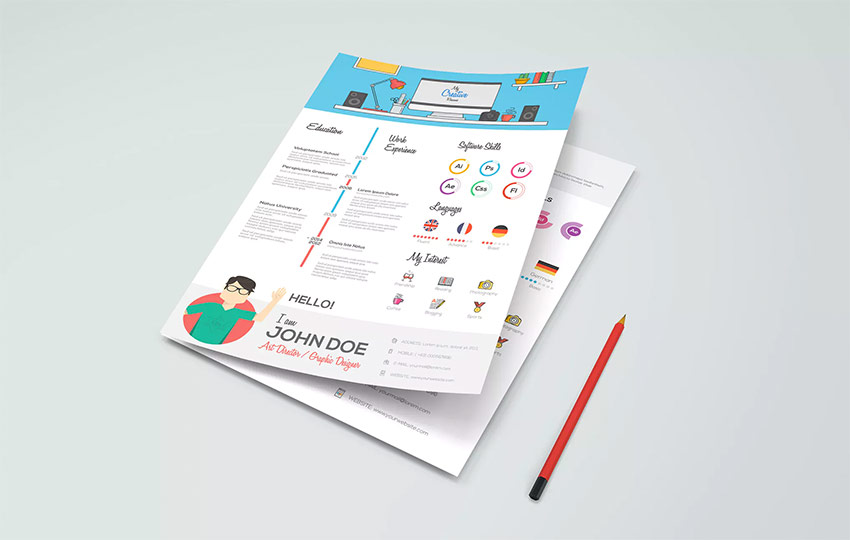
With a premium template design you can make a unique resume quickly—one that fits your creative aesthetic style, has great infographic and visual features, and is super easy for you to personalize. Here are some of our best visual resume examples from Envato Elements and even more infographic resume templates from GraphicRiver.
You can find hundreds of the best infographic resume examples on Envato Elements, with a great offer: download as many as you want for one low price.

Each of these infographic resume examples has loads of visual features to present your work experience attractively. While feature-rich, they’re easy to use. You can customize your profile, work history, present your skills, and quickly insert your personal brand details.
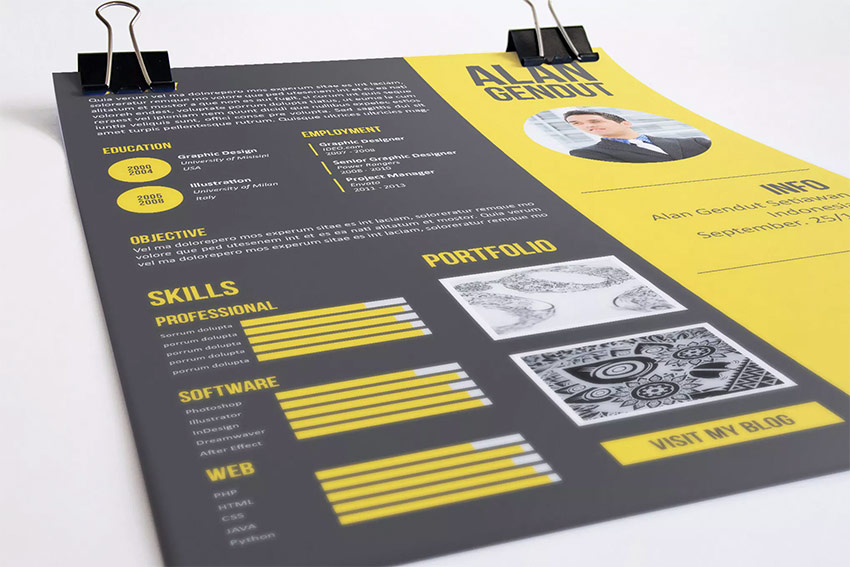
There are a number of visual features you can personalize, such as:
Additionally, these creative resumes come with advanced options to showcase your personality, and many include portfolio presentation pages, cover letters, and more.
Grab one of these already visually engaging resumes, add your custom graphics and info, and you’re ready to go out and land a new job!
Here are a few of the best creative infographic resume examples (with premium Word, PSD, PDF, and other format designs) that are trending on Envato Elements:

This is a clean set of resume infographic template Word with well-organized layouts and a focus on content. It features clear columns, and simple infographics, that help recruiters see your professional qualities and strengths at-a-glance. This set comes in Word, Photoshop, and other popular formats, so you can customize it in your preferred creative software platform. This premium template is a good choice compared to free infographic resume templates for Word out there.

Want a resume that’ll leave an unforgettable impression with a potential employer? This set of professional resume templates comes with two unique pages, clean infographics, and a creative set of designs. Don’t waste your time or take the risk with free infographic resume templates for Word. Get this template and customize quickly in MS Word format, InDesign, and Photoshop PSD!
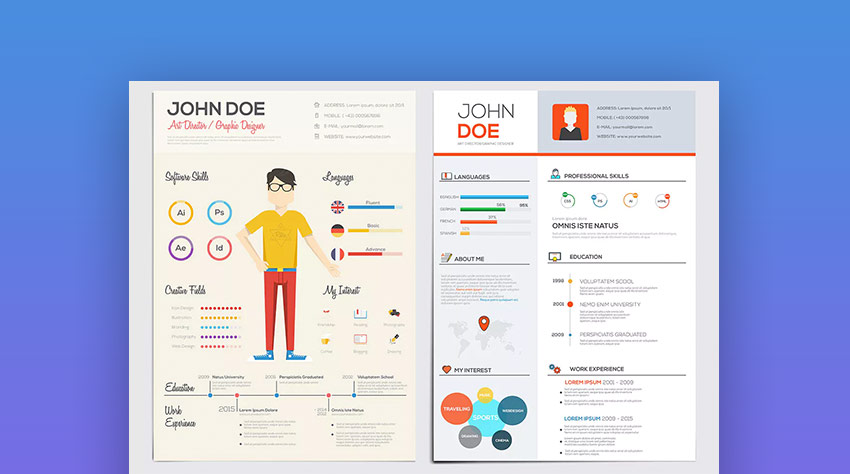
This creative resume template is made with a trendy, flat style of illustrations and infographics. All artwork and text sections are set up to customize. Edit the typography, choose your colors, customize the vectors, and quickly add your job history. If you’re a designer, this is the perfect graphical resume format for you.
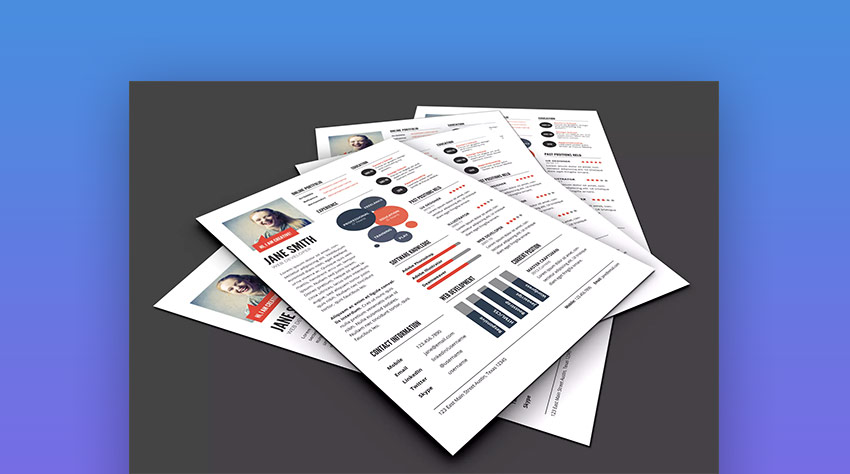
If you need an infographic resume template in Photoshop PSD format, then this item is for you. This set of design files includes a resume page, cover letter, and portfolio to showcase your work. You can export this US Letter set (8.5×11) quickly to PDF and other popular formats. Sure, you can get infographic resume templates free, but this is better. Get a bold premium graphic resume in front of new employers fast!

This modern resume set is made for designers and discerning creatives. It comes with resume CV, cover letter, and portfolio pages. Whether you’re applying to a startup, agency, or another coveted position, this resume design can be customized to showcase your strengths. Use its distinctive design, clean infographics, and creative features to stand out from other applicants.

Envato Elements has a single compelling (all inclusive) offer:
Sign up for Envato Elements and you get access to thousands of unlimited use graphics and templates, from web themes to premium infographic resume templates, and more—all for one low price.

That’s right! Download as many professional templates and creative graphics as you want, then customize them to fit any of your project needs.
While Envato Elements is a powerful option, if you prefer to buy new resume templates one at a time (instead of getting unlimited access to hundreds of creative designs), then check out the selection from our GraphicRiver marketplace below.
We’ve got a number of creative resume template examples featured here from GraphicRiver as well.
Each is designed with professional graphics, so you can get the job you’re aiming for. They come packed with clean infographics, and data presentation options, so your experience and skills shine with at-a-glance clarity.

Here are over a dozen creative resume template examples with great infographic and visual features to choose from the GraphicRiver marketplace:

A clean and modern infographic resume template that’ll give you the ability to translate a lot of your text to visually appealing graphics. Creating a resume from this template would showcase just how creative, professional and well suited you are for the role you’re applying for.

When applying for a new job it helps to stand out from the rest of the applicants, to show your creativity and to be memorable. Basically, it’s time to think out of the box! This Retro Infographics Resume Template helps you do just that. Edit the template with your details and start your application process today!

If you want to balance a minimal look and feel with infographics in your graphic resume design, this is the perfect choice for you. It strikes the right balance between text and graphics thanks to the skills and awards section that feature icon representations of your achievements. A better option compared to many free infographic resume templates for Word that are online now. Great for InDesign, Microsoft Word, and Photoshop users!

When you’re choosing an infographic resume, it helps to choose a template with many choices for showcasing your top skills. This graphic resume design fits the bill perfectly thanks to the selection of resume, cover letter, and references letter templates all included in one cost-effective bundle. For InDesign users, it’s easy to choose between the three color schemes and two print templates.

My favorite graphic resume design templates make good use of white space, and this choice is no exception. It’s ideal to hit a few key skills and not overwhelm the reviewer with too many details to properly take in. Best of all, the skills section has an infographic icon setup that allows you to show those top talents that set you apart in your field!

Are you in need of a fresh premium resume infographic template Word to replace your existing free infographic resume templates for Word? Regardless of what you call it, your resume is what gets your foot in the door to any job you apply to. If it’s been some time since you’ve updated your creative resume, then a quality designed resume is just what you need. This professional graphic resume template comes in InDesign, Illustrator, and Word format. It’s got all the infographic and visual features you’d want to make a great first impression!

This resume is great for designers and creatives of all types, or anyone that wants to catch an employer’s eye from a pool of applicants. This template pack comes with resume, cover letter, and portfolio pages.
There are multiple color options in these Photoshop (PSD) files as well. If you’ve got a number of skills to feature to potential employers, then this resume template is a great solution. It comes packed with infographic and visual display options that are clean, professional, and attention-grabbing.

This resume template features a number of infographics. It’s got a modern design style and a sharp, clean look. It’s made to make your job history and skills stand out creatively and professionally. It comes with Photoshop, InDesign and Microsoft Word files. A matching cover letter is included. It’s easy to edit and customize and will help you make an unforgettable impression! Or you can get more design options from this author with the Infographic Resume Bundle.

Graphic-rich, colorful, with a number of icons and infographics—which will quickly highlight your application as distinctive—this infographic resume template is ready to use. It comes in MS Word, InDesign, and PDF formats. A good resume infographic template word that is easy to edit and customize. And it’s set up professionally for print at high resolution or you can export to a number of popular formats. This template gives you an edge that no free infographic resume template for Word will.

This resume template is a great way to make a creative impression. It’s designed with visual features to succinctly showcase your folio, present your work history with infographics, integrate your personal brand, display your skills, and more. This graphic resume design folds up neatly into three parts to readily fit into a standard envelope. This InDesign file is set up for print and ready to put to use.

Infographic and data-rich, with numbers and modern fonts, this creative resume template is a great way to showcase your abilities to potential employers. Your job history and distinctive skills will stand out immediately.
It comes in InDesign and Illustrator formats. It’s print-ready, set up with text styles, and layers ready to work with, as well as infographics that are easy to edit. You can quickly add your info and customize. There are black, gray, and white versions.

This modern resume template comes with clean infographic features for displaying your skills visually and demonstrating to potential employers what key assets you can bring to their organization. It comes in InDesign and Photoshop formats. It’s set up with A4 and Letter sizes. It’s packed with vector icons and infographics, which are easy to edit and personalize. Leap out as a creative pro!
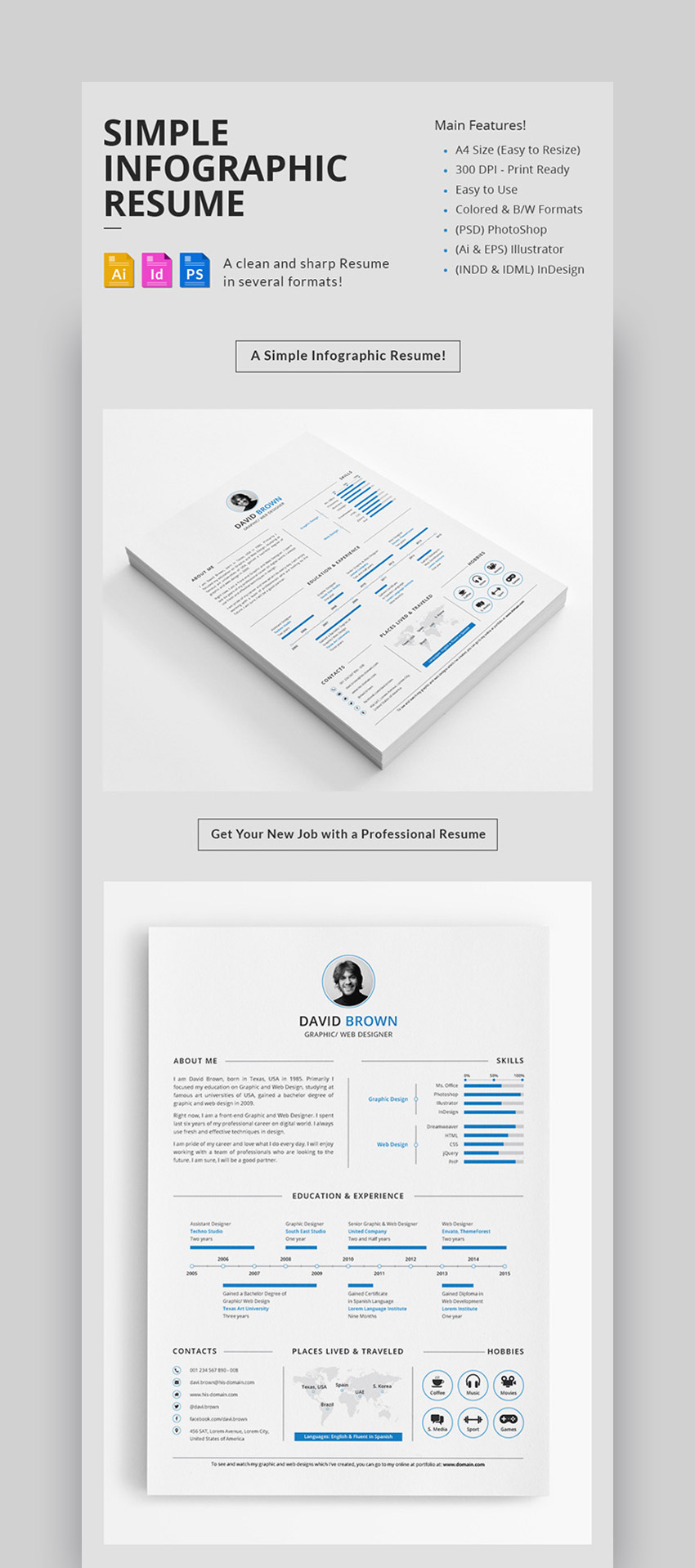
This is a simple infographic resume template that can present your employment info in a professional style. A free infographic resume template won’t give you a fully edible and well-organized template like this. The data and visual display features are sharp and read with clarity. It comes in PSD/Photoshop, AI/EPS, and InDesign/INDD file formats. It’s print-ready at 300DPI and set up with professional printer bleeds. You can get your new job with this resume design.

This is a professional resume (curriculum vitae) design completely in vector format. It’s ready to use, easy to customize to your info, and present your assets in visual style. The graphic resume template files features options for displaying your residence on a map, languages you speak, you can highlight your skills, and use icons to call attention to awards, work experience, and your qualifications. It features a colorful design on a clean white background.

With a clean black and white design, great visual infographic features, and photo and brand components, you can get noticed immediately with this graphic resume infographic template Word. It’s got a professional graphic design format that comes in Photoshop and Word. You can readily customize in either application. It also includes a cover letter template in addition to the one-page resume. Get hired today!

If you’re applying for any position, your first impression starts with your resume. This graphic template pack comes with two creative resume designs. Each has infographic and visual features that can showcase your experience, detail your skills, and help you stand out visually. Either Photoshop file can easily be adapted to your profile and personal brand. These resume template files also come with portfolio displays, business cards, covers, and additional add on features.

This graphic resume template package comes with six pages: front cover, resume page, references page, portfolio, letter, and back cover. It’s a minimal, modern graphic resume design, which can be tri-folded for mailouts. It’s easy to add your info, make use of the infographics, and visual graphic options, and stand out professionally—with clean creativity. It comes in print ready InDesign format.

This popular, user-friendly, graphic resume template has a number of file options. It comes in Adobe Photoshop, Illustrator, InDesign, as well as MS Word. There are eight color versions all set up and ready to early work with—332 files in total.
All come with multiple page options: simple resume, infographic resume, cover letter, and folio. The graphic resume template files are all properly layered, set for one click changes, and easy to work with paragraph styles.

This resume template is cleanly designed, in an elegant style, and includes simple graphic and data presentation features. If you need to get a new job, this resume design will help you make a professional creative impression.
It comes as a pack with MS Word and Photoshop files. They’re set up to be customized, well organized, and easy to edit. Get the best results in the fastest time possible with this resume template.

This resume template focuses on infographics as a way to set your application apart. Not only does it have a “honeycomb” type graphic for your top traits and skills, but the entire resume is also divided into a pseudo-timeline. I like the way that this graphic resume design divides your core competencies into key areas that are easy to review and understand.

In one package, this infographic resume template has a variety of elements to choose from in designing your resume. In the screenshot above, it’s easy to see that there are choices for how you show off your top skills and talents. Fill in any of the graphics to highlight your core competencies. A good premium template that helps you save time and create a resume that is professional. This is something that free infographic resume templates can’t promise.
It’s challenging and time consuming to design a professional creative resume from scratch—one that makes a great first impression:
Here are five quick tips to choose the best resume template for your needs, how to customize it, and add your unique branding details:
There are so many creative resume templates. It can be hard to make a final decision on which one to use. There are a few points to reflect on to make an informed choice.
First, think about what visual look you want and how it’ll best represent you in the marketplace.
In each case, you want a resume design that’s well-organized, fits your personal brand style, reads cleanly, and is set in a layout that’s easy for the eye to follow.

In addition to style, you should also consider what resume components you need. Do you want a single resume page or are you also needing a cover letter and a page to present your portfolio of work? Do you want icons or other visual features to make sections of your resume stand out? Choose a resume template that’s got the look and features you need.
Also, narrow down your choice by what graphic software you’re most comfortable in and have access to. Do you have Photoshop, Illustrator, InDesign, or Word? If not, you can also hire a graphic designer to help you out. They can add your details to any template you choose.
Once you’ve reviewed the options, narrowed down your style and presentation needs, then make an intuitive choice and pick one.
You may also want to pay particular attention to infographics when making your decision on which template to go with.
Infographic designs are a great way to add a more detailed, data-driven, look to your resume. They also bring focus to details you want to call immediate attention to, like what an expert you are in a particular software program or the specific job experience you have.

Consider whether you’d like to present your work history with a timeline? Or would you like to add your skills with circle charts? Or possibly, display word clouds to feature your professional experience?
Choose a graphic resume template that’s got just the right infographic features you need and will present your skills and experience with the greatest clarity.
Another point is to consider how your personal brand fits with the resume template you’re looking at. Will your photo and personal brand work well with this resume template? How will your personal logo fit the design? Also, are the color themes on target with your brand or easy to customize to fit?
You want to make your resume unforgettable, so choose a template that you can inject your personality into.
We’ve got a helpful article on creative resume design tips for more compelling suggestions—including advice on how to better brand your resume:
And if you’re a graphic designer, and just looking for a workflow on how to craft your own creative resume design in InDesign, then work through this tutorial:
A number of the graphic resume designs in this round-up feature a placeholder for your profile photo. So, should you include your headshot in your next job application?
Sure, it takes some extra effort to get a professional headshot. But it might make the difference in helping your job resume stand out from the pack. And it also helps the interviewer familiarize themselves with the candidate before the interview itself.

Maybe the most underrated part of the resume design process is having someone else act as a reviewer for your resume before you submit it. It’s easy to overlook details after you’ve been staring at the resume on your screen.
Have someone else that you trust review the resume. They’ll help you catch typos that spellcheck or that your own eye might have missed. They’ll also help you craft your skills and unique value proposition to the situation at hand.
If you need a good overview of how to make your resume, which comprehensively covers the integrated writing and design process, then dig into this tutorial:
Need to explore other creative and professional resume templates trending in 2019? We’ve got a few other helpful articles that you may find interesting:


Any one of the creative resume templates from Envato Elements or the infographic resumes from GraphicRiver could be just what you need.
Insert your job info into these pro designs, customize it to your profile and experience, add your personal branding and graphics, then export.
With a creative resume design, you’re ready to stand out from all the other candidates to land that job you’re aiming for in 2019!
Editorial Note: Our staff updates this post regularly—adding new creative infographic resume designs with the best, trending designs.

{excerpt}
Read More


Have you been wondering how you can take your print design materials to the next level? In this article, we give you ten great tips to take your design to print.
Print design is a branch of the graphic design industry focusing on printed materials. That includes magazines, book covers, packaging, business cards, flyers, brochures, and anything that ends in a tangible printed product.
Before starting a project, make sure you have all the necessary information you need. Will you be working from a template or are you creating the design from zero? Are there brand guidelines you need to follow? Are the images provided optimal for printing? Are there any color limits? Double and triple-check the page size and ask what the final deliverables will be.
There are several basic key aspects to keep in mind when designing for print. Creating a file for printing has its own specific settings that, if not done properly, can have terrible consequences and result in wasted time and money. The basics are making sure that all print files have a CMYK format and are set at 300 DPI. Just as important is using appropriate bleeds and margins to ensure perfect printing.
Having a good relationship with your professional printer is a bonus—they are knowledgeable especially when it comes to packaging and custom sizes. Keep in communication with them as they can help you out when you can’t find an answer to your problem. As you send files to press, you can ask printers for proofs. These are great to make sure the design, color, and format are what you need. Proofs give you one last chance to change anything that might look off and to check the spelling. If you are working with heavy copy, have a second set of eyes or, even better, a copy editor to proofread the project.
Print design covers a wide range of printed pieces. If you are new to InDesign, this article covers some great tips you can follow to create some awesome projects. If you are just getting started with InDesign and can’t quite figure it out yet, don’t stress! We’ve got amazing InDesign brochure templates and InDesign flyer templates over at Envato Elements and GraphicRiver. Go check them out!
Grid systems are one of the elements in design that go unnoticed because they are mostly behind the scenes. Whether you are designing one or hundreds of pages, a grid system is essential in developing a layout. Grids can help you position text and images so that the page will look polished and clean.
The structure is made up of intersecting horizontal and vertical lines. It doesn’t end there—if you want to add complexity to your page, try adding angular or curved lines. There are no strict rules as to what is and what isn’t a grid. That’s the beauty of design—as a designer, you can create your own grid. As long as you follow it throughout a project, you will create clean pages.
Take a look at the designs of Josef Müller-Brockmann for the ultimate inspiration. Or check out this template below. The designer created a four-column grid which they smartly used to lay out the elements on the poster.

Many designers think that grids are a synonym for constraints. While lines can appear to be limits, it is up to your creativity to work around them. Grids are open to plenty of options for us to play with.
For instance, let’s take a look at this InDesign template. The designer used the grid as if they were using multiple layers on the document. This superimposed playful layout creates depth while keeping the page clean and minimalist.

Check out this Bauhaus poster tutorial in InDesign to create an awesome angular layout. If you’d like to learn more about creating InDesign layout templates, take a look at this article. We break down the essential elements to create your own templates.


Gone are the days when layouts were simply flat. Print design has come a long way, and with the help of grids, we’ve started creating multi-layered layouts. We are not talking about the InDesign layers panel but the layered elements on a page. Images over colored backgrounds, type over images, graphics over type, etc. The juxtaposition of elements adds carefully measured playfulness.
There are a few questions you need to ask yourself when creating a multi-layered document. If you happen to be working with heavy content, ask yourself if it’s legible. It all comes down to legibility, so if the copy is difficult to read, you might try choosing a lighter background like the one in the InDesign template below.

Type over imagery is one of the easiest ways to apply multiple layers. Make sure the colors on the content and the colors of the image aren’t mixing to the point of illegibility. Ask yourself if it makes sense for the medium you are working in. If you are choosing to play with type over images, apply it throughout the design. Some people might think the decision was a mistake, so make it obvious.

Take a look at this InDesign catalog template, featuring type over images throughout the layout.
Minimalism never goes out of style. You can’t go wrong with crisp, clean, and organized. This movement has influenced multiple fields, from print design to user interfaces, films, and architecture. Create visual harmony with a few elements—not just any, but the best you can find. Select high-quality fonts and images, a muted color palette, and a basic grid. Minimalism can seem stark due to the lack of color, but use the content and images as elements to add contrast.
This magazine layout template uses the most essential elements to create an easygoing vibe on the pages. Use a mix of different font sizes to add visual interest to the page without creating clutter.

This InDesign flyer template is another great example of using multiple font sizes. If carefully placed, they’ll add balance to the layout. Use high-quality photography and enlarge the star of the show for a dramatic touch.

Check out these tutorials, in which you’ll learn to create clean and minimalist layouts in InDesign.


This decorative element on the edge of the paper is not just an adornment. Borders can help you reinforce the theme of your project by stylising them. They can frame the page and create a strong delivery. This vintage style border uses intricate lines. With that alone, this element can bring the quality of your design to a higher level.

Borders can also be colorful. This bold border helps unify the theme of the design by complementing it. Use the design of the page as inspiration to add a border. If it becomes too crowded, try using fewer colors and a simpler design.

Check out these InDesign template tutorials that feature some cool borders in the designs.


Patterns are extremely versatile and perfect for filling up empty space. If you’ve gone too far with minimalism and thought to yourself, “How can I make this special?”, patterns are the answer as they are flexible, functional, and visually effective. Not to mention that you can explore patterns for years—there are never two of the same. For some inspiration, check out the City of Melbourne branding by Landor Associates, which includes a plethora of geometric patterns.
As in the business card below, you can keep it monochromatic, minimal, and clean. This is a discreet way to add something special to the back of business cards. Keep a sleek palette if your pattern gets intricate.

It all depends on what feel you are going for. This book mockup has an organic, playful pattern in which each element has a different color. Work with a color palette that allows you to create visual harmony between the pattern and the background.

Check out this easy tutorial on how to make a pastel neon flyer in InDesign with a subtle pattern. If you are more versed in Illustrator, learn how to create this pattern set in different styles.


Colors evoke different feelings in design. While we see logos and printed materials in many different colors, black still holds strong. Black translates into high-end, luxury, and elegance. This mysterious color is the new ‘white canvas.’ Paired with other colors, it brings out a contrast that can’t be compared to white. The play of light and dark lends a sharp contrast to the page.
This InDesign template works beautifully with a black background. The subject’s clothing gets lost in the background, highlighting the subject herself. The white type acts as a middle ground between the black and yellow. The only yellow element is even more pronounced because of its color and how strongly it lights up against the black.

You can also use stronger colors over black. This business card template features a bright orange color. Due to the dark background, the color appears much brighter. A dark background mixed with a bright color can bring some visual interest to a minimalist design.

Take a look at these InDesign template tutorials, which use dark blue backgrounds to highlight other elements on the page.


Turning a logo into a complete brand identity can be daunting. A professionally designed brand identity needs to be visually attractive and fresh. Aside from marketing, consumers will be looking at your branding to make sure you have a credible company.
An identity package consists of business cards, letterheads, invoices, envelopes, and creative folders. There are other materials that can be included, but these are the essentials. These elements need to work together cohesively. So if you are applying a pattern to a business card, this needs to extend to the rest of the stationery. This graphic translation will help you create a quality brand that will stand out from the crowd. The consistency doesn’t stop after printing—make sure that the brand identity is applied across multiple media.
If you are struggling to find something you like, check out this InDesign template. It is clean, minimal, and breathable. You only need a few elements, add a pattern and a tasteful royal blue color, and you are all set!

If you are looking for something, let’s say… loud—here’s this bright InDesign template. It is still neatly organized and features those multi-layer tips we were talking about before. You can’t go wrong with a highly typographic piece.

If you interested in creating your own stationery set or looking for tips on creating professional letterheads, check out these awesome tutorials:


There are a number of ways you can add emphasis and movement to your project. Colors and shapes are a couple. Rotating text from horizontal to vertical is a different way of adding movement and direction in your design.
When applying this tip, think as if you were the audience. In this InDesign template, details are aligned on the y-axis and aren’t too overwhelming. Leaving the date on the fold is a bold move too—and it looks great! In this case, the trifold brochure contains the long copy from top to bottom—remember we still need legibility. Do practice this tip carefully; overdoing it can cause disharmony on the page.

Find other great examples that show different orientations and typography. We’ve got two tutorials on this topic that don’t compromise legibility at all and are visually stunning:


There are some simple steps you can take to spice up a minimalist layout. One of them is using basic graphics that vary in size and color. These will add visual weight and help with direction by emphasizing content. If you open a brochure and you are not quite sure what to read first and how to follow the content, lean on basic graphics.
This InDesign template is a great example of adding basic graphics. Each panel contains at least two graphic elements. Each either contains color or a photograph highlighting the content. The graphics are smaller and occupy what might have been empty spaces.

Basic graphics can also make for great brand identity stationery. This InDesign template contains a pattern of multiple basic graphics arranged diagonally. The end result is a playful and dynamic identity that is ready to take on the world.

Learn how to incorporate basic shapes in your design in these two tutorials. This InDesign flyer template successfully mixes graphics and photos.


Last but not least, high-quality images. It is no secret that using full-page, bleed-to-bleed images creates a major impact. While it seems as if it would be easy, it really isn’t. First, you need to find high-quality images that you can enlarge to a full page. If you use low-quality images and carelessly stretch them over a page, you can run into some unpleasant problems. Pixelated images aren’t pretty to look at, and they can be a bad reflection on the brand.
When you obtain an image, make sure you run it through Photoshop first. Make sure the resolution is set to 300 DPI before placing it in InDesign. Once you are in InDesign, use the image at 100% scale. You could go up to 120% in some cases, but always do a test print just to make sure you are in the clear.
This InDesign menu template is great for highlighting some tasty food as an opener. It adds a great impact to your design.

If you are having trouble finding high-quality images, make sure you check out Envato Elements. They have an ever-growing library of images, fonts, graphic templates, web templates, stock videos, and sound. You are sure to find some excellent assets for your next project.

In this article, we’ve covered a wide range of tips to help you take your print design elements to the next level. We know it can be daunting to create something that’s going to be put out into the world. Take these tips and see how they can be applied to your next project.
If you are new to InDesign and aren’t sure of how to start, we’ve got some great templates that can help you out. We have everything from InDesign business cards to InDesign brochure templates and much more. Time savers! Head over to Envato Elements and GraphicRiver and take a look!
If you liked this tutorial, you might like these:






{excerpt}
Read More

Feeling alright after last night's Neon Genesis Evangelion binge? Let's catch up with the news. Google is getting out of the tablet business, and Apple might need to take a look at your 15-inch MacBook Pro. Also…


{excerpt}
Read More


