Create a Stylized, Vector Rubik’s Cube – Screencast

Learn to create a stylized Rubik’s Cube in Illustrator. I’ll take you through how to make every detail of the final illustration, which will teach you some new techniques and introduce you to some new Illustrator tools. Let’s get started with creating this iconic, retro puzzle cube.

Continue reading “Create a Stylized, Vector Rubik’s Cube – Screencast”

Quick Tip: Create a Flash Widget for OSX Dashboard

Dashboard is an application for Apple’s Mac OS X operating systems, used for hosting mini-applications known as widgets. In this Quick Tip you’ll learn how to convert any Flash Movie to a fully usable Dashboard Widget. Let’s get started!


Step 1: Brief Overview

Using a feature of one of the most popular browsers, we will select and convert a Flash application to use it in the Mac OS X Dashboard.

Note: As you can tell, Mac OS X operating system is required to follow this tutorial.


Step 2: Choose a Flash File

Select the Flash movie or application that you want to convert, I chose this Snake Game from an ActiveTuts+ tutorial.


Step 3: Open Safari

Open Safari and navigate to the SWF of the selected Flash application.


Step 4: Select Visible Area

Press the Open in Dashboard button and select the area you want to be visible in the widget.

Click the Add button to open the selection in Dashboard.


Step 5: Themes

There are a few themes available to change the appearance of the widget frame.

Press the info button (the little i in the bottom-left corner) to display the available themes, choose your favorite and press Done.


Conclusion

You can open any Flash movie in Dashboard, this is an easy way to access your most used Flash files of the web with a single key. Try it!

Thanks for reading!

Formant Filtering with Fruity Love Philter

Formant filtering is a process that replicates the vowel sounds produced by the human voice. As a tremendous part of our speech, these vowel sounds are instantly recognizable and can sound quite eery and interesting when a sound other than the human voice produces them. Formants will sound neat with almost any source material, but are especially fun with growling basslines like those found in a lot of dubstep or drum and bass. The Fruity Love Philter boasts eight independent filters with an impressive array of modulation possibilities and can be put to use in series or in parallel. This makes it ideal for easily making morphing, evolving vowel sounds.

Download audio file (track snippet.mp3)


Step 1

Select an empty mixer channel and put a Fruity Love Philter into the first FX slot. It will load with a phasing low pass filter with a pattern controlling the cutoff frequency, but we want to start from scratch. From the top left dropdown arrow, mouse over the Presets menu and select the Default preset, at the top of the list.


Step 2

Route something with a lot of harmonic content into the mixer channel. We’ll be setting up three relatively thin parallel bandpass filters, and the effect won’t be very audible with a pure tone like a sine or triangle wave. detuned saw waves from a 3xOsc will work very nice.


Step 3

The Fruity Love Philter will use any notes played on a MIDI keyboard while it’s selected to change its patterns, so make a new pattern and program a little melody or single note in. This way, we’ll be able to hear the effect while we’re tweaking it.

Download audio file (3.mp3)


Step 4

Select the first filter and set the filter type to a bandpass filter by right clicking the box beneath the filter label and selecting Vanilla band pass. Set the cutoff frequency relatively low, somewhere near the fundamental frequency of the sound. In the end, we’ll be tweaking the cutoff of each filter to shape the sound, so don’t get too caught up getting it perfect.

Download audio file (4.mp3)


Step 5

Since the first filter will likely be handling the fundamental, it should be a little wider than the rest of the filters. The resonance knob controls how wide the band will be, around 25% should be good.

Download audio file (5.mp3)


Step 6

Select the second filter and enable it by clicking the On button on the left. Make it a bandpass filter and set the cutoff frequency a little higher than the first and the width narrower. If you move the cutoff frequency knob around a bit, you’ll begin to hear the vowel effect. When you’re done making “WooghhAuuughh” sounds, move on to the next filter.

Download audio file (6.mp3)


Step 7

Again, set the third filter to a narrow bandpass type with a frequency higher than the second. The relationship between the three frequency determines what kind of vowel sound is made and you can find charts of formant frequencies for various vowels on the internet, but experimenting will yeild a nice sound almost every time.

Download audio file (7.mp3)


Step 8

By now, it should sound like vowel, but a static vowel sound isn’t nearly as interesting as a morphing one. Go back to the first filter and click the Cut editor target box. Click the LFO box beneath and turn the LFO on by clicking the little circle next to the speed knob in the bottom right. Turn down the Env knob so that the LFO affects the cutoff frequency less and set the LFO’s speed to be pretty slow. Keep in mind that the LFO resets when the pattern mode loops, so you might need to make a longer pattern or put it in the playlist to hear the whole thing.Turn the cutoff frequency a little higher, if it needs it.

Download audio file (8.mp3)


Step 9

An LFO on the second filter’s cutoff frequency might be fun, but a pattern would be even more interesting. In the second filter, enable the pattern controlling the cutoff in the same way as the LFO in the previous step, and zoom out with the mousewheel.


Step 10

To make editing the pattern a little easier, enable the Snap button in the bottom right. Right-click to add points to the pattern and make a nice ryhthmic pattern two bars long. Adjust the Env knob so the pattern doesn’t move the cutoff frequency around too much. Right click the last point at the end of the second bar and select Sustain loop end. Right click the first point and select Sustain loop start, this way the pattern will loop over and over.

Download audio file (10.mp3)


Step 11

Click the menu button to the right of the Freeze button and click Copy state. We’ll be using the same pattern with the third filter, but edit it a bit to add some variation. Select the third filter and click Paste state from the same menu. Move some of the points around a bit and decrease the Env amount.

Download audio file (11.mp3)


Step 12

Add a bit of warble to the third filter’s cutoff frequency by enabling it’s LFO and setting the speed pretty fast. The LFO amount can follow a pattern as well, right click to add points and vary the amount within two bars. Right click the end and beginning points and set the loop points up, just like with the pattern. If the LFO is too extreme, adjust the points within the LFO pattern, as the Env control is already keeping the cutoff pattern in check.

Download audio file (12.mp3)


Step 13

Adjust each filter’s cutoff frequency, width and envelope amount until they sound good together. Add some distortion to really make it growl.

Download audio file (13.mp3)


New Tuts+ Site ‘Mobiletuts+’ Launched

We’ve been burning the midnight oil at Tuts+ HQ to bring you Mobiletuts+, the youngest member of the Tuts+ family. It’s all about quality tutorials for mobile developers – all mobile developers, regardless of preferred platform. Topics will include native development with the iPhone, Android, Windows and Blackberry platforms, cross-platform development with tools like Titanium and Phone Gap, and techniques for building mobile web apps and mobile accessible web sites with HTML 5. Visit Mobiletuts+ or read more after the jump.

Whether you want to create the next killer app or become a pioneer of the mobile frontier, we’ve got you covered! In addition to publishing top quality tutorials, articles, and Quick Tips, Mobiletuts+ will be the first Tuts+ site to offer regular multi-media updates on the hottest mobile industry news. We will also be publishing interviews with successful mobile developers to provide you with the most effective real-world development techniques and strategies.

“But I’ve never done mobile development before!”

No problem! Mobiletuts+ will grow with its users. Initially we’ll be publishing lots of content on the fundamentals, like our first tutorial: An Introduction to iPhone SDK Development. We’ll be hitting all the major mobile development platforms with our introductory content, then moving on to the more advanced stuff. If you’re a veteran mobile developer, stick with us! The advanced goodness is almost ready to rumble.


Meet the Editor, Mark Hammonds

    Mark Hammonds, Mobiletuts+ Editor
  • Like all our Tuts+ sites, Mobiletuts+ is helmed by an expert. Mark Hammonds is a software engineer, author, and entrepreneur living in the D.C. / Baltimore area.

    In addition to his work with OmniTI, where he develops high-performance web sites and mobile applications, he is also the co-founder and CTO of Somba Mobile and was among the first developers to publish applications in the iTunes App Store.


Contribute!

If you think you have the skills to create screencasts, written tutorials, articles or Quick Tips for Mobiletuts+ it’s easy to familiarize yourself with the guidelines and become a tutorial author. We’re hungry for user contributions and pay a negotiated USD rate for each tutorial, article or Quick Tip we publish. Submit your concept today!


An Introduction to Texturing, Lighting and Rendering Architectural Exteriors

In the field of Architectural Visualization, realism must always be the 1st goal that we strive to accomplish. In this 3 day tutorial series, you will gain a solid introduction to valuable lighting and texture mapping techniques that can be used to achieve realistic architectural renderings.

Video 1

Download

Note: click the ‘Monitor’ icon to view tutorial in full-screen HD.

Video 2

Download

Note: click the ‘Monitor’ icon to view tutorial in full-screen HD.


Don’t miss more CG tutorials and guides, published daily – subscribe to Cgtuts+ by RSS.

Advanced Aperture: Mastering Metadata

Aperture is Apple’s professional photography application. It has many strengths and roles in a digital photographer’s workflow including RAW file decoding, image adjustment and book design to name but a few. Today I am going to demonstrate Aperture’s metadata settings.


The Basics

In terms of digital photography, metadata is the information about a photograph. On a simple level, metadata can tell you the date that a photograph was taken on. It can tell you the shutter speed and aperture setting used to create the photograph. It can even tell you the make and serial number of the camera that took the photo.

Nearly every piece of information about your camera and its settings are saved as metadata inside the photograph’s file. Finding and using this information, however, depends on the application you use to view and store your images in. Aperture shows you all of this information, and it also allows to add some of your own.


Terminology – EXIF and IPTC

Metadata can be separated into two types: EXIF (which stands for “Exchangeable image file format”) and IPTC (“International Press Telecommunications Council”).

EXIF metadata is created by your camera when you take a picture and embedded into your digital photo file (be it a .jpg, a .tif or even a RAW file). As mentioned above, this can include such information as date, time, shutter speed, aperture, ISO, flash settings, camera model, lens model, focal length – in fact, pretty much everything that we as photographers might need to know about why a photograph has turned out so well (or so badly). This information exists whether you use it or not.

IPTC metadata is data that you add to the photograph after it has been taken. The definition of IPTC (International Press Telecommunications Council) might give you a clue as to what industry is associated with this step. Ever wondered where that witty byline underneath a photograph came from? Or how the magazine editor knew the name of the photographer? It was all added by the photographer during the editing process before it hit the picture desk. This information only exists if you spend the time to add it.


How Much IPTC Information is Needed

The purpose of the International Press Telecommunications Council is to standardise the metadata fields between camera and software manufacturers. The idea is that if a photographer adds his information in a metadata field on one type of software, the picture editor will be able to retrieve that information accurately on any other piece of software.

Figuring out how much IPTC metadata you add (or, more significantly, how much time you spend typing it all in) is entirely up to. It is well worth investing the time and effort as anything that you add is embedded in the file wherever you export it to.

I am going to now show you how to get the most out of Aperture’s metadata.


The Metadata Inspector


Customising the Presets


Copying and Pasting Metadata

So, we’ve mastered the Metadata Inspector, we’ve customised it, and even started to add our information. However, the metadata we add in the inspector is only applied to one image at a time, the image which is highlighted when you start typing. How can we apply our hard work to many images at once? Here’s how:

Option 1: Lift and Stamp

Option 2: Using Your Own Presets


Making Metadata Work For You

The IPTC metadata fields cover a lot of possibilities, the idea being that it appeals to the common ground between photographers and picture editors. But these options might not be suitable for you. Wouldn’t it be great if you could customise the fields yourself?

Warning: every piece of metadata that you add to a photo gets embedded in the file when you export it. If you do make customised IPTC fields and fill them with personal information, it will get exported with all of the other data. I recommend duplicating the photograph that you want to add your personalised information to so that you have one version for exporting to clients and one version with all of your recorded information.


The Power of the Smart Album

And there we have it. I hope that I you have enjoyed reading / watching my tutorial and that I have managed to open up the world of metadata for you. If you have any questions, please do feel free to post them in the comments section below and I’ll endeavor to answer them.

Workshop #69: Sound Demo by Khurram

At Audiotuts+ we irregularly put up a reader track for workshopping and critique (find out how to submit a track). This is how it works: you upload your song, and every week or so we’ll publish one here and step away from the podium. The floor is yours to talk about the track and how the artist can fix problems in and improve upon the mix and the song.

This track has been submitted for your friendly, constructive criticism. They have put their track (and their heart and soul) in your hands to learn and get useful feedback.

  • Do you enjoy the song or track itself? Does it have potential?
  • Can the arrangement be improved?
  • How did you find the mix? What would you do differently?
  • What do you enjoy about the rhythm track? What can be done to improve it?
  • Is the choice of instruments relevant and effective for the style/song?
  • Are the lyrics (if any) effective? Does the style, arrangement and genre of the song suit them?
  • Can you suggest any specific techniques that might improve the track?
  • Do you have any other constructive feedback?

Sound Demo by Khurram

Artist’s website: facebook.com/RMKhurram

Description of the track:

Hi guys, this is the first sound track I could complete. I always get confused in the middle that what to do. Anyway, please tell me how do you like it.

Download audio file (SoundDemobyKhurram.mp3)

Terms of Use: This is my track and I know that it may be not so perfect, but you may download it and remix it, and or use it in any way. Just mention me if possible. I am trying to learn music.

Have a listen to the track and offer your constructive criticism for this Workshop in the comments section.


Submit Your Tracks for Workshopping

Need constructive criticism on your own tracks? Submit them using this form.


Quick Tip: Use Photoshop to Turn Day Into Dusk

Taking photos at night is not an easy task. Photos taken without adequate lighting often look dim or grainy; they typically don’t look the same as what we see with our own eyes. That is why it is sometimes easier to convert a daytime photo to night using Photoshop than it is to try to take the same photo in the evening hours. In today’s tutorial we will demonstrate a quick technique to make your photos look as if they were taken at night. Let’s get started!


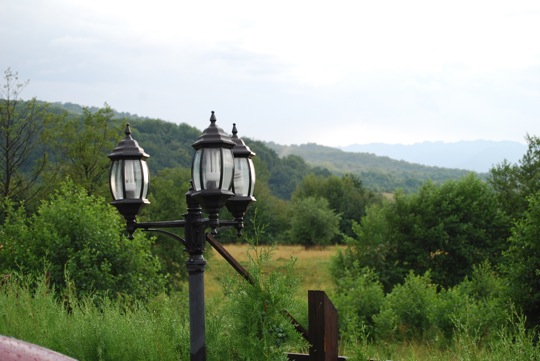
Original Image

Before we begin, let’s take a look at the original image that we will be working from.


Step 1

Open your image in Photoshop. Now create a duplicate of the Background layer. Next we’ll be creating the filter stack which will help us preserve the picture’s details while darkening it. Now convert the duplicate layer to Smart Filters (Filter > Convert for Smart Filters) so that we can edit the filters whenever we need to.


Step 2

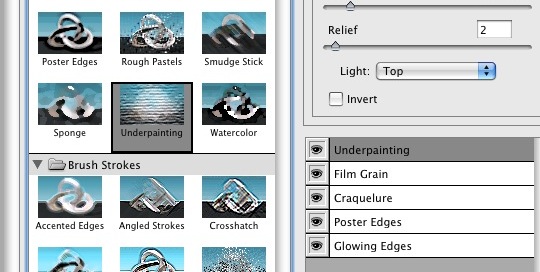
This image shows the Filter Gallery with a stack of filters in the lower right panel of the window. This is just an example of how a filter stack looks like – some of you probably didn’t even know that you can do this. We’ll be creating our own stack in a minute.


Step 3

Now, open the Filter Gallery (Filter > Filter Gallery) and we’ll begin making the filters stack. As a note, you could also do this by applying individual filters on the layer, stacking them in the Layers Palette, but I prefer to use this approach because I think it’s quicker this way, and probably because it has a lower impact on memory usage as well.

Next, make sure you clear the stack if you have used it before by clicking the Trash icon at the bottom of the stack panel until you only have a filter left in the stack.


Step 4

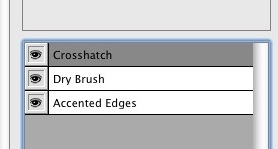
It’s time to get messy. For the first item in the stack, choose the Accented Edges filter from the Brush Strokes category. This will accentuate the picture’s edges, preserving its details while darkening. The values used are as follows: Edge Width: 2, Edge Brightness: 38, Smoothness: 5.


Step 5

Next, add a new item in the stack by clicking on the button next to the Trash icon you clicked earlier to empty the stack. This will duplicate the first filter and will be added above it. Now choose the Dry Brush filter from the Artistic category, and give this filter the following values: Brush Size: 6, Brush Detail: 9, Texture: 1. This will help us darken the photo.


Step 6

Finally, add a last item in the stack – Crosshatch from the Brush Strokes category, with the following values: Stroke Length: 9, Sharpness: 6, Strength: 1. This last item will sharpen the other two filters.

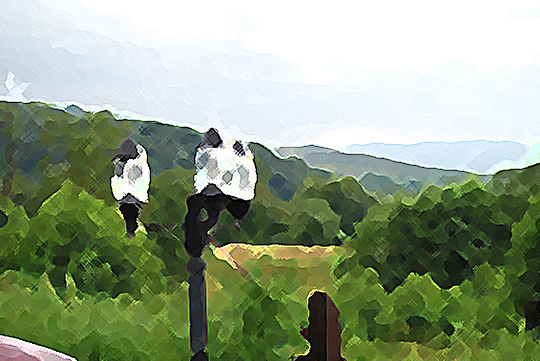
Right now, it doesn’t look very promising (check the image below), so we need to fix this. Make sure the smart filter layer is selected and from the Blending modes choose Linear Burn, and then give it a 40% opacity.


Step 7

Now it looks better, but it doesn’t look much different from the original. But after applying some adjustment layers, you’ll see that these filters have a big impact on making it look like it was really shot during the evening.

The first adjustment layer that we’re going to create is Brightness/Contrast. Give it a brightness of -50 and a contrast of 0.


Step 8

Next, add a Hue/Saturation adjustment layer with a saturation of -20 (the other two controls must be 0). Now add an Exposure adjustment layer with an exposure value of -0.45, an offset of 0 and make sure Gamma is set to 1.


Step 9

Wait, there’s something more to add. Add a Vibrance adjustment layer with a vibrance of +20 and 0 saturation. Finally, add a Levels adjustment layer, then select the Red level from the Levels dialog and give it the following values: 0, 0.91, 255. Do the same thing for the Blue level with these values: 0, 0.79, 255. The final result is below!


Additional Example

In this example I’ve used a value of 40% for the layer’s opacity. This value of 40% will be used for large images and landscape pictures (and I’m not referring to the page orientation). In case of a portrait or a small picture, you should use a value of 15%.

Before applying the effect.

After applying the effect.


Download the Action

We have provided the action for this tutorial in the Extras folder for this tutorial’s download which is available exclusively to Psd Premium Members.


3 Awesome New Tutorials and Screencasts for Premium Members

We have a bunch of new stuff this week for Premium subscribers. If you’re interested in HTML5, Andrew Burgess will teach you how to work with web SQL databases. If you’re a PHP fan, Burak Guzel will teach you the ins and outs of PHP exceptions. Finally, as a simple convenience, members will now be able to download each new video tutorial on the regular site, beginning with today’s “Kick-Ass Practical CSS Buttons.” Sound interesting? Give back to Nettuts+ by becoming a Premium member!


PHP Exceptions

PHP Exceptions

In this article we are going to learn about PHP Exceptions from ground up. These concepts are utilized in many large, scalable and object oriented applications and frameworks. Take advantage of this language feature to improve your skills as a web application developer.


Working With HTML5 Web SQL Databases

HTML5 Databases

It’s an exciting time to be a web developer; so many exciting functionalities and new standards are slowly emerging. In this new Premium tutorial and screencast, we’re going to look at one of these new standards, in particular: Web SQL Databases.


Video Download: Build Kick-Ass CSS3 Buttons

HTML5 Databses

What once required background images and icons can now be created with plain-old CSS. Because modern browsers have access to things like box shadow, gradients, rounded corners, text-shadows, and font-face, we can finally take advantage of this and remove any need for images, when creating visual elements, such as buttons! Download this video tutorial to find out how!


Join Net Premium

NETTUTS+ Screencasts and Bonus Tutorials

For those unfamiliar, the family of TUTS sites runs a premium membership service. For $9 per month, you gain access to exclusive premium tutorials, screencasts, and freebies from Nettuts+, Psdtuts+, Aetuts+, Audiotuts+, and Vectortuts+! For the price of a pizza, you’ll learn from some of the best minds in the business. Join today!


Build Kick-Ass Practical CSS3 Buttons

What once required background images and icons can now be created with plain-old CSS. Because modern browsers have access to things like box shadow, gradients, rounded corners, text-shadows, and font-face, we can finally take advantage of this and remove any need for images, when creating visual elements, such as buttons! I’ll show you how in today’s video tutorial.


Video Tutorial


Final Code

<!DOCTYPE html>

<html lang="en">
<head>
	<meta charset="utf-8">
	<title>CSS3 Buttons</title>
	<style>

	/* CUSTOM FONT */
	@font-face {
		font-family: 'EfonRegular';
		src: url('font/EFON-webfont.eot');
		src: local('EfonRegular'), url('font/EFON-webfont.woff') format('woff'), url('font/EFON-webfont.ttf') format('truetype'), url('font/EFON-webfont.svg#webfont') format('svg');
		font-weight: normal;
		font-style: normal;
	}	

	body {
	 width: 400px;
	 margin: 200px auto;
	 background: #666;
	}

	.button {
	 width: 400px;
	 height: 100px;
	 line-height: 100px;
	 color: white;
	 text-decoration: none;
	 font-size: 50px;
	 font-family: helvetica, arial;
	 font-weight: bold;
	 display: block;
	 text-align: center;
	 position: relative;

	 /* BACKGROUND GRADIENTS */
	 background: #014464;
	 background: -moz-linear-gradient(top, #0D658E, #0C577A 50%, #014D71 51%, #003E5C);
	 background: -webkit-gradient(linear, left top, left bottom, color-stop(0, #0E658E), color-stop(.5, #0C577A), color-stop(.51, #014D71), to(#003E5C)); 

	 /* BORDER RADIUS */
	 -moz-border-radius: 10px;
	 -webkit-border-radius: 10px;
	 border-radius: 10px;

	 border: 1px solid #368DBE;
	 border-top: 1px solid #c3d6df;

	 /* TEXT SHADOW */

	 text-shadow: 1px 1px 1px black;

	 /* BOX SHADOW */
	 -moz-box-shadow: 0 1px 3px black;
	 -webkit-box-shadow: 0 1px 3px black;
	 box-shadow: 0 1px 3px black;
	}

	.button:hover {
		background: #014464;
	 	background: -moz-linear-gradient(top, #0c5f85, #0b5273 50%, #024869 51%, #003853);
	 	background: -webkit-gradient(linear, left top, left bottom, color-stop(0, #0c5f85), color-stop(.5, #0b5273), color-stop(.51, #024869), to(#003853));
	}

	/* FONT GLYPH (MOSTLY FOR FUN) */
	.button:before {
		font-family: EfonRegular;
		content: 'v';
		color: #09232F;
		font-size: 90px;
		float: left;
		margin-left: 35px;
		margin-right: -10px;
		text-shadow: 0 1px 0 #4190AF;
	}

	</style>
</head>
<body>
     <a href="#" class="button"> Follow Me </a>
</body>
</html>

Conclusion

Button

The truth is that it would probably be smarter to use a tiny image for the Twitter-bird icon. But, the goal was to achieve this effect with all CSS! What do you think?


Quick Tip: Use Photoshop to Turn Day Into Night

Taking photos at night is not an easy task. Photos taken without adequate lighting often look dim or grainy; they typically don’t look the same as what we see with our own eyes. That is why it is sometimes easier to convert a daytime photo to night using Photoshop than it is to try to take the same photo in the evening hours. In today’s tutorial we will demonstrate a quick technique to make your photos look as if they were taken at night. Let’s get started!


Original Image

Before we begin, let’s take a look at the original image that we will be working from.


Step 1

Open your image in Photoshop. Now create a duplicate of the Background layer. Next we’ll be creating the filter stack which will help us preserve the picture’s details while darkening it. Now convert the duplicate layer to Smart Filters (Filter > Convert for Smart Filters) so that we can edit the filters whenever we need to.


Step 2

This image shows the Filter Gallery with a stack of filters in the lower right panel of the window. This is just an example of how a filter stack looks like – some of you probably didn’t even know that you can do this. We’ll be creating our own stack in a minute.


Step 3

Now, open the Filter Gallery (Filter > Filter Gallery) and we’ll begin making the filters stack. As a note, you could also do this by applying individual filters on the layer, stacking them in the Layers Palette, but I prefer to use this approach because I think it’s quicker this way, and probably because it has a lower impact on memory usage as well.

Next, make sure you clear the stack if you have used it before by clicking the Trash icon at the bottom of the stack panel until you only have a filter left in the stack.


Step 4

It’s time to get messy. For the first item in the stack, choose the Accented Edges filter from the Brush Strokes category. This will accentuate the picture’s edges, preserving its details while darkening. The values used are as follows: Edge Width: 2, Edge Brightness: 38, Smoothness: 5.


Step 5

Next, add a new item in the stack by clicking on the button next to the Trash icon you clicked earlier to empty the stack. This will duplicate the first filter and will be added above it. Now choose the Dry Brush filter from the Artistic category, and give this filter the following values: Brush Size: 6, Brush Detail: 9, Texture: 1. This will help us darken the photo.


Step 6

Finally, add a last item in the stack – Crosshatch from the Brush Strokes category, with the following values: Stroke Length: 9, Sharpness: 6, Strength: 1. This last item will sharpen the other two filters.

Right now, it doesn’t look very promising (check the image below), so we need to fix this. Make sure the smart filter layer is selected and from the Blending modes choose Linear Burn, and then give it a 40% opacity.


Step 7

Now it looks better, but it doesn’t look much different from the original. But after applying some adjustment layers, you’ll see that these filters have a big impact on making it look like it was really shot during the evening.

The first adjustment layer that we’re going to create is Brightness/Contrast. Give it a brightness of -50 and a contrast of 0.


Step 8

Next, add a Hue/Saturation adjustment layer with a saturation of -20 (the other two controls must be 0). Now add an Exposure adjustment layer with an exposure value of -0.45, an offset of 0 and make sure Gamma is set to 1.


Step 9

Wait, there’s something more to add. Add a Vibrance adjustment layer with a vibrance of +20 and 0 saturation. Finally, add a Levels adjustment layer, then select the Red level from the Levels dialog and give it the following values: 0, 0.91, 255. Do the same thing for the Blue level with these values: 0, 0.79, 255. The final result is below!


Additional Example

In this example I’ve used a value of 40% for the layer’s opacity. This value of 40% will be used for large images and landscape pictures (and I’m not referring to the page orientation). In case of a portrait or a small picture, you should use a value of 15%.

Before applying the effect.

After applying the effect.


Download the Action

We have provided the action for this tutorial in the Extras folder for this tutorial’s download which is available exclusively to Psd Premium Members.


Quick Tips – Understanding Memory and Multiprocessing

You may not be able to clone yourself to get more work done, but After Effects can with the right settings. In this tutorial, we take a quick look at memory and multiprocessing in CS4 and CS5 and the advantages of 64bit applications. For more information check out the Adobe Help Page.


QuickTip

Download Tutorial .flv

File size 45.8MB


Create a Beautiful and Dramatic Scene With Photo Manipulations – Basix

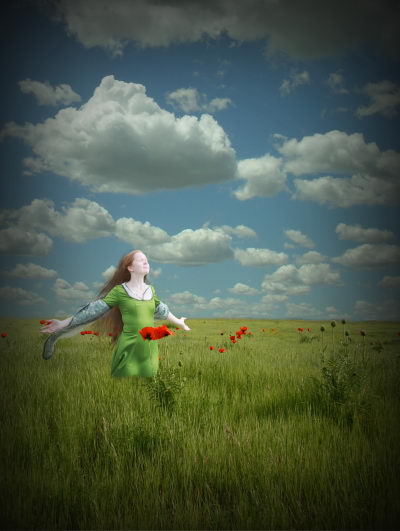
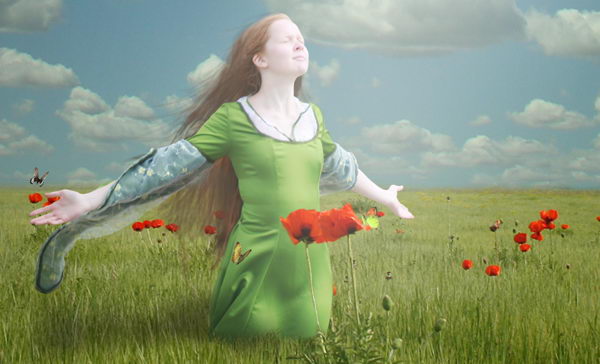
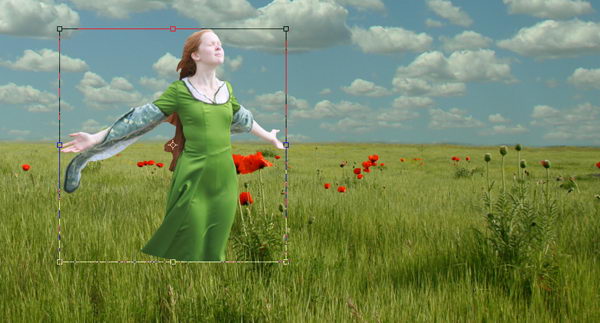
Today we will learn a number of techniques to help you add drama to a photo manipulation. We will to do this by learning how to combine two pictures to create a picturesque background, how to draw long hair manually using Photoshop brushes, as well as how to add some adjustment layers to add dramatic effects to the final image. Let’s get started!


Resources


Step 1

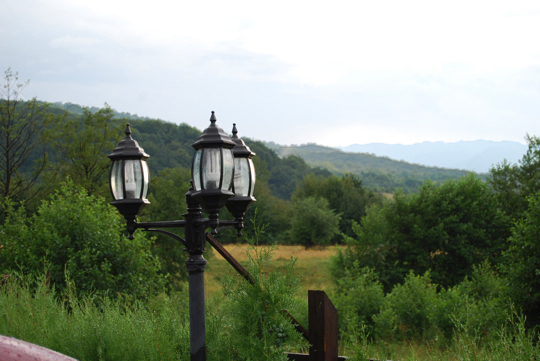
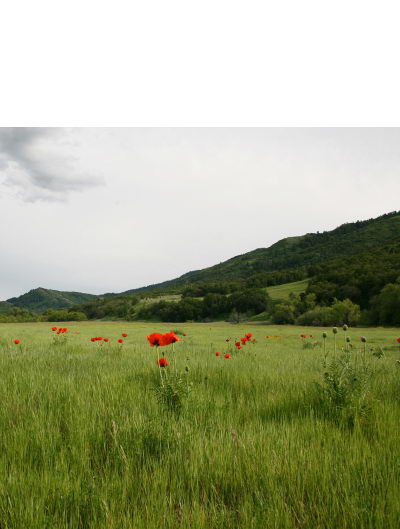
Create a new file, size 1600 px wide and 2122 px high at a resolution of 300 pixels/inch. Paste field to new file.


Step 2

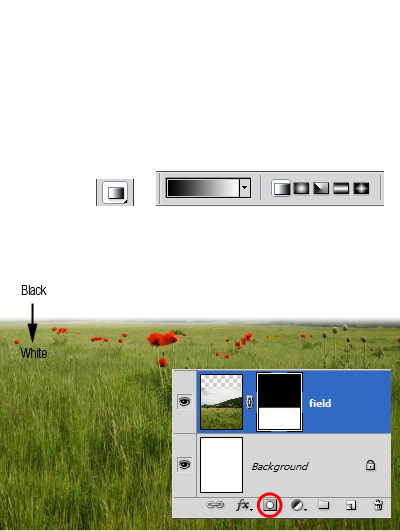
Add layer mask. Activate gradient tool. Draw linear gradient from black to white.


Step 3

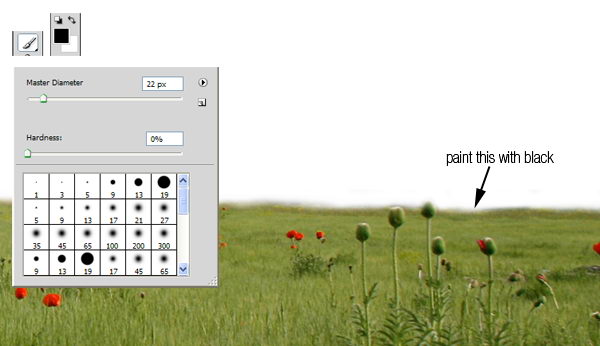
Zoom in until you can see all the details. Paint unneeded background with black to remove it.


Step 4

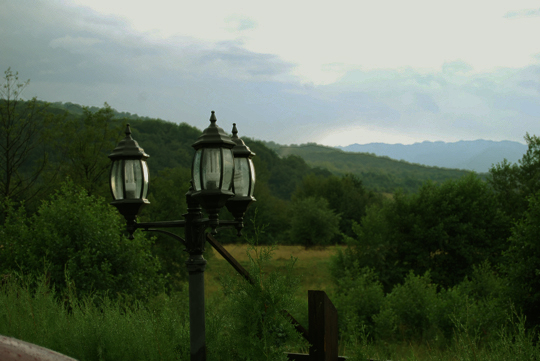
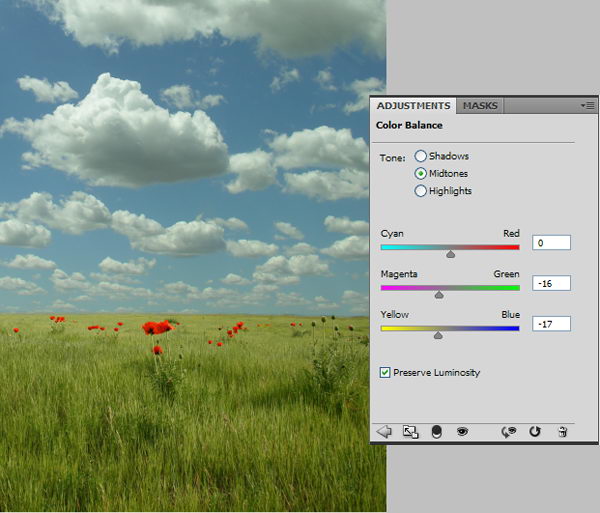
Paste sky underneath field layer. The colors will not match the field so we will have to fix it. From the adjustments panel click Color Balance with setting shown below.


Step 5

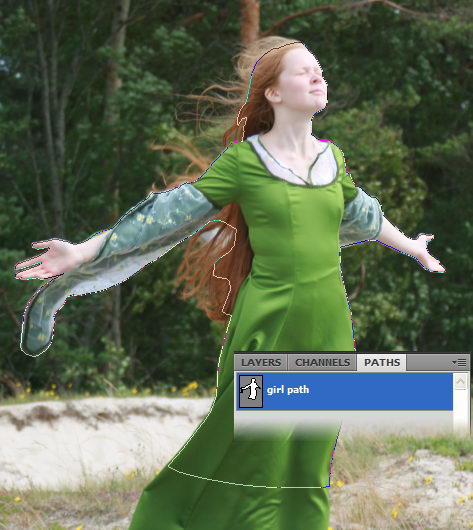
Download the girl picture. Create new path and with pen tool draw path around her. Avoid selecting her hair. We’ll just recreate it in a few steps.


Step 6

Hit Cmd+Enter to convert path into a selection. Copy the girl and paste it into the new background. Press Cmd+T for transformation and while holding shift drag its corner until she is the appropriate size.


Step 7

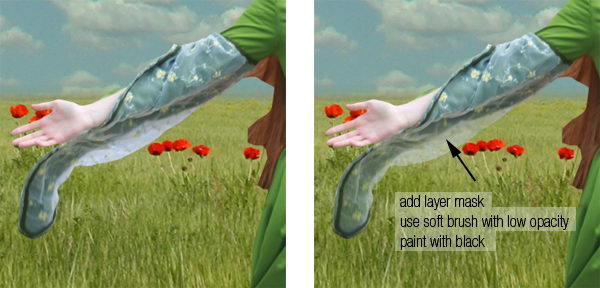
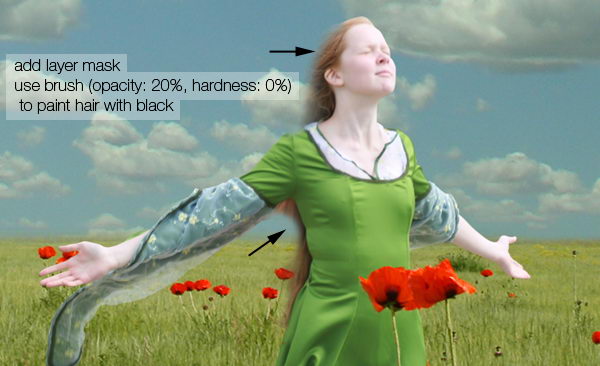
Before we proceed with this tutorial, we will need to fix some small details. She has transparent sleeve and it has to reveal some background behind her. To do this, add layer mask, select soft brush with low opacity (10-20%), then paint it with black.


Step 8

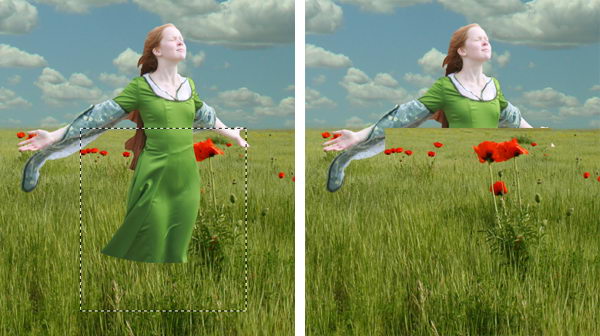
Activate field layer. Select some field behind her. Hit Cmd+J to duplicate it to a new layer. Then hit Cmd+shift+] to move it to the top layer.


Step 9

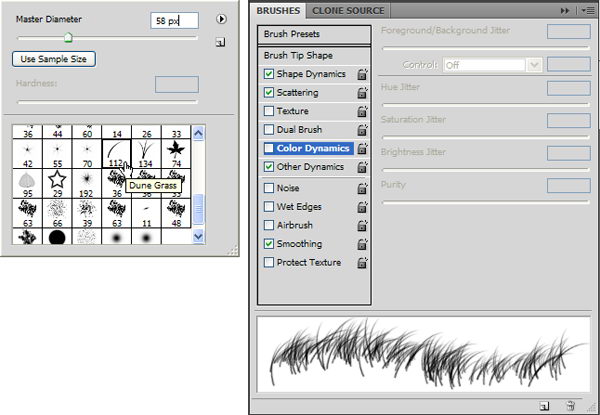
Add a layer mask to the new field. For masking grass, Photoshop has a very useful brush in its default set, named Dune Grass. So, right click and select it. Remove the check mark in front of Color Dynamics.

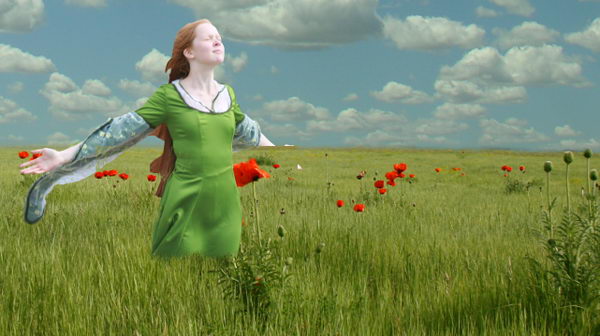
Next, make sure your foreground color is set to black and layer mask is selected. Start painting until the girl looks like standing in the middle of the field.


Step 10

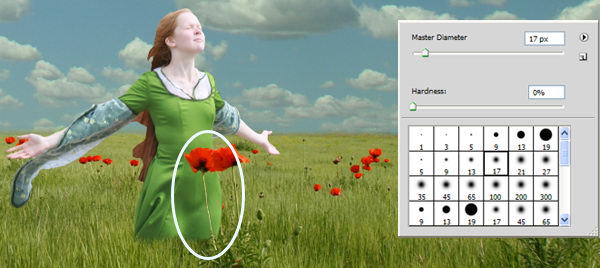
To strengthen the illusion that the girl is standing inside the field, it’s a good idea to have something in front of her. Change our brush to standard round brush, paint some flowers with white to reveal it.


Step 11

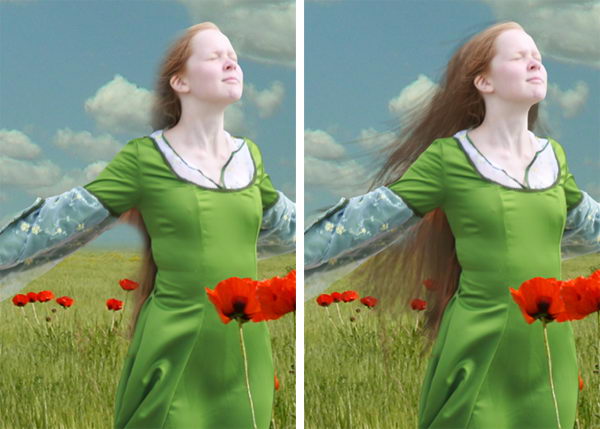
Now let’s draw her hair. But before doing that, make sure the layer mask is active. Paint her hair with black using a soft, low opacity brush until it is transparent.


Step 12

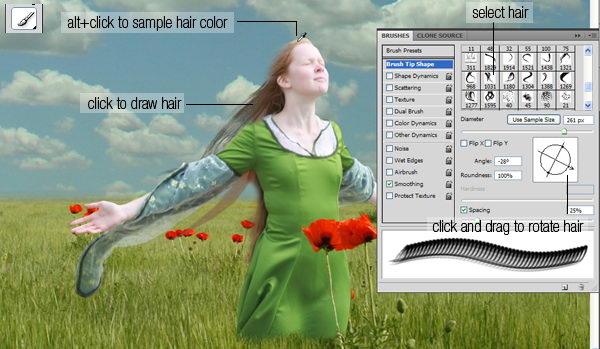
Load the hair brush set. This set consisted of some long premade hairs. Using the brush tool, Cmd+click her hair to sample its color. Open brush panel (F5), click and drag the inside preview box to rotate brush tip. Once you’ve found perfect size and position click to draw an instant long hair. To get a natural color, be sure to sample various color from the hair.

Repeat this step until you have enough hair.


Step 13

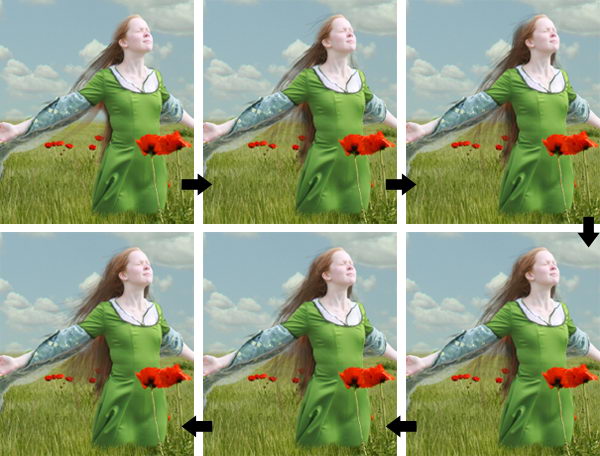
After step 12 you may find that the result isn’t entirely realistic. If you look closely you may find that there are repeating objects in her hair. This is a common problem when using premade brushes. The best way to avoid this is by drawing some hairs manually.

Grab the hair brushes set from here. Lower your brush opacity to 15-25%. If you use a tablet, then that’s a good thing. You can activate its Pen Pressure from the Brush Panels.

Manual painting is not easy. It may help to work with a lot of layers. That way you can always delete layers that you don’t like. Below are the steps I took while creating the hair.


Step 14

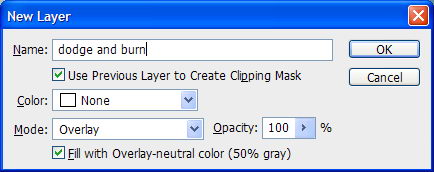
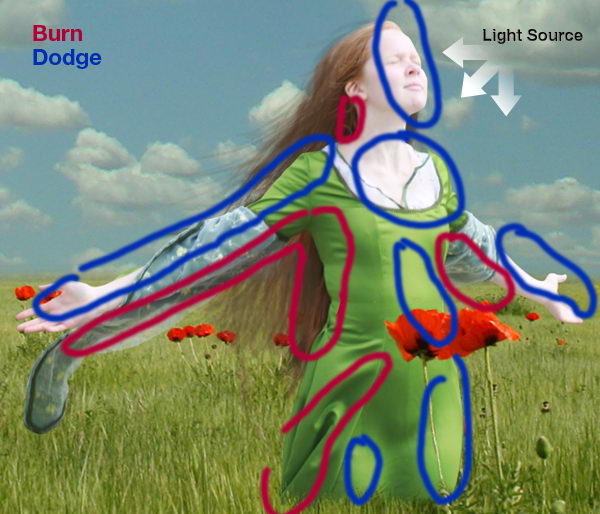
Now, we need to add some lighting to the girl. To do this we’ll use non-destructive dodging and burning. Hold cmd and click New Layer icon. Choose Use Previous, Mode: Overlay, and Fill with.

Activate burn tool, set opacity to 20% and start painting to make her darker. Do the same with the dodge tool for opposite effects. Remember, if you hold alt while dodge tool selected, then you’ll have burn tool. Same thing happen to burn tool.


Step 15

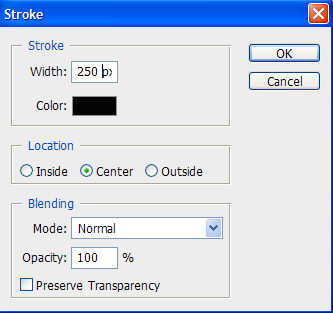
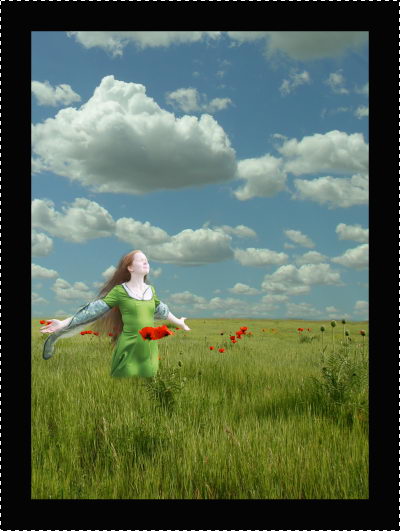
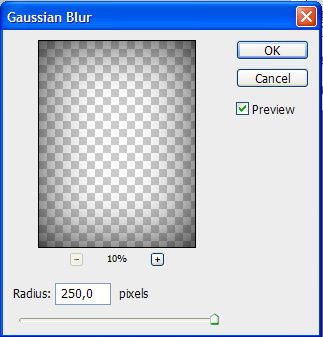
Now, I’ll add dark border around the image. Hit ctrl+A to select all. Click Edit > Stroke. Use very large width and click OK. Soften the border using Gaussian Blur with a very big radius.


Step 16

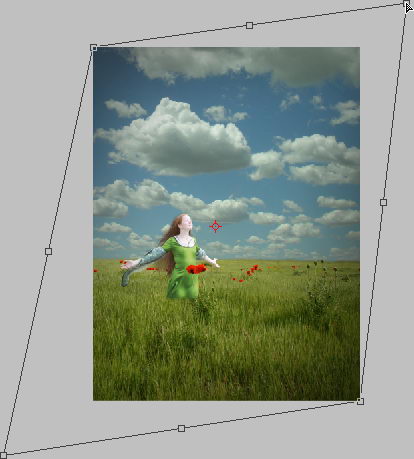
Hit ctrl+T. Hold ctrl and drag its corner until you find nice lighting.


Step 17

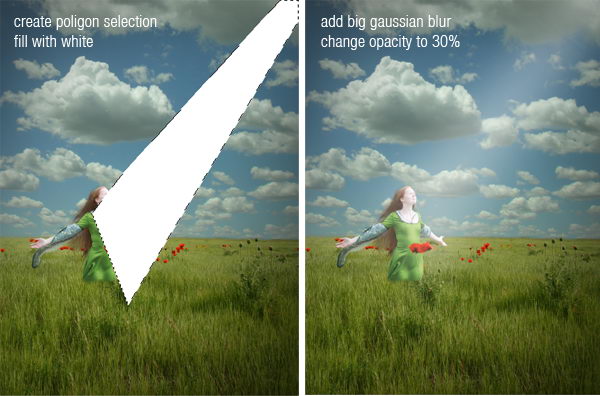
To add fake light draw a poligonal selection and fill it with white. Add very big Gaussian Blur and lower down layer’s opacity to 30%.


Step 18

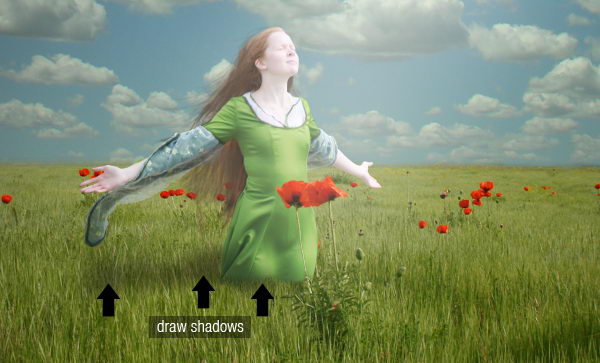
Draw the girl’s shadow on the field.


Step 19

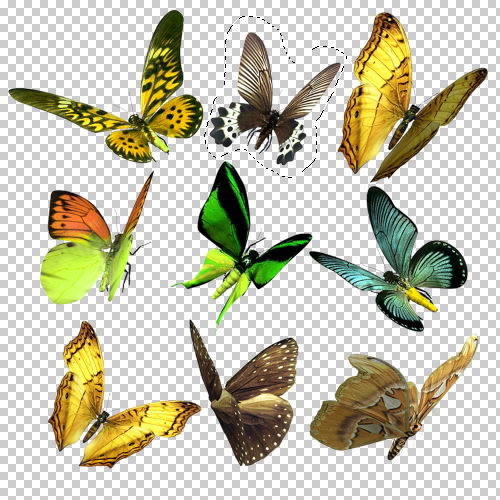
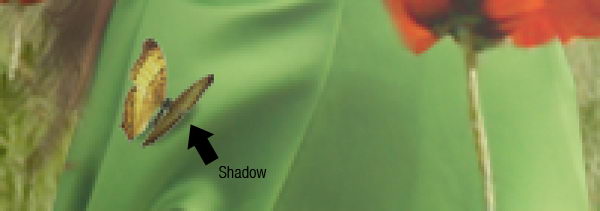
Grab the butterfly set. The butterflies are already in a transparent png file, so you just need to select it and drag it to the image. Resize it to match its proportion. Don’t forget to add shadows for a realistic look.


Step 20

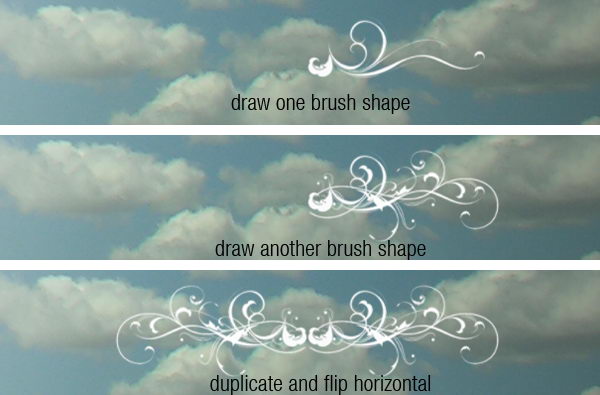
Load the floral brushes. Try to experiment with the brush shape. Combine them to get a unique shape like I did here, then add some text in the English font found from dafont.


Step 21

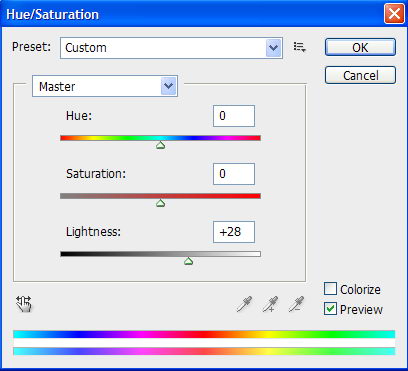
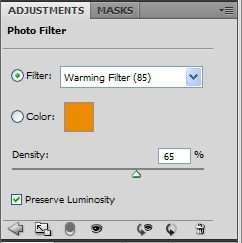
For final adjustment, select the sky layer and use Brightness/Contrast to raise its Lightness. I also added an adjustment layer Photo Filter with a warming filter on top of the image.


Conclusion

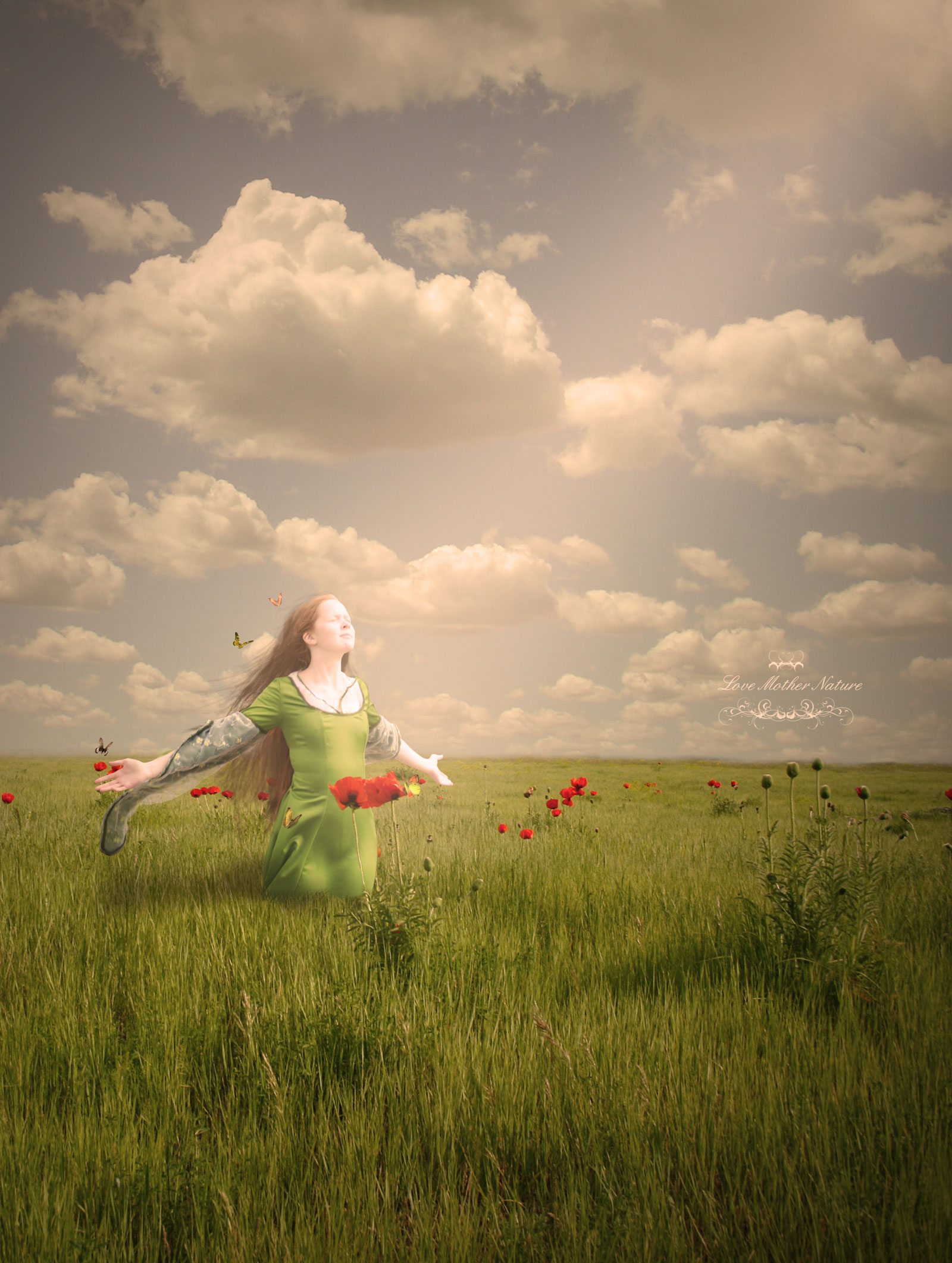
I hope you have enjoyed this tutorial and learned something new. You can view the final image below or view a larger version here.


In Conversation With: Sean Aiken of One-Week Job

While we’re all striving to have an awesome time working at one job, I scored an interview with a gentleman you managed to do so with 52 of them over the span of one year!

Introducing Sean Aiken, founder and “do-er” of The One-Week Job Project.  I met Sean last year at a local TEDx event and after hearing about his project, I knew I had to keep up with his adventures.  He’s been featured on several major news outlets (New York Times, CBC, CNN, 20/20, among others) and has authored a book on the subject and documented his story on film as well.  During my conversation with Sean, he discusses the reasons he embarked upon this year long journey and what his results were.  I can tell you that his book about it, entitled (appropriately) The One-Week Job Project is available now at fine bookstores – both online and not-so-online.  He’s also completed his film and was showcasing it at a private premiere this week.  Hopefully it’ll come to a theatre or television near you in the not-too-distant future.

Mike Vardy
You’ve got this site, book, film, etc. that’s based around the concept of One-Week Job. It’s basically about having a different job a week…over the course of an entire year.

Sean Aiken
That’s right. 52 different jobs in 52 weeks.

Mike Vardy
What made you decide to do that?

Sean Aiken
Well, I realized I didn’t know what I wanted to do as a career, so I wanted to try different jobs – see what I liked and didn’t like – and see what I need in a career to be happy.

Mike Vardy
When most people go out looking for work, they go out and look for something in a way that narrows their scope. They want a job in a particular field. In your case, you started with a wide angle to your search. What was the goal? Was the goal for you to find out what you wanted to do or did it have (or end up having) some sort of higher purpose – that people should try everything? Ultimately, what did you set out to accomplish?

Sean Aiken
Well, I think a mistake that a lot people make is that they focus on the end title  – a specific career tile that they are looking for.  They want to be a teacher or a doctor, lawyer, etc. – but they don’t actually think about the characteristics that goes into the job:

  • What’s the lifestyle like?
  • What are the type of people that you”re going to be working with?
  • What’s the work environment like?

So I wanted to start with basically nothing on the table and ask myself things like:

  • What is there that I need in a career to make me happy?
  • How can I start learning about the characteristics that I’d like to have in a career?

Then I could start piecing the puzzle together.

Mike Vardy
So, how long is your resumé now?

Sean Aiken
It would be 52 pages long. (laughs) Actually, I try to sum it up in a couple of pages…but it could be quite extensive.

Mike Vardy
What was the most awesome job you had during the project?

Sean Aiken
I’d say that probably my most awesome job was working at Steam Whistle Brewery in Toronto. It’s a micro-brewery. The people there are incredible – right down from the CEO and the president to the brewery worker. Everybody really loves their job and enjoys working there. Everyone gets treated with respect and basically it’s got the mentality that, “When you’re having fun, we expect you to work your hardest while having the most fun you can. When you’re at work we expect you to work your hardest doing your job.” That mentality trickles down and really does well for them.
Mike Vardy
And at the end of the day you don’t have to go anywhere to have a beer.

Sean Aiken
Yeah. That was awesome, too.

Mike Vardy
Since you were only at each job for one week, I have to ask: How many “Going Away” party banners did you end up collecting?

Sean Aiken
(laughs) Several. There were several of them. I definitely don’t think I could have kept that up for a full year.

Mike Vardy
So, 52 jobs later…52 weeks later…what job did you eventually realize was for you?

Sean Aiken
You’ll have to read the book to find out!

(I thoroughly enjoyed chatting with Sean and any feedback on whether you’d like me to do more interviews down the road would be, well, awesome!  If you would like to see more of this sort of thing, any suggestions of those you’d like to read an “In Conversation With” would be greatly appreciated.  The sky’s the limit when it comes to those suggestions – so let ‘em rip!)