Quick Tip: How to Export and Resample a VST Instrument in Ableton Live

In this tutorial we’re going to look at a simple way of extracting VST sounds and resampling them into Ableton Live’s Sampler and Drum Rack. This can be helpful in situations where we want our software setup as clean and minimal as possible, with low CPU intensity, especially in live gigs (live keyboards via Laptop), Dj-ing, etc.

It’s most suitable for non-sustained sounds, such as chromatic percussion, drum sounds, staccato and pizzicato orchestra sounds, and more. I don’t really recommend it for sustained sounds, since it seems to get a little too complicated to be worth the trouble. In this example I use Edirol Orchestral, which contains a very nice Celesta sound. I don’t really need the whole VST for my live setup though, and I’d prefer to use only built-in synths and effects in general, to avoid crashes, CPU intensity, and psychological tension.

Step 1: Preparation

So, let’s begin by loading up our VST instrument into a new MIDI Channel. Next we’ll create a MIDI clip with continuous notes in the full 128-note range, from C-2 to C8. Most of the time some of those notes won’t even contain any sound, but it’s great to stay organized and use the same MIDI clip for every VST sound for obvious practical reasons. Switch the quantize (“Fixed Grid”) to “1 Bar” and lower the tempo quite a lot. For this example I set the tempo to 50bpm (just to be sure that every sample gets played as a whole individually). To make it easier and faster, write the first 11 notes from C-2 to B-2, then select all (Ctrl-A), and duplicate (Ctrl-D), then press Shift and Up-Arrow (which brings the whole group of selected notes an octave higher on Live 8). Our first MIDI clip will be at 110 velocity.

Do that until you’ve reached C8. Bring the quantize (“Fixed Grid”) value back to 1/2 (1/8 would be even better) and lower the length of the notes a bit, because some VST sounds contain key-release-triggered samples which would get stuck within every next note’s beginning.

Step 2: MIDI to Audio

Next we’ll “Freeze” that MIDI channel (right click on the Channel’s name, then select “Freeze”), automatically turning the MIDI clip into an audio clip (don’t worry, you can “Unfreeze” the track if you like). Hold Ctrl and drag and drop the clip into a new Audio Channel. Notice that it is two times the original MIDI clip in length, and we only need the second half (or the first, it doesn’t really matter). So, set “Start” to “129 – 1 – 1″, then right click on the audio waveform and select “Crop Sample”.

Step 3: Slicing the Audio File

Now we can right-click on the audio clip and select “Slice to New MIDI Track”. We’re going to select “Create one slice per: Bar” and the “Slice to single Sampler” as a slicing preset.

A new Sampler instrument is automatically created, with the 128 notes distributed equally. Go to Sampler’s “Filter/Global” section and set the Release value to 3 seconds and the Attack to 10ms. You can also disable the “Retrigger” function if you want (When enabled, notes which are already playing will be retriggered, rather than generating an additional voice).

Now we can delete the “empty” notes if we want. They will only keep up more hard drive space and we don’t want that. Also, let’s add a compressor and a limiter, to even out levels and peaks.Do the same for different velocities (if the original VST instrument has mutiple samples for every note). Then we can group those Samplers into one Instrument Rack, sorting them out via Velocity.

Step 4: Staying Organized

Next time you will need no more than one minute to do this technique, since you will already have the MIDI clip ready. You can also keep things tidy by saving your Instrument Rack in a separate folder. Just target Live’s File Browser within your custom Preset Folder and drag and drop your instrument rack. The reason I personally don’t save it as a preset in the Library is that it’s easier to transfer my presets from one computer to the other that way. Whatever suits your needs though!

Conclusion

This technique works quite well for me, I hope you find it useful and helpful. You should probably only use it when there’s no risk of reducing the instrument’s quality a lot though. I’ve included an Ableton Play Pack with the MIDI file inside. You can try the same method using a Drum Rack (select “Built-in” as the Slicing Preset), it’s quite more suitable for beat and drum kits. Thanks for reading, and happy music making!

Download the Play Pack for this tutorial (20 KB)

Contents

  • Ableton Live Source Files


Quick Tip: Create an Animated Banner Ad in Photoshop CS5


Animated Gif files have been the butt of many jokes within the design community. That is because animated gifs are famous for being a bit cheesy and notorious for cluttering up a page. Used properly however, animation can draw interest to an otherwise overlooked area of a page. Today, we will demonstrate how to use Photoshop to create an animated gif in Photoshop CS5. Let’s get started!


Step 1

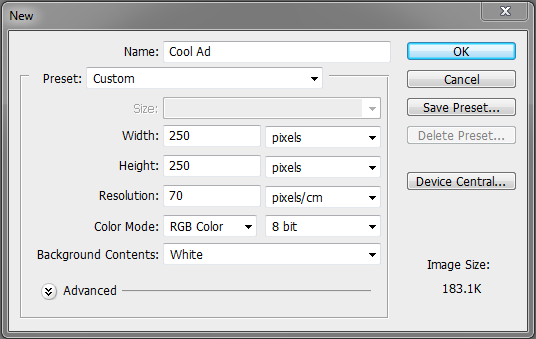
Create a new document 250 x 250 px and set the resolution to 70 px with the background color set to #f2f2f2.


Step 2

Place a logo in the top center of the canvas.


Step 3

Write a tag line under the logo.


Step 4

Draw a rectangle box and set the color to #90909.

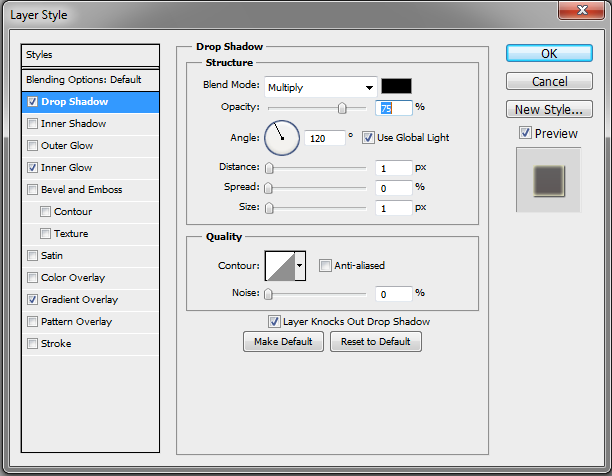
Open the layer styles dialog box and check Drop shadow. Reduce the distance and size to 2px.

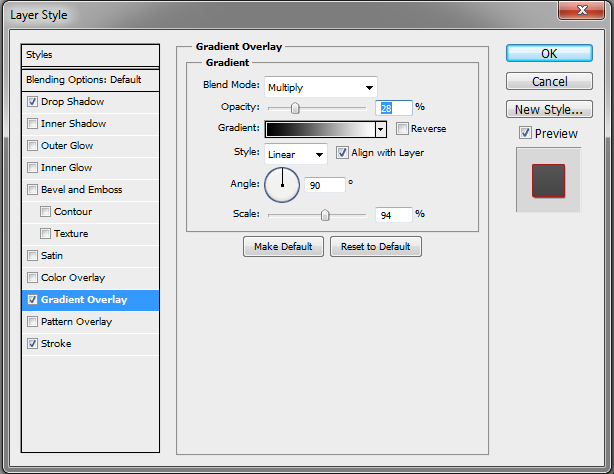
Now add a gradient overlay and set the blending mode to Multiply with an opacity of 28%.

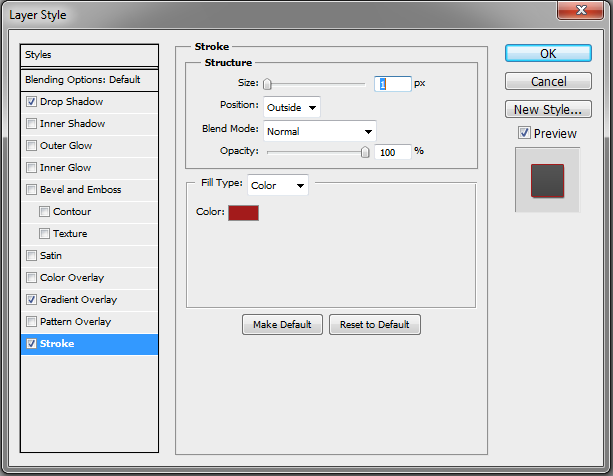
Add a stroke and reduce the size to 1 px. Set the color to #a31b1b.


Step 5

Add some bullet points. In our case we added the text: Tutorials, Articles, Tips, Freebies, Basix, Videos, Premuim, as shown.

.

Rasterize the text layers and create a clipping mask.


Step 6

Now place an eye-catching image. In our case we used the premium program icon for Psdtuts but feel free to use whatever suits your purpose.


Step 7

Draft some more supporting text as shown below the image you placed in Step 6.


Step 8

Create an oval Box and set the color to #fdfcfc.

Open the layer styles dialog bix and apply a drop shadow. Reduce the distance and size to 1 px.

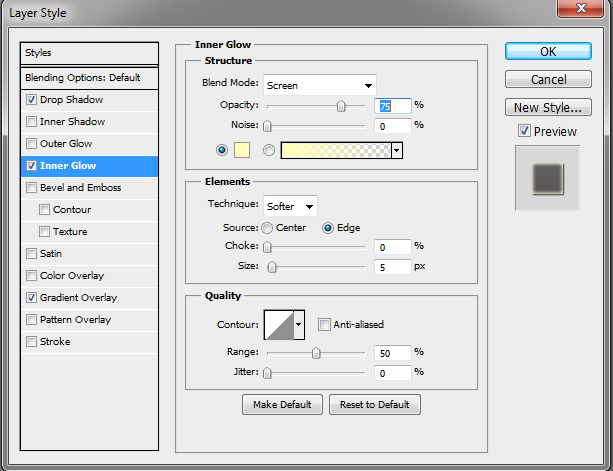
Check Inner glow and leave it as it is.

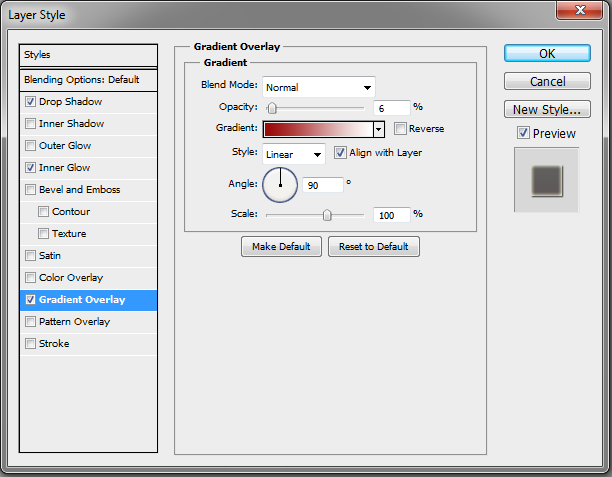
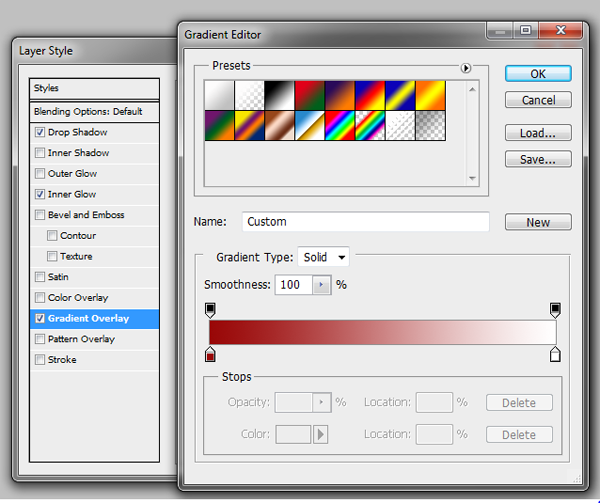
Add a Gradient Overlay with the Opacity set to 6%.


Step 9

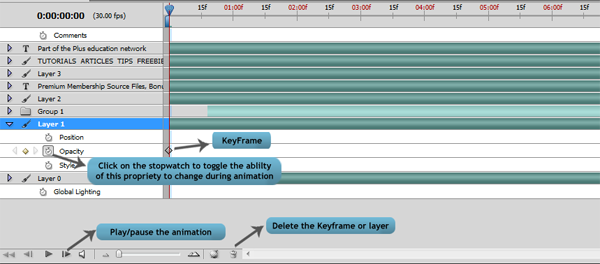
Now that we have finished creating all our layers, we are now ready to start work on the animation. First, open the Animation panel (Window > Animation). I will use the Timeline Animation panel (and not the frame animation). Note: This feature is only in Photoshop Extended.  Now set all your layers to visible but reduce their opacity to 0%.


Step 10

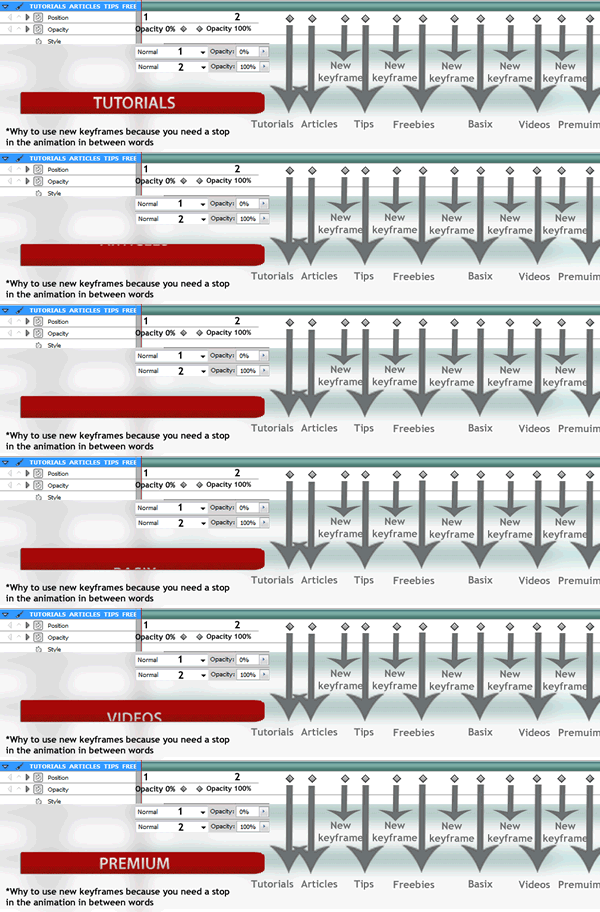
Refer to the image below for instructions on how to insert keyframes and where to increase opacity.


Step 11

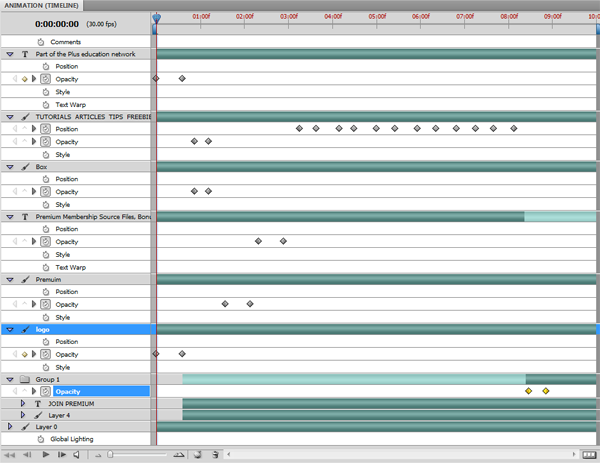
Your timeline should look similar to the example below.


Step 12

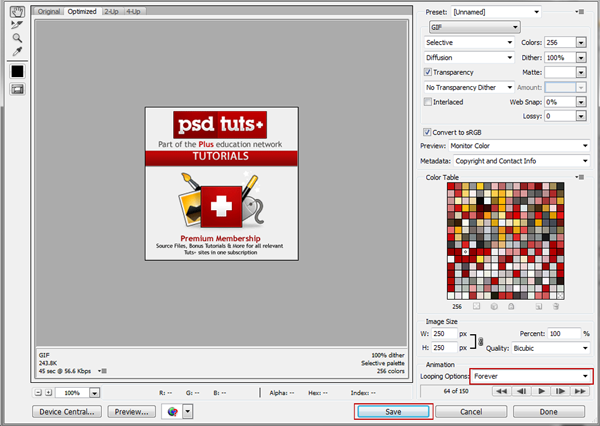
We have now completed our animation. Press play to see the result. Feel free to tweak it where necessary. To save your banner, go to File > Save for Web & Devices. Then use the settings from the following image and click Save.


Final Image

That’s it! You’re finished!

Create Spectacular Smoke and Splash Effects – Psd Premium Tutorial


Today, we have another Psd Premium tutorial exclusively available to Premium members. If you want to take your design skills to the next level, then we have an awesome tutorial for you. Learn more after the jump!


This Premium Tutorial is Filled with Creative Tips

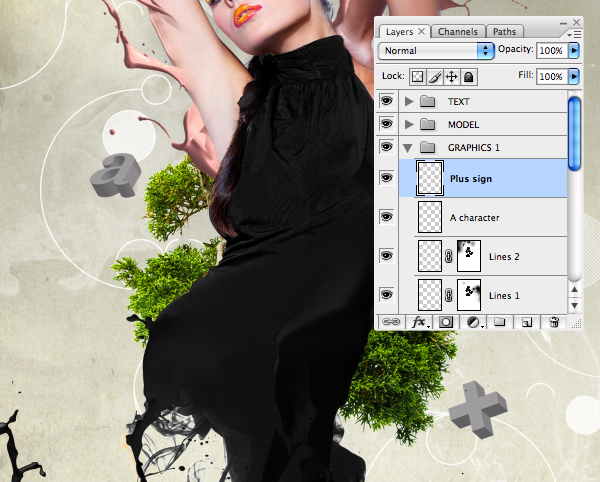
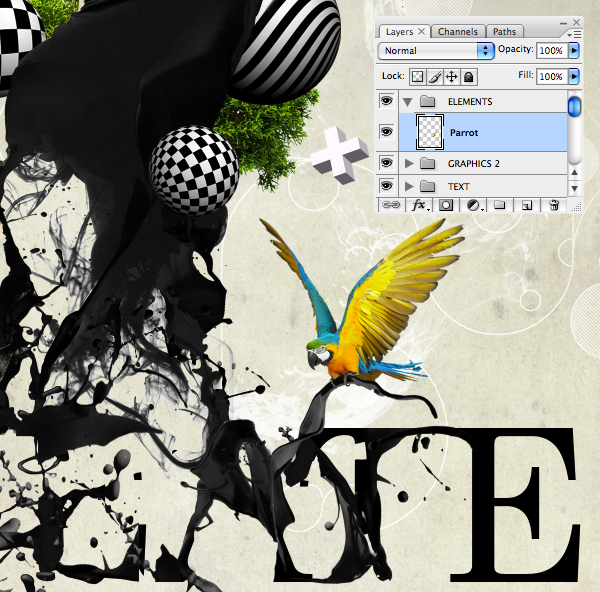
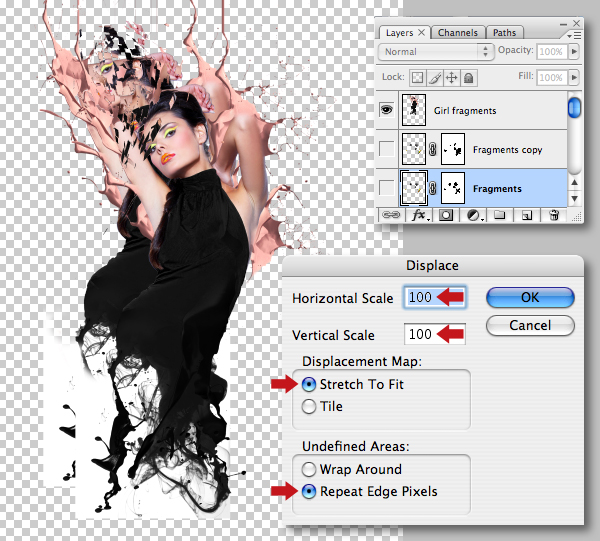
Today I’ll walk you through the creative process of applying some cool liquid and smoke effects to both typography and images. You’ll also discover how to combine 3D renders with Photoshop’s Displace filter to produce those stunning "break away" effects that are currently in vogue. This is a comprehensive tutorial that weighs in at almost one hundred steps, so let’s get started!


Professional and Detailed Instructions Inside

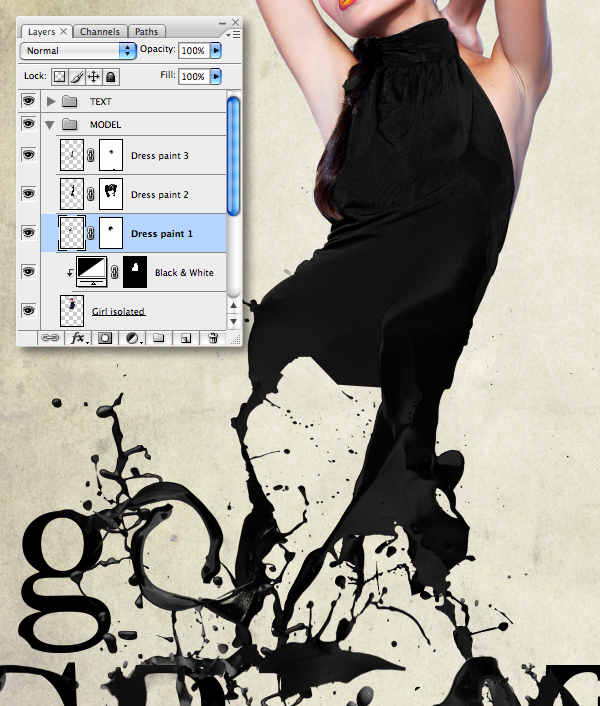
Premium members can Log in and Download! Otherwise, Join Now! Below are some sample images from this tutorial.


Psd Premium Membership

As you know, we run a premium membership system here that costs $9 a month (or $22 for 3 months!) which gives members access to the Source files for tutorials as well as periodic extra tutorials, like this one! You’ll also get access to Net Premium and Vector Premium, too. If you’re a Premium member, you can log in and download the tutorial. If you’re not a member, you can of course join today!

How Do You Track Deadlines?

Some people keep a giant calendar listing all of their deadlines. Others use online tools like Google Calendar or ReminderFox to keep track of important dates. Whatever your strategy, I think we can all agree that deadlines are pretty darn important.

I use an Excel spreadsheet that lists all my past, current, and future writing assignments. Upcoming deadlines are in green and projects I’ve completed are in black. I reserve red for when checks are overdue, which (knock on wood) doesn’t happen very often. Admittedly, it’s rather low-tech compared to the other options out there, but it works. After all, Excel is pretty versatile.

What about you? How do you ensure that you never miss a deadline?

Productivity Web Apps Bundle on the Cheap

The popular lifehacking site, the aptly-named Lifehacker, delivered some fantastic news today that we just had to share!

The website AppSumo is offering a bundle of the professional level of web-based productivity apps such as Evernote, Remember The Milk and RescueTime (the last of which was used to calculate the lost time during Google’s Pac-Man logo day)  The package is just $55, which is pretty much the most awesome savings I’ve ever seen on a bundle of pure productivity apps.  The best part: they’re not platform-dependent so they’ll work on any OS of your choosing.  The not-so-best part: they’re only available at this price for a limited time and also for a limited duration (ranging from 2 months to 1 year before you have to pony up more dough).

Even with that caveat, the value of this package is well over $300 – a great deal no matter how you look at it.  So if you’re wanting to upgrade to the premium version from the “freemium” version of any of these apps –  or just want to give something new a try, this bundle is the perfect excuse/reason to do so.

Grab Premium Versions of Your Favorite Productivity Webapps for Cheap with AppSumo (via Lifehacker)

Friday Photo Critique Submissions Now Open!

First of all, I’d like to say a huge thank you to everyone who has sent through their work for inclusion in our Friday Photo Critique series so far. We’ve received some brilliant images from all across the world! Today we’re making it really easy to submit your photo for inclusion in the series – read on to find out more…

As well as those who have submitted images, it’s wonderful to see so many readers offer their help and advice each week in the comments. I’d like to take this opportunity to say thanks for taking the time to share your experience!

Up until now, submitting your work for our Friday Critique series hasn’t been particularly easy (we haven’t had an official process until now). I’m pleased to let you know that we now have a simple form for submitting your image to be featured.

If you’d like to put one of your photographs up for critique by the community, go ahead and submit it now! We’ll be approaching this on a fist-come-first-featured basis, so don’t delay!

How to Write a “Most Popular By Views” WordPress Plugin


As you continue writing for WordPress more and more, the level of difficulty and complexity of your plugins will eventually reach far beyond the simple back-end data manipulation, as demonstrated in our beginner’s article. In this installment we’ll cover in-depth: database interaction, Admin Widgets, and Sidebar Widgets. Today’s example will be a custom built “Most Popular by Views” plugin, which creates an admin area widget for us to view, and a sidebar widget for visitors to see.


Step 0. What it’s Gonna Do?

Before we open our IDE or write any code, you should always write out a list of what features your plugin will and will not have (at least in its initial phase, you can always extend later). For our plugin, “Most Popular By Views,” our primary feature is to display a list of the most popular posts (we’ll say, top 10). Secondly, we’ll also put the list in the admin area as a kind of low-tech analytics. Lastly, we’ll give the developers the option to display it anywhere by making it available as a sidebar widget, and via a simple function.

Features:

  • Creates a list of the top ten most popular posts based on views
  • List is displayed in Admin area as a low-tech analytics
  • List is available as both a sidebar widget and function
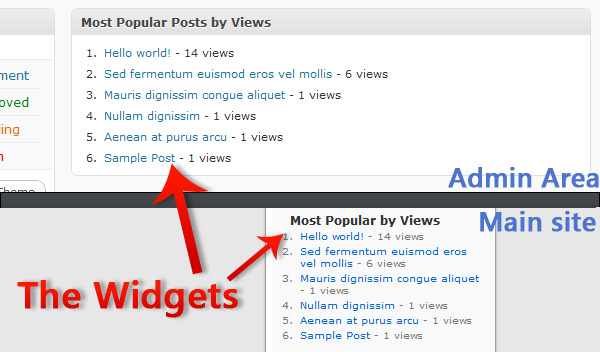
The finished widgets

Step 1. The Database

Before we can display the most popular posts, we need to gather data about which posts are being viewed and how often, but even before we can do that, we need somewhere to put all that data. Inside of a new plugin file, let’s create a new function (ppbv_create_table) that will check to see if our table exists. If it does not, we’ll create it. Our method of doing this is rather simple; we’ll use $wpdb->get_results to run a SQL statement that checks for a table named “wp_popular_by_views.” If it doesn’t find the table, get_results will return null. If that’s the case, we’ll use $wpdb->query to write in the new table. We run this function every time the plugin is activated.

<?php
/**
 * Plugin Name: Popular Posts by Views
 * Plugin URI: http://net.tutsplus.com
 * Description: Create a widget to show your most popular articles based on views.
 * Version: 1.0
 * Author: Jonathan Wolfe
 * Author URI: http://fire-studios.com
 * License: GPL2
 * .
 * This plugin and its accompanying tutorial are written for Nettuts+ at http://net.tutsplus.com
 * .
 */

global $wpdb; // call global so we can get the database prefix
$ppbv_tablename = $wpdb->prefix.'popular_by_views'; // combine the prefix with our tablename

function ppbv_create_table(){
    global $wpdb, $ppbv_tablename; // call global so we can use them within the function
    $ppbv_table = $wpdb->get_results("SHOW TABLES LIKE '{$ppbv_tablename}'" , ARRAY_N); // returns null if no results
    if(is_null($ppbv_table)){ // if we don't have a table
        $create_table_sql = "CREATE TABLE {$ppbv_tablename} (
            id BIGINT(50) NOT NULL AUTO_INCREMENT,
            post_id VARCHAR(255) NOT NULL,
            views BIGINT(50) NOT NULL,
            PRIMARY KEY (id),
            UNIQUE (id)
        );"; // be careful with SQL syntax, it can be VERY finiky
        $wpdb->query($create_table_sql); // run the SQL statement on the database
    }
}
register_activation_hook(__FILE__,'ppbv_create_table'); // run the function 'ppbv_create_table' at plugin activation
?>

Step 2. Catching the Data

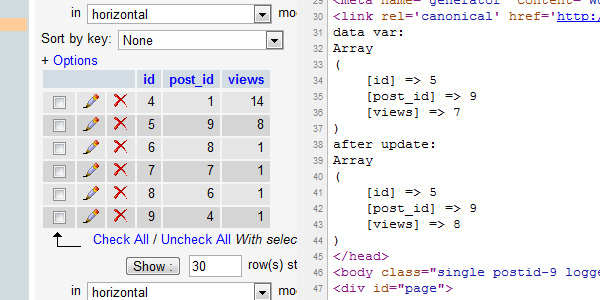
The next thing we need to do, now that we have a table to store our data, is catch our data. We’ll create a new function (ppbv_page_viewed) that we’ll attach to the wp_head hook so that it’ll run on every page load. Inside this function, we’re going to do one of two things, after we check to see if the current page is already in the database: increase its views by one or, if it’s not in the database, add it to the database. To figure out if the current page is already in the database, we’re going to be using the $post object to get the “post_ID.” This step is actually really simple, because we aren’t collecting any complicated data; the comments in the code provide a detailed step by step in this process.

function ppbv_page_viewed(){
    if(is_single() && !is_page()){ // only run on posts and not pages
        global $wpdb, $post, $ppbv_tablename; // call global for use in funciton
        $wpdb->flush(); // clense the DB interface
        $data = $wpdb->get_row("SELECT * FROM {$ppbv_tablename} WHERE post_id='{$post->ID}'", ARRAY_A); // get the data row that has the matching post ID
        if(!is_null($data)){ // if we have a matching data row
            $new_views = $data['views'] + 1; // increase the views by 1
            $wpdb->query("UPDATE {$ppbv_tablename} SET views='{$new_views}' WHERE post_id='{$post->ID}';"); // update the data row with the new views
            $wpdb->flush(); // clense the DB interface
        }
        else { // if we don't have a matching data row (nobody's viewed the post yet)
            $wpdb->query("INSERT INTO {$ppbv_tablename} (post_id, views) VALUES ('{$post->ID}','1');"); // add a new data row into the DB with the post ID and 1 view
            $wpdb->flush(); // clense the DB interface
        }
    }
}
add_action('wp_head','ppbv_page_viewed'); // attach ppbv_page_viewed to the wp_head hook
Database and views process

Step 3. Creating the Admin Widget

Next up, we’re going to use this data we just added to our database to create an ordered list inside of an Admin Area Dashboard Widget. This process involves two functions: the first (ppbv_admin_widget) to generate everything inside the widget, and second, (ppbv_add_admin_widget) to create the widget itself. Let’s start with the content function, pppbv_admin_widget. Firstly, since we’re making an ordered list, let’s echo out the opening tags for that. Then we’ll globalize the $wpdb and $ppbv_tablename vars so we can access the database and retrieve the ten most viewed post’s IDs. Then we’ll run the returned array through a foreach statement, and use each individual ID to build a list-item and create a link to that page while also printing out its views (formatted with number_format to make it easier to read).

function ppbv_admin_widget(){
    echo "<ol id='popular_by_views_admin_list'>"; // create an unordered list
        global $wpdb, $ppbv_tablename; // call global for use in function
        $popular = $wpdb->get_results("SELECT * FROM {$ppbv_tablename} ORDER BY views DESC LIMIT 0,10",ARRAY_N); // Order our table by largest to smallest views then get the first 10 (i.e. the top 10 most viewed)
        foreach($popular as $post){ // loop through the returned array of popular posts
            $ID = $post[1]; // store the data in a variable to save a few characters and keep the code cleaner
            $views = number_format($post[2]); // number_format adds the commas in the right spots for numbers (ex: 12543 to 12,543)
            $post_url = get_permalink($ID); // get the URL of the current post in the loop
            $title = get_the_title($ID); // get the title of the current post in the loop
            echo "<li><a href='{$post_url}'>{$title}</a> - {$views} views</li>"; // echo out the information in a list-item
        } // end the loop
    echo "</ol>"; // close out the unordered list
}

Now that we’re generating content, let’s create the widget. Inside the creation function, ppbv_add_admin_widget, we’re going to call another function native to WordPress: wp_add_dashboard_widget. All we need to do is give wp_add_dashboard_widget the following parameters: [id of the container], [title in the container], [content function] (ours fills as such: ‘popular_by_views’, ‘Most Popular Posts by Views’, ‘ppbv_admin_widget’). The last thing we need to do is attach our creation function to the wp_dashboard_setup hook.

function ppbv_add_admin_widget(){
    wp_add_dashboard_widget('popular_by_views', 'Most Popular Posts by Views', 'ppbv_admin_widget'); // creates an admin area widget || wp_add_dashboard_widget([id of div],[title in div],[function to run inside of div])
}
add_action('wp_dashboard_setup','ppbv_add_admin_widget'); // attach ppbv_add_admin_widget to wp_dashboard_setup

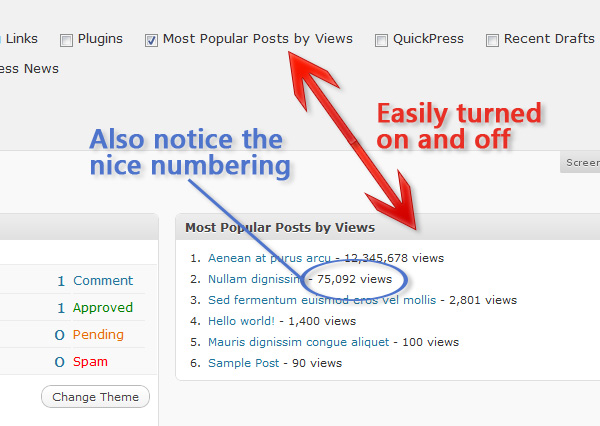
And now we have a working dashboard widget for administraitors to see.

Admin Dashboard Widget

Step 4. Creating the Sidebar Widget

Creating a sidebar widget is fairly painless; unfortunately, certain parts aren’t documented well (like how to make them uniform), but we’ll cover that. Let’s start by writing a new function (ppbv_display_widget) and, inside of it, we’ll carbon copy our content function from the admin widget (I suggest moving the global calls to the top, outside the <ol> echo, of the function for clarity later on). Then the next step is to register our widget in WordPress via wp_register_sidebar_widget (parameters are: [id of the container],[title on the widget page],[content function] || ‘popular_by_views’, ‘Most Popular Posts by Views’, ‘ppbv_display_widget’).

function ppbv_display_widget() {
    global $wpdb, $ppbv_tablename; // call global for use in function

    echo "<div id='popular_by_views'>"; // create a container
        echo "<h2>Most Popular by Views</h2>"; // write the title
        echo "<ol id='popular_by_views_list'>"; // create an ordered list
            $popular = $wpdb->get_results("SELECT * FROM {$ppbv_tablename} ORDER BY views DESC LIMIT 0,10",ARRAY_N);
            foreach($popular as $post){ // loop through the returned array of popular posts
                $ID = $post[1]; // store the data in a variable to save a few characters and keep the code cleaner
                $views = number_format($post[2]); // number_format adds the commas in the right spots for numbers (ex: 12543 to 12,543)
                $post_url = get_permalink($ID); // get the URL of the current post in the loop
                $title = get_the_title($ID); // get the title of the current post in the loop
                echo "<li><a href='{$post_url}'>{$title}</a> - {$views} views</li>"; // echo out the information in a list-item
            } // end the loop
        echo "</ol>"; // close the ordered list
    echo "</div>"; // close the container
}
wp_register_sidebar_widget('popular_by_views', 'Most Popular Posts by Views', 'ppbv_display_widget'); // add the widget to the select menu || wp_register_sidebar_widget([id of the option],[title of the option],[function to run from the widget]))

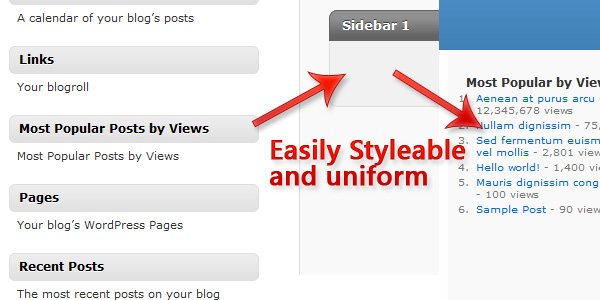
This is actually the bare-minimum you need to do for a sidebar widget, but what 90% of all dynamic sidebars have certain settings applied about how widgets are styled, so let’s conform our widget to those settings. The first thing we need to do is add in a parameter to our ppbv_display_widget function, $args. By adding this parameter inside the function, using the extract function on it, we gain access to several variables which will allow our plugin to be styled the same as the rest of the widgets in the sidebar.

“We don’t need to provide any input for $args, WordPress will do that for us.”

Thanks to $args and extract, we now have access to the following variables that we can echo to style our widget:

  • $before_widget
  • $after_widget
  • $before_title
  • $after_title
function ppbv_display_widget($args){
    global $wpdb, $ppbv_tablename; // call global for use in function
    extract($args); // gives us the default settings of widgets

    echo $before_widget; // echos the container for the widget || obtained from $args
        echo $before_title."Most Popular by Views".$after_title; // echos the title of the widget || $before_title/$after_title obtained from $args
        echo "<ol id='popular_by_views_list'>"; // create an ordered list
            $popular = $wpdb->get_results("SELECT * FROM {$ppbv_tablename} ORDER BY views DESC LIMIT 0,10",ARRAY_N); // Order our table by largest to smallest views then get the first 10 (i.e. the top 10 most viewed)
            foreach($popular as $post){ // loop through the returned array of popular posts
                $ID = $post[1]; // store the data in a variable to save a few characters and keep the code cleaner
                $views = number_format($post[2]); // number_format adds the commas in the right spots for numbers (ex: 12543 to 12,543)
                $post_url = get_permalink($ID); // get the URL of the current post in the loop
                $title = get_the_title($ID); // get the title of the current post in the loop
                echo "<li><a href='{$post_url}'>{$title}</a> - {$views} views</li>"; // echo out the information in a list-item
            } // end the loop
        echo "</ol>"; // close the ordered list
    echo $after_widget; // close the container || obtained from $args
}
Sidebar Widget

Step 5. The Non-widget Function

Not everybody who uses this plugin is going to want to use the widget, so it’s imperative that we provide them with another method of displaying our list. Thankfully, that’s as simple as cloning our ppbv_display_widget function and removing the widget parts, replacing them with standard hardcoded HTML.

function ppbv_display() {
    global $wpdb, $ppbv_tablename; // call global for use in function

    echo "<div id='popular_by_views'>"; // create a container
        echo "<h2>Most Popular by Views</h2>"; // write the title
        echo "<ol id='popular_by_views_list'>"; // create an ordered list
            $popular = $wpdb->get_results("SELECT * FROM {$ppbv_tablename} ORDER BY views DESC LIMIT 0,10",ARRAY_N);
            foreach($popular as $post){ // loop through the returned array of popular posts
                $ID = $post[1]; // store the data in a variable to save a few characters and keep the code cleaner
                $views = number_format($post[2]); // number_format adds the commas in the right spots for numbers (ex: 12543 to 12,543)
                $post_url = get_permalink($ID); // get the URL of the current post in the loop
                $title = get_the_title($ID); // get the title of the current post in the loop
                echo "<li><a href='{$post_url}'>{$title}</a> - {$views} views</li>"; // echo out the information in a list-item
            } // end the loop
        echo "</ol>"; // close the ordered list
    echo "</div>"; // close the container
}

Conclusion

That’s it guys, you’ve successfully made your very own “Most Popular by Views” WordPress plugin. Not too hard, was it?

View Final Source Code with Commenting?

<?php
/**
 * Plugin Name: Popular Posts by Views
 * Plugin URI: http://net.tutsplus.com
 * Description: Create a widget to show your most popular articles bassed on views.
 * Version: 1.0
 * Author: Jonathan Wolfe
 * Author URI: http://fire-studios.com
 * License: GPL2
 * .
 * This plugin and it's accompanying tutorial are written for NETTUTS at http://net.tutsplus.com
 * .
 */

global $wpdb; // call global so we can get the database prefix
$ppbv_tablename = $wpdb->prefix.'popular_by_views'; // combine the prefix with our tablename

function ppbv_create_table(){
    global $wpdb, $ppbv_tablename; // call global so we can use them within the function
    $ppbv_table = $wpdb->get_results("SHOW TABLES LIKE '{$ppbv_tablename}'" , ARRAY_N); // returns null if no results
    if(is_null($ppbv_table)){ // if we don't have a table
        $create_table_sql = "CREATE TABLE {$ppbv_tablename} (
            id BIGINT(50) NOT NULL AUTO_INCREMENT,
            post_id VARCHAR(255) NOT NULL,
            views BIGINT(50) NOT NULL,
            PRIMARY KEY (id),
            UNIQUE (id)
        );"; // be careful with SQL syntax, it can be VERY finiky
        $wpdb->query($create_table_sql); // run the SQL statement on the database
        $wpdb->flush(); // clense the DB interface
    }
}
register_activation_hook(__FILE__,'ppbv_create_table'); // run the function 'ppbv_create_table' at plugin activation

function ppbv_page_viewed(){
    if(is_single() && !is_page()){ // only run on posts and not pages
        global $wpdb, $post, $ppbv_tablename; // call global for use in funciton
        $wpdb->flush(); // clense the DB interface
        $data = $wpdb->get_row("SELECT * FROM {$ppbv_tablename} WHERE post_id='{$post->ID}'", ARRAY_A); // get the data row that has the matching post ID
        if(!is_null($data)){ // if we have a matching data row
            $new_views = $data['views'] + 1; // increase the views by 1
            $wpdb->query("UPDATE {$ppbv_tablename} SET views='{$new_views}' WHERE post_id='{$post->ID}';"); // update the data row with the new views
            $wpdb->flush(); // clense the DB interface
        }
        else { // if we don't have a matching data row (nobody's viewed the post yet)
            $wpdb->query("INSERT INTO {$ppbv_tablename} (post_id, views) VALUES ('{$post->ID}','1');"); // add a new data row into the DB with the post ID and 1 view
            $wpdb->flush(); // clense the DB interface
        }
    }
}
add_action('wp_head','ppbv_page_viewed'); // attach ppbv_page_viewed to the wp_head hook

function ppbv_admin_widget(){
    echo "<ol id='popular_by_views_admin_list'>"; // create an unordered list
        global $wpdb, $ppbv_tablename; // call global for use in function
        $popular = $wpdb->get_results("SELECT * FROM {$ppbv_tablename} ORDER BY views DESC LIMIT 0,10",ARRAY_N); // Order our table by largest to smallest views then get the first 10 (i.e. the top 10 most viewed)
        foreach($popular as $post){ // loop through the returned array of popular posts
            $ID = $post[1]; // store the data in a variable to save a few characters and keep the code cleaner
            $views = number_format($post[2]); // number_format adds the commas in the right spots for numbers (ex: 12543 to 12,543)
            $post_url = get_permalink($ID); // get the URL of the current post in the loop
            $title = get_the_title($ID); // get the title of the current post in the loop
            echo "<li><a href='{$post_url}'>{$title}</a> - {$views} views</li>"; // echo out the information in a list-item
        } // end the loop
    echo "</ol>"; // close out the unordered list
}
function ppbv_add_admin_widget(){
    wp_add_dashboard_widget('popular_by_views', 'Most Popular Posts by Views', 'ppbv_admin_widget'); // creates an admin area widget || wp_add_dashboard_widget([id of div],[title in div],[function to run inside of div])
}
add_action('wp_dashboard_setup','ppbv_add_admin_widget'); // attach ppbv_add_admin_widget to wp_dashboard_setup

function ppbv_display_widget($args){
    global $wpdb, $ppbv_tablename; // call global for use in function
    extract($args); // gives us the default settings of widgets

    echo $before_widget; // echos the container for the widget || obtained from $args
        echo $before_title."Most Popular by Views".$after_title; // echos the title of the widget || $before_title/$after_title obtained from $args
        echo "<ol id='popular_by_views_list'>"; // create an ordered list
            $popular = $wpdb->get_results("SELECT * FROM {$ppbv_tablename} ORDER BY views DESC LIMIT 0,10",ARRAY_N); // Order our table by largest to smallest views then get the first 10 (i.e. the top 10 most viewed)
            foreach($popular as $post){ // loop through the returned array of popular posts
                $ID = $post[1]; // store the data in a variable to save a few characters and keep the code cleaner
                $views = number_format($post[2]); // number_format adds the commas in the right spots for numbers (ex: 12543 to 12,543)
                $post_url = get_permalink($ID); // get the URL of the current post in the loop
                $title = get_the_title($ID); // get the title of the current post in the loop
                echo "<li><a href='{$post_url}'>{$title}</a> - {$views} views</li>"; // echo out the information in a list-item
            } // end the loop
        echo "</ol>"; // close the ordered list
    echo $after_widget; // close the container || obtained from $args
}
wp_register_sidebar_widget('popular_by_views', 'Most Popular Posts by Views', 'ppbv_display_widget'); // add the widget to the select menu || wp_register_sidebar_widget([id of the option],[title of the option],[function to run from the widget]))

function ppbv_display() {
    global $wpdb, $ppbv_tablename; // call global for use in function

    echo "<div id='popular_by_views'>"; // create a container
        echo "<h2>Most Popular by Views</h2>"; // write the title
        echo "<ol id='popular_by_views_list'>"; // create an ordered list
            $popular = $wpdb->get_results("SELECT * FROM {$ppbv_tablename} ORDER BY views DESC LIMIT 0,10",ARRAY_N);
            foreach($popular as $post){ // loop through the returned array of popular posts
                $ID = $post[1]; // store the data in a variable to save a few characters and keep the code cleaner
                $views = number_format($post[2]); // number_format adds the commas in the right spots for numbers (ex: 12543 to 12,543)
                $post_url = get_permalink($ID); // get the URL of the current post in the loop
                $title = get_the_title($ID); // get the title of the current post in the loop
                echo "<li><a href='{$post_url}'>{$title}</a> - {$views} views</li>"; // echo out the information in a list-item
            } // end the loop
        echo "</ol>"; // close the ordered list
    echo "</div>"; // close the container
}
?>

Intermediate WP Plugins: Most Popular By Views


As you continue using writing for WordPress more and more, the level of difficulty and complexity of your plugins will eventually reach far beyond the simple back-end data manipulation, as demonstrated in our beginner’s article. In this installment we’ll cover in-depth: database interaction, Admin Widgets, and Sidebar Widgets. Today’s example will be a custom built “Most Popular by Views” plugin, which creates an admin area widget for us to view, and a sidebar widget for visitors to see.


Step 0. What it’s Gonna Do?

Before we open our IDE or write any code, you should always write out a list of what features your plugin will and will not have (at least in its initial phase, you can always extend later). For our plugin, “Most Popular By Views,” our primary feature is to display a list of the most popular posts (we’ll say, top 10). Secondly, we’ll also put the list in the admin area as a kind of low-tech analytics. Lastly, we’ll give the developers the option to display it anywhere by making it available as a sidebar widget, and via a simple function.

Features:

  • Creates a list of the top ten most popular posts based on views
  • List is displayed in Admin area as a low-tech analytics
  • List is available as both a sidebar widget and function
The finished widgets

Step 1. The Database

Before we can display the most popular posts, we need to gather data about which posts are being viewed and how often, but even before we can do that, we need somewhere to put all that data. Inside of a new plugin file, let’s create a new function (ppbv_create_table) that will check to see if our table exists. If it does not, we’ll create it. Our method of doing this is rather simple; we’ll use $wpdb->get_results to run a SQL statement that checks for a table named “wp_popular_by_views.” If it doesn’t find the table, get_results will return null. If that’s the case, we’ll use $wpdb->query to write in the new table. We run this function every time the plugin is activated.

<?php
/**
 * Plugin Name: Popular Posts by Views
 * Plugin URI: http://net.tutsplus.com
 * Description: Create a widget to show your most popular articles based on views.
 * Version: 1.0
 * Author: Jonathan Wolfe
 * Author URI: http://fire-studios.com
 * License: GPL2
 * .
 * This plugin and its accompanying tutorial are written for Nettuts+ at http://net.tutsplus.com
 * .
 */

global $wpdb; // call global so we can get the database prefix
$ppbv_tablename = $wpdb->prefix.'popular_by_views'; // combine the prefix with our tablename

function ppbv_create_table(){
    global $wpdb, $ppbv_tablename; // call global so we can use them within the function
    $ppbv_table = $wpdb->get_results("SHOW TABLES LIKE '{$ppbv_tablename}'" , ARRAY_N); // returns null if no results
    if(is_null($ppbv_table)){ // if we don't have a table
        $create_table_sql = "CREATE TABLE {$ppbv_tablename} (
            id BIGINT(50) NOT NULL AUTO_INCREMENT,
            post_id VARCHAR(255) NOT NULL,
            views BIGINT(50) NOT NULL,
            PRIMARY KEY (id),
            UNIQUE (id)
        );"; // be careful with SQL syntax, it can be VERY finiky
        $wpdb->query($create_table_sql); // run the SQL statement on the database
    }
}
register_activation_hook(__FILE__,'ppbv_create_table'); // run the function 'ppbv_create_table' at plugin activation
?>

Step 2. Catching the Data

The next thing we need to do, now that we have a table to store our data, is catch our data. We’ll create a new function (ppbv_page_viewed) that we’ll attach to the wp_head hook so that it’ll run on every page load. Inside this function, we’re going to do one of two things, after we check to see if the current page is already in the database: increase its views by one or, if it’s not in the database, add it to the database. To figure out if the current page is already in the database, we’re going to be using the $post object to get the “post_ID.” This step is actually really simple, because we aren’t collecting any complicated data; the comments in the code provide a detailed step by step in this process.

function ppbv_page_viewed(){
    if(is_single() && !is_page()){ // only run on posts and not pages
        global $wpdb, $post, $ppbv_tablename; // call global for use in funciton
        $wpdb->flush(); // clense the DB interface
        $data = $wpdb->get_row("SELECT * FROM {$ppbv_tablename} WHERE post_id='{$post->ID}'", ARRAY_A); // get the data row that has the matching post ID
        if(!is_null($data)){ // if we have a matching data row
            $new_views = $data['views'] + 1; // increase the views by 1
            $wpdb->query("UPDATE {$ppbv_tablename} SET views='{$new_views}' WHERE post_id='{$post->ID}';"); // update the data row with the new views
            $wpdb->flush(); // clense the DB interface
        }
        else { // if we don't have a matching data row (nobody's viewed the post yet)
            $wpdb->query("INSERT INTO {$ppbv_tablename} (post_id, views) VALUES ('{$post->ID}','1');"); // add a new data row into the DB with the post ID and 1 view
            $wpdb->flush(); // clense the DB interface
        }
    }
}
add_action('wp_head','ppbv_page_viewed'); // attach ppbv_page_viewed to the wp_head hook
Database and views process

Step 3. Creating the Admin Widget

Next up, we’re going to use this data we just added to our database to create an ordered list inside of an Admin Area Dashboard Widget. This process involves two functions: the first (ppbv_admin_widget) to generate everything inside the widget, and second, (ppbv_add_admin_widget) to create the widget itself. Let’s start with the content function, pppbv_admin_widget. Firstly, since we’re making an ordered list, let’s echo out the opening tags for that. Then we’ll globalize the $wpdb and $ppbv_tablename vars so we can access the database and retrieve the ten most viewed post’s IDs. Then we’ll run the returned array through a foreach statement, and use each individual ID to build a list-item and create a link to that page while also printing out its views (formatted with number_format to make it easier to read).

function ppbv_admin_widget(){
    echo "<ol id='popular_by_views_admin_list'>"; // create an unordered list
        global $wpdb, $ppbv_tablename; // call global for use in function
        $popular = $wpdb->get_results("SELECT * FROM {$ppbv_tablename} ORDER BY views DESC LIMIT 0,10",ARRAY_N); // Order our table by largest to smallest views then get the first 10 (i.e. the top 10 most viewed)
        foreach($popular as $post){ // loop through the returned array of popular posts
            $ID = $post[1]; // store the data in a variable to save a few characters and keep the code cleaner
            $views = number_format($post[2]); // number_format adds the commas in the right spots for numbers (ex: 12543 to 12,543)
            $post_url = get_permalink($ID); // get the URL of the current post in the loop
            $title = get_the_title($ID); // get the title of the current post in the loop
            echo "<li><a href='{$post_url}'>{$title}</a> - {$views} views</li>"; // echo out the information in a list-item
        } // end the loop
    echo "</ol>"; // close out the unordered list
}

Now that we’re generating content, let’s create the widget. Inside the creation function, ppbv_add_admin_widget, we’re going to call another function native to WordPress: wp_add_dashboard_widget. All we need to do is give wp_add_dashboard_widget the following parameters: [id of the container], [title in the container], [content function] (ours fills as such: ‘popular_by_views’, ‘Most Popular Posts by Views’, ‘ppbv_admin_widget’). The last thing we need to do is attach our creation function to the wp_dashboard_setup hook.

function ppbv_add_admin_widget(){
    wp_add_dashboard_widget('popular_by_views', 'Most Popular Posts by Views', 'ppbv_admin_widget'); // creates an admin area widget || wp_add_dashboard_widget([id of div],[title in div],[function to run inside of div])
}
add_action('wp_dashboard_setup','ppbv_add_admin_widget'); // attach ppbv_add_admin_widget to wp_dashboard_setup

And now we have a working dashboard widget for administraitors to see.

Admin Dashboard Widget

Step 4. Creating the Sidebar Widget

Creating a sidebar widget is fairly painless; unfortunately, certain parts aren’t documented well (like how to make them uniform), but we’ll cover that. Let’s start by writing a new function (ppbv_display_widget) and, inside of it, we’ll carbon copy our content function from the admin widget (I suggest moving the global calls to the top, outside the <ol> echo, of the function for clarity later on). Then the next step is to register our widget in WordPress via wp_register_sidebar_widget (parameters are: [id of the container],[title on the widget page],[content function] || ‘popular_by_views’, ‘Most Popular Posts by Views’, ‘ppbv_display_widget’).

function ppbv_display_widget() {
    global $wpdb, $ppbv_tablename; // call global for use in function

    echo "<div id='popular_by_views'>"; // create a container
        echo "<h2>Most Popular by Views</h2>"; // write the title
        echo "<ol id='popular_by_views_list'>"; // create an ordered list
            $popular = $wpdb->get_results("SELECT * FROM {$ppbv_tablename} ORDER BY views DESC LIMIT 0,10",ARRAY_N);
            foreach($popular as $post){ // loop through the returned array of popular posts
                $ID = $post[1]; // store the data in a variable to save a few characters and keep the code cleaner
                $views = number_format($post[2]); // number_format adds the commas in the right spots for numbers (ex: 12543 to 12,543)
                $post_url = get_permalink($ID); // get the URL of the current post in the loop
                $title = get_the_title($ID); // get the title of the current post in the loop
                echo "<li><a href='{$post_url}'>{$title}</a> - {$views} views</li>"; // echo out the information in a list-item
            } // end the loop
        echo "</ol>"; // close the ordered list
    echo "</div>"; // close the container
}
wp_register_sidebar_widget('popular_by_views', 'Most Popular Posts by Views', 'ppbv_display_widget'); // add the widget to the select menu || wp_register_sidebar_widget([id of the option],[title of the option],[function to run from the widget]))

This is actually the bare-minimum you need to do for a sidebar widget, but what 90% of all dynamic sidebars have certain settings applied about how widgets are styled, so let’s conform our widget to those settings. The first thing we need to do is add in a parameter to our ppbv_display_widget function, $args. By adding this parameter inside the function, using the extract function on it, we gain access to several variables which will allow our plugin to be styled the same as the rest of the widgets in the sidebar.

“We don’t need to provide any input for $args, WordPress will do that for us.”

Thanks to $args and extract, we now have access to the following variables that we can echo to style our widget:

  • $before_widget
  • $after_widget
  • $before_title
  • $after_title
function ppbv_display_widget($args){
    global $wpdb, $ppbv_tablename; // call global for use in function
    extract($args); // gives us the default settings of widgets

    echo $before_widget; // echos the container for the widget || obtained from $args
        echo $before_title."Most Popular by Views".$after_title; // echos the title of the widget || $before_title/$after_title obtained from $args
        echo "<ol id='popular_by_views_list'>"; // create an ordered list
            $popular = $wpdb->get_results("SELECT * FROM {$ppbv_tablename} ORDER BY views DESC LIMIT 0,10",ARRAY_N); // Order our table by largest to smallest views then get the first 10 (i.e. the top 10 most viewed)
            foreach($popular as $post){ // loop through the returned array of popular posts
                $ID = $post[1]; // store the data in a variable to save a few characters and keep the code cleaner
                $views = number_format($post[2]); // number_format adds the commas in the right spots for numbers (ex: 12543 to 12,543)
                $post_url = get_permalink($ID); // get the URL of the current post in the loop
                $title = get_the_title($ID); // get the title of the current post in the loop
                echo "<li><a href='{$post_url}'>{$title}</a> - {$views} views</li>"; // echo out the information in a list-item
            } // end the loop
        echo "</ol>"; // close the ordered list
    echo $after_widget; // close the container || obtained from $args
}
Sidebar Widget

Step 5. The Non-widget Function

Not everybody who uses this plugin is going to want to use the widget, so it’s imperative that we provide them with another method of displaying our list. Thankfully, that’s as simple as cloning our ppbv_display_widget function and removing the widget parts, replacing them with standard hardcoded HTML.

function ppbv_display() {
    global $wpdb, $ppbv_tablename; // call global for use in function

    echo "<div id='popular_by_views'>"; // create a container
        echo "<h2>Most Popular by Views</h2>"; // write the title
        echo "<ol id='popular_by_views_list'>"; // create an ordered list
            $popular = $wpdb->get_results("SELECT * FROM {$ppbv_tablename} ORDER BY views DESC LIMIT 0,10",ARRAY_N);
            foreach($popular as $post){ // loop through the returned array of popular posts
                $ID = $post[1]; // store the data in a variable to save a few characters and keep the code cleaner
                $views = number_format($post[2]); // number_format adds the commas in the right spots for numbers (ex: 12543 to 12,543)
                $post_url = get_permalink($ID); // get the URL of the current post in the loop
                $title = get_the_title($ID); // get the title of the current post in the loop
                echo "<li><a href='{$post_url}'>{$title}</a> - {$views} views</li>"; // echo out the information in a list-item
            } // end the loop
        echo "</ol>"; // close the ordered list
    echo "</div>"; // close the container
}

Conclusion

That’s it guys, you’ve successfully made your very own “Most Popular by Views” WordPress plugin. Not too hard, was it?

View Final Source Code with Commenting?

<?php
/**
 * Plugin Name: Popular Posts by Views
 * Plugin URI: http://net.tutsplus.com
 * Description: Create a widget to show your most popular articles bassed on views.
 * Version: 1.0
 * Author: Jonathan Wolfe
 * Author URI: http://fire-studios.com
 * License: GPL2
 * .
 * This plugin and it's accompanying tutorial are written for NETTUTS at http://net.tutsplus.com
 * .
 */

global $wpdb; // call global so we can get the database prefix
$ppbv_tablename = $wpdb->prefix.'popular_by_views'; // combine the prefix with our tablename

function ppbv_create_table(){
    global $wpdb, $ppbv_tablename; // call global so we can use them within the function
    $ppbv_table = $wpdb->get_results("SHOW TABLES LIKE '{$ppbv_tablename}'" , ARRAY_N); // returns null if no results
    if(is_null($ppbv_table)){ // if we don't have a table
        $create_table_sql = "CREATE TABLE {$ppbv_tablename} (
            id BIGINT(50) NOT NULL AUTO_INCREMENT,
            post_id VARCHAR(255) NOT NULL,
            views BIGINT(50) NOT NULL,
            PRIMARY KEY (id),
            UNIQUE (id)
        );"; // be careful with SQL syntax, it can be VERY finiky
        $wpdb->query($create_table_sql); // run the SQL statement on the database
        $wpdb->flush(); // clense the DB interface
    }
}
register_activation_hook(__FILE__,'ppbv_create_table'); // run the function 'ppbv_create_table' at plugin activation

function ppbv_page_viewed(){
    if(is_single() && !is_page()){ // only run on posts and not pages
        global $wpdb, $post, $ppbv_tablename; // call global for use in funciton
        $wpdb->flush(); // clense the DB interface
        $data = $wpdb->get_row("SELECT * FROM {$ppbv_tablename} WHERE post_id='{$post->ID}'", ARRAY_A); // get the data row that has the matching post ID
        if(!is_null($data)){ // if we have a matching data row
            $new_views = $data['views'] + 1; // increase the views by 1
            $wpdb->query("UPDATE {$ppbv_tablename} SET views='{$new_views}' WHERE post_id='{$post->ID}';"); // update the data row with the new views
            $wpdb->flush(); // clense the DB interface
        }
        else { // if we don't have a matching data row (nobody's viewed the post yet)
            $wpdb->query("INSERT INTO {$ppbv_tablename} (post_id, views) VALUES ('{$post->ID}','1');"); // add a new data row into the DB with the post ID and 1 view
            $wpdb->flush(); // clense the DB interface
        }
    }
}
add_action('wp_head','ppbv_page_viewed'); // attach ppbv_page_viewed to the wp_head hook

function ppbv_admin_widget(){
    echo "<ol id='popular_by_views_admin_list'>"; // create an unordered list
        global $wpdb, $ppbv_tablename; // call global for use in function
        $popular = $wpdb->get_results("SELECT * FROM {$ppbv_tablename} ORDER BY views DESC LIMIT 0,10",ARRAY_N); // Order our table by largest to smallest views then get the first 10 (i.e. the top 10 most viewed)
        foreach($popular as $post){ // loop through the returned array of popular posts
            $ID = $post[1]; // store the data in a variable to save a few characters and keep the code cleaner
            $views = number_format($post[2]); // number_format adds the commas in the right spots for numbers (ex: 12543 to 12,543)
            $post_url = get_permalink($ID); // get the URL of the current post in the loop
            $title = get_the_title($ID); // get the title of the current post in the loop
            echo "<li><a href='{$post_url}'>{$title}</a> - {$views} views</li>"; // echo out the information in a list-item
        } // end the loop
    echo "</ol>"; // close out the unordered list
}
function ppbv_add_admin_widget(){
    wp_add_dashboard_widget('popular_by_views', 'Most Popular Posts by Views', 'ppbv_admin_widget'); // creates an admin area widget || wp_add_dashboard_widget([id of div],[title in div],[function to run inside of div])
}
add_action('wp_dashboard_setup','ppbv_add_admin_widget'); // attach ppbv_add_admin_widget to wp_dashboard_setup

function ppbv_display_widget($args){
    global $wpdb, $ppbv_tablename; // call global for use in function
    extract($args); // gives us the default settings of widgets

    echo $before_widget; // echos the container for the widget || obtained from $args
        echo $before_title."Most Popular by Views".$after_title; // echos the title of the widget || $before_title/$after_title obtained from $args
        echo "<ol id='popular_by_views_list'>"; // create an ordered list
            $popular = $wpdb->get_results("SELECT * FROM {$ppbv_tablename} ORDER BY views DESC LIMIT 0,10",ARRAY_N); // Order our table by largest to smallest views then get the first 10 (i.e. the top 10 most viewed)
            foreach($popular as $post){ // loop through the returned array of popular posts
                $ID = $post[1]; // store the data in a variable to save a few characters and keep the code cleaner
                $views = number_format($post[2]); // number_format adds the commas in the right spots for numbers (ex: 12543 to 12,543)
                $post_url = get_permalink($ID); // get the URL of the current post in the loop
                $title = get_the_title($ID); // get the title of the current post in the loop
                echo "<li><a href='{$post_url}'>{$title}</a> - {$views} views</li>"; // echo out the information in a list-item
            } // end the loop
        echo "</ol>"; // close the ordered list
    echo $after_widget; // close the container || obtained from $args
}
wp_register_sidebar_widget('popular_by_views', 'Most Popular Posts by Views', 'ppbv_display_widget'); // add the widget to the select menu || wp_register_sidebar_widget([id of the option],[title of the option],[function to run from the widget]))

function ppbv_display() {
    global $wpdb, $ppbv_tablename; // call global for use in function

    echo "<div id='popular_by_views'>"; // create a container
        echo "<h2>Most Popular by Views</h2>"; // write the title
        echo "<ol id='popular_by_views_list'>"; // create an ordered list
            $popular = $wpdb->get_results("SELECT * FROM {$ppbv_tablename} ORDER BY views DESC LIMIT 0,10",ARRAY_N);
            foreach($popular as $post){ // loop through the returned array of popular posts
                $ID = $post[1]; // store the data in a variable to save a few characters and keep the code cleaner
                $views = number_format($post[2]); // number_format adds the commas in the right spots for numbers (ex: 12543 to 12,543)
                $post_url = get_permalink($ID); // get the URL of the current post in the loop
                $title = get_the_title($ID); // get the title of the current post in the loop
                echo "<li><a href='{$post_url}'>{$title}</a> - {$views} views</li>"; // echo out the information in a list-item
            } // end the loop
        echo "</ol>"; // close the ordered list
    echo "</div>"; // close the container
}
?>

Competence or Confidence?

Competence or confidence.

Which comes first? Do your ever-improving skills grant you confidence? Or, alternatively, is it your confidence that catalyzes the growth of your skills?

Which came first, the chicken or the egg?

You can certainly have one in spades and suffer a conspicuous lack of the other. Some people are brimming with confidence and have no skills to back up all that bravado. Others have a brilliant array of abilities, but don’t have the gumption to put them all to use.

Sure, it would be ideal to have tons of both. But if you could only have one, which would you pick? Which is a “nice to have” and which is a critical component of your working persona?

How to Use Racks and Built-in Devices to Create Glitch in Ableton Live

Nowadays there are countless plugins and tools, both commercial and free, meant to achieve various glitch effects. Some of them are really good, but most have a way too recognizable sound and a limited array of features. While most of the time what these tools have to offer is enough, it’s always good to know how to make such effects from scratch, not to mention that becoming familiar with your DAWs built-in effects and instruments makes for a huge difference. In this tutorial we’re going to glitch the hell out of an simple drum loop, using only the tools Ableton Live has to offer by default.

Please note that while the stuff we’ll do alongside this tutorial are pretty easy to follow and understand, you’d still better be familiar with the basics of how to use Ableton Live. If you’re not, you should go and check out some of the tutorials covering the basics of this amazing DAW, there are lots of good writings and screencasts concentrating on that. For this tutorial we’ll be using version 8 of Live, but basically you can use versions 6 or 7 with little or no difference at all. Prior to version 6 there were no racks in Live, which would make following along a bit difficult.


Step 1

All right, so let’s get started. What we need first, is of course something to work on. This could basically be any kind of audio source, but for the sake of simplicity we’ll stick with a drum loop. In fact, the whole technique we’ll be using in this tutorial is best suited for beats, but with a little creativity it can be used on any kind of sound, I’ll show you some examples of that in the end. To have some material to work on I quickly threw together a tech-house beat, so this is what we’re going to try to mess around with.

Download audio file (step01.mp3)


Step 2

Okay, so now that we have our loop to work on, let’s first start by cutting it up to its transients, and then loading it up into a sampler. To accomplish that, right click on the audio clips title bar, and in the popup menu click on Slice to New MIDI Track, the very last option, right above the color picker.

In the next dialog choose Transient in the first dropdown list, and Slice to single Sampler in the second one.

What this is going to do for us, is that it’s going to cut the drum loop up to every little drum hit, create a new MIDI track and load a Sampler instrument with every slice we’ve got in it. It will also set things up so that specific notes on the keyboard will trigger specific slices in the Sampler, and it will even create a default MIDI clip for us, which simply does the job of replicating the original sound source during playback. At this point you don’t have to worry about what’s in the background, or be an advanced Sampler user, though it definitely helps if you are somewhat familiar with it.


Step 3

Now let’s make a few adjustments here. While it doesn’t really make an audible difference, I like to bring down the values of Initial, Peak, Attack, Decay and Release to the minimum, just to keep things clean. What’s important is that Sustain should remain 0.0 dB, so that the sound is audible at a constant and maximum volume, whenever a note is played. After you happy with the overall volume and characteristics of the sound, you might want to consider playing a bit with the Pan<Rnd control. It does exactly what you’d expect, it pans each slice randomly in the stereo field, which can make the sound pretty much interesting just by itself. If you want to go for a constantly panning sound with a lot of stereo movement, just turn it all the way up to 100%.

Download audio file (step03.mp3)


Step 4

The next step is to add a little chaos, by re-arranging the order of the slices’ playback. As each slice is triggered by a specific MIDI note, all we have to do in order to quickly add some variation to the loop is to insert a Scale device before the Sampler. It can be found in the MIDI effects folder of Live’s devices browser.

I won’t go into details about this device, because that’s not the point of this guide, but to sum what it does in a nutshell: it basically takes all incoming notes and either lets them go through untouched, or plays a different note instead, based on rules defined by the note matrix. The default preset doesn’t change anything, it leaves all notes intact. Should you have an exact idea of what to achieve, you could go and program this thing for as long as you like, but for the sake of spontaneity I’ll just randomize it by clicking around with the mouse. A simpe randomizer button here would be sweet, wouldn’t it? :)

Download audio file (step04.mp3)


Step 5

Great, so now we have re-arranged our loop a bit, but we’re still missing the point. Even though we have our slices playing back in a different order, the change we made is still just as static as it was before. Essentially, we’d like to have multiple variations of the same effect, and to be able to switch between these variations with a simple turn of a knob.

First and foremost, we’ll have to group our Scale effect into an effect rack, so that we can have macro controls, and multiple chains, which act somewhat like layers in digital image processing software. The simplest way of doing that is just to click on our Scale device and then hit Ctrl+G (Command+G on the Mac), where G of course stands for Grouping. After you create the rack, be sure to make the chain list and macro controls panels visible by click the appropriate buttons on the left side of the rack.


Step 6

Next we’re going to create several chains with the same setup, but each acting a little bit different from the others. To do this, simply drop a few more Scale plugins in the empty area of the racks chain list, the one with the label saying Drop MIDI Effects here. Just make sure you don’t forget to configure a different note matrix for each Scale, because that’s what our goal is.

By the way, you can name every chain the way you want, simply select the chain and hit Ctrl+R (or Command+R on the Mac), then type in the name you want for that particular chain.

So far so good, but the problem is that at the moment we have all the chains playing simultaneously. We don’t want it to be like that, we want to have only one specific chain playing at a time. Moreover, we’d like to have some control over which is the one that’s audible. Luckily, Live has a powerful, but yet easy to use feature to help us accomplish that: zones. Follow on to the next step to see how zones are going to help us reaching our goal.


Step 7

Zones are basically nothing but intervals that filter which chains will receive the signal passed in to the rack, while other chains will remain silent. We have three different types of zones: Key zones (which essentially assign chains to various parts of your MIDI keyboard), Vel zones (where Vel of course stands for velocity and these are zones based on velocity levels) and Chain zones (being controlled by a single parameter called a chain selector). We’ll stick with Chain zones this time, as all we need is a simple control over the selection of chains. So in order to bring up the Chain Select Editor just click on the little button labeled Chain right above the chain list.


Step 8

What we see here now, is the zone editor itself. Each chain in the list has it’s own zone, represented by a little clip which behaves pretty much the same as a looped audio or MIDI clip (and notice that the zone editor itself looks much like a minified version of Lives arrangement view). That is, we can move it around by clicking in the middle of it and then dragging it to whatever position we feel like we want it to be, or we can change its length by grabbing one of its edges, and then resizing it to fit our needs.

By default, each zone has but a single value, which is 0, and the chain selector (which is the little orange marker on the Chain Select Ruler right above) is also set to 0. Guess what, that’s why we hear all the chains in the rack playing simultaneously! So for example if we move the selector to a value of 8 (see picture below), and then we try to play back our sound, we’ll hear nothing, which is of course exactly what we are expecting with all the zones being set to 0, and the chain selector to 8.


Step 9

Ok, now we’re going to set up our zones to be able to cycle through the racks chains with a macro control. There’s a neat little trick in the zone editor, that will come handy. Let’s grab the right edge of one of the zones, and pull it out all the way to the right, to the maximum value of 127.

When it’s done, all you have to is simply right-click in the zone editor, and in the popup menu select Distribute Ranges Equally.

It will do exactly what is says, that is divide 127 with the number of chains, give each chain a zone of equal length, and also position them across the available space so that none of the zones will be overlapping each other.

All we’ve left to do, is to map the selector to a macro control, to be able to control all the variation in our loops arrangement in real time. To do that, click on Map Mode in the header part of the rack to turn the mapping mode on, then click once on the Chain Select Ruler (it will turn kind of pinkish in mapping mode), and then choose a macro knob of your preference, and click the Map button underneath it.

I just mapped it to the very first macro knob. Now click on Map Mode again to turn it off, and here we go: try randomly turning this macro knob around while playing the sound back. I just mapped the macro to a physical knob on my MDI keyboard, and played around with it, check the sample to hear what it sounds like.

Download audio file (step09.mp3)


Step 10

Right, so things are getting pretty interesting from now on. To add more life to the sound we’re going to run the signal through a bunch of audio effects which Live has to offer. First, let’s add even more chaos to our sound by throwing in a Beat Repeat effect (can be found under audio effects). I won’t bother going into the details of its programming, so feel free to load up a preset from the library, or just program it to your taste. I raised the Chance to 85%, set the Grid to 16 and added Variation a value of 4. Next we’re going to add a little bitcrushing effect using Redux. I set the mode to Soft, and mapped the Downsample control to another knob on my MIDI keyboard here.

Personally I like to add a bit of space with some reverb aswell. What I did is just loaded up a Reverb preset called Ambience, found under Reverb/Room, and then turned the Dry/Wet control down to around 30%. This makes the whole sound come quite alive, but be careful not to abuse reverberation, it can mess things up pretty badly.

Check out what kind of a result playing a bit with the knobs assigned gets us. Remember that by now we have the chain selector and the redux downsample controlled externally, but in case you don’t have an external MIDI controller, you can just map both to some macro controls (to be able to map some of the effect parameters to a macro control, you’d have to put them in a rack as well, which is exactly what I’m going to do in the next step anyway).

Download audio file (step10.mp3)


Step 11

There are two more effect units we should utilize, a filter, and some distorsion. The filter is undisputedly one of the most radical sound-shaping tools, its effect can vary from being very subtle to drastically changing the timbre of the sound. In this example I choose a bandpass filter and set up another knob to automate it’s cutoff and resonance. As for distorsion, I used a device named Erosion, the Hiss preset to be specific. I also added a bit of saturation in the end, but that’s just my personal preference.

One clever thing to do though, is to put all of these effects we added after the sampler into a rack, and we can then easily turn them on and off all at once. I minimized each effect device (to minimize the GUI of an effect or an instrument, simply double click on its title bar, and when minimized, do the same to bring it back to how it was) so that you can see them all inside of the rack. Let’s hear what our loop sounds like now with the filter and the hiss effects added.

Download audio file (step11.mp3)


Step 12

What I like to do, is to add a final touch with some reverb and compression. For this I set up a return channel with a nice, big, spacey reverb on it and a compressor just to tighten things up a little bit. Nothing too drastic here, just to make the sound a bit more alive. Again, keep it subtle here, or you’ll end up overflooding the whole signal with reverb.

Download audio file (step12.mp3)


Step 13

Finally, for those of you who are looking for a more dramatic effect, messing up the original sound source even more, here’s a little tip. Add an Arpeggiator in the very beginning of the signal flow, right before our MIDI effect rack filled with Scale devices. Then automate the arpeggiators Rate control with some knob or macro control. Play around with the settings, and expect some serious glitch to be happening.

Download audio file (step13.mp3)


Step 14

Also as promised, here are some samples showing what could you get applying this technique to sound sources other than drum loops (namely a piano sequence, some guitar riffs and a vocal sample).

Download audio file (step14a.mp3)

Download audio file (step14b.mp3)

Download audio file (step14c.mp3)


Step 15

While the technique we used in this tutorial is just one of the many, its biggest advantage is that it works in a non-destructive way. Try turning off the Arpeggiator, the MIDI effect rack containing all the Scale devices and the other rack with the audio effects in it. That is, leave nothing on except for the Sampler instrument. Guess what, you’ll hear the original sound just like it was in the beginning.

Hopefully this tutorial will set you on discovering the countless ways of creating controlled chaos and glitch in Ableton Live. Use it as a foundation to your future experiments and feel free to leave comments explaining your own ideas. Thanks for following along!


Workshop #83: Feedback Mix by The Official Biggs

At Audiotuts+ we irregularly put up a reader track for workshopping and critique (find out how to submit a track). This is how it works: you upload your song, and every week or so we’ll publish one here and step away from the podium. The floor is yours to talk about the track and how the artist can fix problems in and improve upon the mix and the song.

This track has been submitted for your friendly, constructive criticism. They have put their track (and their heart and soul) in your hands to learn and get useful feedback.

  • Do you enjoy the song or track itself? Does it have potential?
  • Can the arrangement be improved?
  • How did you find the mix? What would you do differently?
  • What do you enjoy about the rhythm track? What can be done to improve it?
  • Is the choice of instruments relevant and effective for the style/song?
  • Are the lyrics (if any) effective? Does the style, arrangement and genre of the song suit them?
  • Can you suggest any specific techniques that might improve the track?
  • Do you have any other constructive feedback?

Feedback Mix by The Official Biggs

Description of the track:

As part of a university project, I need to get feedback on my music, mainly to do with how well produced it is and it’s commercial value.

I’ve uploaded a 2min mix which contains 4 tracks and would be overly pleased if you could post it on your site for everyone to give feedback.

Download audio file (FeedbackMix.mp3)

Terms of Use: Users can stream the track for the purposes of giving feedback but cannot download or redistribute it.

Have a listen to the track and offer your constructive criticism for this Workshop in the comments section.


Submit Your Tracks for Workshopping

Need constructive criticism on your own tracks? Submit them using this form.


The Beginner’s Guide to Web Design: New Premium Series on Nettuts+


Nettuts+ has just launched its Beginner’s Guide to Web Design series, teaching you the basics of how to start coding your designs in HTML and CSS. Throughout the three-part series, you will learn how to create a website using the latest in web development techniques. This series is aimed at those with minimal knowledge of development.

These days it can be tough to survive in the industry as a designer with no knowledge of the code that will be used to turn your web designs into fully functioning websites. Even if you don’t code your designs yourself, it’s important to understand the fundamentals of HTML, CSS and web standards so you can better design for the web. This lesson series will help you get started.

This tutorial can be downloaded from the ‘Nettuts+’ section fo the Premium area and is available to all Premium members.

( Continue Reading at Nettuts+ )

Quick Tip: The Singleton Pattern

In this Quick Tip we are going to talk about the Singleton design pattern and how it can help you to optimize your code when you need exactly one instance of a class.


Step 1: Introduction

As a programmer you must be aware that there are some cases where you want to use an instance of a class, but you want to create just one and keep it throughout the entire program. Well, that’s what Singletons are for.


Step 2: What is a Singleton?

A Singleton is a Object-Oriented Design Pattern used by many programmers; it lets you create a sort of “global” instance of a class. It is created in such a way that only one unique instance can exist, so that all instances of that class are in exactly the same state.


Step 3: Why Would We Use it?

The most common example would be a score – for example a football score. You would have a Score class, with properties homeTeamScore and awayTeamScore and a method like increaseScore(team:Team).

Both teams must be able to increase their score when they make a goal, but you can’t give each team their own Score instance; you want both to access and modify the same one.

This is a case where a Singleton is a perfect solution, since it could work as a global instance that anybody can access; you will have just one instance for everyone, so you don’t have to worry that each team will be modifying a different score.


Step 4: Singleton Class

Now let’s start creating a singleton in AS3, but first remember the key elements of a singleton:

  • Anyone must be able to access it.
  • Just one instance can be created.

Create a new AS3 class and call it Singleton.as.

(Not familiar with class-based coding? Check out this quick intro.)

Here’s the basic Singleton code:

package  {

	public class Singleton {

		private static var instance:Singleton;		//This will be the unique instance created by the class
		private static var isOkayToCreate:Boolean=false;	//This variable will help us to determine whether the instance can be created

		public function Singleton() {
			//If we can't create an instance, throw an error so no instance is created
			if(!isOkayToCreate) throw new Error(this + " is a Singleton. Access using getInstance()");
		}

		//With this method we will create and access the instance of the method
		public static function getInstance():Singleton
		{
			//If there's no instance, create it
			if (!instance)
			{
				//Allow the creation of the instance, and after it is created, stop any more from being created
				isOkayToCreate = true;
				instance = new Singleton();
				isOkayToCreate = false;
				trace("Singleton instance created!");
			}
			return instance;
		}
	}
}

Step 5: Create a Flash Project

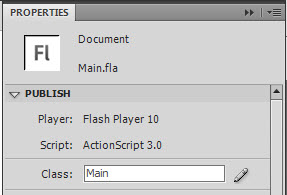
Now let’s go and test the Singleton, first create a new Flash file named Main.fla. On the properties panel set the class also to Main.


Step 6: Create a Singleton

Create a new class named “Main” and create an instance of Singleton using the constructor:

package
{

	import flash.display.MovieClip;

	public class Main extends MovieClip
	{
		public function Main()
		{
			var testSingleton:Singleton = new Singleton();
		}
	}
}

Save and run it, you will see that it throws an error telling us to use the getInstance() function instead, so go ahead and do that:

package
{

	import flash.display.MovieClip;

	public class Main exends MovieClip
	{
		public function Main()
		{
			var testSingleton:Singleton = Singleton.getInstance();
		}
	}
}

Save and run it, there’s no error now, and you can see in the console the text “Singleton instance created!”, meaning that it was created successfully.

So when you use a Singleton class, you cannot use new Singleton(), you have to use Singleton.getInstance() instead.


Step 7: Add Properties to the Class

The Singleton isn’t very useful at the minute. Let’s add a property:

package  {

	public class Singleton {

		private static var instance:Singleton;		//This will be the unique instance created by the class
		private static var isOkayToCreate:Boolean=false;	//This variable will help us to determine whether the instance can be created

		//new example property:
		public var exampleProperty:String = "This is an example";

		public function Singleton() {
			//If we can't create an instance, throw an error so no instance is created
			if(!isOkayToCreate) throw new Error(this + " is a Singleton. Access using getInstance()");
		}

		//With this method we will create and access the instance of the method
		public static function getInstance():Singleton
		{
			//If there's no instance, create it
			if (!instance)
			{
				//Allow the creation of the instance, and after it is created, stop any more from being created
				isOkayToCreate = true;
				instance = new Singleton();
				isOkayToCreate = false;
				trace("Singleton instance created!");
			}
			return instance;
		}
	}
}

Now, in Main.as, you can access testSingleton.exampleProperty just as if it were a normal class. Try tracing it out.


Step 7: Try Creating Another Singleton

To prove that the Singleton does what it’s supposed to do, create another singleton and change the example property of one of them:

package
{

	import flash.display.MovieClip;

	public class Main exends MovieClip
	{
		public function Main()
		{
			var testSingleton:Singleton = Singleton.getInstance();
			var anotherSingleton:Singleton = Singleton.getInstance();
			anotherSingleton.exampleProperty = "This is set in anotherSingleton";
			trace(testSingleton.exampleProperty, anotherSingleton.exampleProperty);
		}
	}
}

What do you think will happen?

This even works if you create the Singleton variables in different classes.


Conclusion

The singleton pattern can be used on any code, and I highly recommend it if you are going to use just one instance of a class since it gives you better control of it. I hope you liked this Quick Tip, thanks for reading!

Saludos -Eduardo

8 Magical Methods for Adding Mood to Your Photos

With today’s modern digital cameras, it’s easy to take a well-exposed photo. But how do you take it a step further and capture an image that encompasses the mood you felt at the time? In this tutorial I’m going to explore some techniques you can use to inject mood and emotion into your photographs.

There are several methods you can use to express the feelings that a scene evoked in you. They all involve creative input from the photographer – by exploring these techniques you will stop ‘taking’ photos and start ‘making’ them instead.

It all starts with being selective about what you photograph. Just because you can take a photo doesn’t mean you should. Good photographers are selective about what they photograph. You should be too – your photos will improve.

For example, if you find a beautiful location that you want to photograph, but you happen to be there at midday, you know the light isn’t at its best. Coming back in the late afternoon or early morning – when the sun is low in the sky and there is a beautiful, raking light illuminating the scene – will really improve your photo.

This one technique alone will dramatically improve your photos. But most photographers know this already – so here are some more ideas for you to explore.


Step 1. Use a Wide Aperture

Try using the widest aperture on your lens. If you use zoom lenses, this will be between f2.8 and f5.6. This technique works best with standard and telephoto lenses because these lenses have less depth-of-field.

The idea is to focus sharply on your subject and throw the background out of focus. This is a technique used in portraiture – focus on the subject’s eyes and use a wide aperture so that part of the face and the background is out of focus.

The out of focus background is moody because we can’t see what it’s supposed to be. We have to use our imagination to fill in the gaps. The technique works best when the background is darker than the subject – shadows are moodier than bright highlights.

This photo was taken with an 85mm f1.8 prime lens. I used a close-up lens to get close to the dandelion. The combination of the wide aperture, close focusing distance and telephoto lens gives a very narrow depth-of-field that has thrown the background completely out of focus.


Step 2. Shoot in Low Light

Try shooting when the light is low. Low light is moody and evocative. If you’re shooting static subjects like landscapes you can put your camera on a tripod and use a cable release to avoid camera shake.

If you’re shooting something that moves, like people, you’ll need to use a high ISO and a wide aperture to get a shutter speed fast enough to avoid camera shake. Don’t be afraid of high ISOs – noise can add mood to your photos, just like grain did when people used film.

In low light you can also use slower shutter speeds to introduce blur into your photos. It’s another way of creating a moody image. Andrew F is good at this.

You can experiment with hand holding long shutter speeds of around two seconds – take a look at Chris Friel’s landscapes to see what I mean.

This photo was taken at dusk in the city of Potosi, Bolivia.


Step 3. Adjust Your Colour Temperature

Shoot in RAW and adjust the colour temperature in post-processing. This means you can decide the optimum colour temperature afterwards and don’t have to worry about setting it correctly in camera.

It also gives you another significant advantage – you can make more than one interpretation of an image. Your RAW file is just a starting point, much like a negative in the hands of a skilled black and white darkroom printer.

Take a look at the following photos. They were produced from the same RAW file, but with different colour temperatures. One has very warm colours, the other a cool palette. Both photos are extremely moody – but the mood in each is completely different.

Portland Bill, Dorset, UK: Processed with cool colour temperature.

Portland Bill, Dorset, UK: Processed with warm colour temperature.


Step 4. Shoot Into the Light

Backlighting is a dramatic and moody type of lighting. It works because the exposure range is outside what your camera can handle. There are several approaches – you can expose for the light source (normally the sun in the sky, but it could be a flash in a studio or a window indoors) and if the light source is strong whatever is in the foreground will be silhouetted or semi-silhouetted.

Another approach is to expose for the foreground, and the background will be overexposed. Two different techniques, two different types of mood.

A third approach is to shoot a backlit portrait and use flash to light your subject from the front or side. This technique is used when you don’t want to overexpose the background too much and still show detail in your subject’s face.

For moody photos, avoid HDR techniques in backlit situations. You create mood when there are details in the photo that get filled in by the viewer’s imagination. HDR photos provide all the detail, and leave nothing to the imagination.

San Antonio de los Cobres, Argentina. See how the backlighting picks out the smoke and makes highlights around the people in the photo? You wouldn’t get this effect with another type of lighting.


Step 5. Sunset and Sunrise

Photographing sunsets has the potential to be one of the most boring clichés in photography. But do it well and it’s a technique that you can use to make some incredibly beautiful landscape photos.

It works best when there is water in the photo. This is because a good sunset lights up the sky with amazing colours, which are reflected in the water.

The light from the setting sun is very warm. If you’re photographing a sunset, make sure you look behind you to see what the sun is illuminating. There may be a photo that’s even better than the sunset itself.

The best light comes after the sun has set, especially if there is water in the photo to reflect the colours in the sky.

If you’re by the sea during the day and you find a beautiful location, imagine how it will look after the sun has set. It will almost always look better in this light, and it’s worth coming back in the evening to take photos.

You can also take photos at sunrise. The light has a different quality at this time because the air is clearer and the colours will be different.

Tip: The Photographer’s Ephemeris is a free tool for Windows, Mac and Linux that calculates sunset and sunrise times and locations anywhere in the world.

Colonia del Sacramento, Uruguay. The colours of the sunset are reflected in the water.


Step 6. Use a Long Exposure

I’m talking a really long exposure – two seconds or more. This is a technique for landscape photos. Make sure the camera is on a sturdy tripod and use a cable release and mirror lock-up to avoid camera shake. If it’s windy, stand between your camera and the wind.

Long exposures work best when there is something in the photo that is moving, such as the sea, water in a waterfall or grass blowing in the wind. The moving elements are contrasted against the still elements of the scene. You combine this technique with shooting in low light and shooting at or just after sunset.

It’s also effective in urban landscapes taken in the evening with cars moving through the picture. The lights from the cars leave trails. Take this kind of photos when there is still some light in the sky so that the sky retains some colour – it will come out dark blue rather than black.

San Antonio de Areco, Argentina. A long shutter speed captured the lights of passing cars as light trails.


Step 7. Convert to Black and White

Black and white photos are moody. This technique is best used in conjunction with the others in this article. The idea is to make your already moody photo look extra moody by converting it to black and white.

Learn how to convert your photos to black and white here: 7 Black and White Photoshop Conversion Techniques.

Once you’ve converted your photos to black and white you can make them look extra moody by toning them. Sepia toning is good for landscapes and portraits. Blue toning is good for subjects with a cold feel – such as winter landscapes.

Learn how to tone your black and white photos here: Mastering the Art of Black and White Toning

I converted this photo of a flower to black and white and split toned it. The contrast of the white flower against a dark, out of focus background helps create mood.


Step 8. Add Textures

Adding textures is a good technique for creating moody photos. You can combine this with converting to black and white and toning. Like converting to black and white, it’s essential that you start off with a photo that’s already moody. The aim is to go as far as you can and see just how moody you can make your photo.

Use this technique selectively. It doesn’t suit every photo, and if you add textures to all your photos it soon becomes boring. Ideal subjects are portraits, nude studies, still lifes and some landscapes.

How do you add textures to your photos? You’ll need Photoshop, or another editing program that supports layers. You simply paste the texture as a new layer over the original photos, and then adjust the opacity and layer blending modes to get the effect you want.

We wrote a full tutorial on it here: Mastering the Art of Adding Textures to Your Photos.

You can find textures to use here: 100 Terrific Photographic Textures

You can apply textures to part of a photo, such as the background. You do this by adding the texture as a new layer in Photoshop then erasing the parts you don’t want. This is a good technique for a subject like portraiture – you can apply the texture to the background but not the face.

I added selectively added texture to the photo, by erasing the texture layer where it covered my model’s face.


Get Moody!

Combine a few of these techniques, and the result will be a moody image that you’re allowed to be proud of. Do you have an example you’d like to share? Feel free to include a link in a comment below!

Modelling the Bugatti Veyron in Maya, Day 1 – Premium Tutorial

Over the course of this extremely detailed 3 day tutorial series, we will be modelling the Bugatti Veyron 16.4 in Maya. Not only will we be covering the basic workflows involved in creating a hyper-realistic car from scratch, but we’ll also be showing you some of the more common mistakes that artists are prone to make when modelling extremely high-end photo-realistic cars. This tutorial series is invaluable for any artist interested in adding some outstanding car models to their portfolio. Can’t wait to get started? Become a Premium member, or learn more after the jump!

Learn the Secrets of hyper-realistic car creation

Follow freelance CG artist, Madhan, as he walks us through the modelling workflows he uses to create stunning, photorealistic car models such as the Bugatti Veyron shown below. Covering Maya’s powerful modelling toolset, this truly is a must-have tutorial for any artists interested in either vehicle or product design.

Cgtuts+ Bugatti Veyron preview

Want to Join Plus?

The Tuts+ network runs a membership service called Premium. For $9 per month, you gain access to exclusive high quality screencast tutorials, downloadable content packs, and freebies at CGtuts+, Psdtuts+, Vectortuts+, Audiotuts+, Nettuts+ and Aetuts+! For less than the price of a movie, you’ll learn from some of the best minds in the business all month long!!. Become a Premium member today!

Don’t miss more CG Premium tutorials and content packs, published weekly – subscribe to Cgtuts+ by RSS.