Productive Working Hours: What Are Your Best Work Times?

Although most offices operate on 9 to 5 (or 8 to 6) working hours, not all workers work best on this timetable. Night owl workers prefer to burn the midnight oil, working late into the night when there are no distracting coworkers and their brain is at its sharpest.

I, on the other hand, prefer to follow regular business hours (roughly 9-6), so I’m available for dinner or drinks when my cubicle-dwelling friends get out of work. Plus, I like that feeling of accomplishment when the clock strikes noon and I can strike a bunch of items from my to-do list and break for lunch. When I’m still tethered to my computer at 7 or 8 at night, I feel antsy and unproductive (though I’ll do it if that’s what it takes to meet a deadline).

What about your working hours? What are your best work times? Why?

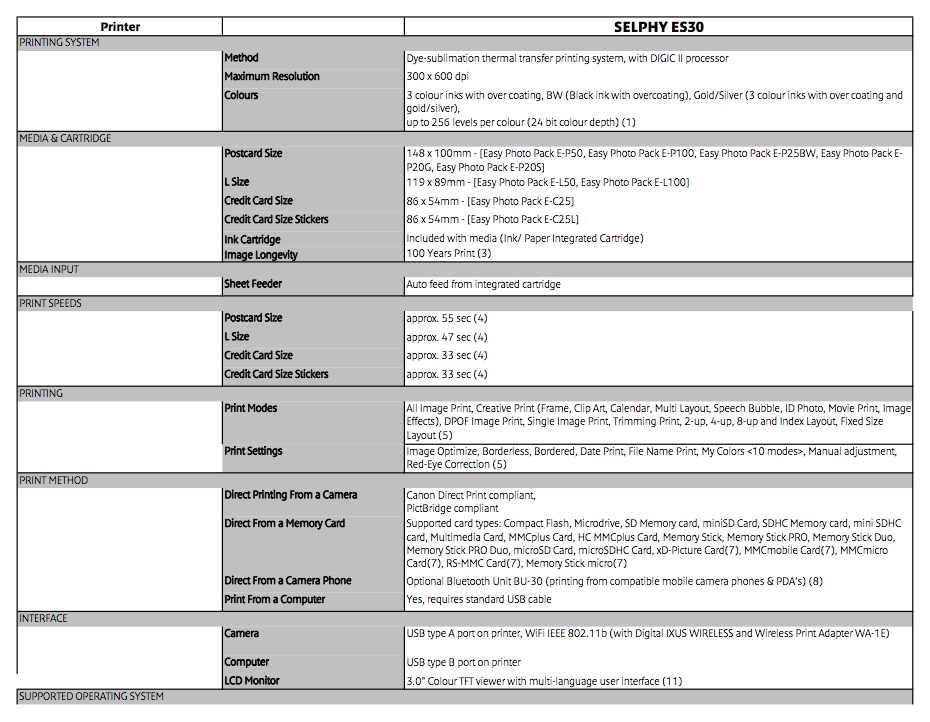
Win a Canon Selphy ES30 Compact Photo Printer

We’re kicking off a new competition today, to win a Canon Selphy ES30 Compact Photo Printer. It’s a handy piece of kit to have around, and entering is really easy. Read on to find out how!


About the Printer

Stylish and easy to use, the Selphy ES30 puts the fun into printing lab-quality photos. Optimise your pictures with onboard retouching tools, add clipart and frames, or simply enjoy one-touch direct printing.

Some of the touted features include:

  • Easy Photo Pack integrates ink and media
  • Gold & Silver inks
  • Compact, vertical design with handle
  • Easy Scroll Wheel and 3.0” LCD
  • Direct & wireless printing*
  • DIGIC II processing
  • Image optimisation & editing
  • Creative Print button

How to Enter

This competition is sponsored by Energizer and National Geographic, and they are providing the prize. It’s run in conjunction with their current photography competition. You can find out more about it here, or check out some of last years winning photos below. You only have a few days left to enter, so you’ll need to be quick if you want to get your entry in!

National Geographic Ultimate Photo Contest

Entering our giveaway is really simple (it’s completely seperate to the Energizer/National Geographic competition). All you need to do is leave a comment below! We’ll select the winning comment at random when the competition closes.

Make sure to include your correct email address with your comment so that we can contact you. The giveaway is only open to US residents. I’m really sorry about this, but it’s out of our hands this time I’m afraid! Make sure to get your comment in before midnight on Saturday 3rd July, Pacific Eastern Standard Time. We’ll be in touch with the lucky winner shortly after then, and this post will be updated to let you know who won!

Please Note: Envato staff or people who have written more than two articles or tutorials for Phototuts+ are ineligible to enter.

Good luck, and be sure to subscribe via RSS or follow us on Twitter to find out if you’re a winner!

Friday Photo Critique #38

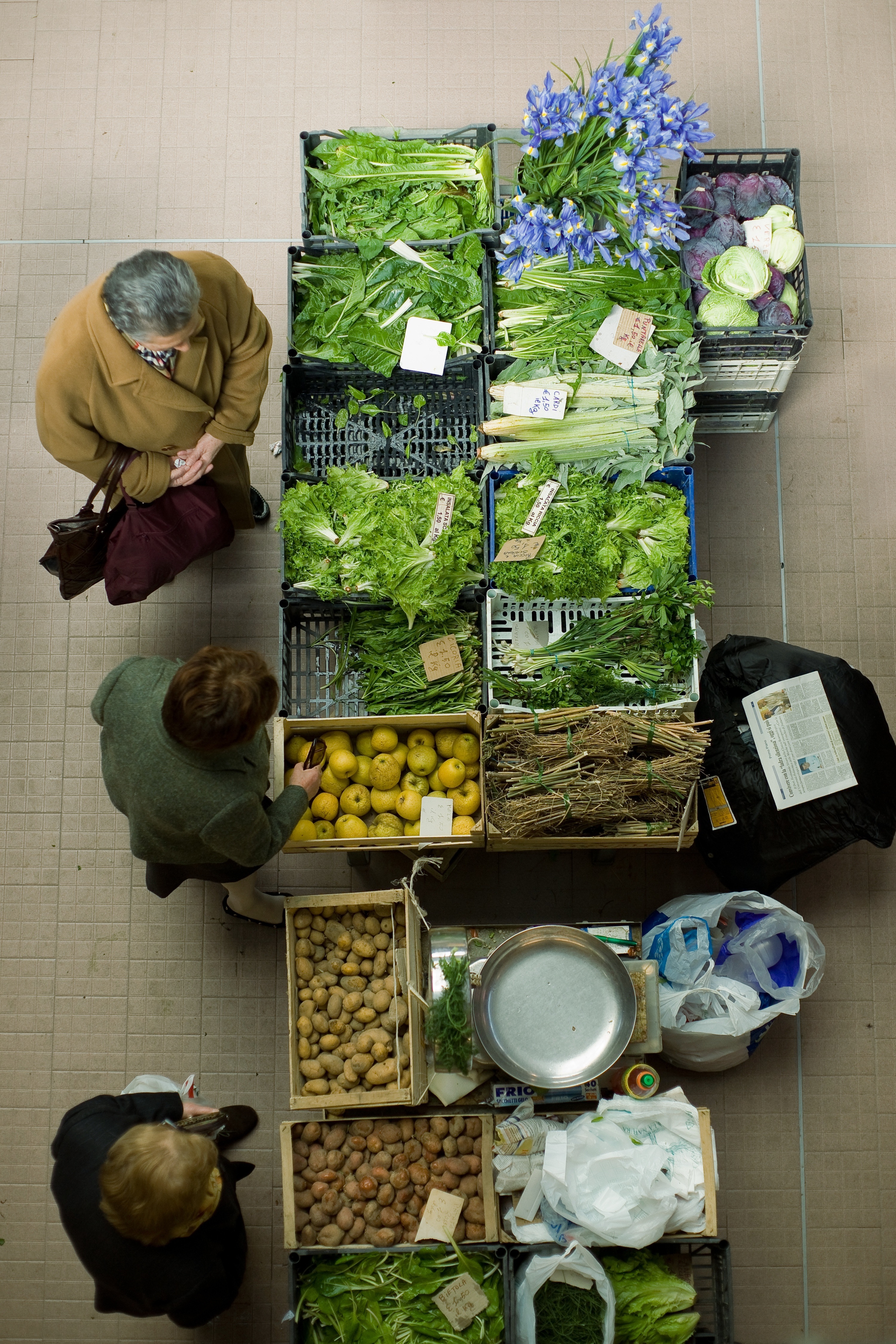
Friday Photo Critique is our weekly community project, where we publish a photograph submitted by one of our wonderful readers, then ask you all to offer constructive feedback on the image. It’s a great way to learn more about photography, express your viewpoint, and have your own image critiqued!


Quick Ground Rules

  1. Play nice! We’ve deliberately chosen photographs that aren’t perfect, so please be constructive with any criticism.
  2. Feel free to offer any type of advice – composition, lighting, post-processing etc.
  3. You can also link to photographs that you feel offer a great example of this type of image shot exceptionally well.

Without further ado, here is this week’s candidate for Friday Photo Critique!


The Photograph

Photo Critique

Photographer: Alessandro Rocchi

Please let us know what you think in the comments – how would you have approached the scene or taken the photo differently? A massive thank you to everyone who commented last week.

The most constructive and helpful comments will be featured on the site. Interested in submitting your own photo? You can do so here!

Perfect Exposure Every Time: A Guide to Metering in the Viewfinder

You’d be surprised how much information is available through your camera’s viewfinder. In today’s tutorial, we’re looking again at one of the most important elements of photography – exposure – and how you can expose a perfect photo using just the information shown in your camera viewfinder!


Perfect Exposure

When I first began learning photography, mastering exposure settings seemed to be one of the trickiest things to grasp. To get a decent exposure, my workflow usually consisted of snapping a picture, viewing the result, fiddling with the settings nearly at random, and then trying again only to repeat the cycle over and over while hoping to stumble onto a decent result. As a beginner, this can be immensely frustrating. It wasn’t until I had a strong grasp of how the exposure settings affected the end result that I really began taking nice photographs fairly easily.

Armed with this knowledge, I could at least figure out how to interpret my test picture and adjust the camera settings accordingly a few times until I was happy with the result. Then one day someone showed me a simple trick that changed everything. Since I lacked any sort of formal training I had completely missed the fact that my camera would actually tell me how far off my exposure was and guide me to the “sweet spot” without ever pulling my eye from the viewfinder!

This brief tutorial is for complete beginners who, like me when I first started, have no clue how to make your fancy camera take a picture that isn’t either too dark or too bright. As such, I’ll keep everything really basic and as non-technical as possible. It’s also important to note that while the principals outlined here apply to all digital SLRs, the functionality discussed below applies specifically to Canons and may require some interpretation to be applied to cameras from other manufacturers.


Exposure: The Basic Idea

Our recent Beginner’s Guide to Exposure explained in great detail everything you need to know about exposure. For those of you who haven’t read this, I’ll very briefly explain what you need to know for the purposes of this tutorial.

Exposure loosely refers to the amount of light that is let into the sensor on your camera. The more light you let in, the brighter the resulting picture. Conversely, the less light you let in, the darker the picture.

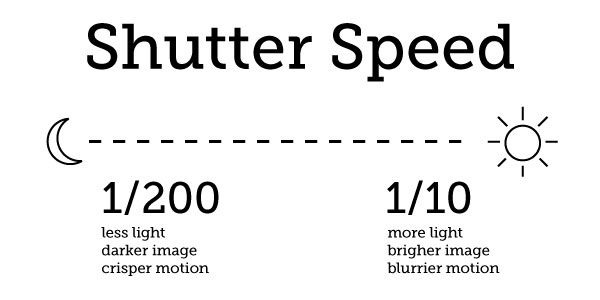
How much light is let in is a function of your shutter speed and aperture. The shutter speed is commonly expressed in fractions of a second. For example, if you see a setting that says 1/125, 1/50, etc. this is your shutter speed. Shutter speed is exactly what it sounds like: the amount of time the shutter opens to let light in.

Since the number is a fraction, the smaller the denominator (the number on the bottom), the longer the exposure. For example, 1/200th of a second is a much shorter amount of time than 1/10th of a second. Consequently, a shutter speed of 1/200th of a second will let in much less light and produce a much darker image than a shutter speed of 1/10th of a second. Also note that the longer the exposure, the blurrier any action in the photo will become.

lighting chart

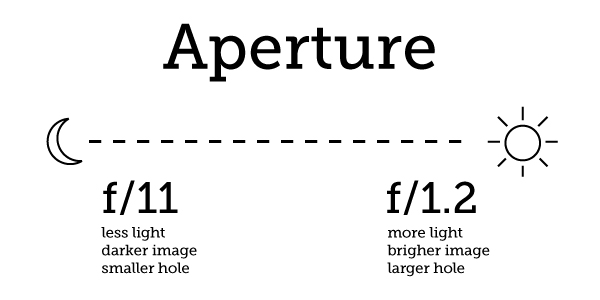
The aperture setting controls how much light is let in by varying the size of the opening through which the light must enter and is expressed in terms of focal length (f/x). The smaller the number associated with the denominator of the focal length, the greater the size of the hole, which means more light entering the camera and consequently a brighter picture.

lighting chart

Also remember that the lower the denominator is on the focal length, the shallower the depth of field. This means that the area of the picture that is in focus is fairly large at f/11 and higher, and fairly small at f/3 and lower.

Don’t Forget ISO!

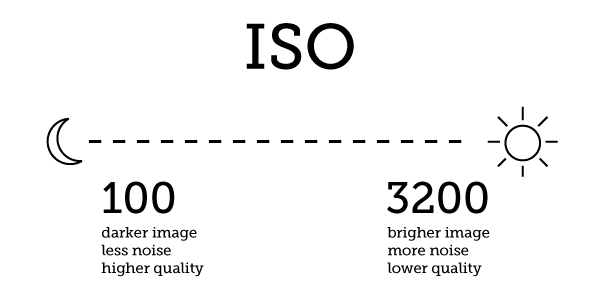
Your ISO setting will also affect the brightness of the picture in conjunction with the quality. Without getting into the complexities of your camera’s electronic sensor, suffice to say that the higher the ISO, the brighter the resulting picture. Unfortunately, as ISO increases so does color noise, which really brings down the quality of the photo.

lighting chart


Metering in the Camera

Hopefully that’s all pretty straightforward. If you’re confused by all the explanation, the three images above tell you everything you need to know. If you need your image to be brighter, decrease the denominator in both the aperture and shutter speed and increase the ISO. If you need your image to be darker, increase the denominator in both the aperture and shutter speed and decrease the ISO (you’ll quickly learn to feel out all three together).

As you know, when you’re shooting in full auto, your camera attempts to make all these judgement calls for you. However, as a photographer, you should be comfortable shooting on full manual as you’ll have much more control over the results when you can fine tune the settings.

The nice thing about all this is that even in manual mode, your camera is giving you hints as to what it thinks your exposure should be. Try pointing your camera at a subject and pressing the shoot button half way. You should hear a beep from the autofocus as the camera attempts to interpret what you want to focus on.

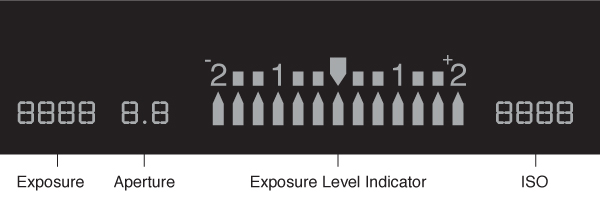
This beep signifies more than the autofocus however, as much more is going on automatically behind the scenes. To see what I mean, look into your viewfinder. You should see lots of numbers and settings that will vary from camera to camera, but they should at least resemble the simplified graphic below.

viewfinder

As you can see, all of the settings we discussed above are represented right here in the viewfinder. When you perform that half-press on the shoot button and hear the beep, these indicators will light up and show you the settings you’ve selected as well as how the camera interprets the available light.

viewfinder

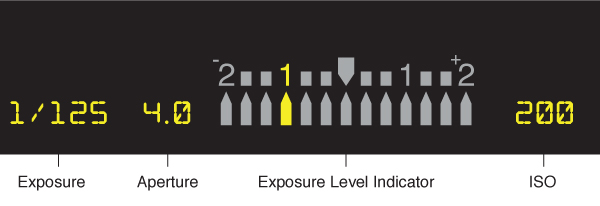
Here the camera is telling us that we’ve set our shutter speed to 1/125, our focal length to 4.0 and our ISO to 200. The real magic however is happening with the Exposure Level Indicator (ELI). This is telling us that we aren’t letting enough light into the camera. We know this because the little light on the bottom is lit up to the left of center. If it were lit up to the right of center, we would know that we are letting too much light in. The goal then is to get this little guy lined up right down the middle.

viewfinder

Theoretically, this should help you achieve a picture that is neither too bright, nor too dark. Admittedly, some exposure bias is sometimes necessary but this method should work just fine a great deal of the time. To put this into practice, let’s imagine a shooting scenario.


Getting the Perfect Shot

Let’s say you’re indoors shooting a birthday party during the day. As is often the case, the light is decent, but not great. Using the information above, you know that since there’s not a lot of light available, you’ll probably want to bump your ISO up to 800. Sure you’d love to shoot down at 100 but it simply won’t be possible given the conditions.

You also know that the poor lighting means you’ll want your aperture wide open. Let’s say your lens will only go down to f/4, so that’s where you’ll set the aperture. You’re fine with the shallower depth of field because it produces that nice blurry background and crisp subject that you see often in professional photography.

Since you’re shooting moving people, you want your shutter speed to be fast enough to have crisp photos devoid of blur where someone was moving. Consequently, you’ll start with a shutter speed of 1/200.

Next, you look into your viewfinder, focus on your subject, and see the following:

viewfinder

You can instantly tell, even before you take a single picture, that the image is going to be too dark. Your aperture is as open as you can get it and you don’t want to sacrifice any more quality, so your only option is to decrease the speed of your shutter to allow more light in.

The brilliant part is that you can accomplish this without even removing your eye from the viewfinder. With the camera up to your eye, there should be a little wheel next to your right index finger. Turn this wheel to adjust your shutter speed. Oddly enough, turning the wheel left will make the ELI go right and turing the wheel right will make it go left (it might be the opposite on a Nikon). You can actually change all of the settings above without leaving the viewfinder, consult your camera’s manual for how to do this on your specific model.

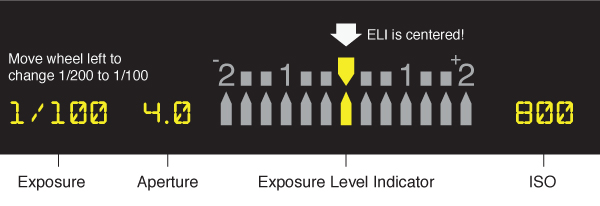
So to fix the problem shown in the picture above, simply move the wheel left until the indicator is centered.

viewfinder

A shutter speed of 1/100 should be quick enough to shoot handheld without too much blurring. Keep in mind that if you go any longer, you’ll want to shoot stiller subjects and/or implement a tripod to keep things steady.

If you’re shooting handheld and centering the ELI means dropping your shutter speed too low (say 1/50), try upping your ISO or lowering your focal length (if your lens will allow). Note that if you’re using a flash, you can shoot at much slower shutter speeds as the flash captures the motion in place.


Using AV and Auto Modes

If you’re really lost on where to set all of your settings to start things off, try switching to auto mode and metering there. This should get you in the right neighborhood to start playing with your own settings in manual mode.

Sometimes you’ll find yourself shooting a scene that is changing so quickly that using manual mode becomes cumbersome and annoying. I recently shot an outside hockey game at night where this was the case. The lighting in different areas of the rink varied dramatically, the players were of course constantly moving and I was experimenting with different zoom levels. Consequently, shooting in full manual would’ve required a lot more settings adjustments and a lot less shooting than I would’ve liked.

In these circumstances, it’s a good idea to shoot in AV. This mode allows you to set your own ISO and aperture so you have control over your depth of field and color noise. However, it automatically takes care of your shutter speed for you. If you look into the viewfinder in this mode, you’ll see that you camera dynamically adjusts the settings so that the ELI is in the center no matter where you’re shooting.

When shooting in AV, you still have to keep an eye on your shutter speed to make sure your camera isn’t putting it too slow. Again, any time it starts dipping too much below 1/100, try adjusting your other settings to allow more light in. Even if your pictures are looking decent on the small screen, you’ll be disappointed to see how blurry they are when you import them into your computer and view them at full size.

Try to resist shooting in either AV or auto mode when you don’t have to. The more practice you get in on full manual, the more you’ll become comfortable with every setting on your camera. This will enable you to confidently approach setting your own exposure in nearly every situation and will help you become a much better photographer.


Conclusion

To sum up, if your pictures are too bright, try increasing your shutter speed, upping your aperture (higher number, smaller hole), and/or reducing your ISO. Conversely, if your pictures are too dark, decrease your shutter speed, reduce the aperture, and/or increase your ISO.

Watch the Exposure Level Indicator in your camera’s viewfinder closely and try to adjust your settings so that it lines up perfectly in the center. If for some reason this produces a picture that is still too dark or too bright, apply exposure bias accordingly.

Finally, if you have trouble shooting in manual, start off in auto to get a feel for the proper settings or switch to AV so the camera will automatically control only your shutter speed while you take care of the rest.

How to Integrate an Options Page into your WordPress Theme


Creating themes to give away or sell is great, but not everyone who uses your theme will have a solid understanding of HTML/CSS. Providing your theme with an options page makes it easier for non-technical users to make theme changes without getting their hands dirty with code. I’ll show you how to make one from scratch!


What We’re Going to Achieve

Before we begin, what are we actually striving for? What are we going to make customizable about our theme? Well, this tutorial will focus mostly on the programmatic side, but in order to change something about the layout, we’ll need to have a few design ideas up our sleeves, as well. Here’s what we have:

  • Change a theme’s color scheme
  • Add 2x advertising spots
  • Optional sidebar
  • Optional recent tweets panel
  • Optional search box

There are plenty of editable elements we could add to a theme, but after today’s tutorial which illustrates how to implement the five features listed above, you should have a good feel for how to create your own options page.


1. Creating the Required Files

We’re going to concentrate entirely on the options page first before we start making the theme change. First, we need a place to put all of our code that’s going to manage the options page. All this code is going to resides in a file called functions.php, which will go inside of our themes folder. So, if our theme is called ‘example,’ then the path to our functions file would be wp-content/themes/example/functions.php.

We don’t need to tell WordPress to include our functions.php file, it’s automatically called during the WordPress execution cycle.


2. Creating the Options Page

So first we need to actually create the blank options page – the canvas for our work. To do so, we must inform WordPress about the new options page that we wish to create. We accomplish this task by using actions. Actions are called at a specific time in WordPress’ execution; so, for example, when the menu in the dashboard is being created, the action admin_menu is called. We can tie functions to these actions; so we can execute our functions at specific times. Here’s the basic functions we need to create our options page.

<?php
// Options Page Functions

function themeoptions_admin_menu()
{
	// here's where we add our theme options page link to the dashboard sidebar
	add_theme_page("Theme Options", "Theme Options", 'edit_themes', basename(__FILE__), 'themeoptions_page');
}

function themeoptions_page()
{
	// here is the main function that will generate our options page
}

add_action('admin_menu', 'themeoptions_admin_menu');

?>

Our first function, themeoptions_admin_menu is simply there to add a link to our page in the admin sidebar, it also tells WordPress what function to call to display the page which, in our case, is themeoptions_page().

The parameters for the add_theme_page() function are as follows:

  • Page Title – Theme Options
  • Menu Title – Theme Options
  • Capability – edit_themes
  • Handle – The current file
  • Function – themeoptions_page()

If you have the theme activated, then, in the Themes drop down menu, you should see your new link to an options page which is currently blank. We now have the canvas for our options page, and we can begin implementing the forms, fields and back end of our options functionality.


3. Adding Options and Fields

Ok, so that page is looking a bit lonely; let’s add the form and fields that the user will interact with to make changes to the theme. It’s important to note you can style this page however you wish, even adding tabbed dialogs if you want; but for our tutorial, we’re going to make use of the default classes used by WordPress. This way it saves us the time of reinventing the wheel, and makes our options page blend in with the rest of the dashboard.

The code for our page should reside in our themeoptions_page() function, so we’re going to add our code in like this;

	function themeoptions_page()
	{
		// here's the main function that will generate our options page
		?>
		<div class="wrap">
			<div id="icon-themes" class="icon32"><br /></div>
			<h2>Theme Options</h2>

			<form method="POST" action="">
				<input type="hidden" name="update_themeoptions" value="true" />

				<p><input type="submit" name="search" value="Update Options" class="button" /></p>
			</form>

		</div>
		<?php
	}

First we create the predefined wrap class for the page. Then, we add a quick header with a default icon. Finally, our form; we need a hidden value so that we can check if it has been submitted. We also need a button that’s going to submit the form, and, again, we use a predefined class for this. Here’s what we have so far:

Now we have our basic structure. So if we check back to the beginning of this tutorial, we planned to implement five options.

  • First of all, we’re going to allow the theme users to change the color scheme. For this, we’ll require a drop down list of color schemes available.
  • Secondly, we’ll have two advertising spots. We’ll need two input fields for the image URLs, and two input fields for the links.
  • Third is the optional sidebar: a simple check box.
  • Fourth is the optional Twitter stream in the sidebar. We’ll need a checkbox and an input field for the username.
  • Finally we’ll need an optional search box: another check box.
function themeoptions_page()
{
	// here's the main function that will generate our options page
	?>
	<div class="wrap">
		<div id="icon-themes" class="icon32"><br /></div>
		<h2>Theme Options</h2>

		<form method="POST" action="">
			<input type="hidden" name="update_themeoptions" value="true" />

			<h4>Colour Stylesheet To Use</h4>
			<select name ="colour">
				<option value="red">Red Stylesheet</option>
				<option value="green">Green Stylesheet</option>
				<option value="blue">Blue Stylesheet</option>
			</select>

			<h4>Advertising Spot #1</h4>
			<p><input type="text" name="ad1image" id="ad1image" size="32" value=""/> Advert Image</p>
			<p><input type="text" name="ad1url" id="ad1url" size="32" value=""/> Advert Link</p>

			<h4>Advertising Spot #2</h4>
			<p><input type="text" name="ad2image" id="ad2image" size="32" value=""/> Advert Image</p>
			<p><input type="text" name="ad2url" id="ad2url" size="32" value=""/> Advert Link</p>

			<h4><input type="checkbox" name="display_sidebar" id="display_sidebar" /> Display Sidebar</h4>

			<h4><input type="checkbox" name="display_search" id="display_search" /> Display Search Box</h4>

			<h4><input type="checkbox" name="display_twitter" id="display_twitter" /> Display Twitter Stream</h4>
			<p><input type="text" name="twitter_username" id="twitter_username" size="32" value="" /> Twitter Username</p> 

			<p><input type="submit" name="search" value="Update Options" class="button" /></p>
		</form>

	</div>
	<?php
}

4. Updating The Database

So far, we have an options page with a form that submits data to itself, via POST. The next logical step is to take the data submitted, and insert it into the WordPress database. To do so, we’re going to create a new function called themeoptions_update(). This function will be called by themeoptions_page(); so add this code to the very top of themeoptions_page();

if ( $_POST['update_themeoptions'] == 'true' ) { themeoptions_update(); }

Of course, the next step is to create the update function. Remember, for the sake of this tutorial, I’m not adding validation or sanitization to my code. When creating a plugin, you should always check the input from your users. However it’s beyond the scope of this tutorial. Now you could rely on WordPress to validate your input, but it’s best to do so yourself, to make sure.

Anywhere in the functions.php file, add this block of code:

function themeoptions_update()
{
	// this is where validation would go
	update_option('mytheme_colour', 	$_POST['colour']);

	update_option('mytheme_ad1image', 	$_POST['ad1image']);
	update_option('mytheme_ad1url', 	$_POST['ad1url']);

	update_option('mytheme_ad2image', 	$_POST['ad2image']);
	update_option('mytheme_ad2url', 	$_POST['ad2url']);

	if ($_POST['display_sidebar']=='on') { $display = 'checked'; } else { $display = ''; }
	update_option('mytheme_display_sidebar', 	$display);

	if ($_POST['display_search']=='on') { $display = 'checked'; } else { $display = ''; }
	update_option('mytheme_display_search', 	$display);

	if ($_POST['display_twitter']=='on') { $display = 'checked'; } else { $display = ''; }
	update_option('mytheme_display_twitter', 	$display);

	update_option('mytheme_twitter_username', 	$_POST['twitter_username']);
}

The update function, as the name suggests, updates an option you can store in the database. If the option doesn’t exist, then WordPress creates it. We’ve prepended all our options with mytheme_, just to make sure we don’t overwrite options that another plugin/theme might be using.

So far, we have a settings page that can save our options, however, when we hit submit, and our options are stored, our form is blank when we re-visit it. This is because we need to load our values back from the database.


5. Fetching Options

We now need to fetch our options so that we can populate the settings form. This is an easy one, and we’ll do it by using the get_option() function. We could use variables, but for this example, we’ll simply echo the output of the function where it should go in the form. Our new code looks like this;

function themeoptions_page()
{
	// here's the main function that will generate our options page

	if ( $_POST['update_themeoptions'] == 'true' ) { themeoptions_update(); }

	//if ( get_option() == "checked"

	?>
	<div class="wrap">
		<div id="icon-themes" class="icon32"><br /></div>
		<h2>Theme Options</h2>

		<form method="POST" action="">
			<input type="hidden" name="update_themeoptions" value="true" />

			<h4>Colour Stylesheet To Use</h4>
			<select name ="colour">
				<?php $colour = get_option('mytheme_colour'); ?>
				<option value="red" <?php if ($colour=='red') { echo 'selected'; } ?> >Red Stylesheet</option>
				<option value="green" <?php if ($colour=='green') { echo 'selected'; } ?>>Green Stylesheet</option>
				<option value="blue" <?php if ($colour=='blue') { echo 'selected'; } ?>>Blue Stylesheet</option>
			</select>

			<h4>Advertising Spot #1</h4>
			<p><input type="text" name="ad1image" id="ad1image" size="32" value="<?php echo get_option('mytheme_ad1image'); ?>"/> Advert Image</p>
			<p><input type="text" name="ad1url" id="ad1url" size="32" value="<?php echo get_option('mytheme_ad1url'); ?>"/> Advert Link</p>

			<h4>Advertising Spot #2</h4>
			<p><input type="text" name="ad2image" id="ad2image" size="32" value="<?php echo get_option('mytheme_ad2image'); ?>"/> Advert Image</p>
			<p><input type="text" name="ad2url" id="ad2url" size="32" value="<?php echo get_option('mytheme_ad2url'); ?>"/> Advert Link</p>

			<h4><input type="checkbox" name="display_sidebar" id="display_sidebar" <?php echo get_option('mytheme_display_sidebar'); ?> /> Display Sidebar</h4>

			<h4><input type="checkbox" name="display_search" id="display_search" <?php echo get_option('mytheme_display_search'); ?> /> Display Search Box</h4>

			<h4><input type="checkbox" name="display_twitter" id="display_twitter" <?php echo get_option('mytheme_display_twitter'); ?> /> Display Twitter Stream</h4>
			<p><input type="text" name="twitter_username" id="twitter_username" size="32" value="<?php echo get_option('mytheme_twitter_username'); ?>" /> Twitter Username</p> 

			<p><input type="submit" name="search" value="Update Options" class="button" /></p>
		</form>

	</div>
	<?php
}

So there you have it. The back end has now been completed. We’re able to update our options in the database, so all that’s left to do is make the theme react to these changes in the options page. This works similarly to how we updated the options fields: we fetch the option and then either display it or use it as a conditional to do something else. Let’s get started with the front end.


6. Changing the Theme

Changing the Colour Scheme

This is going to deal with CSS and such, which isn’t what this tutorial is about. So we’ll skim over how you’d approach this. One of the best ways to go about this is to have a default stylesheet that uses a colour scheme such as black, then a series of alternative colour schemes. For example style.css could style your layout black, but including red.css AFTER including style.css.

A helpful CSS tip is to use the !important tag. Use this tag in the stylesheets that change colours of the layout to ensure that those properties will, in fact, be used. In order to actually switch the stylesheets, add this code to the header.php file of your layout where the stylesheet would be included:

<link rel="stylesheet" href="<?php bloginfo('stylesheet_directory'); ?>/default.css" type="text/css">
<link rel="stylesheet" href="<?php bloginfo('stylesheet_directory'); ?>/<?php echo get_option('mytheme_colour'); ?>.css" type="text/css">

Adding advertising spots

This section is meant to show you the theory. In real life, you’d probably use a plugin or something like “Buy Sell Ads.” So say we’ve got two spots for our adverts to go in. Similar to above, we simply output the option where it needs to go, like so:

<a href="<?php echo get_option('mytheme_ad1url'); ?>"><img src="<?php echo get_option('mytheme_ad1image'); ?>" height="125" width="125" /></a>
<a href="<?php echo get_option('mytheme_ad2url'); ?>"><img src="<?php echo get_option('mytheme_ad2image'); ?>" height="125" width="125" /></a>

Optional Sidebar

This time, we’ll use the option as a conditional to decide whether or not we should output a block of code, that in this case would display a sidebar. Of course, your layout should be able to still display properly if a sidebar is not visible; so that one is up to you. The following code will be added wherever you’d usually call your sidebar, usually mine is called from header.php.

if ( get_option('mytheme_display_sidebar') == 'checked') { get_sidebar(); }

// or alternatively...
if ( get_option('mytheme_display_sidebar') == 'checked') { get_sidebar(); } else { /* display something else */ }

Optional Recent Tweets

For this little option, we’ll need to do two things. If tweets are enabled we’ll first need to display the area where the tweets should appear, we’ll also need to insert a block of JavaScript before the </body> tag to get the tweets from a specific user.

We need to place the following where we actually want the tweets to appear:

<?php if (get_option('mytheme_display_twitter') ) { ?>
<div id="twitter_div">
	<ul id="twitter_update_list"></ul>
</div>
<?php } ?>

Next we need to place this code before the </body> tag, which most probably resides in footer.php;

<script src="http://twitter.com/javascripts/blogger.js"></script>
<script src="http://twitter.com/statuses/user_timeline/<?php echo get_option('mytheme_twitter_username'); ?>.json?callback=twitterCallback2&count=5"></script>

Tip: why not try and add your own option to change how many tweets are fetched above?

Optional Search Box

Finally, we come to our optional search box, which functions just as our sidebar did. We use the option as a conditional and display code dependent on the user’s choice.

if ( get_option('mytheme_display_search') == 'checked') { ?>
<form role="search" method="get" id="searchform" action="" >
	<input type="text" value="" name="s" id="s" />
</form>
<?php }

Wrapping Up

I hope you’ve learned the basics of how to create an options page for your theme, and make it function properly. I’ve tried to skip a few of the tedious bits, like the actual CSS and the validation that should be in place, primarily because it was outside of the scope of this tutorial.

As usual, if you have any questions at all, leave a comment below! Thanks for reading!

Quick Tip: You Need to Check out LESS.js


You might be familiar with such services as LESS and Sass. They allow for far more flexibility when creating your stylesheets, including the use of variables, operators, mix-ins, even nested selectors. However, because LESS was originally built with Ruby, a lot of PHP developers, despite the fact that there are PHP versions available, never used it.

That’s all going to change now that LESS is being rewritten in JavaScript, is about forty times faster than the Ruby version, and can be used by any of us!

Step 1. Reference LESS.js

<script src="http://lesscss.googlecode.com/files/less-1.0.18.min.js"></script>

Step 2. Import a Stylesheet

<link rel="stylesheet/less" href="style.less" />

Note that we’ve set the rel attribute to “stylesheet/less,” and that our actual stylesheets has an extension of .less, not .css. Also, we must link to this stylesheet before Less.js.


Step 3. Have Fun!
With this minimal amount of work, you now have access to everything from variables to mix-ins. Be sure to watch the four minute video tutorial above for full examples, but here are a few quickies.

/*
Variables!
*/
@primary_color: green;

/*
Mix-ins are like functions for commonly used operations,
such as apply borders. We create variables by prepending
the @ symbol.
*/
.rounded(@radius: 5px) {
	-moz-border-radius: @radius;
	-webkit-border-radius: @radius;
	border-radius: @radius;
}

#container {
/* References the variable we created above. */
	background: @primary_color;

/* Calls the .rounded mix-in (function) that we created, and overrides the default value. */
	.rounded(20px); 

/* Nested selectors inherit their parent's selector as well. This allows for shorter code. */
	a {
		color: red;
	}
}

It’s important to remember that LESS.js isn’t finished; hopefully, it will be soon. Nonetheless, it’s working wonderfully so far. What do you think?

Items You Should Have For A Home Production Studio

    If you are a freelancer like me, there are quite a few things that you need to have in your arsenal at home base to make your productions a bit easier. You might not have all these, but chances are you will want them. I’m gonna take you from Gaffer’s Tape to Steadicams in this week’s roundup.

    • Video Camera

      If you are a video professional, you need to have a video camera… that is a plain-as-day fact. What KIND of camera you have is whole ‘nother aspect. You might want to go traditional and use an actual video camera like a Sony EX3 or a Canon Vixia, or you could, like me, go the HDSLR route. Personally, one of the best cameras I have ever used (for the cheapest money) is the Canon Rebel T2i (550D). You can get it for around $800 for the body only… if you want more info on HDSLRs check out some of our previous articles on the subject. Either way, if you are looking for a camera, I highly suggest that you check out B&H Photo Video. They have the best selection, and pretty good prices, and chances are you can find exactly what you want.

    • Green Screen

      There are many ways to go about making your own green screen, either by creating a green wall cyclorama in a spare room or your garage, hitting up the fabric store, or whatever other idea you might come up with. There are a ton of DIY ideas in Jeremy Hanke and Michele Yamazaki’s book, Green Screen Made Easy. If you prefer to spend the bucks, a place I know of called TubeTape.com has a good selection of quality backdrops, complete with stands, clamps, paint, tape, and training DVDs. They even have chroma suits! There are more expesive options like reflective screens with colored LED ringlights, or Chroma Pops, but those tend to get a little more expensive than the traditional green screen method

    • Microphones

      Now I won’t pretend like I am an audio professional, but I have three types of microphones that I use on a regular basis: wireless lavalier mics, boom mic, and my Zoom H4N (for use with my HDSLR camera). First, the lav… now you can get wired or wireless (the latter is more expensive), but wireless is obviously more convenient. This lets you get a clean audio track with your mic very close to your subjects voice, relatively unobtrusive, and you can use these all alone. Now, the boom mic (or shotgun mic) is kind of either/or; you can clamp your mic to a C-Stand, or have a boom operator run around with you. This option has more of a hassle, but might be a necessity when you are shooting things such as short films or commercials where you absolutely can’t have lavs in the shot. Lastly, the Zoom H4N (or any other handheld portable recorder with inputs) is perfect as a hub to plug mics in and record audio separately from your camera, or perhaps you need to knock out a rough voiceover. It is very handy especially for those HDSLR filmmakers out there.

    • Soundproofing

      If you do a lot of voiceover recording, or have a green screen set where you are going to be capturing a lot of audio, not being able to hear that dog barking across the street will be a big deal. You can either hope for the best, or shell out the money to soundproof your studio. Beware though, this stuff can get very expensive. Usually you use sound dampening foam, which is cut into textures to capture audio wavelengths, but these can get expensive very fast. Just give a Google search, and you will be able to find something to your liking.

    • Lighting

      You can either go the cheap, alright looking route with this, or go expensive and have it look amazing. At your local photography shop, you will probably find some softbox kits, and some nicely priced lamps for your beginning budget. That is the cheap way. If you are looking for professional lighting, I would invest in a nice lighting kit along the lines of Arri, with some good fresnels, barndoors, stands, filter holders and whatnot. They run pretty expensive, but you might be able to find something on your local craigslist, or buy off of Ebay. This all depends on how much studio lighting you are going to doing, how serious you are, and the projects you will be taking on.

    • Lighting Accessories

      Now, if you are going to shell out the money for lighting, you will probably new a few basic extras with your kit. First, reflectors… I like the Digital Juice 5-in-1. You get silver, gold, black, white, and a diffuser. Secondly, you got to get yourself some gels. Amazon and B&H all have different packs, and if you are just trying to get some lighting effects, a basic pack works fine. Also, make sure you pick up a pack of C-47′s aka some clothespins. They will come in handy. Also, some gaffer’s tape wouldn’t hurt.

    • Headphones

      A good pair of headphones are a must when you are out in the field shooting. If you are capturing audio, then you have to make sure things are clean, your actors aren’t jumbling words, and there isn’t any buzzing from pesky cellphones going into your mics. There are numerous unforeseeable problems that can happen with audio, so headphones are a huge deal. Style is always a factor as well, so for my pick of headphones, I like my Skull Candy SK Pros… they are comfortable, relatively noise canceling… and they look sick! If you want something a little more professional looking and not so flashy, B&H has a nice collection of bulky and earbud style headphones for you to take your pick from.

    • Dolly

      These are always the really fun pieces of equipment that I get all giddy about. There are two ways to go about this, either buy one, or DIY it. Dolly’s are relatively easy to create, get some skate wheels, some wood, PVC pipe and create a track and vehicle to mount your camera on. There are tons of places to learn how to create dollys on Youtube and after watching a few of them, you will get a pretty good idea of how to do it. Now, if you have the bucks to buy one, you could buy the track and dollys to mount your tripod on, or you could reference our article a while back on creating your own dolly using some bought parts.

    • Jib Crane

      This is another DIY or buy scenario, although this is a little harder to create on the DIY side of things. Again, check out some Youtube videos of homemade jibs, which still end up costing a couple hundred dollars anyways. If you want to just fork up the cash, check out places like KesslerCrane, or other professional manufacturers, they have some great products so that you can control your panheads on the end of your jib arm for total control (a thing that is really hard to do with large DIY solutions).

    • Steadicams and Stabilization

      If you don’t want to shoot with a tripod then, well you better either have an unhumanly steady hand or have some kind of stabilization you are working with. Any camera that is small or basically handheld has the potential to be uncontrollably shaky. That is why there are people like Zacuto, Ikan, Jag35 and tons more that offer some very reasonable prices to mount your cameras to create some nice, stable ENG systems so you don’t have to awkwardly fumble with your cameras. Of course there are tons of DIY approaches to this as well, like the infamous $14 Steadicam (I have one) that you can find riddled across the net. You could always just pony up and buy one of the original big dog steadicams.

    • I understand that I probably didn’t cover everything in here, and that’s fine, everyone is different with their setups, toolboxes, arsenals, or whatever else you like to call it. If you have some pieces that you think ought to be heard, leave a comment below, and share what you have in your bag when you are on shoots. We love sharing our kits, why we use the tools we use, and different approaches to similar tasks.

      If you enjoyed this post, please give it a vote on Digg or a stumble to say thanks!


How to Apply Toon Style Coloring Techniques to a Pencil Drawing


It’s hard to go past the benefits of vector illustration for use in printing. Editable scale, color and composition put vector ahead of traditional illustration but it can’t compare to the style of hand drawn images. In this tutorial we will learn how to easily take a pen and pencil sketch and turn it into a vector illustration without losing the aesthetic of a hand rendered image.

Continue reading “How to Apply Toon Style Coloring Techniques to a Pencil Drawing”

Workshop #86: Calm Before the Storm by Tully Sumner

At Audiotuts+ we irregularly put up a reader track for workshopping and critique (find out how to submit a track). This is how it works: you upload your song, and every week or so we’ll publish one here and step away from the podium. The floor is yours to talk about the track and how the artist can fix problems in and improve upon the mix and the song.

This track has been submitted for your friendly, constructive criticism. They have put their track (and their heart and soul) in your hands to learn and get useful feedback.

  • Do you enjoy the song or track itself? Does it have potential?
  • Can the arrangement be improved?
  • How did you find the mix? What would you do differently?
  • What do you enjoy about the rhythm track? What can be done to improve it?
  • Is the choice of instruments relevant and effective for the style/song?
  • Are the lyrics (if any) effective? Does the style, arrangement and genre of the song suit them?
  • Can you suggest any specific techniques that might improve the track?
  • Do you have any other constructive feedback?

Future and Past by Jarin Bressler

Artist’s website: myspace.com/tullysummoner

Description of the track:

Folk/Alt country break-up song. Minimal instrumentation tried to keep it spacious and warm. Recorded in a home studio in 2004.

Download audio file (10CalmBeforeStorm.mp3)

Terms of Use: Users can stream the track for the purposes of giving feedback but cannot download or redistribute it.

Have a listen to the track and offer your constructive criticism for this Workshop in the comments section.


Submit Your Tracks for Workshopping

Need constructive criticism on your own tracks? Submit them using this form.


Quality Instrument Cable: Why It Matters, and How To Make Your Own

The notion that good quality cable is an important part of sound reproduction has been widely accepted among hi-fi enthusiasts for a long time, but musicians have been a little slower to catch on. In this article, I’d like to explain how quality cable can make a difference to your sound, clear up some common misconceptions, and show you step-by-step how to make your own high quality guitar lead for a fraction of store prices.

Continue reading “Quality Instrument Cable: Why It Matters, and How To Make Your Own”

Freebie: 8 High Resolution Screen Print Ready Textures


A designer can never have too many textures on hand to add dimension, depth, or just to distress their artwork. Today, our friends at CX City were gracious enough to donate 8 high resolution screen print ready textures that you can use in your work. CX City is an apparel and art project based in southern California and they have packaged up some really nice textures contained within a PSD file that you can download and apply to your apparel designs.


8 High Resolution Screen Print Ready Textures Included

This pack includes 8 high-resolution textures contained within a PSD file. Each texture is 17 x 14 inches, at 300 dpi, and has been halftoned and extracted from its background, making it super easy to distress your apparel designs. You can view a low resolution example of each texture below.

sample
sample
sample
sample
sample
sample
sample
sample

The Making of Lost – Part 2


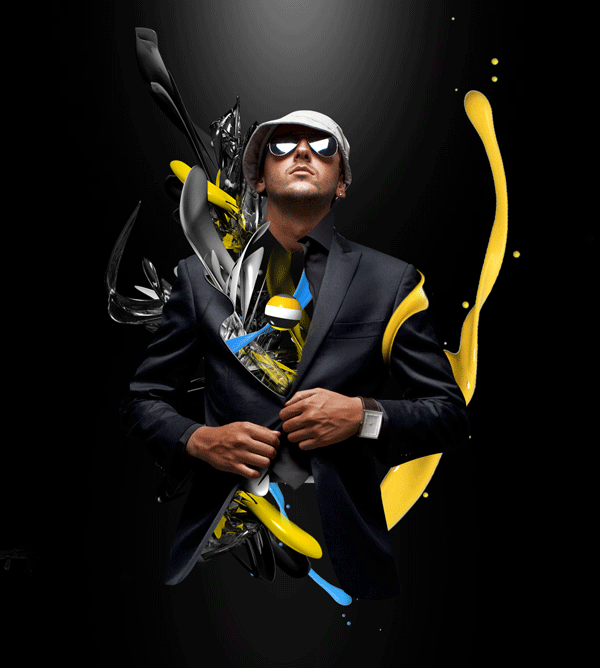
In this second tutorial of this two part series, we will add a background and enhance the image with Photoshop effects. Keep in mind that a key to succeed in following this tutorial series is to experiment. I will be teaching the basic techniques but in order to create a strong composition and attractive shapes, you will need to alter the settings, and experiment with other effects. Patience and determination are mandatory skills for any artist. So let’s finish this image!

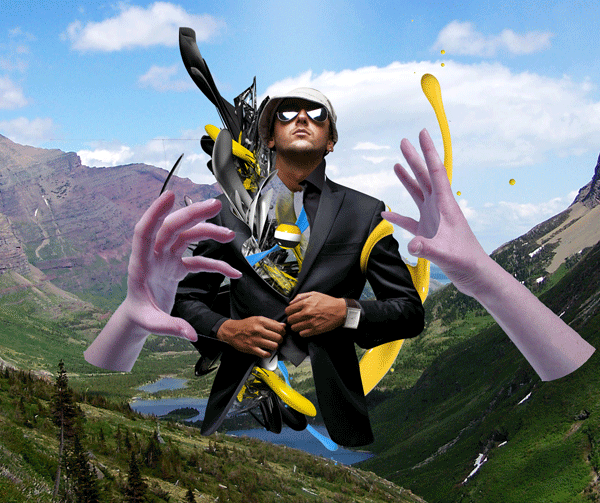
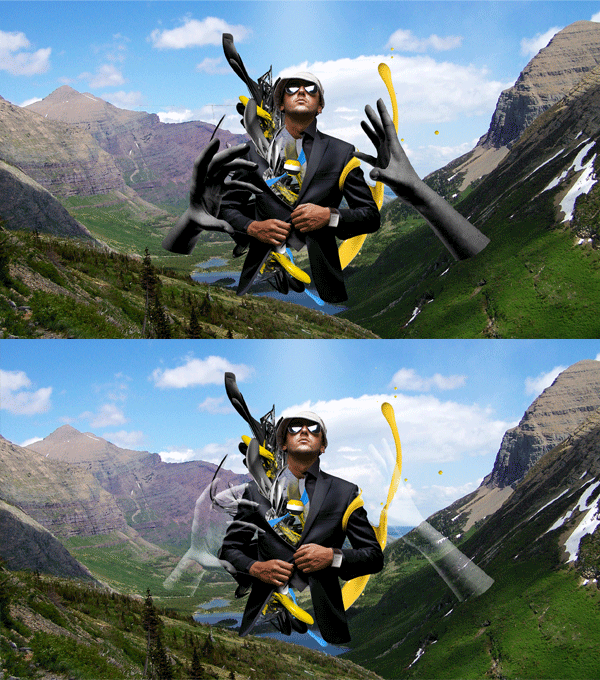
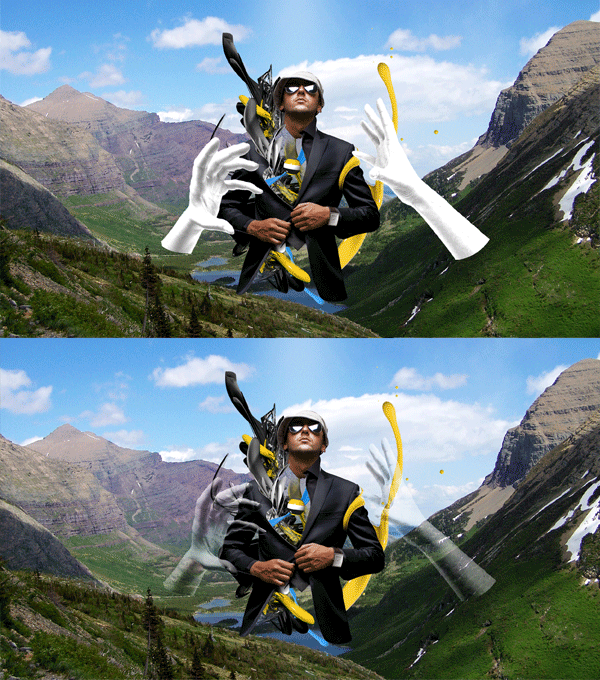
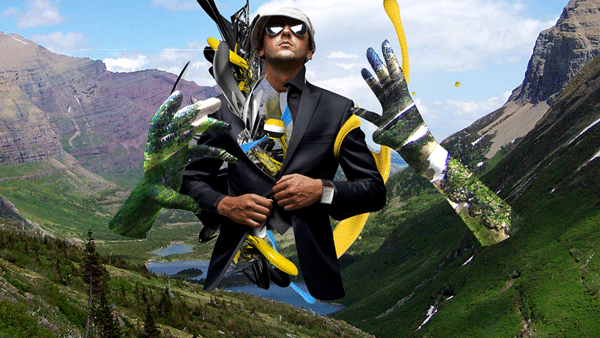
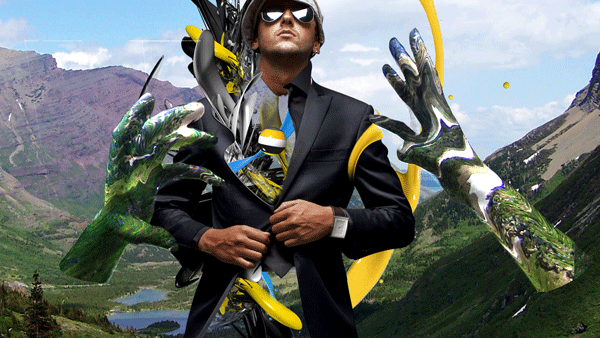
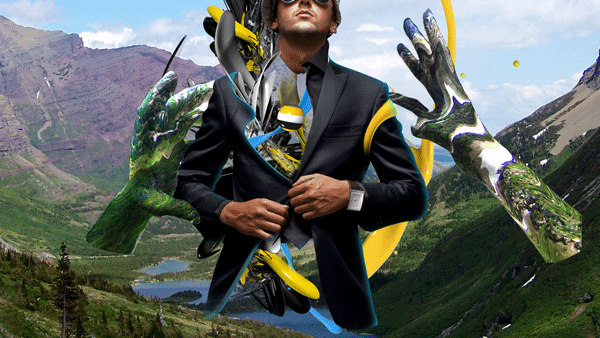
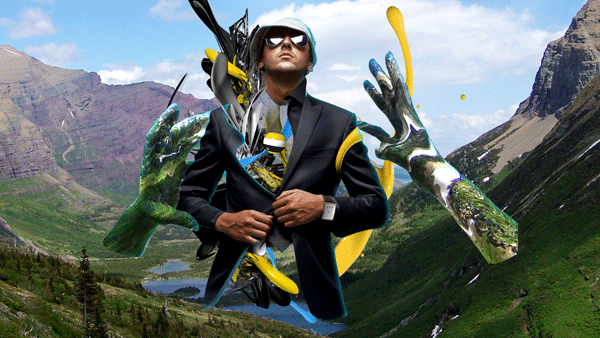
Let’s take a look at the image we’ll be creating for this two part series (above): Part 1 on Cgtuts+ and Part 2 will be covered here on Psdtuts+ in today’s final tutorial.


Step 1

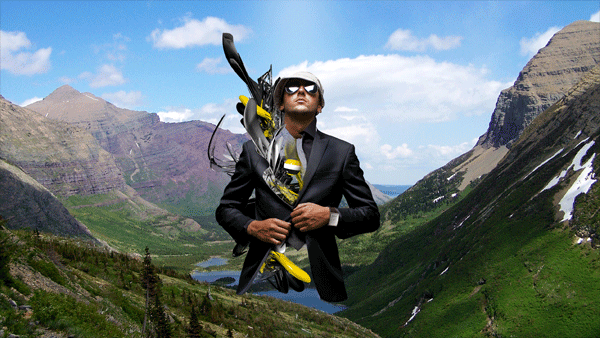
Expand the canvas horizontally, place the stock mountain image by Sara Moses in the background.

s1

Step 2

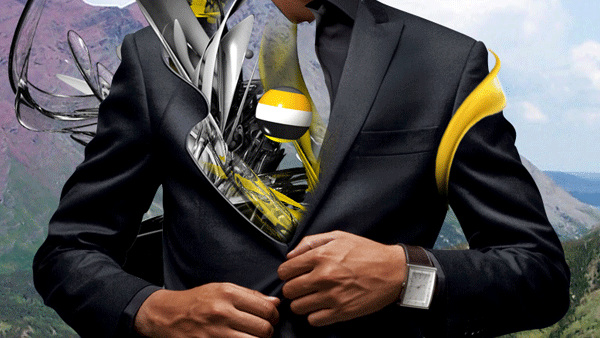
Take the stock of the paint splash; adjust the Hue/Saturation to make it yellow and wrap it around the person.

s2

Step 3

Repeat the previous step to achieve the following.

s3

Step 4

If the background is removed at this point, a nice piece can be formed already.

s4

Step 5

Take the stocks of the hands (hand 1 and hand 2 from Duck Dodger) and place them as shown. Merge the two layers of the hands and duplicate that layer two times.

s5

Step 6

Desaturate the first layer; using levels, brighten the image . Then set the layer mode to Multiply.

s6

Step 7

Desaturate the image second layer; using Levels, darken shadows and brighten the highlights. Then set the layer mode to Screen.

s7

Step 8

Duplicate the “background” layer, place it right above the unaltered “hands” layer and use a layer clipping mask between the two layers. Move the background duplication so that mostly green is shown on the hands.

s8

Step 9

Using the Liquify Filter, liquify the background duplication that it adheres to the hands’ contour.

s9

Step 10

Create a new layer and place it above the layer of the base stock (the suit). Select the “suit” layer (Command-click) and fill it with cyan.

s10

Step 11

Selection > Modify > Feather 10 px. Slightly nudge the selection to the left, then down, then press delete.

s11

Step 12

Repeat steps 10 and 11 for the hands.

s12

Step 13

Create a new layer on the very top, set the layer mode to Overlay and loosely paint some parts using a large brush.

S13

Step 14

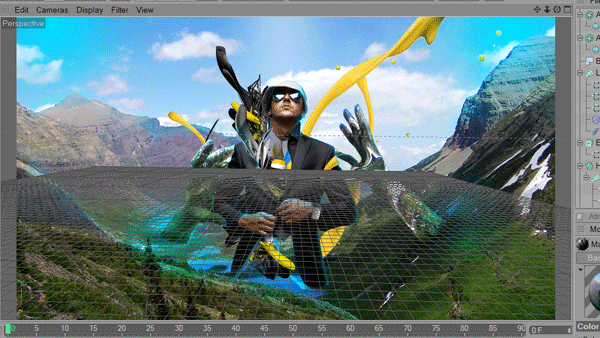
Export the image as a JPG. In C4D, create a background, apply the image to a new material and apply the material to the background. Make sure the proportion/size of the render is the same as the image exported.

S14

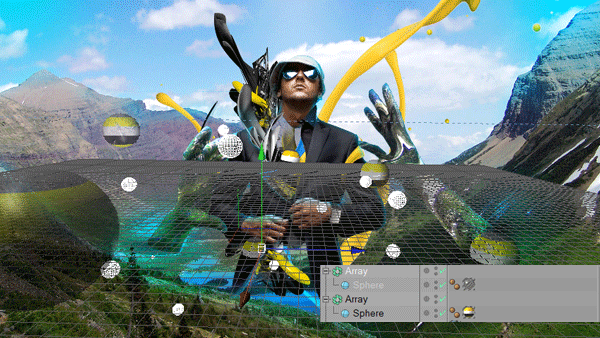
Step 15

Using the spheres created in Part 1 of this tutorial, duplicate them by creating an array and altering its settings to best show the image and strengthen the focal.

s15

Step 16

Render the image. Go back to Photoshop; using the alpha channel, make the spheres into a separate layer and place it in the original file.

s16

Final Image

Slightly adjust the levels of the spheres to achieve the results for this tutorial.

s17

Alternative Final Image

If the background image is removed, this image can be formed; it has a totally different atmosphere and theme.

s18

Conclusion

This is the essence of how I created my piece “lost.” Most of the techniques used are explained in this tutorial. The only method to achieve better results is time. Due to the abstract nature of this piece, a lot of experimentation must be done. The tutorial explains only the techniques used, using these techniques, you can create a result perhaps better than my original piece with determination and time.


Design a Macbook Pro Illustration in Photoshop


Illustrating an electronic device such as a laptop may seem like a difficult task but it’s actually not as hard as you might think. In this tutorial, I will demonstrate how to create a MacBook Pro in Photoshop. Let’s get started!


Step 1

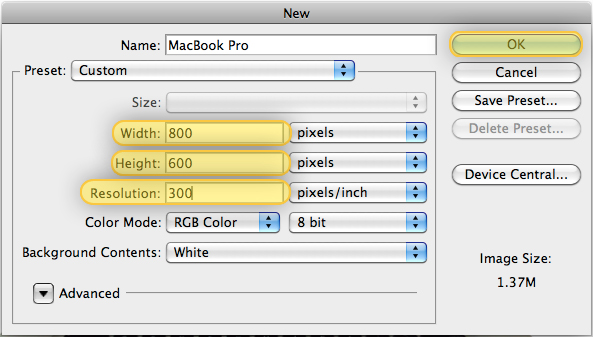
First, go to File > New. Then change the Properties as is shown below:


Step 2

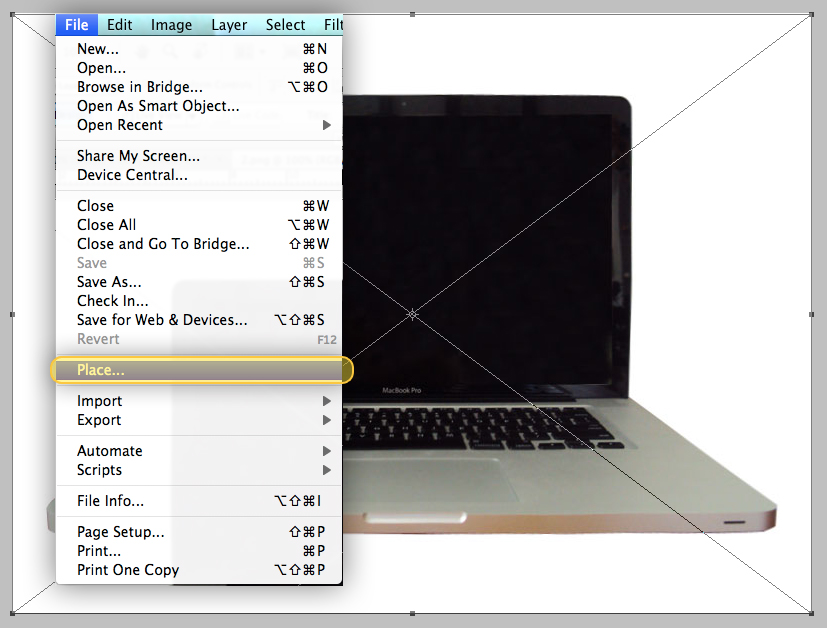
Now you will need to find a photo to use a reference. To do this, just head over to Google and run an image search. Once you’ve found a photo, place it into your document by going to File > Place, then center it as shown below.


Step 3

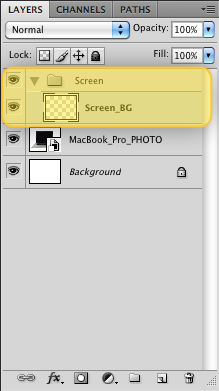
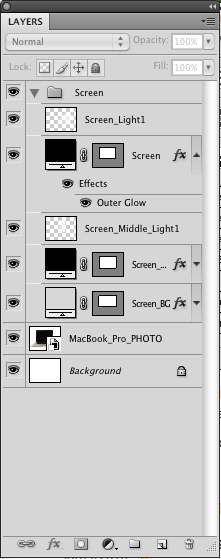
Make a new Folder, name it "Screen". Then, make a new Layer and name it "Screen_BG." Make sure you insert the "Screen_BG" layer to the "Screen" Folder.


Step 4

In the "Screen_BG" layer draw a Rounded Rectangle (Shift + U) on the MacBook’s Screen with a Radius of 15px as shown below.


Step 5

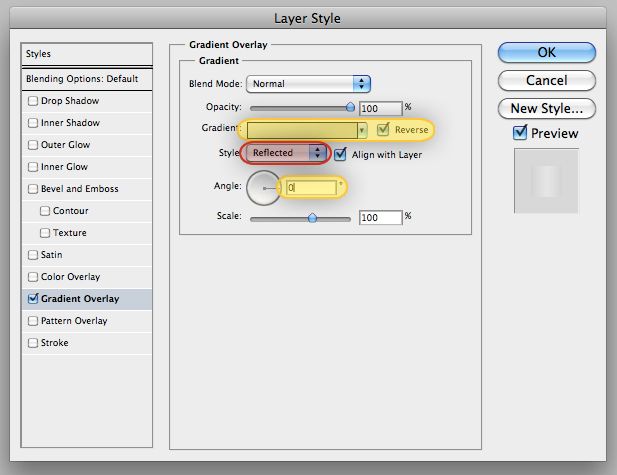
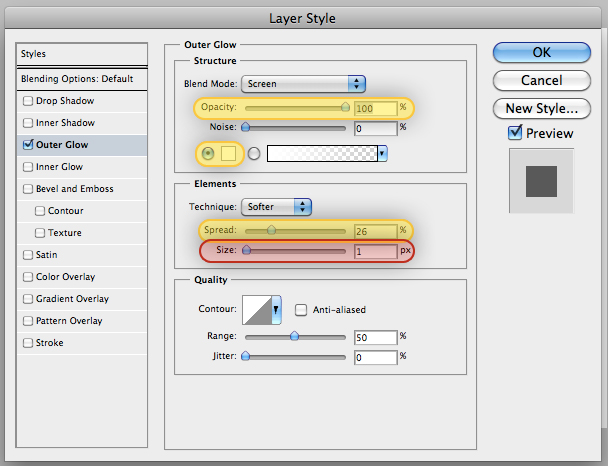
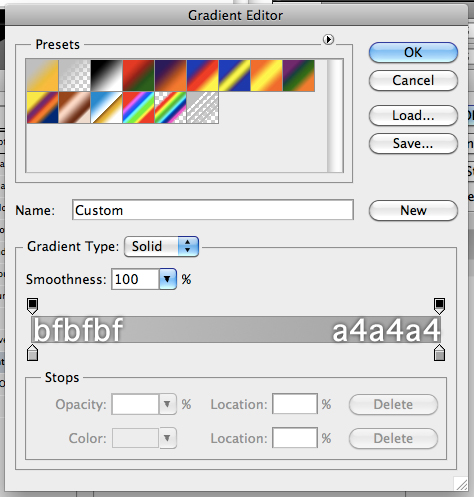
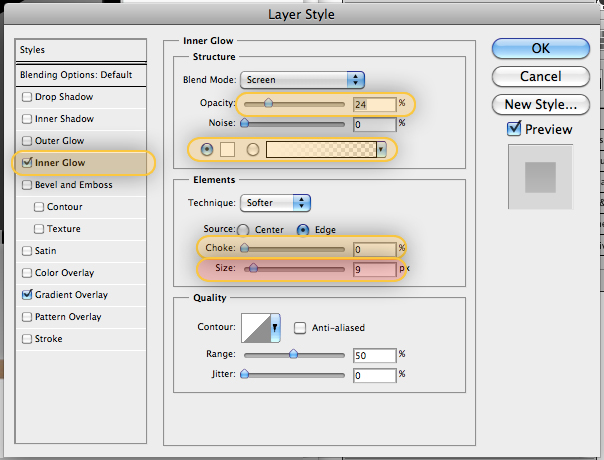
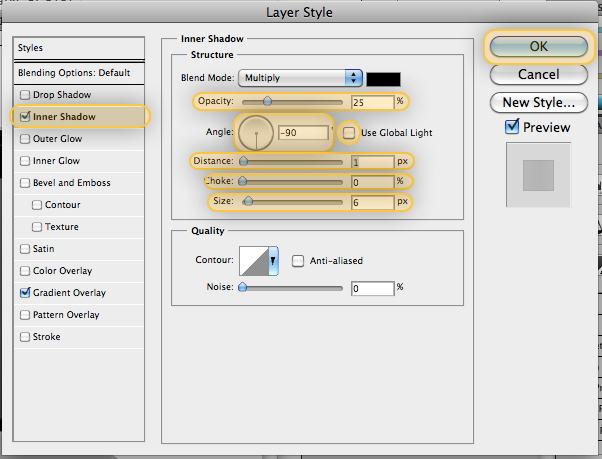
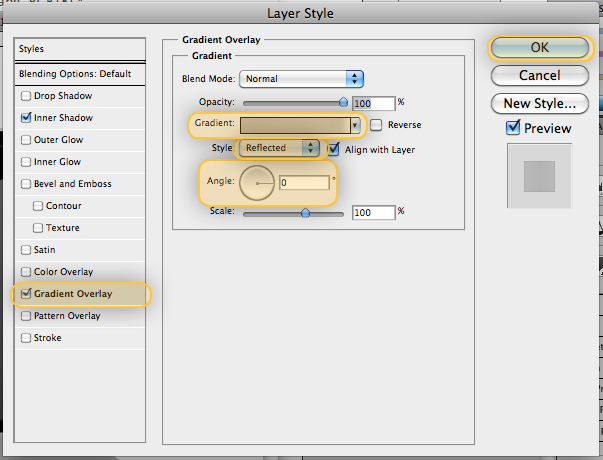
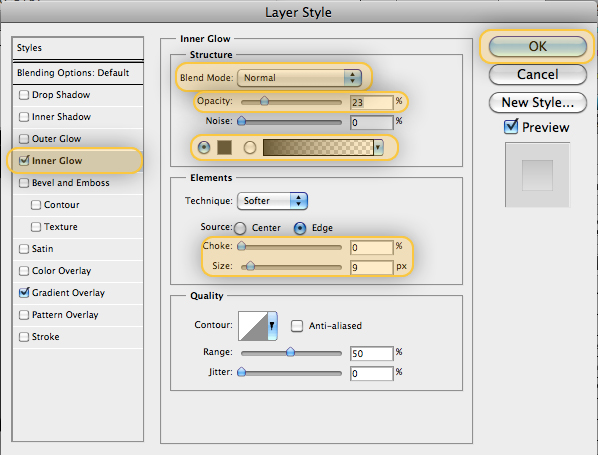
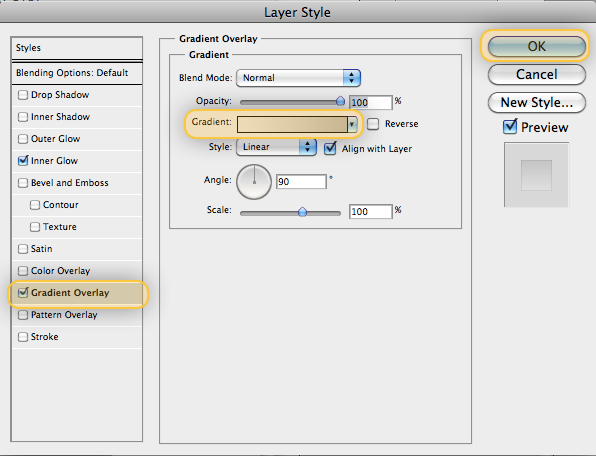
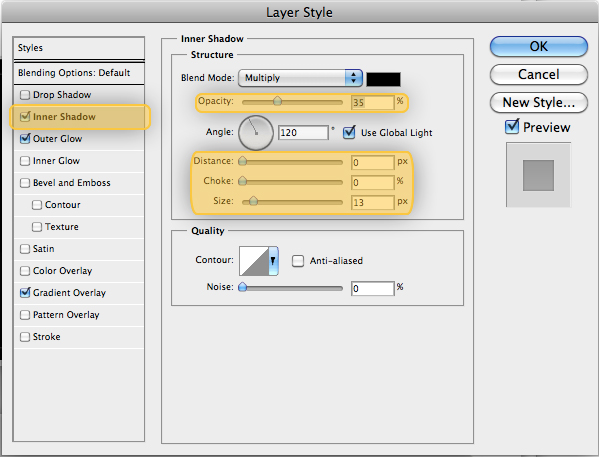
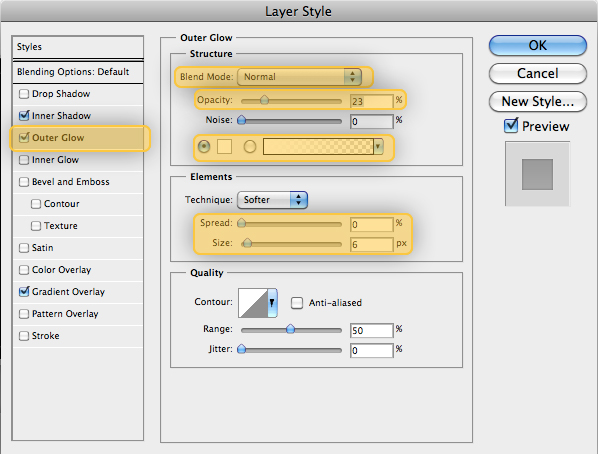
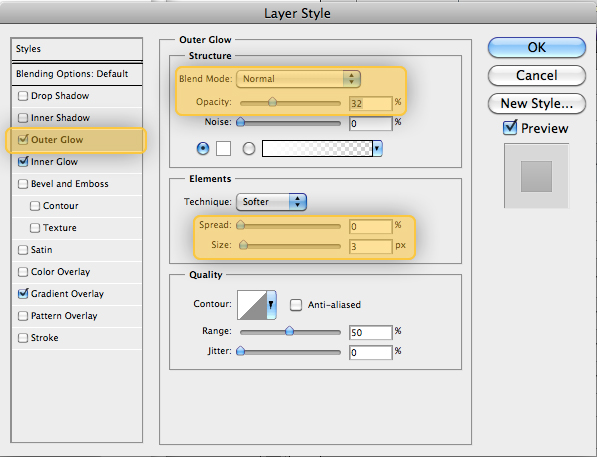
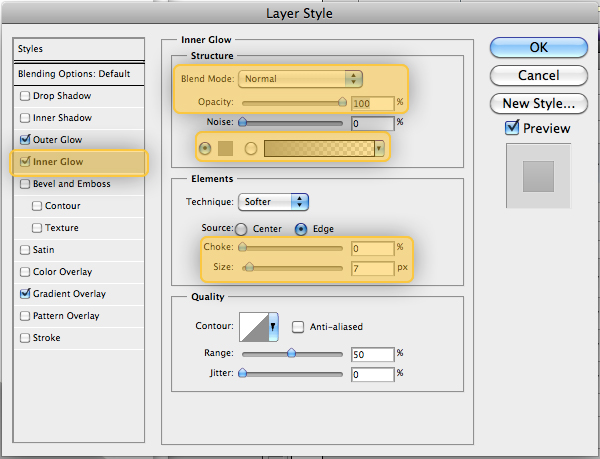
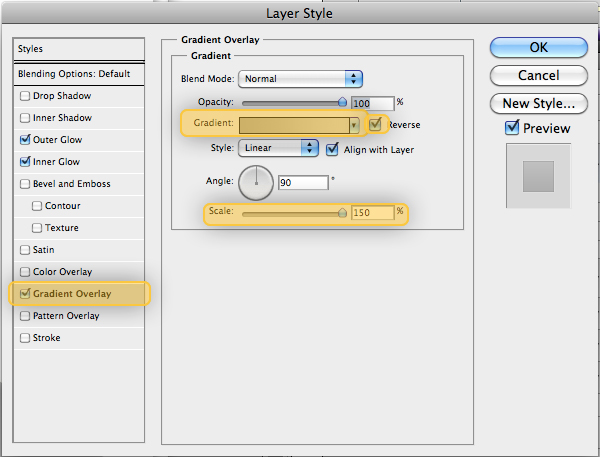
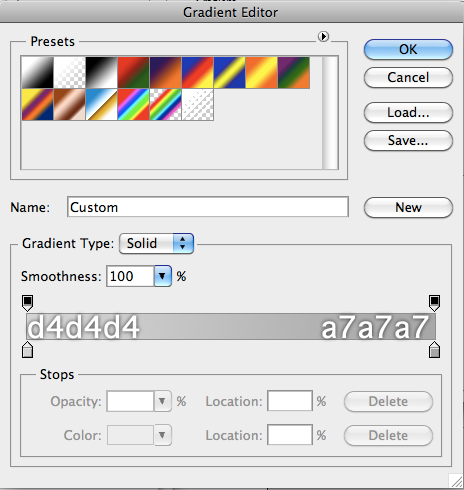
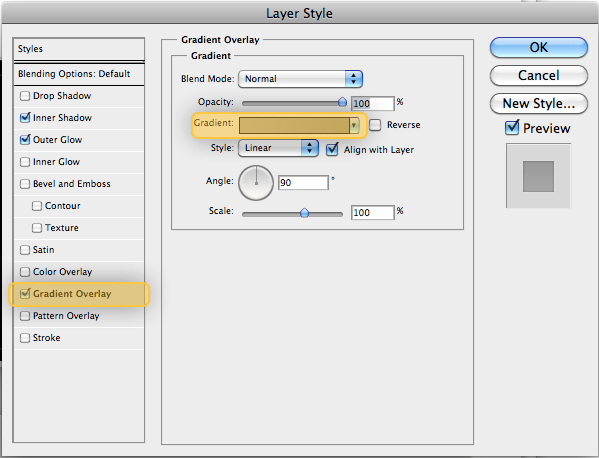
Now apply the following Layer Styles to our "Screen_BG" layer.


Step 6

Draw a Rounded Rectangle (Shift + U) over the edge of the MacBook’s screen with a Radius of 15px and choose a black color. Name this layer "Screen_Middle".


Step 7

Apply the following layer styles to Screen_Middle.


Step 8

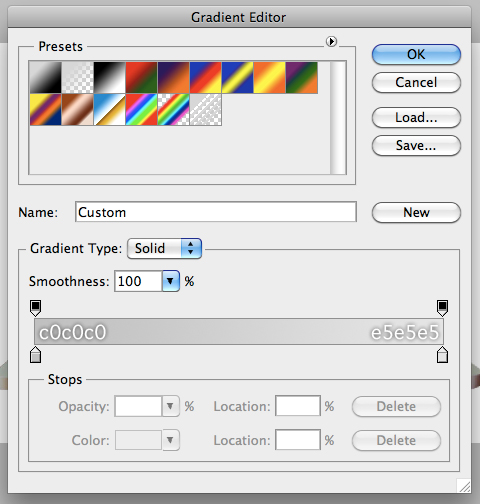
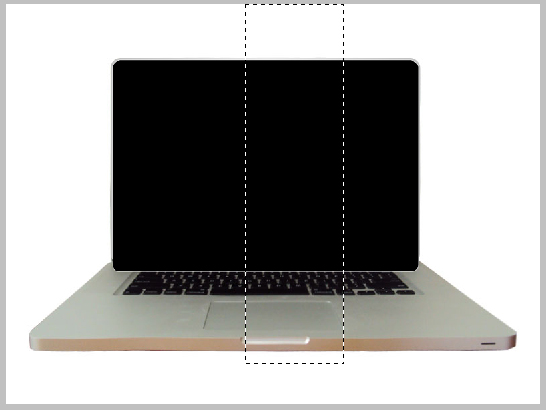
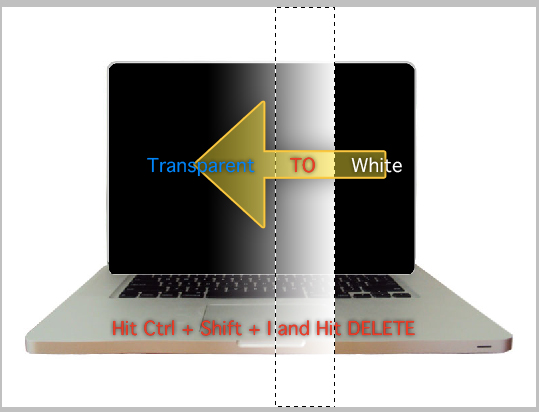
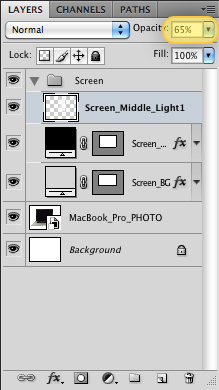
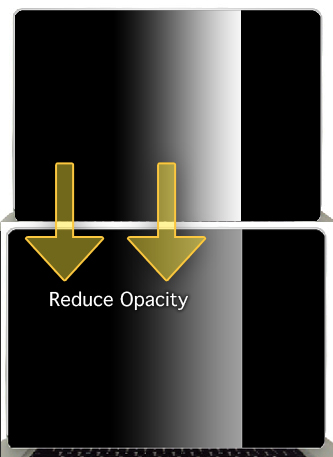
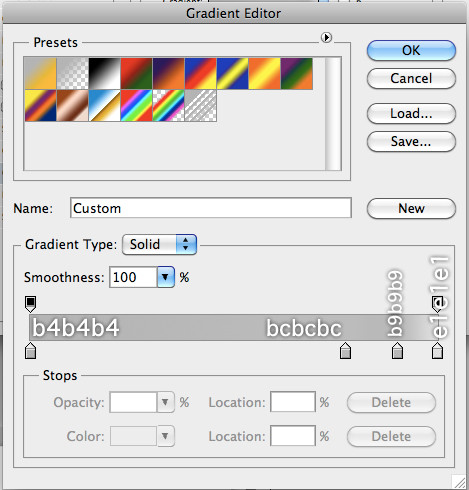
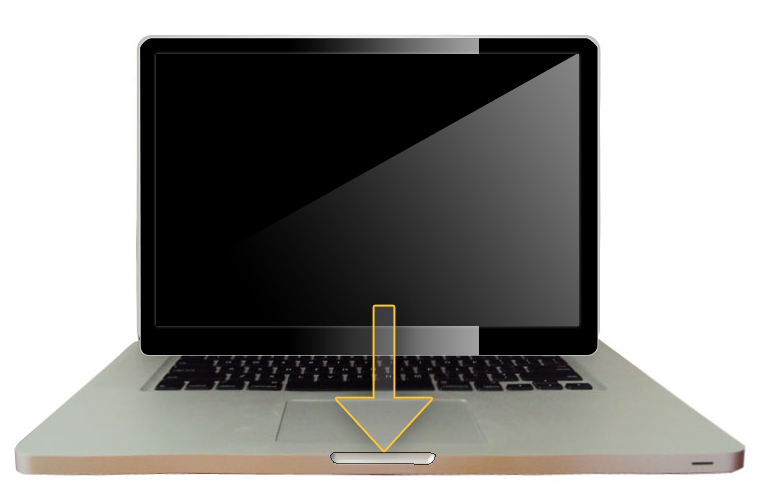
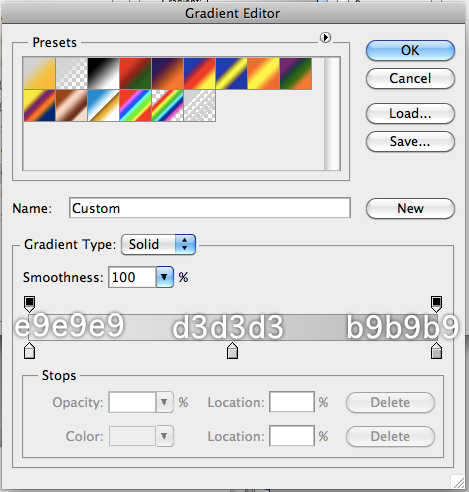
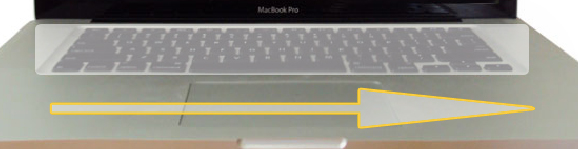
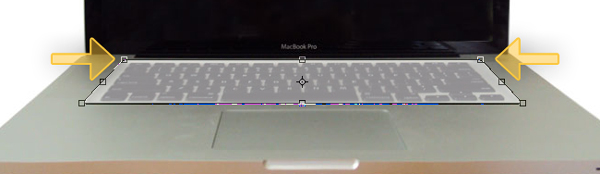
Create a new layer and name it "Screen_Middle_Light1" and drag it to our "Screen" Folder. With the layer selected use the Rectangle Marquee Tool (Shift + M) and draw a rectangle as shown below. After that, fill this selection with a transparent to white gradient using the Gradient Tool (Shift + G). Then, Cmd + Click the "Screen_BG" layer’s thumbnail and then Cmd + Shift + I and hit delete. Finally, reduce the "Screen_Middle_Light1" layer’s opacity to 65%.


Step 9

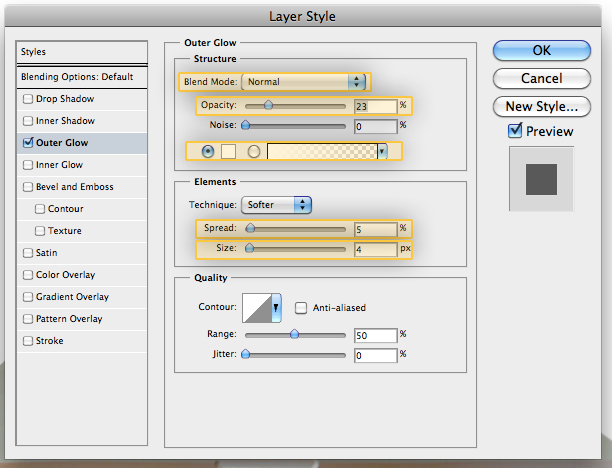
Now we have to draw the MacBook Pro’s screen. First, draw a Rectangle using the Rectangle Tool (Shift + U). Make sure the rectangle is black, and draw it above the MacBook Pro’s Screen. Name this layer "Screen" and drag it to our "Screen" Folder. Then, apply the layer styles as shown below.


Step 10

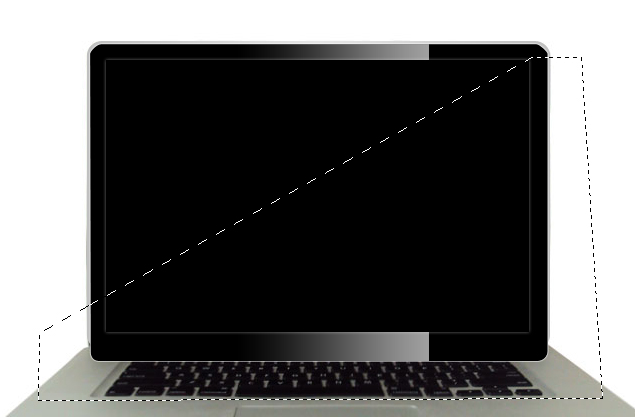
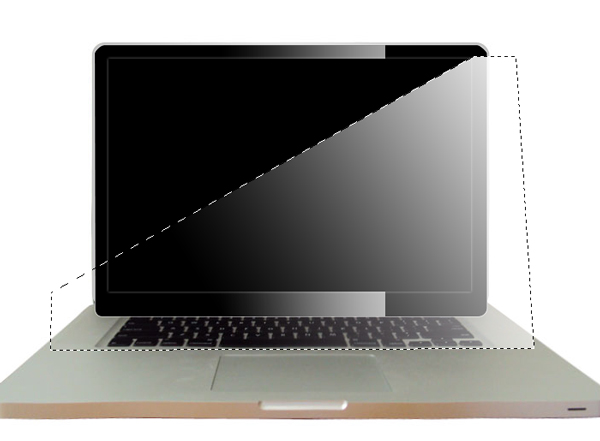
Now let’s add a reflection to the MacBook’s screen. Create a new layer and name it "Screen_Light1", use the Polygonal Lasso Tool (Shift + L) and draw the following shape.


Step 11

With the "Screen_Light1" layer selected, use the Gradient Tool (Shift + G) to apply a white to transparent gradient, make sure you select the Linear Option a shown in the following images, when you are done deselect the selection using Cmd + D.


Step 12

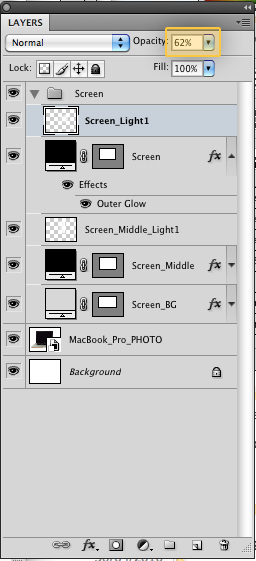
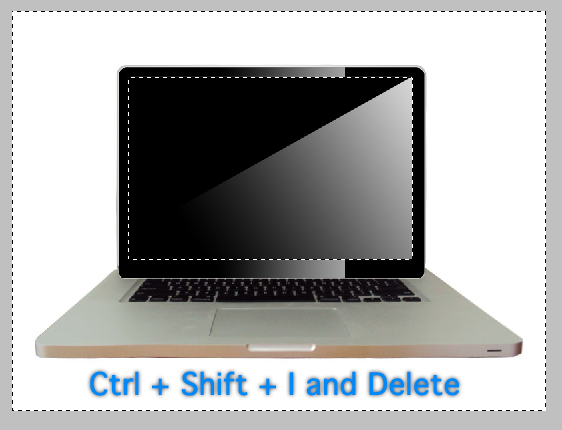
Cmd + Click the "Screen" layer’s thumbnail and then Cmd + Shift + I and then hit delete (Make sure to be in the "Screen_Light1" layer). After that, reduce the opacity to 62%.

At this point your illustration should look similar to the image below.


Step 13

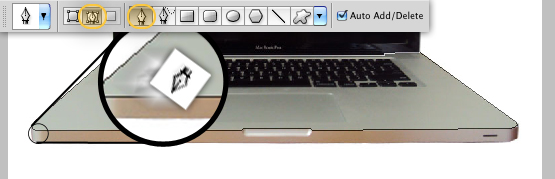
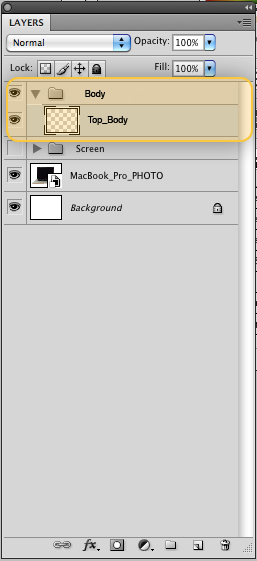
Our screen is ready! Now we have to create everything else. First, make a new Folder and call it: "Body". Then, make a new layer and use the Pen Tool (Shift + P) to trace the laptop’s body, make sure to have the "Paths" option selected as in the following image. Drag this layer into the "Body" Folder and call it "Top_Body".


Step 14

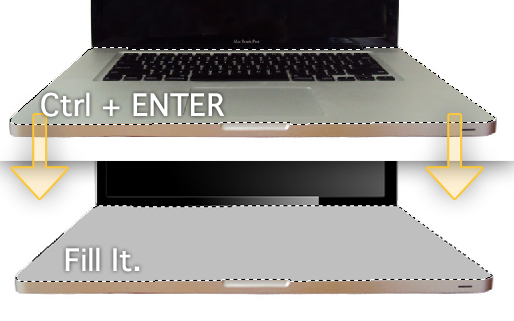
With the "Top_Body" layer selected hit Cmd + Enter to make a selection. Then fill this selection with a gray color.


Step 15

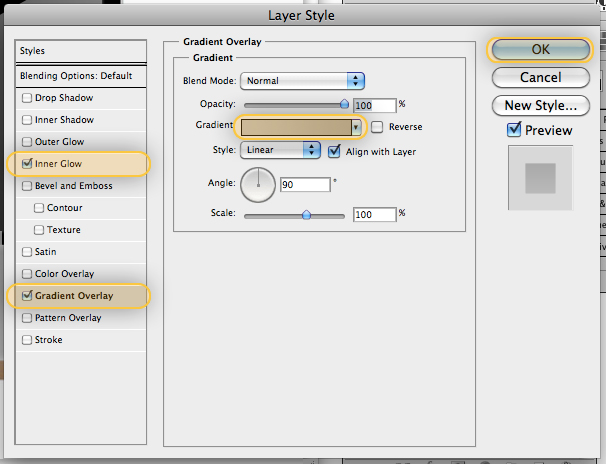
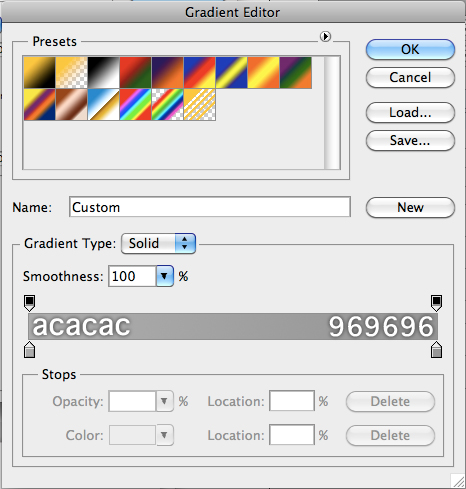
Apply the following layer styles.


Step 16

Now lets create the outer body, this is very similar to Step 14. Create a new layer and name it "Outer_Body" and insert it in the "Body" Folder. With the layer selected use the Pen Tool (Shift+P) and trace the outer part. When you’re done fill it with a different gray tone.


Step 17

Apply the following layer styles to the "Outer_Body" layer.


Step 18

Now, we will create the laptop’s opening. To do this, make a new layer in the same Folder and call it "Opening_Body". Repeat steps 14 and 16.


Step 19

Apply the following layer styles to the "Opening_Body" layer.


Step 20

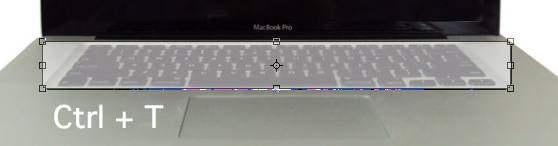
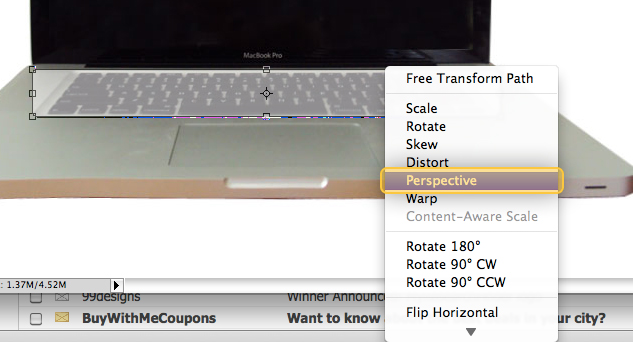
Now, we have to draw the sunken area where the keyboard goes. Select the Rounded Rectangle Tool (Shift + U) with a radius of 5px and a color that you can distinguish from the body’s gray. Then, draw a rectangle, select Cmd + T to bring up the Transform Tools, right-click the rectangle and then choose Perspective and play with it until it looks similar to the shape below. Name this layer "Keyboard_Sunken".


Step 21

Apply the following layer styles.


Step 22

Now let’s create the TrackPad. We have to make a Rounded Rectangle (Shift+U) with a Radius of 5px, and do the same steps to transform it as we did on Step 20 and of course apply some layer styles. Name this layer "TrackPad" and drag it inside the "Body" Folder.


Step 23 (Optional)

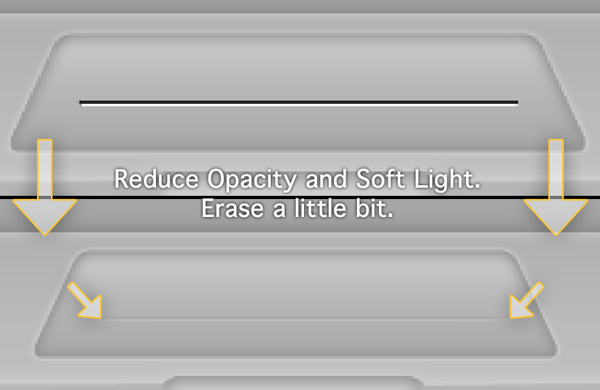
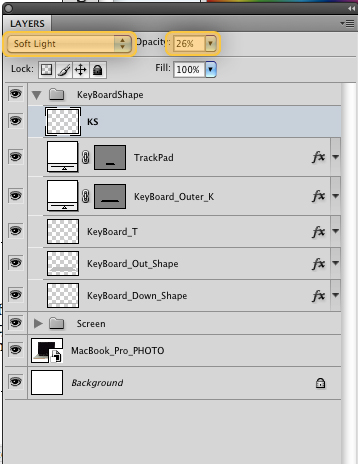
In case you are building a different kind of laptop you can add a separation on the TrackPad. This step is optional because the new MacBook Pro doesn’t have this line. Anyway, select the Line Tool (Shift + U) and make one black line and one white line, give them a weight of 1px. You will realize that it makes two different separate layers, so you have to merge them. Select the two layers and the press Cmd + E. Then, change the name of the merged layer to "TrackPad_Line" and change the Blending Mode to Soft Light and reduce the Opacity to 26%. Also, erase a little bit the edges using the Eraser Tool (Shift + E).


Step 24

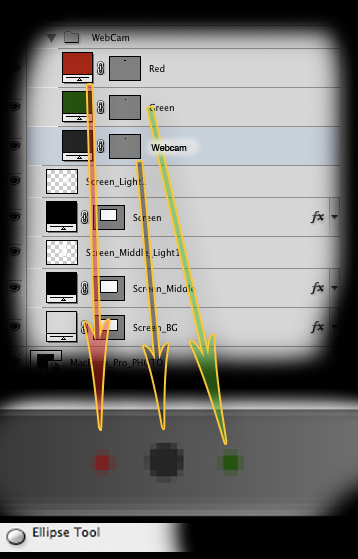
Before we start work on the Keyboard, we need to add lots of small details, such as the webcam, the power button, etc. So, go to the "Screen" Folder and make a new Folder, Name this Folder "WebCam". Make a new layer and call it "Webcam". Take the Ellipse Tool (Shift + U) and draw a circle as shown.


Step 25

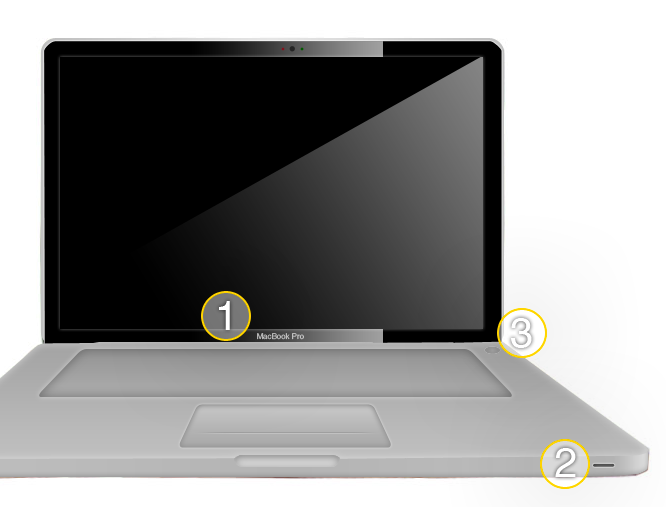
Also add the MacBook Pro text (use Helvetica or Myriad Pro), the Infrared sensor, and the power button.


Step 26

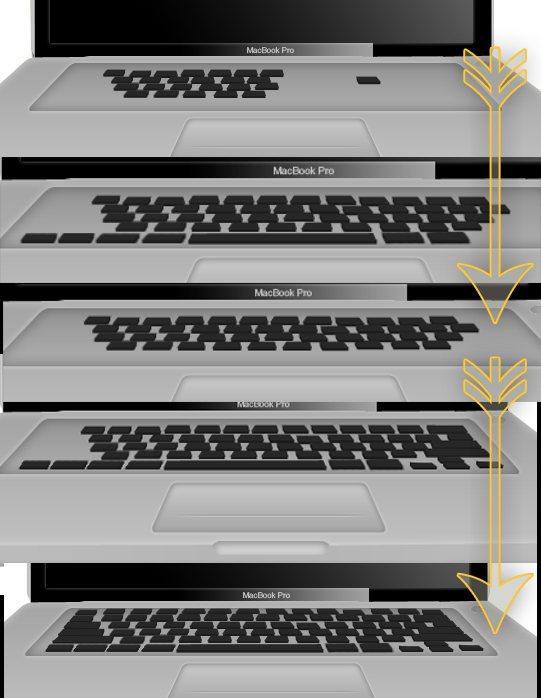
Finally, we will start work on the Keyboard. Make a new Folder and name it "Keyboard". Grab the Pen Tool (Shift + P) and trace as we did it in the Step 14. Make sure to make the keys in three positions.


Step 27

Now duplicate these layers (Hold Alt and Click and Drag) and complete the KeyBoard, remember to drag these layers on a folder named "KeyBoard". You should also make a new shape for the Space Bar, Delete Button, etc.


Step 28

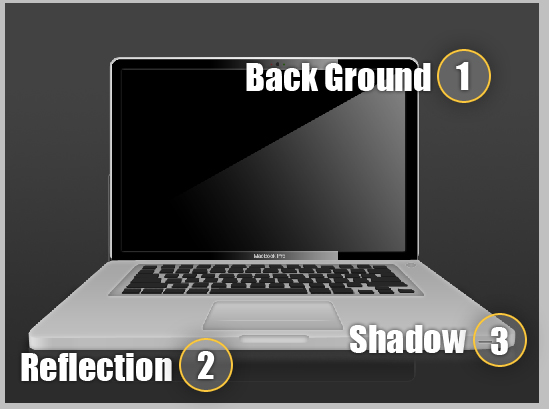
To finish things off, use the gradient tool to add a background as shown below. You may also choose to add a reflection. To do this, duplicate all your layers, flip them vertically, place as shown below and lower their opacity. In addition, you can add a shadow as well using a blurred black rectangle as shown.


Conclusion

Take a look at the final image. I hope you learned something new!

Quick Tip: Getting Realism in Orchestral Music

Getting the best of an orchestral library is sometimes the worst nightmare for a composer or orchestrator. The main goal is to make a mock-up that sounds as real as if the melody was played by a huge group of professional musicians.

There are lots of ways to achieve that, and in this quick tip I’ll explain a way to get that tense and dynamic staccatto feeling in your music. By the end of the tutorial, we’ll try avoiding the so-called “machine gun” effect of very synthesized orchestral sounds.

Here’s our melody – 4 bars of eight-notes with constant rhythm.

Download audio file (ShortTip-staccatto_1.mp3)


Load Different RR Samples

In the demo above you can hear five instrument groups playing – contrabasses, celli, violas and both violins (first and second). I loaded default staccatto patches for all of them, making no velocity or volume tweaks. Therefore we get the “machine gun effect” that can blow your ears off!

First load the RR samples. What does RR mean? “Round-robin articulation”, which means that for each tone of the instrument diapazone we have various types of recordings – each one with different attack, velocity, volume and so on.

So, practically, if we have loaded the sample “VCS Spiccato RRx6” this means that each six notes would be unique. This gives us a feeling of realism.

Also, you can load different types of articulations – spiccatto, staccatto, up-down bows, marcatto, martelle and so on. They are all short articulations, and having different sounds can add colour to your orchestration. Keep in mind that this won’t be practical if you have your work played by live orchestra.

The one problem with RR samples is that they are heavier than the normal ones – so you must have a stable and fast machine.

Download audio file (ShortTip-staccatto_2.mp3)


Make Velocity Changes

After you’ve loaded up the RR samples try to edit the velocity of each tone. Imagine for a while that you are a conductor, standing in front of around 60 players (strings only). When they start playing, they won’t play two identical notes – especially when it comes to volume.

So, going back to the MIDI orchestration, when you make slight velocity edits, you can add additional realism to your music. Sometimes this could take much of your time and you can use some helpful tools like randomizer plugins.

Download audio file (ShortTip-staccatto_3.mp3)


Humanize

The humanize technique can help you achieve the “live” sound of your music. This helps you escape the quantize-jail, and add slight rhythmic MIDI notes as it would be played by a live player.

No human player can possibly play as exact as a computer. Remember those 60 players we were talking about? It isn’t possible for them all to start playing at the exact time – every time one of them would be a bit late or early. And this is that magic that we all feel when we go to a concert (whether we’re listening to Haydn or U2).

Download audio file (ShortTip-staccatto_FINALComparison.mp3)

As you can hear from the final demo, there is audible difference between where we started at the beginning and when we found ourselves at the end. I hope I gave you some inspiration and ideas about sequencing music.