Accessing “Right To Left” Languages Within After Effects

Right to left languages are widely used in After Effects, but traditionally these languages are not treated like text in After Effects. We have to instead covert them to vector graphics which limit many possibilities that are only possible with text layers. In this Quick Tip we will learn to enable languages and manipulate “RTL” text right within After Effects. This tutorial is for After Effects CS4 and the preview video for this tutorial is just to show the capabilities of RTL languages in After Effects. I will not be discussing how to achieve this effect.


Tutorial

Download Tutorial .flv

File size 254MB


Core Art Skills: Part 1, Welcome to the Course


Vectortuts+ is excited to bring you a new five part series on core art skills. In this series, Ben Mounsey will be sharing in-depth knowledge and analysis of the skills required to become a better illustrator. Ben will be outlining four main skills; using sketchbooks, life drawing, working in traditional 3D and using traditional media techniques for your digital work, culminating in a professional tutorial that will knock your socks off! This series is great for all skill levels and you’ll be surprised how a solid understanding of traditional methods can greatly improve your digital workflow. Let’s get started!

Continue reading “Core Art Skills: Part 1, Welcome to the Course”

Open Mic: Tell Us About the First Time You Played in Public

Do you remember the first time you played or sang in public? Tell us about your first performance.

Each Tuesday we open our mic to readers and lurkers alike to come out of the woodwork and tell us your thoughts and opinion, your experiences and mistakes, what you love and what you hate. We want to hear from you, and here’s your chance.


How did you feel before your first performance, and how did it go? What type of performance was it? Did it inspire you or discourage you? How long was it until you performed publicly again? Which instrument did you play? Do you have a story to tell?


Create a Iconic Retro-Modern Ball Chair in Photoshop


The ball chair, popularized by Finnish interior designer Eero Aarnio was the cornerstone of any mid-century or 1960’s living area. Today, we will learn how to create this iconic piece of furniture from scratch in Photoshop. Let’s get started!


Step 1

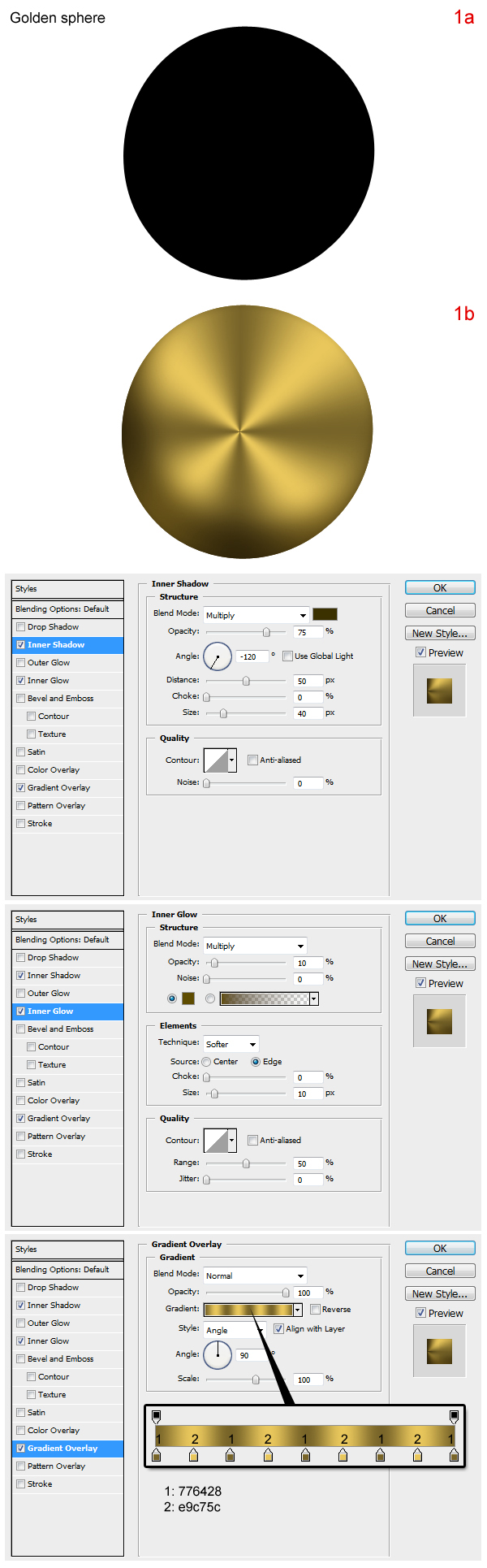
In new document, create a new layer; name it “golden sphere”. Use the Elliptical Marquee Tool to draw a circle and it fill with any color (1a). Then apply the layer styles as shown in figure (1b).


Step 2

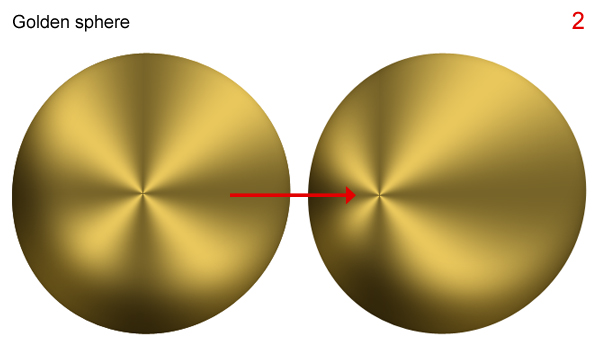
Place the center of the gradient as shown.


Step 3

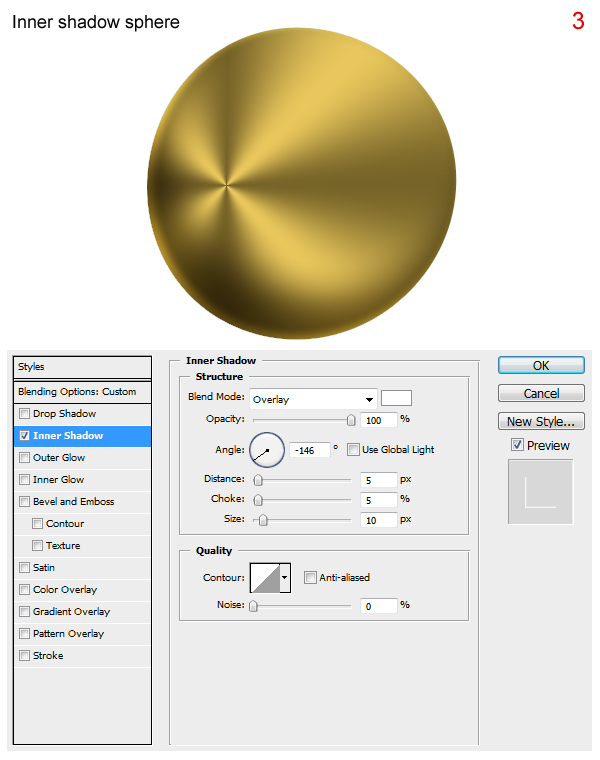
Press Cmd/Ctrl + J to duplicate “golden sphere”. Rename the new layer “Inner shadow sphere”, reduce Fill to 0% and apply style below.


Step 4

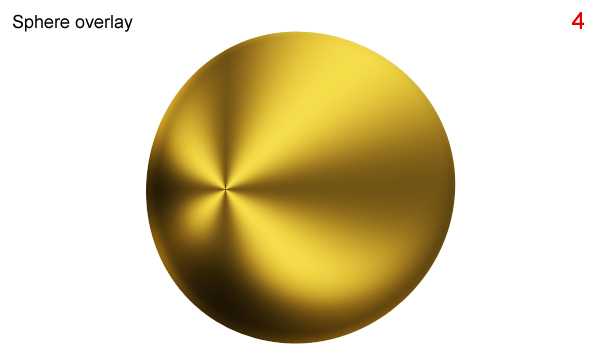
Press Cmd/Ctrl + J to duplicate “golden sphere”, create a new layer above the duplicated layer. Select both new layers and press Cmd/Ctrl + E to merge them. Rename new layer “sphere overlay” and change its Blending Mode to Overlay.


Step 5

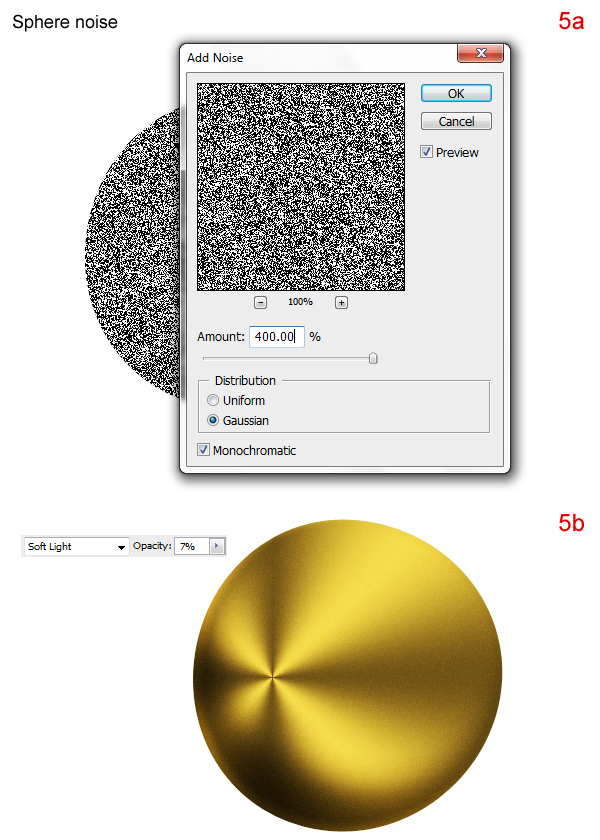
Press D to reset the foreground and background colors to black and white. Create a new layer on top, call it “sphere noise” and draw a circle with black. While holding Cmd/Ctrl click on “sphere noise” to obtain its selection. Go to menu Filter > Noise > Add Noise and set as shown in figure (5a). Then change its Blending Mode to Soft Light and reduce Opacity to about 7% (5b).


Step 6

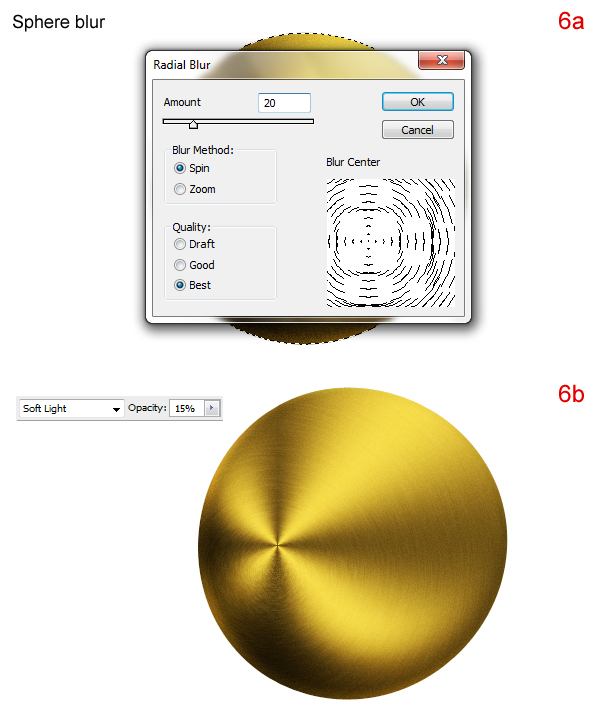
Press Cmd/Ctrl + J to duplicate “noise sphere,” rename new layer “sphere blur.” While holding Cmd/Ctrl click on “sphere blur” to obtain its selection. Go to menu Filter > Blur > Radial Blur and set as in figure (6a). Then reduce its Opacity to about 15% (6b).


Step 7

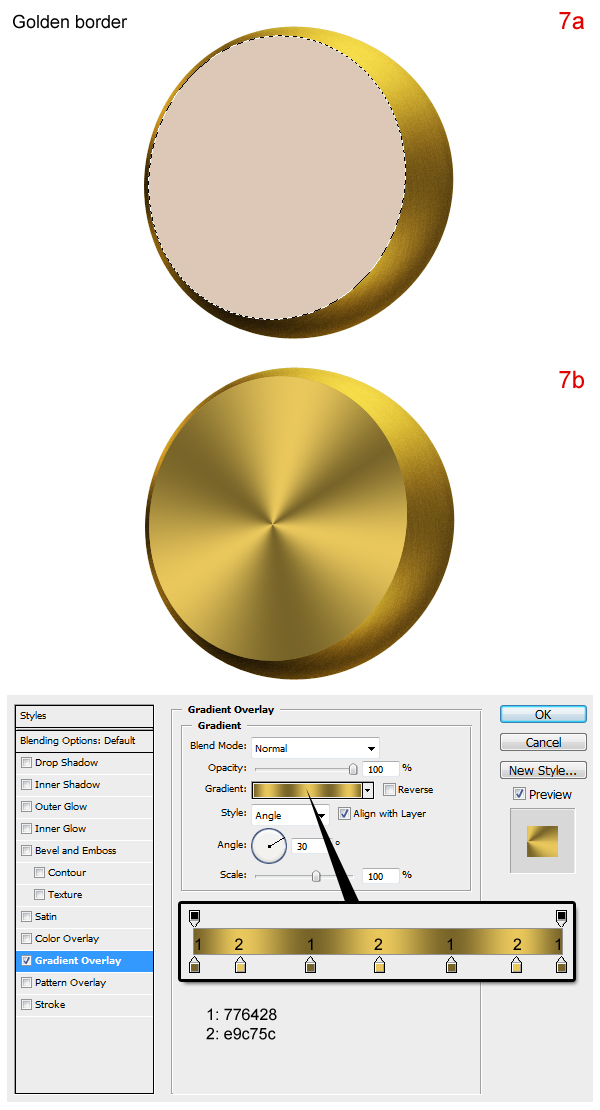
Create new layer on top, call it “golden border” and draw as show in figure (7a). Then, apply the layer styles as shown in figure (7b).


Step 8

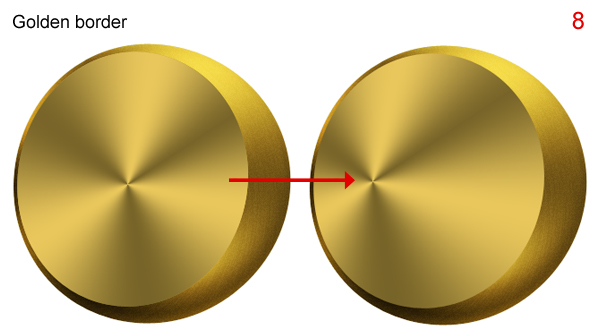
Place the center of the gradient as show.


Step 9

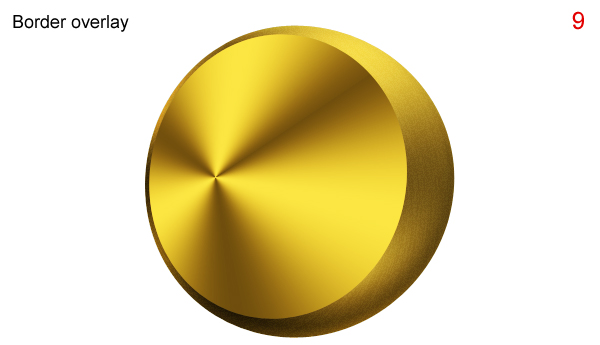
Press Cmd/Ctrl + J to duplicate “golden border,” create a new layer on top of “golden border 2”. Select both new layers and press Cmd/Ctrl + E to merge them. Rename the new layer “border overlay” and change its Blending Mode to Overlay.


Step 10

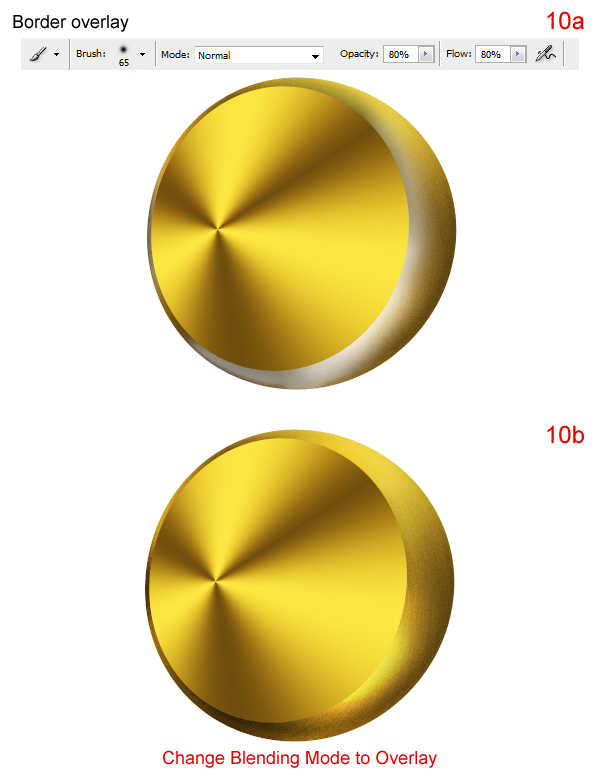
Create a new layer between “sphere blur” and “golden border,” call it “light”. Use the Brush Tool as shown in (10a) to draw like a highlight as shown in figure (10a). Then change its Blending Mode to Overlay (10b).


Step 11

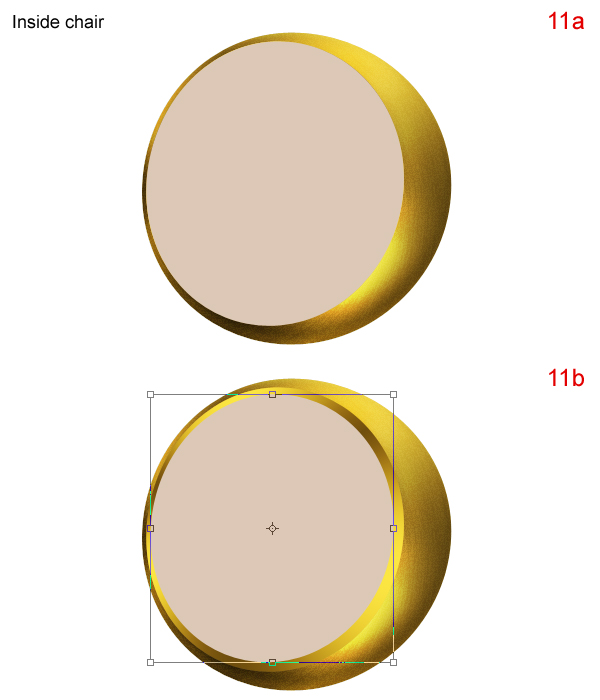
Press Cmd/Ctrl + J to duplicate “golden border,” rename it “inside chair” and send it toward the top (above “border overlay”). Remove its later styles, fill color as show in figure (11a). Press Cmd/Ctrl + T to transfom it as shown in (11b).


Step 12

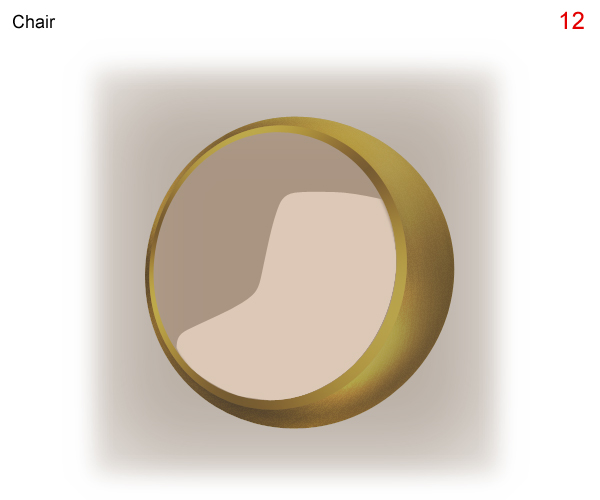
Create a new layer on top, call it “mattress”. Draw a shape as shown below and fill it with the same color as “inside chair.”


Step 13

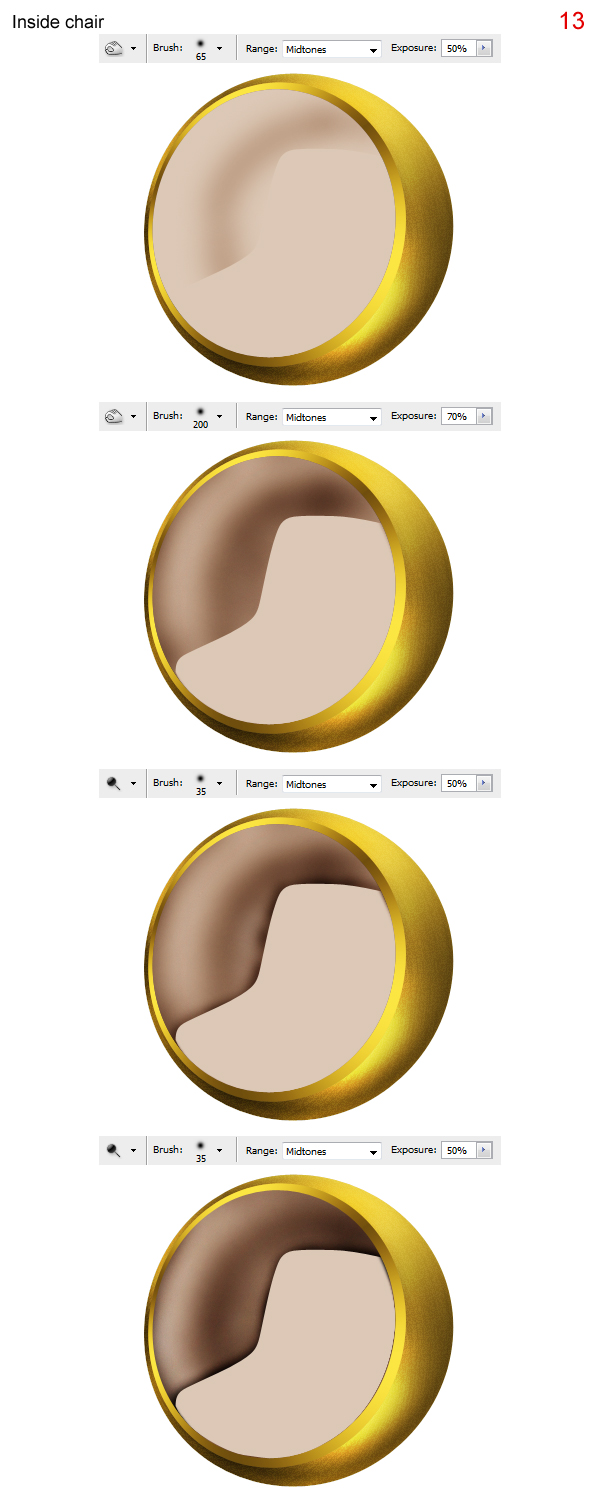
Use the Burn and Dodge tool on the “inside chair” layer to paint in some shading as shown below.


Step 14

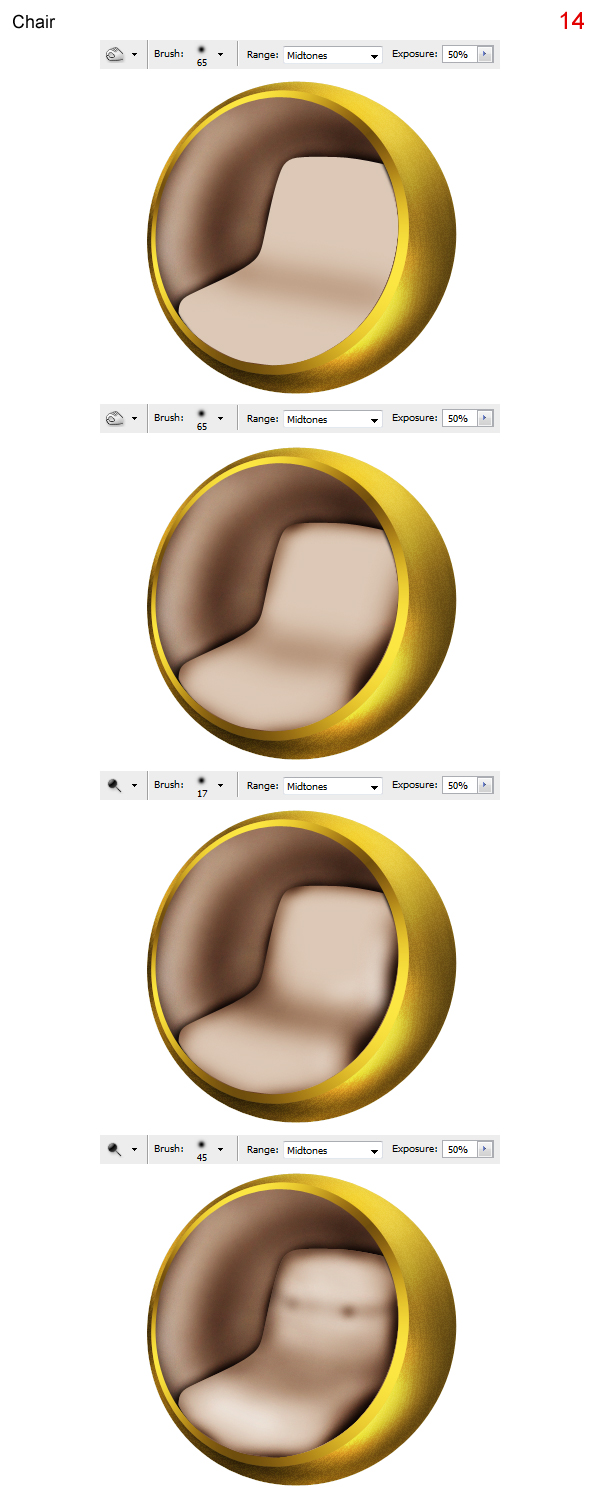
Now select the “chair” layer and use the Burn and Dodge Tool to paint some shading as shown below.


Step 15

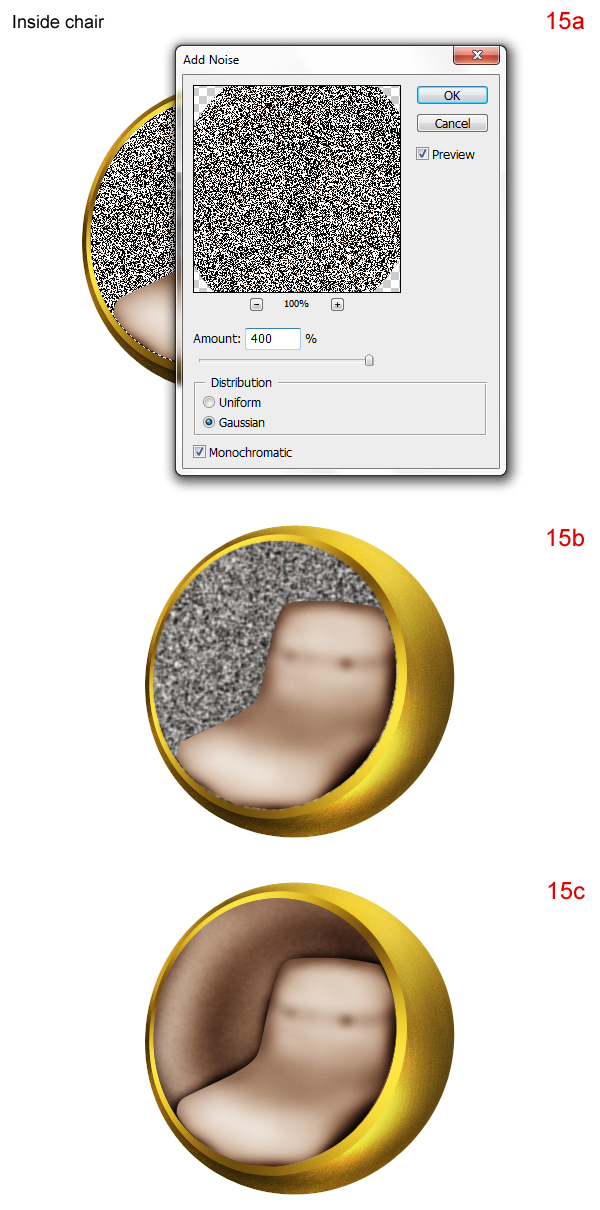
Press Cmd/Ctrl + J to duplicate “inside chair,” rename the new layer “inside chair noise.” Go to menu Filter > Noise > Add Noise and use the settings as shown in figure (15a). Go to menu Filter > Blur > More Blur, press Cmd/Ctrl + F about 2 – 3 times (15b). Then change its Blending Mode to Soft Light and reduce Opacity to 15% (15c).


Step 16

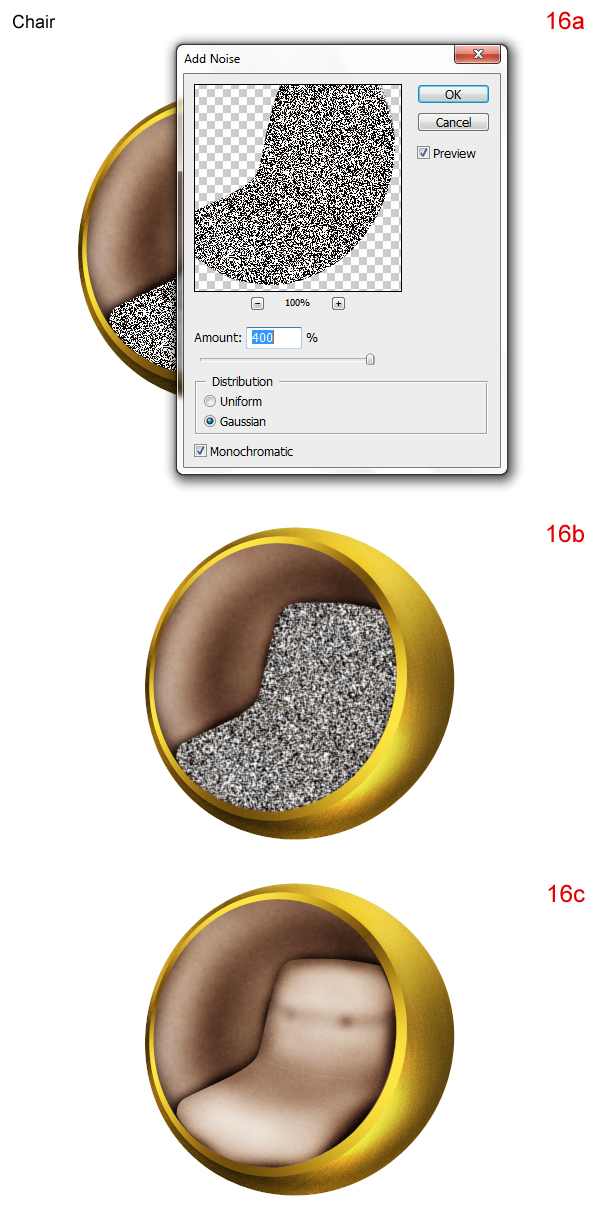
Press Cmd/Ctrl + J to duplicate “chair,” rename the new layer “chair noise.” Go to menu Filter > Noise > Add Noise and use the settings as shown in figure (16a). Go to menu Filter > Blur > Blur, press Cmd/Ctrl + F about 1 – 2 times (16b). Then change its Blending Mode to Soft Light and reduce Opacity to 10% (16c).


Step 17

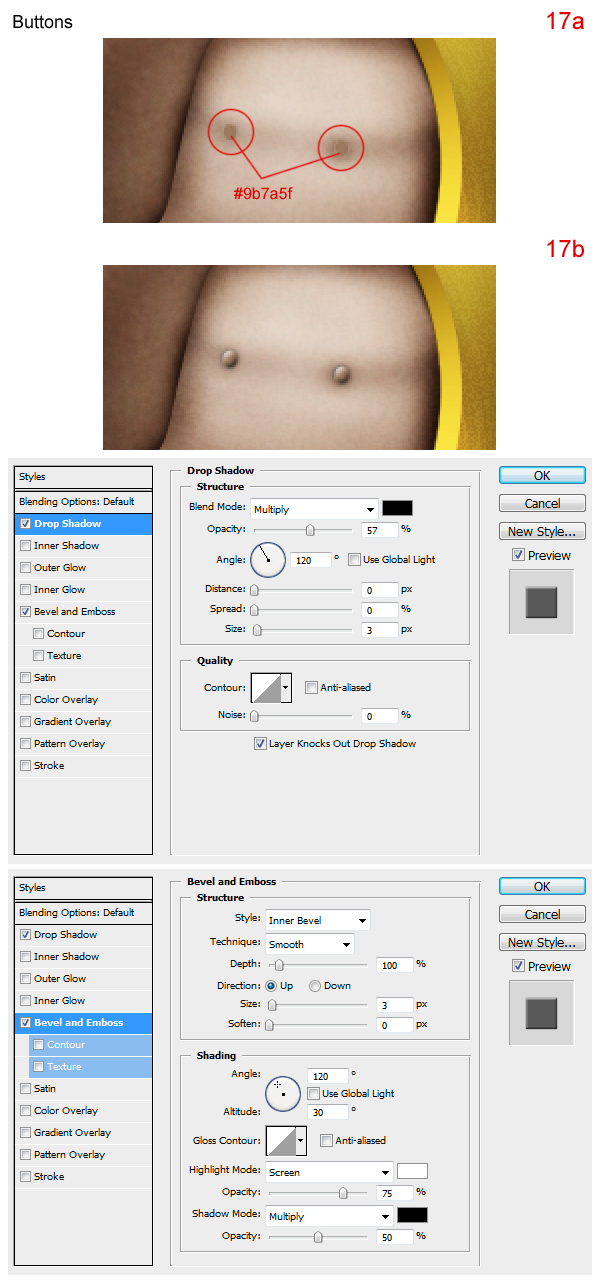
Create a new layer on top, call it “buttons”. Draw as shown in figure (17a). Then apply the layer styles as shown in figure (17b).


Step 18

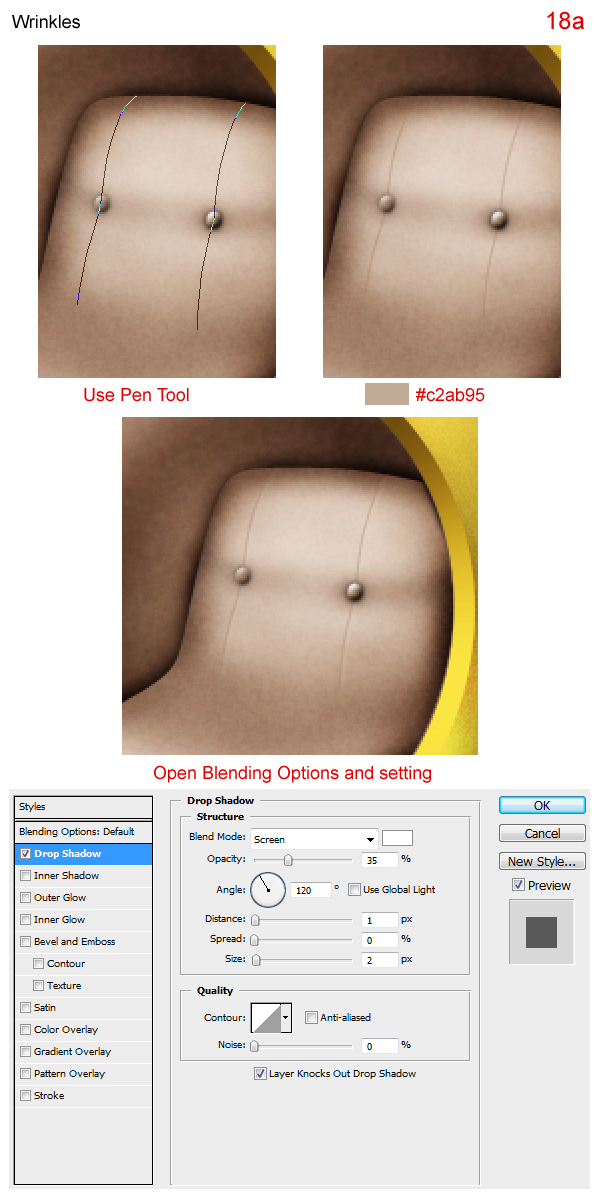
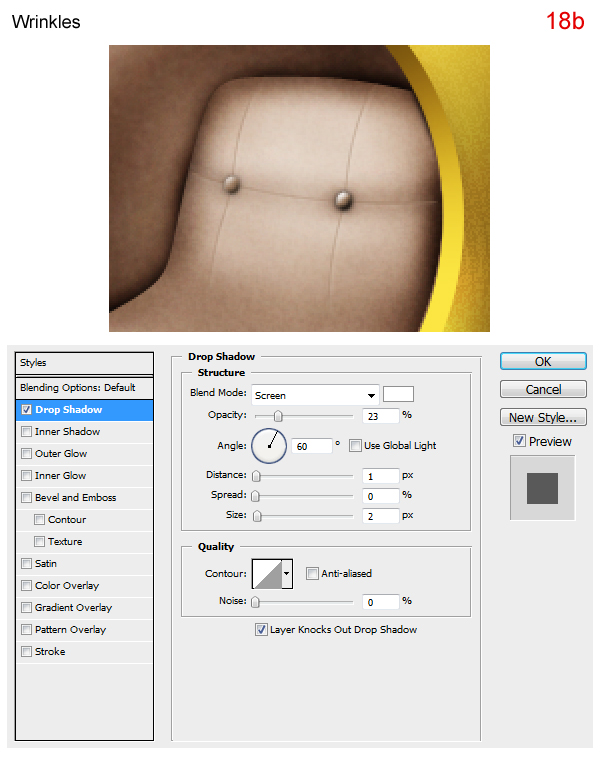
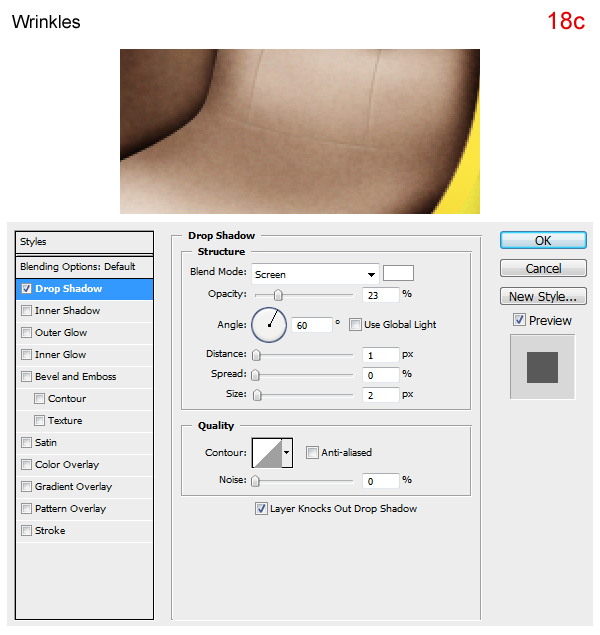
Draw some seams as shown below.


Step 19

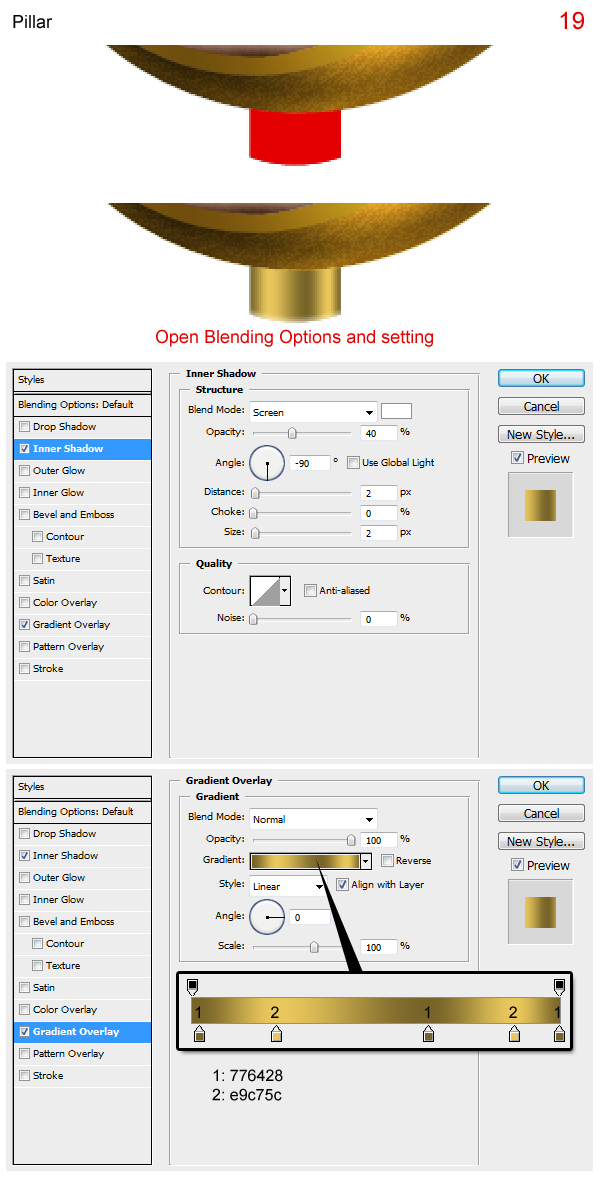
Create a new layer under “golden sphere,” call it “pillar.”


Step 20

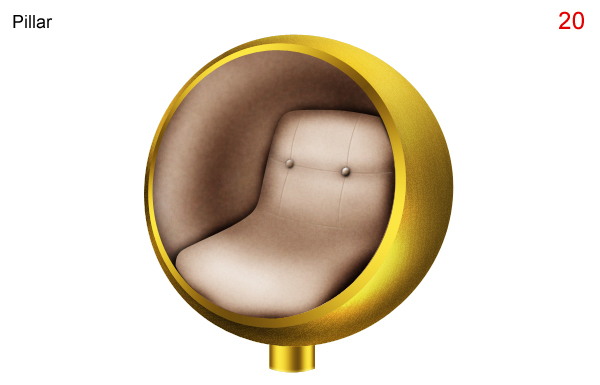
Press Cmd/Ctrl + J to duplicate “pillar.” Create a new layer above “pillar copy”. Select the two new layers and press Cmd/Ctrl + E to merge these layers into one new layer, rename it “pillar overlay” and its change Blending Mode to Overlay.


Step 21

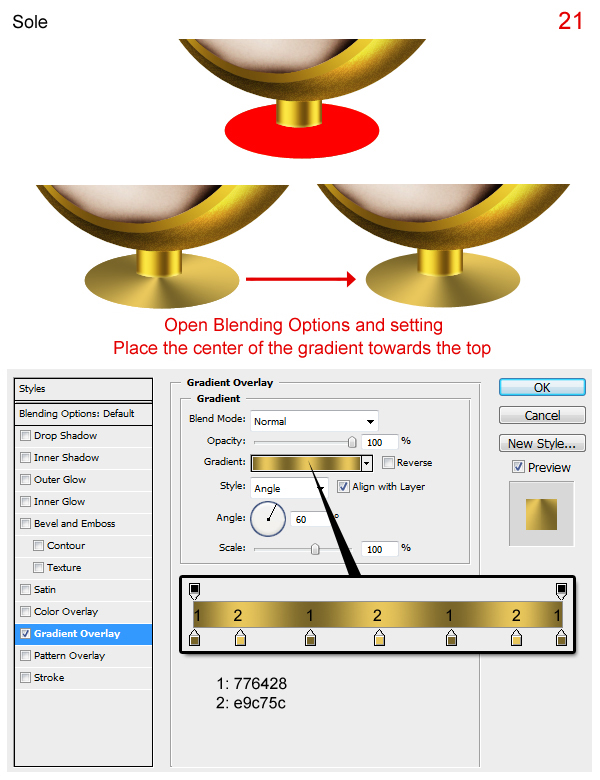
Create a new layer under “pillar,” call it “sole.”


Step 22

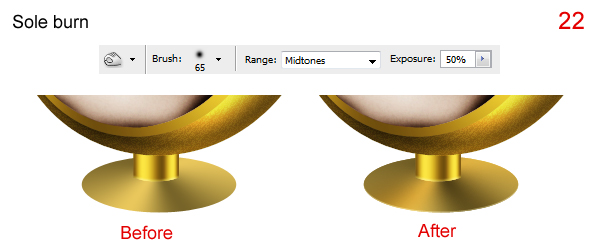
Press Cmd/Ctrl + J to duplicate “sole.” Create a new layer above “sole copy.” Select the two new layers and press Cmd/Ctrl + E to merge these layers into one new layer, rename it “sole burn” then use Burn Tool as shown in figure (22) to add some shadowing.


Step 23

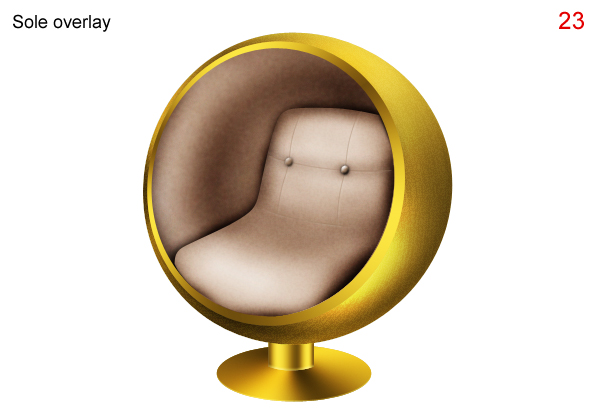
Press Cmd/Ctrl + J to duplicate “sole burn,” rename the new layer “sole overlay” and change its Blending Mode to Overlay.


Step 24

Press Cmd/Ctrl + J to duplicate “sole,” rename new layer “sole 2.” In Layers panel, send “sole 2” behind “sole”. Then press the down arrow key 2 times to move it as show in figure (24).


Step 25

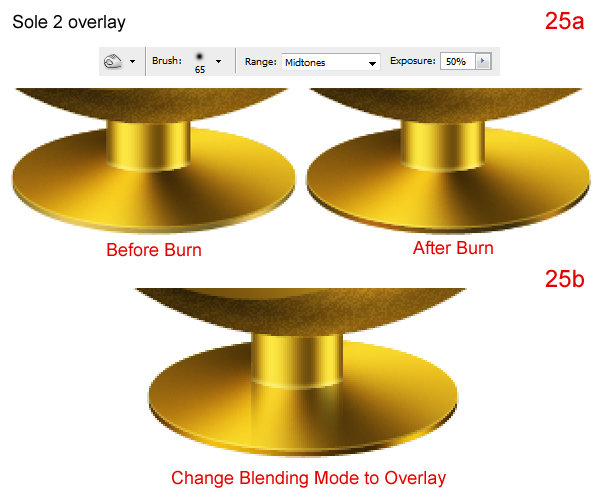
Press Cmd/Ctrl + J to duplicate “sole 2.” Create new layer above “sole 2 copy.” Select the two new layers and press Cmd/Ctrl + E to merge these layers into one new layer, rename it “sole 2 over” and use Burn Tool as shown in figure (25a) to add some shadows (25a). Then change its Blending Mode to Overlay (25b).


Step 26

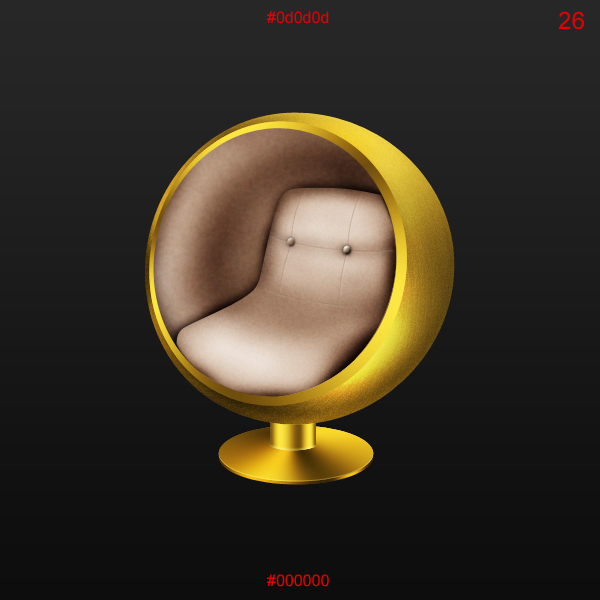
Fill the background with a linear gradient as shown.


Step 27

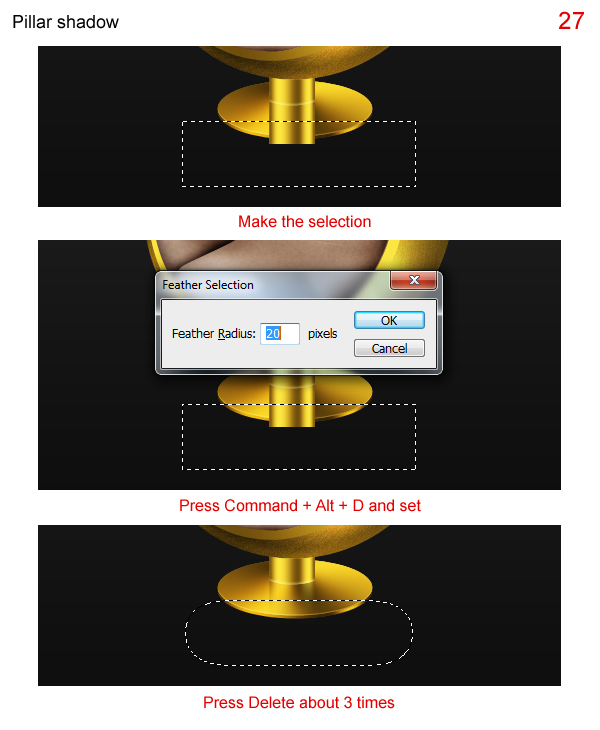
Select “pillar” and “pillar overlay,” right click on these layers and choose Duplicate Layers. Press Cmd/Ctrl + E to merge them into one new layer, rename it “pillar shadow.” Then send it behind “pillar” and perform the steps below.


Final Image

That’s it! We’re finished!

Mindshare Migration: Mobile Developers Care About Revenue

Vision Mobile has just posted one of the more impressive research reports and surveys that focus on mobile application development. This new report, called Mobile Developer Economics 2010: The migration of developer mindshare examines facts and emotions that guide developers these days in their efforts to make a living from app development. The survey included 400 developers across 8 platforms (iOS (iPhone), Android, Symbian, BlackBerry, Java ME, Windows Phone, Flash Lite, and mobile web.)

The 57 pages are easily considered a must read if you are interested in competitive app development, publishing and marketing in any way, as the data lets you keep an eye on your colleagues and rivals and possibly reveal one or the other surprise.

Vision Mobile’s survey found that Android is carrying the mind share right now, as 60% of its respondents said that they recently developed for that platform. iOS follows in second place and then, … well, then there is really nothing after that as far as mindshare migration is concerned as those two platforms are described as leading the “industrial revolution era” of the mobile app development space:

From the report: “The next five years will completely remap the mobile industry landscape. RIM and Apple, two verticalised companies, move into the top five, displacing the incumbents, leaving one Finnish and two Korean companies in pole position. The operating system landscape will consolidate into two tiers; the top-end open to iconic products dominated by Apple and followed by the iPhone clones powered by Android; and the feature-phone market where licensable operating systems (Android and BREW) will finally allow handset OEMs to move away from legacy RTOS platforms. Google’s Android will also power a diverse range of new form factors, from picture frames to car dashboards, offering for the first time a simplified platform from which to achieve convergent interconnected services. In this age of Industrial Revolution, mobile developers will be responsible for most of the innovation on mobile devices, and can act independently from the mobile industry powers-that-be – OEMs or network operators – to get their applications to market. In this age, developers have both power and choice.”

The lion’s share of the report is dedicated to Android and iOS and if you have ever had competitive questions you might find some answers here.

Among the data that captured my interest was:

– 75% of app developer choose their preferred platform by evaluating the market penetration
– 50% of Windows phone developers have an iPhone
– A standalone developer can expect to sell somewhere between 1000-2000 copies of a $1.99 app
– 5% of iPhone developers said there apps had “very good” revenues
– 27% of iPhone developers said their revenues are as projected
– 24% of iPhone developers reported poor revenues
– The App Store has three times more apps than Android Market, 30 times the apps of Symbian and more than 40 times the apps of Flash Lite.
– 21% of developers say they do not get any support, only ten 10% report very good support

You can discuss why Android carries the mind share and I would have to say that it isn’t entirely clear to me, based on this report. The respondents did criticize Android quite a bit, for example that its App Store model that has virtually no flood gates, makes it harder for high-quality apps to compete. Developers complained about the lack of support, which they can’t even get for money, and they highlighted the lack of documentation of open source platforms, which impacts their development.

You can read the entire report here.

How to Create a ‘SuperSaw’ Combinator in Reason

As some of my recent tutorials have been very ‘reference’ based I thought I’d get back to some proper technique and try to listen to your requests. So in the next round of tuts I’ll be looking at how to create sounds and effects from specific genres.

In this tutorial I’ll show you how to create a ‘SuperSaw’ type patch in Reason. This sound has been used in many a trance and dance track and was originally made using the Roland JP-8000. This may not be exactly like the original and you may not be into trance but it’s a useful sound for any genre.


Step 1: Create the Combinator and Mixer

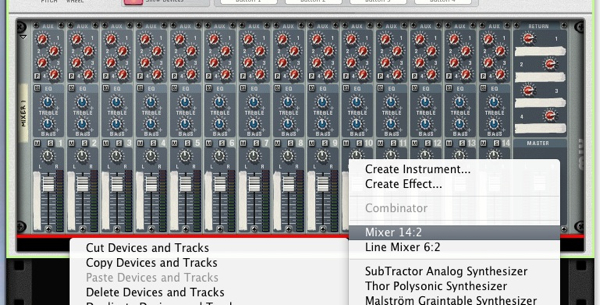
So where to start? Open Reason, empty your rack and create a fresh Combinator. Then insert a mixer as your first device. This will be automagically routed to the Combinator.

The Combinator is born.

Swiftly followed by a mixer.


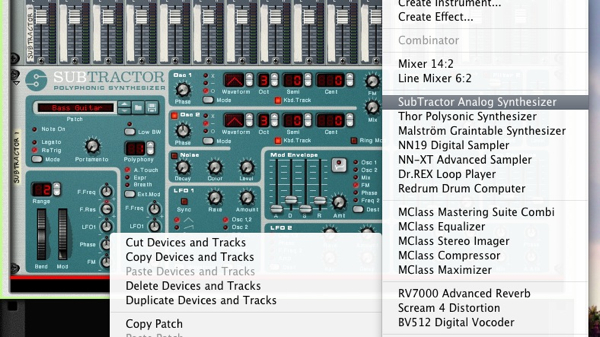
Step 2: Create and Initialise a Subtractor Synth

Load a Subtractor, this will also be routed for you and should slot nicely into channel one of the mixer.

The Subtractor appears.

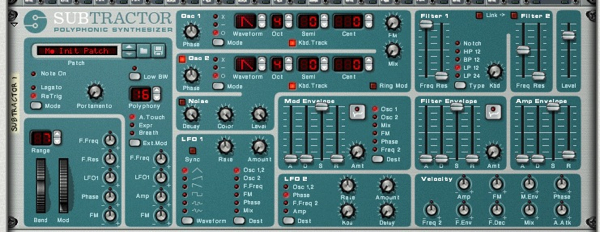
Now load the Subtractor with my top of the line, awesome initialised patch.

The initialised patch is loaded.


Step 3: Duplicate the Subtractor

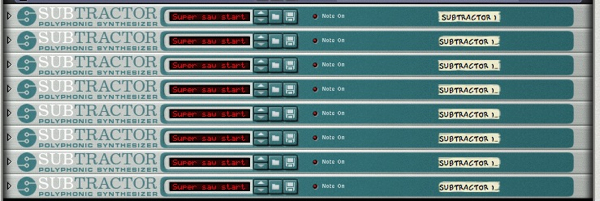
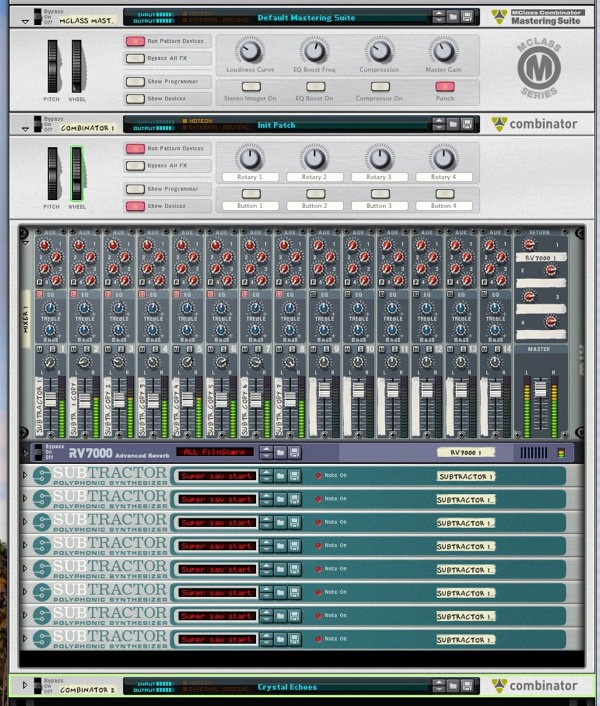
This is where things start to get heavy. Duplicate the Subtractor 8 times. Yes you heard me right, 8 times. This is the basis of the ‘SuperSaw’ effect and having 8 synths producing our saw waves will give us absolute and precise control over each part.

The massive wall of Subtractors.

It’s worth mentioning at this point that you can actually create this patch with as many saw waves as you like. Try 20, or even 100, if you’ve temporarily lost your sanity.

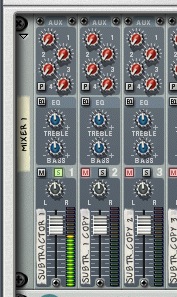
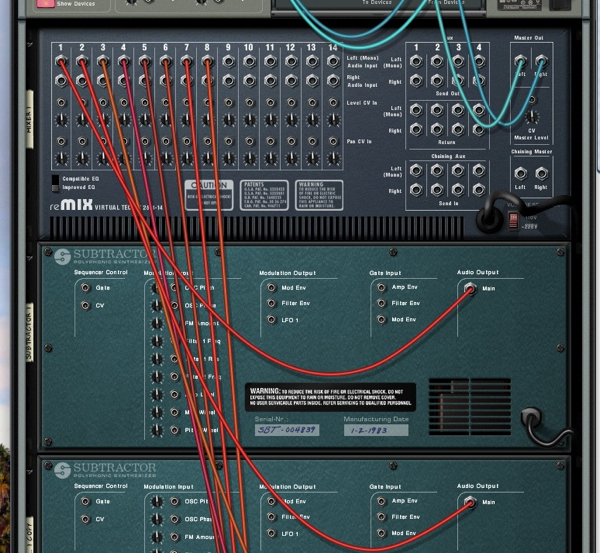
Now make sure that each synth is routed to its own channel on the mixer, this will have to be done manually and is a slightly lengthy process.

The routing is in place.


Step 4: Isolate and Play the First Layer

Before we start to build the SuperSaw patch we need to get a basic pattern together. To do this I soloed the first synth using the mixer and played in a pretty standard trance type riff.

The first synth is solo’d.

The riff was quantised and I was ready to go. You can hear how basic this sounds with one saw, not particularly interesting at all.

The riff is laid down.

Download audio file (4.mp3)

The raw, single saw wave and basic pattern played back.


Step 5: Edit the Patch

To get the patch going I performed some basic editing on the first synth. The filter was dropped a touch, some resonance added and a basic decay based filter envelope applied. I also raised the release of the amplitude envelope to make the sound a little ‘bigger’.

The edited patch.

Download audio file (5.mp3)

The edited patch plays back.


Step 6: Add Some Modulation and Distribute the Final Patch

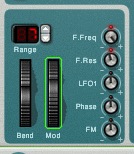
To add some movement I linked the resonance and the cut off to the mod wheel and recorded in some controller data. This makes things a touch more interesting.

The mod data.

… And the mapping in the synth.

Download audio file (6.mp3)

The modulation playing back.

The patch is now saved and ready to go. The next step is to load the saved patch into every synth in the list, this takes a little time but is a must! At this point you should make sure the MIDI is playing on the Combinator channel and not the original Subtractor, you may have to move it.

Saving the patch…

… and loading it into every synth.

Make sure the MIDI is one the Combinator channel.


Step 7: Detune and Pan the Duplicates

Now we get to the interesting bit and essentially the process that produces the ‘SuperSaw’ effect. We start by detuning every single synth in the list. The numbers don’t have to be exact here but I like to go from a minus number (-14 in this case) all the way through to the same positive number, in increments.

So if you start at minus 14 cents on the first synth, you would then move through going -12, -8, -4… then +4, +8, +12 and so on. You don’t have to use these exact amounts by any means but the method would stay pretty much the same.

The first four synths using negative tunings.

… And the second four using positives.

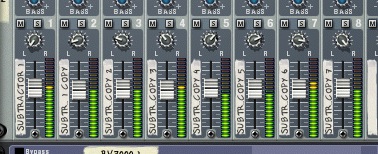
Next up I activated all the synths on the mixer and panned them in stages, using a similar pattern to the tunings. So hard left to hard right in stages. As you can see in the screenshot…

The synths in mono…

Download audio file (7.mp3)

The SuperSaw effect in mono.

… and panned in increments, to create the stereo effect.

Download audio file (7b.mp3)

… and now in stereo!


Step 8: Add Some Effects and Processing

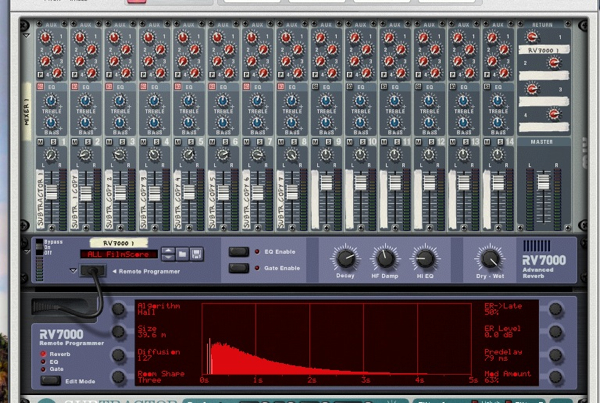
Finally I added some effects to give it a larger more spacious feel. A delay based Combinator was inserted and a large reverb used as a send on every track.

A delay Combinator is inserted.

And a reverb patch is set up on a send / return buss.

Download audio file (8.mp3)

The SuperSaw with some spatial effects.

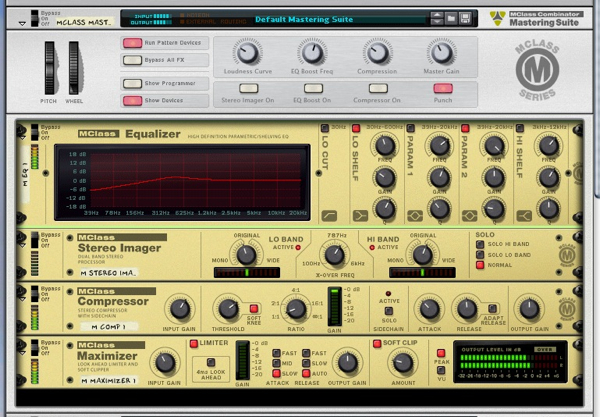
The whole thing was then fed through some light mastering plug-ins just to control the dynamics.

Finally some dynamics processing is added to the master buss.

Download audio file (8b.mp3)

… and finally some dynamics processing is added.

The final patch in action.


Artificial Intelligence Series – Part 1: Path Finding

This tutorial is the first of three which discuss how to give some Artificial Intelligence (AI) to games and apps you create. In this first tutorial we are going to learn about path finding.


Final Result Preview

Let’s take a look at the final result we will be working towards:

Click a point, then another point and the AI will figure out a shortest possible path to get between them. You can use the drop-down list to select the AI algorithm to use.


Step 1: AI Series Overview

This tutorial will be the first of three which will discuss giving Artificial Intelligence (AI) to games and apps you create. You might think that this sounds just too hard, but it is actually pretty simple! I will explain two key aspects of the AI in games and then create a cool game using what we learn. I hope you enjoy following this short series!


Step 2: Introduction

In games, one of the most important aspects is to make it very efficient, to do what it has to do using minimal resources. There’s a whole science just for that.

In this tutorial we are going to cover a key aspect in game development: pathfinding. We will discuss the 2 best methods, how they work, how we make them work in AS3, then last but not least, when to use them. Let’s start..


Step 3: So What’s Pathfinding About?

Suppose you are in the middle of a forest with 50 different potential routes in front of you, you have almost no energy and need to find the best way out, how would you do it?

One option would be to follow each of the 50 routes; a trial and error method. You will certainly get out but that would take too much time. This isn’t a new problem and many people have come up with ideas of how to solve it. One of them was Edsger W. Dijkstra who developed an algorithm to get the shortest path given a graph, a source and a target.

Before we can start solving the problem, we must create those elements, the graph which contains all the information, the nodes which are the waypoint of the graph, and the edges that connect the nodes. Think of it as the graph being a map: the nodes are the cities and the edges the highways that connect them.


Step 4: Setting up the Project

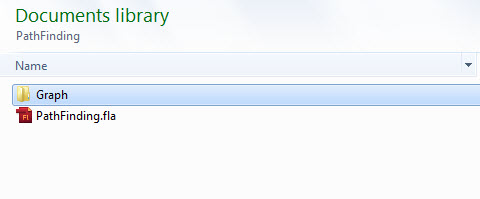
Before we start coding, let’s first set up our workspace. Create a new folder and name it “PathFinding”. Inside it create another folder and name it “Graph”. Then in the PathFinding folder create a new Flash (AS3) FLA file and call it “PathFinding”.


Step 5: Creating the Node Symbol

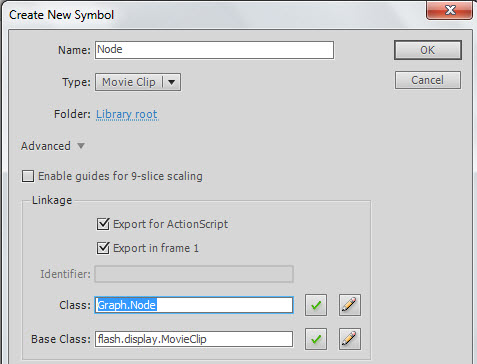
In the “PathFinding.fla” file, go to Insert > New Symbol and create a new MovieClip called Node. Select “export for actionscript” and as the class write “Graph.Node”


Step 6: Drawing the Node

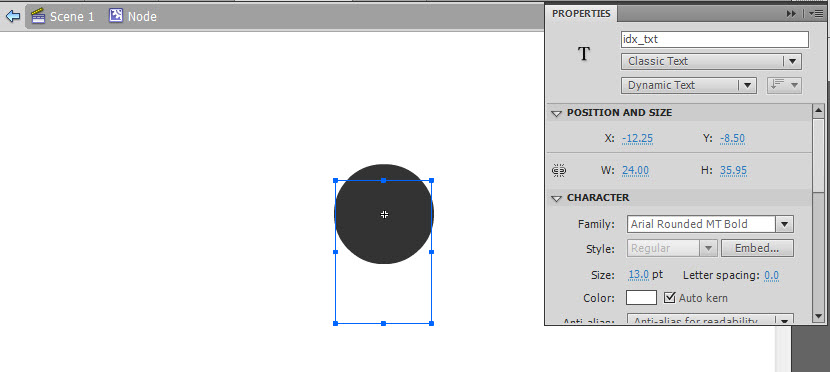
Inside the Node Movieclip, create a new Circle with a radius of 25 and place it in the center. Then add a new text box, make it Dynamic and give it an instance name of “idx_txt” and position it at the center of the stage.


Step 7: Creating the Node

Each node is composed of 2 main elements; an index in order to identify it, and its position on the graph. With this in mind create a new class inside the Graph folder/package and name it “Node”. Make it extend the sprite class, then just add two variables: one int for the index, and a Vector3D for the position. Also, add their corresponding set and get methods:

package Graph
{
	import flash.display.Sprite;
	import flash.geom.Vector3D;

	public class Node extends Sprite
	{
		private var pos:Vector3D;
		private var index:int;
		public function Node(idx:int,n_Pos:Vector3D)
		{
			index=idx;
			pos=n_Pos;
			this.x=n_Pos.x;
			this.y=n_Pos.y;
			idx_txt.text=String(idx)
		}

		public function getIndex():int
		{
			return index;
		}
		public function setPos(n_Pos:Vector3D):void
		{
			pos=n_Pos;
		}

		public function getPos():Vector3D
		{
			return pos;
		}
	}
}

Step 8: Creating the Edge

The edge contains three elements: the indices of the two nodes that it connects, and its “cost” (or distance between nodes in this case). Again in the Graph package/folder create a new class and call it “Edge”; make it extend the Sprite class again.

Now add two ints for the nodes, and one Number for the cost, then add the corresponding set and get methods:

package Graph
{
	import flash.display.Sprite;
	import flash.geom.Vector3D;

	public class Edge extends Sprite
	{
		private var from:int;     //The index of the node from which this edge departs
		private var to:int;       //The index of the node from which this edge arrives
		private var cost:Number;  //The cost of crossing through this node (i.e. the distance)

		public function Edge(n_From:int,n_To:int,n_Cost:Number=1.0)
		{
			from=n_From;
			to=n_To;
			cost=n_Cost;
			this.z=1;
		}

		public function getFrom():int
		{
			return from;
		}

		public function setFrom(n_From:int):void
		{
			from=n_From;
		}

		public function getTo():int
		{
			return to;
		}

		public function setTo(n_To:int):void
		{
			to=n_To;
		}

		public function setCost(n_Cost:Number):void
		{
			cost=n_Cost;
		}

		public function getCost():Number
		{
			return cost;
		}
        /*
          Since the edge is just a line that connects the nodes,
          we will use this method to draw the edge, the style refers to how we will
          want the edge to be
        */
		public function drawEdge(fromPos:Vector3D,toPos:Vector3D,style:String="normal")
		{
			switch(style)
			{
				case "normal":
                //If it is normal, create a gray line
					this.graphics.clear();
					this.graphics.lineStyle(1, 0x999999, .3);
					this.graphics.moveTo(fromPos.x,fromPos.y);
					this.graphics.lineTo(toPos.x,toPos.y);
					break;
				case "path":
                //If it is a line from the path, create a black line
					this.graphics.clear();
					this.graphics.lineStyle(2, 0x000000,1);
					this.graphics.moveTo(fromPos.x,fromPos.y);
					this.graphics.lineTo(toPos.x,toPos.y);
					break;
				case "visited":
                //If it is a line used by the algorithm, create a red line
					this.graphics.clear();
					this.graphics.lineStyle(1, 0xFF0000,1);
					this.graphics.moveTo(fromPos.x,fromPos.y);
					this.graphics.lineTo(toPos.x,toPos.y);
					break;
			}
		}
	}
}

Step 9: Creating the Graph

The Graph is a more complex element since it must store all the information. In the Graph folder, create a new class and name it “Graph”. Since it just contains data, there’s no need to extend the Sprite class.

The graph will contain a Vector with all the nodes on the graph, another Vector with the edges that each node has and a static int in order to get the next index available for a node. This way, it will be easier to access all the elements in the graph, since the node index is the key of the edges vector, meaning that if you want to get the edges of a node with index 3, you access the edges vector at position 3 and you will get the edges for that node.

Now let’s create these variables:

package Graph
{
	public class Graph
	{
		private static var nextIndex:int=0;
		private var nodes:Vector.<Node>;
		private var edges:Vector.<Array>;

		public function Graph()
		{
			nodes=new Vector.<Node>();
			edges=new Vector.<Array>();
		}
	}
}

The graph also needs methods to add and get nodes, and edges:

package Graph
{
	public class Graph
	{
		private static var nextIndex:int=0;
		private var nodes:Vector.<Node>;
		private var edges:Vector.<Array>;

		public function Graph()
		{
			nodes=new Vector.<Node>();
			edges=new Vector.<Array>();
		}
        //In order to get the node, we just ask for the index of it, and access the nodes vector with that key
		public function getNode(idx:int):Node
		{
			return nodes[idx];
		}

        //To get an edge, we ask for the two nodes that it connects,
        //then we retrieve all the edges of the from node and search if one of them
        //goes to the same node as the edge we are looking for, if it does, that's our edge.
		public function getEdge(from:int,to:int):Edge
		{
			var from_Edges:Array = edges[from] as Array;
			for(var a:int=0;a<from_Edges.length;a++)
			{
				if(from_Edges[a].getTo()==to)
				{
					return from_Edges[a];
				}
			}
			return null;
		}

        //To add a node to the graph, we first look if it already exist on it,
        //if it doesn't, then we add it to the nodes vector, and add an array to the
        //edges vector where we will store the edges of that node, finally we increase
        //the next valid index int in order to give the next available index in the graph
		public function addNode(node:Node):int
		{
			if(validIndex(node.getIndex()))
			{
				nodes.push(node);
				edges.push(new Array());
				nextIndex++;
			}
			return 0;
		}
        //To add an edge we must first look if both nodes it connects actually exist,
        //then we must see if this edge already exist on the graph, finally we add it
        //to the array of edges of the node from where it comes
		public function addEdge(edge:Edge):void
		{
			if(validIndex(edge.getTo())&&validIndex(edge.getFrom()))
			{
				if(getEdge(edge.getFrom(),edge.getTo())==null)
				{
					(edges[edge.getFrom()]as Array).push(edge);
				}
			}
		}

        //To get the edges of a node, just return the array given by the edges vector
        //at node's index position
		public function getEdges(node:int):Array
		{
			return edges[node];
		}

        //This function checks if the node index is between the range of already added nodes
        //which is form 0 to the next valid index of the graph
		public function validIndex(idx:int):Boolean
		{
			return (idx>=0&&idx<=nextIndex)
		}

        //Just returns the amount of nodes already added to the graph
		public function numNodes():int
		{
			return nodes.length;
		}

        //This is to redraw all the edges on the graph to get them to the normal style
		public function redraw():void
		{
			for each(var a_edges:Array in edges)
			{
				for each(var edge:Edge in a_edges)
				{
					edge.drawEdge(getNode(edge.getFrom()).getPos(),getNode(edge.getTo()).getPos());
				}
			}
		}

        //This function return the next valid node index to be added
		public static function getNextIndex():int
		{
			return nextIndex;
		}
	}
}

Step 10: Building a Graph

So now that we have all the elements needed, let’s go ahead and build a graph.

In the PathFinding folder, create a new class and call it “Main”, this will be our main class:

package{
	import flash.display.Sprite;

	public class Main extends Sprite
	{
		public function Main()
		{

		}
	}
}

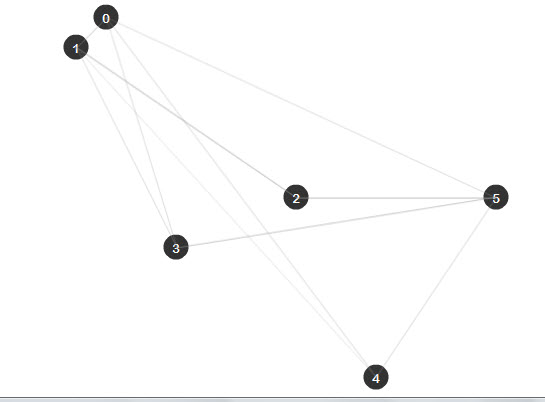
Now we need to import the classes we just created since they are in the Graph folder. Then create two variables: one for the graph and another that is an array of the position of the nodes we want to add. After that just add those nodes and their edges:

package{
	import flash.display.Sprite;
	import Graph.*;
	import flash.geom.Vector3D;

	public class Main extends Sprite
	{
		var graph:Graph = new Graph();
        //This array contains the position of the different nodes in the graph (x,y)
		var nodes:Array =new Array(
		 [110,20],
		 [80,50],
		 [300,200],
		 [180,250],
		 [380,380],
		 [500,200]
		 );
         //This array contains the edges that connects the different nodes (from,to)
		var edges:Array = new Array(
		[0,1],[0,5],[0,3],
		[1,2],[1,0],[1,4],
		[2,1],[2,5],
		[3,1],[3,5],
		[4,0],[4,5],
		[5,2],[5,3]
		);
		public function Main()
		{
		  //A loop in order to create all the nodes
			for(var a:int=0;a<nodes.length;a++)
			{
				var node:Node = new Node(Graph.Graph.getNextIndex(), new Vector3D(nodes[a][0],nodes[a][1]));
				graph.addNode(node);
				addChild(node);
			}
          //Another loop to create all the edges between nodes
			for(var b:int=0;b<edges.length;b++)
			{
				var from:int = edges[b][0];
				var to:int = edges[b][1];

				var edge:Edge = new Edge(from,to,Vector3D.distance(graph.getNode(from).getPos(),graph.getNode(to).getPos()));
				graph.addEdge(edge);
                //Since the drawEdge method requires the position vectors, we get the nodes
                //from the graph with their index and then get their position with getPos()
				edge.drawEdge(graph.getNode(from).getPos(),graph.getNode(to).getPos());
				addChild(edge);
			}
		}
	}
}
Step 11: How to Choose the Right Path?

As I told you before there are many methods to obtain a path between two nodes, like the DFS(Deep First Search), or BFS(Broad First Search), but sometimes you don’t just want to get a path that connect the nodes, you also want to get the “best” path, which most of the time will mean the one that takes less time or the closest, depending on what you want.

During this tutorial I will just refer to it as the one that costs less to follow. (In our case, remember “cost” means distance. In a game, you may wish to find the least dangerous path, or the one that uses least fuel, or the least visible…)

There are algorithms that work depending on the cost, the most important ones being the Dijkstra Algorithm and the A* (A-Star) Algorithm. Lets talk first about the Dijkstra Algorithm


Step 12: Introduction to Dijkstra Algorithm

This algorithm was created by Edsger Dijkstra in 1959. It advances depending on the cost that each edge represents, the edges with lower cost will always be chosen first so when you reach the target, you will be sure that the path is the lowest costing path available.


Step 13: How the Dijkstra Algorithm Works

Because this algorithm works with costs, we must have a place where we will be storing the cost of moving to each node from the source (the starting node); call this a cost vector.

For example if the source is the node 0, when we access the cost vector at position 3, this will return the lowest cost until now of moving from 0 to 3. We will also need a way of storing the shortest path: I’ll explain the Shortest Path Tree in the next step.

The basic steps of the algorithm are the following:

  1. Take the closest node not yet analyzed.
  2. Add its best edge to the Shortest Path Tree.
  3. If it is the target node, finish the search.
  4. Retrieve all the edges of this node.
  5. For each edge calculate the cost of moving from the source node to the arrival Node.
  6. If the total cost of this edge is less than the cost of the arrival node until now, then update the node cost with the new one.
  7. Take the next closest node not yet analyzed.
  8. Repeat this until the target is reached, or there are no more nodes available.

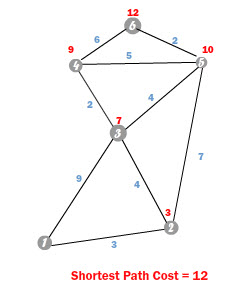
An animation will make more sense. Here we are trying to get from 1 to 6:


Step 14: Algorithm’s Main Elements

This algorithm is composed of different vectors that will store all the information needed, for example the costs of the nodes, or the best path until now. I will explain this better:

  • The costs vector : Here we will store the best cost until now of reaching a certain node from the source. For example if the source node is 3 and we access element 6 of the cost vector, we will obtain the best cost found so far of moving from 3, the source node, to the node 6.
  • The Shortest Path Tree (SPT): This vector contains the lowest cost edge to get to a specific node. This means that if we access the element 7 of the SPT, it will return the best edge to access that node.
  • The Search Frontier (SF): This vector will store the best edge to get to a specific node, almost the same as the SPT, but this will have all the nodes that are not yet in the SPT. This means that the SF will work as a test area where we will test all the edges for one node, when all the edges are analyzed we will be sure that the SF contains the best one, so we can then add it to the SPT.
  • The Indexed Priority Queue (pq): A priority queue is a data structure which always keep its elements in an ordered way. As the algorithm needs to first get the lowest cost node, this structure will keep the nodes in a descending order depending on their cost, but because we want to retrieve the index of the node and not the cost itself, we use an indexed priority queue. For example, if the first element of the pq is node 4, this will mean that it is the one with the lowest cost.

Note: AS3 doesn’t contain many data structures including the Indexed Priority Queue, so I coded one to use in this tutorial. To get it just download the source files and import the utils folder to the PathFinding folder. The class is utils.IndexPriorityQ.


Step 15: Create an Algorithm Folder

Before we start coding, in the PathFinding folder, create a new Folder and call it “Algorithms”.

In this new folder, create a new AS3 class named “Dijkstra”:

package Algorithms  {

	public class Dijkstra {

		public function Dijkstra() {

		}

	}

}

Step 16: The Dijkstra Algorithm in AS3

Now let’s code the Algorithm. It will need three basic things: the graph itself, the source node and the target node; but we must also create the vectors we just talked about (Cost,SPT,SF). Remember to import the Graph classes:

package Algorithms  {

	import Graph.Edge;
	import Graph.Graph;
	import utils.IndexedPriorityQ;

	public class Dijkstra {

		private var graph:Graph					//The graph where the search will be made
		private var SPT:Vector.<Edge>;			//The Shortest path tree containing edges
		private var cost2Node:Vector.<Number>;	//The Cost vector containing numbers
		private var SF:Vector.<Edge>;			//The Search Frontier containing edges
		private var source:int;                 //Where will the search start
		private var target:int;                 //Where will the search end

		public function Dijkstra(g:Graph) {

		}

	}

}

Step 17: The Search Function

Once we have set up the class, we can start coding the algorithm which will be in the “Search” function. I will explain the code with comments, so If you still have some questions return to Steps 12 and 13 to remind yourself how this algorithm works:

private function search():void
{
	//This will be the indexed priority Queue that will sort the nodes
	var pq:IndexedPriorityQ = new IndexedPriorityQ(cost2Node)
	//To start the algorithm we first add the source to the pq
	pq.insert(source);
	//With this we make sure that we will continue the search until there are no more nodes on the pq
	while(!pq.isEmpty())
	{

		/* 1.- Take the closest node not yet analyzed */

		//We get the Next Closest Node (NCN) which is the first element of the pq
		var NCN:int = pq.pop();

		/* 2.-Add its best edge to the Shortest Path Tree (Its best edge is stored on the SF) */

		SPT[NCN]=SF[NCN];

		//This will color the actual edge red in order to see which edges the algorithm has analyzed
		if(SPT[NCN])
		{
			SPT[NCN].drawEdge(
				graph.getNode(SPT[NCN].getFrom()).getPos(),
				graph.getNode(SPT[NCN].getTo()).getPos(),
				"visited"
			);
		}

		/* 3.- If it is the target node, finish the search */

		if(NCN==target)return;

		/* 4.- Retrieve all the edges of this node */

		var edges:Array=graph.getEdges(NCN);

		//With this loop we will analyze each of the edges of the array
		for each(var edge:Edge in edges)
		{
			/* 5.- For each edge calculate the cost of moving from the source node to the arrival Node */

			//The total cost is calculated by: Cost of the node + Cost of the edge
			var nCost:Number = cost2Node[NCN]+edge.getCost();

			//If the arrival node has no edge on the SF, then add its cost to the
			//Cost vector, the arrival node to the pq, and add the edge to the SF
			if(SF[edge.getTo()]==null)
			{
				cost2Node[edge.getTo()]=nCost;
				pq.insert(edge.getTo());
				SF[edge.getTo()]=edge;
			}

			/* 6.- If the cost of this edge is less than the cost of the arrival node until now, then update the node cost with the new one */

			else if((nCost<cost2Node[edge.getTo()])&&(SPT[edge.getTo()]==null))
			{
				cost2Node[edge.getTo()]= nCost;
				//Since the cost of the node has changed, we need to reorder again the pq to reflect the changes
				pq.reorderUp();
				//Because this edge is better, we update the SF with this edge
				SF[edge.getTo()]=edge;
			}
		}
	}
}

Step 18: Getting the Path

When the function finishes searching we will have the path all messes up on the SPT, so it is up to us to retrieve it. Since the SPT has the best edge to get to a node, we can work backwards to obtain the best path. Take as a reference the following image which comes from the previous animation:

If we access the SPT at the target node, which in this case is 6, it will return the best edge to get there. That would be the 6 – 5 edge. Now if we repeat this process with the new node that comes with the edge, the 5 we would obtain the best edge to get to that node, which is the 5 – 2 edge. Repeating this process once again with the node 2, will give us the edge 2 – 1, so we finally get to the beginning, now joining al those edges we get the best path: 6 > 5 > 2 >1.

As you see we have to work backwards starting on the target and moving to the source to get the best path.


Step 19: The getPath Function

Create a new function that will return an Array with the nodes of the path, call it “getPath”:

public function getPath():Array
{
	var path:Array = new Array();
	if(target<0) return path;
	var nd:int = target;
	path.push(nd);
	while((nd!=source)&&(SPT[nd]!=null))
	{
		SPT[nd].drawEdge(
			graph.getNode(SPT[nd].getFrom()).getPos(),
			graph.getNode(SPT[nd].getTo()).getPos(),
			"path"
			);
		nd = SPT[nd].getFrom();
		path.push(nd);
	}
	path=path.reverse();
	return path;
}

Step 20: The Complete Dijkstra Class

We have finished almost everything, we just now have to fill the constructor and call the search function, so the class will look like this:

package Algorithms{

	import Graph.Edge;
	import Graph.Graph;
	import utils.IndexedPriorityQ;

	public class Dijkstra {

		private var graph:Graph
		private var SPT:Vector.<Edge>
		private var cost2Node:Vector.<Number>
		private var SF:Vector.<Edge>
		private var source:int;
		private var target:int;

		public function Dijkstra(n_graph:Graph,src:int,tar=int) {
			graph=n_graph;
			source=src;
			target=tar;
			SPT= new Vector.<Edge>(graph.numNodes());
			cost2Node = new Vector.<Number>(graph.numNodes());
			SF = new Vector.<Edge>(graph.numNodes());
			search();
		}
		private function search():void
		{
			var pq:IndexedPriorityQ = new IndexedPriorityQ(cost2Node)
			pq.insert(source);
			while(!pq.isEmpty())
			{

				var NCN:int = pq.pop();

				SPT[NCN]=SF[NCN];

				if(SPT[NCN])
				{
					SPT[NCN].drawEdge(
						graph.getNode(SPT[NCN].getFrom()).getPos(),
						graph.getNode(SPT[NCN].getTo()).getPos(),
						"visited"
					);
				}

				if(NCN==target)return;

				var edges:Array=graph.getEdges(NCN);

				for each(var edge:Edge in edges)
				{
					var nCost:Number = cost2Node[NCN]+edge.getCost();

					if(SF[edge.getTo()]==null)
					{
						cost2Node[edge.getTo()]=nCost;
						pq.insert(edge.getTo());
						SF[edge.getTo()]=edge;
					}

					else if((nCost<cost2Node[edge.getTo()])&&(SPT[edge.getTo()]==null))
					{
						cost2Node[edge.getTo()]= nCost;
						pq.reorderUp();
						SF[edge.getTo()]=edge;
					}
				}
			}
		}

		public function getPath():Array
		{
			var path:Array = new Array();
			if((target<0)||(SPT[target]==null)) return path;
			var nd:int=target;
			path.push(nd);
			while((nd!=source)&&(SPT[nd]!=null))
			{
				SPT[nd].drawEdge(
					graph.getNode(SPT[nd].getFrom()).getPos(),
					graph.getNode(SPT[nd].getTo()).getPos(),
					"path"
				);
				nd = SPT[nd].getFrom()
				path.push(nd);
			}
			path = path.reverse();

			return path;
		}
	}
}

Step 21: Creating a New Graph

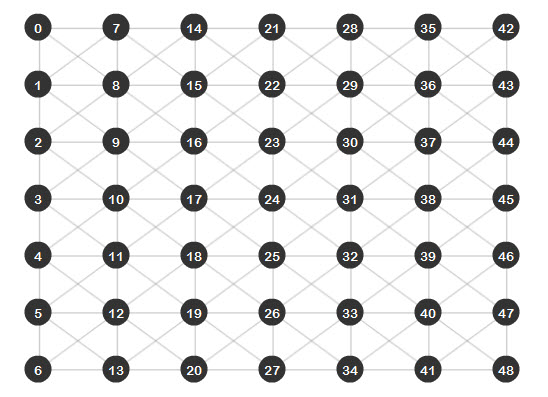
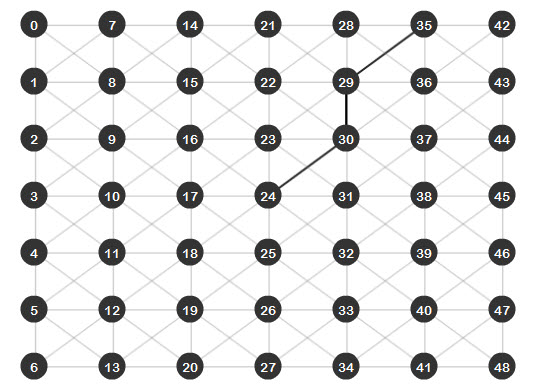
In order to see a better result of the algorithm, I wrote a class that helps with the creating of graphs. It’s called Grapher and can be found inside the utils folder that comes with the source files. This class creates a grid of nodes from where we can observe how the algorithm is moving through the graph.

With this class, open again the “Main.as” file and modify it. We will now have the following code:

package{
	import flash.display.Sprite;
	import Graph.*;
	import utils.Grapher;

	public class Main extends Sprite
	{
		var graph:Graph = new Graph();

		public function Main()
		{
			//The parameters of the Grapher class are the width and height of the stage
			//the number of columns and rows, and then the graph for storing the data
			//After this we just add  the grapher to the stage and we are done.
			//This will create a grid of nodes of 7*7
			var grapher:Grapher = new Grapher(550,400,7,7,graph);
			addChild(grapher);
		}
	}
}

Save and run the file and you will obtain this result:


Step 22: Using the Dijkstra Algorithm

Now let’s go ahead and perform a search with the new algorithm we have just done. Import the Dijkstra class, create an instance of it and call the getPath function:

package{
	import flash.display.Sprite;
	import Graph.*;
	import utils.Grapher;
	import Algorithms.Dijkstra;

	public class Main extends Sprite
	{
		var graph:Graph = new Graph();

		public function Main()
		{
			var grapher:Grapher = new Grapher(550,400,7,7,graph);
			addChild(grapher);

			//We create a new Dijkstra search that will look a path from node 24 to node 35
			var dijkstra:Dijkstra = new Dijkstra(graph,24,35);
			dijkstra.getPath();
		}
	}
}

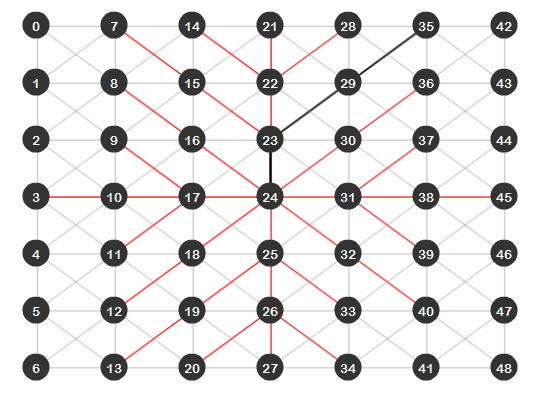
Save and run the file. You will see the edges that the algorithm analyzed as red lines, the best path found (from node 24 to node 35) appearing as a black line:


Step 23: Isn’t There Something Better?

As we can see, the Dijkstra algorithm does find the shortest path between two nodes, but as the last image shows, there are a lot of red lines. This means that all those edges were analyzed, which isn’t a big deal because we have a small graph, but imagine a bigger graph; that would be just too many edges to analyze. If we could just find a way to reduce this and make the algorithm even more efficient… well I present you the A* (A-Star) algorithm.


Step 24: The A* Algorithm

The A* algorithm is a modified version of Dijkstra. It takes into consideration a modified way of getting the cost of each node with an heuristic approach. This means that we provide a little “help” for the algorithm and tell him where to go, working as a compass and moving the algorithm directly to the target.

Instead of calculating the cost of a node by summing the edge cost to the stored node cost, it is now calculated by summing the stored node cost and an Heuristic cost, which is an estimation of how close to the target the node we are analyzing is. This new cost is called the F cost


Step 25: The F Cost

The F cost is calculated using the following formula: F = G + H, where G is the cost of the node and H is the heuristic cost of that node to the target. In this tutorial the H cost will be calculated using the Euclidean distance between the node and the target, which is the straight line distance between the two nodes.

What this does is that at the end, the nodes with a lower F cost will be the first ones tested and because the F cost will depend mostly on the H cost, at the end the algorithm will always prioritize the nodes closest to the target.


Step 26: The A* Algorithm in AS3

In the Algorithms folder, create a new class named “Astar”. The variables inside the class will be almost the same as the Dijkstra class, but here we will have another vector to store the F cost of each node:

package Algorithms{
	import Graph.Edge;
	import Graph.Graph;
	import flash.geom.Vector3D;
	import utils.IndexedPriorityQ;

	public class Astar {
		private var graph:Graph
		private var SPT:Vector.<Edge>
		private var G_Cost:Vector.<Number>	//This vector will store the G cost of each node
		private var F_Cost:Vector.<Number>	//This vector will store the F cost of each node
		private var SF:Vector.<Edge>
		private var source:int;
		private var target:int;

		public function Astar(n_graph:Graph,src:int,tar:int)
		{
			graph=n_graph;
			source=src;
			target=tar;
			SPT= new Vector.<Edge>(graph.numNodes());
			G_Cost = new Vector.<Number>(graph.numNodes());
			F_Cost = new Vector.<Number>(graph.numNodes());
			SF = new Vector.<Edge>(graph.numNodes());
			search();
		}
	}
}

Step 27: The New Search Class

The only difference between the Dijkstra algorithm search function and this one will be that the nodes will be sorted (in the Indexed Priority Queue) depending on the F cost vector and that the F cost vector will be given by the calculated H cost and the stored G cost:

		private function search():void
		{
			//The pq is now sorted depending on the F cost vector
			var pq:IndexedPriorityQ = new IndexedPriorityQ(F_Cost)
			pq.insert(source);
			while(!pq.isEmpty())
			{
				var NCN:int = pq.pop();
				SPT[NCN]=SF[NCN];
				if(SPT[NCN])
				{
				SPT[NCN].drawEdge(
					graph.getNode(SPT[NCN].getFrom()).getPos(),
					graph.getNode(SPT[NCN].getTo()).getPos(),
					"visited"
				);
				}
				if(NCN==target)return;
				var edges:Array=graph.getEdges(NCN);
				for each(var edge:Edge in edges)
				{
					//The H cost is obtained by the distance between the target node, and the arrival node of the edge being analyzed
					var Hcost:Number = Vector3D.distance(
						graph.getNode(edge.getTo()).getPos(),
						graph.getNode(target).getPos())
					var Gcost:Number = G_Cost[NCN] + edge.getCost();
					var to:int=edge.getTo();
					if(SF[edge.getTo()]==null)
					{
						F_Cost[edge.getTo()]=Gcost+Hcost;
						G_Cost[edge.getTo()]=Gcost;
						pq.insert(edge.getTo());
						SF[edge.getTo()]=edge;
					}
					else if((Gcost<G_Cost[edge.getTo()])&&(SPT[edge.getTo()]==null))
					{
						F_Cost[edge.getTo()]=Gcost+Hcost;
						G_Cost[edge.getTo()]=Gcost;
						pq.reorderUp();
						SF[edge.getTo()]=edge;
					}
				}
			}
		}

Step 28: The Complete A* Class

These are the only changes needed, since the getPath function is the same for both classes. At the end the class will be this one:

package Algorithms  {
	import Graph.Edge;
	import Graph.Graph;
	import flash.geom.Vector3D;
	import utils.IndexedPriorityQ;

	public class Astar {
		private var graph:Graph
		private var SPT:Vector.<Edge>
		private var G_Cost:Vector.<Number>	//This vector will store the G cost of each node
		private var F_Cost:Vector.<Number>	//This vector will store the F cost of each node
		private var SF:Vector.<Edge>
		private var source:int;
		private var target:int;

		public function Astar(n_graph:Graph,src:int,tar:int)
		{
			graph=n_graph;
			source=src;
			target=tar;
			SPT= new Vector.<Edge>(graph.numNodes());
			G_Cost = new Vector.<Number>(graph.numNodes());
			F_Cost = new Vector.<Number>(graph.numNodes());
			SF = new Vector.<Edge>(graph.numNodes());
			search();
		}
		private function search():void
		{
			//The pq is now sorted depending on the F cost vector
			var pq:IndexedPriorityQ = new IndexedPriorityQ(F_Cost)
			pq.insert(source);
			while(!pq.isEmpty())
			{
				var NCN:int = pq.pop();
				SPT[NCN]=SF[NCN];
				if(SPT[NCN])
				{
				SPT[NCN].drawEdge(
					graph.getNode(SPT[NCN].getFrom()).getPos(),
					graph.getNode(SPT[NCN].getTo()).getPos(),
					"visited"
				);
				}
				if(NCN==target)return;
				var edges:Array=graph.getEdges(NCN);
				for each(var edge:Edge in edges)
				{
					//The H cost is obtained by the distance between the target node, and the arrival node of the edge being analyzed
					var Hcost:Number = Vector3D.distance(
						graph.getNode(edge.getTo()).getPos(),
						graph.getNode(target).getPos())
					var Gcost:Number = G_Cost[NCN] + edge.getCost();
					var to:int=edge.getTo();
					if(SF[edge.getTo()]==null)
					{
						F_Cost[edge.getTo()]=Gcost+Hcost;
						G_Cost[edge.getTo()]=Gcost;
						pq.insert(edge.getTo());
						SF[edge.getTo()]=edge;
					}
					else if((Gcost<G_Cost[edge.getTo()])&&(SPT[edge.getTo()]==null))
					{
						F_Cost[edge.getTo()]=Gcost+Hcost;
						G_Cost[edge.getTo()]=Gcost;
						pq.reorderUp();
						SF[edge.getTo()]=edge;
					}
				}
			}
		}
		public function getPath():Array
		{
			var path:Array = new Array();
			if(target<0) return path;
			var nd:int = target;
			path.push(nd);
			while((nd!=source)&&(SPT[nd]!=null))
			{
				SPT[nd].drawEdge(
					graph.getNode(SPT[nd].getFrom()).getPos(),
					graph.getNode(SPT[nd].getTo()).getPos(),
					"path"
					);
				nd = SPT[nd].getFrom();
				path.push(nd);
			}
			path=path.reverse();
			return path;
		}
	}
}

Step 29: Using the A* Algorithm

Once again open the “Main.as” file and import the Astar class, then erase the Dijkstra search we created, replacing it with an A* search:

package{
	import flash.display.Sprite;
	import Graph.*;
	import utils.Grapher;
	import Algorithms.Dijkstra;
	import Algorithms.Astar;
	public class Main extends Sprite
	{
		var graph:Graph = new Graph();

		public function Main()
		{

			var grapher:Grapher = new Grapher(550,400,7,7,graph);
			addChild(grapher);

			//We create a new Astar search that will look a path from node 24 to node 35
			var astar:Astar = new Astar(graph,24,35);
			astar.getPath();
		}
	}
}

Save and run the file. As you can see, the result is very impressive, there are no red lines meaning that the search went directly from the source to the target without analyzing extra edges:


Step 30: Which One is better?

Well, even though the A* algorithm is faster and better in getting a direct path from the source to the target, there will be some cases where Dijkstra will be the best option.

For example, imagine an RTS game, where you’ve instructed your villager to go and find some resources; with the A* algorithm you would have to do a search for every resource on the map and then analyze which one is closer. With a Dijkstra search, since it expands the same amount to all directions, the first resource it finds will be the best one to gather and you will have performed just one search versus the many searches of the A*.

Basically, you will want to use the Dijkstra algorithm when you are doing a general search and the A* algorithm when you are looking for a specific item.


Conclusion

That’s it for this tutorial, I hope you liked it and will use it for your projects. Keep track of the next tutorial of this AI series and let me know what you think about it.

Thanks for reading! -Eduardo

Modelling the Bugatti Veyron in Maya, Day 2 – Premium Tutorial

In the second part of this extremely detailed 2 day tutorial series, we’ll be finishing the modeling of the Bugatti Veyron 16.4 in Maya. These tutorials not only cover the basic workflows involved in creating a photo-realistic car from scratch, but also show you some of the more common mistakes that artists are prone to make when modelling extremely high-end photo-realistic cars. This tutorial series is invaluable for any artist interested in adding some outstanding car models to their portfolio. Can’t wait to get started? Become a Premium member, or learn more after the jump!

Learn the Secrets of hyper-realistic car creation

Follow freelance CG artist, Madhan, as he walks us through the modelling workflows he uses to create stunning, photorealistic car models such as the Bugatti Veyron shown below. Covering Maya’s powerful modelling toolset, this truly is a must-have tutorial for any artists interested in either vehicle or product design.

Cgtuts+ Bugatti Veyron preview

Want to Join Plus?

The Tuts+ network runs a membership service called Premium. For $9 per month, you gain access to exclusive high quality screencast tutorials, downloadable content packs, and freebies at CGtuts+, Psdtuts+, Vectortuts+, Audiotuts+, Nettuts+ and Aetuts+! For less than the price of a movie, you’ll learn from some of the best minds in the business all month long!!. Become a Premium member today!

Don’t miss more CG Premium tutorials and content packs, published weekly – subscribe to Cgtuts+ by RSS.

Is Your Career Going Backwards? Reexamine Your Career Options

You work hard to advance your career, either sticking with one company and climbing the corporate ladder or moving from one company to another.  With each move you aim for more challenge, responsibility and more money in your pocket.

What happens however when you find your career advancement has stalled – or gone backwards?

Sometimes your career can go backwards through no fault of your own.  Your company has a major restructure (or two or three) and suddenly you find your role is not what it used to be.  Somewhere along the line, though your position title reads the same, your responsibilities have been significantly downgraded.  Though your workload may have actually increased, you find yourself filling your day with a variety of mundane tasks.

Suddenly it dawns on you that you cannot remember the last time you learned something new in your current position.  It’s official – you’re stuck in a rut.

So what are your career options?

Stay with your existing company

  • Apply for better positions within the same company. Are you ready to take the next step?  Keep your eye on the internal job vacancies.  Also keep your ear out for talk around the office about people changing positions.
  • Look at making a sideways move if it benefits you. Investigate the job position as much as possible to give you some idea of what is required. Don’t underestimate a sideways move, in some cases these may be exactly what you are looking for.
  • Have a talk to your current manager – perhaps he or she is not aware of what you are capable of.  Discuss taking on more responsibility.  Try to ensure this does not involve being given more of the same.  The objective of this course of action is to work on some new projects to expand your skill set.
  • Seek out a reliable mentor within your company.  Guidance, advice and mentoring can be invaluable from a trusted company professional.
  • Perhaps your hobby or a social group outside of work could provide you with some stimulus.  This has a twofold advantage if the skills you learn from your hobby can be translated back into your work.

Investigate Training Opportunities

  • Though company budgets are tighter, resulting in reduced funds for training, look for training opportunities.  The key is to select the training or course that will offer you the most benefit.  Do thorough research as to what is available.  If possible speak to others in your company that may have completed the same program.  Be clear as to the objective for completing the training; what you will get out of it and how it will benefit you and the company.  To clarify your objectives, put them in writing.  You may need to submit a written request to have the training approved, so be prepared.
  • Look into the opportunity for cross training with other internal employees.  This is an excellent opportunity to be trained by your peers and learn new skills. There are often opportunities to fill a position while others are on leave.  This may result in extra pay – at least over the short term.  If your company is not already actively cross training, suggest it to your manager.
  • Look for secondments into different divisions.  If you work for a government department you will be familiar with secondments.  Secondments are a cornerstone of many Government operations.  Apply for secondments which are beneficial to your progress.  Being scared of stretching yourself will only see you stuck further in your rut.

Leaving your existing company

  • Apply for positions at a new company.  With the economy struggling in many countries, this may not be an easy proposition.  Be aware that your new job search may take some time.  Secure a new position before leaving your old one if possible.
  • Be prepared to have some money set aside for the transition to a new employer.  Timeframes between your last pay and your first one at the new company need to be taken into consideration. Bills need to be paid in the interim.

Continue to Network

  • Regardless of whether you stay with your existing employer or move, you should continue to grow your network.  Continue to build your list of contacts and strengthen your existing work relationships.
  • Though it may appear tempting, don’t burn bridges.  Having a rant in your exist interview may seem appealing but you don’t want to sabotage opportunities for work down the track.  Always remain professional. You never know who might turn out to be your next customer or client.

A Moment of Reflection

It may be worth taking a moment to examine the steps you took in your career up to this point.  Are there some instances where you could have made a better decision?  Did you see any warning signs along the way?  This exercise is not to wallow in the past.  This is about helping you to be more in tune with your wants and needs to allow you to make better decisions in the future.

Staying Put

In some economic climates, with redundancies taking place, the truth is you may need to sit tight in your current role.  Staying put however, does not mean you have to be idle.  Keep your eye out for internal opportunities. Keep your CV polished and up to date at all times, so you can be ready to pounce without delay on a good opportunity.

Be patient and continue to do your best work.  Remember to keep your eye firmly fixed on where you want to go.
Do You Have an Email Routine?

You open your inbox for the first time in the day and there are 98 new messages; they’re from mom and dad, clients, that friend from high school who just found you on Facebook, a few stray spam messages and so on. Even if you spend an average of just 1 minute per message that’ll add up to more than an hour and a half. You just don’t have that much time to spare right now. So what do you do?

  • Look for important messages now and leave the rest for later?
  • Employ The Two Minute Rule; taking care of the ones that matter right now and defer the ones that don’t?
  • Read them all now and reply to them all later?

What’s your routine for checking email?

Fast Cooking: Boost Your Kitchen Productivity

Increasing your productivity in the kitchen is something we can all use, especially if we have a family to feed. A boost in productivity will especially be helpful to working mothers who cook for their families, due to the scarcity of time that they have allotted to preparing dinner each night. Even stay-at-home Dads or freelancing folk can be well served learning the art of fast cooking. What steps can be taken to achieve an increase in kitchen productivity?

Get your private island

The addition of an island or free-standing working surface to your kitchen will do wonders for your productivity. Years ago, being an avid woodworker, I built an island for my wife, at her request. This was, by far, the biggest and most important addition to our kitchen. Fortunately, I was able to build it to her specifications. The proper height is especially important and it will typically be the exact same height as your kitchen countertops. If the height is too low, it could add to back problems due to the chef bending over to work on the surface. If it is too high, it will be very uncomfortable to use the work surface. There are many advantages to utilizing an island in your kitchen. The main advantage is that you now have a much larger surface to prepare your meals. Rather than using approximately a two foot deep countertop as a work surface, your work surface could potentially double or greater. It is important to locate your island in a central location in your kitchen. As a result, it makes it very easy to get at your refrigerator, pantry, or your pots and pans. The island I built also has a built-in cabinet where my wife keeps many of her large pots and pans. This also puts the cookware in close proximity to her when she needs them. Another pleasant advantage to using an island in your kitchen is that you can now face the center of your kitchen rather than facing a wall when using your countertops. This can lend itself to having a conversation with your children or your spouse while preparing your meal. Do not underestimate the importance of an island in your kitchen. Ask someone who has one and they will tell you that they cannot live without it.

Slow cooking

Well, this isn’t fast cooking, per se, but still a kitchen accelerator. Purchasing a slow cooker or Crock-Pot can result in a tremendous productivity boost in your kitchen. Why, you might say? You can be cooking your nightly meal while you are busy taking your kids to their soccer game. All you have to do is load up the slow cooker and your meal can be cooking itself throughout the day. Not only does it make your life a whole lot easier, it will fill your house with a wonderful aroma. Just peruse the internet and you will find recipes, books, and sites that are devoted to slow cooking. Some favorites that my wife makes are pulled pork, chili, and basically any type of stew. Believe me, it is worth the investment.

Buy a free-standing mixer

The most popular free-standing mixer that is out there is made by KitchenAid. We picked one of their mixers up years ago and the advantages of this kitchen tool are numerous – and the time saved is tremendous. They may not be cheap, but the advantages are numerous. If you bake bread or make pizza for your family, a free-standing mixer is invaluable. If you purchase an attachment called a dough hook, you can use it to knead the dough while you are busy working on the rest of your meal. This mixer can also be used to whip potatoes, mix up meatloaf, or combine ingredients for cakes, pies, or any other type of dessert. Even though this type of mixer is expensive, they will last for years.

Get your gadgets

These days, kitchen gadgets that can be purchased are numerous.  One special gadget that my wife utilizes is called a microplane. It is a tool that is approximately one foot long which includes a metal blade surface, about one inch wide, and a plastic handle. It is similar to the size of your typical hand file. The microplane is used to shred cheese, puree garlic, and to shred lemon or lime zest. The uses are endless and it has become an essential gadget in my wife’s kitchen arsenal.

A bread knife – especially if you cook or buy any type of bread – is an essential kitchen gadget. A bread knife is a special type of knife that has serrated edges which make it very easy to cut into a loaf of fresh bread. A bread board, which is a wooden surface with holes, allows you to cut the bread and the crumbs, will fall into a metal plan beneath it. The two pieces are separate which makes for easy cleaning.

Two other gadgets that are well used in our kitchen are the lemon and lime reamer. All you have to do is slice the lemon or lime in half and by simply pressing each side of the reamer together the juice can be easily directed to the food you are preparing.

Avoiding Hell’s Kitchen

There are numerous ways to increase your kitchen productivity; I have only scratched the surface.  I didn’t even get into the clean-up!  With the right setup, methods and the tools in place, you can make working in your kitchen not only more productive…but a lot more enjoyable.

Using Spare Time: What Can You Do in 10 Minutes?

Imagine you have a scheduled appointment or phone call in 10 minutes (let’s assume that you’re fully prepped for the appointment – or it’s not the type of thing that requires advanced work). 10 minutes is not enough time to tackle a major project, but still enough time to accomplish some small task. The question is: what will that task be?

When I have a window of spare time, I typically pull up Google Reader and scan through a couple of posts. It’s productive, because I’d want to read those posts at some point later.  However, sometimes I’ll keep longer posts marked as unread if I don’t want to get sucked in to a “think” piece.

What about you? Will you click over to Facebook or Twitter and see what your friends are up to? Open a desk drawer and give it a quick refresh? Or start that big project and return to it later?

Do You Actually Use an RSS Reader?

Last week, I gave seven advanced tips on reading RSS feeds. The post got some nice comments and fueled further discussion, and fellow WorkAwesome contributor Georgiana Cohen followed up with some Google Reader tips.

While I personally love my RSS reader, there are no doubts about the fact that RSS usage has seen a decline since it was invented. The main reason behind that: the birth of a variety of content aggregators and social media tools in the last 2-3 years.

I’ve found more and more people moving towards things like Twitter lists, alerts and aggregators like Alltop for consuming content. The good ol’ feed reader may be not be that relevant anymore.

Do you still use a feed reader as the primary tool to consume content?   If not, what do you use?

5 Tips for Happy Office Sharing

Having office space to share can definitely be a great thing.  But even if you and your office mate are the best of friends, it still has its challenges. Think of any other time in your life where you shared space with another person – whether it was your parents, a total stranger at summer camp or your freshman year at college. This is the same type of situation; you have to adjust to another person’s quirks, habits, and styles. Yet unlike a shared living space scenario, moving out may not be so easy. For this reason alone, it’s crucial to communicate and keep a high level of mutual respect in order to maintain harmonious office co-habitation.

You may not be thrilled at the idea of having to share your office space with another person but there are a few ways to not only make it more bearable, but even improve productivity on both sides:

Claim your own workspace

Even if you’re co-habitating in the smallest closet-sized office in your department, try to claim a little corner of the room to call your own. This still gives you some personal space that you can arrange or decorate any way you’d like, and get your own work done without fighting for desk space or computer access.

Collaborate

One of the best things about sharing an office is that you have a live-in proofreader, spell checker, project teammate, or general sounding board who can give you feedback on ideas. I’ve shared an office for over two years, and this is definitely one of the perks. We constantly read our works in progress to each other to gauge how something sounds or if it should be worded differently. If you work in the same department with your office mate, try to collaborate on projects when possible. It will lighten the workload for both of you…and as the old saying goes: two heads are better than one.

Compromise, compromise, compromise

This goes back to the first rule of office-sharing—communicate! If they listen to music as they work and you prefer quiet, ask them if they would mind keeping the volume down or using headphones. They may be oblivious to some of their personal habits that are absolutely maddening to you. Speak up! It could be an easy fix if you bring it to their attention. Politely, of course.

Adapt to each others’ work habits

You might find that your work habits are rubbing off on each other. Maybe you’re the driven, “get it done now” type who thinks nothing of working overtime, while they’re a bit more laid back. But a few months from now, you might discover that you’re starting to ease up a bit on your intense focus and feeling a bit less stressed in the process, while they’re buckling down and improving their own performance. Along the same lines, many folks struggle with staying organized. If your office mate is one of them and their desk shows it, offer to help them get their files and work area in order. Not everyone is naturally tidy; rather than criticize or complain about their casual housekeeping methods, offer to help them.

Give each other some privacy

Everyone gets the occasional personal call at work, not matter how much we try to avoid it. It can be awkward if you’re the person listening to the call rather than the one on the phone. If this is a one-time happening, give your co-worker some privacy if they don’t decide to take the call someplace else. Take a walk to the copy room or stop by to talk to another co-worker about a project. But if it looks like it might become a habit, ask your office mate if they would mind leaving the room for personal calls – especially if they’re for something you would really rather not overhear.

Office sharing is very different than sharing the wall of a cubicle. The shared office has no visible barrier between you and your office mate whatsoever. Like it or not, you’ll be up close and personal with each others’ lives and it can put a serious cramp in your productivity.  Giving the above tips a try should help you cope – or even excel – in this type of environment.

Realism vs. Enthusiasm in the Workplace

Enthusiasm in the workplace is in a constant territorial battle with realism. New ideas emerge from your group, and they will either get welcomed by the energy of enthusiasm or cut down by the criticism of an overly-cautious environment. Every new idea, good or bad, has a risk and a cost involved. The ultimate challenge in any organization is to separate the viable ideas from the unworthy ones.

Where enthusiasm wins, you may find a daily brainstorm of overambitious ideas, all of which get encouraged, approved and pursued. The aftermath of enthusiasm’s victory is an ever-growing list of large, ambitious projects, and a staff stretched so thin that even the best ideas don’t get the attention they deserve. If you speak up and suggest that the group “picks their battles,” your realistic thinking might look like the product of a poor, negative attitude.

Where realism wins, the best ideas get cut down alongside the bad ones. People become obsessed with managing expectations, limiting the scope of projects, and running a “tight ship.” There’s no room in over-realism for risk; the status quo prevails. Practicality dictates that the ship “stays the course.”

Perhaps the best thing to do is fuel the fire, achieve “double-agent” status, and make sure there’s a constant, healthy battle between the two. You may not want either side to win.

Have you encountered over-enthusiasm? Have you been to a place that is all too cautious and realistic?