Build a Chatroom with Flash, Adobe AIR and PHP – Active Premium

It’s that time again; we have another Active Premium tutorial exclusively available to Premium members. If you want to take your ActionScript (and PHP, MySQL and XML) skills to the next level, then we have an awesome tutorial for you, courtesy of Jeremy Green.


This Premium Tutorial is Filled with Creative Tips

The primary use of a chat room is to share information via text with a group of other users. Generally speaking, the ability to converse with multiple people in the same conversation differentiates chat rooms from instant messaging programs, which are more typically designed for one-to-one communication.

Source: Wikipedia

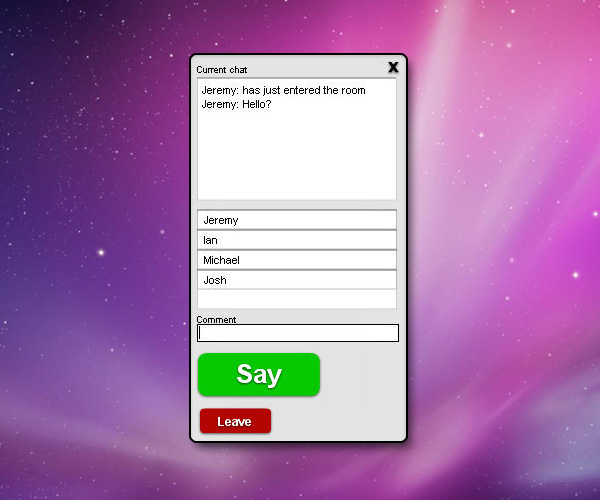
During this Premium tutorial, I’ll show you how to create a chatroom using Flash, AIR, PHP, MySQL and XML.


Professional and Detailed Instructions Inside

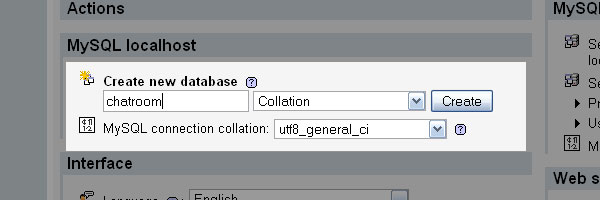
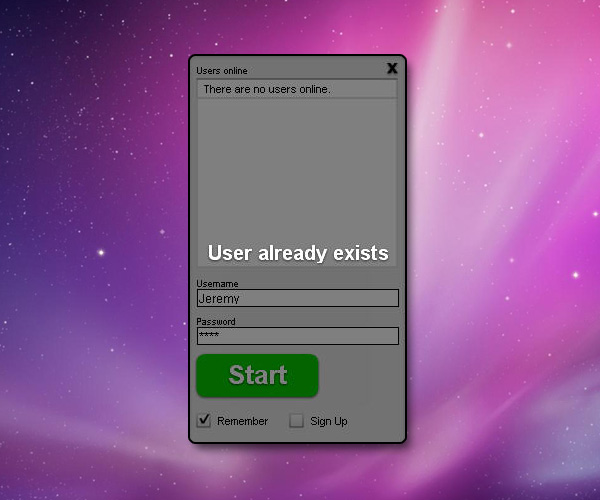
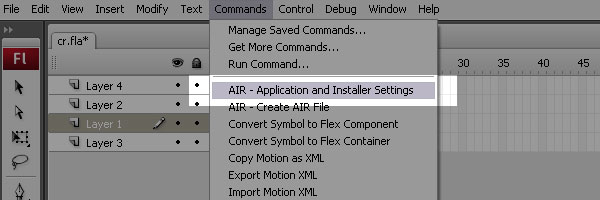
Premium members can Log in and Download! Otherwise, Join Now! Below are some sample images from this tutorial.


Active Premium Membership

We run a Premium membership system which costs $9 a month (or $22 for 3 months!) which periodically gives members access to extra tutorials, like this one! You’ll also get access to Psd Premium, Vector Premium, Audio Premium, Net Premium, Ae Premium and Cg Premium too. If you’re a Premium member, you can log in and download the tutorial. If you’re not a member, you can of course join today!

Also, don’t forget to follow @activetuts on twitter and grab the Activetuts+ RSS Feed to stay up to date with the latest tutorials and articles.

‘The Skateshop’ – A PFTrack, Maya & AE Workflow, Day 1 – Premium Tutorial

Set extension and/or CG integration with live action footage is a key aspect of Visual Effects work, and it’s our job as CG artists to ensure that we use a suitable workflow for the job at hand. In this detailed 3-day Premium tutorial series, Alvaro Castañeda shows us one possible workflow, moving from PFTrack for tracking, to Maya for modelling, texturing and rendering, and then compositing the result in Maya Composite, having used AE along the way! ‘The Skateshop’ is an unmissable tutorial for anyone looking to get into VFX. Can’t wait to get started? Become a Premium member, or learn more after the jump!

Breakdown of Day 1

Today we’ll start by processing the footage into something we can use throughout the whole process. We’ll then track the footage, and finish by importing it into our 3D application to help us build our 3D models.

Want to Join Plus?

The Tuts+ network runs a membership service called Premium. For $9 per month, you gain access to exclusive high quality screencast tutorials, downloadable content packs, and freebies at CGtuts+, Psdtuts+, Vectortuts+, Audiotuts+, Nettuts+ and Aetuts+! For less than the price of a movie, you’ll learn from some of the best minds in the business all month long!!. Become a Premium member today!


Don’t miss more CG Premium tutorials and content packs, published weekly – subscribe to Cgtuts+ by RSS.

Compositing V-ray Render Layers in Photoshop

In this tutorial Ahmed Fathi takes a look at how to composite together V-ray render layers using blending-modes and masks in Photoshop. Once completed, this process allows you to change or tweak any aspect of your image in seconds without having to re-render a thing! Ahmed also covers a few extra post production techniques such as Chromatic Aberration and Depth Of Field, as well as how to emulate a Cross-processed look.

Step 1

As this is a compositing tutorial, not a lighting/rendering tutorial, I’ll assume that you have at least a basic knowledge of V-ray, and that you are able to render out your own scenes already. We’re going jump straight ahead into setting up the different render elements for the compositing process.

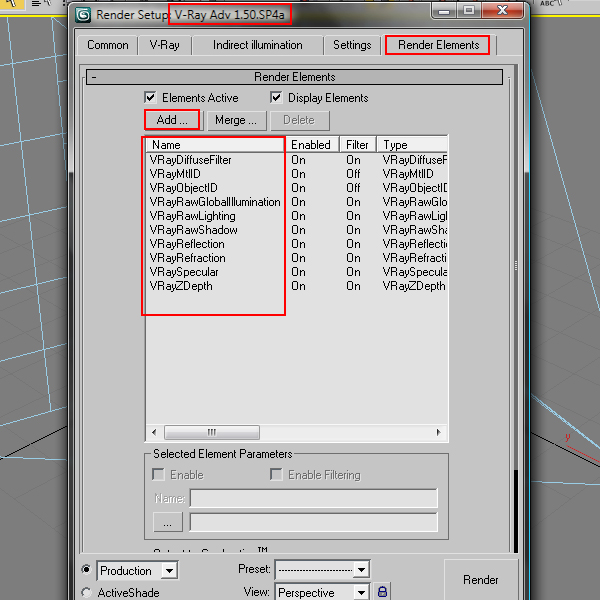
In order to make V-ray render out the different layers, we first have to enable them in the V-ray Render Elements tab within the Render Settings window. Once in the tab, we want to enable the following render elements as shown :

  • VrayDiffuseFilter
  • VrayMtlID
  • VrayObjectID
  • VrayRawGlobalIllumination
  • VrayRawLighting
  • VrayRawShadow
  • VrayReflection
  • VrayRefraction
  • VraySpecular
  • and VrayZDepth.

Most of these elements don?t need much work to get them right, but we are going to need to take a few steps to set up the VrayMtlID, VrayObjectID and VrayZDepth layers.


Step 2

We’ll start with the VRayZDepth element. The ZDepth layer is a black and white map that is used to tell Photoshop how far each object in our scene sits away from the render camera – the further the object is from the camera, the darker it will appear in the Zdepth layer. Typically the Min value is used to tell the compositor which objects will be in focus.

In order to correctly setup a Zdepth map, we have to adjust the Min & Max distances that V-ray should calculate, and therefore what appears as white (the Min value) and black (the Max value) within our scene. Select the VRayZDepth item in the elements list. At the bottom you’ll see the zdepth min and zdepth max values we need to adjust.


Step 3

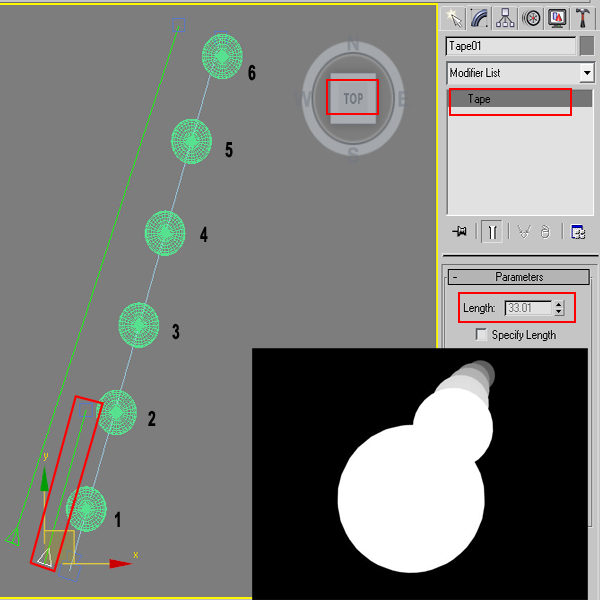
To get a sense of what values you should use for the min and max values, you should use a tape helper object to measure the distance between the camera and your closest and furthest objects.
To simplify things, let?s say sphere #2 in the image below is the closest sphere we want to be in focus, whilst Sphere #6 should be slightly out of focus. We would use two tapes to measure those distances and put them in as your Min & Max Values.


Step 4

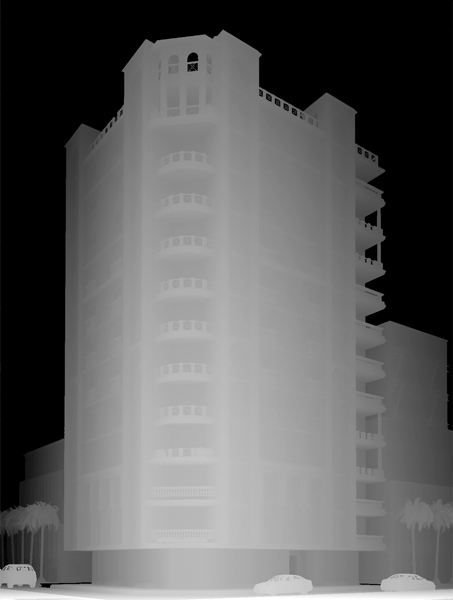
Here’?s what the VRayZdepth render for this composite looked like after setting the Min to 20 and Max to 70 meters


Step 5

The VrayMtlID render layer creates an image with a different solid colour for each material in your scene, and to use it, we need to adjust your material IDs. In your material editor you will find an icon with the number 0 on it (as shown below.) If you click the 0, a grid of numbers from 0 to 15 will appear – this is your material ID. Go through your scene and apply a different number to each material you want to have a different color in your MtlID element. As we have 16 numbers, we can have 16 different materials appearing in our MtlID render layer.


Step 6

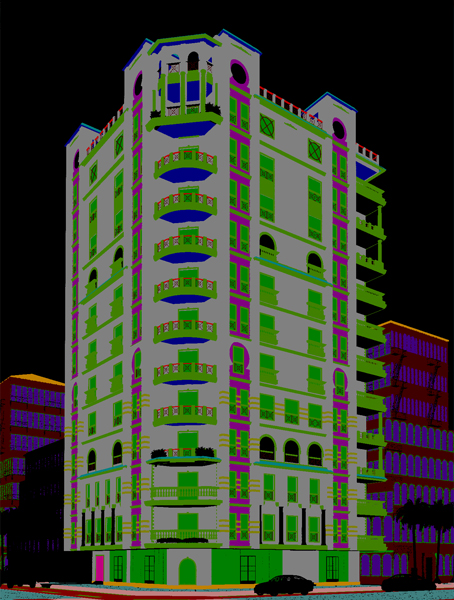
Here?’s how your VRayMtlID element would look like after setting up the ID’s for each required material. Your result may have different colors, but the important thing is that they are separate from one another.


Step 7

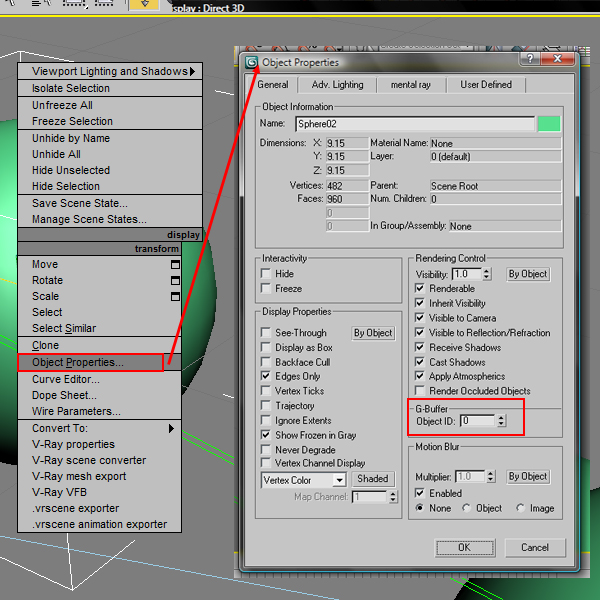
VRayObjectID element is just like material IDs element mentioned above, but it outputs a different colour based on the different objects in your scene – the Materials are irrelevant to it. To set this up, right click your desired object, select Object Properties and give each object a different number in the Object ID field in the G-Buffer section.


Step 8

I only needed to use the VRayObjectID element in order to make selecting the cars and the surrounding buildings easier in post. Here?’s how it looks after rendering.


Step 9

The last element we need to add in is the ambient occlusion layer, but as you’ll remember, this wasn’t added to our render elements list in V-ray. We actually need to render it separately after your initial render has been completed, but don’t worry, there is an easy, fast way to do it!

Apply a VrayLightMtl to your entire scene, and then add a VrayDirt map into the color channel. You’ll then need to go in and tweak the dirt map settings until you get a good, clean result result. For this scene, I got a nice looking AO map with a Radius of 2 in my dirt map settings.

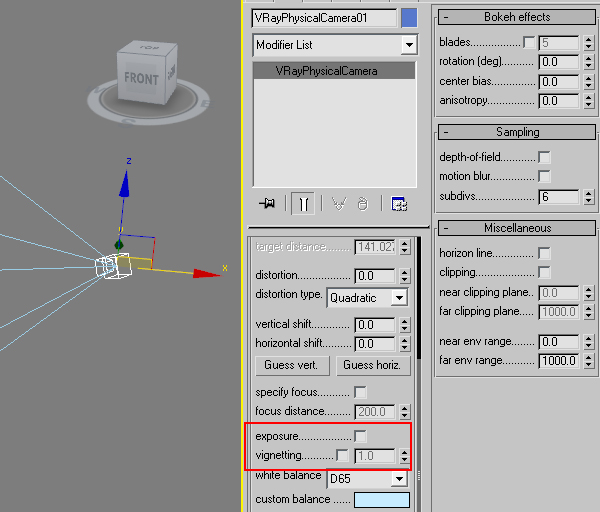
Note: if you use a V-ray Physical Camera in your scene, (which I highly recommend,) you will need to turn off your Exposure and Vignette options in your camera settings in order to render the AO pass properly.


Step 10

After a couple of trials with the dirt map radius, I ended up with the following AO element. I also increased the dirt map subdivs from 8 to about 64 which helped to smooth out the final render, and it still rendered out relatively fast.


Step 11

Just a couple more steps and we’ll be ready to fire up Photoshop and start compositing! But first, how do we get all of these elements out of V-ray? For starters, there is the obvious way of saving them to file one at a time, however there are infact two techniques used for saving the different channels to disk and we’ll cover both of them in the next few steps.

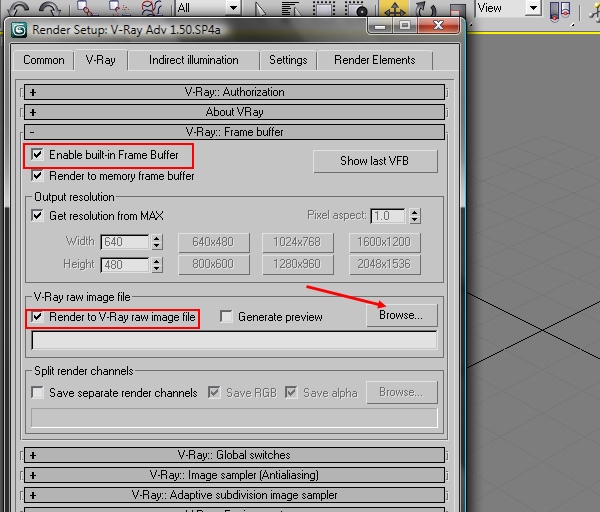
The first method is really helpful, especially for those who use a Linear Workflow, and that is saving all the render elements out into a single .EXR file. To do that you should first select Enable built-in Frame Bufferfrom the V-Ray::Frame buffer menu, and then turn on the ?Render to V-Ray Raw image file option ?below. With that done, we can click browse.


Step 12

Browse to the place where you want to save your file, and enter your file name making sure to add the .EXR extension onto the end of it. Then select All Files(*.*) as your file type. This will allow you to save your render as a single .EXR file that contains all your different render layers.

If, however, you try to open your new .EXR file in Photoshop, you will only see the first render layer. To see the others, you’ll need to install a commercial Photoshop plug-in called ProEXR, and that is why I prefer the next method!

Note: EXR files burn in any gamma correction as it assumes you’ll be using a linear workflow. If your image appears washed out in Photoshop, go to Image > Adjustments > Exposure, and set your Gamma to 0.454, which is the inverse of 2.2 (calculated by dividing 1.0 by 2.2).


Step 13

The second method (my preferred one) is to save all your elements out manually as .TGA files. I prefer TGAs to JPGs as they are 32-Bit, and can hold much more color Information than the normal 8-Bit JPG file. Another bonus is that they support having a built-in alpha channe.

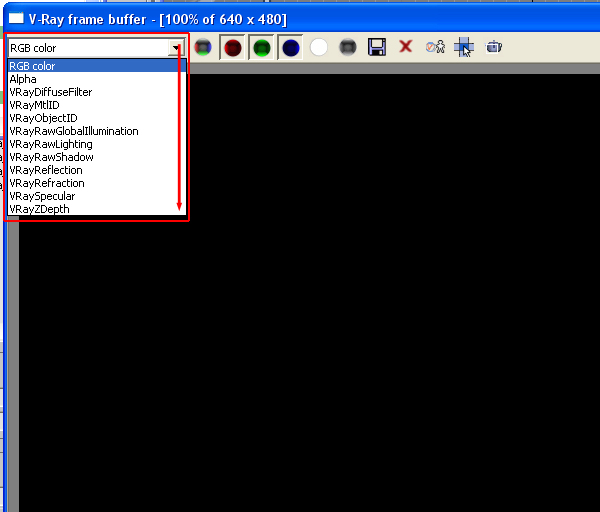
Note: if you have never used the V-Ray Frame Buffer to render out elements before, you can find all of your elements in the top left drop down menu that says Diffuse by default.


Step 14

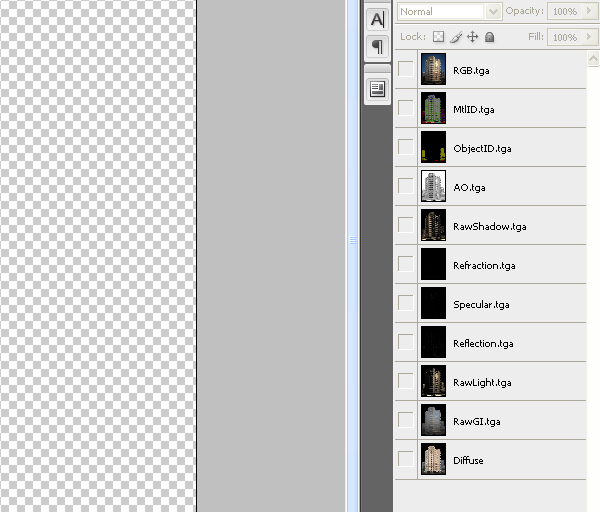
Now that you have finished our 3Ds Max and V-Ray Part, fire up Photoshop and let?s start playing! First a small tip to help you get all of the different files into layers in one Photoshop document. It is a script built into Photoshop that will stack your files as layers and arrange them in alphabetical order. Go to File > Scripts > Load Scripts as Stack, and then browse for your files, select them all and click Ok. Some people prefer bringing in the elements one at a time, however I do prefer this method myself.


Step 15

This is actually your first step in compositing! We’ll start by turning off the visibility on all layers except for the Z-Depth. Select all of the contents of this layer (Ctrl+A), copy them (Ctrl+C) and then switch to your Channels tab.
Some people prefer adding a little bit of Gaussian blur to their Z-Depth before using it, however as most of my clients hate DOF, thinking that it’s a needless loss of detail, I do not do this! In the end it is a matter of personal preference.


Step 16

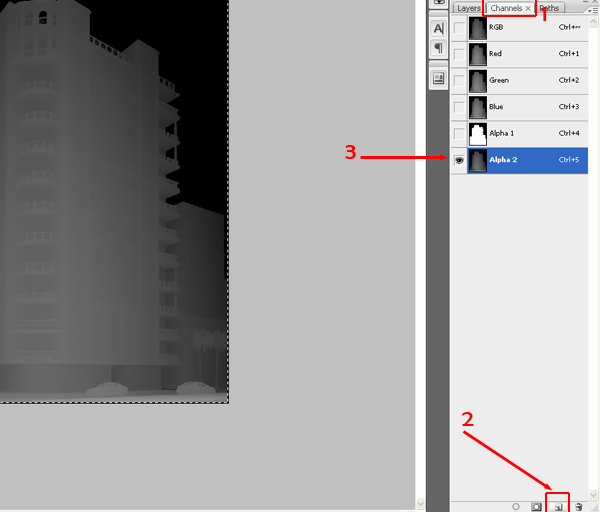
Once in the Channels tab, first check to see that your original Alpha layer is present. If it isn’t, open up the Diff.tga file seperately, switch to it’s Channels tab, and drag and drop the Alpha channel from there onto our Z-depth image – an Alpha1 channel should appear. You can then close the Diff.tga file.

Now, click the Create New Channel and paste your Zdepth render into it. You can then switch back to the Layers tab and delete your Z-Depth layer as we don?t need it anymore.


Step 17

To follow along with me in the next few steps, first arrange your layers in the order shown. The RGB layer at the top of the stack is the raw render, straight out of V-ray. I’ve kept it there so that we have something to compare to at the end.


Step 18

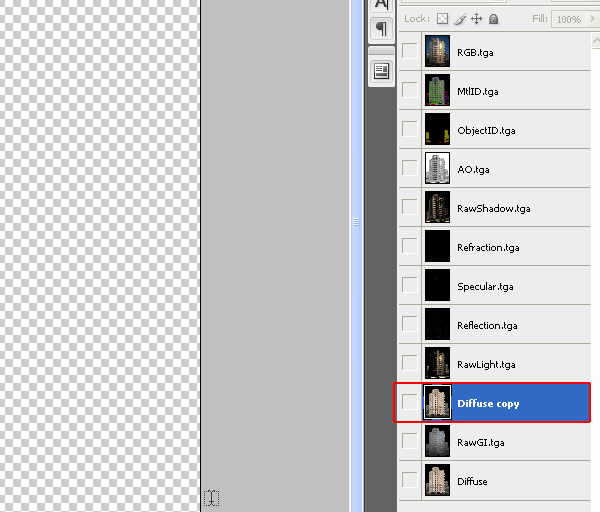
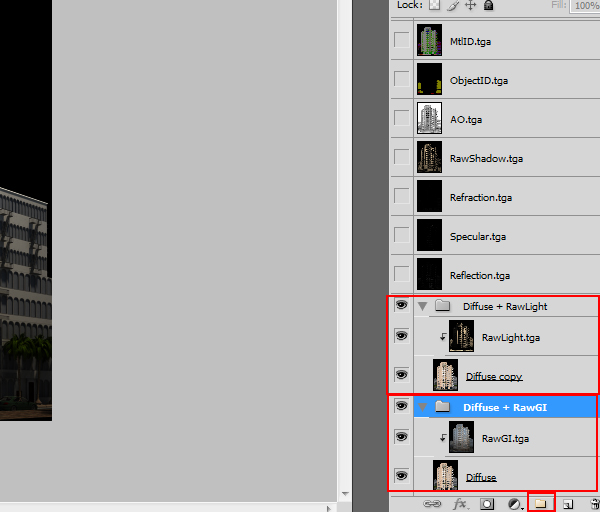
First, duplicate your Diffuse layer by right clicking it and choosing the Duplicate option, and then move the copy under your RawLight layer as shown.


Step 19

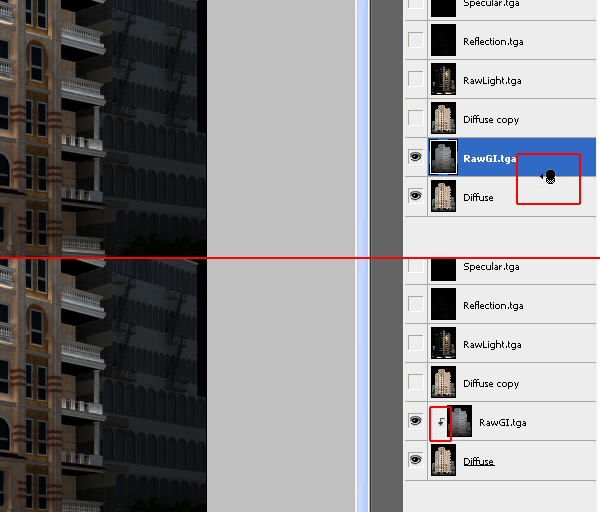
Turn on visibility for your Diffuse layer and your RawGI layer. Set your Raw GI blending mode to Multiply.


Step 20

Next hold down the Alt key and click between you RawGI layer and your Diffuse layer (the cursor will change into this two circles and an arrow icon when you’re in the correct place). This little bent arrow that appears indicates that this layer (RawGI) is only affecting the Diffuse layer. This is called a clipping mask, and you can find out more about it using a simple online search. There are tons of tutorials out there!


Step 21

Using the same technique that you learned in the last two steps. Enable visibility for both ?Diffuse Copy? and RawLight. Set the blending mode for the RawLight Layer to Multiply then use it to only affect ?Diffuse Copy? layer (Alt+click between the two layers).


Step 22

For the sake of better organization, group both the Diffuse & RawGI layers into a group, and the Diffuse Copy & RawLight layers into a different group. To create a group you can click on the small folder icon at the bottom right of your layers (I should say sorry for people who actually know all this basic stuff. I am just trying not to let anything pass by for beginners too!)


Step 23

Change the blending mode the of ?Diffuse + Raw Light? Group to Linear dodge (Add). This adds the information contained in this group to the information contained in the group ?below?. The image should start looking more natural now.


Step 24

At this point things look much better, but you may be asking yourself – ?why is my glass black?? Well, most of the glass? information in the final render is contained in the reflection and refraction passes, and we haven?t composed them just yet.

So, enable visibility for your Reflection Layer and set it’s blending mode to Linear Dodge (Add) and see the difference. One of the main benefits of having a composite like this is that, for example, on this reflection layer you can paint/paste in any reflection you want to appear in the windows.

Note: I should explain a little bit what linear Dodge (Add) blending mode does. It adds the color information of the pixels to each other. We know that for example Pure White is 255 and Pure Black is 0. So adding pure black adds 0 whilst adding pure white adds 255. Therefore, pure black (0) + pure white (255) = Pure white (255), Mid grey (125) + Mid grey (125) = White (250) and so on. That is why when you use this mode you no longer see any of your black, because it?s a zero-value color.


Step 25

To illustrate how easy it is to edit any of your elements (color correct it, adjust exposure, etc?) I will assume that I now want to change the reddish color of my stone texture. If we hadn’t used this multi-pass compositing method, we would have two options:

  1. Adjust the texture itself in Photoshop and then re-render, perhaps completing a dozen test renders before you were satisfied with the result, and could render a HQ render. This obviously takes a lot of time and patience!
  2. Using selection tools in Photoshop, we could select the texture and apply the desired corrections to it. The first problem with this is that selection is really a very tedious job, and when you come to add color corrections, you?’ll be affecting all of the image – your shadows and highlights will look odd and overall things won’?t look that good.

Step 26

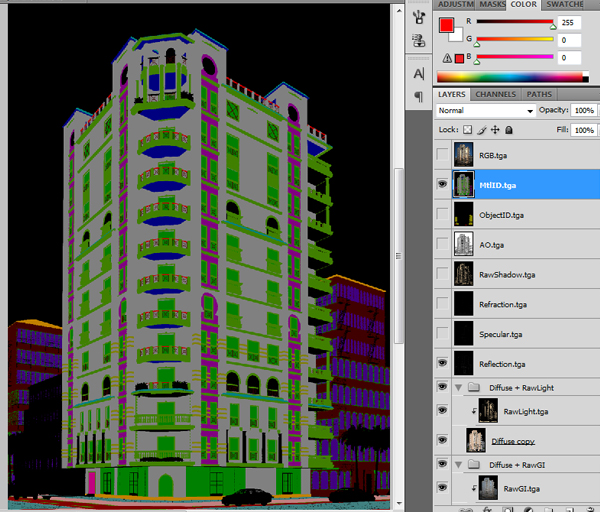
Well, remember that element called MtlID that we rendered out? It is time to enable that layer. The only use for this layer is to create MUCH faster selections with only a couple of mouse clicks. Using this layer we will easily select our stone texture in no time at all.


Step 27

With the layer selected, go to Select > Color Range. Then use the eye dropper tool to sample the magenta color on our materials layer that represents the ID of the stone texture. With that done, press OK and you have your selection.


Step 28

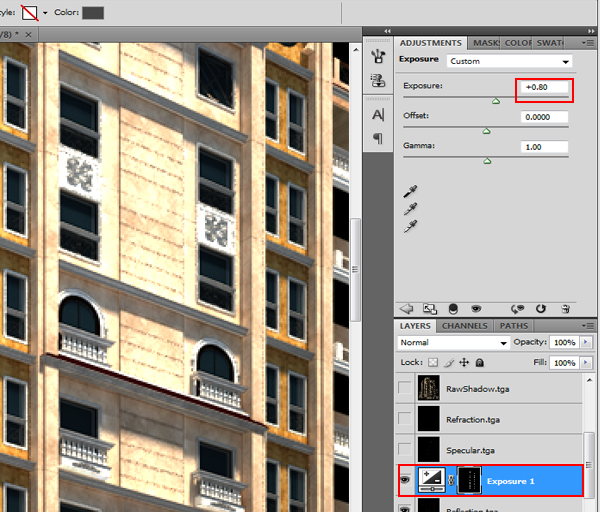
Now turn off the visibility of your MtlID layer. Then while keeping that selection active, add an Exposure adjustment layer. This will create the adjustment layer and automatically add a mask so that it only affects your Stone. It doesn?t matter where you have this layer now, we will move it later on.


Step 29

In the Exposure adjustment layer’s settings, set your Exposure to +0.80 to brighten it up a bit.


Step 30

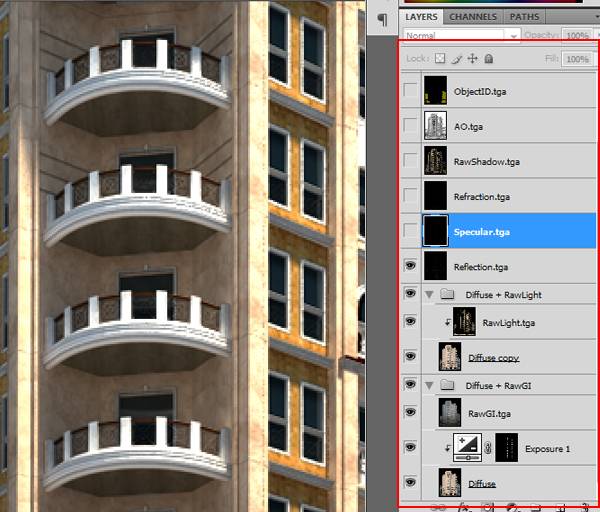
As we want this layer to affect our diffuse only, you will have to place it right above the Diffuse layer (remember that one inside the group?) Move it into position as shown and remember to Alt-click between the layers to make it only affect your Diffuse channels.

Just as a side note; whether you add it to your Diffuse layer or your ?Diffuse Copy? Layer shouldn?t make a difference at all. Some corrections might require you to place them on both Diffuse layers though, and it?s just a matter of trial and errors until till you fully understand it all.


Step 31

Take your Refraction layer one step down so that it sits right above your Reflection layer. Enable both and set their blending modes to Linear Dodge (Add). I’ve added another Exposure adjustment, with the Exposure value set to +0.80, to my Refraction layer as I wanted it to appear a little brighter.

Note: Editing the Refraction layer is one of the best ways to adjust the tint of clear glass in interior renders.


Step 32

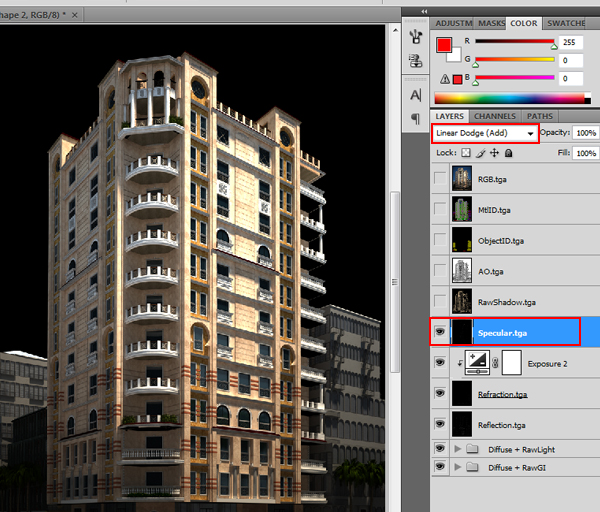
Enable your Specular layer and once again change its blending mode to Linear Dodge (Add).


Step 33

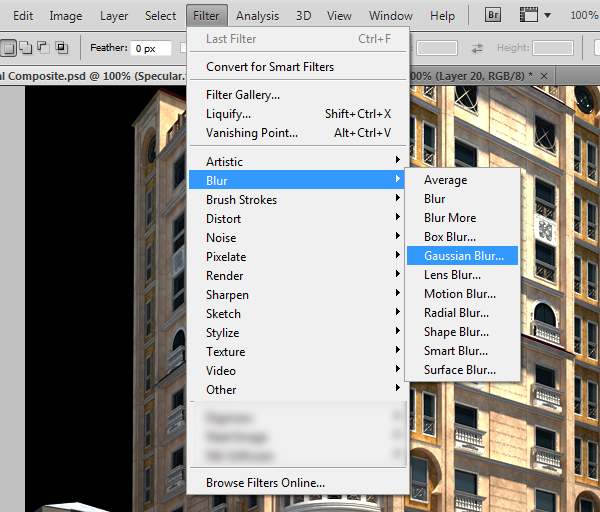
Duplicate your Specular layer (Ctrl+J) – notice it still has Linear dodge (Add) as its blending mode – and then with the copy selected, goto Filter > Blur > Gaussian blur.


Step 34

Set your Gaussian Blur Radius to around 2.5 pixels and press OK. Set your layer Opacity to around 65%. This should help create a specular bloom effect around your specular highlights.

Note: These values are not constant numbers as they depend on your resolution, and of course your taste. Just don?t over-do it!


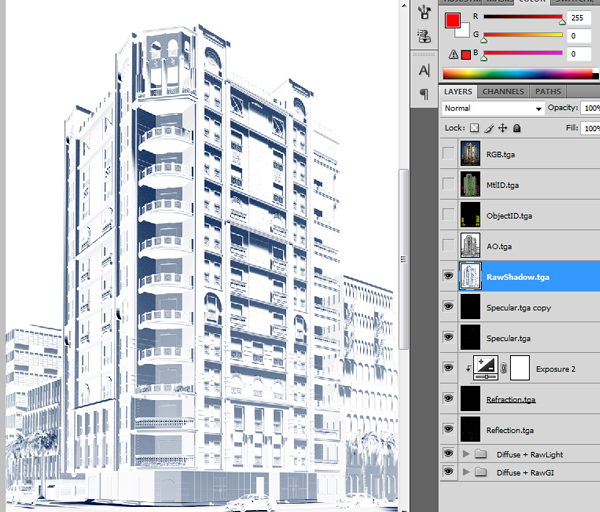
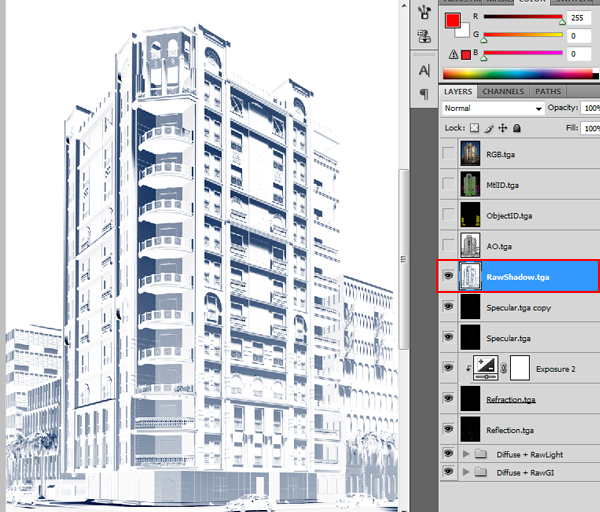
Step 35

Enable your RawShadow Layer and invert it (Ctrl + I).


Step 36

You might be surprised that your shadows are bluish but this is in fact normal, they always are during the day because V-ray’s GI has a bright blue sky. Set your RawShadow layer’s blending mode to Multiply and it’s Opacity to around 20%.


Step 37

This step is not a must but I like enhancing my shadows a bit as it gives the image a bit more contrast. Add a ?Color Balance? adjustment layer, making it only affect the RawShadow layer, and with the Tones value set to Shadows, give your shadows a reddish tint. Set the opacity for this adjustment layer down to around 20%, although again, this is just a matter of personal preference.

In other scenes when I find my shadows a little too sharp for my taste, I add a small radius Gaussian blur filter to the shadow layer, which helps smooth out those hard edged shadows a lot.


Step 38

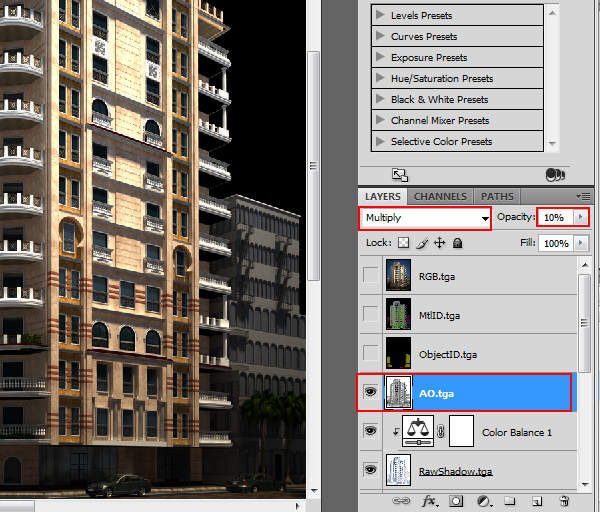
Now enable your Ambient Occlusion layer. Set its blending mode to Multiply and its Opacity to around 10%. Ambient Occlusion shouldn’?t be too obvious in your final render, as it just helps you enhance the look of the little details in your final image.


Step 39

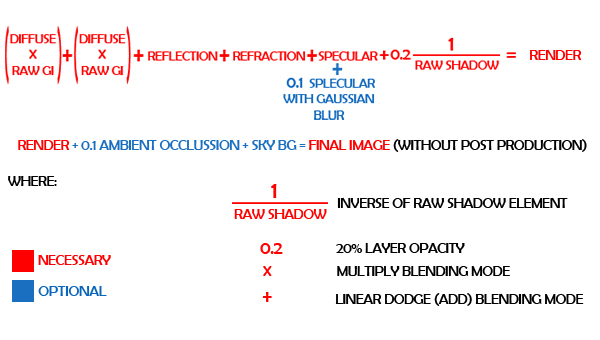
At this point, we are pretty much done with the compositing! To sum it all up here?’s a simple equation that I used until I memorised the different blending modes. If you follow it through, you’ll see it exactly matches what we’ve done in this tutorial!


Step 40

The only thing missing now is a sky with a few clouds, and that?’s what we are going to add next. You can also use a bluish gradient or, if you prefer, you can cut out the V-ray sky from your original render and paste it behind this image. To do any of these things however, we first need to access our alpha information.

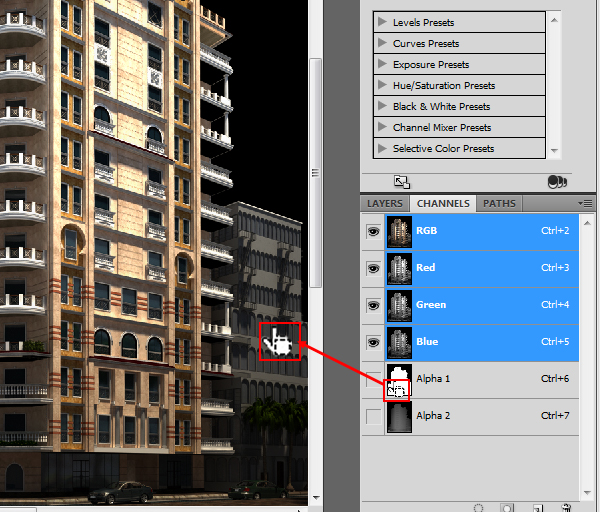
Go to the Channels pane and Ctrl-click on your main alpha channel’?s thumbnail. This will make an automatic selection of your image ignoring any transparent pieces so that we can easily add in a background image.


Step 41

Invert your selection (Ctrl + Shift + I) so that we only have the sky background selected.

In my original render I used a cyan-ish gradient with some stock clouds. However as I don?t have the rights to redistribute those we will have to find another image. Using Google images search the words ?sky field? or clouds field or something similar. Set your search options to Large Images only so you get high resolution pictures only. I found this one on the first page.


Step 42

Save the image and open it in Photoshop. Select all of its contents (Ctrl + A), copy them (Ctrl + C), and as we still have that selection we made using our alpha, use Photoshop’?s command ?Paste Into? (Ctrl + Shift + V) command. This should automatically add a mask to our new sky layer. Rename this new layer something like Sky BG
.
Note: In Photoshop CS5 this shortcut changed to (Ctrl + Alt + Shift + V).


Step 43

Using Free transform (Ctrl + T) adjust the size of your sky until it fits the image. Remember to hold Shift while resizing to uniformly scale.

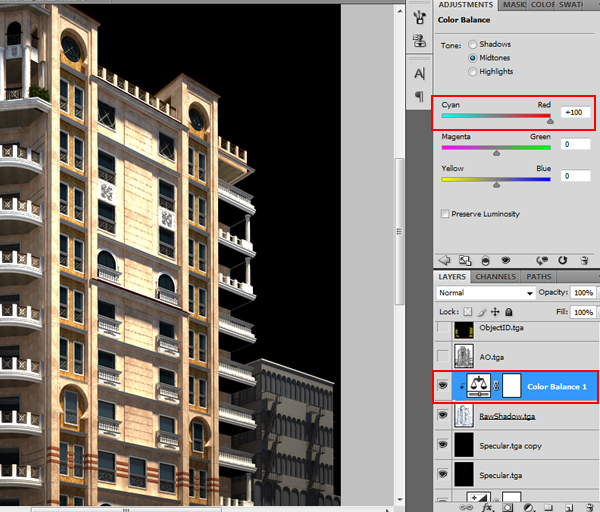
Then add a ?Color Balance? adjustment layer over your sky BG only (again using the clipping mask method) and play with the settings until you’re happy with the result. I liked mine with a bit of a cyan tint to it.


Step 44

We are now done with the compositing! Now I’m going to cover some post production tips like adding motion blur to cars, adding DOF using ZDepth, and adding chromatic aberration. You have come a really long way, so let’?s compare our composite to the original V-ray output (the RGB layer).

As you can see, apart from the skies, they both look extremely similar, the only difference being that in our composite, anything can be changed or tweaked without having to re-render anything.


Step 45

Now begins the fun part – post production! There are many different workflows for this part, it all just depends on your own personal preferences. I will be showing you some of the techniques I use, to help you get started.

First make sure you have the look of your render exactly how you want it. If you want to increase reflections or refractions, add more specular highlights, now is the time!

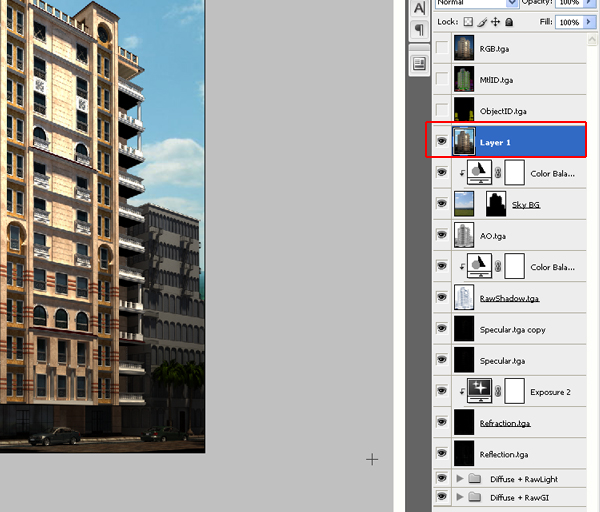
Now merge all your visible layers into one single layer by selecting the top-most visible layer and pressing Ctrl + Alt + Shift + E. This will paste a merged copy of all your layers into a new layer called ?Layer 1?.


Step 46

Making sure you’ve got the new Layer 1 selected, use the same ?select color range? technique we learned earlier (steps 26 & 27) but this time on the ?Object ID? layer, to select the cars.


Step 47

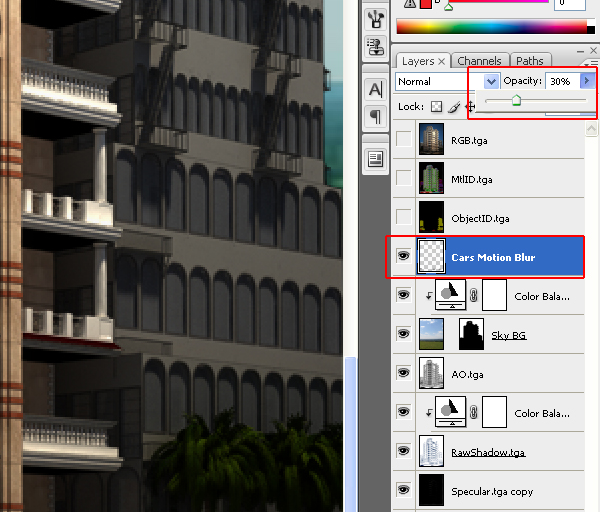
We want to create a new layer containing only the cars, and to do this we press Ctrl + J. Rename the new layer (initially called Layer 2) to ?Cars Motion Blur? then delete the merged ?Layer 1?.


Step 48

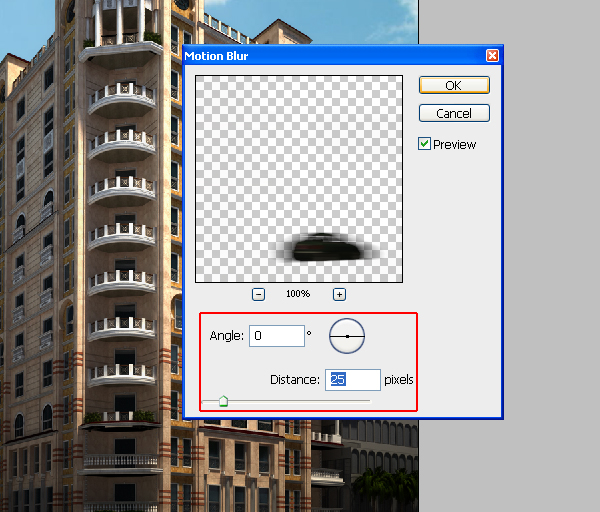
With the Cars Motion Blur layer selected, go to Filter > Blur > Motion Blur.


Step 49

Alter the direction of motion so that it matches the direction of the cars, and then choose a medium Distance (I used around 25 pixels). Click OK to finalise.


Step 50

Lower the Opacity of this layer to around 30%. The motion blur is complete!


Step 51

Now to add some chromatic aberration. Please be advised that CA is an effect that should be used as little as possible, as too much can cause your renders to look blurry and ugly. Before attempting to use this effect on your own renders I suggest you read more about this phenomenon, so that you know where and when CA should appear. When done right however, this effect can really enhance the realism of your picture.
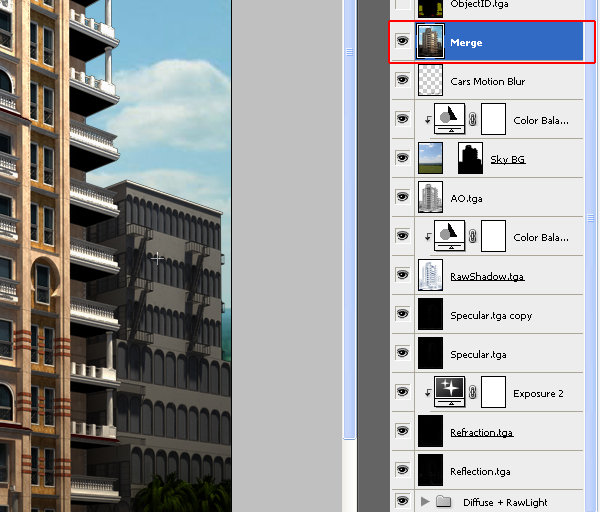
Use the same shortcut as before (step 45) to merge your visible layers together, and rename this new layer ?Merge?.


Step 52

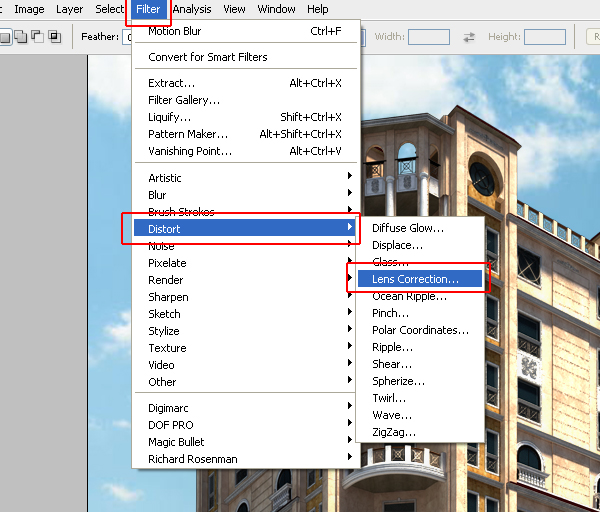
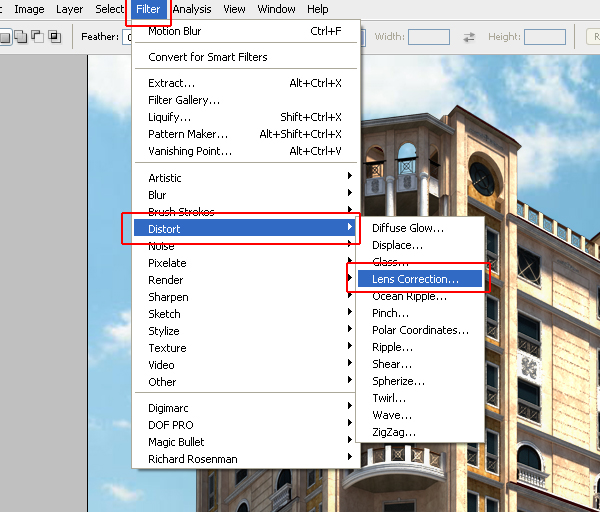
Making sure the Merge layer is selected, go to Filter > Distort > Lens Correction. We will use this filter again in a moment to add a vignette, so remember where to find it!


Step 53

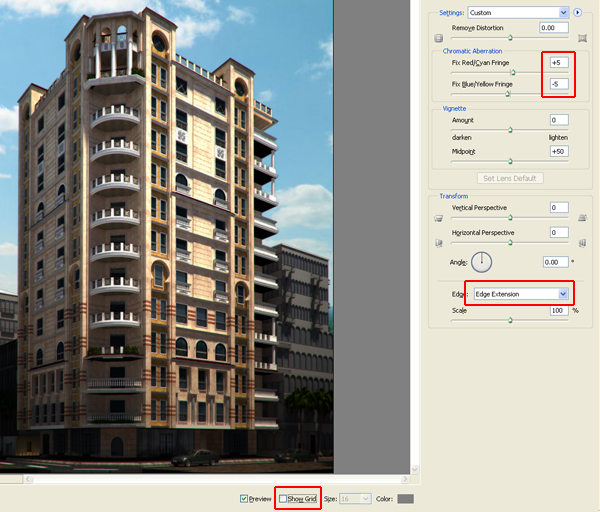
Deselect Show Grid and then experiment with the values for ?Fix Red/Cyan Fringe? and ?Fix Blue/Yellow? Fringe (I used +5 & -5) until you get a suitable, subtle effect. Then set your Edge mode to Edge Extension to prevent your picture from having transparent edges, although if this issue is visible, you’ve likely set your values too high already!

Although this is the native way of adding CA in Photoshop, There are many other ways people use. Some people use three different layers with the red, green and blue data and shift them manually, other people use plug-ins. I decided to show you the native way as almost all the plug-ins are commercial.

Some of the greatest commercial plug-ins for photoshop post-production are ?Magic Bullet Photolooks?, 55 mm Digital Film Tools and Knoll Light Factory ?. One of my favorites is ?Nik Software: Color Efex Pro?. If you can afford these then by all means they are worth it, but if you can’t you now know how to add the effect manually!


Step 54

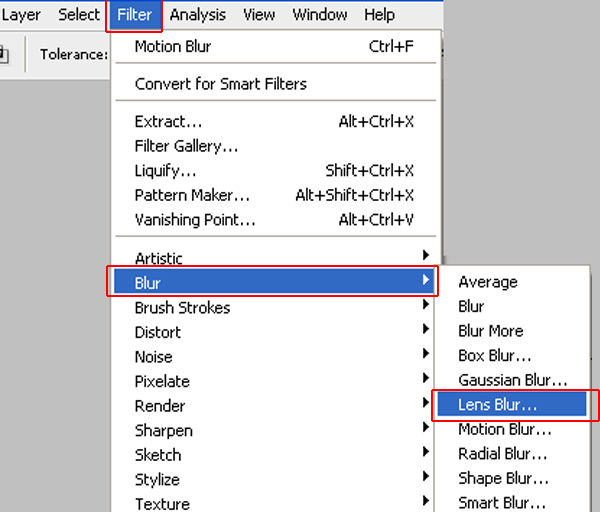
Now that you have completed your CA effect, it’s time to add some DOF. Remember that we pasted our ZDepth render element into a new ?channel? We will use that now! Start by going to Filter > Blur > Lens Blur.


Step 55

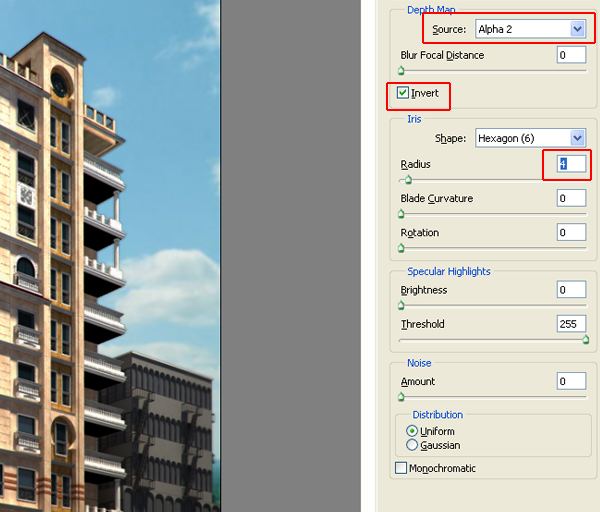
In Source choose your Zdepth channel (in my case Alpha 2) and enable the Invert checkbox. Radius controls the amount of blurriness, so experiment with that although don?t over-do it! I chose a radius of 4 and then pressed OK.

As a rule of thumb if a filter/effect is really noticeable, it is too much! (Unless of course it is some kind of an artistic approach). Maybe take some time to surf around in the CG forums and see how the pros use DOF in their images. Try to learn the best ways to add it in without hurting your own visualization. Also, remember that some clients hate DOF, so be careful with it!


Step 56

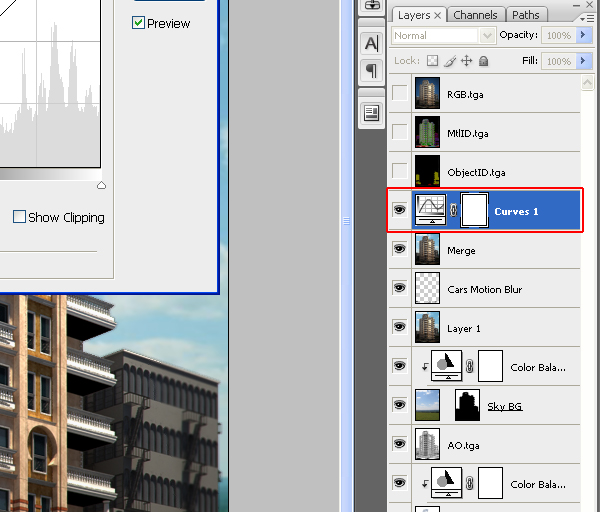
Another effect that looks really good on some pictures (and awful on others) is cross processing. Cross processing is basically playing with your color curves to achieve a more dramatic look. So add a Curves adjustment layer on top of your ?Merge? layer.


Step 57

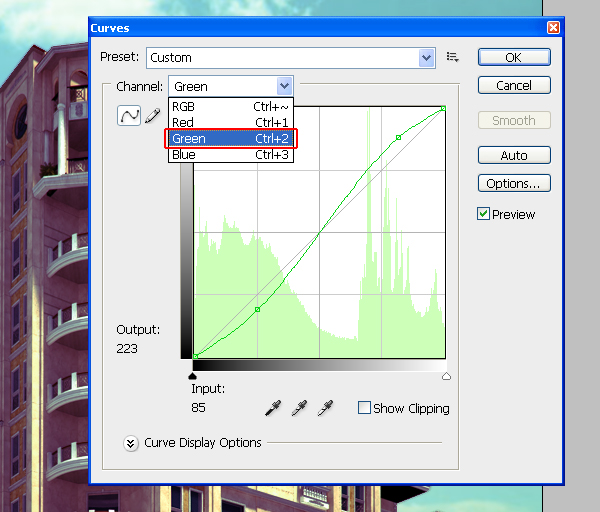
Go to the Channel drop down menu in the adjustment layer, and adjust your curves individually by selecting them one at a time. Here’?s the Red channel curve that I used.


Step 58

Here?’s the Green channel curve.


Step 59

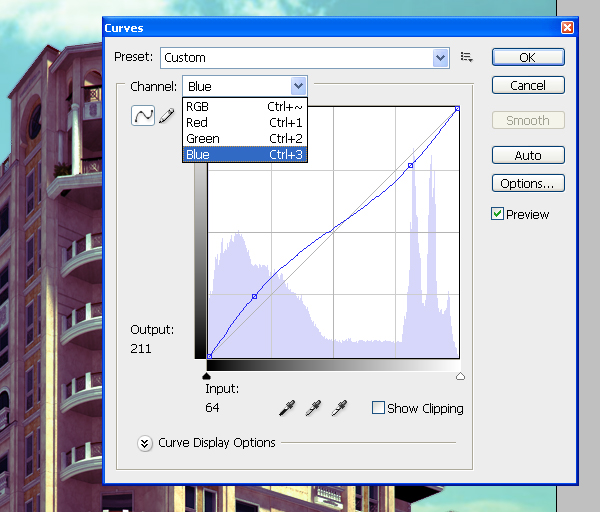
Finally, here?’s the Blue channel curve. Remember that this is just an example; hundreds of looks can be achieved with this method, and your curves will very likely vary from one shot to another depending on the look you’?re after.


Step 60

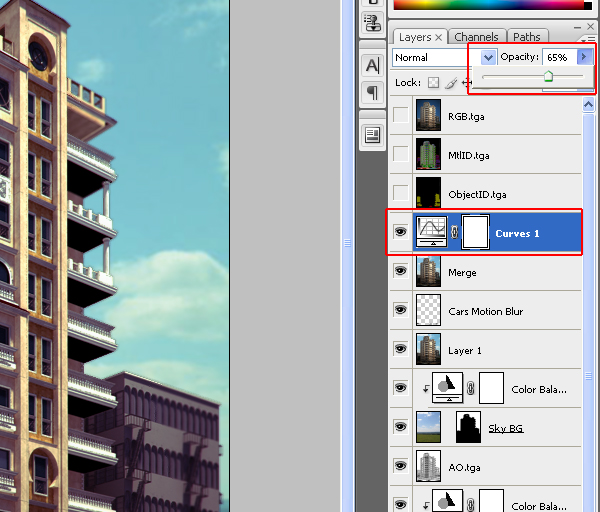
I felt the final effect of this adjustment was too much for my taste, so I decreased the Opacity of the adjustment layer to around 65%.


Step 61

The final step is to add a vignette to your render. Some people prefer adding a black layer with an oval shaped soft mask, however I actually prefer adding it using Magic Bullet Photolooks. For this tutorial, we’ll stick with the built-in tools, so let?s add it using the Lens Correction Filter.

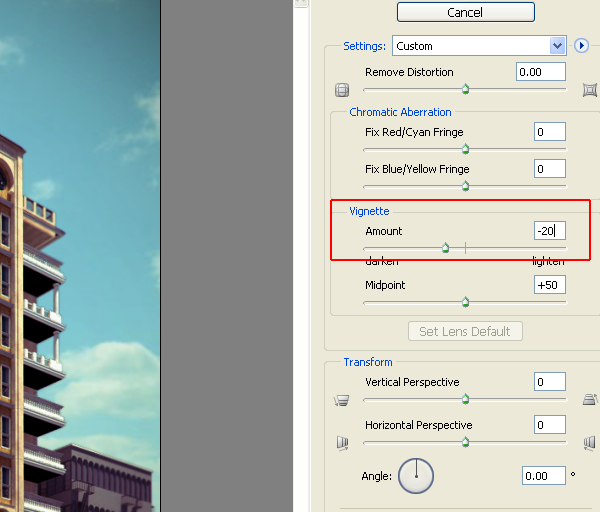
First we have to merge our Merge layer with the Curves adjustment layer. To do that use the shortcut Ctrl + Alt + Shift + E as before, and then, with the new layer selected, go to Filter > Distort > Lens Correction.


Step 62

I used an Amount of ?-20? for this render, however it’s important that you don’?t over-do the vignette, as it just won’?t look that good!


Step 63

With that, your image is complete! I really hope you enjoyed this tutorial and learned at least a new trick or two. If you have any comments, questions or criticisms please go ahead and post in the comments below, and I’?ll be more than happy to answer you.


Don’t miss more CG tutorials and guides, published daily – subscribe to Cgtuts+ by RSS.

Problem Solvers vs. Opportunity Creators
We all have different professions and titles, but ultimately we can be separated into two categories: problem solvers and opportunity creators. Those who work in areas like “operations” or “technical support” are quintessentially problem solvers. On the other hand, positions in “sales,” “sponsorship” or “marketing” are intrinsically opportunity creating efforts.

The two have a symbiotic relationship – neither can survive without the other. Either a plethora of problems or a lack of opportunities could sink a business.

The main difference between these two is one of visibility. A great team of problem solvers is rarely recognized, as a lack of problems can seem “normal” and even make those who solved all the problems seem unnecessary.

In contrast, opportunity creators are celebrated at every possible juncture. A successful sponsorship, contract or campaign is good news for everyone, so of course it should be celebrated. However, this can cause opportunity creators to appear more appreciated (or more valuable) than problems solvers.

They’re not.

Don’t get me wrong. As a purebred problem solver, I don’t want the spotlight. What am I going to say that warrants it?  I mean, this isn’t exactly going to set the world on fire:

“Today, our systems are working as expected. We’ve enabled you all to do you work.”

Although new opportunities “sound better” than solved problems, neither one is more valuable than the other. Problem solvers and opportunity creators are joined at the hip; they’ll sink or swim together.

Are Work Friends Counterproductive?

A few years ago when I began working at a startup company, I made friends with several of my colleagues in the marketing and creative departments. We’d grab lunch together and occasionally meet up on the weekends or after work. I’d never been super-close with any of my coworkers before, so it was exciting to form such friendly bonds!

Having work buddies can make the workday pass more quickly and take the sting out of working late, but it can sometimes be a distraction. Plus, hanging out with coworkers after hours blurs the lines between your personal and professional life. In the case of my work posse, we got chastised a few times for taking longer lunches than we should (we were having so much fun chatting we lost track of time!).

Some career experts warn that being too chummy with friends at work also makes it less likely that you’ll be tapped for a promotion, because you may be seen as someone who’s serious about advancing their career (or you may subconsciously avoid any changes that would split up you and your work clique). Now that I’m working from home, I actually have the opposite of this problem: too few opportunities to interact with colleagues.

What’s your take on work friendships? Are work friends bad for your career?

Why Resumes and Cover Letters Still Matter

Some people think that in this high-tech day and age that resumes and cover letters are no longer necessary.  I believe they not only still have a place, but are important.

Why?

Doesn’t a LinkedIn profile tell you everything you need to know? Aren’t these pages relics of an old way of hiring that is becoming obsolete?  Can’t social networks serve the purpose that resumes and cover letters did?

Barbara Hart, a hiring consultant who runs Hire Well, says maybe – but insists on getting a cover letter and resume from every job candidate who wants to go through her. Here’s why:

  • Too Much Information: LinkedIn is the social network for business people but it still has information she doesn’t need. In fact some of what it reveals cannot be legally considered for hiring.
  • Hard to Compare: Social media profiles aren’t standard enough to compare candidates. Resumes and cover letters are boring in that way. But boring and standard allow comparison between candidates.
  • Not All Employers Are That Savvy: It may be 2010, but some human resource departments just still want to do it the way they always have done it. They’re the ones with the job that you want. Do you really want to tell them they’re doing it wrong?
  • Not Print-Friendly: Have you tried to print your LinkedIn profile? Human resources wants to print or copy your resume and pass it around to hiring managers. Even if you save it as an electronic document and e-mail it, it’s print ready for them.

When it comes down to it, who’s life are you trying to make easier? Yours or the hiring manager? Trust me, hiring managers like employees who are trying to make their lives easier.

Do You Get More Done Working Alone or Around Others?

The idea of working all alone seems pretty tempting: nothing to distract your thinking process, no stress from the jerk on the cell phone.  Just quiet.

Too quiet.

Sometimes my mind gets distracted by the silence – I find myself wondering where everyone is.  So, like some other people who work from home I put on the television.  Sometimes that does the trick, but at other times I just really wish there were some people around.  Not co-workers, not people I know, but just (quiet) people as background noise.  I worked from a café the other day and I got so many things done, so many ideas just popped up in my mind.  The ambient noise was a catalyst of sorts.

What about you? Are you more productive at home, working alone, or when you’re around others?

Inspirational Quotes for Work

Do inspirational quotes affect your daily life? Do you surround yourself with them in your cubicle or work space? I have found that being constantly surrounded by quotes is something that helps me get by, especially when I’m not having a real motivating day. Inspirational quotes for work are, of course, just words. But if you heed what they have to say, they could aid you in your working and personal life.

“Stand up to your obstacles and do something about them. You will find that they haven’t half the strength that you think that they have.”

This one was actually introduced to me by my daughter. When I read this quote, I immediately think of a phobia that I had growing up which especially manifested itself when I was in high school. That phobia is the fear of public speaking. Who hasn’t experienced this phobia in their lives? If you haven’t, then you are in the minority. Being a former scientist, I oftentimes had to present my research in front of other scientists at national symposiums or seminars. I knew that I was not gifted in the way of articulation and I didn’t want to embarrass myself on the national stage, so to speak. So I turned to the international speaking group called Toastmasters International whose mission is to make effective oral communication a worldwide reality. Well, it worked for me. After joining and having to give organized speeches as well as extemporaneously speaking at each meeting, my skills progressed well enough that I was able to deliver an effective presentation. I looked at that obstacle in the eye and hit it head on. Recently, after years of being away from a Toastmasters club, I rejoined a local club near my work. I had almost forgotten how supportive fellow club members can be.

“When you change the way you look at things, the things you look at change.”

How true is the above quote? We affect how we think. No one else can control our thoughts. When I hear someone say “He made me sad” or “She got under my skin”, I say NO. You made yourself sad or upset. We are all responsible for our own thoughts and our own actions. Take responsibility for your own thoughts and your own actions. Turn around the way you look at things. A fundamental change in your thoughts could lead to a huge change in your life.

“Be impeccable with your word.”

Don Miguel Ruiz wrote a book entitled the “Four Agreements” and his 1st agreement is entitled “Be impeccable with your word.” If there is one thing that we all have in common it is that our words define us. We can control how we speak and what we say, just as we can control our thoughts. If we do not choose our words wisely then we will be judged by others according to those words. So it is imperative in our lives to think before we speak. At work, and in our personal lives, it is our words that represent us. Being careless and irresponsible with your words, can be disastrous. The common expression “Loose lips sink ships” is synonymous with the above quote. Being responsible in your verbal interaction is extremely important, not only in your work life, but in your personal life, as well.

“The Truly Educated never Graduate.”

If there is one quote that I tend to live my life by it is the above quote. I’m not sure of its origin as I saw it on a car, as a bumper sticker. I always try to learn something new every day, whether it be in my working life or otherwise. I know that this is the reason that I gravitate to non-fiction versus fiction. I don’t learn anything new by reading fiction. You cannot go wrong by learning something new. As an older worker, I am always concerned that a younger worker could be brought in to take my place. OK, I may be slightly paranoid, but I’ve seen it over and over again. They say they are having a layoff, but miraculously the position is supposedly abolished and then a young buck is hired who just happens to have the same job duties. How surprising is that? Being complacent in your job is dangerous. Open yourself up to the bleeding edge technologies. Immerse yourself in skills you do not yet know. Never graduate!

Inspiration can come from many sources. It’s up to you to use those words to make the positive changes that can benefit your life.

Job Titles and Descriptions: Less is More?

Job titles were originally meant to succinctly describe a person’s basic duties in a few words. When you looked at someone’s business card or shook their hand in a meeting, their job title would give a general  (but clear) idea of their role within their organization.

Some titles have stayed true to this purpose, remaining concise and unpretentious, like “Software Developer,” or “Account Manager.” But others have grown more vague and grandiose, like “Senior Vice President of Partnerships and Marketing,” or “Solutions Architect and Change Management Lead.”

Indistinct job titles and descriptions may impress some people, but they also risk giving the impression that your organization is overstaffed and that you are one of the nonessential fringe-workers. If you can’t answer the question, “What do you do?” without resorting to intentional ambiguities, you’re going to sound more like a cornered, dodgy politician than a competent worker.

The truth is, any job can sound impressive and important if you craft a little complexity into the title. You could call a window washer a “Transparency-Enhancement Facilitator,” or give the title of “Media Distribution Specialist” to a paperboy, but it doesn’t change the nature of the work.  After a short conversation, their roles will be clear – regardless of their job title.

Is a long, vague job title a sign of ordinary, mundane work being embellished? Is it a sign of “bloat” in an organization? Or is it just part of the game?

Are You Truly Being Productive?

When you’re a productivity hound, you’re nearly considered a hero. You’re praised for your ability to do a ton of work in a day, and your productivity is exalted.

There’s a problem with being productive, though. Productivity is quantity-based, not quality-based. This means its purpose is simply to get things done – doesn’t matter what.

And while you might get lots of praise for being able to multitask like a ninja and move heaven and earth, the truth is that moving stuff around isn’t very useful.

Well, it is if your goal is just to get things done. But if your goal is to achieve more for your business, your productivity may just need to be revisited.

Think about it: What are you truly accomplishing by being productive? Where is your productivity getting you in life? You do lots in a day, but at the end of each one, are you closer to your business goals and dreams?

Or are you just crowing about how much you did, versus how much you’ve accomplished?

Accomplishment is important. It’s easy to lose focus on accomplishing larger goals when your eyes are glued to accomplishing small stuff. The result is that you mix up priorities, and your goal becomes producing in quantity versus producing quality.

Some people even end up working in a way that’s just about getting stuff done. Any work. Doesn’t matter what kind.

There’s no real prize for simply being productive, though. All it accomplishes is that you shovel lots of tasks from “to-do” to “done”. You don’t end up going anywhere with your business, because you’ve been so busy. It’s tough to go places when you’re stuck in one place, shovelling from one pile to another.

When you’re truly productive, you put your abilities to work in a way that helps bring you closer to where you want to be in life. You’re not just getting work done. You’re doing work that matters.

It’s about switching your focus from quantity to quality, and making sure that you use your productivity for a greater good: reaching your goals.

By reaching goals, I don’t just mean goals like completing 10 tasks every day or finishing three projects every week. I mean reaching goals like improving your business, creating more passive income, increasing revenues… the goals that get you a better life.

Being productive is just an ability. Use that ability to create results.

If you truly want to be productive, do more of what matters and less of what doesn’t. Before working on a task, ask yourself how completing that task helps get you closer to your goals. You might realize that a lot of items on your to-do list are just busywork, and getting them done doesn’t get you anywhere.

Of course, you do have to take care of day-by-day operations…but make sure that this day-to-day work keeps you out of a GTD rut and on the path of getting where you want to be.

You might be surprised how much faster you can reach your dream just by focusing your productivity in the right place!

Is It Lunch Theft?

You forgot to bring a lunch today, and you don’t have time to run out and get anything.  Time constraints aside, you also forgot your wallet.   You’ve got a long day ahead of you, with a client presentation in the afternoon. You need to get something in your system to stay on top of things.  There are a few lunches in the fridge, and they’ve been unclaimed for a little while.  What do you do?
  • Grab one of the unclaimed lunches.  Check to make sure the green parts are supposed to be green, and chow down.  They’re probably going to get thrown out later this week anyway – so where’s the harm?
  • Skip lunch – you can afford to miss a meal or two.
  • Find the owner of the best looking lunch, and beg them to share.
  • Send an email out to the team, asking everyone to give you part of their lunch.
  • “Accidentally” eat whichever one you want – even though the name is clearly on it.
  • Send the office intern out to get you a lunch, with your promise to pay them tomorrow.

Since I’ve experienced “lunch theft” on more than one occasion, I’m curious to know what you folks think.

What would you do?

Friday Photo Critique #40

Friday Photo Critique is our weekly community project, where we publish a photograph submitted by one of our wonderful readers, then ask you all to offer constructive feedback on the image. It’s a great way to learn more about photography, express your viewpoint, and have your own image critiqued!


Quick Ground Rules

  1. Play nice! We’ve deliberately chosen photographs that aren’t perfect, so please be constructive with any criticism.
  2. Feel free to offer any type of advice – composition, lighting, post-processing etc.
  3. You can also link to photographs that you feel offer a great example of this type of image shot exceptionally well.

Without further ado, here is this week’s candidate for Friday Photo Critique!


The Photograph

Photo Critique

Photographer: Harald Halvorsen

Please let us know what you think in the comments – how would you have approached the scene or taken the photo differently? A massive thank you to everyone who commented last week.

The most constructive and helpful comments will be featured on the site. Interested in submitting your own photo? You can do so here!

How to Create an Engaging and Effective Bio Page

When building out your website or blog, one of the most important—and frustrating—tasks at hand is creating your bio page. We can write for days about our topic of expertise, but when it comes to writing about ourselves, it’s tempting to cower under the desk and hope the need will pass.

Your bio page, however, is arguably the most important page of your site. It’s where you define and contextualize yourself to an audience of strangers in a concise and accessible format—it’s your landing page, and it’s where a big chunk of your traffic will end up. Understandably, the fear of not getting it right can be paralyzing. But rather than being daunted by the blank page with no idea how to proceed, here are some questions and tips to help structure the creation of your bio page.

Before You Even Start Writing

  • The most important thing to do is to think about your audience. Your bio is not an exercise in self-esteem building for you; it is a tool for your audience to determine if your expertise and interests align with their needs. You want to signal to your reader early on if your bio is relevant to them.
  • Think about the impression you want people to have upon reading your bio and the action you want them to take. How can you craft a page that will shape these goals?

Writing About Yourself

  • The biggest goal your bio can accomplish is to communicate what makes you distinctive. Of all the people out there in your field, why should someone keep reading your bio? Do you have a prestigious award or ranking to your credit? Are you an innovator in a particular respect? Do you have an impressive product (e.g. a book) to your credit? Consider leading with what makes you special.
  • To that end, remain credible. The best way to do this is to make sure you remain specific. If you make a claim, back it up with the facts (via hyperlink, if necessary). For example, if you say your company is “award-winning,” clarify which award or hyperlink the term “award-winning” to the award announcement.
  • A bio is not a CV or a resume. While you may certainly summarize your professional history, you also want to give a sense of your professional philosophy, your areas of interest and expertise and your personality. Be human.
  • One of the best ways to be human is to tell a story. In this case, it’s your story. Consider all the things that make a story compelling. Engage your audience in the tale of how you became who you are, or how you do what you do. Even if it doesn’t end up published in that format, approaching your bio as a story may be a helpful exercise.
  • Remember, having someone read your bio page may be the beginning a relationship. This is where story and personality are critical, as those are some of the building blocks of relationships.
  • Incorporate some of your non-work life into your bio. If you are a triathlete, a Humane Society volunteer or a member of an improve comedy troupe, share it at the end of your bio. It adds another dimension to your personality and gives your audience a fuller sense of who you are.

Tone and Style

  • Third person vs. first person is a big debate when it comes to bios, but I don’t fall on one side of this argument. I think it will be different for each person, depending on goals, audience, tone and comfort level.
  • Be honest about your accomplishments without coming off as self-congratulatory. One of the easiest ways to do this is by watching your adjectives and adverbs. Your work and accomplishments should speak for themselves. You don’t want to call yourself the best, the most XYZed or the ABCiest in your field. A bio that reads as a giant pat on your own back will be a huge turnoff.
  • It may be tempting to try to be clever and humorous, but your first consideration should be your audience. Is this the tone you want to present? Depending on your line of work and the personality you want to convey, it may be very fitting. But unless you are skilled at that type of writing, it can be very difficult to pull off.
  • Make sure you keep your bio fresh. Schedule a quarterly, if not monthly, review into your personal calendar. As a failsafe, avoid phrases like “last month”; say “June 2010” instead. The reader may be encouraged by a bio that feels alive and current, but if it smells stale, they may bail on your site.
  • Use your words meaningfully. Don’t use words that mean little and say nothing concrete (e.g. “goal-driven”). Avoid jargon that may confuse or alienate people who are unfamiliar with its meaning.
  • Including a quote you feel is relevant to the way you think about your line of work can be a nice personal touch, but steer clear of an overused or generically inspirational quote. Depending on your audience, a song lyric may come off as trite. Avoid quoting a controversial figure who may polarize your audience or give an impression about you that may be inaccurate.
  • Seek honest feedback from a trusted friend or associate before publishing. It’s also a good idea to get a thorough copy edit for your bio (and any other page on your site) from a skilled editor. Even the most skilled writer and communicator needs a good editor.

Web Tips

  • Including an up-to-date photo with your bio page can draw people into the page and help them make a connection with you. Avoid using a random snapshot from your vacation or a camera phone shot and get a headshot or environmental portrait professionally taken. (The type of photo you want may depend on the nature of your work or the tone of your site.) The investment will pay dividends if other needs for a photo (e.g. a conference program) arise down the line.
  • Third-party reviews and recommendations can be powerful to feature on your bio page, be they from LinkedIn, Yelp or personally solicited from clients, customers or colleagues. Just be certain you are curating the positive comments and not drawing from a raw feed that may contain negative feedback—unless, of course, you want to provide a very open and accessible portal into what others think of you, but do so wisely. Relatedly, have you been quoted or referenced in an article or blog post? Either include those mentions here or link to them prominently.
  • Give people pathways to connect with you. Even if you have a contact page linked in your site navigation, link to it again here. Hyperlink any website or organization you mention; if you have a personalized page on that site (e.g. an author byline page), link to that. Include icons that link to your social media accounts (e.g. Twitter, LinkedIn) if applicable, but think twice before embedding your social media feeds on your bio page, as to avoid potential clutter.
  • Just as with any web content, make the text scannable with headers, bullets and paragraph breaks. Consider boldfacing key terms, but do so in moderation.
  • After you write your bio, consider aligning it with other bios you have on LinkedIn, other websites (such as Flavors.me), even Twitter. Of course, you may need to vary your bio depending on the context.
  • While it’s always important to keep search engine optimization (SEO) in mind while creating pages on your site, don’t err on the side of having your bio read like keyword bait as opposed to a personal summary.

Need more guidance? This questionnaire from Copylicious may provide some helpful direction, as might this analysis from the Content Marketing Institute on what makes a remarkable ‘about’ page.

What else have you found helpful when crafting a bio page?

DIY: How To Create Your Own White Box for Under $10

In this tutorial we’ll be creating a White Box which will allow you to take awesome close up photos in a seamless “Matrix-like” space. There is plenty of information on the web on how to create a White Box so I don’t claim to have “come up with” this idea. All that’s important to me is that it’s in front of your eyes now so this can be an option for your future projects. Enjoy!


Watch the Video

Download Tutorial .flv

File size 133MB


Related Links

I mentioned a couple of other related tutorials in the video, both of which can be found below:

Be sure to leave a comment below if you try this technique, and let us know how it goes!

Hints & Tips for Setting Up a Basic Home Studio

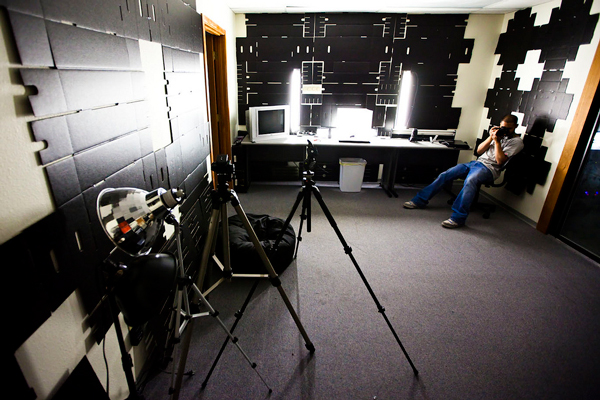
Setting up a simple home studio can be extremely beneficial to any photographer. Whether you’re a professional portrait photographer or a graphic designer who needs product shots, a home studio gives you a place to work, experiment and learn new things. Below we’ll take a look at a few considerations to keep in mind when creating your own studio.


The Room

The first thing to consider is obviously space. You’ll need to empty out the garage or convince your spouse to let you convert the spare bedroom.

Ideally, you’ll want something nice and spread out with plenty of room to move around after it gets filled with equipment. Realistically, your home is probably full enough without a studio, so you’ll have to overcome claustrophobia and squish it in wherever you have room.

You’ll want to choose a room where you can tightly control the lighting environment at any time of the day or night. Natural light can be a great tool but if your studio has a window, make sure you have a way to completely block off the light coming from it for the many cases where you won’t want it interfering with the shot.

Another thing you’ll want to consider is whether or not the room is climate controlled, especially if you’re going to be storing your equipment there permanently. Here in Phoenix, the typical garage can get well above 120 degrees fahrenheit in the Summer; not the ideal place to store thousands of dollars in photography equipment. Also, unless you’re going for that sweaty look, this wouldn’t be the best environment to take photos in!

One final consideration is sound. If you only shoot still photos than you’ll be fine with any room but if you’re ever going to shoot video you’ll want to choose a room far away from noisy appliances like a washing machine. You also might want to invest in some soundproofing materials.


Backdrops

Any good studio has a few backdrops to take photos against. It’s probably a good idea to avoid cliche photographic backdrops like you’d expect to see at a shopping mall photo studio and instead opt for something simpler. Solid colors work, as well as something with a little texture (as long as it’s not too busy).

Backdrops commonly come in a variety of different materials and textures including muslin (cotton), canvas, vinyl, or just plain old paper. The cheapest versions are obviously the paper backdrops and typically start around $24.

If you want to go a little more professional, you can typically expect to spend $100-300 on a tougher and more interesting backdrop. You can get a decent backdrop kit complete with stands from Backdrop Source for around $175.

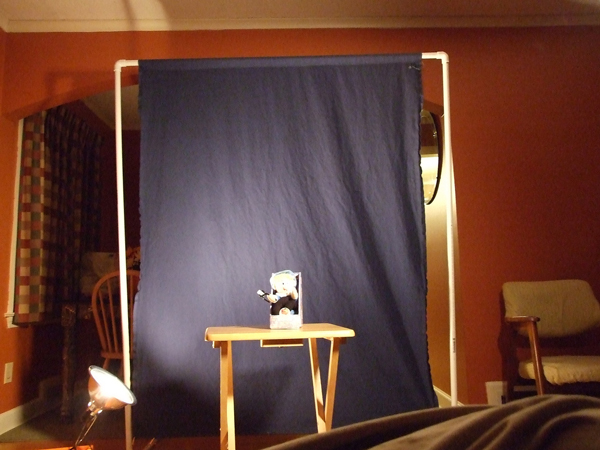
Of course, to start off you could take the poor man route and grab a bed sheet or some butcher paper and build a stand out of PVC pipe like in the picture above.


Lights

Lights are probably the most complicated and costly piece of the studio puzzle. I recently went over great deal of what you need to know in our tutorial on high key lighting.

To quickly reiterate for those that missed it, there are essentially two primary choices for studio lighting: continuous or flash. Continuous lighting rigs tend to run cheaper but burn a lot hotter and aren’t as versatile as flashes. With flashes you tend have much more power, increased quality of light and a much wider range of possibilities.

You can pick up a basic lighting studio kit for a couple hundred bucks, but can also easily spend upwards of $2,000 if you’re really serious about your setup. I recommend starting off small and purchasing a kit with two or three flashes. This should be plenty to achieve excellent results in a number of different styles and you can always add to it a piece at a time.

Check out Alien Bees, CowboyStudio and Square Perfect for some quality but affordable lighting kits.

Umbrellas or Softboxes?

Looking at various lighting kits might have you wondering whether you should go for an umbrella or softbox setup for your studio. Which is better? There’s no absolute solution to this question as they both have pros and cons. Both essentially modify and filter light to make it softer and less harsh when it hits the subject.

Umbrellas are usually cheaper and fairly versatile. They often come with a reflective cover that allows you to shoot light into the umbrella and have it bounce back out or simply filter the light right through the material with the cover removed. Umbrellas can spread light out over a wide area and are therefore great for large rooms or groups of people. Finally, umbrellas are quicker to setup and tear down than softboxes, which can be quite complicated!

Softboxes tend to be a little pricier but they allow you to focus and control your light in a small area a lot better than umbrellas. These are perfect for when you’re shooting a single subject or are confined to a smaller area. Softboxes also make for much less distracting reflections than the shape you’ll get from the umbrella.

Most professional photographers would prefer to have a few of each but if you have a limited budget and are just getting started, umbrellas are a perfect first step.


Props and Costumes

Something you might not think to include but really should consider picking up is a bunch of crazy props. Having your portrait taken is a painfully boring process for many people and having silly stuff for them to dress up and play with can be a great way to loosen everyone up and inject a little fun into the situation.

Even the most stubborn model can become quite humorous with giant sunglasses and a fake mustache. Be sure to have plenty of different options to choose from: baseball bats and sunglasses for the tough guys, huge fake diamond rings for the ladies, and wildly fluffy toy monsters for the kids.

Even if the ultimate goal of the shoot is a serious portrait, starting off with some funny props encourages your subjects to relax and be themselves.

You’ll also want to consider some more practical props as well such as a few pieces of stylish furniture you can quickly move in and out of the scene. Anything you can do to break the typical mold of studio photography will help you stand out as a photographer.


The Necessities

There’s almost no end to the goodies you can put into your studio, but before you start considering mini fridges and plasma televisions, think about the things you’ll absolutely need. For instance, you’ll definitely have to pick up a decent tripod or two. You’ll also need extension cords and surge protectors to rig all that equipment up.

If you’re using flashes, you should consider some wireless flash triggers so you’ll have the freedom to move around. Finally, get a ladder to snag some above shots (and to help hang your backdrop), some curtains that people can change clothes behind, and a mirror or two for those last minute makeup and hair checks.

The costs of all this can mount exponentially and quickly leave you penniless. Don’t feel like you have to get everything at once, plenty of photographers take years to build a respectable studio. Be careful of investing too much money into a hobby that isn’t generating revenue. As you start getting paid gigs you can reinvest some money back into your equipment fund.


Show Us Yours!

Now that you’ve read our guide to setting up a home studio, get out there and build your own. Snap a photo of your setup, upload it to Flickr and leave a link in the comments below.

Also be sure to tell us if there are any items you find essential that we didn’t mention above.