Create a Vintage Squid Illustration by Combining Photographic and Illustrative Elements


Compositions that combine both photographic and illustrative elements are often popular among graphic designers. Today, we will demonstrate how to combine these elements to create a vintage squid illustration. Let’s get started!


Resources Used

The following resources were used during the production of this tutorial.


Step 1

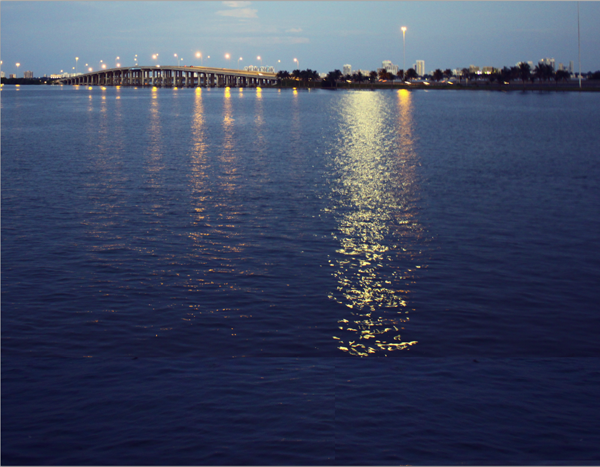
Alright let’s get started with this tutorial! The first thing we need is a base image to use as our background for which the character will be drawn onto, (for this tutorial I took a nice shot of the bay the other day and I think it will do just fine). Now keep in mind the perspective, angles and depth of the photo since anything we draw has to match those angles as to create the illusion successfully.

Step 2

After you have selected the image you’re going to use, go ahead and print it out; 8×11 standard letter size is fine. Next, grab a sheet of tracing paper and a piece of scotch tape as we’re now going to place the tracing paper over the photo we just printed and draw our giant squid on it (if you have a lightbox handy go ahead and use this as it makes things much easier). Go ahead and draw a light simple outline of our squid character, you don’t have to draw the details right now, we’ll do those later on. Right now it’s more important to get the angles and base size of the squid right so it matches the original photo.


Step 3

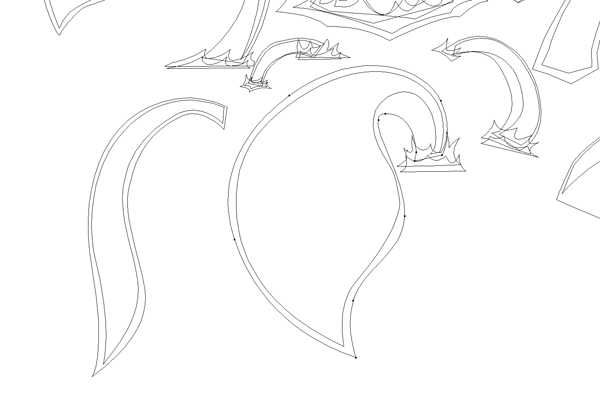
When you have your rough sketch ready remove it from the photo and scan it at 300 dpi (very important to get the hi-res scan otherwise you won’t be able to get the right curves of the lines). Take this scan and place it in a new document in Illustrator, this is the part that’s the most time consuming as we need to trace the octopus using the pen tool. So first just draw all the outside lines, which in the end will be the outside stroke, (right now you don’t have to worry about colors, black and white will do fine). After you’re done tracing all the outside lines, move on and trace the inner pieces, (these pieces will make the "skin" of the squid).

Step 4

Ok, so we finally got all of the squid done, that took forever. After all of the lines are done go ahead and double check that; A) You don’t have any open paths, and B) The curves and angles of your lines look very smooth and flow together nicely. It’s important that you notice the details and your craftsmanship as it will make all the difference in the end result. Having 1 shape instead of 2 shapes overlapping might look like extra work but in the end gives more control, since every shape is an individual piece this makes it easier to adjust the colors, sizes, strokes, etc. later on.


Step 5

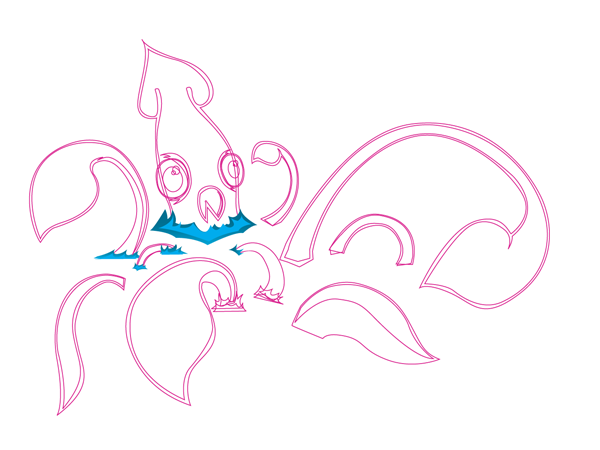
Now let’s make a splash and create some water. Since the squid is coming out of the water there might be some splashes, this is where the decisions can get tricky. I originally had planned to create the splashes with images in Photoshop, but i think it would be cooler to do them using vectors. So using the pen tool create a variety of splashes at the beginning of each tentacle and than fill them with this gradient. C: 95, M: 17, Y: 25, K: 5 for the first color and C: 77, M: 11, Y: 0, K: 0 for the second color. then draw a smaller wave and fill it with, C: 77, M: 11, Y: 0, K: 0.

Step 6

After you have all you outlines ready, find the color palette to use; for this I was thinking of saturated colors to further enhance that vintage/new school look we’re going for. We really want this to look like an older picture, yet have the art style of the squid be contemporary. Fill the outside line with this color: C: 6, M: 92, Y: 5, K: 0 and C: 0, M: 83, Y: 0, K: 0 for the inner pieces, for the eyes: the outline is C: 9, M: 25, Y: 100, K: 0 and the eyeball C: 20, M: 0, Y: 98, K: 0.


Step 7

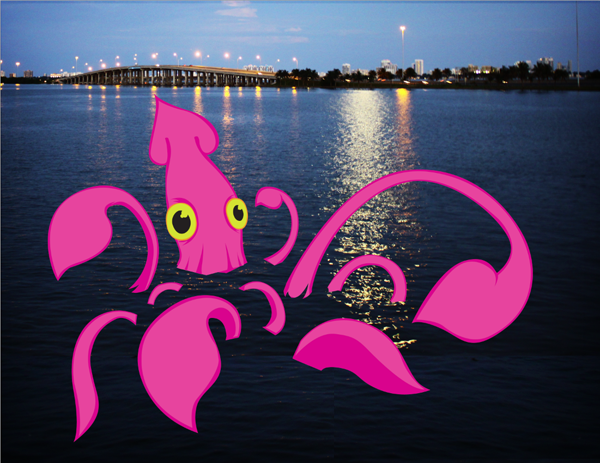
It’s moving time. The easiest way to do this is to create a new document in Photoshop at 8×11 landscape at 300 dpi, (nothing worse than creating a piece and then finding out you’ve been working in low-res). So once again make sure you’re working at 300dpi, then while leaving this window open first drag the water photo (our background) and then repeat with the vector squid from illustrator, (the squid will be linked as a smart object which is great since you can just click on the icon and the original squid will open in illustrator where you can edit over and over until you feel comfortable and not have to keep dragging files back and forth all day).

Step 8

Now that we have this going let’s add the waves we created. After that, arrange all the vector pieces around and scale them until you have the right composition. Composition is super important when creating pieces, we want everything balanced and appealing to the eye.


Step 9

After looking around at this piece for a while I wasn’t completely happy with the beak on the squid so I thought it would look cool if we just saw the head peeking out of the water. So using a mask I hid the lower part of the squid. After that, I duplicated the layer where the squid is on and rasterized it. Now we can work on the tones and shadows of the squid.

We now need to add shadows and highlights to give the image some depth. There are tons of different ways to add shadow effects (like using the brush tool on low opacity); but for this piece, I used dodge and burn at 5% to 10% around the edges. It’s important to notice where the light source is in the photo so when you add the shadows to the squid they will look more organic. It’s always best to use a tablet for this since it gives the natural brush look, but a lot of people can do a great job with a mouse too. In the end it’s what’s most comfortable for you and your style.


Step 10

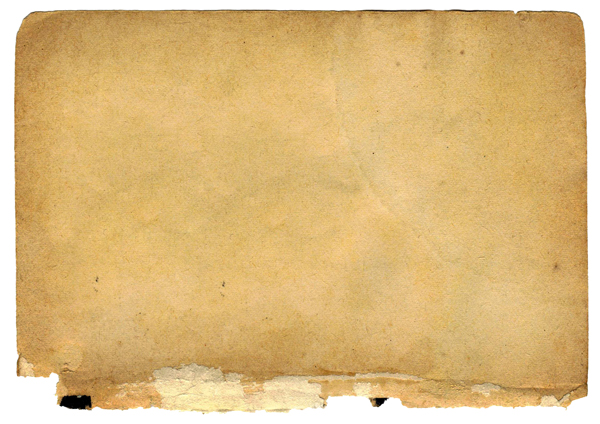
Now let’s add some texture to the photograph to give it that worn vintage look. I used a paper texture to give it a yellowish tone. Add this on a new layer and set it to overlay and set the transparency to 27%. Than duplicate this layer and set it to 60% on multiply and you’ll end up with something like this.

Step 11

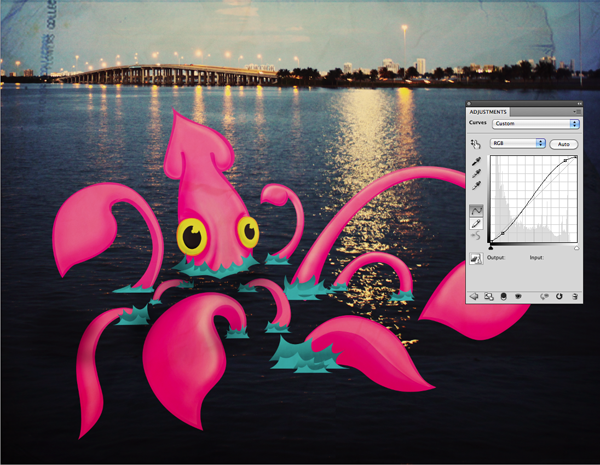
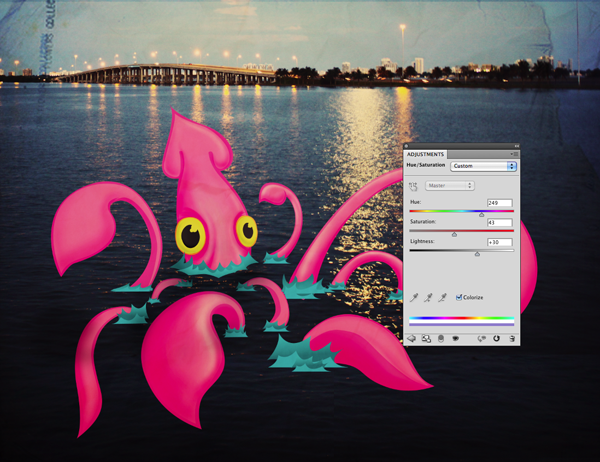
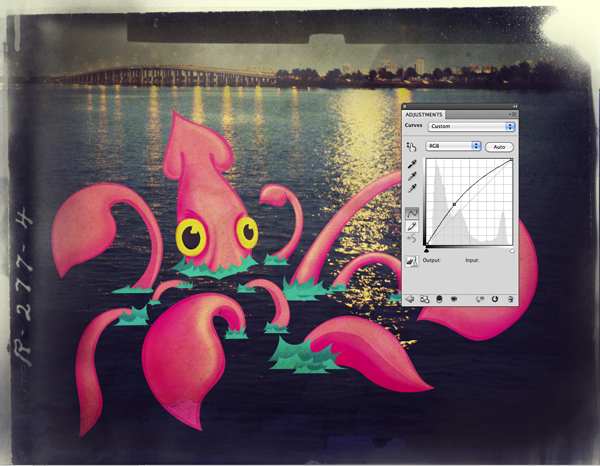
Now we’re going to play with the tones a bit to perfect the vintage look. Usually with older photographs the white edges start to turn yellow and the shadows turn to a blueish tint, we’re trying to mock this look. First we’ll adjust the curves, by making the shadows darker and the highlights brighter the image will look richer. After that change the hue/saturation: Hue: 249, Sat: 43, Lightness: +30.
Step 12

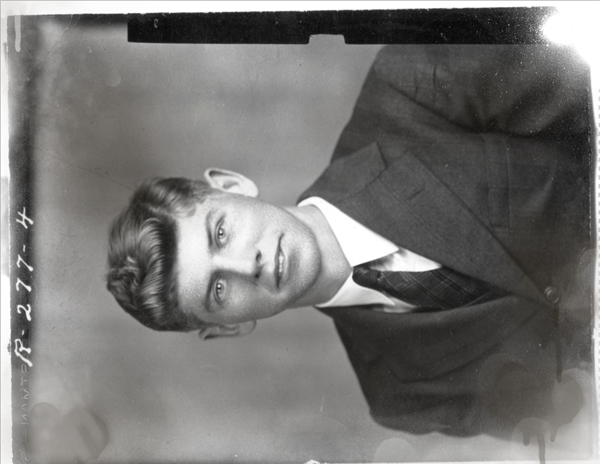
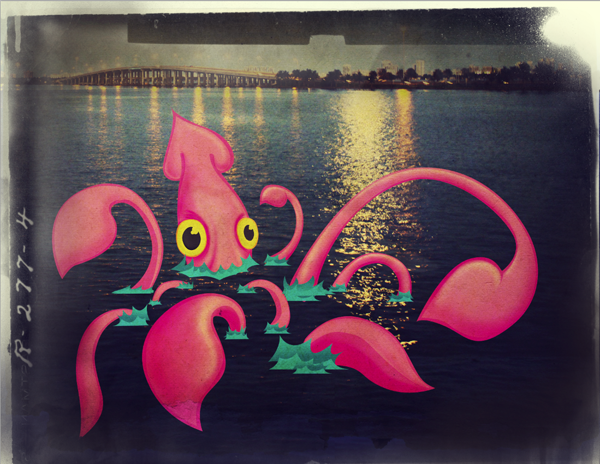
To further add to the vintage look we’re going for, we need to add a frame around our piece. I found this image on flickr and it has some nice edges and textures we could really use, so add this as another new layer and mask the face, you can use the pen tool to outline the edges and really get some details.
Step 13

Looking at the borders there are some more textures in there we could use so, duplicate the layer and with a soft brush at a low opacity (10%) mask around the edges to give the image the paper texture of the photograph, set the opacity to 48% and the blend mode to multiply.


Step 14

More Curves! Add another adjustment layer, this time curves again this will help to blend the frame and all these new elements together, since adding curves makes all the tones equal, it helps to create the illusion.

Step 15

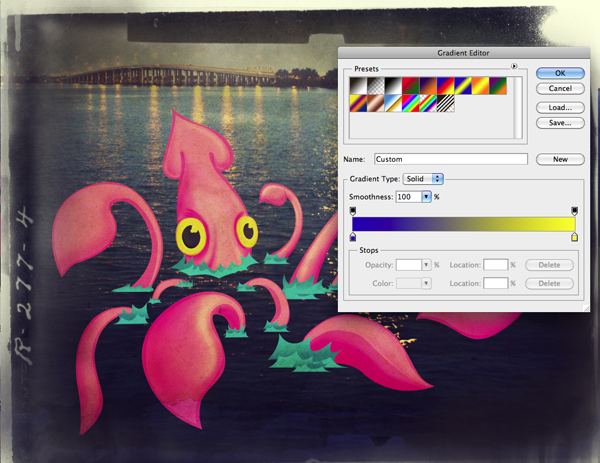
Do a final adjustment layer, a gradient map pick the default blue, red, and yellow gradient then by dragging down on the red color chip remove it, this will give all the shadows a blueish tone and the lighter colors a yellow tint.

Final Image

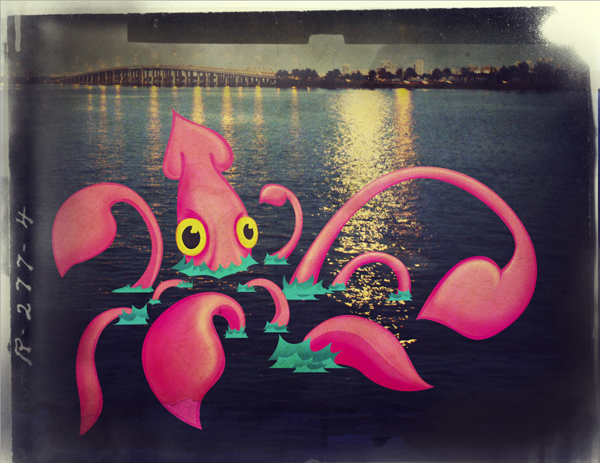
So there you have it, our final image. Hope you enjoyed creating it as much as I did.
Quick Tip: How to Recreate Tails of Drum Samples

Chopping drum hits out of loops is a great way to gather one-shot drum samples, but since they’re in a loop, the tail or decay of the drum is often interrupted by another hit. To make our abbreviated samples sound more natural, we’ll try to recreate the lost tail of the drum in Edison, but any audio editor will do.


Step 1

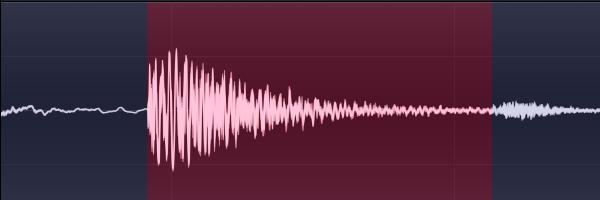
Load a loop into Edison and delete everything except the drum you intend to extract. In Edison, Ctrl+Del will ‘trim’ the audio, deleting everything except the current selection. Aim for a nice, clean hit without any strange background noises. A decent decay before the next hit will help immensely. Try to trim the sample so that it starts exactly at the beginning of the drum’s transient and ends before any other sound pops up. Make sure the sample begins and ends on zero-crossing points.

Download audio file (1.mp3)


Step 2

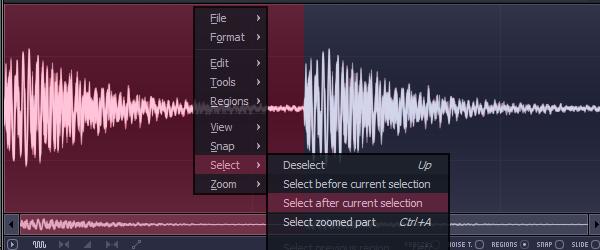
When it’s looking good, select all with Ctrl+A and copy and paste the audio with Ctrl+C and Ctrl+V. Now you’ll have two copies of the drum hit. Right-click anywhere on the waveform and choose ‘Select after current selection’ from the ‘Select’ menu, or just use the mouse to select the second copy of the drum.


Step 3

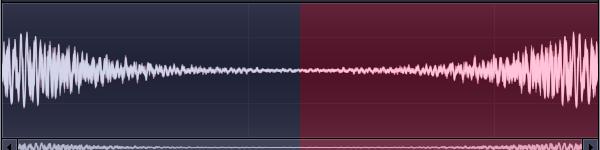
Press Alt+Left Arrow to reverse the selection. You probably see where this is heading already. If you chose a nice part of a loop to extract from, the drum sound probably has a bit of a tail, just not a very long one. By duplicating the whole hit, we can extend the small tail we already have and fade the sound out before the reversed initial transient is audible. Look carefully at where the two halves meet, if the wave suddenly starts going the wrong way, reverse the polarity of the second half with the option under the ‘Tools’ menu.

Download audio file (3.mp3)


Step 4

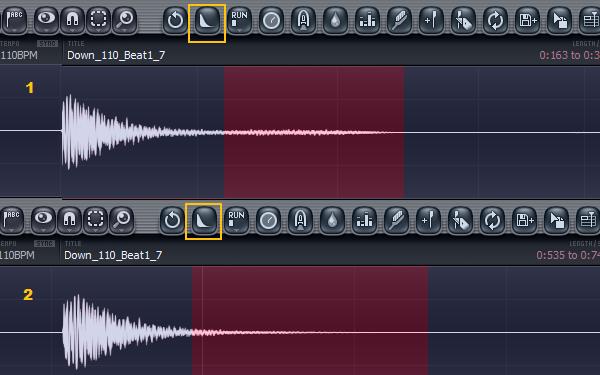
The easiest way to fade out our new fake tail is Edison’s ‘Fade out’ button. If you can’t see it, make the Edison window wider until it pops into view. You’ll probably need to fade the audio out twice or so, once with the reversed transient selected and another time with more of the fake tail selected, to even it all out. You’ll have to experiment a bit to get it just right.

Download audio file (4.mp3)


Step 5

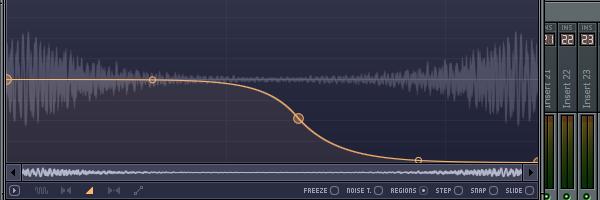
If you don’t like messing around with fade buttons, you can also just draw in an amp envelope yourself. In the bottom left of Edison, click the little triangle and start making curves. You’ll want the ‘fake tail’ portion of the sound to fade out naturally, but the reversed transient to be completely silent. Press Ctrl+E when you’re happy with it to apply the envelope.

Download audio file (5.mp3)


Step 6

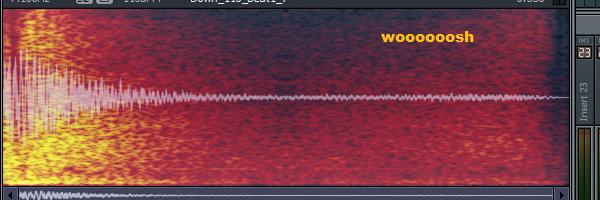
You might find the higher frequencies of your drum sound ‘wooshing’ back even after you’ve faded it out. To fix this, we’ll use Edison’s handy ‘Undo mix (envelope)’ feature. This lets you control the mix level between the audio as it is presently and how it was at an earler time in the undo history. We’ll equalize the whole sound to get rid of the unwanted high frequencies and then undo the equalization by a varying amount over time with an envelope. Basically, the envelope controls the wet/dry level of the equalizer so that we can leave the beginning of the sound alone but gradually reduce the level of the offending frequencies.

Download audio file (6.mp3)


Step 7

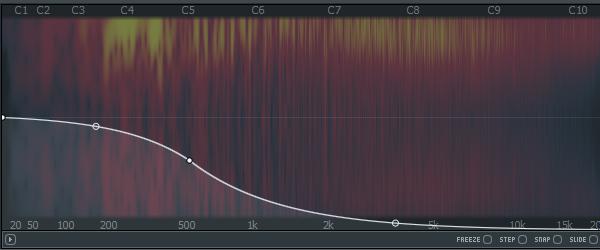
To start, press Ctrl+Q to bring up Edison’s equalizer. Gently roll off a lot of the highs, probably a little more than you might think is necessary. You might also want to reduce the level of some lower frequencies, especially with a bass drum that has a long, ringing decay. If it seems good, press accept.

Download audio file (7.mp3)


Step 8

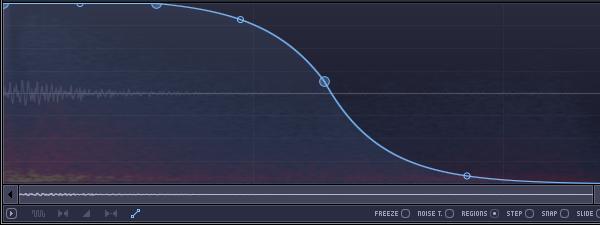
Click the two squares connected with a diagonal line at the bottom left of Edison to bring up the all-purpose envelope. Draw in a curve that leaves the nice parts alone while cutting out the wooshing sound. You won’t be able to preview the effect it has, so make a good guess. Don’t spend too long tweaking the envelope, each edit will add a new event to the undo history and we don’t want to lose our equalization undo point.


Step 9

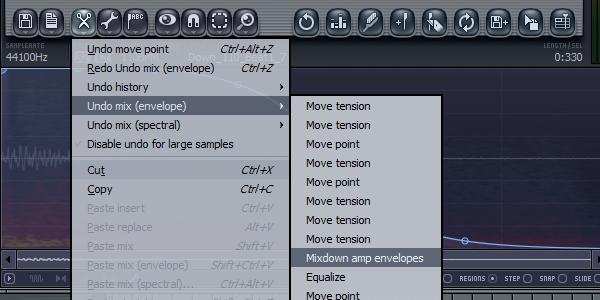
Click the scissors to bring up the tools menu and go into the ‘Undo mix (envelope)’ section. Click the undo point that is directly above the equalizer undo, because we want to revert to before the EQ. If it doesn’t sound right, hit Ctrl+Z, tweak the envelope a bit and try again.

Download audio file (9.mp3)

Now save your nice drum sample and use it someday when you need a really nice drum sample.

Here’s an example of two beats, one with all the sounds chopped straight off a loop and the second with some of the tails recreated. It might not be the biggest difference in the world, but when believeability is crucial, it might make you feel better.

Download audio file (Example.mp3)


Know Your Icons Part 1 – A Brief History of Computer Icons


As with great works of art, you must look into the past to appreciate the future. With roots as far back as the 1970′s, the humble icon has come a long way. Following is a collection of icons though history. Although there have been many other operating systems in the time between 1981 – 2010, I’ve hand picked the ones of the most significance to modern icon design. These designs show just a small fraction of the icons in the many and varied User Interfaces throughout the years. To learn more about the history of User Interface Design you can find a comprehensive article on the subject on Wikipedia.


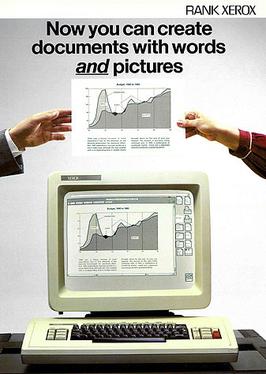
1981 Xerox 8010 Star — The First Consumer GUI Computer

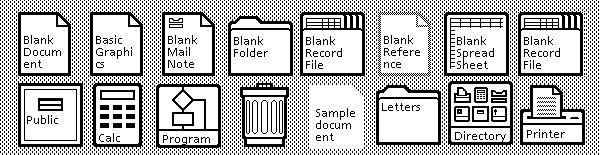
In 1973 the Xerox Alto was the world’s first GUI (Graphical User Interface) based computing system. Designed around an "office" metaphor (also a first), the Alto was built as a research computer and therefore wasn’t available for commercial release. With 2,000 machines worldwide, the Xerox Alto was so significant, it was a source of inspiration for the Apple Lisa (1983). In 1981 the Xerox Star was released, incorporating many of the design features of the Alto. The Xerox icons demonstrate a consideration for human interaction. As you can see, Calculator, Document, Folder and Trash haven’t changed in almost 30 years.

1981 – Xerox 8010 Star

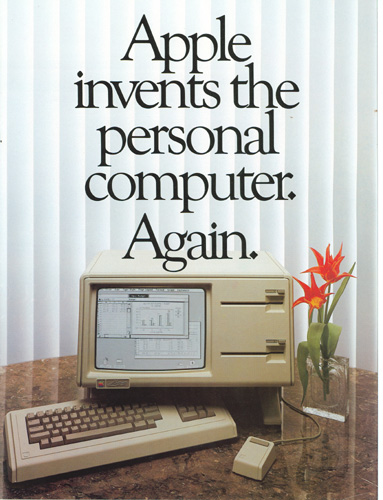
1983 Apple Lisa — Popularized the GUI

Development of the Apple Lisa started in 1978 and was heavily influenced by the earlier Xerox computers. Hoping to carve a niche in the personal computing market, Apple adopted the office metaphor to make navigation easier for new users. Lisa was an advanced GUI for the time as it had movable "Desk Accessories" (early Widgets), drop-down menus and folder based directories. You can see the icons are not much different from the Xerox, except for the size and single pixel outlines, and the use of the computer as the preferences icon (it’s now common to use cogs).

1983 – Lisa Office System 1

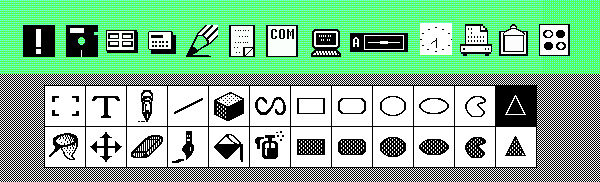
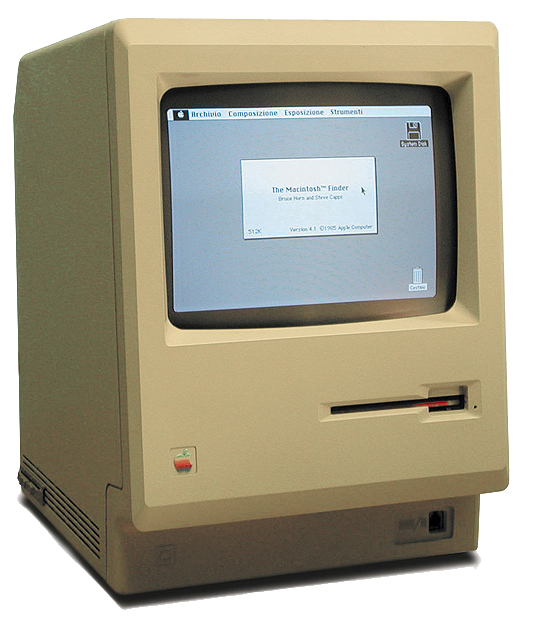
1984 Apple Macintosh 1.0 — Artist Designed Icons

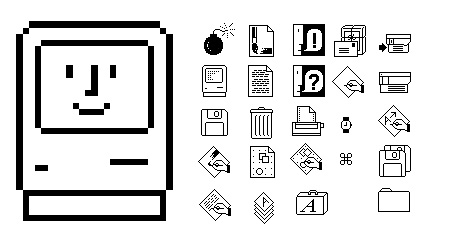
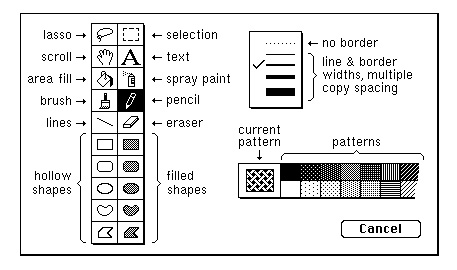
A year after Lisa the Apple Macintosh 1.0 was released. We now see drag and drop file copying, movable windows and fancy new icons! The Macintosh icons were designed by the now legendary Susan Kare. Susan Kare has to be the all time master of Icon design and was responsible for many icons including the MacPaint interface (fig 2). Kare’s philosophy on icon design is simple, "I believe that good icons are more akin to road signs rather than illustrations, and ideally should present an idea in a clear, concise, and memorable way. I try to optimize for clarity and simplicity even as palette and resolution options have increased." This philosophy is at the core of Apple’s early commercial success.

1984 – Macintosh System 1.0 (fig 1)

1984 – Macintosh System 1.0 (fig 2)

1985 Atari TOS — Isometric Icons

It’s important to note — for those a bit younger than us old sentimental computer users — that the GUI was not only for the Apple systems. The Atari ST had an OS called TOS which had a minimal interface also using the desk metaphor, which by then had become a computer standard. It’s interesting to see that the TOS has Isometric Disk icons (file drawers).

1985 – Atari TOS Version 1.0

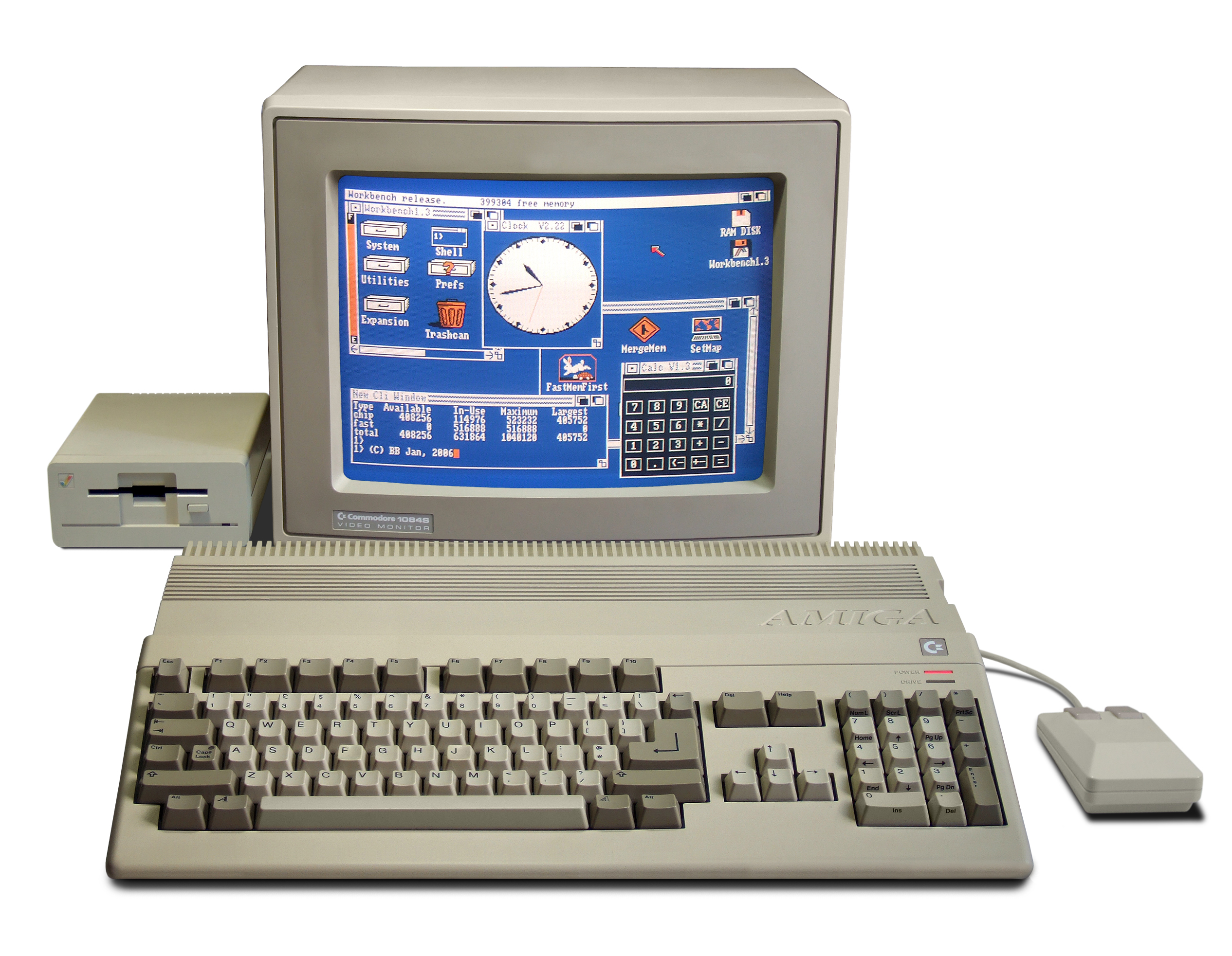
1985 Amiga Workbench — Four Color Icons

The Amiga Workbench was made for the Amiga 500 personal computer. Despite the crudely designed icons, Workbench was actually ahead of its time. Including features such as customizable mouse cursors, four color graphics and multi-state icons. You can see the two states of the "Workbench" icon in the example below. The Amiga broke with the desktop convention and chose to use a workbench with drawers instead of files.

1985 – Amiga Workbench 1.0

1985 Windows 1.0x — Microsoft’s First GUI OS

In 1985 Microsoft finally released its first GUI. The icons are just as crude as the Amiga but don’t include color. It’s interesting to see that the first icons for Windows Paint employ different symbols to MacPaint, in particular the Spray Painter.

1985 – Windows 1.0x

1986 GEOS for Commodore 64 — The Alternative OS

I’ve included GEOS for the Commodore 64 as, at the time, it was the second most popular GUI behind Macintosh 1.0 (based on units shipped). The icons have more character than Windows OS and share the Mac philosophy of clearly expressed metaphors.

1986 – Commodore C64 GEOS

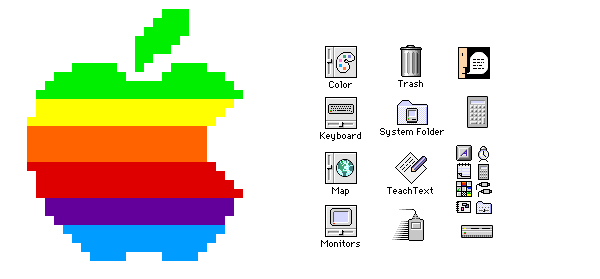
1991 Macintosh System 7 — First Mac OS with Colors

With System 7 we saw the introduction of color to the icons. You may notice that the icons are now slightly raised to appear "clickable".

1991 – Macintosh System 7

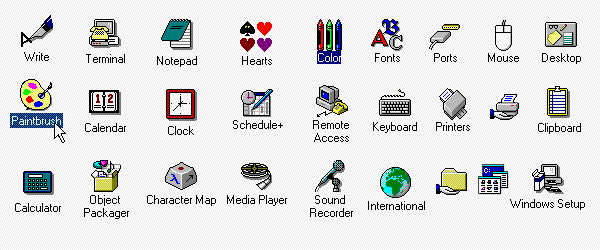
1992 Windows 3.1 — New Designer Icons!

In Windows 3.0 (1990) Microsoft employed Susan Kare (who first made icons for the Macintosh 1.0) who greatly improved the designs. In 3.1 Kare further refines the colors and designs for the icons. Windows 3.1 was the first Windows platform with pre-installed True Type Fonts.

1990 – Windows 3

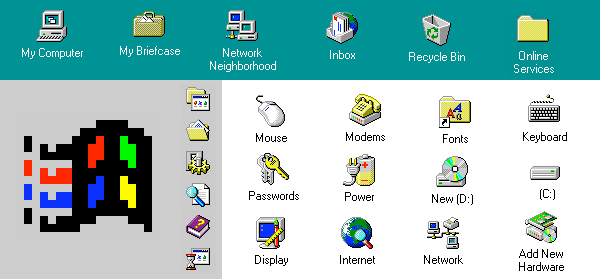
1995 Windows 95 — The Start Button

Windows 95 introduces more colors to the icons and a few more isometric designs. The Windows 95 design is a complete re-build and includes elements that are still part of Windows designs to this day. The elements include, the taskbar, the menu and Microsoft’s famous Start Button.

1995 – Windows 95

1997 Macintosh OS 8 — Brighter Icons for Mac

In Mac OS 8 the icons are now beginning to look brighter and rendered to show a strong light source. Macintosh also starts to implement an isometric style with a strong "drop shadow".

1997 – Macintosh OS 8

2001 Mac OS X v10.0 — Jelly Mac

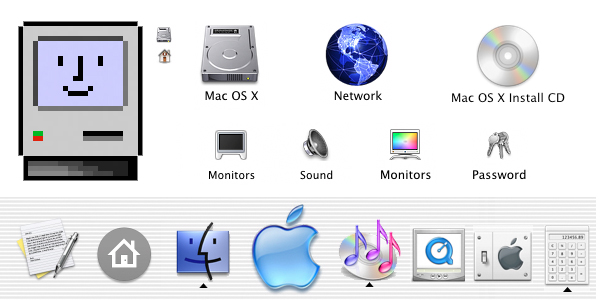
Mac OS X was released around the time I was studying for my degree in Multimedia. Lovingly called the "Jelly Mac" by most of the students. We couldn’t help but notice the ultra shiny and plastic-jelly like finish of the icons. The icons in OS X are also a huge leap forward in design from the previous OS 9, which was released just two years earlier (OS 9 looks almost the same as OS 8 above.) Presumably, due to the Dock, the icons are rendered either from a straight forward point of view or slightly above. Designed around the new Aqua theme, icons show complex reflections, highlights and textures. Without the Aqua theme, I doubt that icon design would be as desirable as it is today.

2001 – Mac OS X v10.0

2001 Windows XP — Bright Soft Icons

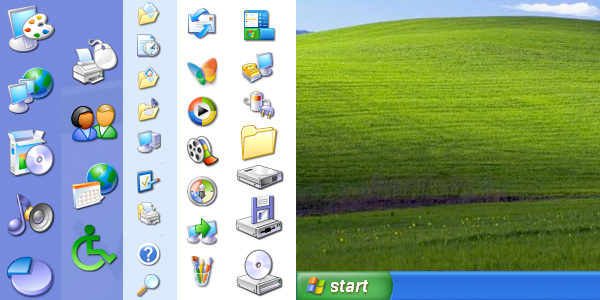
In 2001 Microsoft introduced, yet another, completely new OS system. Adopting a saturated color palette, the icons are rendered with a soft illustrative look that uses a single light source and a semi transparent drop shadow. They continue to use the isometric style.

2001 – Windows XP

2007 Mac OS X Leopard — Reflective Dock

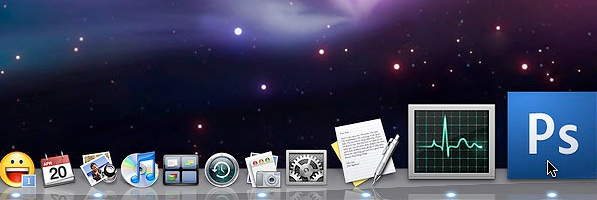
Mac ditches the stripes and adopts a 3D reflective doc for the icons to "sit on". The use of chrome, glass and reflections is as popular as ever. The icons don’t change much from v10.0.

2007 – Mac OS X Leopard

2009 Windows 7 — Soft and Reflective

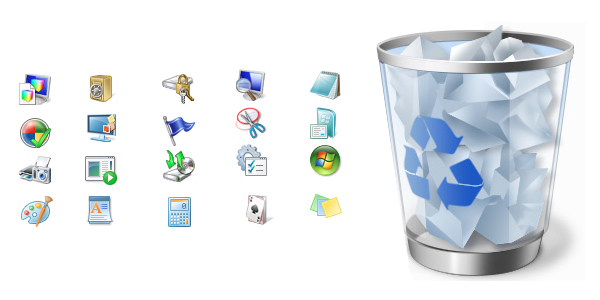
The Windows 7 icons are completely different from Windows XP and similar to Windows Vista. The major difference between Vista and 7 is the direction the icons are facing. I haven’t been able to find any official documentation on the change, but I’m not the only one who’s asking the question. The icons in Windows 7 are also softer and more glassy than previous ones.

2009 – Windows 7

Resources & Further Reading

More to Come Soon

In the next installment (Know Your Icons Part 2 – Modern Icon Design) we will be delving further into the world of icons and exploring what icons mean to us today.


Applications for Tile Engines in Flash Game Design

How tile engines simplify the game design process and how to apply them to different game types.

We found this awesome author thanks to FlashGameLicense.com, the place to buy and sell Flash games!


Final Result Preview

Let’s take a look at the final result we will be working towards:

Move your mouse to make the little square walk towards it, and click to make it jump. Hit space to change tile currently underneath the cursor.


Introduction: What are Tiles?

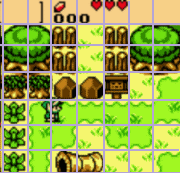
The simplest way to describe tiles is to show you images from games that have used them in the past. This is a portion of a screenshot from The Legend of Zelda:

When you look at older games, you can see that a lot of the art in the game is reused. The same tree appears twice, the same rocks appear twice, the wild grass is there three times on the screen and the fence is seen four times. And all the art is perfectly aligned to a grid. Each one of the little squares in the grid I drew over this screenshot is a tile.
Instead of making each level individually from scratch, the people who designed the Legend of Zelda decided to put the game on a grid. Then, they attached premade art to that grid. This method has a lot of benefits in game design.

Step 1: What Benefits do Tiles Have?

Most beginners who use Flash don’t know much about tile based methods and what benefits they ……..

Read more

Create a Futuristic Airship Scene in C4D – Day 2

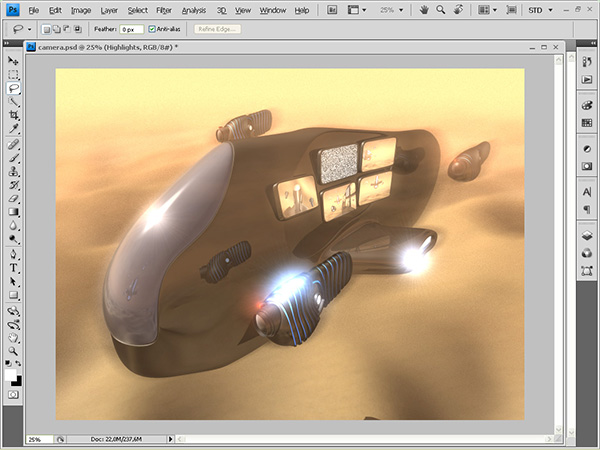
In the second part of this intermediate 2-day tutorial, Konstantin Muromtsev will be showing us how to finish up this futuristic aircraft scene using Cinema4D. After adding in the remaining ship, we’ll create the environment, add lighting, and make use of the Camera shader from MoGraph 2. Finally, we’ll then take a look at how Advanced Render post-effects such as Highlights and Glow can be used when compositing in Photoshop.

Step 1

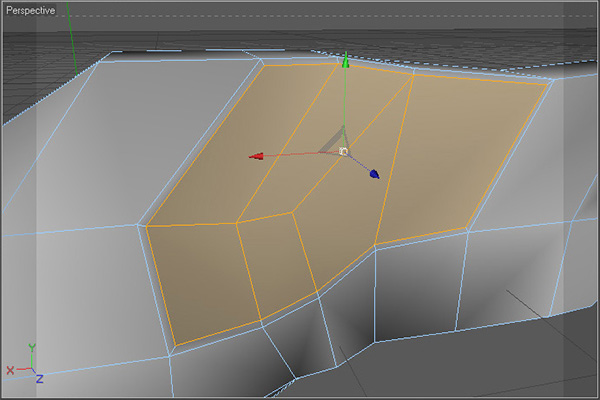
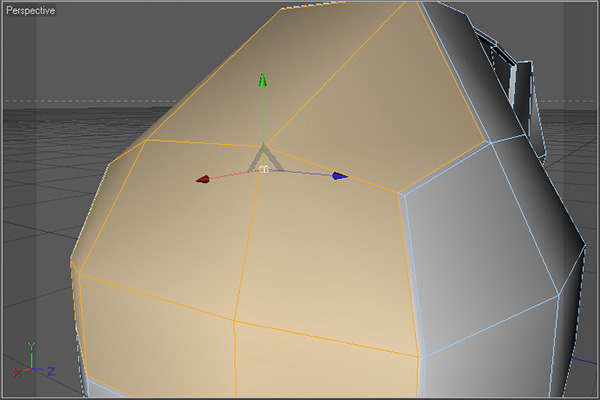
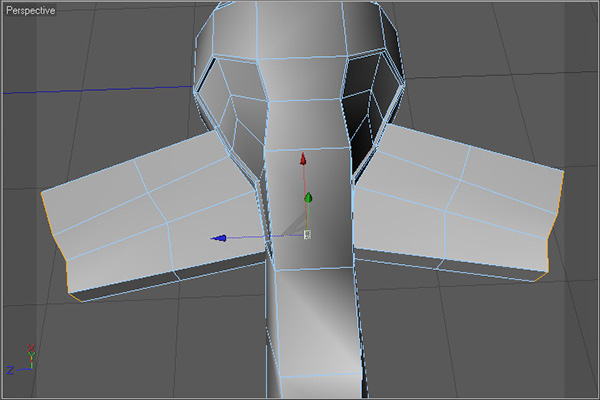
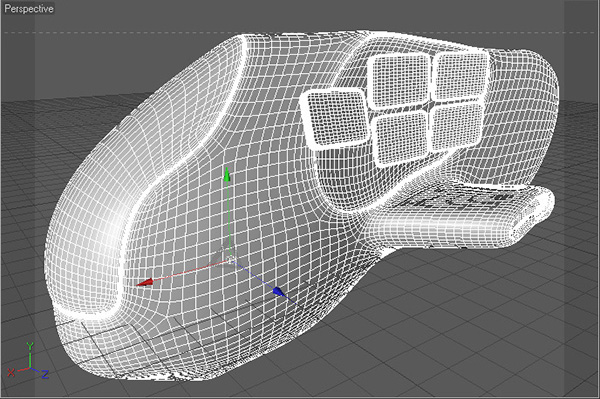
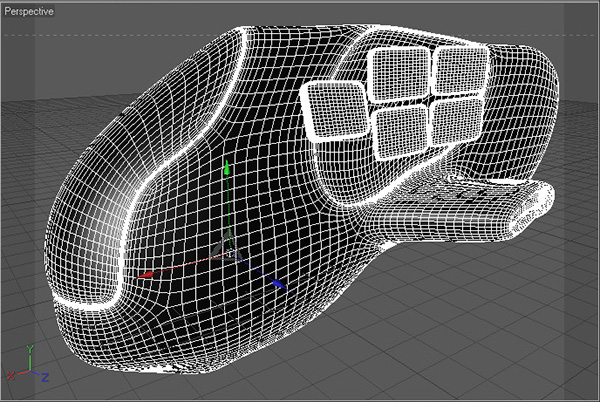
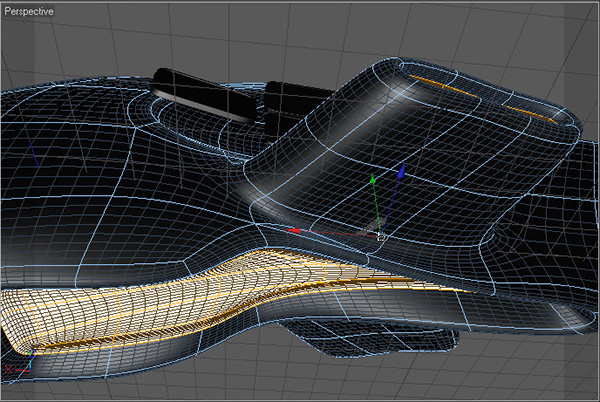
We’ll start off by creating the Display ship by utilising many of the same tools as we did for Day 1. So, first select the copy of the original ship made in Step 21 of Day 1 and make it visible. Select 6 polygons on the side of the ship as shown and use the Extrude Inner tool on them with an offset of approximately 3m. This will become the main display area.


Step 2

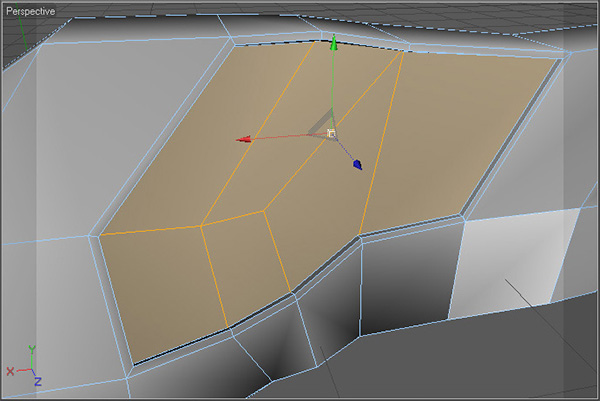
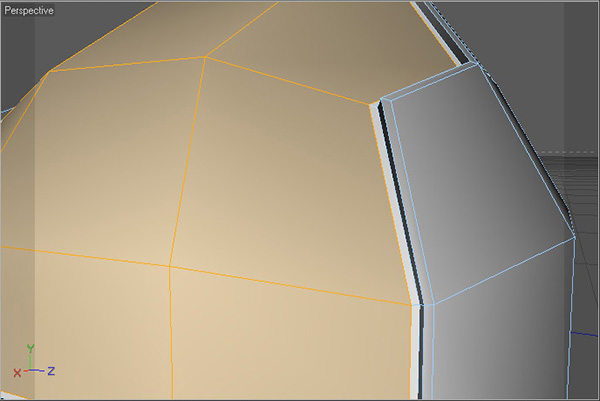
Extrude the selected polygons with a negative offset value of approximately 3m, and then use Extrude Inner on them with a similar negative offset value.


Step 3

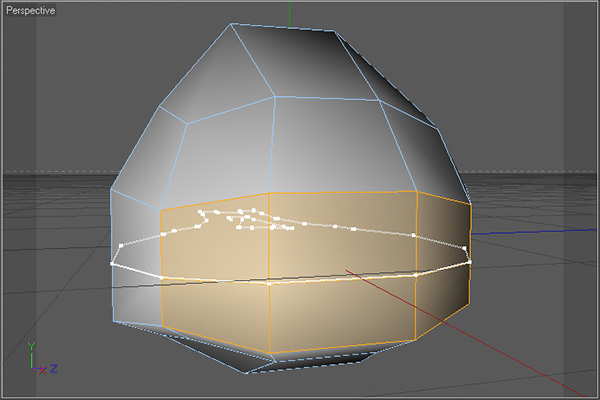
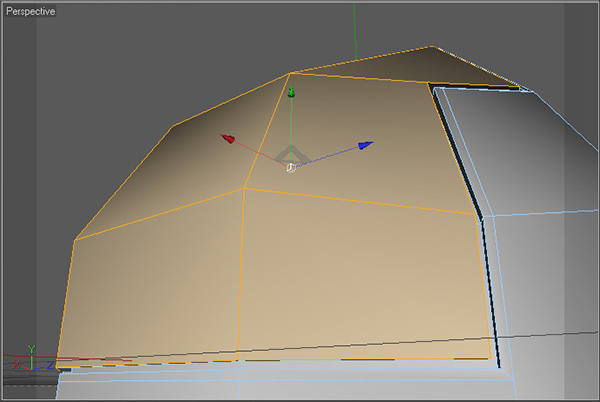
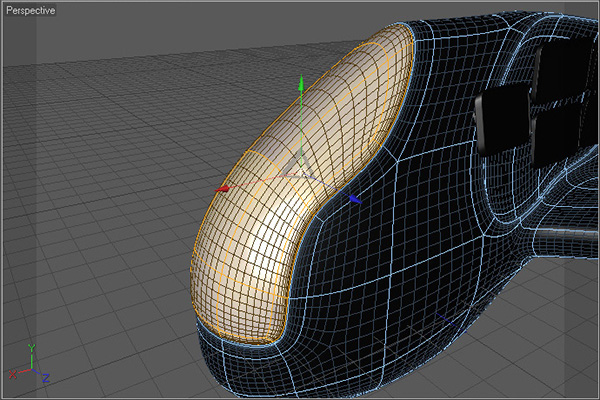
Select 6 polygons on the front of the ship, and cut them in half using the Knife tool, with the Mode set to Plane, and the Plane set to X-Z.


Step 4

Select these 9 polygons and use the Extrude Inner tool to inset them as shown.


Step 5

Extrude the selected polygons into the ship by using a negative offset value, and then use Extrude Inner as shown.


Step 6

Finally Extrude the selected polygons back out so that they are on the same level (or just higher) than the main body of the ship. Use the Set Selection command as outlined in Day 1, Step 21.


Step 7

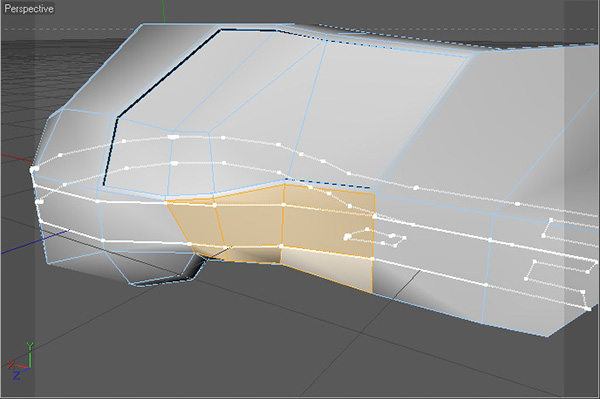
Select these 3 polygons on the sides below our previous extrusion, and cut them using the Knife tool with Mode set to Plane, the Plane set to X-Z, Cuts set to 2 with a Spacing of approximately 25m.


Step 8

Select the 3 polygons that run horizontally across the center of our newly cut section and Extrude them twice as shown.


Step 9

Now use Extrude Inner on our wing-tips, and then Extrude the polygons into the body of the wing as shown using a negative offset value. With this done, use Extrude Inner one more time on the selected polygons, however this time only use a very small distance – it should be barely noticeable! This is just to add a crease to the inside edge. Finally, add the selected polygons to a selection set called Nozzle using the Set Selection tool as before.


Step 10

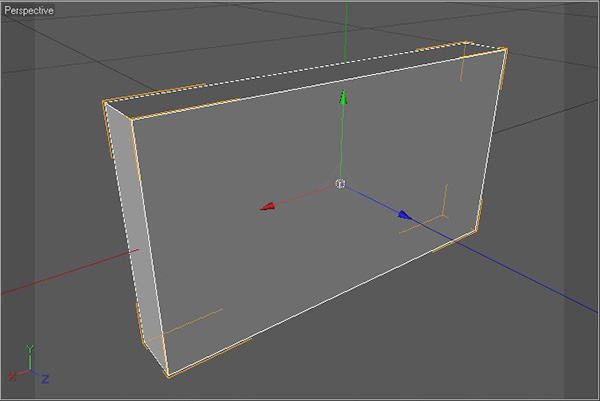
We’ll now move on to adding in the individual displays. First of all create a Cube object with dimensions of roughly 56m x 30m x 7m, and then make it editable.


Step 11

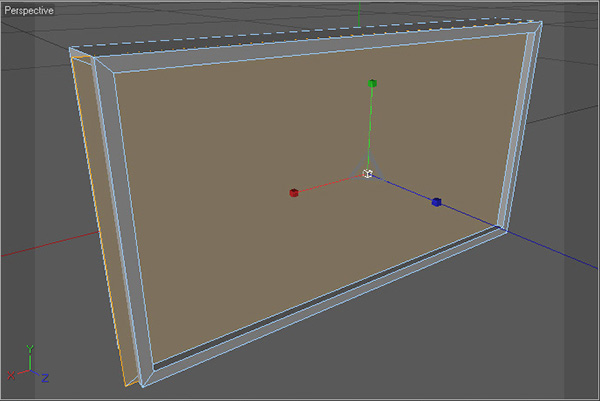
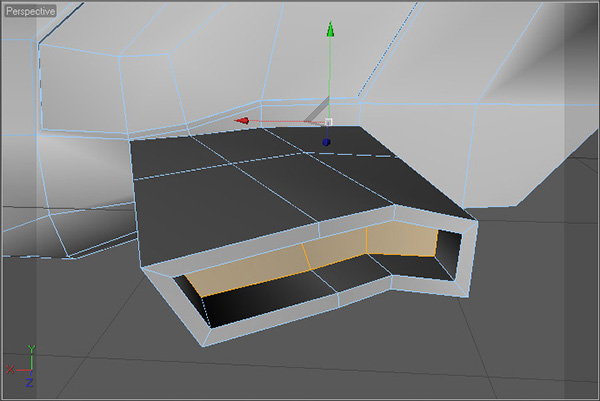
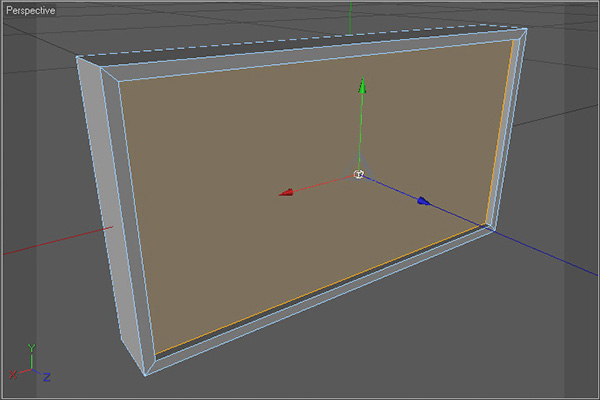
Select one of biggest side polygons, and then use Extrude Inner, followed by Extrude to create the mesh shown.


Step 12

Now, use Extrude Inner again, but this time use a negative offset value to essentially scale up the polygon so that it sticks through the sides of the box. With that done scale the selected polygon down on the Y-axis so it’s only sticking through the sides and not the top and bottom, and then Set Selection.


Step 13

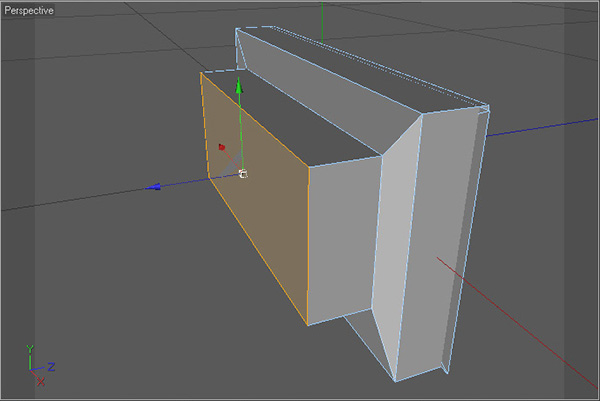
We’ll now add a small amount of detail to the other side of the object, so first select the back polygon, then use Extrude Inner followed by an Extrude to get the following shape.


Step 14

Subdivide the object by going to Functions > Subdivide, and then changing the Subdivisions value to 2 and clicking Ok.


Step 15

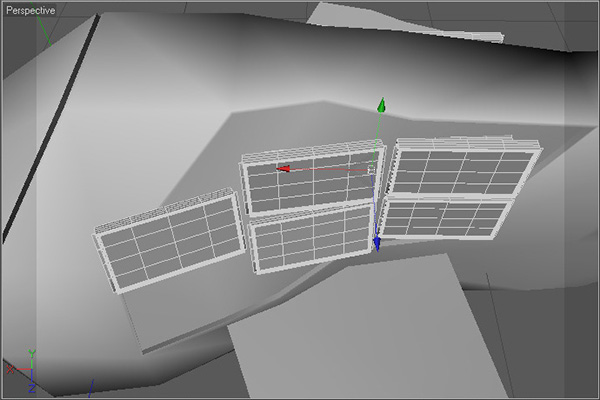
Duplicate the object to fill up the display area. When you’re happy with the layout, group all displays under a single null object by selecting all of the displays and hitting Alt-G.


Step 16

Now we need to group the displays group along with the main body, so select our new null group object, then the main body object and hit Alt-G again. With our new group null selected, we can add all of the objects to HyperNURBS by going to Objects > NURBS and then Alt-Clicking HyperNURBS. Now select the HyperNURBS object from the objects list, and in the Coord. tab of it’s Attributes, change the S.x, S.y and S.z values to 3, 6 and 6 respectively to get the following result. And with that the ship is complete!


Step 17

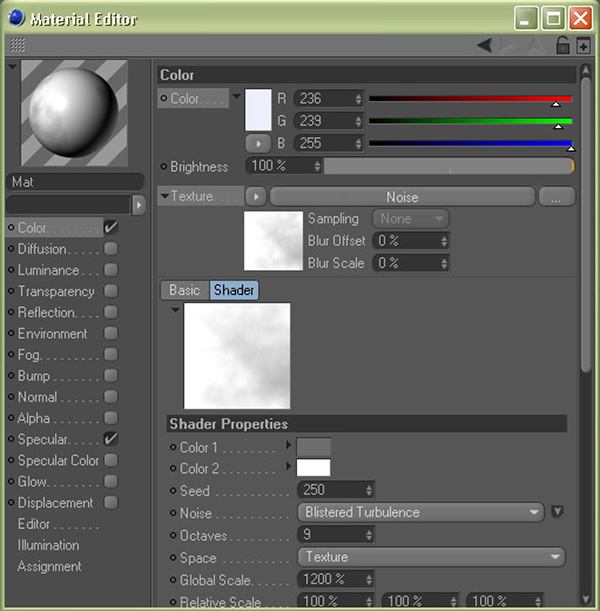
So, onto the materials! First, create a new material and in the Material Editor, change it’s Color to very light blue (in my case I used 236 239 255). For Texture, select Noise and then in the Shader Properties, select a grey for Color 1 and white for Color 2. Now change the Global Scale to something very high, around 1000-1500%, and change the Mix Mode (just off screen here) to Multiply.


Step 18

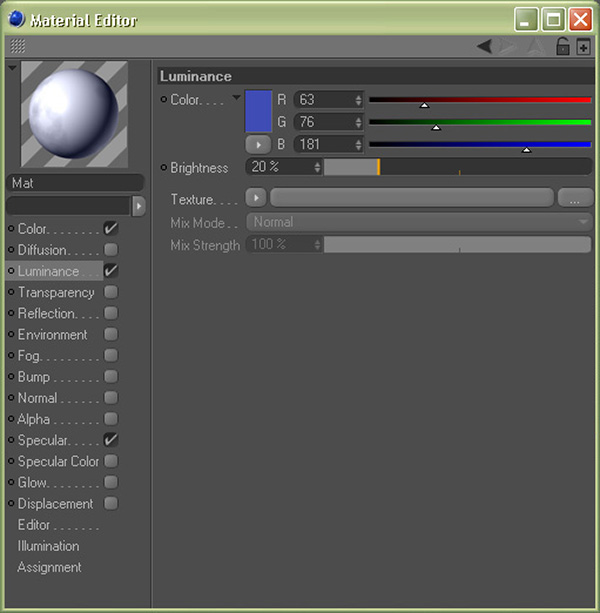
Turn on the Luminance checkbox and in the Luminance properties change Color to blue (in my case 63 76 181), and change the Brightness value to approximately 20%.


Step 19

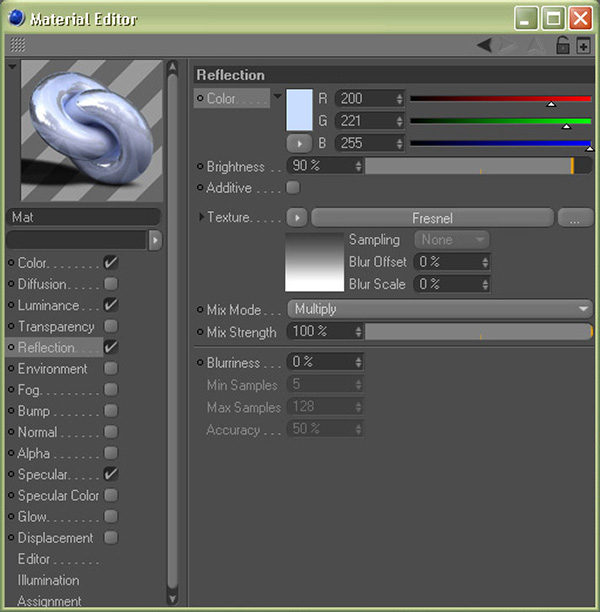
Now turn on Reflection, change it’s Color to a light blue (approximately 200 221 255), it’s Brightness to around 90% and it’s Mix Mode to Multiply. For Texture, add in a white to grey Fresnel.


Step 20

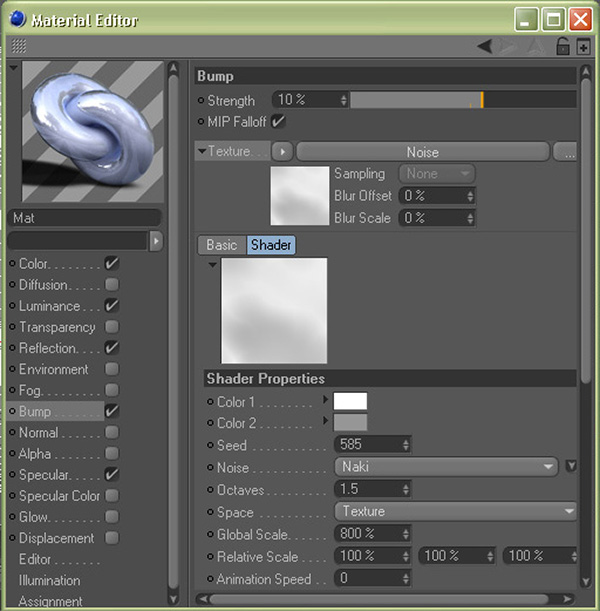
Turn on Bump, change the Strength value to approximately 10%, and in the Texture slot, add Noise with the Color values set to white and grey, and then set the Global Scale to just less than 1000%.


Step 21

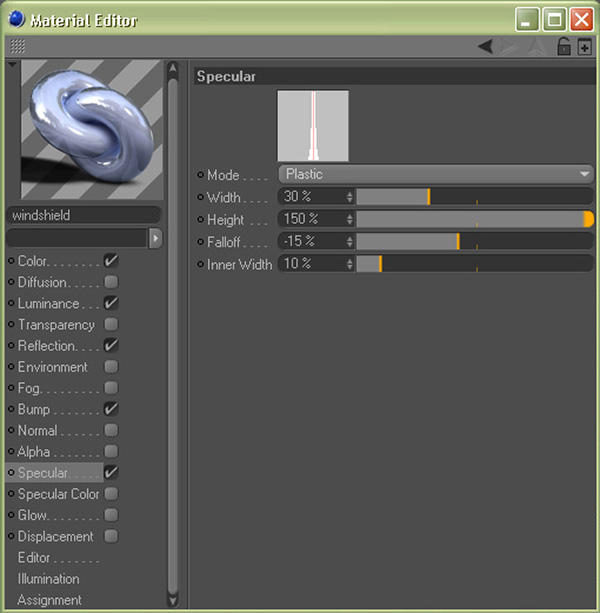
Now to finalise this material, add in Specular. Change the Width to approximately 30%, the Height to around 150%, the Falloff to -15%, and set the Inner Width to about 10%. Our windshield material is now ready.


Step 22

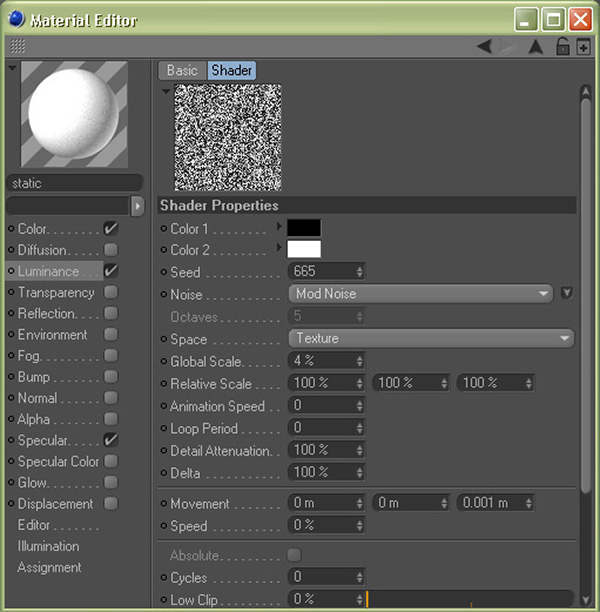
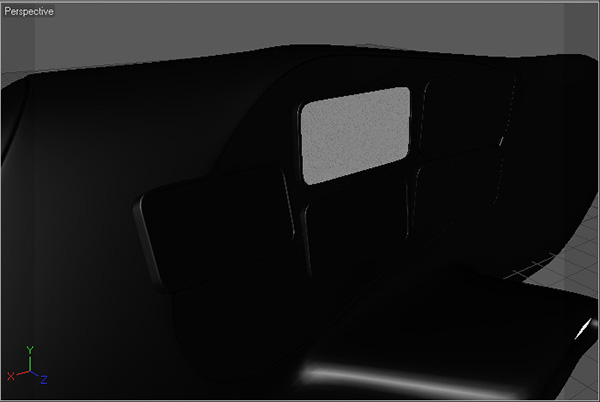
Create one last material for the ship. Turn on Luminance, and use Noise as the Texture, and change the Global Scale to something very low (in my case 4%). Our static display material is ready!


Step 23

Assign our existing base metal material to both the displays group and the ship.


Step 24

Assign the existing nozzle material to our new nozzles selection set.


Step 25

Assign the windshield material to the main windshield area.


Step 26

Finally, assign our static display material to any of the displays that you don’t want to be turned on in the final image.


Step 27

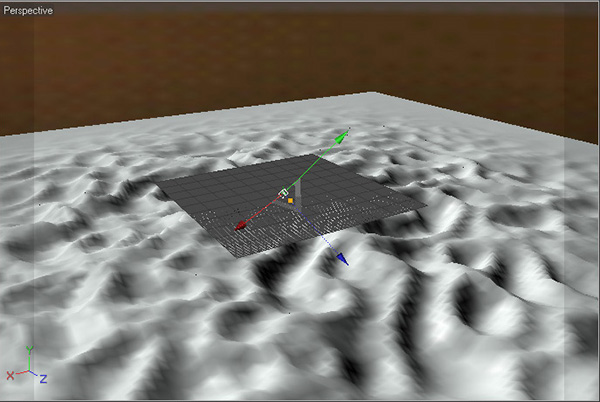
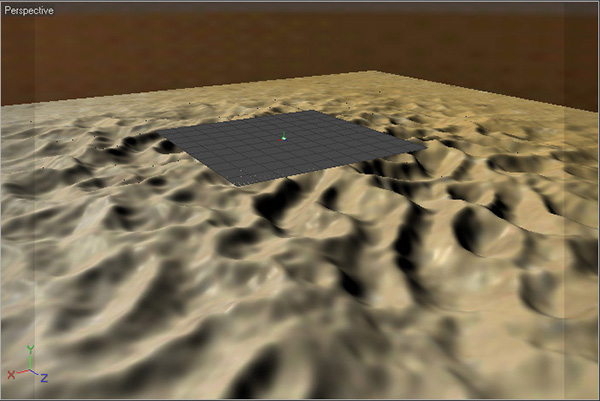
Now onto scene creation! First, create a Landscape object by going to Objects > Primitive > Landscape. In the Object tab of it’s attributes, change the Size to very large values (something like 65000x2500x65000), the Width and Height to approximately 200, the Rough Furrows and Fine Furrows to 100%, and finally the Scale to around 6.


Step 28

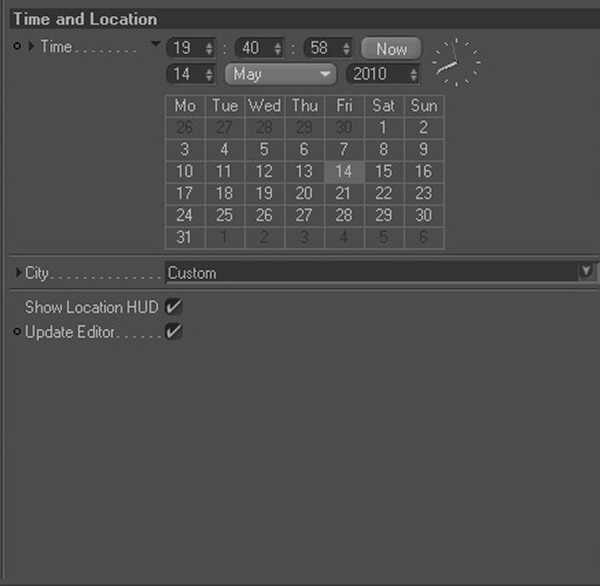
Create a Sky object by going to Objects > Sky > Create Sky. In the Time and Location tab of it’s attributes, change the time to a mid-evening, approximately 20:00. All of the other options are not important for now, however feel free to change them when experimenting with the final render!


Step 29

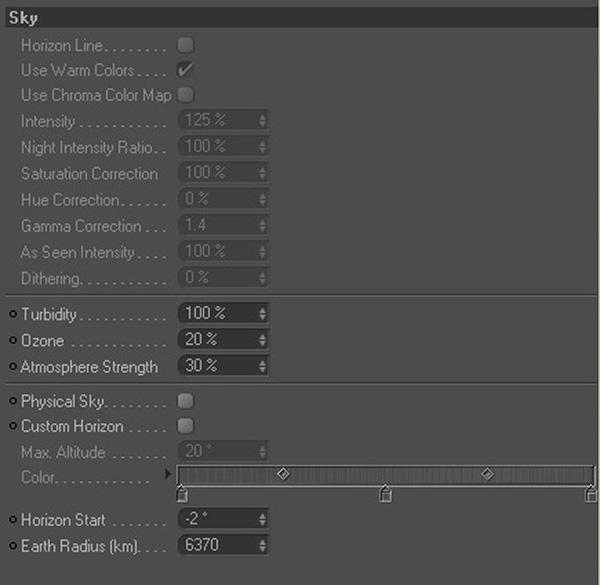
In the Sky tab, change Turbidity to 100%, Ozone to approximately 20%, and the Atmosphere Strength to around 30%. Then uncheck both Physical Sky and Custom Horizon.


Step 30

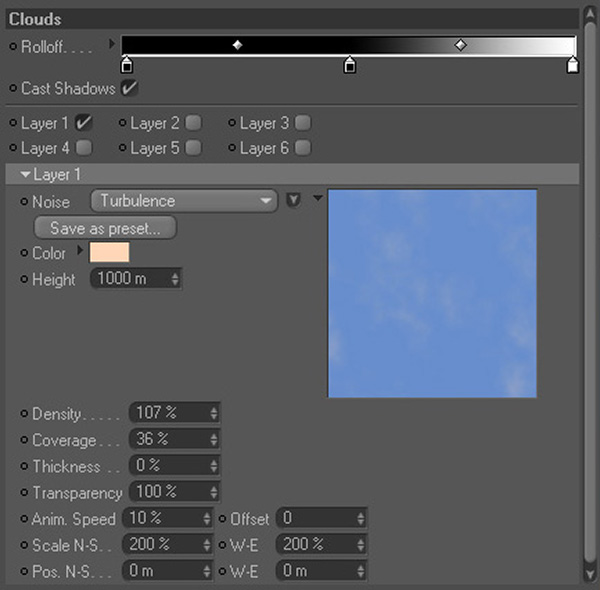
Back in the Basic tab, uncheck Sun and turn on Clouds. Head over to the Clouds tab, and add in a black to white gradient for the Rolloff as shown below. For now, leave only one layer checked and start experimenting with the options to get a look that you like! My settings are shown below :


Step 31

Check Fog in the Basic tab and then head over to the Fog attributes tab. As we are not at ground level, we need to change the Start Height to a negative value; I used -1500m. Then change the End Height to around 3000-4000m, the Max. Distance to approximately 90000m, and the Density to around 35%. Add in a very big values for the Scale, somewhere around 2000%-6000%. Finally change Shadow density to 5% and the Illumination Intensity to 15%, to ensure that we can see it clearly in our final render.


Step 32

To light our scene, we’ll create an Infinite Light by going to Objects > Scene > Infinite Light. In it’s attributes, change Color to very light green (in my case 239 246 244), Intensity to around 130%, and finally change Shadow to use Shadow Maps (Soft).


Step 33

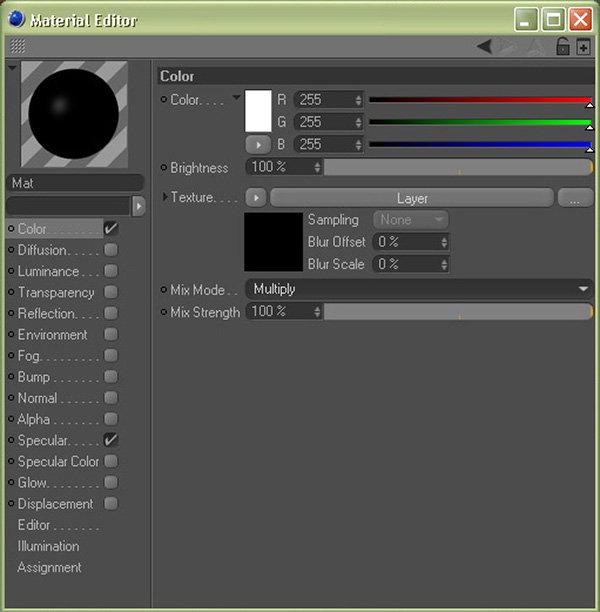
We’ll now move on to texturing the landscape. So first create another new material, change it’s Color to white, it’s Mix Mode to Multiply, and then add Layer in the Texture slot.


Step 34

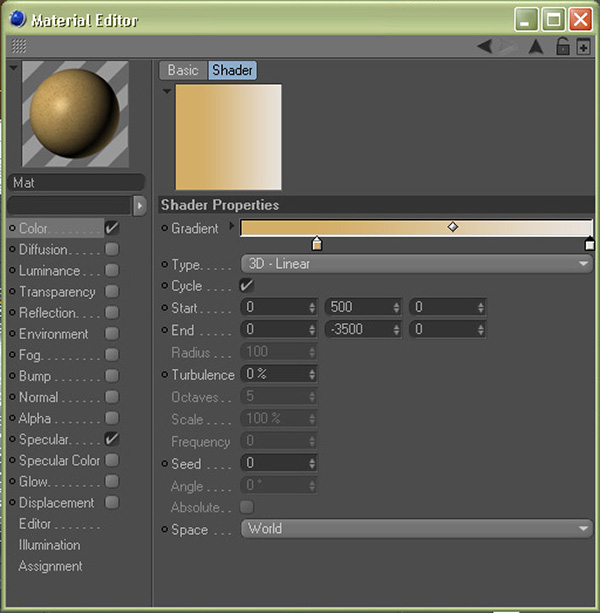
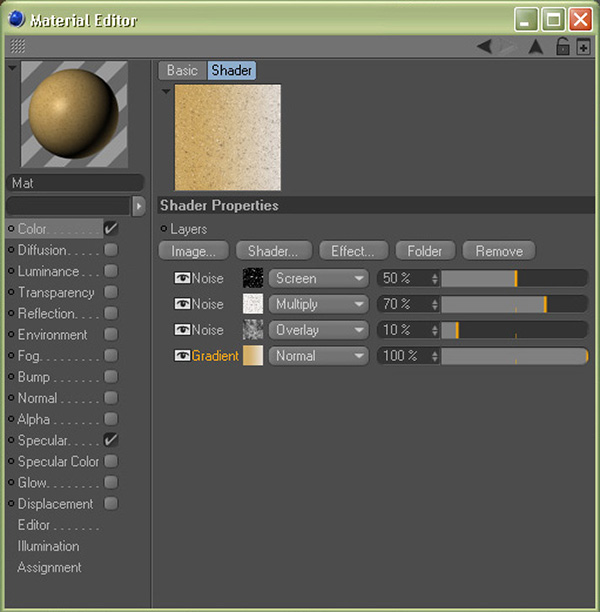
Click on the word Layer to access it’s properties, and then, using the Shader button on the Shader attributes tab, add one Gradient layer and 3 Noise layers. Click on the Gradient thumbnail and set it to be a dark orange to light grey gradient. Then change the Type to be 3D – Linear, the Start to be 0 500 0, the End to be 0 -3500 0, and the Space to World.


Step 35

Click the back arrow to return to our Layer attributes. Go through each of the Noise layers and change the Scale and Type values to 400% & FBM, 50-100% & Poxo, and 10-30% with Buya noise, respectively.


Step 36

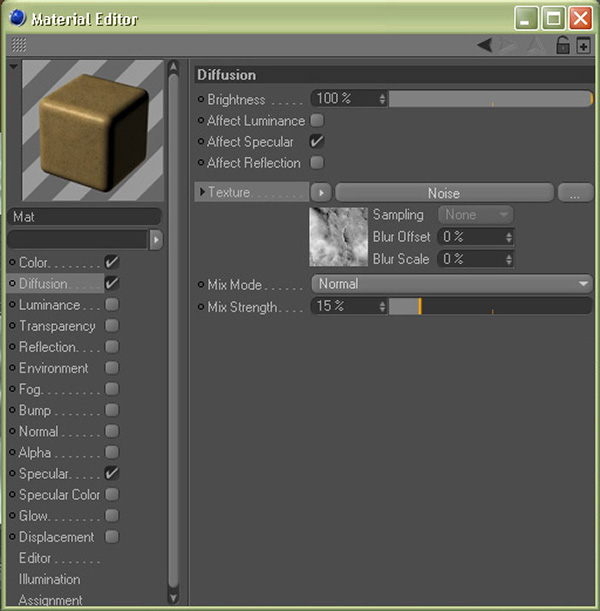
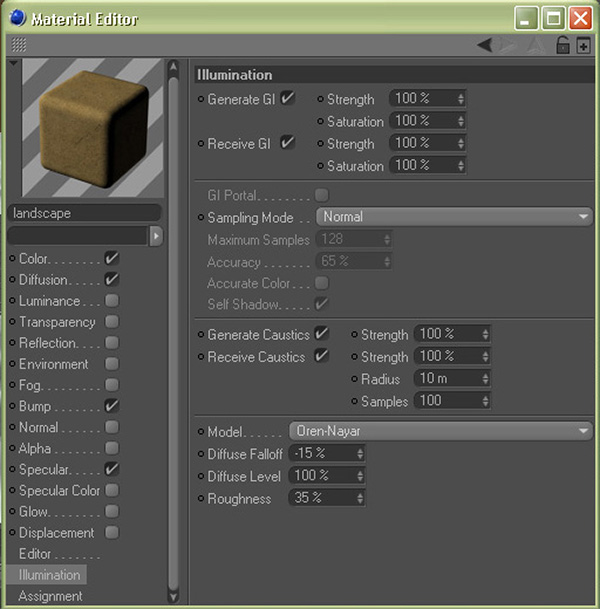
Click back again to return to our main material attributes, and in the Basic tab turn on Diffusion. In the Texture channel, add a Noise shader, and then alter it’s properties so that the Noise type is Luka, and the scale is somewhere between 600%-900%. Back in the Diffusion tab, set the Mix Strength to a low value, around 10%-20%.


Step 37

Back in our main material attributes, turn on Bump and change it’s Strength to approximately 70%. Add in a Layer shader in the texture slot. In the Layer shader’s attributes, add two noises as before, the first with a low-scaled Turbulence noise type, and the second with a high-scaled Stupl or Luka noise type.


Step 38

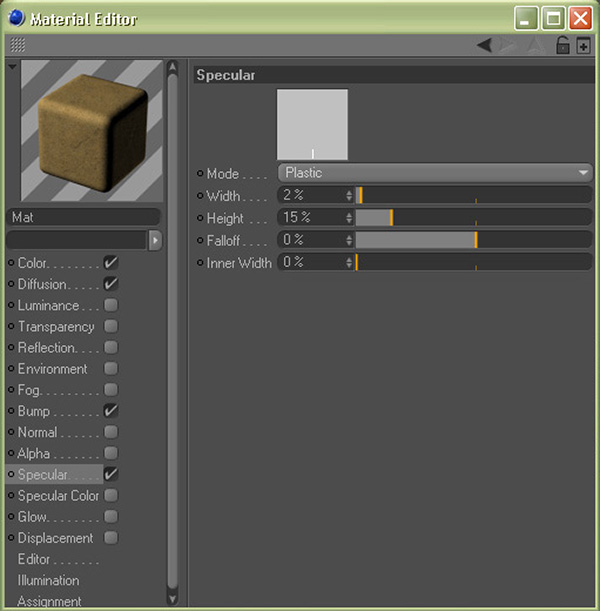
In the Specular attributes for our main material, change the Width to something very low (I used 2%), and then change the Height to 15%.


Step 39

In the Illumination tab, change the Model to Oren-Nayar, the Diffuse Falloff to approximately -15%, and finally the Roughness to about 35%. Our landscape material is complete!


Step 40

Assign our new landscape material to our landscape object, and then add the object to HyperNURBS.


Step 41

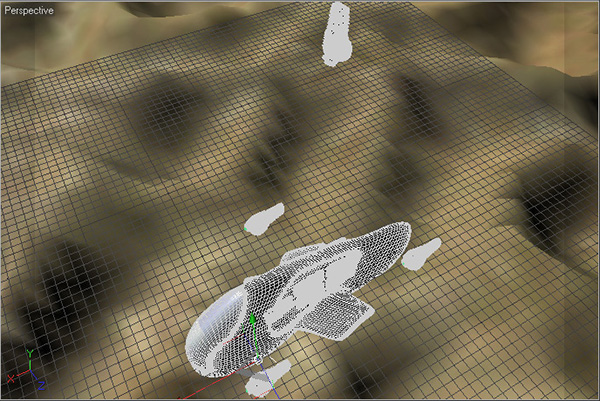
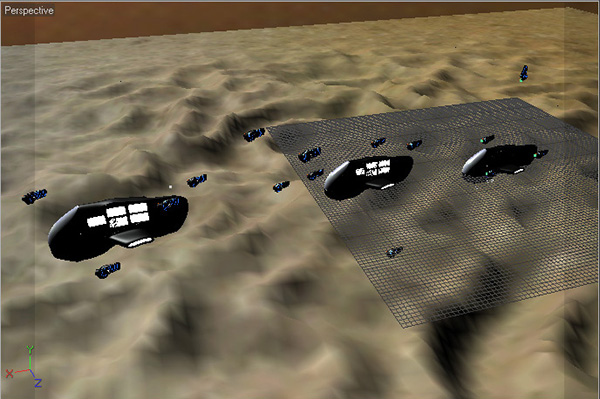
We’ll now finalise the layout of our scene. Position the Display ship and the Camera ships around it. Make sure that the cameras at the very front of the camera ships have good points of view, as this’ll become important in a second!


Step 42

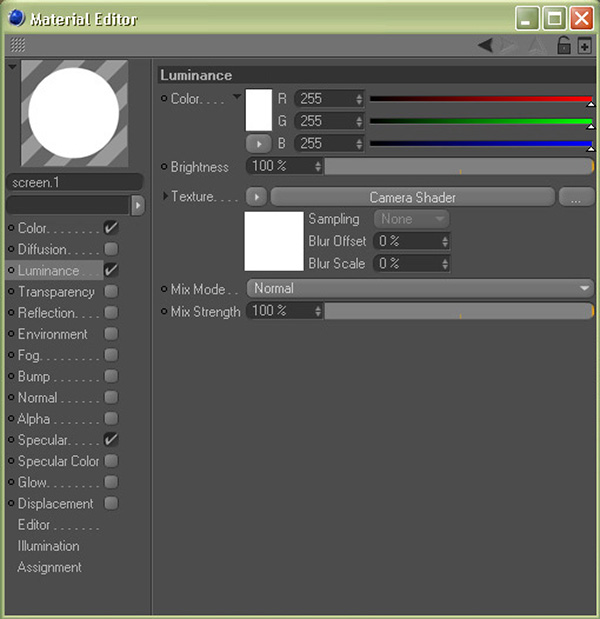
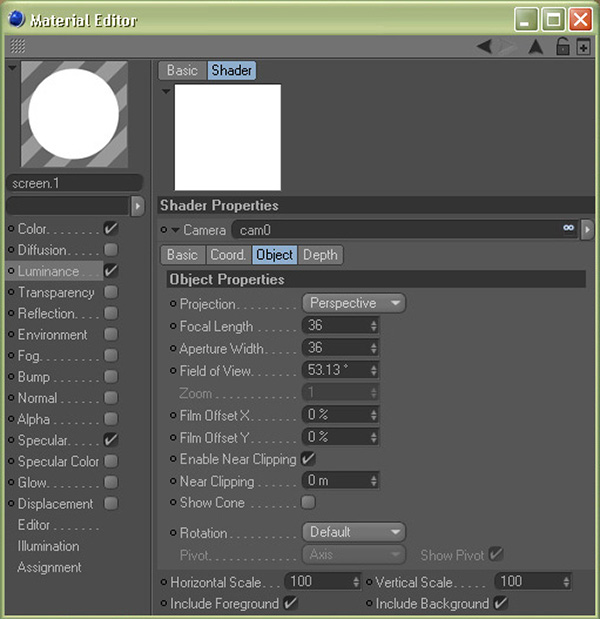
Create one final new material. Turn on Luminance and then in the Luminance attributes, add in a Camera Shader from the Mograph menu option as our Texture. Now duplicate this material for every screen you want to be turned on in the final render!


Step 43

For each material with the Camera Shader applied, go into the Camera Shader attributes, and then drag the relevant camera object from the front of a camera ship into the Camera slot.


Step 44

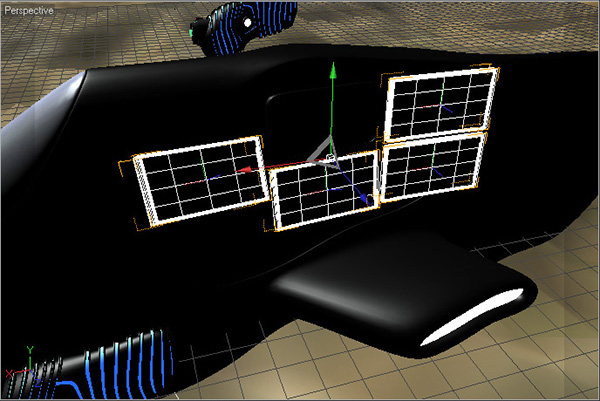
Final, assign the materials to the screens on the side of the main ship.


Step 45

You’ll want to duplicate all of the ships several times so that they have something to reflect in the final render.


Step 46

Choose a good point of view using the Editor Camera from the viewport Cameras menu, and once you’re happy, create a new Camera object. With the camera selected in the objects list, go to Tags > Cinema 4D Tags > Compositing to add a compositing tag, and then in the Compositing tag’s attributes, go to the Object Buffer tab and enable the first check-box. This will be used with the glow effect later on in the process.


Step 47

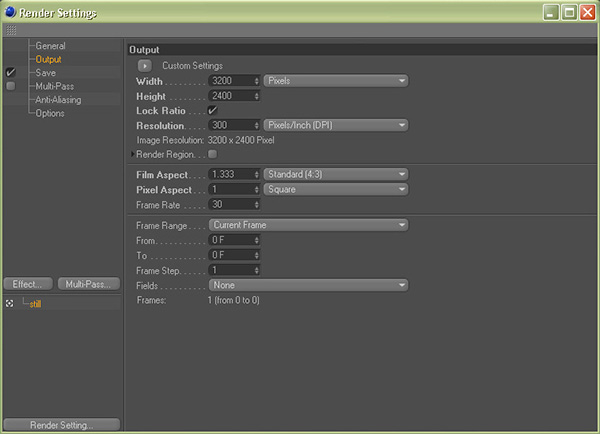
Now open the Render Settings by going to Render > Render Settings, or by hitting Ctrl+B. Tweak the Output and Save options as required. I typically save a Multi-Pass output in .PSD Photoshop format.


Step 48

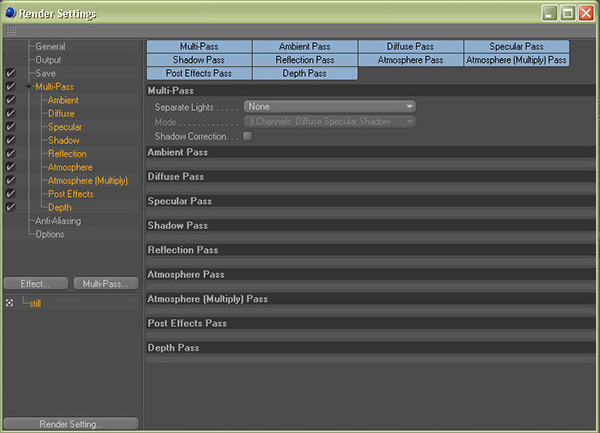
Now check the Multi-Pass option and using the Multi-Pass menu button, add in all of the used channels as seen below, along with the Object Buffer pass :


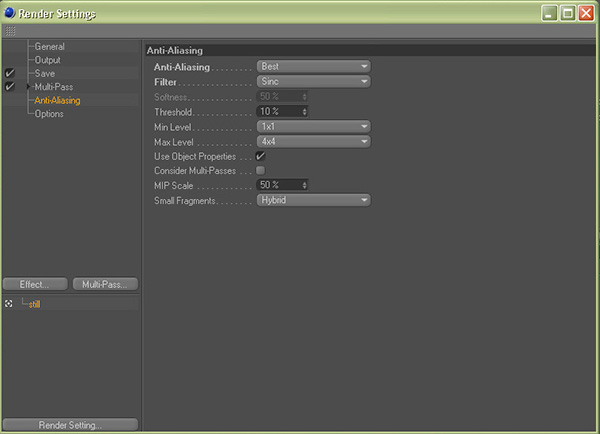
Step 49

In the Anti-Aliasing section, change Anti-Aliasing to Best and the Filter to Sinc which should give us the sharpest results.


Step 50

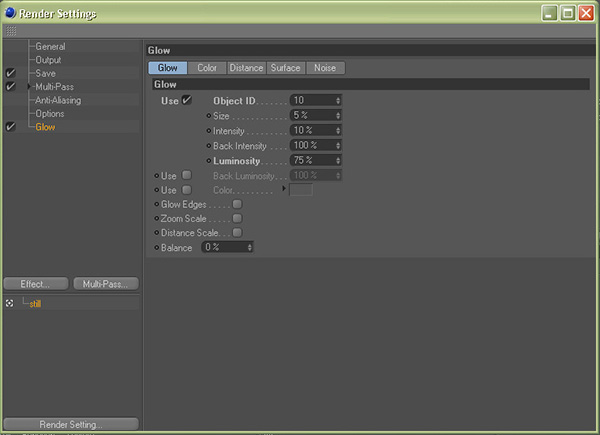
Select Glow using the Effect menu button to add the Glow effect to our scene. In the Glow settings, change the Object ID to match the Object Buffer number found in the camera’s Compositing tag. Here I’ve used 10, though by default this will be set to 1. Now slightly lower the Luminosity value, which will turn down the amount of glow in our scene.


Step 51

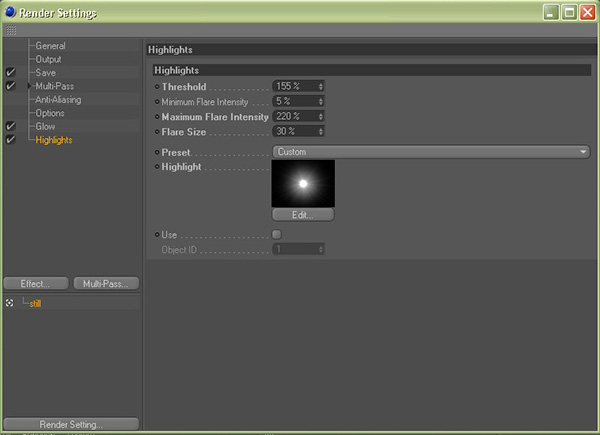
Just as with the glow, add a Highlights effect from the Effects menu button. In the settings, raise the Threshold value to around 150%, and then lower the Maximum Flare Intensity and the Flare Size values as shown. This is to prevent the final render appearing blown-out. Finally, choose a presets that you like or you could even create your own using the Edit button. We’re now ready to render!


Step 52

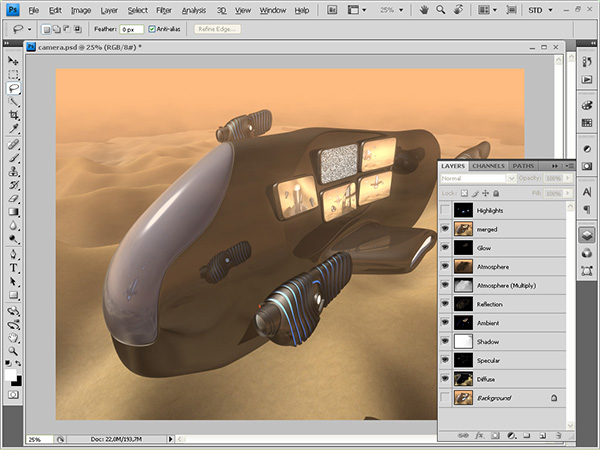
With our scene rendered it’s onto the final post-production! Open the rendered .psd file in Photoshop, and then merge all of the layers except the Highlights layer into a brand new layer by selecting them and hitting Ctrl+E (or CMD-E on a Mac).


Step 53

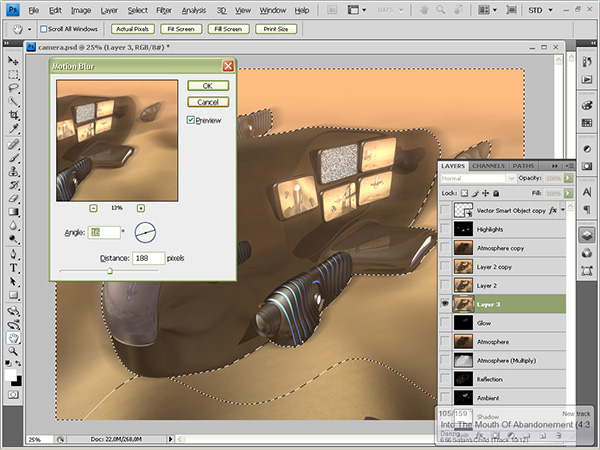
Now we need to add in some motion blue. First of all, switch over to the Channels tab and Ctrl+click on the Depth channel thumbnail. Then invert your selection by pressing Ctrl+Shift+i, which will select everything except the ships (we don’t want these to be blurred! With the merged layer selected, go to Filter > Blur > Motion Blur. In the Motion Blur dialog, choose an Angle that matches the ship’s direction and a large Distance value (I used something around 150-200 pixels). Click OK to apply.


Step 54

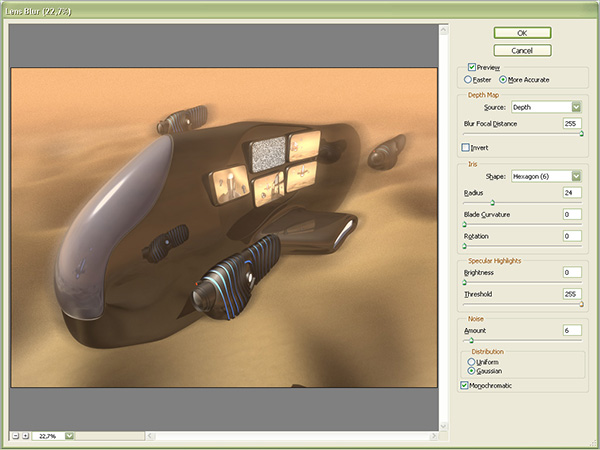
Now, deselect everything using the Ctrl-D shortcut, and then with the same layer selected, go to Filters > Blur > Lens Blur. In the Lens Blur settings, change the Source to Depth, change the Radius to approximately 25 and the noise Amount to around 5. Click OK to apply.


Step 55

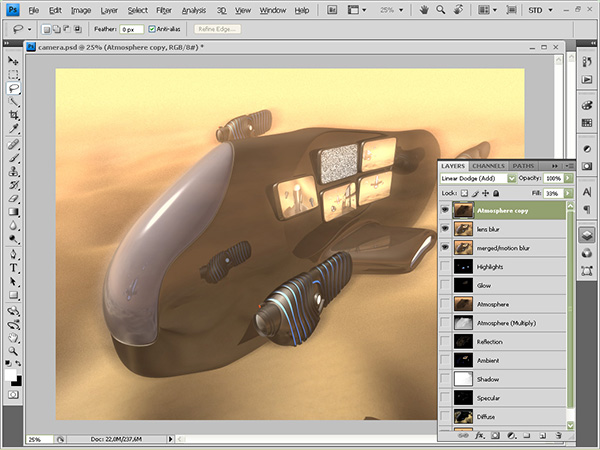
Duplicate the Atmosphere layer by selecting it and going to Layer > Duplicate Layer, and then clicking OK. Place the new copy on top of the layer stack and change it’s fill value to 30-40% to fade it out slightly.


Step 56

Finally, place the Highlights layer on top of the stack, and if needs be, erase some of the areas where they are a little overblown. The image is now complete! Feel free to leave me any comments below and I’ll try to get back to you when I can. Thanks!


This tutorial is Day 2 in a series – Go to Day 1.


Don’t miss more CG tutorials and guides, published daily – subscribe to Cgtuts+ by RSS.

4 Simple Steps for Letting Go of Stress

We’re always on our way somewhere else. We hustle to get to work. Once we’re at work, we make mental to-do lists for chores we have to get done at home. When we make it back home, we’re often too exhausted to spend much time finishing up that to-do list. Instead, we mull over all the big projects coming up at work. The habit of constantly looking ahead to the next thing becomes a cycle of worry and stress that prevents us from appreciating the only thing we really have control over: the present moment.

Focusing on the present moment is the key for letting go of stress you’ve been carrying around. Instead of worrying about everything in your life, you can zone in on the task at hand. And often that task is a lot simpler than you may have thought. Once you get absorbed in what you’re doing, work can feel so much more satisfying. Instead of resisting and struggling, you become engaged, alert and involved.

Here are a few simple tips to help you find that sense of focus and increase your present moment awareness.Take It One Day at a Time

In the book How to Stop Worrying and Start Living, self-help guru Dale Carnegie encourages people to live in “day-tight compartments.” He uses the analogy of a ship to illustrate his idea. Ships are designed to have separate compartments that can be closed off in case of emergency, making the risk of sinking much smaller. If one part of the ship fills with water, you can simply lock off that compartment and continue on your way.

So often, we function like poorly designed ships. We allow one problem (or several) to fill up our whole minds and take over our lives. After awhile, we become immobilized with worry. Dale Carnegie’s solution is to take life one day at a time. Everyone can get through one day. When we take on more than that, we eventually run into trouble.

So try not to worry about your entire life. Don’t even worry about tomorrow. Just live today. Letting go of the need to manage your whole future can free you to live your life and enjoy the journey.

Focus on What’s Working

Your thoughts are powerful. Whatever you focus on tends to increase. If you focus on potential problems, they will become bigger and bigger. If you focus on the good things in your life, extraordinary blessings will start popping up everywhere you look. Your life may not be any different, but the way you look at your life changes the way you experience it. Plus, the whole self-fulfilling prophesy effect can play a role as well.

Helen Keller put it this way, “Keep your face to the sunshine and you cannot see the shadow.” What a beautiful reminder. Face the sunshine and start paying attention to what’s working. Celebrate the good things in your life whether it’s a new job prospect, a friendly co-worker or a steady paycheck.

Practice Gratitude

A simple way to focus on the positive is to write out a list of everything you’re grateful for. While you’re at work, you can type it out into a word document. It doesn’t have to be anything elaborate, but taking the time to notice and appreciate all the things that are going right will make you realize how lucky you really are. Your worries will fade into the background.

This may seem obvious, but saying “thank you” is another great way to practice gratitude. When a co-worker successfully completes a tough project, say thanks. When the baristas at the local coffee shop make you a delicious drink, let them know you appreciate it. Building positive connections with the people around you reinforces your sense of well being. It makes everyone else feel better, too.

Don’t Buy into the Grass-Is-Greener Myth

You’ve heard the saying, “The grass is always greener on the other side.” We know that once we get over there, it isn’t really greener. It just looks that way from a distance. The grass-is-greener myth prevents us from recognizing how good we’ve got it. Instead, we spend our time wishing for something better.

When you were in high school, you might have fantasized about how great it would be to be living on your own. You longed to experience more freedom and independence. But once you were on your own, you couldn’t help but think about how amazing high school was. No worries. No responsibility. No bills. If only you could go back!

That might not be your personal experience, but there may be other phases of life you tend to idealize. Maybe you think your life will really take off when you get married or get promoted or have a baby. While those goals are certainly worthwhile, don’t let them prevent you from appreciating the here and now.

Narrow down your focus to this day, this moment, this place. Then act. Get involved. Find what works. Give thanks. And be present.

The World’s Best Frozen Margarita Recipe

It’s the weekend!

Put those quick recipes aside for a moment and relax with an ice cold beverage.  Take the time…you’ve earned it.

My drink of choice is the frozen margarita.  I’ve been drinking them for years and I’ve put that experience to good use; I have come up with the perfect recipe.  This is an awesome drink to have at the end of a hard week at the office.  Here, ladies and gentlemen, is my frozen margarita recipe:

Pour the following ingredients into a blender.

  • 3 ounces of your favorite tequila. I swear by Jose Cuervo Gold.
  • 1 ounce of your favorite triple sec.
  • 1 ounce of Grand Marnier.
  • 1 ounce of Rose’s Lime Juice.
  • The juice of one fresh lime.
  • Load up with ice.

Run your blender until the liquid is a frothy mixture.  Make sure you add enough ice so that there is a decent thickness to the liquid.  Slice a small wedge of lime and coat the rim of your margarita glass with the juice.  Pour some sea salt onto a dish and place the glass upside down so that the salt adheres to the glass rim.  When your drink is through blending, pour into the glass and enjoy!
I believe that this will be the best margarita you have ever tasted.  Take it from what my friends call me: Margarita Man.

Do You Have Low Frustration Tolerance?

Psychologist Albert Ellis developed the concept of “Low Frustration Tolerance” (LFT) as part of a greater theory on procrastination as it relates to cognitive behavior.

Low Frustration Tolerance (LFT)

  1. Seeking immediate pleasure or avoidance of pain at the cost of long-term stress and defeatism.
  2. Short-term psychological hedonism.
  3. (Albert Ellis also jokingly called it “can’t-stand-it-itis,” as in “I just can’t stand it!”)

LFT is a peculiar form of self-defeating behavior: By habitually avoiding short-term frustrations, unaddressed issues and unfinished work grow into much bigger, much more stressful problems. As a sufferer of LFT continues to dodge small, tedious tasks, they inadvertently grow them into large, dreadful problems. Once the problems are bigger, the aversion to the work is greater, building an ever-growing mountain of work to be done (and an ever-growing mountain of stress to match).

High Frustration Tolerance (HFT), on the other hand, is a much better trait for productivity, not to mention mental health. Those with HFT can tolerate the frustration-filled tasks required to do their work and meet their long-term goals. While they’re not delighted with the short-term tedium, they have much bigger things to be happy about in the end.

What is your frustration tolerance? Have you run into “can’t-stand-it-itis” at work?

How Much Vacation Time Is Necessary?

When I was living in the United States, we had 2 weeks off per year as standard vacation time – although I did work somewhere where we only had 1 week off.  Not so in Europe.

Many countries there give employees 5 or 6 weeks off per year.  The argument for more time off is usually supported by the fact that everyone needs time to:

  1. Rest
  2. Be with family
  3. Enjoy a hobby (or whatever activity makes one happy – skiing, surfing, etc.)

Those who support less time off have argued that with too much time off, people cannot concentrate once they’re back in the office.

So, are you for more or less time off for vacation?  How much time do you need to recharge your batteries?

What Wedding Planning Taught Me About Project Management

I’m getting married.

Yes, I’m thrilled. It’s going to be a small wedding on the shore of the lake. Beautiful spot for a beautiful day.

I’m pretty busy with the wedding planning. Even though it’s going to be small, we still have almost all the elements and decisions that come with a big wedding. Perhaps this is as unromantic as you can get, but it seems to me we’re using project management skills to do all of this.  We have calendars, file folders, checklists and meetings.

This is a product launch to be branded as “Mr. and Mrs. Carl Natale.”

Here’s what we’re doing that you can apply to your next project:

Designate a Project Manager

That would be my fiancée. She has a head for details and an eye for design – and I’m more than willing to let her run with it. The decisions are ours but she makes them happen. Although she has final authority, she works with me on decisions and we have consensus.

Takeaway: Although someone needs to be in charge, the project manager doesn’t have to rule with an iron fist.

Outsource to vendors

We would like to handle as much as possible but we don’t have the time or skill to pull all this together. We’re bringing together a caterer, florist, photographer, officiant and invitation designer. To find them we researched the web, scoured wedding publications and asked for recommendations from our networks.

Takeaway: Now that they’re hired, we keep in communication to develop a relationship. As the big day approaches, we have become more familiar with each other. This should help keep things running smoothly.

Delegate

Since I’m a writer, I assumed we would be writing our own vows. But as we talked to our officiant, we found out we could create almost the entire ceremony. Writing is in my wheelhouse so my fiancee handed that off to me. I can’t bake a cake or arrange flowers, but writing the ceremony is my gig.

Takeaway: Make the best use of the talents and passions you have in-house.   Better yet, make use of their time as well.  You’ll likely have some people who are excited to tackle some major aspects of the project.

Sync Calendars

I’m a Google Calendar kind of guy. She lives by the month-by-month hanging in the kitchen. I keep an eye on hers for additions and add the appointments to the Wedding calendar I created online. That and constant communication keep us aware of deadlines and appointments.

Takeaway: People work best with different productivity tools. Make sure you can share information despite the difference in tools.

Stick to Deadlines

The wedding day is a deadline written in stone. It all needs to be done by then. We can’t move it because the flowers won’t be ready. Everything else before then may be kind of flexible. But every delay will make it harder to squeeze everything in before the wedding.

Takeaway: Having a hard and fast deadline is wonderful motivation for getting everything done in a timely manner.

If you take a similar approach to big project as we have with our big day, you’ll have great results and enjoy the path you’ve taken to achieve them.  With a solid foundation in place, they’re also more likely to have a lasting effect.

5 More Google Reader Tricks and Tools

When I asked if you still use an RSS reader, a huge number of you savvy folks flocked to the site to say yes, you do. And the comments show that Google Reader is the clear winner when it comes to RSS readers.

As a result, I’ve written another installment to our Google Reader tips which offers 5 cool links that have some great tricks and tools for this feed reader.

Better GReader For Firefox

A superb Firefox add-on for Google Reader developed by none other than Lifehacker’s founding editor, Gina Trapani.

Convert Partial Feeds Into Full-text Articles

A nice trick that utilizes a greasemonkey script to show the partial feeds as full articles in Google Reader.

Turn Google Reader into a Powerful SEO Tool

A comprehensive guide on using Google Reader to track backlinks, alerts and competitive intelligence.

Hack Attack: Getting Good With Google Reader

This is an old one but still quite useful. It explores various Google Reader tricks and tools to use it more productively.

How To Download Articles From Google Reader As PDF Documents

Yes, you could directly download important articles from Reader as PDF for reading later. The guide explains how to do it.

Feel free to add any Google Reader tricks and tools you have in your arsenal in the comments!

Friday Photo Critique #41

Friday Photo Critique is our weekly community project, where we publish a photograph submitted by one of our wonderful readers, then ask you all to offer constructive feedback on the image. It’s a great way to learn more about photography, express your viewpoint, and have your own image critiqued!


Quick Ground Rules

  1. Play nice! We’ve deliberately chosen photographs that aren’t perfect, so please be constructive with any criticism.
  2. Feel free to offer any type of advice – composition, lighting, post-processing etc.
  3. You can also link to photographs that you feel offer a great example of this type of image shot exceptionally well.

Without further ado, here is this week’s candidate for Friday Photo Critique!


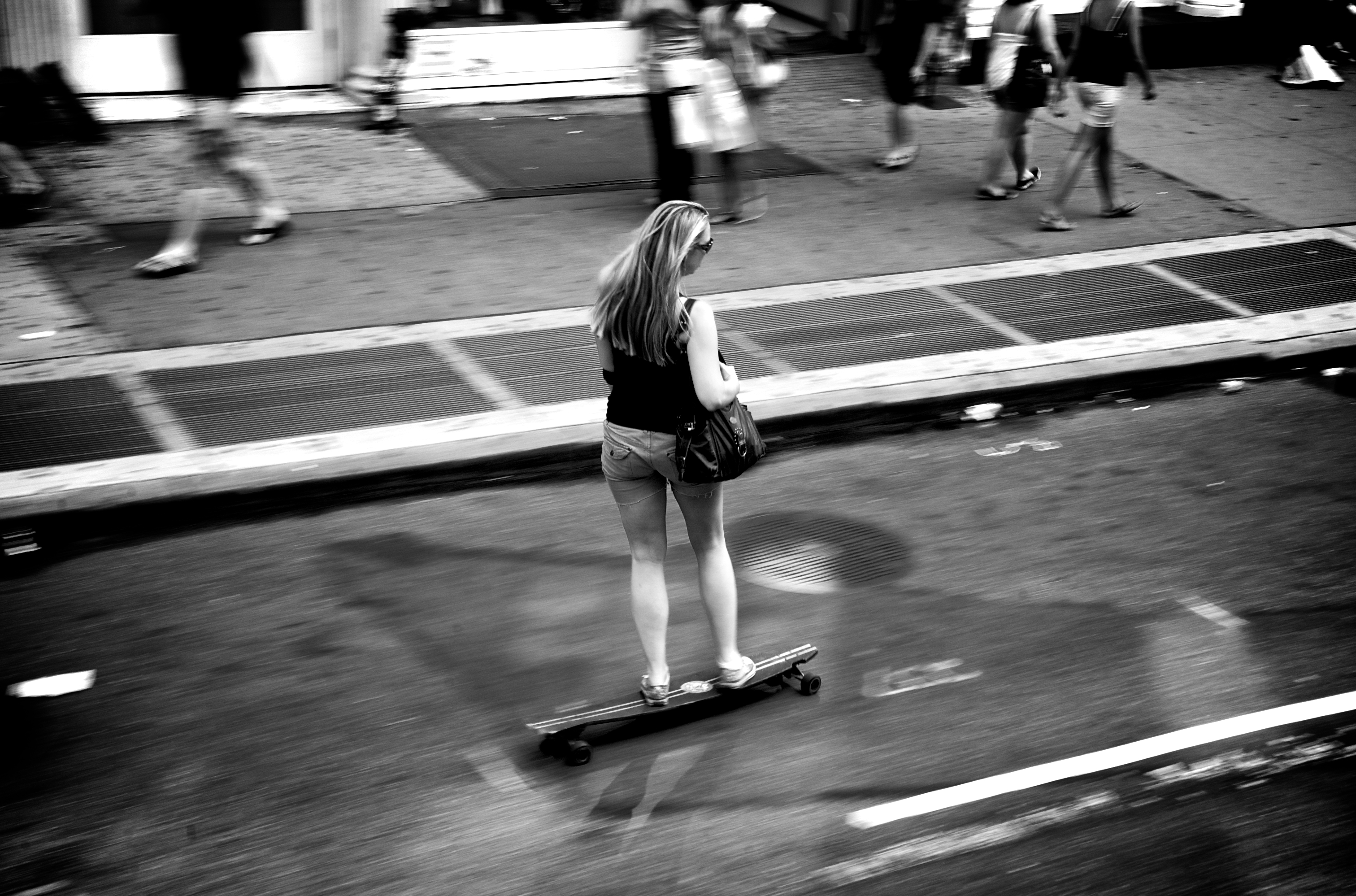
The Photograph

Photo Critique

Photographer: Torgeir Sundli

Please let us know what you think in the comments – how would you have approached the scene or taken the photo differently? A massive thank you to everyone who commented last week.

The most constructive and helpful comments will be featured on the site. Interested in submitting your own photo? You can do so here!

Win a Bokeh Masters Kit!

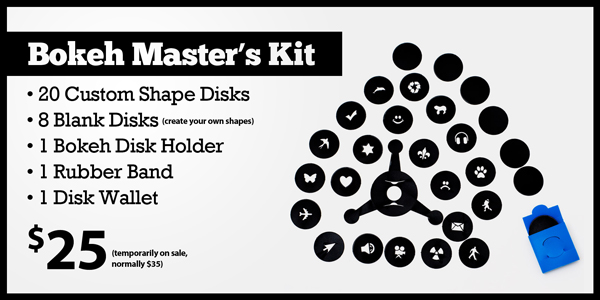
After reviewing the Bokeh Masters Kit a few weeks ago, I’m pleased to let you know that we have three Masters Edition kits to give away to a few lucky readers! Read on to find out how to enter.


About the Bokeh Masters Kit

What the Bokeh Master’s Kit does is change the shape of the bokeh in an image by filtering the light through a custom-shaped hole on the front of your lens. It can lead to some beautiful effects, and you receive plenty of different styles:

To find out more, our review is a great place to start, or you can visit the product’s website.


How to Enter

Entering is really simple. All you need to do is leave a comment below! We’ll select the winning comment at random when the competition closes.

Make sure to include your correct email address with your comment so that we can contact you. This giveaway is open worldwide, but make sure to get your comment in before midnight on Saturday 24th July, Pacific Eastern Standard Time. We’ll be in touch with the lucky winner shortly after then, and this post will be updated to let you know who won!

Sorry about the incorrect date when we launched the competition – it’s now been updated! Thanks to everyone that pointed this out.

Please Note: Envato staff or people who have written more than two articles or tutorials for Phototuts+ are ineligible to enter.

Good luck, and be sure to subscribe via RSS or follow us on Twitter to find out if you’re a winner!

The Complete Beginner’s Guide to Shooting Low Key

Recently, we took a look at how to create stunning high key images in a studio environment, producing bright images with an emphasis on beauty and clarity. Today we’ll jump to the other side of the lighting spectrum and examine what low key lighting is and how you can achieve it in your own work.


What is Low Key Lighting?

Low key refers to a style of photography that utilizes predominantly dark tones to create a dramatic looking image. Where high key lighting seeks to over light the subject to the point of reduced contrast, low key lighting intensifies the contrast in an image through intensely reduced lighting.

The key here is not just to produce a dark image but to use lighting very selectively so that only specific portions of the image are illuminated. Normally as a photographer, you spend your time trying to avoid harsh shadows, especially on faces and around the subject’s eyes. For this reason, shooting low key can actually be a fun change of pace.

Instead of avoiding intense shadows, you’ll have to consider them as the primary element of the composition; one that defines the mood of the entire photograph. The trick then becomes manipulating your lighting and the positioning of your subject so that the shadows fall in just the right spots to create the look you want.


Low Key Lighting In Art

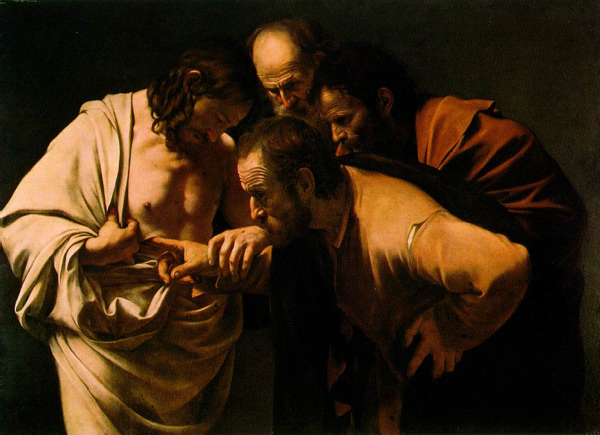
Artists recognized the power of low key lighting long before photographers came around. Painters during the Renaissance and Baroque periods often used a technique known as “chiaroscuro” to achieve a similar dramatic tone for their images. Chiaroscuro comes from the Italian “chiaro” meaning clear/light and “oscuro” meaning obscure/dark.

Chiaroscuro was used not only for drama but also to bring realism to a painting. The varied lighting creates a sense of three dimensional depth that can be quite stunning.

One of my favorite artists that utilized this technique was Caravaggio. He created several works, such as The Incredulity of Saint Thomas (seen above), that really capture the essence of what chiaroscuro was all about. Other great examples of artists who used this technique include Gerrit Van Honthorst, Tintoretto, El Greco and even Rembrandt to a lesser degree.


Low Key in the Studio

If you have your own photo studio, there are lots of ways to setup low key shots that will give you fantastic results. First, make sure you have a large black backdrop. As a general rule, try to avoid hitting with any lights in such a way that it shows texture, wrinkles, etc.

You can definitely have a low key portrait with other types of backdrops, but this will help you achieve that classy solid black look that comes to mind when you think of low key photography.

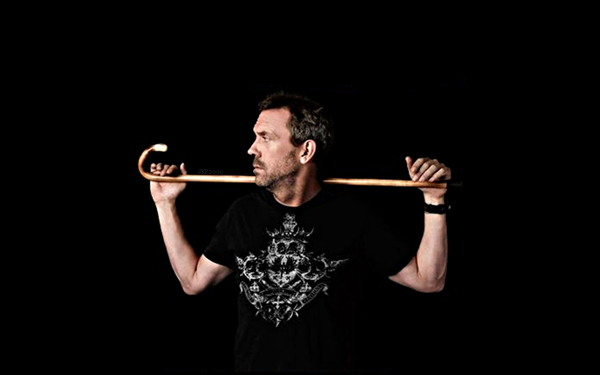
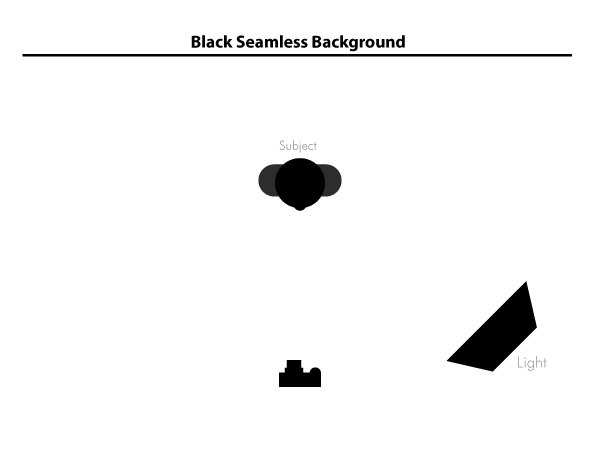
For an easy and affordable setup, position your subject a bit away from the backdrop and use a single flash off to one side. Also, make sure you turn the power way down on the flash so it doesn’t blow out your subject too much.

This should give you fairly dramatic results with all the lighting biased towards one side of the image as in the example below. Notice how a little bit of the backdrop is illuminated in this image. Depending on your specific preferences, this could be either desirable or something to watch out for and try to prevent.

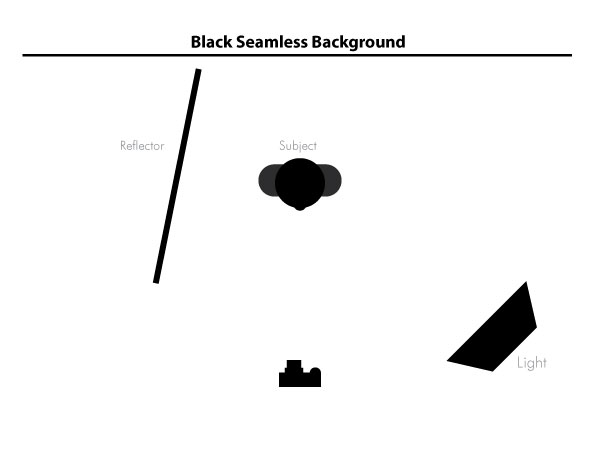
If you want to provide a little backlighting, consider dropping in a reflector and/or placing another flash well behind the subject and off to the side. This will give you some nice hair light and can often create a sort of halo effect.

As always, don’t expect to nail it on your first shot. Play around with different locations for both your light and your subject as well as different intensities for your flash. Resist the urge to think too much about what you can pull back out of the image in Photoshop and try to create the results you want up front. Getting into this habit will force you to learn the ins and outs of your equipment better and reduce the time spent in post-production.


Low Budget Low Key

If you’re not lucky enough to have your own home studio, fret not. There are still plenty of ways to get a decent low key shot on a shoestring budget using only your camera and common household resources.

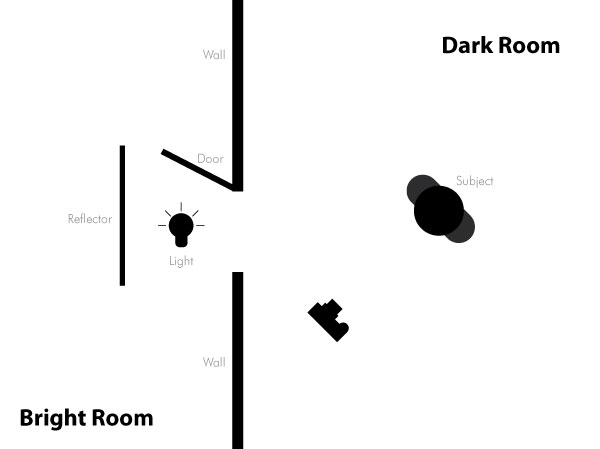
One trick that I’ve seen quite often is to use a two room setup with a door. The main room should be one that you can get completely dark, preferably with no windows or other natural sources of light. With the room as dark as you can make it, position your subject somewhere in front of the door.

Now setup a bright light in the other room, also in front of the doorway. The door serves as a way to block and control the light coming from the other room. To get the shot, just stand in front of the wall out of the way of the light coming in.

You might also want to setup some sort of reflector card behind the light as in the image above. You can use posterboard , paper or something else cheap that you have around that will bounce the light effectively.

Another take on this same setup is to use a window instead of a door. This is a little trickier as a window tends to light up the entire room but can be accomplished with great results under just the right conditions and by using a thick window shade to soften the light.


Outside Low Key

Another great way to get some nice low key shots without spending a fortune on lighting is to venture outside at night. Here nature takes care of the darkness element and you need only find a good light source.

Moonlight and streetlights are obviously great places to start. Parking lots are also perfect places to find drastically variable lighting conditions ideal for creating really dramatic shots.


Camera Settings

For low key shots, the camera settings can actually vary quite widely. The trick is to minimize the light entering the camera while not making everything too dark. To illustrate, let’s take a look at some actual shots along with their respective settings.

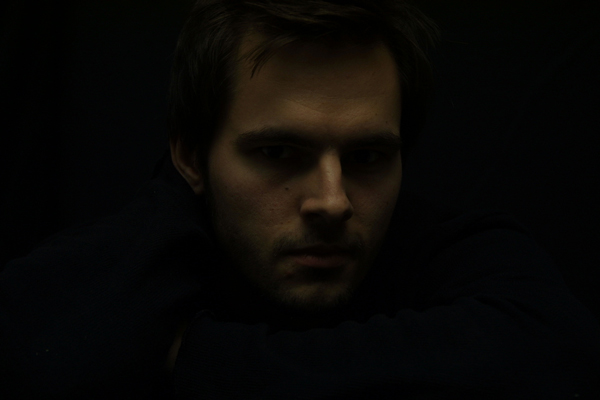
Here we see a nice solid black background and one primary light source. From the Flickr properties we can see that the exposure is at 1/80 sec, the aperture is f/6.3 and the ISO is at 100. Normally an ISO that low would produce an image that’s too dark under anything but decently bright conditions but here dark is exactly what the photographer wanted and the flash in conjunction with the reduced shutter speed served to fill out the areas that he wanted to expose.

The bonus of shooting at ISO 100 is that the image quality stays high and void of color noise, which has a tendency to really stand out against a black background. Let’s take a look at one more image and see if we spot any similarities.

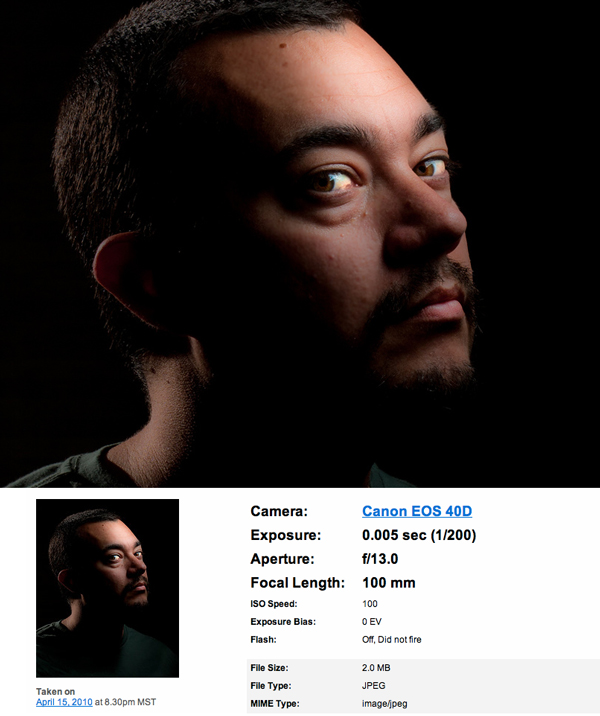
As you can see, even though this image is brighter, it was actually shot at 1/200 sec, significantly faster than the previous image. Although the aperture is letting in less light at f/13, the ISO is the same and it looks like there’s more available light in the scene. The extra light enables the photographer to shoot at a faster shutter speed while still pulling in plenty of detail.

The primary takeaway from these two images is to try your best to keep your ISO around 100-200 to keep the image both dark and noise-free. You’ll have to then play with your exposure and aperture to achieve the desired effect for your particular lighting setup.


Low Key Explored

The example images above are primarily portraiture, but you should definitely not stop there in your experimentation with low key lighting. Low key is excellent for product shots and anything else you really want to make look cool and stylish. Here are a few more images to get you thinking outside the box.


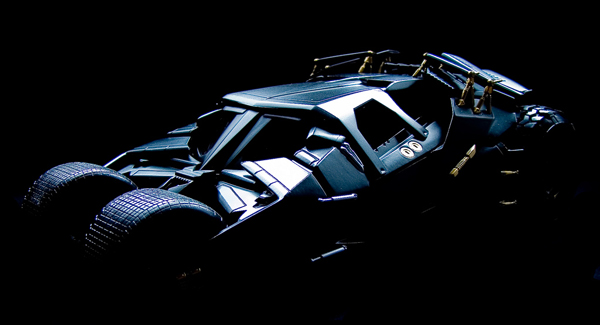
Tumbler Batmobile

flickr pic

Serve Chilled

flickr pic

Cherry Tomatos

flickr pic

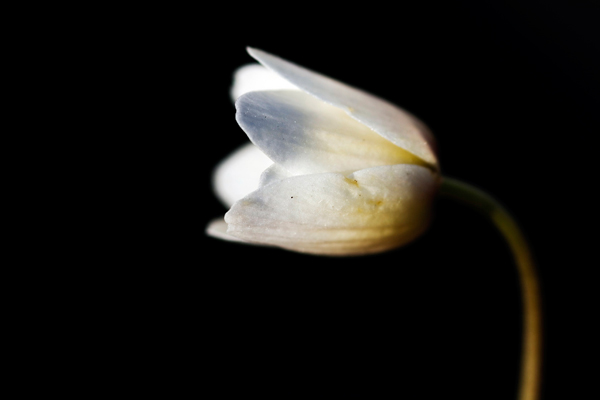
White flower in black background

flickr pic

On black_3535

flickr pic

budding

flickr pic

eat me

flickr pic

curl

flickr pic

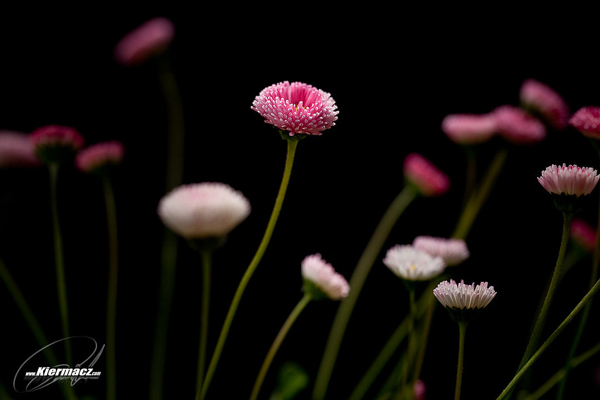
Pink Daisy

flickr pic


Conclusion

To sum up, low key lighting is a highly dramatic way of enhancing the contrast in an image that has roots tracing way back to the Baroque period and beyond. You can achieve this effect indoors with studio equipment or some ingenuity and outside at night in a dark area with a well-placed light source.

As always, we want to give you an opportunity to show off your work. Leave a comment below with a link to your low key shots along with a quick explanation of your lighting setup and camera settings.