10 Life-Changing Benefits of the Internet Age

It is hard to imagine life without the internet.  Actually, I am old enough to do just that.

But it is amazing the effect that the internet has had on our lives.  Believe it or not, there are still many people who don’t even own a PC – but that number is dwindling each year.  It brings to mind all of the technological benefits of the internet age.  My life has certainly changed within the past thirty years due to the internet and it’s a fine time to reflect on the impact it has had over its lifespan so far.

1. Modes of Communication

I remember when there were basically three different modes of communication: face-to-face communication, telephone conversation, and snail mail.  Today, email is the preferred method of communication.  It is an indirect method that most people prefer.  Your recipient can either choose to respond or not – and you have conveyed your message without needing to have direct communication.  In the internet age we also have VoIP (Voice over Internet Protocol – popularized primarily with the emergence of Skype and Google Voice), instant messaging and texting.  Texting has usurped email as the main type of communication with young people.  Instant messaging is still being used in the business world, while Skype and Google Voice are used for personal and business communication.

2. Online Banking

The only time I write a check now is for a gift at a christening or a wedding.  If you haven’t started online banking, you should definitely consider it.  I’ve been online banking for at least the past ten years and I absolutely love it.  The reasons for doing so are numerous, such as:

  • You don’t have to be constantly writing out checks to pay your bills, licking envelopes, and buying postage.
  • You can easily pay your regular bills like mortgage and car loan with a couple of clicks and the payments will be made electronically on the proper day to avoid late charges.
  • You can also receive your bills electronically and an email will notify you when the bill arrives.  Then, after logging into your bank website, you can schedule your bills to arrive on a given date.

Another great thing about online banking is that you can set up anyone as a recipient of funds.  So, if you want to send a check to a relative you can do so online either by having a paper check mailed to them or directly depositing the money into their account.

3. Online Degrees

I could be considered an authority on online education as I just completed another college degree taking online classes exclusively.  I just received my diploma in the mail last week and I never once visited the college.  I am a huge proponent of online education.  The benefits far outweigh any drawbacks – especially for anyone who works full-time – since the logistics of driving to and from class would simply be too time-consuming.  There wasn’t even the hassle of having to go to the bookstore as I could order those online as well.  Sure, there are some drawbacks – such as not having face-to-face interaction with classmates – but even that is possible if you want to Skype with them. If you have the inclination to go back to school for your degree, you should really consider taking an online degree.  Take one class as a test drive; you will not regret it.

4. Online Training and Seminars

I remember a time that the only way you could get training on the job was either by going to a training class or having a trainer come into your workplace.  Well, the landscape has certainly changed here.  Webinars have become extremely popular in the internet age, bringing together a virtual class online.  Gone are the travel costs for both the trainer and the trainee, which lowers the cost for the class itself.  Anyone can basically put together a training class from the comfort of their own home with tools such as GoToMeeting.  I regularly schedule GoToMeeting training classes with foreign counterparts and customers.

5. Searching

There were days when you wanted to learn more about a particular subject you would open a book, an encyclopedia or a dictionary.  At my house, we always had a full collection of World Book Encyclopedias. When the end of each year came, we would receive the edition that chronicled that particular year.  To this day I use a dictionary and thesaurus on a daily basis – but now they live online and not on my bookshelf.  Today, we have lightning fast search engines that can give us thousands of links based on specific keywords.  Just yesterday I used the internet to scope out farmer’s markets in my neck of the woods. Not only did I find a local one, but I got directions on how to get there.

6. Researching

My brother, a professor at a prestigious liberal arts college on the West Coast of the US , has written text books in the area of Government and Political Science.  He has told me that with the advent of the internet age, the manner in which he does his research for his books has changed dramatically.  In the past, he would have to go to a library to do his research.  Today all of this research is done online, in the comfort of his own office.  His main concern is to be conscious of sites with faulty information.  Fortunately for him, his research is typically done on legitimate government and political science websites – so that is a minor concern.

7. Buying Online

If you can’t find it in a local store, you can always find it online.  A case in point is that I recently could not find canned pumpkin anywhere in local stores.  My wife uses pumpkin to make pumpkin breads, pumpkin ravioli and for other baking needs.  It appears that there is a pumpkin shortage in the United States due to excessive rain.  So, I mentioned to my wife that we should try to find it online – and we did. We were able to order a case of canned pumpkin for a fairly reasonable price.  If you can’t find it at a local store, chances are you can find it online.

8. Telecommuting

The internet age has completely redefined how we work.  The ability to sit in your home office while connecting to all of the same resources as if you were in your work office is a reality in today’s workplace.  This has allowed people like me to avoid a two and a half hour commute on the days that I am allowed to telecommute.  The time savings, gas savings and the wear and tear on my car (and on me) is a huge gain.  There is nothing I can do at work that I cannot do at home – other than walk over to somebody’s office.  As mentioned previously, I use GoToMeeting if I need to meet with someone and share my computer.

9. Freelance Writing

With the popularity of the internet, there has been an explosion in online content.  As a result of this, there has been a huge boon in freelance writing.  Opportunities exist as never before in this area.  If you love to write and are good at it, chances are you can find an online presence that will pay for your services.  I have had the good fortune of doing just that for this very popular blog, which happens to be based halfway across the world.  Being able to develop a portfolio of your work, and get paid for it, is a tremendous opportunity in the online world.

10. Worldwide media accessibility

The internet has opened up all users to worldwide media.  Internet radio is accessible to anyone in the world connected to the internet.  An example of this is that the other morning my wife (of Greek descent) was going to put on some Greek CDs on the stereo as she cooked for a large group that was visiting later in the day.  I suggested to her that we should search the internet for a Greek radio site.  We quickly found a Greek radio website that had links of roughly fifty different radio stations, most of which were music stations.  We found a radio station based in Thessaloniki, Greece, which is where her mother was born.  I hooked up some cheap $5 speakers to my laptop and we were able to enjoy hours of Greek music, at no cost.  My wife was flabbergasted with the quality of the sound and the variety of the music.

These are just some of what I call “life-changing” advancements of the internet age.  The productivity and personal gains that the internet has given to the world are tremendous.  This list is not meant to be comprehensive but these are some of my favorites.  I am fortunate in that I am able to remember what life was without these conveniences.

I sometimes wonder if the young people of today can truly appreciate the gifts that the internet has bestowed upon us.


What Are You Doing to Impress Your Customers?

What do you do to show your current clients the difference between you and your competition?

There seem to be two schools of thought on this topic:

  • Do an excellent job on exactly what the client is looking for;
  • Do a good job on the project, and provide additional value as a bonus.

I got to thinking about this after reading about optimizing your freelance career, especially the reference to “undepromise and overdeliver.”

Do people try and compensate for a perceived shortcoming – maybe they are concerned about their grammar or the originality of their concepts – by adding in additional value?  Does a client look at the job and think, “Well, the concept is ok, but we’ve got three pages of web copy that we weren’t expecting – hooray!” or “Wow – brilliant concept, I know we didn’t ask for more, but it would have been nice to get a few more pages of copy”?

Have you found that it is better to deliver “excellence” to your customers and nothing else, or provide” acceptable” with bonus material?

Friday Photo Critique #42

Friday Photo Critique is our weekly community project, where we publish a photograph submitted by one of our wonderful readers, then ask you all to offer constructive feedback on the image. It’s a great way to learn more about photography, express your viewpoint, and have your own image critiqued!


Quick Ground Rules

  1. Play nice! We’ve deliberately chosen photographs that aren’t perfect, so please be constructive with any criticism.
  2. Feel free to offer any type of advice – composition, lighting, post-processing etc.
  3. You can also link to photographs that you feel offer a great example of this type of image shot exceptionally well.

Without further ado, here is this week’s candidate for Friday Photo Critique!


The Photograph

Photo Critique

Photographer: Torgeir Sundli

Please let us know what you think in the comments – how would you have approached the scene or taken the photo differently? A massive thank you to everyone who commented last week.

The most constructive and helpful comments will be featured on the site. Interested in submitting your own photo? You can do so here!

The Photographer’s Guide to Preparing for an African Safari

I had the extreme pleasure of embarking on a classic safari while on a recent visit to Tanzania. It was everything I had hoped and more, both from a photographic standpoint as well as having the chance to share it with my daughter. Today we’ll be sharing some fantastic tips on how to prepare for this type of photography trip.

As you might expect, an epic trip of this nature required a bit more planning than a roadtrip to Yellowstone National Park might. To get the most, photographically, from a once in a lifetime trip like this, I’ve compiled some obvious (and not so obvious) tips. I found that these helped me enjoy the experience and bring back some wonderful photos. This advice should apply to any location of safari on the continent of Africa.


Guidebooks, Maps And Videos

I’d highly suggest getting a wide variety of guidebooks when starting the planning stages, along with maps. My experience showed me that no single guidebook had all the information I really wanted. For one thing, there can be hundreds of tour operators in any given location and the process of narrowing them can be daunting.

This is the same for the folks writing the guidebooks. Each guidebook can only review a slice of those available so it’s best to get more than one opinion. And before you rush off to the bookstore, I’d suggest a quick trip to your local library first. The library is a wonderful place to start your search as you can get a feel for different guidebooks (some don’t list prices, some have a lot of photos, etc).

Maps are another must have in my book. I’m a bit of a map nut (just a warning), but without maps, we’d all be lost! When I started planning our trip to Africa I really had no idea just where all the National Parks we wanted to visit were located in reference to each other or, frankly, anything else in the country.

Is it physically possible to drive between point X and Y in a day? How far away from airports are our destinations? And what does the terrain look like (mountains, lakes, etc)? A map will help you get a handle on all these questions. Plus a map can help you understand the backgrounds and directions you may want to shoot at different times of day.

Lastly, videos can be a great way to get accustomed to your destination (and they are perfect to pique children’s interest!). I found a number of videos made by a husband and wife team for the parks we were visiting. While the large budget National Geographic videos are astounding and captivating, I found these videos to show a more realistic view of what we eventually saw in country. Again, the library can be an invaluable resource to view the videos for free.


Storage

Photo storage can be a big issue while on safari but it is no different than most travel situations. Odds are you won’t have an Internet connection for most of your trip (although this is changing constantly) so your storage solution needs to travel with you. There are a few ways to handle this:

Multiple Cards

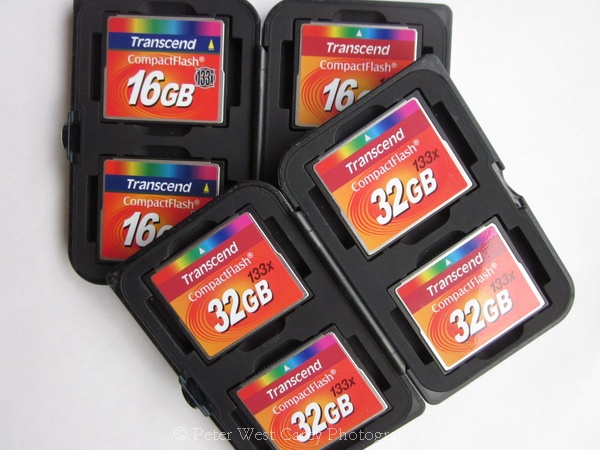
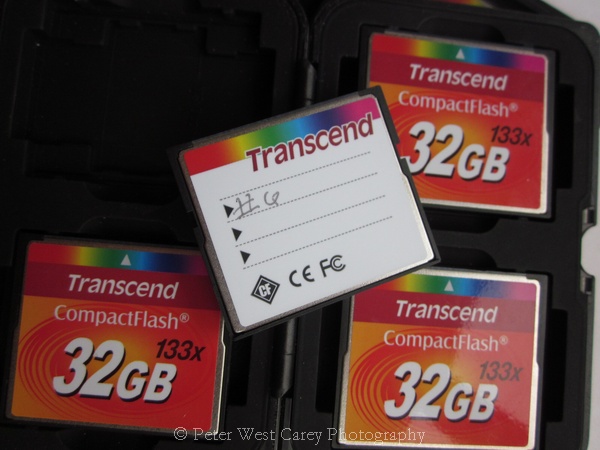
The multiple cards path can often seem the easiest, but it has its downfalls. For one thing, you only have one copy of each picture so if a card goes missing or corrupt, you might lose a large part of your trip. Also, organizing them can be an issue, making sure you keep the cards that have images on them separate from those ready to use and correctly identified requires a system.

An External Storage Device

If you bring an external storage device, one of the devices that does not require a computer but allows for direct download from your cards, you can reduce the total number of cards needed. Although, if you both increase the number of cards to cover your total anticipated photo needs AND purchase an external storage device, this can present a safe backup system if the cards and device are kept separate (and on you/in your carry-on baggage) while traveling. These devices can add weight and the added need for batteries during a trip.

A Laptop Computer

Lastly is a laptop computer. While they obviously add a lot more weight and cost than the portable device, there may be many other reasons to bring one. If it’s just for photo storage during a trip, I’d suggest the external device. But if you plan to share photos and check in with email and those back home while traveling, a laptop makes sense. Just make sure the hard drive is large enough to store all the photos.

Combining all three options is the safest method to making sure your digital memories come home with you. I often travel with all three but sometimes will leave the laptop behind when I don’t want to worry about theft or the added weight.


Card Identification

Picture this scenario; It’s day six of your safari. The sun has been off the horizon for only 20 minutes and you’re standing on the brink of a small river. The bend in the water course before you has caused the water to slow and pool up making it a haven for hippos. Hippos are fairly active in the mornings and often can be found out of the water at this time.

Safely in your safari vehicle, you hear a crashing noise behind you and turn with your camera in time to snap off a dozen shots at high frame rate of a mother and baby hippo returning to their pool (and avoiding your vehicle once they see it). Before you’re even done “ohhhh”ing and “ahhhh”ing over their cuteness, a fight breaks out in the water below you. Two big hippos showing their massive, foot long teeth and thrashing in the water. You hold down the shutter for only a second before your display lets you know, “Card Full”.

Quick! Before the action stops you reach into your camera bag and unzip the one pocket containing all your unused cards. Or are those your used cards? Who put the SD card in with the compact flash cards and why is there a Kingston card mixed with the others? No time – grab a card and throw it in your camera only to have it tell you, “Card Full” again!

Card identification and organization can be crucial to capturing a fleeting moment like the one described above. But more than likely, it’ll just help you stay sane when looking for a new card in any situation.

Try labeling your cards and making a habit of using them in order. If you only have one camera this makes things very easy. Just pulled out card #4? Grab #5 and keep shooting. Some people will also bring two containers for cards, like those small hard cases that help keep the dust out. Don’t be afraid to take a permanent marker to the outside to make it clear which holder is for used cards and which is for new. I’ve also seen people place colored stickers on the cards and then rip then off when the card is full. This can work if you have really good adhesive.

Whichever system you work out for identifying used and new cards, practice it at home a few times to make sure you have the system figured out well.


Lens Selection

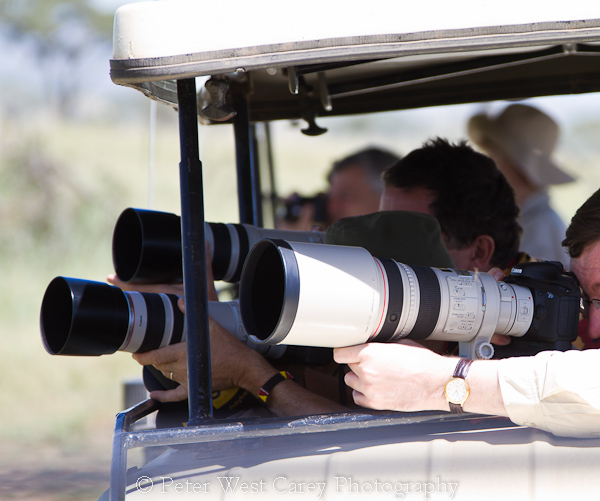
One bit of advice that hasn’t changed much from with the switch from film cameras to digital is that of lens selection. Most animals you’ll spot on safari will be at a distance, especially if you’re lucky enough to experience a chase on the open savannah. Your main choices here are between a telephoto zoom or a prime lens.

Prime lenses are those with a fixed focal length. In this case, think 300mm or longer. Those lenses will get you close to the action and have the added advantage of a larger f/stop than their zoom counter parts. This means more light can make it to your sensor and thus, you can use a lower ISO with less grain. You can also choose a faster shutter speed to stop fast moving cats or hippos (yes, hippos can move very fast).

If you do choose a prime lens, you may want to bring a secondary camera. I know this isn’t always possible, but changing that lens out on the savannah, with all the dust from 4x4s and animals swirling in the air, can quickly dirty your sensor. Plus, when that ‘friendly’ big cat comes walking close to your vehicle, you’ll be zoomed in too far with the prime lens.

If your choice is to go with a telephoto zoom lens, pick something that starts at at least 100mm. The 70-200mm lenses that are popular with the wedding shooting crowd are fine and will work, but if there is an opportunity to go longer, do it. A 100-400mm lens would be ideal for this type of trip.

And don’t forget to factor in the advantage during a safari of owning a cropped sensor camera. Those cameras with a 1.4x or 1.6x crop factor effectively give you more zoom for the dollar. Your 70-200mm lens is now a 112mm-320mm lens with a 1.6x crop factor camera body attached. This makes a big difference when out on the plains and the animals are far off.

If you don’t currently own any of the above types of lenses, don’t fret! While it is true that the more you pay for your lens (typically) the better the lens, purchasing a 300mm prime lens can make a large dent in your pocketbook. But there are many options on the internet and locally to rent a lens. Sites like BorrowLenses.com will ship you a lens or three and include return postage.


Let Your Operator and Driver Know Your Intent

Communication will be the key to any successful safari, and this starts before you send a single penny to your potential tour operator. Ask a lot of questions before and tell them your intent for photography. Let them know if you’re just on the trip for some sightseeing or if you’re very serious about bringing back a frame worthy cheetah shot. But be warned that the person on the other end of the line (or email) may not pass on your requests to your guide.

When you do meet your guide, go over with him or her what you’d like during the trip. Most guides are happy to make sure you get what you paid for and can tailor the trip to help you find that cheetah. If they know your desires ahead of time, they can let you know you’ll need to be getting up extra early or staying a bit late depending on your desires.

They can also concentrate on areas where you’re most likely to find your favorite animals. Plus, guides talk to each other all the time when passing and via two-way radio. So if they know what you’re looking for up front, they can keep their ears open as well.


Keeping Charged

Camera battery charging can be an issue when on safari. Ask your operator if a power inverter will be made available. This is a device that takes the DC voltage vehicles run on and converts it to AC current (typically 110V but often 240V) that can be used by standard plugged items (again, often North America style plugs but Europe can be found as well).

Some of the nicer outfitters have plugs near each seat in the vehicle, which is quite handy as you’ll be spending a lot of time in the vehicle. If the operator does not supply inverters, ask if you can bring your own. They can be found at may electronics or automobile stores.

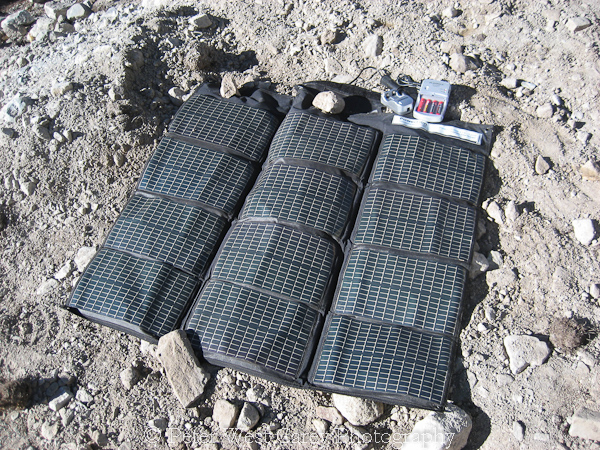
Another consideration is where you’ll be staying. If in lodges, ask if they have solar charging facilities. While some lodges are located close enough to hooked up to rural electric grids, the majority exist ‘off the grid’ and either survive on solar panels or no power at all. It may be that one or two camps or lodges on your trip will have power, such as Ngorongoro Crater in Tanzania, but others will not.

If you will be long stretches between outlets, you have basically two options: (1) Purchase additional batteries. Just like more memory cards, this is as straightforward as it sounds, but can add a lot of weight. (2) Bring a foldable or rollable solar panel to charge while in the bush. The solar panels can range from small units costing no more than one or two batteries for your camera, to units that are well over $500US.


Notes – Time To Write

Having time to write and take notes is vital to staying organized on the trail. Things go by fairly quickly at times as you suddenly spot a cheetah stalking its prey. Your driver stops and out come the cameras, focused intently on the action in the grass. Then the chase is on and dust is flying everywhere as some of the fastest animals on our planet replay a millennia old tale of survival. And it gets your heart racing too!

After all of the excitement, there’s the down time between spottings. Most safaris have some downtime when you are transporting from one high activity spot to another. During these times it’s extremely handy to have a notebook handy to capture your fresh, raw thoughts about what’s going on around you.

If you plan to share the photos with others back home, jot down some of the things they won’t be able to see, such as the smell of the grass, the blast of the wind coming through the open windows as you hunt for your next photo opportunity, or the taste of dirt that has coated you through for the past five hours.

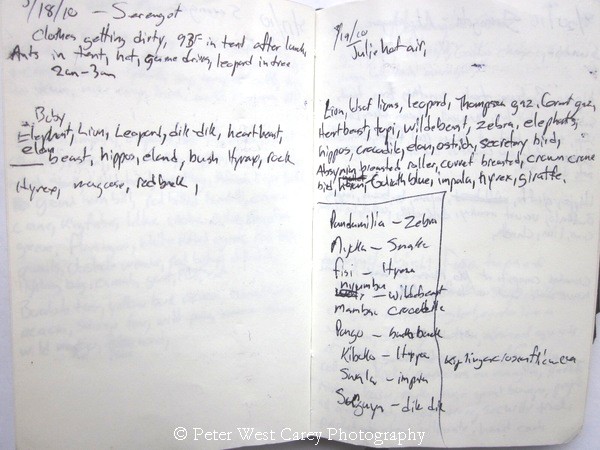
Not only that, a notebook will help you capture names of animals, locations and other tidbits. I have a list of Swahili names of at least a dozen animals from Africa in my latest notebook. Write down your emotions, and what it feels like where you are. What’s going through your head and heart when you look through the lens?

You’ll be taking in so very much during your trip that even by the end of a five day safari, it’s wonderful to look in a notebook page from day one and realize you had already forgotten small details you cared enough for at the time to write down. It’s wonderful, because you know you now get to take all of it back with you.


Pop-Top or Roll-Top

This last subject is something I never thought to ask before heading to Africa. What type of roof top does will your vehicle have? There are two basic types.

One is the classic roll top canvas top. This top is ideal if you’re into birds and want to have an unobstructed view of the sky. The down side? Not much shade and they can make a racket when on the road if not battened tight.

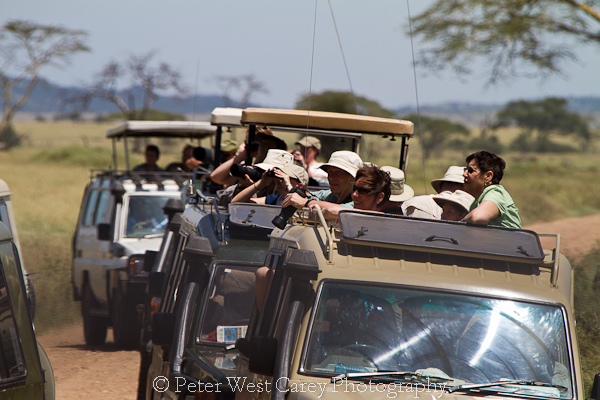
The other type of roof is one that raises up on hydraulic legs and remains above you. As you can imagine from the photos here, more shade is provided but the viewing area is more limited. It’s not hugely limited, but you do have to work around the posts and looking at things flying overhead, like vultures, gets tough. Decide what you’re mainly interested in shooting and go with a company that can match that with their vehicles.


Conclusion

Preparing for what is often a once in a life time photographic safari to Africa can seem like a daunting task. I certainly had a lot of worries when I started planning my trip. But I’m hoping this advice will help steer you in the right direction and take away some of the unknown about planning such a trip.

While there is a world of advice that can be handed down for taking award winning photographs of the animals you’ll see, that’s best left for another article!

The Benefits of Wide Aperture (And Choosing a Lens for Under $500)

Today we’ll look at a few of the benefits of shooting with a wide aperture. If you’re new to photography there will be some key insight here into one of the biggest factors for taking professional quality photos that will stun your friends and family. After this, we’ll take a look at several lenses that will help you get to f/2.0 and wider without forcing you to give up food and electricity for the next six months to make the purchase!


Why Don’t My Photos Look Amazing?

So you finally decided to get serious about photography and went out and bought a new camera. If you’re like most beginners, you picked up something high quality but affordable like a Canon Rebel or Nikon D80.

These types of cameras often come with a basic “kit lens.” In the case of my own Rebel T1i, the kit lens was an 18-55mm f/3.5-5.6. I want to be clear that there’s absolutely nothing wrong with shooting with this lens. It’s versatile and can be used in a number of different situations containing varying lighting and distance factors.

However, you’ve probably noticed that the photos, in particular the portraits, you’ve been taking with your kit lens are good, but not great. They’re far better than what you could get with a cell phone or flash and trash camera from the drug store, but not quite something that you could make a living selling.

As an example, consider the image below.

This is a nice shot. It’s cute, engaging, bright and crisp. However, the subject doesn’t quite pop the way you see in many professional portraits.

Now consider this next image:

There’s something fundamentally different about this image isn’t there? Something that immediately makes it seem high quality and professional. Something beyond the closer crop and even the lighting in the scene.

The answer is completely obvious to some but remains somewhat elusive to others. In case you missed it, it’s the background. In the first image, the background is slightly blurred, but is still perfectly decipherable and therefore demands much of your attention. The house in this shot detracts from the main subject, which is of course the boy. It’s not that the house is ugly or uncommonly busy, just that it’s in-focus enough to make your brain feel like it’s an important part of the composition.

In the second image, the background has been blurred out so much that it’s actually difficult to even decipher what’s going on back there. This causes your brain to interpret this space very differently than the sharper space in the foreground. By mimicking the way your eyes focus, this shot creates the subtle illusion of depth in a two-dimensional image.


Depth Of Field

The term used to describe the primary difference between the two images above is “depth of field.” Put simply, images with a shallow depth of field (like the second photograph) have very little in-focus while images with a greater depth of field (like the first photograph) are in-focus over a much great area.

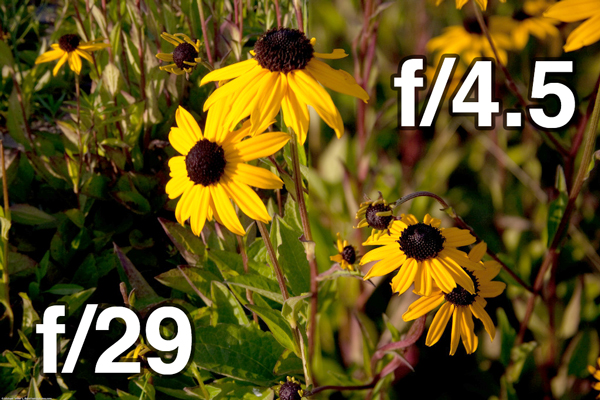
You can manipulate the depth of field in your photographs by adjusting your aperture. A wider aperture produces a shallower depth of field and a narrow aperture produces greater depth of field. As an example, consider the spliced image below. According to the photographer, the left portion was shot at f/29 and the right portion at f/4.5.

As you can clearly see, the background gets much blurrier as the aperture widens (the lower the number, the wider the hole that lets in light will be).


Shooting in Low Light

Perhaps even more of an issue for many photographers is the need to shoot in poor lighting conditions. Whether you’re getting paid to photograph a wedding in a dark church or just want to take some nice indoor shots of your family on Thanksgiving, a lens that can grab a lot of light is a necessity.

Obviously, a flash is mounted on your camera for this very purpose. However, built-in flashes tend to be quite harsh if not diffused properly. You can and should invest in portable lighting equipment, but there are still plenty of opportunities where you either won’t want to or won’t be allowed to use a flash.

One of the benefits of a lens with a wide aperture is that it can collect a ton of light. If you’ve ever shot during sunset as the available light is decreasing, you know that there are plenty of times when you need to capture every photon you possibly can!

In these instances, the shallow depth of field again has an impact. Just be sure to zoom in and take a look at your photos to make sure the important parts of the image are staying crisp. If you’re shooting people, it’s a good rule of thumb to focus on the eyes.


Can I Afford A Good Lens?

After reading the information above, you’re probably ready to grab your camera, blast open your aperture and go to town. The trick is, every lens has its limit for just how wide the aperture can go. As I stated above, the kit lens that comes with a Rebel T1i tops out at f/3.5. This is fine for many purposes but definitely not ideal for capturing blurry, rich-bokeh backgrounds.

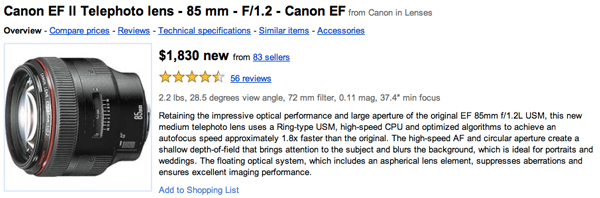
The solution is of course to go shopping for a new lens. Unfortunately, this can be quite straining on your checking account. Take for instance the lens below, which retails at a whopping $1,830. Also consider that this is by no means the far end of the quality or price spectrum as many professional photographers spend several thousand dollars for each lens they use.

Canon EF II Telephoto lens – 85 mm – F/1.2 – Canon E

If you’ve got the budget, a lens like this can really bump up the professional quality of your photographs. However, I’ll bet that most of you are like me and would rather read about something a little more affordable.

Fortunately, there are a few options available for the budget conscious photographer looking to hit f/2.0 and wider for less than $500. All prices are estimates based on those listed on the manufacturer’s websites.


The Thrifty Fifty

If you’re really set on achieving a fairly wide aperture but don’t really have much money to burn, look no further than the Canon EF 50mm f/1.8 II, also lovingly referred to by many photographers as the “thrifty fifty.”

Short of a pirated copy of Photoshop and the Lens Blur filter, this is by far the cheapest way for Canon users to achieve nice blurry backgrounds in their photos (around $100 brand new).

This lens produces beautifully crisp images with decent (but not great) color and is as compact and light as any lens you’ll find.

The downside is that the construction mirrors the price. It’s a fairly cheap feeling lens comprised mostly of plastic. Further, many users report that the less than optimal five aperture blades tend to produce relatively poor bokeh.

Still, at a hundred bucks it’s definitely not a bad place to start.


AF NIKKOR 50mm f/1.8D

The Nikon users out there definitely have an excellent answer to the Canon 50mm f/1.8 in the Nikkor equivalent.

It’s a very similar lens in all respects to the Canon version. The construction is mostly plastic, making it feeling cheap but also super lightweight. Further, the autofocus is super fast and critics rave on the surprising crispness of the image quality for a lens so affordable.

If you’re a hobbyist and don’t really see yourself ever making money from photography this is a perfect first lens purchase.


Canon EF 50mm f/1.4 USM

Canon’s next step up takes a rather large leap in price up to $389 (if you look around, it’s fairly easy to find in the $350 range). I own this lens and simply can’t say enough about it. In fact, it was used for the image of the woman above.

The images are crystal clear, the construction feels solid, there are eight aperture blades instead of five, and it’s still really small and lightweight, though obviously not quite as much as the 1.8 above.

I was initially worried about the lack of a zoom, but I found that I really like the 50mm prime because it makes focusing much faster. It’s a perfect zoom for shooting what you see and it’s occasionally nice to have one less variable to worry about.

The USM (Ultrasonic Motor) is much quieter than my kit lens, but not quite as quiet as I was hoping it would be. I’ve used some of the pricier Canon USM lenses that were ridiculously smooth and the 50mm f/1.4 certainly falls well beneath these.

Tons of photographers all over the web agree with me that this lens is really an excellent buy for anyone with a low to mid-range budget. If you can afford to choose this option over the thrifty fifty, go with it and never look back.


AF NIKKOR 50mm f/1.4D

All of the conclusions drawn for the jump from the Canon f/1.8 to the f/1.4 apply here as well. If you’re really strapped for cash, go with the f/1.8, but if you can scrounge up the extra couple hundred bucks, absolutely go with the f/1.4 instead.

The leap from 1.8 to 1.4 might not sound like much, but when you’re shooting low light, you’ll never be sorry you spent the extra money.

This lens is extremely fast and produces images that are sharp enough to rival lenses three times its price. As far as I can tell, you’ll be every bit as happy with this lens as I am with my Canon 1.4.


More Lenses Under $500

Due to their affordability, the selections above represent my suggestions for where to start your search. However, for $500, you can find several more outstanding lenses even higher in quality than those we’ve already seen. Here are a few to check out:

Canon EF 85mm f/1.8 USM

AF-S NIKKOR 50mm f/1.4G

Canon EF 100mm f/2 USM

AF NIKKOR 85mm f/1.8D


What’s Your Favorite Lens?

I hope this article has helped make the decision for your next lens purchase a little easier. Keep in mind that the lenses above are straight from Canon and Nikon and that even more affordable alternatives can often be found from other manufacturers such as Sigma and Vivitar.

Leave a comment below and let us know your recommendations for a good lens below $500. Tell us about that one affordable but high quality lens that you simply couldn’t be without and why.

A Deeper Look at Advanced Select Queries: New Premium Tutorial


To a SQL novice, JOINs can be intimidating and somewhat frustrating. Even when you think you have the query nailed, along comes an unexpected result which make you throw up your arms in surrender to the SQL gods. In this tutorial, we are going to build upon the excellent quick tip of working with MySQL and INNER JOIN recently posted and crack open the real power of a SELECT statement. Become a Premium member to access this tutorial, and all of the other fantastic articles and screencasts across all of the Tuts sites.


What you’ll Learn About:

  • Why being specific with your queries is so important
  • INNER JOINs
  • OUTER JOINs
  • Sub-Selects
  • UNIONs
  • …and plenty more

Join Net Premium

NETTUTS+ Screencasts and Bonus Tutorials

For those unfamiliar, the family of Tuts+ sites runs a premium membership service. For $9 per month, you gain access to exclusive premium tutorials, screencasts, and freebies from Nettuts+, Psdtuts+, Aetuts+, Audiotuts+, and Vectortuts+! For the price of a pizza, you’ll learn from some of the best minds in the business. Become a Premium member.

Envato’s Newest Site: The Netsetter


If you’re a freelancer writer, web developer, illustrator, or anyone looking to make money online, then you need to check out The Netsetter.

The Netsetter

The Netsetter is part of the Plus Network, featuring other sites you’re familiar with such as WorkAwesome and FreelanceSwitch. The focus of The Netsetter is to help you achieve your goals of making a living through online business. We have a list of 50 Netsetters You Should Know About.

Make Money Online

If you’re a freelance web developer, then you’re also a businessperson, and maybe you’re struggling to land jobs. The Netsetter will give you what you need to take your business to the next level.

A netsetter is an entrepreneur who understands what the Internet means for making money, starting businesses and changing the way they live.

A new feature is the Netsetter Directory, listing people who have had influence over the internet, such as Envato founder and CEO, Collis Ta’eed, Envato publication manager Joel Falconer, Matt Lambert, the owner of Cardeo and contributor to many start up projects and many more. If you think you’ve got what it takes to be a Netsetter then tell us why you should be in the directory.

Visit The Netsetter today!

How to Create Blog Excerpts with PHP


Ever visited a blog, and noticed that each posting’s overview only contained a hundred characters or so, which is then followed by “…”? Ever wondered how to do that yourself? It’s not quite as easy as you might think. What if character number 100 occurs in the middle of a word? Do you want to display half of a word on the page? Of course not. In this video tutorial, I’ll show you how to compensate for this, as well as a host of other neat little things, like working with MySQL’s LEFT() function, using PHP’s strrpos, and substr, creating the beginning’s of an actual blog, and more.


What You’ll Learn

  • Use MySQL’s LEFT() function to create temporary columns
  • Use PHP prepared statements to query the database
  • How to create an “excerpts” section for your blog
  • PHP’s strrpos and substr functions
  • The process of creating the beginnings of a blog

Interface Design – Creative Session Wrap


It’s a wrap. This session has covered a mix of interface design topics. We’ve looked at quite a bit of inspirational icon and graphic user interface design articles, after reviewing theory on topics like creating user friendly interfaces. We’ve reviewed both in depth detailed tutorials and case studies. This session posted across numerous Tuts+ sites: Nettuts+, Psdtuts+, and Mobiletuts+. We’ll continue to expand each session as we cover new topics and integrate your feedback. Let us know what you think of this session’s material.


Interface Design – CS Content

  • Getting Started with Interface Design

    In this article we look at five fields that you should aim to learn more about in order to rock at interface design. These fields include Experience Design, Interaction Design, Information Architecture, User-Centered Design, and Graphic User Interface (GUI) Design.

    Visit Article

  • Three Steps to Fostering a User-Centered Design Culture

    As responsible designers we must educate clients on the importance – both the validity as well as the viability – of the user-centered design process, one that gives due consideration to the needs of potential users. With the three steps that follow, we’ll go over techniques that you can use to get your team thinking about what’s really important with regards to the design of their websites you’ll help them create.

    Visit Article

  • Roughly Speaking: Working within Mobile UI Design Limitations

    Today we chat with two mobile user interface designers about how they design successful mobile interfaces and intuitive navigation solutions. We’ll learn how Sacha Greif works with the limited space of the iPad by using space saving UI Elements. Eryk Pastwa discusses how to design for multiple mobile sizes, and how to properly test designs for maximum real world uses. Take a peek at their workflows, and the best practices they both put into place in their projects.

    Visit Article

  • Showcase of Macintosh Dashboard Widget UI Designs

    This inspirational compilation post showcases a collection of 32 creative, unique and easy to use Apple Macintosh Dashboard Widgets, including a selection of default widgets that ship with your Apple Mac, and a good handful or two of third party widgets.

    Visit Article

  • Designing Realistic Interfaces – Part 1

    You have to be great in many areas of Photoshop to be good at interface design. So along with the actual steps needed to create this particular interface, in this series I will also provide as many references to other tutorials, resources and concepts as possible. That way, you can have access to some of the tools that will allow you to create completely original interfaces utilizing the same methods I teach in collaboration with your own creativity. Let’s get started with Part 1 of this two part series.

    Visit Tutorial

  • Designing Realistic Interfaces – Part 2

    You have to be great in many areas of Photoshop to be good at interface design. So along with the actual steps needed to create this particular interface, in this series I will also provide as many references to other tutorials, resources and concepts as possible. That way, you can have access to some of the tools that will allow you to create completely original interfaces utilizing the same methods I teach in collaboration with your own creativity. Let’s move on with Part 2 of this two part series.

    Visit Tutorial

  • Know Your Icons Part 1 – A Brief History of Computer Icons

    As with great works of art, you must look into the past to appreciate the future. With roots as far back as the 1970?s, the humble icon has come a long way. Following is a collection of icons though history. Although there have been many other operating systems in the time between 1981 – 2010, I’ve hand picked the ones of the most significance to modern icon design. These designs show just a small fraction of the icons in the many and varied User Interfaces throughout the years.

    Visit Article

  • Know Your Icons Part 2 – Modern Icon Design

    In the last installment you learned about the history of icon design and how it has evolved from black and white representations of office items into full colored, glassy, hyper-rendered, isometric representations of… office items. In this installment I will be delving further into the world of icons and exploring what icons mean to us today.

    Visit Article

  • Exploring Graphic User Interface Styles – from Minimal to Futuristic

    A user interface (UI) can come in many styles ranging graphically from very simple, all the way to extremely complex. In this article we are going to explore a range of styles demonstrating that there isn’t just one recipe for creating a good looking, and ultimately successful user interface. Of course, not every style is represented in this article; we will be exploring several high-quality examples, representing a wide range of graphical styles from simple to complex. Enjoy!

    Visit Article

  • iPad Magazine Interface Design

    A great magazine is more than just a collection of articles around a theme or idea, it’s a curated editorial experience. Through layout design and copy it can take you to different places and teach you new things. The release of the iPad has kicked off the latest chapter in the history of magazine design. I’ve been working with a startup, Sideways.com, to create our own magazine publishing platform and here is what we’ve done.

    Visit Article


Your Thoughts on this Digital Illustration Session

We’d love to here your feedback and suggestions on how to improve Creative Sessions. We’re actively working to improve this project, by consistently adding more high quality material, and new intensive two week sessions releasing each month. We look forward to your comments.

20+ Required Windows Apps: Web Designer’s Choice


In April, Jeffrey Way provided us with a list of the “20 Mac Apps You’ll Use Every Day.” Not one to be biased, if you prefer Windows, this article rounds up the best programs available for boosting your productivity as a web designer.

1. Skybound Stylizer

Skybound Stylizer

While I prefer to use Firebug, I’m finding this “out of the box” CSS editor to be really helpful. Skybound Stylizer has been out for a while, but the latest version, 4.0, is now out with a lot of incredible features to help you in the development process. One of the core features is that it supports Google Chrome, Firefox 2 – 3.6, and Internet Explorer 6 – 8.

Stylizer is an exotic visual CSS editor that keeps you in the drivers seat while delivering enormous productivity gains.


2. Notepad++

Notepad++

Notepad++ is by far my favorite text editor for Windows. It’s fast, flexible and offers a variety of plugins. If you want to increase your productivity with this editor, be sure to install the ZenCoding plugin. You can download the plugin here.

Notepad++ is a text editor and source code editor for Windows, one main advantage of Notepad++ over the built-in Windows text editor, Notepad, is tabbed editing, to easily work with multiple open files.

Alternative


3. IETester

IETester

IETester is the most stable and useful IE test tool available for Windows. With tabbing navigation, a source code viewer, and the debug bar, it’ll help you through the process of “happy” IE debugging.

name of tut

IETester is a free WebBrowser that allows you to have the rendering and javascript engines of IE9 preview, IE8, IE7 IE 6 and IE5.5 on Windows 7, Vista and XP, as well as the installed IE in the same process.

Alternative


4. Filezilla

Filezilla

Filezilla is the most popular and free FTP for Windows, and, of course, is my favorite FTP client for this platform. It’s lightweight and easy to use.

FileZilla Client is a fast and reliable cross-platform FTP, FTPS and SFTP client with lots of useful features and an intuitive graphical user interface.

Alternative


5. Dropbox

Dropbox

Dropbox is a multi-platform sync system, which is available for Windows, Mac and Linux. You can use it as a backup folder to transfer files to your friends and family. It’s amazingly intuitive and fast.

Dropbox allows you to sync your files online and across your computers automatically.


6. Jing

Jing

Jing is a great tool to share images or videos in the Windows platform. It’s free, but you can order the Pro version with even more features.

Use Jing to capture anything you see on your computer screen and share it instantly… as an image or short movie.


7. XAMPP

Xampp

For PHP/MySQL development, Xampp automatically installs MySQL, Apache and PHP in your PC.

XAMPP is an easy to install Apache distribution containing MySQL, PHP and Perl. XAMPP is really very easy to install and to use – just download, extract and start.

Alternative


8. FoxitReader

FoxitReader

FoxitReader is the primary PDF reader in my PC; it’s very fast, and supports tabs to read my PDF files.

Foxit Reader is a multilingual PDF reader. Both the basic and full version readers can be downloaded for free. Foxit Reader is notable for its short load time and small filesize, and has been compared favorably to Adobe Reader.


9. doPDF

doPDF

Print-as-PDF isn’t installed by default on Windows. That makes this tool particular handy when you need to quickly send a document.

doPDF installs itself as a virtual PDF printer driver so after a successful installation will appear in your Printers and Faxes list. To convert to PDF, you just have to print the document to doPDF, the free pdf converter.


10. Breevy – Text Expander for Windows

Breevy

Breevy is one of the most responsive, intuitive text expander applications for Windows. Whether you’re a web developer, blogger or {your-occupation-here}, you’ll find this one very useful. It’s not free, but will save you hours upon hours of typing! It’s worth the cost.

Breevy is a text expander and AutoText program for Windows that helps you type faster and more accurately by allowing you to abbreviate long words and phrases — saving you time and money.

Free Alternative


11. Everything

Everything

Everything is a search program. As LifeHacker said, “It does what you really want when you hit Search in Windows.”

“Everything” is an administrative tool that locates files and folders by filename instantly for Windows, 20,000 files will take about 1 second to index. 1,000,000 files will take about 1 minute.


12. Miro

Miro

Miro lets you play nearly every single video format in the world; but it’s not just a video player: you can even subscribe to podcasts, video channels, etc. It’s my video player of choice. And yes! It’s free!

Miro is the only internet TV you’ll need—it’s an application that brings together thousands of shows from all over the web. There’s TONS of great content, lots of it in HD, and fresh shows are added all the time. You can watch and organize video feeds when you’re offline or traveling, find TV programs on sites like Hulu, and download from sites like YouTube. Miro downloads in HD, whenever it’s available!

Alternative


13. KeePass

KeePass

KeePass is a nice and lightweight password manager for Windows. The amazing thing about it is that you can sync the database with Dropbox – But what if I own a Mac as well? Okay, just install KeePassX. There are numerous cross-platform password managers available (even one more in this round-up), but KeePass is simple and effective enough to get the job done.

KeePass is a free open source password manager, which helps you to manage your passwords in a secure way. You can put all your passwords in one database, which is locked with one master key or a key file.


14. Sobees

Sobees

Sobee is one of those applications you’ll always love. It allows you to get the most out of your social sites. You can choose multiple layouts to display your social data, as it offers LinkedIn, Facebook, Twitter and MySpace support — even a New York Trending News widget. Be sure to check this one out!

Enjoy the convenience of tracking all your different social networks and news from a single place and share, like or tweet what’s on your mind easily.


15. Aptana

Aptana

Aptana is, in my humble opinion, one of the best Integrated Development Enviroments (IDE) for Windows. It has great HTML, CSS, and JavaScript intellisense, JavaScript debugging tools, built-in support for JavaScript libraries, a DOM outline viewer, file transfer & synchronization, live previewing (Safari and Firefox), and much more.

Aptana Studio is the industry leading web development environment that combines powerful authoring tools for HTML, CSS, and JavaScript, along with thousands of additional plugins created by the community.

(Available for Linux and Mac)


16. Picasa

Picasa

Picasa is a must have if you want to organize and share your photos on the internet. It’s light-weight, free, and just works!

Picasa is free photo editing software from Google that makes your pictures look great. Sharing your best photos with friends and family is as easy as pressing a button!

(Available for Linux and Mac)


17. Google Talk

Gtalk

If you’re one of the GMail lovers (like me), then Gtalk is the perfect Gmail notifier for you. And of course, you can chat with your buddies as well!

Google Talk (GTalk) is a free-of-charge Windows web-based application for instant messaging and voice over internet protocol (VOIP), offered by Google Inc.


18. Adobe Photoshop CS5

Photoshop

Adobe Photoshop CS5 is, for obvious reasons, the greatest tool available for graphics / web design available in the industry. Photoshop is open on all of my computers… at all times.

Adobe Photoshop CS5 software is the ultimate solution for advanced digital imaging, delivering all the editing and compositing capabilities of Photoshop CS4, plus breakthrough tools that let you create and edit 3D and motion-based content.


19. Pidgin

Pidgin

Pidgin is a simple instant messenger. I use it to chat with my friends and family, similar to Adium for the Mac. AIM, MSN, Yahoo, and Facebook are supported.

Pidgin is an easy to use and free chat client used by millions. Connect to AIM, MSN, Yahoo, and more chat networks all at once.


20. InstallPad

InstallPad

Although I don’t use InstallPad every day, it’s still a great tool, and is worthy of being listed here. It helps you to install all of your favorite Windows applications at once.

InstallPad takes a list of your favorite programs and will download and install the ones you pick. It doesn’t need to ask any questions, so you can go do more important things. InstallPad can resume downloads you’ve canceled, and can even try and find the latest version of your program online.

Alternative


21. 1Password PC (Beta)

1Password

The hugely popular Mac password manager, 1Password, is currently in Beta mode for Windows! Whether you need to store hundreds of website passwords, or track your software licenses, 1Password will do the trick!

“1Password for Windows has been a dream of ours for a long time and we’re thrilled to open beta testing to everyone!”

Free Alternative


22. Bubbles

Bubbles

Mac users have access to a nifty app, called Fluid, which allows them to turn any website (Mint.com, Producteev.com, etc) into a desktop app. It’s very helpful. PC offers its own version of this service, via an app, called Bubbles.

“Bubbles is an application platform, based on Browser technologies. It detaches Web Applications from the classic Browser and offers them with the familiar accessibility, capabilities and always-on nature of Desktop applications.”

Conclusion

These are the applications I use nearly every day on my PC. Did I miss any? Don’t agree with me? What do you recommend?

Quick Tip: The Best Way to Run Internet Explorer on your Mac


While Mac users do have a handful of resources available, when viewing new web designs in Internet Explorer, the quickest solution is to use Wine, which can create a “wrapper” for the native PC Internet Explorer app! Even better, an app, called Wine Bottler makes adding the IE icon to your dock amazingly simple. I’ll show you what to do in today’s video quick tip!

Be sure to check out our sister-site, MacAppStorm for the full details on how to work with Wine and Wine Bottler!

Creating Custom Fields for Attachments in WordPress


Custom fields in WordPress make it easy to customize your theme in a variety of ways; plus, they are simple to implement for posts and pages. Attachments, on the other hand, take a bit more work to implement, requiring you to read through and decipher core source code in order to make them work. We’ll be walking through the use of a couple undocumented WordPress hooks in this tutorial to make this process much easier.


Preface: About The Hooks

Both these hooks have been around since WordPress 2.5, and are applied in wp-admin/includes/media.php, but remain underused in the community most likely because they’re undocumented in the Codex. Below is where the hooks are applied in the core code, letting us know what will be passed to the functions we add to each hook.

attachment_fields_to_edit

function get_attachment_fields_to_edit($post, $errors = null) {
	// ...
	$form_fields = apply_filters("attachment_fields_to_edit", $form_fields, $post);
	// ...
}
  • $form_fields is a special array which will be described in detail in a moment.
  • $post is the attachment as an object (attachments are treated as post objects in WordPress).

attachment_fields_to_save

function media_upload_form_handler() {
	// ...
	$post = apply_filters("attachment_fields_to_save", $post, $attachment);
	// ...
}
  • $post is the attachment as an array (attachments are treated as post objects in WordPress).
  • $attachment is the attachment part of the form $_POST which will include the fields setup through the attachment_fields_to_edit hook.

Note: Be careful in your code, as $post is sent to one function as an object and to the other as an array.

Custom Field Naming Tips

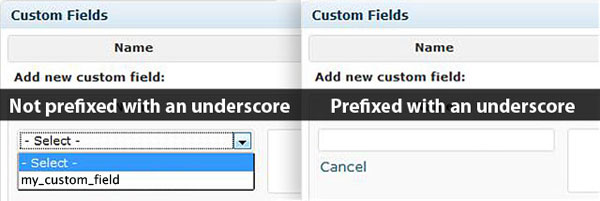
The new fields being added will be saved as post meta, just like the custom fields section of the post/page edit screen. Fields prefixed with an underscore (_my_custom_field) will not be listed in the drop down of available custom fields on the post/page screen; all other existing post meta fields will be listed. We can use this knowledge to hide the fields we’re adding to the media form, since they aren’t relevant for posts/pages.

There is a similar rule to keep in mind when choosing the $form_fields array key to use for your new field. Here, if you use an underscore ($form_fields[‘_my_custom_field’]) your field will be skipped and will not be added to the form.

So in order to show our fields in the media form, but also not list them in the page/post custom fields drop down, we must combine both methods. This will invlove both the edit and save functions we’ll be creating. For the ‘attachment_fields_to_edit‘ hook we’ll set the $form_fields keys up to not have underscore prefixes, and for the ‘attachment_fields_to_save‘ hook we’ll prefix our fields with an underscore before saving them as post meta. This is a workaround worth doing in order to not muddy our users’ interface with unneeded info.


Hook 1: attachment_fields_to_edit

Below is an example of how to add your own custom fields to the attachment form.

/**
 * Adding our custom fields to the $form_fields array
 *
 * @param array $form_fields
 * @param object $post
 * @return array
 */
function my_image_attachment_fields_to_edit($form_fields, $post) {
	// $form_fields is a special array of fields to include in the attachment form
	// $post is the attachment record in the database
	//     $post->post_type == 'attachment'
	// (attachments are treated as posts in WordPress)

	// add our custom field to the $form_fields array
	// input type="text" name/id="attachments[$attachment->ID][custom1]"
	$form_fields["custom1"] = array(
		"label" => __("Custom Text Field"),
		"input" => "text", // this is default if "input" is omitted
		"value" => get_post_meta($post->ID, "_custom1", true)
	);
	// if you will be adding error messages for your field,
	// then in order to not overwrite them, as they are pre-attached
	// to this array, you would need to set the field up like this:
	$form_fields["custom1"]["label"] = __("Custom Text Field");
	$form_fields["custom1"]["input"] = "text";
	$form_fields["custom1"]["value"] = get_post_meta($post->ID, "_custom1", true);

	return $form_fields;
}
// attach our function to the correct hook
add_filter("attachment_fields_to_edit", "my_image_attachment_fields_to_edit", null, 2);

The $form_fields array has several options for including different types of inputs and custom content. I’ve compiled the various methods below with notes and screenshots of how they render in the form.

Text Input

// input type="text"
$form_fields["custom1"]["label"] = __("Custom Text Field");
$form_fields["custom1"]["input"] = "text"; // this is default if "input" is omitted
$form_fields["custom1"]["value"] = get_post_meta($post->ID, "_custom1", true);

Renders in the form as:

Textarea

// textarea
$form_fields["custom2"]["label"] = __("Custom Textarea");
$form_fields["custom2"]["input"] = "textarea";
$form_fields["custom2"]["value"] = get_post_meta($post->ID, "_custom2", true);

Renders in the form as:

Hidden Field

Hidden fields are compiled together and output at the end of the form.

// input type="hidden"
// no need for a label
$form_fields["custom3"]["input"] = "hidden";
$form_fields["custom3"]["value"] = get_post_meta($post->ID, "_custom3", true);

Other Field Types

If you need an input type other than ‘text’, ‘textarea’, or ‘hidden,’ then use ‘html’ which allows you to pass your own custom content to use for the input element of your choice. When you create your own input html, it’s important to set the ‘name’ attribute on the element correctly, in order for the field to be passed to our save function later. You want something like this: name = "attachments[$post->ID][my_custom_key]" .

$form_fields["custom4"]["label"] = __("Custom Select");
$form_fields["custom4"]["input"] = "html";
$form_fields["custom4"]["html"] = "
<select name='attachments[{$post->ID}][custom4]' id='attachments[{$post->ID}][custom4]'>
	<option value='1'>Option 1</option>
	<option value='2'>Option 2</option>
	<option value='3'>Option 3</option>
</select>";

// another example
$form_fields["custom5"]["label"] = __("Custom Checkbox");
$form_fields["custom5"]["input"] = "html";
$form_fields["custom5"]["html"] = "the html output goes here, like a checkbox:
<input type='checkbox' value='1'
	name='attachments[{$post->ID}][custom5]'
	id='attachments[{$post->ID}][custom5]' />";

Renders in the form as:

Special Attributes

There are several special attributes you can add to your custom fields to enhance them.

helps – This attribute adds a help string to your custom field.

$form_fields["custom6"]["label"] = __("Custom Field with Helpful Text");
$form_fields["custom6"]["value"] = get_post_meta($post->ID, "_custom6", true);
$form_fields["custom6"]["helps"] = "Put helpful text here.";

This renders in the form as:

required – This attribute will mark the field as required; but it is only a visual reference. We’ll have to write code later in the save function to enforce it.

$form_fields["custom7"]["label"] = __("Required Field");
$form_fields["custom7"]["value"] = get_post_meta($post->ID, "_custom7", true);
$form_fields["custom7"]["required"] = TRUE; // default is FALSE

Renders in the form as:

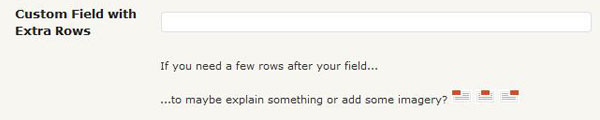
extra_rows – This attribute lets you add an array of rows right after your custom field. The markup for each array item is shown below: the array key will become the class of the td, and the value is the content:

// extra_rows markup:
// <tr>
//		<td></td>
//		<td class="{arrayItemKey}">{arrayItemValue}</td>
// </tr>
$form_fields["custom8"]["label"] = __("Custom Field with Extra Rows");
$form_fields["custom8"]["value"] = get_post_meta($post->ID, "_custom8", true);
// extra_rows must be an associative array $cssClass => $content
$form_fields["custom8"]["extra_rows"] = array(
	"cssClass1" => "If you need a few rows after your field...",
	"cssClass2" => "...to maybe explain something or add some imagery?
			<img src='".get_bloginfo("wpurl")."/wp-admin/images/align-left.png' />
			<img src='".get_bloginfo("wpurl")."/wp-admin/images/align-center.png' />
			<img src='".get_bloginfo("wpurl")."/wp-admin/images/align-right.png' />",
);

Renders in the form as:

tr – While extra_rows only lets you add table cells directly under your custom field’s input element, this attribute lets you create entire rows.

The table we’re adding a row to has two columns, so keep that in mind when using this method. And this doesn’t have to be a form field, you could just add a row that explains the next few fields, add all of your fields manually, or something else entirely.

$form_fields["custom8"]["tr"] = "
<tr id='MySpecialRow'>
	<td colspan='2' style='background:#000;color:#fff;'>
		Can do whatever you want, style it, add some fields, display a table of data...sky's the limit
	</td>
</tr>";

Renders in the form as:


Hook 2: attachment_fields_to_save

Saving your custom fields is a much simpler process than adding them to the form; just check if your field is set and update its value as post meta. Remeber to prefix your field with an underscore when saving to hide it on the post/page edit screen.

/**
 * @param array $post
 * @param array $attachment
 * @return array
 */
function my_image_attachment_fields_to_save($post, $attachment) {
	// $attachment part of the form $_POST ($_POST[attachments][postID])
	// $post attachments wp post array - will be saved after returned
	//     $post['post_type'] == 'attachment'
	if( isset($attachment['my_field']) ){
		// update_post_meta(postID, meta_key, meta_value);
		update_post_meta($post['ID'], '_my_field', $attachment['my_field']);
	}
	return $post;
}

You can also add errors here that will automatically be displayed below your field in the form. The $post['errors'] array gets merged with the $form_fields array before being sent through the attachment_fields_to_edit hook.

/**
 * @param array $post
 * @param array $attachment
 * @return array
 */
function my_image_attachment_fields_to_save($post, $attachment) {
	if( isset($attachment['my_field']) ){
		if( trim($attachment['my_field']) == '' ){
			// adding our custom error
			$post['errors']['my_field']['errors'][] = __('Error text here.');
		}else{
			update_post_meta($post['ID'], 'my_field', $attachment['my_field']);
		}
	}
	return $post;
}

Note Regarding Custom Errors: There are a couple long standing bugs in WordPress (as of version 3.0-RC3) that have to do with the display of custom errors.

  1. One will prevent your custom error messages from showing up on the single media edit page.
  2. The other bug is in the modal popup for media items used on the post/page edit screen. The errors do display
    here, it’s just the problem of initially seeing them. After saving you’re automatically switched to the
    ‘Gallery’ tab where there’s a minimized list of media items. If you click on ‘show’ to open your new item,
    you’ll see your error messages in the form. The problem is that if there are errors, that items form is supposed to
    be open by default. There’s a bug in the css where the class ‘startopen’ (which is present on the item if
    there are errors to show) has the value of ‘display:none’ in a few places in the core stylesheets.

I have submitted patches for both of these issues (#13810 & #13838), and have been told they should be reviewed and included by version 3.1. So for now, don’t rely on your error messages too much, just be glad you know how to work with them for when they become more useful in the near future.


Other Ideas

You may want to include some of your fields on only audio attachments, or just images attached to the front page. To further customize your attachment forms, just wrap your special fields in distinguishing statements for both the edit and save functions.

// for audio files
if( substr($post->post_mime_type, 0, 5) == 'audio' ){
	// add your custom fields for audio files
}

// OR for images on a specific page

$page_id = 5; // set the id to whatever page you want these applied to
if( $post->post_parent == $page_id && substr($post->post_mime_type, 0, 5) == 'image' ){
	// add your image specific custom fields for this particular page
}

If you think of any clever ways to use custom fields with attachments, share it with us in the comments!

Quick Tip: How to Create an Abstract Desktop Wallpaper


Looking for an abstract wallpaper but can’t find a color or shape that your like? In this tutorial you will learn how to create desktop wallpapers using simple geometric figures, the Blending Mode, and Gaussian Blur. Let’s get started!

Continue reading “Quick Tip: How to Create an Abstract Desktop Wallpaper”

Quick Tip: Add Rhythmic Variations with Gated Vocal Effects

Gated Vocal effects are a cool way of adding extra rhythmic variations and dynamics to you tunes.
Especially, genres like progressive and psy trance make extensive use of those techniques enhancing the overall rhythm and adding a sense of spirituality, if you like. I am going to be showing you various ways of achieving this effect using Ableton Live 8.0.9 for this tutorial but the technique can easily be applied to any DAW.


Setting Up

I have two audio tracks, one playing a loop from one of my tunes and the other one a female vocal phrase.

Listen to the drum loop:

Download audio file (back-to-basics.mp3)

Listen to the vocal:

Download audio file (vocal.mp3)


Using Clip Envelopes

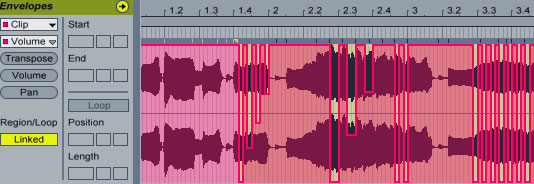
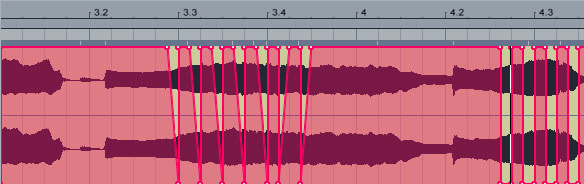
On the vocal audio file’s Envelope Editor select Clip from the Device Chooser, then Volume from the Control Chooser. Start drawing envelope steps in various quantization grid settings to modulate the clip volume. You can add varying envelope step heights depending on how much you want the volume being chopped up.

You can also adjust the envelope Breakpoints to control the attack and release of each volume modulation for smoother results. I’ve also highpassed the vocal to make it better sit in the mix.

Listen to the result:

Download audio file (loop-vocal1.mp3)


Using a Sampler Device

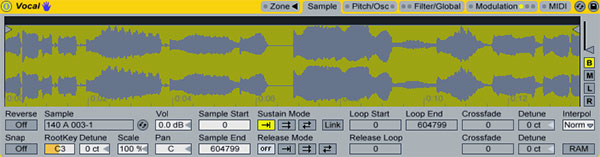
You can achieve the same effect by using a Sampler device or any sampler on any other DAW. Drag a Sampler instrument on a MIDI track, then drag and drop the vocal sample clip on the Sampler where it says “Drop Sample Here”.

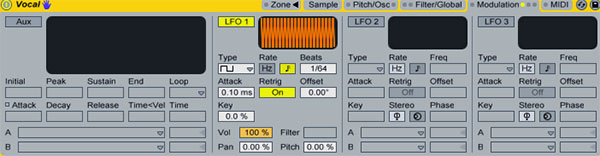
Go to the Modulation tab and activate LFO 1. Set the LFO Type to Square, sync the LFO Rate to beat-time and drag the Vol parameter all the way up to 100% to have the LFO fully modulate the volume. You can even preview the effect by auditioning the sample by hitting C3 on your keyboard. The Beats parameter sets how fast the vocal sample will be gated according to the master BPM.

Now, you can program a MIDI clip playing note C3 and automating the LFO 1 Synced Rate parameter or any other parameter that you might see fit. The Vol < LFO parameter can also be modulated to temporarily deactivate the gated effect or add a varying degree of volume attack to the effect. In the example above I’ve modulated the above parameters using the clip’s envelope area.

Listen to an example:

Download audio file (loop-vocal2.mp3)


Using a Simpler Device

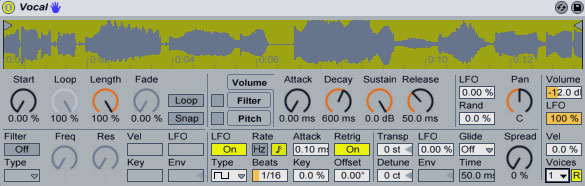
For those that only have Simpler, they can still use the same method to process their vocals. Just activate the LFO and set similar values as before. The Volume > LFO depth setting is located at the right of the Simple device just underneath Volume.


Using a Gate Device

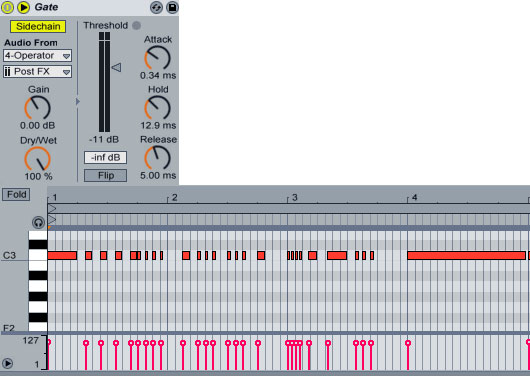
Using a Gate device you can achieve similar results. You are going to need an extra MIDI channel so you can drop an Operator instrument (or any other instrument as a matter of fact) to act as the sidechain input for the Gate device. Remove the clip volume envelopes on the audio track we initially had from Step 1 and drop a Gate device. Open the external Sidechain input and select the Operator track from the drop-down list. Set the MIDI track’s Audio To to Sends Only to mute the Operator’s output and enter some MIDI notes inside a clip. When the clip is played any MIDI notes will activate the Gate sidechain making the vocal audible whereas no MIDI notes will silence the signal. For smoother volume changes, play around with the Attack setting on the Gate. I’ve added a bit of reverb on the vocal for some extra space.

Listen to an example:

Download audio file (loop-vocal3.mp3)

Since, delay effects are also appropriate for this kind of thing, here is another sample with some delay added as well.

Listen to an example:

Download audio file (loop-vocal4.mp3)

Another thing you can do is create various MIDI clips with repeated 1/16, 1/32, etc length values and fire them up during a live performance to create varying rhythmic effects drawing only one long note to one of the clips so that you can switch back to the un-gated vocal sample. Or you can create a super rack where you can combine various parameters easily.

Download the Play Pack for this tutorial (5.8 MB)

Contents

  • Ableton Live Source Files


Program A Fallout 3 “Pipboy” Touch Screen – Day 2

In Day 2 we’ll finish up the building of the pipboy screens. Then we’ll talk about how were going to transition between the first and second screen. We’ll animate and keyframe the layers. DON”T FORGET MOTION BLUR!!! Once we finally build the 2 screens and animate them, we’ll add some final detail to the screens like noise and grunge. And finally we’ll motion track the screen onto our live action footage. Thanks for watching guys.


Tutorial

Part 3

Download Tutorial .flv

File size 202MB

Part 4

Download Tutorial .flv

File size 231MB