The Art Of Music Production – Part 1 – Audio Premium

In this week’s Audio Premium content, Bobby Owsinski starts a new series on music production inspired by his new book “The Music Producer’s Handbook” and his decades of experience in the industry.

To learn more about what you get as part of Audio Premium, read this. To take a peek inside this tutorial, hit the jump!

A new book of mine just came out called The Music Producer’s Handbook, so I thought this might be a good time to go over some basic production techniques while the topic is still fresh in my mind. Music production is sort of a black art because the very nature of the job is nebulous in many people’s minds, but we’ll try to clear that up in this series.

Table of Contents

  • What is a Producer?
  • How to Become a Producer

    • The Musician/Producer

    • The Engineer/Producer
    • And The Other Way
    • You Still Need A Client
  • Elements of Music Production

    • Creative

    • Financial
    • Politics
    • Project Management

Existing Premium members can log-in and download. Not a Plus member? Join now.


Quick Tip: Using Multiple MIDI Controllers in FL Studio 9

Everybody loves MIDI controllers. They’re so much fun, some people buy a few of them. Before version 9, FL Studio used all connected MIDI controllers to control only one channel, but now each one can be configured to control something completely different.


Step 1

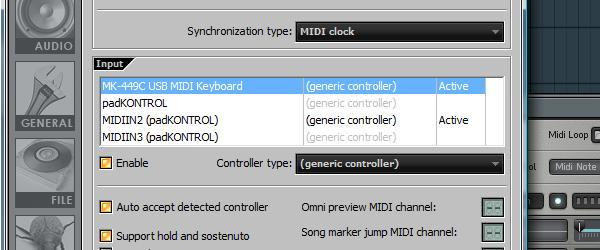
Plug in and set up your MIDI controllers. Make sure the inputs are enabled in FL Studio’s MIDI settings and everything is working properly. I’m going to be using my Evolution MK-449C keyboard and a Korg PadKontrol.


Step 2

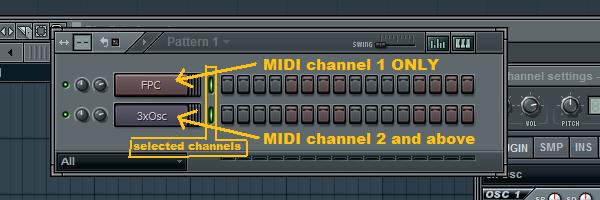
Add the instrument channels you want to control with each MIDI controller. I want to control some drums with my PadKontrol and a bass sound with the keyboard, so I’ve added FPC and 3xOSC channels.


Step 3

Now we can configure the MIDI controllers and the channels in FL Studio so that each channel is controlled by a seperate controller. When multiple channels in the step sequencer are selected, the MIDI channel that each note is sent on determines which channel (each instrument in FL Studio, like the 3xOSC and FPC, is called a ‘channel’, it’s confusing) it controls, from the ones that are selected. So, when 16 channels in FL Studio are selected, the first channel responds to MIDI notes sent on MIDI channel 1, the second on channel 2 and so on.

The MIDI channel is part of the note on and note off messages sent by the controller. When we set up a controller to send notes on MIDI channel 1, it doesn’t tell FL Studio that it’s being operated on channel 1, each note message just happens to be on channel 1. In the case of the PadKontrol and many other controllers, we can send notes on any MIDI channel we want. Knowing these limitations, we can predict how FL Studio will respond to different MIDI channels.

For example, let’s select 2 different channels in FL Studio’s step sequencer. FL Studio doesn’t know how we’ve configured our MIDI controllers or what MIDI channels we might be using. Any notes on MIDI channel 1 will be sent to the first channel in the step sequencer. Notes on MIDI channel 2 get sent to the second channel, as do any notes on any of the remaining MIDI channels.


Step 4

Read the manual for your MIDI controller to find out how to determine and change which MIDI channel(s) it’s operating on. My PadKontrol sends all notes on channel 10 by default, because in prehistoric times, channel 10 was always used for drums. My keyboard is set up on channel 1 by default, so this works out well. If the keyboard used any other channel, I would have to change it to channel 1, as any notes on channels 2 and above will get sent to the second selected channel in FL Studio. Since the PadKontrol is sending notes on channel 10, the FPC channel should be below the 3xOSC channel in the step sequencer. Selecting it (by clicking the little green light next to it’s name) and pressing Alt+ Up or Down Arrows will move it up and down.


Step 5

Now with both the FPC and 3xOSC channels selected by right-clicking the green lights next them, the PadKontrol plays the drums while the keyboard plays the bass. If you have a friend, this is a great way to collaborate.


Extra Step 1

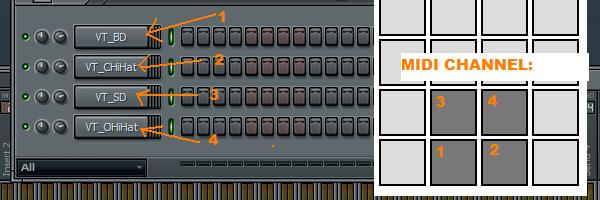
Let’s revisit the PadKontrol to do some really amazing things with this. Each pad can be configured to any MIDI channel, so with a bit of planning, multiple drum sounds can be triggered at the same time with just Sampler channels and no FPC or Layers. I’ve set up 4 pads sending notes on MIDI channels 1-4. To make things a lot easier, I’ve set each pad’s note to C4, which FL Studio sees as C5. This is just so that there’s no weird pitching going on.


Extra Step 2

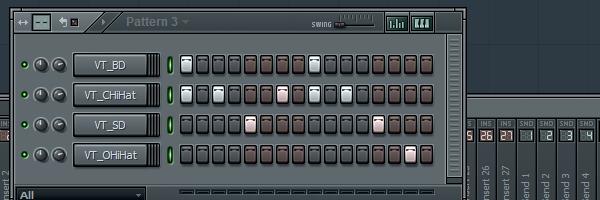
If you’re having fun with this, go into FL Studio’s MIDI settings window and click the ‘Record to step sequencer’ button. Now, if you play a cool beat on the pads, FL Studio will record each hit right into the step sequencer and it can easily edited from there. Whoooa!


Over 250 of the Web’s Best Rust Textures


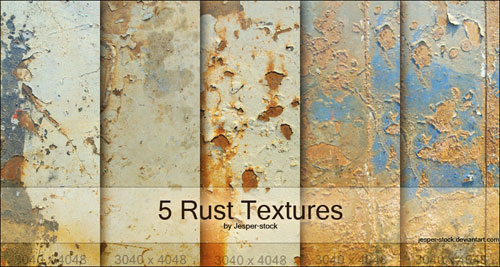
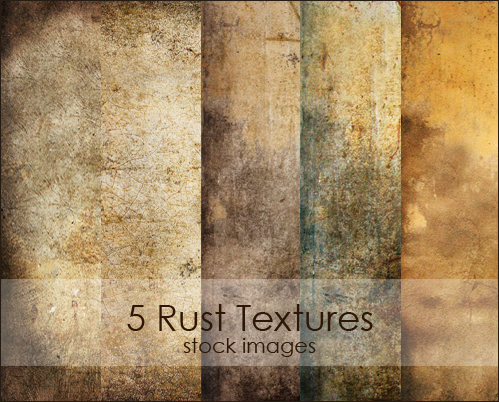
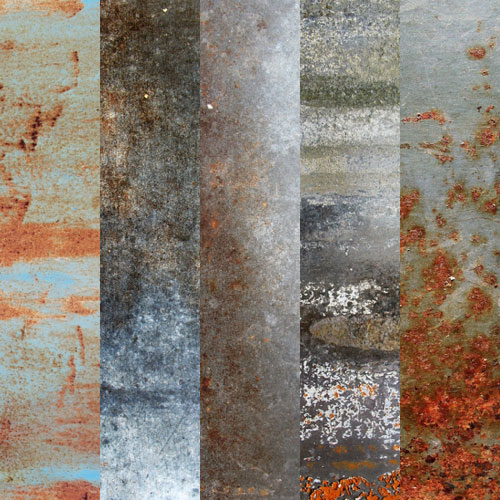
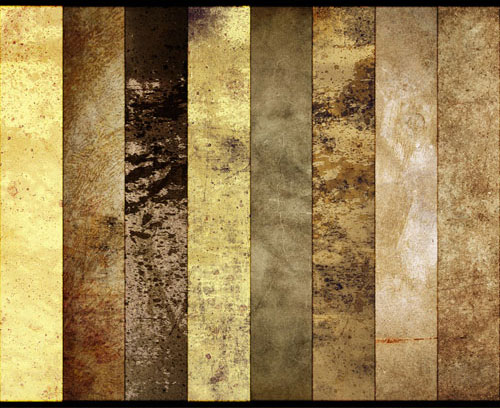
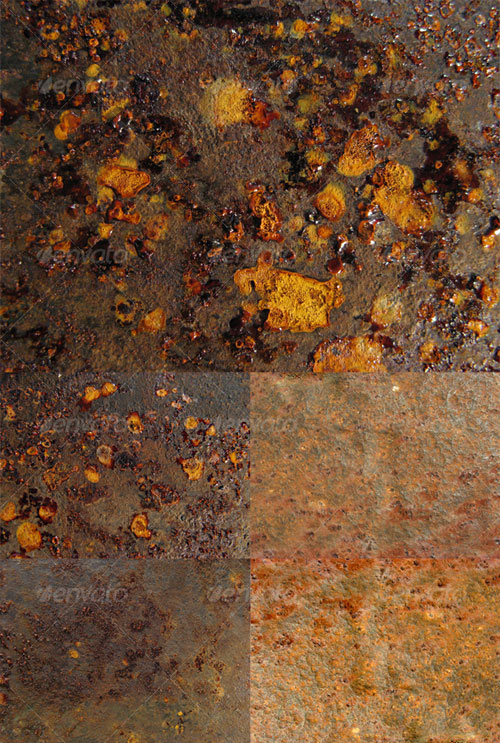
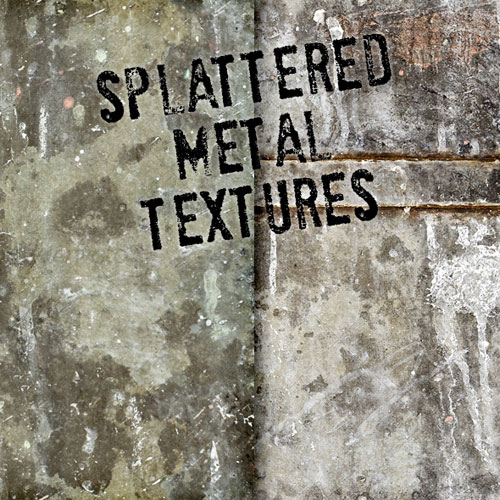
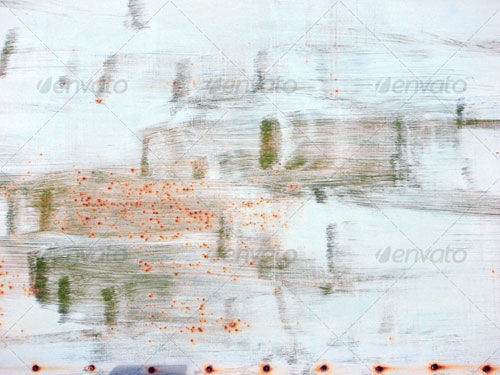
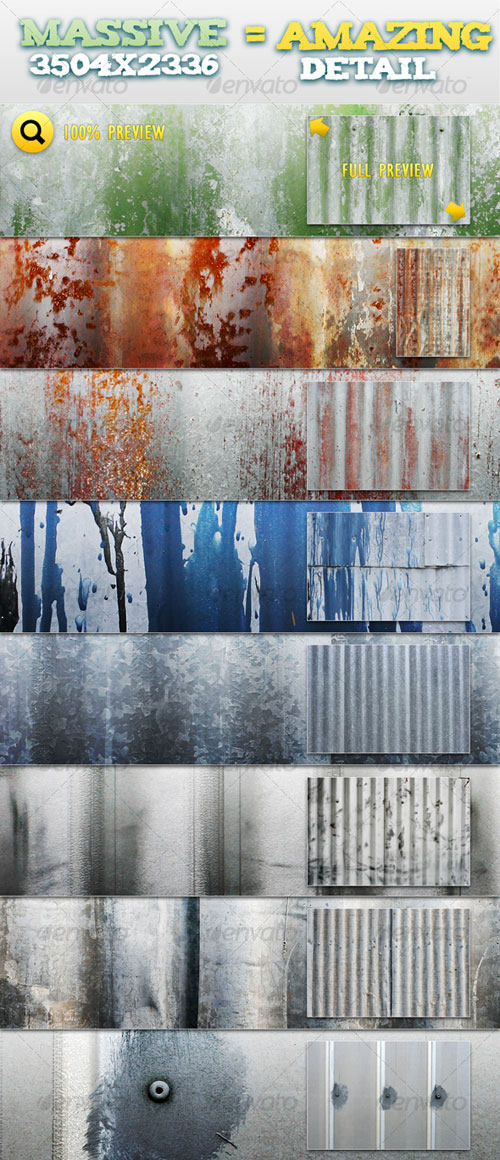
Rust can often produce beautiful colors, textures and linear qualities on surfaces. Rust textures are not only inspiring but are also a great way to add an extra dimension to any project. Today, we have compiled a huge collection of over 250 free and premium rust textures from around the web for you to use in your designs.


Free Textures

Rust Textures 2 (5)

Green Door 3

Free Texture Tuesday: Rust (5)

Rust 04

Grunge Package (4)

Metal / Rust texture #899

DSC01108 Rust

Rusty 134

Dumpster Scenery

Rust Textures (5)

Rusty Bolts #1378

Blisters

9 Colorful rust textures (9)

Speckled

Red and Yellow Rust Texture

Cracked Orange Rust #1447

Rust 2

Rusty Metal #301

Free High Res Texture 139

Rusted Metal Texture #1670

Colourful Rust 6

Rusted Metal #780

Old and Rusty High resolution textures (4)

Rust on Green Metal #1584

Rusty days (6)

Stock Texture 004

Rust 001

Rusted Metal #790

Rusty Metal #1103

Green Boat Scratch

Rusty Metal #1104

Rusty Yellow Metal #1225

Turquoise Rust-Texture

5 Old and Rusty Textures (5)

12 Unusual Free High-Res Rust Textures (12)

Texture 149

Rust on Blue Metal

Rust Texture Pack 02 (4)

Junk Truck Rust Texture


Rust Abstract #1

Rust texture 6

Rust 01

Teal 1

Vintage Rust

Texture pack 2 (8)

Rust / Metal texture #1529

Free Rust Textures (9)

Rusty Grunge Texture

Stock – Rust Textures (10)

Rust

Earth Map

Seat

Caution 02 of 03

Nobody Knows

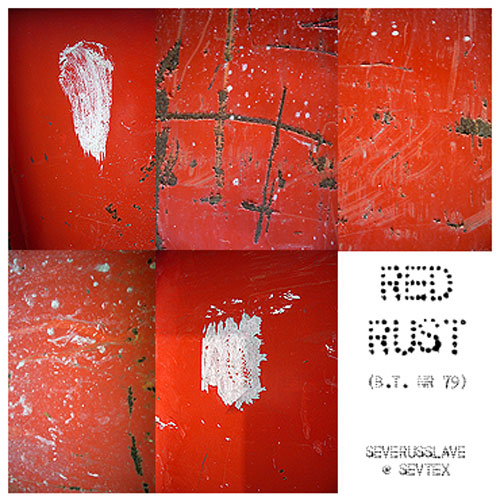
Nr 79 (5)

Ft Worden 05

Rust ‘n Such Textures (10)

Metal / Rust texture #805

Pixmaniaque18BO26151

Rusted Metal Pack 01 (8)

Rust Splatters

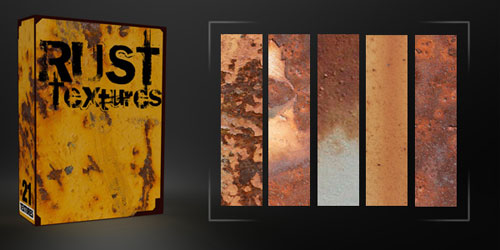
Rust Textures Pack (21)

DSC08611

Rust Photos (5)

Rusty Texture 5


Premium Textures

23 Miscellaneous Textures (23)

Paint Texture Pack 3 (5)

Rust METAL Paint

Metal Textures (5)

Rusty Pack 01 (5)

Metal Texture Pack 2 (5)

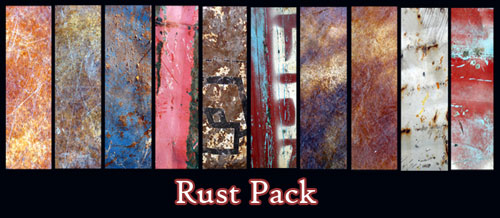
Rust Pack (4)

Metal Background II

Industrial Pack (4)

Splattered Grungy Metal (2)

Grunge With Rust and Paint

Rust Textures (12)

3 Metal Plates + Bonus Tileable Versions (3)

Corrugated Metal Pack 1 (8)

Orange Texture

Jailbreaking, iAds, T-Mobile and You

It may be a bit tough to keep track with Apple today, even at the accelerated pace we are used to. However, there have been a few interesting bits of information that we think you should be aware of and that surely impact your apps today and in the future. T-Mobile may be announcing its iPhone this week, iAds may be the income source you should be relying on and then there is the fact the U.S. law has now legalized the jailbreaking of smartphones under certain circumstances.

The new T-Mobile rumor comes via Pocket-lint. Again, a reliable source disclosed that the T-Mobile iPhone will be a reality on July 30. Why July 30? Because that is the day Apple plans to expand the iPhone 4’s availability to 17 more countries and T-Mobile may just fit into that announcement. There was no information on pricing.

A change to the DMCA in the U.S. Code could get you thinking today. There are six scenarios in which consumers are now explicitly allowed to circumvent access controls to digital content, which is generally interpreted as the government’s ok to jailbreaking your iPhone and “liberating” other phones as well. Our conclusion is that the new addition basically opens the door to jailbreaking has many implications that may affect you even if you ignore this new law and stay with Apple’s guidelines.

Circumventing jailbreak blockers is now legally permitted through “Computer programs that enable wireless telephone handsets to execute software applications, where circumvention is accomplished for the sole purpose of enabling interoperability of such applications, when they have been lawfully obtained, with computer programs on the telephone handset.”

As in so many cases, this new law can be interpreted and most certainly will be bent left and right. It is important to see that jailbreaking is only legal if a user tries to run an application that is otherwise blocked – unauthorized apps that are not sold through the App Store. Breaking the software to run the phone on another network is not covered per se. That indicates that Apple will not change its warranty guidelines and they warranty will be void if jailbreaking occurs.

The law does not require Apple to explicitly allow jailbreaking and remove jailbreaking hurdles. Apple simply has to tolerate the ongoing jailbreaking sport and consumers who actually jailbreak their devices to run unauthorized devices. The code change makes it lawful to circumvent any controls that are designed to block jailbreaking. That’s it.

Apple’s major concern of such a law is that potentially unsafe applications can now be run on iPhones and affect other applications as well. The tight control Apple has over the app environment is somewhat impaired and developers will have to recognize that potentially malicious applications can affect all other applications on an iPhone as well. Protecting your app may be evolving as a new topic we should be thinking about more seriously.

On the other side, outside sales open new opportunities for those who believe it is economically beneficial to sell apps through other channels than the App Store. However, several sources have raised the general earnings potential through app stores anyway and other income sources may be something you really should be thinking about. Forrester analyst Thomas Husson wrote earlier today that Apple has made just $429 million in revenue from the App Store so far and that the bottom line isn’t exactly significant to Apple. Husson says that it is likely that “a significant number of independent developers have not recouped their investments via the current revenue-sharing model. “ Also, Husson says that there may be very limited interest from consumers to pay for apps.

The analyst believes that App Stores (other than Apple) will have to change to make their service more beneficial to all participants. He said that stores need to be more explicit about the addressable audience, create a viable business model for third parties, provide marketing and merchandising tools, offer a wide choice of payment and pricing options, show a local content catalog and look at other sources of inspiration – and not just Apple. So, if Apple is not the entire solution, there may be an opportunity now for other stores that carry “unauthorized” apps. If they are able to address current shortcomings, we may just see a new generation of App Stores developing in the very near future.

Focus On Making A Simulated Microscope Field of View

I created this Microscope’s Field of View using 3 particle systems. The Base Layer is a water animation created using a fractal noise; the first level of particles is created using CC Particle World and it’s meant to look like quickly-moving bubbles. The Second Level of particles is created using Particular with a custom designed sprite, and is meant to look like a microscopic organism. The Third Set of particles are also created using Particular, and are added to mimic more floating debris. Finally, an arrow indicator is added to accurately simulate a microscope’s FOV.


Tutorial

Download Tutorial .flv

File size 306MB

Additional Resources


Open Mic: Tell Us About the Microphone You Use the Most

Which microphone do you actually use the most?

Each Tuesday we open our mic to readers and lurkers alike to come out of the woodwork and tell us your thoughts and opinion, your experiences and mistakes, what you love and what you hate. We want to hear from you, and here’s your chance.


You may have a collection of microphones in your arsenal, or be starting out with just one. Which microphone do you use the most, and why?

This might not be your best mic, or most impressive mic. It’s the one you find yourself turning too more often than the others.


20 Killer Background Music Tracks on AudioJungle

You’ve almost finished your killer presentation. You’ve chosen an effective template and communicative fonts, and tweaked the design just right. You’ve fine-tuned your wording and rehearsed your delivery. But something is missing. You need killer audio to add atmosphere to your killer presentation. Where do you get it?

Our sister site AudioJungle.net is an abundant source of royalty-free stock audio. Google reports that many people go there searching for “background music” every day. You’ll also find audio tracks in many other categories and genres. Have you checked it out?

It’s a great place for musicians, composers and music producers to call home, earning a decent residual income on the tracks you upload there. To find out more about becoming an AudioJungle author, check their Sell Your Work page. You’ll meet a bunch of current authors below. If you’re already an AudioJungle author, give us a shout out in the comments, and leave a link to your profile page.

And it’s an amazing place to visit when looking for stock audio. All submissions are checked for quality by our careful reviewers, so you won’t find any rubbish. And prices start from $1 (though the tracks reviewed here cost a little more). In this article we’ll list 20 of the best tracks you’ll find when searching the site for “background music”.

For a presentation you’ll want some music that conveys the right atmosphere and ambiance without distracting the listener from the voice over. In fact, you may want a selection of tracks that take the audience on a journey. Let us know in the comments which of the 20 is your favorite, and the types of stock audio you need for your current projects.


Soundroll

  • alt

    Soundroll (Dmitri Lifshitz) is a freelancing sound engineer who also plays synth in the metal Yiddish band “Gevolt”. He does post production, for commercials, adverts and corporate videos, and also composes for music libraries. He is one of AudioJungle’s most successful and popular authors. Read more, see photos and check out his gear in the AudioJungle interview.

1. Desert Night

Cost: $10

This dark Arabian/Oriental track features great percussion, a flute and pad sounds, and has great ambiance and atmosphere.

Download audio file (preview.mp3)

2. Chilling Mood

Cost: $12

This track is a bit more up-tempo, featuring electronic piano, synths and acoustic guitar. It will add character to a presentation, but you wouldn’t want to have to speak over it.

Download audio file (preview.mp3)


Leto

  • Leto (Tomislav Letinic) is a composer and music producer based in Croatia, and has been making music for over ten years. Check out his AudioJungle interview here.

3. Easy House Background

Cost: $8

This track will bring a modern feel to any presentation. The volume remains at a constant level, and will be well-behaved behind a voice-over. It features synth, soft rhythm and bass.

Download audio file (preview.mp3)

4. My Dream (With Vocal)

Cost: $10

This track has a great corporate flavor, and features female vocals which sit nicely in the background. A version without the vocal is also available.

Download audio file (preview.mp3)


Tomh

  • Tomh (Tom Howe) is a young composer based in England with a love for writing for orchestra. He has won a Royal Television Society award for his work. Read more in his AudioJungle interview.

5. Jazz Cafe

Cost: $12

A great Jazz track featuring piano, upright bass and subtle drums. It has a carefree sound, and loops well.

Download audio file (preview.mp3)


Visualgroove

  • Visualgroove (Febby Tan) is a web designer, graphic artist and drummer. She has been producing music from the age of 14, and believes the most important ingredient is to put your heart and emotion into it. Check out her AudioJungle interview for more.

6. Flow

Cost: $7

Another corporate tune, which is designed not to distract when a voiceover part is placed over it. It loops seemlessly, and has a “relaxing feel with positive energy.”

Download audio file (preview.mp3)


AudioQuattro

  • AudioQuattro is a freelance composer and audio engineer, working as a producer for both TV and radio stations. He is based in Berlin.

7. Clouds

Cost: $12

This motivational pop track sits in the background nicely where it belongs, and is suitable for a variety of project types.

Download audio file (preview.mp3)

8. Relief

Cost: $12

Low pads dominate this piece, with synth and mellow piano figures adding to the rhythm.

Download audio file (preview.mp3)


Vaisnava

  • Vaisnava is a music producer based in the US, creating music for their own meditation, healing and fun.

9. Simple Piano Background

Cost: $10

An atmospheric piano background designed for multimedia projects.

Download audio file (preview.mp3)

10. Ambient Background Talkover Bed 2

Cost: $12

There are lots of soothing pad chords in this track. “This is meant to play softly in the background of your works… Perfect for commercials, broadcast radio, audio backgrounds and talk overs.”

Download audio file (preview.mp3)


ADG3studios

  • ADG3studios (Adrien Gardiner) is a composer, musician, and all-around nice guy based in Canada, and also AudioJungle’s community manager.

11. Jazzypack2 Kitchen Showroom

Cost: $7

A quiet piano background with accompaniment. “A nice and pleasant jazzy loop using a bossanova progression with piano melody and melodic guitar support, reminiscent of furniture and appliance displays, at least I think so, or for whatever else you might think it would suit.”

Download audio file (preview.mp3)


Audioaddicted

  • Audioaddicted is a music producer based in California who previously worked on video games and multimedia projects.

12. Atmosphere

Cost: $12

A relaxing track featuring sparse piano, thin drums, mellow bass, and filtered synth pads.

Download audio file (preview.mp3)


BMovier

  • BMovier is based in Italy. His byline is “Scoring music for your guts.”

13. Background Loop

Cost: $10

A funky mid-tempo track suitable for presentation and multimedia projects as background music. The instrumental progression follows a series of cool instruments including saxophone, vibes and electric piano.

Download audio file (preview.mp3)


DL-music

  • DL-music has been an AudioJungle author since February 2009, and currently has three tracks in his portfolio.

14. Be Calm

Cost: $8

An ambient loop featuring tremolo electric piano and sax, accompanied by a subtle rhythm track.

Download audio file (preview.mp3)


Solidbeats

  • Solidbeats (Stefan Gustafsson) is a Swedish composer who has been with AudioJungle for years, and produces music in a wide variety of genres.

15. Smoove

Cost: $10

A smooth and laid back R’n’B groove featuring electric piano. “Ideal as background music, easy to loop and fade out with minor skills when it comes to editing audio.”

Download audio file (preview.mp3)


Slats

  • Slats (Andy Slatter) is a guitarist based in the UK who has been producing music for more than quarter of a century. He is also an AudioJungle audio reviewer, and an author who has contributed 11 tutorials to Audiotuts+.

16. Ambient Website Background Sound Pack

Cost: $14

“A full length ambient website background track, which is also broken down into it’s sub parts, 10 variations to allow the user to re-arrange into a custom built track or use the individual parts on different parts of a website/movie. The variations are subtle, so there is a nice flow between each part, but there is enough change in feel to create a nice feeling of build, from the sparse delay driven acoustic guitar and percussion intro to the full pad swells and electronic drums.

Download audio file (preview.mp3)


Musicant

  • Musicant is a graphic artist and music producer based in the Ukraine.

17. The First Kiss

Cost: $12

“Easy, light music which bears in itself positive emotions.” It features a guitar melody, and will sit in the background of a presentation nicely.

Download audio file (preview.mp3)


Flashleap

  • Flashleap is a multimedia designer who composes in his free time.

18. Soothing Guitar Background Loop 2

Cost: $8

“A must for those who want a soothing background music for any project use. Guitar is used as the main instrument, with drum and a bit of chill aspect as the background creating an mellow and soothing mood which is relaxing and easy listening.”

Download audio file (preview.MP3)


Plastic3

  • Plastic3 (Alexander Polishchuk) formerly wrote songs for a number of leading Russian artists, and now concentrates on electronic, dance and edgy orchestral music for Film and TV productions. He is based in Europe.

19. Energetic Background Pack

Cost: $27

This pack contains five full electronic tracks which contain many different instruments and emotions.

Download audio file (preview.mp3)


SoundProdigy

  • SoundProdigy is a web developer and graphic artist based in Europe.

20. Good Luck

Cost: $10

An up-tempo corporate motivational track with a guitar groove and violin/strings melody.

Download audio file (preview.MP3)
Create Beautiful Abstract Female Art in Photoshop


Sometimes, all it takes to create a stunning piece of art is a stock photo, a bit of creativity, a great idea, and some time. Today, I will demonstrate how to create a piece of art that I created titled, "Beauty of Gold." Let’s get started!


Step 1

Let’s start by creating a new document in Photoshop, I used A3 format but it doesn’t really matter what size you use. I always find it easier working in high resolution because it’s easier to add the details. After that, search for a nice piece of stock art. I bought mine on Dreamstime.com but you could also try DeviantArt or any other site. Place the stock on your canvas as shown below.


Step 2

Now, have a good look at your stock, this technique is always easier when you have a stock with a lot of highlights and shadows. I have circled these areas in red and green below. It’s not necessary to draw the lines yourself. I just wanted you to understand what I meant.


Step 3

Take out your ‘Ellipse Tool’ and begin to create circles that will form the shading.


Step 4

Set the opacity of the ‘Ellipse Tool’ to about 20%. Now start filling in the dark and light areas with white and black. Don’t worry about the details yet, just create the basic shading like I did. (I set my stock to 50% opacity so that the circles are visible).


Step 5

Work from large size to small size! This might seem a bit boring but in the end you will get the best results! As you can see below I’ve already added some very small details on the face just to show what it will look like on a later stage. (The stock is on 10% so that the shading is more visible).


Step 6

Repeat this same step again, but this time add some circles around you stock to create some flow, this will be used for effects later in this tutorial. If some parts don’t look great, don’t worry, it can be fixed later on. Create a new layer and add more circles. I changed the opacity of the stock to 0% this time so its easy to see what I did and how much detail I added.


Step 7

Now, we’re going to add some color. I decided to go for a golden/brown color which is about the same as what my stock had. Using the ‘Ellipse Tool’ start adding light colors on the light parts and dark colors on the darker parts.


Step 8

Reduce the opacity of the color layer to 35% to bring down the colors a bit, after add more black and white shading on a new layer.


Step 9

Our composition is finally starting to take shape, but its still a bit hard to recognize some parts of the stock. Take out your brush tool and apply these settings.


Step 10

Now start brushing on the darker and lighter areas that we showed in Step 2. Make sure you don’t go outside the lines of the stock. Set the opacity of your brush to 30%, only use a black or white brush.


Step 11

Here is what your layer stack should look like.


Step 12

Duplicate all the layers above the stock, after that, merge them. Now duplicate the layer of your stock and place it at the very top. Now, create a clipping mask on the layer below it (this should be the merge of all the circles).


Step 14

After this I merged the top 2 layers and set the result to overlay (20% opacity), then I duplicated that layer and set it to soft light (80% opacity).


Step 15

As you can see there are still some areas that need more details. See the image below to understand which parts I’m referring to.


Step 16

For this step we have to take out our ‘Ellipse Tool’ again, we’re now going to zoom in on each part we just highlighted and work on the detailing, add black and white where its needed! Keep repeating this step on the same layer until you are satisfied. (Our Ellipse Tool is still on 20% opacity).


Step 17

After this we want to start working a bit more on the flow. As you can see when looking at my artwork, the main highlights are on the top left of the stock, so we’re going to add a gradient (black to white) where the bottom right is black and the top left is white. After that, set it to soft light and keep the opacity on 100%.


Step 18

Things are starting to come together now but the background is still really boring. Since we want to keep the focus on the foreground we’re going to add a really soft background. I usually do this by taking a big stock photo and blurring it, then setting it to soft light. This time I used the stock of a desert which I bought on dreamstime.com (you should also be able to find good stocks on sxc.hu). Place it as shown below.


Step 19

Now go to Filter > Blur > Gaussian Blur and set the radius to 65. Set this layer to soft light (100% opacity), now duplicate that layer and set it to 15% opacity.


Step 20

Now, we’re going to add more effects, at the moment all we have are flat circles which are a bit boring. I created some special circles with gradients etc. which I’m going to randomly place in the artwork. Its best to experiment with creating circles because it depends on what fits the artwork best.

Note: I put a gray background behind the effects in this screenshot so they are all visible. These are not on the same layer because then I wouldn’t be able to move them around and duplicate them.


Step 21

Some parts still look a bit flat. We’re now going to add highlights but also darken the dark areas a bit more. A very simple way to do this is by soft brushing on a new layer and setting it to soft light. I did this with a 550px soft brush (black and white), which I set to soft light 50% opacity.


Step 22

After that, we’re going to add very small details. I did this with a soft brush and hard brush with a small diameter. Set the scatter and spacing to high and brush in random areas. Do this with different colors but also with varied blending modes such as screen, overlay and soft light.


Step 23

We’re coming to an end here, I took out my pen tool and a very large soft brush to create lines around some places of my main model. Also, I added some subtle effects to it. Check out the screenshot below what I mean. (Make sure you set it on simulate pressure).


Step 24

Go to Filter > Blur > Gaussian Blur. Erase all the areas you don’t want blurred to improve the focal point.


Step 25

We’re almost done now. I applied my image on a new layer and sharpened it. After that I played a bit with the colors/brightness and contrast/hue and saturation. This is my final result.


Final Image

I flipped the image horizontally because for me, it looked better. After that I also added my logo.

5 Top Web Comics for Adults

Reading web comics on the weekends could be a nice way to freshen up your mind after five days of busy schedule.

This list contains some of my top web comics for adults, especially geek adults. My love for all things tech is reflected in this list too.

1. The Joy Of Tech

The Joy Of Tech is a popular web comic based on pop culture and sarcastic technology jokes. The comic mainly targets Apple products, their culture and the fanboys. It’s usually a hilarious read.

2. Indexed

Indexed is not exactly a web comic. It primarily publishes charts, graphs and diagrams that portray weird, and often sensible but funny statistics. An innovative venture, no doubt.

3. Xkcd

It’d be blasphemous to not include Xkcd in this list, especially when I’ve already said that most of the comics in the list are geared towards tech jokes and satire. And this one doesn’t need an introduction, does it?

4. Dilbert

Dilbert’s online version is something I have to read everyday. It’s too funny to ignore. Office humor at its best.

5. PHD – Piled Higher And Deeper

If you are a student, you’d love PHD or Piled Higher And Deeper. It’s mainly about student life hassles and fun.

What are your favorite comic strips on the web?

Should Speed Reading Techniques Be Taught in School?

I picked up a teach yourself book at a friend’s today about speed reading.  It states that with speed reading one can maximize their time and improve their reading efficiency.  I’ve never met people who speed read but it seems like such a good idea. If we all could speed read we would be able to go through all of the information we go through every day much more quickly, allowing more time for our work.  It leaves me wondering why speed reading isn’t taught in school as a skill – along with algebra shortcuts and writing short hand.

Do you think speed reading techniques should be taught in school?  Do you think or know if it really helps?

Awesome Links #7: Defeating Distractions, Blog Boosting, Freelancing Fees

The 7 Secrets of Running a Wildly Popular Blog
A top direct marketing copywriter shares his tips on using personality and likeability to build your blog’s popularity.

20 Strategies to Defeat the Urge to Do Useless Tasks
Ever find yourself refreshing Facebook or cleaning out your desk instead of doing what’s really important? Read this post!

Three Reasons You’re Not Charging What You’re Worth
Many freelancers and other self-employed folks sell themselves short, but this post shows them how to break this habit and start charging more.

5 Ways To Boost Your Best Business Relationship
These days, finding a job or getting promoted is all about relationships, and this post shows you simple ways to strengthen those contacts.

Freelance Decor: 6 Motivational Posters from the Movies
Lastly, we bring you a fun, light-hearted post from our sister site, FreelanceSwitch, with humorous motivational posters.

Fast Recipes for Work #2: Cup o’ Chocolate Cake

Here’s another of my favorite fast recipes. How many times have you been slaving away at the computer, trying to squeeze in that last bit of code, those final tweaks to the copy, or the final lines in your design when you were struck with an overwhelming urge for chocolate cake?

Sadly, this happens way too often here in my house. While I feel a bit guilty when I “forget” to tell my wife that I made a chocolate cake – I feel more so when there isn’t any left to share with her.

So I was delighted to come across this recipe – as it’s a personal-sized cake (well, really – what cake isn’t personal sized?).  And the best part is it will probably take you longer to eat it than it will to cook it!

This is a “Freelance Favorite” called Cup o’ Cake – but you don’t have to be a freelancer to enjoy it.  If you’ve got a microwave at work, you can bring the ingredients and mix them up for your afternoon coffee.  Why buy a $5 cupcake when you can make something like this?

Ingredients

  • 4 tbsp flour (all purpose is ok, cake flour is better)
  • 3 tbsp Cocoa powder
  • 4 tbsp sugar (haven’t tried it yet – but you could probably use your fav. flavor Quik and skip the cocoa)
  • 1 med egg
  • 3 tbsp milk (evaporated milk might be pretty good, too)
  • 3 tbsp oil (or melted butter if you want to be decadent)
  • 2 tbsp chocolate chips
  • 1 large mug

Add the dry ingredients and chocolate chips to the mug

Add egg, then milk and oil.  Mix very well. (A large mug is handy here, or this might be a bit messy)

Put the mug in the microwave, and cook on high for 3 minutes

Take out of the microwave, empty mug into a bowl.  Smother cake with canned chocolate sauce, ice cream, whipped cream or all of the above

Hide bathroom scale.

Enjoy!