20 Instructive Cubase Tutorials

Cubase is Yamaha’s digital audio workstation, which is produces through its subsiduary company Steinberg.

It has been around since the ’80s as a MIDI sequencer, but now also has a powerful audio engine for recording and editing, a rack full of effects, and a bunch of useful virtual instruments. The program is available for Windows and Mac, and costs around USD$500.

Last week’s article covered Cubase’s history and features. This week we learn how to use it. Here are 20 tutorials coming from Steinberg, Youtube and Audiotuts+.

This article was previously published on the AudioJungle blog, which has moved on to a new format in 2010. We’ll be bringing you an article from the AudioJungle archives each week.

1. Tutorials from Steinberg.net

Steinberg themselves offer some helpful video tutorials on Cubase. These include:

  • Product Video
  • Loop Mash
  • Recording Audio
  • Editing Audio
  • Recording and Editing MIDI
  • Working with Loops
  • External MIDI Instruments
  • Mixing and Effects
  • Surround Protection
  • Editing Audio 2
  • Working with VariAudio
  • Media Management

2. Cubase 5 Tutorial: Working with Loop Mash Tutorial and Making a Neptunes Hip Hop Beat

“To take part just get Pharlicious Drums 1, Brooklyn Drums 1, BeatBox Voices 1 and Timbory Loops from yummybeats.com and Cubase 5 from Steinberg. This Video Tutoial shows, how to work with LoopMash. Afterwards: BeatMaking Tutorial, making a modern “old school Beat” in the styles of Pharrell Williams & Chad Hugo (Neptunes), Polow Da Don… You can take part!!!”

3. Cubase 5 Beatmaking with Groove Agent One and Beat Designer

“Making a house beat from a breakbeat using two great new tools in Cubase 5.”

4. Kontakt 3 Output Config in Cubase – The Long Way

“Loading Kontakt and setting up the multiple outputs.”

5. Cubase Midi Control via Quick Controls

“A nice quick and easy way to assign Midi Controllers to parameters in Cubase.”

6. Cubase Tutorial – Tech Tip 8 – Create Stereo Width in Cubase 5 (Vocals, Lead Sounds etc.)

“In this video we take a look at taking a single mono vocal sample and using a couple tricks, we widen it out to make it sound like it is playing in full stereo. This sort of effect is great for adding body to your vocals or even moving a lead line so that it is not sitting directly in the middle of your tune!”

7. Cubase Tutorial: How to record MIDI data/ How to track your beats using MIDI

“Steps: 1. Connect keyboard. 2. Create MIDI track in Cubase. 3. Record MIDI data. 4. Create audio track. 5. Record audio.”

8. Cubase 5 – Reinvent Rhythm

9. Automation in Cubase

“Short tutorial for Cubase beginners. How to record, edit and draw your own automations. everything in this tutorial applies to Cubase SX3, Cubase 4 and Cubase 5.”

10. MdL Reviews: Cubase 5 DAW

“Back for a product review of my favorite DAW, Cubase 5. It’s packed with new features and updates, from brand new functions to the heritage tools by Steinberg.”

11. [NAMM 2009] Steinberg Cubase 5

“Exclusive presentation of the band new Steinberg Cubase 5 software sequencer.”

12. Cubase 5 – Beat Design and Loop Mangling

“Cubase 5 features outstanding new tools for creating beats, generating exciting new rhythms and working with loops.”

13. Cubase 5 – LoopMash Tutorial

“LoopMash is a revolutionary virtual instrument that offers a unique and innovative way of creatively working with loops and beats to create stunning new rhythms and grooves.”

14. The Top 6 New Features of Cubase 5

Apr 13th in Cubase, Production by Mo Volans

The new version of Cubase has landed with some pretty impressive new features that will be interesting to both new and seasoned users alike. Let’s take a look at a few ground-breaking features the new version has to offer and see if these latest additions keep Cubase up there with the other big guns.

Continue Reading

15. Audio Warping in the Cubase 4 Sample Editor

Mar 30th in Cubase, Mixing & Mastering by Andy Slatter

Whether you are working on a doubled vocal part, the drum track or a bassline, that one slightly out of time note just stands out and brings the whole production down. Of course we can always just go for another take and record the part again, but it may seem a shame to have to do that if the part is otherwise perfect, and sometimes it is something you only notice when the other musicians have gone home!

It may just be that you have a vocal part from another project that you want to use in a remix, and you want to change the timing or duration of some of the words or syllables. In this tutorial I’m going to take a look at the powerful Sample Editor in Cubase 4 and show how we can use the Free Warp feature to alter the feel of a vocal part and also to correct an out of time djembe recording.

Continue Reading

16. How to Set Music to Film Using Markers & Timewarp in Cubase 4

If you fancy having a go at composing music to film, one of the first obstacles you will encounter is how to synchronize the music to the action in the film. Whether you are using real or virtual instruments, you are going to have to make the music follow the picture, and if you are working to a brief they may specify exactly where they want sections of music to start and finish.

In this tutorial I’m going to look at how we can import such a film into Cubase 4 and compose some music for it. I’ve put together a short nature sequence with butterflies and a spider (this is not going to win any Oscars, but it will suffice to practice with!) and I’ve written an imaginary brief from a producer specifying what should happen at certain timecode points in the film.

Continue Reading

17. How to Set Up Side Chain Compression in Cubase 4

In past tutorials I have covered side chaining in Reason and touched on side chaining effects busses in Logic Pro, but after a few emails on the subject, I felt it was about time to cover the slightly less transparent side chaining method that Cubase 4 has adopted since the introduction of the VST3 protocol.

I’ll cover side chaining using gates and compressors for varying effects and results. Obviously this isn’t one for the more seasoned Cubase user but it seems there are still some people out there that are slightly baffled by the process. Hopefully this will clear things up for those concerned.

Continue Reading

18. Using Hitpoints and Markers in Cubase 4 to Create a Tempo Track

Nov 14th in Cubase, Recording by Andy Slatter

Sometimes when you are recording a new track it is good to turn off the metronome and auto-quantize using your software, just hit record, and play from the heart. A spontaneity and more human quality can be captured in the performance. This works particularly well with solo guitar or piano.

Or maybe you want to use some audio from a live recording or a studio session where no click track was used. When it comes to adding other sequenced parts to audio that has been recorded in this way it can be difficult to get the timing of the midi notes right. The metronome and auto-quantize will be out of sync with the audio.

Continue Reading

19. Generating Drum Fills With VST Livecut In Cubase 4

“Livecut” by Smartelectronix is a VST beatslicer effect. It re-arranges the incoming audio in real time and is a great tool for generating drum’n’bass type drum fills from existing audio or VST drum loops. However, the output can seem a little unpredictable. In this tutorial we’re going to look at using Livecut to generate some fills from an audio drum loop. We will then edit the results, and with a bit of cutting and pasting create something more subtle.

Continue Reading

20. How to Create a Tape Stop Effect with Cubase 4

Sep 4th in Cubase, Production by Andy Slatter

In this tutorial we are going to look at two alternative methods of creating the sound effect of a turntable or tape being unplugged and slowing to a halt within a music track.

You may have heard this effect on the vocals of the Black Eyed Peas song Hey Mama. Sid Vicious’ My Way also features the subtle effect of a turntable being turned off just before the song changes from the pompous introduction to the full blown punk section.

I’m going to start by doing something similar to the effect in the Sid Vicious song using some pre-prepared audio and Cubase’s pitch shift envelope tool, then move on to an electro track that I’ve prepared where we will automate the freeware plug-in Tapestop VST to slow down some vocals whilst the music remains unaffected.

Continue Reading


WordPress function: Get category ID using category name

As usual, let’s start by pasting the function in your functions.php file:

function get_category_id($cat_name){
	$term = get_term_by('name', $cat_name, 'category');
	return $term->term_id;
}

Once you saved the file, just call the function with your category name as a parameter. Example:

$category_ID = get_category_id('WordPress Tutorials');

Looking for WordPress hosting? Try WP Web Host. Prices starts at $5/month and you can try it for free!

WordPress function: Get category ID using category name

Best of the Vector Web – July 2010


As you know, each month, we search the web for the best vector-related content and showcase it here for you all to enjoy. This month, we found some really great tutorials, articles, and freebies for you all to take a look at. Included in this round up are some fantastic character illustration, logo design, and quick tip tutorials; as well as some nice articles and inspirational round ups. So let’s take a look!

Continue reading “Best of the Vector Web – July 2010”

Workshop #101: Iceland by betweenthenow

At Audiotuts+ we regularly put up a reader track for workshopping and critique (find out how to submit a track). This is how it works: you upload your song, and every week or so we’ll publish one here and step away from the podium. The floor is yours to talk about the track and how the artist can fix problems in and improve upon the mix and the song.

This track has been submitted for your friendly, constructive criticism. They have put their track (and their heart and soul) in your hands to learn and get useful feedback.

  • Do you enjoy the song or track itself? Does it have potential?
  • Can the arrangement be improved?
  • How did you find the mix? What would you do differently?
  • What do you enjoy about the rhythm track? What can be done to improve it?
  • Is the choice of instruments relevant and effective for the style/song?
  • Are the lyrics (if any) effective? Does the style, arrangement and genre of the song suit them?
  • Can you suggest any specific techniques that might improve the track?
  • Do you have any other constructive feedback?

Iceland by betweenthenow

Artist’s website: myspace.com/betweenthenow

Description of the track:

electro meets dance :P

Download audio file (iceland.mp3)

Terms of Use: Users can stream the track for the purposes of giving feedback but cannot download or redistribute it.

Have a listen to the track and offer your constructive criticism for this Workshop in the comments section.


Submit Your Tracks for Workshopping

Need constructive criticism on your own tracks? Submit them using this form.


Arrangement Tips and Tricks Part 3: Breakdowns

One of the most challenging aspects of arrangement to a beginner (and even some more experienced producers) is changing the tracks energy level. So you may find that moving from a busy section of your track to something a little more chilled present some stumbling blocks.

In this tutorial I’ve used a project that was developed during a one to one teaching session. The project was used to demonstrate all sorts of arrangement technique but the breakdown section should shed some light on the subject in hand.


Step 1: The Project In Action

In this section if the project you can hear a number of drum and bass parts playing, the energy at this point is relatively high and moving to a spacey breakdown is going to take some work.

In the next section we’ll take a look at how it was done in this case.

The ‘higher energy’ section.

Download audio file (1.mp3)

The high energy section in action.


Step 2: The Breakdown

There are literally countless ways of dropping energy and breaking down into a more minimal section but often the techniques used remain the same. It’s all about the combination of parts used and using automation to create a smooth, seamless transition.

As this project is already constructed I won’t be showing it being built form scratch but I will isolate specific techniques used and explain how they were carried out. Hopefully this will give you some ideas when you are constructing your next break.

So, here is the breakdown section in it’s entirety, playing from the point we heard in the last clip. In the following sections we’ll look at the techniques that were used to bolt this all together.

The breakdown.

Download audio file (2.mp3)

The breakdown plays back.


Step 3: Continuity

One great way of creating a smooth transition is to have some level of continuity in your mix. If you can achieve this then even pretty drastic changes of mood can be easily accepted by the listener and not be a massive shock.

To give you an example of this when the breakdown starts many of the elements are dropped in one way or another but the bass and high hat loop are left in. By doing this I was able to completely drop the main drum pattern without too much of a drop in energy.

Here is the section I’m talking about with all the pads removed so you can hear whats going on.

Some elements remain for continuity.

Download audio file (3.mp3)

The parts left in are isolated.


Step 4: Basic Fades

Another simple but extremely effective trick is to use very basic volume fades. It may sound obvious but using a number of fade ins and fade outs across a transition can make or break it.

For instance I wanted the hat loop I left in over the break down to melt away without being dropped too suddenly. I achieved this by slowly reducing its level over a decent amount of time. I also raised the level of reverb on the part as I went. This combination of these two fades creates the feeling it’s leaving the stage, so to speak!

Download audio file (4.mp3)

The hat fades out over time.

Here is the fade in question both in isolation and in the mix. Notice how when the entire mix is played the hat loop just melts into the background. You may not have even noticed this happen on first listen. This, my friends, is the idea !!

Download audio file (4b.mp3)

Now listen to the hat fade in the mix.

A simple volume fade doing its thing.


Step 5: Filtering

You don’t just have to fade in level either; fading frequencies is a good way to achieve a similar effect but with some nice variation. If you use a mixture of filter and level fades you should build up a n interesting sonic picture thats involving to listen to.

Filter fades are extremely useful.

Lots of things were faded using low an high pass filters here but possibly the best example is the bass and pad sounds. These fade out together as the breakdown develops.

Download audio file (5.mp3)

The bass and pads are filtered slowly.

A few of the Fabfilter Simplons used here.


Step 6: Reverbs and Delays

If you plan on creating an epic feel in your breaks, your going to need reverb and plenty of it. While your at it load up a delay plug-in or two, cause you’ll need them too!

Lexicon reverb was used in this mix.

Automating large amounts of reverb at the end of phrases or sections is the perfect way to paper over any cracks and seamlessly join elements thats are leaving or entering the mix. For an example I’ve isolated the main drum loop going out just before the breakdown kicks in. A healthy amount of Lexicon verb was used here.

The reverb level is automated.

Download audio file (6.mp3)

The drum loop is treated to some reverb.


Step 7: Effects Samples

As well as using effects processors you can include actual effects samples. Again these are excellent for smoothing transition but they can also create tension and impact. Using risers and soft crashes throughout your breakdown will actually give the listener a sense of timing and allow them to keep track of where they are at, in absence of the main drum track.

To show you an example I have isolated the two main effects samples used in the centre of the break. Following that there is an audio clip of the whole ‘mini project’.

Some simple effect samples.

Download audio file (7.mp3)

The effects samples in isolation.

Download audio file (7b.mp3)

Here is the whole track to put things in context.


Vladimir Koncar: Ruling with Greatness


Croatian designer Vladimir Koncar enjoys the “process of creation.” So much, in fact, that he spends his time wearing the hats of graphic and web designer, photographer, illustrator and film maker. Throw in a little experimental typography and you have the picture of a man who embraces the journey as much as the destination. Join us as Koncar talks dresses, honesty and his love of Hairvetica.

“The story that follows the melody talks about the fact that every man for once in his life dreams, thinks about or secretly tries to dress up as a woman.” These are the words used to describe the 2006 music video “Rippling (dress)” that was directed by Croatian visual artist and designer Vladimir Koncar. When asked if he had ever partaken in such activities he responded, “Of course I have, I have tried it but under a pretence of being in a masquerade. It wasn’t bad. A dress seems like a comfortable piece of clothing. Sometimes I envy women on their possibility to dress creatively.”

It’s a rare thing to find a man so honest and comfortable in his own skin that would do something considered by many to be taboo, but that is Koncar.

Koncar seems to do a little bit of everything. He has expanded his repertoire to include the more “traditional” print and web media projects, but he also delves into short, independent film-making and experimental typography. Like many creatives, he says his inspiration comes from everyday life and he credits a daily run as the thing that “gets rid of the negative energy,” a meditative act that results in the focus required to craft his works.

“I love when I can recognize honesty in one’s work.”

The way he interprets everyday life is anything but typical, however. For example, when discussing the origin of his experimental typography or diary type as he calls it:

"Diary Type project emerged spontaneously from my daily ideas and thoughts that I noted down in my pad. I was wondering what would be the best way to visualize them and I realized that I could emphasize some thoughts with custom letters. I’ve always been fascinated by the interference effect and in some way it helped me to create those sentences which sometimes amplify the thought I’d like to express visually, and sometimes they do just the opposite. All the fonts you’ve seen so far have actually emerged from the same idea, but they’ve evolved through time. In the beginning I only made letters I needed, while nowadays I obsessively create the entire alphabet."

These daily thoughts and ideas that he wrote in his pad led to things like “Hairvetica,” “Cigarette Type” and “Pills Type.” None of these have ever been used in a commercial sense, but do they really have to be in order to be considered art? The witty statements he uses to illustrate the usage of the letters are entertaining in and of themselves.

While the ideas may have come from his mind, the objects didn’t necessarily come from his personal collection. In the case of the three types just mentioned, the answers are a yes, no and maybe. We’ll let you decide what corresponds to which material.

From the Beginning

Koncar grew up in Bjelovar, which is 80 km away from Zagreb, the capital of Croatia. His younger brother, who has a love for music, is currently finishing up his second university where he is studying Biochemistry. Koncar muses that since his parents have no artistic background, “it’s unusual that [my] brother and I are swimming in the art waters.” He was a quiet and curious child who “participated in everything [he] could.” It’s no doubt that this desire to experience as much as life has to offer nourished the creative mind responsible for his unique and imaginative artistic creations.

Unlike many of his fellow designers, Koncar didn’t grow up always knowing he wanted to do something artistic. His first ambition was to be a cook and that was followed up by the desire to be a diver. It was when he won a visual arts award in primary school that he set his sights on the arts. At first his intention was to become a painter and over time that evolved into “being some kind of designer [or] artist.” His father, however, wanted him to become an economist “to have something to live off of.” Luckily, he continued, he didn’t give into that pressure because he’s now living off of work that he loves.

After finishing a language high school he enrolled in the Faculty of Graphics and Design program in Zagreb. He never finished his studies there because he founded a studio and started working. Now, at 31, he’s back to college to try to complete his degree. He is doing this because of his desire to constantly learn, improve himself and evolve as a man and artist. “I never made a list of things I should achieve in my lifetime. I don’t bother myself with that.” One thing he wishes he did do though was attend music school to learn to play a musical instrument.

Koncar did attend a film school at night in addition to different drawing workshops. One of his biggest influences though was Frano Radak, an art professor with whom he studied painting for four years. “Working with Radak has [had the most affect on] my view of art and my creativity today,” he said.

Studio Revolucija

In 2003 Koncar started Studio Revolucija or Studio Revolution, with two college friends, Gorjan Aga?evi? and Ozren Crnogorac. What started out as a small three-man company run out of a garage has more than doubled in size and they now take on projects from graphic design, complex web applications and web development to interactive multimedia experiences, educational CD-ROMs and multiplayer games. In fact, one of his favorite projects was the CD-ROM “Tesla’s Day,” which is about the life and work of Nikola Tesla, a great inventor from Croatia. He threw himself into the research required and the collection of all of the materials he needed to produce this educational piece. It’s no doubt that this project holds a special place in his heart. Not only was he able to learn more about the life and work of this talented man, but he was creating something that allowed primary and high school students as well as their teachers the opportunity to learn about this ‘unmatched genius’ as his contemporaries called him [whose] discoveries shaped significantly the life style of the people of the 20th [and] 21st century.”

“It’s our goal to constantly challenge ourselves to keep developing new and unforgettable visuals and experiences.”

Over the last several years Studio Revolucija has won many awards and “it’s [their] goal to constantly challenge ourselves to keep developing new and unforgettable visuals and experiences.” When it comes to those unforgettable experiences, Koncar is a self-described “Art Dictator,” which is somewhat fitting for a man named Vladimir, a name of Slavic origins that means “to rule with greatness.” “I am pretty demanding when a project is set up on its feet. I like to be included in all aspects of creating a project and I insist on precision. I direct a project visually and I don’t like compromises,” he said.

Compromise or not, the creative team at Studio Revolucija is on the same page when it comes to producing the high-quality designs they are known for. They believe in “great design, web standards and accessibility and are able to take a project from inception to completion, without limitations.”

While Koncar says his company is always open to experimentation and collaboration, he believes that there are no right or wrong stereotypes of designers and that anyone can be one and they can be broken down into two categories: good and bad.

"I think that it isn’t enough just to learn the rules of design in order to design, but for every step forward there has to be an idea. I appreciate the technical part, but it is not crucial, the idea is what I cherish the most, and that’s what makes the difference. I love when I can recognize honesty in one’s work."

Honest is another term that can be used to describe Koncar and his work. Even with all of the successes he’s enjoyed throughout his career, he is not immune to some to the frustrations suffered by most people in the field such as surreal deadlines, unprepared materials and flippant clients, just to name a few.

Today he counts the Ministry of Culture of the Republic of Croatia, Museum of Contemporary Art, Croatian Natural History Museum, Zagreb Brewery and ZBI Invest among his long list of big-name clients, yet he’s had his share of projects that didn’t turn out as planned. He can also look back on these past projects and realize that while they may have not turned out perfectly, the mistakes he made were all learning experiences and “that it isn’t enough to be creative but that the raw creativity needs to be articulated through knowledge.” Early on in his career Koncar recognized his weaknesses and has systematically either overcome them, or abandoned the pursuit, what could be considered to be the ultimate display of honesty.

Integrating Adobe Flash with Other CS5 Applications – Basix

Since the early release of the Adobe Creative Suite, integration between its products has been one of the key features. After Adobe’s merger with Macromedia, Creative Suite integration extended to cover products such as Flash, Dreamweaver and Fireworks. This tutorial demonstrates how we can use Flash, Photoshop, Illustrator and After Effects together to build a single project.

Integration between Adobe Creative Suite products improves your workflow through these applications by giving you the ability to move between each of them easily and efficiently. This is down to compatibility between them and the CS products’ ability to read common formats and objects. The unified interface is another side of the integration between products; once you learn how to work with one product, you will be familiar with the rest of the family.

Integration takes many forms in Adobe Creative Suite. The ability to take your work to mobile devices and test using Adobe Device Central is another form of integration as you can use the same application you run on computers on different types of devices. The third form of integration is the integration between designers and developers who work in the same environment, becoming familiar with the workflow of one other and the tools they both use.

This article will cover the integration between Flash and other Adobe Creative Suite products such as Photoshop, Illustrator and After Effects to give an idea of how these products efficiently integrate between each other. We will simulate a project to create an animated banner in Flash that uses resources from Photoshop and Illustrator. Also, we will use After Effects to enhance the Flash animation using the After Effects presets.

While this article jumps between Adobe Creative Suite 5 applications, you do not have to have much experience with these applications as we will only cover how to integrate workflow between each of these applications through our example.

Final Result Preview

Let’s take a look at the final result we will be working towards:


Step 1: Create new FLA

The first step is to create the base Flash banner file which will be the center point to integrate with Flash and Photoshop, Illustrator and After Effects.

Let’s create a document for the banner with 336px x 280px and with 30 fps speed. And set the background color to black from the Document Setting dialog box.

This document size will be the standard size for all the documents that we will create in Photoshop and After Effects, just to keep things neat.

After creating the flash document, we will produce the first animation in the banner using the Deco tool. Before going through the following steps, you can review a previous article that covers the Deco tool Using the New Deco Drawing Tool in Flash CS5. Now, let’s see the first steps of the animation:


Step 2: Select Grid Fill with Deco Tool

Select the Deco tool and from the Deco tool options in the Properties panel, choose Grid Fill.


Step 3: Set Grid Options

In the Grid options, set its properties as following:

  • Check the four tiles options and set its color with different white and gray colors
  • In the Advanced Option, uncheck the Paint over edge and check the Random order checkbox
  • Set the Horizontal and vertical spacing to 5px
  • Set the Pattern scale to 10%

Step 4: Create Grids

Select the first frame in the Timeline panel and click with the mouse on the stage to create a random grid. In frame number 3, press F7 to create a blank frame and repeat the above step to create another random grid.


Step 5: Create Grid Animations

Repeat the above step every two frames for 20 frames to create an animation for random grid animation.

At this point, we will move to Photoshop to prepare the resources that we will use in the further banner animation.


Importing Photoshop Resources

In previous versions of Flash, there was only one method to import bitmap resources to Flash, it was through importing image formats such as JPG for best image compression and PNG for transparent images. However, importing multiple layered Photoshop files took much time to save each layer as a separate image and import it to Flash separately. The new PSD importer in Flash enables you import PSD files directly into Flash with a variety of options as we will see later.

In the following steps, we will import the Photoshop file Banner.psd to Flash using the Flash PSD import dialog box:


Step 6: Import PSD File

In the File menu, choose Import > Import to stage and choose PSD file. We will use the psd_banner.psd file from the Source download (link at top of the tutorial).

Let’s take a look over the PSD import dialog box and its available properties. The dialog box consists of the following parts:

The layers section, you can preview in this section the PSD layers in the document and check or uncheck the layers that you would like to import to Flash. Also, it gives a preview to the type of the layer. For example, the editable text layer has a T letter on the layer to identify that the layer is editable.

On the other hand, the bitmap layer includes a bitmap icon to show that the layer is not editable. And you can merge between two layers by selecting them using Shift key and pressing the Merge layers button.

Under the layers section, you can convert the layers to either Flash layers or keyframes. And, you can choose to place the layers in their original position and change the Flash stage to be as the same as the Photoshop file.

In the right section, you can set the properties of each of the selected layers in the layers’ section. At the top area, you can choose how to import the layers. For example, in the text layer, you can choose to import the layer as either editable text, vector paths or flattened bitmap image. Additionally, you can choose to import the bitmap layers merged with its styles or separated from it.

You can cover the imported layer to movie clip and give it an instance name directly from the PSD import dialog box without the need to convert it after importing it. At the end of this section, you can set the publishing settings for the imported layer such as the compression type and quality.

Now, let’s get back to our example and set the import options.


Step 7: Finish the Import

Set the PSD Import dialog box to import all the PSD layers as Flash layers and convert the imported layers to movie clips. Notice that the imported layers appear above the Flash layer that we previously created. Move the background layer to appear at the frame number 10 in the Timeline and the man layer to appear at frame 15


Step 8: Extend the Animation

Extend all layers of the animation to frame 50, right-click the first layer and choose Motion tweening


Step 9: Create Alpha Tween

Select the background image in the first frame of the motion and set its alpha to 0%, then go to the frame 15 and set the background alpha to 100%. Repeat the above alpha animation to the man layer movie clip to appear after the full appearance of the background.

At this stage, we have integrated Photoshop resources with a Flash project using the PSD Import dialog box. In the next stage, we will import resources from Adobe Illustrator.


Importing Adobe Illustrator Resources

While Photoshop is more specialized in bitmap and image editing, Adobe Illustrator is the best choice to build vector and illustration resources for your project. In this part, we will import vector resources to Flash using the AI import dialog box that will import the Adobe Illustrator file content as an editable vector layer.

During the following steps, we will import the Illustrator file Flora.ai from Illustrator to Flash and use it in the banner animation.


Step 10: Import the File

From the File menu, choose Import > Import to Stage and select the Flora.ai file. The AI import dialog box appears. Although it is similar to the PSD import dialog box, it has some additional features to give more options working with the Illustrator files such as the ability to choose specific Artboard and choosing to import the unused symbols or import the layers as single bitmap image.


Step 11: Create a Movie Clip from the AI

In the AI import dialog box, make sure that the AI layer is selected and check the movie clip check box to create a movie clip based on the imported layer.


Step 12: Rearrange Layers

The imported vector is placed on a new layer, move the new layer behind the man layer.


Step 13: Create a Mask

Create a new mask layer and set the vector layer as the masked layer. In the mask layer, create a small movie clip for a cycle which will work as the mask for the vector floral and will be animated to reveal it.


Step 14: Create a Motion Tween

Right-click the mask layer and choose motion tweening. In the first frame of the motion reduce the cycle movie clip in the center of the floral. In the last frame resize it to cover all the floral and reveal it under the mask.

Here, we saw how Flash integrates easily with Illustrator to bring vector resources to the Flash stage. We used the AI import dialog box which provides customized options based on the Illustrator imported file structure.

After this stage, we will create the text in Adobe After Effects and add it to the banner as the last stage in our integration example.


Creating Text Effects in After Effects

Whilst you can create text animation and effects in Flash, Adobe After Effects provides extended ability to create more effects either using the effects presets or create custom effects using the effects menu. In this example, we will see how to create text effects easily without knowledge of After Effect and export these effects to the Flash banner animation.


Step 15: Create New AE Composition

Open Adobe After Effects. Right-click the project panel (If it is not there, you can reveal it from the Window menu), and choose New Composition


Step 16: Set up Composition

Set the composition dimension and fps as the same as the original Flash size we created at the beginning of this tutorial


Step 17: Add Text and Text Effect

Use the Text tool to write the text on the stage and select it using the Arrow tool. Choose the Effects and presets panel on the right, if it is not there, you can reveal it from the Window menu.

In the Effects and presets panel, navigate for Animation presets > Text > 3D Text and choose 3D Fall Back Scramble & Blur


Step 18: Preview the Animation

Press the space bar to preview the animation on the timeline. You can view the animation details by clicking the arrow next to the text layer in the Timeline. You can view the animation keyframes as well.


Step 19: Crop the Timeline

Before exporting the animation to Flash, we need to crop the area that will be exported from the timeline to only have the text animation. To crop the animation timeline, drag the Work Area End bracket at the far right of the timeline under the frame numbers and position it after the animation ends.


Step 20: Export AE as SWF

From the File menu choose Export > Adobe Flash Player (SWF). In the options menu, set the JPG quality to Maximum and Unsupported features to Rasterize.

The After Effects animation is not limited to text animation, as you can use it to create other animation effects and export them to use in Flash projects.


Importing After Effects resources in Flash

After exporting the After Effect as SWF, the next stage is to import the animation to Flash as animated frames. After Effects can support exporting content as a vector, but in some cases, it can’t read the vector information (such as when importing 3D content). To avoid problems, After Effects rasterizes the exported content as a bitmap sequence. In the coming steps, we will import the After Effect animation to Flash.


Step 21: Import the AE SWF

In the Flash animation, choose File > Import > Import to Stage and choose the text animation SWF that we previously created in After Effects.


Step 22: Rearrange the Animation

The SWF is imported to Flash as a sequence of images; move the sequence images to start appearing after the man layer animation finishes.

We’ve seen that you can import the After Effect resources to Flash, but you can also import the Flash animation to After Effects as a SWF and apply effects to the Flash animation directly. You can then export it as a SWF or Flash FLV video from After Effects. In this case, you can apply the After Effects animation effects to the whole Flash SWF animation.


Conclusion

The purpose of this tutorial is in understanding the integration workflow between Flash and other Adobe Creative Suite products such as Photoshop, Illustrator and After Effects. By the end of this tutorial, you should be familiar with the cross workflow between applications in the Adobe Creative Suite.

I hope you liked this tutorial, thanks for reading!

Quick Tip: Create a Basic Google Search App in Flash

In this Quick Tip, I will show you how to create a basic search application featuring the Google search engine.


Final Result Preview

Let’s take a look at the final result we will be working towards:


Step 1: Brief Overview

Using a TextField and some Events, we’ll send the search terms to Google and display the result in the browser.


Step 2: Set Up Your Flash File

Launch Flash and create a new Flash Document, set the stage size to 320x100px and the background color to #181818.


Step 3: Interface

This is the interface we’ll be using, it includes an Input TextField and a button. Set the TextField instance name to searchTerms and the button to searchButton.


Step 4: ActionScript

This is the class that carries out all the work, please read the comments in the code to fully understand its behavior.

package
{
	import flash.display.Sprite;
	import flash.events.MouseEvent;
	import flash.events.KeyboardEvent;
	import flash.ui.Keyboard;
	import flash.net.navigateToURL;
	import flash.net.URLRequest;

	public class Main extends Sprite
	{
		public function Main():void
		{
			searchButton.addEventListener(MouseEvent.MOUSE_UP, google);//Listens to a button release and executes the search function
			addEventListener(KeyboardEvent.KEY_DOWN, google);//Listens for the Enter key and executes the search function
			searchTerms.addEventListener(MouseEvent.MOUSE_DOWN, selectText); //Selects the current text of the textfield for an easy input
		}

		//Notice the * (special type), this allow the function to be run by different types of events, avoiding the creation of separate functions with the same code

		private function google(e:*):void
		{
			if(e.type == "mouseUp")//If called by a MouseUp event
			{
				navigateToURL(new URLRequest("http://www.google.com/search?q=" + searchTerms.text)); //Search google
			}
			else if(e.keyCode == Keyboard.ENTER)//Called by Enter key
			{
				navigateToURL(new URLRequest("http://www.google.com/search?q=" + searchTerms.text));
			}
		}

		private function selectText(e:MouseEvent):void
		{
			searchTerms.setSelection(0, searchTerms.length); //Selects the current text in the Textfield
		}
	}
}

As you can tell by reading the code, the key is the Google URL that lets us add the search terms to the query, this is http://www.google.com/search?q=[search terms here].

You can also try this example with different search engines such as Yahoo! for example: http://search.yahoo.com/search;_ylt=?p=[search terms here] or ActiveTuts: http://active.tutsplus.com/?s=[search terms here].


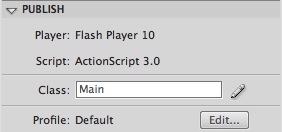
Step 5: Document Class

Remember to add the class name to the Class field in the Publish section of the Properties panel.


Conclusion

You can create simple and effective search boxes using this technique, try different search engines and create your own search box!

I hope you liked this tutorial, thank you for reading!

UV Unwrapping a Hard-Surface Object in 3Ds Max

In this tutorial, Jarlan Perez covers the process of unwrapping a hard-surface model in 3DS Max. Covering the importance of keeping UVs clean and stretch free, Jarlan also looks at how to keep the process as simple as possible, whilst at the same time giving you full control over the results.

In the download you will find a folder named “Max Scene.” Inside the folder are two Max files – the start and end files for this tutorial. You can either follow along with the start file scene, or with a model that you’ve created yourself.

Let’s get started! Go ahead and launch 3Ds Max and open the “unwrap_Start.max” file. Inside you should see an unshaded wall shelf object. This object is not super complex but it has enough faces and different shapes to allow me to show the different techniques and how to apply them.


Step 1

We’ll begin by setting up a checker pattern. A checker pattern? Why in the world do we need a checker pattern? Well it actually will become a very important part of our unwrapping process. With the checker pattern applied we can visually see where stretching is occurring in our maps, and go on to easily fix the problem.

Go ahead and open the material editor by going to Render > Material Editor in the top menu of Max or by simply hitting the shortcut M.

Once in the material editor, select a material slot (Figure 1 in the picture below) in which to build you checker pattern. Next, under the Blinn Basic Parameters, you’ll see three properties named Ambient, Diffuse, and Specular.

We want to add our checker pattern in the Diffuse property. Click on the little Diffuse square (Figure 2 in the picture below).


Step 2

Clicking that square will bring up the Material/Map Browser. From that list go ahead and double click on the Checker map.


Step 3

Now that the map is loaded into our material, we want to setup tiling so that we can see a little more clearly where stretching will occur. Under the Coordinates section locate the U and V Tiling and change the 0 to a higher value like 20.


Step 4

Click and drag the material you just created over to your model.


Step 5

Even though we dragged the material over to our model it still shows up grey. To make our checkered material visible we have to toggle on one more setting. With your material selected click the Show Standard Map in Viewport button (shown below). The checkered pattern should now be visible in the viewport.


Step 6

Looking at our model we can see that there is some very bad stretching going on. We’re going to fix that now!


Step 7

First and foremost we’re going to have to add an unwrap modifier to our model. To do this, go to the Modifier dropdown menu and select the Unwrap UVW modifier.


Step 8

Once you’ve added the modifier, we’ll be able to edit our model’s UVs. In the Parameters section of the Unwrap modifier there’s a big button called Edit… (shown below) Go ahead and click that button to bring up the Edit UVW window.


Step 9

This window contains all you UV information for your model. As you can see the UV layout is all over the place and it’s very hard to tell what is what (shown below).

Trying to texture a layout like this will get you terrible results and bring about lot of frustration. So we’re going to be laying them out in a way that allows you to know exactly where everything is, which will make your texturing process a lot simpler.


Step 10

3Ds Max has a nice little way to automatically flatten every single face in your model and make a perfect starting point for laying out UVs for hard surface models. To begin flat mapping, in your Unwrap modifier select face (shown below) from the drop down or hit 3 on your keyboard.


Step 11

Once you’ve done that, move over to your Edit UVW window and select everything in there either using click, drag, select, or by simply using the shortcut Ctrl+A.


Step 12

Next go up to the top toolbar and click on Mapping > Flatten Mapping…


Step 13

This will bring up the Flatten Mapping window. In this window you’ll find several properties, however I tend to leave these at default when I use this method, as it’s only really being used as a starting point. Go ahead and leave the settings as they are and click Ok.


Step 14

As you can see our UV layout is already much cleaner that it was previously, and you can now identify specific areas of the model. It’s still not perfect though, and we’ll need to arrange thing a little better so as to take advantage of as much of the UV space as we can.


Step 15

Before we continue with our unwrapping let go ahead and set up a shortcut for the Stitch Selected command, which will make our lives much easier during this process. In the top menu of Max click on Customize > Customize User Interface…


Step 16

In the Customize User Interface window locate Stitch Selected from the list (figure 1 in the image below). Once you find it we’re going assign a hotkey shortcut to it. In the Hotkey field you can add whatever shortcut key you want to make it. I personally use the letter S just because it makes sense (figure 2 in the below image). Once you’ve added this in, click the Assign key to make it official (figure 3 in the below image).


Step 17

To make sure that your shortcut has been assigned, locate Stitch in the list view again. The key combination we just added in should appear next to it.


Step 18

So what does this Stitch thing do? It’s simple. First select the edge option in your Unwrap modifier. Now if you select any edge in your UV map, it will show you any other edges connected to it on the 3D model, by highlighting them in blue. For instance in the image below, our red selected edge is connected to the top blue edge on our model. The Stitch command re-arranges the UVs so that these two edges sit correctly together in the UV map, and then Stitches them together.


Step 19

Start selecting edges, remembering to look for the blue highlighted edges on disconnected UV sections. When you find one, hit Stitch to bring them together. Once you’ve done this several times, you’ll see something similar to the image below. In it, the only highlighted edges are already attached to the same UV section, and don’t require stitching! That’s when you know that you can move on to the next area.


Step 20

Continue moving from piece to piece, stitching all of the disconnected sections together as explained above.


Step 21

After going through the entire object and stitching all of the disconnected pieces together, you should end up with something similar to the image below :


Step 22

Looking at our model now we can see that it looks much better than it did before. However, there is still some stretching going on in our UVs, but this is a simple fix.


Step 23

In the Edit UVW window toolbar we can find several Scale tools. In the image below, figure 1 scales everything uniformly in all directions, figure 2 scales your object horizontally, and figure 3 scales your object vertically.


Step 24

Go through your model and find the areas where stretching is happening and correct them with the scale tools, by scaling the connected UV sections. Note : Make sure to select the entire sections, not just individual polygons as that will add even more distortion into your map!


Step 25

Once you’ve finished scaling all of the sections, your checkers should be as close to perfect squares as you can get them. Having them square is a sign that you have a very minimal amount of stretching in your textures.


Step 26

We’re almost finished! The only thing left to do now is to organize the individual UVs so that they fill up as much of the UV space as possible. The more space we can get them to fill whilst maintaining square, evenly-sized checkers, the more resolution we will be able to have in our final texture maps, which is only a good thing! Right now however, our pieces are everywhere.


Step 27

Go back in and use the previously mentioned scale tools to fit all of your pieces inside the UV border as best as you can.

You can scale larger or smaller depending on your needs but make sure that your checker squares stay as close to the same size as possible. This will ensure that you have an even distribution of quality/resolution when you add your final textures to your model. If one area takes up a lot more of the space, it could look a lot sharper than the other sections in the final render.

The thing here is consistency so try to keep the sections as close to each other as possible as you can without overlapping!


Once you lay everything out as suggested above you are all set to start texturing your model!

I hope this demonstration was helpful and if you have any questions feel free to leave a comment below!


Don’t miss more CG tutorials and guides, published daily – subscribe to Cgtuts+ by RSS.

‘The Skateshop’ – A PFTrack, Maya & AE Workflow, Day 3 – Premium Tutorial

In the third and final part of this detailed 3-day Premium tutorial series, Alvaro Castañeda continues showing the workflow he uses to integrate CG elements with live action footage. With the skateshop built and textured, it’s now time to light, render and then put everything together using Maya Composite. ‘The Skateshop’ is an unmissable tutorial for anyone looking to learn a PFTrack, Maya and Maya Composite VFX workflow! Can’t wait to get started? Become a Premium member, or learn more after the jump!

Breakdown of Day 3

With the footage tracked and the skateshop modelled and textured, the first task is to add scene lighting that matches our backplate. With that done we’ll take a look at rendering out multiple passes, and finally we’ll composite everything together to create our final shot!

Want to Join Plus?

The Tuts+ network runs a membership service called Premium. For $9 per month, you gain access to exclusive high quality screencast tutorials, downloadable content packs, and freebies at CGtuts+, Psdtuts+, Vectortuts+, Audiotuts+, Nettuts+ and Aetuts+! For less than the price of a movie, you’ll learn from some of the best minds in the business all month long!!. Become a Premium member today!


This tutorial is Day 3 in a series – Go to Day 1 and Day 2.


Don’t miss more CG Premium tutorials and content packs, published weekly – subscribe to Cgtuts+ by RSS.

Anyone for a Pomegranate Cosmopolitan?

In a previous article, I supplied you with a recipe for the world’s best frozen margarita. Along this same spirituous vein, I am here to unveil another killer recipe – but this time for a cosmopolitan. Cosmos are extremely popular these days, and if you follow the cooking and drinking scene you’ll note that a very popular fruit which has been gaining more and more notoriety is the pomegranate. Pomegranate juice is readily available in stores and is one of the ingredients for this drink. So, without further adieu, I present an awesome Pomegranate Cosmopolitan recipe.

Add the following ingredients to a cocktail shaker:

  • Add plenty of shaved or cubed ice (3/4 full)
  • 3 oz of your favorite vodka
  • ½ oz of Grand Marnier
  • ½ oz of triple sec
  • the juice of one fresh lime
  • 100% pomegranate juice (add as much as you like, or just fill the shaker)

Shake thoroughly and strain into a glass of your choice. This recipe should make at least two decent size cosmos. I like to use the stemmed triangular glasses for this drink. I also like to serve it with ice in the glass, but that is your choice. You could just use the leftover ice that is in the shaker.

No matter which way you choose to serve it, relax and enjoy…and let me know how you like it!

6 Tips to Add Time to Your 24/7 Work Schedule

“I don’t have time for this!”

How many times do you say that every day? Likely too many. Many of us keep wondering how we can squeeze in some extra time during our 24/7 work schedule to help reduce the long list of pending tasks.

Well, the number of hours in the day are not going to increase. So, it’s up to you to create that extra time you need. The following six tips will get you started on making the most of the time you do have.

1. Stop Multitasking

If you think multitasking will get things done faster, think again. Focusing on one thing at a time is a more productive thing to do. You’ll end up finishing tasks faster.

2. Outsource Your Non-Core Tasks

Learning how to delegate work is something I’ve already recommended. Don’t try to do everything yourself. Get help.

3. Outsource Chores

Outsourcing chores and errands would be a good idea as well. There are services like DoMyStuff that help you with it.

4. Simplify

Try to simplify all the areas of your life – be it your home, your office, the tools you use everyday, things you consume…everything. Focus on eliminating non-essential items that suck up your time.

5. Focus On Quality

As James Chartrand mentioned in a previous WorkAwesome post, being productive in the real sense means focusing on quality instead of quantity.

6. Work from Home

If your commute time is significant, you could ask your boss to let you work from home. If you can convince her that you’ll be more productive, she might agree.

21 Tips for Overcoming Writer’s Block

Overcoming writer’s block is hard – really hard. You could spend hours staring at that blank screen and not even come up with the title for an article. I’ve suffered through it many times since I started contributing actively to my own blog and various other sites.

Although a writer’s block could fade away with time, it is better take some immediate measures to battle it as it strikes and get started with writing without significant loss of time. This article talks about how to overcome writer’s block by temporarily shifting your attention to something else, possibly unrelated.1. Stop Thinking and Write Anything

The thinking process can sometimes prolong the block. A better way out is to stop thinking and start writing…anything. Just anything. It doesn’t need to center around the topic you need to write about. At the moment your primary aim is to get into the flow. So just start churning out the words without thinking.

2. Leave the Computer and Go Out

Shut down the computer for a day and take a trip to a local destination of your choice. Take a small notebook and a pen along with you so that you’ve got something to jot down in case the ideas begin to show up.

3. Listen to Podcasts

Download some podcasts that relate to the topics you love and listen to them. You could also put them on your iPod or mp3 player and listen while on the go.

4. Listen to Music

Listening to music is something you should do as often as possible. Research has it that music tickles the brain to increase the flow of creative juices. It might help you get rid of writer’s block too.

5. Watch TV

Admit it, you hardly watch TV. Who needs it when you’ve got services like Hulu? Well, try something a little different. Watch TV on a TV.

6. Read a Book or Magazine

Wipe the dust off those books in the shelf and start reading. Another thing you could do is to go out and get an issue of a magazine like Wired, instead of visiting the online version.

7. Surf Aimlessly

Browse the web aimlessly. Read stuff on Wikipedia, political sites, tech blogs, news…whatever. Just browse and read.

8. Chat With a Friend

Talk to a friend. Better if he’s a writer too, or someone who knows enough about what you do. Tell him about your situation. Discuss various topics related to your work. And you might just start getting those elusive ideas.

9. Check Stuff in Your Hard Disk

I’m sure you’ve got a lot of stuff – like pictures, documents, books and all stored in your hard drive. This is the time to scour through them.

10. Check eBooks You Never Read

If you are like me, you’ve tons of ebooks downloaded on your PC. And you never got the time to read them. Now, when you’ve got nothing to write, why not check those ebooks and start reading them.

11. Go Through Your Email

Dig into your email account and re-visit the conversations you had with your contacts, the ideas you shared and the things you discussed. Reply unread emails, if any.

12. Check Your Browser Bookmarks

This is a good time to take a look at the long list of bookmarks you’ve got saved in your browser. It’s likely that you never visited them again after saving. Check them out.

13. Check Your Del.icio.us Account

Why spare your neglected Del.icio.us account. It has a huge list of bookmarks too, isn’t it? Check them out too.

14. Mind Your Social Networking Sites

Not the time to look down upon these services as mere distracting tools. You need them now. You need them to provoke the idea-generating portion of the brain (which one-left or right?). So login and start interacting. Also, see what your friends are sharing.

15. Browse Videos on TED and YouTube

Videos, especially those on TED, make you think differently and thus produce ideas you’ve never had before. YouTube isn’t bad either.

16. Browse Photos on Flickr

A picture can tell a story. And you need to write that story. Hence seeing that picture is essential. Flickr will help you do exactly that.

17. Browse Your RSS Feed Reader

Got 1000+ unread items in your RSS reader? Got some blogs which you never happen to check? Go through them now.

18. Browse Comments on Blog Posts

If any of you wonderful folks have been following my WorkAwesome articles, you would find that I tend to pick up ideas from blog comments. And it’s a good practice because in you end up writing about what the reader wants to read.

19. Organize Your Stuff

Organize your workspace and declutter your desktop. You might come across ideas while doing it.

20. Draw Charts, Diagrams, Mindmaps

Brainstorming through charts and mindmaps could be a nice way to get into the flow.

21. Take it Easy…Ideas Will Come Eventually

Done all of it, and still can’t find anything to write about? Don’t worry, take it easy. Just let go. Give your mind the time it needs. The flow will come eventually.

How to Get Promoted: Break The Rules

Being “good at what you do” is an asset to your career, and it fosters a great attitude and a solid self-esteem boost.

But, unfortunately it’s not enough to get you a promotion. In fact, if you’re excelling at your current position, it might be a good reason to keep you where you are instead of promoting you. It’s quite the conundrum; if you’re great at your job, your company might never dream of putting you anywhere else.

So, if it isn’t excelling at your work, then what makes someone “promotable”?

Quite a bit of research has been done on promotability.  We’ve also discussed different strategies to move your way up.  Although it’s difficult to conduct fact-based research on it, they have come to a few general conclusions on how to get promoted:

  • An employee can develop skills for higher-level jobs if they are regularly faced with “challenging” work. “Challenging” work is defined as work where the current rules and routines won’t suffice in getting the job done, forcing the employee to innovate new routines.
  • An employee who does non-challenging work (mundane work where the current rules and routines are sufficient) never develops higher-level job skills, and thus may be less “promotable.”

So, how do we get promoted? Ironically, it sounds like we have to break a few rules.

How to Balance Your Internet Life with Your Real Life

Hi, I’m Carl, and I’m a blogger.

I really started blogging back in 1997 when I created an e-mail newsletter for the newspaper. I would start each daily e-mail with some personal insights then list the day’s headlines. I didn’t know it but it was blogging.

I thought I could quit whenever I wanted. But I kept posting updates. And that led to Facebook and Twitter accounts.

So now I’m very comfortable sharing personal aspects of my life with complete strangers. But some people I share my life with aren’t social media exhibitionists. They don’t blog, tweet, friend or check in. And they’re not thrilled to be part of my social networks by associations.

We talk a lot about balancing work and life. But how well do we balance internet life with real life? Do you need to keep your personal relationships quarantined? Here are some tips for achieving harmony:

Disclose

On your first date, confess your blogging and social media habits. Your date needs to know that this may be the subject of a blog or Facebook update. Better yet, give them veto power. They need to be able to express discomfort and keep their private life private.

Discuss

Set up ground rules with the people in your life. Understand what they don’t want revealed to the world.

Ask permission

No matter what the rules are, your friends and family will appreciate if you ask before you blog.

Create pseudonyms

Your personal life can have a lot impact on what you write. You can use personal anecdotes to add punch and protect the shy members of your life. Instead of using their names, identify them as “My Better Half” or “No. 1 Son.” Give them a little bit of cover.

Don’t ambush

We’ve all thought of the perfect comeback after losing an argument or point in a debate. Social media offers a chance to make that point after the fact. Which really isn’t fair. And don’t write anything you wouldn’t say to someone’s face.

Extend these courtesies to coworkers

Even if it’s totally professional, you want to consider the people at work and clients part of your private life. They may not appreciate reading about themselves in your blog or Facebook timeline. Ask.

Do you have rules to separate your real and social media lives?