Real Life Organizing

If you could see my desk you would be mortified. I have magazines, empty Diet Coke cans, and photos scattered everywhere. My computer screen is framed in sticky notes. I have a screwdriver and a couple of chapsticks around here somewhere…

Andy Rooney himself said that the messier the desk, the more productive the person. And I agree. I am very messy. And productive.

No one taught me how to organize. I do what is best for me—and it works. I can’t tell you how to best organize your workspace, but I can offer you some suggestions that have helped me be able to manage my workflow, which includes editing two monthly magazines, a yearly wedding magazine, social media outlets for all three, and whatever else gets thrown in my direction—including an intern or two.

Prioritize

The very first thing I do when I get into the office in the morning is update our Facebook pages and Twitter accounts. If I get busy during the day and can’t get around to checking them, at least I did it once in the morning.

The next thing I do is check my email. I try to clear out my inbox before I leave at night so that I’m not inundated in the morning. This may be harder (or impossible) for some of you, but try. I have my spam alert set on high and it does a relatively good job about screening my emails for trash.

Make a Calendar

I use a Mac at work, which comes with the iCal feature. If your computer doesn’t have a calendar feature you like, I would suggest creating one using Google. Since I work on multiple projects simultaneously I give each a color and manage my to do list, interviews, meetings, and events on my calendar. If you don’t have a smart phone that can synch with your calendar, a Google calendar can be checked and edited anywhere where there is Internet access.

Voicemail

Much like email, I make a point to check my voicemail a couple of times a day. This way it doesn’t become a dreaded chore and take up too much time. I work in a small office and I regularly get messages from people that should have been forwarded to someone else. By checking voicemail regularly I am sure not to drop the proverbial ball for one of my coworkers.

Weekly Meetings

If you’re like me you work in a team environment. We schedule a standing meeting every two weeks where we all get together and address big picture issues for one hour, max. By limiting the meeting time it helps us all stay on track and keeps us from getting bored. Having someone write up an agenda for the meeting beforehand is key.

Peak Time

Everyone has a certain time during the day when they are most productive. Do you find that it takes you a while to warm up in the morning or that by 3 pm you’re brain hurts? I hear ya! My peak time is anywhere from 10 am to 2 pm (between breakfast and lunch). I schedule my most important duties for the day during this time and relegate my ancillary duties such as checking the mail, my voicemail, and scanning my RSS feeds around it.

Procrastination

Don’t. It only hurts you in the long run. I’m pretty sure you don’t want to be spending your Sunday afternoon, when it’s 75 degrees out and sunny, working on that proposal or spreadsheet you were supposed to get done on Friday. Make goals for yourself and stick to them.

Filing

However you file your personal stuff is up to you. But if you work in an office where multiple people need to find the same information, come up with an approach that works for everyone—it’ll save you time helping others look around for the June Profit & Loss statement if you all know where it is.

Keep a Notebook

How many times have you jotted some important tidbit of information down on a piece of scrap paper and lost it? Yeah, me too. I have resorted to keeping a legal pad on hand for those tidbits of info. The pages can easily be flipped over and when I know I wrote it down SOMEWHERE all I have to do is flip back a few pages in my pad and there it is. No more useless scraps of paper to clutter up my already cluttered desk.

What Are Your Office Etiquette Pet Peeves?

Office etiquette issues are mostly behind me, but before I fled cubicle hell for coffee shops and other freelance hangouts, I shared workspace just like (almost) everyone else, so I’ve dealt with the quirks of toxic coworkers — and they’ve had to cope with mine. One cubemate was deeply disturbed by the sound a plastic water bottle makes when you try to squeeze out the last bit of water. Another couldn’t stand the sound of an office chair swiveling back and forth as one coworker twirled absentmindedly.

My biggest workplace etiquette peeve? I’m annoyed by loud phone talkers. You know the type: people who make personal phones during work hours and then act as if their acid reflux or marital problems are the most fascinating and important topic on the planet. That’s why I always made a point of slipping away from my desk when I needed to make a non-work call (let’s face it: we all occasionally need to make calls between 9 and 5) and scheduling time in the conference room when I had a lengthy work call scheduled.

What about you? Are there habits you’d prefer to do without?

Do You Have an Intern from Hell?

Ah, summertime in the northern hemisphere!

If your company takes on interns this is the time of year where you’ve got your share of college kids walking around the office in their only pair of crumpled slacks and inappropriate shoes.

By the average office standards, my “intern shoes” weren’t exactly inappropriate. But by the standards of my employer, a Madison Avenue boutique public relations firm, my shoes and the rest of my wardrobe were offensively unfashionable. But this was the least of their worries. I officially became the intern from hell on the day I unintentionally mixed up the press clippings from 2 brands that had very similar names – let’s call them Soda and Soda A. There were hundreds of clippings! I realized this soon after I ended my contract (as opposed to my contract being ended for me);it must have taken my supervisors quite a while to sort out everything.

How about you, have you been an intern from hell or have you had one in your office?

28 Creative PowerPoint and Keynote Presentation Designs

There’s a certain art to putting together a solid presentation and PowerPoint and Keynote are the primary tools of the trade.  The “art” comes into play when you’re trying to set yourself apart; so how you use the tools is of great importance.  Often it is the design of the presentation itself that does the trick.  In an effort to help you put together a great-looking presentation, here are 28 examples of creative presentation designs using Powerpoint and Keynote:

1. 1 Billion Hungry Project

2. What the F**k is Social Media NOW?

3. How to Get Started as a Web Entrepreneur

4. Cost Effective Web Development Techniques

5. Good vs. Great(er) Design

6. Communication Patterns

7. Fast and Furious Startups

8. Designing iPhone & iPad Apps

9. What Developers and Designers Don’t Get…

10. Kill procrastination

11. Get Stoked on Web Typography SXSW 2010

12. Due Diligence for Angel Investments

13. Soap

14. Creative Thinking

15. Burn Your PowerPoints

16. 40 More Slides + Memorable Quotes from Cannes Lions 2010

17. The Creative Brief: A Research Project

18. 100 Beautiful Slides from Cannes Lions 2010

19. New Business Opportunities In Retail

20. I’m on Facebook, Now What?!

21. MagnetBoard (Template)

22. 8 Minutes for Creative Refreshment

23. How To Be Creative

24. Designing and Developing Windowed Interfaces for Web Apps

25. 2010 And Beyond

26. Implementing Design – Bulletproof A-Z

27. Building on the Shoulders of Giants

28. Appstorm Presentation


Presentation Resources

There are plenty of great resources online for presentation design, here are a few:

Know any other great resources? Comment them in!

7 Green Office Tips Your Company Can Implement

“Going green” is a very popular phrase these days. Companies are going out of their way to ensure that they are considered a green company – and many initiatives are being spearheaded by the employees themselves. My company is no different. Over the past year or so, there have been a number of steps that have been taken to reduce my company’s carbon footprint. Here is a list of green office tips that we’ve actually implemented at my company.

1. Eliminate paper coffee cups

My company offers its employees free coffee which, to be honest, is not very good but I am picky when it comes to good coffee. Eliminating the paper cups and asking the employees to use their own mug saved the company money and eliminated wasted refuse.

2. Purchase a dishwasher

This step went hand-in-hand with Tip #1 since employees now have the ability to wash mugs, forks, spoons, and plates which eliminated the need for paper products.

3. Switch to green cleaning products

Our company uses a cleaning company. We have dictated to the cleaning company to only use non-toxic and biodegradable cleaning products.

4. Implement motion-detector lights in all conference rooms

There was a sense that lights were oftentimes left on in conference rooms in between meetings and at the end of the day.

5. Utilize recycle boxes to place excess paper throughout the company

Throughout the company there are now boxes that are used to place excess paper. A company clears out these boxes and recycles the paper on a regular basis.

6. Place recycle boxes for all bottles and cans in the cafeteria

We have vending machines that dispense soft drink bottles and cans. We have placed plastic recycle boxes in the cafeteria and they are picked up and recycled on a regular basis.

7. Replace all lighting throughout the company with more efficient lights

This not only reduces the energy used but cuts electricity costs.

These are 7 steps that my company took to go green. Has your company implemented any more go green strategies?

The Best Professional Advice You Ever Received

Throughout our careers, we accumulate a wealth of professional advice. These are the words that echo in our heads during our most challenging moments and help shape us into the professionals we want to be. They are the reminders we tack to our wall to glance at when we need inspiration or a push over the finish line. They are the signposts we turn to when faced with a tough decision about what to do or where to go next.

This wisdom can come from unexpected sources—a mentor (like a manager or professor), a relative, a friend, maybe even a client or an employee. Maybe it’s a reminder to trust your gut, or a warning against making promises you can’t keep. Perhaps it’s a charge to always put family first, or to always hire someone smarter than you.

What is the best professional advice you ever received? And where did it come from?

Are You Sent on Solo Runs with Mission Critical Objectives?

Pilots are often sent on long solo missions with no guidance or assistance along the way. They are given an objective and a “blue sky” plan; anything unexpected is the problem of the pilot alone. Despite the importance of the mission, there is nobody on board to share the stress that comes with “mission critical” tasks. Sometimes it’s hard to stay in the air with the gravity of heavy responsibility pulling at your wings, but the faith that’s been placed in your abilities can be very uplifting.

Solo pilots must be as vigilant of their resources – fuel, oxygen, time – as they are of potential obstacles. Stormy weather, reroutes or faulty equipment can instantly turn dealing with a  straightforward mission into dealing with the impossible.

Does your work ever send you on a long, solo run with “mission critical” objectives? Does the lack of colleague camaraderie ever make the air feel thin? Would you welcome a solo flight as a testament to your skills and reliability, or would you find yourself reaching for the ejection handle?

5 Reasons to Practice Timeboxing

Timeboxing is a time management technique that limits the time during which a task (or set of tasks) is accomplished. Although it’s commonly used by software development teams, more and more individuals (designers, writers, engineers — even students) are using it to boost personal productivity. Why? Here are five good reasons.

1. Timeboxing is free and easy.

You don’t need to buy anything. The only gadget you’ll need is a timer, which you probably have in your kitchen or on your cellphone and computer. In case you don’t, there are tons of timer software online.

You don’t need to read lengthy books or attend expensive seminars to learn it. Although there are many variations of timeboxing, the basic steps are essentially the same:

  1. Decide on a task or set of tasks.
  2. Get a timer and set it to a time commensurate with the task. (You can choose to set the duration before deciding on the tasks you can perform within it.)
  3. Start the timer and focus on performing the task, avoiding distractions as much as possible.
  4. Once the timer sounds (or blinks or vibrates), stop working. Ideally, you should trust the device to tell you that time’s up instead of interrupting yourself by checking the time occasionally.
  5. Reward yourself with a treat, a pleasurable activity, or simply with a well-deserved rest. (The activity and rest may also be timeboxed.)
  6. Repeat as necessary.

2. Timeboxing is flexible and customizable.

Any of the above steps can be varied. For those who suffer from severe perfectionism or procrastination, timeboxes can be made as short as 5 minutes to make the task less intimidating. On the other hand, workaholics can use timeboxes to limit work duration, thus making work less stressful.

When it comes to choosing the timeboxed tasks, you can be as specific (“Write a 100 word description of my main character.”) or as vague (“Make some progress on my novel.”) as you like.

Timeboxes can also be used for activities other than work. You can timebox chores to turn them into games (“Arrange my desk in less than ten minutes. Go!”) You can also timebox unproductive activities (“Check Facebook for no more than five minutes.”) You can even make combination timeboxes, like the ones used in the Procrastination Dash and the Pomodoro Technique.

3. Timeboxing curbs procrastination.

Getting started on a task is often more difficult than doing the task itself. Timeboxing makes getting started less intimidating. It’s a lot easier to begin on a task you only have to do for fifteen minutes than on something you have to spend an indefinite amount of time on. Because when you think of work and time in an indefinite way, it’s often excruciatingly long.

Setting the duration of a timebox also forces you to choose an appropriate amount of work. If you only have thirty minutes to work, you won’t try to “write a book.” “Write first draft of chapter 1″ is not only more realistic, it’s also less daunting — ask anyone who sat down and tried to write The Great American Novel.

4. Timeboxing keeps perfectionism in check.

Procrastination is often caused or at least related to perfectionism. Not only do perfectionists find it hard to start, they find it difficult to continue and sometimes, even finish. Timeboxing lessens the aversion to and stress from the task by limiting its duration.

But there’s another way timeboxing can curb perfectionism. By setting specific goals to accomplish before time is up, the perfectionist is forced to settle for good enough, prioritize the essentials, and avoid stressing the details. And if tinkering can’t be avoided, it can at least be timeboxed. This ensures that the work is finished on time — and not ruined by too much tinkering.

5. Timeboxing lets you flow.

Perfectionists make work too challenging by setting unrealistic goals, often with standards that are too high. On the other hand, when the goals are too trivial or the standards are set too low, work becomes too easy, resulting in boredom. When work is neither too easy nor too difficult, it becomes effortless, even pleasurable, and highly productive. This happy state is called flow.

The conditions that induce flow can easily be met by timeboxing:

  • A clear set of goals: You do a specific task within the allotted time
  • Confidence to do the task: Both the task and the time are freely chosen.
  • Clear and immediate feedback: Your focus during the timebox ensures that nothing escapes your attention; and the duration is short enough that you don’t have to wait long before you can evaluate your work.

During flow, you focus all your emotional and intellectual capacity on the task at hand, allowing you to achieve your best work. (Just make sure your timer is loud enough to bring you back to reality at the end of your timebox.)

Become a timeboxer.

Timeboxing may be simple compared to other time management tools, but as I’ve shown you, its benefits are many. There are other reasons people practice timeboxing — it’s more sustainable, easier to schedule and measure, better for your health — but I’m sure that once you try it, you’ll find your own.

So why don’t you give it a try? Make a list of the tasks you’ve been procrastinating on. Go ahead. Launch your word processor, get your timer started and begin writing.

10 Tips for Taking Your Best Ever Vacation Photos

Summer is here and already fleeting. If you haven’t already, it’s time to squeeze that vacation in before the kids go back to school. Not only do vacations provide you and your family a much needed break from reality, they’ll also serve up some of the best photo opportunities you’ll see all year. Below we’ll take a look at some quick tips to help you capture some of your best images ever while traveling!


1. Take a Step Back

As you’re traveling, one of your primary goals as a photographer is to take in the sights. You’re likely to encounter many breathtaking views that you’ll want to remember just as they were through your eyes.

What this means on a practical level is that you should pack your wide angle lens. If you’ve been meaning to pick one up, right before a vacation is the perfect time. When you’ve got a beautiful view in front of you, that fancy $1,200 zoom lens can kill it. Instead you’ll want something that can grab as much of the landscape as possible.

If you’ve got the budget, a good 10-22mm would be an excellent place to start. If you’re looking for something a little more affordable, consider a cheap 35mm prime. These are small and lightweight and should do a fairly decent job of really stretching your field of view.

If you won’t be able to bring a wide angle lens, try some panoramic sequences that you can piece together in Photoshop later. Even if you’re not a computer wiz, Photoshop does an excellent job of automating this process.


2. Don’t Forget the Faces

When you’re out traveling to new and exciting locations with your wide angle lens, it’s really easy to get sidetracked and forget about the most important part: the people that came with you.

The single best way to re-experience the events and emotions of your vacation years after is through the faces of the family and friends who were there. It’s well worth it to miss the shot of Mickey Mouse walking by if you can instead capture the expression on your three year old’s face as it happens.

Scenery shots are great, but these are the photos that will make you both laugh and cry twenty years from now. So be sure to take tons of them!

If you want great face shots like the one above, use a lens that can get fairly close and make sure your aperture is wide open. This will give you that nice blurry background that highlights faces so well. Just make sure your focusing technique is solid. With wide apertures, always focus on the eyes (or eyelashes!) as they’re the most important part of the composition.

For shots like these, I can’t recommend a 50mm f/1.4 enough. These lenses are extremely affordable and will make it seem effortless to take professional quality images.


3. Get the Details

When you’re somewhere you’ve never been before, capturing the tiniest details has a way of making the trip seem that much more magical when you’re showing the pictures off to your friends and family. Even if it’s something almost anyone could find right in their own back yard.

Obviously, flowers and bugs and a great place to start, but don’t stop there. Capture the weave of the hammock on the beach, the grain in the bamboo flooring in your bungalow, and the tiniest bubbles in the wake of the tide.

Macro photography is all about displaying the beauty in the mundane. Any moment that impacted you on your vacation can be represented metaphorically through the things around you that you touched and experienced at the time.

Unfortunately, many lenses won’t allow you to focus close enough to your subject to take a decent macro. If you want to go all out, you should look at a dedicated macro lens like Canon’s 50mm f/2.5 Compact Macro.


4. Watch for Wildlife

Everyone loves a good creature shot. One of the neatest part of traveling somewhere new can be seeing various living things that you would never see back home. Don’t hesitate to venture from the beaten path and explore any areas where mother nature still has the upper hand.

Capturing shots like the one above is sure to earn you some photography respect points with your peers and is a great way to end up on the “interesting” section on Flickr. Just watch out for anything with teeth!

The best way to capture anything that might potentially run away from you (or eat you) is definitely with a zoom lens. Most wild animals will be long gone before you get close enough to get a good shot with anything else so be sure to bring the biggest lens you own if you think there will be potential for some photos like these. Ideally you’ll want something that can hit up around 200-300mm.


5. Capture the Illusion

This one particularly applies to theme parks, zoos and other attractions. When you’re taking pictures at these locations, watch how you crop the photos. Anything you can do to hide “the man behind the curtain” so to speak will help the believability of the image.

What I mean by this is to crop out any fences, walls, signs, tourists, lights, etc. that make it obvious that the giant dinosaur you’re shooting is part of an exhibit. For instance, the picture above would’ve been much less engaging if other rides could be seen poking through the greenery in the background.

As another example, when you come home from the zoo you can either have 300 images that look like a day at the zoo or 300 images that look like you went on an epic African safari. It’s all in the cropping.

Sometimes it’s hard to manage this, especially if you’re trying to capture an image without people while standing in a crowded place. As a trick, try taking multiple photos from the same vantage point as the people are moving around. Hopefully you’ll be able to combine the empty space in each picture to create the image you want. Is that cheating? Yes. Does anyone have to know about it? Nope.


6. Learn to Shoot in the Dark

While on vacation, you have much less control over lighting situations than you would on your home turf with access to all your equipment. Whether you’re camping in the woods at night or watching the Aladdin show at Disneyland, the lights will go out and there will still be plenty of photographs you don’t want to miss.

This can be extremely difficult if you lack the proper tools and training. For starters, familiarize yourself with long exposure shots. If you’ve got room, pack the tripod, if not, look for a nice flat surface to set your camera down while it goes about the business of collecting light.

Obviously, if there is any sort of movement involved, long exposures aren’t going to work. In this case you’ll need a good low light lens (something with a wide aperture) and perhaps a Gary Fong flash diffuser. Camera-mounted flashes tend to produce really harsh lighting that will simply ruin your photos. Diffusing this light allows you to take advantage of the additional lighting without all the ugly side effects.


7. Avoid the Cliché

As you visit new and exciting places, resist the urge to just throw people in front of something and snap a picture; or at the very least, just don’t stop there. As a photographer you should consider yourself an artist and should therefore aspire to present content in a unique manner that reflects your specific style.

A couple of gigs of photos of your family plastering fake smiles on their faces while posing rigidly in front of monuments is nice, but nowhere near the potential of what you could be bringing home. Try instead to create clever poses and compositions that you won’t see in the photo libraries of everyone who has ever been to that place.

As an example, consider the photo above. Rather than merely standing and smiling in front of the train, some thought was given on how to create something fun and unique. Never be afraid to try something silly or unconventional. Worst case scenario: it doesn’t work and you have to take another photo.


8. Life is Fast – Watch Your Shutter Speed

Whether it’s from a bus ride through the Italian countryside or your kids running around on the beach, vacations are filled with motion. Not giving serious consideration to your shutter speed can turn your collection of photos into a major disappointment.

Never assume that just because the photo looks perfect on your tiny preview screen that it won’t have any blurring when you see it full size. Instead, keep that shutter speed as fast as you can get it in these situation (unless of course you’re going for intentional blur).

Even if what you’re shooting isn’t really moving, remember that you and your camera are. To avoid camera shake, try to stay above 1/60th-1/80 sec, and if you are shooting movement, make it much higher. To illustrate, the image above was shot at 1/80 sec and the image below at a whopping 1/8000 sec.

This could’ve easily been a blurry mess in a bathing suit but the photographer was keen enough to know that the motion (and probably the sunlight) required a fast shutter.


9. Give Everyone a Camera!

Just because you’re the photographer in the family doesn’t mean you should have all the fun! In fact, being the guy everyone has to constantly pull along because you stopped yet again to take a photo is a good way to ensure your family goes without you next time!

Giving everyone a camera is a great way to really integrate photography into the trip and help ensure your kids don’t get bored looking at mountains when they’d rather be riding roller coasters. It’s also gentle nudge towards something that could turn into a lifelong passion.

It doesn’t have to be anything expensive, anything from a simple $10 drugstore flash and trash to something in the $100-200 range will get the job done. You’ll be surprised at how many really great shots will result when you give a kid a camera. Just don’t be upset when you realize your six year old takes better photos than you!


10. Get a Good Camera Bag

Almost all of the advice given above requires lots of equipment: lenses, flashes, extra camera, etc. Obviously, I’m not suggesting that you go out and spend $10,000 on equipment before your vacation, I’m merely making suggestions so you can decide what’s most important for you and pack/purchase accordingly.

If you’ve already got all of the equipment you need, the serious question then becomes, do you really want to bring it along? However, what sounds like a ton of extra baggage can actually be compacted to a single bag. Modern camera bags are ingeniously designed to hold a lot of equipment in a very small space and can easily be slung over your shoulder for the walk through the airport.

If you’ve been getting by with a plain old duffle bag thus far, it’s time to step up and get something that is built to properly protect your gear. If you’re clueless as to where to start, check out Tamrac. They have a lot of really affordable bags that are perfect for carting around all your precious cargo.


Bonus Tip: Bring Lots of Storage

This tip is for newer photographers and I simply can’t stress it enough. If you’re going to be seeing your trip through a viewfinder, you’ll want to take tons of photos. My advice is to shoot lots and sort later. I’m constantly telling my wife to stop deleting so many pictures in the camera. It’s much better to wait to make that call until you’re seeing the photo on a large computer screen.

To accomplish this, you’re going to need memory and lots of it; especially if you’re shooting in RAW (and you should be). Fortunately, storage has gotten quite cheap lately and it’s not a big deal to go out and grab a 4-8GB card once every few months to build a good stockpile.

I can tell you from experience that it’s much better to carry around a bunch of smaller cards than it is to use one huge card. I recently bought a 32 GB card thinking it was the best decision I could possibly make as I could avoid the hassle of switching. Then when that card failed in the middle of a wedding shoot I was utterly screwed.

Memory cards will fail and it can be quite devastating to lose all your photos when it happens. Having those images spread out over multiple cards means that if one fails on you, all that’s lost is a small portion of the overall shoot, leaving you less likely to curse uncontrollably when it happens.

If you don’t have several cards, just make sure to pack your laptop and download frequently while you’re on your trip.


Share Your Best Vacation Photos and Tips!

Now that you’ve read our tips for shooting the best ever vacation photos, share yours below. Also leave a link to any vacation photos you’re particularly proud of taking.

The Phototuts+ readers have been truly awesome at sharing their work in the past, and you should know that we love to read through the comments and see all the your photos and expert advice. Keep up the good work!

How To Capture a Stylish Smoke Photograph

Today we’re going to delve into the arena of smoke photography, investigate some of the post-processing techniques available to you, as well as a few different methods for obtaining certain effects. Grab your camera, and join us after the jump!


Step 1: Equipment Selection

While photographing smoke, you can get spectacular images using minimal equipment. I used the following kit in today’s tutorial:

  • A prehistoric flash released in 80′s (power range – 35 Ws)
  • A small halogen floodlight with the power of 100 W (sold in home improvements stores)
  • 2 tripods for holding the lights
  • Optical Flash Trigger
  • Photo Sensor
  • Black fabric background (1.5m square)
  • DSLR camera Pentax K-m with lens DA 18-55 mm

Step 2: Illumination Settings

Ensure that your flash is installed so that it illuminates the subject from the side. The most important point is that the light from the flash shouldn’t illuminate the background. My flash has an angle of illumination horizontally – about 55 degrees – so positioning the background around 27.5in from the flash means that it is in shadow. If your flash has a wider angle of illumination, you will have to install some angle of illumination limiter.

Position your halogen lamp opposite to the flash. It performs an auxiliary function – smoke illumination for the focusing system. The lamp gives much less light than the flash, and doesn’t affect the final image.

The room in which the picture is taken shouldn’t be more or less devoid of any other light. Complete darkness is not necessary, but it is better when the curtains or blinds on the windows are closed.


Step 3: Background Setup

For the background, I used a piece of black synthetic lining around 5 feet square. In fact, you could do without the background if the room where the photo is taken is darkened, and the walls or furnishings are not very bright and located at a distance of more than around 10 feet from the smoke.


Step 4: Incense Sticks

For the source of smoke, I used incense sticks. They provide an even stream of smoke throughout the time of burning. Stick burns for about 45 minutes, which is quite enough time to shoot 300-400 frames.

To fix the sticks, I used a ‘third hand’ device, used for welding electronic components. It allows me to bend the stick at any angle, and also to lift it up while the burning. If you do not have such a device, a stick can be put into any stand (or at a push, into a piece of plasticine).

Just do not forget to put a sheet of thick cardboard or plastic under the stick, so that any ash falls onto that rather than your expensive dining table!


Step 5: Camera Settings

All images in this tutorial are made with the following parameters: ISO (100), Shutter Speed 1/160 seconds (minimum shutter speed of my camera’s synchronization), an aperture of f9, and a white balance of “Daylight”.

You should be very careful to get exposure correct in-camera, because the subsequent exposure correction in post-processing can lead to the loss of a large amount of detail. Exposure should be chosen so that the background is completely black (no more than 10 in each RGB channel).


Step 6: Shooting Techniques

Throughout this shoot, the camera was handheld without a tripod. The duration of a flash is sufficiently small in order to avoid blurring. The autofocus of modern DSLR cameras is fast enough, and it manages to focus on the smoke stream.

The most important point is that there should be no drafts or flows of air from conditioners, fans, or anything else in the room where you take photos. Even after you set fire to a stick, you should sit quietly for a few minutes before starting shooting, so that the movement of air calms down and smoke starts rising vertically.


Step 7: Playing with Smoke

Despite rising seeming at random, the behavior of the smoke plume is subject to certain patterns. Up to a certain height, smoke rises very smoothly. At a particular point the smoke starts taking bizarre forms as it mixes with the air. This is just the most interesting area for shooting.

Any deliberate movement of air disrupts the smooth flow of the stream, causing interesting effects that can add a new angle to your photograph.

After shooting a few frames, you will learn to understand the behavior of the smoke plume and manage them, causing certain effects.


Step 8: Post-Processing

When you’ve finished shooting, you can upload all your images to the computer for post-processing. If the shoot went to plan, this shouldn’t take too long. A good place to start might be by adjusting the image contrast (Image> Adjustments> Brightness / Contrast).

Even without any additional processing, the smoke has a blue hue and it looks very impressive at a deep black background.

Photos of smoke often have defects in the form of bright spots – these are ash particles, which rise with the smoke. Unfortunately, you cannot avoid this completely while shooting, so you have to fix it later with Clone Stamp Tool.


Step 9: Coloured Smoke on Black

The next possibility to explore is the creation of colored smoke on a black background. Load the file in Photoshop. Copy the image to the new Layer. With the help of Gradient Tool, fill the Background with triple gradient from purple through red to yellow (R156 G0 B216> R255 G32 B0> R255 G255 B0). Apply the Multiply blend mode.


Step 10: Coloured Smoke on White

Another possibility is to change the background, and have colored smoke on white background. Load the file in Photoshop. Copy the image to the new Layer. Make the image negative by clicking Image > Adjastments> Invert.

With the help of Gradient Tool fill the Background with a complex gradient from purple through red and yellow to orange. (R78 G0 B129> R255 G0 B0> R255 G255 B0> R198 G101 B31). Apply the Luminosity blend mode.


Step 11: Natural Smoke on White

Finally, we’ll consider how to get your natural smoke colour, but on a white background rather than the black one we shot on. Load the file in Photoshop.

Invert the image as before, then go to Image > Adjustments > Hue / Saturation and set the values to the same as those in the screenshot below. Hopefully, you’ll have a natural blue smoke colour on a white background (you can experiment until the colour is just as you’d like it).


Conclusion

As we can see, using a minimal set of simple equipment and available materials, it’s fairly easy to shoot spectacular smoke images. This is a fascinating area of photography, and gives you a broad scope for experimenting with different effects in post-processing.

If you do decide to give it a go, be sure to share your results in the comments below!

Nettuts+ Reader Survey


Our recent Tuts+ Survey showed that many of you have feedback on how we can make Nettuts+ better for you. Now is your chance to let us know what you want from Nettuts+. Please take a few minutes to complete our reader survey.

All questions are optional. You only need to provide a response when you have something to say.

You’ll have the chance to tell us what you like, don’t like, and to make suggestions for the site. Every completed survey will be read, and your feedback will lead to real, tangible changes in the kinds of content we publish.

Thank you!

Take the Nettuts+ Reader Survey!

CodeIgniter from Scratch: Profiling, Benchmarking & Hooks


In this 15th episode of the series, we are going to learn about three subjects: Profiling, Benchmarking and Hooks. You can use these tools to analyze your CodeIgniter applications performance, and figure out what part of the code you need to optimize. We are also going to make even further improvements to the Profiler library to suit our needs.


Catch Up


Day 15: Profiling, Benchmarking & Hooks

Premium Members: Download this Video ( Must be logged in)
Day 15

Thanks for watching! Any questions/thoughts?

16 Vital Checks Before Releasing a WordPress Theme


Releasing a WordPress theme on a marketplace, such as ThemeForest, where the audience is so large and diverse, has some challenges. You cannot test a solution directly with the client. You need to plan in advance for all edge cases, and ensure that your theme is as customizable as possible. If you’re inexperienced, chances are that some things will unfortunately slip through the cracks. Luckily for you, we have drawn on our hard-earned wisdom to help you avoid repeating the same mistakes we made.


1: Don’t Display Comments on Protected Posts

WordPress has the option to make a post password-protected: visitors should be able to access this type of content only after typing in the password. You do not need to do anything special concerning the post itself, but if you forget to check before displaying comments, visitors will still see all comments on the protected post, which sort of defeats the purpose of protecting the post in the first place. You can remedy this with a simple check in comments.php:

<?php if ( post_password_required() ): ?>
     <p class="nopassword"><?php _e( 'This post is password protected. Enter the password to view and post comments.' , 'mytheme' ); ?></p>
</div>
<?php
        return;
      endif;
?>

2: Display Attachments Correctly

There is a special template file, attachment.php, which is used when a visitor clicks on an attachment. Attachments can be images, videos, music files . . . whatever is inserted with the attachment buttons on the editor:

Attachment buttons

Creating attachment.php is not obligatory: if the template is not there, the browser will just display the file, with an appropriate plugin if necessary. I would say that the main advantage of attachment.php is that when the visitor decides to see, for example, an image at full size, the site navigation remains accessible. You can also display some customized information about the attachment. The default TwentyTen theme in WordPress 3.0 has an interesting attachment.php which displays image sizes.

if ( wp_attachment_is_image() ) {
        echo ' |  ';
        $metadata = wp_get_attachment_metadata();
        printf( __( 'Full size is %s pixels', 'twentyten'),
                     sprintf( '<a href="%1$s" title="%2$s">%3$s × %4$s</a>',
                         wp_get_attachment_url(),
                         esc_attr( __('Link to full-size image', 'twentyten') ),
                         $metadata['width'],
                         $metadata['height']
                     )
       );
}

3: Introduce Right-To-Left Support

You might have heard about supporting right to left languages, but unless you are proficient in one of those languages yourself, you might imagine that it is all very complicated.

Introducing support in your theme for languages that are written right-to-left, such as Arabic and Hebrew, is actually quite easy. The styles in rtl.css will override those in the main style.css when the the WP_LANG variable in settings.php is set to a right-to-left language, for example, Arabic:

define('WP_LANG', 'ar')

Your rtl.css first needs this declaration:

body {
    direction: rtl;
    unicode-bidi: embed;
}

The first property is self-explanatory. The second one ‘opens an additional level of embedding with respect to the bidirectional algorithm’ (W3C).

The rtl.css file does not need to duplicate every style in style.css, just the things that need to change when reading from left to right. Think as if the site was viewed in a mirror: floats change direction (float: left becomes float: right, and vice versa) and margins and padding are inverted (margin-right: 18px becomes margin-left: 18px; margin-right: 0). Also think of large sections of the site: which direction will the header float? Don’t forget all the small details, like reversing the indents of your definition lists and blockquotes. To get a feel for it, you can try switching the language to Arabic or Hebrew on sites like Facebook or Wikipedia, or visit international sites like Al Jazeera.

Believe it or not, that’s about all there is to know.

Reference


4: Supply an Editor Style

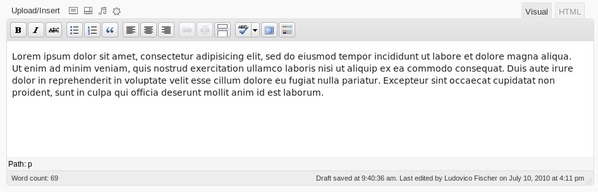
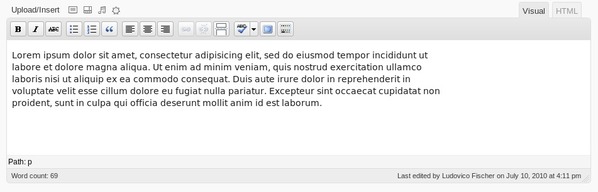
To style the TinyMCE editor that comes with WordPress, just create a file named editor-style.css in your theme directory. It’s very easy to fill, as you only need to match the typography with that on the main stylesheet, and there is no need to worry about block layout. TinyMCE has some quirks though. You can avoid the lines being too long by setting a max-width property on the .mceContentBody class.

Editor is too wide
Editor has usable width

If you are including support for right-to-left languages via rtl.css, you should also add a file named editor-style-rtl.css, as some properties, such as list margins and paddings, need to also change in the editor.


5: Make Paginated Entries Work

Paginated entries (not to be confused with a paginated list of entries) are separated into pages by their author with the <!–nextpage–> Quicktag. Admittedly, this feature does not seem to get much use on most WordPress sites, but if you forget to do your part, visitors will be unable to read beyond the first page. To allow the whole content to be read, you must use the wp_link_pages tag within The Loop

wp_link_pages(array('before' => '<p><strong>Pages:</strong> ', 'after' => '</p>', 'next_or_number' => 'number'));

For a post with three pages, this outputs the following:

<strong>Pages:</strong> 1 2 3

Visitors can then click on the page numbers to read the whole post. The complete documentation for this function can be found on the WordPress codex.


6: Style Default Widgets

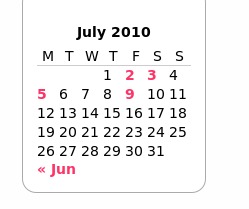
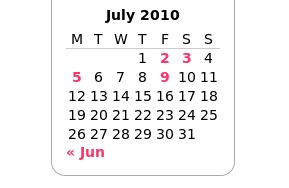
While you can’t style every possible widget under the sun, it is a good idea to check that every widget supplied with WordPress displays convincingly. All of them can receive an optional title and some have different appearances. For example, the Category widget can display as a dropdown and also display multiple levels of nested categories or tags, so make sure you are styling nested lists. Pay particular attention to the Calendar wiget. It’s a table, and you’ll generally want the days to be centered in their cells, so that they align with the week days in the header. On the first picture, numbers look slightly out of place, while they are correctly aligned on the second picture.

Finally, it will help if you start by devising good styles for the .widget class, as it will be applied to all widgets, even those coming from third parties. With flexible layouts in particular, make sure your widgets do not stretch excessively, as that makes them look really weird.


7: Make Threaded Comments Usable

Comments are a bit of a design conundrum. There is a lot of stuff to display (avatars, commenters names, comment dates, comment body, reply buttons), so you need to give it quite a bit of space, but, at the same time, it should not overwhelm the main content, and should be visually distinct in some way. Threaded comments compound all these difficulties, because you also need to distinguish replies. Generally, this is achieved with a margin, but as you cannot know how many levels of replies there will be, you always risk either not allowing for enough width or allowing for too much.

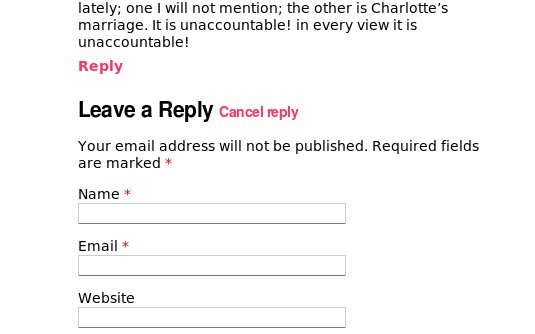
Also, keep in mind that the reply form will not only appear at the bottom of the page, but also in the middle of the comment thread when someone clicks the reply button. So margins and padding should be adequate for both cases. There is also the ‘cancel reply’ link which has to be styled and positioned.

Comment reply form

Finally, you should ensure that comment pagination works, that comments render correctly, both when there are very few, and when there are many, and that threaded comments do not overflow the boundaries of their container. Be careful not to mash comments together, and don’t forget to check the layout for when avatars are both enabled and disabled.


8: Do not Forget wp_footer() and wp_head()

Call wp_footer() just before closing the body tag, and wp_head() just before the closing head tag. Both functions are action hooks, which can be used by plugin and theme developers. If you leave them out, some features and plugins may not work, including custom headers.

Reference


9: Support Thumbnails

Although many themes still rely on plugins, such as TimThumb, WordPress, since 2.9, includes support for thumbnails (‘featured images’) out of the box. To take advantage of this functionality, you just add some lines in functions.php:

add_theme_support( 'post-thumbnails' );
set_post_thumbnail_size( 70, 70 );

The first line tells WordPress your theme supports thumbnails, while the second forces the thumbnail size to 70x70px, to avoid breaking your layout with differently sized thumbnails. Additionally, you can choose the resizing policy. The example above will just resize the image, while

set_post_thumbnail_size( 70, 70, TRUE );

will also crop the image to make it fit the given ratio. You can also make additional thumbnail sizes available, to use them in different areas of the site:

add_image_size( 'big-thumb', 500, 500 );

Now,

the_post_thumbnail();

displays a 70×70 thumbnail and

the_post_thumbnail( 'big-thumb' );

displays a 500×500 thumbnail.

Reference


10: Support Custom Menus

WordPress 3.0 introduced the long awaited custom menus, so it’s about time to make your users profit from this feature. After registering theme support, like so:

register_nav_menu( 'main_nav', __( 'Main navigation menu', 'mytheme' ) );

. . . you can display a custom menu with wp_nav_menu():

    wp_nav_menu( array( 'theme_location' => 'main_nav' ) );

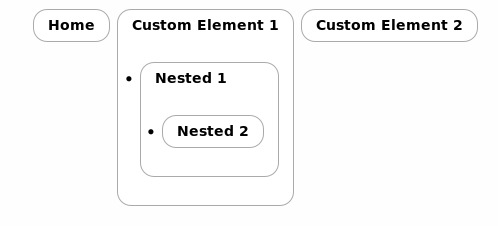
Be careful, as the system allows you to insert nested elements, which can lead to strange results if you do not plan for them.

The border extends in a weird shape. Nested items have bullets and look jumbled.

Even if you supply dropdowns or navbar style menus, it is difficult to elegantly display more than so many levels of navigation. To protect your layout, either decide a level below which all elements will display the same, or disable displaying lower levels. For example, to limit the display to two levels, use:

wp_nav_menu( array( 'depth' => 2) );

11: Enable Custom Backgrounds

This is a new feature in WordPress 3.0, and it’s also the easiest to implement. It’s literally one line:

add_custom_background();

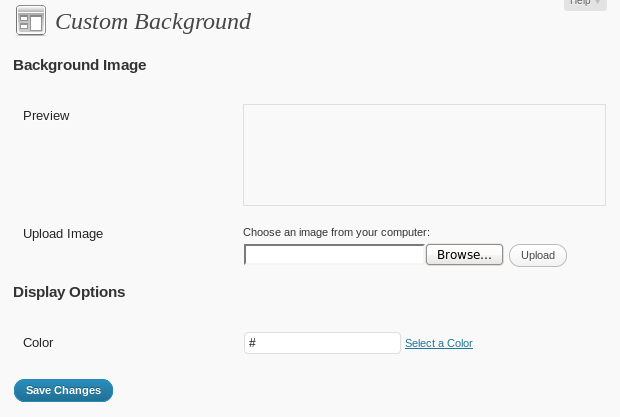
That’s it! Users can now choose any custom background they want:

Background selection interface.

12: Enable Custom Headers

In the same spirit, but with a little more effort, you can allow to change the site header’s background, and also the site title color. This feature won’t work unless you start by defining a bunch of constants. Replace ‘yourwidth’ and ‘yourheight’ with whatever measurements fit your theme:

define( 'HEADER_TEXTCOLOR', '000' );
define( 'HEADER_IMAGE', get_bloginfo( 'stylesheet_directory' ) . 'path/to/your/image' );
define( 'HEADER_IMAGE_WIDTH', 'yourwidth' );
define( 'HEADER_IMAGE_HEIGHT', 'yourheight' );

Once this is in place, you need to write the function which will apply the background to your header. As there is no standard markup for a site header, WordPress cannot guess how to apply the required CSS for you. For example, to add a custom background to the div with the ‘header’ id, do this:

<?php
function mytheme_header_image() {
?>
     <style type="css">
         #header { background: url(<?php header_image(); ?>) no-repeat; }
    </style>
<?php
}
?>

You also need to create a function, say mytheme_admin_preview_header(), to style the preview pane in the admin to match the final result. The preview area has the #headimg id, while the site title and the site description have ids of #name and #desc. Experiment with the preview until you are satisfied. Finally, to enable the Appearance > Header panel, call:

add_custom_image_header( 'mytheme_header_image', 'mytheme_admin_preview_header' );

Reference


13: Make User-Visible Strings Translatable

Not everyone wishes their blog to display in English. Wrap every string users need to read with the __() if you wish to translate it, or _e() if you also wish to echo it, like:

__('Hello', 'mytheme')
_e('Hello', 'mytheme') // Also prints the translated string.

The second argument should be a unique identifier for your theme, so that different translations do not conflict.

After each string has wrapped in a translation function, you need to use the makepot.php script. The recommended way to obtain this script is to install Subversion, then run:

svn co http://svn.automattic.com/WordPress-i18n/tools/trunk

You will obtain a directory, named ‘trunk’ containing, among others, makepot.php.
The script is run like this

php makepot.php wp-theme mytheme

mytheme is the path to your theme directory. You will obtain a file named mytheme.pot, which is ready to be used in a program, such as Poedit to produce a .po file containing a translation.

To finish up, you need to tell WordPress where the translations live in your theme directory, for example:

load_theme_textdomain( 'mytheme', TEMPLATEPATH . '/languages');

Here, ‘mytheme’ is the unique identifier for your theme; the second argument tells where the translation files are. TEMPLATEPATH is a special constant defined by WordPress which always points to the current theme’s directory.

Reference


14: Handle Custom Fields

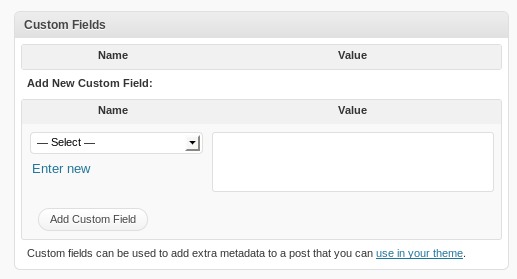
This one is a bit optional, as you might want to leave that to the users’ or other developers’ discretion. You will know that WordPress supports adding custom fields on each post. In many themes, these fields usually do not display at all, unless they are used for a special feature. Some users might be confused, because they believe they can use custom fields to output any information they wish.

The custom fields interface

There is a function,

the_meta()

to be called in The Loop, which displays all custom fields attached to a post, as an unordered list in key:value form. Admittedly, it’s not terribly useful, but it might be better than leaving someone wondering why custom fields are not displaying anywhere.

Reference


15: Make Sure Everything Looks Consistent

One of the difficulties of theming a dynamic system, such as WordPress is that there are many edge cases which do not occur too often, but that can still ruin the appearance of the site when they do. Think of posts with closed comments, or with very short bodies. Make sure no weird spaces creep in, or that elements are not mashed together because something is not displayed. The comment section might not be displayed if comments are not allowed, or a password entry field might replace the usual post content when the post is password protected.

Also, try to match the way comments are styled with the main body. This last point requires particular care, because, generally speaking, space is more limited in the comment area — especially when using threaded comments and each reply is knocked to the right (or the left, for RTL).


16: Use the WordPress.org Theme Unit Test

WordPress.org offers a sample content file that you can import into your WordPress installation, which contains an assortment of test posts, pages and images.

To import the file in WordPress 3.0, you need first to install the WordPress Importer plugin. Then, choose Tools > Import > WordPress. Be sure to check the ‘Download and import file attachments’ tickbox when prompted. Otherwise, you won’t get the images associated to some sample posts.

After the import completes, you can use this checklist to determine whether the content displays as it should.


Conclusion

We’ve learned that things to watch out for come in multple varieties. Some are seldom-used features, others are customization opportunities, while others are more akin to common design problems, which will repeat with any WordPress site you design. Our list is certainly far from exhaustive, so we want to hear from you in the comments! What do you think are the most often forgotten pieces of functionality?

How to Authenticate Users With Twitter OAuth


Beginning August 16th, Twitter will no longer support the basic authentication protocol for its platform. That means the only way to authenticate users will be through a Twitter application. In this tutorial, I’ll show you how to use Twitter as your one-click authentication system, just as we did with Facebook.


Step 1: Setting Up The Application

We’ll first need to set up a new Twitter application.

  • Register a new app at dev.twitter.com/apps/
  • Fill in the fields for your site accordingly, just be sure to select Browser in Application Type, and set the Callback URL to something like http://localhost.com/twitter_login.php (http://localhost/ won’t be accepted because it doesn’t have a domain name).
  • Finally, select Read & Write. Fill in the captcha, click “Register Application,” and accept the Terms of Service.

Now, you’ll see the screen as shown below.

We will be using the Consumer key and Consumer secret values shortly.

Now that this is done, let’s download a library. As we will be coding with PHP, it seems the best one is twitteroauth; but if you’re using another language, you’ll find other good libraries here.

Find the twitteroauth directory inside the zip file, and extract it to your application’s folder.

Finally, since we’re using Twitter to authenticate users, we’ll need a database table to store those users. Here’s a quick example of what we will be doing.

CREATE TABLE `users` (
    `id` int(10) unsigned NOT NULL AUTO_INCREMENT,
    `oauth_provider` varchar(10),
    `oauth_uid` text,
    `oauth_token` text,
    `oauth_secret` text,
    `username` text,
    PRIMARY KEY (`id`)
) ENGINE=MyISAM  DEFAULT CHARSET=latin1;

Notice the oauth_token and oauth_secret fields. Twitter’s OAuth requires token and a token_secret values to authenticate the users, so that’s why we’re including those. With that, we are done with the setup!


Step 2: Registering Users

In this step we, will be doing three things:

  • Requesting authorization from Twitter.
  • Registering or, if the user is already registered, logging the user in.
  • Setting the data into a session.

Requesting authorization

The OAuth workflow starts by generating a URL for the request; the user is redirected to that URL and is asked for authorization. After granting it, the application redirects back to our server with two tokens in the URL parameters, which are required for the authentication.

Let’s begin by including the library and starting a session handler.

require("twitteroauth/twitteroauth.php");
session_start();

After that, let’s create a new TwitterOAuth instance, giving it the consumer key and consumer secret that Twitter gave us when we created the application. Then, we’ll request the authentication tokens, saving them to the session, and redirect the user to Twitter for authorization.

// The TwitterOAuth instance
$twitteroauth = new TwitterOAuth('YOUR_CONSUMER_KEY', 'YOUR_CONSUMER_SECRET');
// Requesting authentication tokens, the parameter is the URL we will be redirected to
$request_token = $twitteroauth->getRequestToken('http://localhost.com/twitter_oauth.php');

// Saving them into the session
$_SESSION['oauth_token'] = $request_token['oauth_token'];
$_SESSION['oauth_token_secret'] = $request_token['oauth_token_secret'];

// If everything goes well..
if($twitteroauth->http_code==200){
    // Let's generate the URL and redirect
    $url = $twitteroauth->getAuthorizeURL($request_token['oauth_token']);
    header('Location: '. $url);
} else {
    // It's a bad idea to kill the script, but we've got to know when there's an error.
    die('Something wrong happened.');
}

Save it as twitter_login.php, go to http://localhost.com/twitter_login.php or whatever your local host name is. If everything went correctly, you should be redirected to twitter.com, and you should see something like this.

Click allow, and you will be redirected to http://localhost.com/twitter_oauth.php — since we set this URL as a parameter in the getRequestToken statement. We haven’t created that file, so it should throw an error. Create that file, and then include the library and start a session, just like we did in the first file.

After that, we will need three things:

  • Auth verifier in the URL query data
  • Auth token from the session
  • Auth secret from the session

So, the first thing to do in this script is validate this data and redirect if one of these variables is empty.

if(!empty($_GET['oauth_verifier']) && !empty($_SESSION['oauth_token']) && !empty($_SESSION['oauth_token_secret'])){
    // We've got everything we need
} else {
    // Something's missing, go back to square 1
    header('Location: twitter_login.php');
}

Now, if everything is set, inside the conditional we will be creating the TwitterOAuth instance, but with the tokens we just got as third and fourth parameters; after that, we will be getting the access token, which is an array. That token is the one we will be saving to the database. Finally, we’ll do a quick test to see if everything works out.

// TwitterOAuth instance, with two new parameters we got in twitter_login.php
$twitteroauth = new TwitterOAuth('YOUR_CONSUMER_KEY', 'YOUR_CONSUMER_SECRET', $_SESSION['oauth_token'], $_SESSION['oauth_token_secret']);
// Let's request the access token
$access_token = $twitteroauth->getAccessToken($_GET['oauth_verifier']);
// Save it in a session var
$_SESSION['access_token'] = $access_token;
// Let's get the user's info
$user_info = $twitteroauth->get('account/verify_credentials');
// Print user's info
print_r($user_info);

If nothing goes wrong, the print_r should show the user’s data. You can get the user’s id with $user_info->id, his or her username with $user_info->screen_name; there’s a bunch of other info in there as well.

It is very important to realize that the oauth_verifier hasn’t been used before this. If you see the user’s info correctly and then reload the page, the script will throw an error since this variable has been used. Just go back to twitter_login.php and it will automatically generate another fresh token.

Registering users

Now that we have the user’s info we can go ahead and register them, but first we have to check if they exist in our database. Let’s begin by connecting to the database. Add these lines in the script’s beginning.

mysql_connect('localhost', 'YOUR_USERNAME', 'YOUR_PASSWORD');
mysql_select_db('YOUR_DATABASE');

Modify the database info as required. Now, just below where we fetch the user’s info, we’ll have to check for the user in our database. If he or she is not there, we’ll enter the info. If the user has been registered, we must update the tokens, because Twitter has generated new ones and the ones we have in the database are now unusable. Finally, we set the user’s info to the session vars and redirect to twitter_update.php.

if(isset($user_info->error)){
    // Something's wrong, go back to square 1
    header('Location: twitter_login.php');
} else {
    // Let's find the user by its ID
    $query = mysql_query("SELECT * FROM users WHERE oauth_provider = 'twitter' AND oauth_uid = ". $user_info->id);
    $result = mysql_fetch_array($query);

    // If not, let's add it to the database
    if(empty($result)){
        $query = mysql_query("INSERT INTO users (oauth_provider, oauth_uid, username, oauth_token, oauth_secret) VALUES ('twitter', {$user_info->id}, '{$user_info->screen_name}', '{$access_token['oauth_token']}', '{$access_token['oauth_token_secret']}')");
        $query = mysql_query("SELECT * FROM users WHERE id = " . mysql_insert_id());
        $result = mysql_fetch_array($query);
    } else {
        // Update the tokens
        $query = mysql_query("UPDATE users SET oauth_token = '{$access_token['oauth_token']}', oauth_secret = '{$access_token['oauth_token_secret']}' WHERE oauth_provider = 'twitter' AND oauth_uid = {$user_info->id}");
    }

    $_SESSION['id'] = $result['id'];
    $_SESSION['username'] = $result['username'];
    $_SESSION['oauth_uid'] = $result['oauth_uid'];
    $_SESSION['oauth_provider'] = $result['oauth_provider'];
    $_SESSION['oauth_token'] = $result['oauth_token'];
    $_SESSION['oauth_secret'] = $result['oauth_secret'];

    header('Location: twitter_update.php');
}

Note that these queries are not validated; if you leave them as they are, you are leaving your database vulnerable. Finally, below the database connection, we should set a check to verify that the user is logged in.

if(!empty($_SESSION['username'])){
    // User is logged in, redirect
    header('Location: twitter_update.php');
}

You can now greet the user by his or her username.

<h2>Hello <?=(!empty($_SESSION['username']) ? '@' . $_SESSION['username'] : 'Guest'); ?></h2>

Let’s get to the fun side: updating, following and reading.


Step 3: Reading Statuses

There are over twenty categories of resources available: timeline, tweets, users, trends, lists, direct messages, etc. Each one has a bunch of methods, you can check them all in the official documentation. We’ll get to the basics, as most of these features are accessed in a similar way.

Just like the other two scripts, we’ll need to create the TwitterOAuth instance, including the variables in the session.

if(!empty($_SESSION['username'])){
    $twitteroauth = new TwitterOAuth('YOUR_CONSUMER_KEY', 'YOUR_CONSUMER_SECRET', $_SESSION['oauth_token'], $_SESSION['oauth_secret']);
}

We’ll begin with the user’s timeline. The reference tells us that the path is statuses/home_timeline; ignore the version and format, the library will take care of it.

$home_timeline = $twitteroauth->get('statuses/home_timeline');
print_r($home_timeline);

That will get you the timeline. You can fetch each item with a foreach loop. However, the reference specifies some optional parameters like count, which limits how many tweets will be fetched. In fact, get‘s second parameter is an array of every option needed, so if you want to fetch the latest forty tweets, here’s the code:

$home_timeline = $twitteroauth->get('statuses/home_timeline', array('count' => 40));

Also, you can see somebody else’s timeline, as long as it’s not protected. statuses/user_timeline requires either a user’s id or screen name. If you want to check @nettuts timeline, you’ll have to use the following snippet:

$nettuts_timeline = $twitteroauth->get('statuses/user_timeline', array('screen_name' => 'nettuts'));

As you can see, after authenticating, reading timelines is a breeze.


Step 4: Friendships

With friendships, you can check if a user follows another one, as well as follow or unfollow other users. This snippet will check if you are following me and and will create the follow if not.

But first, check the friendships/exists and friendships/create reference. Notice something? friendships/create method is POST. Fortunately, the library includes a post() function, which works just as the get() function; the main difference is that get() is for reading and post() is for creating, deleting or updating.

Anyways, friendships/exists requires two parameters: user_a and user_b, and friendships/create requires just one, either screen_name or user_id.

$follows_faelazo = $twitteroauth->get('friendships/exists', array('user_a' => $_SESSION['username'], 'user_b' => 'faelazo'));
if(!$follows_faelazo){
    echo 'You are NOT following @faelazo!';
    $twitteroauth->post('friendships/create', array('screen_name' => 'faelazo'));
}

You can unfollow an user with basically the same code that creates a follow, just replace create with destroy:

$follows_faelazo = $twitteroauth->get('friendships/exists', array('user_a' => $_SESSION['username'], 'user_b' => 'faelazo'));
if($follows_faelazo){
    echo 'You are following @faelazo! Proceed to unfollow...';
    $twitteroauth->post('friendships/destroy', array('screen_name' => 'faelazo'));
}

Step 5: Posting Updates

This is probably the most interesting section, since it’s Twitter’s core: posting an update, as you might have imagined, is pretty straightforward. The path is statuses/update, the method is POST (since we are not reading), and the one required argument is status.

$twitteroauth->post('statuses/update', array('status' => 'Hello Nettuts+'));

Now go to your Twitter profile page and you’ll see your tweet.

Let’s retweet @Nettuts’ update announcing the HTML 5 Competition; the status id is 19706871538 and the reference tells us that the path is statuses/retweet/:id, where the :id part is the status id we will be retweeting. The method is POST and it doesn’t require additional parameters.

$twitteroauth->post('statuses/retweet/19706871538');

To delete a tweet, you’ll have to pass the status id you’ll be destroying in the first parameter, just like retweeting. If the tweet’s id is 123456789, the code to destroy will be.

$twitteroauth->post('statuses/destroy/123456789');

Of course, this code can only delete tweets made by the authenticated user.


Conclusions

Twitter’s API is quite easy to understand; it’s far more documented than even Facebook’s (even though Facebook offers an in-house library). Unfortunately, the authentication is not as smooth as we might hope, depending on session data.

One thing worth noticing is that, once a Twitter user has been authorized (assuming the app has read and write permissions), you have plenty of control over this account. If you change something on behalf of the user without his permission, you’ll create trouble. Use it with caution!

The API changes coming to Twitter will deny basic authentication; Twitter is focusing on ceasing the countless scams that trick users into giving up their login credentials. OAuth is the solution; and, if you’ve worked through the Facebook Connect tutorial, you can now provide your website or app users with a quick login without credentials, using your choice of the two most used social networks. How cool is that?

Intro To Combustion For The After Effects User – AE Basix

This tutorial is basically for those who love After Effects and want to learn a different compositing software. Well rounded people are in demand nowadays who can handle more than one kind of software. We will be going over the most basic workflow of Autodesk Combustion. This tutorial is made specifically aimed toward those who are comfortable with AE so we’ll go back and forth between the two.


Tutorial

Part 1

Download Tutorial .flv

File size 52MB

Part 2

Download Tutorial .flv

File size 31MB

Additional Resources