TUAW Tips: 25 ways to check the hardware on your iPhone 4

I received my second replacement iPhone 4 yesterday. Considering the issues my first two iPhone 4 units had, I wanted to make absolutely certain, in as little time as possible, that this replacement unit didn’t have anything wrong with it. Before I even picked it up from the store, I started putting together a list of items I needed to test as well as how I would go about doing it.

What I came up with is a series of hardware checks that anyone can perform right after taking an iPhone 4 out of the box and syncing it for the first time. This is by no means the only way to test an iPhone 4’s hardware for defects, and there are probably more comprehensive methods out there, but the following procedure is basic enough for almost any user to follow. Plus, it should catch any glaring hardware defects in an iPhone 4 right away. Click “Read More” for the checklist.

TUAWTUAW Tips: 25 ways to check the hardware on your iPhone 4 originally appeared on The Unofficial Apple Weblog (TUAW) on Fri, 13 Aug 2010 22:30:00 EST. Please see our terms for use of feeds.

Read | Permalink | Email this | Comments

TUAW’s Daily App: Times for iPad

We posted about Times way back in April of last year. Back then, it was an RSS reader for Mac that organized your feeds into a newspaper-style page, so you could quickly and easily scan and browse a lot of information. Nowadays, of course, the iPad is one of the main devices for consumption of online content, and the team at Acrylic has finally brought that reader over to Apple’s tablet (and the 2.0 Mac version is due out soon as well). It doesn’t hurt, I’m sure, that apps like Flipboard have made it cool to consume RSS content in a programmatically designed form again.

Times is pretty smooth, as you can see on the website. It will seamlessly bring in content from all of your feeds, as well as Facebook and Twitter, and organize them all in an easy to read newspaper/blog format. Unfortunately, it doesn’t sync up with the Mac version (or any other readers that you may already have set up), so you’ll probably have to rebuild whatever group of feeds you’re already reading. And personally, I have the same problem with this that I have with all of these “nice” feed readers; it’s cool to see your feeds all prettied up and formatted, but sometimes I just want to make sure that I see important news or hit a certain site first.

But that’s not the kind of reading you’d do with an app like this anyway. (Since I write for TUAW, a lot of my RSS reading is systematically combing for interesting stories and posts.) As a simple iPad reader that makes multiple feeds pretty and easy to read, Times for iPad is worth checking out if you haven’t landed on a good solution yet. It’s US $7.99 on the App Store right now.

TUAWTUAW’s Daily App: Times for iPad originally appeared on The Unofficial Apple Weblog (TUAW) on Fri, 13 Aug 2010 08:00:00 EST. Please see our terms for use of feeds.

Read | Permalink | Email this | Comments

Change Case uses OS X Services to expand TextEdit

Mac OS X Services have been around for a while, but not many people use them. Under the title of any Cocoa program in the upper left of the menu bar, you’ll find an option for Services. This brings up a pull-down menu of services that are appropriate to the program at hand. They can be a real time saver.

I use TextEdit for writing my TUAW posts, and it’s always running. Recently, I found a neat service that works wonders for TextEdit and (I’m sure) a bunch of other text editors. It’s free for the downloading from Ron Fleckner in Melbourne, Australia. What you’ll get is a ZIP file that expands into a little, 86KB application file called Change Case.

Once installed, select some words or sentences, go to Services, and you’ll get a screen like the one above. It’s pretty self explanatory; ALL CAPS, All lowercase, and Toggle Case do just what they say. Word Capitals capitalizes each word in a sentence, and camelCase (which you might know as InterCap) is mostly used for brand names. It turns something like ” My Program” into “MyProgram.” While it’s true that a few of these options are available in TextEdit under the Edit-> Transformations menu (namely: Make Upper Case, Make Lower Case and Capitalize), the Services menu is easier to get to, and Change Case does more.

TUAWChange Case uses OS X Services to expand TextEdit originally appeared on The Unofficial Apple Weblog (TUAW) on Fri, 13 Aug 2010 09:00:00 EST. Please see our terms for use of feeds.

Read | Permalink | Email this | Comments

League of Legends for Mac delayed, expected this fall

You might remember that, back in early June, I met with the guys from Riot Games to play the Mac version of their free-to-play, DotA title, League of Legends. At the time, they said that they expected to release the title on our platform sometime “later this year,” after they’d finished up their work with the big Season One update. Now, however, Season One has been out for a little while, and our readers are getting a little antsy — where’s LoL for the Mac?

Riot tells us that it’s still coming. The game did get delayed longer than expected, but in an official statement, we’re told that they “are putting some final touches on the Mac product and expect to ship by this fall.” Season One was the priority, even while we were being shown the preview for the Mac version, but “now that it’s out,” Riot says, “we can focus on finalizing the Mac client and other upcoming features.”

That sounds good. Since I first played the game for that preview, I’ve become a big fan; it’s a quality version of the Defense of the Ancients mod for Warcraft III, and the fact that it’s free to play on the PC (or in Bootcamp, if you can’t wait any longer) is just icing on the cake. We’ll keep an eye out for the Mac release and let you know when it’s ready.

TUAWLeague of Legends for Mac delayed, expected this fall originally appeared on The Unofficial Apple Weblog (TUAW) on Fri, 13 Aug 2010 10:00:00 EST. Please see our terms for use of feeds.

Read | Permalink | Email this | Comments

Apple patent turns video games into comics

This might be the wackiest patent that I’ve ever seen Apple apply for. The company has recently put in a patent to describe the process of making a digital comic book out of a video game playthrough. The idea here is that you’d play through a segment of a video game (Mass Effect is the one used in the example), and then Apple would collect information about your character and the way that you played the game. It would then use that information to turn the experience into an e-book, which could either be sold digitally or printed.

Say what? I guess that’s cool, but this just seems like Apple is laying down a quick patent on a pretty harebrained idea; it doesn’t seem like a preview of an actual service that we’ll eventually see implemented on the Mac. Then again, Apple has worked pretty closely with Comic Life in the past, and it has connected the popular comic creation app to both iPhoto and MobileMe. Maybe it’s looking at extending that service further.

Another (presumably more practical) patent has Apple examining improved equalizers on iTunes and in the iDevices. This one I can get behind. The EQ that’s there right now works, but the patent involves more dynamic adjustments and some user-free audio enhancement. Again, Apple patents ideas, not actual products, but there’s still a possibility that we’ll see either or both of these ideas implemented in the future.

TUAWApple patent turns video games into comics originally appeared on The Unofficial Apple Weblog (TUAW) on Fri, 13 Aug 2010 11:00:00 EST. Please see our terms for use of feeds.

Read | Permalink | Email this | Comments

British TV network angered over iTV rumor

The UK’s oldest commercial television network, ITV, is supposedly livid over the rumor that Apple will rebrand the Apple TV as “iTV” in the near future. According to Mirror.co.uk, the network is already taking legal steps to “…stop the move.” They’re looking to prevent Apple from using the name “iTV” in any way. Mirror.co.uk quoted a source as saying, “We all take our ITV brand very seriously and we’ll do everything in our power to protect it.”

Easy, folks. It’s just a rumor. iTV may be what’s coming as a new name, or it might not. Besides, Apple and Cisco were able to work things out when Apple renamed the iPhone OS “iOS.”

Can’t we all just get along?

[Via AppleInsider]

TUAWBritish TV network angered over iTV rumor originally appeared on The Unofficial Apple Weblog (TUAW) on Fri, 13 Aug 2010 12:00:00 EST. Please see our terms for use of feeds.

Read | Permalink | Email this | Comments

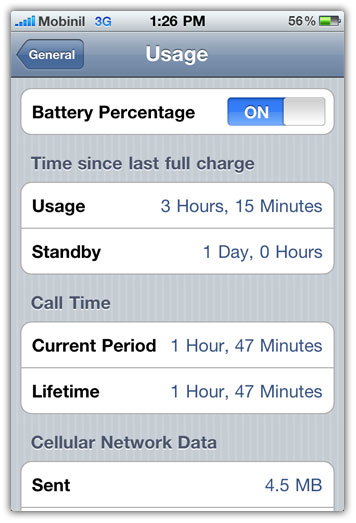
UltraSn0w 1.1-1 Unlock for iPhone: Improves Battery Life

iPhone Dev-Team has updated UltraSn0w unlock for iPhone 4, 3GS and 3G to version 1.1-1. UltraSn0w 1.1-1 fixes the poor standby battery life for all those who unlocked iPhone 4, 3GS or 3G with earlier UltraSn0w 1.0-1 version.

ultraSn0w 1.1-1

If your iPhone battery drains pretty fast even on standby after unlocking with UltraSn0w 1.0-1, then you’re advised to install UltraSn0w 1.1-1 update from Cydia.

ultrasn0w upgraded to version 1.1-1 we’ve tweaked a few things that may help with standby battery life, you can upgrade via Cydia.

Here are a couple of before & after screeshots shared by Sherif Hashim:

ultraSn0w 1.1-1 batteryultraSn0w 1.1-1 battery

Just like the previous release, UltraSn0w 1.1-1 can unlock iPhone 4, 3GS and 3G running any firmware up to iOS 4.0.1 with baseband 01.59.00, 05.13.04, 05.12.01, 05.11.07, and 04.26.08.

Unlocking iPhone let you use SIM from any carrier. Steps to unlock iPhone 4, iPhone 3GS and iPhone 3G remains same. Step-by-step guide to unlock all iPhones can be found here:

How to: Unlock iPhone with UltraSn0w

Also checkout:

Digg
Twitter
StumbleUpon
Facebook
Reddit
del.icio.us

Adobe Photoshop Express for iPhone, iPad and iPod Touch

Adobe has released Adobe Photoshop Express for iPhone, iPad and iPod Touch in the App Store. Adobe Photoshop Express is the new name of the Photoshop.com Mobile app and now it comes with iPad support and improved UI.

Adobe Photoshop Express description and changelog after the jump…

Description

Adobe Photoshop Express software lets you use simple gestures to quickly edit and share photos from your mobile device. Enjoy having your photo and video library right in your hand — without wasting your device’s valuable storage space.

Photoshop Express is a companion to Photoshop.com, your online photo sharing, editing, and hosting resource. Create a free Photoshop.com account to upload and store 2GB of photos and videos online.

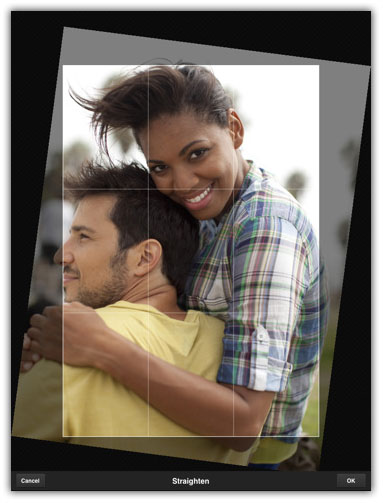
With Photoshop Express, it’s easy to improve your photos. Choose from a variety of one-touch effects, or simply drag your finger across the screen to crop, rotate, or adjust color. Add artistic filters like Soft Focus or Sketch. And never fear: You can undo and redo changes until you get just the look you want—a copy of your original file is always saved.

Top editing features

  • Basics: Crop, Straighten, Rotate, and Flip
  • Color: Exposure, Saturation, Tint, Black and White, and Contrast
  • Filters: Sketch, Soft Focus, and Sharpen
  • Effects: Vibrant, Pop, Border, Vignette Blur, Warm Vintage, Rainbow, White Glow, and Soft Black and White
  • Borders: Rectangle, Rounded, Oval, Soft Edge, Vignette, Rough Edge, Halftone, and Film Emulsion

adbobe photoshop express

What’s New In Version 1.3

  • Initial support for iPad
  • New name: Adobe® Photoshop® Express
  • Updated UI
  • Bug fixes and performance improvements

Features specific to iPad

  • Support for portrait and landscape orientations
  • Redesigned Online, Edit, and Upload workflows
  • Ability to work on multiple photos in sequence from within a single workflow
  • Redesigned Organizer view with simplified album sharing
  • Updated icons and visuals that make it easier to navigate and use the Editor
  • Ability to upload to Photoshop.com and Facebook simultaneously

You can download Adobe Photoshop Express from the App store for Free. [iTunes Link]

adbobe-photoshop-express
adbobe-photoshop-express-2
adbobe photoshop express
adbobe-photoshop-express-4
adbobe-photoshop-express-5
adbobe-photoshop-express

You can follow us on Twitter, Join us at Facebook, and also Subscribed to RSS Feed to receive latest updates.

Digg
Twitter
StumbleUpon
Facebook
Reddit
del.icio.us

iPhone Apps for The TV?

There are some interesting rumors coming from the usual suspects, suggesting that Apple’s fall product update will not only bring the expected iPod refresh, but also a new Apple TV that may be called iTV. The interesting piece of that rumor is that the new set-top box may include the A4 processor and run on iOS 4.

Such a product would be consistent with Apple’s product strategy and even if some voiced some disappointment that the iTV may be stuck at 720p, there is the logical assumption that it will connect to the App Store. And if it does, it will open up apps to even larger displays than the iPad – your TV. Imagine running your app on a TV. What could it do? What about casual gaming on a TV? It’s entirely possible with an iOS-based iTV.

We may be speculating a bit here, but we believe that Apple will continue to eliminate the borders between different types of devices and eventually allow mobile, desktop and consumer electronics to access the App Store. The implications for iTV include the fact that the box may be bridging the gap into the gaming world and turn into a game console as well. If so, imagine iPods or iPhones to be used as game controllers. There is a whole new opportunity out there, provided Apple will take this step, which we do not know for sure will actually be the case.

However, it may be a good idea to start thinking about Apps that run on much higher resolutions than on the standard iPhone and iPad screen.

Facebook Updates SDK For iOS

Facebook has updated its SDK for iOSfor iPhone, iPod Touch and iPad apps. The big news is that this new SDK enables the use of the Graph UI and allows authentication with OAuth 2.0.

According to Facebook, more than 150 million people are using a mobile version of Facebook and the company intends to take its mobile app environment closer to where its desktop development stands.

Facebook said that it encourages developers to upgrade to the new SDK, but it will continue to support the older SDK for the “foreseeable future.” You can download the kit and find all information here.

41 Totally Random New Tutorials From Elsewhere!

    This week, we are hitting the tutorial roundup. Its been a few months and there are some new names on the scene like QUBA HQ and shortformvideo.com. Check out their stuff, as well as the rest of your favorite tutorial creators and submit your own resources in the comments below!


  • Video Copilot – Animating a Still

    Mt. Eyjafjallajokull (can anyone even say that?) might be old news, but techniques like the ones in the tutorial aren’t. This tutorial, Andrew shows how you can modify instances of a still image to make it look like video.

    Visit Tutorial

  • Video Copilot – Green Smoke

    This tutorial uses smoke footage elements combined with a particle system to create cloudy, smoky title reveal.

    Visit Tutorial

  • Video Copilot – Particle Shadows

    Your work is all about realism right? Well, you have to have things like dynamic shadows in your compositions, and to make them look real, you need to use some special techniques like these.

    Visit Tutorial

  • Video Copilot – Advanced Time Freeze

    Sam Loya is back getting his face busted up and through a car window… learn how to create this effect with a mix of 3D and matchmoving, and After Effects

    Visit Tutorial

  • Artbeats & Eran Stern – Mind Trip

    A tutorial I have wanted to see for a long time is the effect of a zoom into someone’s eye to reveal something else. Eran Stern shows how to do this in a 2 part Artbeats tutorial

    Visit Part 1 Visit Part 2

  • Eran Stern – World Cup Promo

    Using some elements for the Digital Juice Motion Designer’s and Compositors Toolkits, Eran makes a pretty sweet promo for the World Cup.

    Visit Tutorial

  • Eran Stern – Hands Up!

    In this tutorial, Eran uses some more MDT elements to create a cyber crime show open.

    Visit Tutorial

  • Motionworks – Dynamic Sci-Fi Look

    Another tutorial with MDT elements, John Dickinson blends Cinema 4D and After Effects to create a detailed background and an awesome text effect.

    Visit Tutorial

  • RGTV – Creating Automated Flashing Light Patterns

    A while back, Chris Zwar blew everyone away with his Centrica Carnivale tutorials, well in this one, he will show you how he achieved his light effect with Knoll Light Factory and some expressions.

    Visit Tutorial

  • RGTV – Music Visualization with Trapcode Suite

    Harry Frank takes us through the ever popular music visualization effect, without the use of FumeFX or Krakatoa!

    Visit Tutorial

  • RGTV – Tiny Inventions

    The team at Tiny Inventions took some time to give a behind the scenes look at how they used Red Giant Products and After Effects to create “Something Left, Something Taken.”

    Visit Tutorial

  • Greyscale Gorilla – How To Make The Cherry 7up Look With C4D and AE

    In this two part tutorial, Nick shows us how to create the animation of the cherries, and then finishes up the entire video in After Effects.

    Visit Part 1 Visit Part 2

  • Justin Young – Collect and Reduce

    This is more of an organizational tutorial, but if you are sending projects, assets, and stuff to someone else… it’s only kind to do some clean up before hand.

    Visit Tutorial

  • Justin Young – Use AE to render from Premiere

    If you, like Justin and I, have experienced some… difficulties with Adobe Media Encoder CS4, well here is an easy workaround to not use that and render from After Effects instead.

    Visit Tutorial

  • Justin Young – Autotrace in AE

    sometimes, it just doesn’t make sense to draw your mask, or copy outlines from Illustrator, so in any of those cases… this quick tip will help you out!

    Visit Tutorial

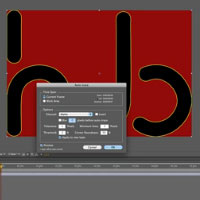
  • Brad Zimmerman – Masking Inside Shape Layers

    Learn a quick tip on how to create a basic shape layer that is masked with some fun animation.

    Visit Tutorial

  • Brad Zimmerman – Shape Layer Expressions

    Learn how to create your own preset to build a very complex shape in After Effects.

    Visit Tutorial

  • CGSwot.com – Classic Star Wars Crawl

    We have seen them before, but here is another take from Dave Scotland on how to make the popular Star Wars Crawl

    Visit Tutorial

  • CGSwot.com – Aged Film Using Particles

    Let Dave Scotland show you how to create that popular aged film look using Trapcode Particular.

    Visit Tutorial

  • Carl Larsen – Living by the Spirit

    Its been a long time since we heard from Carl… but his new tutorial is pretty awesome. He teaches you how to create a cool title treatment with Trapcode Particular and some depth of field rendering.

    Visit Tutorial

  • AEDude – Follow the Line

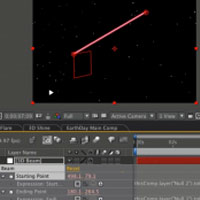
    This simple tutorial shows you how to follow a line in After Effects to lead the eye of your viewer.

    Visit Tutorial

  • AEDude – Cinematic Trailer

    Learn how to move in 3d space to create a cool title reveal for a cinematic trailer… and use Particular to create some depth with particles.

    Visit Tutorial

  • AEdude – Show Intro

    Learn how to create a really cool looking show intro with different stock elements, video, and moving through 3d space.

    Visit Tutorial

  • AEdude – Realistic Camera Movement

    Use some basic tracking in After Effects to create a realistic camera shake/move.

    Visit Tutorial

  • PremiumBeat – Realistic Camera Shake

    Similar to the one above, but this time by Dave Scotland of CGswot.com. Basically you will use actual footage, track that, and use that to drive your camera shake for the layers.

    Visit Tutorial

  • Graymachine – Using the toComp Expression

    This old tip is freaking awesome! It might seem boring by looking at the title, but it really will open up some possibilities for you.

    Visit Tutorial

  • shortformvideo – Sands of Time

    In this rather long tutorial, Laurence Grayson shows you how to create this title review for the film Sands of Time.

    Visit Tutorial

  • shortformvideo – Desecrated Cathedral

    With taking just a single photograph, Laurence shows you how to spook up this seen to look like a haunted old cathedral video.

    Visit Tutorial

  • shortformvideo – Faking CCTV Security Video

    Learn how to modify some perfectly good video to look like some security camera footage.

    Visit Tutorial

  • shortformvideo – Creating an LED Signboard

    This tutorial will show you how to make those leaderboards you see for businesses on the street that display scrolling messages.

    Visit Tutorial

  • QubaHQ – Light Wall

    Learn how to create this amazing looking light wall using C4D and AE. There is also a preset available as well!

    Visit Tutorial

  • QUBAHQ – Automated Lighting Rig

    Learn how to link your lights with automated samplers on an image map to create a unified light rig.

    Visit Tutorial

  • QUBAHQ – 100% Accurate Reflections

    In this super easy tutorial, Quba shows you how to build a 2 camera rig in order to create perfect 3d reflections.

    Visit Tutorial

  • QUBAHQ – Scrolling LED Text

    With some handy expressions, and some stock imagery, learn how to make a scrolling LED sign that can wrap around buildings.

    Visit Tutorial

  • CGtuts+ Using Sound Effector to Create Animations in C4D

    Using the Mograph module, you will create animations based off of music, and you will finish up the animation in After Effects to blend the final soundtrack with the composite.

    Visit Tutorial

  • CGtuts+ Create a Stylish Animated Logo with C4D and AE

    In this Basix tutorial, you will create some simple cubes, then blend your 3d with your 2d in After Effects to finish up.

    Visit Tutorial

  • CGtuts+ Create a Cool Looking Ink Effect using FumeFX, 3ds Max, and AE

    Learn how to create some sweet looking ink plumes, and then composite everything together in After Effects.

    Visit Tutorial

  • CGtuts+ Composite a 3D object into video footage with Boujou, Maya and AE

    The title kind of says it all… learn how to integrate Maya renders and live footage together using Boujou and compositing in AE.

    Visit Tutorial

  • CGtuts+ How to Simulate a Torn Flag Animation using 3ds Max and AE

    If you don’t have Zaxwerks 3D Flag, and have a copy of 3ds Max, this is probably the tutorial for you!

    Visit Part 1 Visit Part 2

  • CGtuts+ ‘The Skateshop’ – A PFTrack, Maya & AE Workflow

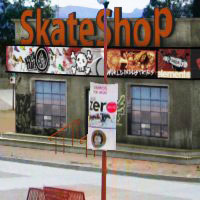
    This is a very in depth, premium tutorial over at CGtuts+, and takes you through the whole process of modeling, matchmoving and compositing this skateshop into a scene.

    Visit Part 1 Visit Part 2

  • CGtuts+ Modeling and Rendering a Baseball Wall Title Spot

    Michael Szabo from Big Mike Design has this tutorial where you model and render a baseball field’s back wall into a cool little title spot.

    Visit Tutorial


How to Process Vocals for Podcasts or Voiceover

This is one I get asked about all the time, how do I process my voice recordings for clearer more professional podcasts and voiceovers? Well, the truth is as long as you have a microphone and a voice people can understand, any DAW should be all you need to get things to a pretty high standard.

I’ve recorded a really simple vocal line and included a few ‘problems’ to be solved and in the following tutorial we’ll use Logic’s bundled processors to create a custom chain. Of course you could use pretty much any DAW for this, as most of them include similar plug-ins.


Step 1: The Original Recording

So… I’ve recorded my vocal. It’s nothing flashy just a few sentences spoken into a Rode Procaster dynamic microphone. This is going straight into a TC electronic firewire interface and isn’t treated in any way. Although the mic has a built in pop shield I haven’t used any extra shield here.
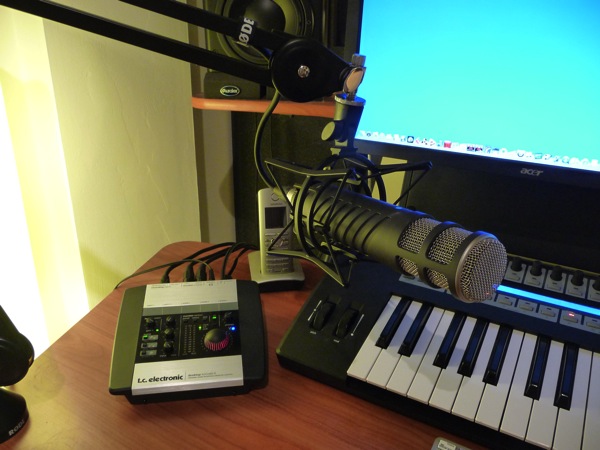
The recording set up.
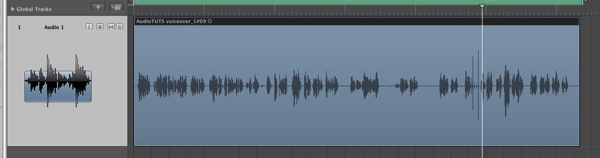
The initial recording in Logic.

Download audio file (1.mp3)

The untreated recording.


Step 2: Adding a Gate and Removing Noise

The first thing I tend to attack is the noise in between phrases. You would be amazed at how much this can improve a vocal take and with just a few minutes work you can literally transform your recording.

The best approach is to use a noise gate but before you fire one up it’s worth going the file and manually removing any really obvious problem areas.

In this case I deliberately included some loud lip smacking sounds towards the end of the passage. These were removed by simply cutting them out of the audio region. Gates are capable of handling most low level noise (i.e. unwanted noise at a lower level than your main audio) but you’ll find that any louder noise may have to be removed in this more deliberate way.
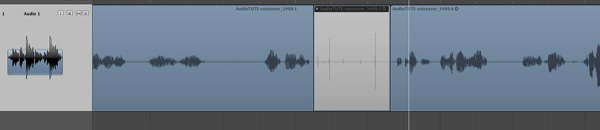
Manually removing unwanted problem areas.

At this point I applied Logic’s stock noise gate with pretty fast attack but long release settings for a nice transparent result. The real trick here is to set the noise reduction amount to anything but zero. This ensures that the effect is not overly extreme and unrealistic.

The combination of the manual noise removal and gating makes for a really quiet and clean vocal take. Obviously we didn’t remove everything, the air conditioner beep is still in there as it happens at more or less the same time as the voice… but all in al an improvement.
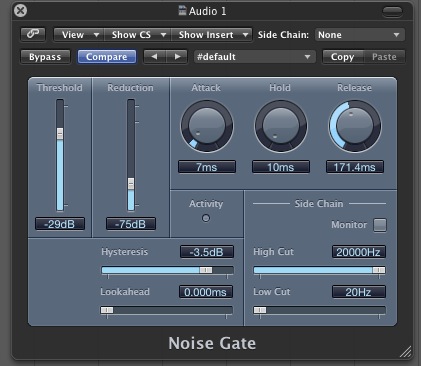
Logic’s stock noise gate.

One thing I noticed was that the Logic gate seems to introduce some very small random clicks to the sound, so apologies for this. Nothing seemed to eradicate the problem and I would strongly advise you to use a third party product if this sort of thing occurs. I use Sonnox and Waves plug-ins for this sort of work, of course they are expensive but they get the job done with no nasty side effects.

Download audio file (2.mp3)

The audio with some gating and manual noise removal.


Step 3: Cutting the Lows, Boosting the Highs

The gating has really helped but the whole thing is still a little ‘heavy’ in nature and a simple high pass (low cut) filter can solve this. Cutting at around 80-130 Hz can clean things up no end. I’ve used a nice clean linear phase EQ for this.

Due to the fact I used a dynamic microphone the recording was in need of a little ‘air’, so using the same EQ I used a high shelf filter to boost the highs.
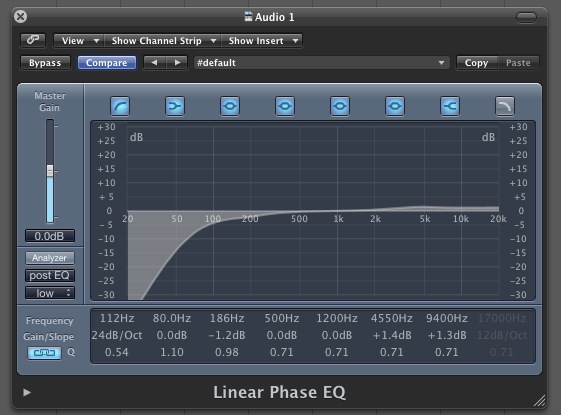
Logic linear phase EQ doing its thing

Download audio file (3.mp3)

The equlaised vocal.


Step 4: Some Light Compression and De-essing

When recording vocals compression is often a life saver and is pretty much essential when recording singers. During a podcast or voiceover session you might things are quite tame in comparison and compression may not be as important.

Saying this, a small amount of compression can really bring things together and ensure a totally uniform take. Go easy here though and don’t apply compression you don’t need. I’ve used around 3-4 dB of gain reduction, combined with slow attack and release times.

In this case the single band compression introduced some pretty heavy mid-range sibilance. To solve the problem I used Logic’s multi-band processor to reduce the problem frequencies and round things off.
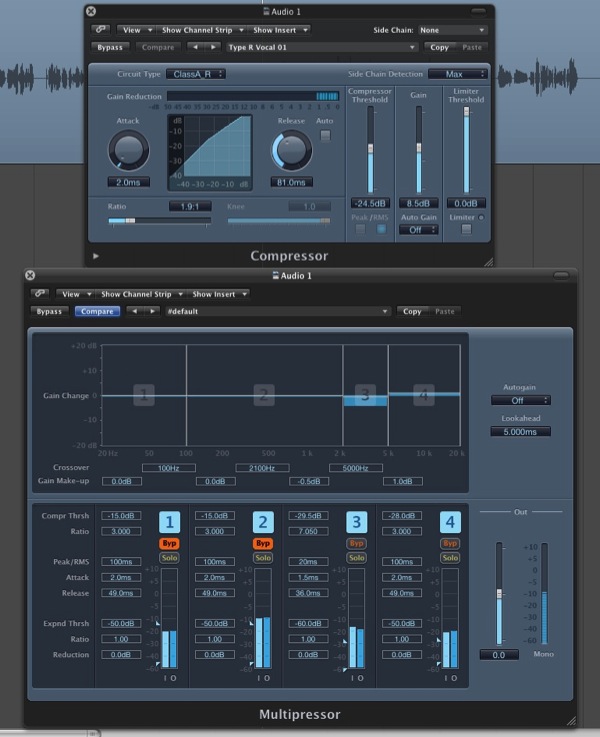
Single and multi-band compression in tandem

Download audio file (4.mp3)

Compressed and de-essed!


Step 5: Final Touches

The only thing left for me to do was to add a little limiting, purely to ensure that there was no clipping or overs. This also adds some extra perceived volume, to really grab your listeners ears! I also tweaked the EQ to remove even more low end (unto about 135 Hz) and fine tuned the gate controls.
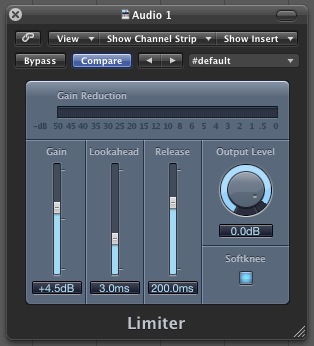
Logic’s limiter controlling the final output

Of course this isn’t an exact science but follow these simple steps and you should be well on your way to improving your podcast and voiceover recordings. And remember if you come up with a change that works for you, save it for later use!

Download audio file (5.mp3)

The final processed vocal.


Quick Tip: Drum Variations with Clips in FL Studio

Playlist clips in Fl Studio can be sliced up and rearranged, which is an easy way to add fills and syncopated variations to drums. Once we have some variations, we can merge the clip slices and then clean it up a bit in the piano roll.


Step 1

Make a simple drum beat in an empty pattern. I’m going to use FPC and sequence the beat in the piano roll, but using the step sequencer will also work. One or two bars will be enough.

Download audio file (1.mp3)


Step 2

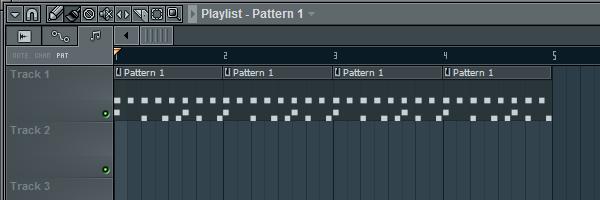
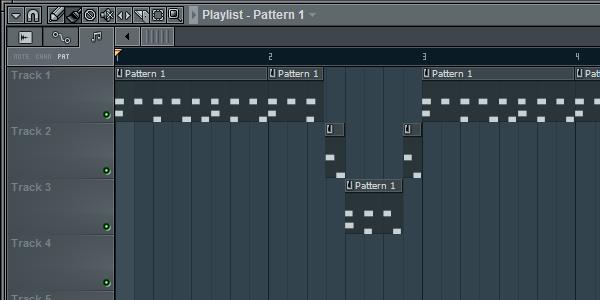
When you have a beat that you’re happy with, go into the playlist and paint a few pattern clips with it. I’m going to make the beat repeat for four bars, but add a bit of variation to the second bar and a little fill at the end.


Step 3

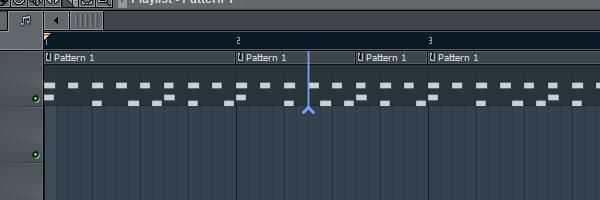
Grab the slicer tool in the playlist by clicking the slicer button or pressing ‘C’. Think about how you want to rearrange the beat, or just slice the clip into beats or 8th notes. With the slice tool, click and drag across the clip to slice it, or hold shift and click if you don’t like dragging. I’m going to have the second bass and snare drum hits one beat earlier and move the ghost snares to the end of the bar, so I sliced the clip at the seventh and eleventh ‘step’s.


Step 4

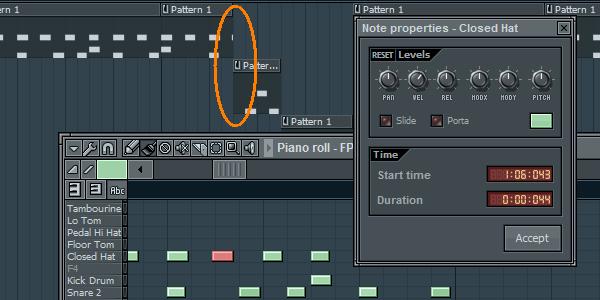
If the beat has hits that start a little early, you might notice that they won’t slice as nicely. Here, I’ve moved one hihat back a few ticks, and while it was dead on the slice point before and was included in the sliced clip, now it’s a part of the clip that’s been left behind. To correct this, hold alt to temporarily disable snapping and resize both clips with the slip tool, ‘S’, so that the hit appears in the sliced clip and disappears from the other.


Step 5

Now we can start rearranging the beat. Each sliced clip can be moved wherever you like. Putting the slices on tracks below the main beat might help you figure out what you’re doing. After I rearranged my clips, I didn’t really like how it sounded, so I just sliced up the last beat in half and put one slice ahead of the second bass and snare drum slice. This is all non-destructive, completely undoable editing, so feel free to try out a lot of stuff. If you really mess up badly, you can just delete all the slices, paint the pattern clip in again and start over.

Download audio file (5.mp3)


Step 6

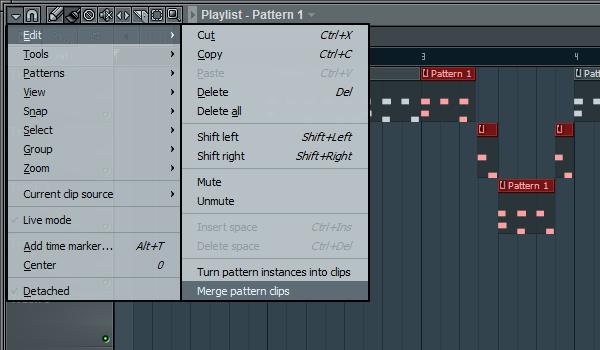
Once you’re very happy with your rearranged slices, it’s easy to ‘merge’ the slices back into one clip, so you don’t have a bunch of slices floating around everywhere. Just select all the slices, go into the main playlist menu and from ‘Edit’, select ‘Merge pattern clips’. Now all the slices are glued together in a completely new pattern. This is ideal if you want to go back in and add some fine-tuned variations in the piano roll, and makes everything a bit neater.


Step 7

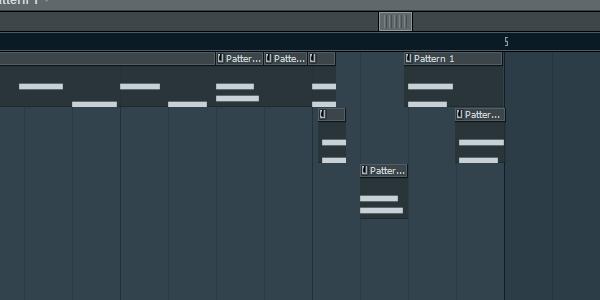
Each slice can be placed very close to another one, so crazy rolls, buzzes and flams are possible. This is what I did for the fill at the end of my drum phrase, by putting slices with the snare drum overtop of each other.

Download audio file (7.mp3)


Step 8

Once you’ve merged the clips together, it’s a good idea to go back and edit the drum pattern a bit, so that the edits are a little more natural. Changing velocities and slightly adjusting the groove will make it all flow together nicely. I’m going to make my little fill at the end less machine-gun sounding and move some of the accents of the hihats around in both merged clips.

Download audio file (8.mp3)