TUAW’s Daily App: Gravity Runner

Gravity Runner is a little game put together by a group called We Are Colin — it’s a side-scrolling platformer with, as the name implies, a gravity defying twist. The idea is that after tapping to jump as your little character runs along, you can tap again to switch his gravity, and start running on the ceiling rather than the floor. As you might expect, the game gets tough fast — not only is the speed uncontrollable (the game is somewhat forgiving, as hitting obstacles will usually get your guy to stop rather than actually kill him), but the jumping is kind of “floaty,” requiring split-second timing even early on in the game’s 25 plus stages.

There’s also an endless mode to play with, and OpenFeint functionality adds leaderboards and achievements to the mix as well. Gravity Runner isn’t really playing around — just a few stages in, you’ll have to depend on both quick timing and a little bit of thought about which way your guy is headed. But it’s an excellent platformer that eventually turns into a puzzle game, as you try to see just how to get your character jumping up where he needs to be. At its current price of just 99 cents, Gravity Runner has a nice retro charm that’s worth the buck.

TUAWTUAW’s Daily App: Gravity Runner originally appeared on The Unofficial Apple Weblog (TUAW) on Mon, 16 Aug 2010 08:00:00 EST. Please see our terms for use of feeds.

Read | Permalink | Email this | Comments

A really useable iPad case from ZooGue

I love my iPad, but using it presents some challenges. It’s uncomfortable to hold because it’s heavy. On a lap, it’s too flat. You can stand it up against something, but the iPad is pretty slippery and eventually it will fall over.

I’ve looked at a lot of cases. Not finding one I liked for use in the home, I bought an InCase for travel, and it has worked really well. Unfortunately, you can’t use the iPad when it’s in the case.. Using the iPad around the house was a bit of a pain. I tried some little picture frame stands from discount stores, but the iPad is heavy so the stands I found were not very trustworthy.

ZooGue sent me a sample of their Smart Case to try, and I’ve been very pleased with it. It is a full leather folio case that will protect your iPad, and when it opens up you flip the screen cover around and pull out a kickstand that will let the iPad sit at any angle of elevation you like. There are two Velcro straps that can let you hook the iPad to a car seat headrest (for viewing in the back of the car) and those same straps reverse to secure the iPad when you travel.

There are holes for the home button, power/sleep switch, speakers, charging cable and the volume control and orientation switch.

Gallery: ZooGue iPad case

TUAWA really useable iPad case from ZooGue originally appeared on The Unofficial Apple Weblog (TUAW) on Mon, 16 Aug 2010 09:00:00 EST. Please see our terms for use of feeds.

Read | Permalink | Email this | Comments

Attempted iPad theft at Salt Lake City Apple Store

We don’t have the whole story yet, but apparently on Saturday there was an attempted robbery at the Salt Lake City retail store — the front window was smashed and the perpetrator tried to get away with several iPads, but as you can see in the gallery below it appears that he was taken into custody by police.

As soon as we have the full rundown, we’ll fill in the details. Thanks to reader S. Mason for letting us reproduce his photos.

Not a particularly good weekend for the retail stores’ security; a Macrumors forum member reported that the Knox St. Dallas store lost 8 iPhones in seconds to thieves. 9to5 Mac links the story, but unfortunately those pictures are Photobucket-hosted and not available at the moment.

Update: Our photographer relays this narrative…

I am surmising that three young Apple fans were so excited to pick up their iPads that they inadvertently forgot to pay for the merchandise. In their haste to get home and try out these fantastic machines they somehow shattered the multi-hundred pound, 12′ door to Utah’s flagship and only official Apple store.

Several bystanders and a gardener who was watering the grass in front of the store quickly followed them and may have tipped off SLC’s finest to their getaway location. Two of the would-be iPad owners came back via a police escort and might have had to apologize to the store manager for their bad behavior. So technically it was more of a grab and smash than a smash and grab.

The Apple store manager was not happy at all that I even took any pictures and with the backing of the mall-cop present threatened to have me and my family escorted off the property, despite the 50+ people inside the store documenting the event on their iPhones and the other 100+ plus people watching in the mall plaza. The amazing thing was the Apple store folks carried on almost business as usual — theft? what theft, broken glass? what glass, but no pictures please!

TUAWAttempted iPad theft at Salt Lake City Apple Store originally appeared on The Unofficial Apple Weblog (TUAW) on Mon, 16 Aug 2010 10:00:00 EST. Please see our terms for use of feeds.

Read | Permalink | Email this | Comments

iPhone 4 pre-orders about to begin in South Korea

The iPhone 3G sold tremendously well in South Korea, and now distributor KT Corporation is hoping the latest model will do the same when pre-orders begin on Wednesday. “We hope the iPhone 4 will draw a hot response from clients as the iPhone 3 did,” a KT Corp. rep said on Monday, noting that the iPhone 4 should be available in South Korea in September.

When iPhone 3G pre-sales began in South Korea, KT Corp. received approximately 65,000 pre-orders. On the day of release, customers had been lined up as early as 26 hours in advance and were rewarded with balloons and a live band.

Apple has sold more than 850,000 iPhones in South Korea since the 3GS went on sale in November of ’09. Above is a television ad that ran prior to the iPhone 3G’s release.

[Via MacDailyNews]

TUAWiPhone 4 pre-orders about to begin in South Korea originally appeared on The Unofficial Apple Weblog (TUAW) on Mon, 16 Aug 2010 11:00:00 EST. Please see our terms for use of feeds.

Read | Permalink | Email this | Comments

Safari Download Manager 1.5.0: iOS 4, iPhone 4 and iPad Compatible

Safari Download Manager, an extension to iPhone Safari App, has been updated with iOS 4, iPhone 4 and iPad support. Safari Download Manager 1.5.0 brings a full download manager to Safari on your iPhone, iPod Touch and iPad.

Complete change-log after the jump…


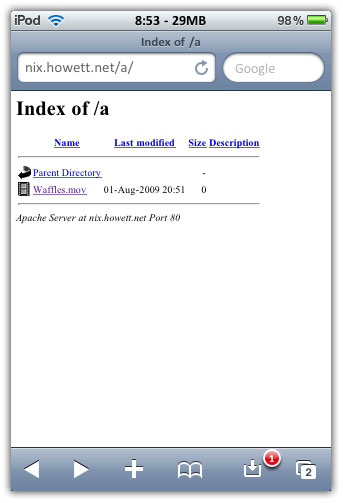
safari download manager
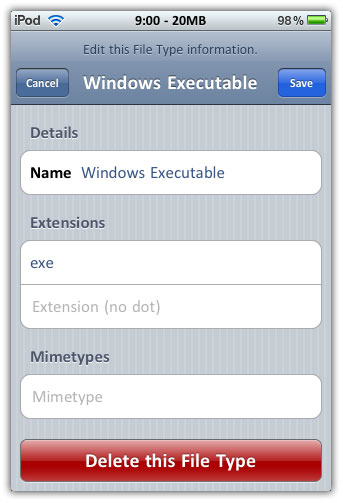
Safari Download Manager is an extension that adds a powerful, highly-configurable download manager to the iPhone’s web browser. Like never before, you can take control over downloaded file types, and harness the true power of the network connection on your device.

  • Choose to download more than one file at a time!
  • Choose to break out of the limited downloading you used to do!
  • Choose to make your iPhone the mobile computing platform it deserves to be!
  • Choose Safari Download Manager for all your downloading needs!

New in Safari Download Manager

  • iPad support! iOS4.x support! iPhone4 support!
  • Less UI stupidity! (blame Safari)
  • Support for Download vs Download To! Downloads save to the default download directory unless Download To is selected.
  • Change the default download directory to ~/Media/Downloads (instead of ~/Library/Downloads)
  • Save downloads anywhere in /var/mobile!
  • Resume more downloads than before!
  • Configurable download retrying! Configurable download queue length!
  • Don’t overwrite files indiscriminately! Only overwrite them discriminately! (Never!)
  • Fix some memory leaks.
  • Fix the bug that caused large downloads (>2GB) to show up as negative.
  • Add tap&hold downloading for images (like “Save Image”, except saves it to a user-chosen location and not the photo library.)

You can purchase and download Safari Download Manager from Cydia store for $5.00. You iDevice MUST be jalbroken. Jailbreak guides are linked below.

safari download managersafari download managersafari download manager

safari download managersafari download manager

You can follow us on Twitter, Join us at Facebook, and also Subscribed to RSS Feed to receive latest updates.

Also checkout:

Digg
Twitter
StumbleUpon
Facebook
Reddit
del.icio.us

Lockdown Pro: Password Protect iPhone Applications

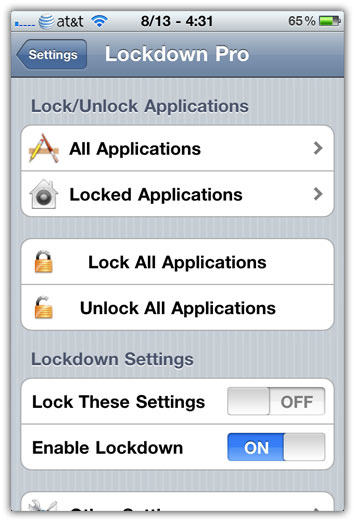
Lockdown Pro, the paid version of the popular Lockdown ‘free’ app for iPhone and iPod Touch is now available in Cydia. With Lockdown Pro, you can password protect applications on iPhone and iPod Touch just like the free version.

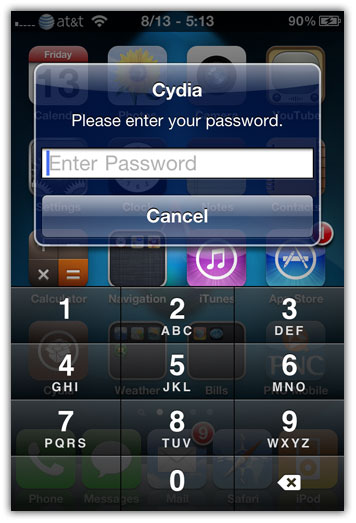
lockdown pro

NOTE: The free version of Lockdown supports upto OS 3.1.3.

Lockdown Pro Description

Lockdown Pro is simplest way to password protect your iPhone applications. It works on all modern firmwares (3.x – 4.x) on all iDevices except the iPad (which will be compatible pending an update). If you have used Lockdown before, this is a major update.

Lockdown Pro Features

  • NO extra application for Lockdown Pro’s settings! They are now in your Settings application.
  • NO respringing required!
  • Choose between and alphabetic or numeric password.
  • Custom passwords now! You can set different passwords for individual applications.
  • Delay Lock. This feature will allow you to unlock any application and the rest of them stay unlocked until you lock your device.
  • Graphic, speed and stability improvements as well!

Since LockDown Pro does not install any application, please go to your settings application, then scroll down till you see Lockdown Pro to set it up after you install it.

Planned Updates for Lockdown Pro

  • Improved graphics
  • Be able to lock complete folders (on iOS 4)
  • Make locking/unlocking an app even faster! By directly being able to do so from your SpringBoard!
  • And more features!

You can purchase and download Lockdown Pro from Cydia Store for $1.99. Your iPhone/iPod Touch MUST be jailbroken. Jailbreak guides are linked below.

lockdown prolockdown prolockdown pro

lockdown prolockdown pro

Also checkout:

Digg
Twitter
StumbleUpon
Facebook
Reddit
del.icio.us

Tutorial: Creating HD Games With The Sparrow Framework

Sparrow, the game framework I used in my iPhone action game programming tutorial has recently added a new feature to easily handle the higher screen resolutions provided by the retina display of the iPhone 4.  I hope to update the tutorial to utilize this new feature in the near future.

The process involves using tools that are included with the Sparrow Framework that will automatically create all the required textures from your high definition textures.

You can find the step-by-step tutorial from the creators of sparrow here:
How To Make HD Games With Sparrow

The new feature is in Sparrow 0.9 which can be found here.

Thanks for reading, please share this using the buttons below!

©2010 iPhone iOS 4 iTV iPad SDK Development Tutorials, Programming Tips, News. All Rights Reserved.

.

Share and Enjoy:

RSS
Twitter
Facebook
DZone
HackerNews
del.icio.us
FriendFeed

The Poignant Piano Pack – Audio Premium

This week in Audio Premium we have The Poignant Piano Pack from AudioJungle.net site manager and author Scott Wills, a collection of ten original compositions that can be used for film, video or Web. Ideal for end credits of a film, a reflective ambience in a slideshow, or just thoughtful and delicate background music for your project, these mostly loopable pieces will help add a delicate and retrospective moment to your next piece of work.

To learn more about what you get as part of Audio Premium, read this.

Samples are in WAV format. Here’s an demo of the type of music you can make with this pack:

Download audio file (example.mp3)

Sample Pack Inventory

  • poignant01.wav
  • poignant02.wav
  • poignant03.wav
  • poignant04.wav
  • poignant05.wav
  • poignant06.wav
  • poignant07.wav
  • poignant08.wav
  • poignant09.wav
  • poignant10.wav


Awesome Links #10: Yahoo, Remote Working, Text Expansion Tools

What Happened to Yahoo

An interesting account of Yahoo’s demise (at least when it comes to innovation) by celebrated venture capitalist, programmer and essayist, Paul Graham.

7 Discipline-builders for Remote Workers

If you are a remote worker, you’ll enjoy reading this nice list by Web Worker Daily on building and maintaining discipline in your work and life.

How to Use Text Expansion to Save Yourself Hours of Typing Every Week

A great article by Lifehacker on using text expansion tools to save time by getting repetitive codes and texts auto-typed.

Fishmemory.net – ToDo Lists on Steroids

A pretty cool web based to-do list app I came across while casual net surfing.

Staying Organized: 8 Tips for Daily Sanity

Eight daily organization tips summed up by Lifehack for maintaining order and being more productive.

Professional Resume Design for Non-Designers

Writing a good resume can get you the job…or at least will put you on top of the pile.

But professional resume design is a skill not everyone has. No worries though, there is help out there. Here is how to create a resume format that will make your skills  stand out. Design is important next to content. The grouping, highlighting and placement of the text can help your resume stand out.

Here  is a quick outline of the resume created in Word7.

I have outlined 7 Steps that are important to a resume. Let’s talk a little bit more about them.

Step 1

Your contact information needs to be there, visible at first glance. It should always include your name, address, phone number and email address.  In this example, I put placed it like a business card in the header of the document. Your name is big and bold, your title is easy noticeable and all contact information stands out.

Step 2

Your resume should rarely be more than one page. Most HR departments (or whoever is hiring) will appreciate having all of your information presented on one page.

Step 3

The first paragraph should include a brief description of your current qualifications. Talk about your key capabilities and experiences in a few sentences.  I set the title (Career Objective) as  Small Caps and much bigger than the body text. You can save this style easily as a Quick Style, so you can apply it to the rest of the resume headers.

Step 4

Let’s add the Work Experience or Employment History. I added  three simple text boxes and placed them next to each other. List the company`s name and time period of work, then add a quick sentence what you did and if you`d like, name a few key responsibilities in list form.

Step 5

Next step is to add the education. There is no need to list every single school you attended, just keep the most important levels achieved. I added this information with tabs, highlighted the level of education title and gave it a different color. This will make it stand out right away.

Step 6

The last step is to add your skills. I always like to add them in list form with bullets. That keeps them to the point and easily legible. Since you might have a ton of skills, you can tailor this list to fit the needs of the job you are applying for. Make sure you have enough space between the paragraphs.

Step 7

I like to add the contact information again at the bottom, smaller but noticeable. Place it in the footer of your document. I repeated the same color style as for the header.

Now you have a resume that should stand out among the rest. There is a simple formula that you can remember to make a good layout. It is called CRAP, which stands for:

  • Contrast
  • Repetition
  • Alignment
  • Proximity

In this specific example, we applied this formula. We have contrast with the color scheme, small caps, bold font, repetition in style elements (and colors), alignment with the information and proximity regarding the text elements.

Lastly, proofread everything until your resume has no mistakes and you should be good to go.

Please remember that you are not locked into one design or layout – and it also helps to adjust a resume according to position offered.

10 Sunday Night Blues Busters for a Better Monday Morning

The weekends go by so fast. The sense of excitement and anticipation you felt on Friday afternoon slips away, and by Sunday night, the weight of another Monday morning presses down on you like a ton of bricks. Welcome to the Sunday Night Blues. Okay, maybe it’s not always that bad (let’s hope!), but if you don’t like your job, or you struggle with stress, Sunday nights can be a time of anxiety and dread.

Planning a fun activity on Sunday night can help alleviate some of your anxiety. When you’re busy doing something else, you won’t have time to dwell on your worries. Here are a few ideas to get you started.

1. Plan dinner dates.

Sundays are a great opportunity to get together with family and friends. Unlike Friday and Saturday nights, Sunday has an easy-going casual atmosphere. So host a pot-luck. Cook up some pasta. Make tacos. Your dinner party doesn’t have to be a big to-do. Just kick back, share some laughter and relax with the people you love.

2. Watch a movie.

There’s nothing like a great movie to take you away from everyday life. Minimum effort, maximum entertainment! If you are having a hard time picking a movie to watch, swap favorites with friends.

3. Take a bubble bath.

Bubble baths make you feel good all over. Even a long hot shower can do wonders. Try a new body wash for extra zing. Play your favorite music or radio show. If you’re really motivated, light some candles for added ambience.

4. Listen to a podcast.

Podcasts are a great way to get inspired and learn something new. There are so many podcasts out there! Many of them are free. One of my favorites is Kimberly Wilson’s Tranquility du Jour. She has a sweet, BFF vibe and is also an amazing entrepreneur. On her podcasts, she interviews business coaches, authors and other fascinating folks.

5. Clean house.

For those of you who hate cleaning, this tip isn’t for you. But there are some people who secretly love it. They feel great when the kitchen is glistening and the carpets are clean. Reordering their living space is totally therapeutic for them. If you’re one of those people, go at it. Clean away. Feel better.

6. Buy yourself flowers.

Why wait for Valentine’s Day? Buy yourself flowers today. At many grocery stores, flowers are under six dollars. I find that the cheap flowers tend to last longer anyway, and they often look and smell great. It’s fun to treat yourself once in a while, and the sight of fresh blossoms will give you a lift all week long. If you don’t want the extra expense, arrange fruit in a bowl and display it on a counter or table top.

7. Make time for your favorite hobby.

Do you love to go fishing, build model airplanes, knit afghans or bake cupcakes? Set aside a couple of hours on Sunday to do your favorite hobby. Hobbies are great because you do them purely for pleasure . No one is judging you. There’s absolutely no pressure. You can just relax, express your creative side and have fun.

8. Get a change of scenery.

Part of the dread you feel on Sunday nights may have to do with the monotony of life in general. The same old routine can feel claustrophobic after a while. So give yourself a change of scenery. Take a drive into the country or visit a new neighborhood in the city. Go sit by a lake, take a walk on the beach or head up to the mountains. Whether you are people watching or enjoying the outdoors, the change in scenery will help refresh and renew you.

9. Nurture your spiritual side.

Spending time in a community of faith can help you find a sense of belonging and purpose. Singing songs, listening to inspiring talks, and having deep conversations can be revitalizing for many people. If you miss that part of your life or you want to find deeper meaning in your life, Sundays can be the perfect opportunity for you to make a positive change.

10. Call a friend.

When you’re feeling down, the best remedy is often something simple, like a phone call to a trusted friend or family member. You’ll be reminded that you aren’t alone. You have people to support you even when things get messy. Plus, saying your worries out loud can help put them in perspective. They won’t feel like such a big deal. There are solutions. You’ll get through. Everything will be okay.

Take back your Sunday night so you can have an advantage come Monday morning. It isn’t hard to do. We usually have such low expectations for them anyway. Adding one fun activity can make a world of difference. So treat yourself. Do something that makes you smile.

Step By Step Guide to Photographing a Beverage

Are you thirsty? Well, even if you aren’t, go get a large cold drink before you continue reading. I hope the photos in this tutorial make you feel parched. Commercial and advertising photographers spend a lot of time with food and drinks, and they try to do just that. Food photography can be seen everywhere, but today we’re going to focus on it’s brother: beverage photography.


Recommended Equipment

For the following walk-through, I used two strobes. One was used in conjunction with a “snoot.” I put that word in quotes because I improvised the snoot instead of buying one. I don’t really see the point in spending money on such a simple device. The second strobe was used with a small softbox.

To trigger these strobes, I used an inexpensive wireless set-up.

You will see three different lenses used today: an 85mm, a 50mm and a 24mm. These were used on a Nikon D700, which is a full-frame DSLR, so keep that in mind when noting those focal lengths.

The final pieces of the puzzle are some common drinks, a couple of glasses and some ice. The photo below shows a side view of the set-up for the first shot with the two lights labeled, logically, 1 and 2.


The Key Light

Unlike many images, the main source of light for this one will be behind the subject. Beverages are typically transparent. In order to really bring out their colors (and in some cases just to make them visible) the light needs to pass through liquid toward the camera.

With solid objects, like people, we make the light bounce off them and then back at the camera. To further control this, I used a snoot as I mentioned before. A snoot narrows the light from your strobe into a tight beam. I simply wrapped a black nylon bag around the strobe to create a tube. You can see this below.


Quick Tip: Tripod

For product shots like this that require subtle and slight adjustments to your lighting angles and strobe power, you’re going to have to move around a lot. Sometimes it’s better to get your camera set up on a tripod, so you don’t have to constantly get behind it, refocus and recompose your shot every time.

For the low angle I wanted to achieve, I reversed the head of my tripod so it hung below the tripod. This a common feature for many tripods, so check and see if yours can do it.


The Fill Light

For this shoot, I was lucky enough to find a great green marble tiled bar. I wanted this to be a part of the shot as well, so it also needs to be lit. If you are incorporating any props or items that aren’t liquid, they will need to be lit more traditionally from the front.

I chose to use a softbox to replicate the soft, diffused light that I associate with bars and pubs. You can see my entire lighting set-up below. The perspective is just higher than that of the final image.


Starting the Exposure

Whenever you have two or more light sources, you’ll need to balance them. I find it easiest to do this one light source at a time. I usually start with the key light. In this case, that’s the one with the snoot.

Doing a series of test shots, I adjusted the flash and my f/stop to achieve the proper exposure. I also took advantage of these shots to make adjustments to the angle of the flash and the size of the snoot opening. I wanted the beam to be very narrow.

You can see the results of this in the next photo. The glass and liquid are exposed properly, but the surrounding tile is very dark.


Exposing the Fill Light

Once your aperture is dialed in for the key light, you’ll want to leave it alone. The rest of the adjustments will be made with the power adjustment on the fill light. In order to really understand what the light is doing, I turned my key light off and did test shots with my fill light by itself.

The shot below shows the final fill light intensity. Notice that it is slightly under-exposed, and also note what the drink looks like. Front lighting just doesn’t cut it with beverages.


The Final Effect

At this point, I turned both my strobes on and took my photo. I had my camera set at f/11 for this image. I used an 85mm lens. I was shooting in a relatively cool basement, so I wasn’t too worried about the ice in glass melting. If you’re in a warmer environment, just wait to add the ice until you’re ready for your final shot.

Also, be conscious of condensation on the side of the glass. I chose to let it be a part of the shot, but this might not be appropriate for all situations. If you’re really worried about it, make sure your liquids are at room temperature and avoid keeping ice in the glass. You can even buy fake ice cubes if necessary. Also be sure to clean your glass very well and avoid touching it with your fingers.


Changing Perspective

Once you’ve got your exposure dialed in, it’s easy to change your angle or even your lens. I decided to try another angle on this shot, and I’ll go ahead and recap the steps of the shoot with this new angle to sum things up. First, expose for and properly adjust your key light.

Second, expose for your fill light. I chose to slightly underexpose it, which is a common decision in a situation like this. But your environment may call for something different.

Finally, double check your glass and ice. Give everything one more good clean. Add the ice now if you were waiting. Then go ahead and take the shot. This version of the photo was made with a wide angle, 24mm lens.


Bonus Shoot: A View From Below

The set-up I just described could be used to produce images of whiskey (which I used), martinis, wine, cocktails and many other drinks, but I wanted to include another set-up that might be more appropriate for lemonade or even beer (both of which you’ll see).

For this technique, I used the same softbox as before. I used a 50mm lens on my D700. I also got together a couple stacks of books, and a pane of glass from a picture frame. From the image below, you can see how things are organized. The position of the tripod is where I will be shooting.

Lemonade

For this technique, the softbox acts as both your light source and your background. The exposure is achieved by keeping your strobe set at a low power, and then taking some test shots to dial it in.

Keep in mind, that you want the background to be completely white. It’s most likely that your first instincts will be to underexpose the beverage. Just keep opening up that aperture until you’re happy with the result.

Beer

Shooting beer is tricky. I wanted to capture some bubbles rising up from the bottom, so I gave the beer a little stir just seconds before taking the shot. Cleanliness is even more important with this arrangement than before. Make sure your pane of glass is as clean as you can get it. Cold drinks can also create condensation on your pane of glass, so be aware of that as well.

This technique can also be used outside using the sun instead of a softbox. Trees or clouds could be incorporated in the image to give a sense of summertime and make the beverage look extra refreshing.


In Conclusion

To recap, most liquids are best illuminated from behind so light can pass through them. The light doesn’t have to be directly behind your subject, but it can be. The glass, the liquid, and more than either of those, ice will bounce the light around to give a glowing effect if indirect light is used.

Secondly, keep things clean. If you look closely at my images, you might even think that I could have done a better job with this.

Finally, the most touchy part of photographing beverages is temperature. Remember to, whenever possible, eliminate this factor from the equation. Either incorporate condensation into the image or keep all your ingredients at room temperature. If these options are unacceptable, add ice just before shooting.

Now, you can dive in with all of those commercial and advertising photographers, and try to get your share of the profits!

No Comment: LEGO iPad stand shows ingenuity, parsimony

We could say “Nice use of found materials in that iPad stand! It’s a shame that the next person who tries to build out the LEGO City Truck is going to be short a few pieces, but that’s the way the brick bounces sometimes.”

We won’t, though, because this image is a genuine No Comment.

P.S. Braaaiiiins.

Image courtesy of There, I Fixed It.

TUAWNo Comment: LEGO iPad stand shows ingenuity, parsimony originally appeared on The Unofficial Apple Weblog (TUAW) on Mon, 16 Aug 2010 00:10:00 EST. Please see our terms for use of feeds.

Read | Permalink | Email this | Comments

Talkcast Tonight: Heat and Speculation Edition, 7PT/10ET

It’s Sunday, and that can mean only one thing: Tonight we’ll be rocking the Talkcast at 4pm Hawaiian/7pm Pacific/10pm Eastern time.

Our usual suspects will include me, your host for the evening. We’ll have some discussion of Microsoft’s cute new ad campaign, and of course, a portion of the program will also be dedicated to my favorite pastime: rampant geeky postulating! This week from my house* we have a tired old perennial favorite, some video format rumors, Apple TV (among others) updates, and a debate over AppleTV specs and what they should be in that next rumored update.

Note: West Coast Host means you also get an opportunity to join in on the infamous (and delightfully unrecorded) Aftershow. Prepare to answer the ultimate question, “Caller — what are you wearing?”

Your calls and questions help us make the show the best it can be, otherwise I’m just talking to myself! To participate on TalkShoe, you can use the browser-only client, the embedded Facebook app, or the classic TalkShoe Pro Java client; however, for maximum fun, you should call in. For the web UI, just click the “TalkShoe Web” button on our profile page at 4 HI/7 PDT/10 pm EDT Sunday. To call in on regular phone or VoIP lines (yay for free cellphone weekend minutes!): dial (724) 444-7444 and enter our talkcast ID, 45077 — during the call, you can request to talk by keying in *8.

If you’ve got a headset or microphone handy on your Mac, you can connect via the free Gizmo or X-Lite SIP clients; basic instructions are here. Be there or be four sided with right angles!

*That would be Kelly’s House Of Crackpot Theories, a place where hypotheticals roam free.

TUAWTalkcast Tonight: Heat and Speculation Edition, 7PT/10ET originally appeared on The Unofficial Apple Weblog (TUAW) on Sun, 15 Aug 2010 18:00:00 EST. Please see our terms for use of feeds.

Permalink | Email this | Comments