
Category: Tutorials
Tutorials,freelance,projects,joomla,php,mysql,wordpress,blancer.com
YouTube will stream Lollapalooza live starting August 1st

Waste away the hours on free-to-play ‘Diablo’ in your web browser

UC Santa Barbara sues Amazon and IKEA over LED lighting

Facebook might bring major streaming services to its Portal for TVs

Last year, reports emerged Facebook was working on a video chat camera you'd plug into your TV. It sounds a bit like its Portal smart display, albeit without the need for a dedicated screen. One reported aspect of the device is that it'd offer…
Back to school: The audio gear you need in the dorm, library and everywhere else

Surfline’s Apple Watch app will record your next big wave ride

‘The Irishman’ trailer shows Scorsese and Netflix chasing critical glory

20 Best Infographic Google Slides Themes for 2019
The verdict is in: the majority of companies that use infographics for marketing and sales find them to be effective according to Infographic World. (Source).
Aside from being (effective) vehicles to convey data powerfully, even with few words, infographics have high viral potential. They’re one of the most shareable types of content on the internet.

In the past, creating an infographic involved hiring a great graphic designer, working with them for weeks, and using expensive software to bring your vision to life.
Today, anybody can create a compelling and stunning infographic using completely free tools like Google Slides. All that’s made possible by editable infographic templates for Google Slides.
It all begins with a well-designed infographic template for Google Slides, like what you’ll find in Envato Elements. Once you complete your infographic, it can become a compelling part of your infographic presentation.
Elements offers you unlimited downloads of templates for one low price. Or, if you just want a single infographic template for Google Slides, you can download one for one-time usage from GraphicRiver.
The Best Infographic Google Slides Themes on Envato Elements (With Unlimited Use)
Aside from templates, you also get unlimited downloads of fonts, icons, graphics—everything else you need to make your infographics unique and outstanding.
Of course, you can also find free Google Slides infographic templates. However, if you’re looking to create infographics that’ll represent your brand far and wide, then you’ll want to go with premium Google Slides infographic templates.

Premium templates offer better designs made by professional designers. They also tend to be more user-friendly and easier to customize that free infographic templates. For example, the design elements in premium templates are vector-based, which means you can resize, recolor, and edit them without losing quality.
Many premium infographic templates also include hundreds of icons, which come in handy when embellishing your infographics. Some even come with after-sales support from the designer. This means you’re not alone as you customize the template with your own data.
5 Best Infographic Templates for Google Slides on Envato Elements
If you’re looking for a premium infographic template for Google Slides with unlimited use, below are the best ones I’ve curated on Envato Elements:
1. Infographic Google Slides

The clean and colorful design of these infographics makes them easy to adapt to any industry. With over 150 slides to choose from, you’re bound to find just the right one for your needs. This template also includes hundreds of vector shapes and icons that’ll come in handy to customize the graphics. The use of vector shapes means you can edit any shape or icon straight in Google Slides, without needing a separate image editing software. The slides in this package are in 16:9 (HD) size.
2. Pyramid Infographic Pack for Google Slides

If you know that a pyramid-style infographic is the best way to visualize your data, then look no farther than the Pyramid Infographic Pack. You get 35 unique pyramid infographic templates that are easy to customize. Using only standard fonts, this pack doesn’t require you to install any new fonts with this template. Furthermore, these infographic presentation slides are retina-ready.
3. Boom: Charts Infographics Analytics Google Slides

Boom Charts Infographics gives you 50 unique and editable infographic designs, with four color variations, for a grand total of 200 slides. Over 300 icons are included as well, all of them editable in Google Slides. Feel free to mix-and-match and combine graphics into one unique and eye-catching infographic.
4. Digital Utopia Google Slides Template

Digital Utopia has dozens of colorful charts and graphs you can combine to create an eye-catching infographic within Google Slides. In addition, you also get 16 Illustrator infographic landscapes, fully laid out, in Ai & EPS formats. This template pack gives you plenty of color options. Five color schemes are built in, each with a light and dark version. You also have a choice of either 16:9 HD size (for presentations) or A4 size (for printing). And with over 4,000 vector icons included, you can create your own data visualizations.
5. Corporate Business Plan Google Slides Template

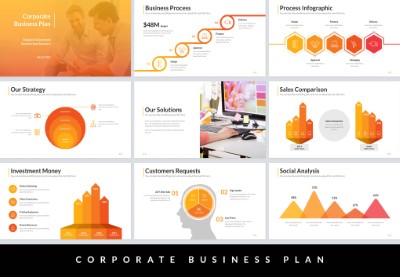
If you want an infographic with a monochromatic color scheme, then consider the Corporate Business Plan template. It offers four slide templates based on one base color—in addition to a multi-color version. All that makes for a total of over 350 slides. You also get two sets of vector icons, line and simple style, for a total of over 4000 vector icons!
15 Best Google Slides Infographic Templates From GraphicRiver (Popular in 2019)
Looking for even more infographic templates? Here’s what’s trending right now in the GraphicRiver marketplace:
1. Infographic Pack – Google Slides by Munkhuumgl

For creative visualization of data, this Infographic Pack by Munkhuumgl has you covered. Use visual metaphors like icebergs, fishing, spirals, and more to impart information without putting your audience to sleep. As with the other templates featured in this article, all the elements in this infographic pack are fully editable. Dark and bright versions are already built-in to get you started. Let’s not forget the 6000+ vector icons that come in this pack!
2. Infographics Pack Google Slides Diagrams by CiloArt

Creating any type infographic is possible with this massive infographics pack by CiloArt. A total of 525 unique slides gives you all the different types of infographics you could ever think of:
- process
- timelines
- mind maps
- 3D sphere
- arrows
- and so much more!
Ninety color themes are built in, and it takes only one click to automatically recolor all the slides.
3. Infographic & Isometric GGS Template

Your infographic will stand out when you use the unique three-dimensional (isometric) graphics in this template! It also offers dozens of people slides that you won’t find anywhere else. The slides are in 16:9 or HD resolution (1920×1080 px) for the sharpest infographic presentations. What’s more, the designer provides free updates and fast customer support, with a response time of 30 minutes.
4. Timeline Infographics Google Slides Presentation Template Diagrams

Looking to make a timeline infographic? The Timeline Infographics template pack gives you 75 unique timeline diagrams in a clean and simple style. Since all the objects on the slides are vector-based, each one is fully editable in Google Slides. This template comes with 12 premade colors, 90 built-in color themes, and over 5500 icons to customize the infographics.
5. Funnel Infographics Google Slides Template Diagrams

Funnel charts are useful for visualizing the progressive reduction of data as it passes through different stages, as well as parts of a whole. This template pack gives you 38 unique funnel charts and 5500+ icons to make the diagrams your own. Also included are 90 color themes you can easily install in Google Drive to enable one-click application on your slides.
6. Eargo – Infographics Google Slides Template
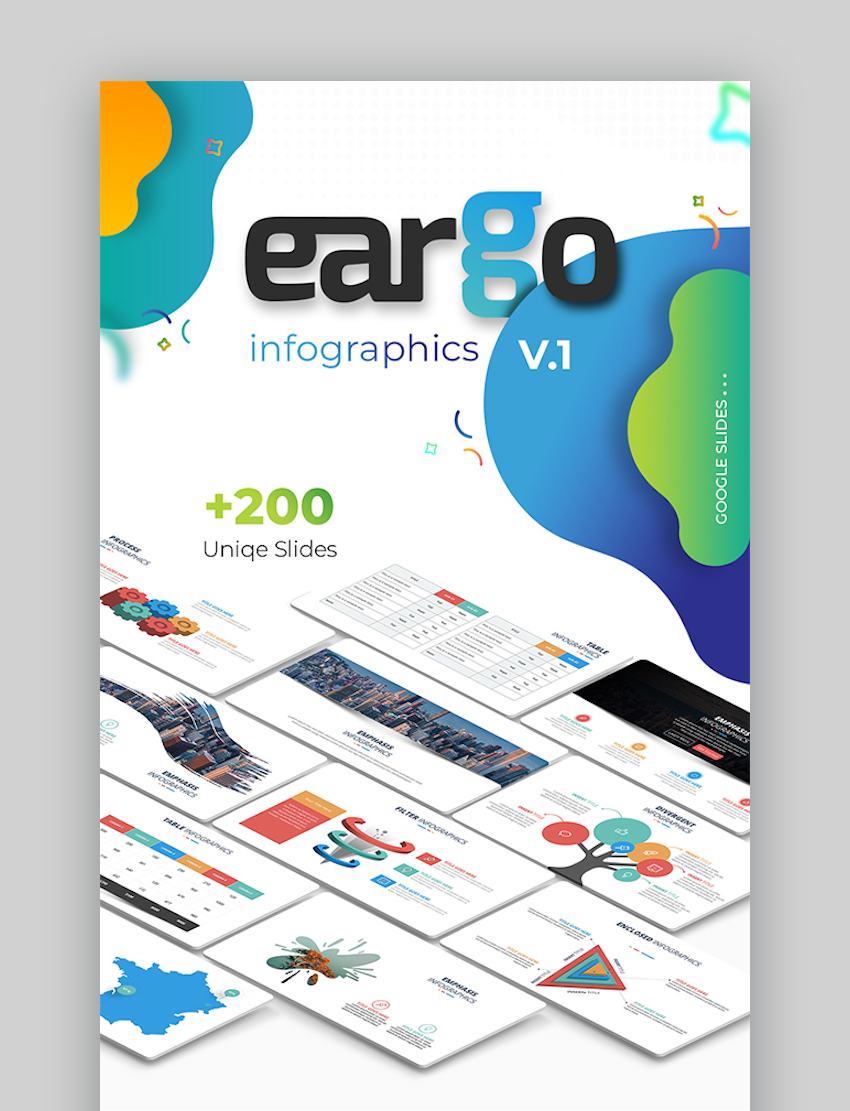
The Eargo Infographics Google Slides template is a good option if you want to create an infographic with different types of diagrams. It goes beyond the basic charts and also offers maps, tree infographics, and visuals that show convergence and divergence. For the price, you get more than 250 unique charts, 30 premade color schemes, and light and dark versions of each slide.
7. Arrow Infographic Google Slides Template

Add creative arrow diagrams on your infographic with the Arrow Infographic Google Slides Template. You’ll find more than 20 unique arrow infographics that are 100% vector-based. This means each part of the infographics is fully editable. The infographic presentation slides in this template are in 16:9 or HD resolution. The template also includes free updates and fast customer support from the designer.
8. Circle Infographics Google Slides Template Diagrams

Circle charts are best for showing parts of a whole and how they compare in value to other parts as well as the whole itself. Circle charts also represent cycles and repetitive processes. The Circle Infographics Google Slides template gives you 38 unique and handmade circle charts to use in your infographic. All slide objects are vector-based, which means you can move, resize, and recolor them as much as you want to suit your needs.
9. Bundle Colorful Infographic Pack 3.0

Bundle Colorful Infographic Pack 3.0 boasts 100 unique infographic presentation slides with one-click recoloring. It’s got all the file formats you need to edit the graphics in Google Slides, PowerPoint, and Keynote. More than 350 vector icons come with the template, and custom animations are built in as well.
10. Dizital Infographic Pack Google Slide Template

You can create engaging infographics with the Dizital Infographic Pack Google Slide Template. The package contains 200 unique and well-designed infographics with a modern, clean, and colorful style. Everything from basic charts to puzzles, maps, and visual metaphors are at your fingertips. And all the slide objects can be moved, resized, and recolored without losing quality since they’re vector shapes.
11. SWOT Analysis-Business Infographic Google Slides

Whoever said a SWOT analysis can’t be exciting hasn’t seen these infographic templates! You’ve got a selection of single-color or multicolor infographics, for a total of 250 slides in all. These infographics are versatile enough to use for more than just Strengths, Weaknesses, Opportunities, and Strengths (SWOT). They can also be used to show timelines, cycles, and processes.
12. LeadData Infographic Pack Google Slide Template

Another hefty template, LeadData Infographic Pack delivers more than 265 infographics! These have a modern, clean style and include a variety of diagrams, such as puzzles and maps. As with other templates, each object on every slide is fully editable, thanks to the use of vector shapes.
13. Company Analytics Infographic Google Slide Template

In the Company Analytics Infographic template, not only are the objects fully editable, they come with built-in animation as well. Google Slides is all you need to change the shape, color, size, and position of the objects. This template also has 60 color schemes for you to choose from, and switching schemes takes only one click. Charts automatically update when you plug in your own data. You’ll also love the included font icons kit with 500+ icons.
14. Skybiz Infographic Pack Google Slides Template

Skybiz Infographic Pack brings you more than 145 effective infographics with creative data visualization. Slides come in 16:9 aspect ratio, which is the ideal size for infographic presentations. These infographics are fully editable in Google Slides and have pre-built transition animations. You also get maps of Europe, the United States, Asia, and Australia.
15. Premax Infographic Pack Google Slides Template

Aside from charts and graphs, the Premax Infographic Pack also includes well-designed tables that won’t put your audience to sleep. You can customize as much as you want. Changing the color, size, and position of each object doesn’t require any special graphic design software; everything is editable Google Slides. You also get elegant transition animations, maps, and 500+ font icons.
Infographic Best Practices for Google Slides
1. Have A Clear Message
Just because it’s now super easy to make your own infographics—thanks to these infographic templates on Google Slides—it doesn’t mean you should jump into it willy-nilly. For your infographic to be effective, it needs to have a clear storyline. Know exactly what message you want to convey and what you want to achieve with your infographic. And then, determine the best sequence for the data so that your message gets across clearly. It also helps to have a single call to action for those who’ll be seeing your infographic.
2. Keep It Visual

An infographic is a visual medium, so keep it visual. Don’t fill it with words in an effort to express the information explicitly. Instead, carefully choose the images that’ll carry your points across without lengthy written explanations. The words in an infographic are there to support the visuals, not the other way around. If a particular graphic doesn’t say something at a glance, then it’s probably not the best visualization of your idea.
3. Keep It Simple

You’ve seen them: massive infographics with a ton of tiny images and even tinier text. They may look impressive, but they’re not necessarily the best at communicating. Focus each infographic to a few key points to avoid overwhelming your audience. Don’t cram it with too many visuals and data. Use plenty of white space and apply visual styling to emphasize the most important parts of your infographic.
Learn More About Google Slides Infographics
There’s a lot more to creating infographics than we can cover in this post. If you want to learn more about creating an effective infographic on Google Slides, then check out these articles:
 Google SlidesWhat Is an Infographic & How It Can Help Your PresentationSharon Hurley Hall
 Google SlidesHow to Make an Infographic With Google Slides Using a TemplateSharon Hurley Hall
 PresentationsHow to Make Great Charts (& Graphs) in Google Slides: With 3 Easy Template ExamplesSarah Joy
Find More Google Slides Infographic Templates
The possibilities for designing an infographic on Google Slides are endless. The infographic templates I described above are only a few of your options.
To get even more design inspiration for your Google Slides infographic, take a look at these selections for PowerPoint:
 Microsoft PowerPoint20+ Best Free Infographic PowerPoint Templates (for Data Rich Presentations)Laura Spencer
 Microsoft PowerPoint20 Best Infographic PowerPoint Presentation Templates—With Great PPT Data SlidesSean Hodge
 Microsoft PowerPoint15 Really Unique Infographic Templates for PowerPoint You’ll LoveSharon Hurley Hall
The Best Infographics Are Within Your Reach
It’s true. Gone are the days when you must hire a professional graphic designer to have your very own infographic. Today, you can create the best infographics yourself on Google Slides by using the templates featured here.
If you’re a power user, then select an infographic template from Envato Elements. You get unlimited downloads, not just of infographic templates, but also of fonts, icons, and other graphic elements—all for one small price.
If you’re making only one infographic, then GraphicRiver might be a better place for you to find an infographic template compatible with Google Slides. Here, you pay for every single use of a template and prices are very affordable as well.
Starting with a premium infographic template is the easiest and fastest way for you to create your own infographic that you’ll be proud to share far and wide.

{excerpt}
Read More
How to Make a Herringbone Pattern in Illustrator

Illustrator line patterns never go out of style. Just like other Adobe Illustrator patterns, they’re a great and quick way to make the artwork more interesting. If you want to learn how to make a pattern in Illustrator, in this tutorial I’ll show you how to create a herringbone pattern, how to make it seamless, and how to save it as an Illustrator pattern.
Follow along with us over on our Envato Tuts+ YouTube channel:
How to Make a Herringbone Pattern in Illustrator
Step 1
Create a New File. Press D to reset the Fill and Stroke.

Step 2
Use the Rectangle Tool (M) while holding Shift to draw a square.

Step 3
Go to Object > Path > Split Into Grid. Add 3 Rows and Columns.


Step 4
Take the Line Segment Tool (\) and draw diagonal lines across all the squares. First to the right…

… then to the left. Make sure to start and end these lines on anchor points.

Step 5
Lock this layer and create a new one. Take the Pen Tool (P). Reset the Fill and Stroke again by pressing D. Click the following points to draw a tilted rectangle.


Step 6
Hold Alt and drag the rectangle to create a stack of them. Make sure to place each one exactly within the lines.

Step 7
Select the whole stack. Go to Object > Transform > Reflect. Check Vertical and click Copy.

Step 8
Drag the selected copy to the right until both stacks mesh.

Step 9
Hold Alt and drag the reflected stack to the left, to mesh it with the left side of the original stack.

Step 10
Select All (Control-A) and adjust the thickness of the Stroke if you feel it’s not accentuated enough.

Step 11
Hide this layer. Create a new one and draw a square over the original one. Remove its Stroke.


Step 12
Show the lower layer and Select All. Go to Object > Clipping Mask > Make.

Step 13
To create an Illustrator pattern, just select the whole object and drag it to the Swatches panel.

Step 14
There’s one more thing we need to do, though. Because we used a clipping mask, Illustrator doesn’t yet know which outline to use for the pattern. To set it, double-click the pattern on the list and check Size Tile to Art. Click Done.

Step 15
Your Illustrator pattern is done! Now, if you want to use your herringbone pattern in Illustrator, simply select the object that you want to apply it to, and click the pattern on the list.

If you want to create a modified version of this herringbone pattern, it’s very easy. Just select the rectangles separately to add colors to them. Just pay attention to the structure of the pattern—because it’s seamless, a rectangle that gets cut on top is the same as the one that appears on the bottom. So they have to have the same colors for the pattern to work seamlessly.

Illustrator Patterns Ready to Use
30 Seamless Patterns
This pack contains 30 seamless patterns in 15 unique combinations. Follow these pattern and color combinations and you can’t go
wrong—just mix and match your patterns for some awesome and impressive
results. You can also try your own combos and change the colors and pattern sizes to make your designs unique!

Goyard Pattern Backgrounds
This pack contains ten abstract Goyard pattern backgrounds
for your projects, with vibrant, high-resolution colors!

Geometric Pattern Collection
Get ten carefully crafted geometric seamless patterns for your next project! It works perfectly for creating posters, business cards, banners,
invitations, textures, packaging design, illustrations, and much more!

Bold Seamless Patterns
This collection contains 20 seamless vector patterns. Improve your design project with these patterns. They’re useful for decorating web designs (banners and backgrounds) as well as
print designs (cards and wrapping paper) or textile (t-shirts and cushions).

Good Job!
Now you know how to create a repeating pattern in Illustrator. If you want to learn more about how to create a pattern in Illustrator, check out our other tutorials:
 Graphic DesignHow to Create Line Patterns in Adobe IllustratorAndrei Stefan
 PatternsHow to Create a Tribal African Inspired Pattern in Adobe IllustratorKaylan Michael
 PatternsHow to Create a Pineapple Seamless Pattern in Adobe IllustratorNataliya Dolotko
 PatternsHow to Create the Carpet Pattern From “The Shining” in Adobe IllustratorAndrei Stefan
 PatternsHow to Create a Traditional Indian Kolam Pattern in Adobe IllustratorNataliya Dolotko


{excerpt}
Read More
How to Create a CSS Progress Bar
The newest additions to both the HTML and CSS specifications allow web developers to craft beautiful and user-friendly components. Amongst those components, progress/loading bars can contribute to making your website more enjoyable to use for your visitors. This complete front-end web development tutorial will show you how you can learn to create a fancy CSS/HTML5 …
How to Create a CSS Progress Bar Read More »
HBO Max orders Greek mythology series ‘Circe’

Livestreamer caught using face filter to make herself look younger

LG’s updated UltraFine 5K display works with your iPad Pro

Samsung to fight falling profits with midrange phones, ‘mainstream’ 8K
