iTunes 9.1.1 ? iFixer Fix for Spirit and Blackra1n Jailbreak

For all those who have found errors or using Spirit
Blackra1n under Windows, was released iFixer, useful software that promises
to solve all your problems.
iFixer is a new utility that will resolve all the errors of iTunes 9.1.x
when you run jailbreak with Spirit on the iPhone, and iPod iPad
Touch or Blackra1n under Windows.

iFixer is very simple, since its first use: there are two
buttons “Make it Spirit” and “Make it ra1n.” Clicking on any of them
solve their problems with iTunes 9.1.1.
You have to do for a proper operation, place iFixer
in the same folder where the files are located or Spirit.exe
Blackra1n.exe.

iFixer for Windows can be downloaded from this link.

If you have a 3G or 3G iPhone with firmware 3.1.3 or 3.1.2 is
GUIDE available useful for the FULL jailbreak (not tethered) thanks
at Spirit here.

For those who have an iPod Touch 2G or 3G firmware 3.1.3 GUIDE
for the FULL jailbreak (not tethered) with Spirit is within this
LINK.

Related Posts

  1. How to fix errors with blackra1n
  2. Spirit Untethered Jailbreak 3.1.2 – 3.1.3 iPad, iPhone, iPod is Released
  3. How to Jailbreak Your iPod Touch Using Spirit (Windows) [3.1.2, 3.1.3]

Secure Your Internet Connection with OpenDNS

Bandwidth is not the only thing that can limit the level of internet experience. The ability to query the Domain Name Server to resolve the URL and fetch the data is equally important too. Inspite of having a broadband or fiber optic connection, a spotty DNS server at your local ISP could hamper your work online. That is when OpenDNS comes into focus.

OpenDNS operates datacenters at the most strategically connected intersections of the internet around the world. When you enter a URL in your browser and hit enter, OpenDNS routes your DNS queries to the closest datacenter near your geographical location automatically, making your internet requests faster and more reliable than before.

Overview

OpenDNS claims to be the world’s leading provider of internet navigation and security, with a fast growing userbase of millions of people all over the globe. Without having to deploy costly infrastructure to speed up and protect your internet connection, OpenDNS is the safer, faster, smarter and more reliable way to secure your network.

Overview

OpenDNS has a pretty simple sign up form that apart from asking you to confirm your email address & password wants to know how you came to know about the service and where you will be using it. You will have to activate your account via email and OpenDNS gave me grief for having a password that is more than 20 characters long.

Pricing

OpenDNS is free for home use and this OpenDNS Basic account comes with most of the salient features of the paid plans. As for the paid subscriptions, there are two plans – OpenDNS Deluxe and OpenDNS Enterprise.

Pricing

The major differences in the plans are in the number of domains that can be white listed, getting email reports, delegating administrator activities to others, audit log and a few more features.

Dashboard

Dashboard

OpenDNS dashboard looks more like a blog with all the links to the articles and thumbnails of the authors. To kick start the process, click on the Add a Network button. OpenDNS will take you to the where you will have your IP address auto populated and if there is no change needed, hit Add this Network.

Naming the Network

Once the network is added to your account, you can name it to identify it easily if you any new networks in the future. Also, ensure to check whether your Internet connection uses a static or dynamic IP address. If you are unsure call your ISP to confirm.

Changing DNS addresses

Now navigate to the Network Settings page in your desktop to change the DNS addresses to 208.67.222.222 and 208.67.220.220. That’s all you have to do. All your DNS requests from now on will be routed through the ultra fast OpenDNS servers and not through the creaky servers of your ISP.

Web Content Filtering

Web Content Filtering

OpenDNS has a cloud-based, award-winning web content filter system that blocks content from more than 50 categories. All the hard work of finding content are done for you and they are all neatly tucked away in respective categories.

There are three preset filters – High, medium and Low, each with this it’s pre assigned categories that need to be blocked. The filters are effective proxies, P2P, chat, adult content and more.

You can view the categories listed in each filter and can also add or remove some if needed on a case by case basis. It is also possible to block only individual websites you specify instead or in addition to the broader categories.

Online Security Settings

Security Settings

OpenDNS offers comprehensive malware / botnet protection and phising protection. When there is a botnet attack of significance or when there is a malware outbreak, OpenDNS protects you from those threats. As of today, the famous Conficker virus and Internet Explorer Zero day exploits are covered by this feature.

Similarly, OpenDNS protects from visiting sites known for shady practices like distributing malware or identity theft. When you click a link that is potentially harmful and a bait, OpenDNS alerts you that this could be a phising expedition by hackers. Although all the modern browsers do the same task, it is an added level of security nonetheless.

Reports

With the help of the web based dashboard, you can remotely access and manage of all your networks over the Web. As a perk, you can now have access to your DNS and Web traffic data delivered in detailed charts and statistics in your OpenDNS account. If you are system administrator or a geek like me, you compare data over time to spot trends and browsing habits and refer back to historical traffic data.

Final Thoughts

OpenDNS made my browsing experience smoother than ever. I was totally relieved to see that all my URL’s opened in the first attempt instead of refreshing the depressing “Page cannot found” a few times, every single time.Thought personally I don’t have much use for parental controls, it is a welcome addition to an already wonderful service.

One thing OpenDNS could rush to change is the way the dashboard looks. It looks like a news aggregator and I was pretty baffled at first as to where to begin in the first place. Even though the articles are helpful resources, nobody wants to read through hundreds of words before they can start using the service.

Also, the flow of help is chopped. After registering and before email validation, we are taken to the OpenDNS Store page which comprehensively lets us know how to set the service in our PC, Router or server. However, if you use the activation link, it opens up to the dashboard and I had a hard time finding a way to set my server up. Brushing aside these petty issues, OpenDNS is a like a genie in the bottle when it comes online security and does most of what you wish for.

Envato Meetup Live Video Stream (Recorded)

Last night (September 8th, 2010) at 7pm EST, Envato held a Community Meetup in Chicago, IL. One of our awesome staff had the brilliant idea of streaming the event live for those who may not have been able to make it. However, the stream was also recorded so if you missed the live action you can still check out the fun and get a chance to see Envato staff such as our CEO, Collis, marketplace and tuts+ site managers, as well as myself.

There was also a fun Q & A section, so be sure to check that out as well if you missed the live stream. Enjoy!

Introduction: Part 1

Q & A Time: Part 2

Setup Your Own CRM with vtiger

Acquiring new customers is a painstaking & costly exercise. You’ll have to run from one end to another marketing or pitching your product to customers. Often times it takes an umpteen number of meetings before you can sign the customer. All the previous calls & meetings with lost opportunities are not entirely useless either.

A combined knowledge of successful & unsuccessful pitches will help make your next sales call more efficient. On a similar note, customer retention is just as important. As repeat sales lead to positive word of mouth and less overhead towards marketing. But how can you achieve all these things economically & effectively? Using a CRM (Customer Relationship Management) solution such as vtiger.

Overview

vtiger CRM is a free, full-featured, 100% Open Source CRM solution that’s ideal for small and medium businesses. The CRM package comes with a standard set of features such as Salesforce automation, marketing automation, activity management, calendering, support tickets, email management, inventory management as well as security management.

Overview

As mentioned earlier, vtiger is free to download and use, although professional support is not. However, if you need professional support for deploying or running the package, affordable paid support can be availed from the development team.

Installation

vtiger deployment is as awesome as it can get. If you are planning to run it behind your local firewall or on a desktop, vtiger CRM software comes in a package with all the necessary software integrated as a single executable file which is available both for Windows and Linux (RedHat, Debian, SuSe, Fedora, and Mandrake) operating systems.

The installer handles everything by itself, including the tough tasks of setting up of a database, web server and other dependencies that you require for running vtiger CRM smoothly. Installation experience will be similar to that of installing a music player or a web browser and not a business automation app.

Planning to run a hosted version of the vtiger? There is a package for that too. Just grab the source file instead of the exe file and you can install it on any typical LAMP (Linux, Apache, MySQL, PHP) server.

Setting Up the Self Hosted Version

Installation Check

Extract and upload the CRM script into the root folder of the domain you are planning to use via FTP. With vtiger, there is no need to edit the configuration file to add the database information and you can go to the domain for installation straightaway. Once you agree to the ToS, vtiger will examine if the webserver has all the requisite components in place. Warnings and errors will be displayed prominently for you to check & reconfigure.

Selecting Modules

If the web server is competent, we are then asked to choose the list of modules to be installed. Now we come to the most important part of the process – filling out database information and configuring login access. Take the help of your network admin or ISP to fill in the correct information or else the installation will go bust.

System Configuration

Once we are all set, you have the option to fill the installation with demo data and my advice for newbies is to go with it. This will ensure that you know exactly what can be done with the CRM solution.

Automation, Customer Support & Inventory Management

Salesforce Automation

As with any good CRM solution, vtiger has a solid salesforce automation. From Lead Management, Opportunity Management, Account & Contact Management, Sales Pipeline Management, Sales Forecasting to Sales Analytics vtiger covers the key options needed by your sales team.

Leads

Right from creating leads to converting them into opportunities, vtiger lets you perform end-to-end lead management. With the help of web forms, you can capture data from your webpage and convert them to leads directly.

Opportunities are labeled Potentials in vtiger CRM and all customer related activities associated with communication like calls, emails visits etc. can be tracked.

Marketing Automation

vtiger CRM automates a major chunk of marketing activities like Campaign Management, E-mail Marketing, Online Lead Forms and Product Management. This makes organization-wide marketing campaigns more streamlined.

Marketing Campaigns

When running a marketing campaign, you can send mass mailers directly from the CRM to multiple mailing lists using custom HTML templates.

Customer Support

Support Tickets

Critical customer support & service features, such as Ticket Management, Knowledge Management, Customer Self Service Portal, Reports and Support Statistics are part of the core CRM solution.

A Support Ticket

Tickets can be managed centrally and assigned to agents & tracked end to end till the issue is resolved. The customer portal for support tickets can be integrated to your webpage for ease of use.

Inventory Management

Even though inventory management falls mostly as a function of an ERP solution, vtiger goes the extra mile by adding this feature by default. Complete sales cycle management is achieved by integrating Inventory Management functions (Products, Price Books, Vendors, Sales Quotes, Purchase Orders, Sales Orders & Invoices) with CRM modules (Leads, Accounts & Contacts, and Opportunities).

A Price Book

The main goal behind this seamless integration is to provide reliable pre-sales and post-sales activities management at a single place rather than juggling multiple apps.

Final Thoughts

vtiger is every bit a competent CRM platform when compared to its outrageously priced rivals like Salesforce CRM or Microsoft Dynamics CRM. One thing people forget when choosing a CRM solution is the cost of the infrastructure it is going to reside in. When you go for a proprietary CRM solution like Microsoft Dynamics you will have to buy separate licenses Microsoft Server, Microsoft SQL Server, Microsoft Exchange Server on top of the CRM solution. The costs will just keep piling up and it would be years before the investment is recouped for a small or medium business.

With a ridiculously simple point & click interface for installation that can even be run on your age old desktop, it is just impossible to ignore vtiger. As with most other open source software, vtiger has a rather lacking website design. Now that they have their own hosted solution & a well known partner like Zoho, they might consider redesigning their webpage to give it a more professional edge.

It took forever for me to get the packages and exe files to download from their servers. Except for these glitches, the core CRM solution is flawless & production ready and vtiger is indeed a diamond in the rough.

Like this post’s intro image? “People Network Icons and Elements” is available at GraphicRiver.net by author solarseven.

iPhone Game Friday: New Releases

It’s been a big week for iPhone lovers, with more details released about the upcoming Game Center for iOS devices. Game Center is going to be a great platform for multiplayer gaming, and connecting with your friends.

While you wait for the official launch next month, we’ve collected five of the latest and greatest game releases on the App Store! Like always, if you have a game you want reviewed, please let us know!

Dead Runner

Dead Runner

Dead Runner

If you’ve ever played Canabalt, you’ll be familiar with this concept. Run as fast as your legs can carry you, and avoid the obstacles!

You wake up in a dark forest, surrounded by the sounds of the wailing souls trapped in the haunted trees. The howling wind is delivering a chilling message of evil which is drawing closer by the second. Time to run!

Certainly won’t keep you gripped for hours, but it’s a fun pick-up-and-play title.

Price: $0.99
Developer: Distinctive Developments 
Download: App Store

Mirror's Edge

Mirror’s Edge

Mirror’s Edge

Another Canabalt style game, this is a classic that harks back to platformer days. True to the tradition that has made Mirror’s Edge a fan favorite around the world, immerse yourself in the world of Faith Connors – an underground “Runner” who bolts into action to stop a deadly threat in a “perfect society” full of sinister surveillance and relentless pursuers.

It looks great on the Retina Display, and is another fast-paced action game to enjoy over the weekend!

Price: $4.99
Developer: Electronic Arts 
Download: App Store

Zombie Highway

Zombie Highway

Zombie Highway

The goal is to survive… but you won’t. How long can you last? You’re a heavily armed car driver, struggling to stay on the road, and alive against the zombies surrounding your car. Not something I’d want to experience in real life, but a good laugh on the iPhone

Tilt, tap, and steer your way down the road while trying to knock zombies from your car and attack them with an arsenal of weapons. Not for the faint hearted!

Price: $0.99
Developer: Renderpaz 
Download: App Store

Spider-Man: Total Mayhem

Spider-Man: Total Mayhem

Spider-Man: Total Mayhem

Another big release from Gameloft, Spider-Man: Total Mayhem puts you in control of the spindly superhero, using all of his great powers to save New York from the worst breakout of Super Villains the city has ever seen.

Fight against time to stop the madness and mayhem created by the Super Villains who want to take over the city and disperse a poisonous virus! Not cheap, but a great few hours of fun to be had.

Price: $6.99
Developer: Gameloft 
Download: App Store

Doodle Jump

Doodle Jump

Doodle Jump

Not quite so new, but we haven’t featured Doodle Jump in a Game Friday just yet! Winner of an Apple Design Award, this is a highly acclaimed title that millions of people have enjoyed playing.

In Doodle Jump, you guide your character using some of the most subtle and accurate tilt controls in existence—on a springy journey up, up, up a sheet of graph paper, picking up jet packs, avoiding black holes, and blasting baddies with nose balls along the way.

It’s great fun, and definitely worth trying if you haven’t already had a chance to!

Price: $0.99
Developer: Lima Sky 
Download: App Store

What Have You Been Playing?

We always appreciate your feedback and suggestions for other games so please let us know what you have been playing in the comments below.

iTunes Ping: Social Music Revolution or Complete Flop?

Last week Apple released a music-based social network called Ping. Steve Jobs described Ping as “sort of like Facebook and Twitter meet iTunes” and lauded it as an amazing new way to discover new music.

So is Ping the next great social network? What does this mean for MySpace Music and other music-related social sites like Last.fm? Today we’ll discuss these questions and more as we walk you through Ping’s basic functionality.

Meet Ping

Ping is located inside of iTunes 10 right under the iTunes Store in the menu on the left side of the screen. Clicking on this for the first time will allow you to setup your Ping account.

screenshot

My Ping Profile

Both artists and individuals have Ping profiles. Here you and others see information about your recent activity, the music you like, the people you follow, etc. Artist profiles are nearly identical to that of individuals aside from a link to their iTunes artist page and a list of their upcoming concerts.

screenshot

Ping Artist Profile

Right off the bat you’ll find a little annoyance with your profile picture. With Facebook, Twitter and most other social networks, uploading a profile image merits an instant change. With Ping you actually have to wait for your picture to be approved. This process took about a day for me and will no doubt vary from user to user.

Other than that, most of the setup is automated and you can be up and running in minutes. The only other manual steps are selecting your taste in music (up to three genres and ten specific songs) and finding friends.

Privacy

Apple has implemented a simple but effective system for protecting your privacy. When you setup your Ping account, you have three distinct Privacy options: Allow anyone to follow you (like Twitter), require approval (like Facebook), or simply don’t allow following (like a hermit).

screenshot

Privacy Options

After you create your account you can still go in and change this setting anytime you choose. On your profile page, click on “Edit Profile” and scroll down to see the options shown above.

Music I Like

On the top right of your Ping profile is an automatically generated “Music I Like” section featuring ten album art thumbnails of music from your library. This can either be manually set or automatically generated.

screenshot

Music I Like

I let Ping auto-generate mine with disastrous results. My wife has plenty of music on my computer and as you can see it’s affecting my good name. I can’t have my friends thinking that I sit around listening to Jewel and Eisley all day!

Fortunately, Ping allowed me to save myself from ridicule (somewhat) by hand-picking some of the music I actually like to display in this category.

screenshot

Customizing Music I Like

Though the album art is what is shown on your profile, you actually search for and select specific songs to display (the song info is shown on hover).

Recent Activity

The largest section of your profile is the Recent Activity feed. This is similar to your Wall on Facebook in that it shows all of the people you’ve recently followed, the items you’ve posted and the things you’ve “liked.” It’s different than your Facebook wall in that, though people can comment on existing posts, no one can make a new post.

screenshot

My Recent Activity

Each user and artist you follow also has a Recent Activity feed where you can see what they’ve been up to. To step back and look at everything, your Ping homepage should have a Recent Activity feed that is a conglomeration of all the information from everyone in your network (like the Facebook news feed.)

screenshot

Combined Recent Activity Feed

Using the controls at the bottom right of each item in the list you can post, like or comment on anything in the activity feed. You can also preview and purchase songs and video right in the feed. As always, iTunes song previews are limited to thirty seconds.

Ping for iPhone

If you’ve upgraded to the most recent version of iOS, Ping should pop up in the iTunes application on your iPhone or iPod Touch (iPad version still to come). Keep in mind that the app shown below isn’t your music app but the actual iTunes store app. Ping is displayed as a new button along the bottom.

screenshot

Ping iPhone

The iPhone version of Ping contains all of the features you find in the desktop version and is arguably a much better experience. Ping for iPhone feels easier to navigate and requires less hunting to find what you’re looking for.

Much of this is due to the fact that the various sections are accessible via buttons along the top rather than awkwardly on the right as with the desktop version.

Why Ping Rocks

From a business standpoint, Ping is an excellent idea. What looks like and feels like a social network in reality is a cleverly disguised new interface to the iTunes store.

Ping encourages customers to take a more active role in music purchasing and encourages them to make frequent trips back to see what new content has popped up. Users can “like” and “post” songs or albums that they’re interested in directly from the iTunes store and any content that they purchase is automatically included in their activity feed, thereby turning every Ping user into an iTunes advertiser.

As I mentioned in a previous article, Ping has the potential to become a truly profitable social network, something that’s not been too easy for other networks to accomplish.

As a user Ping is cool because it does in fact have the potential to help you discover new music by keeping you up to date on what your friends are recommeding and what your favorite artists are up to.

Why Ping Sucks

Though the ideas and intentions behind Ping are brilliant, after giving it a significant run through, I can’t help but be disappointed in the execution. Bottom line, Apple has a lot to learn about social networks.

First of all, Ping isn’t very easy to just pick up and use. Despite the fact that I’m both an extreme Apple junkie and a social media addict, Ping still took quite a bit of “figuring out.” Much of this is due to Ping being confined to iTunes. It feels like it should be in a browser, but it isn’t. This means that virtually none of the basic browser features that have become standard over the last decade are available to you in Ping (bookmarking, changing your URL, etc.)

If you want to share your profile with someone, you have to right click on your name and hit “Copy Link.” Yeah, that’s intuitive. Then someone pastes that into a browser which then opens up iTunes, which then takes you into Ping; it’s a mess.

Further, basic features that you expect are either in odd places or missing entirely. I mean, who ever heard of a social network that doesn’t let you send a message to a friend!? Sure you can make a comment on a post, but you can’t actually just talk to anyone outright.

Further, finding friends is a pretty lame and work-intensive process. Come on Apple, no Gmail, Facebook or Twitter integration? Just about every new social site that pops up allows you to automatically check on your friends from these three sources… but not Ping (Facebook import existed for almost a half a day before getting yanked). This leaves you searching for your friends individually by name; good luck finding the right Joshua Johnson in a year when there are 8,000 of us on Ping. You can invite friends via email, but that’s a decidedly non-automated way to go about it.

Ping? Really?

Also, while I’m whining, Ping is a dumb name. First of all, it doesn’t make me think of music at all (I don’t care if iTunes makes a “ping” noise sometimes, it’s still lame). More importantly however, it’s already taken in social media. This is evidenced by the fact that Ping.fm has been enjoying a serious traffic boost since iTunes Ping launched (obviously, people are already confused). This is combined with Ping! a popular iPhone messaging service and common result when you google “iPhone Ping.”

I know it’s a minor gripe that won’t matter three years from now, but I really think the smart folks at Apple should’ve done their homework and picked a different name.

Why None of This Matters

Ultimately, despite my complaints, people will continue to sign up for and use Ping (including me). It’s a cool idea that, despite a rocky start, Apple will no doubt continually improve as they learn what works and what doesn’t.

I honestly hope Ping takes off. The better it does the more people will sign up and the more useful it will become. I look forward to convincing my friends to sign up so I can follow their activity and check out their musical interests. It’s also an awesome way to keep up with my favorite bands. Sure, most of them aren’t even on Ping yet but that’ll change in no time.

What About MySpace?

Now that we’ve explored the ins and outs of Ping, let’s discuss what it might mean for other social music services, namely MySpace.

screenshot

MySpace Music

As Facebook stole the social media crown away from MySpace, the latter’s focus seem to slide more and more towards music. Without a doubt, musicians and record companies have embraced MySpace as the primary place to reach out and connect to their fans online. So will this trend suddenly cease in light of a mass artist migration to iTunes Ping?

In all likelihood, no. The reason for this is complicated and multi-faceted. First of all, MySpace profiles are a marketing tool often setup and run completely by record companies (though plenty of artists personally jump in as well). Marketing professionals are quick to jump onto new fads but slow to let go of things that have worked for them in the past. Further, MySpace offers a much greater range of options and flexibility for artist profiles than Ping. This includes custom media players, advanced posting and profile customization, etc.

Now that being said, how will actual users respond? This is more difficult to gauge. I don’t know anyone who currently admits to being a MySpace user and the recent drastic decline in active members shows no sign of turning around. Ping will not single handedly kill MySpace but it could definitely be yet another nail in its proverbial coffin. There are plenty of other music discovery services on the market and MySpace doesn’t seem to have a strong competitive advantage against any of them.

Last.fm: Social Music Done Right

A far more important question to me is the fate of what I see as the current best music-related social network on the web: Last.fm.

screenshot

last.fm

As a long time user of Last.fm I can’t help but see so many things that they get right that Ping fell short in. For starters, Last.fm doesn’t merely track what you purchase, but what you listen to, which is in my opinion far more indicative of your tastes than anything else.

Every song you hear from iTunes, your iPhone or the Last.fm player is “scrobbled” to Last.fm where it is automatically posted, categorized and placed into the detailed listening statistics shown on your profile. It amazed me that Ping currently doesn’t show me anything about what my friends have actually been listening to in iTunes (only what they recommend).

Last.fm then does a fantastic job of hooking you up with other users who share your musical interests, which in turn leads you to check out their profiles and find new music that you’ll almost certainly like. Ping currently recommends a few people for me to follow, but the suggestions seem arbitrary at best (this will admittedly improve as more people join).

Last.fm is probably the single biggest reason that I found Ping to be so lackluster. Part of me hopes that Ping will adopt a similar feature set but I would also be quite upset to see Ping turn into a blatant Last.fm ripoff.

Ultimately, I at least hope that Last.fm will stay strong for some time. I think the user base is quite devoted and probably won’t go anywhere but I can see the existence of Ping as a major barrier to new users feeling the need to sign up for Last.fm.

Conclusion

To sum up, Ping rocks and Ping sucks. It’s not amazing enough to change the way we find new music (yet) and not so much a flop that we’ll refuse to use it. For now it occupies that middle ground of something that’s mildly cool but has potential to turn into something excellent.

I doubt that Ping will kill any other social networks in the short run, but it does represent a serious long-term threat to the positioning of many music-based networks currently in place. Ping’s lackluster feature set is currently quite easy to find a competitive advantage over, but other networks need to find something lasting that Apple can’t or won’t replicate in the near future and hope it’s enough to keep users signing up.

Leave a comment below and let us know what you think of Ping and the impact it will make in the evolving industry of social music. Look me up if you’re already on Ping so I can check out your profile and see what you’re recommending.

Diacarta: A Mental Picture of your Day

I’ve tried and reviewed a ton of productivity apps for both Mac and iPhone. Some I love, some I hate, but the dividing line between these two usually comes down to a few simple features as they all pretty much work the same way. A truly unique day planner or GTD app is quite the rarity. In fact, it’s more of an empty promise put forth by every app in this category and fulfilled by very few.

Diacarta is that one app that finally said “enough.” Enough of the same old productivity app reproduced in one hundred different variations, enough taking more time to enter tasks into your schedule than it actually takes to do them, and enough scrolling through a boring lists of tasks not designed for visual thinkers.

Below we’ll take a look at what Diacarta is and how it uses a simple and brilliant interface to change the way you plan your life.

Meet Diacarta

When you first open Diacarta, you are taken to a simple but attractive retro themed clock with the date and time and the top of the screen and a few buttons along the bottom. You can already tell that this isn’t going to be your typical planner.

screenshot

AM/PM Clock Screens

The default screen is an AM clock. Swipe your finger left to access the PM clock. These are the two main screens that you will use to view your tasks and appointments. If you continue to swipe left you can access the AM and PM clocks for future dates. Tap the home button to immediately be taken back to the current date and time.

Calendar View

Tapping the calendar button will allow you to directly access any date you wish. Simply navigate the calendar with the arrows and tap on a date to see the clocks for that date.

screenshot

Calendar View

Notice that the dates with tasks planned contain a dot under the number. Hitting the “back” button at the top of the screen brings you back to the clock view where you can add tasks to the current day.

Adding Tasks

Back at the clock screen, tap the “+” button to add a task to your day. This will bring up a list of icons to choose from to represent the task. There are nearly sixty icons to choose from that adequately represent an impressively diverse range of activities.

screenshot

Adding a Task

When you select an icon it will appear on your clock screen. As you drag the icon around, a block of one hour will be highlighted on your clock and a line will be drawn that connects your icon to that time segment.

To schedule your task, simply drag it to the appropriate section on the clock. In the image above I’ve created a music-related task that goes from six to seven PM.

As you continue to add tasks, a visual picture of your day begins to take shape. Though it may not be appropriate for everyone, I love the visual representation of my daily tasks and think the icons make for an awesome and quick read.

screenshot

A Typical Day

Notice that you can have tasks that overlap either partially or completely in addition to tasks that aren’t tied to a specific time slot. The latter of these is great for adding items that you need to accomplish on a given day but don’t require a specific timeframe.

When you complete a task, tap the star button then tap the task to bring up the option to mark the task as completed. Completed tasks will then appear as a star on the clock screen.

screenshot

Completing Tasks

It took me a while to discover this functionality (it’s not completely intuitive) but it really makes cluttered days a lot easier to sort through as you begin to complete tasks.

Tweaking Tasks

Double tapping a task from the clock view will bring up a screen where you can customize the specific details of the task. You can add a name, location, start time, finish time and additional notes as well as delete the task or change its icon.

screenshot

Adding Details

Though the default task length is one hour, you can schedule tasks in increments of 15 minutes. If a task crosses over from AM to PM (or vice versa), it will appear on both clocks with the appropriate portions of time highlighted.

Custom Tasks

One feature that I found particularly handy was the ability to create custom task icons in the event that you don’t like those offered. To accomplish this, simply choose the very first icon in the list (the blank one). A task with a blank icon will show the name of the task once one has been entered.

screenshot

Custom Icons

As you can see in the screenshot above, I created two tasks featuring custom icons: one for lunch with my wife and one simply titled AppStorm. If this method better fits your personal preferences, you can give all of your tasks custom labels and skip the pre-made icons completely.

My Thoughts

As I’ve already indicated, I think Diacarta is a breath of fresh air in this category. The interface is beautiful, easy to use, efficient and quite innovative. I really enjoy using the app and have almost no problems with it. However, as always, I do have a few feature requests that I think the developers should consider for future releases.

First of all, it would be nice to be able to schedule tasks in five or ten minute increments instead of fifteen. It’s often the case that a movie or a meeting will start at some arbitrary time such as 6:40pm and it would be great to have a little more control in this area.

More importantly, I think there should be a way to create a list of favorite icons that you want to access regularly. This would save you from scrolling through the list over and over to find the same three or four icons that you access repeatedly. It would also be great to be able to save the custom text icons that you create so you can reuse them either without naming the task or in addition to applying a separate name to the task.

The two items above are minor personal tweaks that I’d like to see implemented. There are however two missing features that prevent this app from nailing a perfect score because they represent basic functionality that really should be present.

As with many of the other planning apps I’ve reviewed, Diacarta doesn’t support automatically reoccurring tasks. This is a huge feature for many people with set weekly schedules and it can be a huge time saver. Additionally, the lack of reminders/alerts is quite disappointing. Above all else I recommend finding a way to implement these two features. Both are present in the iPhone’s default free calendar app and are therefore expected in any paid app that claims to be an improvement.

Conclusion

Despite the grievances listed above, Diacarta is an awesome app well worth $1.99. If you’re a visual thinker sick of traditional planning apps, give Diacarta a shot and let us know what you think.

Leave a comment below and tell us about any other apps you’ve come across with truly unique interfaces that accomplish an old idea in a new way.

iPhone Game Programming Series: Blackjack – Part 1: The Deck

It has been quite some time since our last iPhone video game series and now we are ready to start a new one.  Given the success of our iTennis tutorial series, we will be following along the same line and create a game without using OpenGL ES.  If you are interested in OpenGL ES programming, check out Jeff Lamarche’s blog, he’s super rad. In this series we will be creating a simple Blackjack game with the following features/functionality:

  • Deck of cards
  • Basic Blackjack rules/logic
  • Dealer
  • Basic Dealer AI
  • Player
  • Controls for hit/stand
  • Audio
  • User Interface

In this first part of the series we are going to introduce the core of the game; the deck.  We will be building a very generic deck of cards that could be used in any type of card game.  The deck will be portable enough to just drag and drop into any project that requires a deck of cards. So, let’s begin by creating a view based application and calling it ICBBlackjack.

Creating A Card Object

Before we can create the deck, we need to create a card. Before we dig into the code, let me explain how a card object will work.  A card has 2 properties that we care about.  They are suit and value.  Suit is pretty obvious (Hearts, Diamonds, Spades, Clubs), but the value might not be what you’d expect.  For the cases of the numeric cards, the value is simply their value, however it changes a bit for the face cards and ace.

The Ace gets assigned a value of 1 (pretty obvious), while the face cards get values based on their ordering from the 10 card.  So a Jack = 11, Queen = 12, and King = 13.  Obviously this isn’t the case when playing a game like Blackjack, but we will let another class figure that out. For now, we will use the value as and identifier for the card. Add a new class file to your project called Card.m.  Make sure you check the box to include the .h file. Open up Card.h and add the following code:

Card.h

typedef enum {
	Hearts,
	Diamonds,
	Spades,
	Clubs
} Suit;
 
#define Ace   1
#define Jack  11
#define Queen 12
#define King  13
 
@interface Card : NSObject {
	NSInteger value;
	Suit suit;
}
 
@property (nonatomic) NSInteger value;
@property (nonatomic) Suit suit;
 
- (id) initWithValue:(NSInteger) aValue suit:(Suit) aSuit;
 
@end

Ok, so a few things here to point out.  The first thing we see at the top is an enum.  The enum allows us to declare our own type called Suit.  We could have just as easily used constants, but the enum makes things a little more clear.  This allows us to do things like myCard.suit = Clubs.

Now, we define the “Special” values which will be assigned to the Ace and face cards. Finally, we declare our value and suit properties and declare and init method to build a card with these values set. Now, it’s time to implement our Card class.  Open Card.m and add the following code.

Card.m

#import "Card.h"
 
@interface Card(Private)
 
- (NSString *) valueAsString;
- (NSString *) suitAsString;
 
@end
 
@implementation Card
 
@synthesize value,suit;
 
- (id) initWithValue:(NSInteger) aValue suit:(Suit) aSuit {
	if(self = [super init]) {
		self.value = aValue;
		self.suit = aSuit;
	}
	return self;
}
 
- (NSString *) valueAsString {
	switch (self.value) {
		case Ace:
			return @"Ace";
			break;
		case Jack:
			return @"Jack";
			break;
		case Queen:
			return @"Queen";
			break;
		case King:
			return @"King";
			break;
		default:
			return [NSString stringWithFormat:@"%d",self.value];
			break;
	}
}
 
- (NSString *) suitAsString {
	switch (self.suit) {
		case Hearts:
			return @"Hearts";
			break;
		case Diamonds:
			return @"Diamonds";
			break;
		case Spades:
			return @"Spades";
			break;
		case Clubs:
			return @"Clubs";
			break;
		default:
			return nil;
			break;
	}
}
 
- (NSString *) description {
	return [NSString stringWithFormat:@"%@ of %@",
			[self valueAsString],
			[self suitAsString]];
}
@end

Wow, so this looks like a lot of overkill.  The truth is, you only need the init method that I created.  The description method allows us to overwrite the printing method for a card and gives us pretty output.  The other 2 methods are simply help methods for it (we have declared them as private at the top).  You can choose to omit them if you like, but make debugging a lot easier.  When you do something like NSLog(@”%@”,myCard), it will print “Ace of Spades”. Great, now you have a Card object to work with.  Now we just need to create 52 of these puppies and we are on our way to hundreds of card games.

Creating The Deck

The deck of cards is fairly straight forward.  First off, we need an array of cards.  The card needs to have 3 methods implemented for correct functionality.  They are draw, shuffle, and cardsRemaining.  The reason the cardsRemaining method is needed is to prevent users from trying to draw cards from an empty deck (we will discuss this in a bit). Add a new class file to your project called Deck.m and add the following code to Deck.h:

Deck.h

#import "Card.h"
 
@interface Deck : NSObject {
 
@private
	NSMutableArray *cards;
}
 
- (void) shuffle;
- (Card *) draw;
- (NSInteger) cardsRemaining;
 
@end

A few things I want to point out.  First, we import Card.h.  Normally we would import the models in the .m file if they are not needed in the header.  However, we need to declare the draw method which returns a Card object.  So, we include the import statement here.

The next thing I want to point out is we have marked the cards array as private.  We don’t want anyone mucking around in our deck without going through our methods.  The reason for this is to prevent synchronization issues where someone modifies the deck without notifying the class.  Kinda trivial, but good practice non the less. Now for the implementation.  Add the following code to Deck.m.

Deck.m

#import "Deck.h"
 
@implementation Deck
 
- (id) init {
	if(self = [super init]) {
		cards = [[NSMutableArray alloc] init];
		for(int suit = 0; suit <= 3; suit++) {
			for(int value = 1; value <= 13; value++) {
				Card *card = [[Card alloc] initWithValue:value suit:suit];
				[cards addObject:card];
				[card release];
			}
		}
	}
	return self;
}
 
/*
 * Random sort used from this blog post
 * http://zaldzbugz.wordpress.com/2010/07/16/randomly-sort-nsarray/
 */
int randomSort(id obj1, id obj2, void *context ) {
	// returns random number -1 0 1
	return (arc4random()%3 - 1);
}
 
- (void) shuffle {
	for(int x = 0; x < 500; x++) {
		[cards sortUsingFunction:randomSort context:nil];
	}
} 
 
- (Card *) draw {
 	if([self cardsRemaining] > 0) {
		Card *card = [[cards lastObject] retain];
		[cards removeLastObject];
		return [card autorelease];
	}
 
	NSException* myException = [NSException
		exceptionWithName:@"OutOfCardsException"
		reason:@"Tried to draw a card from a deck with 0 cards."
		userInfo:nil];
	@throw myException;
}
 
- (NSInteger) cardsRemaining {
	return [cards count];
}
 
- (NSString *) description {
	NSString *desc = [NSString stringWithFormat:@"Deck with %d cards\n",[self cardsRemaining]];
	for(int x = 0; x < [self cardsRemaining]; x++) {
		desc = [desc stringByAppendingFormat:@"%@\n",[[cards objectAtIndex:x] description]];
	}
	return desc;
}
 
- (void) dealloc {
	[cards release];
	[super dealloc];
}
 
@end

Ok, this file needs a little more explanation.  First, we see the init method has been implemented.  There are 2 for loops.  The outer loop is from 0 to 3 representing the suit of each card.  Basically, we want to create 13 cards for each of the 4 suits.  The inner loop is from 1 to 13 representing the card’s value.  We simply instantiate a Card object with the suit and value and add it to the cards array. Let’s chat about each of the methods.

Shuffle

The shuffle method simply sorts the array based on a random number.  If we do it once, the deck will barely be shuffled, which makes sense.  So, I have randomly sorted the array 500 times to ensure that it has been effectively shuffled.  Note: I stole the randomSort method from http://zaldzbugz.wordpress.com/2010/07/16/randomly-sort-nsarray/ based on a quick/lazy Google search, but it’s a pretty common way of accomplishing this task.

Draw

We first check to see if the deck is empty. If it’s not, we retain the last object, remove it from the array and return an auto release of it.  It will be up to the caller to retain the Card.  Here is something you don’t see everyday, we are throwing an exception if the user tries to draw from an empty deck.  Kind of a jerk move, but it will ensure that they check the cardsRemaining before performing a draw.  Again, not totally necessary, but good practice.

cardsRemaining

Returns the length of the cards array I override the description method in this class to print out the deck in its entirety.  Again, this is very useful for debugging. Finally, we rock the memory management and release our card deck array when our deck gets cleaned up.

Sample Run/Output

Here is a simple example of how to create a deck, shuffle, and draw.

        Deck *d = [[Deck alloc] init];
	NSLog(@"%@",d);
 
	[d shuffle];
	NSLog(@"%@",d);
 
	NSLog(@"Drew Card: %@",[d draw]);
	NSLog(@"Drew Card: %@",[d draw]);
	NSLog(@"Drew Card: %@",[d draw]);
	NSLog(@"Drew Card: %@",[d draw]);
 
	NSLog(@"%@",d);
 
	[d release];

The output is a little long, so I’ll just past some snippets of it.  You can run this for yourself to see the full output.

Deck with 52 cards
Ace of Hearts
2 of Hearts
3 of Hearts
4 of Hearts
5 of Hearts
6 of Hearts
7 of Hearts
8 of Hearts
9 of Hearts
10 of Hearts
Jack of Hearts
Queen of Hearts
King of Hearts
Ace of Diamonds
2 of Diamonds
3 of Diamonds
...
(After shuffle)
Deck with 52 cards
King of Diamonds
6 of Hearts
5 of Spades
9 of Clubs
2 of Diamonds
8 of Clubs
7 of Hearts
Ace of Clubs
10 of Diamonds
Jack of Diamonds
8 of Spades
6 of Diamonds
Ace of Spades
3 of Spades
...
2010-09-07 14:56:37.953 ICBBlackJack[5465:207] Drew Card: Queen of Spades
2010-09-07 14:56:37.953 ICBBlackJack[5465:207] Drew Card: 9 of Spades
2010-09-07 14:56:37.954 ICBBlackJack[5465:207] Drew Card: 9 of Hearts
2010-09-07 14:56:37.955 ICBBlackJack[5465:207] Drew Card: Queen of Clubs

Deck with 48 cards
King of Diamonds
6 of Hearts
5 of Spades
9 of Clubs
2 of Diamonds
8 of Clubs
7 of Hearts
Ace of Clubs
10 of Diamonds
Jack of Diamonds
8 of Spades
6 of Diamonds
Ace of Spades

Note that drawing a card pulls from the end of the array. It doesn’t matter if you pull from the front or the back, just make sure it’s consistent.

Conclusion

Click Here To Download The Code For This Tutorial

And there you have it! A fully functional deck of cards.  Please be sure to join me next time when we will start implementing the dealer and some basic Blackjack logic. Click Here To Download The Code For This Tutorial Feel free to post questions in the comments section or @reply them to me on Twitter.

Sales and Marketing Tips for Freelancers

Sales is a four-letter word.

Wait a minute, it’s five letters. And it’s that innocent “s” at the end that changes everything. “Sale” is good. “Sales” is bad. At least it is in many a freelancer’s mind. It conjures up images of plaid-clad, cigar-smoking wheeler-dealers who try to badger you into buying something you neither want nor need.

Although some freelancers choose to avoid it altogether (and also wonder why their anxiety level cranks up when rent time rolls around), most see sales as a necessary evil. It is necessary, but it need not be evil. Whether you realize it or not, you’ve been selling in one way, shape, or form since you were but a mere child. Do you remember giving your folks your best pitch for the toy you absolutely must have for your birthday? Yup, that was a sell job.

The big problem for many is going about the process in the wrong way. Yes, sales is (or should be) a process. Here are a few of the common mistakes, in no particular order:

  • Trying to close the deal during the first phone call
  • Not doing the homework
  • Talking more than listening
  • Not identifying the real decision-maker
  • Focusing on features instead of benefits
  • Not qualifying prospects

There are plenty more, but these are pretty common. Let’s take a look at how to avoid them.

Don’t try to close the deal during the first phone call

The notion of cold calling business prospects to get clients sends shivers down most freelancers’ spines. A lot of that is due to thinking they must sell their services right there and then. That pressure inevitably results in rambling, talking too fast, stumbling over their words and such.

Relax. A cold call isn’t about selling your services. It’s about setting the first meeting and asking some qualifying questions. It might go something like this (less the prospect’s answers in between):

Hi Ms. Deeppockets, this is Neil with Really Good Web Stuff, Inc. I was researching your company and noticed that several of your competitors are now very active with social media. I have some ideas that may help your company’s visibility on both the web and social networks. Are you the right person to talk to about that? Do you have time for a quick meeting on Tuesday? It won’t be more than, say, 20 minutes. Or, would Thursday work better for you?

That’s a lot easier than trying to describe and sell the wonderful experience of working with you over the phone. Save that pitch for the meeting.

Do your homework

Background research is imperative if your sales efforts are going to be a success. You’ll want to learn all about your prospect’s business, but also their industry, customers, and competition.

In days gone by, researching a prospect took a good deal of time. These days, the web has made it a snap. Well, almost a snap. Here are a few thoughts for your detective work:

  • Scour the prospect’s site
  • Read their press releases
  • Contact them and request brochures, annual reports, and other materials
  • Check industry associations’ sites
  • Read their trade press (on and offline)
  • Request trade publications’ media kits (there’s lots of useful info in those)
  • Peruse competitor sites

The idea here is to learn as much about the company and its business environment as you can. This detailed research not only helps you match your products or services to the prospect’s needs and challenges, but it also demonstrates to the prospect that you’ve taken a serious interest in them and they’re more than simply a one-off sale.

Listen more than you talk

When you’re making first contact with a prospect, whether in person or by phone, it’s easy to get nervous and a bit flustered. A normal reaction is to ramble on and on, not letting the prospect get a word in edgewise. Plus, it’s awfully tough to take detailed notes when you’re babbling a mile per minute.

The best sales people listen much more than they talk. They ask probing, open-ended questions and then listen intently to the answers. Open-ended questions are the ones that can’t be answered with a quick comeback such as “yes” or “no.”

Ensure that you stay on track and don’t talk too much by making a list of questions well in advance of your meeting or call. As you do your research, questions will arise about common problems and challenges within the industry. Consider asking questions such as, “What would happen if X doesn’t materialize?” or “While I was researching your industry, I noticed there’s been a marked increase of ABC. What do you attribute that to and how has it affected your company?”

Identify the real decision-maker

It can be somewhat depressing, if not down right annoying, when, after a lengthy courtship, you ask your prospect to sign on the dotted line only to have them tell you that they need to have their boss look things over. You spent a boatload of time and resources building a relationship with the wrong person! Now there’s a good chance you’ll need to start from scratch with the prospect’s boss, CEO, or other decision-maker.

Fortunately, there’s an easy fix that’s so often overlooked at the beginning of the process. Ask your contact, “Who, beside yourself, will be responsible for making the final decision?” This simple question does two very important things. First, it identifies the true decision-maker(s). Second, it’s not uncommon for some folks to try to appear as though they have more authority than they really do. This tactic let’s them gracefully save face.

Focus on benefits instead of features

Features are the characteristics that make up a product or service. For example, features for a service business might be a unique process, specific industry experience or knowledge, and unique skill sets. A product’s features could be the materials that it’s made from, its ease of use, color options, and so on.

Benefits are what those features do for your client and they are usually emotionally based. When you strip away all the layers, they tend to center around things like increasing security, avoiding pain, elevating status, increasing comfort, and so on. It’s key to understand that, although your client might be a company, you’re dealing with a person.

The goal of a project may be to get more sales, increase efficiency, or build awareness. But underlying those goals is your contact’s desire to look good to their boss, feel secure in the decisions they make, and have a stellar outcome so they get a bonus. So during the sales process, ensure that you clearly communicate what benefits your services bring to both the client company and to your contact, personally.

Qualify prospects

During my marketing presentations I ask the audience, “Who needs what you’re selling? Who is your market?” Inevitably, several will say, “Everybody!” Sorry, wrong answer. It’s a common mistake that many make, especially those just starting out. Trying to be all things to all people often makes one nothing to everybody. There’s no differentiation. That’s why having a niche or two is so important. But even within your niche, you’ll want to weed out those prospects who aren’t a good fit for you.

The qualifying process filters out those who don’t meet your specific criteria. Those criteria will be different for various businesses, but here are a few core points to consider:

  • Do I have the necessary experience, knowledge, and resources to pull off this gig? Or, will I need to invest time and money to get up to speed?
  • Have they worked with a service provider like me before or will I need to educate them (and can I bill for that education)?
  • Is this a one-time project or does the prospect have continuing needs that I can fill?
  • Does the project have a realistic schedule?
  • Does the prospect have a realistic budget?
  • Do things feel right? Your gut feelings are usually correct. If they give you the heebie jeebies, it’s probably time to walk away.

Closing thoughts

At the end of the day, sales and marketing don’t need to be frightening tasks or things you dread. It’s simply a conversation. Plus, if you truly believe in the value you bring to the table, you’ll understand that you’re doing the prospect a favor by making them aware of why they need you.

Win an Alfred Powerpack: 5 Up For Grabs

If you aren’t already using Alfred App, it’s definitely worth downloading and giving a try. Alfred is quickly becoming one of the best application launchers available for the Mac – we’ve covered it previously on AppStorm.

Today we’re partnering up with Alfred to give you the chance to win one of five “Powerpack” licenses. This adds a range of extra features to Alfred App, including File System Navigation, Result Actions, and iTunes Mini Player, and lots more to be added soon. Usually priced at £12, we have five to give away for free!

Entering is really easy. All you need to do is:

  1. Post a link to this competition – either on your website, or via Twitter
  2. Leave a comment, letting me know where you posted the link

Simple! The competition will run for one week, and I’ll pick five winning comments at random on Friday 17th September. Best of luck!


Envato Meetup Live Video Stream Tonight!

Tonight at 7pm EST We will be streaming a live video feed from our Envato Community Night here in Chicago. This will give you a chance to “hang out” with the Envato staff as we have an informal meet and greet with those who use the sites. Each site editor, including myself, will make a point to come over and say hello. For those who can’t make it, we’ll record the stream to go back and watch later.


Part 1: Introduction

Part 2: Q & A Time


Introduction To Writing Scripts For AE – Expressions Day 2

This is the second tutorial on the road to generating script files for After Effects. I read the comments from Part 1 stating that those are expressions, not actual Javascripts. I figured, to learn what Javascript does from scratch, you have to understand expressions first, because you can immediately see what the changes do. There will be one more tutorial on placing layers with expressions, then we’ll move on to actual scripts. In this tutorial you will learn how for-loops can help analyzing several frames in order to customize effects.


Tutorial

Download Tutorial .flv

File size 109MB

Additional Aetuts+ Resources


Make Your Own Smooth 3D Outlined Text Using Particles

In this tutorial you’ll learn how to create nice looking particle-generated 3D text. Instead of faking the 3D look, let Particular draw whatever shape or design you want in actual 3D space and bring your fancy titles to a new level!


Tutorial

Introduction

I understand that it’s obviously better to use a 3D application to create 3D stuff. But I believe there are people who don’t know how anything about such applications or perhaps don’t have the time to learn new things. Anyway, you can use this technique to “draw” pretty much any shape in 3D. And yea, I know that there isn’t hardcore science behind this, but in my opinion the end result looks very good.

Understanding the screenshots in this tutorial might be a bit difficult at times (I have 24″ monitor and had to crop them a lot), so I uploaded the original screenshots and you can download them in a .zip file here.

Step 1

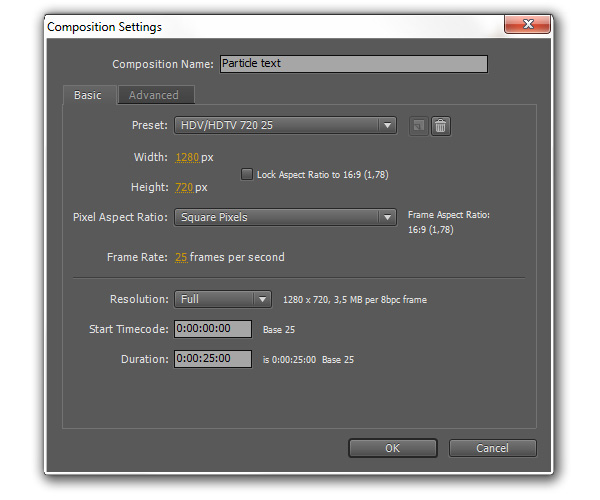
Create a new composition called “Particle text”, make it 1280×720 25 fps and 25 seconds long.

Step 2

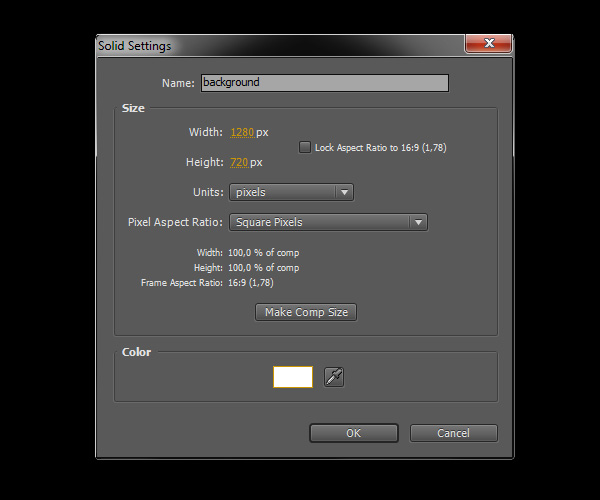
Create a new solid layer called “background” and make it white.

Step 3

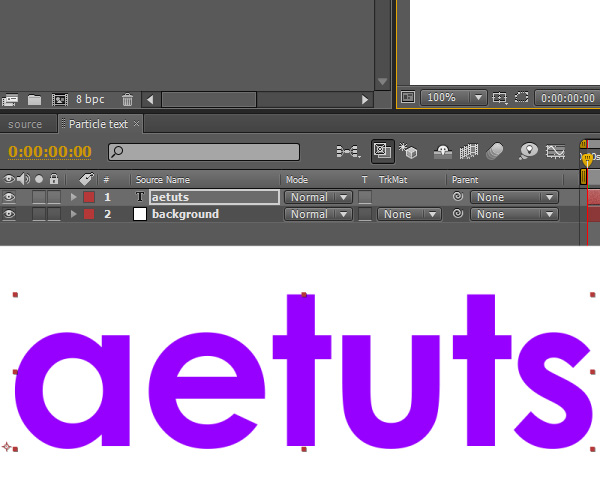
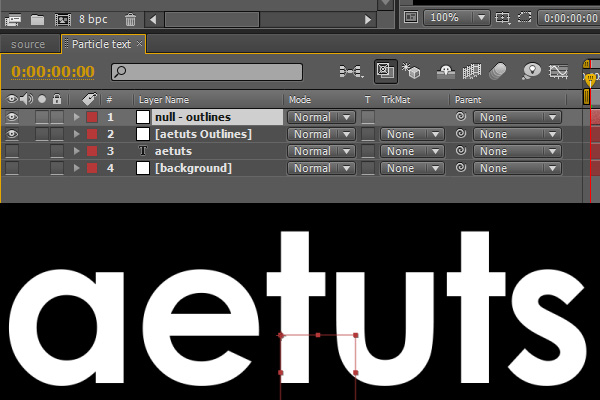
Create a new text layer (use any font you like) and type “aetuts”.

Step 4

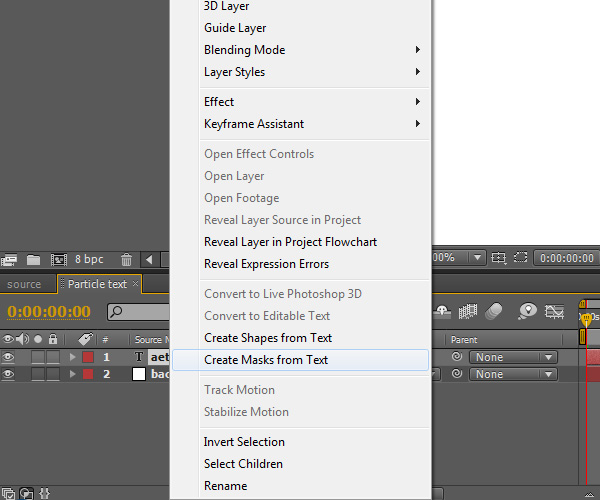
Right click on the text layer you’ve just created and select “Create masks from Text”.

Step 5

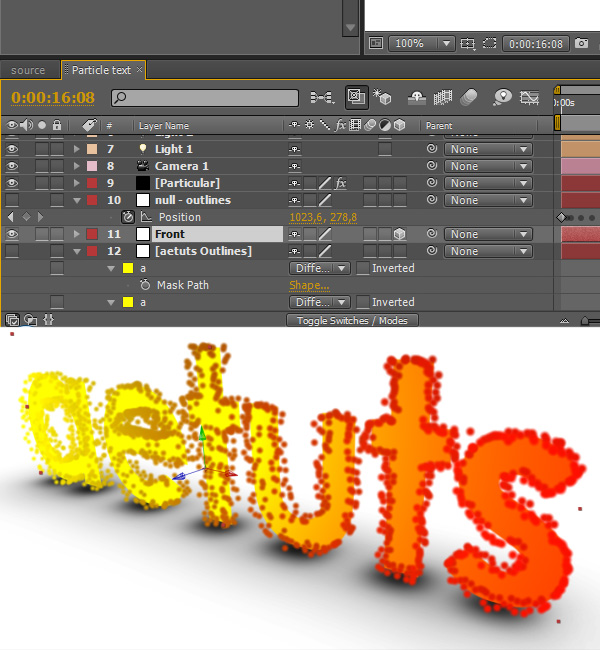
Create a new null object and call it “null – outlines”.

Step 6

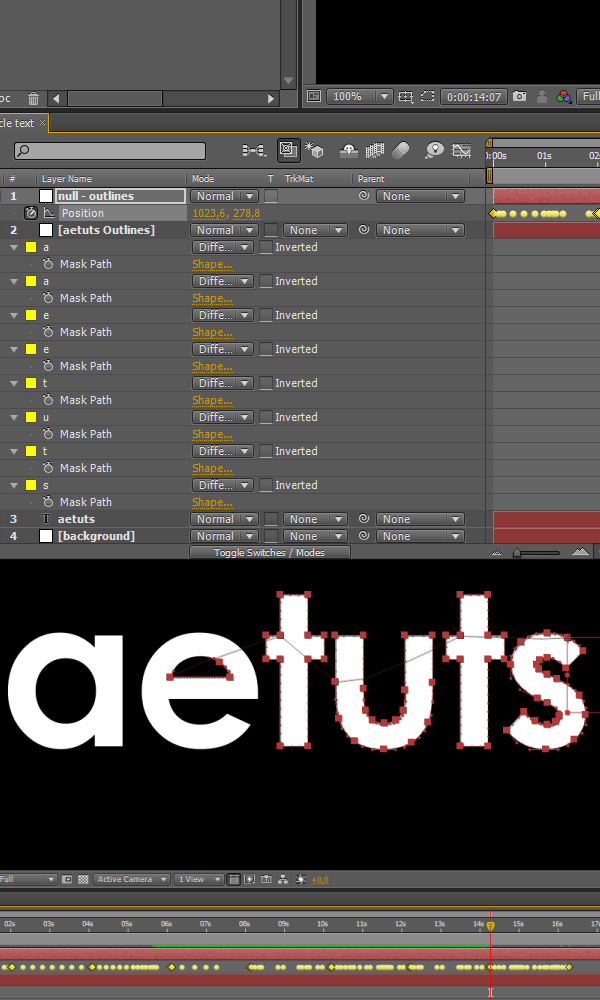
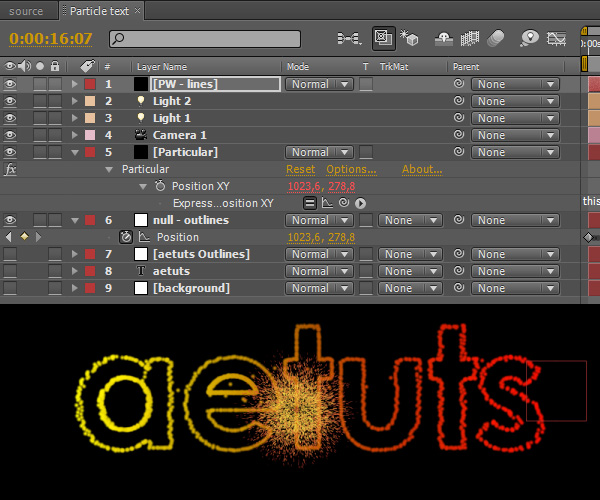
Now we need to take the mask points and use them to animate the “null – outlines” so it follows the mask paths and can be used later for the X,Y coordinates in Particular. Click on the “aetuts Outlines” layer that was created by AE, hit “M”, click on “Mask path” of the mask “a”, copy it (Ctrl-c), click on the “Position” property of the null and paste the data (Ctrl-v). Repeat this step with all mask paths. After copying all data the null should “draw” the text you typed (in this case “aetuts”).

Step 7

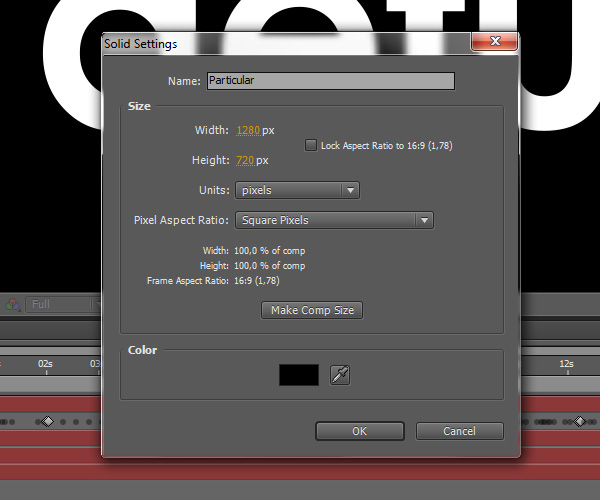
Create a new solid layer and call it “Particular”.

Step 8

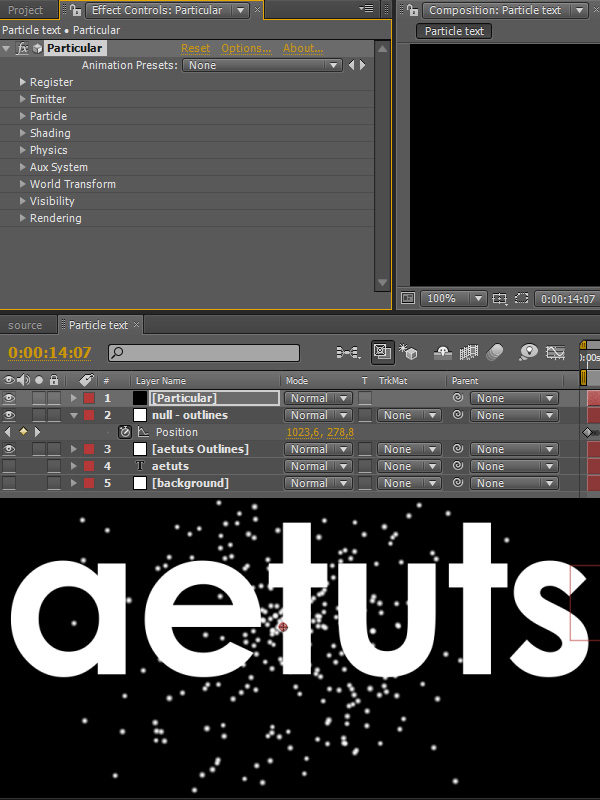
Apply the Particular effect obviously.

Step 9

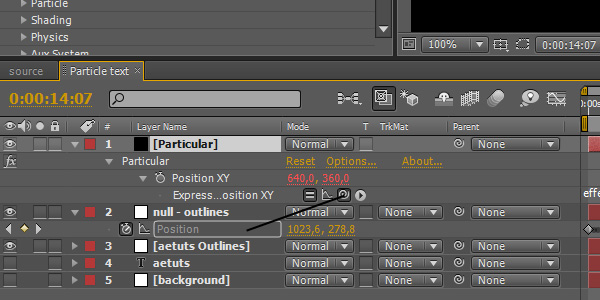
Alt-click on the Position XY property and pickwhip the Position property of our null object.

Step 10

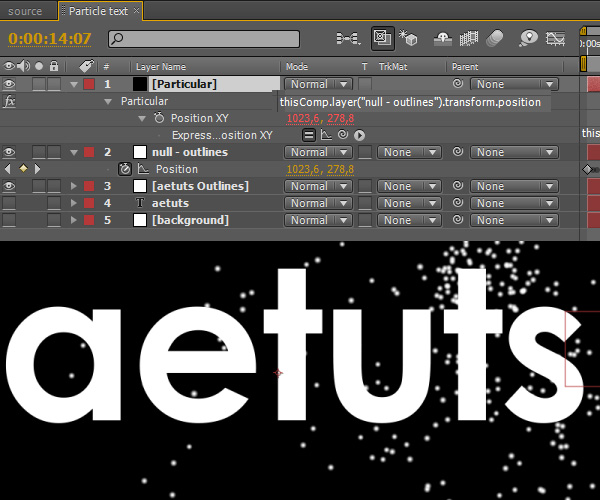
The expression is:

thisComp.layer(“null – outlines”).transform.position

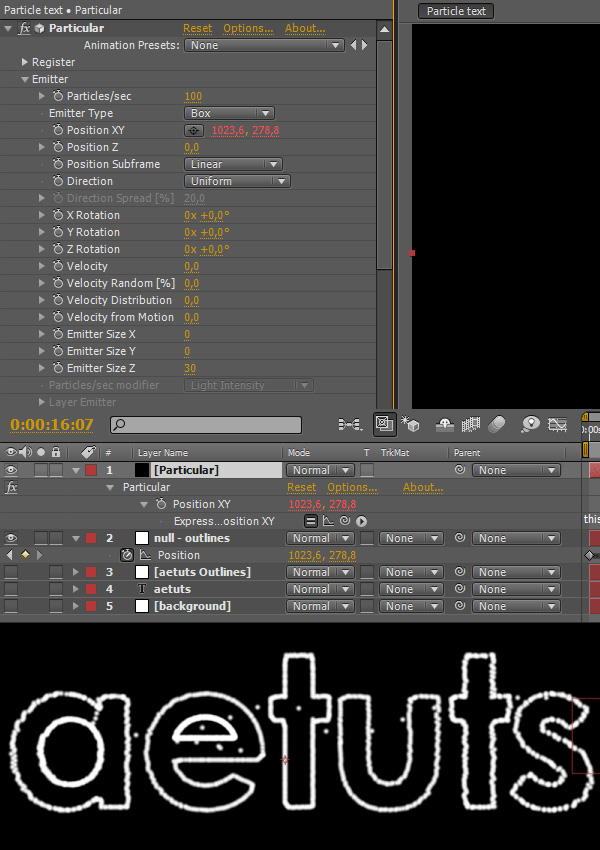
Step 11

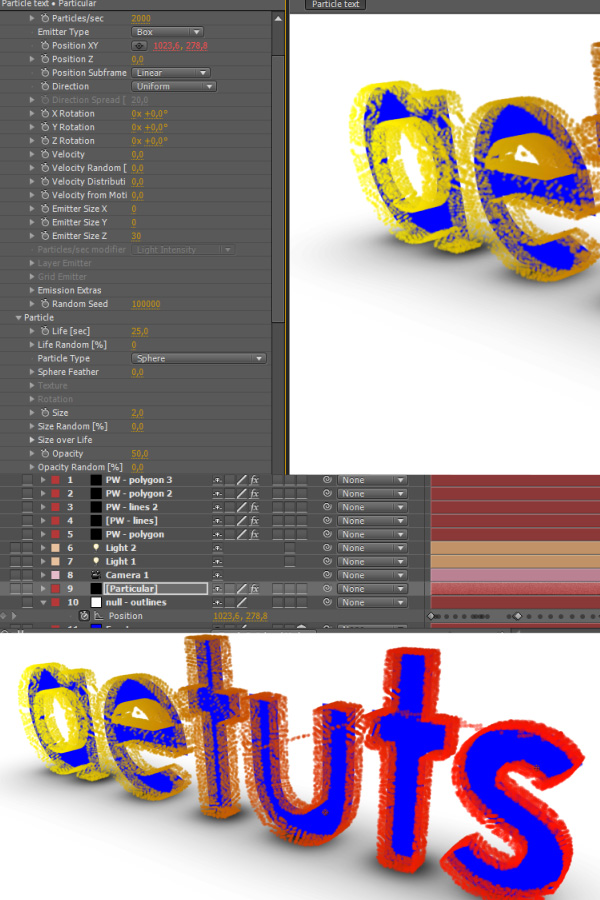
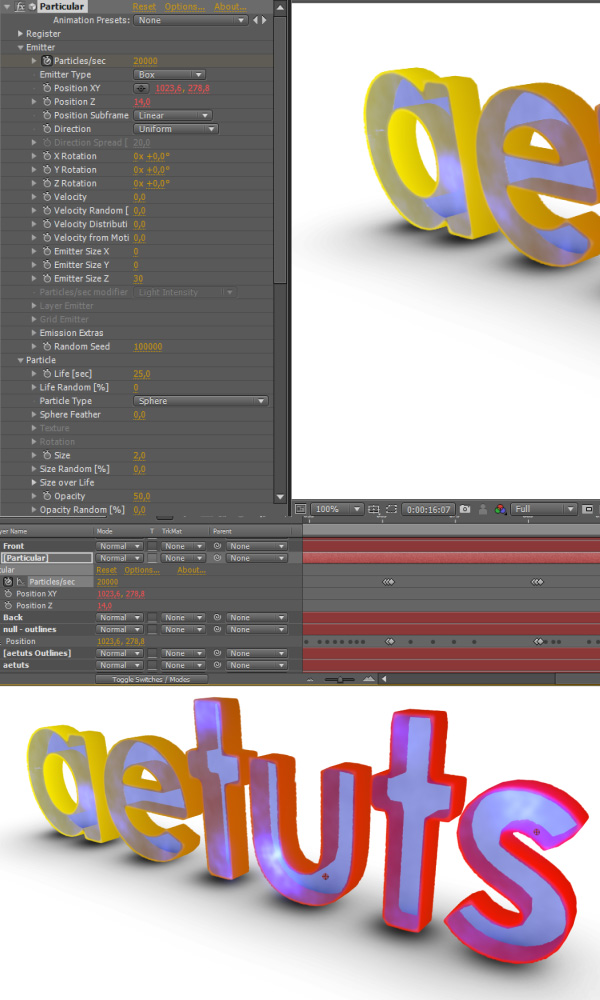
Now Particular should follow the outlines of our text layer. Set all Velocity values to 0 to make it stick to the mask path. Also set Emitter Type to “Box”, Emitter Size X and Y to 0 and Emitter Size Z to 30.

Step 12

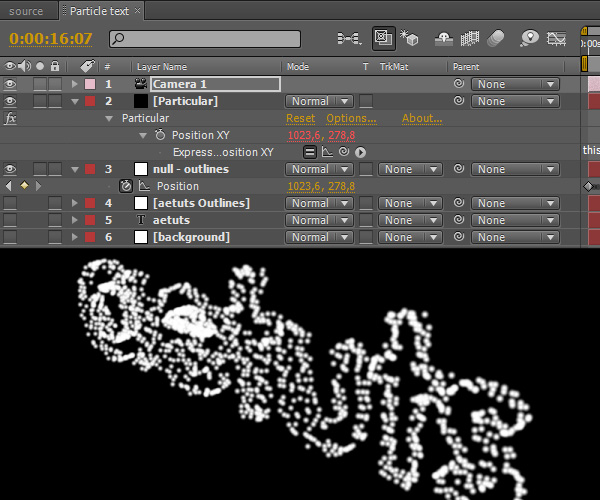
Create a new camera, doesn’t matter what settings.

Step 13

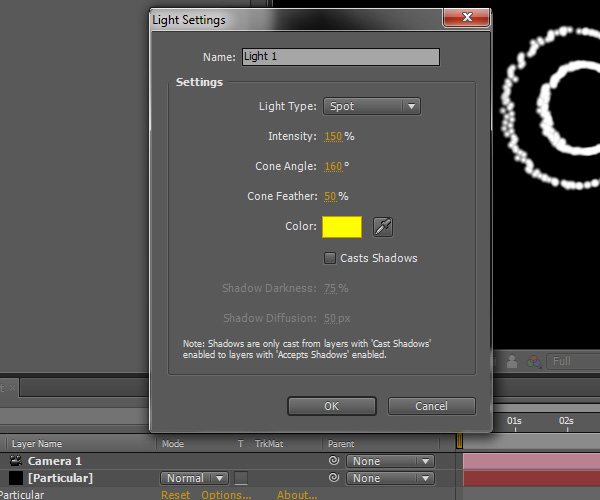
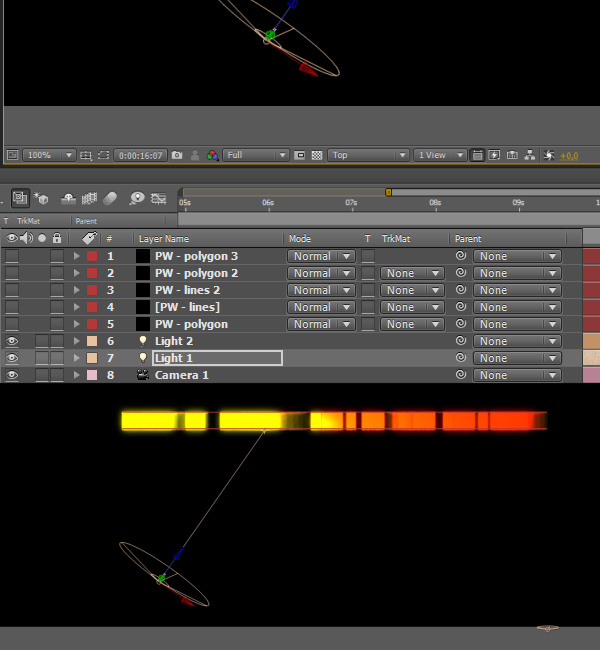
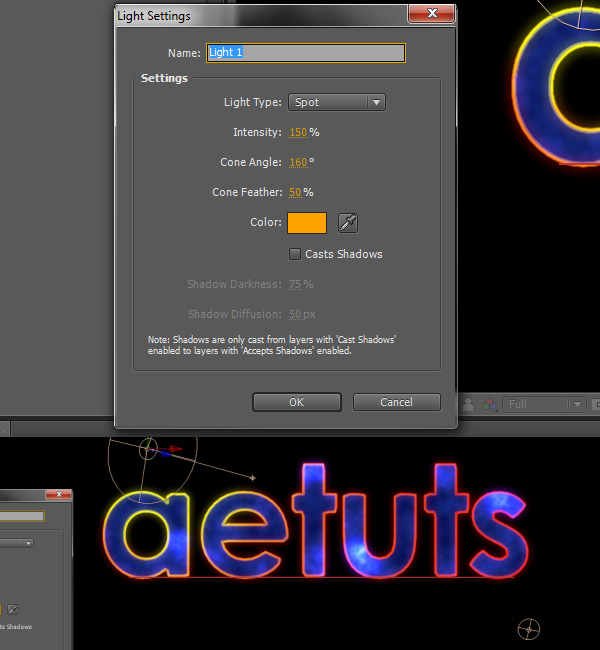
Create a new light, change the Light Type to “Spot”, Intensity to 150%, Cone Angle to 160°, Cone Feather to 50% and make it yellow. Uncheck “Casts Shadows”.

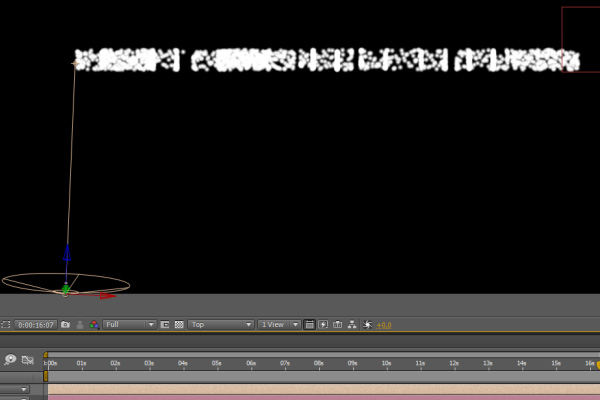
Step 14

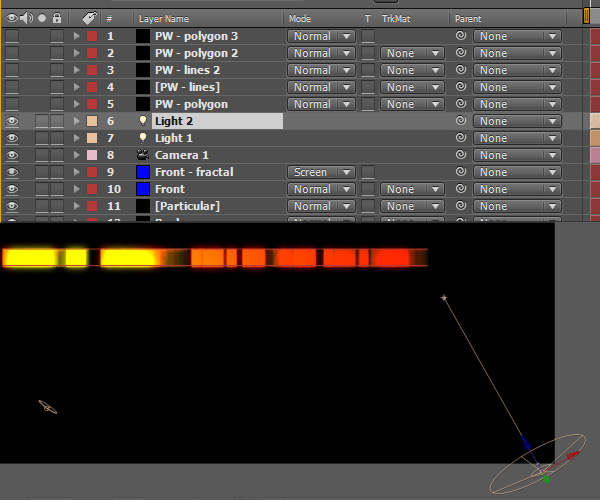
Switch to Top view and position the light as shown on the picture bellow.

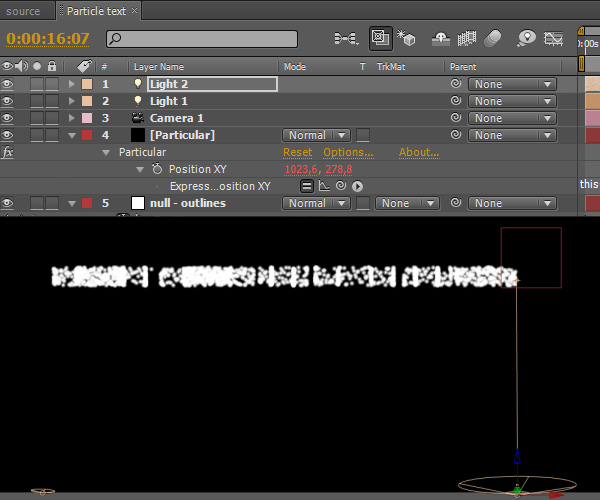
Step 15

Duplicate the light and position it on the other side of the text.

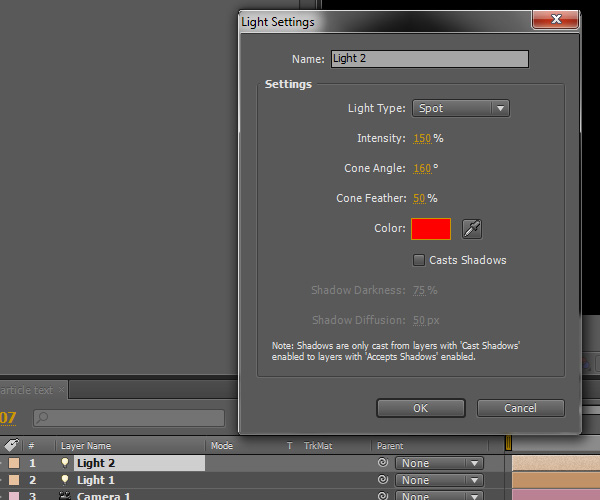
Step 16

Double click on the duplicated light and change its color to red.

Step 17

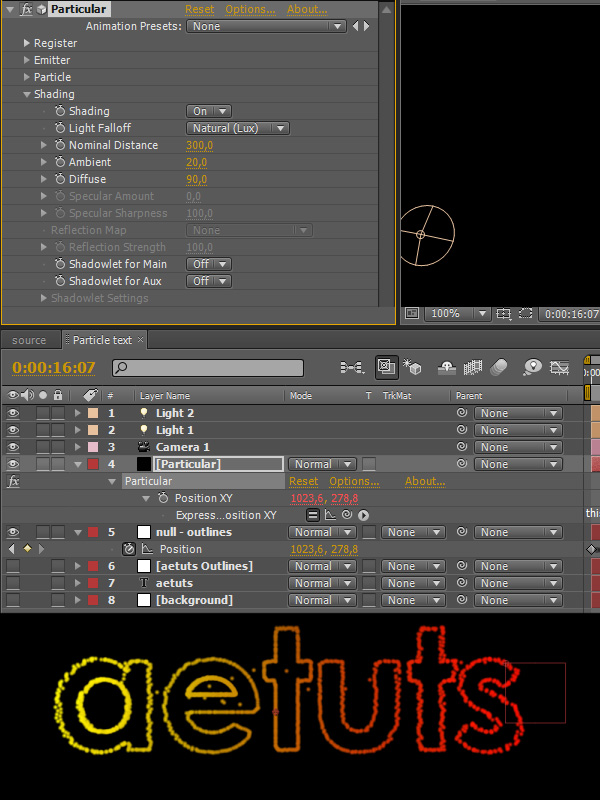
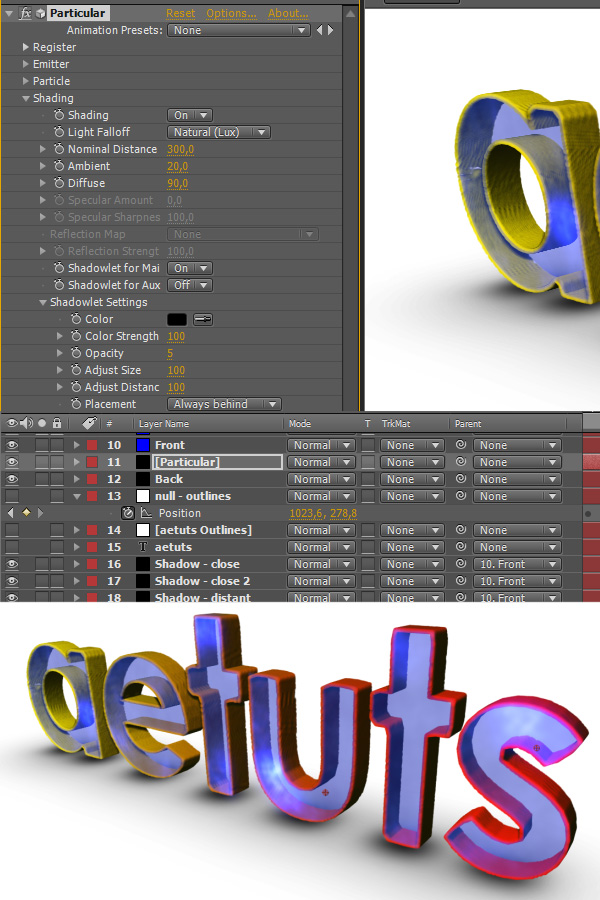
Go to Particular -> Shading and turn it on. Also change the Nominal Distance value to 300 and Diffuse to 90.

Step 18

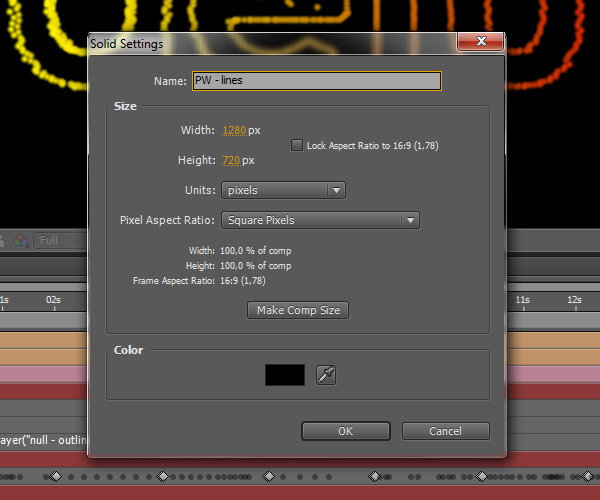
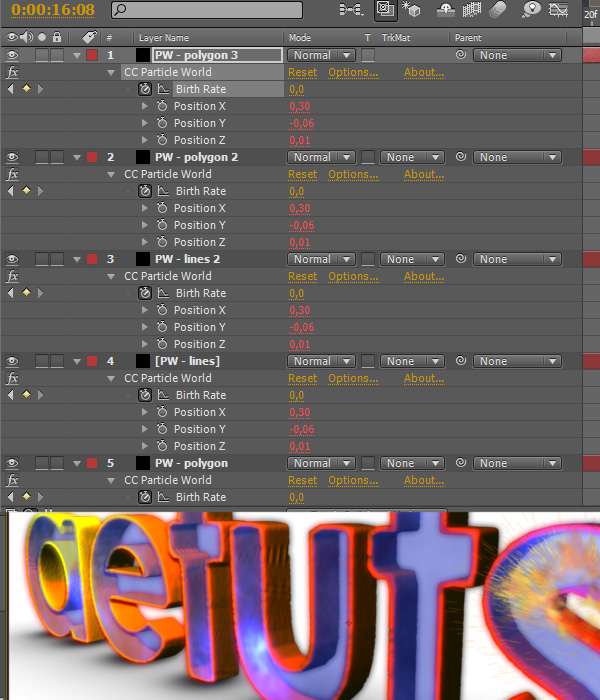
Now we will create particles that will kind of reveal our text. Make a new solid and call it “PW – lines” (as in Particle World).

Step 19

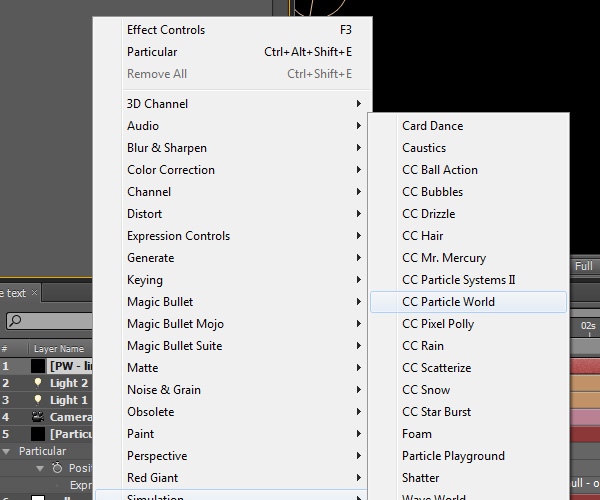
Apply the CC Particle World effect.

Step 20

Your particle text should look somewhat similar to the picture bellow.

Step 21

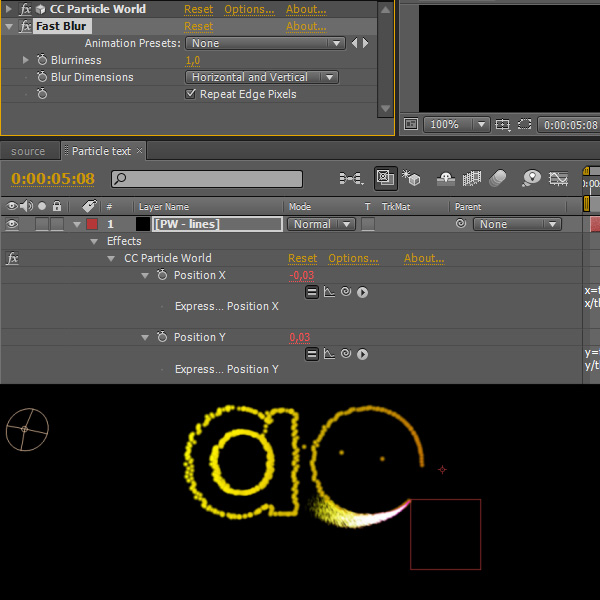
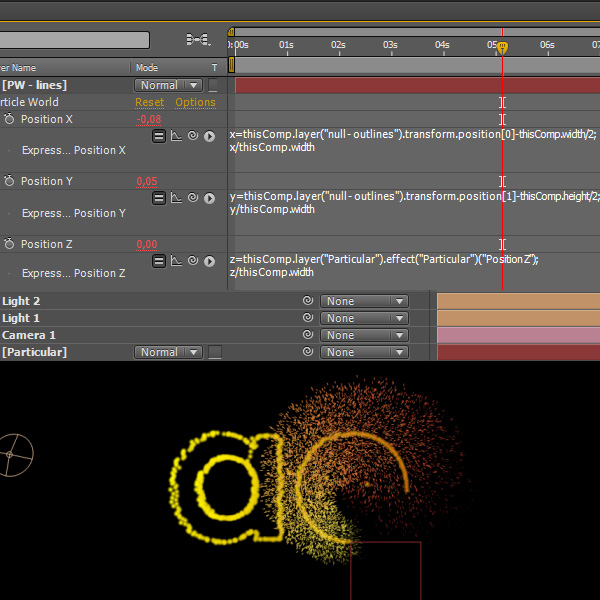
At first we need to make the PW particles follow the path too. Alt-click on Position X and type the following into the expression box:

x=thisCompLayer(“null – outlines”).transform.position[0]-thisComp.width/2;
x/thisComp.width

Alt-click on Position Y and type the following into the expression box:

y=thisCompLayer(“null – outlines”).transform.position[1]-thisComp.height/2;
y/thisComp.width

Alt-click on Position Z and type the following into the expression box:

z=thisCompLayer(“Particular”).effect(“Particular”)(“Position Z”);
z/thisComp.width

Step 22

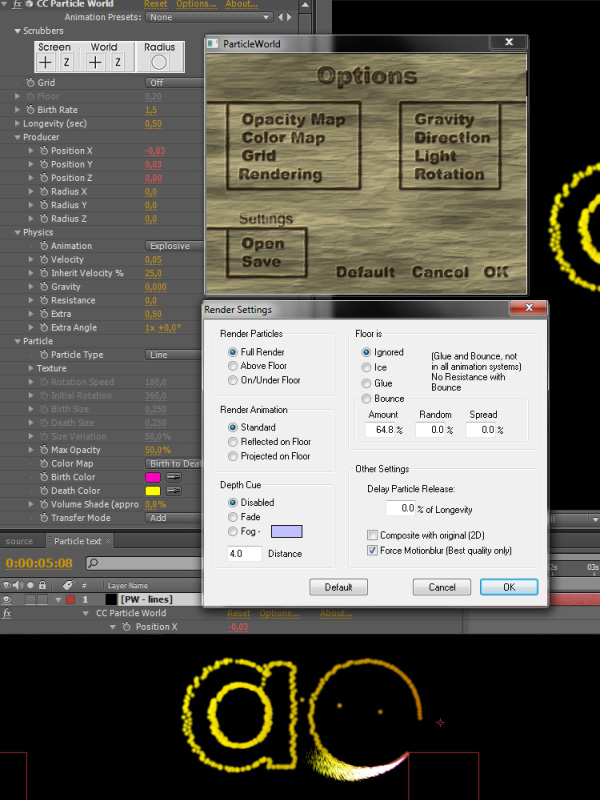
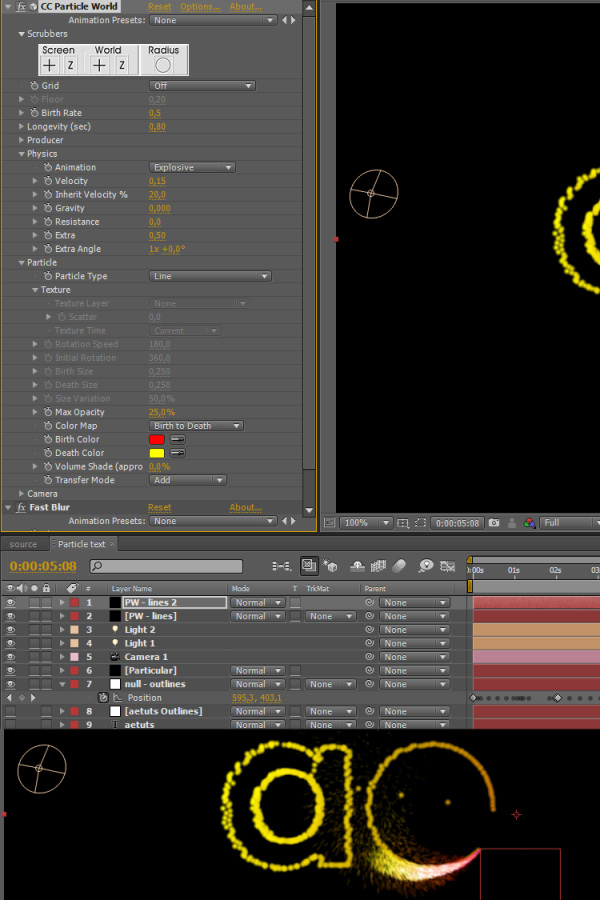
Now let’s change some of the settings.
Turn Grid off obviously.
Set Birth Rate to 1.5.
Set Longetivity to 0.5.
Set Radius X,Y,Z to 0.
Set Velocity to 0.05.
Set Inherit Velocity to 25.
Set Gravity to 0.
Set Max Opacity to 50.
Change the particle Birth and Death colors as shown on the picture bellow.
Set Transfer Mode to Add.

Click on Options->Render Settings and check “Force Motionblur”.

Step 23

Apply Fast Blur and set Blurriness to 1.

Step 24

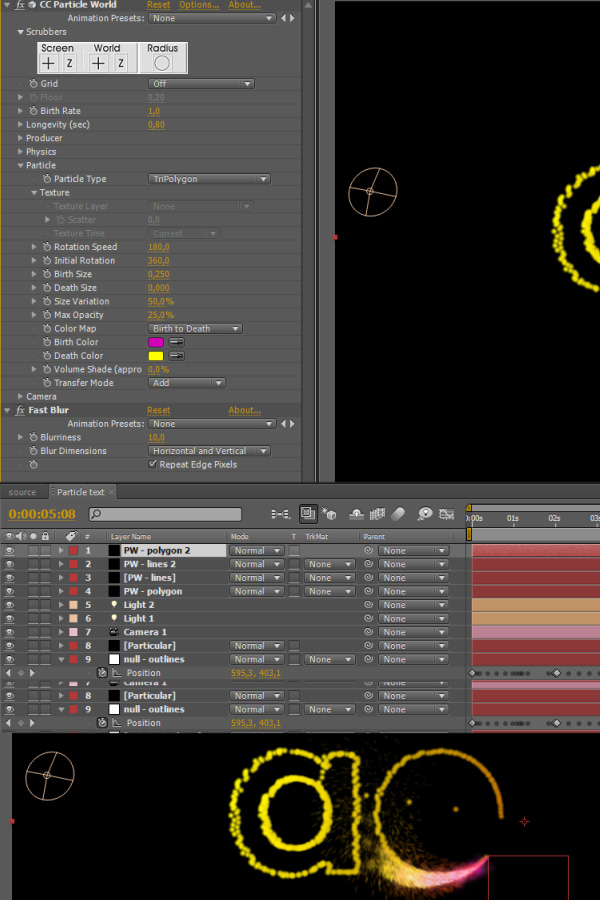
Duplicate the “PW – lines” layer by pressing Ctrl-D and change the values as shown on the picture bellow.

Step 25

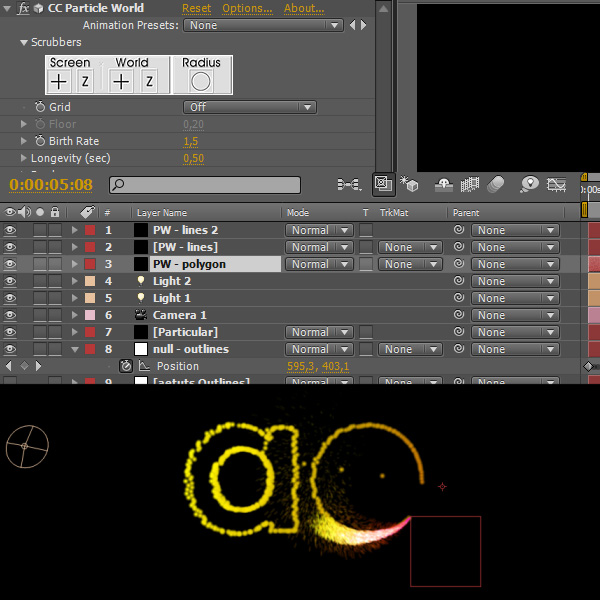
Duplicate the “PW – lines” again, name it “PW – polygon” and put it bellow the original “PW – lines” layer.

Step 26

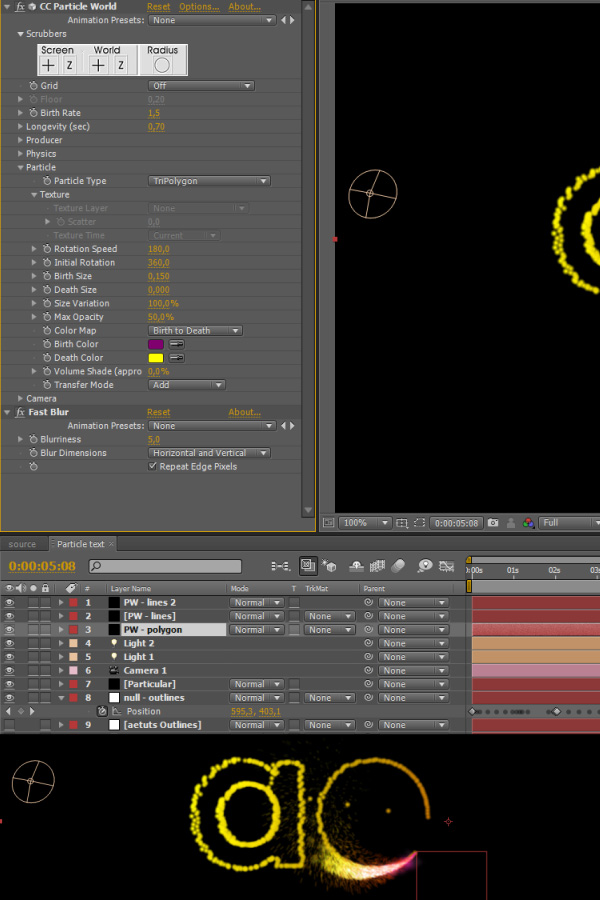
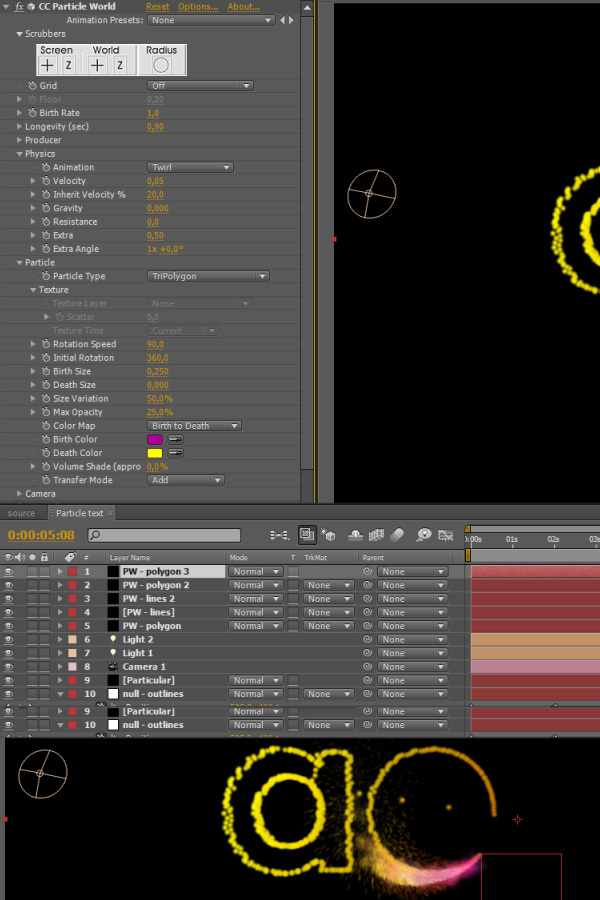
Change the settings of the “PW – polygon” layer according to the screenshot.

Step 27

Duplicate the “PW – polygon” layer, put it above all PW layers and change the settings accordingly.

Step 28

And for the last time duplicate the “Pw – polygon 2″ layer and change its settings.

Step 29

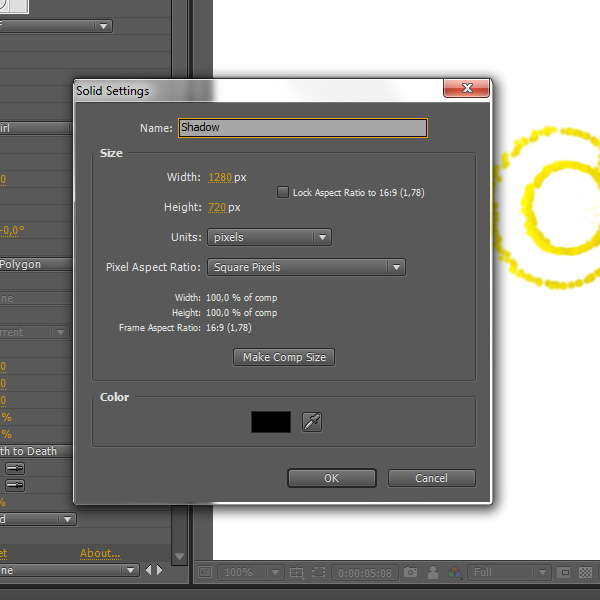
Create a new solid layer, make it black and name it “Shadow”.

Step 30

Put it just above the background layer.

Step 31

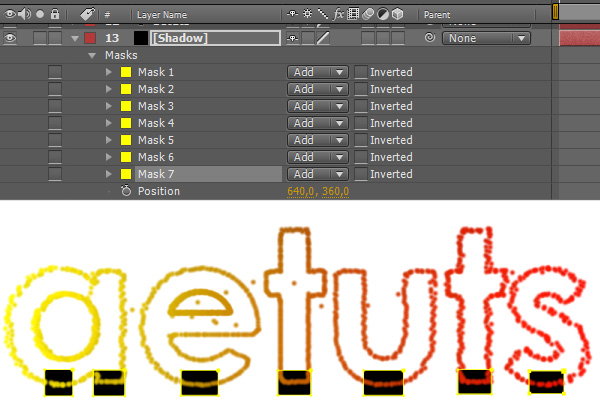
Draw masks as shown on the screenshot bellow. We are basically going to fake some sort of 3D shadow by creating couple of masks around places where normal shadow would appear.

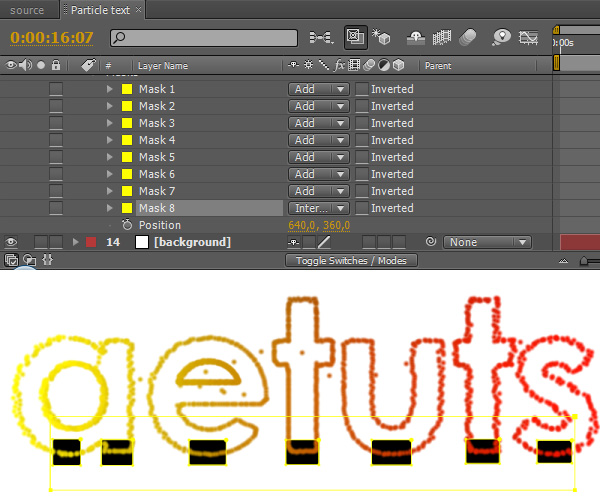
Step 32

Create another mask that will cover all previous masks.

Step 33

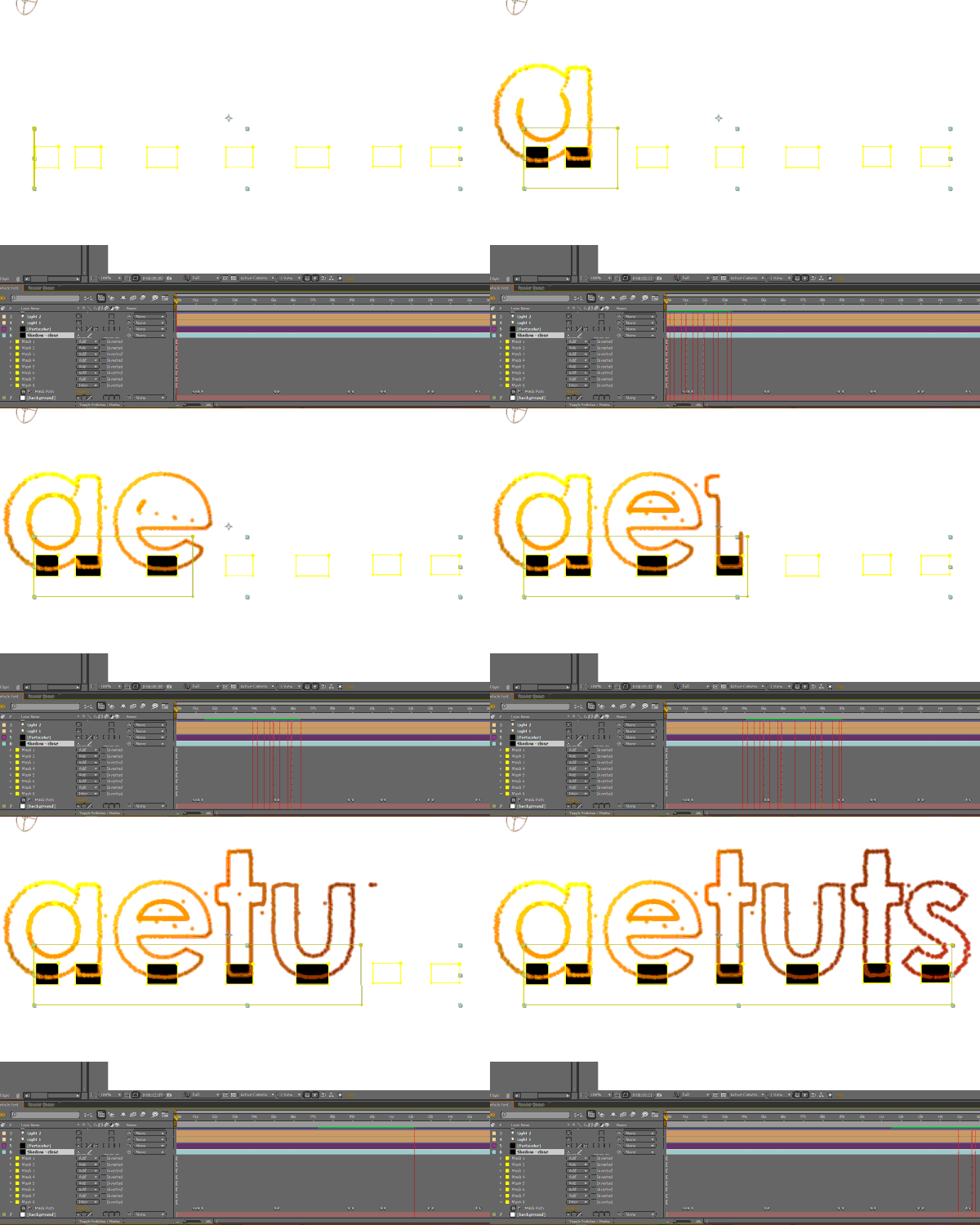
Animate the big last mask so it reveals the smaller shadow masks you’ve created earlier as particular animates and gets closer to them.

Step 34

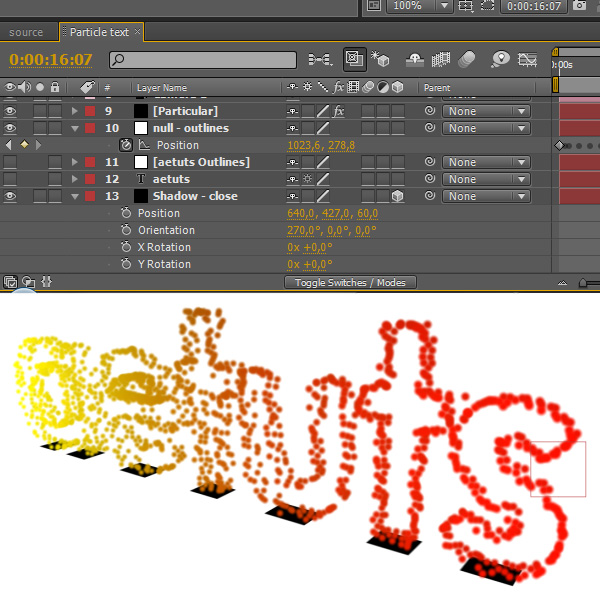
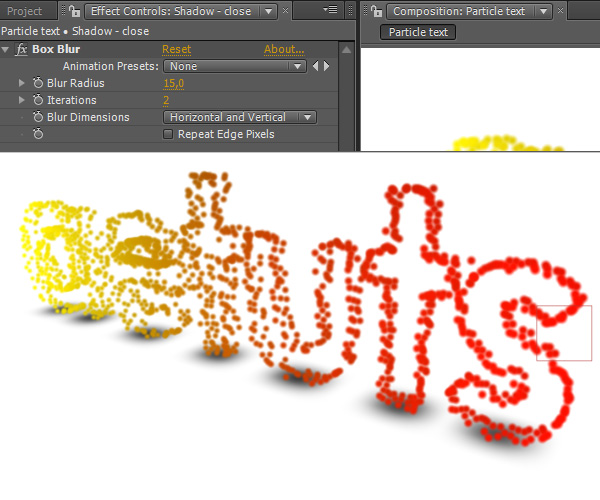
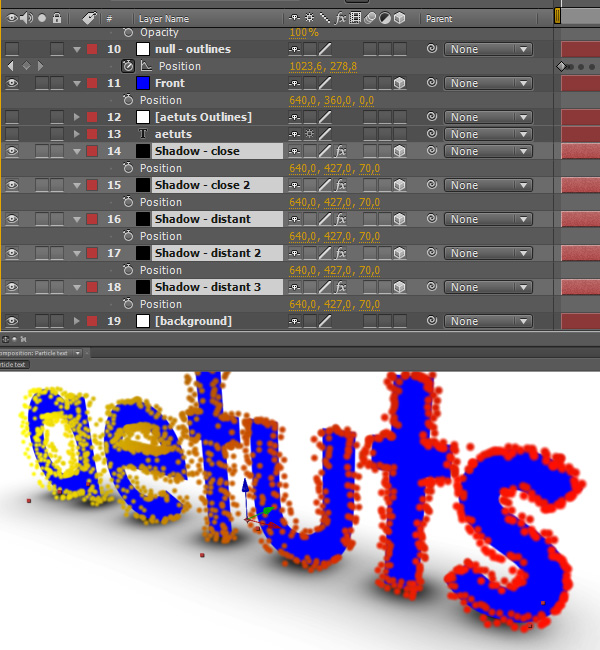
Rename the shadow layer to “Shadow – close”, make it 3D, rotate it to 270° on the X axis and change its position to 427px on the Y axis (so it looks like it’s just underneath the text). If you aren’t sure what’s the right value here then just check the Position value of the “null – outlines” layer – you’re looking for the highest value.

Step 35

Apply the Box Blur effect, set Blur Radius to 15 and Iterations to 2.

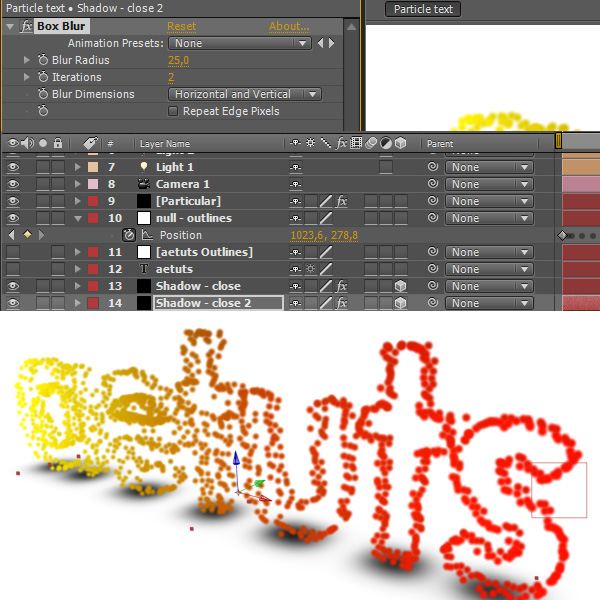
Step 36

Duplicate the “Shadow – close” layer and change its settings.

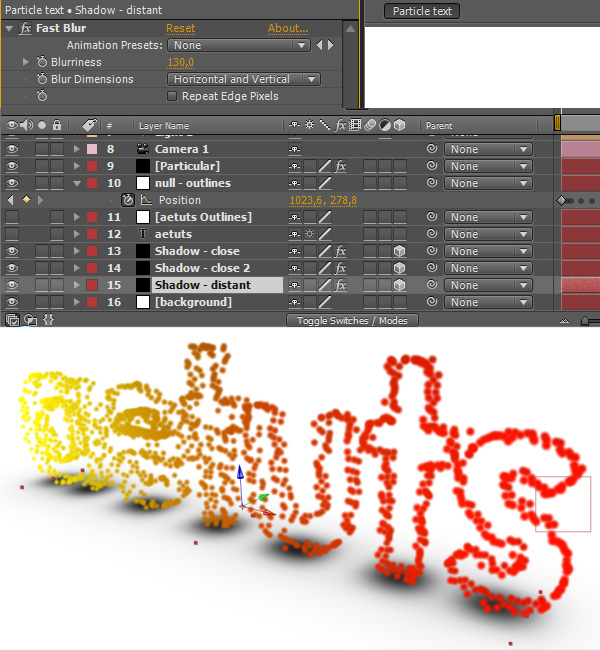
Step 37

Duplicate it again, change its name to “Shadow – distant”, delete the Box Blur effect, apply Fast Blur and set Blurriness to 130.

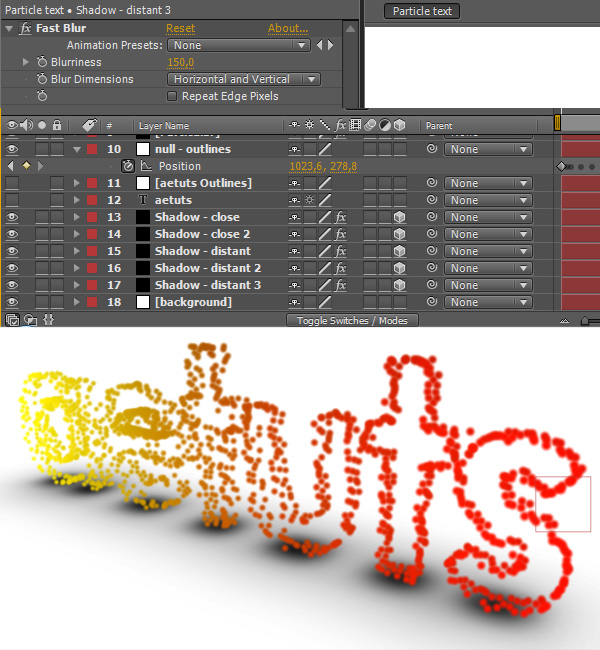
Step 38

Duplicate the “Shadow – distant” layer twice and change Blurriness to 150.

Step 39

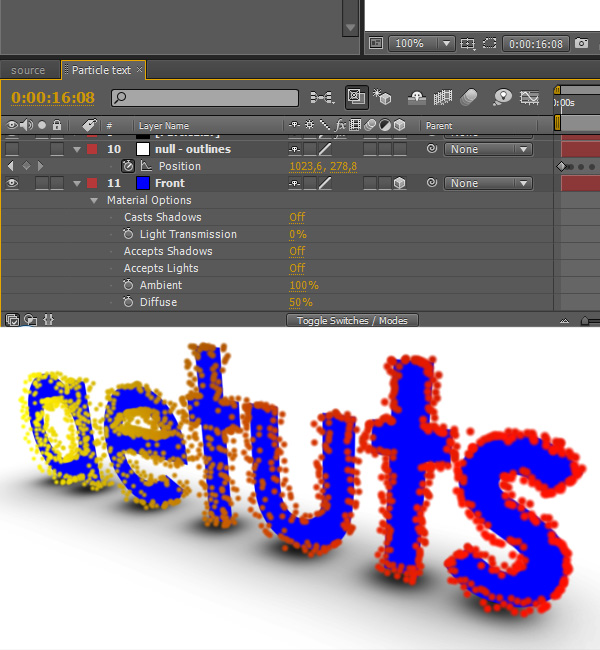
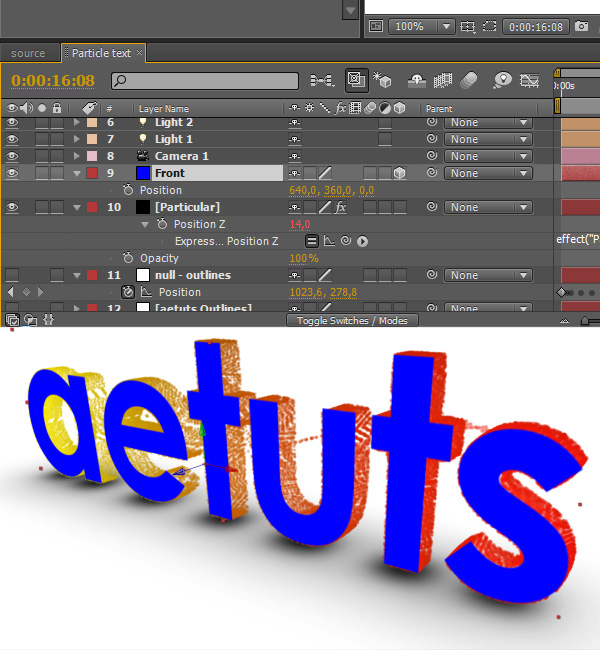
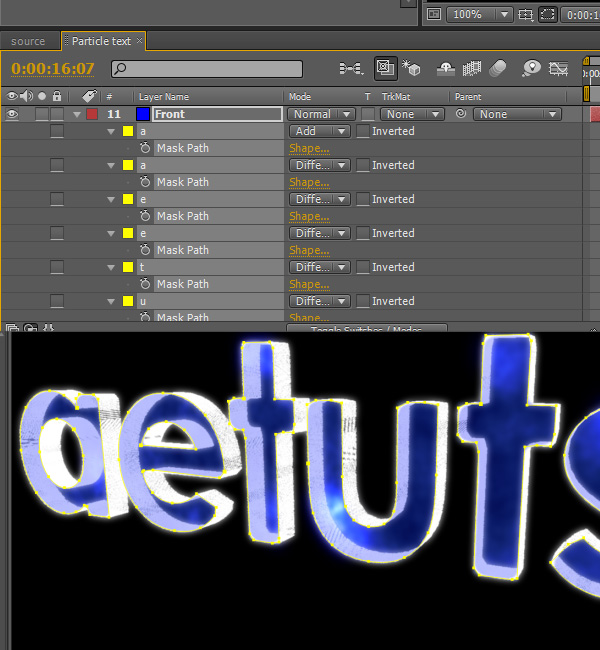
Duplicate the “aetuts Outlines” layer, make it 3D and rename it as “Front”.

Step 40

Go to Material Options (press AA) and turn Accepts Shadows and Accepts Lights Off. Also change the layer color to blue.

Step 41

Select all shadow layers, press P and set their Z-position to 70.

Step 42

Parent all shadow layers to the Front layer.

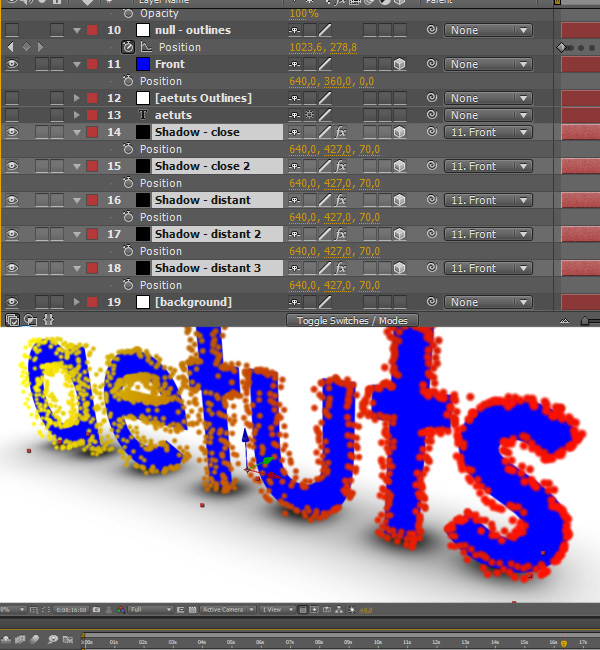
Step 43

Now let’s change Particular’s settings to make it look a bit better. Set Particles/sec to 2000, Life to 25, Sphere Feather to 0, Size to 2 and Opacity to 50.

Step 44

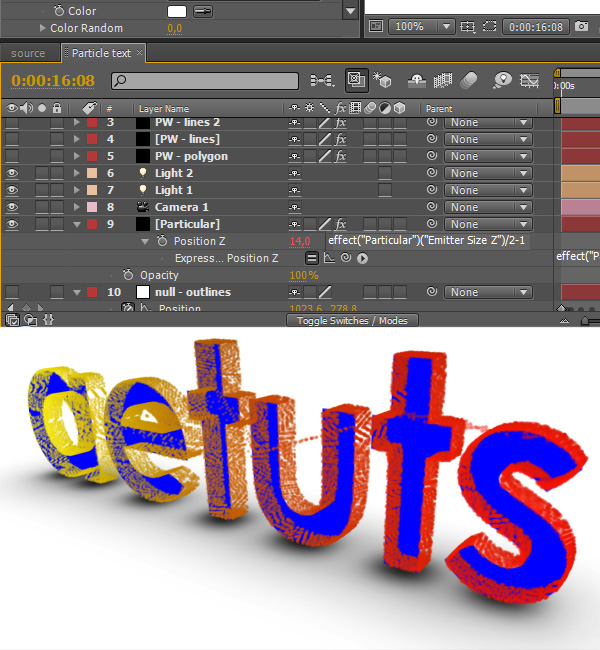
Alt-click on Position Z and type the following:

effect(“Particular”)(“Emitter Size Z”)/2-1

This way we tell Particular to push the particles back in the Z-space so they line up nicely with the Front layer.

Step 45

Put the Front layer above the Particular one.

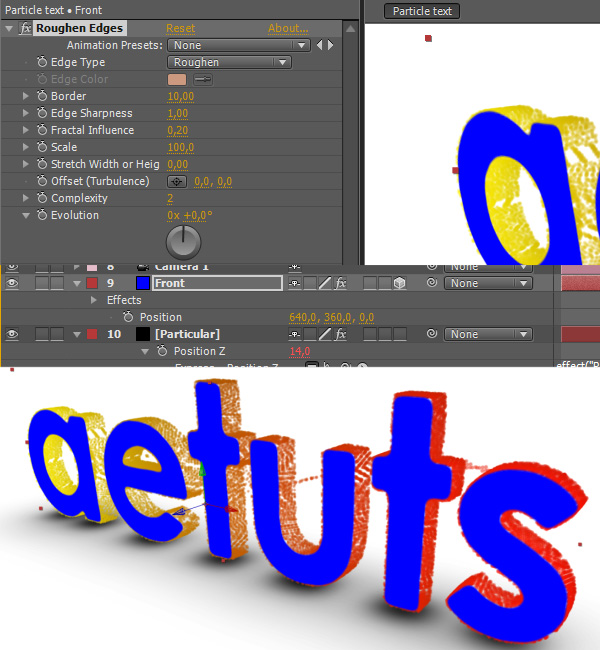
Step 46

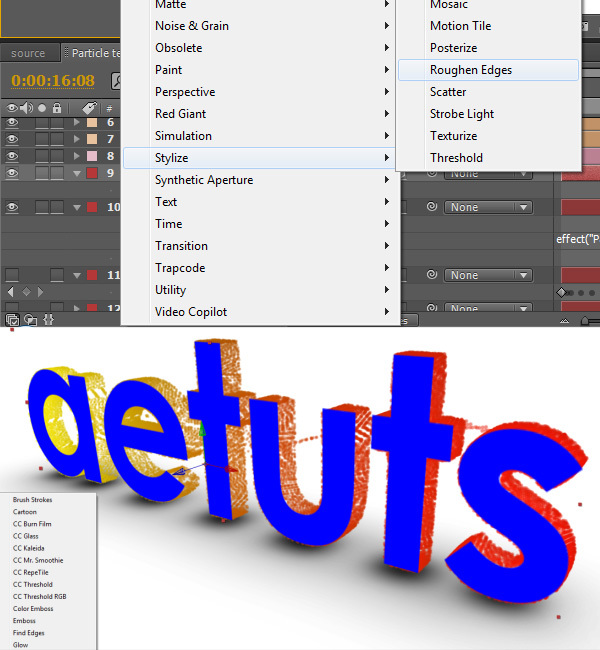
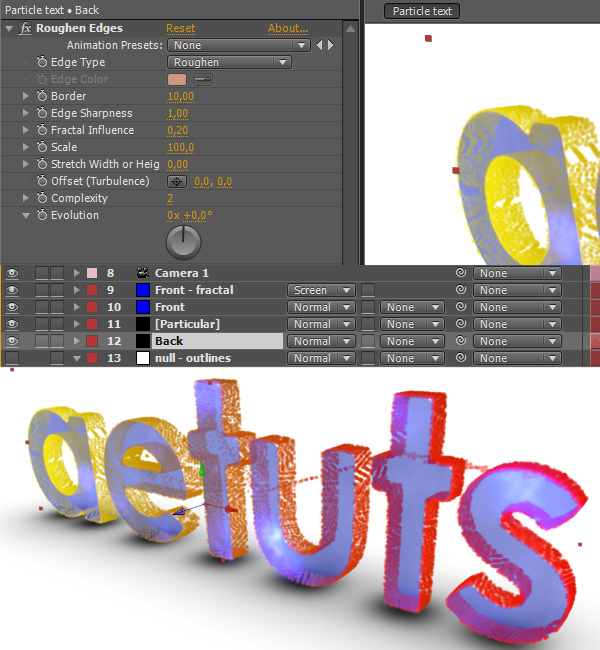
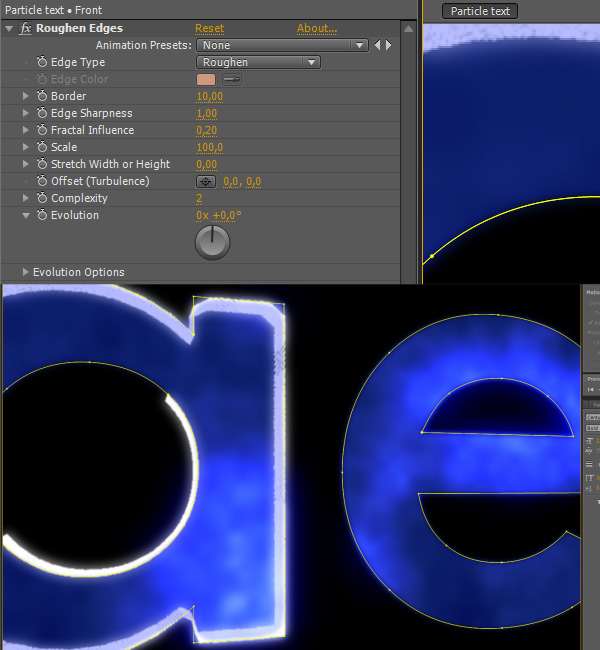
Apply the Roughen Edges to the Front layer.

Step 47

Change the settings as shown on the picture bellow to roughen the edges a bit.

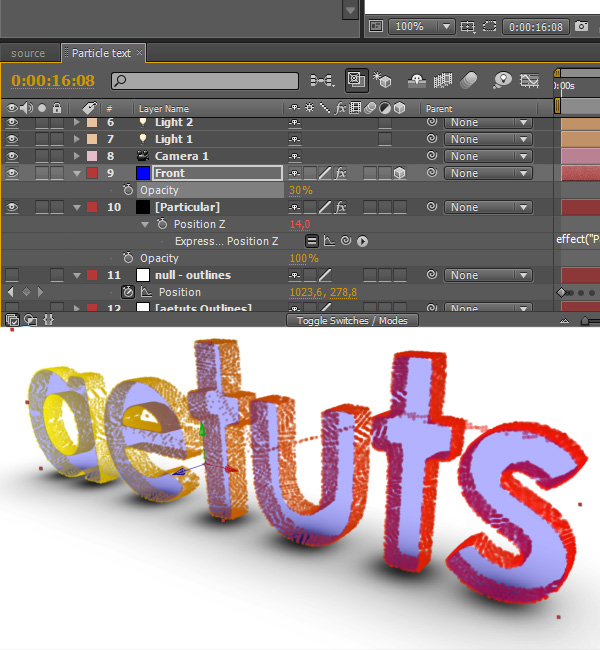
Step 48

Set Opacity of the Fron layer to 30%.

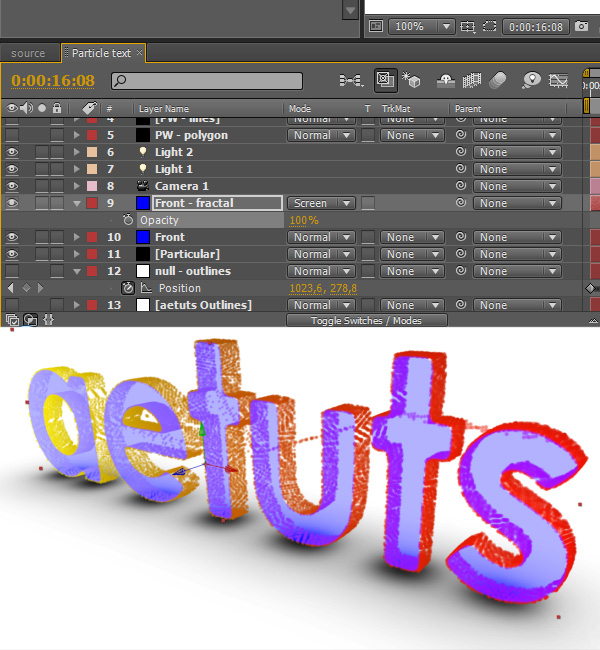
Step 49

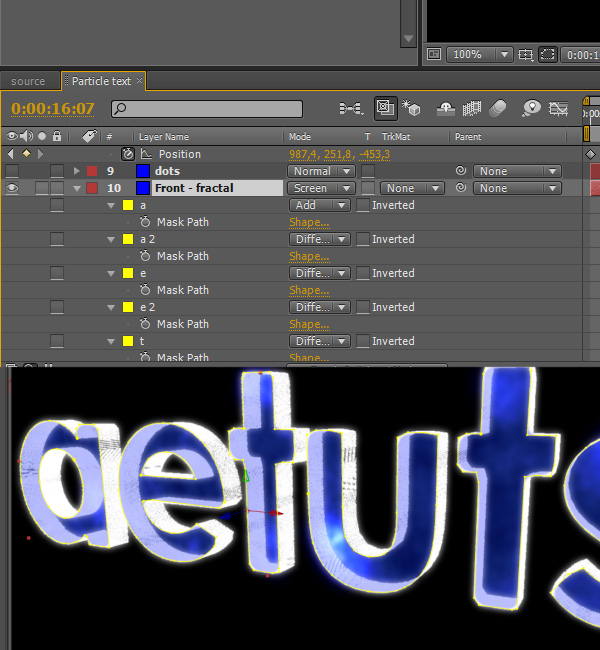
Duplicate the Front layer, name it “Front – fractal” and set the Transfer Mode to Screen.

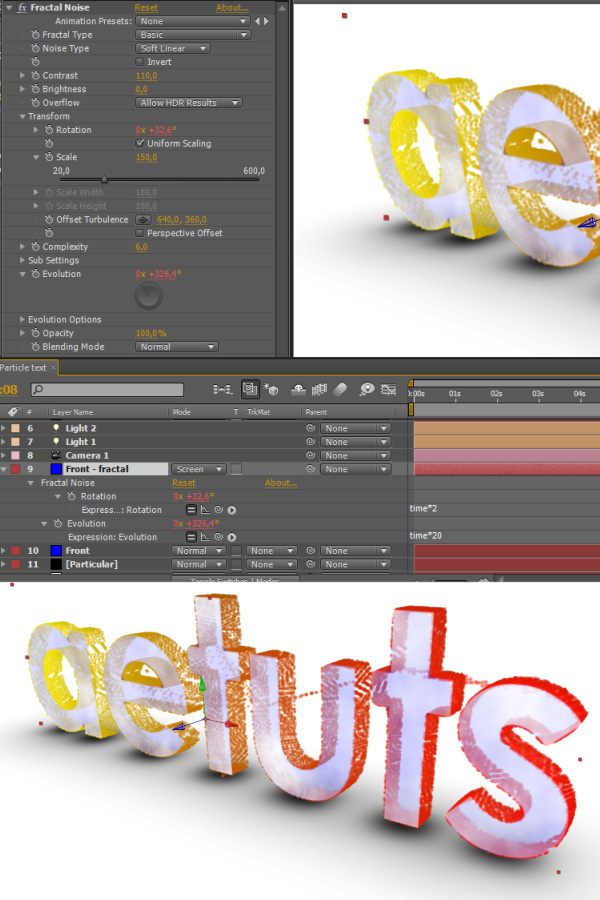
Step 50

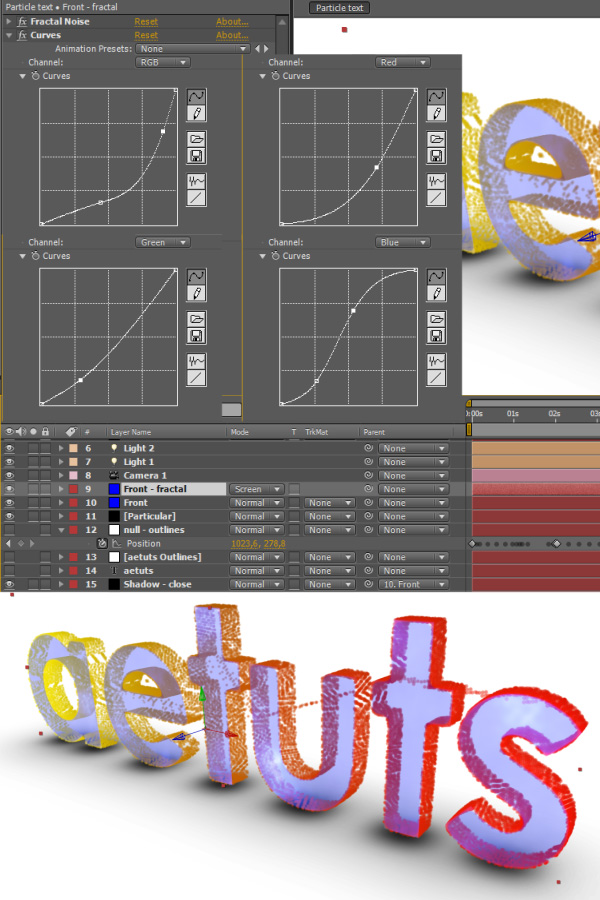
Apply the Fractal Noise effect and change its settings as shown on the screenshot. It kind of doesn’t matter what values you use, just make it animate so the front layer doesn’t look static. Also change the transfer mode to “Screen”.

Step 51

Apply the Curves effect to the Front – fractal layer and play around with the values.

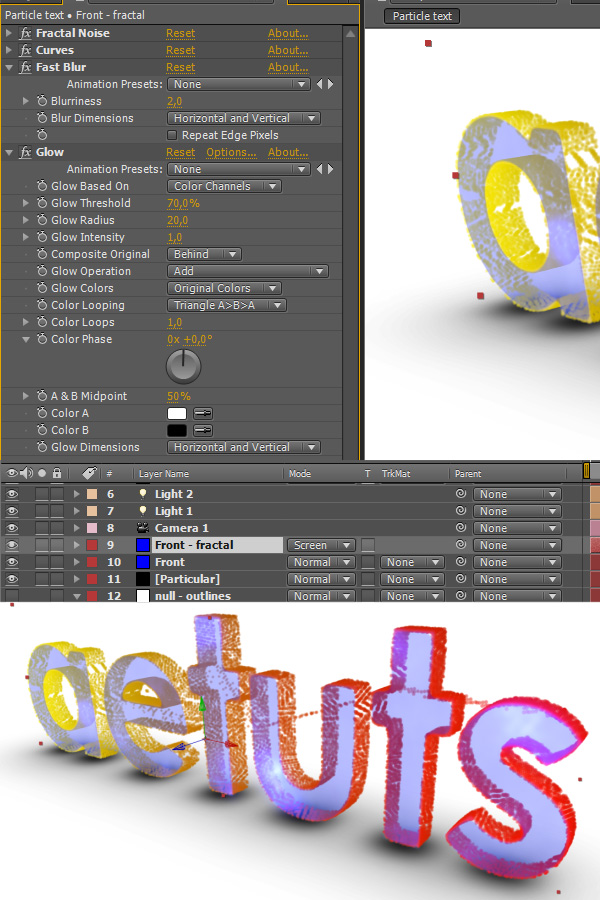
Step 52

Apply the Fast Blur effect and set Blurriness to 2. Apply the Glow effect and set Glow Threshold to 70.

Step 53

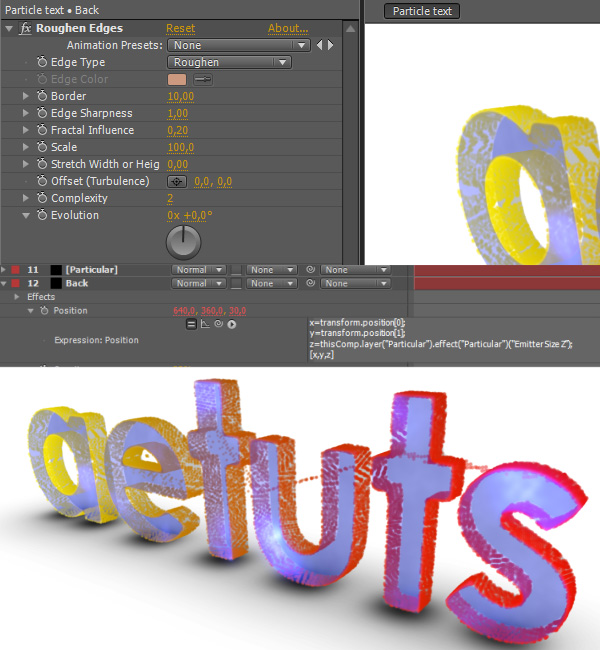
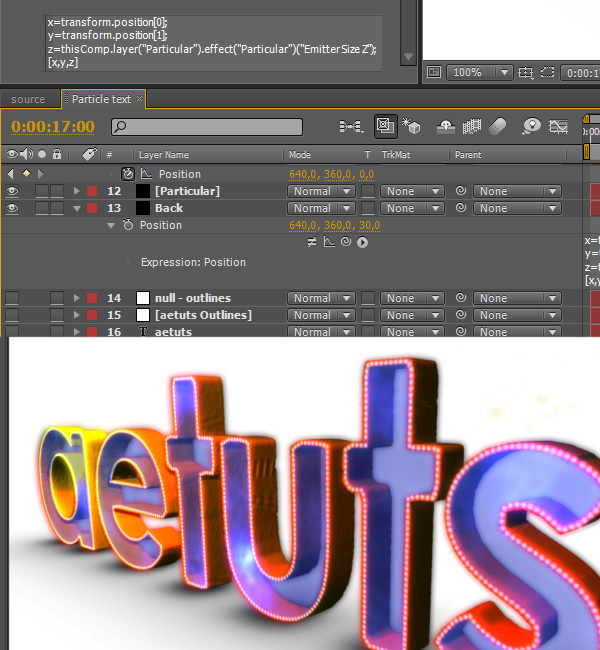
Duplicate the Front layer, name it Back and make it black. And put it bellow the Particular layer.

Step 54

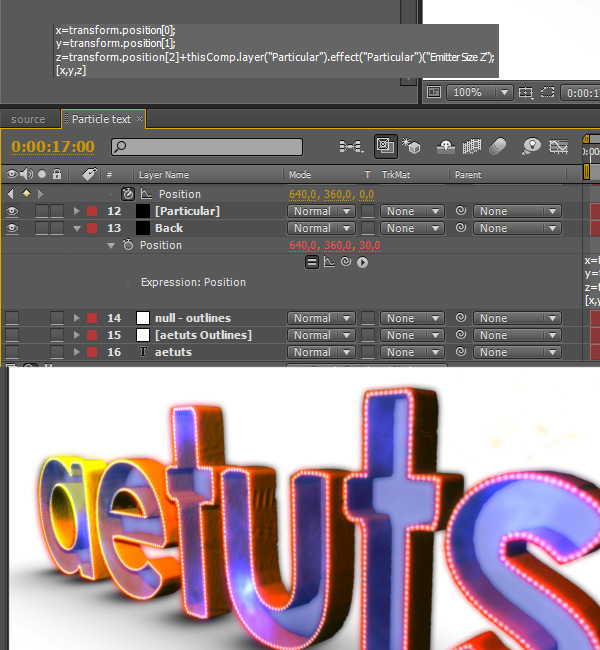
As the layer name suggests, this will be our back layer. Alt-click on Position and type the following:

x=transform.position[0];
y=transform.position[1];
z=thisComp.layer(“Particular”).effect(“Particular”)(“Emitter Size Z”);
[x,y,z]

This way the back layer will be positioned at the end of the particles (talking about the Z-space).

Step 55

At this point we will get rid of those annoying lines that appear when Particular is skipping from one letter to another. Select null – outlines and press P, it will help you place new keyframes for Particular. Make a keyframe for Particles/sec one frame before the end of current letter and set it to 20000. Move one frame forward (which is the last keyframe of current letter) and set Particles/sec to 0. Move one frame forward yet again (which is the very first keyframe of the next letter) and set Particles/sec to 20000. Basically we are just trying to set Particles/sec to 0 every time Particular “skips” onto the next letter.

Step 56

In Particular->Shading turn Shadowlet for Main particles on and set Placement to “Always behind”.

Step 57

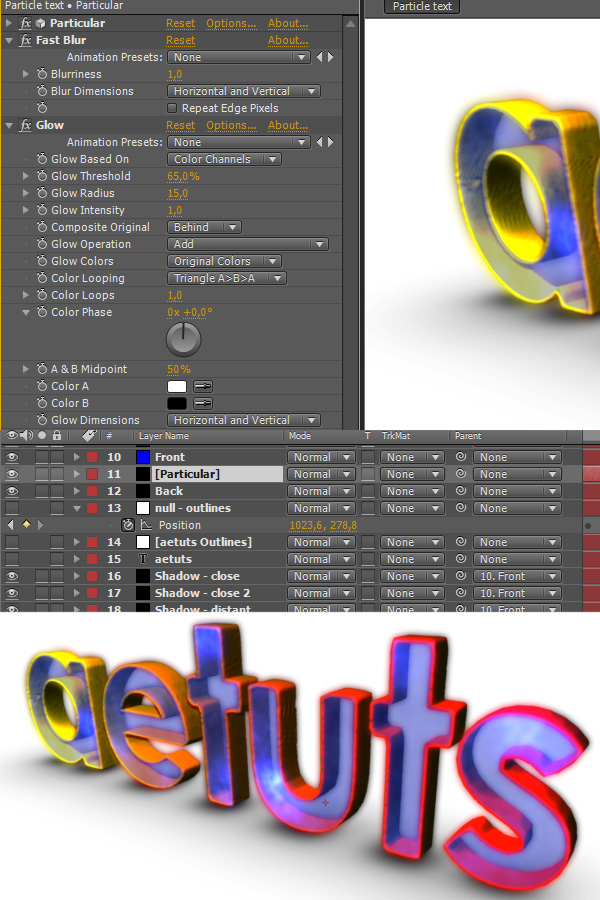
Apply Fast Blur to the Particular layer and set Blurriness to 1. Also apply the Glow effect and set Glow Threshold to 65% and Glow Radius to 15.

Step 58

Feel free to adjust light’s position …

Step 59

… and other properties.

Step 60

And the same for the second light.

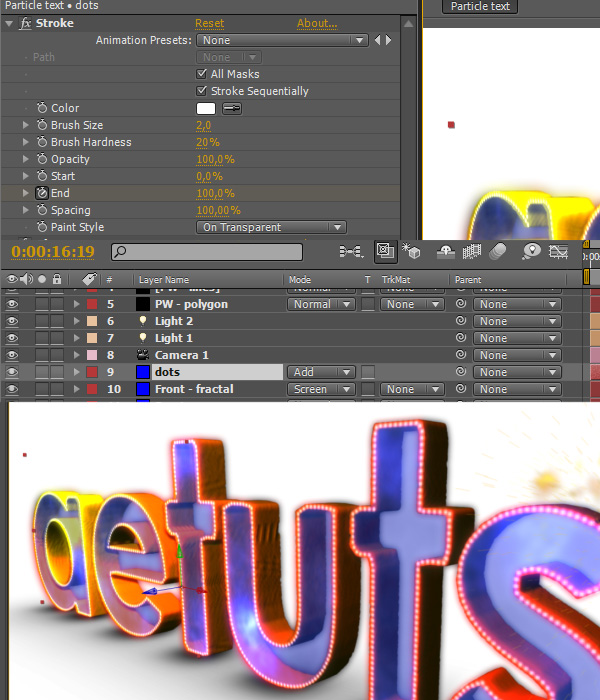
Step 61

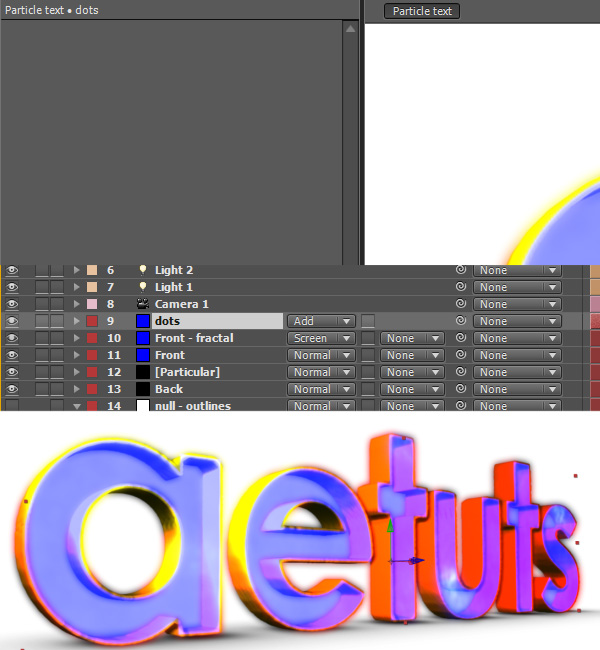
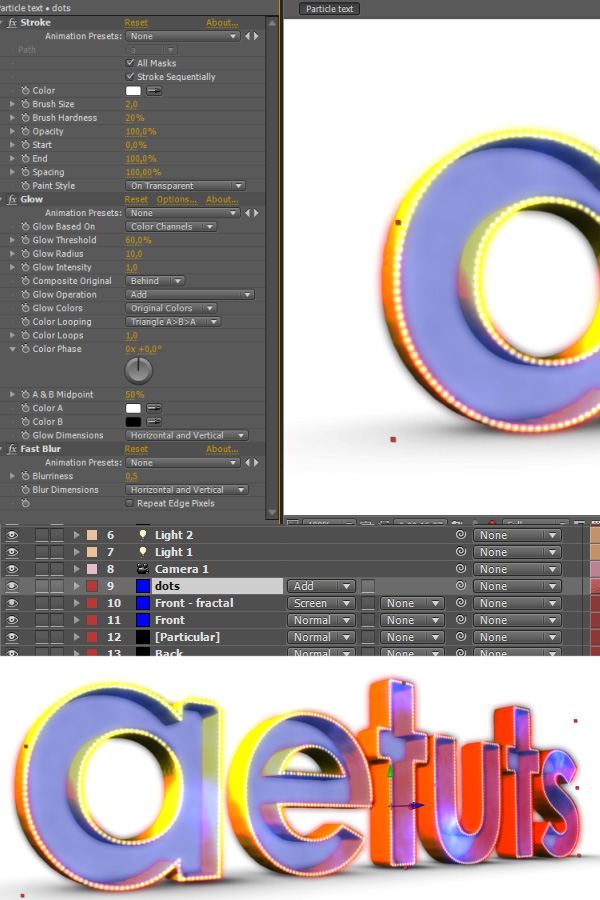
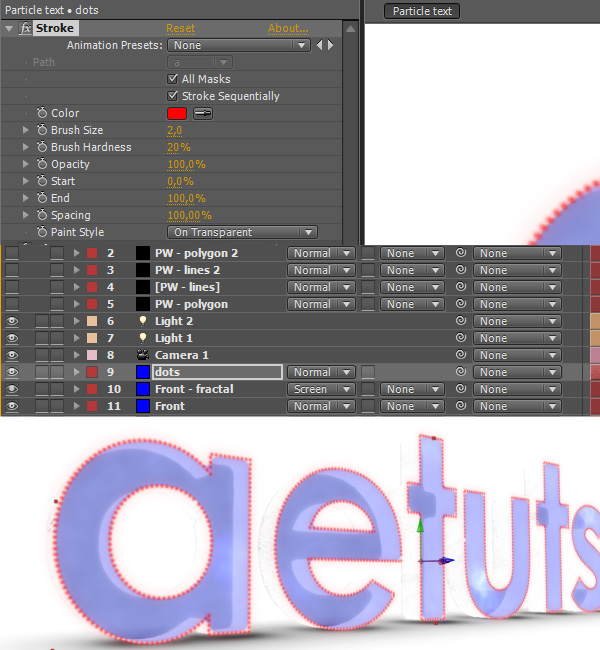
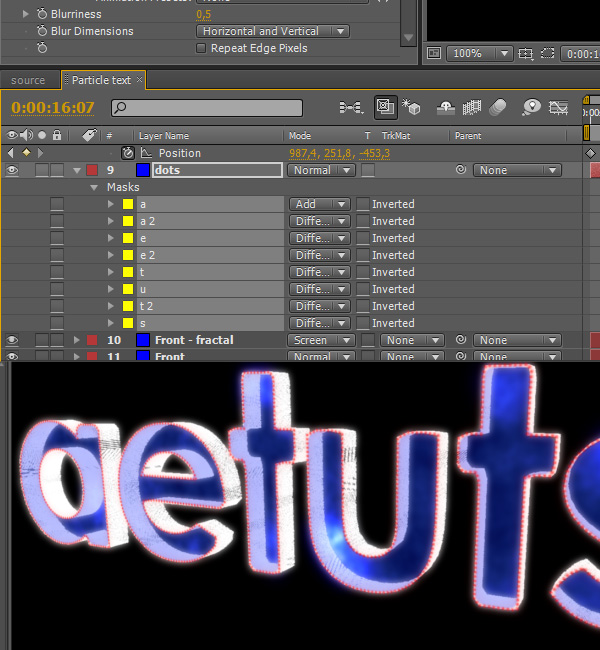
Duplicate the “Front – fractal” layer, name it “dots”, change transfer mode to Add and delete all effects.

Step 62

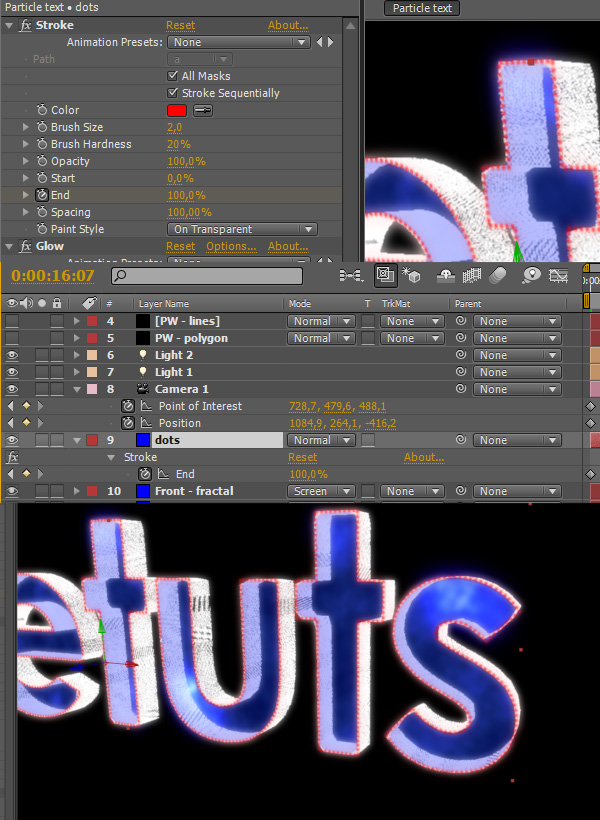
Apply the Stroke, Glow and Fast Blur effects and change their settings as shown on the screenshot bellow.

Step 63

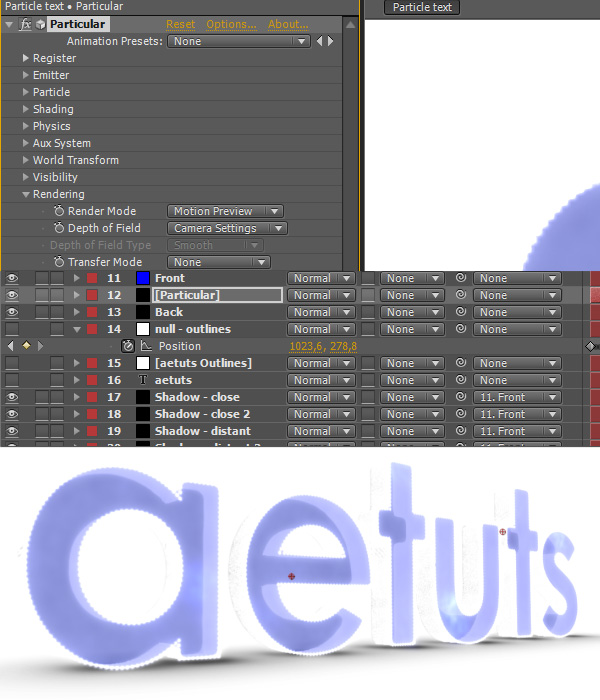
Go to Particular->Rendering and set Render Mode to “Motion Preview”. This is just temporary so the scene gets rendered faster.

Step 64

Go to dots and change the stroke color to red so we can see the dots better.

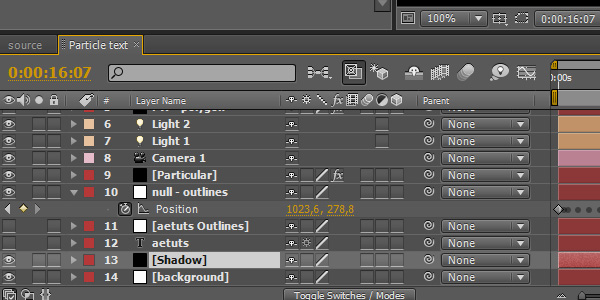
Step 65

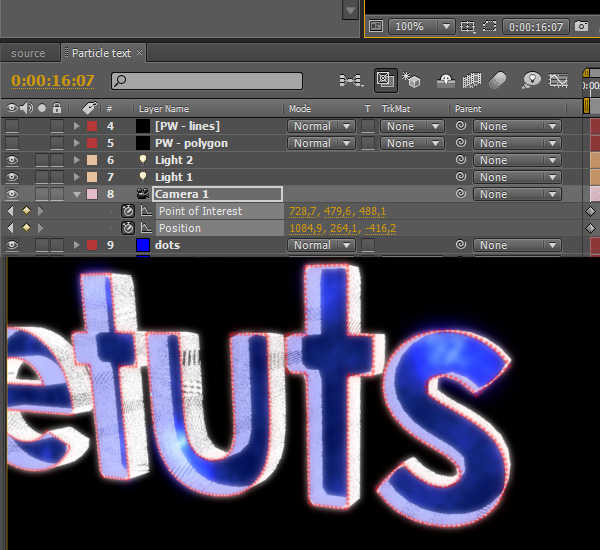
But let’s animate the camera first. In my case the camera movement ends at 16:07 with the values shown on the screenshot. At this point I also temporarily disabled background.

Step 66

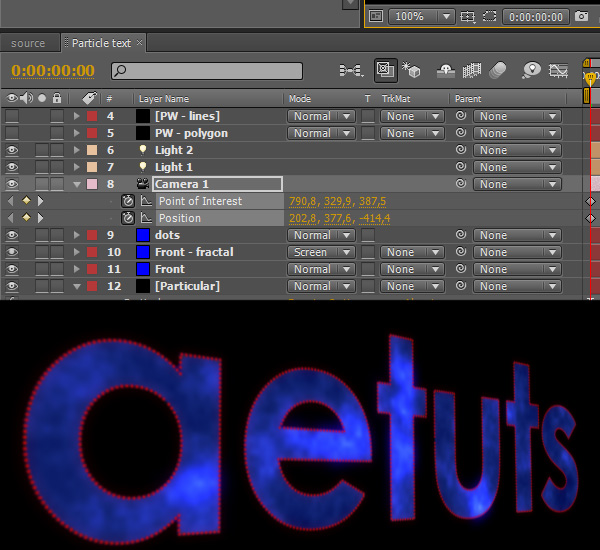
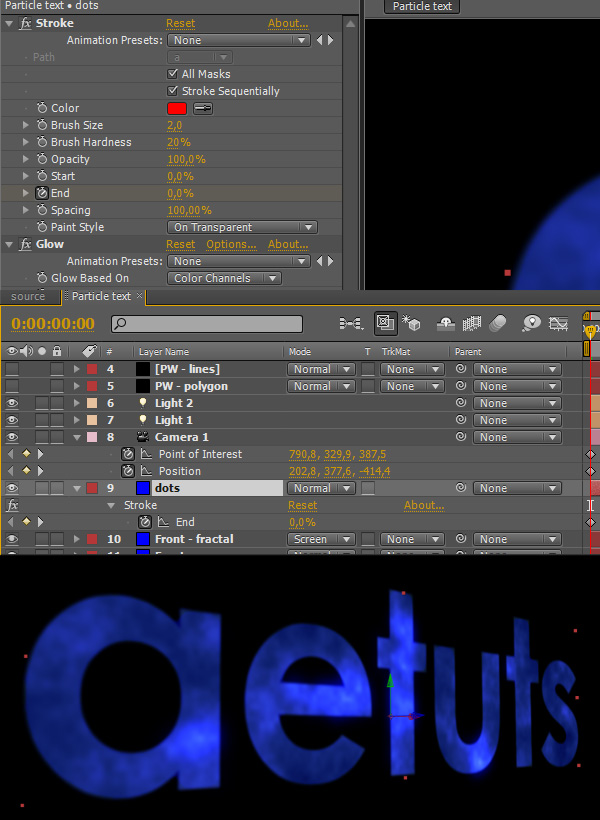
And obviously change the camera settings at the beginning too.

Step 67

Go to 16:07 and set a keyframe for the End property and make it 100%.

Step 68

Go to the beginning of the composition and set End to 0%.

Step 69

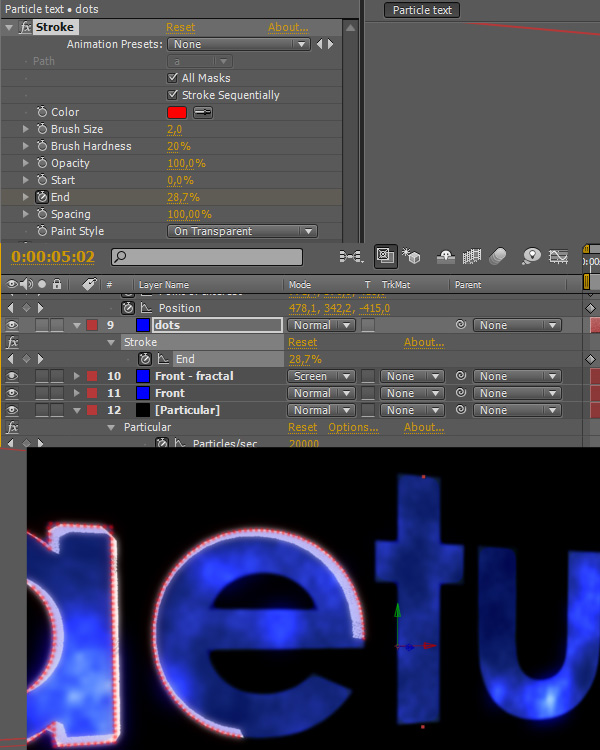
Now you are going to have quite a lot of keyframes to make sure that the dots follow the particles. It doesn’t matter if the dots are slighly lagging behind the particles, but make sure they are in no case ahead.

Step 70

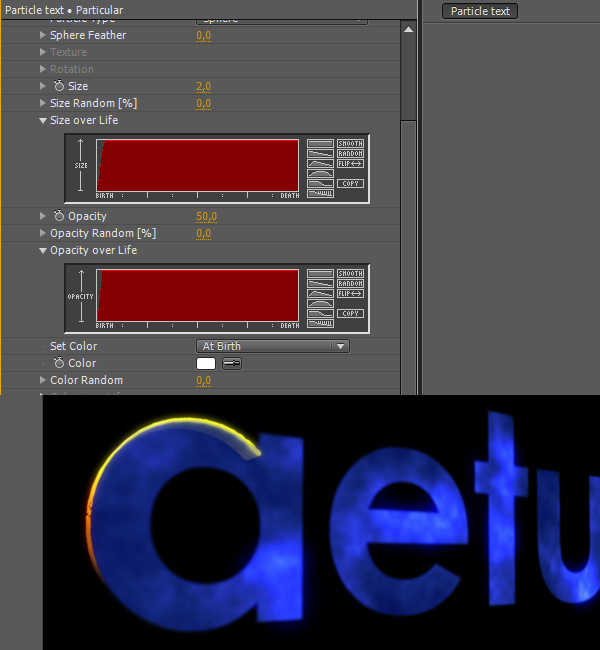
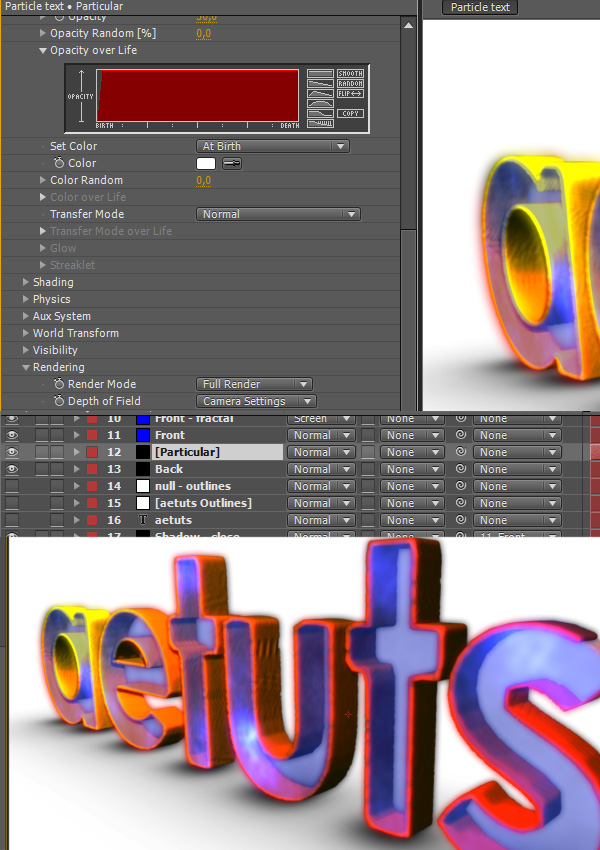
Go to Particular and change Size over Life and Opacity over Life as shown on the screenshot bellow. At this point I also temporarily switched back to Full Render mode to see how the particles get rendered.

Step 71

Now (back in Motion Preview mode) when you click on the Front layer you can see that the particles actually don’t follow the original mask path. There are two ways of fixing this. You can either make the composition last longer (like 40 seconds, assuming that you would make all layers last longer too) thus giving Particular more time to render the particles or you can just adjust the masks so they match the particles. And that’s exactly what we are about to do.

Step 72

Just adjust the mask points, it’s no big deal.

Step 73

Select all mask paths of the Front layer and copy them (Ctrl-C).

Step 74

Select the Front – fractal layer, delete the current masks and paste the fixed ones.

Step 75

Do the same for the dots layer.

Step 76

Go to Particular and change the Render Mode back to Full Render so we can see the result so far. Also enable the background layer.

Step 77

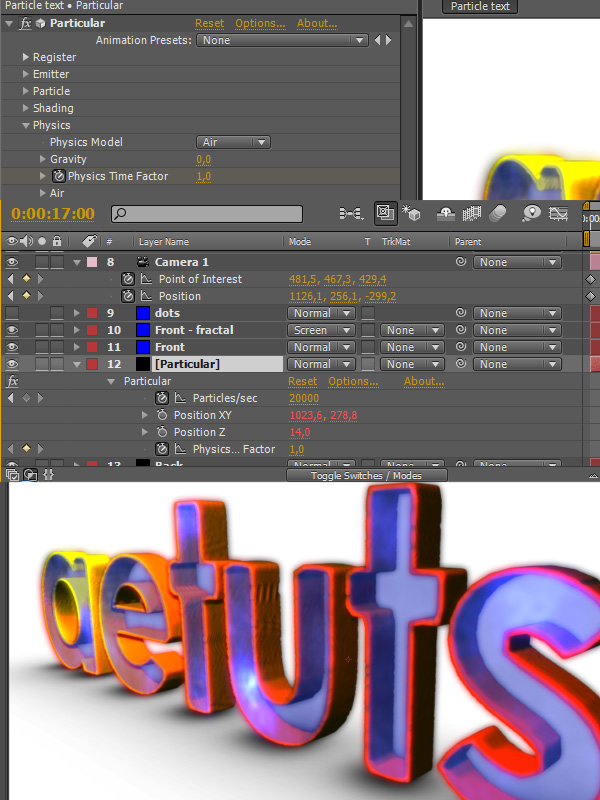
Go to 17:00 (that’s where I want my animation to end) and set a keyframe for Physics Time Factor.

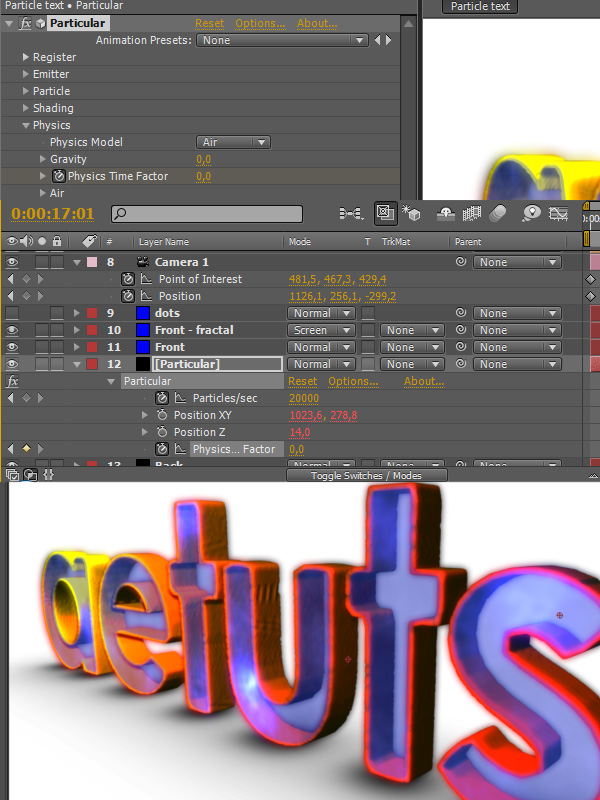
Step 78

Move one frame forward and set it to 0.

Step 79

Select all CC Particular World layers and enable them.

Step 80

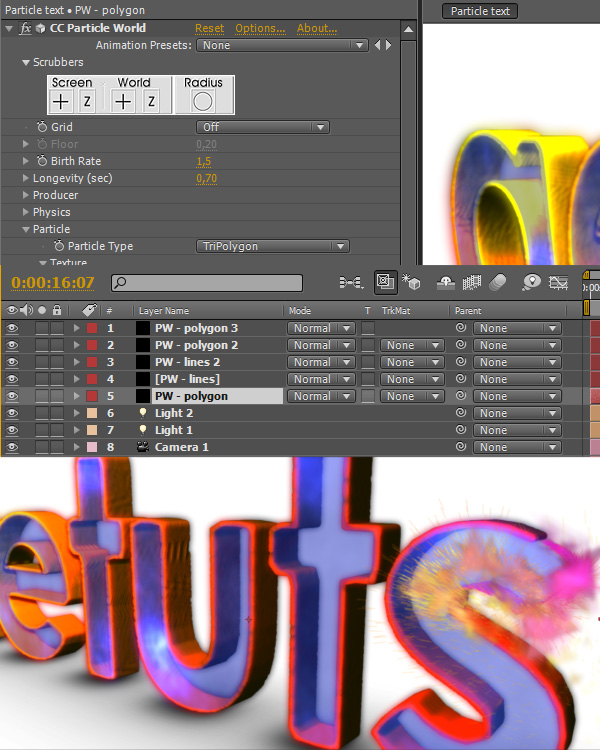
With all PW layers selected and at 16:07 set a keyframe for Birth Rate. Move one frame forward and set them to 0 so the particles stop emitting.

Step 81

Enable the dots layer and change the color to white.

Step 82

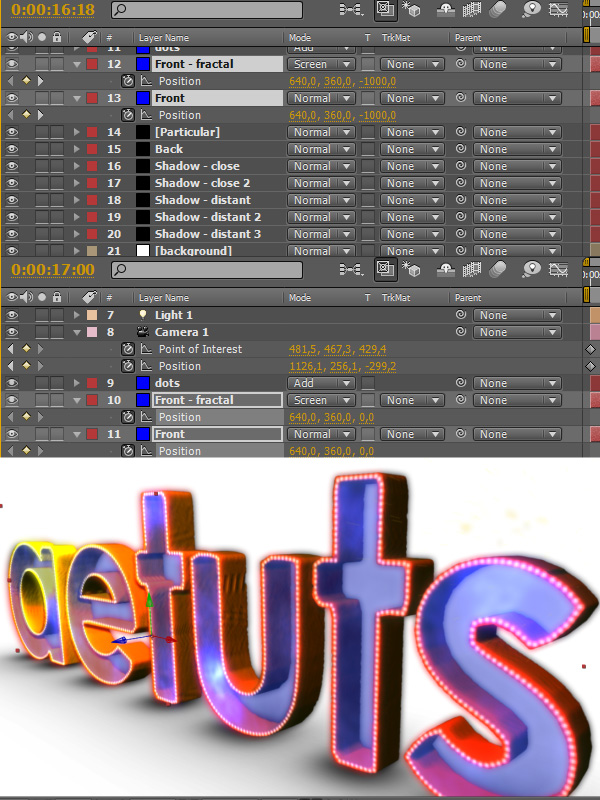
Go to 16:18 and set keyframes for the Position property of the Front and Front – fractal layers. Set them to -1000 (the Z value) . Go to 17:00 and set them back to 0.

Step 83

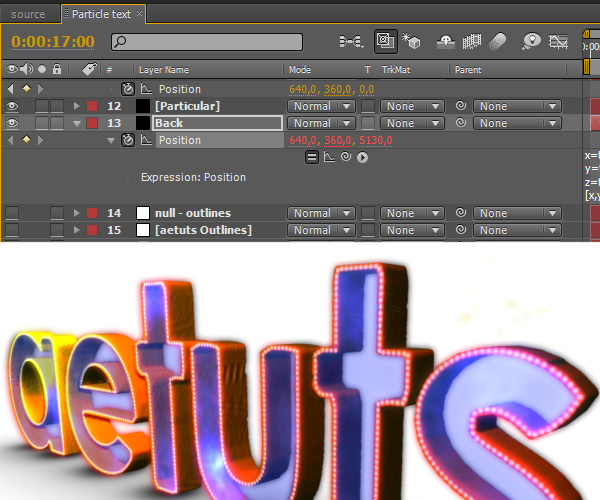
Disable the expression for the position of the Back layer.

Step 84

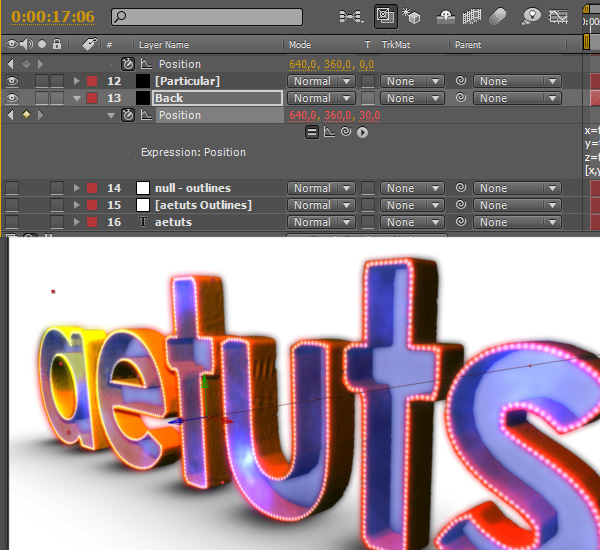
We have to change the expression so we can actually make the layer animate. The x and y variables stay the same, the only difference in in the z variable. Updated expression:

x=transform.position[0];
y=transform.position[1];
z=transform.position[2]+thisComp.Layer(“Particular”).effect(“Particular”)(“Emitter Size Z”);
[x,y,z]

This way the Z value is computed from its actual value + the Emitter Size Z value.

Step 85

At 17:00 push the Back layer all the way back and don’t forget to make a keyframe.

Step 86

At 17:06 set the Z-position back to 30.

Step 87

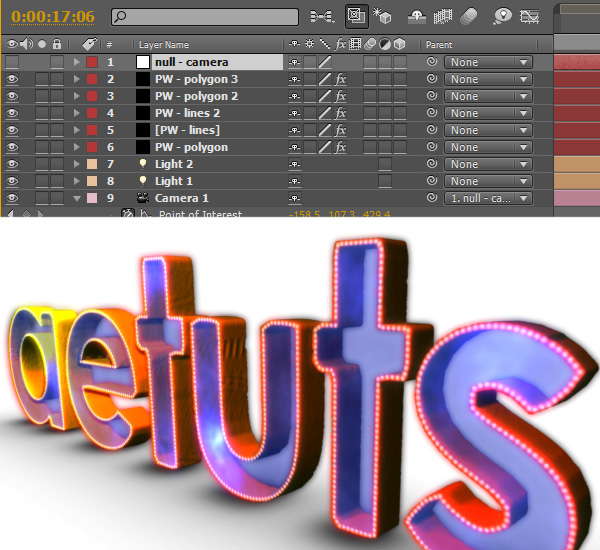
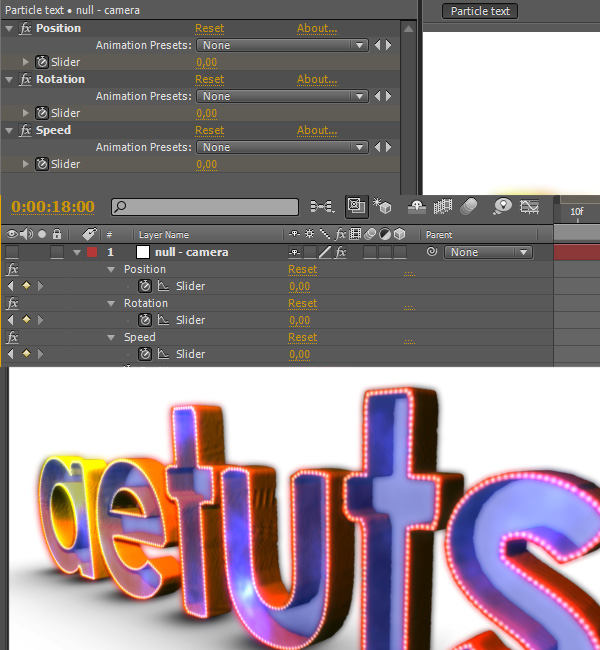
Create a new null object and name it “null – camera”. Also parent the camera to this null. We will use it to control our camera shake effect.

Step 88

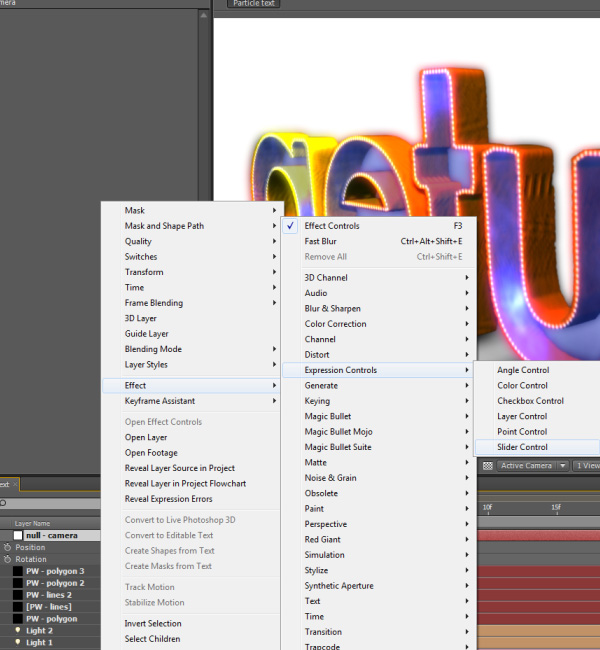
Apply Slider Control three times.

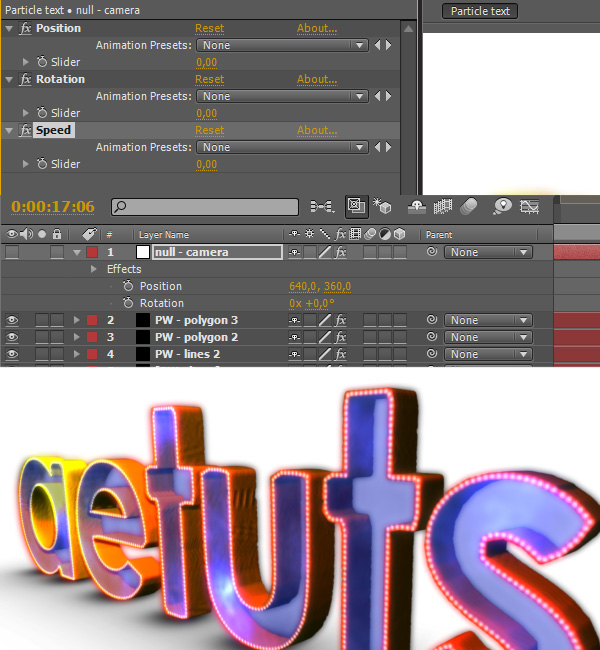
Step 89

Rename them as Position, Rotation and Speed.

Step 90

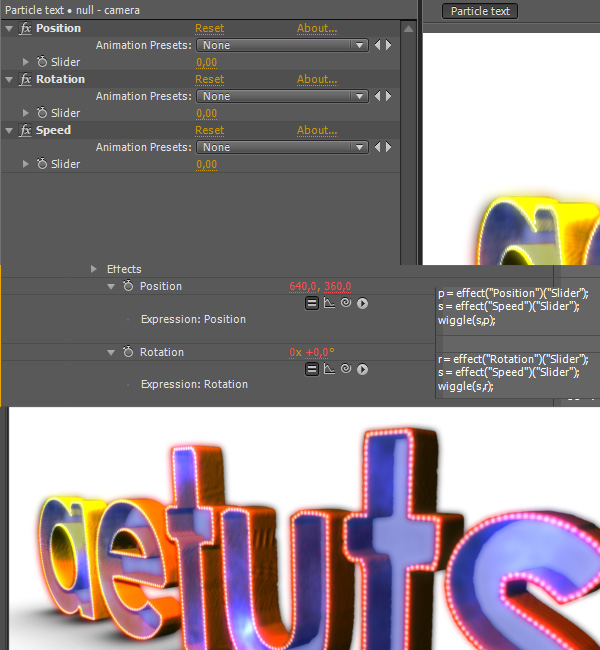
Select the null – camera layer, hit P, Alt-click on Position and type the following:

p = effect(“Position”)(“Slider”);
s = effect(“Speed”)(“Slider”);
wiggle(s,p);

Hit R, Alt-click on Rotation and type the following:

r = effect(“Rotation”)(“Slider”);
s = effect(“Speed”)(“Slider”);
wiggle(s,r);

This way we can control the position and rotation value via the sliders.

Step 91

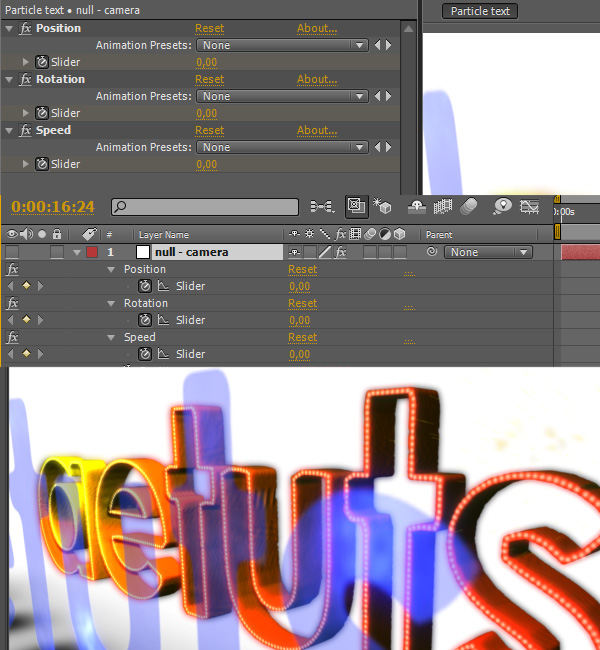
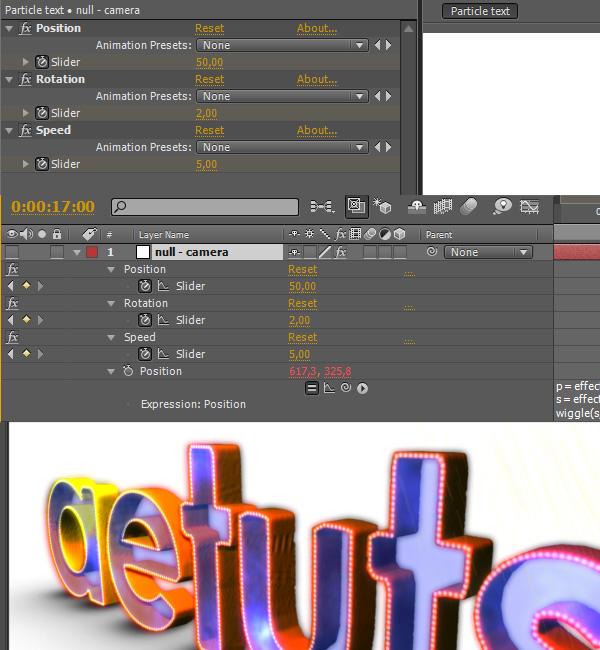
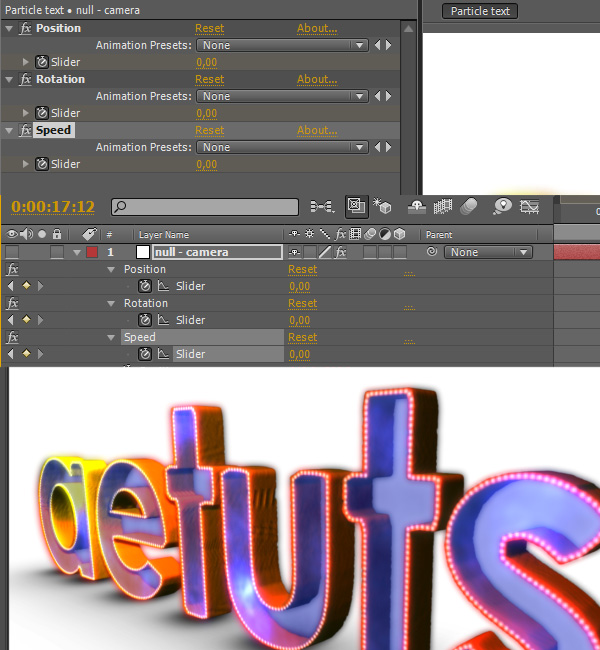
At 16:24 (when the front layers are about to hit the particles) set all sliders to 0.

Step 92

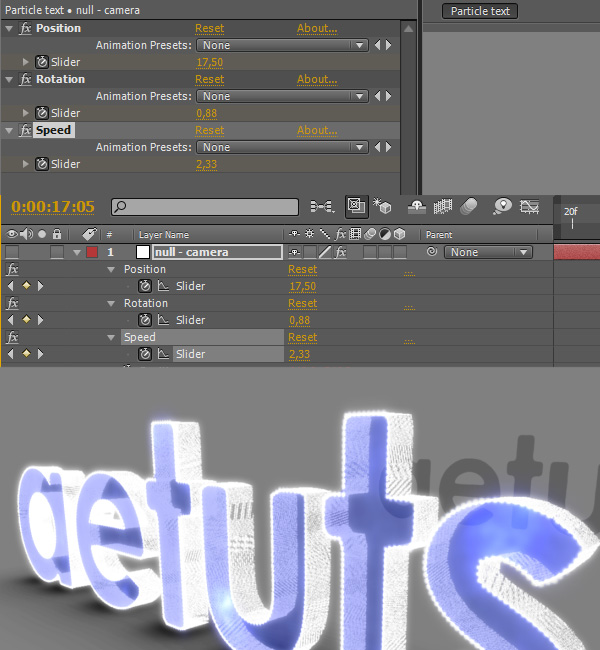
Move one frame forward and set the Position slider to 50, the Rotation slider to 2 and the Speed slider to 5.

Step 93

Go to 17:12 (we want our shake effect to last for 12 frames) and set the sliders to 0.

Step 94

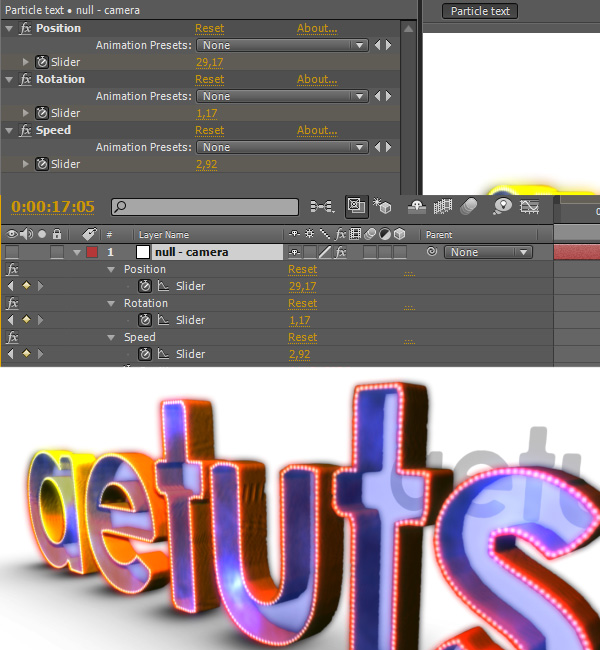
But the thing is that we want to have two shake effects (one for the front layers, one for the back layer). But we are using only one camera controller so we need to set three keyframes at 17:05 (one frame before the impact of the back layer) to kind of let the original shake effect fade out. Also don’t forget to delete the three keyframes with 0 value placed at 17:12 – we won’t need them anymore.

Step 95

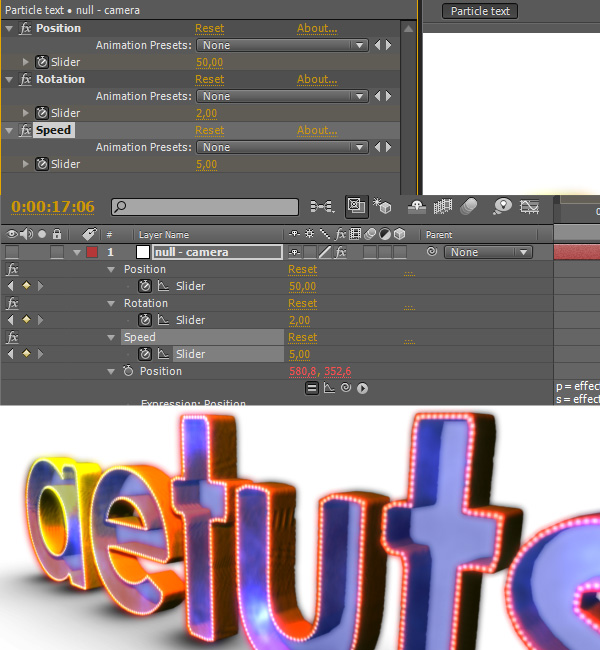
At 17:06 reset the slider values back to 50, 2 and 5.

Step 96

Go to 18:00 and set all sliders to 0.

Step 97

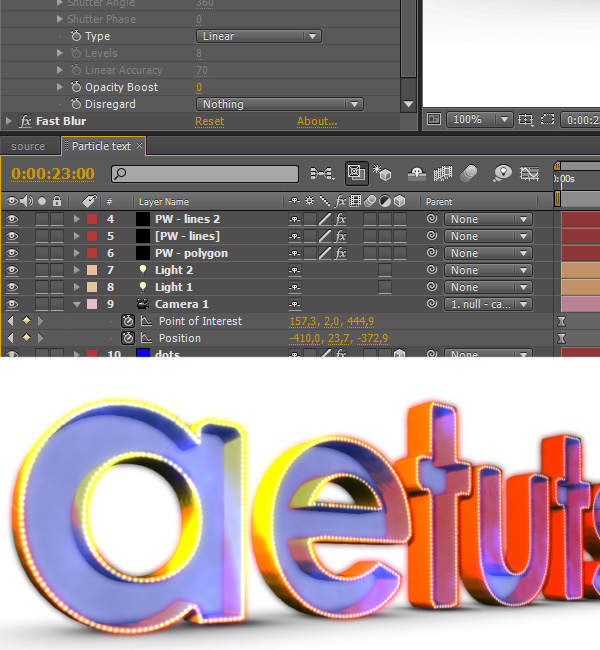
Go to 23:00. We will animate the camera once again and make it come back to the beginning of our particle text. Also select all camera keyframes and press F9 to apply Easy ease.

Step 98

At this point I decided to tweak the shake values a bit, so at 17:05 I changed them to the ones shown on the screenshot bellow.

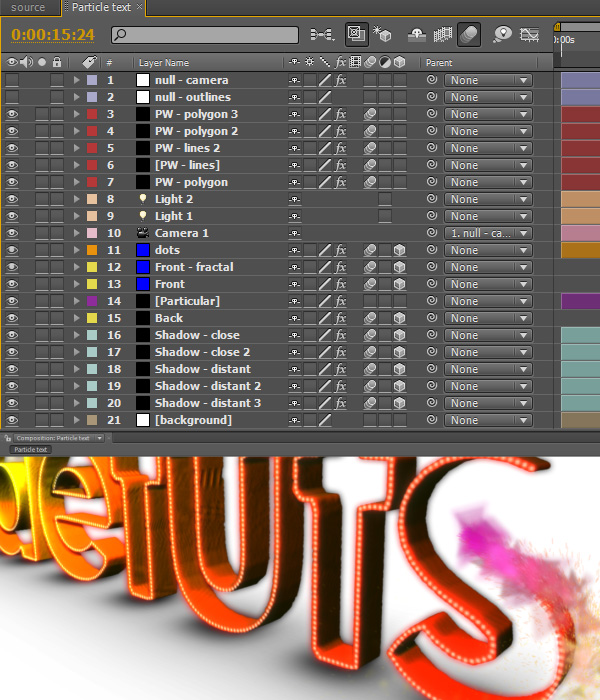
Step 99

Delete all layers that aren’t used and turn on Motion Blur for desired layers.


Additional Aetuts+ Resources


16 Essential Things to Have on Set For the Litte-to-No-Budget Filmmaker

There are some things that you probably shouldn’t ever shoot without. For me, my prized tools are my skateboard and gaffer’s tape. For you, they may be something else. Here is a small list of some things that have been very useful on the shoots that I have been on.


Gaffer’s Tape

Long gone are the days of when I used duct tape for everything, I have since seen the light. If you have never used Gaffer’s tape, it is far superior, stick nicely to the things you need, and doesn’t leave any annoying residue when you take it off. The tape itself is actually made of a cloth type material, and is very strong. Helps for if you need to fix a broken light stand, attach a component to your camera, or tape down a green screen. It runs a little more pricey than duct tape, but a roll of this will save you hours of picking goop off of your tools afterward.

Dry Erase Board

If you are shooting short films, or have a lot of different shots for a commercial, you might want to invest in a slate. Or you could just hit the craft store and get a dry erase board and some markers for about a tenth of the price. This will make things easier on you when you bring your shots into your editor, and lets you identify them nice and easily.

Flashlight or LED Keychain

This is definitely a little $2 piece that I use daily, even if I am not shooting. If you need to peek into your pack to find something, if its dark out and you left your lens cap in the grass, or if you just need a little bit of light to find the keyholes for a location, this will definitely save you a bout of frustration. Next time you are on your way to a shoot, pick one up at the cash register at the gas station, you will be amazed at how much you will turn to it.

Cushion for Knees, Elbows & Shoulders

You know those garderning foam mats your grandmother uses to kneel in the garden and trim her petunias? That is exactly what I am talking about. We all have to get that epic low shot, or change our perspective once in a while, and sometimes our tripod doesn’t go low enough. Throw a mat down underneath the part of your body that is taking the bulk of your weight…. and RELEIF! No more sore knees tomorrow!
Garbage Bags

No, they aren’t to carry your junk, but to aid as another thing to lay down on if you are getting a shot. You don’t want to be getting your threads all gunked up in the dirt, or after a fresh downpour… Just cut up a big garbage bag and lay it out flat. Weigh it down with some rocks nearby, and you will stay squeaky clean!

Skateboard or Inline Skates

This is definitly the poor man’s approach to a dolly/truck shot. But you can do a bit more than that. Just last week I did a few 360 orbit shots of some mopeds using nothing but my camera, an Ikan Superfly cage for grip, and my skateboard. Client thought the shots looked gorgeous and I wasn’t out a ton of money buying track. You might need to do some stabilization afterwards in post, but at least you can get the genral movement of the shot.

3 Prong to 2 Prong Plug Converter and Extension Cords

How many times have you had an extension cord, and there are only 2 prong outlets available on a power strip? You’re camera is out of batteries and you still have an hour of shooting left? Well, no more wasting time… just grab a couple of these at the hardware store, and attach them to everything with a 3 prong head on it. You will never, ever run into this situation ever again with a 3 prong to 2 prong adapter.

Laptop & Appropriate Cables and Card Readers

There are a couple of reasons why you will want to have this on hand. One, your client might really want to see that shot blown up, and you might want to check your focus, light and such on a larger screen if you don’t have a monitor available. Second, if you work with card based cameras, you might run out of room and have to unload your media onto your hard drive to shoot more footage past the capacity of your memory cards. You never know when you might forget to hit STOP RECORD on one of the best shots of the day.

Fans

If you shoot a lot of green screen, or studio production, you will notice that your talent tends to get very heated under those lights. Give them a small personal fan, or have some box fans at the studio to circulate the air so everyone stays happy. Overheated actors are not happy actors… leads to frustration, flustration, and overall sweating, which is never good looking on video.

Leatherman & Other Tools

It’s always smart to have pliers, screwdriver and a pocket knife available for a multitude of tasks. You might need to tighten a light stand, your tripod legs, screw the shoe into your camera, or whatever. You never want to get caught without a means to fix your set when a problem presents itself.

Big Carboard Box Painted White

This will serve three very different purposes. One, it will act as a white balance card. Second, you can bounce light onto a subject, and third you can block light for a subject. Make sure you grab one of those really big boxes (non-glossy) for something like funiture, break it down and tape the ends together so it won’t un-collapse. Then grab a can of white spray paint and put a few coats on it. Viola! You didn’t have spend $50 on a 5-in-1 (although I do recommend having something like that for diffusion.)

Extra Batteries

I can’t stress enough how important enough battery life is, especially if you aren’t going to be able plugin to AC power anywhere. Things like lavalier mics always suck the life out of 9 volt batteries, and your camera can never have enough batteries packed with it. If you can, pick up a battery extender (like this one for the T2i/550D) for your model of camera that takes AA batteries, and pick up a mondo pack of those from Costco if you are going to be out on shoot all day.

Hair Accessories

This is a huge pet peeve of mine, when an actor or actress has hair that hangs over their cheek and a strong light source, natural or not is casting a harsh shadow across their face. Sometimes you just have to give them a hair tie and tell them to pull it back. I Would keep some gel, hair spray, a couple hair clips and hair ties in your bag for just such an occasion.

Zip Ties and Scissors

If you need to bunch cords together, or fix a shirt with a buttom that just broke off… this will work for you. Use those along with scissors to cut the long annoying ends off and its a perfect combo. You can also use those scissors to cut stray threads from shirts that are obtrusive, and just some other general damage control.

Digital Camera

If you are a continuity nazi like I am, this will be a must especially if you talent likes to take frequent water breaks or sits down to rest. There is nothing worse than getting back to the edit suite after a long, tiresome day of shooting and having continuity errors. Use a simple digital camera, or the camera on your iPhone or other smartphone to take a snapshot at the end of the scene so you know where to pick up where you left off.

Powder

Shinyness on an talent’s face is never flattering. It will help if you have some powder from a place like BenNye.com, that you can powder your actor down when they are looking a little shiny. Get rid of those harsh speculars!

If you have some tools, tricks, or maneuvers that you use when you are out on a shoot, we would love to know! Leave a comment below and let us know what your favorite was, or what you would add to the list!

If you enjoyed this post, please give it a vote on Digg or a stumble to say thanks!


Animating Text Along A Path In After Effects – AE Basix

Have you seen those animated adverts, where the text seamlessly moves along path? In this tutorial we are going to learn how to create a sequence that involves text animating along a custom path using the first margin text property. A custom path is a vector path that is drawn freehand using the pen tool in After Effects.


Tutorial

Step 1

Create a new composition

The first thing we are going to do is create a composition; this is the canvas you will create your animation on. To manually create a composition, you need to do the following.

Choose New Composition.

New composition window.

This will open the composition dialog box. The options on the basic tab will allow you to set up the preset,
width, height, aspect ratio, frames per second, start code and duration for your animated sequence.

With the dialog box open apply the following settings:

Preset: PAL D1 / DV

Width and height: 720 X 576

Aspect Ratio: D1/ DV PAL 1.09

Resolution: Full

Start Timecode: 0.00.00.00

Duration: 0.00.030.00

Depending on your output, you may want to set up the first 4 settings at other standard settings, for example for Northern American broadcast media or for the Web.

So now our sequence will run for 30 seconds.

Step 2

Changing background color of the composition.

To change the background color you need to do the following:

Choose Background color.

This will open the color picker dialog box.

The color picker dialog box.

Click OK to choose a color for your background. With your cursor move around within the color space to pick a color, when you have chosen your color click ok to accept this.


Step 3

Creating text for the animation.

Using the text tool type out a word on the stage.

Choose the font and size using the character palette.

The character palette.

Step 4

Creating the path for the animation

With the text layer selected, select the pen tool draw a path for the text to follow.


Make sure that
Rotobezier check box in the tool palette, is selected, this allows you to draw a smooth path.


Twirl down the text option to reveal the path options.

Select Mask 1 for the path, this is the path you have just created. Now the text is automatically
linked to that path.

Step 5

Animating text the path

With the play back at the start of the time line, create a keyframe for the first margin property.

For this property set the stopwatch and drag the word to the beginning of the path by dragging the slider value for the first margin property.

Drag the play back head further down the timeline set a keyframe for the last margin property, drag the slider value for the for the first margin property so that the so the text moves to the end
of the path.


Move the play back head to the start of the animation and scrub through the timeline. You should now
see your animated text animating along a path.

I’ve added some extra graphics and text in addition to the animated text.

Hope you have found this tutorial useful.

Additional Resources