Quick Look: Resize

Quick Look posts are paid submissions offering only a brief overview of an app. Vote in the polls below if you think this app is worth an in-depth AppStorm review!

In this Quick Look, we’re highlighting Resize. The developer of Resize says that when doing web design, it’s critical to test how your page looks under different screen resolutions. Since the mobile web is exploding fast, you have to test against the mobile devices too. Resize is a Safari Extension that to make the process dead easy.

Read on for more information and screenshots!

Screenshots

Resize

Resize

Resize

Resize

About the App

Here are the top five features you can expect to see in the latest version:

  • Resize Safari window via presets button or context menu with single click
  • Full Customizable, you can input your own size or hide presets Bar or disable context menu
  • Able to set Safari window size by either Inner window or Outer window
  • Show value of current size in real-time when resize Safari window manually
  • Built-in reference book gives you a quick view of the most popular devices’ screen resolutions

Requirements: Safari 5.0.1 or later on Mac OS X

Price: $4.99

Developer: Chen Luo

Vote for a Review

Would you like to see us write a full review of Resize? Have your say in our poll:

Would you like to see Resize reviewed in-depth on AppStorm?survey software

Quick Look posts are paid submissions offering only a brief overview of an app. Vote in the poll if you think this app is worth an in-depth AppStorm review! If you’re a developer and would like to have your app profiled, you can submit it here.


How to Create Icy Text Effect from Lich King Computer Game (Part 2)

This two part tutorial will show you how you can make the ice wall background from Lich King computer game. In this Part 2 (of two) you will create ice text effect.

Final Image Preview

Step 1

Open PSD file that was created on Part 1 of this tutorial and create a new Layer. On new Layer, select the Horizontal Type Tool (T) and write “Lich King” with white color in the middle of canvas. For this text line I’ve use Hobo Std font (240 pt., Crisp) as my font choice.

Step 2

Now rasterize this layer (Layer > Rasterize > Type) and apply Filter > Noise > Add Noise with the same presets used on part 1 of this tutorial:

Step 3

Apply Filter > Pixelate > Crystallize:

Step 4

Then do the same actions as you did for background layer (apply Filter > Stylize > Find Edges, then invert color (Ctrl+I) and Edit > Transform > Rotate 90 CW). After finishing all these actions apply Filter > Blur > Gaussian Blur:

Step 5

After that apply Filter > Stylize > Wind as before and rotate image 90 CCW (Edit > Transform > Rotate 90 CCW).


Step 6

Apply Image > Adjustments > Brightness/Contrast with next presets:


Step 7

Right-click the layer and go into the Blending Options and apply Drop Shadow layer style to this layer:

Step 8

Load text selection by using Select > Load Selection, create new layer and fill this selected area with black color on the new layer.

Step 9

Deselect chosen area with Ctrl+D. Now we need to create a mixed texture, so it will look more natural ice. Use the Eraser Tool (Opacity: 33%) and a soft round brush about 40px and remove black color on the bottom. Then make small clean work at other parts.

Step 10

Load text selection again, create new layer above and fill selection with color of #789ddc.

Step 11

Press Ctrl+J to copy the layer created and hide the copy (click on the eye, which indicates layer visibility). Then change Blend mode to Overlay for visible layer.

Step 12

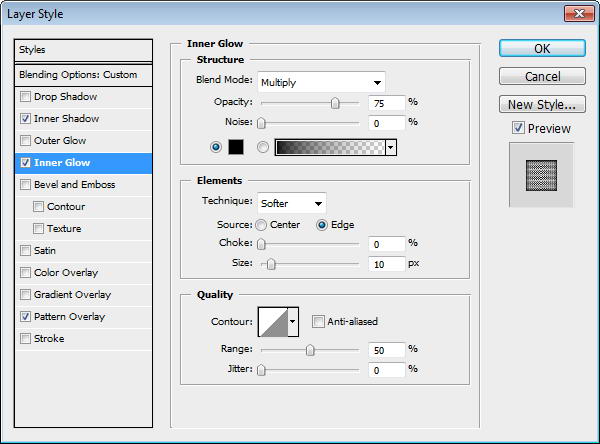
Go to Layer > Layer Style and apply Inner Shadow, Inner Glow, Bevel and Emboss and Gradient Overlay layer styles:

Step 13

Then go back to the hidden copy of layer and make it visible again. Change blending mode to Overlay for this layer.

Step 14

Duplicate this layer with Ctrl+J one more time and change layer mode to Pin Light for this layer and you have completed this tutorial.

We got cool ice effect from Lich King computer game. Hope you got the same good results, if not keep on training and you will get the best results!

You can still add some glare by using the Brush Tool and a soft round brush with white color. That is it for now.

If you would like to receive updates from PhotoshopStar, please consider subscribing today.

Carrier Unlock for iPhone 4 – 3G – 3GS on iOS 4.1 Released

As promised, the UnlockiPhone4os has released the carrier unlocking tool called UnlockiPhone4os for US based iPhone 4 users who are stuck with AT&T network. For those of you who don’t know, carrier unlock for US iPhone 4s required complete rewrite of UnlockiPhone4os software because of the new baseband OS present in iPhone 4.

the iPhone 4.1 Unlock has released the carrier unlocking tool called UnlockiPhone4os for USbased iPhone 4 users who are stuck with AT&T network. For those of you who don’t know, carrierunlock for US iPhone 4s required complete rewrite of UnlockiPhone4os software because of the newbaseband OS present in iPhone 4.

Related Posts

  1. Carrier Unlock for iPhone 4 – 3G – 3GS on iOS 4.0.1 Released
  2. Unlock iPhone 4.0.2
  3. Unlock iPhone 3.1.3

Poll: Would You Like to Attend an Envato Meetup?

Last week, in Chicago, we held our first ever Envato meetup with our Australian, American, Canadian, and European staff. During the week, we held a community meetup with a group of Envato authors and readers at a local pub. We really enjoyed getting to meet our community and would like to judge your interest for more meetups. Would you like to attend a meetup if we held one in your area?

Right now, we are considering holding an initial meetup in New York City and possibly additional events in other major metropolitan areas. Please feel free to cast your vote and let us know what you think in the comments.


Would you like to attend an Envato meet up?survey software


Rewind Your Animation Like An Old VHS Tape

Hit the rewind button and remember the days when VHS and Betamax ruled. In this tutorial from After Effects artist Jason Moore, you’ll learn how to use displacement maps, fractal noise and a few other effects to create a realistic old school rewind and pause effect. This effect is achieved using standard After Effects plugins; no third party plugins required.


Tutorial

Download Tutorial .mp4

File size 428MB


How to Create a Luxurious Gold Watch in Adobe Illustrator


In this tutorial you will learn how to create a very realistic and stunning gold watch using simple tools and techniques like the Pathfinder, Blend, Clipping Mask, etc. in Adobe Illustrator. You will also learn how to use gradients wisely to create an awesome 3D look. Let’s get started!

Continue reading “How to Create a Luxurious Gold Watch in Adobe Illustrator”

How to Record Drums Like an Expert: Basix

Drum recording is one of those things that you need to get right. There is much less room for experimentation in drum sounds. What I mean to say is, you can have the most alternative guitar sound or effected vocal sound in the world but if the drums don’t sound right nobody is going to care.

Sure, you can experiment with different mixing techniques and try different production tricks later down the line, but the first order of business is to nail that drum sound. If your kick drum sounds like a cardboard box beaten with a marshmallow then no amount of mixing is going to fix it. Get it right at the source or don’t do it at all.


Correct placement and microphone selection is important to the sound of your recorded drums, but so is the room you are recording in. Let’s get busy with some drum recording tricks.

http://www.sxc.hu/photo/909625


Room

Clap your hands say yeah! Indie music aside (not a big fan), clap your hands. Do it. Right now. If you’re in a typical office or living room then chances are it’s not going to last that long. The echo will die down within a second since the size of your room don’t allow for a lot of buildup of reverb or reflections.

Now, imagine if you were in a gymnasium and clapped your hands. The perceived “bigness” of the echo and reverb of the sound is dictated by the size of the room you are in, therefore clapping your hands inside a big gymnasium will result in more reflections, a larger reverb and a longer “decay” time for the sound of your handclaps to die down. For more on reverb and reflections see my other Basix tutorial “How the Hell do I Use Reverb Anyway?!?

So, if we intend to record drums we need to take the room into account, since those reflections from your handclap are just peanuts compared to the amount of echoes and reflections a whole drum kit will make inside a gymnasium. Your ears heard them, and your microphones will most surely do so too.

If you have a mobile recording rig, which today means a laptop, an interface and some microphones and access to some different rooms you can create a whole different feel to your drum sound depending on which you choose. Many engineers opt for a dead, or a very quiet room to track drums in since that will allow them to add the type of reverb they want later on during the mixing process. While this method is sound and valid, just look at all those great rock records that were made before the advent of digital reverb. Recording studios used to have amazing sounding live rooms to track drums in, and that became an inherent part of the drum sound.

If you want to go the safe route, try to find a nice (preferably acoustically treated) room that doesn’t have a whole lot of liveness. But if you are up for experimentation then finding an interesting or great sounding room might yield some impressive results.


Pre-production

Gourmet dishes are not cooked from leftovers. You don’t wear dirty clothes to a wedding. And you certainly don’t record worn heads and out of tune drums if you want great results.

Make sure to replace each drum head and tune it so that each drum sounds both great in its own right and as a part of the kit. If you, or the drummer don’t know how to tune a drum properly (I don’t really know how, and most drummers are pretty bad at it) get someone that can.

A great sounding drum kit in a great sounding room and you’ve won half the battle. Next we have to look at what types of microphones we want to be using.


Microphone Selection

A few considerations when choosing the right microphone for recording drums.

  • How Many? – How many microphones are you going to be using? Are you trying to mike up the kit with only one microphone? Then a full sounding large condenser should be the best bet. It has a broad frequency response and will most accurately capture the kit, especially compared to a dynamic microphone.

  • Condenser microphones – Condenser microphones (small or large diaphragm) are usually the default microphones of choice used as overheads. Overhead microphones are placed over the drum kit to capture the overall sound of the drum kit from a close distance. Condenser have the capacity to capture all the nuances of the drum kit, from the low end of the kick drum to the swash of the cymbals.

  • Dynamic microphones – Dynamic microphones can take more volume, but they lack the frequency response and accuracy of a dynamic. They can take the pounding and volume of the kick drum and they have no problem with the incredibly loud whack of the snare. If you decide to close mike every drum, then you would usually opt for a good sounding dynamic at each drum; kick, snare and each of the toms.

  • Ribbon microphones – Ribbons might be a good choice if you can afford it, especially if you are only using a few microphones. Ribbons have a smoother sound, but they are more delicate than the average condenser, and way more fragile than a sturdy dynamic.

Remember, each microphone sounds different and they will all act as a piece of the drum recording puzzle.


Collection of Instruments

One of the things you have to be aware of is that recording drums can be much more complex than recording a “regular” instrument that only has one sound source. Take vocals for example, the most standard way of recording vocals is placing a microphone in front of the singer’s sound source, i.e. his mouth.

But when you are recording drums, every single drum is a sound source, and you also need to portray the overall sound of the kit as a whole. That’s the reason why modern drum recording puts a microphone on every drum and then some overhead mics to capture the complete kit.

People want to control each drum as a specific sound source and then treat the whole drum kit as one sound source as well. Then, by mixing and matching the overall volume of all the tracks in the mixing phase people have more control over what kinds of sounds they can get from their drums.


Kick Drum

I don’t care what anybody says. The kick drum is the most important part of the drum sound. You can argue that the snare sound is all you want, and it certainly is important, but if the kick drum lacks power and definition the overall drum sound is going to suffer. The kick drum is also the trickiest sound to get right since the placement of the microphone plays a pivotal role.

  • Microphone – Your best bet, if you are just using one microphone to record the drums is a large dynamic microphone, such as the AKG D112, Audix D6 or Shure Beta 52A. They will usually have the frequency response needed to get the thick low end coupled with the snap of the beater.

  • Placement – The default position to try is just inside the outer head (I hope there is a hole in the outer head) pointing at, or just a little off axis towards the beater. In this position the microphone is far enough away as to capture both the boom and the snap. Microphones placed too close to the inner head (the beater side) can’t capture the full resonance of the drum since they are facing away from the drum and are picking up too much “click” from the beater.

    Placing the microphone outside the shell can give you great results, but there is a possibility of the microphone capturing too much bleed from the other drums and that it will lack definition from the beater. Great if you want a natural bass drum sound, but bad if you want a isolated and “click” heavy sound.

  • Best of both worlds? – By using two microphones you can capture both the beater and the boom by placing the microphones at different positions. Positioning one inside the kit close to the beater head and the other just outside the shell will result in two different sounds that can be mixed together to great results. Boundary, or PZM (Pressure Zone Microphones) work really well on the inside since they react well to transients and can usually just sit on the shell.

    By combining a PZM that reacts well to transients (initial attack) at the beater and a big dynamic picking up the low end on the outside you can get the best of both worlds.


Snare Drum

http://www.sxc.hu/photo/404263

The snare drum is the master of the backbeat, and thus must sound great in order to capture the groove. Whether you are producing a heavy rock song or light jazz, careful consideration must be put into the snare drum sound.

  • Microphone – A trusty Shure SM57, or any other type of dynamic is a great starting point when capturing snare drum. If you looking for a different, more vintage sound then using a large condenser or a ribbon can give the snare a much different feel. Take into account how loud the drummer will be hitting the drum. If he’s going to be whacking that drum for all he’s got then a condenser might overload too easily, leaving you with a distorted snare instead of a smooth and full sound.

  • Placement – Consider angling the microphone 45° into the middle of the drum to get the right amount of attack from the snare. For a rounder sound you can angle the microphone into the edge of the drum. Make sure that the microphone isn’t in the drummer’s way since whacking the microphone will not result in a better sound. In general, for more harmonics angle the mic towards the edges, but if you want more resonance and/or attack then angling the microphone more towards the middle and center will yield greater results for each respective sound.

  • Above & Below – If you want to achieve a direct sound from the top but want to accent the rattle the snares you can place another microphone underneath the snare pointing up. If you decide to do this make sure you flip the phase of the under-mic either during the recording or at the mixing stage. Most audio programs have a phase invert switch that allow you to flip the phase of your waveform. I touched upon the why’s and how’s of this practice a long time ago in A Guide to Effective Drum Mixing Part 1.


Hi-hat

If you want to have added control over the hi-hat during the mixing stage, then adding a separate microphone for it wouldn’t hurt

  • Microphone – You usually want a small condenser to record the hi-hat. Due to the fast transient nature of the hi-hat you want to capture all the definition and clarity of the hi-hat, even though you’re recording a garage rock track.

  • Placement – Placing the condenser by the edge give you a much different sound than placing it at the center bell of the hi-hat. Also, try placing it in the middle and angle it to or from the edge until you find the sound you are looking for.

  • Over or under? – Some people swear by under-miking the hi-hat, others don’t see why anybody would do such nonsense. Personally, in live situation I place the microphone underneath the hi-hat, facing up but during recording it’s the other way around. Why? I don’t know. Probably just force of habit.


Toms

Those drum fills need to sound good. The toms need to sound clean, defined and tuned. There’s nothing worse than a tom that rings for seconds after it’s hit. Assuming you have made all the necessary arrangements and made sure each drum sounds as good as it can then you only have to worry about the right microphone and placement thereof.

  • Microphone – Dynamic microphones such as an Audix i5, Shure SM57 or a Sennheiser MD421 are a good bet to capture a full and powerful tom sound. Especially if you are playing any sort of hard music then going for dynamics is the way to go. Experienced engineers sometimes use condensers and even ribbons(!) but as always, you have to careful about not overloading those more delicate microphones. In live sound I used to use AKG C519 clip-on condensers for toms. They work really well through a powerful P.A. and can also work well in the studio. Each sound company has a drum miking package that is usually a good bet if you don’t have anything to work with.

  • Placement – The microphone placement is very similar to that of the snare drum. If you want more attack and stick sound from the toms you should angle them towards the middle. If you want a thicker, boomier sound you should angle them straight down towards the edge of the tom so that the microphone picks up the full resonant sound of the toms.

  • Underneath as well? – If you have a crazy amount of microphones, an amazing kit in a sweet sounding room then more microphones will add to the sound right? Yes, well and no. If you have the resources to mike both sides of the toms then you probably shouldn’t be reading this article. But the same rules apply as if you were recording the snare with two microphones. Beware of phase and make sure both microphones are capturing something different.

http://www.sxc.hu/photo/586132


Overheads

Overheads are usually placed over the drum kit, both to capture the complete kit but also to accent the sounds of the cymbals. There are a few microphone techniques that you can use to accurately and effectively capture both the cymbals and overall drum kit.

  • X/Y – The X/Y microphone technique can be used effectively as overheads. You don’t have to worry about phase problems when using this stereo technique since they are a coincident technique. Meaning that you place them beside each other at a 90° angle facing down onto the drum kit.

  • A/B – This is the typical one microphone over each side of the drum kit. It’s a good rule of thumb to adhere to the 3:1 rule so that if you place one microphone a foot (30 cm) over the cymbal the other microphone must be placed at a distance of 3 feet (or 90 cm).

  • Accent the cymbals – Just like engineers that place microphones on the hi-hat, some engineers want to accent specific cymbals. For example, if we’re recording a minor blues shuffle we might like to record that crucial ride cymbal, giving you added control over its sound during the mixing stage.


Room/Ambience

We’ve talked about how to mike up every individual sound source of the drum kit. That is, every drum has been covered as a single sound source. Now we need to step back and look at the drum kit as one instrument. When we use room microphones we want to capture the complete kit as well as the room that is complimenting it. If you are in a dead room there should be more thought put into capturing the kit as one instrument, whereas in a great sounding room, there is more preference to finding a good spot where the room and reflections help heighten the drum sound to a different level.

  • Microphone – I’d like to say that anything goes here. If you are trying to get a nice sounding “complete drum kit” sound then a large condenser will do the trick. However, ribbon microphones can do a very similar job, and often a better one since they sound so good. Even normal dynamic microphones can be used to get an extra dimension to the drum kit by placing it in the room.

  • Placement – Placing a simple SM57 in front of the kit facing up towards the ceiling can give you some ambience from the room. A condenser that you want to use to capture the complete drum kit without adding too much room ambience should be placed at around waist level facing towards the kit. To get the drums an extra stereo dimension, two condensers can be positioned in the upper corners of the room.

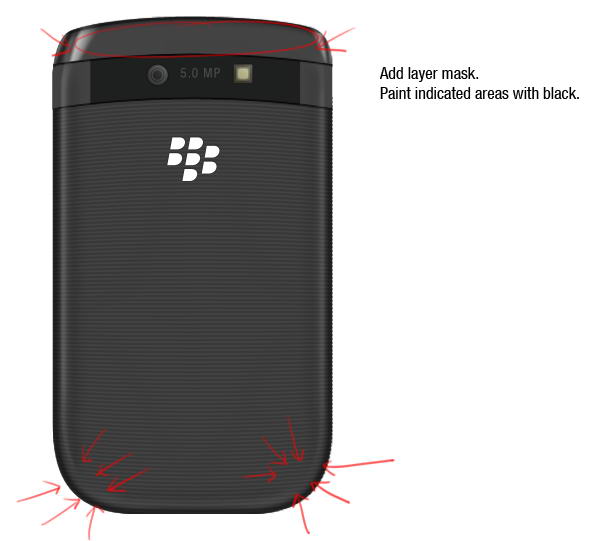
  • Experiment – Lastly, room microphones and ambient miking is very fun to experiment with. There might be a weird place in the room where the drums just really work. Walk around with headphones and try to find where the best place to position your mics is. A long hallway outside the drum room might have a great alternative sound that can work for you. Throw up a few room microphones all over, record a few measures and see which ones work best.


Conclusion

We’ve covered some important aspects of recording one of the most complex instruments that us engineers face. The complicated puzzle of multiple types of microphones, placements and techniques is sure to make the beginner engineer nervous. But if we break it down into small pieces, looking at each drum as part of the puzzle and then combining it into one sound source we can more easily understand what makes drum recording such a difficult, but ultimately enjoyable subject.


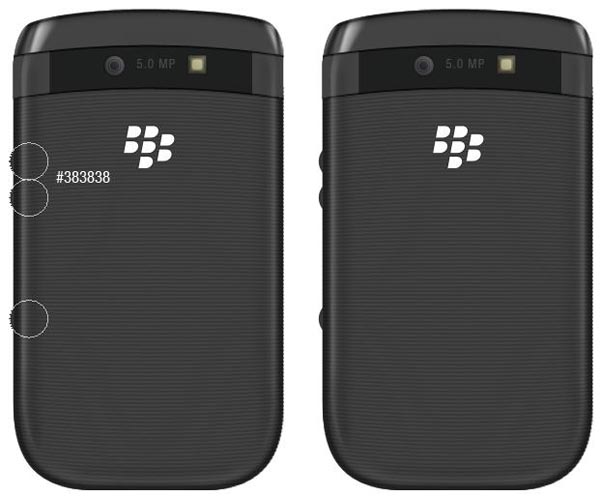
Quick Tip: 6 Workflow and Organization Tips for All DAW Users

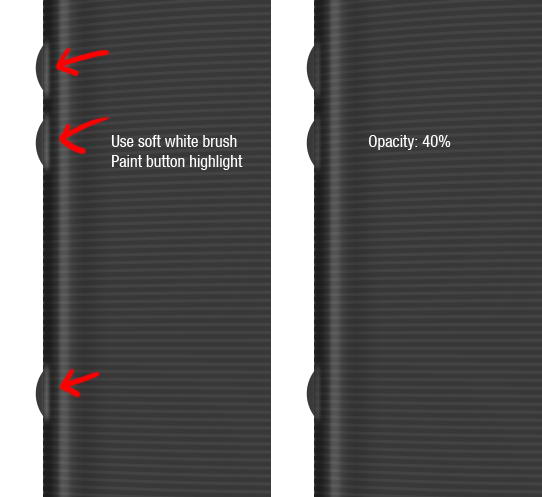
If you’re looking for some tips on ways to speed up your music production, this article covers six effective techniques that will make finding sounds, projects, and samples the easiest and quickest step of your workflow. Although it’s not the most musical part of production, it is one of the most rewarding parts because it allows your creativity to flow freely.

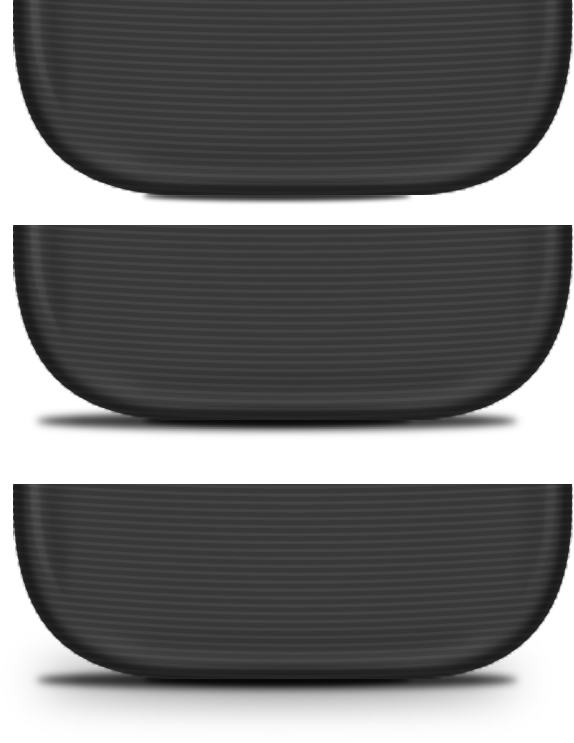
Throughout the whole production process, your organization can either slow you down or speed you up. The goal of this article to identify six key areas and offer practical tips for preparing for those creative spurts of energy. Rather than using that energy for searching for sounds, you can use more of that energy for being creative. If you’re advanced, you may currently feel bogged down by having to search in many places, and this tutorial is about ways to change that. If you’re a beginner, it is to your advantage to implement these techniques as soon as possible. Let’s begin.


Tip 1: Organize Projects by Month or Season

From the beginning, it helps when it takes less than second to find the project you want to work on, so it’s important to organize your projects.The image shows projects organized by month, and note how you can use numbers at the beginning of the names to ensure that they appear in the right order.


Tip 2: Use Templates

If there are some things you always do when you open your DAW, such as loading an EQ for the first eight tracks in the mixer and placing a limiter on the Master Channel, you could benefit from using templates. Why not save yourself some setup time by doing this once, saving the project file, and loading it whenever you want to start a track? Even if your DAW does not formally support templates, you can still take advantage of this strategy and have several “template” project files available to start from.

It is worth it to check to see if your DAW supports templates. Here’s how to take advantage of this feature in FL Studio:

After you have set up your template, navigate to FL Studio 9 \ Data \ Projects \ Templates \ Power User, and create a folder with the name of the template, and then save the project file inside that folder.

Restart FL Studio and it should show up under File > New from template. Also note that on startup, FL Studio automatically loads the template that was last used, so you won’t have to manually load the template each time.


Tip 3: Save Plugin and Mixer Patches

At the end of a project, you may have a lot of sounds that had hours of tweaking put into them, and they have the added benefit of being sounds that you know work well in a song. Whether you made the sounds or simply found them, it’s a great idea to save these patches for further use and tweaking in other songs, so that you continually benefit from your previous work, rather than having to start from the ground up for every sound in every track.

Saving patches will only be as useful as your folder structure, which brings us to the next tip:


Tip 4: Organize Sounds by their Sound

(not by plugin, company, or provider)

If you don’t love having to open up all your plugins one-by-one to search for a certain sound, wasting creative energy trying to remember which plugins have that good sound, there is an alternative. Wouldn’t it be better if you had your favorite sounds organized by instrument type? Even the most hardcore do-it-yourself sound designers will have their favorite sounds saved as good starting points for further manipulation.

I recommend designing a folder structure according to your tastes (i.e. do Organs really need their own folder, or should I put them with Keys? Do I want a section for World instruments, or should I mix them in with the other categories?) Under each instrument type, if you have enough sounds to warrant subfolders, make them. The image shows one possible way to organize Synth Lead sounds.

If your DAW does not have a file format that remembers the patch and the plugin, consider a third-party solution like Kore or BigTick’s upcoming free Zen plugin. Both offer a way to save and organize sounds by type.

I also highly recommend applying the same type of organization to Drums. The image shows folders for Cymbals, Hats, Snares, and a possible way to organize Kicks.

When you want a pounding kick, you don’t care whether it came from Loopmasters or Cyberworm’s Sample Blog, so why would you keep them in separate folders? Perhaps in order to keep licenses straight. This next step will allow you to keep them sorted, yet still in the same folder.


Tip 5: Rename Files and use Prefixes

Renaming files is a fun way personalize your music-creating experience and it can help a lot with being able to remember what each file sounds like. I also recommend adding a prefix to each file’s name, to help with quick organization and identification. The prefix will help because it sorts sounds together in the list, since they appear in alphabetical order.

For patches and presets, I use the prefix to indicate which plugin will load. In this situation I have he for Helix and ze for ZebraCM. If I know who created the sound I’ll try to put the name at the end of the patch.

For samples, it helps to use the prefix to indicate the creator. For example, in this situation I know that ind means it came from a sample pack made by Industrial Strength, and mafz means it was made by Mafz. Rather than having separate folders for each sample creator, you can have all the best files for each type of sound together.

Most of the time, sample packs will come with a text or pdf file with information about the ways the samples can be used. You may want to keep these licenses in one folder. To make it useful, I recommend giving those license files the same prefix as the corresponding samples.


Tip 6: Desktop Shortcuts

Lastly, here’s an example everyone should be familiar with. Chances are, you find yourself navigating to the same places every day… why not save some time by placing shortcuts on your desktop?


The World’s Best Design Schools

If you are a designer who is looking to transition from a hobby to a career, choosing the right design school may be an important decision. Today, we have gathered a list of some of the best design schools on the planet from North America, Asia, Australia, and Europe. Each school listed has some amazing programs in several design disciplines. If you have been toying with the idea of going to a design school, than this article is definitely for you.


North America

Art Center College of Design, Pasadena CA

The Art Center College of Design is located in sunny California and has been cranking out amazing designers for over 80 years. In the schools statistics report it notes that 88% of the students who graduated from the basic undergrad program have landed jobs, so that is definitely a positive. This College specializes in Advertising, Graphic Design, and Illustration programs. Some notable alumni that have graduated from the college are Dustin Edward Arnold & Sandeep Menon.

Parsons School of Design, New York NY

Next we will travel to New York and show you the Parsons School of Design. Their curriculum trains students to be able to solve complex problems as well as creating new innovative approaches. This school pretty much covers every facet of design from Fashion to Art history. Parsons has produced big names such as Marc Jacobs & Norman Rockwell, this is definitely the art school to attend if you can get into the prestigious institution.

Pacific Design Academy, British Columbia Victoria Canada

Only about 19 years old, this Canadian institution has made a name for itself by providing some of the best design education in Canada. This school focuses on Graphic design as well as architecture and fashion, and its classes are lead by some of the best designers in the area. So if you live in Canada and are thinking about attending a design school then you might want to consider this one.

International Academy of Design and Technology, Toronto Canada

This is another Canadian institution providing some of the best art education out there. This school focuses how to prepare students to apply their design skills in real life situations. The curriculum focuses on all the basic types of design as well as video game creation and fashion marketing. This is another solid school to consider if you are living in the area.

Pratt Institute, Brooklyn NY

Pratt Institute located in New York has a huge selection of design associated programs. From the common Graphic Design to Digital Arts, and Interior design, it is all covered at Pratt. The institute has a long list of distinguished alumni that you can view here.

Rhode Island School Of Design, Providence RI

The Rhode Island School of Design is another well-known college that focuses on Graphic Designing. If you choose to enroll you will be engulfed in the fine arts learning about everything from Typography, to Design Theory. You can earn your Bachelors of Graphic Design in 5 years at the school, which will mean you are proficient in the arts. This school also has a very long list of noteworthy alumni which you can check out here.


Europe

Central St. Martins College of Art & Design, London UK

Now that we wrapped up North America we can move onto Europe, and Central St. Martins is a great art and design college in the UK. This is one of the more prominent design schools in Europe having ties to many creative industries around the world. This school offers many different design programs that you can choose from if you decide to go. The notable alumni’s that have graduated from this college can be viewed here.

University of Art & Design, Helsinki Finland

The University is over 138 years old and is dedicated to many different forms of design like media art, and motion graphics. You will definitely get a well-rounded education in this school because of its renowned curriculum.

Umea Institute of Design, Sweden

This Swedish institute has a multitude of interesting design orientated classes and is renowned as the best art school in all of Sweden. The institute was even featured as one of the best design schools in the world 2 years running by BusinessWeek. Only about 14 students are accepted annually to their bachelors program so this is definitely a hard school to get into, but you won’t regret it if you do.

Eindhoven University of Technology, Netherlands

With their school mantra being “Mind over Matter” we can already tell this school is dedicated to learning. Although it is not known for its graphic design program, the school is recognized for architecture and industrial design.

Florence Design Academy, Florence Italy

This design academy in Italy is focusing on the future of design, it has amazing international programs accepting many students from other countries to come and study in Italy. The school has some impressive galleries of past students work in fields like Graphic and Industrial design. Classes are equipped with the latest models of all your favorite programs, so look into this school if you are in the area.

Créapôle Ecole de Creation Manqagement, Paris France

This academy located in the heart of Paris trains designers to think ahead and focus on the future of their fields. All the basics are covered in this school and then some other alternative majors as well. This is a great school for those who want to or already do live in France, so make sure to check it out if you are interested.


Asia

National Institute of Design, India

Our first Institute in Asia was recently rated one of the top 25 Schools on the continent. The NID focuses in providing its students with the very best design programs. They even offer some postgraduate work in 14 different design fields. The school only consists of about 300+ students, so it is a difficult one to get accepted into.

The Hong Kong Polytechnic University, Hong Kong China

The core values of this institute are centered around what they call Humanistic Designs. The university preps its 1200 students to become strategic thinkers in regards to their art. This school has taught many now prominent designers which you can view here.

Tongji University, Shanghai China

Even though this university is in China it offers a broad range of international programs. While its main art focus is in architecture it still offers classes for advertising, graphic design, and animation.

MIT’s Institute of Design, Maharashtra India

This 25-acre campus features one of the best design schools in India. The university explains what it means to be a designer and then teaches the students how to be a good artist, as well as a thinker. The school features all the major design fields and also focuses on making their students as well rounded as possible.


Australia

Australian Academy of Design, Melbourne Australia

The Australian Academy of Design will give you a wide selection of majors to choose from in the art field. Each discipline has its own bachelors program and a strong curriculum surrounding it, this school immerses the student in a great environment. The school also supports international students, so it is a plus for anyone who wants to study in Australia.

Curtin University of Technology, Perth Australia

This massive school holds a whopping 44,000 students but it is considered to be one of the best design schools in Australia. This university also offers an international program for overseas students, and its current courses focus on Photography, Graphic Design, and even Jewelry. This is another great choice if you are in the area and want to go to a design school.


More Information

If you are interested in checking out more design universities in your area please use this great directory created by Core77.

Poll: Would You Like to Attend an Envato Meetup?

Last week, in Chicago, we held our first ever Envato meetup with our Australian, American, Canadian, and European staff. During the week, we held a community meetup with a group of Envato authors and readers at a local pub. We really enjoyed getting to meet our community and would like to judge your interest for more meetups. Would you like to attend a meetup if we held one in your area?

Right now, we are considering holding an initial meetup in New York City and possibly additional events in other major metropolitan areas. Please feel free to cast your vote and let us know what you think in the comments.


Would you like to attend an Envato meet up?survey software

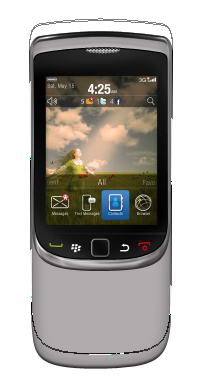
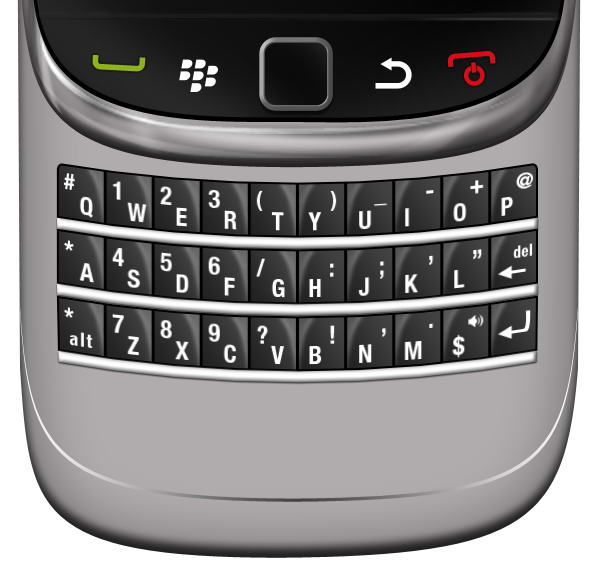
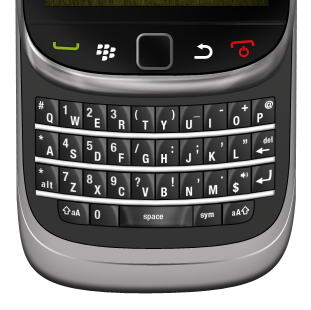
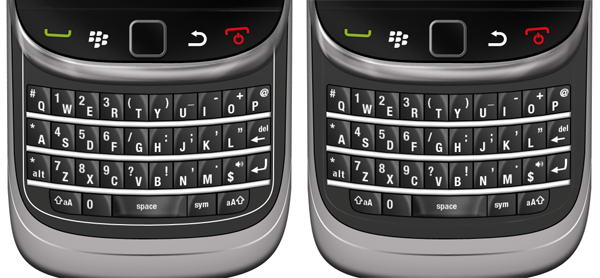
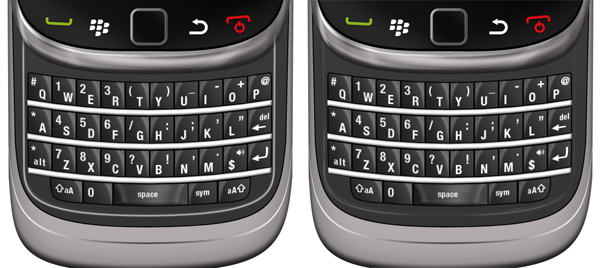
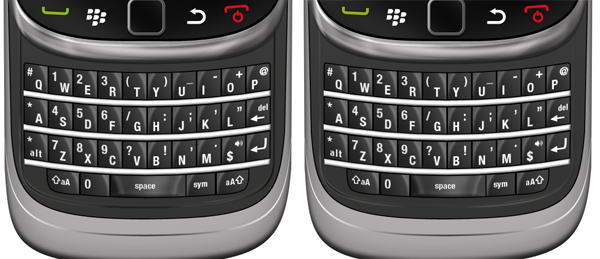
Create a Blackberry Torch Using Photoshop and Illustrator

In this tutorial, we will draw a highly realistic blackberry torch using Photoshop and Illustrator. We’ll use Photoshop for basic shapes and shading and Illustrator for more complex shapes. Let’s get started!


Step 1: Draw Basic Shape

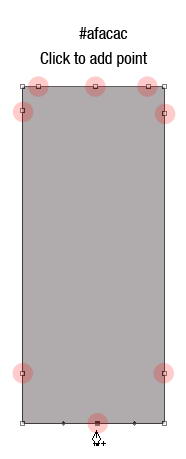
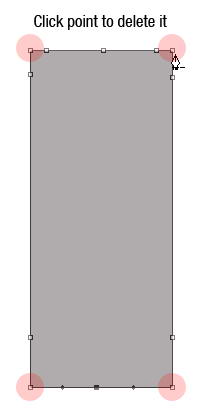
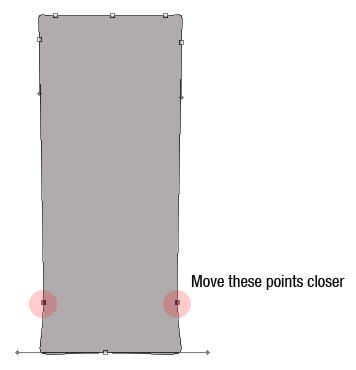
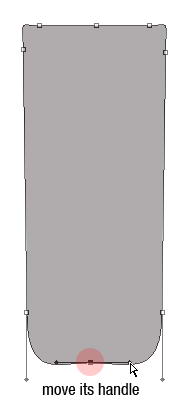
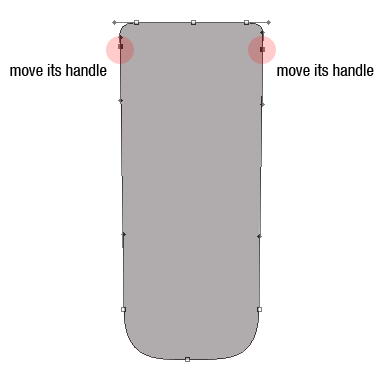
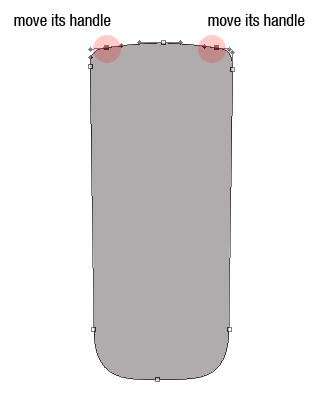
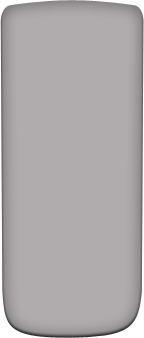
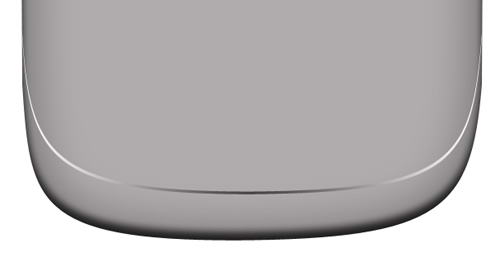
Let’s start by creating the basic shape of the phone. There are many methods to do this. I always find it easier to use a basic shape and modify it. In this case, I start by creating a rectangular shape with color #afacac then add some points, remove unneeded points, and modify its handle. See image below to see how I did it.


Step 2

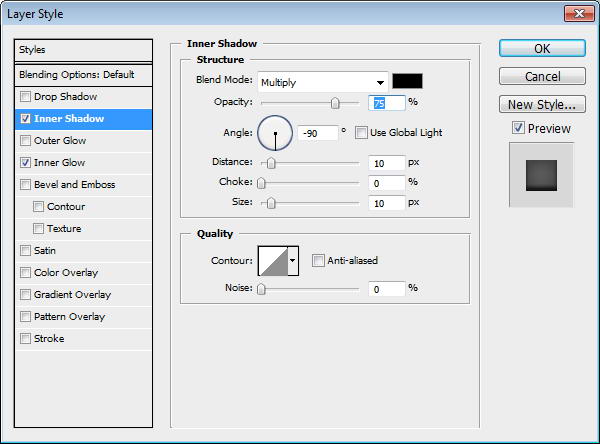
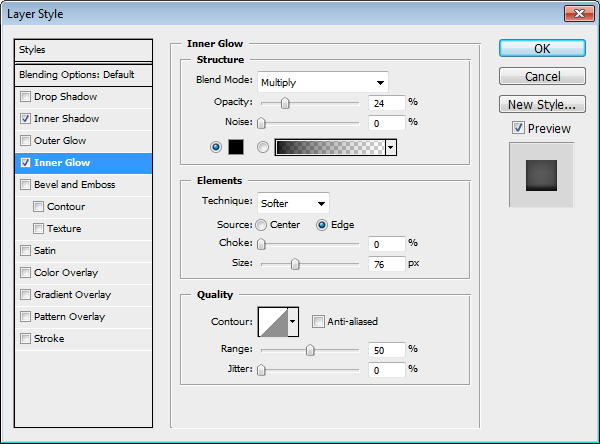
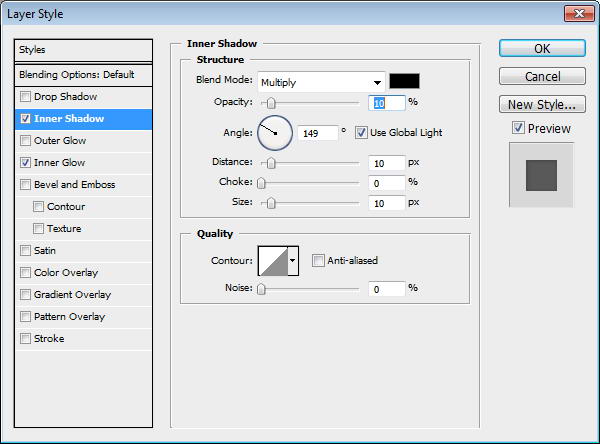
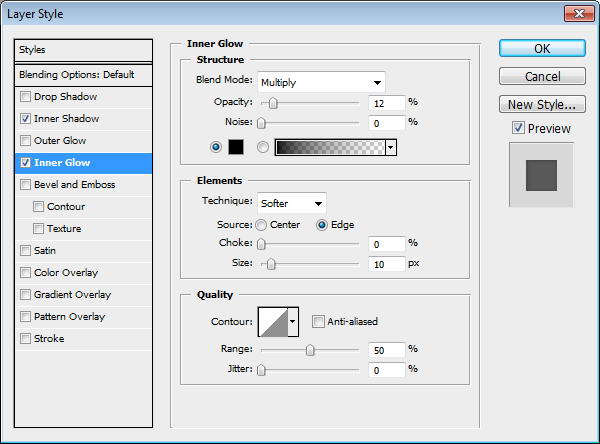
Add layer styles Inner Shadow and Inner Glow.


Step 3

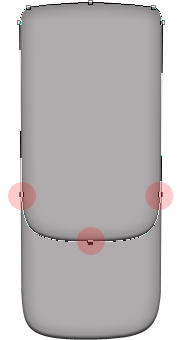
Duplicate shape by pressing Cmd/Ctrl + J. Use direct selection tool to select three points indicated below and move them upward. This is going to be phone’s front face.


Step 4: Screen

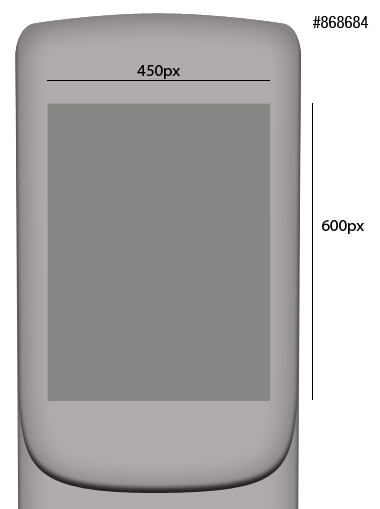
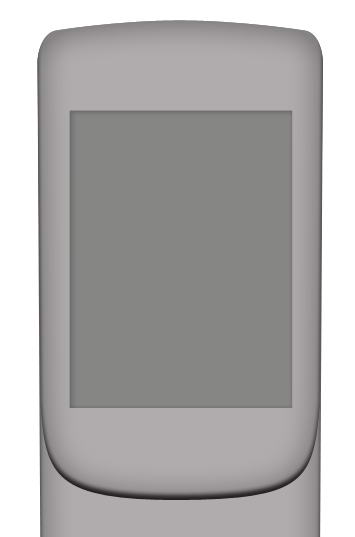
Create a 450×600 px rectangle on top of the shape. This will be screen area. Add Inner Shadow and Inner Glow to add depth into the screen.


Step 5

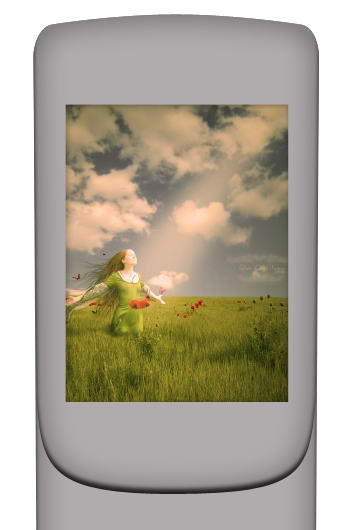
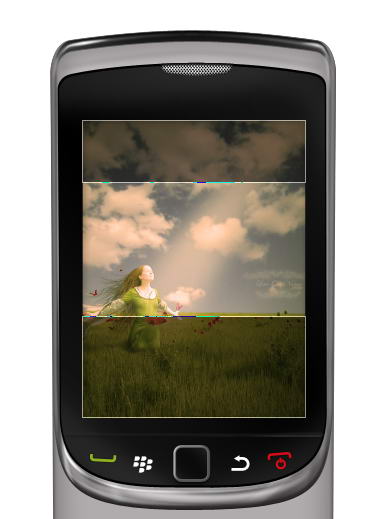
Add a picture and place it on top of the screen. Hit Cmd/Ctrl + Alt + G to convert it into clipping mask. The picture will automatically be placed inside the screen. You still can move or resize it if needed.


Step 6

Draw this black shape behind the screen.


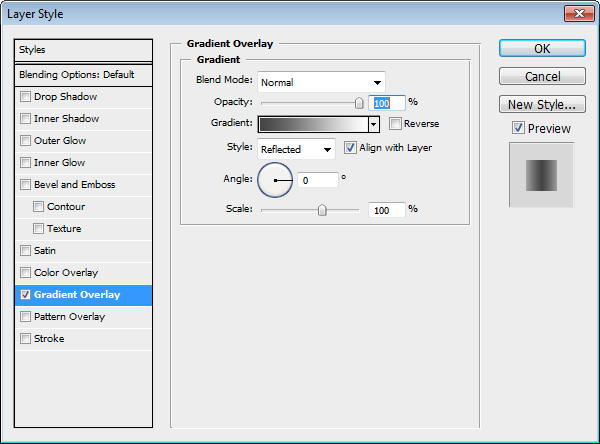
Step 7

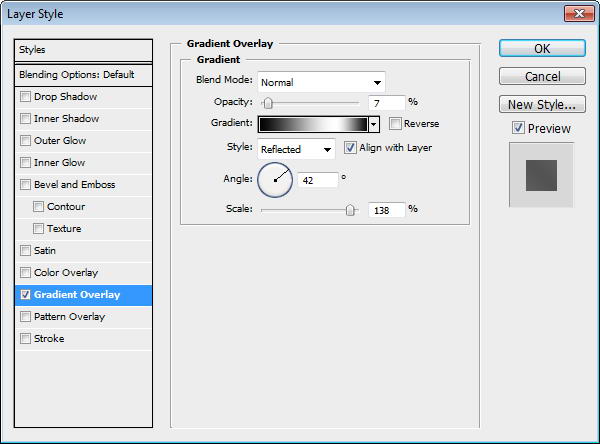
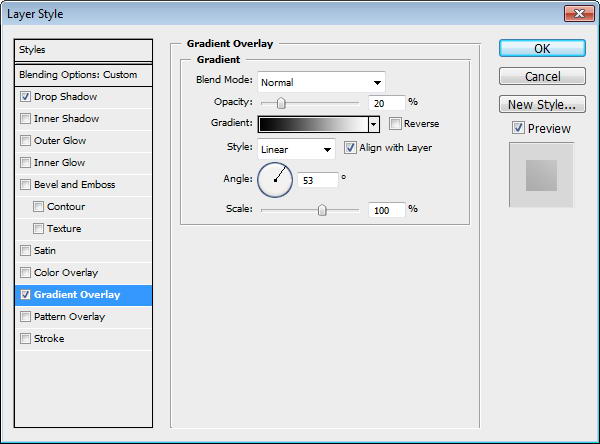
Duplicate shape and resize it to 99%. Add a subtle Gradient Overlay to the shape. I always add subtle gradients to add a natural look, since there is no perfect solid color in the real world.


Step 8

Create a new layer on top of the screen and convert it to Clipping Mask by pressing Cmd/Ctrl + ALt + G. Paint white using soft brush and reduce layer opacity to 10%.


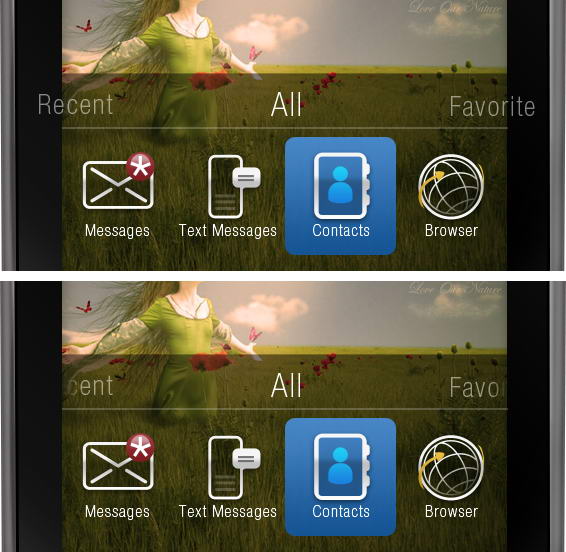
Step 9: Speaker

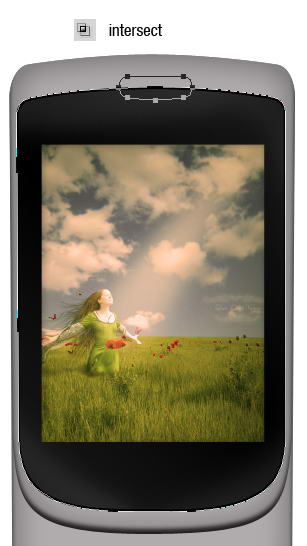
Duplicate screen shape, add rounded rectangle path on top of it and select intersect. Set Fill layer to 0%. This is going to be its speaker.


Step 10

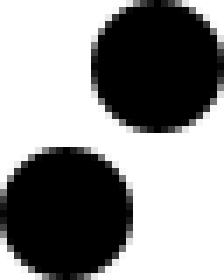
Create a new file with size 32×40 px. Draw two circles, place them on opposite corners. Fill it with black.


Step 11

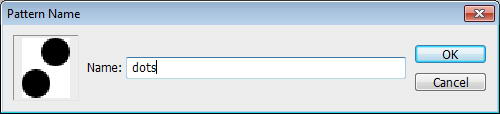
Select all (Cmd/Ctrl + A) and save it as a pattern by clicking Edit > Define Pattern. You may close the file, we won’t need it anymore.


Step 12

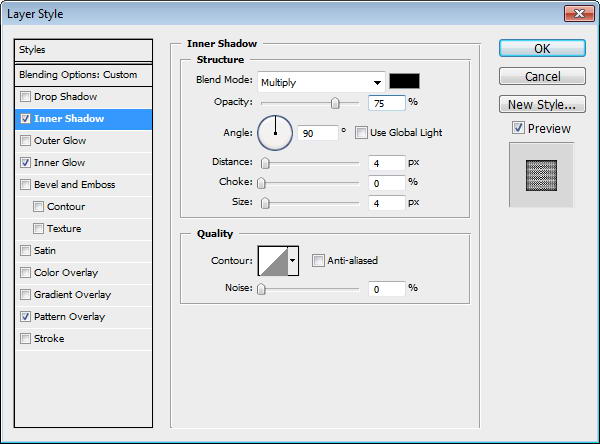
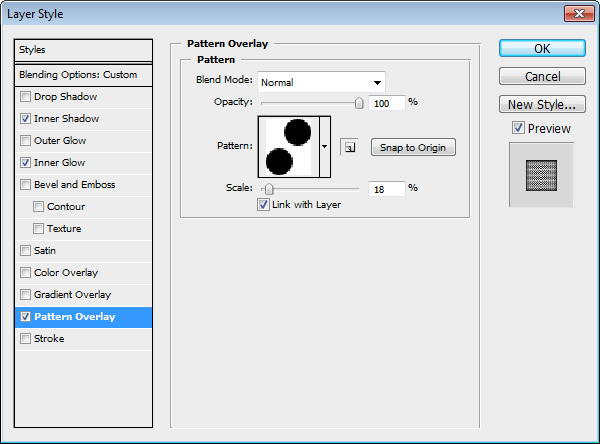
Return to speaker shape. Add Inner Shadow, Inner Glow, and Pattern Overlay. In Pattern Overlay, make sure to select previously created pattern.


Step 13: Draw Highlight and Shadow

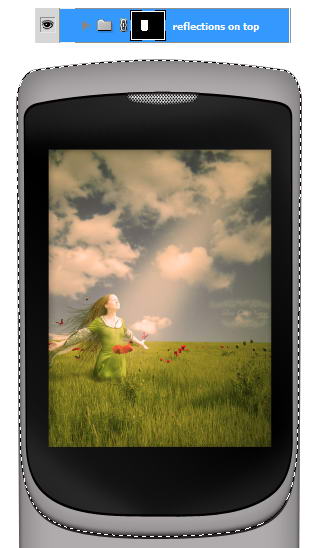
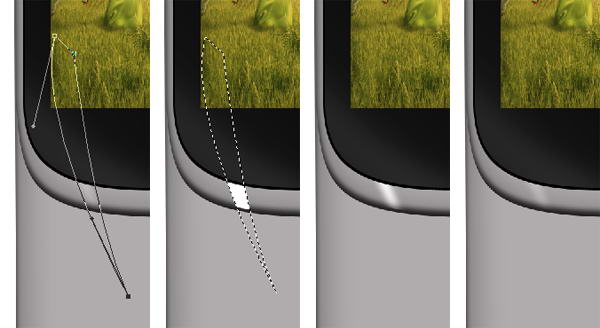
Cmd/Ctrl-Click phone’s front face shape. Create a new group layer and click Add Layer Mask icon. We are going to draw metallic reflections in this group.


Step 14

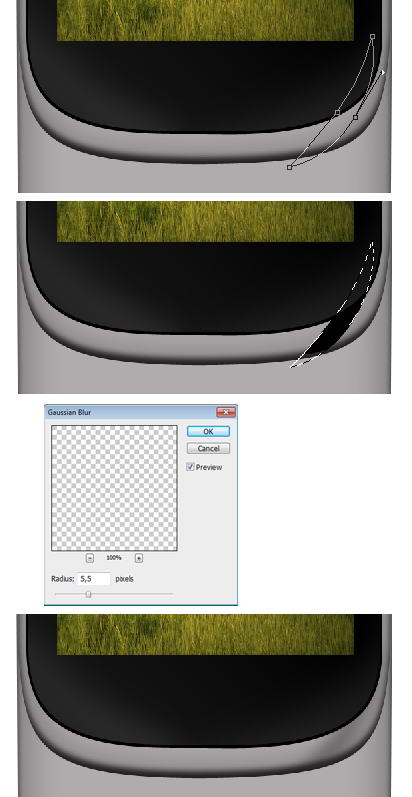
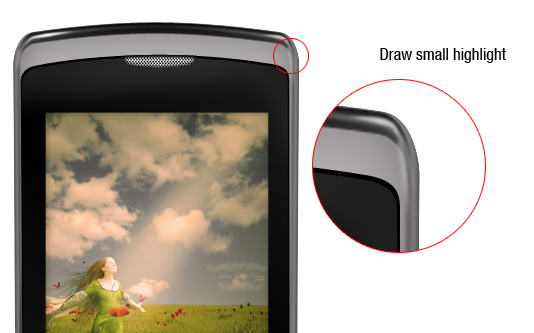
The idea is simple. We just need to add lots of subtle shadows and highlights on the phone surface. Draw a path using pen tool, convert it to selection by pressing Cmd/Ctrl + Enter. Create new layer. Let’s start drawing shadow. Fill it with black. Add Gaussian Blur to soften the shape then reduce layer opacity to 30%.


Step 15

Use the same technique to draw highlights. Draw path, convert it to selection, fill it with white, add Gaussian Blur, reduce layer’s Opacity.


Step 16

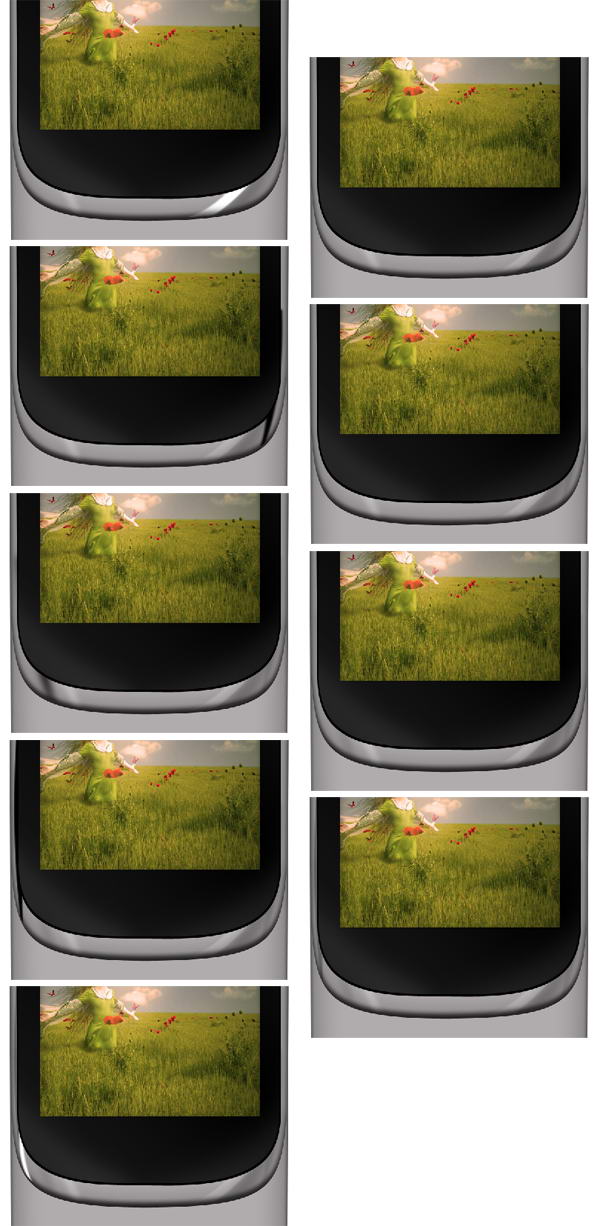
Keep drawing highlights and shadows using technique I described above. Place all your drawings on different layers, this will help if you want to modify it. Make sure to use different opacities to give it random reflections.


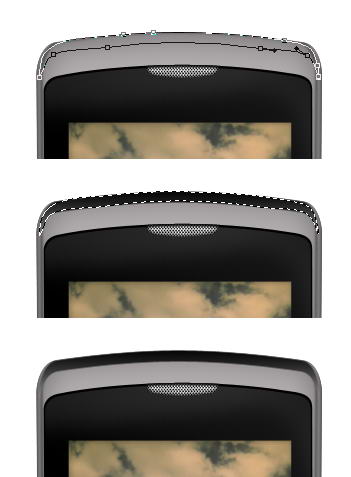
Step 17

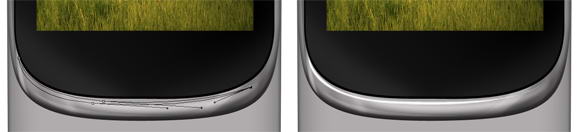
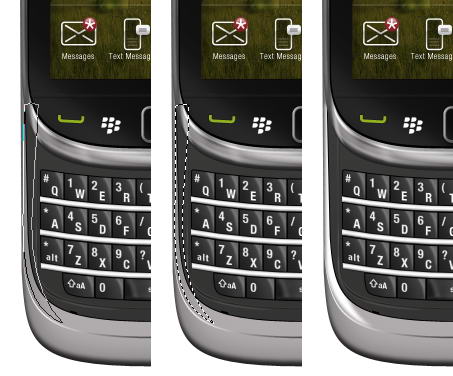
Let’s draw a coarse highlight. Draw a thin path under the screen, convert it to selection, then fill it with white. No need to add Gaussian Blur or reduce its opacity.


Step 18

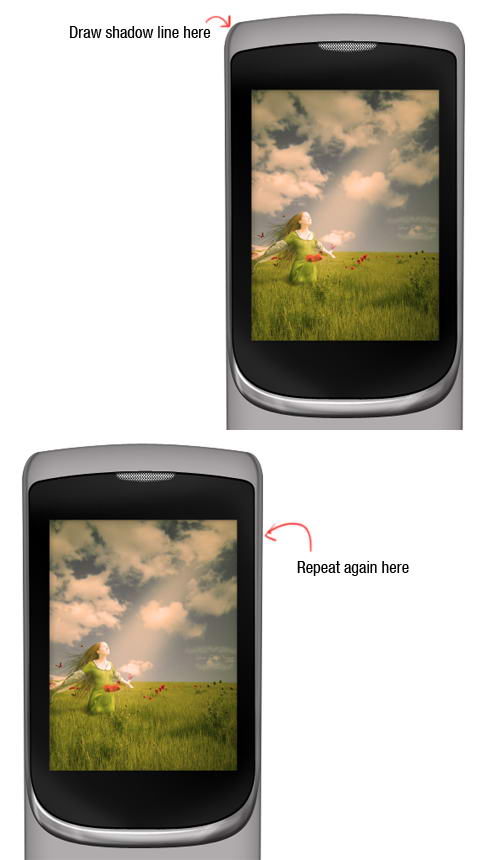
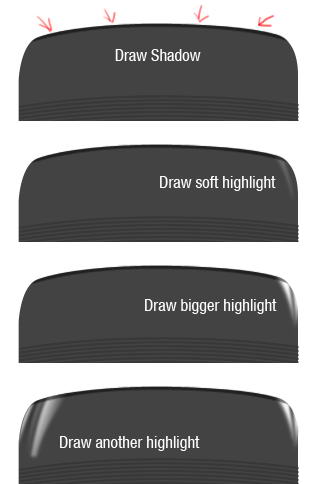
Now let’s add another shadow on the side of the phone. See picture below for reference.


Step 19

It’s important to add some coarser highlights and shadows on one side of the phone to keep it realistic. Draw a shape on top of the phone, convert it to selection, and fill it with gradient from black to darker gray.


Step 20

Inside the shadow, draw a soft highlight. Reduce its opacity to 30%.


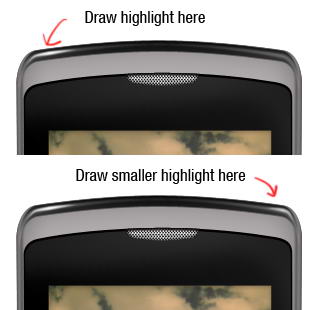
Step 21

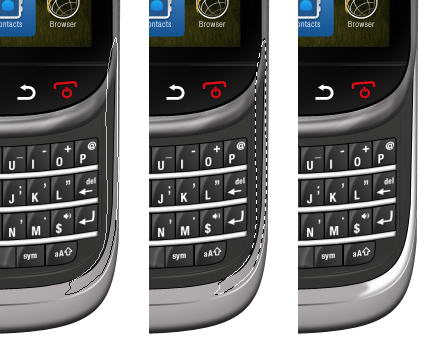
On top of previous highlight, draw smaller highlight but with higher intensity. Don’t just copy paste the highlight. It’s not natural to have perfectly similar highlight on both sides.


Step 22

As I said, it’s not natural to have same highlight on both side. I decided to add another highlight on right side of the phone. This creates imperfection and adds more realism to the phone.


Step 23

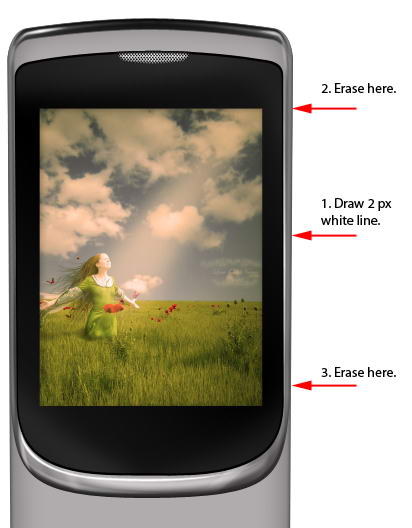
Let’s draw another detail. Draw a 2px white line. To draw a straight line, hold shift while dragging. Erase top and bottom of the line using a big soft eraser.


Step 24

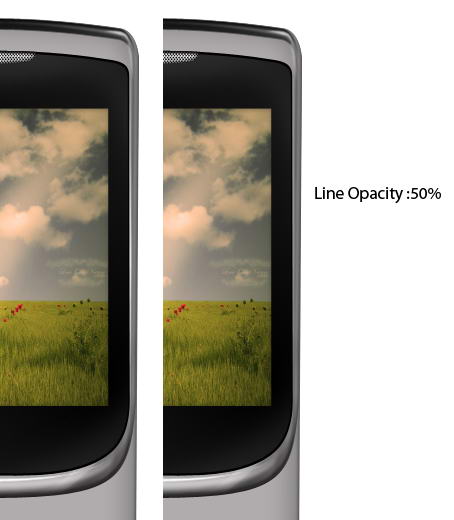
Reduce its opacity to 50%.


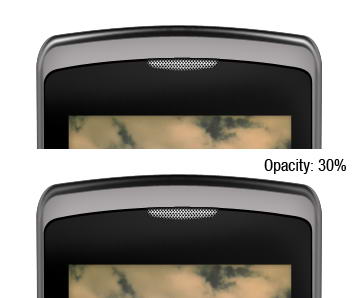
Step 25

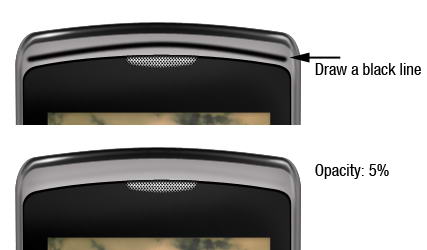
Draw a black line on top of the phone and reduce its opacity to 5%. This subtle shadow adds a sense of depth to the phone.


Step 26: Main Button

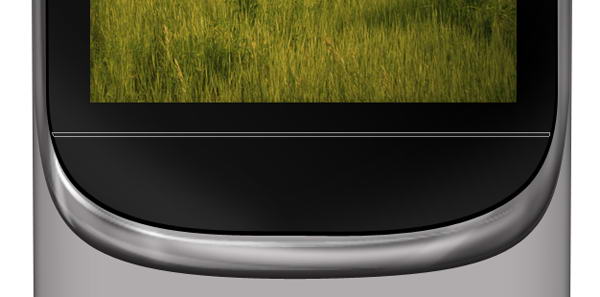
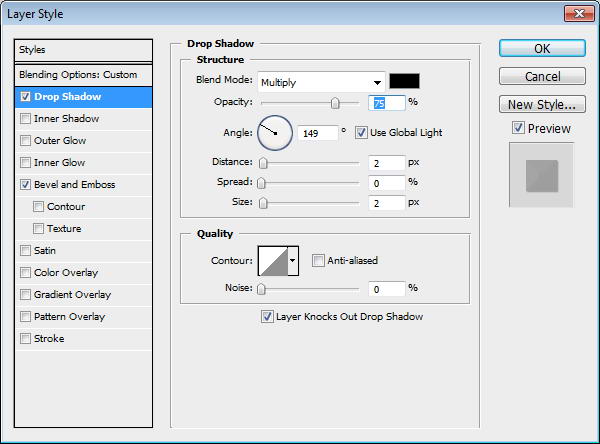
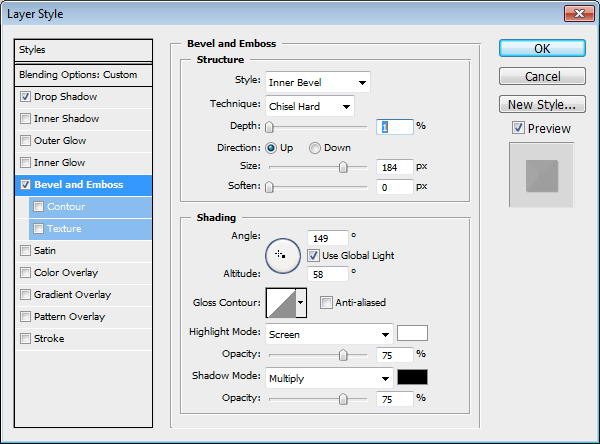
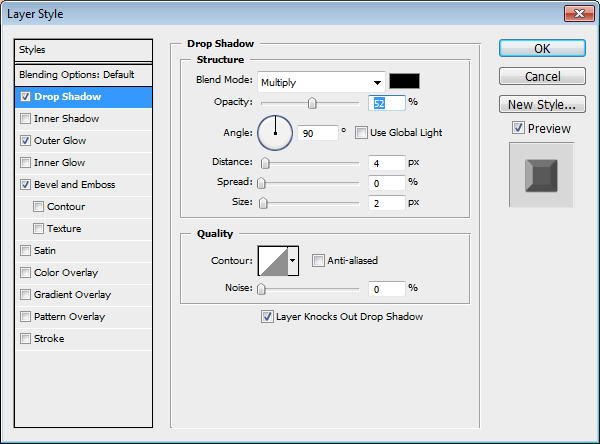
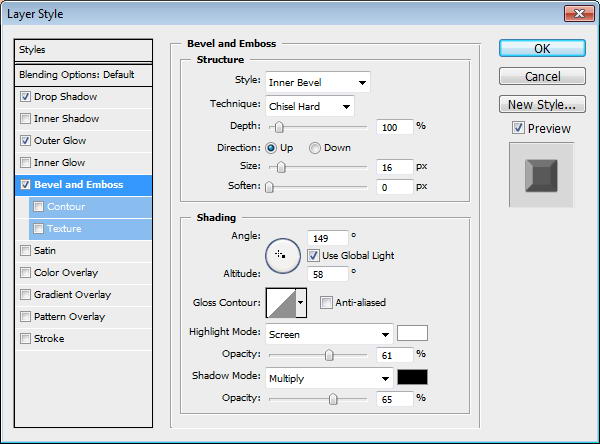
Draw a path to separate screen area and menu button. Change its Fill layer to 0%. Add layer styles drop shadow and Bevel and Emboss.


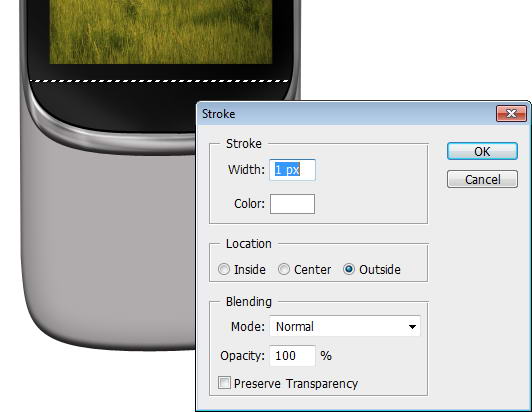
Step 27

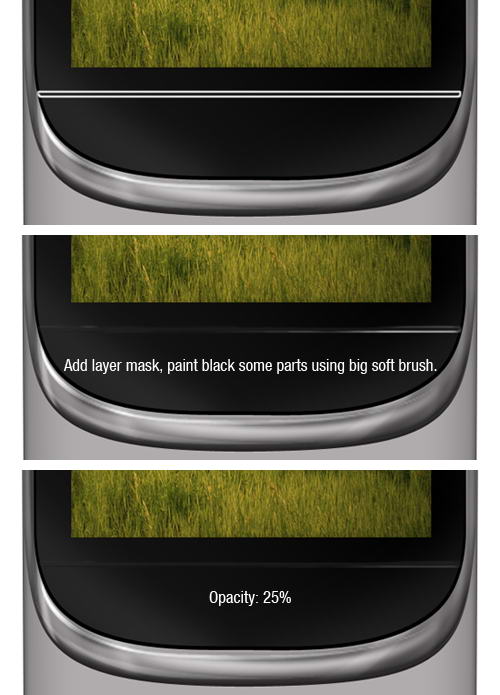
Cmd/Ctrl-Click shape to convert it to selection. Create new layer. Click Edit > Stroke with 1px width and Color: White.


Step 28

Add a layer mask and paint some of the line. Reduce its opacity to 25%. This will add a subtle highlight on the separator.


Step 29

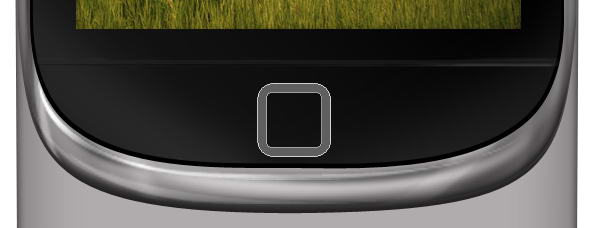
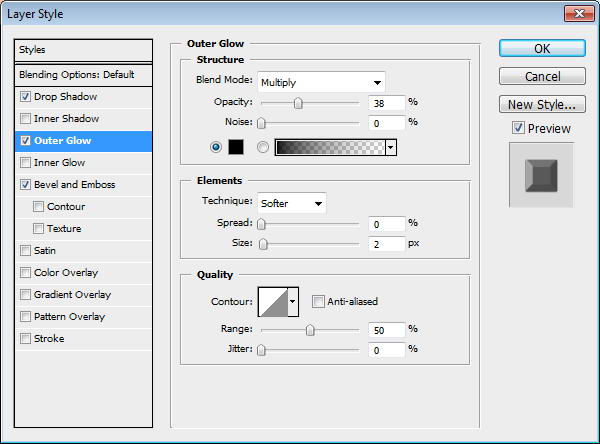
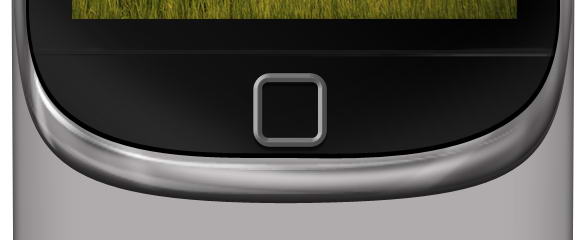
Create a rounded rectangle and inside it draw smaller rounded rectangle. Select subtract to create hole. Add Drop Shadow, Outer Glow, and Bevel and Emboss.


Step 30

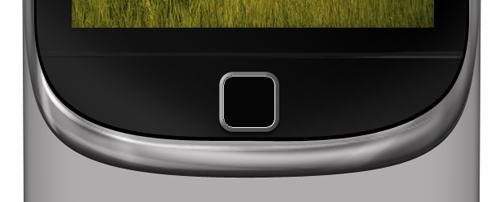
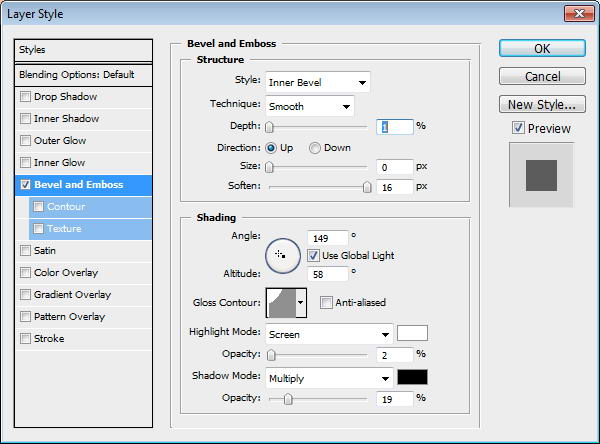
On top of the shape draw a black rounded rectangle. Add a small Bevel and Emboss to add depth.


Step 31

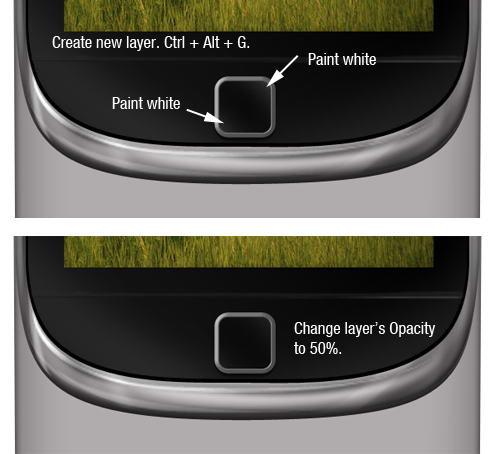
Create a new layer and convert it to Clipping Mask by pressing Cmd/Ctrl + Alt + G. Paint white on its corner and reduce its opacity to 50%.


Step 32

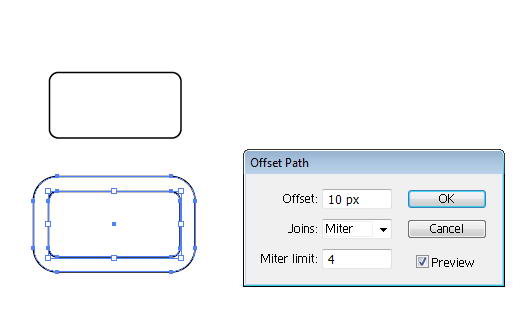
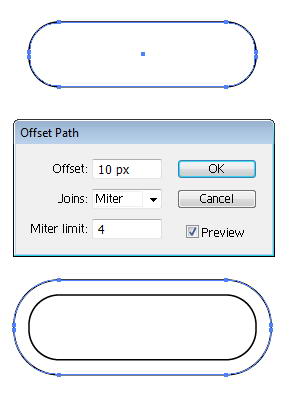
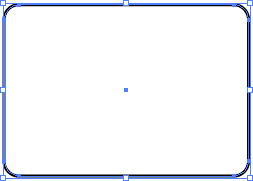
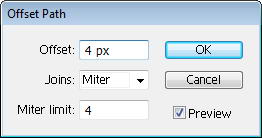
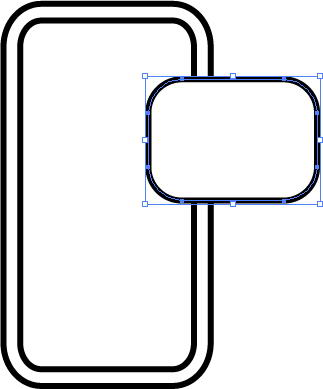
Now, open up Illustrator. Draw a rounded rectangle and click Object > Path > Offset Path. This command will convert path to a ring shape.


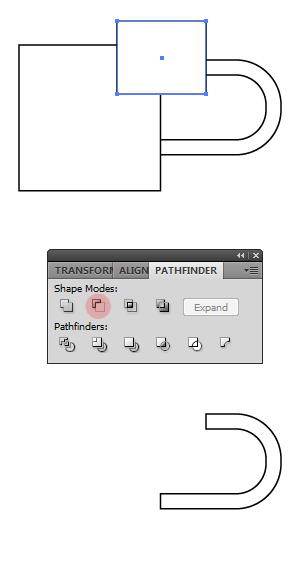
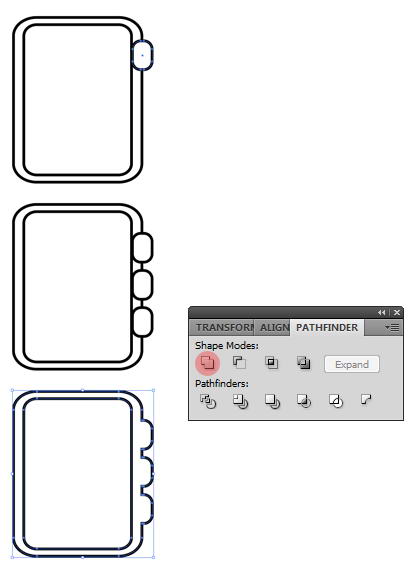
Step 33

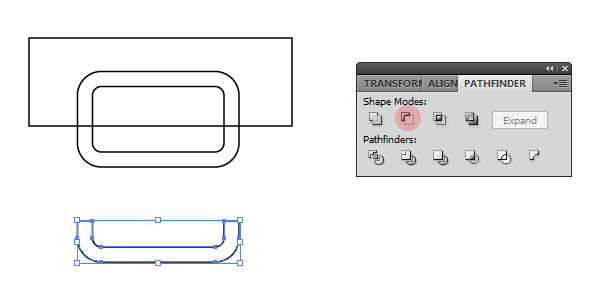
Create a rectangle on top of it. Select both shapes and from the Pathfinder panel select Minus Front.


Step 34

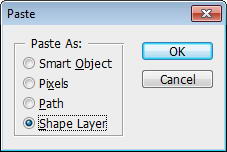
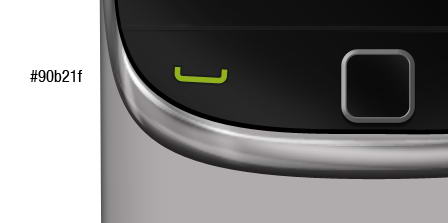
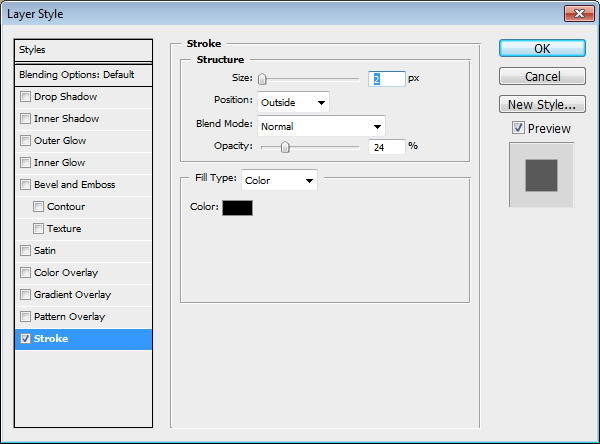
Copy shape from Illustrator and paste it to Photoshop. In Paste option choose Shape Layer. Set its color to green and rotate it a bit. Add thin stroke to add depth on to the shape.


Step 35

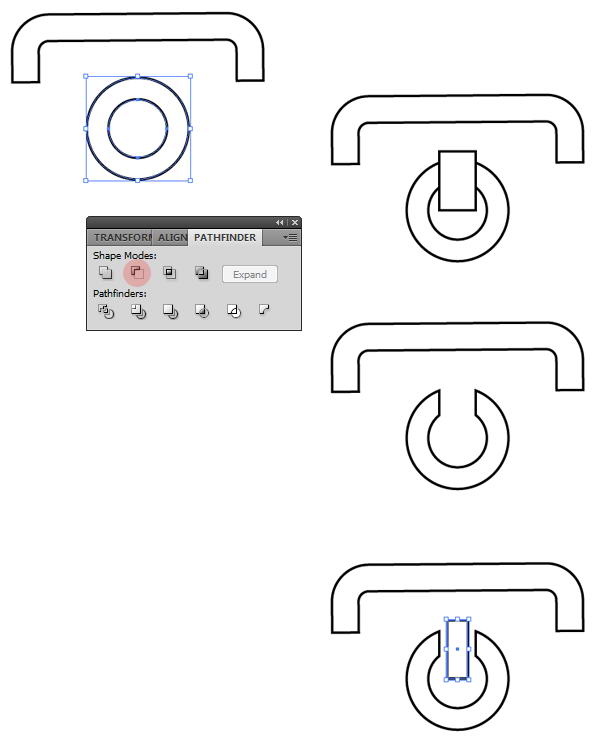
Repeat previous shape to create a semi rounded rectangle ring. Under it, add a circle. Inside that circle create another smaller circle. Select both circles and choose Minus Front to create a donut shape.

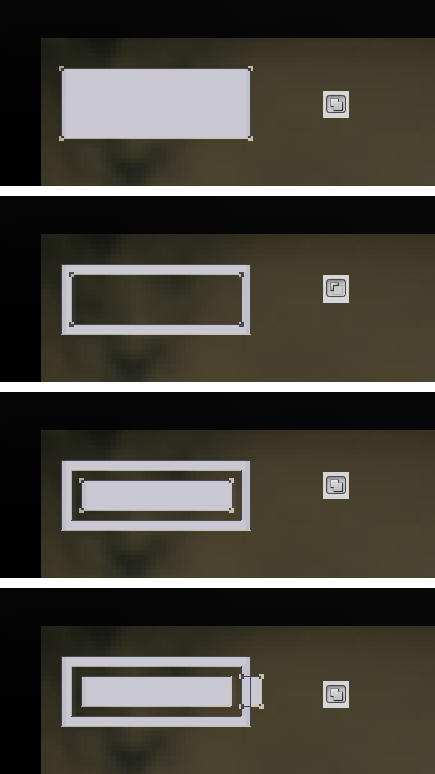
On top of the donut, draw a rectangle, then Minus Front both of them. Finally, draw a small rectangle on the hole.


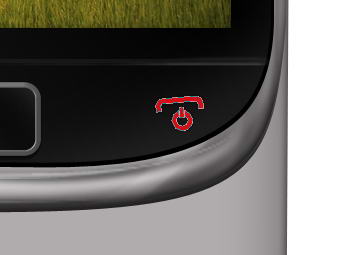
Step 36

Paste the shape to Photoshop as a layer shape and use red color. Rotate it a bit. Just like previous button, add a small stroke.


Step 37

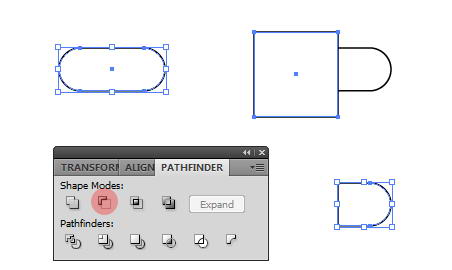
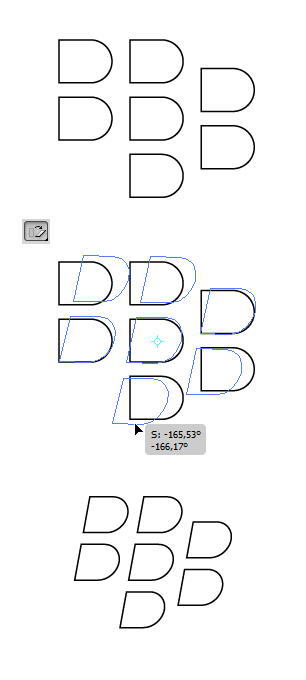
For Blackberry logo, draw a rounded rectangle. On top of it draw a rectangle. Select both shapes and choose Minus Front.


Step 38

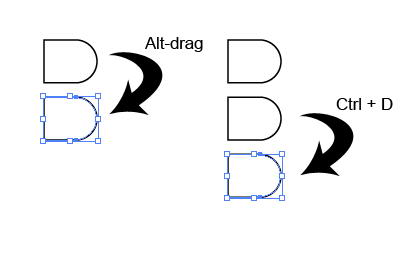
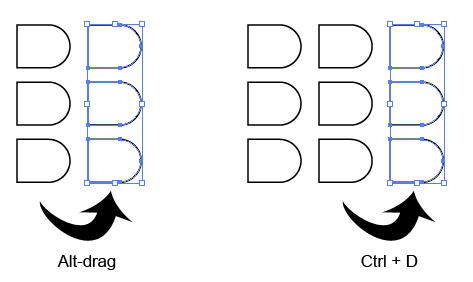
Using move tool Alt-drag to duplicate the shape. Repeat the duplication process by pressing Cmd/Ctrl + D.


Step 39

Select all shapes. Use shear tool to transform them.


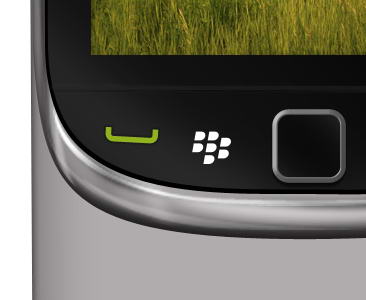
Step 40

Paste the logo into Photoshop. Use white for its color.


Step 41

Return to Illustrator, draw a rounded rectangle. Click Object > Path > Offset Path.


Step 42

Cover some of the shape with two rectangles. Select all shapes and hit Minus Front.


Step 43

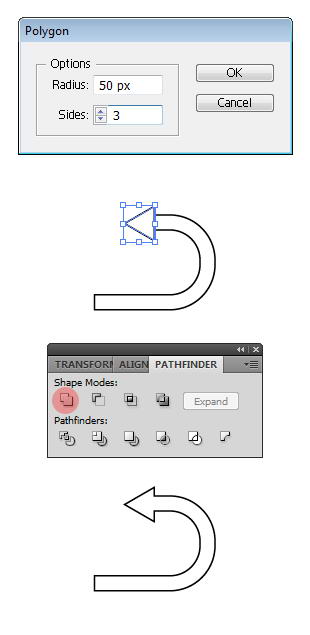
Draw a triangle using polygon tool. To change its side, you need to click once to open polygon dialog box and use 3 for the sides. Place the triangle on end of the ring and select Unite to combine both shapes into an arrow.


Step 44

Paste it onto Photoshop with white color.


Step 45

Draw two black rectangles on top and bottom of the screen. Set its opacity to 50%.


Step 46: Draw Battery Icon

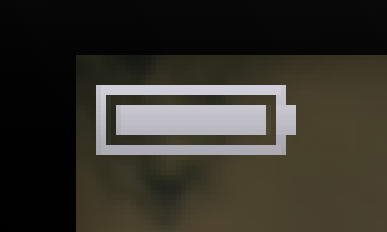
In Photoshop, draw a simple battery made from some rectangles. Add Gradient Overlay to make it shiny.


Step 47: Mail Icon

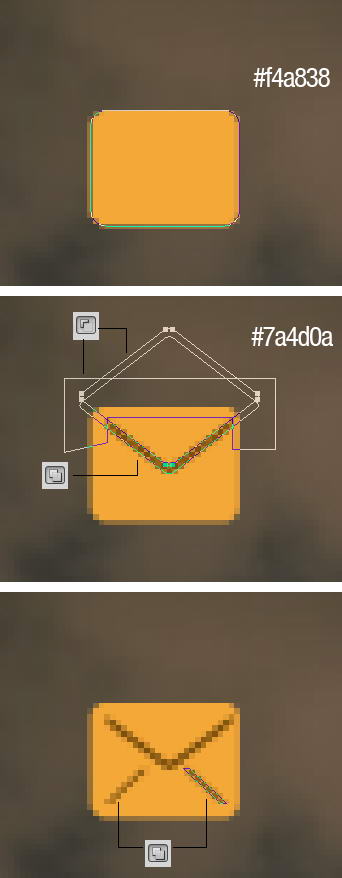
Draw a rounded rectangle. On top of it draw two overlapping rounded rectangles. Cut them using shape drawn with pen tool. Draw another line using rectangle tool.


Step 48

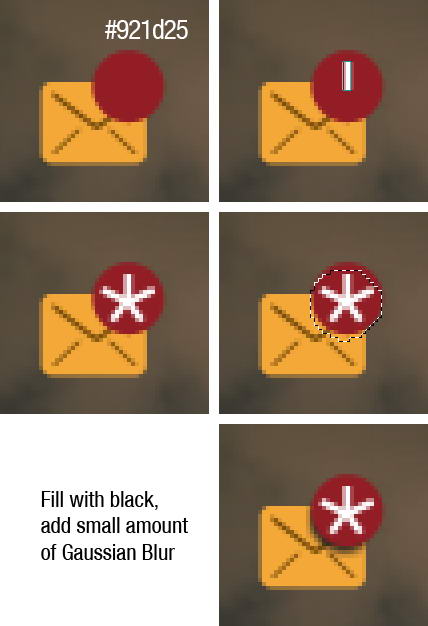
On top right corner, draw some white rectangles. Create new layer under red circle shape. Cmd/Ctrl-click red shape to create selection based on its shape. Move the selection a few pixels down and fill it with black. Delete unneeded shadow outside the mail.


Step 49: Twitter Icon

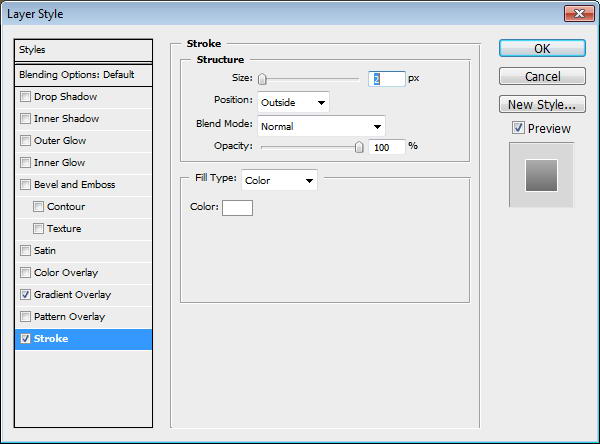
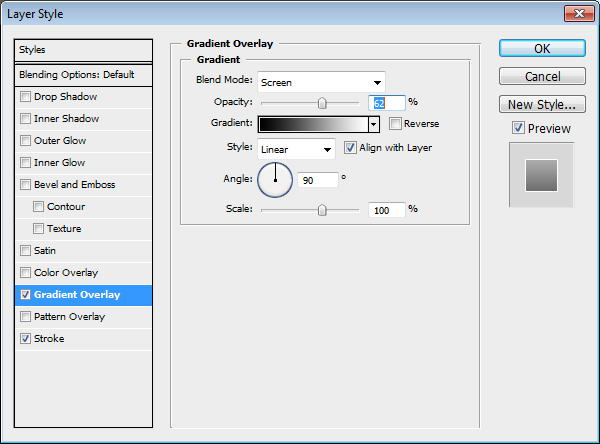
Copy Twitter logo, then trace its shape manually using pen tool. Paste the twitter shape as a layer shape and use light blue for its color. Add Gradient Overlay and white Stroke.


Step 50

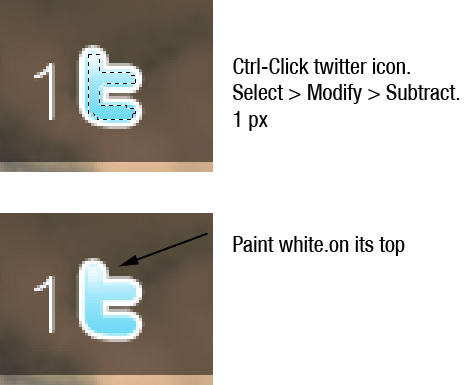
Cmd/Ctrl-click twitter icon to create selection based on its shape. Click Select > Modify > Subtract, 1px. Paint white on top of the logo.


Step 51: Facebook Icon

Create a rectangle shape and this Gradient Overlay. Inside the rectangle add an f.


Step 52: Speaker Icon

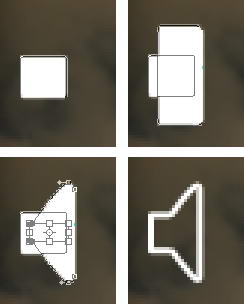
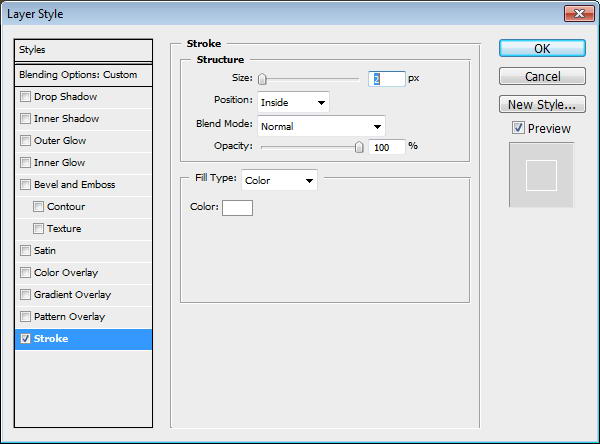
Draw a rounded rectangle. On top of it, add another rounded rectangle them transform it. See picture below for reference. Set fill layer to 0% and add layer style Stroke.


Step 53

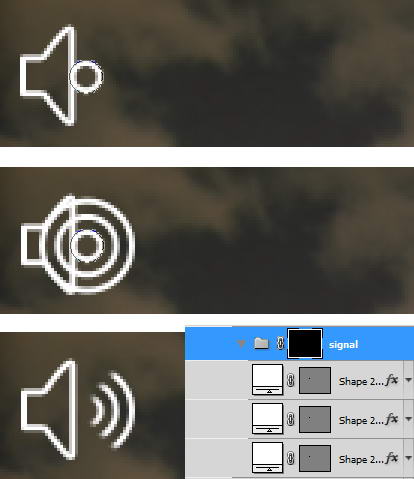
Next to the speaker, draw some circle shapes. Each in different layers with layer style stroke. Put them into a folder group, add layer mask, and paint some part of it with black.


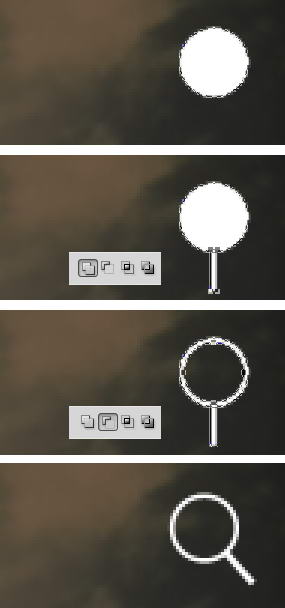
Step 54: Magnify Icon

Draw a circle. Inside it draw smaller circle and select subtract. Add a rectangle for its handle then rotate the layer.


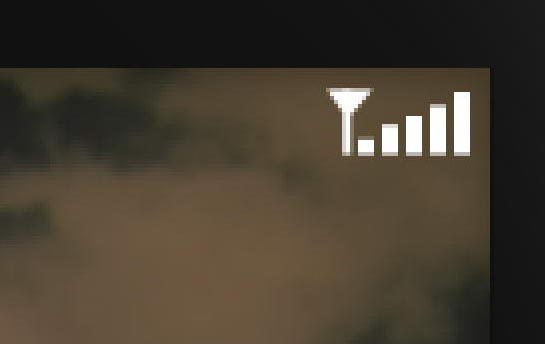
Step 55: Signal Icon

To draw a signal icon you just need some rectangles and a triangle.


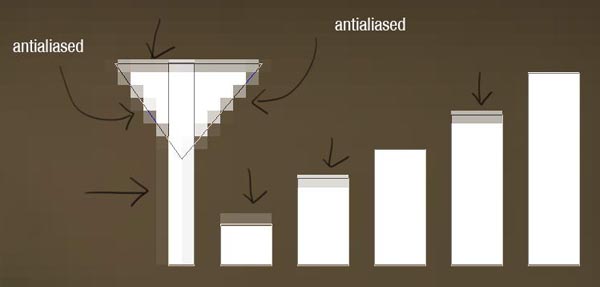
Step 56

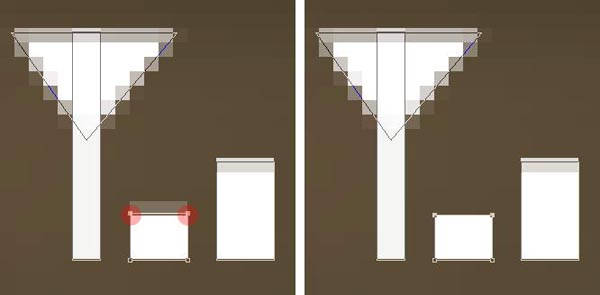
When we zoom in, you can see that there is some unneeded anti-aliasing going on. We will need to fix this.


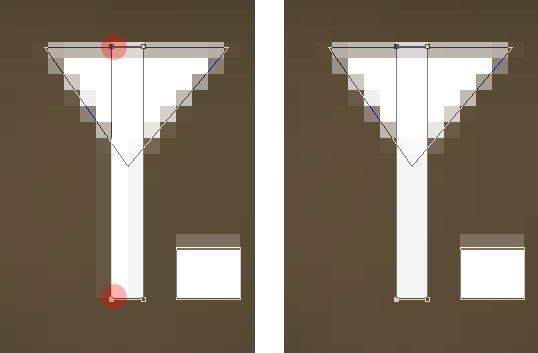
Step 57

To fix this, we need to select the points with direct selection tool and nudge them by pressing the arrow keys. Do this until the transparent pixels disappear.


Step 58

You can see the result below, much sharper now!


Step 59

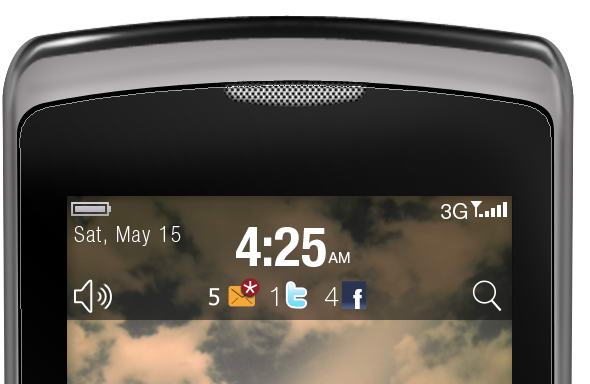
Add text for date, time, and other info.


Step 60: Message Icon

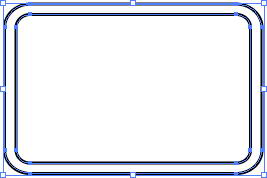
Let’s return to Illustrator again. Draw a rounded rectangle. Click Object > Path > Offset Path.


Step 61

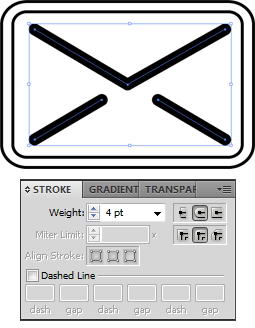
Using pen tool draw some lines until we have basic mail shape. Set its fill to none and stroke to black. From Stroke panel choose bigger weight and select round cap and round join.


Step 62

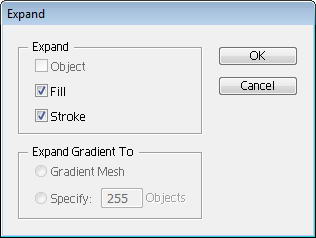
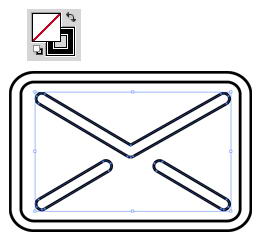
Select lines and click Object > Expand. This will convert lines into shapes. Set its fill to none and stroke to black.


Step 63: Text Messages Icon

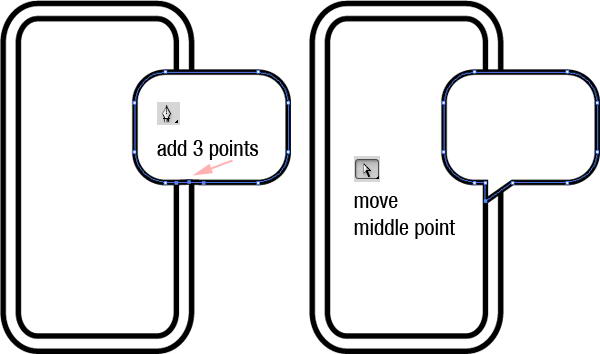
Create a ring rounded rectangle shape, just like previous shape. On top of it draw another rounded rectangle.


Step 64

Add 3 points on lower side of the rounded rectangle. See picture below for its position. Move middle point until we have a speech bubble.


Step 65

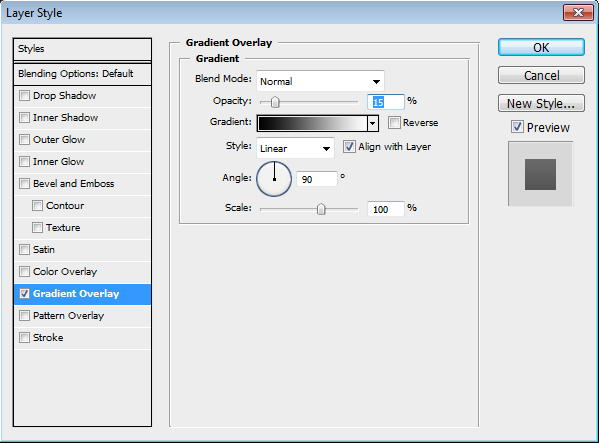
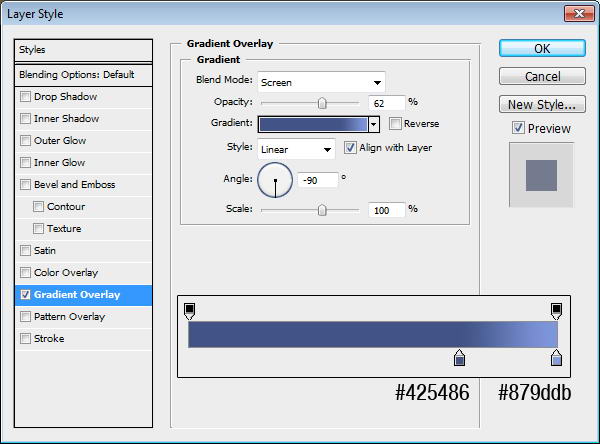
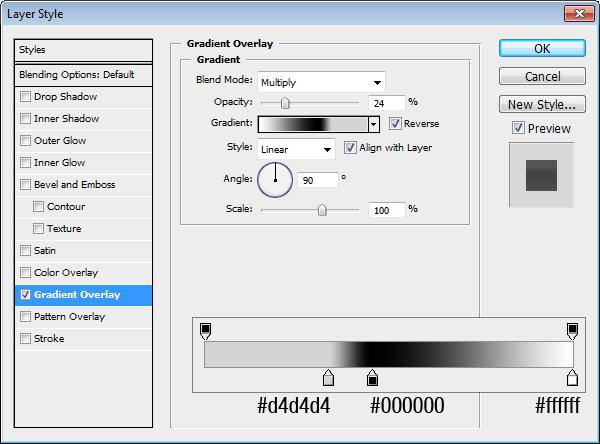
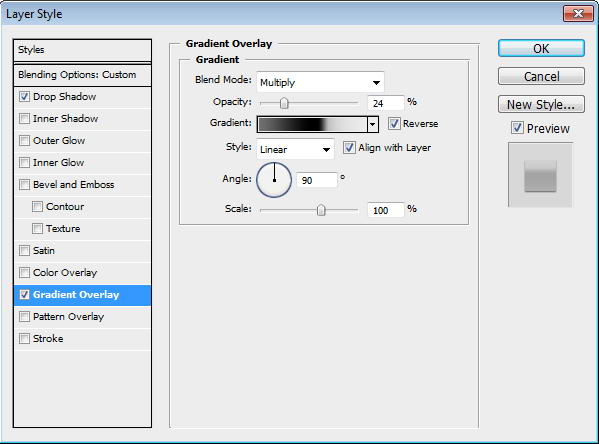
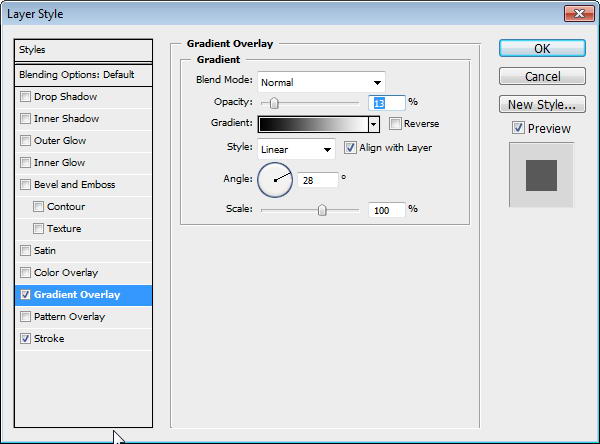
Paste both shapes into Photoshop. Add this Gradient Overlay.


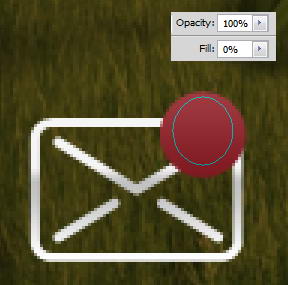
Step 66

On the top right corner of the mail icon, add a red circle. Give it a Gradient Overlay.


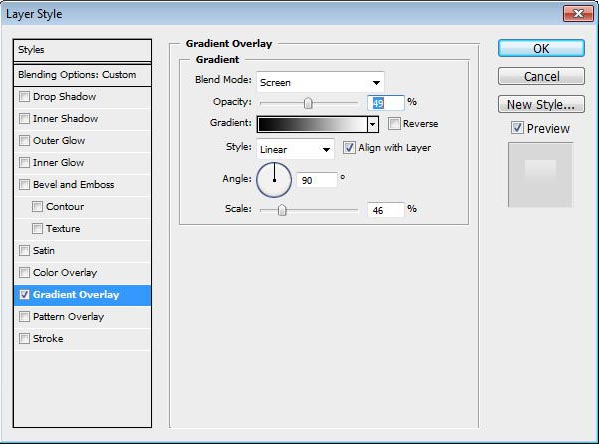
Step 67

On top of it, draw an ellipse shape with fill 0%. Add a Gradient Overlay from black to white with blend mode Screen.


Step 68

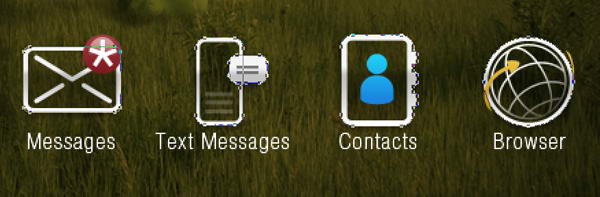
Add a star made of five thin rectangles. Under it, add text "Messages".


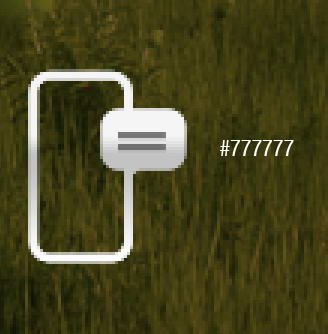
Step 69

On top of speech bubble, draw two rectangular shapes with color #777777.


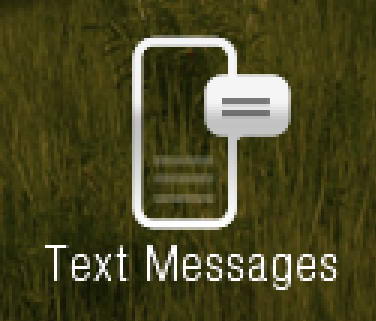
Step 70

Inside it, draw a low opacity gray rectangle shape. Add text under the icon.


Step 71: Contacts Icon

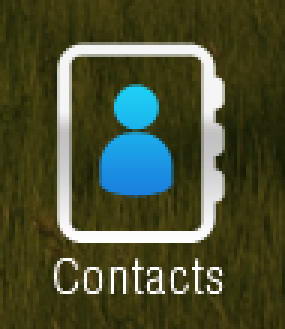
Again, return to Illustrator. Draw a ring shape rounded rectangle.


Step 72

On its right side, draw three smaller rounded rectangles. Select all shapes and click Unite.


Step 73

Paste the shape into Photoshop. Add Gradient Overlay.


Step 74

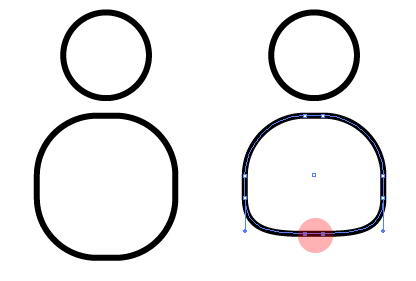
In Illustrator, draw a circle and a rounded rectangle. Modify lower points on rounded rectangle to get a person shape.


Step 75

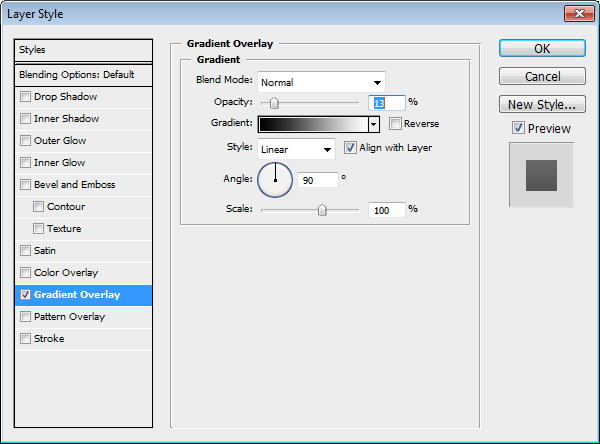
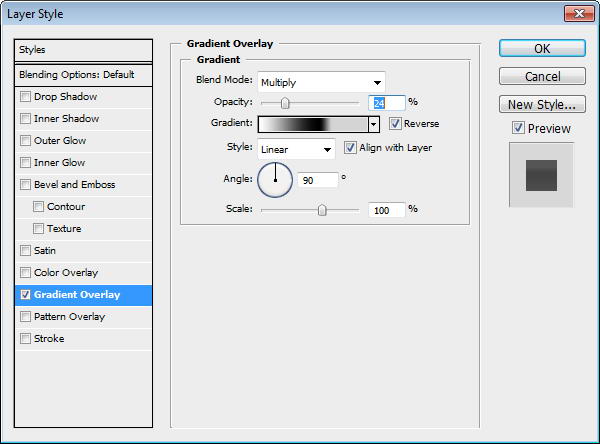
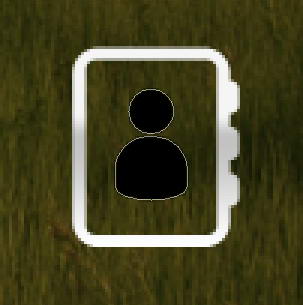
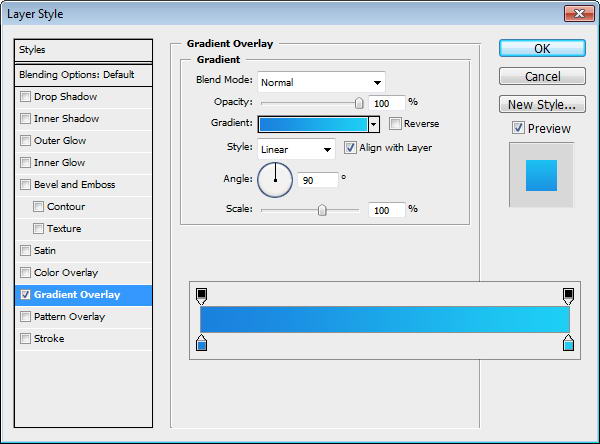
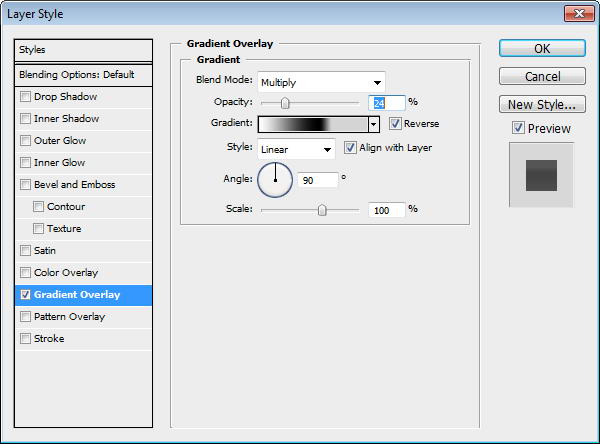
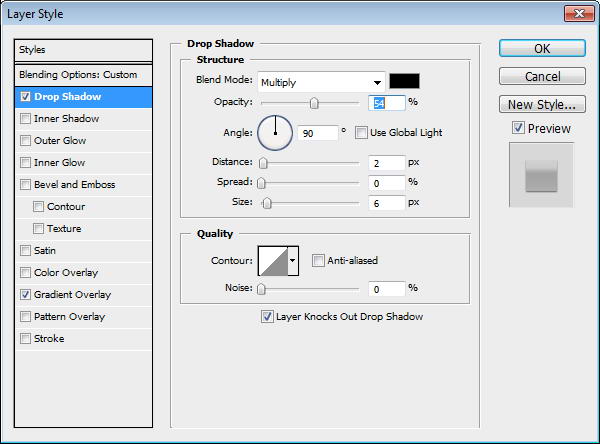
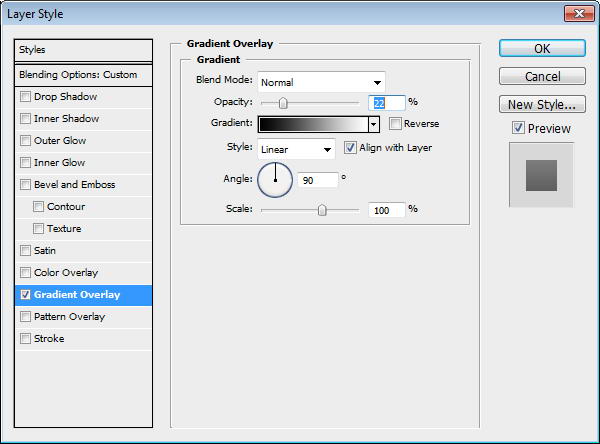
Paste the shape to Photoshop and put inside our previous shape. Add Gradient Overlay with setting seen below and add text Contact under it.


Step 76: Globe Icon

Draw a donut shape in Illustrator. Paste it to Photoshop. Add Gradient Overlay.


Step 77

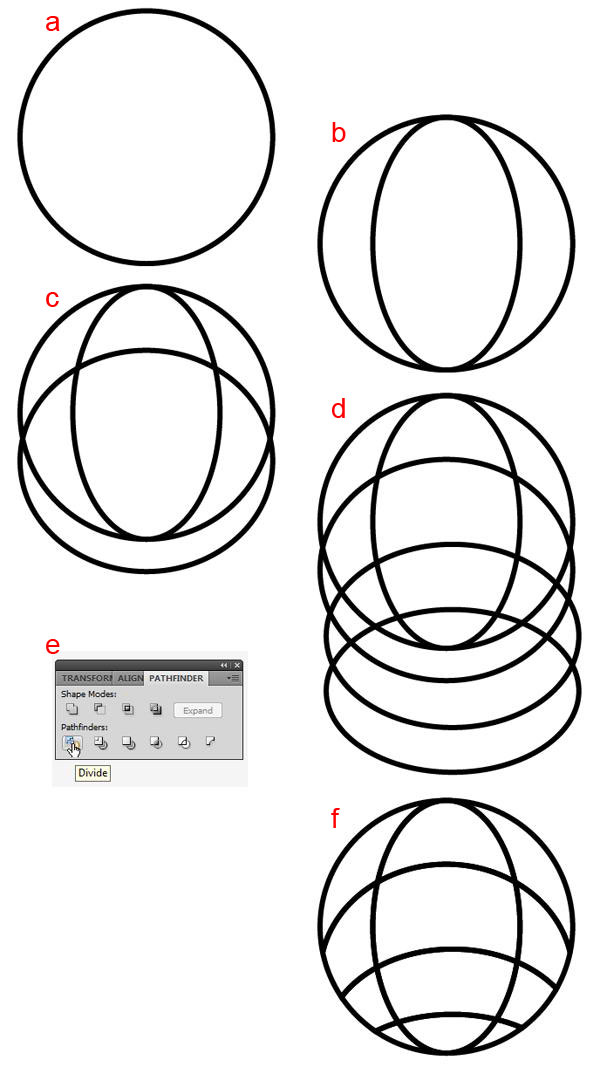
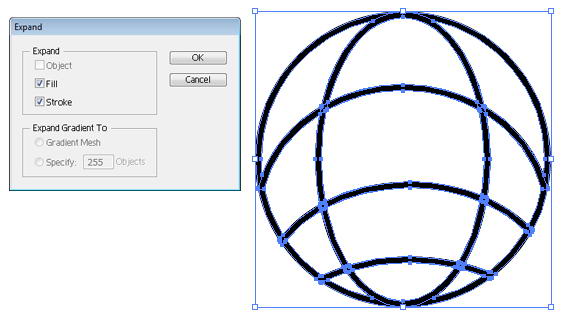
Return to Illustrator. A) Draw a circle B) Inside it draw another circle and transform it. C) Draw circle across it. D) Draw more circles. E) Select all shapes and click Divide. F) Select and delete unwanted shapes.


Step 78

Select all shapes and click Object > Expand.


Step 79

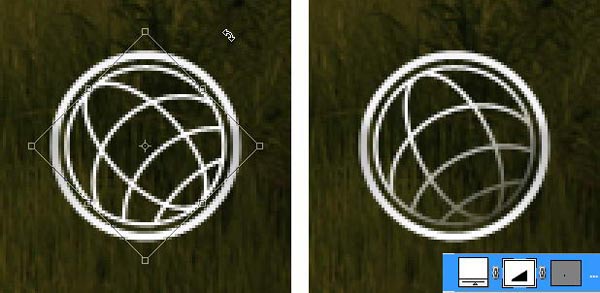
Paste the globe into Photoshop and place it inside the previous circle shape. Slightly rotate the globe. Add layer mask and add gradient to hide lower right part of the globe.


Step 80

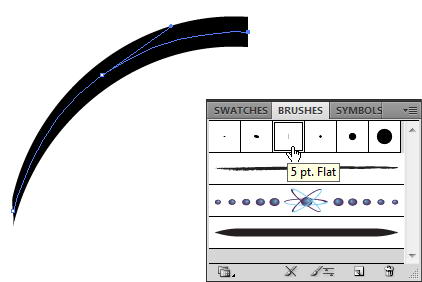
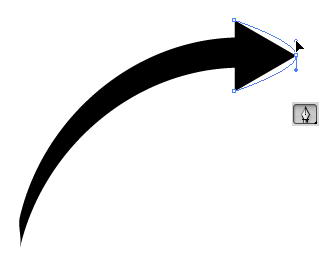
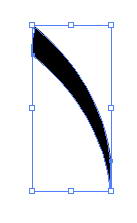
Return to Illustrator. Create a short curved line. From brushes panel select brush type that add weight onto the lines. Click Object > Expand to covert line into shape.


Step 81

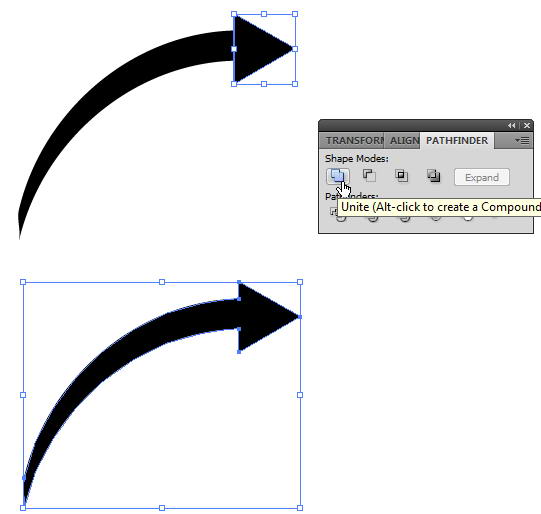
Add a triangle on its end. Select both shape and click Unite to combine into one shape.


Step 82

Use pen tool and drag arrow’s end to make it curvy.


Step 83

Draw one more line.


Step 84

Paste both shapes into Photoshop. Use #e7bc3d as its color.


Step 85: Add Glossy and Depth

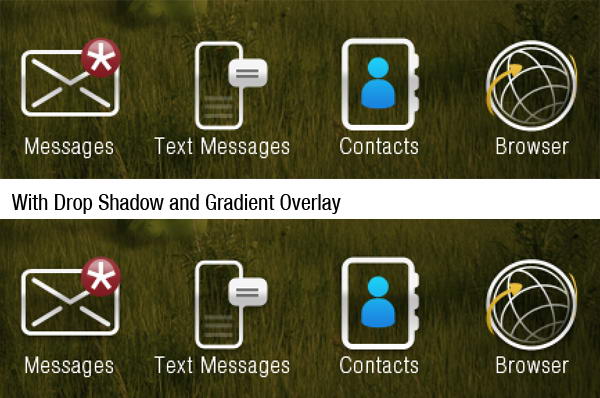
Copy all icons’ base path and paste it onto new shape layer. Place it under al layers. Set fill layer to 0%, add Drop Shadow and Gradient Overlay.


Step 86

Our last step is just a subtle change. You may not notice it, but if you compared them, you’ll see that we have one nice glossy effect with depth.


Step 87: Active Icon Background

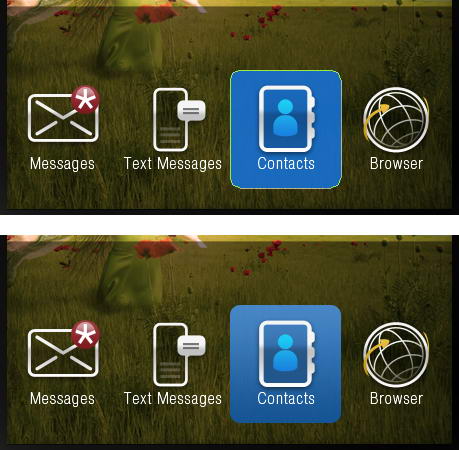
Create a blue rounded rectangle and put it behind one of the icon. Add Gradient Overlay.


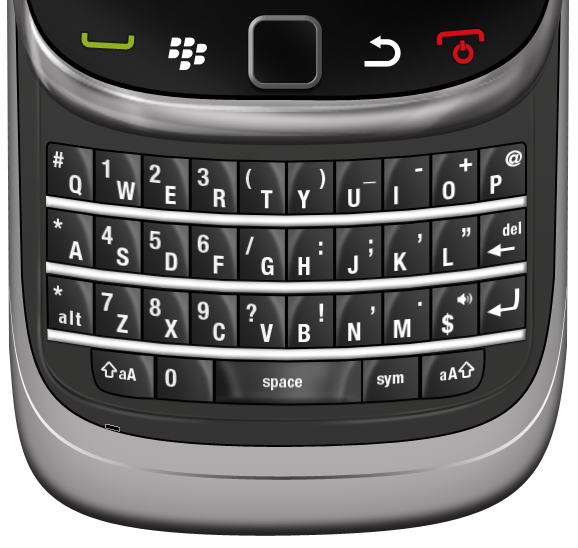
Step 88: Add Menu Text

Above all the icons, write Recent, All, and Favorite. Add layer mask and paint part of the text that is outside the screen.


Step 89: Add 3D Effect on Keyboard Area

Select base path created earlier in first step, duplicate it twice. Move one of the pathes three pixels up and set it to subtract. Add Gradient Overlay, dark gray to white.


Step 90: Keypad

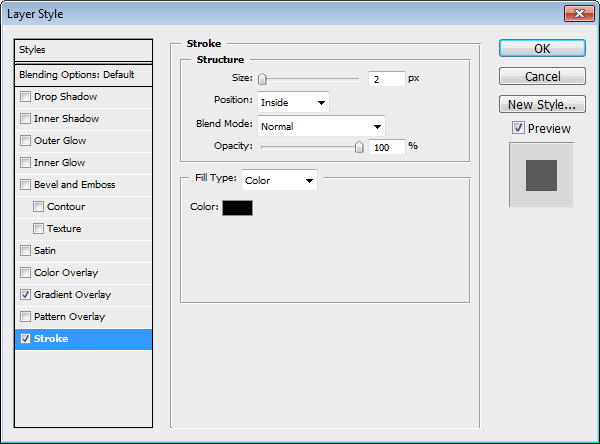
Draw a dark gray rectangle. Add Gradient Overlay and Stroke.


Step 91

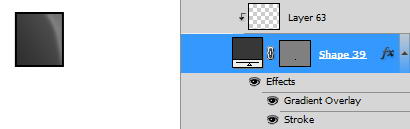
Create a new layer above the keypad and convert it to Clipping Mask. Use soft brush to paint some highlights.


Step 92

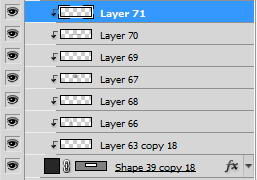
Image below shows the layer I used on a black canvas.


Step 93

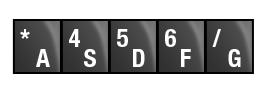
Add character to the keypad.


Step 94

Duplicate the keypad five times and change its characters.


Step 95

Duplicate all five keypads and flip it horizontally. Change its characters.


Step 96

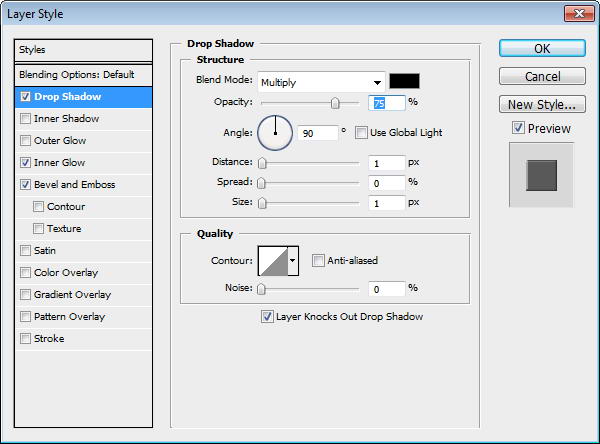
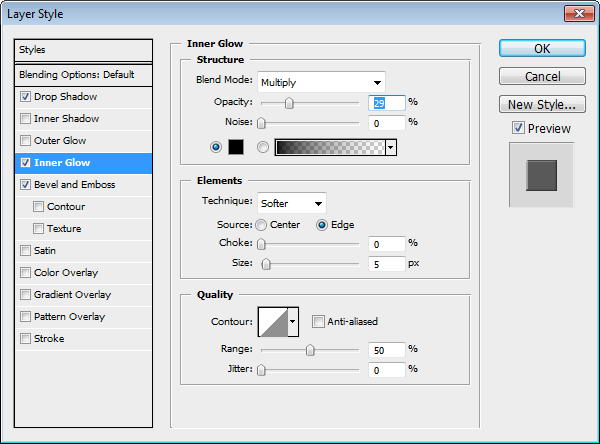
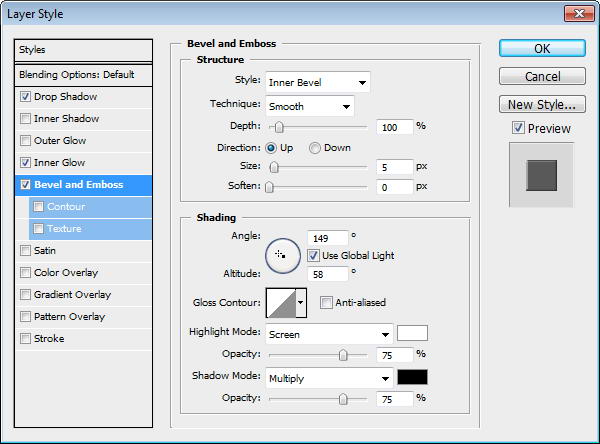
Create a rectangle under the keypads. Add Drop Shadow, Inner Glow, and Bevel and Emboss.


Step 97

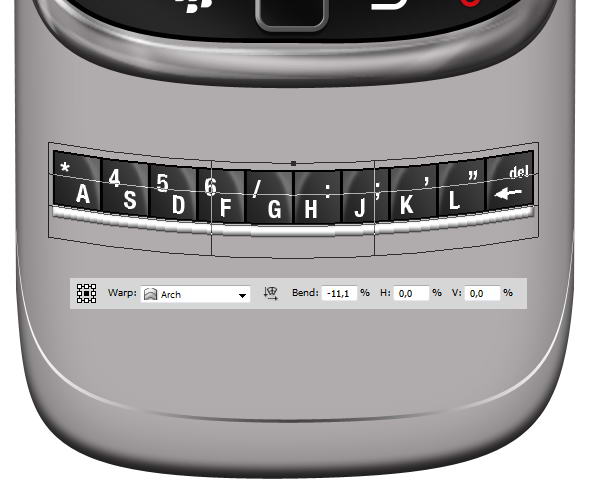
Select all keypad layers and hit Cmd/Ctrl + G to put it in a group. Right click group and choose Convert to Smart Object. Hit Cmd/Ctrl + T, right click and choose Warp. In option bar select Arch and change Bend size, see picture below for reference.


Step 98

Duplicate previous keypad by right clicking it and choose New Smart Object via Copy. Don not use Cmd/Ctrl + J or Layer > New > Layer via Copy. We want a new smart object not its child. If you use Cmd/Ctrl + J, the duplicated smart object is basically the same object to the one you copy. If you edit it, all of its instances will also change.

Move the duplicated smart objects until we have a full set of keyboards. Then, double click all the smart objects to change each character.


Step 99

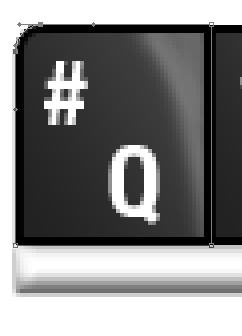
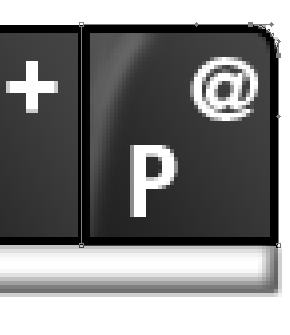
We need special treatment to keypad on top corner, Q and P. Modify its corner until it’s rounded.


Step 100

Repeat step 89 to create the remaining keypad.


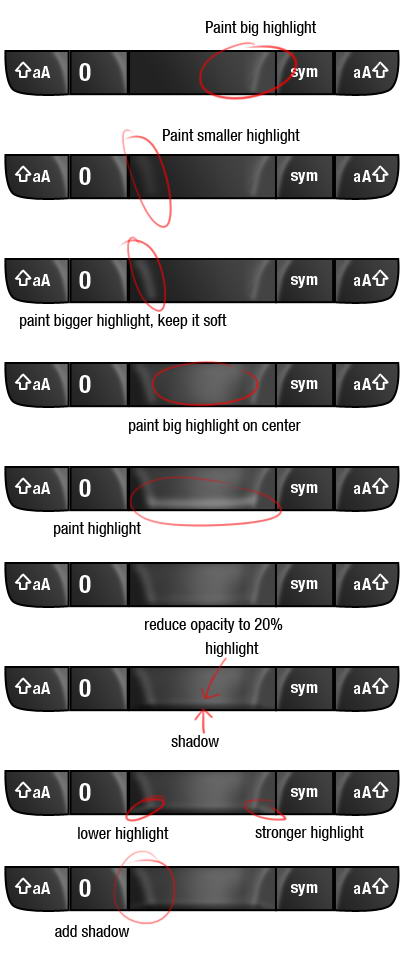
Step 101

To draw a space, we need to use more complex steps. You can see steps I did in picture below. As usual, every stroke of brush in made in different layer.


Step 102

Here you can see set of layers I used to draw highlight on space key.


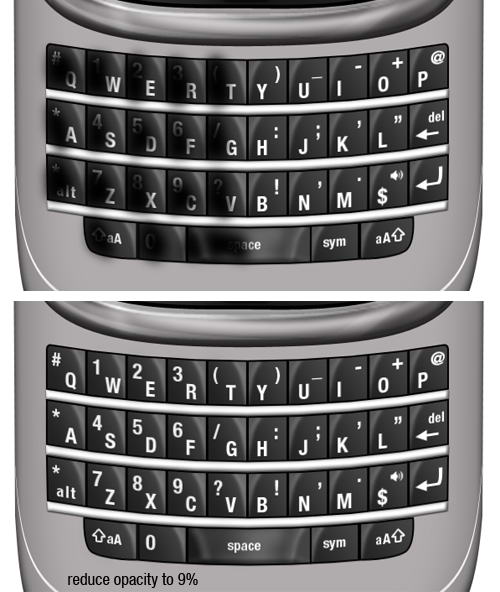
Step 103

Our keypad here is too similar, they have same highlight, same shadow, same lighting. To add realism, let’s paint black on half of the keypads so they are darker than the rest. Set its opacity to 9%. Just a subtle effect but add a bit more realism.


Step 104: Keyboard Base

Draw this shape manually using pen tool. Use black for its color.


Step 105

Duplicate shape and change its color to dark gray. Hit Cmd/Ctrl T and resize it to 99%. A black shape behind it added more depth to its appearance.


Step 106: Inset Lines

Create a rounded rectangle path covering keypads. Convert it to selection by pressing Cmd/Ctrl + Enter. Click Edit > Stroke, use 2px with white color. Add layer mask and paint some parts of the line to hide it.


Step 107

Repeat previous step, this time use slightly bigger rounded rectangle and add Gaussian Blur to make the lines softer.


Step 108

Just as previous step, create a line. This time use black.


Step 109

Again, repeat the same process.


Step 110

What we did in step 104-107 is adding an inset lines. We use lots of black and white lines because in real life shadow and highlight is always bouncing. This process replicate that effect.


Step 111: Add reflection

Select inner part of the phone. We are going to add some reflections inside it. Create group layer and click Add Layer Mask icon.


Step 112

The process is similar to what we have already done in Step 13. Draw a shape using pen tool, covert it to selection, fill with white for highlight, black for shadow, add Gaussian Blur, reduce its opacity.


Step 113

Draw some shadows on lower part of the phone.


Step 114: Add Shadow

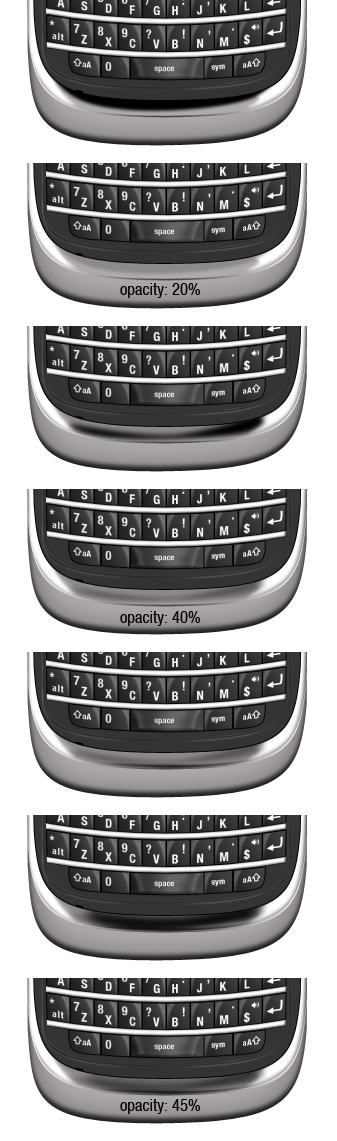
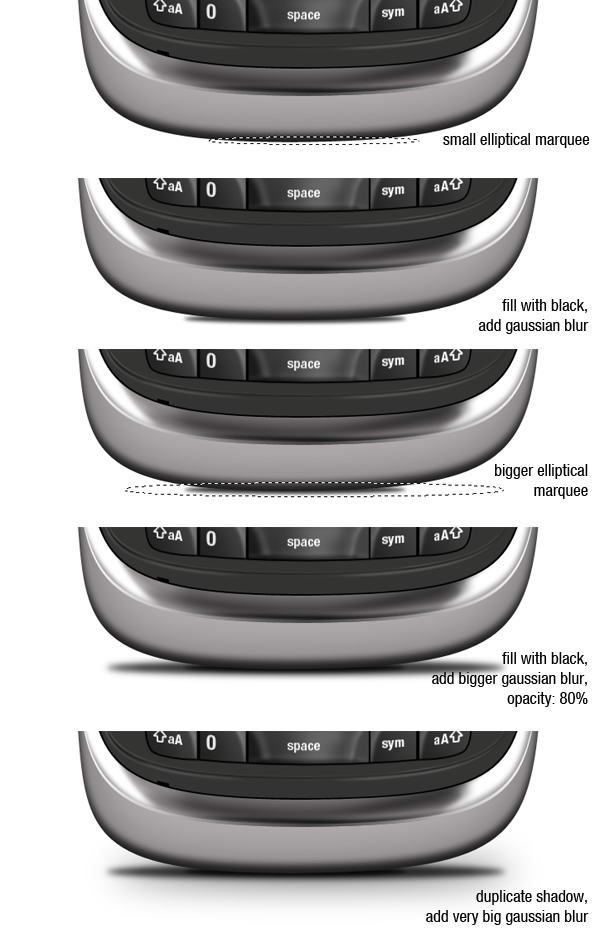
Create new layer and place it beneath all layers. Create a small elliptical marquee and fill it with black. Add Gaussian Blur to soften it. Next create new layer, add bigger selection, fill it with black, add Gaussian Blur, and reduce its opacity to 80%. Finally, duplicate previous shadow and add a very Gaussian Blur to get a very soft cast shadow on the floor.


Step 115

We’re done with this one.


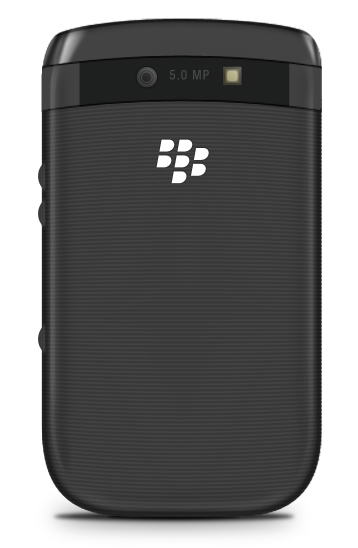
Step 116: Blackberry Viewed From Back

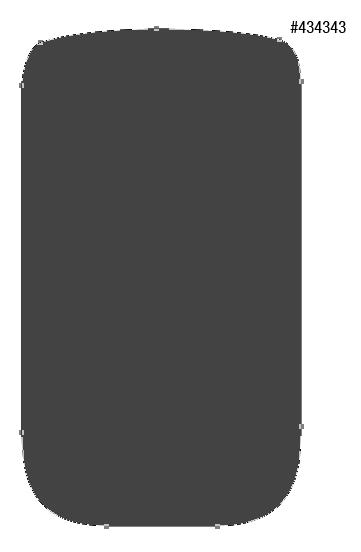
I hope you’re still with me. This time we’ll draw back side of the phone. Create this shape with color #434343.


Step 117: Add Rectangle Shapes

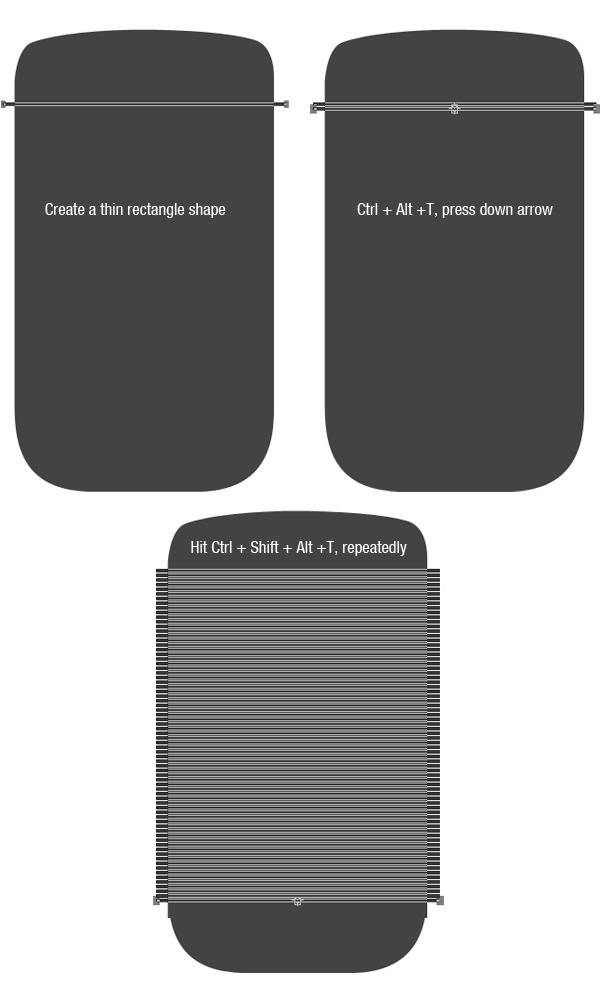
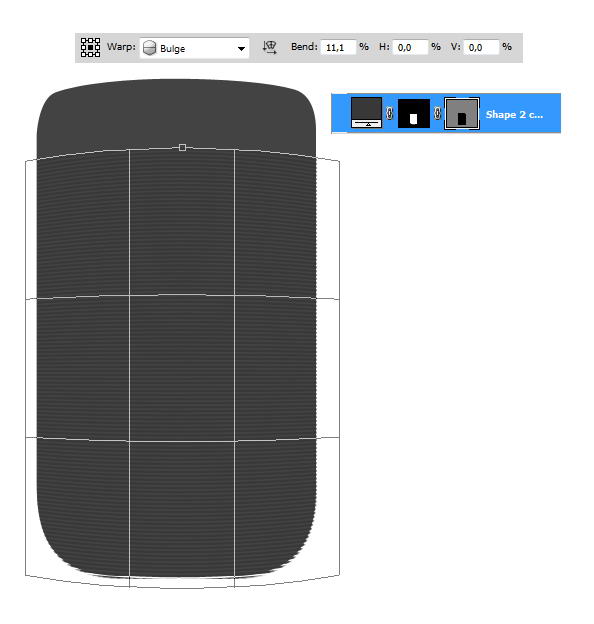
Create a long thin rectangle shape. Hit Cmd/Ctrl + Alt + T to transform and duplicate the shape. Hit down arrow few times to move it. Repeat this transformation process by pressing Cmd/Ctrl + Shift + Alt + T repeatedly.


Step 118

Cmd/Ctrl-click body shape and click Add layer Mask icon to isolate all shapes inside the phone’s body.

Make sure you have selected the vector mask. Hit Cmd/Ctrl + T, right click and choose Warp. Select Bulge in option bar and change its blend setting.


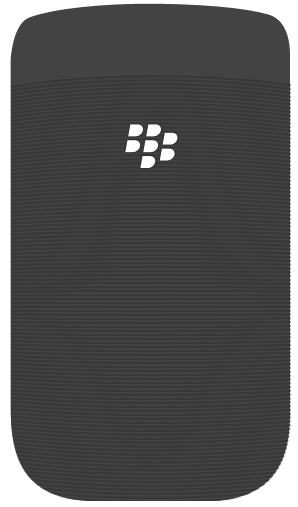
Step 119: Add Logo

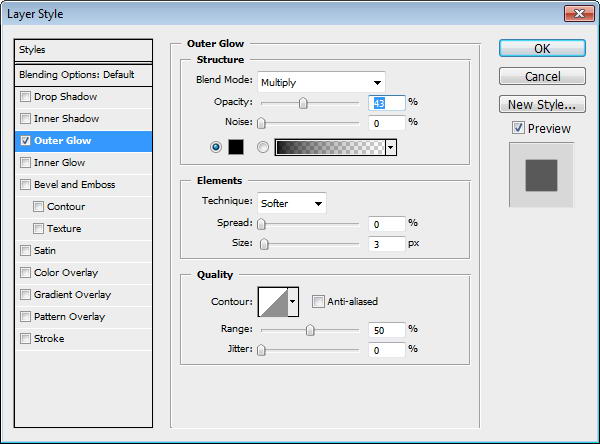
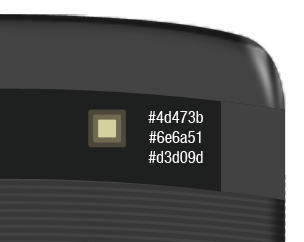
Place Blackberry logo on back of the phone. Add black Outer Glow.


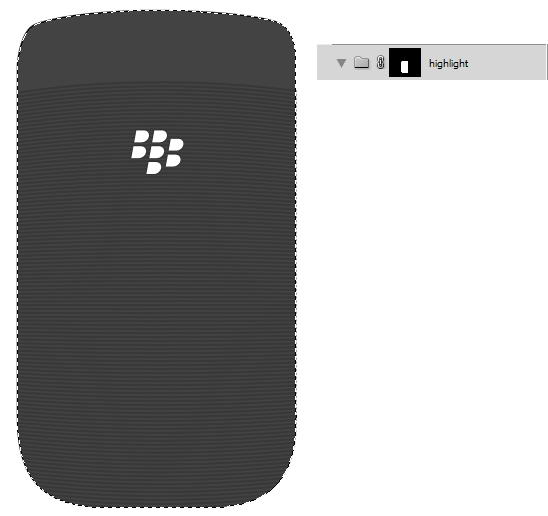
Step 120: Highlight and Shadow

Cmd/Ctrl-click phone’s basic shape. Create a new group layer, click Add Layer Mask icon.


Step 121

Paint some shadows and highlights. You can see what I did in picture below. Each painting is made in separate layers.


Step 122

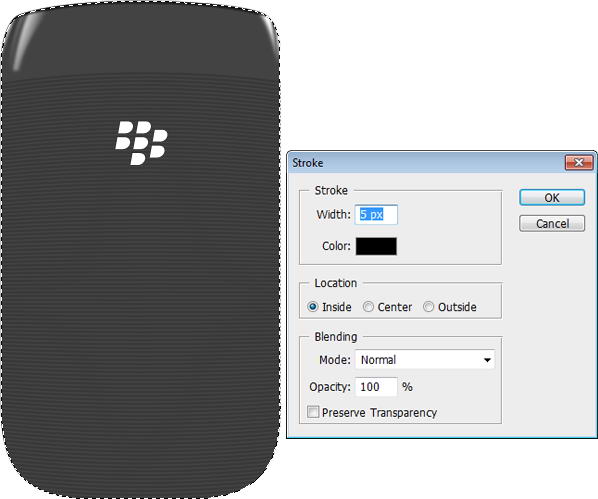
Create a new layer. Cmd/Ctrl-click phone’s basic shape. Click Edit > Stroke. Add Gaussian Blur.


Step 123

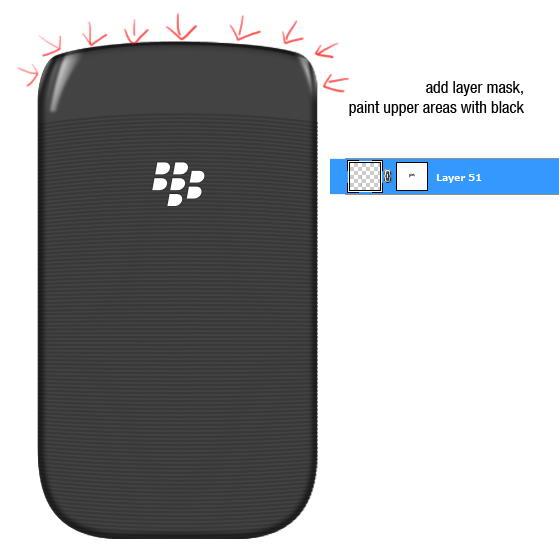
Add layer mask. Paint upper part of the stroke with black to hide it.


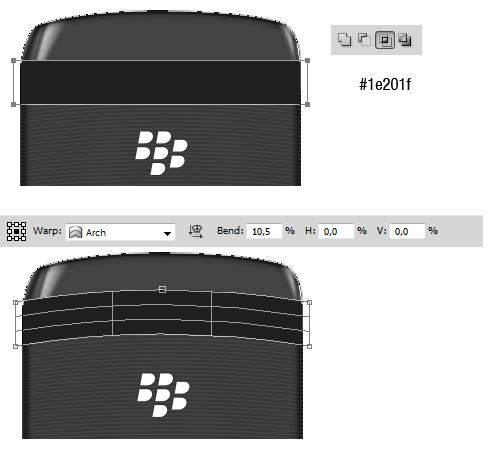
Step 124

Duplicate path from phone’s basic shape. Add rectangle and set to intersect. Hit Cmd/Ctrl + T, right click and select Warp.


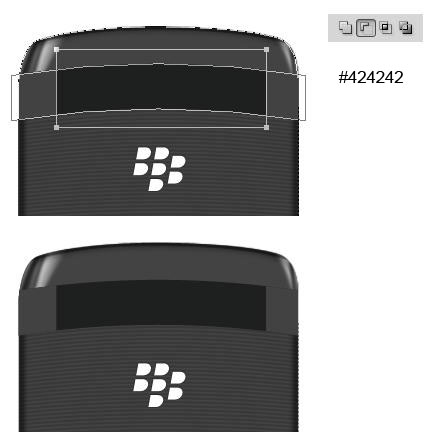
Step 125

Duplicate the shape. In its middle add a rectangle and choose subtract.


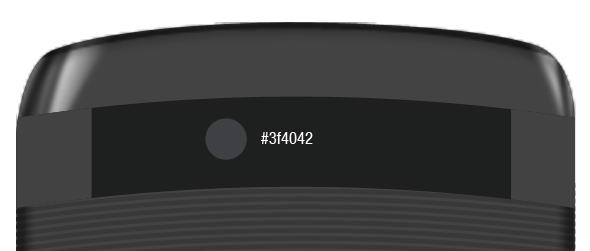
Step 126: Camera

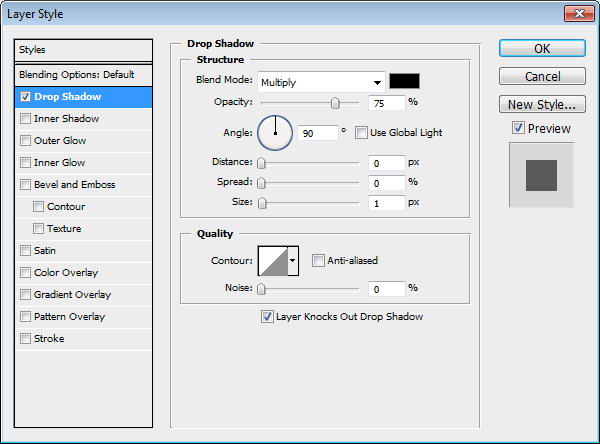
Draw a circle shape and add a slight Drop Shadow.


Step 127

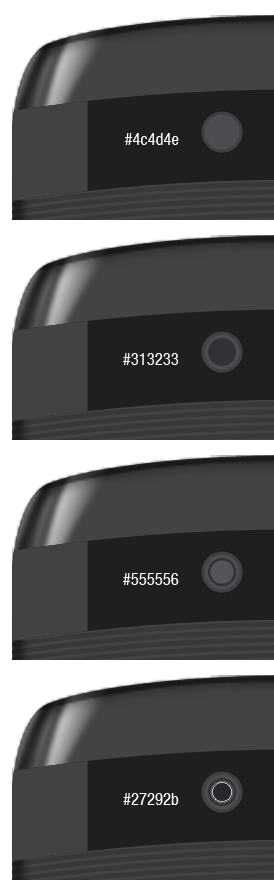
Camera is actually made from some small circles shape in different size. See the color of each circle in picture below.


Step 128

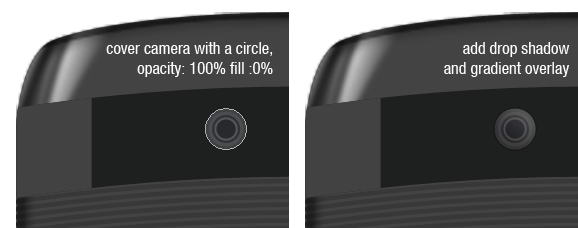
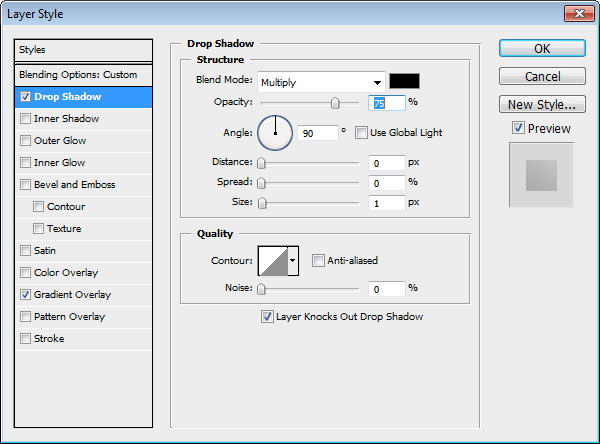
Duplicate the biggest circle and move onto top of other circles. Set Fill to 0%, add Drop Shadow and Gradient Overlay.


Step 129: Flash

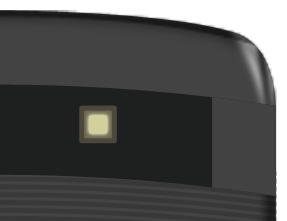
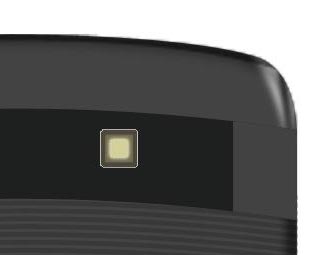
The same process goes while creating flashlight. It’s made from some rounded rectangles.


Step 130

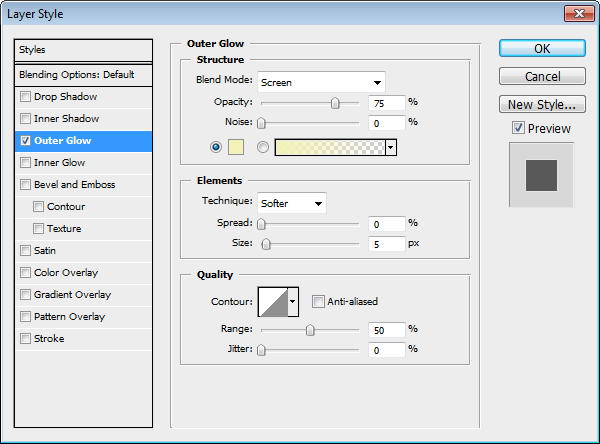
Add Outer Glow to the smallest rounded rectangle.


Step 131

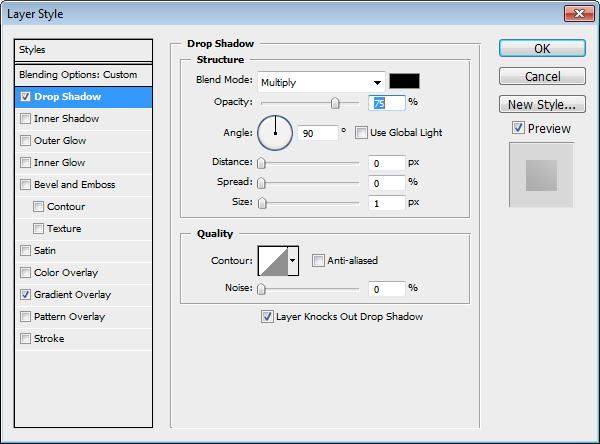
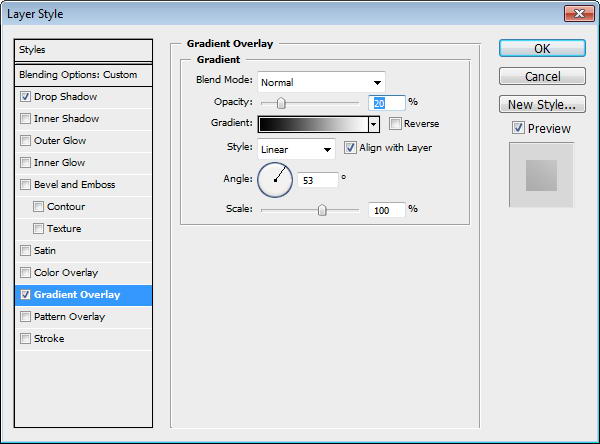
Duplicate biggest rounded rectangle and place on top. Add Drop Shadow and Gradient Overlay.


Step 132

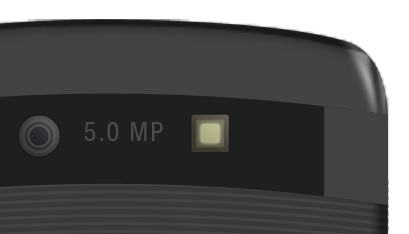
Add some text for information on its Mega Pixel size.


Step 133: Draw Highlights and Shadows

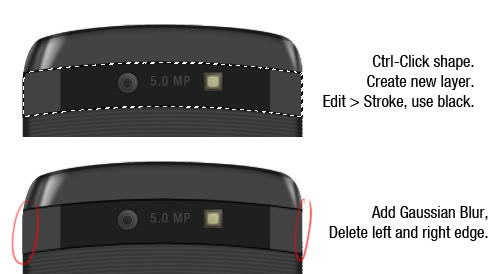
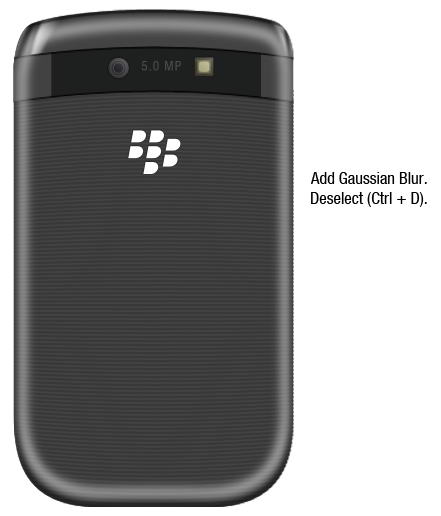
Cmd/Ctrl-click shape. Create new layer. Edit > Stroke, use black for the color. Add Gaussian Blur and erase left and right edge using soft eraser tool.


Step 134

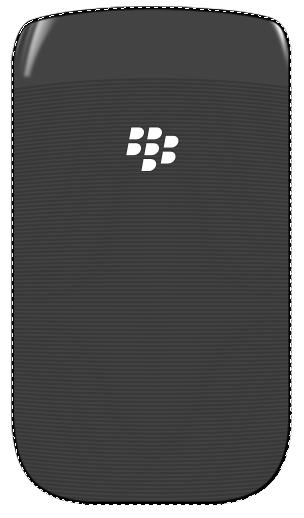
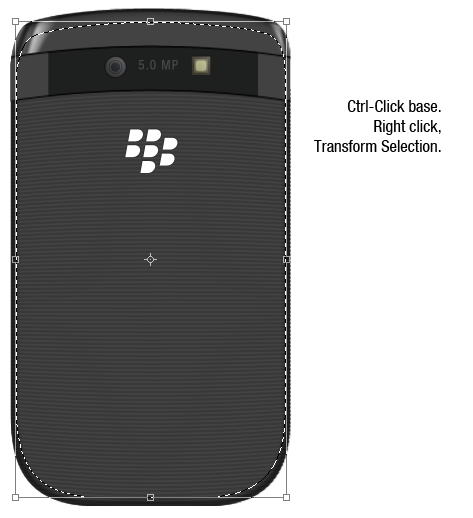
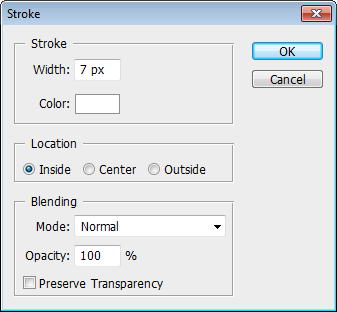
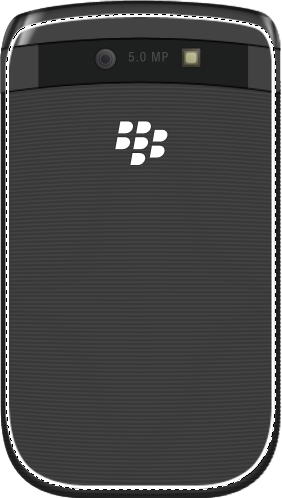
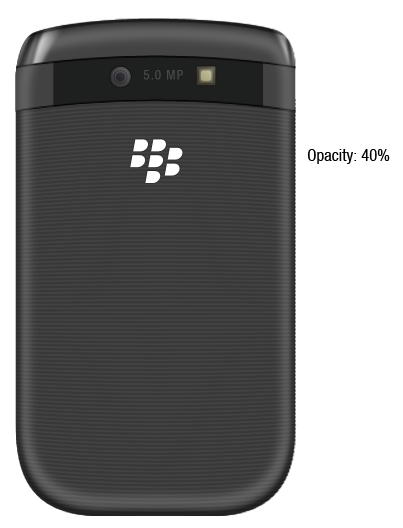
Cmd/Ctrl-click phone’s basic shape. Right click and choose transform selection. Make it smaller. Click Edit > Stroke, use white for its color. Add Gaussian Blur, deselect, then reduce layer’s opacity to 40%.


Step 135

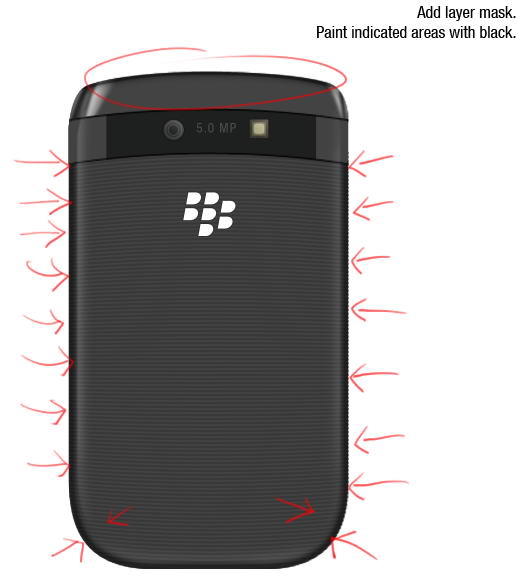
Add layer mask Paint indicated areas with black, we don’t want any highlight there.


Step 136

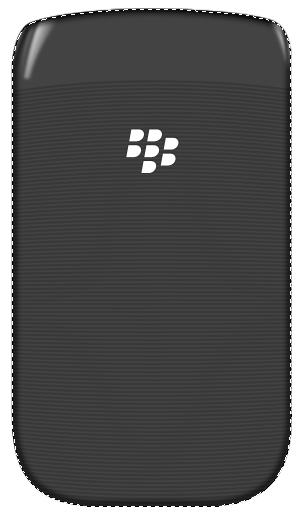
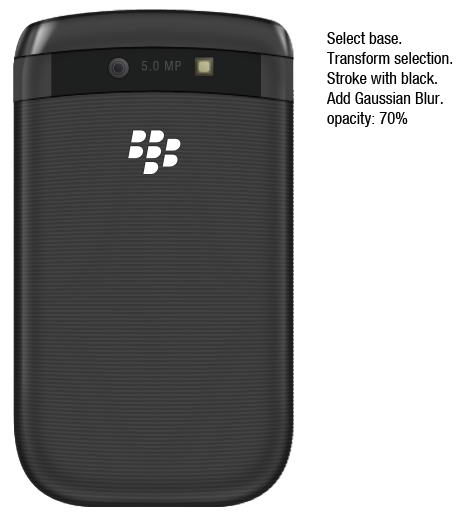
Repeat previous process, but this time use black for its color and resize it more.


Step 137

Add layer mask and paint areas on top and bottom corner with black.


Step 138: Side Buttons

Draw three circles and place them behind all layers.


Step 139

Use soft brush and paint white to add button’s highlight on the phone.


Step 140: Draw Phone’s Shadow

Create small elliptical selection right under the phone. Fill it with black and Add Gaussian Blur. Create slightly bigger selection, fill it with black, add Gaussian Blur, reduce its opacity. Create cast shadow by duplicating previous Shadow and give it a very big Gaussian Blur.


Step 141

Finally, we’re done with backside of the phone.


Step 142

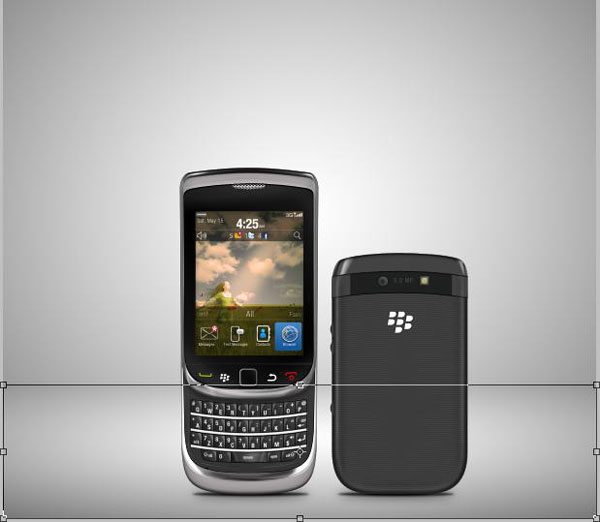
Let’s put both phones in one place. Create new layer above Background layer. Draw a radial gradient from black to white. Duplicate layer, hit Cmd/Ctrl + T then pull the new layer down.


Step 143: Add Background

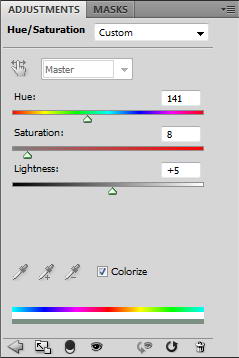
To add some color, click Add Adjustment Layer icon and select Hue/Saturation. Activate Colorize and change its settings.


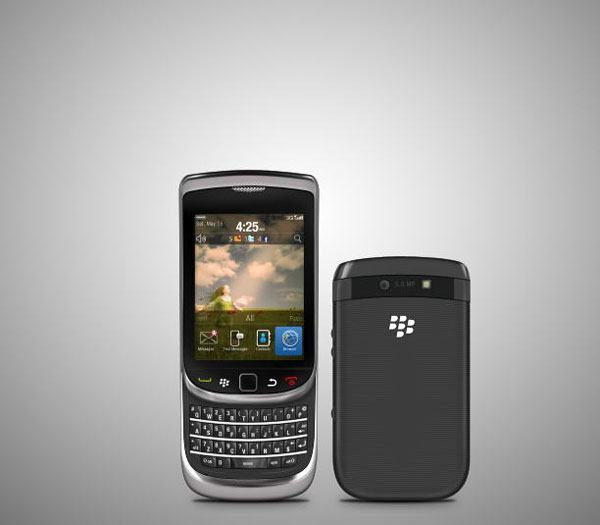
Final Image

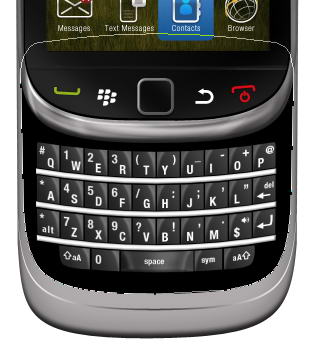
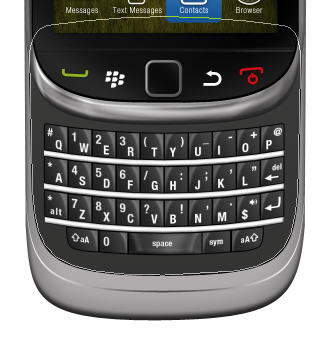
That’s it. I hope you like the final result and learned one or two new techniques from this long tutorial. In picture below I also added the phone with its keyboard closed.

Perttu Murto and the Art of Inspiration

Many of Perttu Murto’s designs are brilliant entanglements of photography and illustration. In this interview the Finnish designer talks about his continuous quest for self-improvement and his passion for all things art…and hockey.

When discussing goals with people, the typical responses have something to do with where they want their lives to be in five or ten years. I have a feeling if I didn’t phrase it as “professional goals” when speaking with Finnish designer and illustrator Perttu Murto, he would’ve gone into a monologue about ice hockey goals. That’s an exaggeration, of course. But the idea behind it is not: Murto loves ice hockey. So much, in fact, that the vast majority of personal questions I asked him came back to the subject. It’s only natural that a man who is so passionate about a sport is just as passionate about his art.


All in a Day’s Work

Murto is 24-years old and lives in northern Finland in a city-by-the-sea called Oulu. He shares his life and apartment with his fiancé and two (“crazy”) cats, one of which is his morning wake-up call. After giving in to the cat and going through his morning routine, Murto heads to his job at a local ad agency Työmaa, where he has been a Graphic Designer for three years. He loves the job and he loves working with “real professionals.” The fact that it’s a fun place to work is just icing on the cake.

Even though he’s got an “everyday” job, Murto still considers himself to be a freelancer…and a very in-demand one at that. Through his work at the agency he’s had the privilege of working with some big-name clients like Nokia, Lappset, Polar and Warner Music, and his freelance design and illustration business has padded his portfolio with works for clients like UU Theory, UNICEF and Dolce & Gabbana.


Lifelong Learning

Murto is finishing his final year at Oulu University of Applied Sciences Business and Information Management where he studies Digital Media. All that stands between him and his degree is his thesis which, along with his day job and nightly freelance work, will likely make his schedule even more hectic. Murto doesn’t mind, though. As he puts it, “The best part is that I can [make] my living by doing what I love!”

His first love, though, is hockey. Before he even started anything artistic, Murto had aspirations to become a professional hockey player. Now he plays on a recreational team but he doesn’t mind because “these days it’s not that serious.” Nevertheless, he loves a good game.

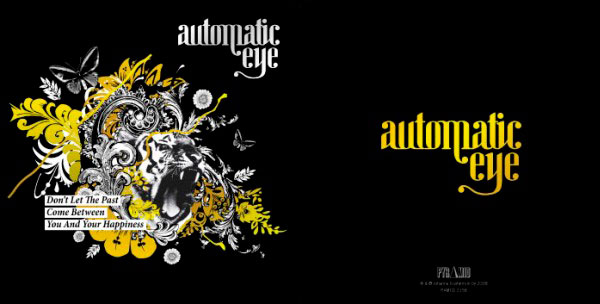
Murto saves all of that seriousness for becoming a better artist, something that he aspires to do for the rest of his life. One of the things he wishes to learn is the art of drawing more photo-realistically. He loves photography and, as one can tell, his art relies heavily on photos. Additionally, much of his work contains animal themes because as he explains, “I think that it will make the works more interesting when there is some kind of organic figure mixed with crazy stuff. I really want to use photos; I think that they are an important part of my work.” This was the case with one of his favorite projects for which he was the art director: a tiger-themed CD cover for a band called Automatic eye.

Always being open to learning something new is one of the most important lessons that Murto has learned so far. He spent 11 years perfecting his ice hockey game and his design and illustrations will no doubt receive the same level of dedication.

The best part is that I can [make] my living by doing what I love!

Patience is a Virtue

Like many newbie freelancers, Murto found that he rushed many of his personal projects and they rarely turned out the way that he had hoped. “In my opinion patience is pretty much the keyword in this industry; you don’t learn stuff from one sitting. It comes to you when you have time and patience to experiment and work, work, work.”

That patience is evident in the fact that Murto’s work process has him starting from scratch each time, something that is common for many designers. “I take a pen and I print the brief. I start underline things and sketching. That’s about it. I get some kind of an idea going on in the paper and then I start doing [the] first mockup with [a] computer.” Saying that simplifies his process, though. In fact, the sketching step can last a while. “I sketch, sketch, sketch, twist, try, reform, duplicate and there is one point when I see that “ah, this is starting to look right!” It’s at that point that the creation moves onto the computer where it is further transformed using mostly Illustrator, PhotoShop and InDesign.

With life lessons comes a professional maturity that Murto has achieved in the few years that he’s been out in the design world. While he always enjoys some good competition on the ice, he recognizes his limitations and won’t hesitate to pass a project request off to an artist who is better suited for that job. He understands that trust and communication between himself and his clients are things that will go a long way to producing work that both client and artist are proud of. He isn’t exempt from frustrations, however. One of his biggest challenges is when there are too many people involved in a project and too many opinions that lead to the entire project being chaotic and generally “bad.” But, as always, Murto chalks that up to part of the game, so to speak. “But that’s life and part of this job,” he says.

Murto finds inspiration from a variety of places. “Everywhere” in fact. “[It] could be a cool movie (“Napoleon Dynamite -so funny”), awesome songs, a great piece of art, annoying people, funny people, nature…. Pretty much everything around me.” Communication is also a source of inspiration for Murto: “When the project goes well and everything works well together and the communication between our team (or me) and the client is working, the outcome usually is something great. That is also really inspiring.”


Support System

Despite his full workload, Murto finds time to relax with his loved ones. His “awesome” family consists of his very supportive parents and a sister with whom he is very close. They all have been extremely supportive in whatever endeavors Murto has taken on, whether it was of the creative sort (his mom is very creative) or of the athletic sort (his dad devoted a lot of time to his love of ice hockey.) They are very proud of everything that their talented son has achieved in such a short time. “They are happy that I got into design and art so [heavily] and found something [that] I am really passionate about.” They are no doubt pleased that he found ice hockey at an early age as well since Murto describes himself as “a bit shy with people I didn’t know really well. But really loud with the people I knew… I had [a lot of] energy going on, that’s for sure!” That energy that was once used to outsmart the other team and score goals on the ice is now put into achieving his goal of artistic success. And this time there is no defensive line stopping him.


More From Perttu Murto


On the Web

Visit Perttu Murto on the web.

Freebie: 10 Social Media Icons

Most designers are constantly in need of social media icons for their projects. Today, we have a nice set 10 social media icons for you to use in your next project.


10 Social Media Icons

This pack includes 10 high quality icons available in PNG format in two sizes including 64px, and 128px. These icons were created by La Glanz Studio and are royalty-free, so you can use them for any commercial or personal project.

sample

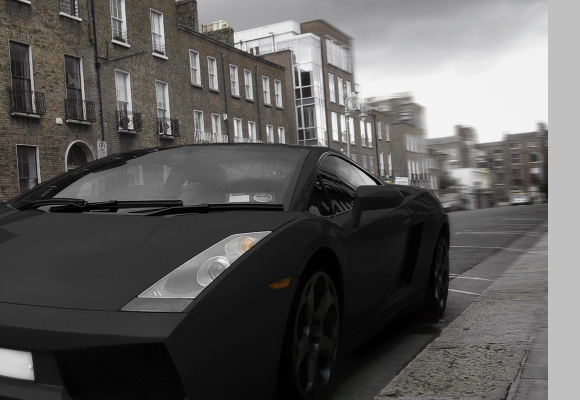
Give a Yellow Lamborghini a Paint Job in Photoshop

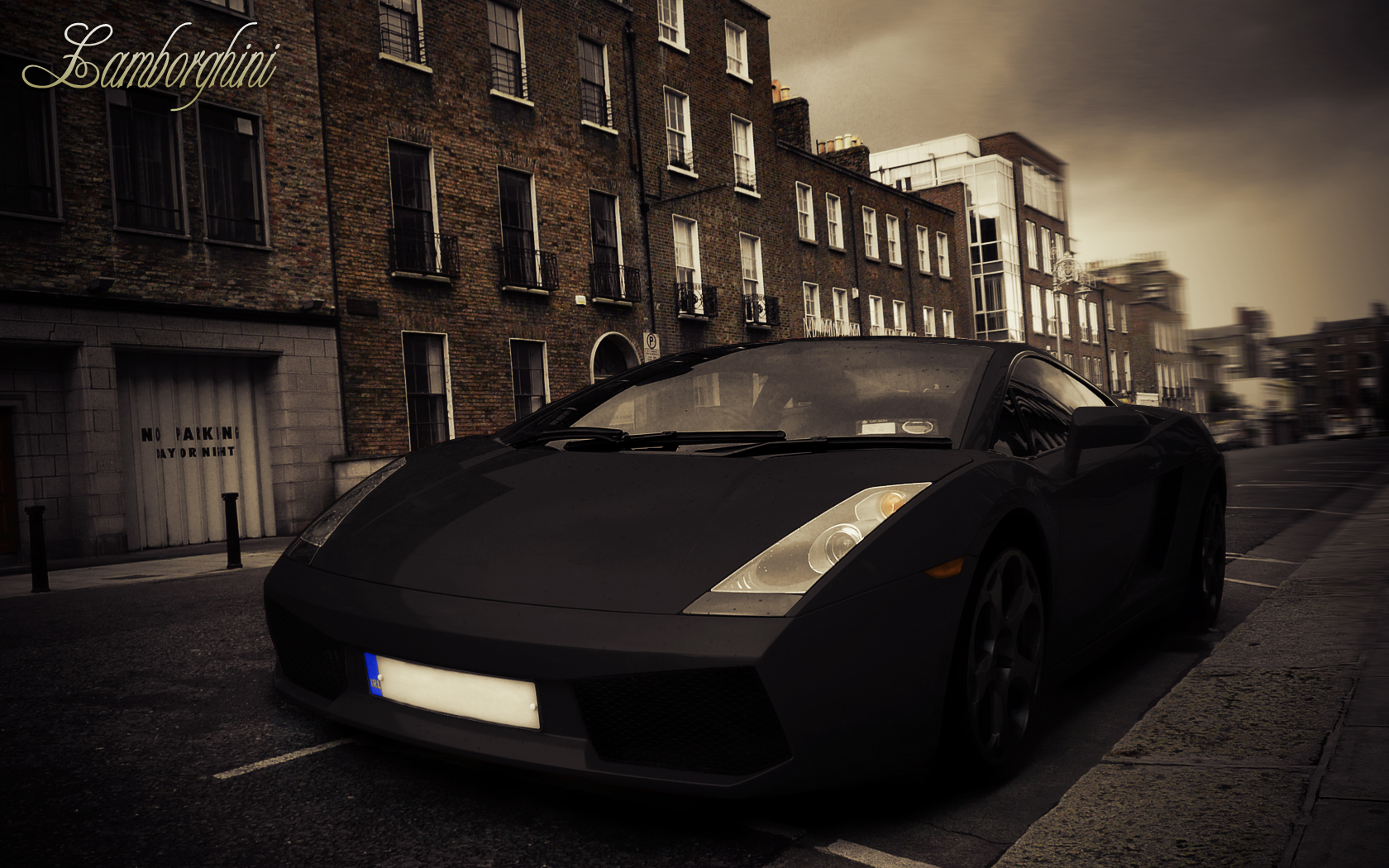
With Photoshop, just about anything is possible. In today’s tutorial we will demonstrate how to give your yellow Lamborghini a quick paint job. Then, we will add some cool effects. Let’s get started!


Tutorial Assets


Step 1

Open the Lamborghini image in Photoshop. Since the image is pretty large, you’ll need to resize it to 1680px by 1050px. To do this, go to Image > Image size or press Cmd/Ctrl + Alt + I on your keyboard.


Step 2

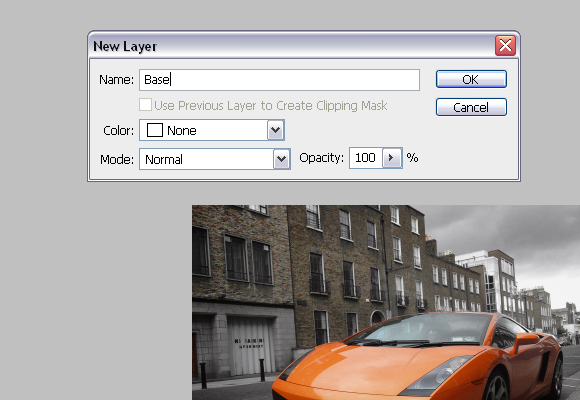
Now, in the Layers palette, you need to unlock the "Background" layer. To do this double click on the "Background" layer, and call it "Base".


Step 3

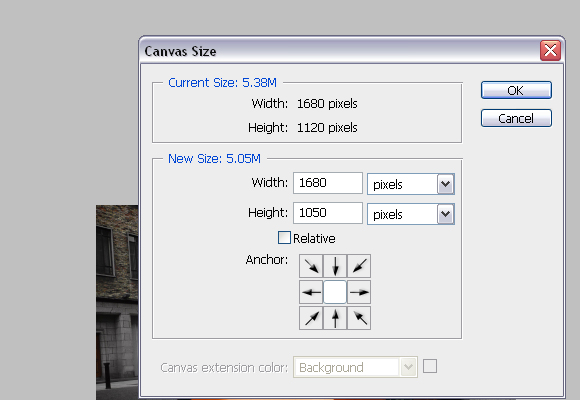
To finish with adjusting the image size, go to Image > Canvas Size or press Cmd/Ctrl + Alt + C on keyboard. In the Canvas Size windows, in the dropdown menu choose pixels for unit. For Height insert 1050 pixels. Click OK, and click Proceed on the new window, which alerts you that your image is larger than the canvas size.


Step 4

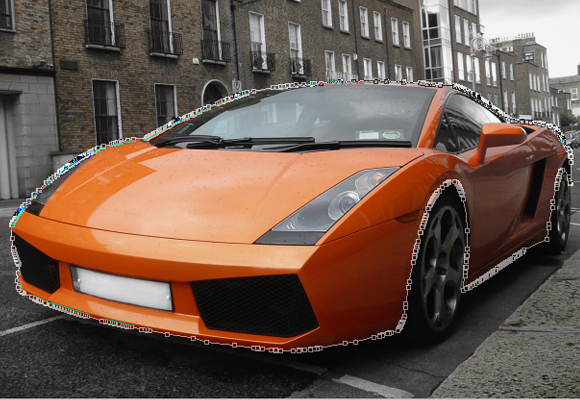
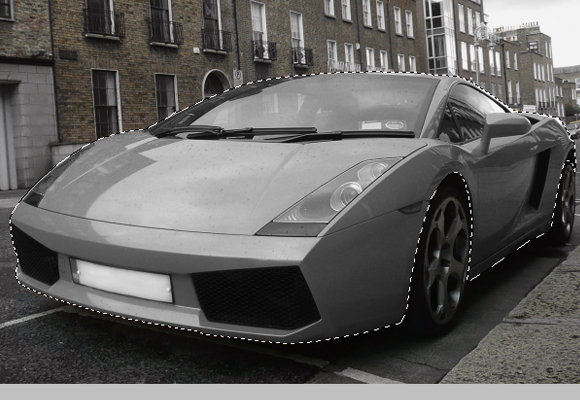
Using the Pen Tool (P), create a path around the car as shown below. Try to be as precise as possible.


Step 5

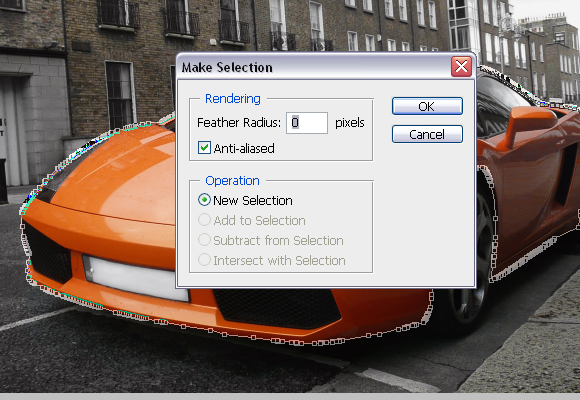
With Pen Tool (P) active right click and choose Make selection. For the Feather radius, set 0px.


Step 6

Usually, when you’re changing car’s colour, this step is not needed but since we are changing car’s colour to black it is. While, the car’s body is selected go to Image > Adjustments > Desaturate or press Cmd/Ctrl + Shift + U. DO NOT deselect yet.


Step 7

Using the Rectangular Marquee Tool (M), right click on the canvas and choose Layer via Copy, and rename the "Layer 1" to "Body".


Step 8

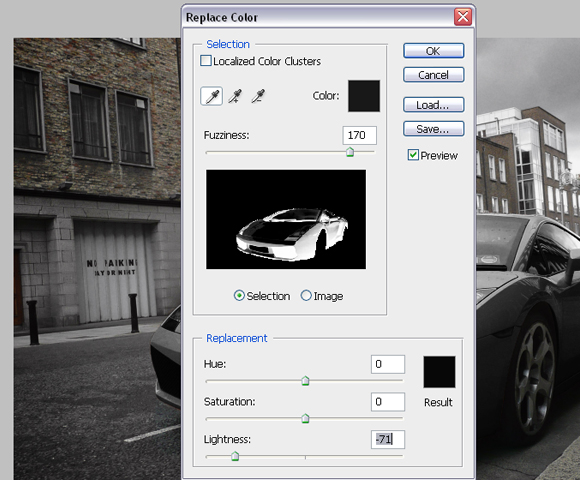
Make sure that you’re on the "Body" layer, and go to Image > Adjustments > Replace Color. In the new window set the parameters as shown below, but DO NOT click OK.


Step 9

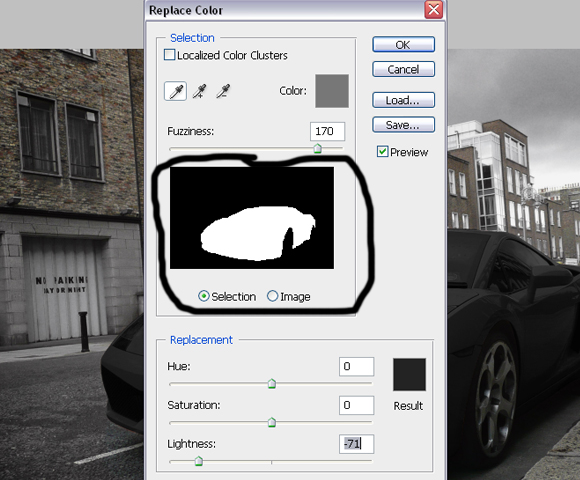
Now, click somewhere on the hood to choose the colour to replace, and start adding colours which will be replaced by tones of black. You’ll do this by Shift-clicking on the car’s body (but DON’T click on the glass, lights etc). The selection in the Replace color window should look like below.


Step 10

Now create a Vector mask for the "Body" layer. Using Pen Tool (P) make paths, which will be used to select registration plates, lights, mirrors and grill.


Step 11

Right click with the Pen Tool on the canvas and choose Make Selection. For the feather radius insert 0px.


Step 12

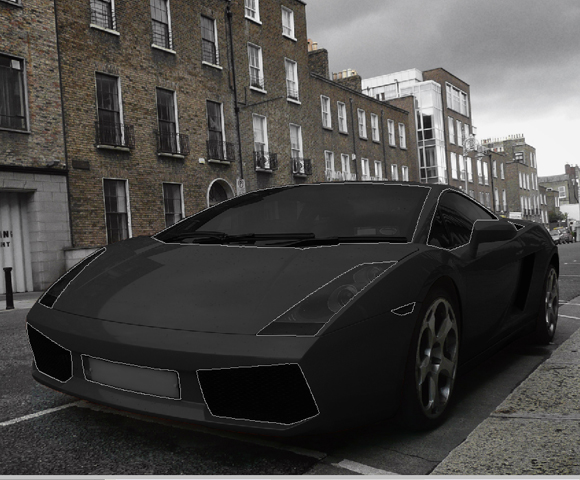
Using the Brush Tool (B), colour set to #000000, paint over selected areas on the mask of the "Body" layer. Image should look similar as shown below.


Step 13

Now click on the “Base” layer’s thumbnail, and using Pen Tool (P), same as before, create path around rims of the car, right click, go to Make Selection, Feather radius to 0px, and click OK.


Step 14

With Rectangular Marquee Tool (M) right click on the canvas and choose Layer via Copy. Rename created layer to “Rims”.


Step 15

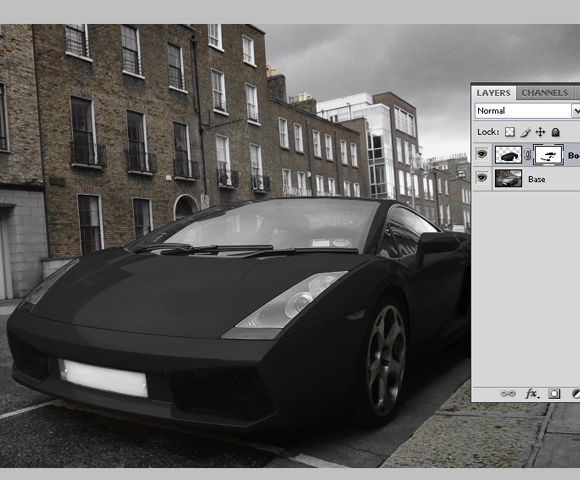
Now, while you’re on the "Rims" layer, go to Image > Adjustments > Replace color and this time set the Lightness somewhere around -60. Shift-click on the different parts of the rims to add more sample colours which are going to be replaced. The result should look as shown below.

Step 16

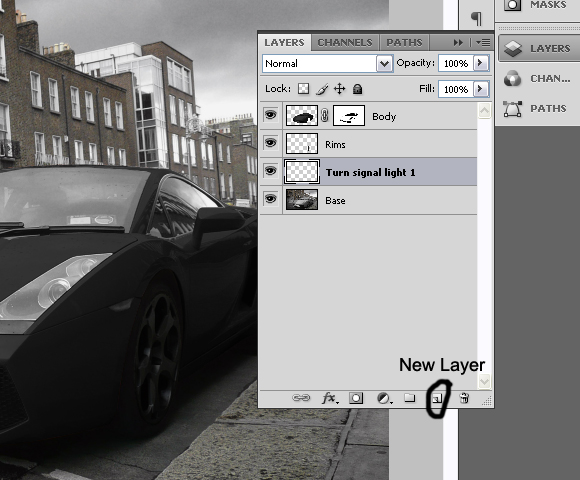
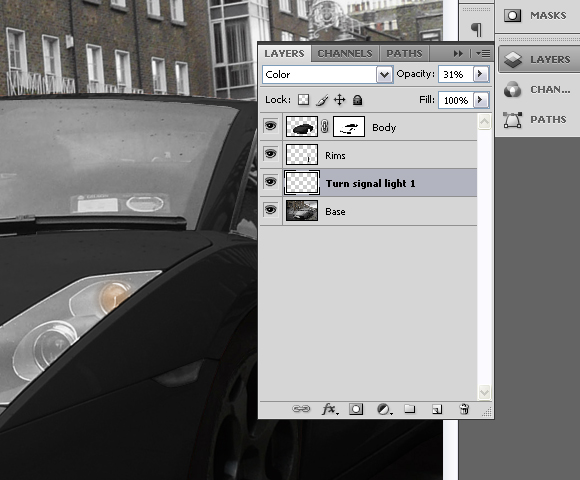
Create new layer, just above “Base” layer and call it “Turn signal light 1″.


Step 17

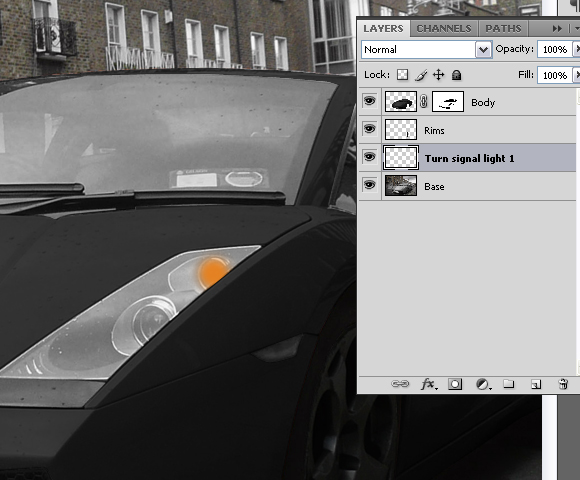
Using Brush Tool (B), with colour set to #e48223, Brush size 34px, Hardness 0%, paint on the turn signal light on front of the car as shown below.


Step 18

Now change the Blending mode for the layer “Turn signal light 1″ to Color and set the layer’s opacity to 31%.


Step 19

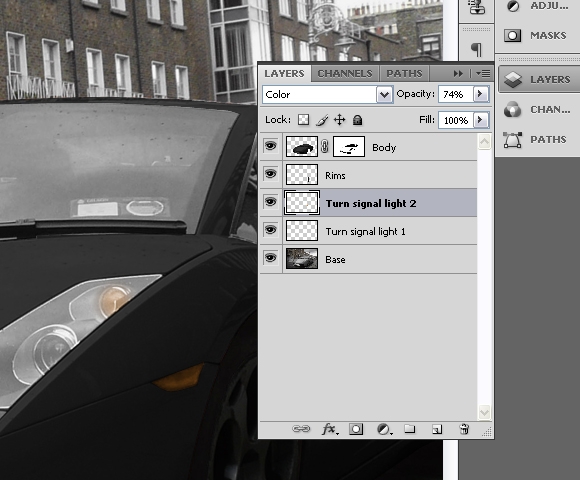
Create another layer above the “Turn signal light 1″, and call it “Turn signal light 2″.


Step 20

Again, using the Brush Tool (B), with colour set to #e48223, Brush size 34px, this time Hardness set to 100%, paint over the turn signal on the side of the car as shown below.


Step 21

Set the Blending mode for the “Turn signal light 2″ to Color and layer’s opacity to 74%.


Step 22

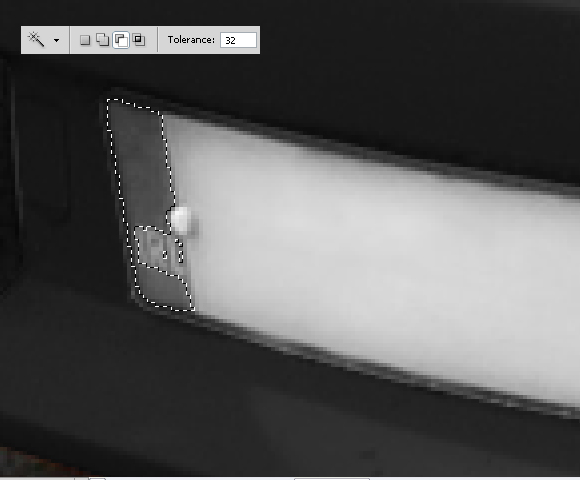
Set “Base” layer active (click on the layer’s thumbnail) and using Pen Tool (P) create path around the coloured part of the license plate. Right click, choose Make Selection and set Feather radius to 0px.


Step 23

With Magic Wand Tool (W), and Substract from selection set, click on the letters until you deselect them from the selection.


Step 24

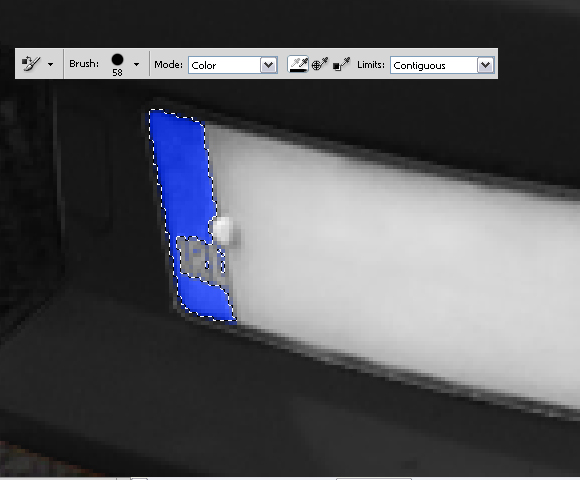
With Color Replacement Tool (B), with large brush, 100% Hardness, and colour set to #2343e4 paint over the selection until you finish with the following results.


Step 25

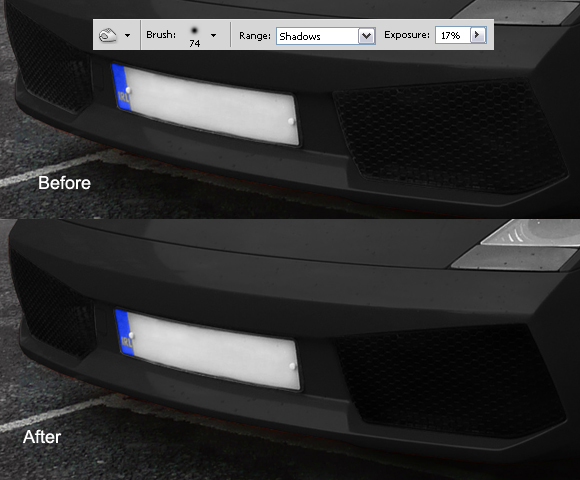
Now deselect by going to Select > Deselect or by pressing Cmd/Ctrl + D on keyboard. Using the Burn Tool (O), Range set to Shadows and Exposure to 17%; burn the grill on the front side of the car as shown below.

Step 26

While still on the "Base" layer Cmd/Ctrl-click on the "Body" layer’s mask thumbnail to select mask. Go to Select>Inverse or press Cmd/Ctrl + Shift + I. You can use the Polygonal Lasso Tool (L), with Subtract from selection set, subtract everything except the windows from selection.


Step 27

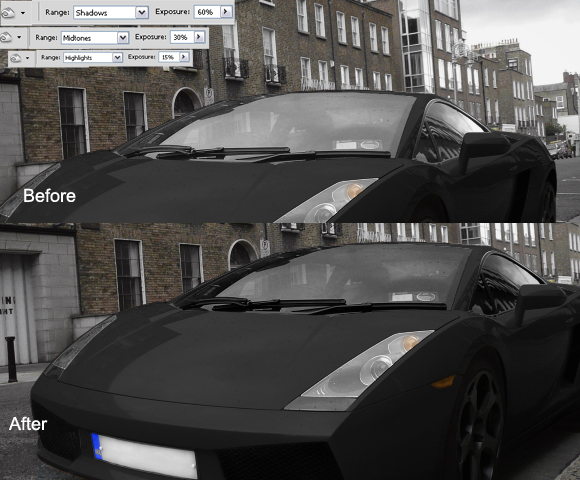
Using Burn Tool (O), Range set to Shadows and Exposure to 60% paint over the selection with big hard brush. Don’t deselect yet. Now, change the Range to Midtones and Exposure to 30%, and paint over the selection again. And finally, change Range to Highlights and Exposure to 15%, burn over the selection and deselect it by pressing Cmd/Ctrl + D or going to Select > Deselect.


Step 28

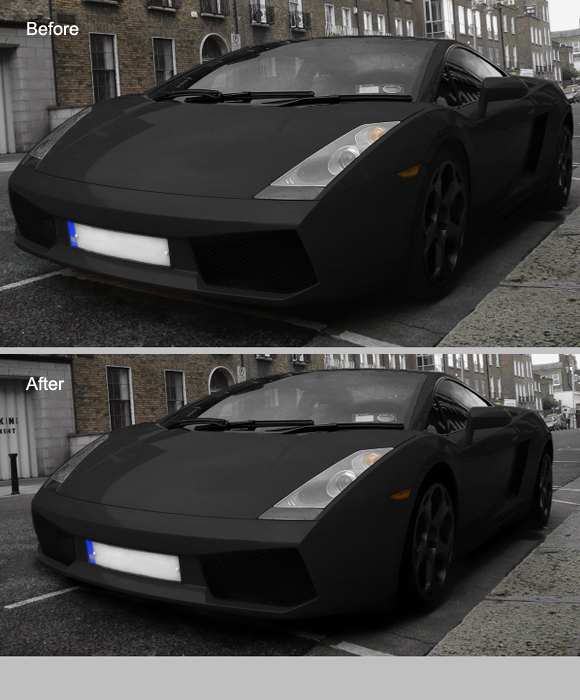
Again, using the Burn Tool (O), Range set to Shadows and Exposure to 60%, Brush size 60px and Hardness 15% burn the wheels, space between car and the wheels and shadows under the car.


Step 29

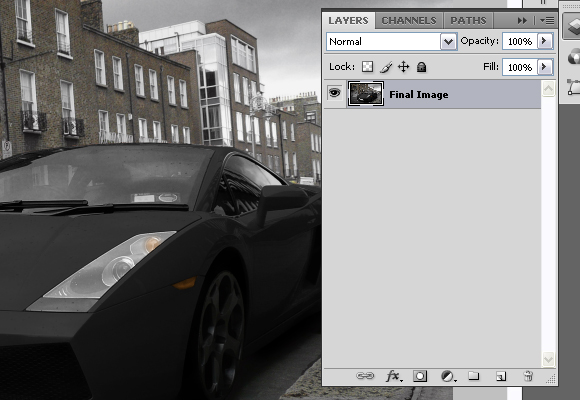
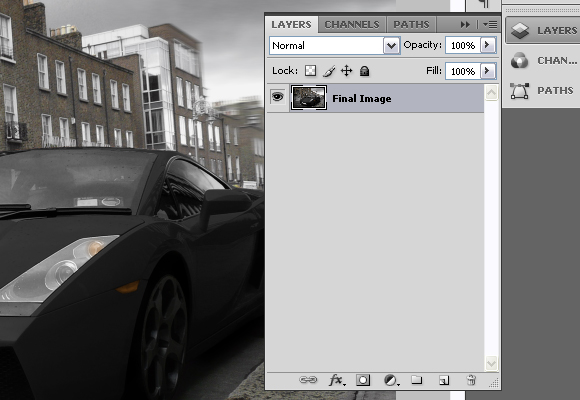
Select all layers, click the right click in the Layers pallet and go to Merge Layers. Rename the layer to the “Final Image”.


Step 30

Duplicate the layer by pressing the Cmd/Ctrl + J on the keyboard. Now, while on the copied layer go to Filter > Blur > Motion Blur and set the settings as shown below.


Step 31

Add a Vector mask for the copied layer, and using the Brush Tool (B), with pure black colour, diameter set to pretty high (around 130px) and Hardness to 0%, paint on the mask. The goal is to have blurred only the right part of the image, but not the Lamborghini as shown below.


Step 32

Again, select all the layers, right click in the Layers palette and choose merge visible. Rename the layer to "Final image" again.


Step 33

Now, using the Burn tool (O), Range set to Shadows, Exposure to 16%, Diameter 453px and 0% Hardness, burn entire image slightly.


Step 34

Now, let’s create the final effect and finish the tutorial. Go to Filter > Distort > Lens Correction. In the Vignette section, for the Amount set -100 and for the Midpoint + 28 and press OK.


Step 35

Go to Channels palette and choose "Red" channel or press Cmd/Ctrl + 3 on keyboard.


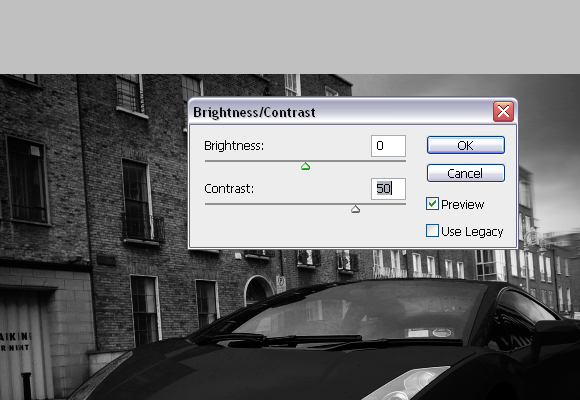
Step 36

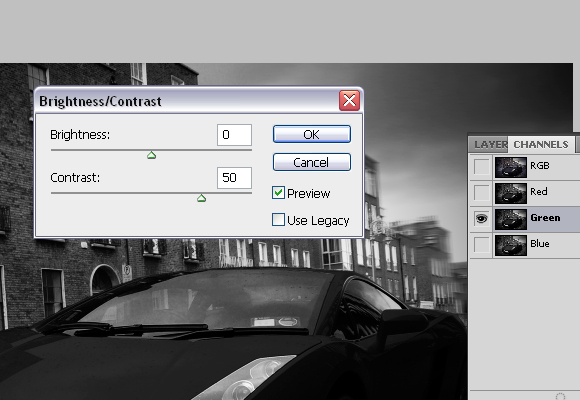
Go to Image > Adjustments > Brightness/Contrast and for the Contrast set 50, and press OK.


Step 37

Select "Green" channel or press Cmd/Ctrl + 4, and go to Image > Adjustments > Brightness/Contrast and for the Contrast set 50 again and press OK.


Step 38

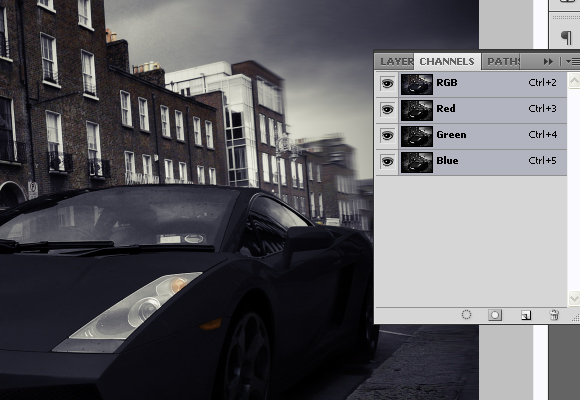
Now, go back to RGB mode or press Cmd/Ctrl + 2.


Step 39

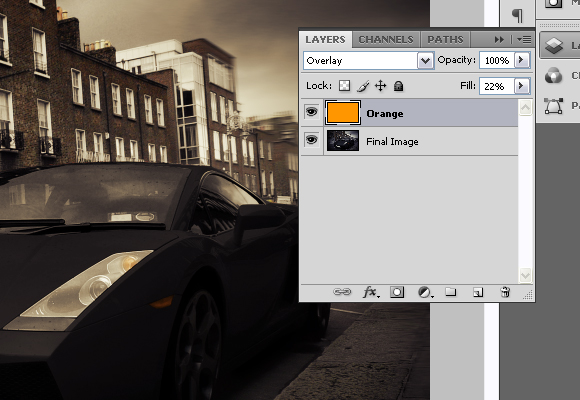
Create new layer, and rename it to “Orange”. Using Paint Bucket Tool (G), with colour set to #ff9600 fill the new layer. Set the Blending mode for the “Orange” layer to Overlay and Fill to 22%.


Step 40

Now using Type Tool (T), in the upper left corner type “Lamborghini”. Go to Character window and for font set “Champagne”, for size 100pt.


Step 41

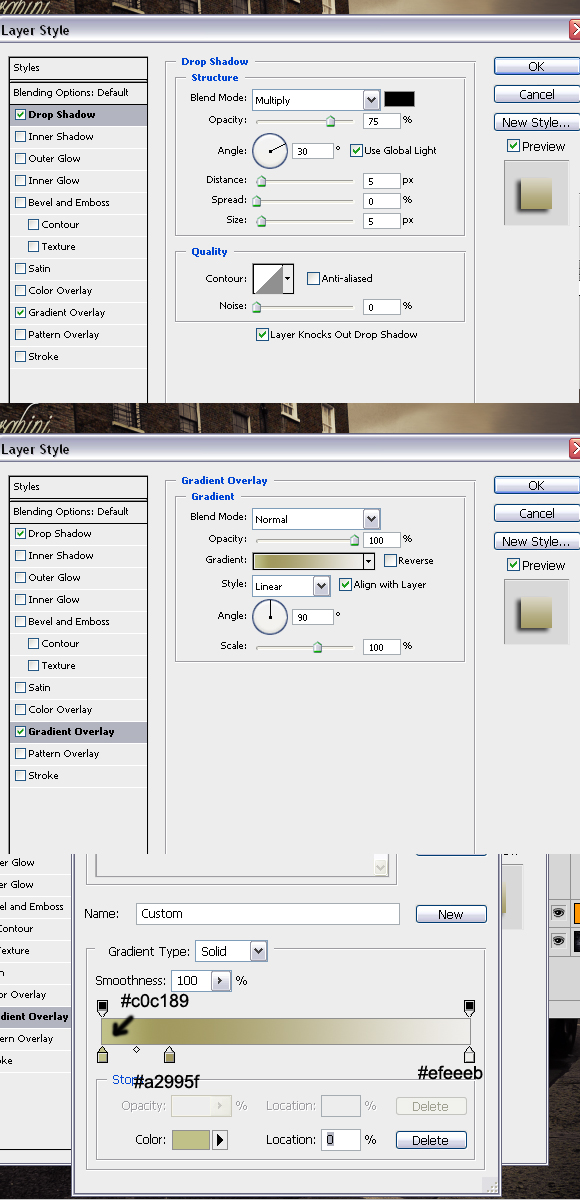
And finally, right click on the text layer and go to Blending options and set the following values.


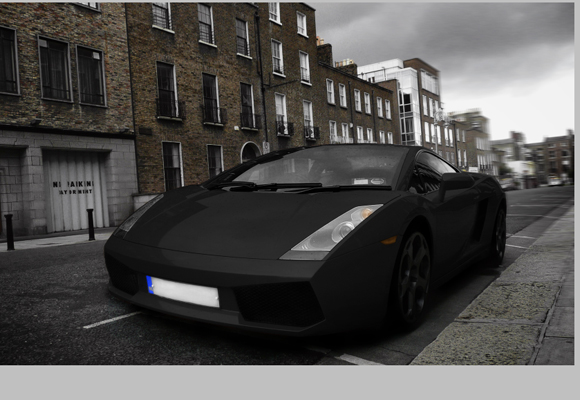
Final Image

The final effect can be seen below. Thanks for reading the tutorial and I hope you liked it.

Quick Tip: Create a Seamless Wood Tile in Minutes

I use to do quite a bit of work with 3D models and texturing was something that I did on just about all my projects. The biggest problem most people have with creating seamless tiles in Photoshop is getting rid of the seam, especially with small file sizes. Today, I will demonstrate a technique that will get rid of the seam every time. Let’s get started!


Step 1

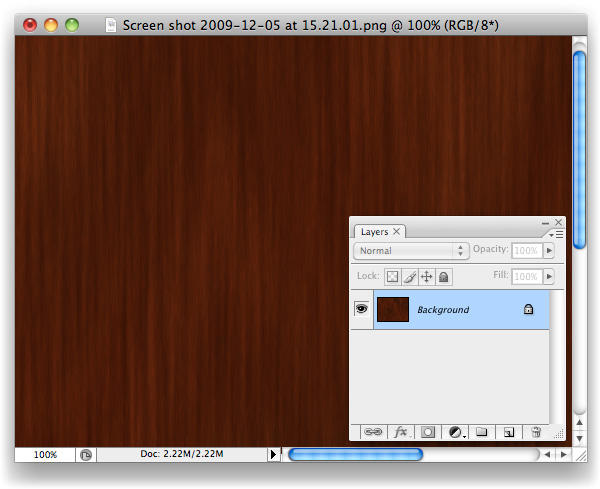
To begin, open up the texture you’d like to create a tile from. Any texture will do, for this example I chose a wooden background.


Step 2

Create a new document 400 x 400 pixels.


Step 3

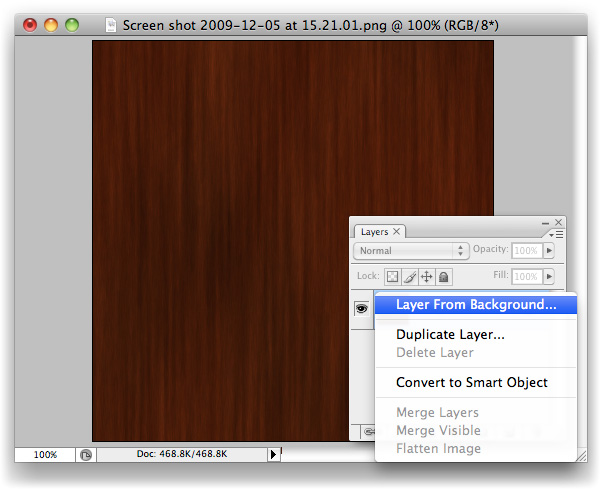
Crop the background layer down, if necessary and double click the background layer to unlock it and turn it into a regular layer.


Step 4

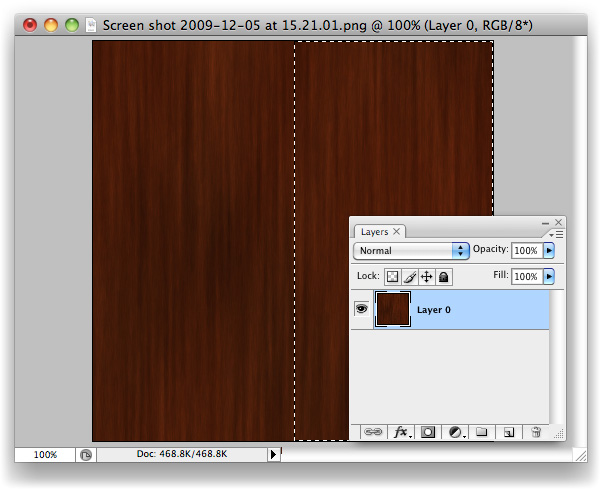
With the Marquee Tool, grab the entire right-hand side of the canvas.


Step 5

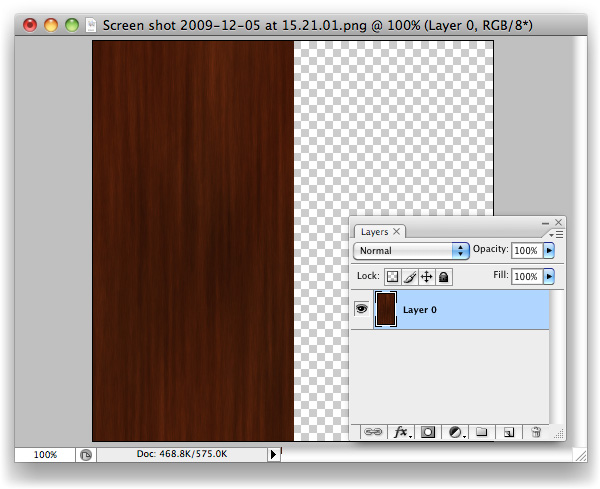
Cmd/Ctrl + X to Cut the selection away. You’ll be left with the left side of the image, on your "Layer 0".


Step 6

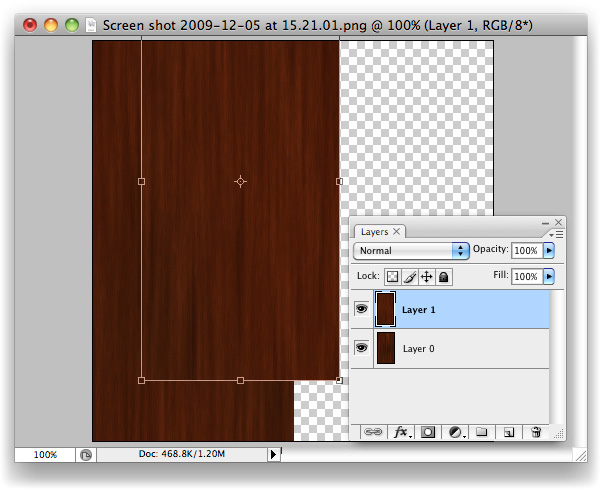
Cmd/Ctrl + V to Paste the selection that you just cut out back onto the canvas. It’ll be its own layer now, "Layer 1". You’ll want to drag it right over to where "Layer 0" is with the Move tool, snap it tight with the left-hand side of your canvas.


Step 7

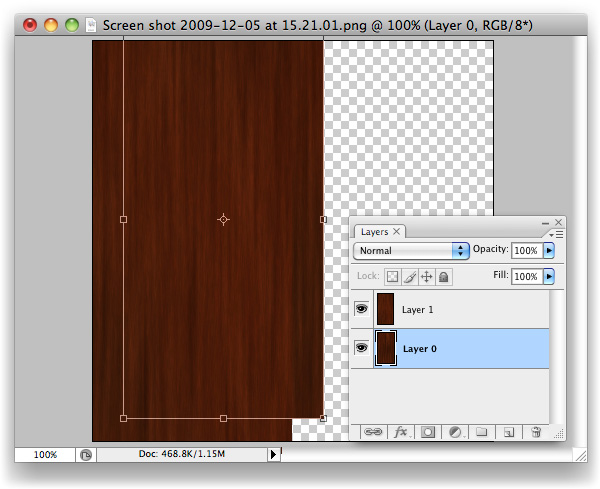
Now select "Layer 0", and Move its contents over to where the right-hand side used to be.


Step 8

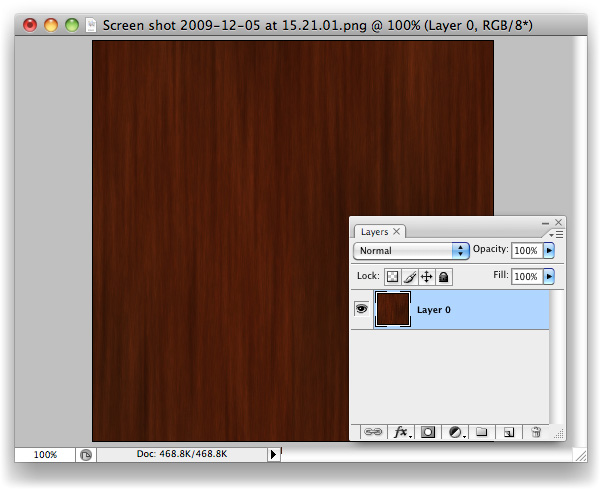
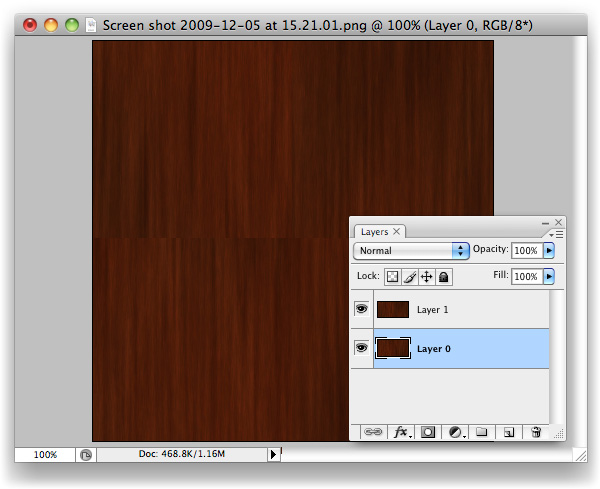
What we have here now is the original image, sliced in half, with its pieces put in the wrong places. Amazingly, the background that I chose actually looks spot on after having done this, but you’ll likely see a seam of some sort along the centre.


Step 9

With "Layer 1" selected, hit Cmd/Ctrl + E to Merge Down the layers on top of one another.


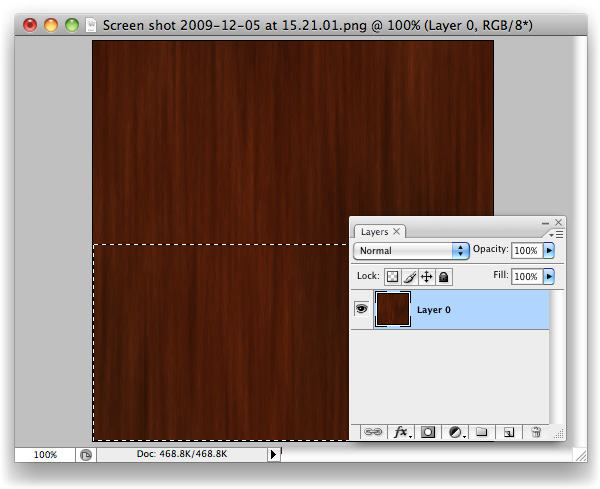
Step 10

We’re going to repeat the process once more, but vertically rather than horizontally. Grab the bottom half of the image with the Marquee tool (M).


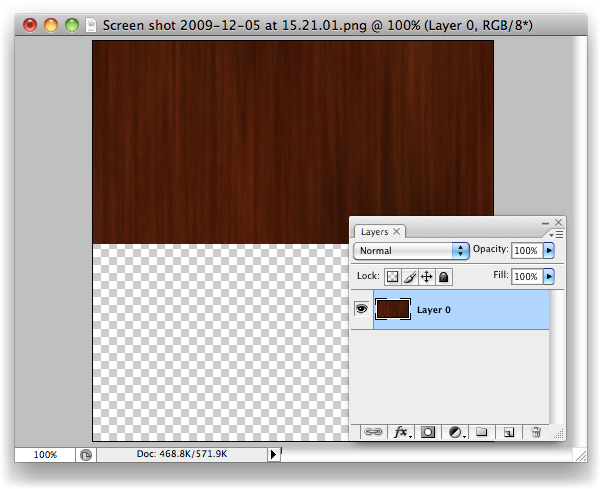
Step 11

Like last time, cut this selection out.


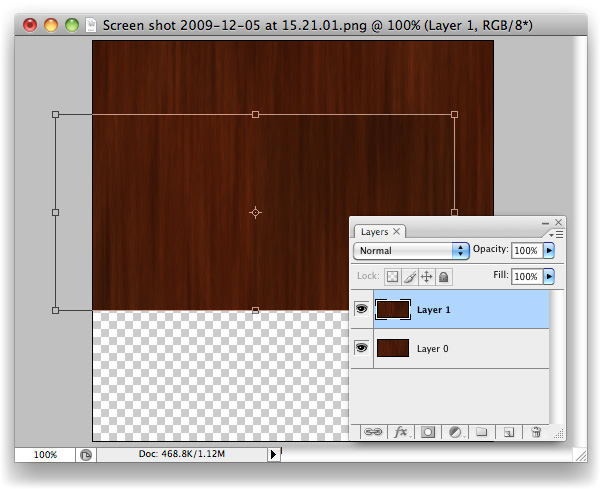
Step 12

Paste the bottom back in as a new layer and Move (V) it up so that it snaps tight with the top of the canvas, on top of "Layer 0".


Step 13

You should be able to guess what’s coming next? If so, you’re getting it, and this trick will soon be baked onto your brain and will, hopefully, save you lots of time in the future.


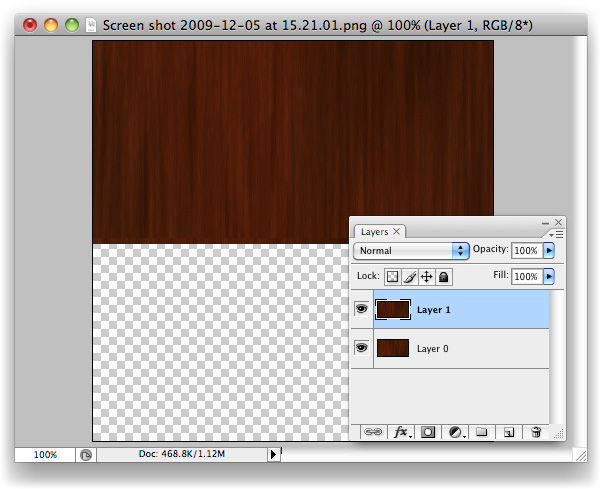
Step 14

Move (V) the contents of "Layer 0" down and snap it tight with the bottom of the canvas, where "Layer 1"’s content used to be.


Step 15

Here we go, check out that beauty of a seam. You’ll likely have two of them running through your image, whereas I’ve been fortunate enough to only have one (I still can’t believe the first cut was so clean!) What we’ve done is basically mimic the effect we would normally only see once we’ve applied a tiled image, and wonder how on earth to fix it. The edges of this image will tile perfectly, however, as we’ve moved the nice-and-tidy central area of the image over to the borders, and the original seams through into the centre of the canvas. Now we know that the problem areas are in plain sight, we can sort them out.


Step 16

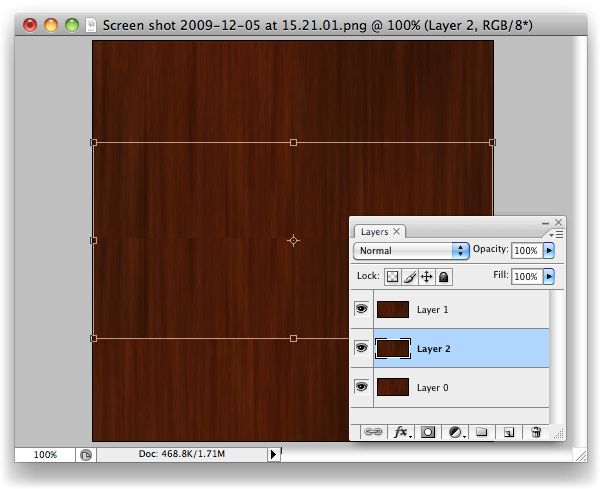
Paste again. You’ll have "Layer 1" twice now, this second instance named "Layer 2".


Step 17

Drag "Layer 2" up to the top of the layer stack (just grab it in the layers palette, move upward.


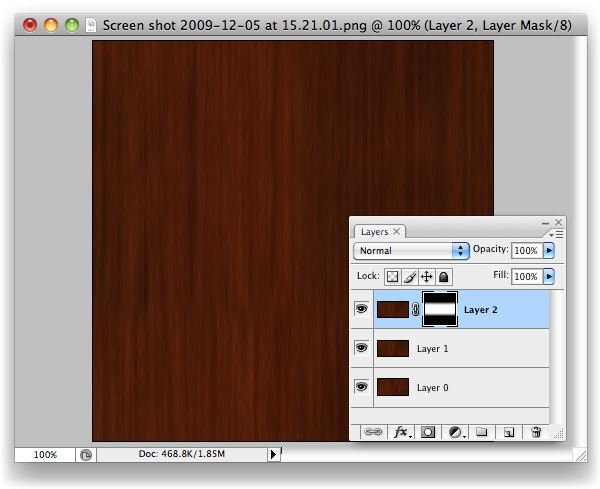
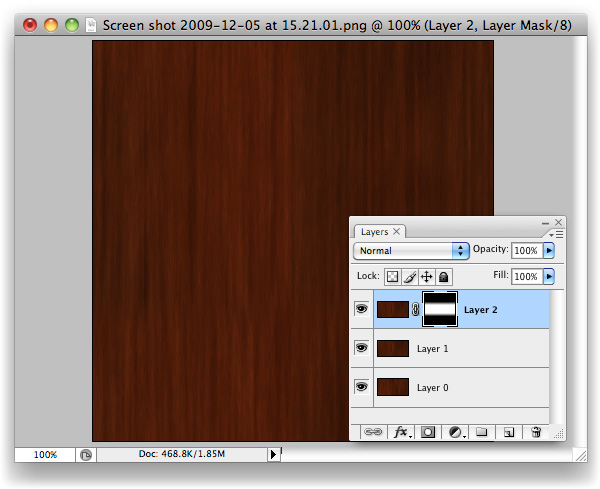
Step 18

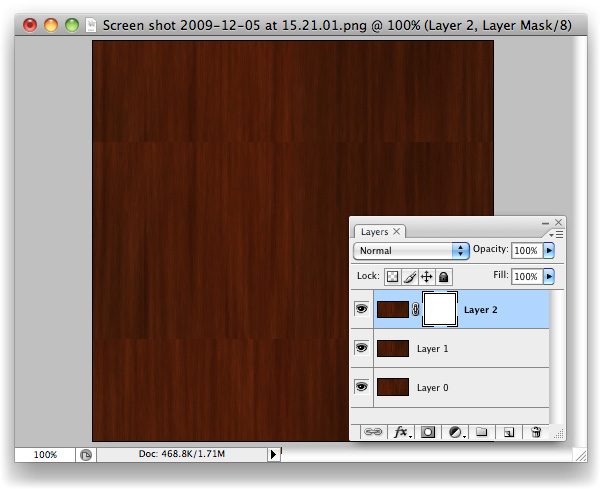
Make a Mask on "Layer 2". It’s the third icon along at the bottom of the layers palette. Looks like a moon in a dark sky.


Step 19

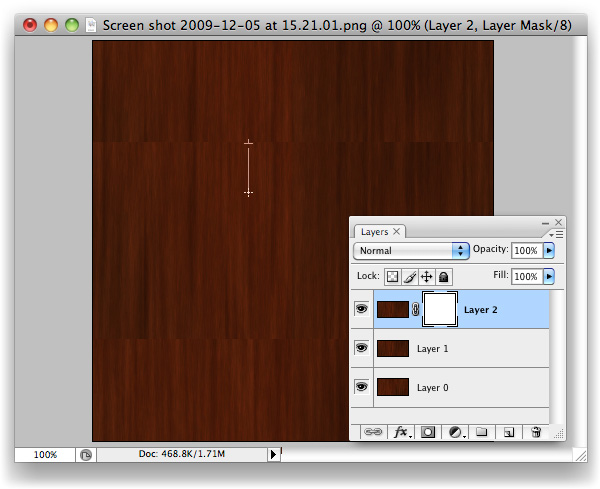
With the Gradient Tool selected and Black > Transparent selected as the colour to be used with gradients, simply drag from the top of "Layer 2" down to about where I did in the screenshot.


Step 20

Same again with the bottom of "Layer 2", but upwards.


Step 21

Duplicate the new "Other Page" layer, and drag it underneath the original. Using the Levels panel (Command + L), drag the black Input Level over to the right and the white Input Level to the left slightly like in the image above to increase the intensity of the Gradient. Nudge this layer down slightly from the original "Other Page" layer, to reveal the second "Other Page". The increased intensity of this layer’s Gradient allows the effects of the gradient to be visible in this small space.


Step 22

At this stage, you’ve done all the legwork you should have to. If the gradients have left a sort of mushy, blurry edge, use a Brush and work into the mask a little to break the progressive line into a more choppy one. That should be all that’s needed to disguise the seam.


Final Image

You’ll now have your very own tiling image with seamless seams. More importantly, you should have a new trick up your sleeve that will hopefully save you lots of time in the future.