43 Beautiful and Terrifying Animal Renders

Wildlife is all around us, and sometimes the best images we can get of them are the ones we actually create ourselves. Some of the animals in this roundup are recreated so well, you might not even know they were CG! Check out these awesome images, plus some animal based tutorials at the bottom of the article!


Don’t miss more CG tutorials and guides, published daily – subscribe to Cgtuts+ by RSS.

Friday Photo Critique #50

Friday Photo Critique is our weekly community project, where we publish a photograph submitted by one of our wonderful readers, then ask you all to offer constructive feedback on the image. It’s a great way to learn more about photography, express your viewpoint, and have your own image critiqued!


Quick Ground Rules

  1. Play nice! We’ve deliberately chosen photographs that aren’t perfect, so please be constructive with any criticism.
  2. Feel free to offer any type of advice – composition, lighting, post-processing etc.
  3. You can also link to photographs that you feel offer a great example of this type of image shot exceptionally well.

Without further ado, here is this week’s candidate for Friday Photo Critique!


The Photograph

Photo Critique

Photographer: Zak Milofsky

Please let us know what you think in the comments – how would you have approached the scene or taken the photo differently? A massive thank you to everyone who commented last week.

The most constructive and helpful comments will be featured on the site. Interested in submitting your own photo? You can do so here!

3 Quick Ways to Tune up Your Workspace

You know you’re supposed to declutter your desk and workspace. It’s going to boost your productivity. While you’re at it, here are three ideas to tune up your productivity:

Clean your keyboard

You shouldn’t be eating or drinking at your computer. But who has time for lunch? Here are 10 ideas for getting the dust and snack particles out from between the keys.

My favorite: Get a keyboard protector that covers the keys while you type.

Groom the mouse

Whether you have a mechanical or optical mouse, it can use some occasional gentle cleaning. There is a lot to clean on mechanical mice. The rollers can accumulate some tough gunk.

My favorite: I use the back of an Exacto knife blade to (gently) scrape it off.

Keep your wheels turning

I’m talking about the caster wheels on your chair. They pick up a lot of gunk down there. A simple collection of tools and rubbing alcohol can keep them rolling nicely.

My favorite: The rubbing alcohol – used sparingly – is a handy cleaner for all kinds of parts around the desktop.

What other little tune up tasks do you need to do to keep your workspace running like clockwork?

Progressively Enhance a Form to a Modal Form


With something as important as a contact form, you want it working properly for all visitors—even the JavaScript challenged. How do you handle this if you want to use a modal (pop-up) form? The answer is progressive enhancement; start with baseline, usable functionality; then increase the user experience for those who have browsers to support it.


Step 1: Decide on the Project Goals

Before starting any journey, it helps (most times) to have a destination. The goal of this project is to take a standard link to a page containing a contact form and enable that form to pop-up on the current page in a modal dialog.

There’s several reasons for this approach:

  • If the user has JavaScript disabled, they are sent to the contact form page as usual.
  • Only one version of the form must be maintained.
  • The additional content (the form) can be loaded asynchronously.
A Modal Form

Step 2: List the Tools

To write this from scratch in raw JavaScript would be a lot of code. Fortunately for us, there are existing tools we can leverage to make the task easier. This tutorial relies on:

To make this code as reusable as possible, we’ll write a plug-in. If you are unfamiliar with authoring a plug-in, you can get an introduction from Jeffrey Way’s article here on Nettuts+. The modal functionality will come from jQuery-UI’s $.dialog.

Plug-In Theory

Step 3: Design the Plug-in Interface

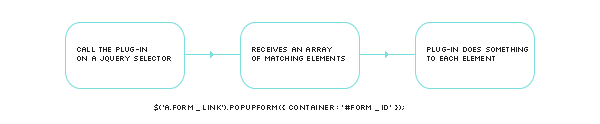
We’re going to follow the normal pattern for a jQuery plug-in: calling the plug-in on a selector and setting options via array. What options are needed? There will be options both for the modal window and for the plug-in itself. We’re going to expect the plug-in to be called on an anchor, and enforce that in the code.

$('a.form_link').popUpForm({
        container   : '',
        modal       : true,
        resizeable  : false,
        width       : 440,
        title       : 'Website Form',
        beforeOpen  : function(container) {},
        onSuccess   : function(container) {},
        onError     : function(container) {}
});

Examining the options

Container: This is how the plug-in user will specify the ID of the form on the remote page. The link itself specifies the page, but container option will allow us to fetch the relevant part. This will be the only required option when calling the plug-in.

Modal, Resizeable, Width, Title: These options are all going to be passed along to jQuery UI’s $.dialog. The values above are defaults and the plug-in will run just fine without any of these being set when $.popUpForm is called.

beforeOpen, onSuccess, onError: These are all callbacks, and expect a function. The function will be passed the object for the link that was clicked as ‘this’ and the container to which that link is targeted. Callbacks are designed to allow custom functionality for the users of a plug-in. The default for these callbacks will be an empty function.

The minimum code required to use the plug-in would then look like this:

$('a.form_link').popUpForm({ container : '#form_id' });

That seems simple, doesn’t it? When you call a plug-in like this, the plug-in’s code is called with a jQuery collection of all the DOM elements matching the selector, which will be available in the special variable ‘this’.


Step 4: The Plug-In’s Skeleton

Most jQuery plug-ins follow a very similar pattern. They iterate over the group of selectors and do whatever it is they do. I’ve got a basic plug-in “outline” I generally work from, and it will fit in here nicely. This would be the start of your plug-in file, popUpForm.jquery.js.

(function($) {
    $.fn.popUpForm = function(options) {

        // Defaults and options
        var defaults = {
            container   : '',
            modal       : true,
            resizeable  : false,
            width       : 440,
            title       : 'Website Form',
            beforeOpen  : function(container) {},
            onSuccess   : function(container) {},
            onError     : function(container) {}
        };
        var opts = $.extend({}, defaults, options);

        self.each(function() {

            // The REAL WORK happens here.
            // Within the scope of this function 'this' refers to a single
            // DOM element within the jQuery collection (not a jQuery obj)
        });
    }
})(jQuery);

The code is wrapped in a self-executing function, and adds itself to jQuery using the $.fn namespace. The identifier following $.fn is the method name you’ll use to invoke it.

We’re also following good coding practices by passing in the jQuery variable explicitly. This will keep us from getting into trouble if the plug-in is used on a page with other JavaScript frameworks, some of which use $ as a variable.

Next, an array of default values is created, and these defaults will be used if they aren’t defined when the plug-in is called. The line immediately following the defaults array merges the passed in options with the defaults and stores them all in the opts array.

Finally, a loop is created for iterating over the jQuery collection identified by the selector when the plug-in is called.. While chances are in most situations it will be a single item ( an anchor), it will still handle multiple links with a single call – assuming they all load the same form.

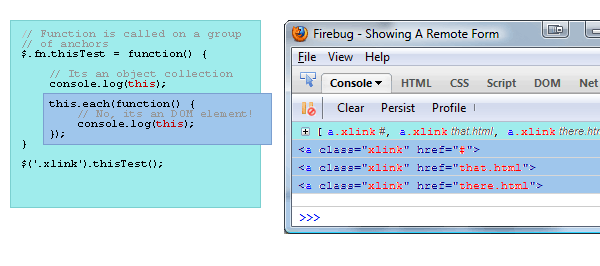
An important thing to understand is that the value of the special variable ‘this’ changes when we enter the self.each loop; it’s a special jQuery method designed to make looping DOM collections easier. The callback function uses the context of the current DOM element, so the variable ‘this’ refers to that element within the loop.

You can see in a very simple example how ‘this’ refers to a jQuery collection of jQuery objects in the plug-in function scope, but inside the each loop, ‘this’ refers to a single, non-jQuery DOM element.

The Scope of This

Step 5: Starting the Guts

The code for the next few sections is all contained within the self.each block of our skeleton. What do we do now? For each jQuery element passed in, there are going to be several steps to take:

  • Make sure it is a link, and that it goes somewhere
  • Fetch the part of the remote page specified
  • Attach the remote form to the page, and create a hidden dialog for it
  • Steal the link so it creates our pop-up
  • Handle form submissions AJAX style

Before doing any of that, however, we’re going to add one line of code inside the callback, at the very top

var $this = $(this);

This is more then just convenience; the variable ‘this’ will go out of scope in any closures within the each loop, and we’re going to need access to the current object later. Since we’ll almost always want it as a jQuery object, we’re storing it as one.


Step 6: Make Sure the Element Is Valid

$.popUpForm is only going to operate on anchor tags, and the anchor tag must have a href value so we know where to fetch the form from. If either of those conditions is not met, we’re going to leave the element alone. The second line of our ‘guts’ will be:

if (!$this.is('a') || $this.attr('href') == '') { return ; }

Some people hate multiple return points in a function, but I’ve always found having one at the start can make a function more readable, as opposed to using an if(condition) to wrap the rest of the function. Performance wise, they’re identical.


Step 7: Fetch the From From the Remote Page

The $.load method has nice functionality that allows a call to specify and ID in order to only attach part of a fetched document. The script won’t attach the returned HTML directly to the DOM, because $.load only overwrites, it doesn’t append.

var SRC = $this.attr('href') + ' ' + opts.container;
var formDOM = $("<div />").load(SRC, function() {

The variable opts.container has the ID of the form element on the remote page. The second line loads this remote page, and attaches the form and its contents to a div, the entirety of which is stored in the variable formDOM. Notice that $.load includes a callback (the function) — we’ll use formDOM inside that callback.


Step 8: Attach the HTML and Create the Dialog

Inside the $.load callback, the code is going to attach the form, override the click event of the anchor, and override the submit event of the form.

The form’s HTML is stored in the formDOM variable at this point, and attaching it to the existing page is easy.

$('#popUpHide').append(formDOM);

The id #popUpHide refers to a hidden div that will attached to the page by the plug-in. In order to provide that div, the following line will be added at the top of the plug-in. If it already exists, we don’t recreate it.

$("#popUpHide").length || $('<div id="popUpHide" />').appendTo('body').css('display','none');

Now that the form is hidden safely away on our page, it is time to use a call to the $.dialog method to create the form. Most of the set-up params are taken from our plug-in. The ‘autoopen’ option is hard coded since we want the dialog to open when the link is clicked, and not when the dialog is created.

// Create and store the dialog
$(opts.container).dialog({
    autoOpen    : false,
    width       : opts.width,
    modal       : opts.modal,
    resizable   : opts.resizeable,
    title       : opts.title
});

Step 9: Override Default Event Handling

If we stopped here, the plug-in wouldn’t be doing much. The link would still take us to the next page. The behavior we desire is for the link to open the dialog.

$this.bind('click', function(e) {
    e.preventDefault();
    opts.beforeOpen.call($this[0], opts.container);
    $(opts.container).dialog('open');
});

The first line of this click handler is very important. It stops the link from loading the new page when it is clicked.

The second line is our ‘beforeOpen’ callback. The variable opts.beforeOpen contains a function reference – that much is obvious. The .call method is used to invoke the function in a way where we can provide context — the ‘this’ variable for that function. The first argument passed becomes ‘this’ to the called function.

When a function has access to the variable ‘this’ there are some contracts JavaScript has with the programmer that we should maintain.

  • The ‘this’ variable should be the object the function acts on
  • The ‘this’ variable is a single DOM object

In order to maintain that contract, we pass $this[0] instead of $this. $this[0] represents a single, non-jQuery DOM object.

To help understand this a little better, imagine the following callback function:

opts.beforeOpen = function(container) {

    // Gives the value of the link you just clicked
    alert('The remote page is ' + this.href);

    // Gives the id container assigned to this link
    alert('And the container is ' + container);
}

The link click isn’t the only default behavior to override. We also want the form to submit via AJAX, so the normal form onsumbit event needs to be prevented and new behavior coded.

$(opts.container).bind('submit', function(e) {
    e.preventDefault();
    ajaxSubmit();
});

Again, we use preventDefault() to stop the event, and in this case add a new function to handle the form submission. The ajaxSubmit() code could go directly in the callback, but it has been moved to a new function for readability.


Step 10: Handle Form Submissions, AJAX-Style

This function would be added immediately after the end of the self.each loop ( don’t worry, you’ll see the entire plug-in code in one shot in just a bit ). It takes the form, submits it to a remote script, and fires the appropriate callbacks.

The first step is to get the form as a jQuery object, and to determine the form’s method, either GET or POST.

function ajaxSubmit() {
    var form    = $(opts.container);
    var method  = form.attr('method') || 'GET';

If you remember, we stored the form’s ID in opts.container. The next line checks the form for a method, and assigns ‘GET’ if no method is present. This is consistent with HTML which uses GET by default on forms if no method is specified.

Use the $.ajax method to submit the form:

$.ajax({
    type    : method,
    url     : form.attr('action'),
    data    : form.serialize(),
    success : function() {
        $(opts.container).dialog('close');
        opts.onSuccess.call($this[0], opts.container);
    },
    error   : function() {
        $(opts.container).dialog('close');
        opts.onError.call($this[0], opts.container);
    }
});

The URL option is determined from the action attribute of the form tag. The data is produced by using the serialize method on the jQuery object containing the form.

The success and error options are $.ajax callbacks, which we’re in turn using to call our callbacks, in the same way the beforeOpen callback was invoked.

We’re also closing the dialog in for both the success and error handlers.


Step 11: The Entire Plug-In

As a review, let’s look at the code we’ve written so far as a whole, including some helpful code comments:

(function($) {
    var alog = window.console ? console.log : alert;

    $.fn.popUpForm = function(options) {
        // REQUIRE a container
        if(!options.container) { alert('Container Option Required'); return; }

        // Give us someplace to attach forms
        $("#popUpHide").length || $('<div id="popUpHide" />').appendTo('body').css('display','none');

        // Defaults and options
        var defaults = {
            container   : '',
            modal       : true,
            resizeable  : false,
            width       : 440,
            title       : 'Website Form',
            beforeOpen  : function(container) {},
            onSuccess   : function(container) {},
            onError     : function(container) {}
        };
        var opts = $.extend({}, defaults, options);

        // The "this" within the each loop refers to the single DOM item
        // of the jQuery collection we are currently operating on
        this.each(function() {
            /* We want to keep the value 'this' available to the $.load
             * callback */
            var $this = $(this);

            /* we only want to process an item if it's a link and
             * has an href value
             */

            if (!$this.is('a') || $this.attr('href') == '') { return ; }

            /* For a $.load() function, the param is the url followed by
             * the ID selector for the section of the page to grab
             */
            var SRC = $this.attr('href') + ' ' + opts.container;

            /* the event binding is done in the call back in case the
             * form fails to load, or the user clicks the link before
             * the modal is ready
             */
            var formDOM = $("<div />").load(SRC, function() {
                // Append to the page
                $('#popUpHide').append(formDOM);

                // Create and store the dialog
                $(opts.container).dialog({
                    autoOpen    : false,
                    width       : opts.width,
                    modal       : opts.modal,
                    resizable   : opts.resizeable,
                    title       : opts.title
                });

                /* stops the normal form submission; had to come after
                 * creating the dialog otherwise the form doesn't exist
                 * yet to put an event handler to
                 */
                $(opts.container).bind("submit", function(e) {
                    e.preventDefault();
                    ajaxSubmit($this[0]);
                });

                // create a binding for the link passed to the plug-in
                $this.bind("click", function(e) {
                    e.preventDefault();
                    opts.beforeOpen.call($this[0], opts.container);
                    $(opts.container).dialog('open');
                });
            });

        });

        function ajaxSubmit(anchorObj) {
            console.log(anchorObj);
            var form    = $(opts.container);
            var method  = form.attr('method') || 'GET';

            $.ajax({
                type    : method,
                url     : form.attr('action'),
                data    : form.serialize(),
                success : function() {
                    $(opts.container).dialog('close');
                    opts.onSuccess.call(anchorObj, opts.container);
                },
                error   : function() {
                    opts.onError.call(anchorObj, opts.container);
                }
            });
        }
    }
})(jQuery);

This code should all be saved in a file called popUpForm.jquery.js


Step 12: Setting Up the Plug-In

The first step in plug-in usage would be to include all the required dependencies on your HTML page. Personally I prefer to use the Google CDN. The files being on a separate domain can help page load speed, and the servers are fast. Also, it increases the chances that a visitor will already have these files cached.

In the HEAD of the HTML document, add the following:

<link rel="stylesheet" href="http://ajax.googleapis.com/ajax/libs/jqueryui/1.8/themes/black-tie/jquery-ui.css" type="text/css" />
<link rel="stylesheet" href="css/main.css" type="text/css" />

<script src='http://ajax.googleapis.com/ajax/libs/jquery/1.4.2/jquery.min.js'></script>
<script src='http://ajax.googleapis.com/ajax/libs/jqueryui/1.8.2/jquery-ui.min.js'></script>

The main.css file is for our site specific styles, everything else is from Google’s CDN. Notice you can even use jQuery-UI themes from the CDN in this fashion.


Step 13: Invoking the Plug-In

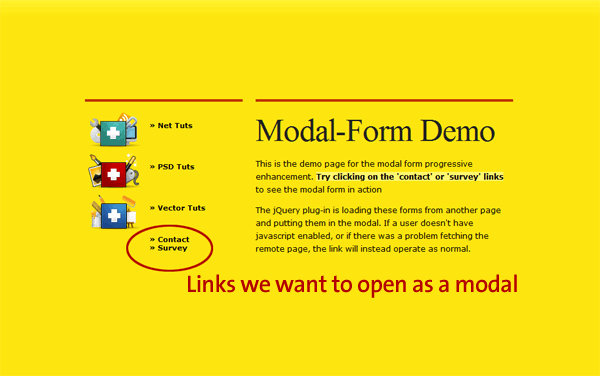
Remember, we only want to invoke the plug-in on links that go to a form page. In the online demo, the forms are contained in form.html, and only two links go to that page.

<script>
$(document).ready(function() {
    $('.contact a').popUpForm({
        container   : '#modalform',
        onSuccess   : function() { alert('Thanks for your submission!'); },
        onError     : function() { alert('Sorry there was an error submitting your form.'); }
    });

    $('.survey a').popUpForm({ 'container' : '#othercontainer' });
});
</script>

The calls are wrapped in a document.ready block so we can be sure the anchor elements exist before trying to act upon them. The second call, $(‘.survey a’) is an example of the minimum amount needed to use our new plug-in. The first example sets a callback for both onSuccess and onError.


Step 14: Styling the Modal

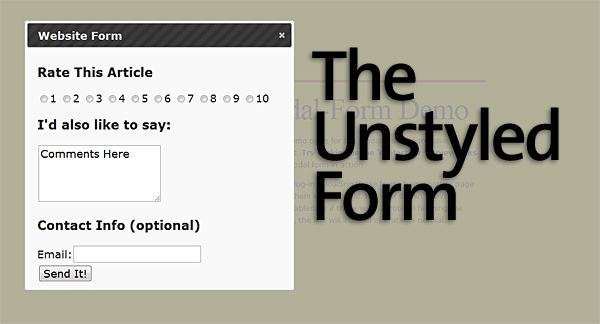
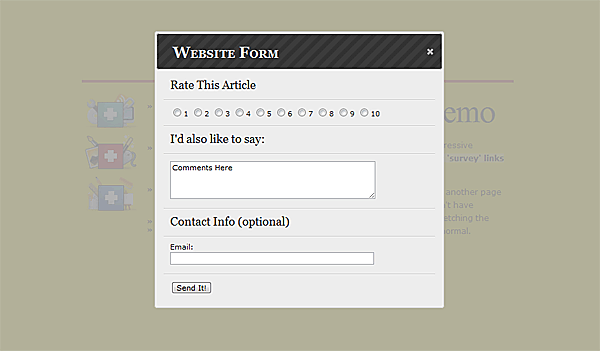
If you’ve gotten this far, and you created examples forms and a page to call them from, you’d notice the form in the modal is probably, well, ugly. The modal itself isn’t bad, because we’re using a jQuery-UI theme. But the form inside the modal is mostly unstyled, so we should make some efforts to pretty it up.

The Unstyled Form

There are some things to keep in mind when creating styles for use in a jQuery-UI modal:

  • The modal itself is only a child of the page’s BODY element
  • The contents of the modal are all children of a div of class ‘ui-dialog’

Using these small bits of information we can begin applying styles to the form in the modal. First we give the modal a background color we’re happy with, and also modify the font for the title bar.

.ui-dialog {
        background: rgb(237,237,237);
        font: 11px verdana, arial, sans-serif;
}
.ui-dialog .ui-dialog-titlebar  {
        font: small-caps bold 24px Georgia, Times, serif;
}

Next, we want to separate each item in the form with lines. Since the form structure alternates h3s with divs containing form elements, we add the following rules:

.ui-dialog h3,
.ui-dialog div {
        border-top:1px solid rgb(247,247,247);
        border-bottom:1px solid rgb(212,212,212);
        padding:8px 0 12px 10px;
}

And we only want lines between the sections, not at the very top or very bottom.

.ui-dialog .puForm div:last-child {
    border-bottom:none;
}
.ui-dialog .puForm h3:first-child {
    border-top:none;
}

Lets not forget to style the h3s, and the form elements. The radio buttons need to display inline so they are all in a row.

.ui-dialog h3 {
        font: 18px Georgia, Times, serif;
        margin: 0;
}
.ui-dialog select,
.ui-dialog textarea,
.ui-dialog input {
        width:76%;
        display: block;
}
.ui-dialog #rating input,
.ui-dialog #rating label {
        display: inline;
        width:auto;
}

Remember, these styles are specific to this project, you’ll have to style your own forms depending on what structure you use. To target the form elements specifically, you can either target descendants of .ui-dialog, or to style each form individually, include styles descending from the form ID you’ve included.

The styled form:

The Styled Form

Step 15: Conclusion

So what have we really done? We’ve taken a normal link leading to a contact form (or forms) and caused that form to load up in a modal dialog, and submit via ajax. For users without javascript, nothing happens and the links behave normally, so we haven’t stopped anyone from filling out your forms.

If you click on the survey link in the demo, be sure to submit something. I’ll post the results in the comments for fun after a week or so!

How to Create and Populate a UITableView

It seems like every time I create an iOS application I use the UITableView. It’s a very common control found in a lot of applications, however it’s also one of the most difficult controls to use. Every time I use one I have to go out and find examples so I can remember what I’m supposed to do. Because of that, I decided to create a basic tutorial that wraps up the most common usage patterns for the UITableView.

I’m going to start with an empty Window-based application. If you’re new to iOS development, we’ve got a good starter tutorial that will help you get on your feet. Next I’m going to create a UIViewController subclass called MyTableViewController.

New File Dialog

Remember to modify the app delegate to display our new view.

(BOOL)application:(UIApplication *)application
didFinishLaunchingWithOptions:(NSDictionary *)launchOptions {    
   
    // Override point for customization after application launch.
 
  tableViewController = [[MyTableViewController alloc]
                         initWithNibName:@"MyTableViewController" bundle:nil];
  [window addSubview:tableViewController.view];
   
  [window makeKeyAndVisible];
   
  return YES;
}

Along with the view controller, a .xib file was also created. Let’s double-click that to bring up Interface Builder. The first thing we need to do is drag a Table View onto our new view.

Drag Table View

The Table View gets all its functionality through a delegate and a data source. The data source is called upon when it needs to know what data to display. The delegate is used to provide feedback – like when a selection is made. What we’re going to do is make our new view controller implement both of these. The first thing we need to do is make the connections in Interface Builder. With the Table View selected, view the “Connections Inspecter”. At the top of the outlets section you’ll see the two outlets I just mentioned. Grab those dots with your mouse and drag them to the Documents Window and drop them on the item named “File’s Owner”. This is what represents our MyTableViewController class.

Setting Outlets

We’re now done with Interface Builder – save the document and return to Xcode. We now need to tell our new class to implement these protocols. This will be done in the header – MyTableViewController.h.

#import <UIKit/UIKit.h>

@interface MyTableViewController :
  UIViewController <UITableViewDataSource, UITableViewDelegate> {

}

@end

That’s actually it for the header file – we can now move on to some implementation. If you built the project now you’d see some warnings for incomplete implementations. This is because we haven’t provided the needed functions to be a data source or delegate.

Let’s start with the data source. There are only two required methods to be a UITableViewDataSource. You have to provide the number of rows and provide cells to display. Let’s start with the number of rows.

(NSInteger)tableView:(UITableView *)tableView
 numberOfRowsInSection:(NSInteger)section {
  return 10;
}

What we’re creating is the simplest form of table – it contains one section with some rows. In this case, I’m telling the table it will have ten rows. The next thing we need to do, and by far the most complicated, is provide cells for the table to display. The reason this is so complicated is because cells can (and should) be reused in order to reduce memory and improve performance. I’ll just stick the code out there first and explain it afterwards.

(UITableViewCell *)tableView:(UITableView *)tableView
         cellForRowAtIndexPath:(NSIndexPath *)indexPath {

  // Identifier for retrieving reusable cells.
  static NSString *cellIdentifier = @"MyCellIdentifier";
 
  // Attempt to request the reusable cell.
  UITableViewCell *cell = [tableView dequeueReusableCellWithIdentifier:cellIdentifier];
 
  // No cell available – create one.
  if(cell == nil) {
    cell = [[UITableViewCell alloc] initWithStyle:UITableViewCellStyleDefault
                                  reuseIdentifier:cellIdentifier];
  }
 
  // Set the text of the cell to the row index.
  cell.textLabel.text = [NSString stringWithFormat:@"%d", indexPath.row];
 
  return cell;
}

Starting at the top and working our way down. The first thing we need to do is create a way to identify reusable cells. This is done through a simple static string. I then attempt to dequeue a reusable cell with that identifier. If one is not available, I create a new one. Here I’m initializing a cell with the default cell style and setting its reuse identifier to our static string. The last thing to do is simply set the text of the cell to something – in my case I’m using the row index. You should now be able to build and run this application.

iPhone Example

The last thing we need is some kind of notification when the user selects an item. This is done through the UITableViewDelegate protocol. We only need to implement one method for this functionality.

(void)tableView:(UITableView *)tableView
didSelectRowAtIndexPath:(NSIndexPath *)indexPath {
 
  // Show an alert with the index selected.
  UIAlertView *alert = [[UIAlertView alloc]
                        initWithTitle:@"Item Selected"                        
                        message:[NSString stringWithFormat:@"Item %d", indexPath.row]                    
                        delegate:self      
                        cancelButtonTitle:@"OK"          
                        otherButtonTitles:nil];
        [alert show];
        [alert release];
}

Now, whenever an item is selected an alert will be displayed with the index of the row selected.

Selected Row

And there you have it. We’ve successfully created and populated a UITableView control. I have to say, of all the controls that display a list of data, this one is by far the hardest and most verbose to use. Now whenever you need to create a Table View, just remember you can come here and copy and paste all the boilerplate code – I know I will. You can download the complete source of this tutorial below. And as always, feel free to ask questions or leave comments.

WordPress Plugin Development, Part 1

WordPress is an extremely powerful content management system, and while we are drupal heads over here at SOTC, WordPress is still to be loved and respected. It offers not only users, but also developers an easy to use system that allows easy content construction and management. Today, using WordPress 3.0.1, we are going to make a very simple WordPress plugin that will introduce you to the basics of developing in the WordPress system.

The Rick Rolling craze has come and gone. It was fun while it lasted, but no one really seems to want to pull a good Rick Roll these days….that is until our WordPress plugin comes to life. That’s right, I am going to take you through the creation of a Rick Roll WordPress plugin.

Before we start diving into things too deep, lets start with a “shell”. This is how our plugin will start:

<?php
/*
Plugin Name: Rick Roller
Plugin URI: http://www.switchonthecode.com/
Description: Rick Roll Shortcode
Version: 1.0
Author: The Hairiest
*/

class RickRoll
{
  private $vidURL = "http://www.youtube.com/watch?v=4R-7ZO4I1pI";
       
  function RickRoll()
  {    
  }
}

$rickRoll  = new RickRoll();
?>

As you can see, we have something very basic to start with. The important thing to note at this point is the comment at the top, which supplies WordPress with information on the plugin, so it is important to always remember to put that comment in. Other than that, we have pretty much a standard PHP class. Just don’t forget to initiate a new RickRoll object the bottom of the file.

So lets imagine that you want to insert a tricky RickRoll link into your post. All you want to do is use a tag, say [RickRoll], to insert a link to a video on YouTube. This is all too simple. All we have to do is add a function to our class to register a new shortcode event with wordpress. First we have our shortcode function, and remember we are adding this to our RickRoll class:

function RR_Shortcode($atts)
{
  $rickRoll  = "<a href=\"". $this->vidURL . "\">" . $atts[‘title’] . "</a>";
  return $rickRoll;
}

As you can see, this seems almost too simple. However, we must also remember that all we are doing is replacing some text, so nothing complicated is needed. Basically what we are doing with this function is returning what the tag will be replaced with. In the case of the tag attributes we can set, those are passed into the function by WordPress itself. Now all we have to do is tell WordPress that we have a new “shortcode” for it to filter. We do this by adding a simple line to our class constructor:

function RickRoll()
{      
  add_shortcode(‘rickroll’, array(&$this, ‘RR_Shortcode’));
}

That’s it. You may, however, want to take notice at the array we are passing as the second argument. With a small function and one line in our constructor we have created our WordPress shortcode filter. With this plugin we can now write:

[rickroll title="Not a Rick Roll"]

And it turns into:

<a href="http://www.youtube.com/watch?v=4R-7ZO4I1pI">Not a Rick Roll</a>

Pretty tricky, no? But you know, I am not really satisfied with having to input all my Rick Rolls. What if I just wanted to take every link in my post and turn it into a rick roll? Well, thankfully for mischievous people everywhere, we can easily accomplish this with filters. Again, we have to start with a function addition to our RickRoll class:

function Replace_RR_Content($content)
{
  $anchors = array();
  preg_match_all(‘/<a.*?>.*?<\/a>/x’, $content,
    $oldAnchors, PREG_PATTERN_ORDER);
               
  foreach($oldAnchors as $anchor)
  {
    $newAnchor = preg_replace(‘/href=.*?/’,
      "href=\"". $this->vidURL . "\"", anchor[0]);
    $content = str_replace($anchor, $newAnchor, $content);
  }
       
  return $content;
}

You probably can already tell that this is another super simple function, and you would be right. First WordPress passes the function the post content, then we find all the anchor tags inside this content. Then we replace the href‘s of all the anchor tags, finally returning the content back to WordPress for display.

However, just like before, WordPress needs to know that we want this function to filter our post content. This requires another addition to our class constructor:

function RickRoll()
{      
  add_shortcode(‘rickroll’, array(&$this, ‘RR_Shortcode’));
  add_filter(‘the_content’, array(&$this, ‘Replace_RR_Content’));
}

With this addition our rick rolling filter is complete. Now all of the anchor tags in a post will be replaced. For example:

[rickroll title="Not a Rick Roll"]

<a title="Some Link Again" href="http://codex.wordpress.org/Function_Reference/add_filter" target="_blank">Link 1</a>
<a class="wp-caption-dd" title="Another Link!" href="http://www.spaweditor.com/scripts/regex/index.php" target="_blank">Link 2</a>
<a class="alignright" title="Some Link" href="http://www.php.net/manual/en/function.preg-replace.php" target="_blank">Link 3</a>

Becomes:

<a href="http://www.youtube.com/watch?v=4R-7ZO4I1pI">Not a Rick Roll</a>

<a title="Some Link Again" href="http://www.youtube.com/watch?v=4R-7ZO4I1pI" target="_blank">Link 1</a>
<a class="wp-caption-dd" title="Another Link!" href="http://www.youtube.com/watch?v=4R-7ZO4I1pI" target="_blank">Link 2</a>
<a class="alignright" title="Some Link" href="http://www.youtube.com/watch?v=4R-7ZO4I1pI" target="_blank">Link 3</a>

Quite a devious plugin indeed. Yet somehow I feel we need more Rick Astley on our blog. I think it is about time we pull out all the stops and put a rick roll video directly in every post, embed Rick Astley into the top of everything. And once again, this is all too easy. Here is the function to add this time around:

function Add_RR($content)
{
  $rrVid = <<<rrvid
    <object width="640" height="385">
      <param name="movie"
       value="http://www.youtube.com/v/4R-7ZO4I1pI?fs=1&amp;hl=en_US"></param>
      <param name="allowFullScreen" value="true"></param>
      <param name="allowscriptaccess" value="always"></param>
      <embed src="http://www.youtube.com/v/4R-7ZO4I1pI?fs=1&amp;hl=en_US"
        type="application/x-shockwave-flash"
        allowscriptaccess="always" allowfullscreen="true" width="640"
        height="385"></embed>
    </object>
rrvid
;
   
    $content = $rrVid . $content;
   
    return $content;
  }

This is the same basic concept as the other function, except, we are going to add this as an action rather than a filter. This could be accomplished as a filter, but actions are extremely important to WordPress, so we might as well go over how to add an action as well. Here is what our final constructor will look like:

function RickRoll()
{      
  add_shortcode(‘rickroll’, array(&$this, ‘RR_Shortcode’));
  add_filter(‘the_content’, array(&$this, ‘Replace_RR_Content’));
  add_action(‘the_content’, array(&$this, ‘Add_RR’));
}

As you can tell, adding an action is exactly like adding a filter. The main difference is really how you implement them. Filters are meant to….well, filter the data, while actions extend normal WordPress processes. In this case our filter and action are about the same functionally, but our action is actually called before the the_content() function is called in WordPress. With our filter, we are merely passed the post content to modify. It seems similar, but when you start building more complex plugins, the difference becomes more apparent.

With this final addition, we add a rick roll in every post. So a post like so:

[rickroll title="Not a Rick Roll"]

<a title="Some Link Again" href="http://codex.wordpress.org/Function_Reference/add_filter" target="_blank">Link 1</a>
<a class="wp-caption-dd" title="Another Link!" href="http://www.spaweditor.com/scripts/regex/index.php" target="_blank">Link 2</a>
<a class="alignright" title="Some Link" href="http://www.php.net/manual/en/function.preg-replace.php" target="_blank">Link 3</a>

Transforms into:

<object width="640" height="385">
 <param name="movie"
  value="http://www.youtube.com/v/4R-7ZO4I1pI?fs=1&amp;hl=en_US"></param>
 <param name="allowFullScreen" value="true"></param>
 <param name="allowscriptaccess" value="always"></param>
 <embed src="http://www.youtube.com/v/4R-7ZO4I1pI?fs=1&amp;hl=en_US"
  type="application/x-shockwave-flash"
  allowscriptaccess="always" allowfullscreen="true" width="640"
  height="385"></embed>
</object>

<a href="http://www.youtube.com/watch?v=4R-7ZO4I1pI">Not a Rick Roll</a>

<a title="Some Link Again" href="http://www.youtube.com/watch?v=4R-7ZO4I1pI" target="_blank">Link 1</a>
<a class="wp-caption-dd" title="Another Link!" href="http://www.youtube.com/watch?v=4R-7ZO4I1pI" target="_blank">Link 2</a>
<a class="alignright" title="Some Link" href="http://www.youtube.com/watch?v=4R-7ZO4I1pI" target="_blank">Link 3</a>

At this point we are done with our Rick Roll plugin and if all is right, you should have just one php file. Now, in order to use the plugin we have to put it in the WordPress plugin folder. Makes sense, huh? You will find it at your-wordpress-blog/wp-content/plugins. Once you have it in the right place all you have to do is activate it and start using it. Remember, we have a tag [rickroll title="some title"], all links in your content will be replaced with Rick Rolls, and finally our plugin will at a Rick Roll video to all our posts/pages. All you have to do now is make a post.

So this is our rick rolling plugin, in all its silly glory. It wasn’t that difficult, but we did a whole lot with our code, all thanks to the powerful WordPress plugin API. This concludes this tutorial, but just remember, when you need coding help all you have to do is Switch On The Code.

Keep your CPU under control with App Tamer

It’s been a little while since we’ve heard from St. Claire Software, makers of the well-known system utility, Default Folder X (which we’ve covered before). You may recall that we caught up with St. Claire Software developer Jon Gotow at WWDC ’09. Well, he’s got something new to announce today: App Tamer, a system utility for keeping CPU-intensive applications under control.

App Tamer is similar to some other utilities, in that it allows you to “freeze” selected applications so that they use up zero CPU time, leaving more processing power for other applications. What makes App Tamer special is AutoStop, which pauses and unpauses frozen applications when you switch away from or back to them. It also has options for temporarily unfreezing applications at a configurable interval, allowing apps to complete background activities even while frozen. It’s quite flexible, but takes very little user knowledge or time to get it up and running.

TUAWKeep your CPU under control with App Tamer originally appeared on The Unofficial Apple Weblog (TUAW) on Fri, 17 Sep 2010 20:00:00 EST. Please see our terms for use of feeds.

Read | Permalink | Email this | Comments

iOS devs: Get a TUAW discount at Voices That Matter iPhone Developers Conference

The Voices That Matter: iPhone Developers Conference is just around the corner, and TUAW wants to make sure that every dev has a chance to attend. That’s why Pearson Education, publisher of a number of iOS development tomes, is offering a $150 discount to TUAW readers, a 22% discount off of the usual conference price of $695.

This year’s conference will be held in Philadelphia on October 16th and 17th, and features a number of top authors, such as Aaron Hillegass, Steve Kochan, and our very own Erica Sadun. Mike Lee will be giving a keynote address titled “Making Apps That Don’t Suck,” something that all TUAW app reviewers wish more developers would attend (just kidding). He’ll be joined by Graham Lee (no relation as far as we know) who will be speaking on security and encryption, Jeff LaMarch who will expound on multitasking the iOS way, and Chris Adamson, who is speaking about mastering media with AV Foundation. Erica’s going to be hosting a session on how to add video out capabilities to your iOS apps.

To take advantage of the special TUAW discount, visit the conference registration page and use the priority code PHEM898.

TUAWiOS devs: Get a TUAW discount at Voices That Matter iPhone Developers Conference originally appeared on The Unofficial Apple Weblog (TUAW) on Fri, 17 Sep 2010 18:30:00 EST. Please see our terms for use of feeds.

Read | Permalink | Email this | Comments

Rumor: Apple working on parts for iPad 2

Here’s a fun rumor to give you something to dream about this weekend. Digitimes is reporting that Apple is on the hunt for parts for the iPad 2. The company is reportedly in the validation stage with a few suppliers for touch-based displays and reinforced glass, prepping production on a second generation iPad for a launch in early 2011.

That’s all we’ve got — there’s no details on what new features the iPad might have (although a camera would be an excellent guess) or any other way it might differ from the current model, but it looks like most of the speculation has been on target so far. There’s still quite a while to wait (and honestly, I’d still recommend buying an iPad if you want one right now — next year is still a ways away, and 4.2 will make even the “old” units seem new again), but there’s almost no doubt another iPad is going to happen next year.

[via TMO]

TUAWRumor: Apple working on parts for iPad 2 originally appeared on The Unofficial Apple Weblog (TUAW) on Fri, 17 Sep 2010 19:00:00 EST. Please see our terms for use of feeds.

Read | Permalink | Email this | Comments

GV Connect app for Google Voice now available

GV Connect, the Google Voice client for the iPhone and iPod touch that caused quite a stir when it was pulled by Apple last year, has unexpectedly returned to the App Store. Developer Andreas Amann resubmitted the app last week following Apple’s new documentation on App Store acceptance.

GV Connect is now available in the App Store for a cool $2.99.

TUAWGV Connect app for Google Voice now available originally appeared on The Unofficial Apple Weblog (TUAW) on Fri, 17 Sep 2010 18:05:00 EST. Please see our terms for use of feeds.

Permalink | Email this | Comments

iBless Torah provides a mobile trainer for Bar/Bat Mitzvah students

On the eve of the most important holiday in the Jewish calendar — Yom Kippur, the day of atonement — it’s traditional for observant Jews to seek forgiveness for the wrongs they have done to friends and family over the past year.

For me, it’s far too late to atone for my slack study habits back when I was preparing for my Bar Mitzvah, but perhaps I can help out some struggling Hebrew school students out there with a quick pointer to the $1.99 iBless Torah app, a learning assistant specifically for the rite of passage for 13-year-olds.

iBless Torah includes the traditional blessings that kids learn & chant during their ceremonies, with audio assistance and word-by-word indications. I checked with the nearest available rabbinic authority — my wife, whose ordination as a rabbi is scheduled for May — and she gave it a thumbs-up. I’ll let her feedback take it from here:

The Hebrew chanting is clear and slow, with each word highlighting as it’s chanted, so it’s easy to follow. I like that in the Settings you can choose to see just Hebrew, just transliteration, or both.

The ‘About the Blessings’ section gives good, concise information and there’s a translation of the Torah blessings, which is nice. I’d like to see a translation of the Haftarah blessings added to the app. All the English explanations and translations refer to God as He, Him, and Lord; I would prefer gender-neutral language for God, but of course using masculine terminology when referring to God is very common.

The Reform Jewish tradition uses a blessing after the Haftarah that is significantly different from the one in this app. For the other three blessings, however, I would recommend this app to my students who are learning the Torah and Haftarah blessings.

Davka’s other apps are worth checking out, as well. Good luck, kids, and remember: just imagine that the congregation is sitting there in their underwear. If that helps at all.

TUAWiBless Torah provides a mobile trainer for Bar/Bat Mitzvah students originally appeared on The Unofficial Apple Weblog (TUAW) on Fri, 17 Sep 2010 17:30:00 EST. Please see our terms for use of feeds.

Read | Permalink | Email this | Comments

Found Footage: A clever iPod nano name badge

Although my Apple addiction usually means that I have to run out and buy whatever new shiny thing has flown out of Cupertino, I’ve been able to resist getting one of the new iPod nanos. My iPhone plays music and movies, and I don’t wear watches, so I really haven’t been impressed.

Until now, that is. tipster Huey from Smack Dab Studios sent us a link to the video you see above. It’s a simple idea; create name tag images, move them to the nano, then play them in a slide show while the nano is clipped to your pocket or lapel. The result? Something that will definitely capture the eyes of people you meet.

It’s certainly an attention-getter, and it’s a lot better than those sticky “HI, My Name Is Steve” labels that they love to hand out at meetings and get-togethers. Of course, you could buy a lot of sticky labels for the cost of an iPod nano, but they just aren’t as cool.

TUAWFound Footage: A clever iPod nano name badge originally appeared on The Unofficial Apple Weblog (TUAW) on Fri, 17 Sep 2010 18:00:00 EST. Please see our terms for use of feeds.

Read | Permalink | Email this | Comments

iTunes Instant: Search iTunes at high speed thanks to 15-year-old developer

If you’ve heard of Google’s instant search, then you’ll be right at home with iTunes Instant. We’re all aware that iTunes doesn’t have the most friendly of search engines, but thanks to youthful developer Stephen Ou, searching the iTunes store just got a whole lot easier.

iTunes Instant doesn’t just give you suggestions or recommendations as you type in a search query, it actually gives you real-time search feedback (album and artwork in this case) as you enter a query, character by character. Possibly the best thing about iTunes Instant is that it’s the work of Ou, a 15-year old based in the Bay Area in California. According to TheiLoop, Ou developed iTunes Instant in under three hours, using Apple’s own Search API.

Ou says that iTunes Instant “will make your life better.” And we’re inclined to believe it. Trying to search for an artist that you can’t quite remember the name of in iTunes can produce some rather unfruitful results. Using iTunes Instant just might be the ticket to solving such frustrating queries.

Try iTunes Instant for yourself here. If you’re interested in searching the App Store instead of the music store, Jordan Satok’s App Store Instant on App Of The Day uses similar techniques. Satok and Ou are buddies, and Ou contributed to the development of the app search tool as well.

[hat tip to 9to5Mac]

TUAWiTunes Instant: Search iTunes at high speed thanks to 15-year-old developer originally appeared on The Unofficial Apple Weblog (TUAW) on Fri, 17 Sep 2010 17:00:00 EST. Please see our terms for use of feeds.

Read | Permalink | Email this | Comments

China gets the iPad

As you can see in the video above, China finally got the iPad (officially) this week, and Mac fans there were pretty excited about it. The device went on sale this morning at the Apple Stores in Beijing and Shanghai, and hundreds of people stood in the rain — one man was there waiting for two days. He’s the guy in the “I buy iPad” t-shirt, I think, and good for him; looks like it worked out all right.

Only the Wi-Fi models are on sale so far, 5588 yuan (US $826) for 64gb, 4788 yuan ($712) and 3988 yuan ($590) for 16gb. iPads have been available in China so far only through the “gray market,” unauthorized resellers from other countries. Early reports from the stores say that the iPad is selling better than the iPhone first did there, which is good news for Apple. It’s been hoping to gain a much better foothold in China recently, so a big release for the iPad is a nice step in that direction.

TUAWChina gets the iPad originally appeared on The Unofficial Apple Weblog (TUAW) on Fri, 17 Sep 2010 16:30:00 EST. Please see our terms for use of feeds.

Read | Permalink | Email this | Comments

Justin.TV live streaming iPhone app now available

Livebloggers, rejoice! Justin.TV, one of the world’s most popular live video streaming services, has released its new app for the iPhone and iPod touch in the form of an upgrade that enables live video to stream from the device. Both the app and service are free, but the app only works on devices with a camera. Streaming is done over WiFi or 3G, depending on availability.

Thanks to Kristi Evans for the tip!

TUAWJustin.TV live streaming iPhone app now available originally appeared on The Unofficial Apple Weblog (TUAW) on Fri, 17 Sep 2010 16:45:00 EST. Please see our terms for use of feeds.

Read | Permalink | Email this | Comments