How to replace iTunes 10’s grey with eye-popping black

Several iTunes 10 users were less than thrilled with the new all-grey UI theme. I’ve gotten used to it, but I agree it was a bit prettier with the color icons in the sidebar. Here’s how you can replace the grey entirely with an eye-popping, high-contrast black and white.

First, quit iTunes. Then open up Terminal and enter the following:

defaults write com.apple.iTunes high-contrast-mode-enable -bool TRUE

Re-launch and pow! You’ll be presented with the UI depicted above. It’s definitely legible, and Macworld suggests that it looks best in List View. They also explain how to switch back.

We don’t know if the stark theme is better, but it is different.

TUAWHow to replace iTunes 10’s grey with eye-popping black originally appeared on The Unofficial Apple Weblog (TUAW) on Sat, 18 Sep 2010 09:00:00 EST. Please see our terms for use of feeds.

Read | Permalink | Email this | Comments

Apple, others talking to DoJ about anti-poaching agreement

Apple, Google, Pixar, Intel, and a few other companies are currently in talks with the Department of Justice about an alleged anti-poaching agreement, according to sources speaking to the Wall Street Journal. The government is considering accusing the companies of agreeing to not hire each others’ employees for a certain period of time. If, as a law professor tells the Journal, the government finds that these companies are actually agreeing to not poach, then employees could be hurt by not having access to the best deal available.

For their part, the companies are reportedly arguing that non-poaching agreements are a requirement, especially when companies are so closely collaborating on various technologies and standards. Apple and Google, for example, would want to create the best products possible for customers, and wouldn’t be able to do that if they had to worry about their employees possibly getting hired away by the other partner.

There’s no actual lawsuit yet — this is still just an investigation, and the Journal says that there are “some companies more willing to settle to avoid an antitrust case than others.” But we’ll see — if the Department determines that the companies did make an agreement and that employees were punished by it, then the case could end up in court eventually.

TUAWApple, others talking to DoJ about anti-poaching agreement originally appeared on The Unofficial Apple Weblog (TUAW) on Sat, 18 Sep 2010 10:00:00 EST. Please see our terms for use of feeds.

Read | Permalink | Email this | Comments

iBooks love: free e-books worth reading

The National Association of Scholars just published a list of brain-challenging books that they recommend for college reading programs, but which should be of interest to any passionate adult-level reader. These books were selected for presenting important, well-argued ideas with a level of complexity that stretches the mind — basically they function as upgraded “beach reading” for the scholarly set.

Many of these titles are freely downloadable in ePub format and can be synced to iBooks for your portable reading pleasure. Here’s a quick run-down of some of the recommended books, along with quick links to iBooks-compatible downloads.

TUAWiBooks love: free e-books worth reading originally appeared on The Unofficial Apple Weblog (TUAW) on Sat, 18 Sep 2010 11:00:00 EST. Please see our terms for use of feeds.

Read | Permalink | Email this | Comments

Dear Aunt TUAW: Help me accessorize my iPod nano on the cheap

Dear Aunt TUAW,

I bought a brand new multitouch nano, and now I want to accessorize it. But money is tight, and I don’t have a lot to spend. I don’t really care about “pretty,” but I’d like to see what kind of functionality I can get (accessory-wise) on the cheap.

Can you recommend any really affordable add-on accessories for my new little pal?

Thanks a lot in advance,

Your nephew Stephano J.

TUAWDear Aunt TUAW: Help me accessorize my iPod nano on the cheap originally appeared on The Unofficial Apple Weblog (TUAW) on Sat, 18 Sep 2010 08:00:00 EST. Please see our terms for use of feeds.

Read | Permalink | Email this | Comments

iPA God: Install Cracked Apps on iOS 4.2, iOS 4.1 without Jailbreak

IPA God is a new, yet to be released, app that lets to install cracked apps on iOS 4.2 and iOS 4.1 without jailbreaking iPhone, iPod Touch and iPad.

ipa god install cracked appsIPA God takes advantage of a new exploit found in iOS 4.2 and iOS 4.1 firmware that allows you to install cracked apps on iPhone, iPad and iPod Touch. Unlike AppSync, IPA God does not require any jailbreak.

The video below shows IPA God in action on an iPad running iOS 4.2 beta which is not jailbreakable ATM. It will also work on iPhone and iPod Touch.

According to developer, IPA God will be sold out at a price under $20 (UDID registration for the app) because Apple would never let the app appear in the AppStore.

There’s ETA for the IPA God. We will keep you posted as soon as it goes live.

DISCLAIMER: We strongly OPPOSE app piracy and encourage you to purchase Apps from the AppStore. We truly hope Apple fixes the exploit in time via software update. The information available on our site is purely for informational purposes ONLY.

NOTE: Jailbreak and App Piracy are two different things. To put it simple: Jailbreaking is LEGAL but App Piracy is ILLEGAL.

You can follow us on Twitter, Join us at Facebook, and also Subscribed to RSS Feed to receive latest updates.

Digg
Twitter
StumbleUpon
Facebook
Reddit
del.icio.us

GV Mobile+ Returns to the AppStore

GV Mobile+, the unofficial Google Voice app for iPhone, by Sean Kovacs, has finally returned to the AppStore which shows that Apple has relaxed some of their AppStore policies. GV Mobile+ in now available in US AppStore for $2.99.


GV Mobile+ was the first ever Google Voice app for iPhone but was pulled from the AppStore for no valid reason. But now it got approved after GV Connect, a bit disheartening, given that he was one of the first off the bat in the original round.

NOTE: GV Mobile+ is currently being populated in throughout the world so be patient if it doesn’t appear in search results.

Download GV Mobile+

You can purchase and download GV Mobile+ from the AppStore for $2.99. [iTunes Link]

You can follow us on Twitter, Join us at Facebook, and also Subscribed to RSS Feed to receive latest updates.

Digg
Twitter
StumbleUpon
Facebook
Reddit
del.icio.us

Apple Store App Updated: Now Supports iOS 4 and Retina Display

Apple has just pushed an update to the Apple Store app for iPhone, and iPod Touch. Apple Store 1.0.2 now supports iOS 4 multitasking, Retina Display of iPhone 4 and comes with various bug fixes. Change-log after the jump…

Using Apple Store app you can access the Apple Online Store from your iPhone, iPod touch and purchase any product.

  • Retina Display image support
  • iOS4 multitasking support for iPhone 4 and iPhone 3GS
  • Various bug fixes and improvements

Download Apple Store App

You can download Apple Store App for free from the AppStore. [iTunes Link]

You can follow us on Twitter, Join us at Facebook, and also Subscribed to RSS Feed to receive latest updates.

Digg
Twitter
StumbleUpon
Facebook
Reddit
del.icio.us

GV Connect: Google Voice App Hits AppStore

The first, unofficial, Google Voice app for iPhone called “GV Connect“  is now available in the AppStore for $2.99. GV Connect allows Google Voice-powered support for calls, SMS, and voicemail. GV Connect is NOT Sean Kovac’s GV Mobile +.

GV Connect

  • GV Connect is a native iPhone/iPod Touch application which allows you to interact with your existing “Google Voice” account much faster than using the web interface:
  • Place calls using your Google Voice number rather than your mobile number – enter number directly, select a contact from your device’s contacts, or call back any number in your history.
  • Send and receive text messages (SMS) from your Google Voice number.
  • Listen to voicemails and recorded conversations right on your device (allowing you to pause, rewind, or fast forward to any point within the message) – voicemails will also show the transcription of the message when available.
  • Mark messages as starred, attach notes to conversations, block/unblock senders, or delete conversations.
  • Easily search in your history by contact, message, or note.
  • Messages are stored on your device for offline access.
  • Composing notes and text messages can be done in landscape mode.
  • Quickly change various Google Voice account settings (call forwarding, do-not-disturb, message notifications, …) directly from within the application.
  • Automatic checking for new messages while the application is active.
  • Direct access to your device’s contacts without needing to synchronize them with Google
  • All communication is done with the Google Voice website directly, no need to hand over your account information to a third-party.
  • Full support for fast app switching in iOS4 and high-resolution graphics for retina displays.

GV Connect stores your account password securely in your device’s keychain for faster login when launching the application – communication is done via secure connections (SSL) to the Google Voice servers and no contact information (other than the contact’s phone number which is required to place a call or send a message) is sent to Google. All operations are fully synchronized with your Google Voice account.

NOTE: An existing Google Voice account is required to use this application

Download GV Connect

You can purchase and download GV Connect from the AppStore for $2.99. [iTunes Link]

Official Google Voice is also available as a web app.

GV Connect iphoneGV Connect iphoneGV Connect iphone

GV Connect iphoneGV Connect iphone
via [MobileCrunch]

Digg
Twitter
StumbleUpon
Facebook
Reddit
del.icio.us

Cocos2D Beginner iOS Tutorials At The Coconut College

In the past I’ve written about some excellent Cocos2D tutorials for those aspiring to develop games using the popular Cocos2D game framework.   One of the most common searches on this site is for beginner material, particularly Cocos2D beginner material.  It’s understandable as getting your foot in the door can often be difficult.

I’ve found a new resource that starts at the beginning, made for beginner programmers, that takes you through the process of learning Cocos2D in depth.  What I really like about this resource is that they really take you through every step at a good pace so even an absolute beginner should not have any problems.

That resource is the Coconut College, and so far several extremely in depth tutorials have been posted, they are:

Tools Of The Trade – How to install XCode, and the Cocos2D Framework.
Hello World – Displaying a static image in Cocos2D
The Fart Button – How to animate images, and detect touches
The Fart Button 2 – How to play sounds with Cocos Denshion

More advanced tutorials are coming to the site, but the first few should help a beginner get on their way.

Thanks for reading, please share this using the buttons below!

©2010 iPhone, iOS 4, iPad SDK Development Tutorial and Programming Tips. All Rights Reserved.

.

Share and Enjoy:

RSS
Twitter
Facebook
DZone
HackerNews
del.icio.us
FriendFeed

26 Awe-Inspiring Television Show Opens and Title Sequences

Everyone goes crazy for movie title sequences, but it seems like openers and titles for television shows don’t get the attention they deserve. So I took some time to get 26 sweet openers to some popular, and “not-so-popular-but-still-awesome-looking” shows! Enjoy!


Fox – Who Are You?

ABC Family – Middleman

The Next Food Network Star Show Package

The Hasselhoffs Pre-Launch Teases

2 Months 2 Million Promo and Broadcast Package

Hammerheads Show Package

International Sexy Ladies Show Broadcast Package

It’s Me Or The Dog Show Package

Rob Dyrdek’s Fantasy Factory Show Open

Gangland Show Open

Roast of David Hasselhoff Open

Roast of Larry the Cable Guy

Comedy Central’s Indecision 2008

Mythbusters Demolition Derby Special

Kids Choice Awards 2010

Rugby League World Cup

Formula 1 Opener

The Morning Show Opener

Human Target Main Title Sequence

The People’s Republic of Capitalism Main Titles

Mad Men Opening Titles

The Pacific Opening Credits

Boxing Open Main Titles

The Company Main Titles

Ghost Whisperer Main Titles

25th Anniversary Rock & Roll Hall of Fame Concert

If you enjoyed this post, please give it a vote on Digg or a stumble to say thanks! If you guys have some more show opens that you think are memorable, make sure you link it up below!


Quick Tip: The Real Deal on Creating Chrome!


Vector drawing programs often supply templates for metallic finishes, but they can look like soft bands of blue and grey (silver) or yellow and brown (gold). Today I’m going to show you how to put a custom metallic finish with depth on your artwork and really turn your vector thing, into bling! Because I’m a simple kind of guy, there will be no transparency, mesh or 3D extrusion in this example, just a few cheeky tricks of the trade.

Continue reading “Quick Tip: The Real Deal on Creating Chrome!”

Workshop #120: Rubber Truck by Bad Maxton

At Audiotuts+ we regularly put up a reader track for workshopping and critique (find out how to submit a track). This is how it works: you upload your song, and every week or so we’ll publish one here and step away from the podium. The floor is yours to talk about the track and how the artist can fix problems in and improve upon the mix and the song.

This track has been submitted for your friendly, constructive criticism. They have put their track (and their heart and soul) in your hands to learn and get useful feedback.

  • Do you enjoy the song or track itself? Does it have potential?
  • Can the arrangement be improved?
  • How did you find the mix? What would you do differently?
  • What do you enjoy about the rhythm track? What can be done to improve it?
  • Is the choice of instruments relevant and effective for the style/song?
  • Are the lyrics (if any) effective? Does the style, arrangement and genre of the song suit them?
  • Can you suggest any specific techniques that might improve the track?
  • Do you have any other constructive feedback?

Rubber Truck by Bad Maxton

Artist’s website: myspace.com/badmaxton

Description of the track:

Rubber Truck originates from a late-night guitar jam, complemented by catchy drums and a hooky synth chorus. Any comments welcome!

Download audio file (RubberTruck.mp3)

Terms of Use: Download is allowed.

Have a listen to the track and offer your constructive criticism for this Workshop in the comments section.


Submit Your Tracks for Workshopping

Need constructive criticism on your own tracks? Submit them using this form.


Draw a Trophy Icon in Photoshop

Today, we will demonstrate how to draw a trophy icon in Photoshop. Let’s get started!


Step 1

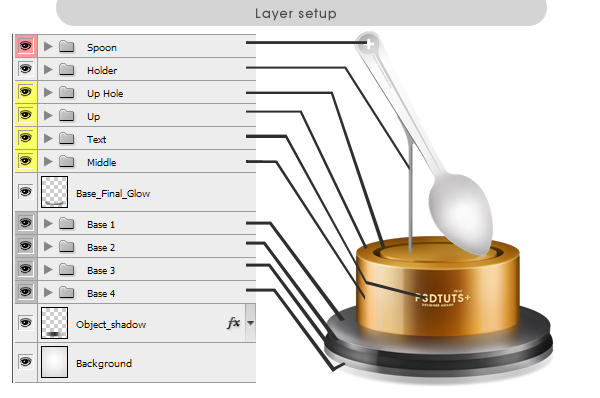
Create a new document, 1000 x 1200 px. Before we proceed with this tutorial, take a look at the layer setup and arrangement, which will help you organize your layers a bit better.


Step 2

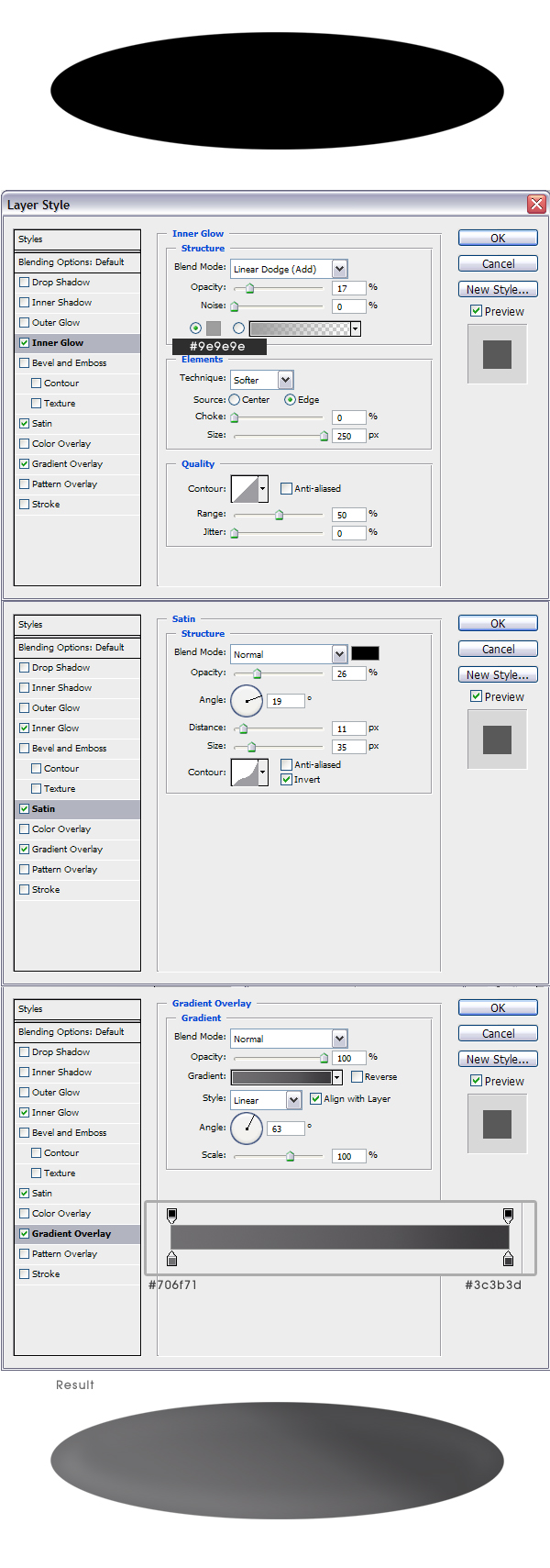
Create a new layer, name it ‘Base 1′. Select the Elliptical Marquee Tool (M), now go to Options bar. Style: Fixed size, Width: 734px, Height: 190px. Now click anywhere on the canvas and place it as it shown. Apply the following layer styles.

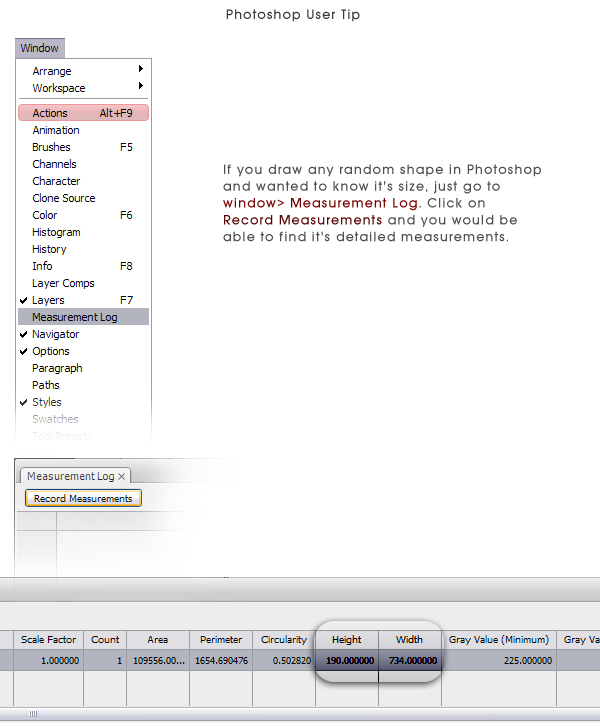
Note: If you draw any random shape in Photoshop and wanted to know it’s size, just go to Window > Measurement Log > Click on Record Measurements.


Step 3

Cmd/Ctrl + Click on the layer thumbnail of ‘Base 1′ to make a selection. Go to Edit > Stroke. Width: 1px, Color: Black, Location: Inside. Follow the same technique and place a white stroke on it. Create new layers for each stroke.


Step 4

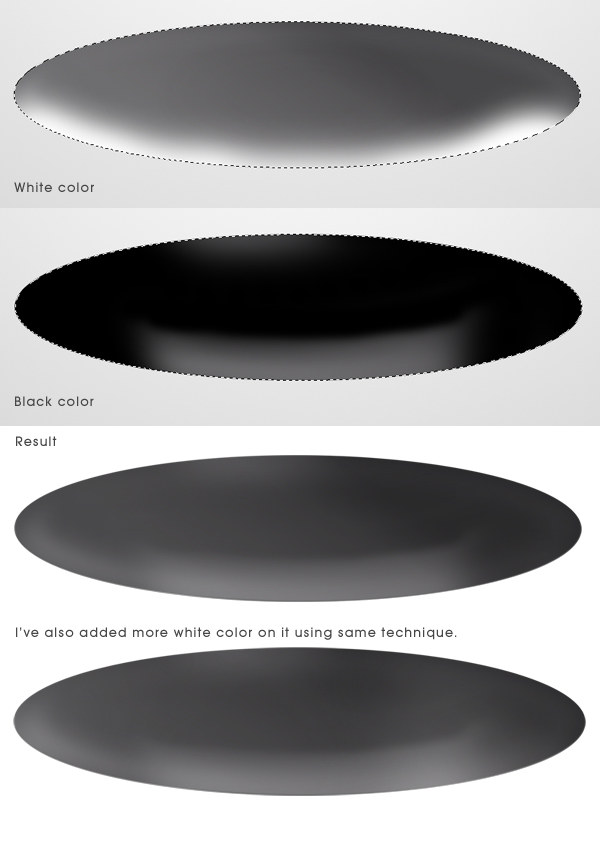
Create a new layer, Cmd/Ctrl + Click on the layer thumbnail of ‘Base 1′. Take Brush tool, use a feathering brush, color: white. Repeat step using black color. For white color set layer blending mode to Overlay and opacity to 17%, For black color set layer blending mode to Soft light and opacity to 58%.


Step 5

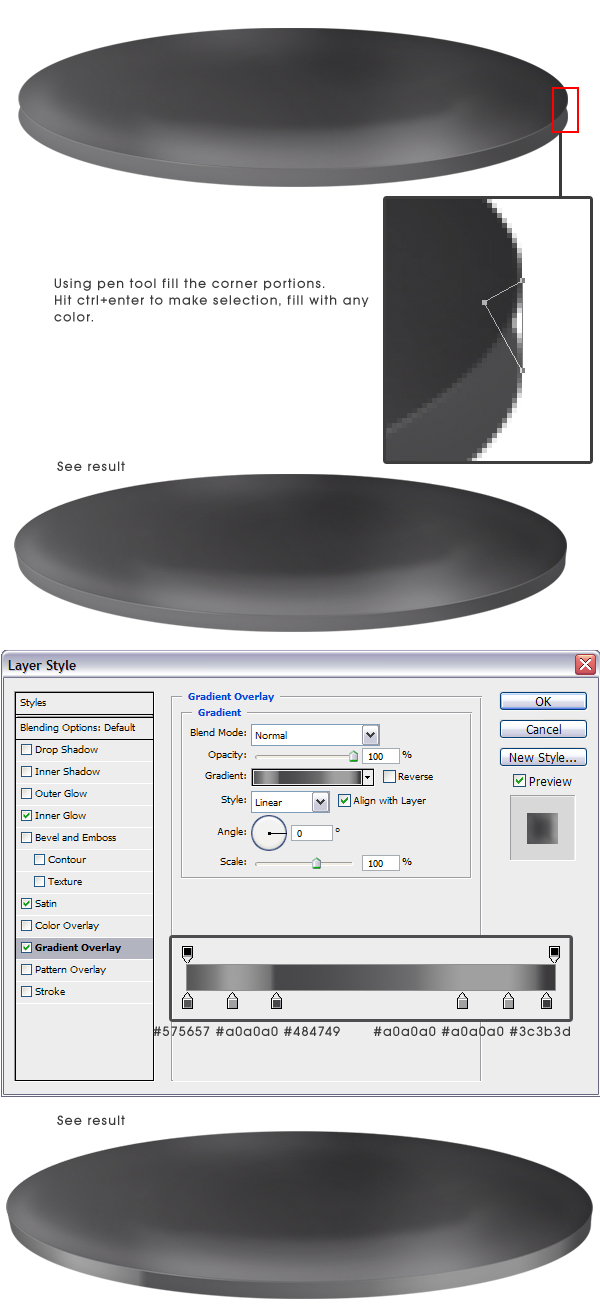
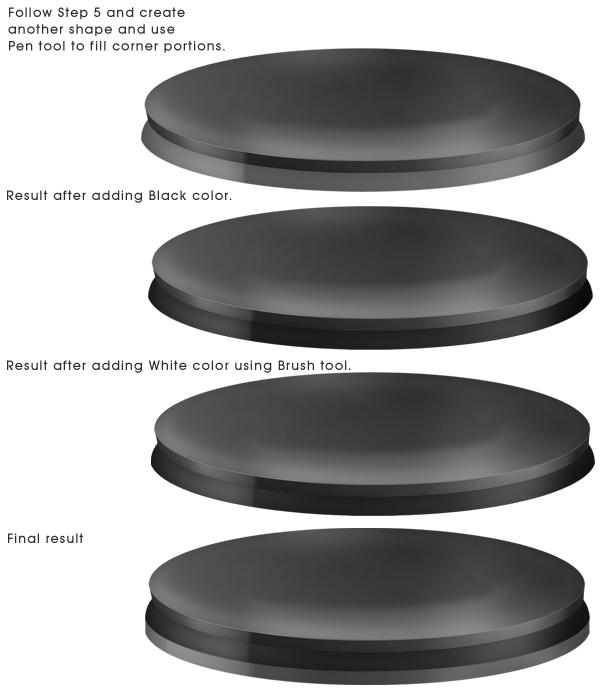
Create a new group named ‘Base 1′ and place all the layers inside it. Now copy ‘Base 1′ layer and place it as shown. You should take a look at step 1 again for layer adjustment. Drag ‘Base 1 copy’ down, change it’s name to ‘Base 2′ and place it outside ‘Base 1′ group. Grab pen tool, follow next image. After you complete this step you can see clearly what we’ve done in Step 3. After that copy layer style of ‘Base 1′ and apply it to ‘Base 2′ layer just change the Gradient overlay.


Step 6

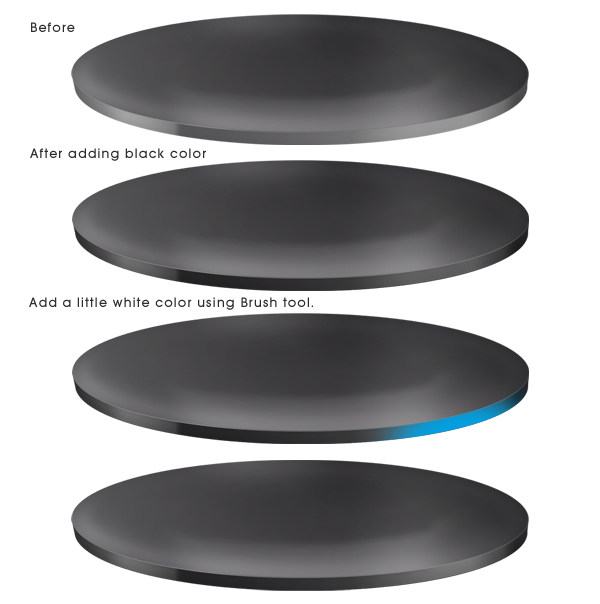
Create a new layer named ‘B2 Dark’. Cmd/Ctrl + click on the layer thumbnail of ‘Base 2′. Fill it with black color. Set Layer blending mode to Soft light & opacity to 90%. Do not deselect, create a new layer named ‘B2 White’. After that, use Brush tool (B) and a feathering brush and start painting as shown on image. Set this layer’s blending mode to Overlay.


Step 7

We can proceed with this tutorial using same techniques that I’ve used previously. Follow step 2 – 6 to create another two bases.


Step 8

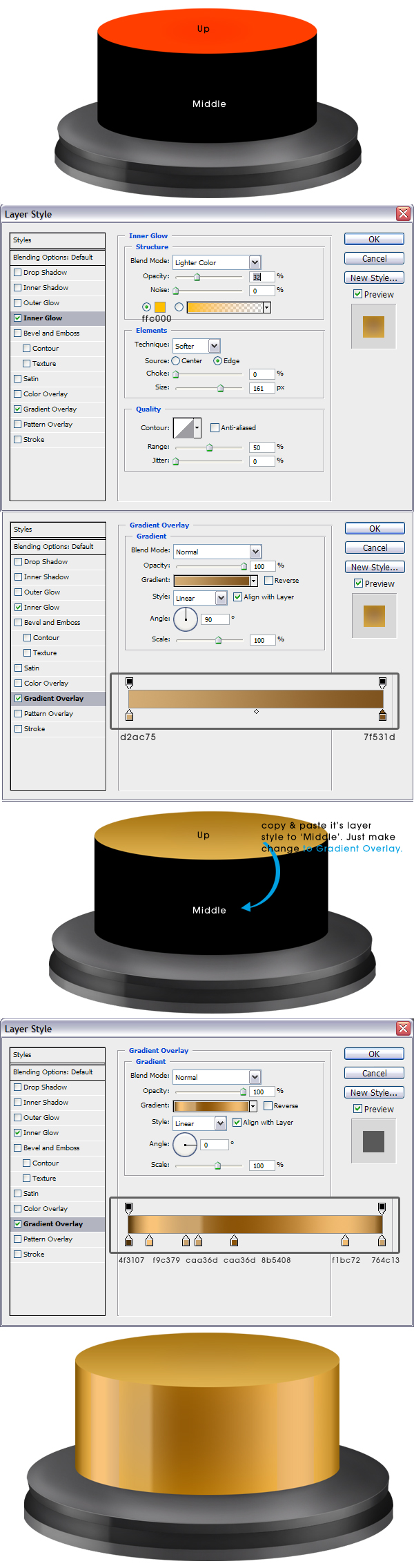
Use the Elliptical Marquee tool and pen tool to create the following shapes. After that, apply the Layer Style to the ‘UP’ layer. Create new layer for each shape. Place ‘Up’ shape over ‘Middle’.


Step 9

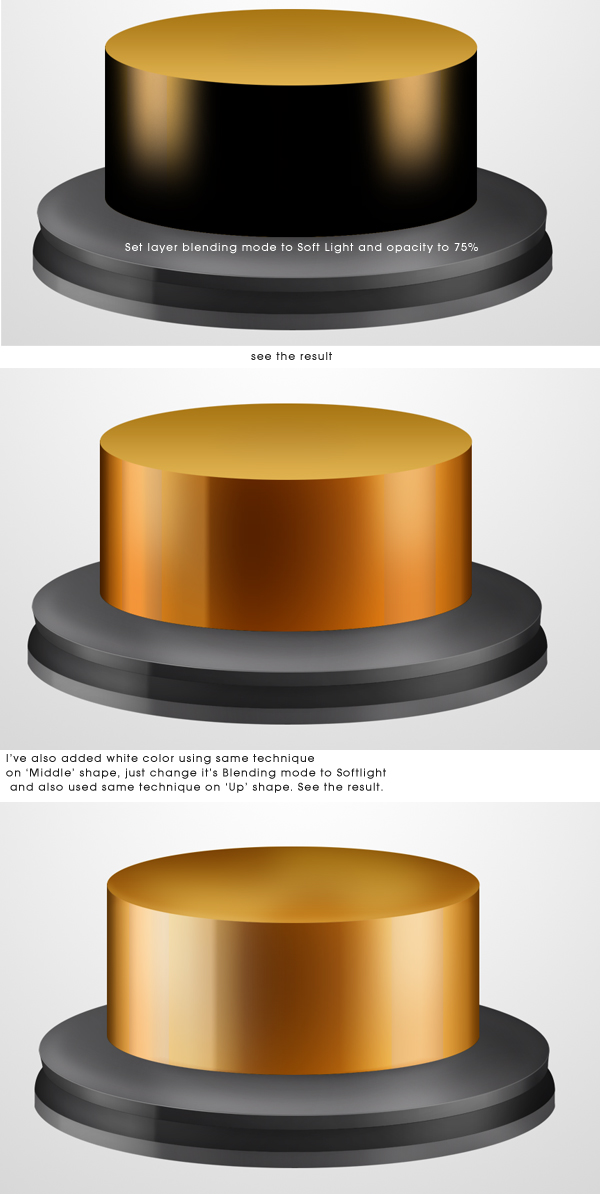
Cmd/Ctrl + Click on the layer thumbnail of ‘Middle’ take brush tool and use a feathered brush, color: black and start painting as shown on image.


Step 10

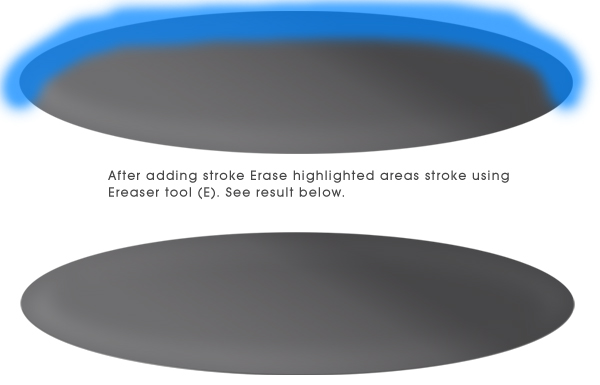
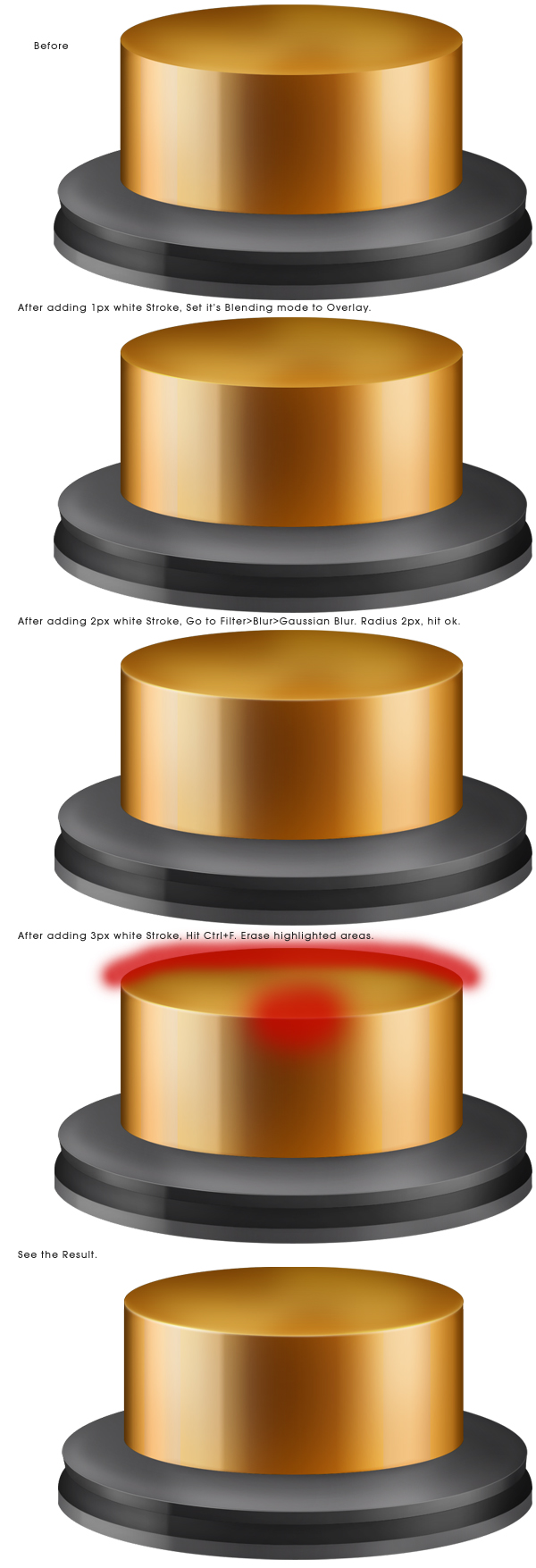
Add a 1px white stroke on ‘Up’ shape. Set its blending mode to overlay. After that create a new layer and add a 2px white stroke to it. Go to Filter > Blur > Gaussian Blur. Radius: 2px. Create another new layer and again add a 3px white stroke on it. Press Cmd/Ctrl + F. Take A Feathered Eraser Brush and erase the highlighted areas. Set its blending mode to Overlay. Follow next Image.


Step 11

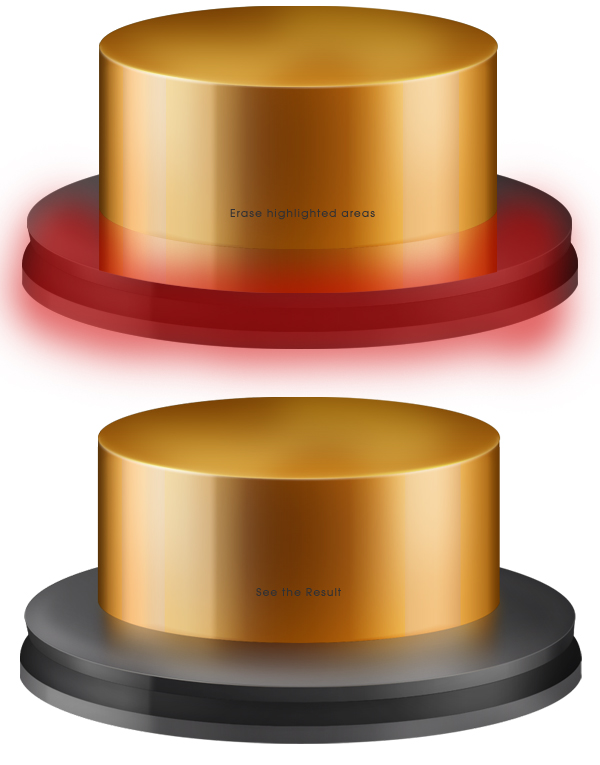
Select ‘Middle’ shape layer including its white and black painted layers, duplicate them, press Cmd/Ctrl + E. Drag it down ‘Middle’ shape layer. Press Cmd/Ctrl + T, right click on it, select flip vertical, use down navigation key to move it down, hit enter. While selecting ‘Middle’ shape duplicated layer, Cmd/Ctrl + click on the layer thumbnail of ‘Base 1′. Press Add Layer mask icon at the bottom of Layer Panel. Now create a new layer at the bottom of ‘Middle’ duplicated layer. Select both layers and press Cmd/Ctrl + E. That will merge down the layers. Take a feathered eraser tool and erase highlighted areas. Now go to Filter > Blur > Gaussian Blur, Radius 5px. press ok. See the result.


Step 12

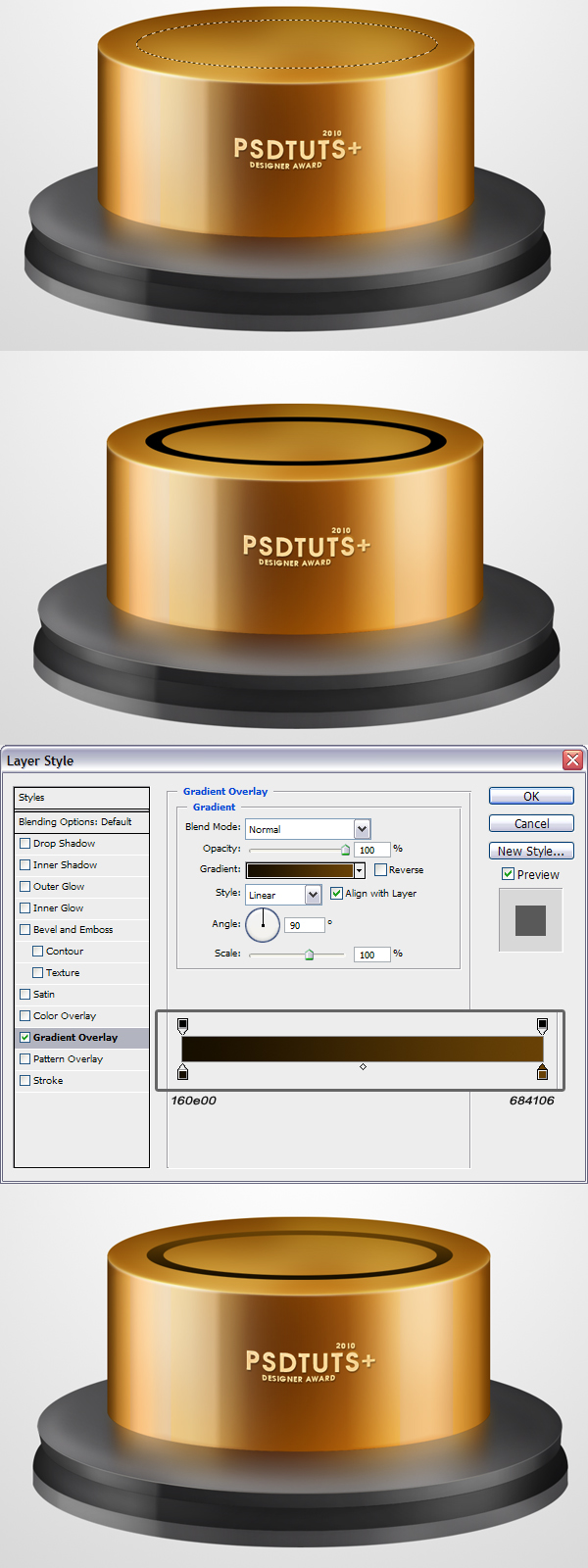
Press T and type out some text. Follow next image. After that, apply the following layer styles. After that, place additional text using the same technique.


Step 13

Use Elliptical marquee tool, go to options bar > Style  Fixed Size: Width: 428px, height: 69px, place it as shown on image. Fill it with any color. Press Cmd/Ctrl + D. Create another fixed size circle inside it, Width: 382px, Height: 57px press Delete. Apply following layer styles.


Step 14

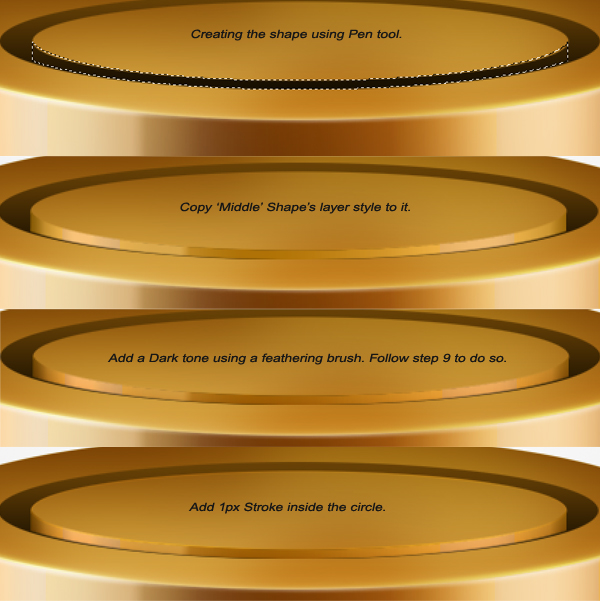
Create a new shape as shown on the next image using the pen tool, after that, copy ‘middle’ shape layer’s style to it, next add a little dark tone using brush tool, repeat Step 9 for this step. After that add a 1px white stroke inside the circle and set its blending mode to Soft Light.


Step 15

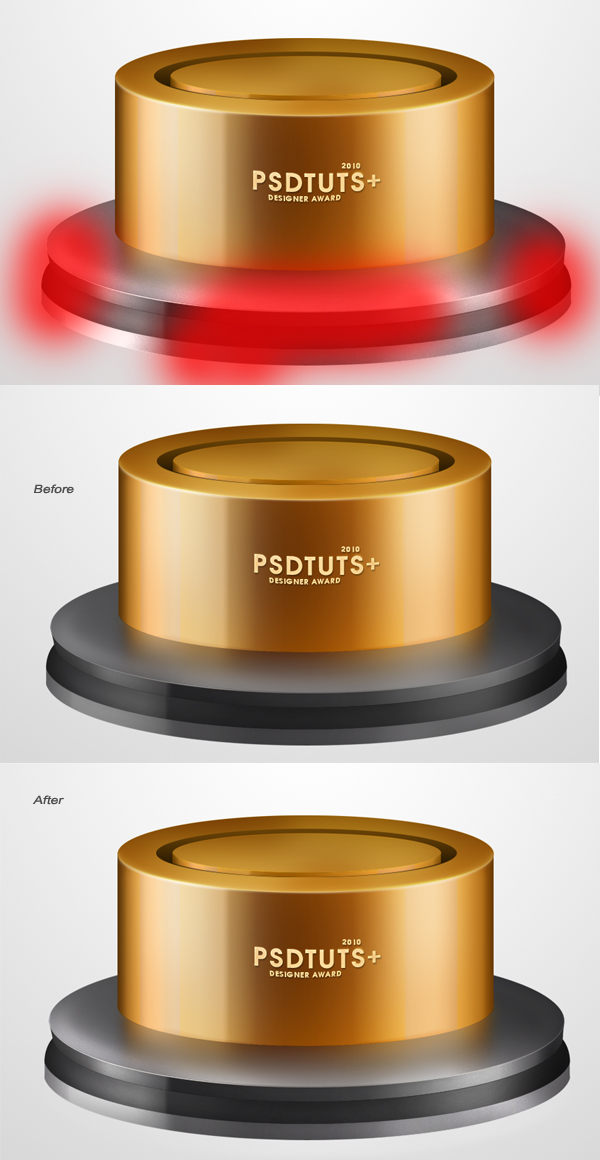
Select all the ‘Base’ layers that we’ve created previously, duplicate them. Go to Filter > Noise > Add noise, amount 1px Check Gaussian and Monochromatic. Set this layer’s blending mode to Color Dodge. Erase the highlighted portions.


Step 16

Create a new layer named ‘Spoon F’, take the pen tool and draw the shape of the spoon and apply the following layer styles.


Step 17

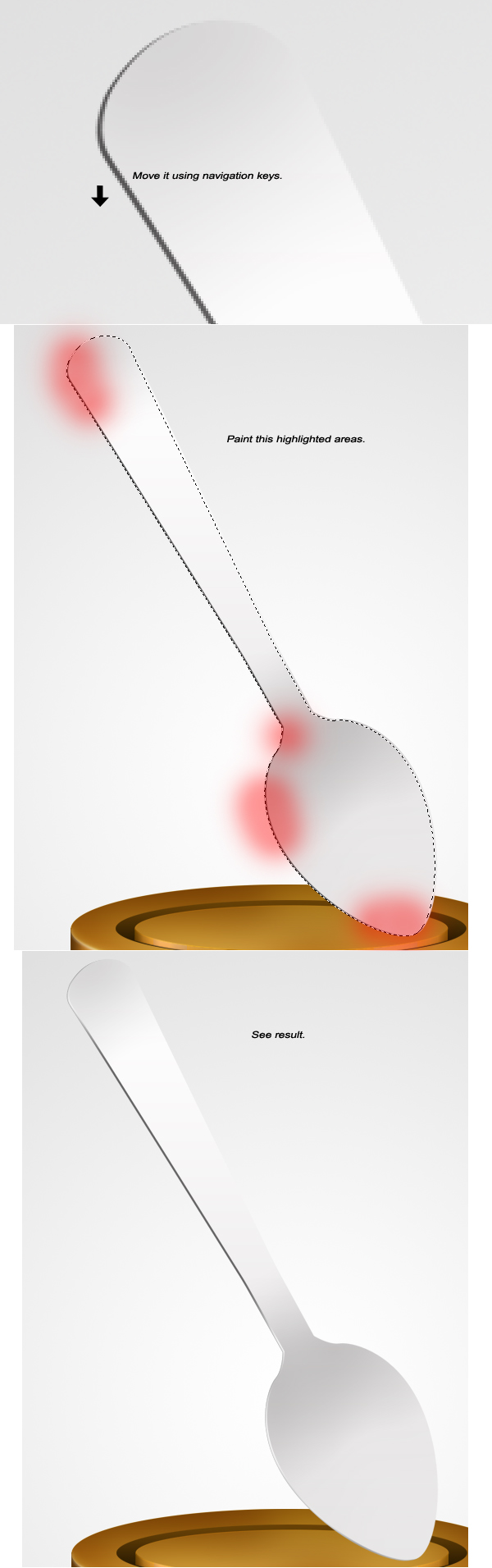
After that, duplicate ‘Spoon F’ layer and move it under ‘Spoon F’ layer also name it ‘Spoon B’. On Gradient overlay change the two colors to #616060. Now move it a little down using navigation keys. After that Cmd/Ctrl + click on the layer thumbnail of ‘Spoon B’. Use a feathered brush, take white color and start painting as shown on image.


Step 18

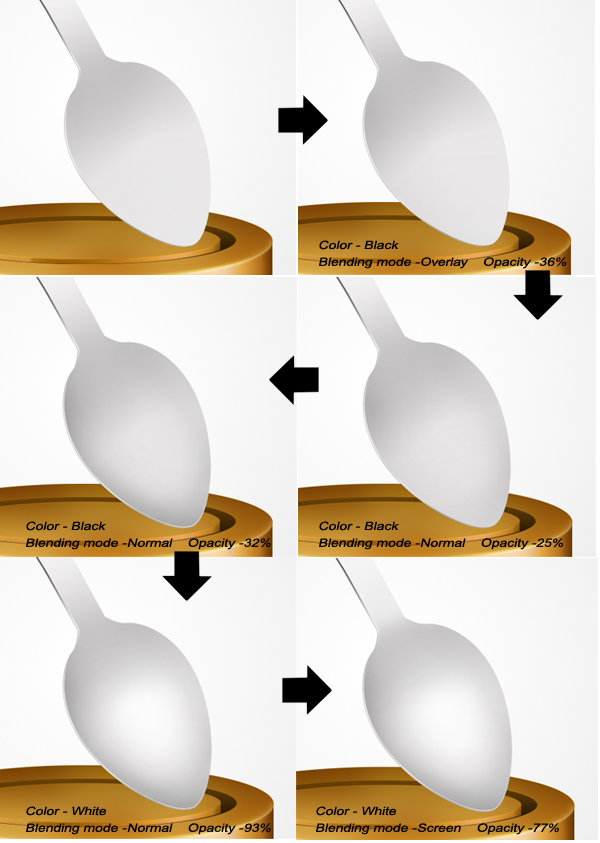
Cmd/Ctrl + click on the layer thumbnail of ‘Spoon F’. Take a feathered Brush, use black and white color. See next image. Create new layers for each highlight or shadow, follow layer blending modes also.


Step 19

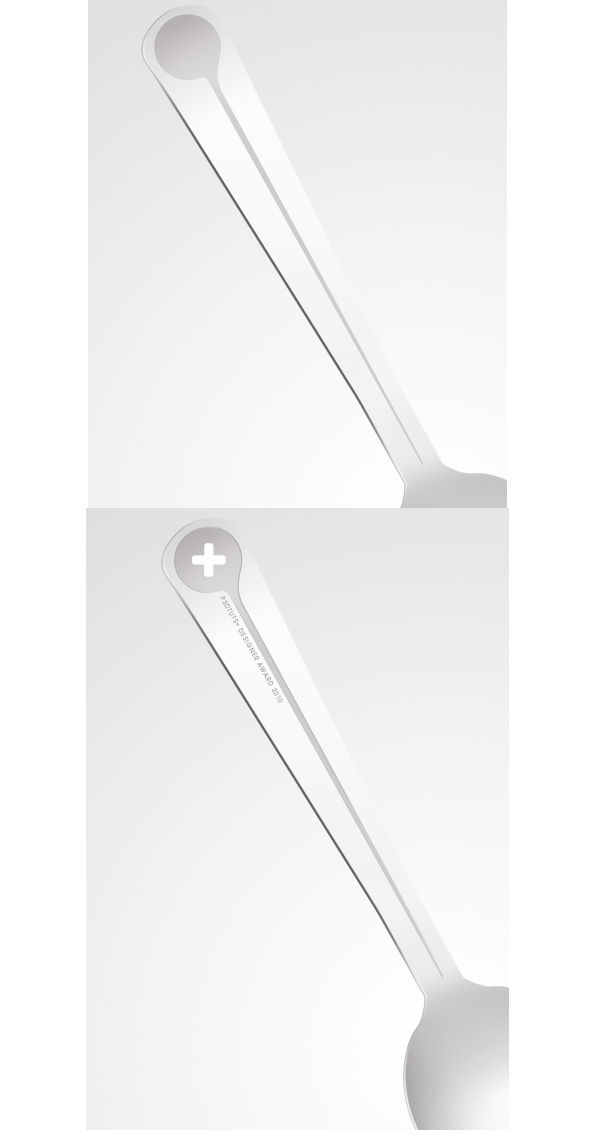
Draw the shape over the spoon handle using Pen tool. Add 1px Black colored stroke on it and place the ‘Plus’ sign and text on it.


Step 20

Use the pen tool to create the spoon’s holder. Do this by repeating the steps above. Add Spoon and Holder’s reflection on ‘Up’, also add the shadow of the main object using previous techniques.


Final Image

Franci’s FITC San Francisco Diary: Day Three

Last but not least, the third day of FITC San Francisco was marked by great speakers like Grant Skinner, Lee Brimelow and Yugo Nakamura.

In this diary I’ll try and get you up to date on what’s going on in some of the more interesting projects involving the Flash platform and even some insight into other technologies that might change the way we do our business.

fitc

ADHD FTW, LOL
Grant Skinner

Don’t like ads? Download the screencast, or subscribe to Activetuts+ screencasts via iTunes!

This presentation was all about experimentation, discoveries through errors and combining Flash with different inputs like sounds and accelerometers on mobile devices. Creative use of these new inputs and technologies is what it seems could be the new frontier for creative Flash development.

While experiments can keep things fresh and keep you up to date it’s important to keep in mind the possible commercial applications for them and maybe even more important to share those experiments since you never know what use potential clients might see in them. Also, since you never know where this kind of work could end up, you should try to keep your experiments organized. Even though the nature of experimentation itself usually goes against this, it’s good to have some plan of action so not to stray too far away from what you’re passionate about creating and at the same time keep things organized and useful for future projects.

One such example of a great but basic tool Grant mentioned was Perfectr, an AIR application whose purpose is to overlay an image of the design over a CSS styled site and compare the differences between the two (a great way for a developer to check if his coding fits the design perfectly). He hasn’t released it to the public, but it’s an example of the kind of a great tool one can build on a journey of experimentation.


What Can You Do with Unity 3D
Bartek Drozdz

I’m sure everyone working with or trying to get into realtime 3D development for the web and desktop has heard of Unity3D. It’s a multi platform development tool that excels at ease of use and gives you a lot of bang for you buck, especially if you’re ok with using the basic and free version of the software. This presentation was all about how easy it is to get into developing environments and interactions with Unity3D. Especially interesting was the fact that the coding for the interactivity within Unity3D applications can be done with C# which is quite easy to catch up with for an experienced AS3 programmer.

For its price tag( free) and range of tools for modeling and texturing objects, the software of choice to create environments for Unity3D is Blender. The FPS (First Person Shooter) game that Bartek presented, and created from scratch as a learning project however, was modeled in Cinema4D.

Don’t like ads? Download the screencast, or subscribe to Activetuts+ screencasts via iTunes!

Don’t like ads? Download the screencast, or subscribe to Activetuts+ screencasts via iTunes!


My Head Hurts
Lee Brimelow

We’ve all been subjected to some stress regarding the false debate of HTML5 vs Flash. There is no HTML5 vs Flash. There is Flash and there is HTML5. They will and do coexist and will each provide us with what they do best.

Personally, I love to learn new technologies that will help me express myself better and provide better value for my clients, as well as help them reach wider audiences, but the roles of these two in the future of web are different and both bring something unique to the table. Lee has made it his mission for this session to present the rational arguments behind the debate and bring some sense into this issue.

The main disruption in the web community was caused by Apple’s reasoning behind not including Flash into its iOS devices. The argument that HTML5 is as capable of delivering rich media as Flash is just false. The current state of HTML5 is far from being capable of delivering standardized rich interactive experiences and even the demos presented to discredit this claims do little to prove that point. Obviously, the Flash/iOS situation has since changed, but the discussion still rages on.

Having said that you should by no means ignore HTML5, it’s an awesome advance in HTML web standard and will allow us to do a lot of things that developers have been using Flash and other technologies to do.

One of the major points of Lee’s presentation was that you should try to educate your clients on the HTML5 and Flash debate to avoid issues and difficulties that may arise out of not understanding the complexity of the issue.

Lee also focused on the fact that you should really start developing sites specially for mobile browsers. Sure you can view any HTML page on smart phones and zoom in but it’s far more user friendly to have websites redirect to mobile version of the site with UI elements designed for easier browsing on smaller displays.

Uses of Flash on mobile:

  • Viewing existing content
  • Games
  • Advanced video

You Talkin’ to Me?
Didier Brun

Didier is a Flash programmer and has been working on projects like Mouse Gesture, Liquid Components, and recently Voice Gesture which this presentation was all about. It’s a library that takes advantage of the new ability to access microphone data with 10.1 Flash player. It recognizes voice patterns and tries to match them with a prerecorded sound data. The project is still in development but the results are quite impressive. While it currently only works well if the voice is recorded by the same person using the Voice Gesture to find a match, the success rate is over 95%.

The library is not yet available to the public but should be soon. Check out this video demonstration of the library in action.