
Category: Tutorials
Tutorials,freelance,projects,joomla,php,mysql,wordpress,blancer.com
Recommended Reading: Your AirPods are going to die
Everyone's AirPods will die. We've got the trick to replacing them.
Geoffrey A. Fowler,
The Washington Post

If you hopped on the AirPod bandwagon early, your earbuds are likely near the end of their life. The Washington Post details what happens w…
Hitting the Books: Nero, fiddling from orbit as Earth burns

The Morning After: Visa and Mastercard leave Facebook’s Libra Association

Welcome to your weekend! We've got a new Engadget Podcast episode for you to enjoy, as well as some bad news about Facebook's Libra cryptocurrency. News highlights from earlier in the week include the PS5's name…
Readers have spoken, and apparently people really like the Galaxy S10+

How to Make Great Business Proposals With Microsoft Word Templates (Docs)
If you’re going to create a stellar business proposal, one of the easiest ways to get started is with a premium business proposal template. The best templates have everything you need, and a polished design, too.

No matter what business you’re in, you need to present your business to others with a view to attracting partners, sponsors, or even buyers. That’s why the business proposal is a key tool, and it needs to be professional to make your business look its best. One of the easiest ways to do this is to use a professional business proposal template.
In this tutorial, you’ll learn how to create project proposals using templates for Word. You’ll also learn where to find some of the best business proposal templates found on Envato Elements and GraphicRiver.
Best Microsoft Word Business Proposal Templates (with Unlimited Use)
A business proposal introduces your business, products, and services to potential clients, partners and investors. It’s likely to include:
- a description of your company
- evidence of your success via reviews and testimonials
- details of the business venture you’re proposing
- a place where people can sign
Using a business proposal template in Word makes sense. For a start, using any template saves time and effort when creating a business proposal. That’s always a plus for a busy business owner. With a Microsoft Word proposal template, quickly get information about your business ready to present to investors, shareholders, and partners.

Using well-known software like Microsoft Word shortens the learning curve because you don’t have to use any complicated apps. Creating a proposal template in Word also helps business owners who aren’t confident in their design skills. Instead of trying to master complex page layouts, simply focus on getting the content of your business proposal exactly right.
If you’re ready to find a professional business proposal template Word doc, Envato Elements has an offer you won’t want to miss: download as many project proposal template Word docs as you want for one low price.
Or, if you want a single template for one-off use, you can also find proposal templates for Word on GraphicRiver.
What You Need to Customize Your Business Proposal Template
Business proposals contain a lot of text, but you can also include images that make your business look its best. To customize your business proposal template in Word, you’ll need:
- A company logo, to brand your business proposal document
- A cover image that relates to and showcases your business or the proposal content
- Photos or graphics to illustrate key moments or important data
- Text (the bit that tells the people who are reading your proposal what they want to know).
The text part of your business proposal will include:
- A company description
- Testimonials, cases studies or portfolio items
- The actual proposal, including a description, timelines and deadlines
- Financial information
- Terms and conditions for the deal
- Space for people to sign
It’s a good idea to do some research on the people who will read your proposal to make sure it’s tailored to meet their needs.
If you’re still wondering “how do you write a proposal?” check out our guide to How to Make a Better Business Proposal. Next, we’ll get started on how to create a proposal in Word.
How to Customize a Microsoft Word Business Proposal Template
When you’ve got your content ready, it’s time to get started with creating your business proposal. Word has built-in templates for many needs. But you’ll get much more choice if you check out the Microsoft Word business proposal templates on Envato Elements. (You can also find well-designed business proposal templates on GraphicRiver.)
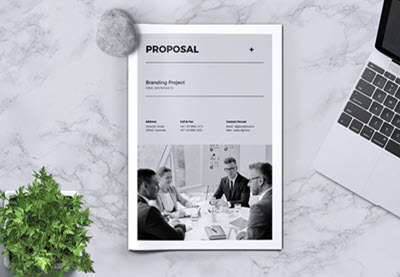
Here’s how to create a business proposal using a Microsoft Word proposal template. We’ll be using the clean, modern project Proposal template pictured below. It includes 32 different page layouts, so you can easily customize your business proposals.

Here’s how you find the perfect project proposal template for Word on Envato Elements:
1. Download a Business Proposal Template Word Doc
Go to the website. Choose Graphic Templates to the right of the search box to limit your search to templates. Type “business proposal templates” into the search box.

Use the on-screen filters to select templates suitable for print, as you’ll likely want to print actual copies of your proposal. This will ensure you get templates that look their best when printed.
Click on any templates you like the look of to see a preview and get details of what’s included. Keep going till you find a Word project proposal template that meets your needs.
2. Download & Unzip the Business Proposal Template
If you already have an Envato Elements account, add your chosen business proposal template to a project. Then click Add & Download. This will download the zip file to your computer. Click on the downloaded file to unzip it.
3. Explore the Proposal Template Folder

Next, check out what’s inside the folder. This template folder includes Windows and Mac versions of the Word project proposal templates. It also has as versions for the InDesign and Pages apps.
We’ll use the US Letter template for this tutorial. Click on US Letter, then click on MS Word. You’ll find two versions of the templates.
The DOCX version works with Word 2007 and later. If you’re using an older version of Word, use the DOC template instead.

We’ll use the DOCX version. Click on the DOCX folder to access the Proposal-US template, then you’re ready for the next step.

4. Import the Template into Microsoft Word
Double-click on your chosen Word proposal template. It should open automatically in Microsoft Word. Save this with a new name so you’ve got the option to use the template to create new business proposals at any time.
If the template doesn’t look as you expect, close the document. Go to the included ReadMe file, which has a download link for the font used in the proposal template, which is Source Sans Pro. Download the font, and click on the folder to unzip it. There are several versions of the font.
Click on one of them (the Regular is a good bet) to get the option to install it. Click Install to add it to your computer’s fonts.

Repeat this step until you’ve installed all necessary versions of the font to your computer. Then reopen the template as described above.
5. Explore the Business Proposal Template Word Doc
Next, take a look at your new Word document. It’s helpful to familiarize yourself with it so you know where to add text, images, and any other content.

This template has 32 pages, including areas to:
- Summarize your business
- Share contact details
- Outline your proposal
- Highlight key team members
- Describe your business in detail
- Showcase your achievements
6. Add a Cover Image
The first step is to add an image that represents your business as a cover image.
To do this, right click on the grey placeholder image box. Then select Change Picture – From a File. Next add your cover image picture by uploading it from your computer. It’ll automatically resize to fit the image placeholder box.

If you need to find suitable images, check out the images available on Envato Market or Envato Elements. I used this image for this tutorial.
7. Replace Placeholder Images
Go through the whole document and use the method described above to replace other placeholder images. This is a good time to add your company logo, anywhere you want it to show up. We’re using the abstract image below as a company logo.

8. Remove Unwanted Image Placeholders
Not every page needs multiple images, so sometimes, you’ll want to remove unwanted placeholders for a cleaner, fresher look. For example, we added the logo on the page below, but there’s an extra image placeholder we don’t need.
Here’s how you remove that. Click on the image placeholder so the handles show, then use the Delete key on your keyboard to remove it.

The page looks much better once that’s gone.

Follow the same process to remove other unwanted image placeholders.
9. Replace Placeholder Text
Now, it’s time to get down to the nitty-gritty and make all the information you’ve collected into a polished business proposal in Word. To do that, you’ll need to replace the placeholder text included in the template.
A good place to start is with the easy items, like your:
- company name
- company address
- website and phone number
- dates
Then you can move on to other parts of the proposal.
There are a couple of ways to replace text in Word. First, place your mouse cursor inside a text box. Select the text you want to replace. Then type in your new text.

Or, press Ctrl + A on a PC to select all the text in a text box, delete it, and type from scratch. Here’s how that looks:

Follow this simple process to replace placeholder text throughout the Microsoft Word business proposal doc.

10. Tweak the Proposal Design
While you add text and images to the design, it’s important to make sure they look their best. So sometimes, you may need to make small adjustments to the design. For example, you can adjust the size of images like this.
Click on the image to bring up the image box handles.

Grab a handle to resize the image. You can also click in the middle of the box to move the resized image to a new place.

It’s also essential to make sure that text is easy to read. Reposition text boxes using the process described for images above. You can also highlight text and described earlier and change the size or color to make it more legible.
To change the size of the text, highlight it, and use the font size selector in the Word menu bar to pick a new size.

You can also use the text color selector in the Word menu bar to change the color so the text is easy to read.

11. Proofread Your Business Proposal
When you’re happy with your business proposal, use Word’s spelling and grammar checking tools as a first step to checking errors. Proofread the business proposal before printing it. Then send it to your intended partners, investors or sponsors. It’s important to avoid grammatical and spelling errors that make your business less professional.

It’s also essential to make sure any facts and figures presented are accurate and haven’t been altered by a typographical error. Consider hiring a proofreading service if you’re not confident about your proofreading skills.
Discover More Great Business Proposal Templates
With the right business proposal templates for Word, you can make your business shine to attract the partners, sponsors or investors you need. As well the templates on Envato Elements, you can also find proposal templates for Word on GraphicRiver. Here are some business proposal template roundups to get you started:
 Templates20 MS Word Business Proposal Templates to Make Deals in 2019Brenda Barron
 Inspiration25 Top Graphic Design (Branding) Project Proposal Templates (2019)Laura Spencer
 Proposals25 Professional Business Project Proposal Templates for 2019Laura Spencer
Choose Your Next Business Proposal Template Word Doc
As you’ve seen, choosing and customizing a Word business proposal template is simple. With only a few tweaks, you can create a winning proposal and get it into the hands of potential investors and partners. Get started today. Select Microsoft Word proposal templates on Envato Elements or GraphicRiver.

{excerpt}
Read More
20 Best Sales PowerPoint Templates for 2019
Are you in sales? Does your boss want a sales presentation, but you don’t have time to make one?
Premium sales PowerPoint templates enable you to create a professional presentation in no time. Simply add your information to the sales presentation template. You’ll have a professional and stylish PowerPoint that’s sure to impress your boss.

Envato Elements has hundreds of premium Sales PowerPoint templates available for a low cost. You’ll have unlimited access to hundreds of premium templates. Or, you can find sales presentation examples on GraphicRiver.
The Best Source for Sales PowerPoint Templates (With Unlimited Use)
Envato Elements is the perfect place to find winning sales PowerPoint templates. For a low monthly fee, unlock unlimited downloads of simple PowerPoint themes, photos, videos, fonts, and other resources to use in your next project.

Elements is truly one of the best values out there for salespeople today. And with the unlimited downloads, you’ve got the freedom to try out a variety of options as you build your new sales PowerPoint presentation.

While you may be tempted by simple PPT templates you find online for free, typically free templates are less robust than premium, professionally designed templates.
With Envato Elements simple, elegant PowerPoint templates you’ll find key items such as:
- bold text and title slides to capture audience attention
- rich image placeholders to show off photos and videos
- simple charts to illustrate data
- customizable layouts to make every theme your own
Great Sales PowerPoint Presentation Template
Here’s a list of hand-picked premium sales presentation templates:
1. Property Marketing Sales Presentation

The Property Marketing Sales PowerPoint Presentation is great if you’re in the property rental or real estate business. You can easily add the property that you’re trying to sell to this sales presentation. There are seven different color schemes to choose from. This enables you to customize your presentation.
The Property Marketing Sales Presentation package comes with a total of 350 slides. With this many slides you’ll have room for more than one property in the presentation if needed. This template also comes with over 1,000 icons to help you illustrate what you’re trying to say.
2. Sales PowerPoint

Sales PowerPoint is a presentation template designed with a sales presentation structure in mind. This template comes with charts and a pricing table. Use this template for any type of sales that you do. Sales PowerPoint can be easily edited whether you need to change the color of the presentation or the font. Quickly edit the presentation to fit your sales presentation needs.
3. Sales Pitch PowerPoint Template

Sales Pitch PowerPoint Template has professional and modern design. This template comes with 20 master slides that allow you to choose how you want your presentation laid out. The Sales Pitch PowerPoint Template includes charts, diagrams and other data visualization tools.
This lets you present data in an easy to understand way. Easily add any image you’d like to the presentation by dragging and dropping it onto the image placeholder. This template is a multipurpose sales template that’ll showcase your sales presentation skills. The Sales Pitch PowerPoint template can only be used in Microsoft PowerPoint.
4. Sella PowerPoint Template

Sella PowerPoint Template has over 60 unique slides. Having this many slides enables you to make your presentation as big or small as you need. Drag and drop the image into the image placeholder to easily add any image of your choice to this presentation template.
There are two different versions of this presentation: a bright version and dark version. This template includes nice features such as a product showcase slide, product benefits slide, and editable maps. Fully editable maps are great for products in other countries. The Sella PowerPoint Template comes with over 200 icons to help you illustrate your ideas.
5. MOUVE – Elegant PowerPoint Template

MOUVE Elegant PowerPoint Template is an elegant, modern and professional sales PowerPoint template. This template comes with over 50 distinctive slides that give you room to add as much information to your presentation that you require. Easily add an image of your choice to the presentation by dragging and dropping the image into the image placeholder.
The MOUVE Elegant PowerPoint Template comes with hundreds of editable icons. Icons can be used to break up text or to further illustrate a point. This template is great for anyone looking for a nice modern sales presentation.
Envato Elements (Design Without Limits)
Envato Elements has a single compelling (all inclusive) offer:
Sign up for Envato Elements and you get access to thousands of graphics and templates (with unlimited use). Get great web themes, professional sales presentation templates, and more—all for one low price.

That’s right! Download as many professional sales presentation templates and graphics as you want, then customize them to fit any of your project needs.
Envato Elements is a powerful option. But if you prefer to buy unique PowerPoint templates one at a time (instead of getting unlimited access to hundreds of creative designs), check out the selection from our GraphicRiver marketplace below.
More Great Sales PowerPoint Templates
On the GraphicRiver marketplace we’ve got thousands of the best Sales PowerPoint templates, with stylish new designs being added weekly. They’re created for a variety of professional presentations needs—especially for those that need high-quality, visually striking designs.

Here’s a curated list of premium sales templates:
1. Sales Deck PowerPoint Template

The Sales Deck PowerPoint Template has over 100 unique slides that you can use in your presentation. This template’s great for someone who needs a lot of options. The Sales Deck PowerPoint Template also has over 41 color schemes to choose from. Color schemes are great to match your product or your company.
Drag and drop an image onto the image placeholder to easily add any image of your choice. This template comes with icons, maps, charts, and mockups. These tools will make your presentation easy to understand and interesting.
2. Sales Report PowerPoint Template

The Sales Report PowerPoint Template is multipurpose template that can be used for sales or for a variety of purposes. This template comes with 25,000 total slides and 323 unique slides. The Sales Report PowerPoint Template is great if you’re selling more than one product or presenting multiple product reports.
The sales presentation also comes with fully editable maps, icons, and mock-ups. Maps are great if your business or product is available in multiple countries. Icons are excellent to use to break up text or further illustrate a topic. Mockups are perfect for showing what your product or product website looks like on multiple devices.
3. Sales PowerPoint Presentation Template

The Sales PowerPoint Presentation Template has over 230 slides. This template comes with over ten color schemes to choose from. The Sales PowerPoint Presentation Template comes with charts, icons and info graphics. Info graphics help you to make your presentation more interesting and break up text. This template comes with both a light and dark version of the presentation. The Sales PowerPoint Presentation Template comes with ten color schemes to choose from. This template can be used for sales or any business purpose.
4. Sales Dashboard PowerPoint Template

The Sales Dashboard PowerPoint Template has over 25 unique slides, giving you lots of room for a big presentation. This template comes with 20 different color schemes. Also included is a light and dark version to choose from. Match color schemes to the product you’re selling, your company colors, or whatever you think suits the presentation.
Sales Dashboard PowerPoint Template comes with icons that can be used to further illustrate a point that you’re trying to make. This template also comes with handmade infographics. Easily add an image of your choice by dragging and dropping the image into the image placeholder.
5. Sales Methods

The Sales Methods presentation is great if your company is trying to come up with sales presentation structure or sales presentation ideas. A presentation to show illustrating your sales ideas will get everyone on the same page so that you can move to the next step.
Sales Methods comes with free icons to help you illustrate what you’re trying to present. Easily add an image of your choice by dragging and dropping the image into an image placeholder. This feature is nice if you’ve got a lot of pictures to add to your presentation.
6. Vale Creative Presentation

The Vale Creative Presentation is great for someone who is looking for sales presentation ideas. This template is also great for a creative sales presentation. Vale Creative Presentation has a colorful modern professional design.
If you’ve got a creative product or if you’re a creative individual, then this is the template for you. This template comes with over 300 slides. Easily add an image of your choice by dragging and dropping the image of your choice into the image placeholder. Quickly change the color of this template to suit your needs. Vale Creative Presentation comes with charts, graphs and over 1000 icons.
7. Smooth PowerPoint

Smooth PowerPoint has over 152 unique slides. This presentation template has a nice sleek design that’s great for many purposes. Smooth PowerPoint comes with unique infographics and over 500 icons. Adding icons is a great way to add more of a visual element to your presentation.
This template comes with graphs and charts so that you can present your data in a graphical way. If you’ve got a product in more than one country or your company is in more than one country know that this template comes with world maps. The maps will help people see which countries you’re discussing.
8. Outcome PowerPoint

Outcome PowerPoint is a multipurpose sales PowerPoint package. This template has over 197 unique slides with a fresh and professional design. Outcome PowerPoint comes with charts, graphs, info graphics, icons, and maps. These visual elements are great features to make your PowerPoint more interesting for the audience. This template comes with ten premade color schemes. So, choose the color that you want or the color scheme that matches your company. Easily add an image of your choice by dragging and dropping the image into the image placeholder.
9. Urban Blues Sales Presentation PowerPoint

Urban Blues is a sales PowerPoint presentation template with 25 unique slides. This template has a simple but professional design. The Urban Blues template can be fully edited from the font to the pictures. Easily change the background color into any color that you want or need. Easily add an image of your choice by dragging and dropping the image into the image placeholder. Customize the image placeholder by changing the shape or size.
10. Insight: a Good Sales Presentation Example

Insight is a sales PowerPoint presentation template with a minimalistic and professional design. This template comes with 25 unique slides. Easily edit the template to suit your needs. Change the color scheme to any colors that you’d like. Quickly add an image of your choice by dragging and dropping the image into the image placeholder.
11. Be Green – Eco PowerPoint Template

Be Green – Eco PowerPoint Template is a perfect template for anyone whose company or product is eco-friendly. This multipurpose template has a nice plant-based design. Although designed for an ecology presentation, it also works well for a sales presentation. Be Green- Eco PowerPoint Template has over 210 total slides and over 75 unique slides. With the number of slides in this template you could showcase more than one product in your presentation.
12. Accentuate Sales PowerPoint Presentation

Accentuate Sales PowerPoint Presentation comes with over 1,200 slides. Every slide can be easily edited to suit your needs. This template comes with seven color scheme options. The Accentuate Sales PowerPoint Presentation comes with a light and dark version and custom animation. This template includes slides such as market share comparison, growth projection, and sales strategy slides. Easily add an image of your choice by dragging and dropping the image into the image placeholder.
13. Annual Sales Report

Annual Sales Report is a creative and simple presentation template. This template has over 100 unique slides for you to use in your presentation. Every slide can be easily edited to fit your customization needs. Annual Sales Report comes with fully editable maps to showcase your product sales in other countries. This template also comes with product mockups so that you can demonstrate what your design looks like on other devices such as a tablet or smartphone.
14. Mark Sale PowerPoint Presentation

The Mark Sale PowerPoint Presentation template has a professional sales design. With this template you’ll impress others with your sales presentation skills. This template comes with 100 unique slides and 1,000 total slides. With this many slides you’ll have plenty of room for all your important information. Mark Sale PowerPoint Presentation comes with charts, maps, and icons. All charts, maps and icons are fully editable.
15. Sales Methods Flat

Sales Methods Flat is perfect if you’ve got a huge sale on your companies’ products. With this template, you can come up with your sales presentation ideas and sales presentation outlines. This template comes with a total of eight slides. Sales Methods Flat comes with a chart and icons to help your audience visualize the data in your presentation.
How to Make Great Sales Presentations Quickly With Templates

We’re going to customize the first slide. Here’s what Slide 1 looks like with no edits.

Now, let’s look at some quick and easy ways to customize this template.
1. Change Text Color
Let’s start by changing the color of the text. I’m going to change the color of the word “Fire” from red to orange. To start, highlight the word that you want to change the color of.

Next, click the arrow next to the Font Color icon. A drop-down menu will appear. Select the color that you want for the font. You’ve just successfully changed the font color.
2. Delete an Object
Another way to customize your presentation template is to delete objects you don’t want. Easily delete an unwanted object. I’ll be deleting the bar next to the text on slide one.

To delete an object, click on the unwanted object. You’ll know you’ve selected the right object when handles appear around the unwanted object. After the handles have appeared, hit the Delete button on your keyboard. The unwanted object should be gone now.
3. Add a New Text Box
To add more text to a slide than the text boxes that the template comes with, easily add a new text box.

To add a new text box, click the Text Box button. Once you’ve clicked this button, draw a new box where you want to add the new text. Repeat this step to add as many text boxes as you need.
Learn More About Using Microsoft PowerPoint
Do you still want to learn more about how to use Microsoft PowerPoint? Maybe you still have questions on what to do? Check out our complete tutorial guide. Or study the tutorials below:
 Microsoft PowerPoint25+ Professional PowerPoint Templates: For Better Business PPT PresentationsSean Hodge
 Microsoft PowerPoint29+ Best PowerPoint PPT Template Designs (For 2019 Presentations)Sean Hodge
 Small Business10 Unique & Interesting Presentation Topics for Business in 2019 + PowerPoint TemplatesSarah Joy
Download a Sales Presentation Template Today!
You’ve just seen some premium sales PowerPoint examples from Envato Elements and GraphicRiver. You saw how easy it is to customize your sales presentation template. Download a premium template to save time. Create your professionally designed sales presentation today.

{excerpt}
Read More
An Introduction to Adobe Fresco and How It Compares to Procreate
Has Procreate met its match? Fresco, Adobe’s new drawing program for iPad, is here—how does it compare to Procreate or Photoshop? Is it a worthwhile competitor, or something you should pass up? Here’s an overview, first impressions, and some comparisons for your consideration.
I’m an artist—art, design, game development and content creation are what I do professionally. I spend a lot of time in Adobe Photoshop, but I also really enjoy Procreate.
That said, I was pretty excited to get my hands on Fresco. When it comes to my iPad, Procreate is a really wonderful, enjoyable application. The price is right, and it’s very user friendly. So how does Adobe Fresco hold up, at launch?
1. A Tour of Adobe Fresco
First Impressions
My first impression of Adobe Fresco was generally optimistic. I really enjoy many of the “out the box” brushes. I spent some time just casually sketching, and it did feel really natural and comfortable.
I wanted Fresco to be an awesome application that I fell in love with.
So… how did my first date with Fresco go? Let’s take a look at the tools themselves. You can find the tools, by default, on the left-hand side of the visible work area.

Pixel Brushes
Pixel Brushes are your standard raster brushes, very much like those in Photoshop. I do a lot of drawing in Photoshop, so I was really excited at the prospect of having all of my usual Photoshop brushes on my iPad.
Below, I’ve tested out one of the ink brushes, and I’ve doodled an apple with some of the sketch brushes.

Importing Brushes
Your imported brushes are listed as “Library Brushes” at the bottom of your available Pixel Brushes. Doesn’t seem like there’s any sorting or reordering things, at this time.
I can’t remove any brushes I’ve imported within the app either—and it seems like I’m not the only one out there having that issue. That’s a bummer, but not a deal breaker.

Lovely, Right Out the Box
The Pixel Brushes that come with Fresco, however, are lovely. They have beautiful textures, and the sensitivity felt on point, without any adjustments—I didn’t have to tweak anything there to create really beautiful lines and textures. The Cezanne and Impressionist brushes were particularly fun and full of personality.

Live Brushes
Fresco also has Live Brushes—and they’re really cool. I had a lot of fun trying out the watercolor brushes, in particular. The way the colors bleed and run into each other really feels as if you’re working with paint.
This isn’t the way I usually draw, digitally, but it was a lot of fun to play with. I’d say that this, right here, is probably one of Fresco’s coolest features. You’ve got Watercolor and Oil brushes, 11 brushes total.

Vector Brushes
The Vector Brushes are rather nice too! It’s really simple to just dig in and create some really lovely, clean, vector lines. There are five different brushes to choose from, which did feel a little odd to me. Still, the five here are pretty versatile.
However, there’s no editing these vector lines with something like anchor points. Not a deal breaker, but it’s something that would have been nice.

The Eraser
The Eraser surprised me, because I expected to have the same Brush Options as the other brush tools. You can “Erase with Brush”, but I found this to be confusing—you don’t use the Eraser to erase like this.
For example, if I want to erase with a soft round brush, I have to, instead, go to the Pixel Brush Tool, select my soft round brush, and then tap and hold the Touch Shortcut while drawing—a circle on the screen that can be used to alter how some tools behave.
The line on the left is drawn with the Eraser tool, while the line on the right is drawn with the Pixel Brush Tool, using the Touch Shortcut.

The Other Tools
You can use the Move Tool to move your work, as well as flip content horizontally or vertically.
The Selection Tools are used to select a specific area. Simply tap and drag—this was quite straightforward and easy to use.
Then, you have a Paint Bucket Tool. Tap to add a fill color—the color currently active.
The Eyedropper is used to select color, but I found myself rarely using it. Instead, tap and hold on a color in your document to “pick up the color”. This is a standard action that will be familiar to those who have used Procreate.
There is also the ability to Import content, right from the tools.
One note there, however. I did really like that you can directly open your camera from Fresco, and then import. As a teacher, you could potentially photograph content, import, and directly draw on top of it, for example. That’s pretty cool.

Sharing Your Creations
Adobe Fresco has pretty straightforward export options. We can publish and export to a variety of formats, including PSD, PNG, JPG, and PDF. We can also export a time-lapse process video, which is genuinely fun to watch.
Fresco also allows the user to export as a Behance project, and there’s a Quick Export, which allows you to export a snapshot of your work. I found myself thinking it was kind of like a screenshot tool.

The Price Tag
I have a paid Creative Cloud plan already—I use Photoshop, InDesign, Dreamweaver, After Effects, and many other members of the Creative Cloud family on the regular. If you’re in the same boat as I am, it means you can download the fully featured version of Adobe Fresco without any additional fee. That’s appreciated.
However, if you don’t, Adobe Fresco’s price tag is $9.99 a month—after the first six months, which act as an initial, free trial.
If you don’t want to pay the subscription fee, Adobe Fresco is still available to use, but it’s generally a freemium app with limited features. For example, you’ll only be able to export flattened, low-res imagery, and not all brushes will be available.

2. Adobe Fresco vs. Photoshop
A Replacement? A Companion? Something Else?
In a dream world, I would love to see a completely mobile version of Photoshop—the same functionality as Photoshop, but I can take it with me on my iPad. Fresco has potential, and the Live Brushes are quite fun to experiment with, but that’s not what Fresco is.
I think it’s important to note how Adobe describes Fresco:
Adobe Fresco brings together the world’s largest brush collection with revolutionary new technology to deliver a natural painting and drawing experience
That said, I found myself enjoying Fresco the most when I viewed it as an attempt to simulate real media—not as a Procreate competitor or as a companion/partner to Photoshop.

The Limitations
There are obvious limitations here, with Fresco—Photoshop is more than exclusively an illustration tool. We have a full range of tools for photo manipulation, adjustments, and more.
But as an illustration tool, Fresco isn’t as powerful as Photoshop. I expected that, honestly. However, the Brush Settings in Fresco have less than half of the Brush Settings available in Photoshop.

Importing Photoshop Brushes
This was one of the features I was most excited about: importing and using my Photoshop brushes in a mobile application. It sounds too good to be true!
It works, although it wasn’t without hiccups. Fresco has an Import from File feature, but I couldn’t get my brushes loaded up this way.
Instead, go to the brush file itself and choose Open In, then Fresco—so, if you have similar trouble, give this alternate method a try!

Photoshop Brush Settings
The Photoshop brush itself worked, once I had it imported. I had to go back in and tweak what settings are available in Fresco accordingly—like the Transfer and the Shape Dynamics. The Brush Settings are located at the bottom of the Tools panel.
You can test the brush out, in the preview above these settings—a setting that will be familiar for Procreate users, too.

The Compatibility
One of the appealing things about Fresco, for me, was the ability to easily jump back and forth from Photoshop to Fresco and back to Photoshop.
This is possible because you can save and export as a PSD in both programs. Fresco essentially saves your work as a cloud document, which you can then open up in Photoshop.
However, I need to note that this is also achievable with most cloud services—I regularly jump from Procreate to Photoshop and back this way.

3. Adobe Fresco vs. Procreate
The Functionality
Ultimately, Procreate and Adobe Fresco both do a lot of the same things. However, that’s the big deal here—this feels particularly jarring when you look at the price difference.
Let’s look at Procreate Bushes and Adobe Fresco Brushes, as an example (specifically, Pixel Brushes).
In Procreate, I can easily duplicate brushes and customize them to my liking. I can tap and drag to rearrange them—both the brushes themselves and the sets in my brush library.
In Fresco, however, I can’t seem to duplicate any of the default brushes. I’m left customizing the original, and then reverting to the original, if I want to go to back to the vanilla version. This is a huge bummer. You can favorite brushes, but there’s no rearranging them—the categories or the brushes themselves.

Customizing Brushes
That said, check out the difference between brush customization in Fresco and in Procreate.
In Fresco, the customization options seem to vary, based on the brush. When I looked at the 14px pencil, under Sketching, I was left with Pressure and Velocity Dynamics.
In Procreate, the brush options are relatively universal from brush to brush, and they are pretty robust.

The Interface
Procreate’s UI is quite minimal, and it’s nice—it keeps the emphasis on the artwork itself.
Fresco isn’t necessarily cluttered, but I did find myself feeling rather “boxed in”, especially on the right-hand side. Procreate puts its layers here too, but I appreciate that these menus are collapsible.
I did, however, appreciate that Fresco allows you to expand the canvas and hide almost all of your tools. It feels refreshing, clean, and very welcoming to draw this way—really reminiscent of a traditional sketchbook. This feels great; just doodling with the sketch brushes on an open surface like this is a very nice experience.

Working With Color
I love that Procreate has customizable color palettes. Saving colors and color schemes is a normal part of my workflow.
In Fresco, when looking at the color picker, we have the option to save recent colors, by tapping on the plus sign in the Recent expandable menu. This works, but it doesn’t necessarily work well. I can’t rearrange any of these colors, and I can’t seem to delete them either. These recently saved colors also seem to be document specific.

Exporting Artwork
Both Adobe Fresco and Procreate can export artwork to PSD files, which is important for me, as someone who works in Photoshop a lot. I often find myself drawing in Procreate, jumping over to Photoshop, and then going back to Procreate. I could easily do the same in Fresco, but it wasn’t necessarily a process that was vastly improved.
They can both export time-lapse video, as well.
Procreate, however, can export as additional file types, such as animated GIFs, TIFF files, and animated PNGs.

The Price
Let’s be real here—price matters, and it’s probably one of the first factors on everybody’s mind, when it comes to whether or not Fresco is for them.
Fresco comes with a $9.99 monthly fee, if you don’t already have a Creative Cloud subscription. Procreate, on the other hand, costs $9.99—and it’s a one-time fee.
And that’s a pretty big difference, especially if viewing Fresco as a possible Procreate competitor.
Honestly, I can’t say it has a world of content that Procreate doesn’t have. In fact, Fresco doesn’t have all of Procreate’s features, although some of them are listed as “coming soon” (such as perspective drawing and symmetry tools).
Ultimately, this means Procreate is $9.99 USD (and a one-time fee), while Adobe Fresco is potentially $119.98 USD per year. Wow! Of course, if you’re already a Creative Cloud subscriber, it’s included. Honestly, that’s the deal maker there, for me. Adobe has promised some updates here, so only time will tell on that.

But Those Live Brushes
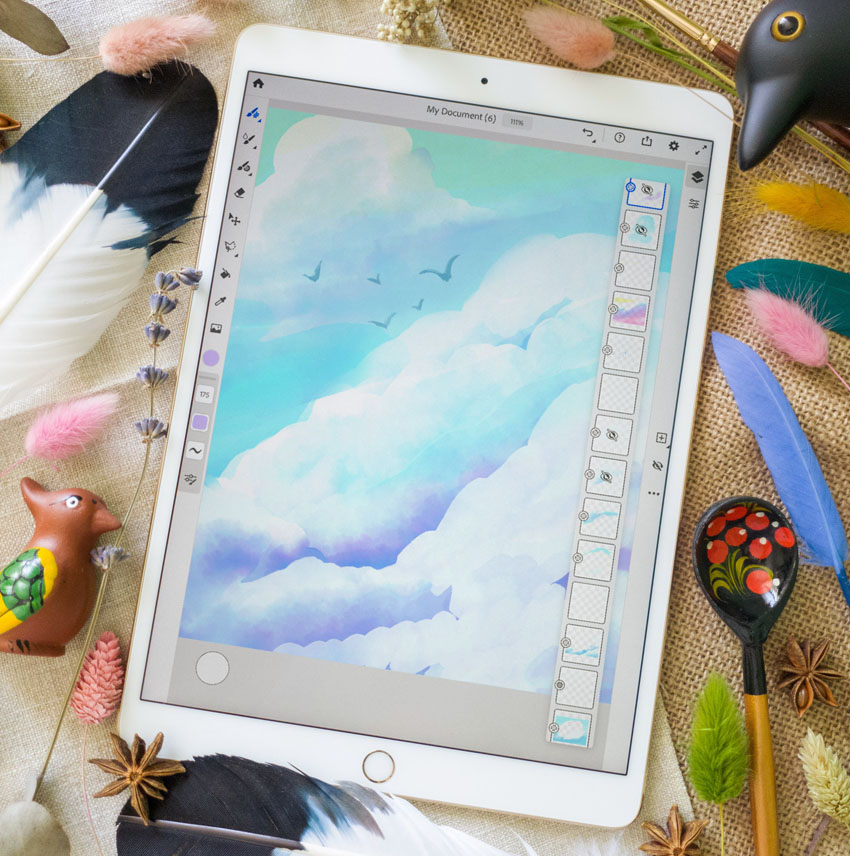
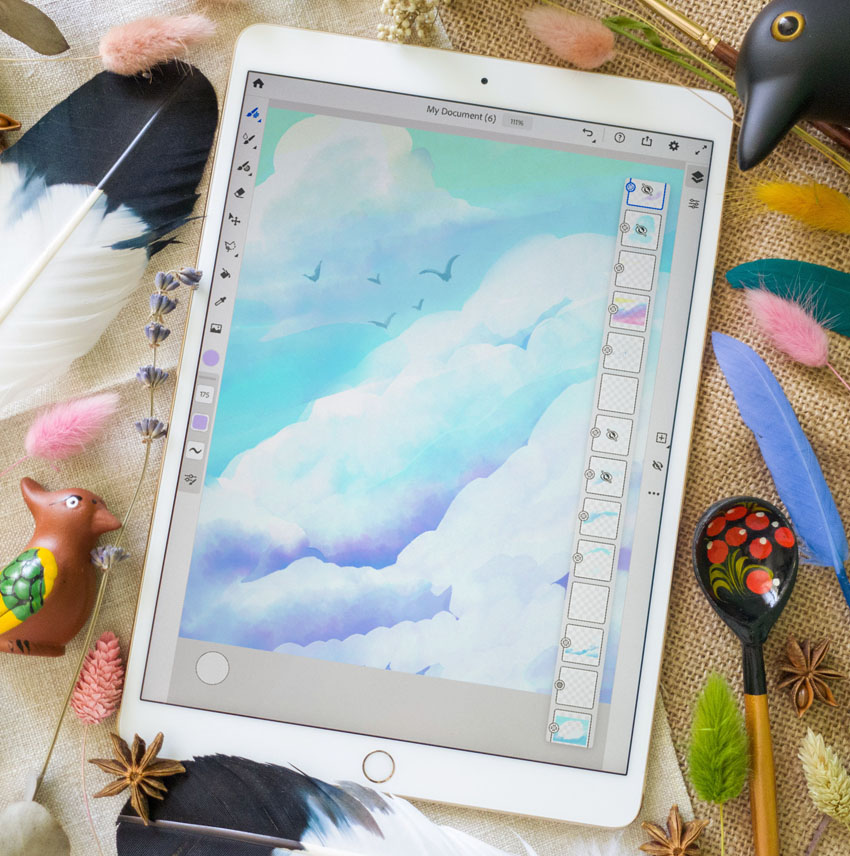
I have to admit, however—Adobe Fresco’s Live Brushes are a genuinely fun experience. Sitting back and painting fluffy clouds and just watching the paint blend and smear was pretty neat. I know I presented plenty of things about Fresco that weren’t so hot, but I’d be lying if I said I didn’t genuinely have a good time sitting back in my favorite chair and painting some clouds. It was a really organic and relaxing experience.
I drew the following, below, using the Watercolor Live Brushes. Holding down the Touch Shortcut, when using this brush, gives you “Pure Water”, instead of an eraser—it’s just really fun to push paint around and experiment with layering.
I’m really curious to see where Adobe takes this feature in the future.

Who Wins the Battle Royale?
And the Winner Is…
Adobe Fresco isn’t a fundamentally bad application. It has a lot of potential, and some of the brushes are really very enjoyable to use. At launch, it’s just not everything it could be, just yet. I really hope this changes in the future, because the potential is there. Adobe has mentioned a bunch of additional features coming soon—I just wish “soon” was sooner!
In my opinion, there just isn’t enough here to dethrone Procreate, especially when Procreate has such a universally accessible price tag. As an “extra”, included with Creative Cloud, it’s fun to experiment with—but I wouldn’t call Fresco a significant addition to my normal workflow.

The Final Verdict
At the end of the day, Procreate has become a larger and larger part of my professional life. There have been times I’ve considered completely switching to Procreate as my preferred illustration tool—it’s genuinely awesome.
Fresco feels like an application that wants to compete, but just isn’t there yet. Adobe’s promised a bunch of updates, however—so we’ll see what happens! If nothing else, I’ve got myself a new set of watercolors without the mess… and that’s pretty neat.
Thanks for exploring Adobe Fresco and Procreate with me! If you enjoyed this article, here are some others that you might enjoy, too!
 BrushesHow to Create and Customize Procreate BrushesDaisy Ein
 ProcreateHow to Use Procreate LayersDaisy Ein
 ProcreateHow to Create a Punk-Rock Portrait in ProcreateMaria Dimova
 ProcreateHow to Draw a Mystic Moon Illustration in Procreate on iPadYulia Sokolova
 ProcreateHow to Create a Summer Portrait With Ice Cream in ProcreateMaria Dimova

{excerpt}
Read More
Elizabeth Warren Facebook ad mocks Facebook’s fact checking policies

SEC puts a stop to Telegram’s cryptocurrency plans in the US

Blizzard halves ‘Hearthstone’ pro’s suspension over Hong Kong protest

Amazon cuts off three delivery companies publicly linked to deaths

Riot urges ‘League of Legends’ pros to keep quiet on ‘sensitive’ issues

eBay, Visa and Mastercard pull out of Facebook’s Libra cryptocurrency

Google, Reddit execs to speak at House hearing on internet moderation
