Erica Synths' SYNTRX is an undeniably interesting instrument. But one of the most unique things about it is definitely the patching matrix. It's a digital reimagining of the pin-based patching system found on classic the classic EMS Synthi. People were apparently so enamored with the matrix that the company is now offering it as a standalone product called the Matrix Mixer.
As you'd expect the Matrix Mixer is, a mixer. It has 16 3.5mm ins and 16 3.5mm outs along the X and Y axes which you can use to combine either audio or control voltage signals. The actual interface for combining them is the same as the SYNTRX: a 16×16 grid of LEDs that you navigate using a pair of knobs just like you were drawing on an Etch A Sketch. Pressing down on the encoders enables a connection, and then you can cycle through different levels of attenuation, from 100-, to 70- and then 30-percent.
This makes it quick and easy to connect a bunch of different modules and synths without a rats nest of cables. You can even connect multiple sources or destination to the same patch point without special stacking cables.
Before this desktop version of the Matrix Mixer, and even before the SYNTRX, Erica Synths made a Eurorack Module called the Matrix Mixer. The core idea was the same, but it had less inputs and outputs, relied on a tiny touchscreen for controls and was limited to Eurorack connections. This new version easily integrates other sources like a guitar or synthesizer using the 1/4-inch in and outs on the back. You can even patch a Buchla Music Easel in using special adapter cards.
The Matrix Mixer can even store presets, allowing you to quickly recall particular patches, though you will have to manually set all the parameters on your modules.
Erica Synths has brought one of the best features of the SYNTRX to a wider audience and expanded it flexibility. But, it doesn't come cheap. It's currently available for preorder for €490 or $599 and is expected to star shipping on July 26.
Facebook has become the latest company to offer a cloud gaming service on iOS, only once again you won't access it through the App Store. Starting today, you can visit the Facebook Gaming website to add a Progressive Web App (PWA) that acts as a shortcut to the service on your iPhone or iPad. To do so, visit the platform's website and tap the "Add to Home Screen" option from the Safari share sheet.
It's not an elegant solution, but it's the same one employed by Amazon and Microsoft. When Apple tweaked its guidelines last September to allow for cloud gaming clients on iOS, it said games offered in a streaming service had to be individually downloaded from the App Store. That's a requirement both Microsoft and Facebook said was not congruent with how every other platform treats cloud gaming services.
"We've come to the same conclusion as others: web apps are the only option for streaming cloud games on iOS at the moment," Vivek Sharma, Facebook's vice-president of gaming, told The Vergeof today's launch. "As many have pointed out, Apple's policy to 'allow' cloud games on the App Store doesn't allow for much at all. Apple's requirement for each cloud game to have its own page, go through review and appear in search listings defeats the purpose of cloud gaming."
The process of adding the web app is complicated enough that Facebook includes a short how-to when you first visit its Gaming website on Safari. You also have to know to navigate to the company's website in the first place. The reason for that is the App Store guidelines prohibit developers from using their applications to direct individuals to websites that feature alternative payment systems to those offered by Apple, and you pay for the in-game purchases offered in Facebook Gaming titles through Facebook's Pay platform.
Eargo recently announced its latest smart hearing aid — the Eargo 5. We don’t do a lot of hearing aid news here at Engadget, but the California-based company makes some of the most "gadgety" we’ve tried and the latest model certainly appears to continue that trend.
Like the Neo HiFi and the Neo before it, the Eargo 5 is a tiny, "invisible" (completely in the canal, or CIC) hearing aid that comes with a charging case. With older Eargos, that case doubled as a way to connect the “buds” to your phone. Unfortunately, that meant the buds had to be in it while they were updated. What’s new this time around is that you can perform profile changes and more while actually wearing the hearing aids. What's more, there are key new features that change how the hearing aids sound. It’s an exciting update for fans of the brand as it adds to Eargo’s already slick user experience, something sorely lacking in many of the mainstream brands you find at your local audiologists.
The most interesting new feature is “Sound Match." Hearing aids have long had different profiles, and will usually be tuned for your own needs by an audiologist, but Eargo’s direct-to-consumer (and the need for the buds to be in the case) approach has made this much-needed personalization difficult. Until now?
Sound Match is effectively a hearing test built-in to the Eargo app. Once you pair the case (via Bluetooth) you can remove the Eargo 5s and the app will walk you through the test. If you’ve ever completed a hearing test, you’ll be familiar with this one. The app plays a series of sounds and you tell it if you can hear it or not; at the end, you’ll be presented with the results for each ear.
James Trew / Engadget
As simple as this is, my initial experiences with it weren’t entirely smooth. Not least because it took a few tries (and some back and forth with Eargo) to even get the case to pair with the app. After trying several restarts and installations, I was able to get connected and access the test — most likely due to me having early hardware.
From then on the test was mostly straightforward, until I spotted there was a “replay” button. I noticed that sometimes when I didn’t initially hear a sound, I definitely heard it after tapping replay. As in, it was audible enough that I wouldn’t have missed it the first time around. This meant I had to re-do the test to make sure I hadn’t incorrectly tapped “No” when really the sound just didn’t play at all.
Minor hiccups aside, once I was confident I had completed the test properly, I could further customize the experience by changing what profiles are available on the device. There are six situational ones (restaurant/meeting etc) and four presets. You can store a total of four on the hearing aids themselves.
Previous Eargo models would simply tell you the number of the audio profile that is active as you switch through the four on offer (via a double-tap on your tragus). With the Eargo 5 it now tells you the name of that profile if you chose one of the "situational" ones to eliminate any guesswork. You can also further tweak these profiles in the app, or simply change the volume and noise reduction (there’s now noise reduction here too I should mention) without having to permanently change the profile. This includes adjusting the volume and the treble/bass.
James Trew / Engadget
Although you can now adjust the sound and profiles while actually wearing the Eargo (before, you had to take them out and plop them in the case, which is less than ideal), there’s no capability for music/audio streaming from your phone. Eargo uses ultrasonic commands to communicate between the case and the hearing aids. That’s a neat way to enable small updates, but not enough for anything more heavyweight. Remember, size is key here, and streaming on devices this small, that go fully in your ear, isn’t a simple thing to do.
This new customization functionality really does improve the Eargo experience. I have tried several different devices and the ones that best serve my hearing loss are, predictably, the ones that have been tuned by an audiologist. This meant that, while older Eargos were some of the most appealing in terms of user experience and fit, they weren’t quite suitable for my personal situation and only provided users with limited tools to adjust the sound to their needs.
With the Eargo 5, I find them much more assistive in my hearing, particularly on the side I have problems with. In fact, I personally prefer just wearing only one, as my hearing loss is unilateral and having a boost on the "good" side can feel a bit much. I also find wearing both a bit less comfortable. There’s no logical reason why wearing one for extended periods should be fine, but two isn’t, but I think the combination of too much "extra" hearing (on my good side) and the physical feeling of something in both ears is just a lot of sensory stimulation, for me at least. Obviously, if you have a bilateral hearing deficiency you’ll want all the assistance you can get.
If you own a pair of older Eargos and were wondering if the hearing test feature might come to your model via an update, sadly it's not possible. There's specific hardware here to enable the ultrasonic commands, that isn't present in previous models.
James Trew / Engadget
Beyond Sound Match, Eargo claims the sound has been redesigned from the ground up for “optimal audio and speech performance.” The company doesn’t elaborate further but, with the new customization feature, it’s fair to say this is a very different experience than previous models already so any other improvements are hard to pick out, but good to know they are there.
Beyond the core updates, there are some welcome usability tweaks, too. The charging case now has lights around where the hearing aids should be placed to help you correctly seat them at night. Those lights also provide feedback by changing color when there’s a software update or the aids aren’t charging properly. You’ll also no longer need to make sure the contacts on the buds meet the ones in the case. A new magnetic inductive charging system means they will click themselves into the right position automatically.
While Eargo's app remains a slick experience, there are a few small opportunities to improve it further. The volume control is nice and simple, and you can choose to boost either side individually, or both as a pair. What’s lacking is visual feedback or even a tone in your ear, to let you know when you’ve reached the top or bottom of the range. There’s also no indication of whether any changes you make to a profile are permanently saved or an obvious way to reset them to default, but these are minor UI issues.
Battery life is claimed to be around 16 hours per charge. Add to that the battery in the case and this means you won’t need to plug them in for a couple of days, which is handy for weekends away where you don’t want to have to worry about finding an outlet. Should you need to, though, the charger is USB-C, so likely something you already have for your phone or laptop (a cable is, of course, included).
All in all, it's a substantial update for a direct-to-consumer product. Eargo has been getting a lot of things right in terms of making its products user-friendly and appealing to a mass audience. This matters when it's estimated that over 40 million Americans could benefit from an assistive hearing device. What was lacking, until now that is, was a way to tune them to your specific needs. Which in the world of hearing loss, can be the difference between understanding the television a bit better and being able to pick out quieter sounds in a noisy environment. The latter is something that makes daily life feel a lot more natural and makes social situations much more comfortable, so it's something really valuable to have on a device this small.
Remember, though, hearing aids are not a cheap product category. A good pair will often run you a couple of thousand dollars, more if you want something bespoke. The Eargo 5, then, at $2,950 might seem steep compared to a pair of wireless headphones but is relatively affordable among its hearing aid peers. If you’re already an Eargo user looking to upgrade, there’s a “repeat customer discount” that can shave off $500 from the MSRP.
A bunch of gadgets went on sale this week, from Apple products to streaming devices. The latest iPad Air is $100 off at Amazon, bringing it down to an all-time low of $500. Plus, you can still grab a pair of AirPods Pro for $190 and this year's Apple TV 4K with 64GB of storage of $180. If you're more of a Roku person, many of the company's streaming gadgets are on sale — including the Roku Streambar, which is down to $99. And those looking for a new TV can save hundreds on some of the latest OLED sets from LG, Sony and Samsung in Best Buy's Black Friday in July sale. Here are the best tech deals we found this week that you can still get today.
iPad Air
Dana Wollman/Engadget
The latest iPad Air is down to the best price we've seen it, just $500 for the base model. That's $100 off its normal price and a great deal on what we think is the best iPad for most people. We gave the slab a score of 90 for its fast performance, speedy WiFi, healthy battery life and support for the second-generation Apple Pencil.
Best Buy's Black Friday in July sale runs through this weekend and, while there are a bunch of gadgets on sale, OLED TVs stand out with some of the best prices. The retailer knocked hundreds of dollars off the latest LG OLED sets and you can also save on Sony and Samsung TVs, too.
The AirPods Pro are back on sale for $190, or $60 off their normal price. While not a record low, it's still one of the best sale prices we've seen all year. The AirPods Pro earned a score of 87 for their improved audio quality, comfortable fit, solid ANC and IPX4 water resistance.
Apple's 10.2-inch iPad is still on sale for $299, or $30 off its normal price. It's arguably the best iPad for new tablet owners and we liked its improved performance, familiar design and support for the first-generation Apple Pencil.
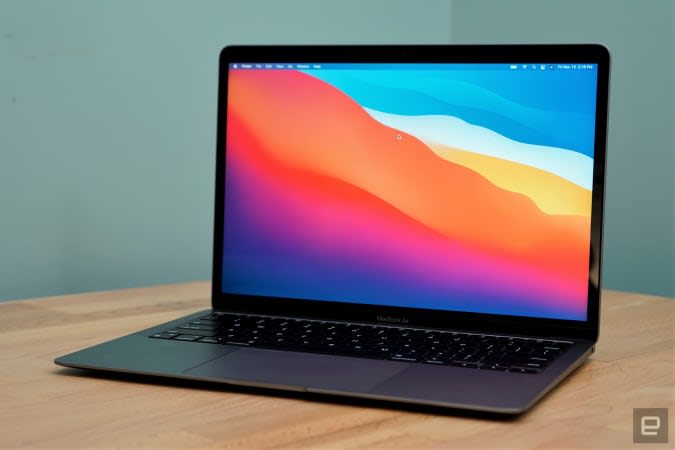
The latest MacBook Air M1 is down to $899 at Amazon, or $100 off its regular price. It's one of the best laptops for most people, and the M1 chipset only makes it a better buy. The Air M1 earned a score of 94 from us for its incredibly fast performance, excellent keyboard and trackpad, good battery life and lack of fan noise.
The 2021 Apple TV 4K with 64GB of storage is nearly $20 off right now, bringing it down to $180. This deal represents a new record-low price on the set-top box, and it lets you get the extra-storage model for the original price of the base model. We gave the Apple TV 4K a score of 90 for its excellent new Siri remote, improved performance, HomeKit integration and support for Dolby Vision and Atmos.
A bunch of Roku devices are on sale at Amazon, including the Roku Streambar, which is down to a record low of $99. This compact soundbar is a convenient gadget to get if you want to upgrade your home theater system without spending a ton of money. We gave it a score of 86 for its space-saving design, Dolby Audio support and built-in 4K streaming technology. If you want to spend even less, a handful of Roku streamers have been discounted, including the Express ($25) and the Streaming Stick+ ($39).
The Instant Pot Duo Crisp multi-cooker and air fryer is down to $98 at Amazon, or more than $50 off its normal price. You're getting 11 cooking modes with this appliance, including air fry, dehydrate, bake, broil and more, plus most of the accessories needed to try out all of the presets. While we have seen this model on sale for $79 around Black Friday, this is the best price we've seen on Amazon all year.
The Thermapen Mk4 has been discounts to $69 as ThermoWorks makes room for the new Thermapen One thermometer. The Mk4 is the best instant-read thermometer we've used so far —the backlit display makes it easy to read in almost any situation and the display rotates depending on how you're holding the pen. Plus, you never have to remember to turn it off because the pen automatically turns on when you pick it up and will shut off after some time of no use.
In Omaze's latest giveaway, you can win two seats on one of the first Virgin Galactic flights to space. In addition, you'll go on a tour of Spaceport America in New Mexico with Richard Branson. You don't have to pay to enter, but funds from all paid entries will support Space for Humanity, an organization that hopes to make space more accessible for all.
Omaze is giving away another $20,000 to build your ultimate gaming PC. This sweepstakes is free to enter, but funds donated with purchased entries will benefit Schools on Wheels, an organization that provides free tutoring and mentoring services to children experiencing homelessness across Southern California.
Pricing and availability is subject to change. No donation or payment necessary to enter or win this sweepstakes.See official rules on Omaze.
New tech deals
Mirror
Mirror's summer sale knocks $400 off its high-tech fitness system when using the code JULY400 at checkout. The discount breaks down to $150 off the mirror device itself, plus free delivery and installation. Just know that the sale is only on the product itself, not on the subscription needed to take the Mirror's fitness classes.
Eufy's SpaceView Pro baby monitor kit is down to $130, or $40 off its normal price. It comes with one camera that's capable of shooting 720p video, and one video receiver that lets you see what your kid's up to at all times. In addition to the camera's 330-degree pan and 110-degree tilt capabilities, we also appreciate the display's 12-hour battery life when kept on.
Fitbit's Charge 4 tracker is back down to its record-low price of $100. If the smartwatch life isn't for you, this might be a good fit because it does a good job marrying fitness tracking with handy smart features. We gave it a score of 82 for its accurate built-in GPS, standard Fitbit Pay and multi-day battery life.
Arturia has knocks 50 percent off all of its individual software titles through August 8. That means you can get some of our favorite music software, including Pigments and Analog Labs, for $99 each. This is a good opportunity to add new synths and other software instruments to your collection for less.
A number of our favorite board games are on sale at Amazon, including Codenames for $11 and Star Wars: Outer Rim for $43. While you may be spending more time out of the house this summer, now's a good time to stock up on some new games to get you through the colder fall and winter months.
One of our recommended VPNs is running a good sale on a two-year subscription. You can sign up for NordVPN for only $89 for the first two years, which comes out to $44.50 per year — and an additional summer promotion adds three free months on top of that. We like NordVPN for its speed, its no-logs policy, the thousands of servers it has to choose from and that one account supports up to six connected devices.
GM is issuing a second recall for 2017 to 2019 Bolt EVs over potential fire issues. The company says it plans to replace defective batteries, but until it can do so it's advising Bolt customers to limit their charging up to 90 percent, and not to go below 70 miles of range. It's also reiterating a recommendation from last week against parking indoors and leaving the car's to charge overnight unattended. This latest recall follows a similar one from last November, where GM recalled more than 68,000 Bolts.
The company also suggests that Bolt customers visit their nearest Chevy EV dealer to get the advanced diagnostics software, which should alert them ahead of any future battery issues. Hyundai, which also sources batteries from LG Chem like GM, ended up replacing more than 75,000 batteries for its Kona EV.
While it may sound alarming — GM's recalls were triggered by five Bolt fires between 2017 and 2019 — it's worth noting that gas cars typically cause around 150 fires a day, according to a FEMA report. Still, EV makers need to prove they can responsibly deal with potential issues before they can hurt more people (and before it leads to more negative sentiment towards electric vehicles).
Outside of your phone, your PC is likely the one piece of technology you use the most. If for no other reason than that, you should take care of it. Not only will it last for longer, but it will also work better over the time that you keep it. In this how-to, we'll share some tips on how to take care of your PC. Of course, it's impossible to cover this topic from every angle, so think of this guide as an introduction more than anything else.
How to clean your computer and peripherals
Will Lipman Photography for Engadget
Windows PCs, especially desktops, come in various shapes and sizes, but the tips we're about to go through here will help you clean your computer whether you bought it prebuilt or put together yourself. If you own a laptop, look at our recent Mac organization guide. All the steps we detail there will work just as well for a Windows portable.
Before cleaning the inside of your computer, start with your display and peripherals. At this stage, all you'll need is some distilled water in a spray bottle and a microfiber cloth. You can buy the former at a grocery store or make it yourself. And if you don't already own any microfiber cloths, Amazon sells affordable 24-packs you can get for about $15. Once you have those in hand, spray the water onto a clean cloth and wipe down your computer's display before moving to the mouse and keyboard. You want to start with your screen to avoid transferring dirt and residue to the panel.
It’s possible to write an entirely separate guide on how to clean keyboards, but the short version is you'll want to pick up a keycap puller and use that to give you unobstructed access to any debris and gunk that has been building up under your keys. If the keycaps have a lot of dirt and residue on them, your best option is to soak them in warm water and use a toothbrush to scrub away the buildup. Give them plenty of time to dry before reinstalling them on your keyboard.
Will Lipman Photography for Engadget
Once you’re done with those, turn off your PC and unplug everything that's connected to it. You'll also want to switch off the power supply unit (PSU) by flipping the toggle on its outside to the "O" position. Next, push down on the power button a couple of times to discharge any static electricity that you might be carrying around.
If at all possible, do most of the steps we're about to describe outside. The last thing you want to do is go through the trouble of cleaning your computer and then let it pull in all that dust again.
Once you've moved your computer, start by removing the side panels. Most modern cases allow you to do this without any tools, but you'll need at least one screwdriver for most of the work we'll detail in a moment. When it comes to most screws inside your computer, a 4-inch Phillips screwdriver should be all you need. Some components, such as your GPU, may include Torx screws and the like, but don't worry about those for now since we won't be taking them apart. If you don't already own a decent set of screwdrivers and have something of a DIY streak in you, a driver kit from iFixit is your best bet. The 16, 32 and 62-bit kits it sells are an excellent starting point, and they'll come in handy with more than just your computer.
If your PC has any dust filters, remove those now and give them a rinse at the sink before setting them aside to dry. Depending on how long your computer has been collecting dust, you may want to remove some components such as the GPU to make it easier to clean everything. If that's something you feel comfortable doing and it's your first time removing any of the internals, use your phone to take photos of the interior. The images will help you put all the parts in their original place at the end. That's important to do since there's an optimal way to install many of the components in your computer. For instance, you always want to install your GPU in the fastest available PCIe lane. When it comes to removing any PCI cards, first unscrew its mounting bracket and then push the corresponding release on your motherboard before pulling the card out.
Will Lipman Photography for Engadget
Whether you decide to keep all your computer's internals in place or not, you'll need something to blow all that dust away. A can of compressed air is one option, but I like to use a Giottos Rocket Blower. It was designed for cleaning camera sensors and won't damage any of your components. It's also a one-time purchase. Whatever you have at hand, use it to blow away the dust that's been building up on your computer's internal components, fans and grills. Pay special attention to the heatsinks attached to your PC’s CPU, GPU, chipset and voltage regulators. They will likely have most of the hardest to remove dust in your system thanks to their tight fin stacks. What’s more, especially bad buildup can make them ineffective at cooling those components, which will, in turn, affect their performance.
When cleaning any exposed PCB, use an antistatic brush (like this one from OXO) instead of a microfiber cloth. You'll avoid damaging any of the sensitive components on the board. You can go over any non-electronic part with a dampened microfiber cloth.
At this point, all you need to do is put everything back in its place. As one final tip, if there's any way you can avoid leaving your desktop on the floor, you'll end up spending less time cleaning it since it won't be near all the dust and dander that collects there. If your desk setup or living space makes that not an option, a PC tower stand is a cheap but effective way to elevate your computer off the ground and help it pull in less debris.
How to organize your PC’s storage drives
MacPaw
If it's been a while since you've done an audit of all the software you have installed on your computer, the best place to start is in the Task Manager. It's here you can see how much of its resources your computer is devoting to specific processes. Since everyone will have different software installed on their PC, it's hard to offer blanket recommendations, but using the Task Manager you can get a sense of the apps that may be slowing down your computer. For most people, there will be two main culprits: bloatware and antivirus software.
If you bought your PC from a system integrator like Dell, it will almost certainly include software your computer doesn't need to operate. So you can safely uninstall those apps to improve performance and save on space.
This next tip may be contentious for some, but I believe as long as you avoid clicking on sketchy links and stay away from the dark corners of the internet, Windows Defender is all you need to protect your computer from the majority of malware that's out there. While there are good antivirus programs like Bitdefender and Malwarebytes, the majority cost far too much for what they offer and will only slow down your computer. If you don't feel comfortable uninstalling your antivirus software, then by all means, leave it on your computer.
While you're in the task manager, you'll also want to click on the "Startup" tab to see what programs your computer is launching when you power it on. You can speed up that process simply by limiting that list to as few apps as possible. As for the actual process of deleting any software you don't need, always uninstall programs from the Control Panel as this will leave the fewest leftovers when everything is said and done. If you've used Windows for a while, you'll have errant files, folders and registry entries all over the place. It's possible to cull those manually, but doing so can be time-consuming. So we recommend using a program like Iolo System Mechanic or CleanMy PC to complete a deep clean of your system.
If you have any mechanical drives installed in your computer, it's good to get into the habit of defragging them regularly. First, launch the built-in Defragment and Optimize Drives app and click the "Optimize" button. Depending on the size of your hard drive, this process may take a while. Don't defrag your SSDs, as you'll only shorten their lifespan for little to no performance improvement.
How to organize your apps, tabs and other windows
ymgerman via Getty Images
Say what you will about Windows 10, but the fact is it comes with some of the best window management tools built right into an operating system. You don't need to download any additional software to organize your desktop, but there are some settings you can tweak to get even more out of its signature Snap functionality.
As you may already know, you can press the Windows and Tab keys at the same time to bring up the Task View pane. It's here that you can add additional virtual desktops. If you're not already using virtual desktops, they're great for organizing your active windows so that you don't have to constantly rearrange them when you're trying to find a specific one. You can quickly press the Windows key, Ctrl and either the left or right arrow keys to move between desktops. But to make things even simpler, head to the Settings app and into the Multitasking section of the System menu. Under the "Virtual desktops" heading, switch both settings to "All desktops." You can now use the Alt-Tab shortcut or taskbar to switch to any app on any desktop.
When it comes to wrangling your tabs, a lot of that will depend on the browser you use. But as a decent starting point, all the most popular ones include a feature that allows you to pin tabs. I use this to keep the websites I visit most frequently throughout a workday (in my case, Gmail, Trello and Google Drive) open at all times and at the top of my tab bar. In that way, those tabs never get lost among the countless other websites I might have open for a story I'm writing. What's more, in the case of Brave, the browser I use, I can use a handful of keyboard shortcuts to jump to those tabs quickly.
In closing, we want to highlight just how much customization Windows 10 offers you when it comes to the organization of your computer. As just one example, you can right-click on items located on the taskbar and start menu to put the apps and shortcuts you use most frequently within easy reach. However, if you want to really dig into all the options Windows 10 offers on that front, websites like Windows Central have detailed how-tos that are an excellent starting point.
While it's a bit early to be thinking about the holidays, retailers jump on the opportunity to remind us that we're six months out from the festivities. Black Friday in July sales have been ongoing this month, but Best Buy's just began and will run through this weekend. A plethora of gadgets have been discounted across the site, but there are a number of sales on TVs that are worth highlighting. Best Buy slashed hundreds off TVs big and small, including some of the latest OLED sets from LG, Sony and Samsung. Amazon's matching many of the deals, too, so you have options when it comes to where you spend your money. Here are the best smart TV deals we found in Best Buy's Black Friday in July sale.
55-inch LG A1 OLED 4K TV
LG
The latest LG OLED lineup just became available a few months ago and now you can grab the 55-inch A1 model for $1,300. The A1 series is the most affordable of the bunch, making these sets good options for anyone looking to upgrade to OLED while on a tight budget.
The 55-inch, mid-tier LG C1 OLED TV is down to $1,500, or $300 off its normal price. It uses LG's a9 Gen4 AI Processor 4K and supports HDMI 2.1, G-SYNC and FreeSync for gaming and voice commands using Alexa or the Google Assistant.
Sony's 48-inch Bravia A9S OLED TV has been discounted by $300, bringing it down to $1,500. It runs on the company's Processor X1 Ultimate and supports HDR and Dolby Vision, Acoustic Surface Audio, X-Motion Clarity technology, AirPlay 2 and more.
Last year's flagship LG GX OLED TV is on sale for $1,500 for the 55-inch mode, or $500 off its normal price. While the latest G1 flagship is also on sale (see below), it'll set you back an additional $500. If you can deal with a slightly older processor and fewer bells and whistles, this remains a solid OLED set to invest in.
This massive 82-inch Samsung Q60T smart TV is on sale for $1,580, or $420 off its regular price. You're getting Quantum Dot technology here with HDR support, a refresh rate up to 60Hz, Game Enhancer for a better gaming experience and support for multiple voice assistants including Alexa and the Google Assistant.
One of Sony's premium OLED TVs, the 55-inch Bravia XR A80J set, is down to $1,800 in this sale, or $500 off its normal price. It packs most of Sony's best TV technology into one set, including the Cognitive Processor XR, HDMI 2.1 support, 4K upscaling, XR Motion Clarity and improved sound with Acoustic Surface Audio+ and built-in subwoofers. It also runs the Google TV operating system, so you can call upon the Assistant for all your entertainment needs.
The 65-inch The Frame set from Samsung is down to $1,700, or $300 less than normal. This is the TV to get if you'd prefer to look at something more interesting than a black box when not actually watching a TV show or movie. Its art mode lets you select art to display on the screen whenever you want, and it also supports 4K AI upscaling and truer colors using Quantum Dot technology.
A 55-inch LG G1 OLED TV will set you back $2,000 if you grab it during this sale, saving you $200 off its normal price. It's part of the "gallery" series and it uses OLED evo panel technology, which provides better brightness and clearer whites than standard OLED displays. It also runs on LG's a9 Gen4 AI Processor 4K and supports features like G-SYNC, FreeSync, OLED Motion Pro and voice commands via Alexa and the Google Assistant.
If you're keen on investing in an 8K TV, this 75-inch Samsung Q900T QLED 8K set is $1,500 off, bringing it down to $3,000. It includes Quantum HDR 32X, precisely controlled LED backlights and 8K AI upscaling. Just keep in mind that there isn't a ton of 8K content available just yet, so it may be a while before you experience the full benefits of this smart TV.
Football Manager developer Sports Interactive has a history of inclusive gameplay, and that now extends to women. The company has revealed that it's adding women's soccer (aka football) to its management sim. This will likely be a "multi-year" project, SI warned, but this also isn't a simple character model swap. The studio wants to offer the same kind of depth it has for men's sport while accounting for the differences between players and leagues.
There will be new models and databases, of course. However, SI noted that it also has to account for different league rules, gender differences in text translations (the most expensive part of the project) and tweaks to different player attribute systems. The company also has to decide whether or not it accounts for certain practical realities of women's soccer, at least at first — does it factor in menstruation and pregnancy, for example?
The team recently hired coach and research expert Tina Keech to lead its women's soccer efforts, and there are already motion capture sessions underway.
The expansion will likely prove costly. SI expects adding women will "cost millions," and it's looking for sponsorship deals that could help fund the project. However, the company believes there's a moral imperative to add women to the game — it wants to "smash" the glass ceiling for women's soccer and help it get the same attention given to men's leagues. In other words, Football Manager will be part of a larger sports equality campaign that includes games like FIFA as well as better TV coverage of real-world matches.
If you've been on the hunt for a capable Android phone that won't break the bank, there's a solid deal over at Woot that's worth checking out. Google's Pixel 4 is on sale for $380, down from the usual $800 for the 64GB model. It's the lowest price we've seen for the smartphone in quite some time. Woot's parent company Amazon and B&H Photo were both selling the Pixel 4 for $400 earlier this month.
As you might expect from a Google smartphone, the Pixel 4 has great cameras. It has a "smooth" display system that can boost the refresh rate from the typical 60Hz to 90Hz. The device will also support Android 12 and it's quick enough for most use cases.
Overall, the Pixel 4 might be better value than the Pixel 4a 5G and Pixel 5 right now. The Pixel 4a, meanwhile, costs $350 and arrived a year after the Pixel 4, but Google downgraded some of the specs — the display only has a 60Hz refresh rate and there's just a single rear camera, rather than two.
There are a few provisos to bear in mind with the Pixel 4. Google will provide Android and security updates for the Pixel 4 until October 2022, but there's no guarantee it will continue to do so after that time. Phone and online support might not be available after then either. Meanwhile, the device's screen brightness and battery life don't quite match up to equivalent flagships from Apple and Samsung.
It's worth noting Woot's return policy is more limited than that of Amazon. You can send back most goods within 30 days and Woot will reduce the refund amount by the cost of return shipping (as long as the product isn't defective or damaged). So, if you do snap up a Pixel 4 while it's on sale, it's probably best to decide quickly if you want to hang onto it.
Follow @EngadgetDeals on Twitter for the latest tech deals and buying advice.
Today we’ll be looking at how to make a quick and easy crystal texture Photoshop effect using nothing but a handful of Smart Filters! We’ll also be creating a dreamy pastel color grade to pair with a gold foil frame design.
Want to create a crystal texture Photoshop even quicker? Try an action! You can make a crystallized effect with just a click of a button using the diamond texture Photoshop actions available on Envato Elements!
First, let’s start with a new canvas filled with a pastel violet color #ddd9e8 using a Color fill layer. Turning that Color fill layer into a Smart Object by selecting the layer and Right-clicking > Convert to Smart Object.
Step 2
Next, let’s go to Filter > Camera Raw > Effects and add a Grain of 40-50 and a Vignetting of -10.
Step 3
Now, we’re going to use Image > Adjustments > Brightness/Contrast to adjust the color. Set the Contrast to 100 and the Brightness to around 40.
2. How to Create a Pastel Gold Foil Design in Photoshop
Step 1
For our golden frame, we’re going to chop and combine four different assets from the Zodiac Graphic Elements Kit, the first being Element 1.
Drag, drop, and center Element 1 onto the canvas. If it’s not already a Smart Object, then Right-click > Convert to Smart Object.
Go to Layer > Adjustments > Brightness/Contrast, setting it to around -60 Brightness and 45 Contrast.
Step 2
Now, using the Rectangular Marquee tool, select everything above the foreground mountains in the illustration.
Add a Layer Mask and then hit Control-I to Invert the Layer Mask!
We’ll be doing some final masking here soon, so don’t worry about masking too much or too little.
Step 3
Next, we’re going to drag and drop the Virgo asset directly over the first element.
Hold Alt, and drag and drop the Brightness/Contrast Smart Filter from Element 1 onto the Virgo asset. And then one more time hold Alt, and drag and drop the Layer Mask from Element 1 onto the Virgo asset.
Hit Control-I to Invert the Layer Mask so that the two frames look like one.
Step 4
Now, let’s drag and drop Element 17 onto the canvas. Enlarge it so that the stars fill in the horizontal space surrounding the golden frame.
Step 5
Hold Control and click the layer’s icon to make a selection in the shape of the stars. And then Select > Modify > Contract by 15.
Add a Layer Mask, which will thin out the outline of the stars.
Step 6
Duplicate Element 17 to add even more stars, making sure to flip and rotate them so they don’t look too repetitive.
Step 7
Let’s Group all of our current gold elements, name the group Gold Foil, and then clip a New Layer into the group. Set the layer to Overlay and 50% Opacity.
And then, using a large soft round Brush set to white, let’s paint some highlights on each corner of the frame. This will help sell the “gold foil” effect.
Step 8
Now, we’re going to clean up our design by masking out any details we don’t need. This includes the woman’s legs, the inner stars, and parts of the mountains.
You can also always place your subject first, and then come back and mask if you are unsure what elements to mask or keep.
Step 9
In a new Group, above the Gold Foil group, drag and drop the Element 16 assets, which are gold foil mountains. Use these mountains to create a new mountain range on the gold foil design.
Repeat the same steps as with the previous gold elements, including adding highlights and adjusting the Brightness/Contrast.
Step 10
Do one more round of masking to make sure the mountains and gold foil design match.
Also, create and clip a Hue/Saturation adjustment layer into the gold mountain group, bringing down the Saturation so that it better matches the rest of the design.
Step 11
We’re going to finish up the gold design by dragging and dropping two images onto the canvas, below the gold design.
First, add the photo of a pastel sky, enlarging it significantly and adding a Blur Gallery blur of 67.
Step 12
Next, add pastel 23 from the “Pastel Blend – Gradient Backgrounds” texture pack. Make sure it fills the entire canvas and set its Layer Mode to Lighten at 48% Opacity.
Step 13
And finally, create a Brightness/Contrast adjustment layer set to -66 Brightness and 100 Contrast.
Step 14
Then we can group these three layers together and mask them so that they’re confined to the shape of the gold design.
I used both the Pen and Brush tool, but you can use whatever method you’d prefer.
3. How to a Make Crystal Effect in Photoshop
Step 1
Let’s place and extract our subject between the gold foil design group and the gold mountains group. We want her to look as if she’s behind the mountains.
I used Select Subject, added a Layer Mask, entered Select and Mask, and then hit the Refine Hair button for a super quick selection.
Again, use whatever your preferred method is!
Step 2
We’re going to add some fast backlit hair by duplicating the subject, bringing the duplicate below the original, and then enlarging and flipping the duplicate.
Step 3
Now, we can create and Clip a pastel pink #ffe2f6Color fill layer into the duplicated subject, masking out the rest of her body.
Step 4
Next, add some quick highlights and shadows using a mixture of Softlight and Overlay layers clipped into the subject.
Use a mixture of soft and hard round brushes to add white highlights to the hair, shoulder, and hand. Add some shadows to the inner parts of the subject’s hoodie as well.
Step 5
With the subject done, we can finally add our Photoshop crystallize effect! If not already, make sure your subject is a Smart Object.
We’ll be adding a total of four filters and adjustments, all added as Smart Filters.
Start with Filter > Pixelate > Crystalize, which will be the base for the diamond texture Photoshop effect. You’ll want to play with the Cell Size. I ended up liking a size of 106.
Keep in mind, you can always come back and change this later, as all Smart Filters are adjustable.
Step 6
Second, Filter > Sharpen > Smart Sharpen, setting it to a 500 Amount and a 5.4 Radius. You’ll want to make it sharp enough so that the edges of the previous filter appear to be outlined.
Step 7
Third, Image > Adjustments > Color Balance set to -100, 0, and +100, turning the crystal shapes blue.
Step 8
And finally, Image > Adjustments > Brightness/Contrast set to -20 Brightness and 100 Contrast.
Step 9
Now, let’s select the Smart Filters layer mask, hit Control-I to Invert it, and then carve back in some crystal shapes.
I like to use a hard round Brush as it’s quicker, but the Pen tool or the Polygonal Lasso tool will give you sharper edges, which is what you want.
This part can take a few minutes, so just focus on the shapes being created and take your time. I also went ahead and turned the lenses of the subject’s sunglasses crystal as well.
Step 10
With your mask done, finish off the crystals by adding some highlights.
Create a new layer set to Overlay, and Clip it into the subject. Use the Polygonal Lasso tool or a hard round Brush to paint harsh white highlights on the sides of some of the crystals. Focus on the sides that would be catching and reflecting light.
Step 11
Brighten the crystal sunglasses by dragging and dropping another photo of a pastel sky onto the canvas, placing it over the subject’s glasses and then setting it to Screen.
Step 12
Add a layer mask to the sky image, fill it with black using Control-I, and then mask back in so that the sky only appears inside the lenses.
4. How to Use 3D Objects in Photoshop
Step 1
Next up, let’s add a bunch of smaller shards of crystal floating around our subject using just one Blue Crystal 3D asset.
We’re going to do this by choosing View 3D Render, and then rotating and downloading the same crystal at multiple different angles. Download them as a layered PSD, so you can easily turn off the shadow layer.
Try and do at least five different angles so you have a bit of variety, though the more the better!
Step 2
With your crystals downloaded, scatter them around the canvas in different sizes, surrounding the subject.
Try to keep the flow of the image in mind, as well as facing the brighter surface of the crystal towards the light source, which is the subject in this case.
Once you’re happy with your crystals, Group them all together, naming the group “Crystal Shards”.
Step 3
Now, let’s add some shine using an Inner Glow and an Outer Glow layer style.
Step 4
Next, we’re going to clip a Brightness/Contrast adjustment layer into the Crystal Shards group. Set it to 99 Brightness.
Step 5
We’ll be finishing up the crystals by clipping both a Lighten and Screen layer into the shards group.
Then, using a large soft round Brush set to a hot pink dd64b5 color and a low Flow Rate, let’s paint an iridescent glow onto the crystal shards.
Aim to create soft blooms of pink inside the crystals. We don’t want them to be solid pink, only partially.
The Screen layer will brighten, while the Lighten layer will give you that inner glow effect.
5. How to Create Pastel Highlights in Photoshop
Step 1
Let’s add a final glow by duplicating our Pastel Background group, bringing it above all current layers, deleting the current layer mask, and setting the group to Lighten at 60% Opacity.
Step 2
Now, let’s add a Layer Mask,Invert it using Control I, and then mask back in some pastel glow around the subject’s hair and body.
Use a soft round Brush set to a low Flow Rate so you can build the glow up slowly.
Step 3
Finally, create a Curves layer and bring up the Highlights Anchor.
Double-click the Curves layer and adjust the Blend If settings so that the layer only affects the highlights.
Set the toggles to something like you see below, though these settings will change depending on the subject’s skin tone and the overall image brightness.
Step 4
Now, we can enhance the highlights of the image by masking in areas with a soft round white Brush.
The Blend If settings should keep the lighting out of the shadows, with only the brightest portion of the subject’s face, hair, and body being affected, along with any other areas you want to brighten in the image.
6. How to Create a Pastel Color Grade
Step 1
Let’s give one last wash of pastel blues to the whole image, starting with a Color Lookup layer set to HorrorBlue, with a Layer Mode of Color, and an Opacity of 25%.
Step 2
Next, add a Selective Color layer with the following settings.
Step 3
And finally, a Vibrance layer set to +57 Vibrance.
You Did It!
And that’s how to make a crystal effect in Photoshop! Thanks to Smart Objects and Filters, making a crystallized effect has never been easier. Pair it with pastel blues and gold foil, and you have a mystical yet modern design!
We also learned how to make a sapphire stone shimmer in Photoshop using only two layer effects, as well as how to use a 3D object to its fullest potential, turning one object into dozens!
This giant set of diamond sparkle Photoshop brushes is the perfect way to add a bit of shine to any crystallize effect. If you’re wondering how to make a diamond in Photoshop glow, then this is the brush set for you!
Create an instant Photoshop crystallize effect just like in this tutorial using the Low Poly Photoshop Action! Create a diamond or a sapphire Photoshop effect just by changing an image’s color. You can even use this action to create custom Photoshop crystal brushes!
While this effect calls itself glass, you can easily imagine it as a sapphire Photoshop effect! Apply it to any font easily by editing the included Smart Object. A diamond sparkle Photoshop brush effect is already applied!
These Photoshop crystallize effects are actually a set of high-resolution crystal patterns, frames, and isolated PNGs. This pack comes with 12 unique crystals in a wide variety of shapes and colors!
Use this set of crystal drawings in both graphic design and art projects. Turn the crystal PNGs into a Photoshop crystal brush for an even simpler crystal effect!
Looking to learn more? Why not check out the following tutorials:
There are many platforms and tools that people use to create, manage, and grow their online businesses. If you’re a web designer, marketeer, or an online entrepreneur, you’ll probably already know about HubSpot. But do you know everything?
What is HubSpot?
HubSpot is a service provider that includes five different online tools:
Marketing Hub
Sales Hub
CMS Hub
Service Hub
Operations Hub
It helps business owners optimize their marketing strategies to boost sales or generate more visitors.
CMS Hub, for example, is a great content management system and is as intuitive as other CMS’s you may have worked with. It comes with a page builder which works with the many ready-to-use themes, templates, and modules, all making it easy for you to start your online business in the shortest possible time.
HubSpot Themes vs. HubSpot Templates
HubSpot themes are now available on ThemeForest so this is a very relevant point! If you look at the official HubSpot marketplace you’ll see three different kinds of products: themes, modules, and templates.
In the HubSpot marketplace, Landing pages are a subset of the Templates category.
A HubSpot theme is like a pre-made website or a collection of anything that a website needs such as various pages, custom modules, theme settings (customizable from the admin panel), and more.
A template, however, is just a single web page, or a single component like a blog template, an email template, a landing page template, etc. In other words, a template is just a part of a website (that you can add to your site), while a HubSpot theme includes all the pages, modules, and other templates that you need to create and customize your website.
Modules are extra functionalities for a HubSpot website. We won’t be covering modules in this tutorial.
What is a HubSpot Landing Page Template?
A HubSpot landing page is one of the aforementioned HubSpot templates available on the Themeforest right now. It is a pre-made and ready-to-import web page that you can customize and directly import to your site.
A HubSpot landing page template can be used for different purposes like a homepage, an about us page, contact us, services page, etc. There are many of these pages available for CMS Hub and Marketing Hub users, and they’re often included in bigger multipurpose themes. Let’s get started and review some of these landing pages.
Best HubSpot Themes on ThemeForest
You can use a complete HubSpot theme instead of the many different HubSpot templates to create your website. A HubSpot theme (or a HubSpot website template) provides you with a collection of all necessary pages, contents, modules, and setting panels and makes you able to build your online business easier and faster.
Take a look at this collection, review any HubSpot website template you want, and download it with ease. Here are five new HubSpot Themes from ThemeForest.
Bomby is a responsive multi-use HubSpot theme that comes with more than 25 ready-to-customize page templates, 27 built-in modules, and 10 system pages. It is a complete website package, and with its well-written documentation and support agents, you can rest assured that your website is in good hands!
If you want to create a modern blog with the HubSpot CMS, it is good to use a pre-made theme. Suga is a HubSpot blog theme that provides you with all the necessary pages or templates to start a beautiful and modern online magazine with HubSpot.
To use a HubSpot theme, you need to have a HubSpot Marketing account or a CMS Hub account (professional or enterprise).
There are so many benefits in managing your eCommerce website with HubSpot. It provides you with useful marketing tools and helps you engage with your customers to sell more and grow better.
Gettree is a powerful HubSpot theme suitable for building an online store that lets you offer services to your customers or sell your products online.
Are you planning to create a portfolio website for your company? Using Sebring you can display your contact information, projects, services, and more on your website and attract more customers to your business.
“This theme is highly suitable for companies that offer SEO services as well as other internet marketing-related services.”
CourseHub is an LMS HubSpot theme that includes many page templates for online education purposes such as teachers page, courses pages, teachers and courses listing templates, and more.
Best HubSpot Landing Page Templates
Now let’s check out some of the landing page templates available from the HubSpot marketplace.
Invest is one of the most downloaded templates from the HubSpot marketplace. It is a beautiful landing page with a simple form on top of the screen and includes a background video that allows you to imbed YouTube videos on your page.
This one is an elegant landing page template with a big hero image and a call-to-action button. It is a great choice for anyone who looking to create a professional product page and showcase the products in the best possible light.
Launch Pillar Lander is another product page for a HubSpot website. It is an easy-to-customize template and lets you show a lot of information, images, and details about your product.
AirFleet can be used as the home page of your website. This well-designed template includes eight different sections such as hero image, contact form, icons, testimonials, and more.
Cadenza lets you import a beautiful contact us page to your site in seconds. It has a video background under its professional contact form. It also has some icons that help you display your social networks on the last section of the screen.
If you want to add a modern about-us page to your site using a ready-to-import template, use Influence. It looks impressive for company websites and has excellent sections for adding different information about your business.
Best New HubSpot Landing Page Templates
Let’s see what’s new on the HubSpot marketplace and review some of the latest items in the landing page category.
As you can see in its name, this is a landing page template for webinars and event countdown pages. But since this template has a fantastic design, you can customize it, change its content, and use it for other use cases.
This template is created for webinar registration but it’s also a good choice for freelancers and those who offer services to their clients. This fresh template has beautiful sections like a simple contact form and an embedded video to help you provide a better user experience for your visitors.
The best thing about this template is its eye-catching contact form and its hero image. It is a newly-developed template with three functional modules that let you customize your page with more options.
This one comes with an ultimate guide for beginners that teach you how to import and customize it in 30 minutes. This easy-to-use template has seven separate sections, and it is suitable for booking and reservation pages.
A unique background image and eye-catching colors make this template one of the best new items on the HubSpot marketplace. It is highly customizable, beautiful, and valuable. Take a look at its live preview to find out more.
“This landing page template is suitable for rental car services, taxi service, call taxi, prepaid car services, prepaid vehicle services categories.”
Conclusion
Now you know what a HubSpot-powered website is and you understand the difference between HubSpot themes and templates. So you can choose a landing page template and start adding it to your website, or you can pick a HubSpot theme and start your HubSpot website today. Good luck!
Trying to figure out how to identify a font? Whether you’re working on how to identify a font on a website, how to identify a font in a logo, or how to identify a font by image, we’ll help you get started. Learn about font basics and common font traits so you can narrow down your search and find what you need.
Let’s explore how to find a font and identify it too. Stock photography from Envato Elements.
Intro to How to Figure Out a Font Style
Before we take a look at some specifics, like how to identify a font in a scanned document versus something like how to identify a font in a PDF, PSD, or other digital file—let’s start at the beginning.
If you’re going to try to identify a font, you’ll need the basics: how to figure out a font style. Perhaps it might be better to explain it as “how to find out a font type”, because we’ll begin with some of the most basic font classifications. Generally speaking, almost all fonts will fall into these basic categories:
serif fonts
sans serif fonts
script fonts
Let’s take a look at an example of each.
Serif Fonts: The Fonts With Strokes at the Ends
A serif is a stroke or extra line at the end of a letter. Times New Roman, for example, is a very common and well-known serif font. Serifs can come in a variety of shapes and sizes.
Take a look at this modern example. Notice how, for example, it looks like the letter “n” has “feet”. These extra ends are called serifs. Not every letter has to have visible serifs for the font to be considered a serif font, either. For example, notice how “o” and “e” don’t have visible serifs. We do, however, see them in the other letters. There aren’t necessarily strict rules on this font, especially with modern type design. We’ll take a look at some of the variety of serif styles a little later.
Sans serif fonts are literally fonts without serifs. Easy, right? Sans serif fonts are particularly popular in modern design. For example, this website’s text is a sans serif font. Microsoft Word’s default font is Calibri, a sans serif font.
Just like serif fonts, you can get a lot of variety in sans serif too. The main point here is to recognize what a sans serif looks like. Take a look at this example. Notice how, at the end of the letters, they stop abruptly. We don’t see “ends” here, like the ones we saw in the serif example.
This sans serif font is a versatile, stylish choice. Download it on Envato Elements.
Script Fonts: Cursive and Connecting Fonts
Then we have script fonts. Technically, this is a sans serif font (as it doesn’t have serifs). However, scripts are often grouped into their own category. A script font has fluid strokes, as we see in this example. They often mimic a handwritten or cursive look.
This script font has beautifully drawn, connecting letters. You can download it now on Envato Elements.
These three general classifications have sub-categories too. Use this brief guide to help you understand how to find out a font type.
None of the Above?
Then, sometimes, you might just stumble upon a font that seems to break all the rules. Take look at this example, below. Technically, this is a sans serif font. Note the ends of the letters here. No serifs! However, this color font is really graphical and unusual. It’s a display font, and when you’re trying to figure out how to identify a font, it can be good to note this. Display fonts are often quite visual and not suitable for body copy.
Now that we’ve taken a look at some font basics, let’s take a look at some sub-genres. You can use this info to help further narrow down what your mystery font might be.
However, keep the following in mind too: you might not have to find a perfect match. For example, let’s say I’m looking for a specific serif font. I can figure out what kind of serif font it is, and I might be able to find a similar replacement, using that style as my guide. In fact, sometimes, a font might not be easily available or accessible to you, no matter how hard you look. Identify what qualities you like, and then you’ll be able to find a similar or suitable alternative.
Serif Fonts: Old Style
Here’s an example of old style serif fonts. Notice how they have a slightly calligraphic quality. Take a look at the slight tilt or angle we see in the lowercase “o” too. The serifs themselves have a taper to them. Garamond is a popular old style font.
This serif typeface takes some inspiration from old style type. Download it today on Envato Elements.
Want to see more examples of old style fonts? Check out this collection:
Transitionals are kind of a mid-way between old style and modern serif fonts. Times New Roman is a popular example of a transitional serif typeface. Notice that we still see tapered serifs, but we’re not really seeing that calligraphic quality as much anymore. The “o” here is a great example; notice the lack of that slant.
This beautifully designed serif typeface has many elements associated with transitional serifs. Download it on Envato Elements.
Take a look at this collection for even more examples of transitional and similar fonts:
Didones are really quite visually different. Note the intense contrast in these letters. This means thick versus thin strokes. We also see a very harsh serif. It’s usually blunt, rather than tapered. Bodoni is a popular example of a Didone serif font.
Note the high contrast in this serif font. Download this elegant Didone style font on Envato Elements.
Check out this article for even more examples of beautiful Didone typefaces:
Take a look at this slab serif font. Note the chunky serifs and how blunt they are. There’s no taper here. Rockwell is a popular example of a slab serif font. Note that slab serifs don’t necessarily have to be bold; the key here is that serif.
Note the thick, chunky serifs on this slab serif font. Download it on Envato Elements.
Want to see more stylish slab serif fonts? Check out this font collection:
Modern font design doesn’t necessarily follow type classifications and categories, although they often borrow aspects. That’s why it’s valuable to know what they are. For example, take a look at this fun serif font. It’s has a handwriting aesthetic, but would definitely be considered a serif font—it has serifs.
This hand-drawn serif font has plenty of personality. Download it today on Envato Elements.
Sans Serif Fonts: Grotesque
“Grotesque” might seem like an odd name for these sans serif fonts. It was a reference to them “lacking beauty”, back in a time when ornate qualities were more desirable. Of course, this isn’t the case today. They are beautiful, clean sans serifs. Helvetica, for example, is a popular neo-grotesque font.
This beautiful sans serif has visible grotesque inspiration. You can download it now on Envato Elements.
Want to see more examples of grotesque sans serif fonts? Here’s a collection to check out now:
Geometric fonts take visible geometric inspiration in their design. Notice, for example, how geometric this example font looks. We see the same circular shape in the “o” and in the “e”. Futura is a popular example of a geometric sans serif font.
A geometric sans serif font, like this stylish typeface from Envato Elements, employs geometric inspiration.
Want a look at even more geometric sans serif fonts? Here’s a collection to browse right now:
On the other hand, humanist sans serifs tend to have a bit more of a calligraphic quality. Notice, for example, how the “a” has a bit of a curvature to it. Still, it does not have serifs. A popular example of a humanist sans serif font is Gill Sans.
Notice the calligraphic nature of some of the strokes in this elegant sans serif typeface. Download it on Envato Elements.
Humanist sans serif fonts can be such a classy choice. Check out even more examples here:
Like serif fonts, you can get a lot of variety in modern sans serif fonts. For example, check out this awesome modern font design. It has such beautiful curves and accents. There’s some inspiration here that rather looks like the Didones, but without the serifs. It has some humanist inspiration too.
This modern sans serif font takes a different approach. Download it now on Envato Elements.
Script Fonts: Brush
Next, let’s talk about script fonts. They come in a variety of popular aesthetics, one of which is brush. Brush fonts usually mimic some kind of paint or ink brush in its aesthetic. However, note that brush fonts do not necessarily have to be scripts.
A brush font tends to have visible brush strokes, as we see in this script font you can download on Envato Elements.
Check out more examples of brush fonts in these inspiring collections:
Cursive fonts are a broad category, and the term “cursive” is often used interchangeably with the term “script”. Keep in mind that a cursive aesthetic typically involves long connecting strokes. The goal here is to mimic cursive handwriting.
This cursive font has fixed line width and long, flowing strokes. Download it today on Envato Elements.
Cursive fonts can come in so many different shapes and sizes. Survey some of the possibilities in this collection of cursive fonts:
Calligraphy fonts are often considered or described as scripts or cursive fonts, and this description is not necessarily wrong. Technically, a font cannot be calligraphy, as calligraphy describes an artistic writing process. These fonts, however, mimic the aesthetic.
This font has been designed to mimic a calligraphy style. It’s available for download on Envato Elements.
Calligraphy fonts are very trendy right now. There are so many beautiful ones out there to see. Check out this collection for more calligraphy fonts:
Blackletter fonts tend to look quite dramatic. They are also often called gothic, and are associated with older time periods. They are often a specialty font choice and best suited to display copy.
This beautiful, ornate font takes visual inspiration from blackletter type. Download it now on Envato Elements.
Want to check out even more examples of blackletter fonts? Here’s the perfect collection to check out right now:
Handwriting fonts come in such a huge variety of aesthetics. In fact, many serif fonts, sans serif fonts, and script fonts are also handwriting fonts. This example, for example, is a sans serif handwriting font. Note that the aesthetic is designed to match an organic, hand-drawn look.
This handwriting font is drawn to simulate the organic nature of hand-drawn letters. Download it on Envato Elements.
Handwriting fonts can come in so many different styles. Find some handwriting font inspiration in this collection:
Some fonts are very decorative and can contain all kinds of imagery. This kind of font is often described as a display font. You can find a lot of variation on this. Keep in mind, however, that if the font you’re looking for is very graphical, it’s likely considered a decorative or display font.
This decorative font is best suited to large, eye-catching display type. Download it today on Envato Elements.
Want to learn more about display fonts, and check out more examples too? This article is right up your alley:
Then, we also have symbols and dingbats. These fonts aren’t letters at all, and they aren’t designed to display alphanumeric characters. Instead, you’ll find artwork, flourishes, and icons assigned to each number and letter.
A dingbat font, like this one from Envato Elements, allows you to easily add symbols to your work.
Symbols and dingbats can come in so many different variations. Want a look at the kind of options out there? Check out this collection today:
Whether you’re figuring out how to identify a font in a JPG, how to identify a font in Photoshop, or even how to identify a font on a picture, knowing those font basics is a helpful start. But what’s next?
Start by identifying key parts of the font. For example, does it have serifs?
How would you describe the style? This can help you find the font and/or find similar font designs.
Here are some methods and resources to help you use this information.
There are many ways to find a specific font or a close match. Stock photography from Envato Elements.
Take a Look at Popular Font Libraries
One great way to figure out how to find a specific font is to check out popular font libraries. If you know the basic attributes of the font, it can be easier to narrow things down. For example, let’s say I’m looking for a specific Didone serif font. You could then check out Google Fonts, Adobe Fonts, or Envato Elements for this style.
Look for a Similar Alternative
Keep in mind, as you explore how to find a specific font, that you may not necessarily need an exact match to achieve a similar look. For example, Times New Roman is a popular transitional font, but there are a number of other transitional serif typefaces that share the same aesthetic. Check out this example alternative.
There are also some awesome online tools that can help you figure out how to find a font. This might be helpful if you’re trying to figure out how to identify a font in a scanned document, or how to identify a font on a picture.
Here are some online tools where you can upload an image to determine a font from an image:
Let’s say you’re trying to figure out how to identify a font in a logo or other creative mark. In some cases, this can be tricky, because this might not exclusively be a font. Some logotypes, for example, maybe be heavily customized or even hand-drawn.
Not all lettering is a font! Stock photo from Envato Elements.
Recreations May Not Be for Commercial Use
If you really love the font used in the Coca-Cola logo, you might be able to find a recreation of this lettering as a font online. However, that doesn’t mean you can try to mimic the Coca-Cola logo without potential legal repercussions.
Keep in mind that just because you find it, doesn’t mean it’s appropriate for commercial use. This is another reason why searching for appropriate alternatives to a specific style can be desirable.
Use Your Software to Identify a Font From an Image
If you’re in a situation where you’re missing a font, you can often turn to software to help you figure things out. Let’s take a look at a few scenarios you could try.
How to Identify a Font in Photoshop
Keep in mind that this process is for Photoshop native files, like a PSD. This won’t help with figuring out how to identify a font in a PDF or how to identify a font in a JPG.
Open up the Character panel by going to Window > Character. With the applicable text layer selected, the Character panel will show the active font. If you don’t have this font, it will display its name for you.
Check the Character panel in Photoshop, if you’re trying to identify a missing font.
How to Identify a Font in Illustrator, InDesign, and Other Adobe Software
Figuring out how to identify a font in illustrator and inDesign is a similar process. You can, again, turn to your Character panel.
However, note that Adobe software will often prompt the user when a font is missing. This is another great way to identify a font you might need, but don’t have installed.
Adobe software typically alerts you of a missing font and will give you the font name.
How to Identify a Font on a Website
Or let’s say you’re on a website, and you really want to figure out the font in use. Depending on your browser, you can Inspect the website to take a peek at the HTML and/or CSS. You’ll want to search for the font-family. For example, it might look something like this:
font-family: Arial, Helvetica, sans-serif;
Want to Learn More About Typography?
There’s plenty more to learn about typography here on Envato Tuts+. Check out these free tutorials and start digging in today:
I hope you’ve found this font information useful in how to determine a font from an image. Try to figure out the attributes that make your mystery font look the way it does. Then, it’ll be easier to narrow things down or find a suitable alternative.
Looking for fonts? Check out Envato Elements. One low price gets you unlimited access to a library of thousands of fonts. Even better, you can try out as many as you like, without limits. They’re all licensed for commercial usage too.
Love fonts? Looking for even more inspiration? Check out these font collections and find your new favorite fonts today;
Some Twitter users on iOS might see a new button that looks like Reddit's downvote button in people's replies. That's part of the social network's latest experimental feature designed to give it more insight on what kind of replies users find relevant in a conversation. According to Twitter Support's announcement, the goal is to be able to gather enough data, so the platform can work on ways to surface more relevant responses. In long threads, for instance, the best replies don't always show up immediately and might be buried underneath tons of other people's tweets.
The random testers who get the feature might see different versions of it. Some may see upvote and downvote buttons, while others might only see a downvote button right next to Twitter's heart/like option. A third version will show testers thumbs up and down buttons instead. The number of downvotes a reply gets will not be visible to the public, and users' downvotes will be visible to them alone. Meanwhile, upvotes will show up as likes.
Some key notes about this experiment:
1. This is just a test for research right now. 2. This is not a dislike button. 3. Your downvotes are visible to you only. 4. Votes won’t change the order of replies.
At the moment, votes won't change the order of responses similar to how Reddit buries replies that get a ton of downvotes. As Twitter User Researcher Cody Elam explains in a series of tweets, the experiment's purpose isn't to shame users, but to give "people the power to privately voice their opinion on the quality of replies" and to give the company a "more nuanced feedback." He added: "We’re hoping to learn more about the quality of replies that people vote on and if voting is a feature that people find valuable."
In past research, we’ve learned which types of replies are considered best when reading conversations:
This isn't the first time Twitter started testing the Reddit-like feature. A few months ago, the social network started experimenting with Facebook-style emoji reactions that also included upvote and downvote buttons.