{excerpt}
Read More
Category: Tutorials
Tutorials,freelance,projects,joomla,php,mysql,wordpress,blancer.com
21 Best Rock Album Cover Designs (Using an Album Cover Art Maker)
Every great rock album needs even greater album cover art that will catch a target audience’s eye and make them want to listen to the music inside.
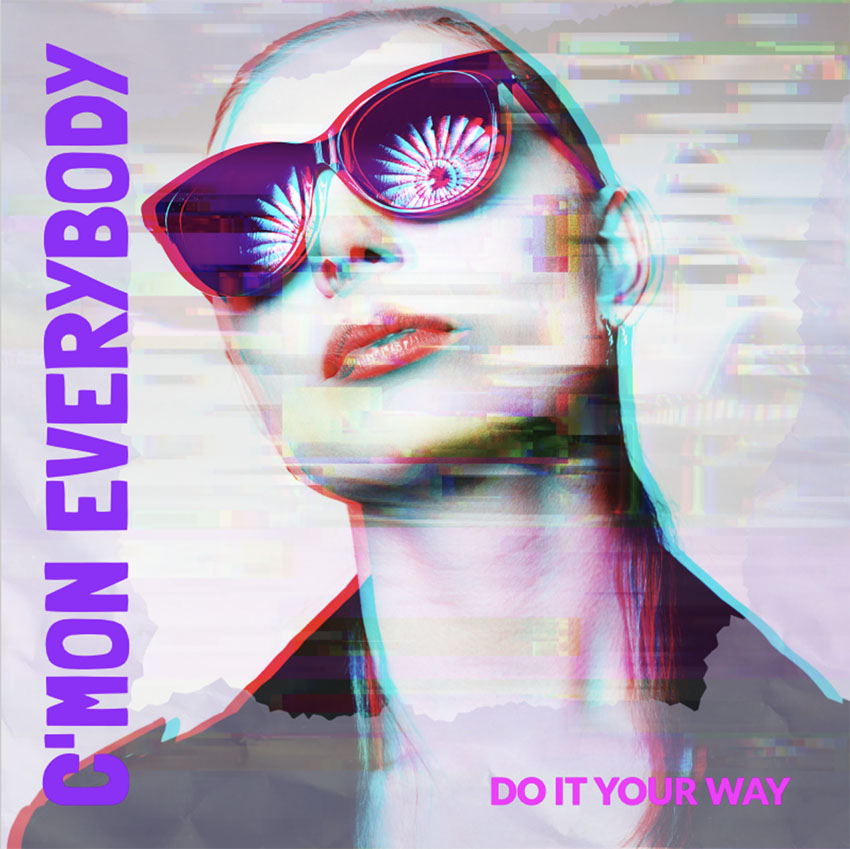
If you’re a rocker looking for great CD album covers, you need to check out Placeit’s music album cover maker online. This terrific app offers a wide selection of the best album covers that you can customise in just a few minutes to create gorgeous rock album covers.
Best of all, the album cover maker online is simple and intuitive to use. Let me show you how with these simple steps below.
How to Make Rock Album Covers Using an Album Cover Creator
Step 1
Navigate to Placeit, click on Designs in the header menu, and select Album Cover in the sub-menu.

Step 2
Now browse the entire catalogue of cool album covers, select the designs you like the most, and use the customisation features to turn them into rock album covers.

Step 3
Click the album cover template you like, and it will open in the Placeit music album cover maker.

Start to customise your album by selecting the background image first. This will set the tone for all your other design choices.
Go to the lower right side of the album cover art maker and choose an image for the background of your album cover art.
Note that if you want to upload your own photo, this is where you can do so by clicking on Custom Image. Alternatively, you can elect not to use a photo by selecting No Image and choosing a beautiful colour for your background instead.
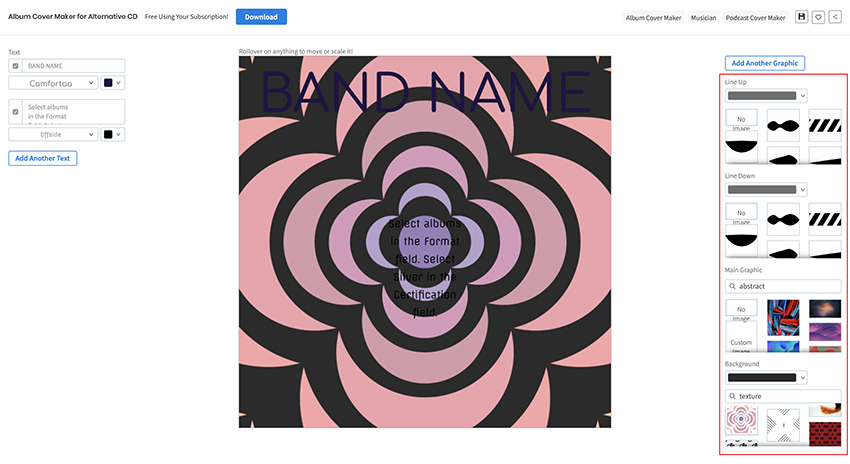
Move to the area above the background photo called Main Graphic and, depending on the background you’ve chosen, you can either add a graphic here or remove one. I’m going to remove the one that came with this album cover as it no longer fits.
I’ll also go to the two sections above Main Graphic and remove the lines that were in the previous design because they no longer work either.
Step 4
Now we move to the left side of our music album cover art maker.
Starting at the top of the template, you can enter all the relevant text for your rock album cover design—name of album, name of artist, producer, etc.
Once you’ve entered your text, you can keep the default fonts or select different fonts from the dropdown menu. Afterwards, select the font colours.

Step 5
Go to the right side of the template and add an icon if you need one.

Step 6
Our next step is to adjust the various elements in the album cover creator so that they fit perfectly together. You can click on each element of the design and move it around the design or click on the corners of an element to scale it up or down.

You should feel free to experiment as much as you like, knowing that if you’ve scaled and/or moved the elements in your album cover design and you aren’t happy with your work, you can simply hit the Reset Layout button in the top right of the album cover maker online app, and everything will be reset to its original position.
Step 7
Look at your rock album cover as a whole and make any tweaks to the text, fonts, colours, icon, or anything else you feel is necessary to make it just right.
Once you’re satisfied with your design, hit the Download button at the top of the screen and download your design for a small fee. Alternatively, if you regularly need to create cool album covers, posters, social media banners, etc., then the monthly plan may be the best deal for you. And that’s it. You’ve got your own customised rock album cover design ready to go.

Step 8
If you want to see what your album cover art would look like in a real-life scenario, upload it to an album cover mockup on Placeit.

Best Album Cover Art Templates
Now that you know how to use the album cover creator to make rock album covers, let’s take a look at some of the cool album covers you can customise at Placeit.
1. Pop-Rock Album Cover Template

Many artists start their careers by putting out their own music. This often means budgets are tight and time is of the essence. This is where a tool like the album cover maker is indispensable. It offers tons of awesome CD album covers with gorgeous images and graphics that you can customise to suit your specific needs.
2. Alternative Album Cover Creator with Fluorescent Colors

What’s great about the CD album covers at Placeit is that you don’t need to find a template that was made specifically for a specific genre of music. For example, this template was made for alternative music but can also be used for rock and customised to your taste and needs.
3. Album Cover Maker Featuring Stunning Pelicans

How cool is this album cover? This eye-catching template offers a number of super images and cool fonts that you can use to customise your own cover. Just choose the image that most appeals to you, add your text, and your cover is ready to go.
4. Artistic Album Cover Maker for Alternative Music

This alternative music cover template is a super choice for rock musicians as well. It offers not only a ton of awesome background images and eye-catching fonts, but also great graphics that you can customise as needed to add more interest to your cover.
5. Soft Alternative Band Album Cover Maker

CD album covers should be intriguing and mysterious, wouldn’t you agree? Well, you can’t get more mysterious or intriguing when you choose this soft and moody cover. Add your title, band name, and any other info you need, and your album is ready to go.
6. Psycho Rock Album Cover Template

A great template offering loads of customisation features. For example, after you have chosen your background image, there is a setting for adding texture to your image to create this swirled effect you see here. You’ll have fun mixing and matching the textures and backgrounds to find what works best for you.
7. Cool Alternative Music Album Cover Maker with Dim Colors

One of the best of the best album covers featured here, this beautiful abstract cover captures some of the best qualities of rock. Use the image here or choose the one that most appeals to you from the wide selection available, add your text, and your cover is ready to go.
8. Alternative Album Cover Maker

For an album cover with a distinct look, check out Alternative Album Cover Maker. Though it wasn’t created for rock album covers, it fits the rock aesthetic perfectly with the cool and intriguing images on offer, bold text, and impressive graphics.
9. Album Cover Maker for Cool Ambient Music CD

How’s this for a terrific album cover? The graphic mimics the shape of a vinyl record or a CD. Customise the template by adding your choice of front and middle images to create a complexed layered look, and then add your colours and text and you’ve got yourself a great rock album cover.
10. Fresh Album Cover Template for Ambient Music

Just to show you how wonderfully versatile these templates are, here’s a variation on the one above with different colours, images, and fonts used to create a rock album with a totally different feel.
11. Deep Electro CD Cover Design Template

A strong image goes a long way in creating amazing rock album covers. Pick a strong image like the one featured here, and then add your album title and band or artist name. Change the font to reflect your taste and style, and you’ve got one stunning album cover ready to download.
12. 80s New Wave Album Cover Maker

The New Wave template is another that can be repurposed for rock albums. The album features a bar down the side on which you can write the artist or band’s name, and then add the album title to the bottom, or vice versa.
13. 80s New Wave Hits Album Cover Design Template

This gorgeous variation on the template above shows how customisation can create a very different look for an album. In this version, the background image features a clean graphic image, and the band name down the side lies on top of a bar edged by a torn paper edge. The album title is slightly tilted to give a nice effect.
14. Electronic Album Cover Maker

When you’re looking for something more abstract, this album cover template is a good choice. Though it wasn’t designed specifically for a rock album, it is abstract enough to suit the genre and of course can be customised extensively to suit your needs.
15. Hip-Hop Hits Collection Album Cover Design Maker

Create amazing rock album covers with this hip hop album cover template. Just add your background image and text, change the fonts and colours as needed, add your icon or a graphic if appropriate, and your job is done.
16. Album Cover Template for Experimental Music Genre

This album cover for experimental music is perfect for rock album covers. It offers phenomenal background images like this beautiful one here, a great range of fonts, and loads of graphics and symbols that you can use to make the rock album of your dreams.
17. Progressive Rock Album Cover Maker

For those who love abstract backgrounds, there is this terrific rock album cover maker. Creating your own rock cover albums is as easy as choosing a background, adding your logo or graphic icon, adding the name of the album and artist, and selecting your font type and colour. A quick and easy way to create great rock album covers.
18. Infinite Techno Album Cover Maker

This template offers a simple album cover design with just text at the top and/or bottom of the album. The strength of the cover depends on a striking image like this one, featuring a young man against a black background, surrounded by sparkling particles.
19. Techno Mix Album Cover Template

Who doesn’t love dogs? Well yes, there are some people who don’t, but even they couldn’t resist this cute image of a dog in profile against a planet in outer space. Of course, if you really don’t want an animal on your cover, you can choose another background from the tons of choices available with the template.
20. Heavy Metal Album Cover Template

This Heavy Metal cover template is perfect for rock album covers with a dark overtone and easy to customise to suit the rock genre by selecting one of the cool background graphics on offer—or uploading your own, changing colours and fonts, and adding your own text.
21. Cool Electro Album Cover Design Template

We end our list of the best album covers with a variation on the template we started with. You may recognise the photo of the child on a swing from the first image on this list, but look at how this template brings a fresh new twist to the image with its layered background and beautiful framing geometric shapes. Customisation is as easy as it is with all the other templates here—just add your text if you like the template or change the background to one of the others on offer, add graphics, and you are done.
Make Your Own Rock Album Cover Today
Now that you know how to make an album cover online and have seen our list of the best album covers available at Placeit, why not use the album cover art maker to create your very own album cover art and share it with us in the comments below. We’d love to see what you come up with.
And if you’re interested in other designs and cool mockups, check out these handy roundups of the best resources in different categories:
-

27 Album Cover Art Templates Using an Album Cover Maker
If you want to know how to make an album cover, this article will give you plenty of album cover ideas and show you how to make your own album covers quickly… -

How to Create a T-Shirt Mockup Using a T-Shirt Mockup Generator
If you want to learn how to create amazing T-shirt mockups, we’ve created this terrific T-shirt mockup tutorial just for you. -

20+ Social Media Image Maker Templates for Instagram, Facebook + More
Do you need a regular supply of fresh social media graphics to help you stand out from the crowd? Here is a great social media image generator that’s easy to… -

19 Best Magazine Cover Designs You Can Personalise (With a Magazine Generator)
If you want to know how to make a magazine cover from scratch, this article will give you plenty of magazine cover ideas and show you how you can make your… -

20+ Online Ad Banner (Maker) Template Designs to Customise Now
If you need a fabulous ad banner template to increase engagement, promote your products and generate sales, this list of the 20+ best online ad banner… -

21 Best iPhone 11 Mockups (Pro & Pro Max)
Looking for the perfect mockup for the new iPhone 11? Placeit has an amazing range of photo-realistic iPhone 11 mockup templates to suit just about every need. -

29 Best Long-Sleeve Shirt Mockups
If you’ve created a great design or logo and are looking for the right T-shirt mockups to add it to, Placeit has a wide selection of both short-sleeved and… -

How to Make a Rap Album Cover Art (Using an Album Cover Maker)
If you want to know how to use an album cover maker online, to create rap album covers, read on to discover the power of the Placeit Album Cover Maker.

{excerpt}
Read More
20 Top Business Video Intro (Opener) Templates for After Effects
{excerpt}
Read More
10 Top Analog Transition Templates and Presets for Final Cut Pro X
{excerpt}
Read More
Envato Tuts+ Community Challenge: Created by You, January 2020 Edition

Hello and welcome back to our monthly community feature here at Envato Tuts+! It’s been a wonderful year, and we’re so excited to see what 2020 brings! This month, we’re taking a look at some of the wonderful submissions we saw over the past month, as well as some other fun submissions from the past year.
These submissions are specifically from the Design & Illustration sections of Envato Tuts+. Thank you all so much for reading, creating, and sharing your progress with us!
Remember, you can join in the fun too! If you’ve completed a walkthrough or tutorial, share your final product with us—whether it’s a similar outcome or if you’ve taken your own spin on things! We’d love to see what you came up with! Just comment below the tutorial and include a visual, so we can see it!
Vector Tutorial Results
Let’s begin with some of the lovely submissions we received that were specifically vector creations. Have a look at these lovely submissions, as well as the tutorials that inspired them!
How to Create a Cactus Text Effect in Adobe Illustrator

Check out this submission from Svetlana Mraovic, based on a tutorial by Andrei Marius. This vector text effect is such a fun one—your work turned out great here, Svetlana! Thanks so much for sharing your results with us.

How to Create a Garden Gnome Illustration in Adobe Illustrator

The lovely Svetlana Mraovic shared even more with us this month—this time, a vector illustration inspired by a tutorial written by Nataliya Dolotko. Your results here look awesome, Svetlana! I like your take here on the mustache.

How to Create an Illustration for International Women’s Day in Adobe Illustrator

This illustration for International Women’s Day is so cute—check out the version Vïkäs JäñgRã created! This is inspired by a tutorial written by Nataliya Dolotko. I really like your extra touches here, Vïkäs! Thanks so much for sharing your lovely result with us.

How to Create a 3D Text Art Effect in Adobe Illustrator

Text effects can be so much fun to experiment with! Svetlana created this lovely result from a tutorial by Andrei Marius. Thank you so much for so many submissions this month! You’ve created such lovely work—hope to see more from you next month, too!

How to Create a Retro Fox Illustration in Adobe Illustrator

Isn’t this fox illustration cute? This submission is from anaht handa—lovely work here, anaht! I like the large scale on your strawberries’ pips! Thanks so much for sharing your adorable results with us. It’s so cute!

How to Create a Mid-Century Style Pattern in Adobe Illustrator

Isn’t this pattern cute? This tutorial, by Ivan Petrusevski, walks you through how to create it—and here are Malini Rao’s results! Wonderful work here, Malini! This is such a cute pattern. Thanks so much for sharing your results with us this month!

How to Use Brushes in Adobe Illustrator to Create a Colorful Flamingo

I love this super cute flamingo illustration! Here’s Superkript’s take on this one—I really like your alternative take on the wings! The texture here is so lovely too. Thank you for sharing your take on this tutorial with us!

How to Create a Deep Diving Illustration in Adobe Illustrator

Isn’t this illustration cool? There’s so much to see here! Lawrence Dela Pena really pushed this tutorial, written by Aliaksei Kruhlenia, further and added so much fun extra content! Fantastic work here, Lawrence! Thanks so much for sharing your inspiring work with everyone!

How to Create an Illustration of a Starling on a Branch in Adobe Illustrator
 SpringHow to Create an Illustration of a Starling on a Branch in Adobe IllustratorNataliya Dolotko
This adorable tutorial teaches you how to create an illustration of a starling on a branch—and Georgiana Truica used this tutorial in an alternate illustration! I love how you incorporated this into the vase here, Georgiana! So glad to hear this tutorial helped you in the creation of your work. Really lovely!

Adobe Photoshop Tutorial Results
There were some amazing Photoshop submissions in the past year. Here’s a selection of some really awesome ones, submitted and created by the Envato Tuts+ community! Thanks so much for sharing your creations with us!
How to Create a Photo to Watercolor Photoshop Action

How awesome are these results submitted by ArvinSegunto? Wow! This is inspired by a tutorial written by Marko Kožokar, and it is such a fun one! Imagine all the things you could do with this Photoshop action! Thank you so much for sharing your stunning results with us, ArvinSegunto!

How to Create a Fantasy Fairy Photo Manipulation With Adobe Photoshop

This tutorial, by Jenny Le, walks you through creating a fantasy photo manipulation—and here’s the lovely result submitted by Susana González Gutierrez! I really like the wings here, Susana! We’re so glad to hear you enjoyed this tutorial! Keep up the great work!

How to Make Watercolor Effects in Photoshop Quickly With Actions

Here’s another stunning tutorial from the very skilled Marko Kožokar! Lisamery submitted their results, and they look great! This effect has such an interesting texture. Thanks so much for sharing your outcome with us, Lisamery!

Design & Illustration Tutorial Results
And here are some additional submissions that didn’t necessarily fit into the other two categories. Take a look at these fun and inspiring creations—thank you for sharing your results with us!
How to Create a Minecraft Character in Affinity Designer

Love Minecraft? Check out this fun tutorial by Andrei Stefan, which walks through creating a blocky, Minecraft-inspired character! Here’s a tutorial result submitted by Moises Ramírez. Nice work here, Moises! Glad to hear you liked the tutorial!

How to Create a Summer Portrait With Ice Cream in Procreate

I love this beautiful illustration, and its companion tutorial, by Maria Dimova. That said, the results here posted by Xan are super beautiful too! I love your take on this illustration; you have a lovely style! Thanks so much for sharing your work with us!

Digital Drawing for Beginners: Digital Shading

Humayun shared this stunning rose illustration—wow! It’s really, really awesome! Fantastic work, Humayun! This submission was inspired by a tutorial by Monika Zagrobelna. Check it out!

How to Design a Virtual Reality Kid Character in Affinity Designer

This fun submission is from Sofiane Sebbouh, inspired by a tutorial by Yulia Sokolova. Lovely work here! I really like your take on some of the extra dotted elements here. Thanks so much for sharing your results with everyone!

We Want to See Your Creations!
Have you created content that was inspired by a tutorial here at Envato Tuts+? We would love to see your work—share your work with us! Whether it’s your result from a detailed walkthrough or an original take on the tutorial, we love to see what our readers have made.
We’ll be keeping an eye out to see what you’ve been up to! Want to get involved? Here’s how:
- Your submission, art or design, should be similar to the tutorial that you followed. You are encouraged to have fun with it and make it your own, but we should be able to see the inspiration from the tutorial as well.
- Comment on the tutorial that you followed or were inspired by and attach your results. Remember, all skill levels are encouraged to participate!
- If you share your work elsewhere, like on social media, please link back to the tutorial you followed, so others can check it out too!
Thank you so much for all of the wonderful submissions over the past month—and over the past year too! We’re so excited to see what’s to come in 2020! We’ll be on the lookout, so please keep reading, keep creating, and keep sharing!
You can check out last month’s community highlights here!
 Community ProjectsEnvato Tuts+ Community Challenge: Created by You, December 2019 EditionDaisy Ein

{excerpt}
Read More
Google is killing digital magazines in News
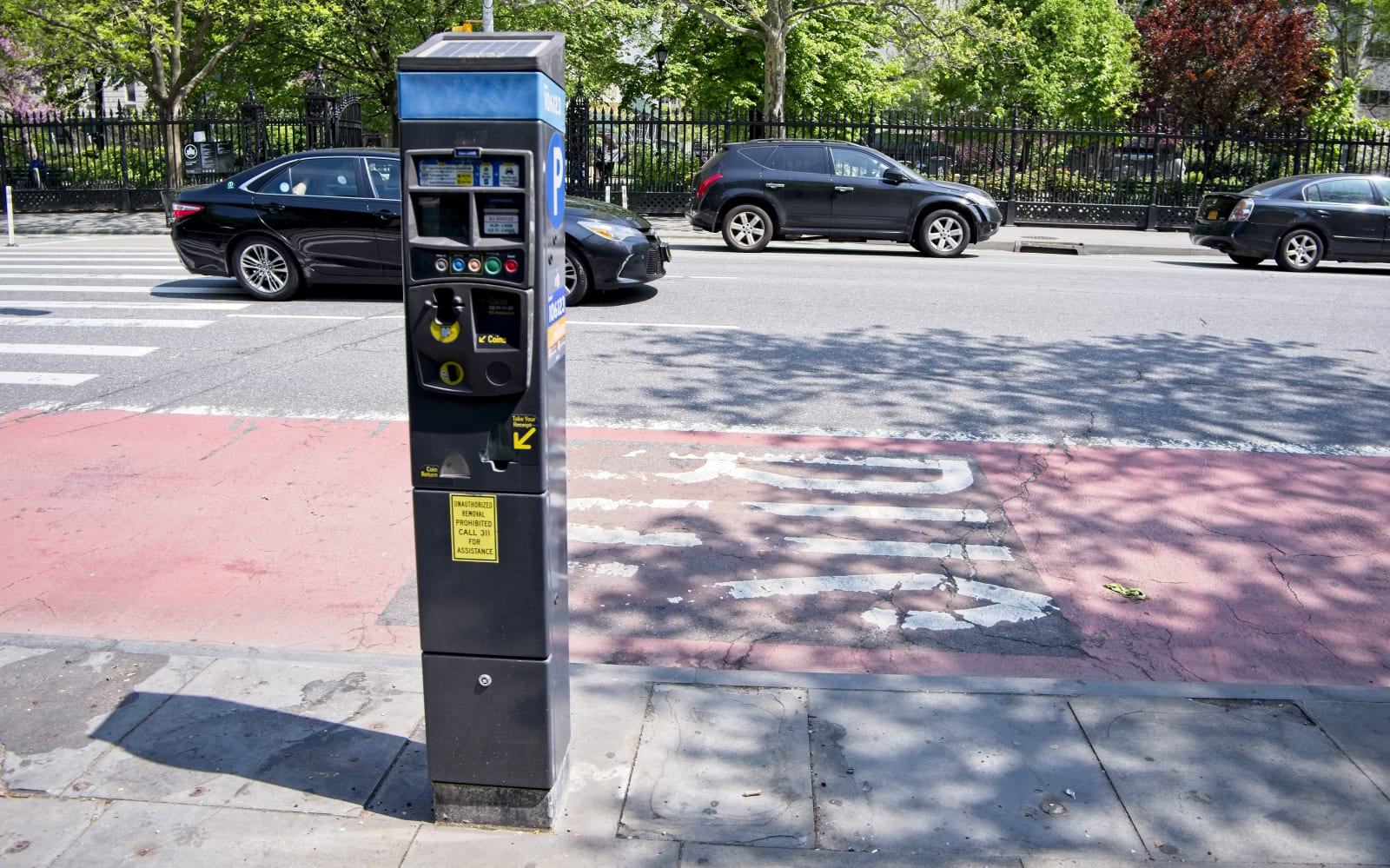
Y2K-type glitch is causing NYC parking meters to reject credit cards
5 Top Slideshow Video Templates for Premiere Pro
{excerpt}
Read More
TikTok-owner ByteDance reportedly built a deepfake maker

The best Bluetooth tracker
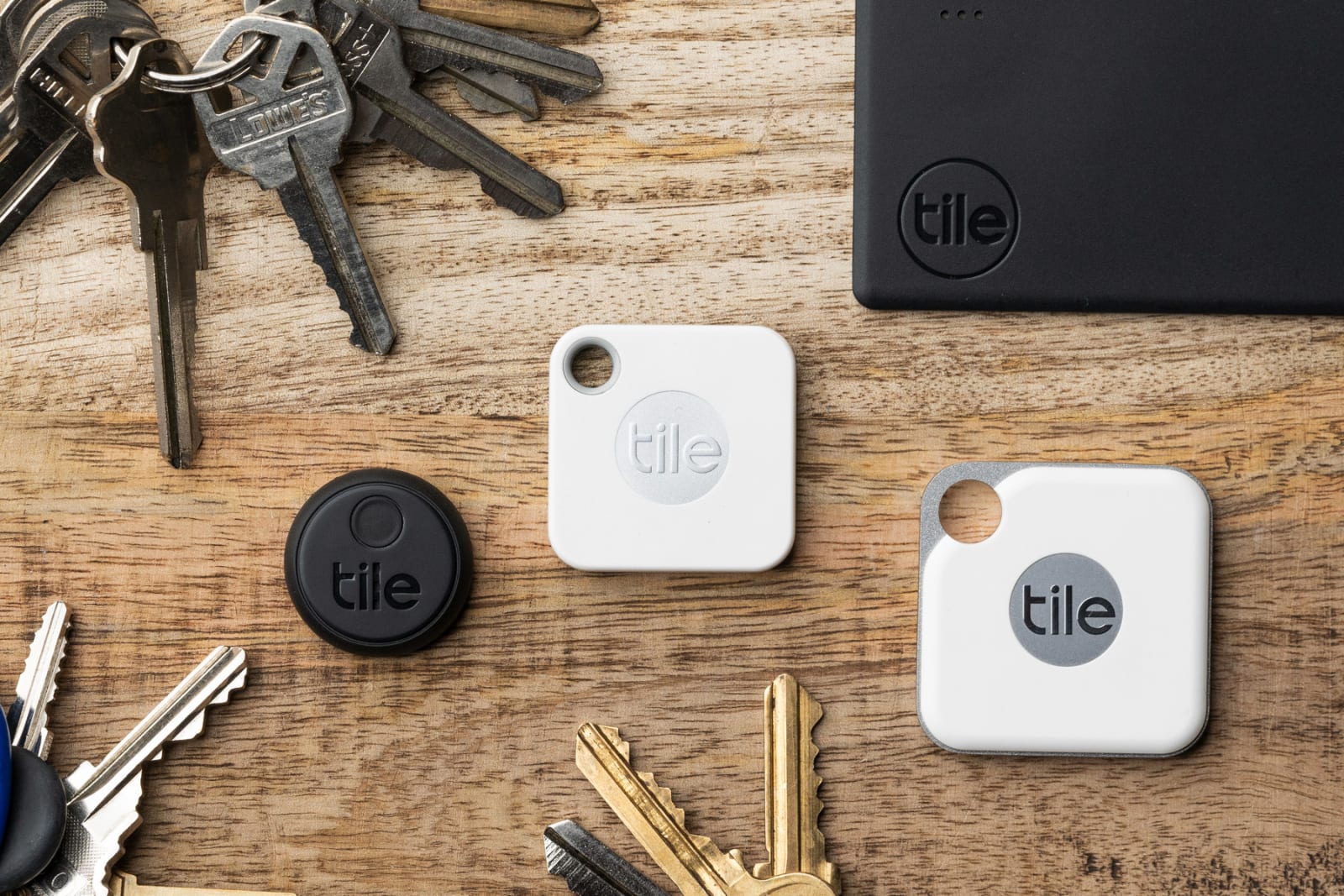
This post was done in partnership with Wirecutter. When readers choose to buy Wirecutter's independently chosen editorial picks, Wirecutter and Engadget may earn affiliate commission. Read the full guide to bluetooth trackers.
If you f…
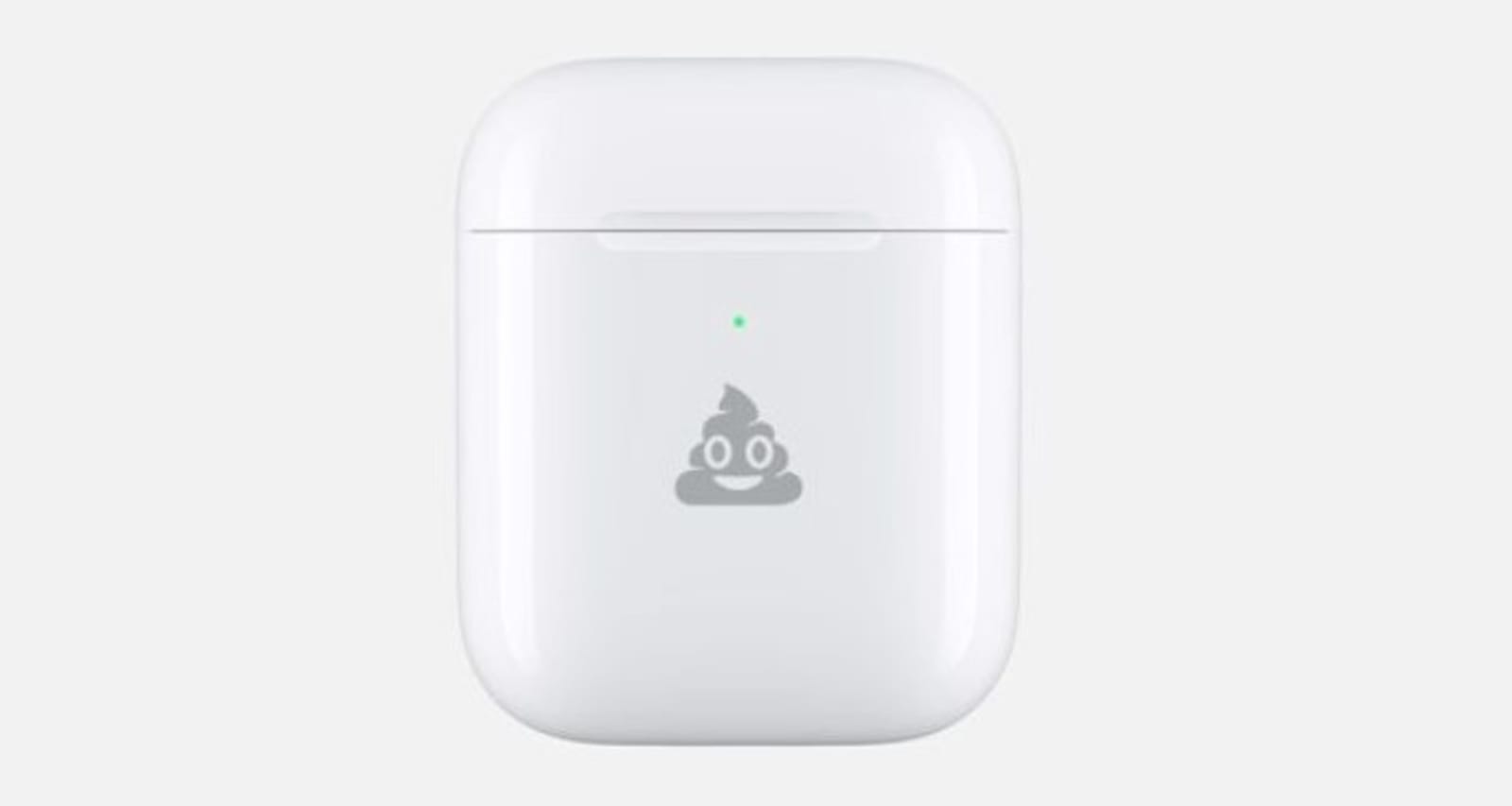
Apple will engrave emoji on your AirPods case for free
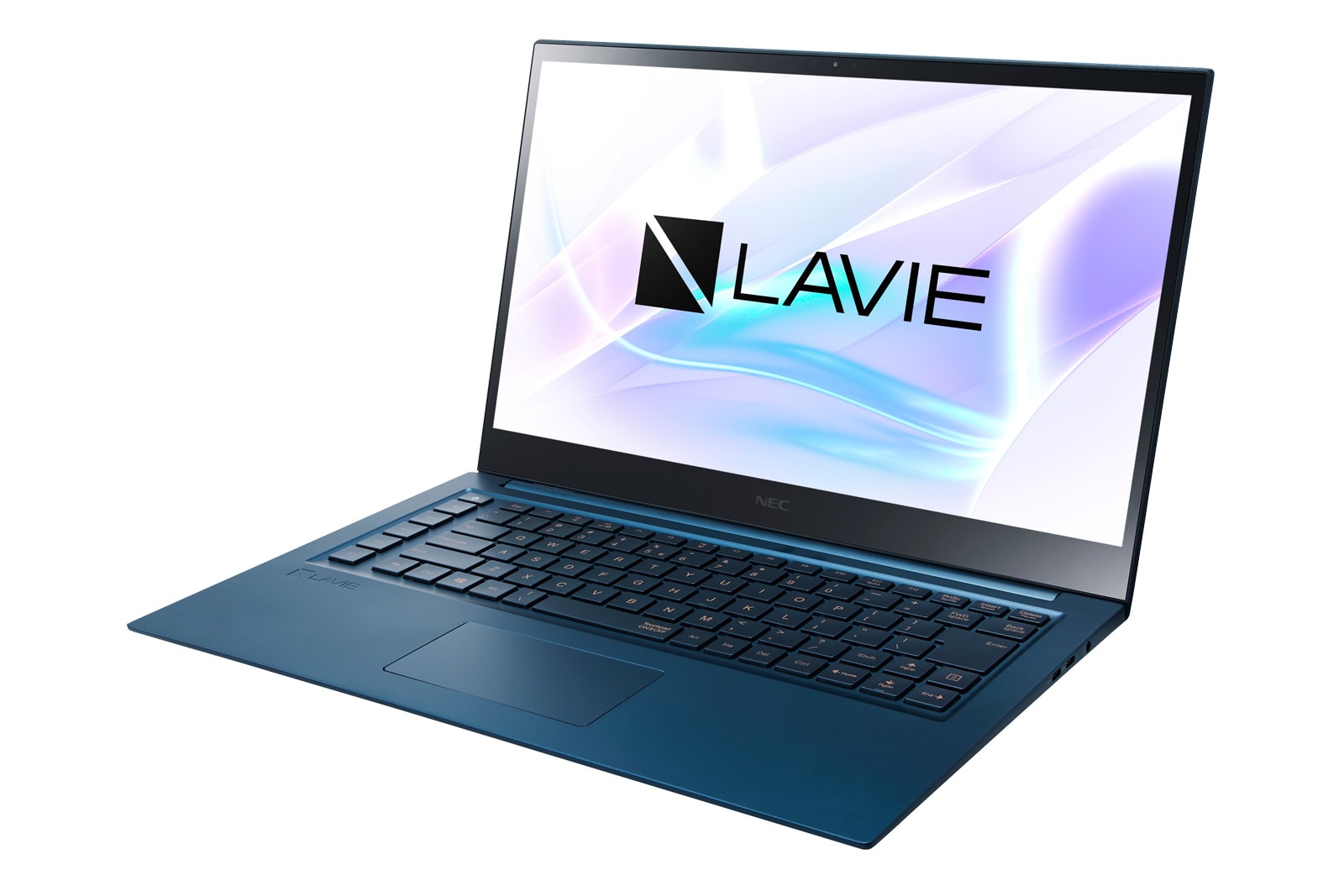
NEC’s new PC lineup for the US includes a 4K OLED laptop
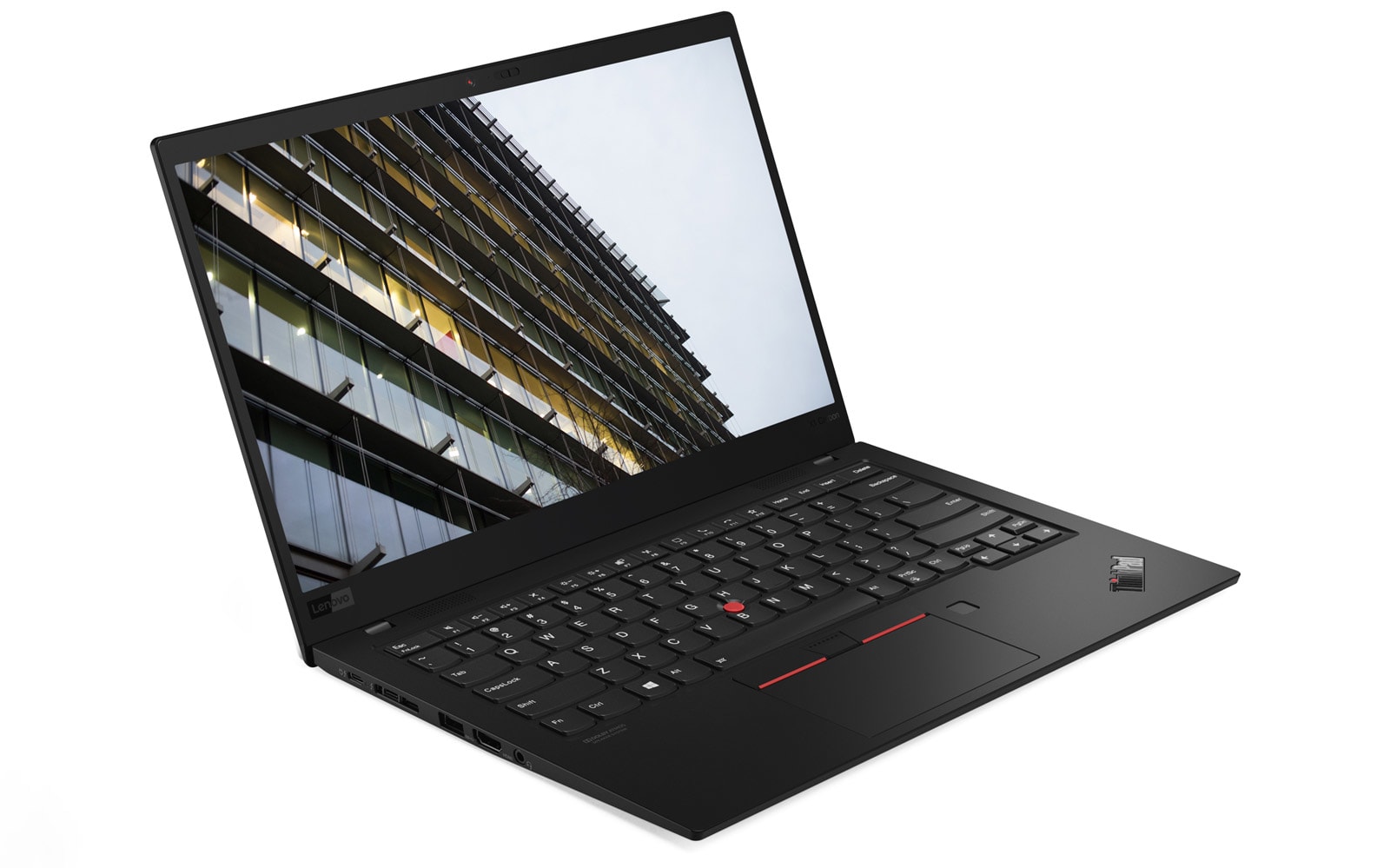
Lenovo’s updated ThinkPad X1 laptops include optional privacy screens
Tesla’s car shipments grew by 50 percent last year

How to Create a Snowflake Brush in Photoshop

In this tutorial, we will create a snowflake Photoshop brush and make overlays for the image using a snow brush Photoshop preset.
If you want to learn these techniques via video, check out our lesson on the Envato Tuts+ YouTube channel:
If you want to learn how to create more similar photo effects or you need to find out how to install Photoshop brushes, check out these:
-

How to Add Realistic Falling Snow to a Photo in Photoshop
Falling snowflakes are a great way to make your winter photography much more interesting. Sometimes the weather doesn’t cooperate, however, and you have to… -

Create Animated Falling Snow in Photoshop
Digitally created snow can often be quite difficult to generate in Photoshop, in a realistic-looking way. We recently published a tutorial showing how to add… -
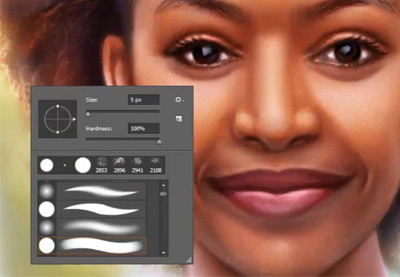
How to Install Brushes in Photoshop
In this quick video from our Photoshop in 60 seconds series, learn how to install and load custom brushes to use for your designs and digital paintings.
Tutorial Assets
The following assets were used in the production of this tutorial:
1. How to Create a Snowflake Using Shape Layers
Step 1
Press Control-N to create a new document and use the following settings: 1000 x 1000 px; 300 dpi.

Step 2
Click U and select the Rounded Rectangle Tool. Create a shape with the following settings: Width: 30 px; Height: 720 px.

Step 3
After that, we need to create a duplicate of the shape using Right Click > Duplicate.

Step 4
Hit Control-T and change the Height to 20%.

Step 5
Rotate the shape by 45° while holding Shift.

Step 6
While holding Shift, move the layer 305 px up and 40 px to the right.

Step 7
Create a duplicate of the layer, and then go to Edit > Transform > Flip Horizontal.

Step 8
Move the duplicate of the shape 80 px to the left.

Step 9
Select the small shapes while holding Shift and then Right Click > Merge.

Step 10
Create two duplicates of this new layer, and move each new shape 70 px down.

Step 11
Merge all the shape layers and create a duplicate of your new layer. Then rotate it 180° while holding Shift.

Step 12
Merge the shapes again, and create two duplicates of the layer. Rotate these duplicates by 60° and -60°, and then merge these shapes into a snowflake.

2. How to Create a Snowflake Brush Using the Shape Layers
Step 1
Now we can start to create our brush. Make the background layer Invisible, and then go to Edit > Define Brush Preset, select any name you want to use, and hit the OK button.

Step 2
Now we need to change the brush’s settings to create a complex brush texture. Select the Brush Instrument and hit the Brush Settings icon.

Step 3
Go to the Shape Dynamics panel and set the Size Jitter to 100% and Angle Jitter to 100%.

Step 4
Go to the Scattering panel, set the Scatter to 1000%, and put a tick on Both Axes. Our snowflake brush Photoshop settings are almost ready now—we just need to add some dynamics to the opacity of the snow brush Photoshop preset.

Step 5
Go to the Transfer panel and set the Opacity Jitter to 100%.

Step 6
Click on New Brush Preset to save the settings for the brush.

3. How to Create an Overlay Using a Custom Snowflake Photoshop Brush
Step 1
Open the image you want to use for overlaying, and then create two layers using Shift-Control-N.

Step 2
Select the brush, change the size to 250 px, and draw with this brush on the first empty layer to create an overlaying brush texture.

Step 3
Draw some more snowflakes on the second layer, and finally, to add some motion to the image, go to Filter > Blur > Motion Blur and use the following settings:
- Angle: 90°
- Distance: 25 px

Awesome Work, You’re Now Done!
Congratulations! You have created snowflake brushes and snow overlays for an image using Photoshop shapes and brush instruments. Here is our final result:

Looking for some more snowflake or sparkle brush Photoshop items? Check these products from GraphicRiver:
Snowflake Brushes
In this set, you will find 12 greate snowflakes brushes, useful for creating overlays for your backgrounds and photos.

Christmas Snowflakes Brushes
This pack contains 60 hi-res snowflakes brushes with different brush textures. It could be extremely useful for creating Christmas and winter pictures.

Real Snow Photoshop Brushes
If you want something more realistic, check this 17 snow brush Photoshop pack. This item will work well for adding snow to your images. These brushes could be also useful if you need to create sparkle brush Photoshop presets, as it gives you realistic-looking particles.

30 Snow Decorations Brushes
This “30 snow decoration brushes” item contains a complex snowflake brush Photoshop pack with different complex shapes, great for creating elements of your Christmas background.

Realistic Snow Crystal Effect
This brushes pack contains six Photoshop snowflake brushes with crystal effect brush textures. A great choice for creating winter and Christmas decoration elements or backgrounds.

Want to learn snowflake brush Photoshop techniques, or maybe how to create illustrator vector snowflake shapes? Check these awesome tutorials:
 WinterHow to Draw a SnowflakeMonika Zagrobelna
 WinterHow to Create a Set of Snowflake Icons in Adobe IllustratorAndrei Stefan
 Adobe PhotoshopPhotoshop in 60 Seconds: Create 4 Unique Custom BrushesMelody Nieves
 WatercolorHow to Create Realistic Watercolor Photoshop Brushes From ScratchIvan Gromov

{excerpt}
Read More