Category: Tutorials
Tutorials,freelance,projects,joomla,php,mysql,wordpress,blancer.com
London police begin using live facial recognition tech across the capital

The Morning After: Sonos tries again, and Tinder’s new tools
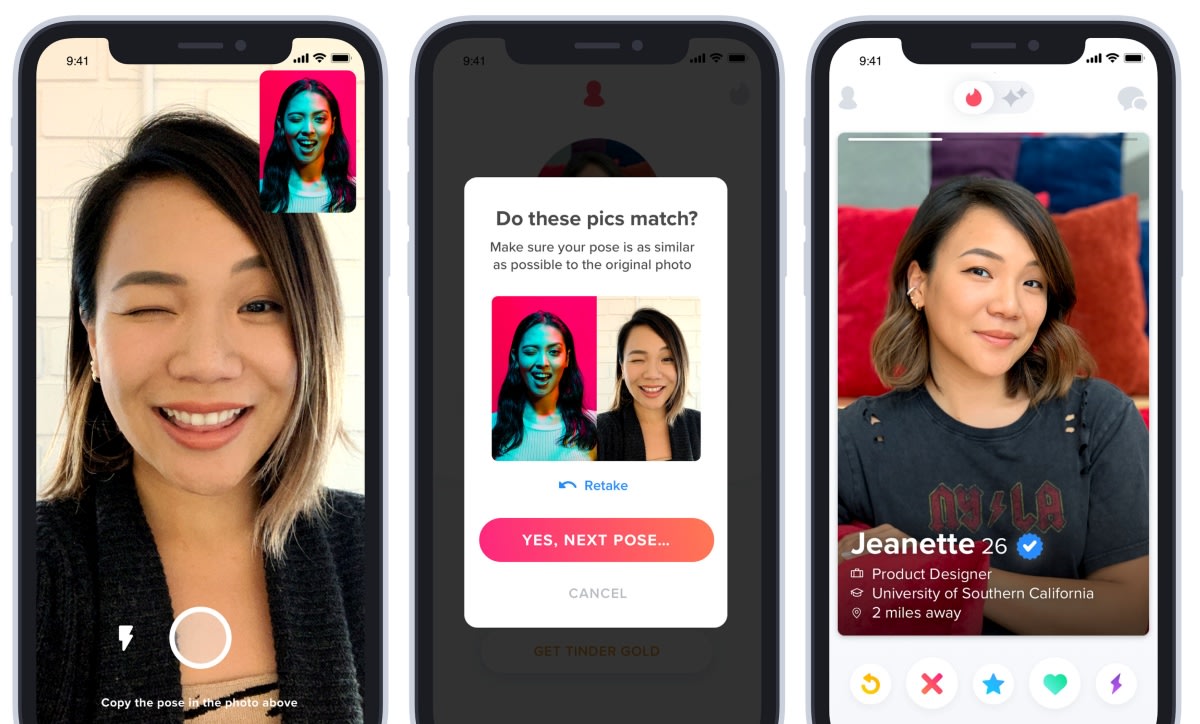
Tinder decided the end of January was the best time to add several new features to its app, aimed at security and the end of catfishing. It's not exactly your typical Valentine's Day preamble, is it?
First, it…
Samsung is building its own version of AirDrop called Quick Share

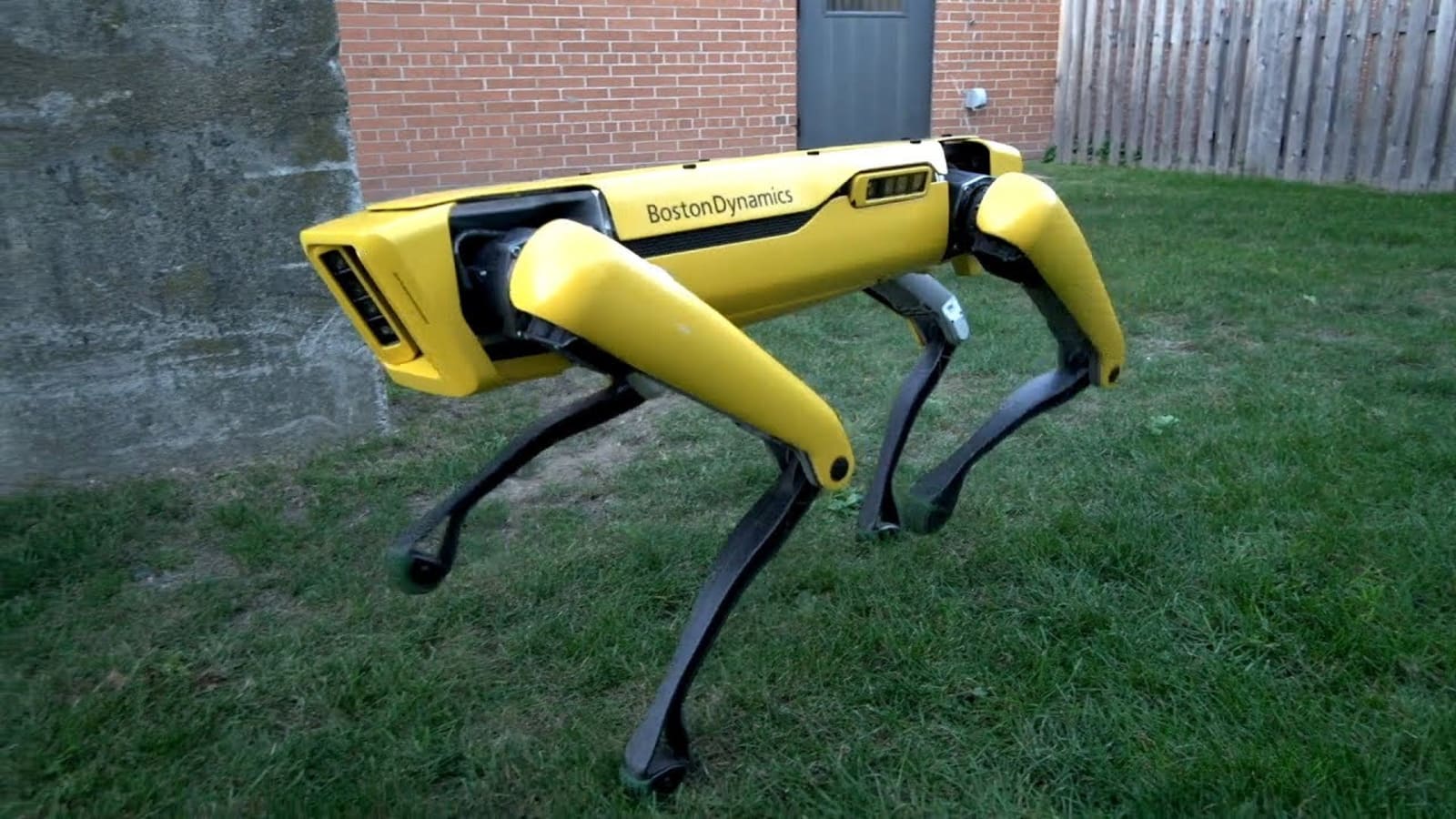
Boston Dynamics gives its robot dog a developer SDK
MIT’s new GPS system uses satellite images to put you in the right lane

Indigenous Artists Around the World: Jacque Njeri
Welcome to our Indigenous Artists Around the World series, which features both popular and little-known artists from the hundreds of indigenous communities across the globe.
According to the United Nations, there are an estimated 370–500 million indigenous people in the world, spread across 90 countries. Though they can be found in all geographic regions and represent 5,000 different cultures, many of us know precious little about their rich lives and cultures. Well, what better way to expand our knowledge of these communities than through their artists?
Today, join us as we kick off our series with the work of an amazing Kikuyu artist from Kenya, Jacque Njeri.

Welcome to our Indigenous Artist series, Jacque. Thank you so much for being here. Let’s start off with a bit of background. What indigenous group do you belong to?
I am a Kikuyu born in Kenya.

According to the United Nations, Indigenous peoples created and speak the majority of the world’s 7,000 languages, but these languages are under threat with one dying every two weeks. Has your group retained its native tongue and how important is it that you maintain your own language?
Maintaining my native tongue gives me an identity and sense of belonging. It connects me to my history and my culture and informs my work.
For example in my latest work I draw on the Kikuyu myth of Gikuyu. The myth describes the origin of the tribe where Gikuyu the founder of the tribe was given land by God. While he descended upon it, a woman appeared and her name was Mumbi. Together they have more than nine daughters. The exact number is not mentioned as a survival mechanism for the continuity of the tribe. For example, if there was an attack and the known number was killed the rest would survive and this would ensure the continuity of the tribe.
Each daughter’s name was used as the identity of each clan. They were the head, making the system matriarchal. Each clan had its own attributes inherited from their mother. For example, if the daughter had a singing ability it was believed that her clan would make great singers and their duty was to entertain when there were ceremonies in the community.
In my new series, Genesis, I use the attributes as the embodiment of each artwork in a futuristic interpretation of a matriarch.

What a beautiful story and a good place to tell us how and why you got into art making?
I have always been interested in art for as long as I can remember. Growing up, I would always get in trouble for filling up my books with doodles. In high school I took art classes and that’s where my interest really piqued. I went on to pursue a Bachelors in Art and Design at the University of Nairobi and graduated in 2013. Art for me is a communication channel from the divine to the world and it comes in many forms. Life imitates art and the world is largely shaped by it.
Tell us a bit about your work, your style and what motivates you.
I am a digital artist who primarily uses Adobe Photoshop to create Afro-futuristic work. Afro-futurism is my simulation of an African future. I think projecting a future requires high imagination because it’s not a derivative of anything that we see day to day as opposed to historical work which references what we have seen before. It’s almost abstract in that sense and that’s what makes it interesting. There are tons of myths and legends from Africa that have yet to be told to the world, for example, the myth of Gikuyu which is a story of creation from a Kikuyu perspective.

MaaSci is another example of Afro-Futurism in my work. It is a digital collage series that explores a fellow indigenous people of Kenya, the Maasai, in Sci-Fi environments.

The Maasai live in the savannah and that’s the image associated with them but the project imagines the Maasai in outer space in diverse backgrounds.

Tell us a bit more about the themes and issues you explore using this Afro-Futurist style?
I explore culture, feminism and female empowerment. As a woman, addressing women’s issues comes naturally. It’s an expression of what I go through and what I see women going through and a projection of narrative change.
Despite being a forward-thinking country, pose the question ‘When will Kenya be ready for a woman President?’ and the vile comments that arise from men and even women themselves gives a clear impression of the overall condition of women in our society. This of course stems from the cultural idea that women are to be led and lack the emotional stability to take on some roles.

What was the best advice you can pass on to aspiring creatives?
The most critical advice I can give to other artists is this: Create every day!
What a way to kick off our new series. Thank you so much, Jacque, for taking the time to answer my questions and share your stunning and inspiring work with us. You can see even more of Jacque’s work on her website, jacquenjeri.com, and look out for more intriguing articles highlighting other talented indigenous artists around the world.

{excerpt}
Read More
10 Best JavaScript Media Scripts and Plugins
In this article I’ll show you some other kinds of interactive scripts available on CodeCanyon that can liven up your site.
Why Use a Media Script or Plugin?
There are many kinds of media. Say you want visitors on your website to fill in a survey form that pops up when they navigate your page. Or you want users to search locations of your stores and find out how to get there.
The most common kinds of interactive media are maps, audio, video, flipbooks, and interactive elements like surveys, popups, and clocks. They are an indispensable part of website content. A good combination of these drive customer engagement.
But imagine manually coding every interactive media item—every video player, audio player, flipbook, map, or countdown clocks.
Here is where a script comes in handy. A JavaScript script or plugin is a piece of code that you can install on a website to add functionality. Media scripts enable you to share and embed media like video, audio, interactive elements, or other multimedia, in addition to books, magazine, or catalogs in flipbook form.
Let’s take a look at some of the best JavaScript media scripts available on CodeCanyon.
What is a Script?
A script is a piece of code that does a certain task or adds a feature to your website. Scripts contain a set of instructions that automate processes on a website.
Scripts work in the background—where visitors can’t see them—to make your website flexible and usable. The script is self-initializing when the page loads, and keeps running as long as the page remains open. You just install it and you’re ready to go. The great thing is that you can add advanced features to your website without needing to know how to write code.
How to Choose a Media Script or Plugin
JavaScript media scripts and plugins from CodeCanyon are highly affordable and easy to use. All you need to do is download the script and install it on your website. The script will do all the background work to make your video, audio, flipbooks, or other media work smoothly without slowing down your website.
Not only that but because they are built with presentation in mind, they offer a variety of easy-to-use templates you can choose from in order to enhance the look of your website.
Things to keep in mind include the following:
Ease of use: This includes ease of download and installation, how easy it is to upload and resize video and to adapt it various screen sizes.
Highly customizable: A script should allow customization to fit perfectly with any theme you choose for your website.
Cross-browser compatibility: Not everyone visiting your website uses Google Chrome or Mozilla. Make sure that your script is compatible with any browser your visitors might use.
Compatibility across devices: A script should seamlessly work on desktops, laptops, tablets, and mobile phones. Not only that, but the script needs to be responsive, meaning it can adapt to various device types, widths, heights, orientations, resolutions, aspect ratios, and color depths.
Full touch support: The script should be usable by mobile device with touch screens.
Lightweight: The file should be lightweight so your media will initialize and load quickly without slowing down the website.
Standalone: There should be no need to download 3rd-party plugins like flash for the script to work. However, note that it is common for scripts to require common libraries like jQuery.
Let’s take a look at some of the most popular JavaScript media scripts available on CodeCanyon.
1. Interactive Maps Generator

Interactive Maps Generator is a powerful plugin which uses the powerful Google Geochart API which creates the SVG vector maps. It is compatible with Wix, SquareSpace, Joomla and other CMS’s that allow you to paste JavaScript code into the content.
Here is what you can do with Interactive Maps Generator:
- generate as many maps as you want
- embed the code to place maps on any part of your website content
You can create clickable maps for your website, including a map of the US, a map of the world, or any other region available. That’s just the start, you can add active colored regions to the map, and you can add interactivity to the active regions. You will also be able to customize the visuals of your maps: the background color, box border width and color, inactive regions color, width and height of the map.
User NPCAComms says this about Interactive Maps Generator
Best money I ever spent. Easy to use and sharp design. I am 100% happy with this map generator
2. Native Web Radio Player Plugin

If you’re looking for a browser-based, standalone, native internet web radio plugin that allows you to rapidly weave cross-platform radio streams into your web pages then Native Web Radio Player is the perfect choice.
It is written in JavaScript and is compatible with iOS, Android and supports all HTML5 browsers. It is also optimized to look great on desktop, tablet and phone.
You can create any color scheme so it’s easy to integrate it in any design. It’s compatible with shoutcast2, icecast2, radionomy, radiojar and many other servers.
Check out the live preview and find out why user ThomasUber says:
Best radio plugin ever. Works very stable and fast.
3. WowBook: a Flipbook jQuery Plugin

WowBook helps turn your photos and PDF files into interactive flip books or slide shows.
It comes with 3 ready to use templates that you can customize easily. It has 2 realistic page turning effects one for hardcovers and another for regular sheets of paper. It even plays a turning page sound in browsers that support the audio tag.
WowBook is fully compatible with all major browsers. This means you don’t need to download flash and your flipbook can be viewed by all visitors to your website.
Not only that, but it’s fully responsive: it comes with built-in features to resize the book and make it adaptable to different screens dimensions. It comes with a responsive toolbar.
It is also touch enabled with pinch to zoom and double click to zoom.
User anschinsan says this about WowBook:
Nice and simple to customize. I use it for several customers—they are satisfied and I’ve set it up in minutes. Thanks for this plugin!
4. Touch N Swipe Gallery

You want to take how users engage with image content on your store or your website to another level then Touch N Swipe Gallery is the plugin you should have.
Want some reasons why?
Touch N Swipe Gallery plugin for mobile and desktop is fully touch enabled. Visitors to your store or website can view items closely by mouseover content to zoom on desktop while also allowing pinch to zoom, drag and swipe on mobile devices.
In addition, it has adaptive image loading which means images load faster and in the correct screen size so you will have an optimal viewing experience whether you are using desktop or mobile devices.
Check out the live preview of this impressive fully customizable plugin and see for yourself.
5. Resizable Multicolor Countdown

Do you want to generate some buzz about an upcoming sale or have everyone in your team be aware of time remaining until the important deadline?
Resizable Multicolor Countdown displays the days, hours, minutes and seconds until the date of the event on your website. It is a resizable timer that comes with flipping animation and has editable colors that can be set to change over time.
It uses vector data to draw the digits and the panels of the countdown.That means the image quality is high no mater what the size. You can also adjust the color of the back panel or you use a static color.
User simondlh says:
Excellent plugin. Easy to customise. Looks very professional
6. Swift Box: jQuery Content Slider and Viewer

Content sliders are a great way to present the best content on your website by grouping it together into a series of rotating slideshows.
If this is what you want Swift Box has got you covered.
What Does Swift Box Do?
Swift Box organizes your content into boxes. Every box can have unlimited sources.
You can mix content from sources as diverse as RSS feeds, Facebook pages, Twitter, Youtube, Pinterest, Soundcloud and also manage inline contents.
The plugin handles everything for you. Titles, links, images, lists, tables: everything is collected and ready to be used.
Also, you can group multiple contents and sort them by date.
More features of this great plugin include:
- Every Swift Box element is customizable. There are more than 40 options to set for your needs.
- Content can be filtered by a powerful system, allowing you to strip and remove unnecessary HTML tags.
- Fully responsive, adaptive and mobile optimized to guarantee a perfect display on any device.
- Supports touch & drag interactions to offer a superior user experience on both desktop and mobile!
- Slider timings are fully customizable, with the ability to create also a stunning continuous slider effect, perfect for breaking news bars.
Check the live preview and see what you can do with this plugin.
7. Slick Modal PopUp

Slick Modal PopUp is one of the best popup generators in the market. It makes your popups standout by displaying your popup content more effectively and with style. It comes with lots of options that let you create unlimited combinations and achieve eye-catching effect for your messages easily.
You don’t need any special coding knowledge to use this popup generator script. It comes with 40 pre-made quick start demos to help you out. All you have to do is copy and paste!
Why Use Popups?
Popups are very effective. You can use them to conduct surveys, grow your email list, increase your social media following, display ads, and so much more.
Ultimately website pop ups are a great way to increase engagement with visitors to your website and also a way of attracting and retaining customers.
How is Slick Modal PopUp the Best?
To create a popup, you can start with any code or layout, including banners, newsletter signups, contact forms, special offers, images, galleries, iframes, video, and maps.
Here are some more advantages of using Slick Modal PopUp:
- clean design and clean code
- easy to install and set the options you need
- easy to customize to fit your design and layout
- lightweight and cluster-free
Check out the live preview and see why user scippy says:
Great product, useful and indispensable tool for every webmaster! Also with great support!
8. Simple Price Calculator

Simple Price Calculator can transform any HTML-based form into a price calculation form. The form is capable of multiplying two fields together and a quantity field can be added if needed.
Visitors to your website can get instant price quotes or estimates on products and services. They can see the totals together with details displayed dynamically within your page. It very easy to use: simply add the functionality to your form id, setup a few attributes and the form is ready to go!
Finally, currency and some of the form text can be changed through plugin options.
User pagespages says:
Fantastic! Easy, flexible, great documentation, great examples. Super smooth product.
9. Media Boxes Portfolio

Media Boxes Portfolio allows you to display all kind of content in a highly powerful grid. You can use it for blog posts, display media, clients, portfolios, shopping carts, galleries, etc. It also comes with a powerful filter, sorting and search system.
You can put the plugin in with your existing HTML and CSS and it will automatically adapt to its container. Also you can quickly customize it so it adapts to your needs.
The plugin also uses Fancybox and the Magnific Popup which are very popular and powerful lightbox and popup plugins. You can load a lot of stuff in the popups like images, iframes, HTML text, Google maps and more.
It also supports deeplinking. You can directly link to the popup so you can share the popup content with your friends or in your social network.
Check out the live preview and see why user paulhtanaka says this of this fantastic plugin:
Images load fast and the display is perfect! The filtering and search functions are the best part of what people tell me. Love it!
10. Smart Forms

Forms are the most necessary tools for any website. If you need a good plugin for creating your own forms look no further than Smart Forms. Smart Forms is a responsive professional form framework with a clean consistent form UI.
It comes with the following widgets:
- date pickers, time pickers, month pickers, and color pickers
- numeric steppers and UI sliders
- Google maps
- toggle switches validation
- masking
It also comes with a large collection of ready-to-use templates such as contact forms, login forms, order forms, simple surveys, registration forms, checkout, comments, quotes, feedback forms and many others.
It also includes a plugin for formatting numbers and currencies to add separators, currency symbols, brackets and so much more.
Here are some things you can do with Smart Forms:
- create multi-step and modal popup forms
- dynamically clone forms and form elements
- create chained select elements
- use form conditional logic and branching
- create autocomplete and combo widgets
- format numbers and currencies
- export data in PDF
The forms work well across a wide rage of desktop and mobile browsers.
Check out the live preview and see why user digidave0205 says:
Feature-packed and amazing code quality. Highly recommended.
Bonus
Chameleon HTML5 Audio Player With or Without Playlist

If you want a fully-featured audio player that can also give you the option to add background music to a website Chameleon HTML5 Audio Player With or Without playlist is your best choice. It supports .mp3 and .ogg audio files.
The minimal version allows you to add background music to your website.
Here are more things you can do with this player:
- You can customize it by changing the color for the player background, volume slider, timer, buffer, seekbar, song title, playlist background, playlist font and playlist item line separator. This makes it easier to integrate the player into any design.
- You can automatically generate the player playlist from a folder which contains the MP3 files.
- You can insert multiple audio players on your website or on the same page
User by alexlom2012 says:
I am fully satisfied with Player and its features! The item is exactly the same I supposed! Thank You!
HTML5 Video Player With FullScreen Video Background

HTML5 Video Player With FullScreen Video Background is a plugin that can be used as a full-screen video background for your website that will cover the entire screen without any black stripes. It also has optional fallback images for mobile devices.
You also have options to set the video background only for a particular div in your site.
Some features of this plugin include:
- fully responsive, including images and videos and will adapt the browser or device resolution
- compatible with IOS and Android operating systems
- fixed width or full width video player
- position the bottom navigation to left, right or center.
- lightweight: the JS file is only around 22KB
Check out the live preview and see why user jleesley says:
Great plugin! Works flawlessly.
Conclusion:
The plugins I covered in this roundup certain stood out for me. There are many great Javascript media plugins that weren’t included in this article. You can find these and more on CodeCanyon that will take your website to the next level.
If you are looking for professional Front-end developer who can do a plugin integration of development for you PSDtoANY and PSDtoHTML.oo is the resource.
Source:: Net Tuts
The post 10 Best JavaScript Media Scripts and Plugins appeared first on Hidden Pixels.
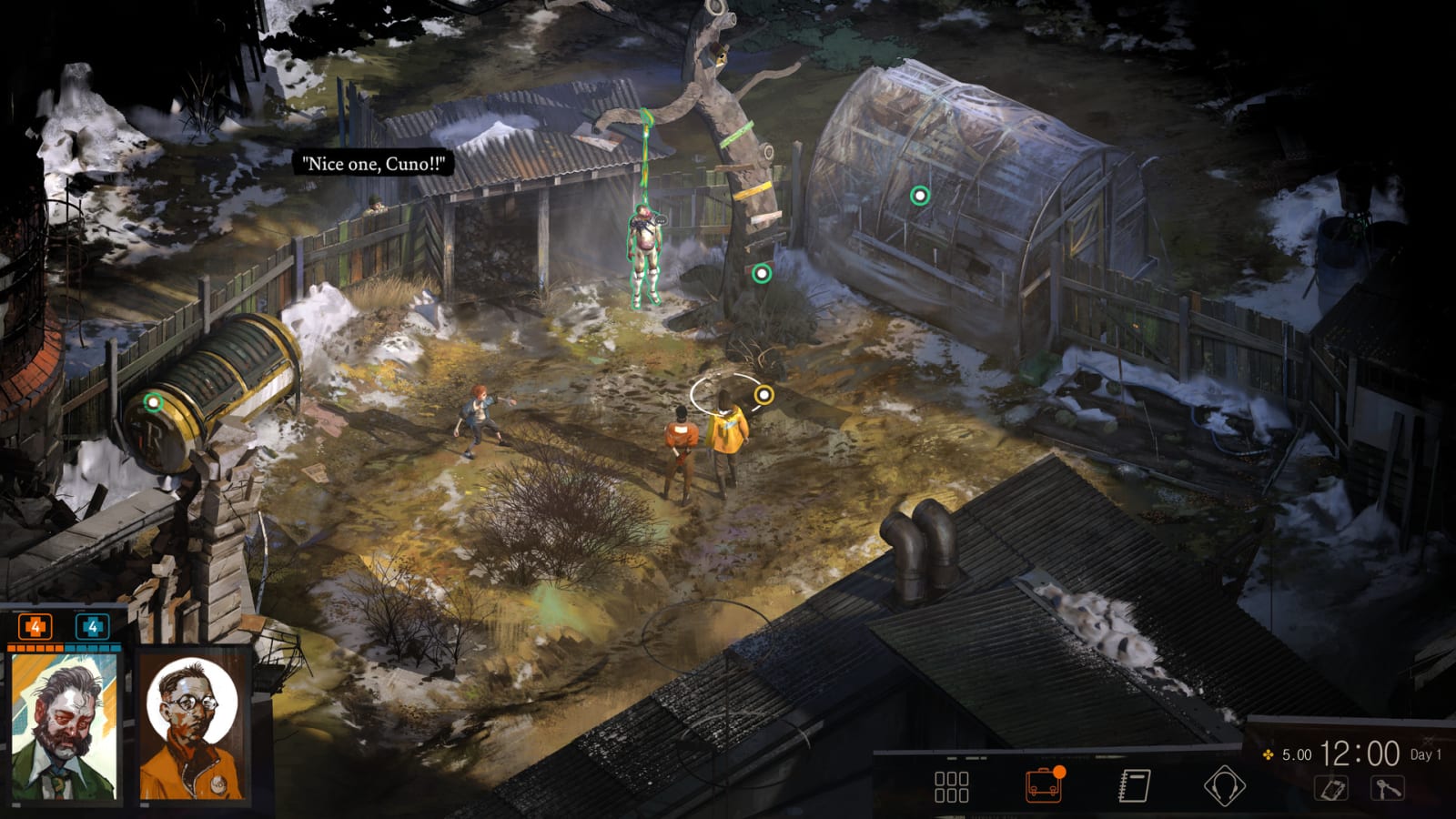
‘Disco Elysium’ gets a hardcore mode for fans who want a challenge
How to Know It’s Time to Switch Web Hosts
It doesn’t matter if you have a small or large site, having a good web host is critical to the success and performance of your site.
Finding a new web host isn’t too tricky as there are a lot on the market to choose from. Most of them are similar, while some do stand out among the rest.
In this article, we are going to cover all the telltale signs that happen on your website that it’s time to switch web hosts. Doing this can drastically improve your website’s performance and user experience.
Different web hosts offer different things. Here are the different types of WordPress web hosting available for your site.
Why Switch Web Hosts?
The main reason you’d want to change hosts is if something about your current host isn’t working well for you. This could be that your site is slow, yet you’ve done everything to optimize it. You have downtime on your site. Also, it could be that your site’s security is lacking and you want to make a change.
While it’s not worth changing web hosts randomly, it is worth it if you have been experiencing problems. Just remember, it’s essential not to try to fix something if it isn’t broken or if you don’t know it’s broken for sure.
That’s why you should try to optimize all parts of your WordPress site before making the switch to a new web host. That said, let’s take a look at some surefire ways to tell it is time to invest in a new web host.
1. Load Times
This occurs for two reasons. Either your web host is slow, or your site isn’t correctly optimized. It’s essential to make sure it’s not something you can fix. A great place to start is with this article outlining simple ways to speed up your WordPress site.
Once you’ve optimized your site as best you can, it’s time to move on to the next possible culprit, your web host.
It can be challenging to determine if it’s your web host is slowing your site down. Having crowded servers can be the cause of your site loading slowly.
However, if you visit your site, it doesn’t mean you’ll get a good look at the speed of your site. Your web host may have servers all over the country and even the world. The way around this is by loading your site from different servers to get a good idea of the speed your web host is providing.
The best site to do this with is by far Pingdom. It allows you to ping your site from different countries around the world to see what kind of speeds you’re working with.

If your site doesn’t load quickly on Pingdom, then you should start looking for a new web host.
2. Customer Service
Depending on the user, this might not be a big deal. In fact, there’s a good chance that you’ve never actually needed to contact support directly for your web host.
That said, having a web host that provides excellent customer service is very important – just in case there is an issue.
You’re running a business, so having a reliable web host is as important as having a reliable website. After all, if your site goes down because your web host’s server crash, your site visitors can’t visit your site. This means lost sales opportunities.
Some web hosts provide fantastic customer service. They’ve got it all. Calls, live chat, 24/7 email service, and everything else you could hope for. Others, sadly, do not.
If you have issues and your web host’s customer support is useless or unreliable, then it’s time to consider switching web host services.
3. Server Security
There’s only so much you can do as a site owner to secure your data while using a web host. Don’t get me wrong, web hosts are worth it and are usually great at keeping the data they house secure. If they don’t protect your data, then they lose credibility.
If your web host suffers an attack, it can lead to many things:
- Your site being changed or deleted
- User information is stolen
- A drop in your credibility
You’ll know when your web host is hacked. Most hosting companies send emails to their customers telling referring to the attack.
And many web hosts, such as DreamHost, have dedicated status pages with the status of their web servers at all times.

If your web host gets hacked, it’s probably a great indicator that you’ll want to switch web hosts. Web hosts being hacked are rare occurrences, and there are plenty of hosts out there that have never been successfully attacked.
4. Too Expensive

When you first start a website, it might start out small. But over time, it will grow. When your website grows, it takes up more space, which costs more money. In some cases, with some web hosts, when you go over your limit of storage, you’ll have to pay more.
Some hosting providers don’t like giving quickly growing sites their fair shake. More users mean more bandwidth on the server. It also means more data to store. These things open the door for specific web hosts to nickel and dime you to host on their servers.
A good rule of thumb here is if you’re spending more than your blog is making on web hosting, then it’s time to switch web hosts.
But what if you have an online business and not a WordPress blog?
Well, in that case, if your web hosting costs are more than you’re comfortable with, then maybe it’s time to switch. If you aren’t ready to pull the trigger on switching, then you can always explore the prices and features of a new web host. Window shopping is always free, and it’s a great way to know what’s out there!
5. Down Time
Downtime is a killer for hosted sites and the web host. If the sites are down, they can’t make money, and if they can’t make money, they either can’t pay the web host, or they’ll move to a new one.

A website going down even if it’s for mere seconds is a big deal. In fact, it’s estimated that if Amazon went down for one minute, it would stand to lose over $1.5 million dollars.
Of course, not all online businesses have the clout Amazon does. But here are some other repercussions of site downtime:
- Negative user experience
- Damaged brand reputation
- Lost business opportunities
- Lower search rankings
I’m not saying you have to change the first time your site goes down or even if your site flickers. All I’m saying is you should take it seriously and make sure it doesn’t happen often.
Otherwise, it’s time to switch web hosts!
6. Lack of CDN (Content Delivery Network)
A content delivery network offers site owners a fantastic way to improve site speed.
Content delivery networks make copies of your website on many servers all over the globe. Then when someone tries to go to your site, the CDN serves them your site from the closest server to them. This cuts download time and allows for more traffic to your site without slowing it down.
Many big websites uses a CDN to deliver the best user experience to its users. It may be a hosted CDN or an in-house CDN created by the same company using it.
Some examples of sites that have built and managed their own CDN include:
- YouTube
- Amazon
That said, small websites have a lot to benefit from using a CDN too.
In the end, no matter how big or small your site is, a content delivery network can help to deliver site content to users all over the world instantly. If your web host doesn’t offer free CDN services, you might want to look elsewhere.
Wrapping Up
And there you have it! The top reasons you might want to consider switching web hosts.
Sometimes web hosts are perfectly fine, and sometimes they’re not the right fit for you. The best way to know when it’s time to switch web hosts is to set your expectations. If your web host lets your expectations down, then it’s time to move to another one.
The right web host is out there, and there’s nothing wrong with switching between hosts until you find the right one for you. If you’re currently unhappy with your web host, here’s a list of the 9 best options for WordPress web hosting.
Have you ever needed to switch web hosts? If so, which provider did you choose and why? We’d love to hear all about it in the comments below!
The post How to Know It’s Time to Switch Web Hosts appeared first on WPHacks.
12 Best Free Title Templates and Opening Effects for Premiere Pro
{excerpt}
Read More
How to Set Expectations with Your Photography Clients
{excerpt}
Read More
24 Best WPBakery Page Builder (Visual Composer) Addons & Plugins of 2020
{excerpt}
Read More
How to Create a Cool Bubble Font Text Effect

In the following steps, you will learn how to create a bubble text design using a bubble letter font in Adobe Illustrator.
For starters, you will learn how to create the text using a cute bubble font. Next, using the Appearance panel along with Offset Path and Transform effects, you will create the starting style for your bubble text effect. Moving on, you will learn how to further stylize your bubble font using basic blending techniques, built-in patterns, and a Gaussian Blur effect. Using strokes and some Drop Shadow effects, you will learn how to add the final touches to your text design.
In the final steps, you will learn how to easily save and reuse the Appearance attributes of your bubble letter font and how to create a simple background for a text design.
For more inspiration on how to adjust or improve your final text design using cool bubble letter fonts, you can find plenty of resources at GraphicRiver.
What You Will Need
You will need the following font in order to complete this text design:
- Bomber Balloon font
1. How to Create a New Document and Use a Bubble Font
Step 1
Hit Control-N to create a new document. Select Pixels from the Units drop-down menu, enter 850 in the width box and 600 in the height box, and then click that More Settings button. Select RGB for the Color Mode, set the Raster Effects to Screen (72 ppi), and then click Create Document.
You should also open the Info panel (Window > Info) for a live preview with the size and position of your shapes. Don’t forget to set the unit of measurement to pixels from Edit > Preferences > Units. All these options will significantly increase your work speed.

Step 2
Pick the Type Tool (T), click on your artboard, and open the Text panel (Window > Type > Character).
Select the Bomber Balloon font and set the size to 250 px. Type the “BUBBLE” text and make it black (R=0 G=0 B=0). Feel free to search for more cool bubble letter fonts and use them instead of this one.

2. How to Create Bubble Text Effects
Step 1
Make sure that your cute bubble font stays selected, open the Swatches panel (Window > Swatches), and click that [None] swatch to remove the existing text color. This should make your text invisible, but don’t worry—we’ll fix it immediately.
Open the Appearance panel (Window > Appearance) and add a new fill using the Add New Fill button from the bottom of the panel. Select the new fill and set its color to R=40 G=73 B=138.

Step 2
Make sure that your text design stays selected and keep focusing on the Appearance panel.
Add a second fill using that same Add New Fill button, and select it. Set the color to R=50 G=120 B=181 and go to Effect > Path > Offset Path. Enter a -4 px Offset and click OK.

Step 3
Make sure that your text design stays selected and keep focusing on the Appearance panel. Select the top fill and go to Effect > Distort & Transform > Transform. Enter the attributes shown in the following image and click OK.

Step 4
Make sure that your text design stays selected and keep focusing on the Appearance panel.
Add a third fill using the Add New Fill button, and select it. Set the color to R=73 G=152 B=212 and go to Effect > Path > Offset Path. Enter a -8 px Offset, click OK, and go to Effect > Distort & Transform > Transform. Enter the attributes shown in the following image and click OK.

Step 5
Make sure that your text design stays selected, and keep focusing on the Appearance panel.
Add a fourth fill using the Add New Fill button, and select it. Set the color to R=71 G=188 B=235 and go to Effect > Path > Offset Path. Enter a -12 px Offset, click OK, and go to Effect > Distort & Transform > Transform. Enter the attributes shown in the following image and click OK.

Step 6
Make sure that your text design stays selected, and keep focusing on the Appearance panel.
Add a fifth fill using the Add New Fill button, and select it. Apply the linear gradient shown below (Window > Gradient), set its Angle to 90 degrees, and go to Effect > Path > Offset Path. Enter a -16 px Offset, click OK, and go to Effect > Distort & Transform > Transform. Enter the attributes shown in the following image and click OK.

Step 7
Make sure that your text design stays selected, and keep focusing on the Appearance panel.
Add a sixth fill using the Add New Fill button, and select it. Set the color to white (R=255 G=255 B=255) and go to Effect > Path > Offset Path. Enter a -22 px Offset, click OK, and go to Effect > Distort & Transform > Transform. Enter the attributes shown in the following image, click OK, and go to Effect > Blur > Gaussian Blur. Enter a 2 px Radius, click OK, and return to the Appearance panel. Expand your white fill and click on Opacity to open the Transparency fly-out panel. Lower the Opacity to 30% and change the Blending Mode to Overlay.

Step 8
Make sure that your text design stays selected, and keep focusing on the Appearance panel.
Select the white fill and duplicate it using the Duplicate Selected Item button from the bottom of the panel. Expand the newly added fill, select the existing Gaussian Blur effect, and remove it by clicking on Delete Selected Item from the bottom of the panel.

Step 9
Make sure that your text design stays selected, and keep focusing on the Appearance panel.
Add a new fill using the Add New Fill button, and select it. Change its Blending Mode to Overlay and apply the linear gradient shown below. The yellow zero from the gradient image stands for the Opacity percentage. This simply means that you must select that gradient slider and lower its Opacity to 0% from the Gradient panel.

Step 10
Open the fly-out menu from the Swatches panel and go to Open Swatch Library > Patterns > Basic Graphics > Basic Graphics_Texture. Make sure that your text design stays selected and focus on the Appearance panel.
Add a new fill using the Add New Fill button and select it. Apply the Mezzotint Dot pattern from Basic Graphics_Texture panel and go to Effect > Distort & Transform > Transform. Enter the attributes shown in the following image and click OK. Be sure that you uncheck the Transform Objects box and check the Transform Patterns box. This will scale the applied pattern without affecting its boundaries.

Step 11
Make sure that your text design stays selected, and keep focusing on the Appearance panel.
Select the top fill, lower its Opacity to 50%, and change the Blending Mode to Color Dodge.

Step 12
Make sure that your text design stays selected, and focus on the Appearance panel.
Add a new fill using the Add New Fill button, and select it. Apply the USGS 22 Gravel Beach pattern from the Basic Graphics_Texture panel and go to Effect > Distort & Transform > Transform. Enter the attributes shown in the following image and click OK.

Step 13
Make sure that your text design stays selected, and keep focusing on the Appearance panel.
Select the top fill, lower its Opacity to 80%, and change the Blending Mode to Color Dodge.

Step 14
Make sure that your text design stays selected, and keep focusing on the Appearance panel.
Select the stroke, set the Weight to 8 px, and apply the linear gradient shown below (don’t forget to select the right gradient slider and lower its Opacity to 0%). Change its Blending Mode to Soft Light and go to Effect > Path > Offset Path. Enter a -4 px Offset and click OK.

Step 15
Make sure that your text design stays selected, and keep focusing on the Appearance panel.
Add a second stroke using the Add New Stroke button from the bottom of the panel, and select it. Set the Weight to 4 px and apply the linear gradient shown below (don’t forget to select the left gradient slider, lower its Opacity to 0%, and change the Location to 25%). Lower its Opacity to 70% and change the Blending Mode to Color Dodge, and then go to Effect > Path > Offset Path. Enter a -6 px Offset and click OK.

Step 16
Make sure that your text design stays selected, and keep focusing on the Appearance panel.
Select the bottom fill and go to Effect > Stylize > Drop Shadow. Enter the attributes shown in the top left window (in the following image), click OK, and then apply the other four Drop Shadow effects shown below.

3. How to Save and Use a Graphic Style
Step 1
Make sure that your text design is still selected, and open the Graphic Styles panel (Window > Graphic Styles). Click the New Graphic Style button to save the appearance attributes of your selection.

Step 2
Pick the Ellipse Tool (L) and simply click on your artboard to open the Ellipse window. Create two 50 px circles and a 70 x 50 px ellipse. Place these new shapes roughly as shown in the following image.

Step 3
Select the three shapes added in the previous step and apply your graphic style from the Graphic Styles panel.

Step 4
Select the top circle and go to Effect > Warp > Arch. Check the Vertical box, drag the Bend slider to 15%, and click OK.
Select the other two shapes and again go to Effect > Warp > Arch. Check the Horizontal box, drag the Bend slider to 15%, and click OK.

4. How to Add a Simple Background for Text Effects
Pick the Rectangle Tool (M), click on your artboard to open the Rectangle window, and use it to create a 610 x 860 px shape. Make sure that this new shape covers your entire artboard and send it to the back (Shift-Control-[).
Fill it with the radial gradient shown below and use the Gradient Tool (G) to stretch your gradient as shown in the following image.

Congratulations! Your Text Design Is Complete!
Here is how your bubble letter font should look. I hope you’ve enjoyed this tutorial and can apply these techniques for your future text effects. Don’t hesitate to share your final result in the comments section.
Feel free to adjust the final text design and make it your own. You can find some great sources of inspiration at GraphicRiver, with interesting solutions to improve your text effects.

Want to Learn More?
Check out the following text effects:
 Illustrator BrushesHow to Make a Tentacle Art Brush in Adobe IllustratorDiana Toma
 Adobe IllustratorNew Course: Create an Isometric Text Effect in Adobe IllustratorAndrew Blackman
 Text EffectsHow to Create an Isometric Text Effect in Adobe IllustratorAndrei Marius
 Text EffectsHow to Create a Half-Blurred Text Effect in Adobe IllustratorAndrei Marius
 Text EffectsHow to Create a Quick Repetitive Text Effect Illusion in Adobe IllustratorLaura Keung
 Text EffectsHow to Create a Game Graphic Style Text Effect in Adobe IllustratorVishnu Gupta
 Text EffectsHow to Create a Rococo Text Effect in Adobe IllustratorDiana Toma
 Text EffectsHow to Create a Retro Chrome Text Effect in Adobe IllustratorAndrei Marius
 Adobe IllustratorHow to Create a Layered Paper Art Text Effect in Adobe IllustratorAndrei Marius
 Text EffectsHow to Create a Folded Text Effect in Adobe IllustratorAndrei Marius

{excerpt}
Read More
26 Best Podcast Cover Art Designs (Using a Podcast Cover Art Maker)
Passionate about a specific topic, have heaps of knowledge about a niche area? Podcasts are a great way to share your passion and knowledge and get others motivated as well. Of course, if you decide to start your podcast, apart from killer content, you’re going to need some eye-catching podcast cover art.
The best podcast covers are an enticing visual representation of your content and help you stand apart from the crowd when potential listeners scroll through podcasts looking for something new and fresh to listen to.

Happily, you don’t have to spend loads of your precious time trying to figure out how to create podcast covers. This podcast cover art maker from Placeit has you covered.
It offers a wide selection of best podcast covers, all of which you can customise in a matter of minutes to create amazing podcast cover art. Let’s take a look at how it works.
How to Make Podcast Covers Using the Podcast Cover Art Maker
1. Choose a Design
Navigate to Placeit’s Podcast Cover Art Maker and select a podcast cover design you like.

2. Change the Text
Starting on the left side of the podcast cover art maker, you can add the title of your podcast, your name, and any additional text you care to. Here you can also change the font style and colour.

3. Customise the Graphics
When you’re done, move to the right side of the podcast cover art maker. Here you can change the colour of the background, choose a graphic for your podcast, change the colour of that graphic, and add a logo. You can also upload your own graphic or photo and logo.

4. Download Your New Podcast Cover
When you’re happy with your mockup, you can download it for a small fee. And just like that, you’ve got a terrific piece of podcast cover art ready to use.

26 Best Podcast Cover Art Designs
1. Podcast Cover Maker for a Successful Woman’s Show

Is your podcast all about supporting women in living their best lives? Then this is the perfect podcast cover art for you. The template features tons of female empowerment images, and you can customise it to reflect the exact tone you want to convey.
2. Doodle Cover Maker for a Podcast

One of the great things about using a podcast cover art maker is that you don’t have to worry about figuring out your podcast cover art size or resolution. That’s because the cover maker does all the work for you, as you can see with all the covers here.
3. Logo Maker for a Podcast

If your podcast is all about finance, this is a good podcast cover art design for you. Just add your title and subtitle and any other text you need, select your preferred colour scheme, and your design is done.
4. Podcast Cover Template for Creativity-Themed Shows

Stimulate those creative juices even before your listeners tune in to your podcast with this wonderful podcast cover art dedicated to podcasts dealing with creativity. The template has loads of gorgeous backgrounds to choose from, but you can always upload your own if you prefer.
5. Podcast Cover Maker With a Popcorn Doodle

Podcasters specialising in different aspects of the movie industry will love this podcast cover option. It offers loads of images, graphics, and icons that refer to the movie industry, so you can customise it to your heart’s content.
6. Jazz Music-Themed Podcast Cover Maker

This podcast cover art is for music aficionados. Though this template specifically targets jazz specialists, it can actually be customised to be used in other music genres as well.
7. Podcast Cover Maker With a Cute Minimalist Design

One of the things that’s great about this particular podcast cover is that it can be customised to work for any number of subjects. Use this fabulous image or take a look through the many different background images to find one that works for you, and then customise it as needed.
8. Architecture Podcast Cover Maker With a Simple Design

If you create a podcast that’s all about architecture, this is a good podcast cover art design for you. Just add your title text, author name, and select your colour scheme, and your template is ready to download.
9. Podcast Cover Design Template for a Science Channel

How’s this for a cool podcast cover? It’s an excellent choice for podcasts dealing with maths, science, and technology. Add your colour scheme, select your fonts, add your text, and you’re done.
10. Simple Podcast Cover Template for an Indie Music Show

The best podcast covers reflect the subject of the podcast, so if you’re creating a podcast dedicated to music, this is a great template for you. There are loads of great images reflecting different music genres, as well as a whole array of cool music-related icons to choose from.
11. Podcast Cover Maker With a Notebook Page Clipart

Whether your niche is everything to do with UFOs or the nocturnal habits of glow worms, this podcast cover is one you should consider. That’s because the minimalist cover design uses bold colours and text rather than graphics and images to grab attention. Take it for a spin and see what you think.
12. Podcast Cover Maker for a Travel Show

If travel is your thing, then you need a podcast cover that makes would-be travellers super excited to join you on your adventures—via your podcast, that is. This template uses gorgeous travel images as a backdrop and semi-transparent overlays which call potential listeners to your text without completely obscuring the images in the background.
13. Logo Template for a Podcast Channel

This clean and simple podcast cover art is another great one for a wider range of topics. Use bold text to highlight your podcast title, add a subtitle and/or your name, and then select one of the many gorgeous rectangular graphics which will sit next to your text. All you have left is to decide on your colour scheme, and you’ve got a great podcast cover ready to go.
14. Personal Growth Podcast Cover Generator

Is your podcast all about self-improvement? Then check out this podcast cover template specially designed for those in the self-help industry. Choose a background image that works for your specific style and taste, and then customise your cover using the podcast cover art maker.
15. Podcast Cover Maker for Movie Fans

Another terrific podcast cover for movie buffs. The template features loads of awesome graphics and illustrations associated with the movie industry. Find the one you like the most and create your own unique podcast cover in a manner of minutes.
16. Podcast Cover Maker for Film-Themed Shows

Keeping with the movie theme, let’s take a look at another cinema-related template that uses a different style. This theme, which is billed as being designed for movie-related podcasts, can actually be used for any type of podcast. That’s because the graphics used are all audio related rather than movie related. So if your podcast is more of a magazine style, meaning that you deal with loads of different subjects, then this is a great theme for you.
17. Podcast Cover Design Template With a Funny Doodle

Bring a touch of lightheartedness to your podcasts with this template, which features tons of great doodles. You will grab your audience’s attention and bring a smile to their faces. That’s a very good first step in building your audience.
18. Podcast Cover Creator With a Feminist Theme

For those podcasters dealing with issues of gender, this template is ideal. Take a look at the terrific background images and choose one that appeals, or simply upload your own image. All there is left to do then is enter your text, choose your font style and colour scheme, and your podcast cover is ready for use.
19. Podcast Cover Template With a Feminine Sign

Here’s another template that can be used to create any type of podcast but is most suited for those podcasters dealing with feminist issues, as it offers loads of female-related icons. Of course, if you like the style of the template but your podcast covers another area, you can use the podcast cover art maker to create a podcast cover that reflects your area of expertise.
20. Podcast Cover Generator With Tips for Running a Business

Calling all business podcasters. Here’s a podcast cover template designed to attract the eye of potential listeners. Use this photo or choose a business-themed photo you most relate to. After that, all you need to do is select your colour scheme, customise your text, and you’re done.
21. Colorful Art Podcast Cover Maker

If your podcast is all about art, then you need an eye-catching podcast cover art design to reflect that. That’s where this gorgeous template comes in. It offers tons of really special backgrounds that will keep all eyes scrolling through reams of podcasts where you need them. On your podcast.
22. Cool Doodle Podcast Cover Maker

Why not go for a light-hearted theme for your podcast cover art? This template offers fun doodles and a playful font that could be adapted to a range of different topics. And the plain background gives your text a chance to stand out from the podcast crowd.
23. Podcast Cover Creator for Morning Mantra Meditations

More and more people are turning to meditation to alleviate the effects of stress on the human psyche. If your podcast is all about meditation and other mindfulness practices, you need podcast cover art that reflects a sense of tranquility. And here it is. Follow the steps in our ‘How to Make Podcast Covers Using the Podcast Cover Art Maker’ section, and your template will be ready in no time.
24. Podcast Cover Template Featuring Bohemian Images

Use this podcast cover for a host of subject matter related to music. If you specialise in another subject but love the design, upload an image of your choice and use the podcast cover art maker to customise the template to suit your needs.
25. Podcast Cover Generator for Positive-Thinking Talk Shows

Another great template for the self-improvement market. This template gives a ‘we’re all in it together’ vibe, but it can be modified to produce a totally different feel just by changing the background image, font, and colour palette. Go for it!
26. Design Template for a Bold Podcast Cover

This podcast cover art is all about making a big splash with a strong image, bold colours and text, and eye-catching graphics. Upload your own photo, add your text, change your font style and colour scheme, and you’ve got one stunning podcast cover ready to go.
Make Your Own Podcast Cover Today
That’s it for your list of the best podcast covers available at Placeit. Now that you know how to make good podcast cover art online, why not use the Placeit podcast cover art maker to create your own unique podcast cover and share your design with us in the comments below. We’d love to see what you come up with.
And if you’re interested in other designs and cool mockups, check out these handy roundups of the best resources in different categories:
 Graphic Design27 Album Cover Art Templates Using an Album Cover MakerNona Blackman
 Social Media20+ Social Media Image Maker Templates for Instagram, Facebook + MoreNona Blackman
 twitch36 Awesome Stream Overlays Using an OBS Stream Overlay MakerNona Blackman
 T-Shirt Design21 Awesome Funny T-Shirt Designs (And How to Make Your Own)Nona Blackman

{excerpt}
Read More