Category: Tutorials
Tutorials,freelance,projects,joomla,php,mysql,wordpress,blancer.com
Podcast: Why Clearview AI’s facial recognition is a privacy nightmare

How to Create Photoshop Brushes From an Old Newspaper

In this tutorial, we will create a set of Photoshop brushes from an old newspaper, and then we will create a vintage paper texture using this set.
If you want to learn these techniques via video, check out our lesson on the Envato Tuts+ YouTube channel:
If you want to learn more about creating brushes or how to install Photoshop brushes, check out these tutorials:
-

How to Create Realistic Watercolor Photoshop Brushes From Scratch
In this tutorial I will show you how to create watercolor brushes for photoshop from scratch. -
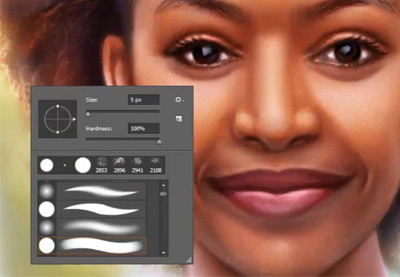
How to Install Brushes in Photoshop
In this quick video from our Photoshop in 60 seconds series, learn how to install and load custom brushes to use for your designs and digital paintings.
Tutorial Assets
The following assets were used in the production of this tutorial:
1. How to Prepare the Document
Step 1
Press Control-O and then select the scanned image.

Step 2
After that, we need to create a new document. Hit Control-N to create a new document and use the following settings:
- 1500 x 1000 px
- 300 dpi
- Color Mode: RGB

2. How to Create Photoshop Brushes From a Paper Texture
Step 1
Click M and select the Elliptical Marquee Tool. Then select an area in the bottom left corner of the document while holding Shift.

Step 2
Hit Control-C to copy that part of the texture, and then go to the tab with the document we’ve created and hit Control-V.

Step 3
Select another area in the right part of the document and create a copy of it as we did before.

Step 4
And for the last element, let’s take a part of the illustration.

Step 5
Now we can start to create the brushes. Select the first copy and convert the layer to black and white by pressing Alt-Control-Shift-B. Hit OK.

Step 6
After that, we need to add Auto Contrast to the layer by pressing Alt-Control-Shift-L.

Step 7
Then go to Select > Color Range and use the following settings:
- Select: Shadows
- Fuzziness: 15%
- Range: 65

Step 8
Create a copy of the selection by pressing Control-C and then Control-V, and then delete the first layer.

Step 9
Now we need to add a Black and White Filter and Auto Contrast to the second layer, as we did before with the first layer.

Step 10
Go to Image > Adjustments > Threshold and set the Threshold Level to 120.

Step 11
Let’s create a selection using a color range again. Go to Select > Color Range and use the following settings:
- Select: Highlights
- Fuzziness: 0%
- Range: 190

Step 12
Hit the Delete button to remove the selection from the layer.

Step 13
Now we need to convert the last layer to black and white and then go to Image > Adjustments > Brightness/Contrast and use the following settings:
- Brightness: 150
- Contrast: 100

Step 14
Go to Select > Color Range and use the following settings:
- Select: Highlights
- Fuzziness: 5%
- Range: 190
Then remove the selected area using the Delete button.

Step 15
Now we are ready to create the brush presets. Make all layers invisible except the first and go to Edit > Define Brush Preset, select any name you want to use for your brush, and hit the OK button. Then Define the second and the third brush presets the same way.

Step 16
Select the Brush Instrument and then select your first brush. After that, hit the Brush Settings icon.

Step 17
Put ticks on Shape Dynamics, Scattering, and Transfer, and use the following settings:
- Shape Dynamics: Angle Jitter: 100%
- Scattering: Both Axes: On; Scatter: 390%; Count: 12
- Transfer: Opacity Jitter: 100%; Flow Jitter: 100%

Step 18
Create a new layer using Shift-Control-N and draw a texture with the brush using #ffbe88 for the color.

Step 19
Select the second brush and put ticks on Shape Dynamics and Scattering, and then use the following settings:
- Shape Dynamics: Size Jitter: 100%; Angle Jitter: 100%
- Scattering: Both Axes: On; Scatter: 1000%; Count: 1

Step 20
Create a new layer and change the Blending Mode of this layer to Soft Light, and then draw a texture with the brush we’ve created using black as the color.

Step 21
And for the last brush, let’s use the following settings:
- Shape Dynamics: Size Jitter: 100%; Angle Jitter: 100%
- Scattering: Scatter: 425%; Count: 3

Step 22
And for the last part of the texture, create a new layer and change the Blending Mode to Overlay. Then draw a texture on the layer with the last brush in black.

Awesome Work, You’re Now Done!
Congratulations! You have created a grunge brush Photoshop set from an old scanned newspaper and made a vintage paper texture with this set of Photoshop brushes.
Here is our final result:

Now you can easily make textures using these brushes to create a vintage Photoshop effect or to add some final touches to your projects. If you’re looking for some more Photoshop brushes, then check out these amazing products on GraphicRiver:
Coffee and Paper Handcrafted Pack Volume 03
If you want to add some more grunge elements to your texture or create overlays for your image, then try this pack of 25 coffee stain brushes. This is a great tool to create a vintage Photoshop effect and make your artwork look grungy in a few simple clicks.

24 Distressed Texture Brushes
If you’re looking for some more brush texture sets, “24 Distressed Texture Brushes” is exactly what you need. This pack of Photoshop brushes could be used to create overlay elements for your photos or for creating text effects.

50 Torn Paper Brushes
This awesome pack of Photoshop brushes contains not only 50 paper brush textures but also 8 JPEG textures. It’s a great tool for creating realistic paper elements for your design projects.

9 Massive Grunge Brushes
In this pack, you will find a paintbrush Photoshop set, which could be a great tool for creating different types of artwork elements such as borders, frames, backgrounds, watercolor effects, and much more.

50 Vintage Brushes Set
Another great product is 50 Vintage Brushes Set, which contains five different types of Photoshop brushes, from noise to stains. It’s an easy tool to use for creating both overlays and textures.

Want to learn more about creating Photoshop brushes? Read these awesome tutorials:
 Adobe PhotoshopHow to Create a Light Particles Photoshop BrushJonathan Lam
 BrushesPhotoshop in 60 Seconds: Create Custom Brushes From Texture GraphicsMelody Nieves
 Adobe PhotoshopPhotoshop in 60 Seconds: Create 4 Unique Custom BrushesMelody Nieves

{excerpt}
Read More
Watch how VFX artists crafted Disney’s ‘The Lion King’ remake
12 Best CSS Animations on CodeCanyon
{excerpt}
Read More
What is a WordPress Plugin?
{excerpt}
Read More
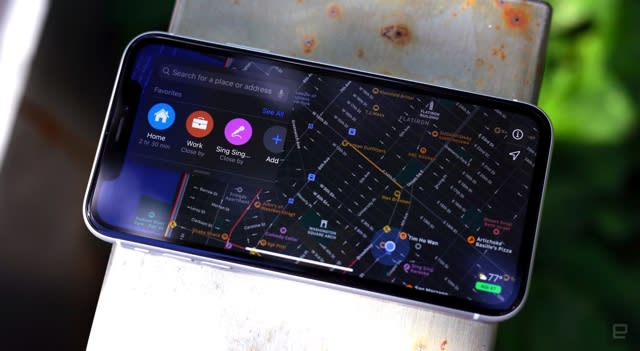
The Morning After: Apple finishes rebuilding its US maps
Microsoft made a Nike Air Max 90 Xbox but you can’t buy it

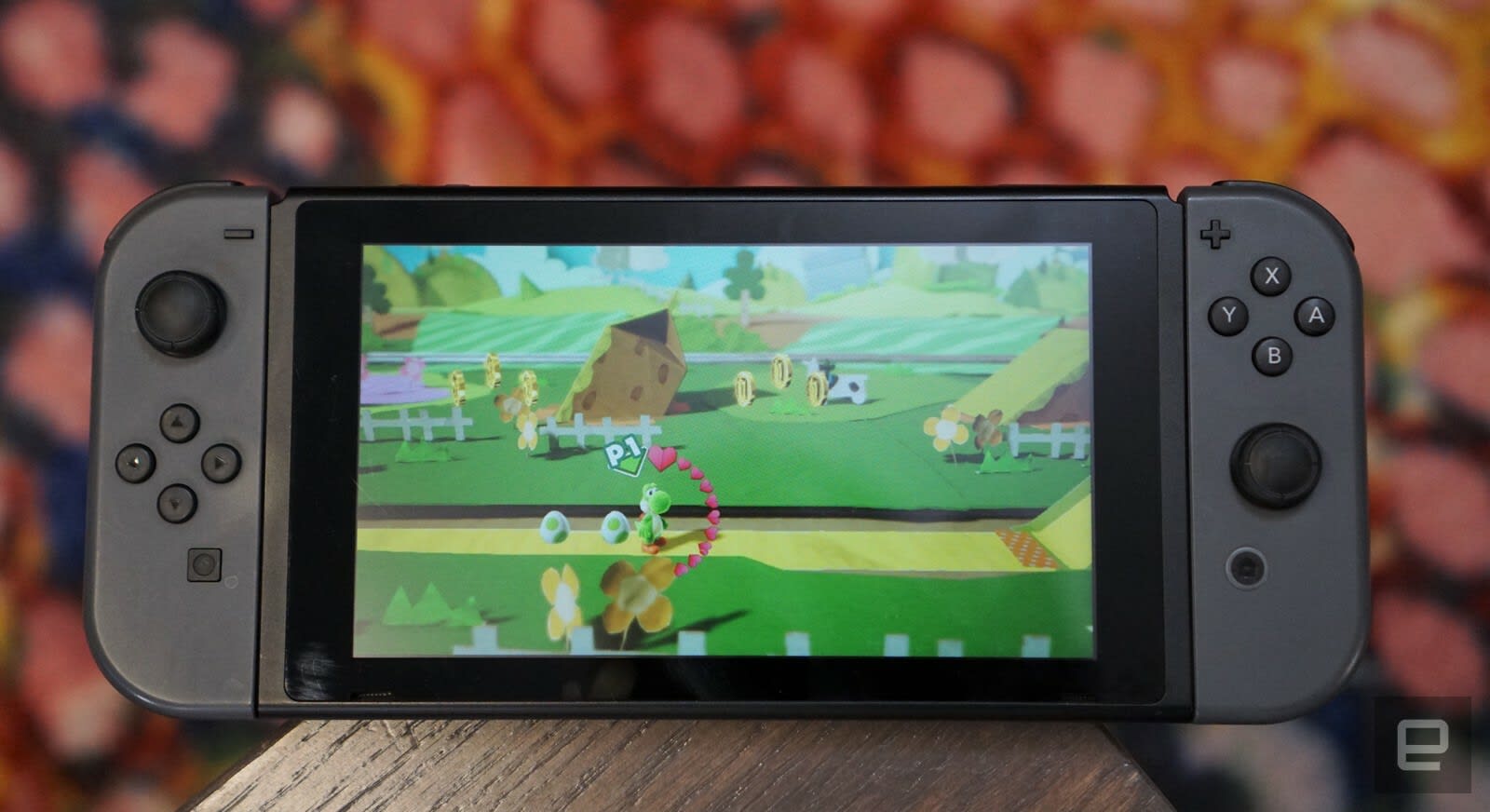
Nintendo says it won’t release a new Switch in 2020
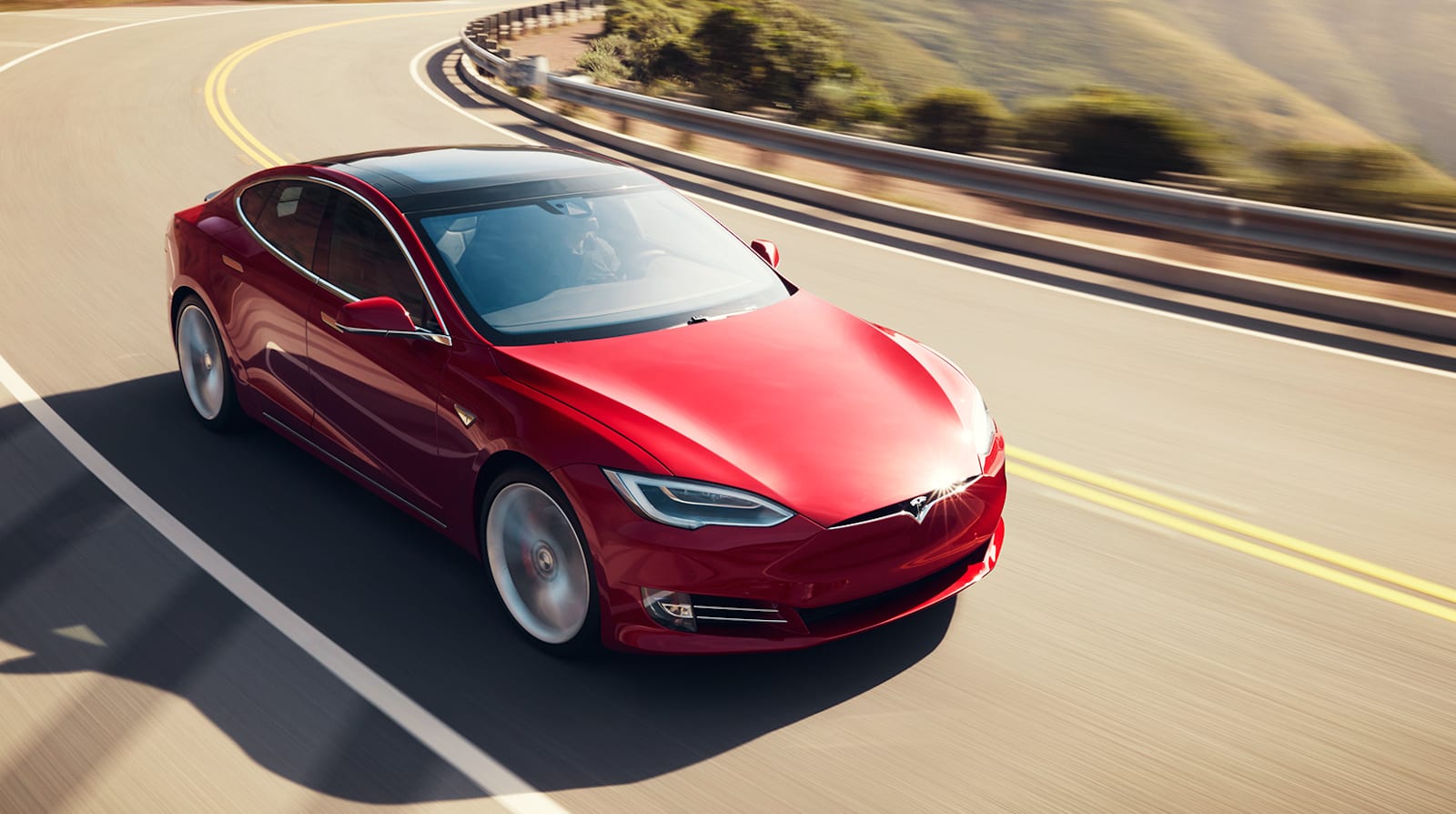
Musk: ‘It won’t be long’ until the Model S goes 400 miles on a charge
Fox apps are abruptly disappearing from Roku before the Super Bowl

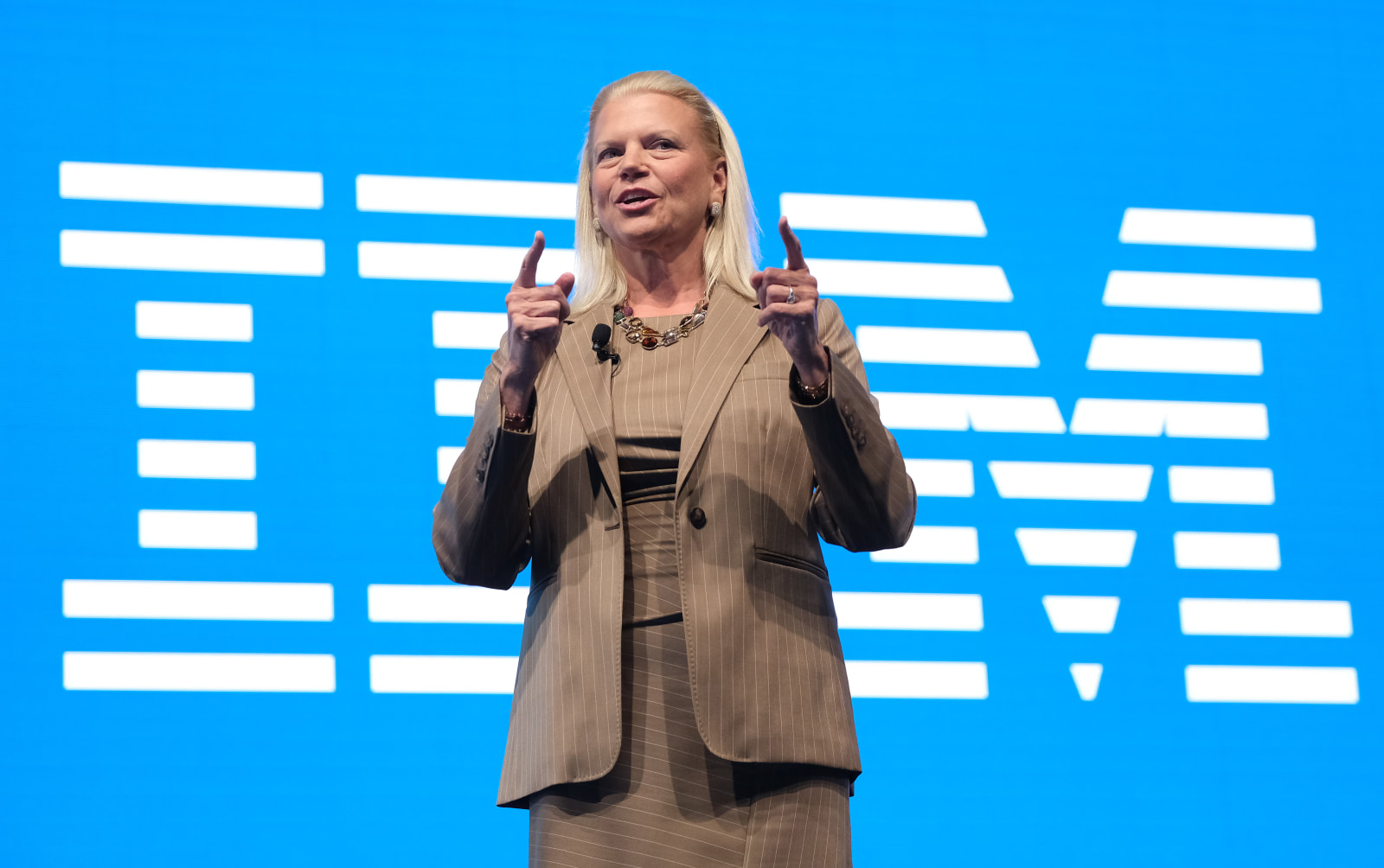
IBM CEO Virginia Rometty is retiring
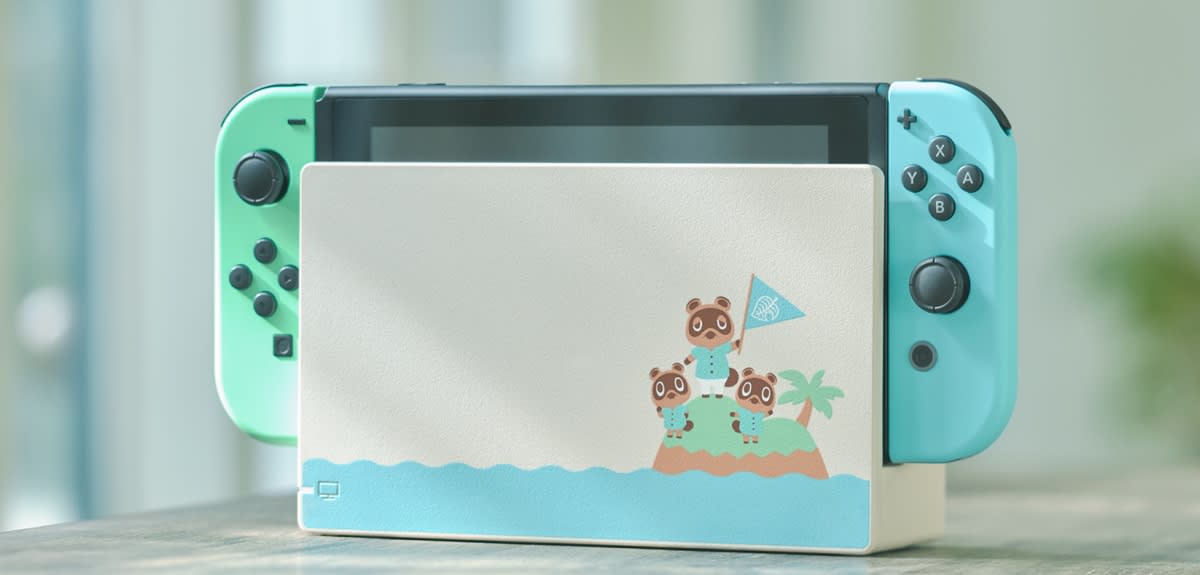
Nintendo’s special ‘Animal Crossing’ Switch is coming March 13th
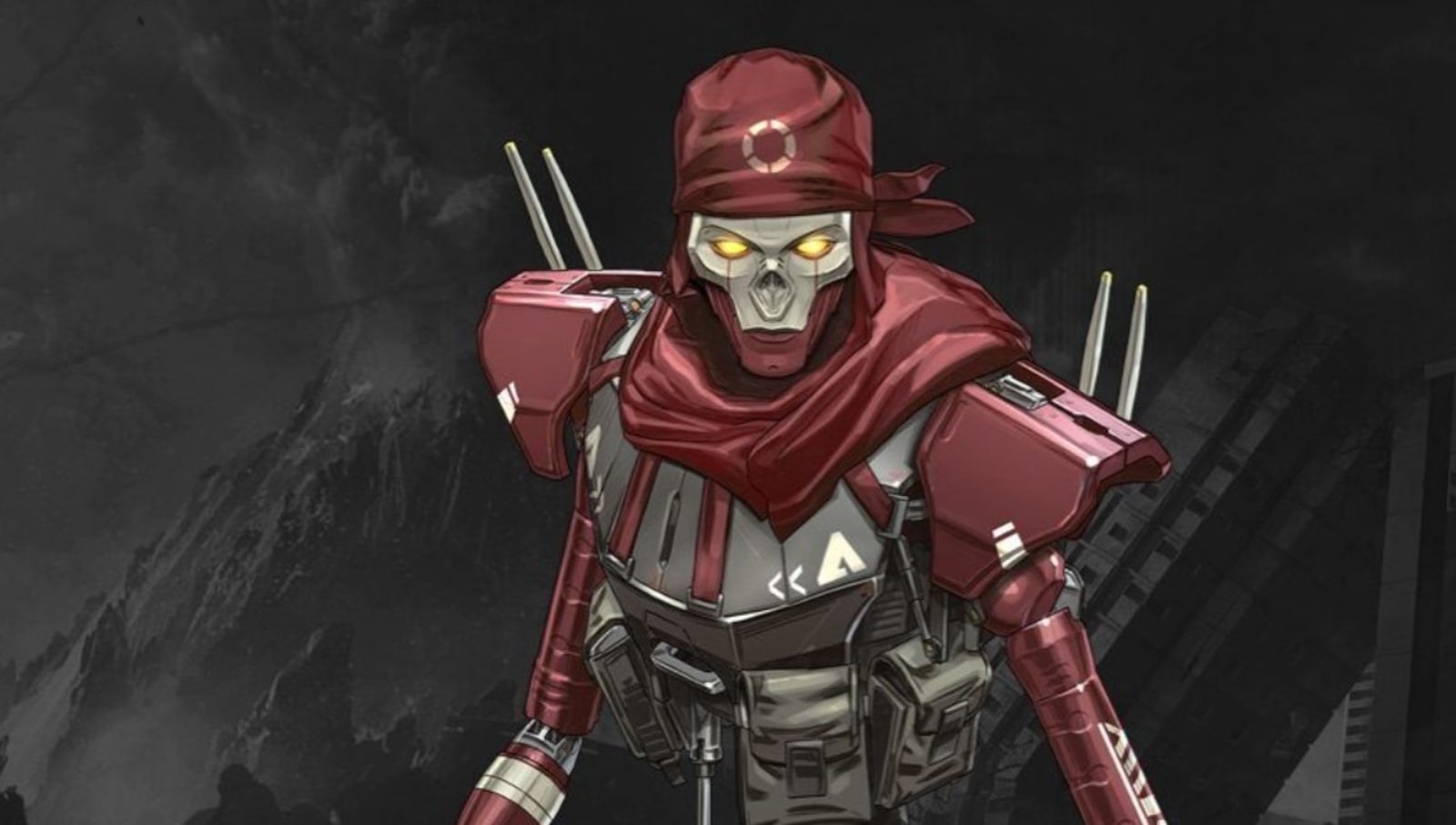
The next ‘Apex Legends’ character is a cyborg assassin named Revenant
FCC wants to fine one man almost $13 million for making 6,000 robocalls