How to Design a Finance Desktop Dashboard in Sketch

Final product image
What You’ll Be Creating

In this tutorial we’ll be designing a Finance Desktop Dashboard application in Sketch. This will serve as a good foundation for anybody who’s looking to improve their knowledge of how to design in Sketch or get a better understating of general UI design practices.

What We’ll Need

Before getting started, we’ll need a couple of assets and tools, such as:

  • A good-looking sans-serif font that will be both modern-looking and robust. For example: Graphik, Maison Neue, Roboto, Proxima Nova etc.
  • An icon pack that we’ll use for the sidebar and within the application. There are a multitude of icon packs out there you could use, my choice of premium icons being the Streamline Icons set. If you’re looking for something free then using the IconFinder or Icons8 platforms could be of great help.
  • A design tool of your choice. For this tutorial we’ll be using the Sketch App, but using Adobe XD or Figma for design won’t make following this tutorial any harder.

1. Set up Your Workspace

We’ll begin setting up our working space and will create an artboard by using the presets inside our application. By clicking the A tab we’ll access the artboard creation tool. Select the canvas size that best fits your needs.

artboard presets

2. Add the Most Important Elements

In order to make things easier when it comes to working with repetitive UI elements and styles, we’ll be creating a small style guide with the most important things such as colors, buttons, text styles, and other base elements. 

Do not go over board with this; stick with the essentials in order to avoid over-cluttering your style guide. You’ll be able to find all of these things on the left side of the sidebar under the components category. 

For a better understanding of how symbols work use this tutorial which describes how different interaction states work within symbols.

Add the Most Important Elements

3. Start With the Base

We’ll start by creating two rectangles on a light grey background. The rectangle that’s on the left side of the canvas will serve as the foundation of the sidebar and the rectangle at the top will serve as the foundation of the top-bar. 

In a previous tutorial where we created mobile onboarding screens, we set a certain style and used a mock logotype. 

ui design mobile
From tutorial: How to Design a Finance App Signup Process in Sketch

Given the fact that we’ll be using the same font families, colors and design patterns, I’ll be using the same mock “myfinances” logotype for this tutorial as well. 

myfinances logo

We’ll move forward with defining the button styling, both the primary and the secondary buttons. Create two rectangles of the same size; we’ll attribute our primary accent “green” color to the main button and we’ll design the secondary button in a subtle and minimalistic style by making it white with a subtle grey border.

buttons

We’ll make the button links 14px with a semibold weight in order to have more visible/pronounced text strings. 

For the primary green button we’ll make the text white and for the secondary button we’ll be using the outline color attributed to the button as the color attributed to the link. We’ll add these buttons in the right corner of the top bar.

primary and secondary buttons

Use the same font size and light grey color for the top navigation links, with the exception of the currently active link, which for us is “Budget Overview”. For this link we used a dark shade of grey.

active links

The next step, is to add the sidebar navigation links which will be responsible for the main navigation functionality in the app. 

In order to make the navigation easier from a UX-standpoint, it’ll be a good idea to add suggestive icons to the links as they help with making identification of the desired link easier. The size of the icons should be correlated to the size of the text. In our case, the text size is 15px. 

sidebar nav icons

As with the top bar navigation, the active navigation link in the sidebar needs to be emphasized. 

We’ll be creating a hover effect by using our active/shade colors, which means that both the text string/link and the icon associated with it will receive the active green color we’re using throughout the interface. 

We will also create an additional rectangle as the background of that link with the purpose of giving it even more accent. Give that rectangle an opacity of 20% off the main green color, bringing in just the right amount of color. 

accent

This is what things look like at the moment.

so far

4. Creating the Header of the Page

In order to design the welcome message that will be right at the beginning of our content area within the dashboard, we’ll be using a headline paired with an avatar. This will serve as a means of identification of the user that is logged in alongside a salutation message. 

For the avatar, we’ll be creating a circle that will act as the foundation of a mask. Straight away, we’re creating a separate folder for the mask in order to isolate it from other elements. After that, we’ll be importing the necessary image over the circle area and the mask will be automatically created.

avatar

Upon doing that, we’ll write down our welcoming message with a paragraph alongside it. In order for the text to be more prominent, we’ll be using bold styles and bigger sizes (our headline being 26px and the paragraph is 13px).

salutation

To the right of the headline welcome message we also have a tab that is made of a rectangle with a separation line and a slightly colored half-background (#f9f9f9) that provides the visual cues that show a certain tab being as active/inactive. 

tabs

We’re also adding a 13px-sized text string of two different colors which will help better understand which tab is the selected one and which isn’t (the black one representing the active link). Adding a slight shadow effect to it will add some pleasant depth. 

tabs active and non-active

5. Design the Dashboard Content and Tables

Due to their complexity, dashboards very often use the first graphics or content sections they display on the primary pages as tables or modules displaying general or overview information. 

From a UX standpoint, that’s a good approach to simplify complex information and provide a glimpse of important data points straight away. I’ve decided to follow the same pattern and have designed a Quick Stats View graphic at the top. This tab will contain information about expenses, the account balance or expenses. 

We’ll need to style the shape that will serve as our background which will lay at the foundation of all the tables on this dashboard. This will be a white-colored rounded rectangle with a corner radius of 6px and a shadow effect that’s similar to the shadow style above (the one which we have attributed to our tab element). Whenever possible, try to maintain consistency in style and effects attributed to UI elements.

block 

The content-holding blocks in our design will have a title. For that, we’re using a dark-colored (#E3E8ED) typeface that’s 17px in size and is divided by a 1-pixel grey line. 

block title

For the quick view information blocks, we’ll be using for proportional boxes that will be identical in size and will be placed at a distance that’s equal between them. We’re giving these a 20px padding. The boxes within the container will be grey, subtle and one of them will be considered as primary and will have an accent green border color of 2 pixels.

accent block

Add Content to Blocks

The last phase is to add content to these boxes which consist of icons, statistics and a description of that stat. The pronounced number is 28 pixels in size and of the active color just like the primary box. The label text will be 13px in size.

block content

6. Graph table

At the foundation of the container with the graphic will be the same content-container used in the previous sections. In the header of the container, we’ll display status information and its name. We’ll also add in the graphic lines which will serve as the base of the graphic.

graphic graph

 We’ll select the Vector tool and will start drawing the direction of the graphic. Each graphic that will overlay on the other has to be slightly darker than the other in order to make them both noticeable. We achieve that by giving them different opacity percentages, in our case we’ll give the bottom graphic a 70% opacity and the upper one 80%. 

opacity on curves

The tooltip part is simple as well. We’ll be using a circle that will serve as the chosen data point and that will be made of a green circle with a 2px white outline/stroke. There’s a vertical grey line that intersects the tooltip and the graphic and a dark grey (#4A4D50) background with a more detailed breakdown.

tooltip

Here’s the result so far:

result so far

7. Bottom Part, 3 Sections

All tables within the bottom three sections will have the same styling as the ones we already have. The only exception is the first box which will have its colors inverted. The base color is green with a paragraph of text, a headline, and a call-to-action line. The headline is 24 pixels in size, the paragraph is 15 pixels in size with an opacity of 70% off white.

green block

The piechart in the next box will be slightly more complicated to create (but not impossible). We will need a circle with no fill, but a border. A 15px border is what we’ll use here to which we’ll apply a gradient styling, giving us the tri-color effect.

gradient

The labels near the piechart follow the same text styling as the other elements within the design. 

pie labels

The content for the last container consists of a quick stats view shown as three progression bars, all of the different colors and depicting different fill levels. The progression bars have faded versions of themselves in the background which helps achieve the same stylistic effect as observed in other design components throughout the design.

progression bars

Add headlines, relevant icons made out of outlined rectangles turned at 45 degrees, and other informative descriptions for the headlines corresponding to each of progression bars.

Here’s how the final design looks!

final design

That’s it For Today!

This concludes our tutorial on how to design a finance dashboard UI. We hope it has been helpful and that you’ve learned something new. If you have any questions we’ll be happy to answer them in the comments section below!

Learn Sketch With Tuts+ Courses

{excerpt}
Read More

10 Types of Effective Presentation Styles (Top Methods for 2020)

Do you need to make a presentation but aren’t sure where to
start? 

A good place to start is to choose your presentation style. Your next step is to choose a template. After you’ve chosen your presentation style choosing the template that you want to use will be easier.

Agio Presentation Template
Agio PowerPoint presentation template has a nice versatile design. 

In this article, you’ll learn all about different kinds of presentations. You’ll also discover when to use each type of presentation as well as some of the pros and cons of each.

Plus, we’ll examine some professionally designed templates that work well with some types of presentations. And we’ll sure some extra resources to help you learn more about presentation methods.

Let’s get started!

What Is Presentation Style?

Are you asking what is presentation style? If you’re planning a presentation, don’t forget to consider presentation techniques and methods as part of your preparation.

Presentation style is how you give your presentation orally. When delivering
public speeches or public presentations there are many different styles or ways
in which you can give your presentation. 

In this article I’ll cover ten different types of presentation styles. I’ll also give you the pros and cons of each style to help you
choose which one’s best for you.

But first, let’s look at some great professionally designed template options that’ll complement any presentation style.

Find Great PowerPoint Presentation Templates on Envato
Elements

You may wonder why use a template? Making a PowerPoint presentation can take a lot of time. And it doesn’t always turn out looking how you want it to. Using a template in your presentation saves you time and ensures that your presentation turns out looking professional.

 Professionally designed templates already have presentation layout choices included. All you’ve got to do is add your information into the presentation layout and you’re done. Templates can be easily edited to customize for your needs.

Envato Elements Search
Envato Elements has hundreds of PowerPoint Presentation Templates.

With a professionally designed template, you save time because the details are already taken care off. Designs that might take you hours to create (and wouldn’t look half as good) are already there.

To find good templates, go to Envato Elements. You’ll pay a low monthly fee to get unlimited access to download PowerPoint templates, graphics, images, fonts
and much more.

Find More PowerPoint Presentation Templates on GraphicRiver

Envato Elements is a good choice if you often buy templates, images, fonts, or other design assets.

But if you don’t need templates often consider GraphicRiver. With GraphicRiver, buy the templates you need one-at-a-time without the commitment of a subscription.

GraphicRiver Search Image
GraphicRiver has thousands of templates and more for your presentation.

GraphicRiver also has
images, audio, video and more available for sale. 

Now, let’s look at some of the best templates for various types of presentations.

5 Great PowerPoint Presentation Templates from Envato Elements

Here’s a hand-picked list of great PowerPoint presentation templates from Envato Elements that’ll help you with many different types of business presentations:

1. Minimalism Clean PowerPoint

Minimalism Clean PowerPoint

Minimalism Clean PowerPoint has over 50 unique slides. Easily edit this template to suit your needs. This template is a multipurpose template. Use it for many different presentation purposes.

2. PRESTIGE – Multipurpose PowerPoint V126

PRESTIGE - Multipurpose PowerPoint V126

Prestige comes with 150 total slides and 30 unique slides. This template also comes with five color schemes to choose from. Easily add an image to the template by dragging and dropping the image into the image placeholder.

3. NEXTZONE – POWERPOINT TEMPLATE

NEXTZONE - POWERPOINT TEMPLATE

NextZone is versatile PowerPoint template. This template comes with five premade color schemes. NextZone has a nice modern design that’s professional looking.

4. Strom PowerPoint Template

 Strom PowerPoint Template

Strom PowerPoint Template comes 30 modern slides. This template includes infographics and a picture placeholder. Strom PowerPoint Template comes with five color schemes to choose from.

5. Koba PowerPoint Presentation

Koba PowerPoint Presentation

Koba PowerPoint Presentation template comes with over 100 unique slides. Icons, infographics and mockup devices are included with this template package. The Koba PowerPoint Presentation is a flexible template. Use it for many different presentation purposes.

Now, let’s dive into our look at effective presentation styles.

Ten Different Types of Effective Presentation Styles

Here are ten common different effective
presentation styles:

1. Visual Presentation Style

The visual style is great for anyone who wants to use
your presentation to complement the main points of your speech. This visual
presentation technique is perfect
for people who have many important talking points. 

Visual Presentation Style

To
use this technique, include a
visual of what you are talking about in your presentation. You can also put graphs
and charts in your presentation. 

Steve Jobs often used the visual
presentation style. You can see an example of this in the YouTube video below:

Notice the visuals on the giant screen behind Jobs. Here are some pros and cons of the visual presentation method:

Pros: The visual presentation technique is helpful if you’ve got a large audience. The visuals will let the audience see what you’re discussing in your presentation. This style is great if you’re discussing a product or something similar.

Cons: The visual presentation technique isn’t for someone who doesn’t need visuals to explain what they’re talking about. 

2. Coach Presentation Style

The coach presentation style is for energetic and charismatic speakers.  This presentation style is a great style to use with an audience who needs to be sold on an idea. This presentation style works best if the presenter doesn’t need to get into details.

Pros: The coach style allows you to connect with your audience using role-play and listener interaction. Use this style to sell an idea or sell a product. The coach-style is a great style to use in a conference type setting.

Cons: The coach-style of presentation isn’t suitable if you’re a naturally quiet person. In this style you don’t go into details, instead, you’re communicating the big picture. If you need to get into the details of what you’re presenting, you might want to explore other styles.

3. Instructor Presentation Style

The Matrix

The instructor presentation method is
great to use when you’ve got a complex subject to discuss. With this form of presentation high impact visuals help you get your point across to the
audience. 

This
presentation style is appropriate for
anyone who is great at presenting and is comfortable with their subject. Former U.S. Vice President Al Gore often used this presentation
method. If you want to use this presentation method, be sure to consider:

Pros: The instructor type of presentation is great if you like to use metaphors and figures of speech to help you make a point. This style is also appropriate for people who want to use impactful visuals to further your points.

Cons: The instructor type of presentation isn’t meant for short presentations.  A lot of preparation time will go into making or finding high impact visuals.

4. Freeform Presentation Style

The freeform presentation method doesn’t use slides. This style of speaking is very impromptu. This presentation style is great for a presenter who has a short speech and knows their presentation points well. 

Here are some pros and cons of this technique:

Pros: The freeform presentation style is great for an impromptu meeting where you don’t have much time to prepare. This presentation style can also be used at networking events.

Cons: With this presentation technique if you don’t know your subject matter very well it can make you seem unorganized. Freeform presentation style is better if you’ve got a short presentation time.

5. Storytelling Presentation Style

The storytelling type of presentation relies
on stories and examples to make points in their presentation. This style is suitable if you’ve got a lot of time to present your topic. 

This type of presentation style is also
appropriate for
networking events and conferences. This presentation technique often has
a question and answer session at the end of the presentation. A speaker who uses this presentation technique is neuroanatomist and author, Jill Bolte Taylor.

As you listen to the presentation, take note of the various stories that the speaker uses. By telling stories from her own life, Taylor captures the audience’s attention. Here are the pros and cons of the storytelling presentation style:

Pros: The storytelling style allows you to connect with your audience through stories. With this style of presenting it’s okay to get emotional. The emotion helps you connect with your audience better.

Cons: The storytelling style is not for you if you don’t have anecdotes to tell. You also need to leave time for a question and answer session. If you don’t have time for a question and answer session, then explore other styles.

6. Connector Presentation Style

In this type of presentation, audience feedback
is highly encouraged. The speaker will try to connect to the audience through
their similarities. This presentation technique applies to sales presentations.

Some of the pros and cons of the connector presentation style include:

Pros: This style is great if you want immediate feedback on your presentation. The connector form of presentation typically includes a question and answer session with the audience.

Cons: In the connector form of presentation, the speaker must have similarities with their audience. If they don’t have similarities with the audience, then they’re not connecting with them. This style also isn’t for you if you don’t want immediate feedback on your presentation.

7. Persuasive Presentation Style

Sales Pitch

The persuasive form of presentation is where the presenter
is trying to persuade the audience to their point of view. A sales pitch
presentation is an example of a persuasive form of presentation. 

In a persuasive speech connecting with the audience through a similar experience or through emotion helps the audience relate to the speaker. If you’re planning to use a persuasive presentation style, consider:

Pros: The persuasive presentation style is great if you use your hands a lot while speaking. This style is also great if you’re selling a product.

Cons: If you don’t need to persuade the audience of something, then you’ll want to look into other styles. This presentation style is for people who are more experienced in presenting sales pitches or presentations.

8. Interactive Presentation Style

The interactive presentation method requires the speaker to interact with the audience in some way. The presenter can connect with the audience by passing out speaker notes or
an outline before the presentation. 

The speaker could also
interact with the audience by using a whiteboard or host a webinar. This style
helps keep the audience engaged with what the speaker is saying. 

Here are the pros and cons and this presentation technique:

Pros: The interactive style of presentation lets the speaker pass out copies of their slides beforehand. This allows the audience to follow along with the presentation and fully absorb the information. It also gives the audience a place to jot down a few notes or questions.

Cons: The interactive presentation style is better with complicated subjects. If your subject matter is too simple the audience may not have anything to discuss.

9. Lessig Presentation Style

The Lessig presentation style was created by Lawrence
Lessig, a professor of law and leadership at Harvard Law School. This presentation
method requires that the presenter
only spends fifteen seconds on each slide. If there’s text on the slide it’s
the speaker’s exact words. 

This style of presentation is great if you’ve got to
present to a large audience. The rapid pace of this presentation style can keep
the audience focused and engaged.

As Lessig speaks, you’ll see how quickly he moves through the various slides. Also, notice the slides that contain what he says, word-for-word.

Pros: The Lessig style of presentation is great for a presentation where you’ve got a lot of talking points to get through in a short period of time. 

Cons: The Lessig style is for experienced presenters. If you don’t have a lot of experience presenting you may want to try a different style. This style is also not for you if your presentation requires charts and graphics.

10. Educational Presentation Style

Educational Presentation Style

The educational type of presentation is for a speaker
who is teaching the audience. Use this style if you’re demonstrating a new product. You can teach the audience
about the new product you’re selling or
offering.

Pros: The educational presentation style is fitting if you’ve got videos and other visuals to show your audience. You also can put extra information on the slides that you may not verbally discuss.

Cons: It may take a while for the audience to listen to you. If you’ve got more than one subject to discuss it can be too confusing for the audience.

Learn More About Different Types of Presentations

Are you still wondering about presentation methods and effective presentations styles? We’ve got a wealth of resources on presentations and presentation methods. Here are a few tutorials you may want to review:

You may also want to download a copy of our free eBook that explains how to make a business presentation:

Download a Premium PowerPoint Presentation Template Today!

In this article, you read about different presentation
techniques
. So, you should be ready
to start your presentation. Choose one of the presentation techniques that’s best for you. Then, download a PowerPoint presentation template
today to save time and ensure a professional presentation.

{excerpt}
Read More

Best Resources of 2020: Photoshop Text Effects & Layer Styles

Create cool text effects in seconds! Check out this collection of Photoshop layer styles and text effects from Envato Market and Envato Elements.

Create cool text effects in seconds! Check out these amazing layer styles below.

21 Photoshop Text Effects & Layer Styles

Your ideas need great design, so try a quick text effect! With Photoshop layer styles, you get the option of trying out multiple effects to find the best fit. Design impressive web and print graphics with 3D text and more.

Today, we bring you 21 of the best Photoshop Layer Styles from Envato Market and Envato Elements. Create cool, creative effects in less time with these professional styles.

Featuring
some of the best-selling items of 2020, these styles are incredible resources you’ll want to add to your collection.

Enjoy professionally made templates that are easy to use! Or get quality help from our design experts at Envato Studio.

What Are Layer Styles?

New to Photoshop? Learn how to install and use Photoshop layer styles from this video:

Old Movie Title

This old movie style text effect can add a nostalgic vibe to your project. Simply use the included PSD file and smart objects to easily jump right in and start experimenting with your own text.

Old Movie Title

Underwater Text Logo Effect

What a striking text effect! Check this one out; it simulates underwater text in such a believable and beautiful way! You won’t believe how easy it is to jump right in and use this awesome text effect.

Underwater Text Logo Effect

3D Text Effects Vol.2

Add some depth to your text with this collection of 3D text effects. This pack has a large variety of different styles to try out. Works with text, vector shapes, and logos!

3D Text Effects Vol2

Chrome & Fire Photoshop Layer Styles

Really grab some attention with these chrome and fire Photoshop layer styles. The smoldering effect is really convincing. Comes with 15 layer styles! Awesome!

Chrome  Fire Photoshop Layer Styles

Play Dough Type

Check out this fun, playful, playdough-inspired text effect! It comes with a PSD which contains a variety of letters, numbers and special characters which you can customize, mix, match, and experiment with!

Play Dough Type

Smoke Logo Text Effect

Wow, check out this amazing smoke text effect! It’s so detailed and so striking. This effect is super easy to use too; just open up the template and insert your text. It’s really that simple!

Smoke Logo Text Effect

ShinyPixel’s Text Effect 

This sweet text effect could add some visual interest to your next project! Check out these fun and stylish results! This effect works with simple text, shapes, or vector logos too!

ShinyPixels Text Effect

Liquid Tasty Text Effects

Looking for an oooey, gooey effect for your text? Looking for something fun, different, and memorable? Then this is the text effect for you! It comes in eight different styles, and editing them is a snap!

Liquid Tasty Text Effects

Neon Christmas Layer Style

Check out this fun and festive neon light text effect! This versatile effect can be applied to any outline shape object, as well as to light to medium fonts.

Neon Christmas Layer Style

Good Vibes – Modern Neon Display Font

Check out this cool, stylish aesthetic! It could be a great fit for your music, sports, events, and a whole host of different projects! This stylish Photoshop action also comes with a bonus neon action! 

Good Vibes - Modern Neon Display Font

Grunge Layer Styles

Need to add a bit of grit and grunge to your project? Try out these instant grunge layer styles. Change out the colors and customize how the textures are displayed to suit your project’s needs.

Grunge Layer Styles

80s Retro – Photoshop Layer Styles

Love the 80s? Then you’re going to love this collection of Photoshop layer styles! There are 22 different styles to mix, match, and enjoy! Try it on text, shapes, and logos, too!

80s Retro - Photoshop Layer Styles

Paper Kingdom Photoshop Layer Styles

How about a hand-crafted paper look? Meet Paper Kingdom, an amazing set of assets with so many possibilities! We’re talking over 200 paper styles, over 200 seamless paper textures, and more! 

Paper Kingdom Photoshop Layer Styles

Ink Stamp Photoshop Layer Styles

These lovely, ink stamp inspired Photoshop layer styles are an awesome way to add some texture to your projects! The set includes 12 individual layer styles, as well as instructions to help you get started.

Ink Stamp Photoshop Layer Styles

Mad Metal – Text Effects

How about a bold, hard-hitting aesthetic? Check out this text effect! It has nine different layer styles that are super easy to customize and really fun to use!

Mad Metal  Text Effects

Sewing & Embroidery Photoshop Kit

Check out this sewing kit pack! Comes with 40 different brushes and 10 fabric layer styles. The pattern styles are seamless, making them versatile to use.

Sewing  Embroidery Photoshop Kit

Sport Logo Styles

These sport logo styles are perfect for logos, badges, and more! This set includes nine different styles, examples, and even free fonts to test and try out!

Sport Logo Styles

8 Wood Text Effects

These wood effects are super easy to customize and look awesome! Not only that, they also include eight different styles! Simply change the text in the provided PSD files to start creating some wood styled type in a flash.

8 Wood Text Effects

Fabric Kingdom Photoshop Edition

Fabric Kingdom is a graphic design tool box with a cute fabric motif. Contains 14 different layer styles, 288 stitch brushes, and other goodies. Isn’t it the cutest?

Fabric Kingdom Photoshop Edition

Chalk and Charcoal Photoshop Styles Volume 1

Check out these chalkboard styles and patterns. This set comes with 15 chalk and 15 charcoal effects. The layer styles are so quick and easy to use! Give it a try!

Chalk and Charcoal Photoshop Styles Volume 1

Graffiti Text Effects

Looking for graffiti text effects? Check out this pack! It contains ten different styles and includes ten different mockups, ten sets of styles, and extra help files too!

Graffiti Text Effects

Acrylum – Modern Art Photoshop Action

This modern art Photoshop action lets you turn any photo into a beautiful, painted piece! This one can be used with one simple click, but it also has a variety of customization options!

Acrylum - Modern Art Photoshop Action

Realistic Glitter Effect Toolkit

You don’t need to get messy to make realistic, glittery text. Try out this pro toolkit, designed to make quality glitter effects so much easier. Make pretty designs with shiny text perfect for weddings and more!

Realistic Glitter Effect Toolkit

12 Retro Photoshop Text Effects

Get inspired by retro vintage textures with this extraordinary pack of text effects. Choose from 12 different effects to apply to your work. Make amazing typographic compositions with polished effects you’ll love! 

12 Retro Photoshop Text Effects

Real 3D Text Mockups Vol 1

Phenomenal 3D designs are possible in Photoshop. And you can achieve a clean, classic look with this pack of 3D mockups. Choose from six Photoshop files with organized layers and groups. Save time with this download!

Real 3D Text Mockups Vol 1

The Ultimate 1001 Text Effects

Prep yourself for any scenario with this ultimate collection of 1,001 text effects. Whether you’re new to Photoshop or more experienced, these stylish effects are certainly easy to use. Get this collection to enjoy amazing gold and metal effects.

The Ultimate 1001 Text Effects

Retro Neon Styles Pack

See your name in lights? Make it happen with this elegant retro styles pack. Any lover of vintage design will appreciate this incredible resource of 18 Photoshop files with over 80 layer styles. Create that wonderful retro diner look with this effect!

Retro Neon Styles Pack

Foil Balloon Text Effect for Photoshop

Foil balloons are super popular on Instagram! And you can celebrate all your special achievements with this incredible text effect. Built using smart objects in Photoshop, this text effect requires version CS6 and above.

Foil Balloon Text Effect for Photoshop

Retro Text Effects Vol 1

From vintage sports signs to exciting neon lights, this text effect pack includes ten colorful options. It works well at 300 dpi, ensuring that you’ll have a high-quality result. Just add your text to the simple-to-use smart objects to enjoy this effect.

Retro Text Effects Vol 1

3D Gold and Metal Effects

Give your work that professional polish with this set of 18-carat text effects. This suite includes ten Photoshop files with 3D gold and metal text effects to make your titles look awesome. Great for web and print work. 

3D Gold and Metal Effects

80s Text Effects

Design a new Facebook cover with this awesome 80s text effect. Inspired by the trendy neon colors and sci-fi typefaces of the 80s, this package includes ten Photoshop files that are fully editable. Try it out for a cool result!

80s Text Effects

Simple 3D Text and Logo Effects

Need a simple effect that’s also multipurpose? Try out this phenomenal bundle! This pack includes ten 3D text and logo effects featuring a minimalist design. They’re very easy to use, so you’ll have no problems changing the colors or textures. 

Simple 3D Text and Logo Effects

The Snow Text Generator

Get ready for winter with this super creative text effect. Packed with 12 iced snow backgrounds, this package includes many amazing elements for a wintry look. You’ll love the selection!

The Snow Text Generator

Text Portrait Mockup

Turn your pictures into cool text portraits with this Photoshop mockup. This download includes four Photoshop files with everything you need inside. Create a high-quality effect that will work well on any T-shirt or graphic design.

Text Portrait Mockup

Salt and Sugar Generator

Spell out your messages with this fun generator. This download includes two Photoshop actions to generate salt and sugar text. The effect is realistic and clean, and features highly detailed textures to inspire phenomenal design. Enjoy it now!

Salt and Sugar Generator

Photoshop Text Effects Vol 25

Apply brilliant metal textures to your designs with the help of these layer styles. This incredible pack includes several inspiring designs featuring grunge and metal designs. They’re 100% scalable too, so you can easily insert them into your projects!

Photoshop Text Effects Vol 25

17 Awesome Text Effect Tutorials

Want to create these effects yourself? Try one of these Photoshop tutorials to get you started. Design epic typography with 3D effects and more.

Conclusion

This list features exciting
resources for the avid designer
familiar with Adobe Photoshop. For
additional help with your typography needs, enlist the skills of a talented
professional by choosing one of the amazing designers from Envato Studio.

And
with loads of Photoshop layer styles available at your fingertips, chances are we’ve
missed a few to add to your personal collection. Be sure to browse Envato Market and Envato Elements for more resources, and let us know your favorites in the comments below!

{excerpt}
Read More

How to Create Phone Case Mockups in Photoshop

Final product image
What You’ll Be Creating

If you want to create an iPhone mockup, you can use an iPhone template or create your own phone case mockup in Photoshop. The second option may sound complicated, but it gives you more flexibility. In this tutorial, I will show you how to create phone case mockups in Photoshop using a photo as a base.

If you want to save time, you can always use a mobile case mockup generator on Placeit

Follow along with us over on our Envato Tuts+ YouTube channel:

What You Will Need

You can download these images to follow the tutorial directly:

How to Create Phone Case Mockups in Photoshop

Step 1

Open your image in Photoshop (I used this one). Use the Pen Tool (P) in Path mode to select the outline of the phone case. Don’t forget to select the elements inside the outline that should not be a part of the case as well.

select outline of the case

Step 2

Press Control-Enter to create a selection. Then go to Select > Refine Edge. Check Smart Radius and increase the Radius to make the edge of the selection smooth. Press OK.

selection example
refine edge

Step 3

Create a New Layer. Fill it with 50% gray and name it Shape.

fill the selection

Step 4

Use the same selection and go to the Background layer. Press Control-J to copy the outline of the case. Drag it over the Shape layer.

duplicate the layer

Step 5

Use the Lasso Tool (J) to select the elements that are not a default part of the case. Then go to Edit > Fill and use the Content-Aware fill. Repeat the process for all elements like this.

select the element
use content aware fill
remove content aware
content aware remove elements

Step 6

Duplicate the layer with Control-J and hide the copy. Double-click the original and adjust the Blend If settings. Drag the upper white marker to the left to remove bright parts of the case. Use the Alt key to split the marker and create a smoother transition. Set the Blend Mode to Multiply and name the layer Shadow.

create layer duplicate
blend if settings
remove light from photo
multiply blend mode

Step 7

Duplicate the hidden copy and make it visible. Repeat the process, this time leaving more midtones between black and white. Set the Blend Mode to Soft Light and name the layer Midtone.

remove bright tones from layer
soft light blend mode

Step 8

Repeat the process, this time setting the Blend Mode to Screen and dragging the black marker to the right, to remove the dark parts of the case. Lower the Opacity to make the effect subtler, and name the layer Shine.

remove dark tones from layer
screen mode

Step 9

Make the last copy visible without copying it—this will be the last one. Set its mode to Linear Dodge and drag the black marker far to the right, to leave only the brightest parts. Name this layer Highlight.

remove shadows from layer
linear dodge mode

Step 10

The shading is done, so now we need to prepare the place for the design. Select the Shape layer and use the Rectangle Tool (U) in Shape mode. Hold Shift to draw a perfect square.

add square shape
add square

Step 11

Double-click the square layer and check Pattern Overlay. Select a pattern that will make it easy to see the perspective of the case, and press OK. Then right-click and select Rasterize Layer Style. Then again right-click and select Convert to Smart Object.

add pattern to square

Step 12

Use the Free Transform Tool (Control-T) to rotate and resize the pattern to fit the perspective of the case. Hold Control and drag the corners to make the sides of the square parallel to the sides of the case. When you’re done, press Enter.

adjust perspective

Step 13

Hold Alt and click the line between this layer and the Shape layer to create a Clipping Mask. Name this layer Design.

create clipping mask

Step 14

Go to Filter > Blur > Gaussian Blur. Make the pattern as blurry as the blurriest of the fingers in the photo. Then paint on the Layer Mask with gray to remove the blur from the areas close to the sharp fingers. This will add more depth to the photo.

add gaussian blur
add perspective blur
paint on mask

Step 15

Select the Background layer and add a Solid Color layer. Pick bright red and set the Blend Mode to Soft Light.

add solid color fill
change blend mode

Step 16

Fill the Layer Mask with black and then paint with white, using a soft brush, to mark the shadows that should be colored by the reflection of the case. Name this layer Reflected Light and hide it.

paint on layer mask
create reflected color

Step 17

Finally, it’s time to add the actual design. Double-click the Design layer and go to File > Place to add your design. Resize it, save the file, and close it to go back to the mockup file. Your design will be automatically modified the way you modified the square before.

add pattern to mockup
create phone mockup

Step 18

Now, all you need to do is adjust the Opacity of the shading layers and pick a color for the Reflected Light layer.

mockup phone case

There’s no perfect recipe for the values you should use—they will depend on the material of the case. For example, plastic will have medium shadows and bright highlights, rubber will have bright shadows and dark highlights, and metal will have contrasting shadows and highlights. Experiment to get the results you need!

phone case materials

Ready-to-Use iPhone Templates

Now you know how to create a cell phone case mockup, but as you can see, it’s not exactly a quick process. If you want to save time, you can always use a mobile case mockup generator on Placeit. Yes, you will be less flexible this way, but the upsides are speed, ease of creation, and the sheer number of options. Let’s take a look at a few examples:

Gradient Background Phone Case Mockup

Let’s start with something simple. This phone case mockup comes with a customizable gradient background. You can also add text to create a promo image right away!

Gradient Background Phone Case Mockup

Professional iPhone Template

This iPhone mockup looks very clean and professional, giving you a view of both the back and the front of the phone. You can change the color of the background, or remove it altogether.

Professional iPhone Template

Woman Holding Phone Case

Adding a human face to your design will make it more eye-catching. This phone case mockup will make your vision for the case look real immediately!

Woman Holding Phone Case

iPhone Case Mockup in Real Life Situation

You can make the mockup look even better by adding some context. Maybe show the phone being used in a realistic situation? This will drag the attention away from the case, making it more believable.

iPhone Case Mockup in Real Life Situation

Phone Mockup Without Background

Or maybe you just need something simple and effective? This cell phone case mockup comes without a background by default, so you can replace it with any colors or photo.

Phone Mockup Without Background

Good Job!

Now
you know how to create phone case mockups in Photoshop.

iphone template generator

You can learn more about creating iPhone mockups here:

{excerpt}
Read More

How to Create a Realistic Neon Light Text Effect in Adobe Photoshop

Final product image
What You’ll Be Creating

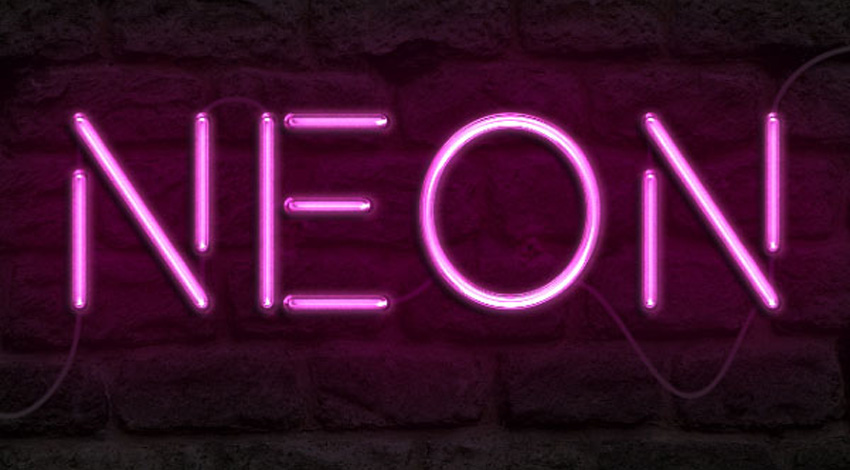
Layering glow and gloss effects can help create nice, shiny objects. Learn how to modify a brick texture for the background, and then use layer styles with the Pen Tool to add some bright, glowing neon text and a simple cable over it.

Looking for a shortcut? Check out this beautiful Neon Light Effect available on Envato Elements. It comes with:

  • an organized layer structure
  • seven color variations
  • smart objects used for easy object placement
  • four background variations
  • two noir overlay effects
  • four sample vector objects. 

Instead of creating the effect from scratch, you can use this simple, ready-made solution.

neon light effect on Envato Elements
Neon Light Effect on Envato Elements

Otherwise, this comprehensive tutorial will show you a complete professional workflow. Let’s get started!

Follow along with us over on our Envato Tuts+ YouTube channel:

Tutorial Assets

The following assets were used during the production of this tutorial:

1. Creating the Background

Step 1

Create a new 1500 x 950 px document, and set the Resolution to 300.

Go to File > Place Embedded, and open the BrickOldRounded0061 image. Resize it as you like, and then tap the Return key to accept the changes.

Place the Brick Texture

Step 2

Click the Create new fill or adjustment layer icon at the bottom of the Layers panel and choose Levels.

Levels

Step 3

Click the Clip adjustment to layer icon at the bottom of the Properties panel, and then change the Shadows value to 85.

Levels Values

Step 4

Click the Create new fill or adjustment layer icon again and choose Hue/Saturation. Click the Clip adjustment to layer icon at the bottom of the Properties panel, and then change the Saturation to 11, and the Lightness to -83.

Hue Saturation

2. Creating the Text

Step 1

Create the text in All Caps using the font Beon Medium. The color is #a33e88 and the Size is 103 pt.

Create the Text

Step 2

Duplicate the text layer and make it invisible by clicking the eye icon next to it. Then right-click the copy and choose Rasterize Type.

What we’ll be doing next is separating the vertical and diagonal parts of the letters from the horizontal ones, in order to apply the effects using different Angle values.

Rasterize Type

Step 3

Pick the Rectangular Marquee Tool (or any selection tool you like), click the Add to selection icon in the Options bar, and select all the horizontal parts of the letters you have.

Select Horizontal Parts

Step 4

Go to Edit > Cut, and then Edit > Paste Special > Paste in Place. This will place the selected parts in a separate layer. Rename the layers to Vertical and Horizontal.

Separate Vertical and Horizontal Parts

Step 5

Change both the Vertical and Horizontal layers’ Fill values to 0.

Fill Value

Step 6

Duplicate each of the Vertical and Horizontal layers twice, and then place each set of layers in a group that has its name (Vertical/Horizontal).

Duplicate and Group Layers

Step 7

Place the Horizontal group below the Vertical one.

Group Order

3. Styling the Original Horizontal Layer

Double-click the original Horizontal layer to apply the following layer style:

Step 1

Add a Bevel and Emboss with these settings:

  • Size: 10
  • Uncheck the Use Global Light box
  • Angle: 0
  • Altitude: 70
  • Check the Anti-aliased box
  • Highlight Mode: Linear Light
  • Shadow Mode – Opacity: 0%
Bevel and Emboss

Step 2

Add a Contour with these settings:

  • Check the Anti-aliased box.
Contour

Step 3

Add an Inner Shadow with these settings:

  • Blend Mode: Screen
  • Color: #e658d4
  • Angle: 30
  • Distance: 0
Inner Shadow

Step 4

Add an Inner Glow with these settings:

  • Opacity: 85%
  • Color: #fe66f1
  • Source: Center
  • Size: 18
Inner Glow

Step 5

Add a Drop Shadow with these settings:

  • Distance: 13
  • Size: 7
Drop Shadow

This will style the first layer of the horizontal part.

Styled Original Horizontal Layer

4. Styling the First Copy Horizontal Layer

Double-click the first copy Horizontal layer to apply the following layer style:

Step 1

Add a Bevel and Emboss with these settings:

  • Size: 16
  • Uncheck the Use Global Light box
  • Angle: -36
  • Altitude: 42
  • Contour: Cove – Deep
  • Check the Anti-aliased box
  • Highlight Mode: Vivid Light
  • Shadow Mode – Opacity: 0%
Bevel and Emboss

Step 2

Add a Contour with these settings:

  • Contour: Cone – Inverted
  • Check the Anti-aliased box
Contour

This will add more gloss to the text.

Styled First Copy Horizontal Layer

5. Styling the Second Copy Horizontal Layer

Double-click the second copy Horizontal layer to apply the following layer style:

Step 1

Add a Bevel and Emboss with these settings:

  • Size: 16
  • Uncheck the Use Global Light box
  • Angle: 18
  • Altitude: 58
  • Contour: Half Round
  • Check the Anti-aliased box
  • Highlight Mode: Vivid Light
  • Shadow Mode – Opacity: 0%
Bevel and Emboss

Step 2

Add a Contour with these settings:

  • Contour: Sawtooth 2
  • Check the Anti-aliased box
Contour

Step 3

Add an Inner Glow with these settings:

  • Blend Mode: Linear Light
  • Noise: 5%
  • Color: #ffdcfa
  • Source: Center
  • Size: 38
Inner Glow

Step 4

Add an Outer Glow with these settings:

  • Color: #7f2d65
  • Size: 15
Outer Glow

This will style the final horizontal layer, adding even more gloss and glow.

Styled Second Copy Horizontal Layer

6. Styling the Original Vertical Layer

Step 1

Right-click the original Horizontal layer, choose Copy Layer Style, and then right-click the original Vertical layer, and choose Paste Layer Style.

Double-click the original Vertical layer to adjust the Bevel and Emboss‘s Angle and Altitude values, by changing them to 90 and 74.

Bevel and Emboss

Step 2

For the Inner Glow, just change the Size to 15.

Inner Glow

This will adjust the effect to suit the vertical and diagonal parts.

Modified Style for the Original Vertical Layer

7. Styling the First Copy Vertical Layer

Copy and paste the first copy Horizontal layer’s layer style to the first copy Vertical layer, and then double-click the Vertical copy layer to change the Bevel and Emboss effect’s Angle to -76, and its Altitude to 53.

Bevel and Emboss

That’s it for the first copy layer.

Modified Style for the First Copy Vertical Layer

8. Styling the Second Copy Vertical Layer

Copy and paste the second copy Horizontal layer’s layer style to the second copy Vertical layer, and then double-click the Vertical copy 2 layer to change the Bevel and Emboss effect’s Angle to -82, and its Altitude to 53.

Bevel and Emboss

That concludes styling both parts of the text.

Modified Style for the Second Copy Vertical Layer

9. Adding More Glow and Creating the Cable

Step 1

Create a new layer below the original invisible text layer, call it Background Light, and change its Blend Mode to Linear Light.

Set the Foreground color to #98338b, pick the Brush Tool, and choose a very big, soft, round tip. Then click once to add spots of color behind the text (don’t click and drag, just dot the color).

Add Background Glow

Step 2

Create another new layer below the Background Light layer and call it Cable. Pick the Pen Tool and choose the Path option in the Options bar.

What you’ll need to do next is create the paths where you want to add the cable. You can click to add corner anchor points, and click and drag to create curves. Keep in mind that the path created doesn’t have to be perfect, as you can pick the Direct Selection Tool at any time later to adjust the anchor points or the direction handles.

Create the Cable Paths Using the Pen Tool

Step 3

To separate the paths, press and hold the Command key, and click outside the path you’ve finished creating so that it won’t be connected to the path you create after it.

Separating the Paths

Step 4

Take your time with this step to get a neat outcome.

Finish Creating the Paths

Step 5

Pick the Brush Tool, and then open the Brush panel (Window > Brush), and choose a hard round 7 px tip with Spacing set to 1.

Brush Settings

Step 6

Set the Foreground color to #252525, pick the Direct Selection Tool, right-click the path and choose Stroke Path.

Stroke Path

Step 7

Choose Brush from the Tool dropdown menu and uncheck the Simulate Pressure box.

Stroke Path Box

Step 8

This will stroke the path. Hit the Return key to get rid of the work path.

Stroked Path

10. Styling the Cable

Double-click the Cable layer to apply the following layer style:

Step 1

Add a Bevel and Emboss with these settings:

  • Check the Anti-aliased box
  • Highlight Mode: Vivid Light
  • Color: #ec6ab7
  • Opacity: 24%
Bevel and Emboss

Step 2

Add a Contour with these settings:

  • Check the Anti-aliased box.
Contour

Step 3

Add a Pattern Overlay with these settings:

  • Blend Mode: Multiply
  • Pattern: 8
Pattern Overlay

Step 4

Add a Drop Shadow with these settings:

  • Opacity: 60%
  • Distance: 13
  • Size: 10
Drop Shadow

This will style the cable.

The Styled Cable

11. Creating the Clips

Step 1

Pick the Rectangle Tool and create an 11 x 15 px rectangle.

Create a Rectangle

Step 2

Pick the Add Anchor Point Tool and click to add two points in the center of both vertical sides of the rectangle.

Add Anchor Points

Step 3

Pick the Direct Selection Tool, click and drag to select the center points you added, and then press the Left Arrow Key once to move them 1 px to the left.

Move Anchor Points

Step 4

Duplicate the Rectangle layer and then go to Edit > Transform > Rotate 90° Clockwise. Rename the Rectangle layers to H (for horizontal) and V (for vertical).

Duplicate and Rename Rectangle Layers

12. Styling the Clips

Double-click the H layer to apply the following layer style:

Step 1

Add a Gradient Overlay with these settings:

  • Opacity: 42%
  • Click the Gradient box to create the gradient using the colors #151515 to the left, #6d6d6d in the center, and #161616 to the right.
Gradient Overlay

Step 2

Add a Drop Shadow with these settings:

  • Opacity: 60%
  • Distance: 13
  • Size: 10
Drop Shadow

This will style the horizontal clip.

Styled Horizontal Clip

Step 3

Copy and paste the H layer’s layer style to the V layer, and then double-click the V layer to change the Gradient Overlay‘s Angle value to 0.

Gradient Overlay

Step 4

Next, duplicate and place the clip layers wherever you want to add clips to the cable you created.

Duplicate and Place Clips

13. Adding One More Coloring Layer

Click the Create new fill or adjustment layer icon and choose Solid Color. Use the color #a34799, place the adjustment layer below the Cable layer, and change its Blend Mode to Vivid Light. This will apply the color to the bricks behind the text, and enhance the glow and lighting of the final result.

Solid Color Adjustment Layer

Congratulations! You’re Done

Final result

In this tutorial, we modified a brick texture background and darkened it a little bit. Then we created the text, rasterized its layer, and separated the horizontal parts from the vertical and diagonal ones.

After that, we duplicated and grouped the separated text layers, and styled all of them to achieve the glossy-glowing effect.

Once the main text was created and styled, we added some more glow to the background, and used the Pen Tool to create the cable’s path. We stroked the path and styled it to give it a 3D look.

Finally, we used the Rectangle Tool to create some clips for the cable, modified and styled them, and added one last adjustment layer to enhance the coloring of the final result.

Need premium Photoshop Actions or Text Effects? We have them available for purchase on GraphicRiver, such as the Awesome Neon Text Effect Style Action.

Ready-to-Use Text Effects and Stylized Fonts

If you want to save your time, simply download one of our great text effects and fonts from Envato Elements. It’s much faster than doing it all from scratch.

100 Photoshop Layer Styles Bundle – Text Effect

100 photoshop layer styles bundle

Neon Text Effects

Neon Text Effects

Neon Sign Photoshop Effect

Neon Sign Photoshop Effect

Neon Desmon – Neon Light Font

Neon Desmon - Neon Light Font

Saberz Font

Saberz Font

Related Tutorials

If you want to learn more about text effects in Adobe Photoshop, don’t miss our other very detailed tutorials!

{excerpt}
Read More

5 Key Components of a Highly Converting Landing Page

A landing page can be the difference between having a strong conversion rate and a bad one. After putting a ton of time into your website content, you’ll want to make sure your website landing page pops and is effective, so you can get reach the average conversion rate of 2.35%.

It doesn’t matter if your website content offers paid courses, paid products, blog content, or even video content. Everyone can benefit from creating a highly converting landing page.

That’s why today, we’re going to cover all of the critical components of a great landing page.

What Is a Landing Page?

A landing page is a page that visitors land on that usually offers them a deal, prompts them to sign up for a newsletter, or has some other promotion.

The main uses of a landing page include:

  • Product or service sales
  • Collecting information for later marketing
  • To get eyes on what products and services you offer
  • To provide free trials in hopes of later coversions

When you start using a landing page, it’s all about getting conversion rates as high as you can. Doing this helps you grow the monetary portion of your business instead of just the traffic in general.

After all, it doesn’t matter how many people land on your website if none of them are converting.

basic landing page example

The picture above is an example of a landing page I used when I was going to a full stack developer school called Lambda School. I gathered email addresses from my YouTube viewers and gave them something in return.

This allowed me to grow an email list of 60 people whom I could email whenever I wanted with offers or updates on my life. 

It’s a great way to grow your influence online since you’re given a list of people who could be interested in paying for what information you’re passionate about.

Landing pages are great for capturing all sorts of information, not just emails. For example, you can set a landing page up to get a first name, last name, phone number, company name, and even a list of services people are interested in.

These pages are great for converting site visitors into subscribers or even paying customers when they’re set up right.

So, let’s get into how to set up your landing page, so it has the best chance for conversions!

1. A Captivating Header

Since a landing page is a form of ad, it’s essential to give your landing page a high header. This should be the first thing a visitor should see, and it is always designed to get their attention.

The two things to convey with your header are what you want and what you’re offering in return.

A basic example of this would be the first picture in the above section. 

email landing page

Notice the information found under the subscribe button. I’m telling you exactly what I want and what I’m prepared to give you in exchange.

What I want is the visitor’s email address to add them to my email list.

What I’m offering in return is a free resource list that I used while going through school.

Check here for the top email marketing service providers around for building a bigger email list!

Another great example of a strong header is Code Academy’s landing page. 

code academy landing page example

Notice they are still telling you what they want from you and what they’re planning to give you in return. Though, they do this in a different way than I did.

What they want is the visitor to create an account and provide their email address.

What they’re offering in return is limited access to their services.

They do it this way so there’s no monetary commitment upfront; however, you are subject to their emails. And you can bet they’ll try to convert you into a paying customer in the near future. 

Defining what you want and what you’re offering in the heading is a great way to get people’s attention on your landing page.

2. Vibrance Works

It’s no secret that humans enjoy bright colors and pleasant color schemes. Companies have entire branches and divisions explicitly dedicated to the design of a product or ad.

People respond very well to vibrant colors and well-balanced color schemes. Sometimes they’re even used to elicit emotion out of the viewer.

A great example of a balanced color pallet is Taster’s Club.

taster club landing page with good color scheme

They use a simple color scheme of neutral or dark colors like black and brown, which pairs well with the gold color. 

This gold color is present on its logo, header, and buttons. They set it up this way to draw attention and even go so far as to add borders around the buttons they want your focus to be on.

Your landing page doesn’t have to be overly vibrant, so long as the color scheme works well.

Muck Rack landing page with simple color scheme

As with this above example on Muck Rack, the colors are pretty tame. They’re all some variation of blue, and most of them are a darker shade of blue.

It works because it’s simple, sleek, and using different shades of blue make for a great color palette.

3. Media Matters

Your landing page may not have a video, but it probably has an image.

Images are an excellent tool for getting attention and pulling your landing page together. Just make sure it fits with the color scheme and message of your landing page.

For example Edupath’s landing page has an image that goes well with the orange color scheme of the rest of the page.

Edupath landing page example with picture

Edupath is all about applying to colleges differently because they don’t think it’s great how it is. 

Not only does this picture match the color scheme, but it also matches the tone of the website. Their goal is to make applying to colleges easier, and the image they use is quite peaceful.

The goal in creating an effective landing page is to match your site’s colors and theme with the right image. If you find yourself in need of some high quality images, be sure to check out this article on the best places to find free stock photos.

Don’t have a specific color scheme for your website? It’s okay. You can always try something more along the lines of what Edupath does on their homepage.

Edupath home page with image collage

This example is a collage with text on top. Notice the color scheme is mostly black and white with an accent a gold accent for breaks.

To get the right landing page, and see a rise in conversions, you might have to split test different versions of your landing page to see which design and format encourages the most people to convert.

4. Sometimes, Less Is More

There’s a golden rule in marketing, programming, and writing that sometimes less is more. In fact, the popular saying “keep it simple, stupid,” or KISS, often applies in the digital world.

When creating a landing page, you’ll want to follow this rule from start to finish. Simplicity is vital anytime you’re trying to get people to consume your content. This is especially true if you want them to pay for that content.

Breather is an excellent example of this simplicity in action:

breather simple landing page

This site uses a simple and neutral color scheme of black and white. there is not even a header image. Instead, there are just two links with pictures.

Even their motto and tag lines are straight forward and as short as possible.

Usually, the best practice on a landing page is to say what you need to say in as short a way as you can. Doing this ensures that you’re getting your message across without losing someone’s interest.

After all, once you’ve lost the viewer’s interest, it’s all over.

The average human attention span in the world of smartphones is only about 12 seconds, according to Digital Information World. That number might as well be cut in half for an ad on a landing page.

So, get your point across in a clear and concise way if you want to boost conversions.

5. Social Proof

Some people are distrusting by nature. They always assume the worst, especially when it comes to businesses that are small or new. Fortunately, there’s a great way to get through to these types of people to make them trust your site and ultimately convert.

Social proof is what you can point to when someone doesn’t trust you right away.

It’s a way of saying, “well, all these people and companies trust me, and they’re not to be taken lightly, so give us a shot.”

Lambda School social proof

A great example is seen on Lambda School, where I attended school. It shows the companies that hire Lambda School graduates and what they’re saying about those graduates.

Having a section on your landing page that shows off those you’ve worked with in the past is a great way to gain trust. Not to mention, you can also use testimonials to showcase quotes from previous buyers of your products or services.

If you use WordPress, you should check out these top WordPress testimonial plugins to help you out.

Wrapping Up

And there you have it! You know know what it takes to make a stellar landing page for your WordPress site and it’s time to try it out for yourself.

Want to make sure those arriving on your landing page have an exceptional user experience? Then check out these top WordPress caching plugins for speeding up your load times and boosting conversions.

What do you feel makes for a highly converting landing page? We’d love to hear your thoughts in the comments below!

The post 5 Key Components of a Highly Converting Landing Page appeared first on WPHacks.