
Category: Tutorials
Tutorials,freelance,projects,joomla,php,mysql,wordpress,blancer.com
Motorola Razr review: A fashion statement, not a flagship

The Motorola Razr is many things. It's one of the first foldable phones you can buy right now. It's a feat of engineering from a storied mobile brand. It's a Verizon exclusive. (Sigh.) What the Razr absolutely isn't, though, is practical.
For so…
Gmail for iOS will let you attach items from the Files app

Australian court orders Google to reveal user who wrote a dentist’s bad review
Online-only platforms are going offline with permanent spaces
The retailpocalypse started in 2010. It followed the 2008 global recession, with the parallel birth and rise of social media adding fuel to the growth of online shopping. Suburban and rural malls sat empty, underutilized or poorly maintained as the m…
10 Best WordPress Star Rating Plugins
{excerpt}
Read More
How to Remove a Background in Photoshop

If you want to learn how to remove a background in Photoshop or how to make a background transparent in Photoshop, in this tutorial I will show you the most universal method for achieving this goal. I’ll teach you how to isolate the object, and how to keep its edges smooth in the process.
Follow along with us over on our Envato Tuts+ YouTube channel:
What You Will Need
You can use any photo for this tutorial, but if you want to follow my steps directly, download this image:
How to Remove a Background in Photoshop
Step 1
First, we need to tell Photoshop where the object ends and the background starts. There are many selection tools available, but if you want to be precise, it’s best to use the Pen Tool (P). Try to imagine the selection outline. Zoom in and click somewhere on this imaginary outline.

Step 2
Find another place to click—this time click and hold. A line will appear between the two points. If you move your cursor now, you’ll have a chance to control the shape of the curve. Try to make it fit the imaginary selection outline.
Remember not to drag too far—the handle you’re dragging should land on the outline. The curvier the area, the closer you should place your points. Don’t be afraid to Undo and try again if you placed a point too far away.


Step 3
Once you’ve gone around the whole object, simply click the first point to close the outline.

Step 4
Sometimes, objects have an inner outline as well. Select it the same way.

Step 5
Press Control-Enter to turn the path into a selection.

Step 6
You could remove the background now, but we can do one more thing to make the effect more convincing. Press Control-Alt-R to refine the edge of the selection. Change the View Mode to On Black, and check Smart Radius.

Step 7
Experiment with the Radius and Adjust Edge settings to make the edge of selection smoother and more natural. If the background was blurry, the object should have slightly blurry edges as well.

Step 8
When you’re done, set the Output to Layer Mask and press OK.

Step 9
The background has disappeared! But sometimes, only after removing the background do you notice a flaw in the selection. It’s not a problem at all—just click the Layer Mask to select it and then paint carefully with black and white. Black will remove the area, and white will bring it back. You can also use various shades of gray to create a semi-transparent effect.


Step 10
Additionally, you can use this technique to bring back the shadow that belongs to the object, not the background. This will make the isolated object look more complete.

Step 11
If you’re happy with the selection, right-click the Layer Mask and select Apply Layer Mask. The background will be permanently removed.

If you ever wanted to know how to change the background color in Photoshop, now you’re able to do it—use the Paint Bucket Tool (G) on a layer below, or place a photo, or fill it with a pattern.

Good Job!
Now you know how to remove a background in Photoshop!

Do you want to learn more about creating photo effects, or maybe even Photoshop actions? Try these tutorials as well:
 Adobe PhotoshopHow to Create a Cool Glitch Photo Effect in Adobe PhotoshopMelody Nieves
 Photo EffectsHow to Create a Cut-Up Photo Effect in PhotoshopJohn Negoita
 Photoshop ActionsHow to Add a Glowing Photo Effect to a Portrait in PhotoshopMonika Zagrobelna
 Photoshop ActionsWhat Are Photoshop Actions and How to Install Photoshop ActionsKirk Nelson
 Photoshop ActionsHow to Create a Cyberpunk Photoshop Effect ActionMarko Kožokar

{excerpt}
Read More
My First App: How to Create Your First Android App Step-by-Step
{excerpt}
Read More
My First App: How to Create Your First Android App Step by Step
In this tutorial, I'll show you how to create your first Android app. While doing so, I'll also introduce you to important Android-specific concepts such as views, layouts, and activities.
{excerpt}
Read More
29 Best Heavy Metal Fonts
Bring the powerful, fast-paced spirit of heavy metal music to your next project when you use metal lettering fonts.

Today we look at 29 premium fonts from Envato Elements and GraphicRiver that best capture the heavy metal aesthetic. Check them out and be inspired!
Best Source for Heavy Metal Fonts (Unlimited Downloads)

If you’re looking for high-quality metal fonts, then Envato Elements should be your first stop. It offers a wide selection of terrific metal fonts to suit just about every project.
What’s more, you can download as many fonts as you want for one low monthly price. And if you’re in the market for other resources like templates, icons, and other graphics, they’re also included under that monthly price.
Let’s take a look at some of the awesome metal lettering fonts you can find at Envato Elements.
24 Best Heavy Metal Fonts
1. Lordish

What better way to start off our list than with this gorgeous gothic font? Use it to create stunning album covers, posters, or T-shirts. The font includes uppercase, lowercase, punctuation, and international characters.
2. Tribal Font

Looking for a metal lettering font for an album cover or a T-shirt with a bit of a twist? Then check out this tattoo lettering font. It includes uppercase and lowercase characters, numbers, punctuation, multilingual symbols, swashes, and alternate characters. A great choice for those who want to differentiate themselves from the pack.
3. Blackink – Blackletter Font

Take your project to the next level with this gothic blackletter font. Ideal for signatures, logos, handwritten quotes, product packaging, headers, etc. The font includes uppercase, lowercase and alternative characters, numbers, punctuation, multilingual symbols, and swashes, giving you loads of options for customising your text to make it look just how you want it to.
4. Smackdead

This black metal font is inspired by the black metal style crossed with the horror movie genre. It’s an excellent choice for posters, album covers, flyers, merchandise, etc.
5. Glaive Typeface

Looking for a super cool metal lettering font to grace your new poster? Take a look at this rock and metal inspired typeface with its clever combination of angular shapes and curved edges. It includes uppercase letters, numbers, and punctuation, and you can toggle the caps lock to use the alternate letters.
6. FireFlight | Blackletter Modern Font

This gothic blackletter font is a bit of a restrained version of the metal look, but still works well for those looking to capture the spirit of the genre in their work. The font, which also captures elements of old English fonts with its calligraphic style, can be used to create beautiful and eye-catching branding materials, business cards, posters, and more!
7. Bahjera YR

This brush and hand-drawn font manages to capture an air of menace with its knife-like pointed edges, making it great for those looking for metal band fonts for their album covers. This energetic font would also work well on T-shirt or poster projects, horror movie titles and credits, and for certain kinds of branding.
8. Incognite Tattoo Font

If you’re working on a metal-themed design and want to ramp up the gothic twist, try this tattoo lettering font. It would work well for motorbike-themed T-shirt designs, custom tattoo lettering, sports logos, etc.
9. Helmswald Post

This gothic blackletter font is a perfect choice for those looking for a metal band font. It combines elements from many different letters and time periods and features wispy terminals, flamboyant caps, and the use of negative space to create contrast and interest. Users of the Cyrillic alphabet will be happy to know that this font includes Cyrillic characters.
10. Eternal

This angular tattoo lettering font retains a bit of the gothic touch, making it a great choice for those wanting to bring a bit of the heavy metal font style to their projects.
11. Brigade

If you’re in the market for something extra special, then this font, which combines characteristics of gothic blackletter fonts and tattoo lettering fonts, may be the perfect fit. This beautiful, ornate font may not be the easiest to read, but it will get you attention and make you stand apart from the crowd.
12. Pattrious – Elegant Gothic Display Typeface

Looking for a metal lettering font to use on your album cover or poster? Check out this gothic font with a bit of vintage blackletter vibe. It includes the basic set of uppercase Latin characters, numbers, and punctuation.
13. Santiago

Another gorgeous gothic blackletter font that combines elements of tattoo lettering fonts. Use this typeface sparingly for headings or titles or logos when you want to make a statement. The font includes uppercase Latin characters, numbers, punctuation, multilingual symbols, swashes, and alternate characters, so that you can create a distinctive look that’s all your own.
14. Macbeth Typeface

This is a bit of a departure from the styles we have featured here so far, but we wanted to give you as many options as possible for creating a metal band font. This font is one that might combine well with one of the others here to be used on labels, clothing, movie titles, etc.
15. Aceking – Vintage Blackletter Gothic

A vintage gothic font that’s an excellent choice for book titles, video games, albums, etc. This solid bold typeface includes basic Latin characters, numbers, and punctuation.
16. Black Cameo

This gothic font combines elements of old English fonts and tattoo lettering fonts to create a wonderfully dynamic and eye-catching font. The set, which includes upper and lower case letters, also contains over 525 glyphs so that you can create truly unique and interesting text.
17. Trigger

This gorgeous typeface, which includes elements of old English fonts, is inspired by the old American advertisement letters. A great metal band font for album covers, tattoos, posters, etc.
18. RockSands Type
The eye-catching typeface would work very well for those looking for death metal fonts or black metal fonts for a new album cover. The set includes uppercase and lowercase characters, numbers, punctuation, multilingual symbols, swashes and alternate characters, and tons of unique glyphs that allow you to create your own unique text for your next project.
19. Black Baron Typeface|Medieval Font

So much more subdued than most of the other fonts featured here, this old English font is a great choice when you want a restrained approach to metal.
20. Satanic – Decorative Bold Display Typeface

The perfect font for those looking for death metal fonts or black metal fonts for their next project. This bold display font uses the language of the occult to introduce a sense of horror. The font just includes uppercase Latin characters, numbers, and punctuation.
21. Vanderink

Whether you’re looking for a heavy metal font or a tattoo lettering font for a movie poster, T-shirt, or album cover, you just can’t go wrong with this terrific vintage-styled typeface. With its beautiful swashes that create a terrific stylised effect, all eyes will be on your text when you use this font.
22. The Bjorke – Handmade Fonts

Add a touch of the old English font style to your heavy metal album when you use this typeface. This handmade font would also look great on posters and can be used for logos, headers, and titles.
23. Seulanga Decorative Font

Looking for something a bit different? Try this decorative font, which incorporates elements of gothic fonts to create a look that is interesting and unique. Not traditionally what you think of as a heavy metal font, but therein lies its strength. You will certainly set yourself apart from the crowd when you use this font in your projects.
24. Shodo Gothic

Well, you’ve seen it here first, folks. This is what would happen if blackletter typography and Asian calligraphy had a baby. This intriguing font may raise some eyebrows when you apply it to your metal album cover, but who knows—you may start a trend.
Best Source for Heavy Metal Fonts (Buy One at a Time)

If you’re just interested in purchasing just one heavy metal font instead of experimenting with several, then GraphicRiver may be a better choice for you than Elements. You can download a single font for one-time use for a low fee. Let’s take a look at some of the top-quality offerings there.
5 Best Heavy Metal Fonts
25. Sadis

One of the most gorgeous fonts featured here, this gothic font is for those who are looking for a typeface to make their text stand out. Mix uppercase and lowercase letters and add ligatures, swashes, and stylistic alternates to create text that is truly one of a kind.
26. Dark Widow

The perfect font for those metal fans looking for death metal fonts and or black metal fonts, this typeface combines elements of gothic fonts and the horror genre to create a font with a high scare factor. The font comes with a full set of upper and lowercase characters, numbers, and punctuation. Use it to create album covers, posters, T-shirts, etc.
27. Bhaltazar Typeface

This gothic font style has some charming characteristics which you may not at first associate with metal but, styled in the right way, this interesting display font could give your projects that interesting edginess you’re after.
28. The Mariam Story

This gothic blackletter font allows you to create unique titles by using a mixture of upper and lowercase characters and alternative glyphs. Keep experimenting with the font until you’ve created a look for your project that is uniquely yours.
29. RCD Calamba

Use this tattoo lettering font to create your next poster, T-shirt, or metal band album cover. It’s a bit of an unconventional choice but, as you’ve seen in this list, we rather favour unconventional choices. They potentially add intrigue and surprise to your projects, which is a good thing indeed.
Choose Your Favourite Heavy Metal Font Today
This is just a small sample of the awesome metal font styles available at Envato Elements and GraphicRiver. So if you haven’t found just the right one for you here, head on over to both sites and have a browse to find one that suits your needs.
By the way, if you’re looking for other cool fonts, check out these great articles on the other kinds of font selections available at both sites:
 Fonts31 Best Fancy Fonts With Decorative Alphabet Letters (2020)Melody Nieves
 Fonts29 Best Monospace FontsNona Blackman
 Fonts35 Best Retro 80s FontsMelody Nieves
 Fonts33 Best New Fonts for 2020Melody Nieves
 Fonts40 Most Popular Fonts of 2019Nona Blackman
 Graphic DesignThe Best Alternatives to the 10 Most Popular FontsLaura Keung

{excerpt}
Read More
Best WordPress Live Chat Plugins for Better Customer Support
Customer service as we know it has changed.
Today’s customers won’t necessarily call a contact center when they need help. Instead, they’ll look for a quick and convenient way to ask questions, without having to leave your website.
WordPress live chat plugins can help with that.
With the best chat plugins for WordPress, you can bring an engaging, personal touch to your website, helping your customers to form a deeper connection with your brand. What’s more, you give your audience a quicker, more convenient way to ask questions.
The question is, which plugin should you be using on your site?
Today, we’ll be looking at:
The Benefits of WordPress Live Chat Plugins
According to Kayako, 79% of businesses said that adding live chat to their site resulted in better sales, revenue, and customer loyalty. Additionally, ICMI found that the customers that engage with a company through live chat are worth up to 4.5 times as much as other visitors.
Chat is faster, simpler, and it takes advantage of all the convenience that the internet has to offer. What’s more, if you implement chat correctly, you increase sales by as much as 3.84%.
So, how do you pick the best chat plugin for WordPress?
Start by asking yourself the following things:
- What’s your goal? Do you want to increase customer loyalty? Generate more cross-selling opportunities? Take some of the stress off your customer service team by giving customers another way to have their questions answered?
- What features do you need? Are you looking for a basic live chat function, or do you need advanced AI functionality?
- What other apps and plugins do you use? Your chatbots need to work well with all of your other plugins, including translation services.
Got the answers to those questions?
Great, now you can use them to assess some of the following WordPress live chat plugins.
1. LiveChat

LiveChat is one of the friendlest and most convenient WordPress live chat plugins around, designed to give you a simple way to connect with your target audience. The beautifully-designed live chat solutions can be customized to suit the style of your website, with different themes and colors.
Additionally, LiveChat works seamlessly with all devices, providing an excellent experience on any app. You can implement survey forms before and after sessions to track the performance of your support team, and leverage support tickets out-of-hours too. What’s more, LiveChat integrates with tons of popular CRM software options. You can even add integrate with your mailing list.

Pros:
- Lots of customization options
- Quick to load
- Beautiful live chat apps
- Lots of integrations
Cons:
- No automatic greetings.
Price: Plans start at $16 per agent per month if you pay annually. The price goes up to $19 per agent per month on a rolling monthly basis. There’s a 14 day free trial to get you started.
2. Zendesk Chat

Another very well-known service in the world of WordPress live chat plugins is Zendesk Chat. and it’s brimming with great functionality. You can find plenty of beautiful chat boxes to choose from, custom-designed to suit the needs of your website. Additionally, the whole experience is quick, seamless, and clean.
Whenever you need to respond to your customers, you just access the external dashboard. There’s even an app for your iPhone or Android, so you can keep in touch with customers on the move. Another fantastic thing about Zendesk Chat is that it comes with plenty of reports and tracking tools to help you measure customer service success.

Pros:
- Plenty of analytics and tracking features
- Works well with third-party services and Zendesk tools
- Real-time chat or chatbots available
Cons:
- Reporting only available in higher-priced plans
- Goes idle when you’re not on the main browser window
Pricing: You can access limited live chat support for
one account. Paid plans begin from $14 per agent per month.
3. Sendinblue

Sendinblue is better known for it’s email services than social media or WordPress chat plugins. However, it’s also a fantastic tool for chatting with your customers online. With Sendinblue, you can access everything from CRM services to SMS marketing and landing pages.
The chat feature is only available with the premium plan.
However, if you’re already using Sendinblue to manage your customer service
strategy, then this could be the perfect choice for chat. Additionally, the
experience is very simple, making it excellent for beginners in the chat space.

Pros:
- Very easy to use
- Built-in integrations for marketing
- All-in-one tool for digital growth
Cons:
- Only integrates with Sendinblue tools for marketing
- Chat feature isn’t available at low pricing levels
Pricing: Though there’s a range of pricing plans
available from Sendinblue, you’ll need the $66 per month option for the chat
feature.
4. Olark

Another excellent example of one of the best chat plugins for WordPress is Olark, which gives you a choice between plugins or code snippets. Whichever you choose to install, you’ll have instant access to an easy-to-use live chat system. The experience integrates well with tools like Slack, Google Analytics, Salesforce, and many others.
Whether you’re trying to reduce cart abandonment or drive better customer experiences, Olark will help. There’s access to third-party mobile apps and you can monitor live visitors on your website and reach out to them at various points in the buying journey. There’s even real-time reporting into chat volume and agent performance.

Pros:
- Very easy to use
- Proactive chat feature
- Real-time reporting options
Cons:
- A little slow and clunky to use.
Pricing: Pricing plans start at around $17 per month per
agent. You can access a small discount if you choose annual billing over a
rolling monthly fee. There’s also a two week free trial available.
5. Intercom

Intercom is a software solution that’s all about helping companies establish better relationships with their audience. If you’re looking for a live chat plugin that’s quick and easy to use, however, then you might have trouble with this service. Intercom has a bit of a learning curve to overcome.
Although Intercom is brilliant once you get into it, you will need to spend some time exploring all the features before you can fully appreciate it. On the plus side, it has plenty of live widgets you can automate with your own workflows. You’ll also have access to easy integrations for email marketing services, CRM tools, analytics, and more.

Pros:
- Excellent range of features
- Workflow automation
- Lots of integrations
- AI chatbots available
Cons:
- Bit of a learning curve when you’re just getting
started. - Pricey
Pricing: The essential plan from Intercom starts at
$87 per month. After that, your costs are calculated according to your
individual usage.
6. Freshchat

Another sensational option for WordPress chat plugins is Freshchat, which was specifically designed for online messaging. The tool allows companies to launch real-time chats however they choose. That means that you can pick between live agents or intelligent bots. You can also connect your chats to tickets on support services too.
Freshchat comes with a handful of helpful features, including saved responses, smart plugins, private notes, desktop notifications, and more. There’s also access to views of customer journeys, profile information, in-app campaigns, and more. Everything you need is available in the same space for better customer relationships.

Pros:
- Choose between bots and live agents
- Desktop notifications available
- Useful customer timelines
Cons:
- Can’t turn off Freshchat watermark
- Doesn’t work in Safari
Pricing: Free live chat support plan for up to 10
people. Paid plans start at $15 per month when you buy on a yearly basis.
7. LivePerson

LivePerson is another fantastic WordPress live chat plugin
that comes brimming with useful features. The AI-powered conversational
platform can help you to generate more conversions. Additionally, the whole
software solution is designed to engage your customers and drive more sales.
With LivePerson, you can engage your customers through a wide selection of channels. This includes Facebook Messenger, WhatsApp, SMS, and also your own website chat boxes. You can also choose between having a friendly live agent manage the conversation, or an artificial intelligence chatbot. Your chatbots can be implemented with automated conversation workflows. What’s more, they save customer information or you to third-party apps so you can track the client journey.

Pros:
- Choose from live chat or chatbots
- Multi-channel conversations available
- Simple back-end interface
Cons:
- Not many reporting features
- Pricing is only available via quote
- Customer information isn’t available directly in chat window.
Pricing: Pricing is only available on a per quote
basis for each customer.
8. Drift

Finally, Drift advertises itself as more than just the best
chat plugin for WordPress. According to the team, this is the ultimate tool for
companies searching for a reliable way to shorten their sales cycle and improve
customer loyalty. This powerful conversational platform integrates with many of
the leading CRM and email marketing tools on the web today.
Additionally, the Drift software comes with standard access to the Drift bot. This means that you get AI service and support when you need it, as well as anonymous visitor intelligence, scheduling for your meetings, account-based marketing, and more. Ideal for mid-to-large companies, Drift is easy to use with a fantastic interface.

Pros:
- Clean and easy to use interface
- Access to Drift bot for advanced features
- Analytics included
Cons:
- Price is too high for most smaller businesses
Pricing: Pricing packages start at $50 per month paid
on an annual basis. You’ll need to upgrade to the Pro plan for $500 per month
if you want the bot or automated assistant feature.
Which Is the Best Chat
Plugin for WordPress?
So, which WordPress chat plugins should you and your team consider?
That all depends on what you’re looking for. In our opinion, LiveChat is one of the best solutions on the market for smaller companies. If you’re looking for a quick and easy way to connect with your target audience, LiveChat is one of the top-rated options out there.
On the other hand, if you need an all in one solution that combines SMS, email, and chat, then you might prefer something like Sendinblue or Intercom.
For those who really want to push the limits with advanced artificial intelligence tools, then Drift and the Drift bot can be an excellent choice. However, we think that the Drift service is likely to be too expensive for most smaller companies.
Want another way to boost conversions, aside from using chatbots and live chat? Check out this article on the best WordPress giveaway plugins to improve your chances of a sale.
Have you implemented live chat on your WordPress website? If so, which WordPress live chat plugin do you use? We’d love to hear all about it in the comments below!
The post Best WordPress Live Chat Plugins for Better Customer Support appeared first on WPHacks.
Best WooCommerce Code Snippets: Add to Cart Link & More
Since over 5 years, WooCommerce is recognized as the most powerful and easy to use e-commerce plugin for WordPress. In this article, I have compiled my all time favorite hacks and code snippets to extend WooCommerce possibilities.
Pokémon Home is now available on Nintendo Switch, iOS and Android

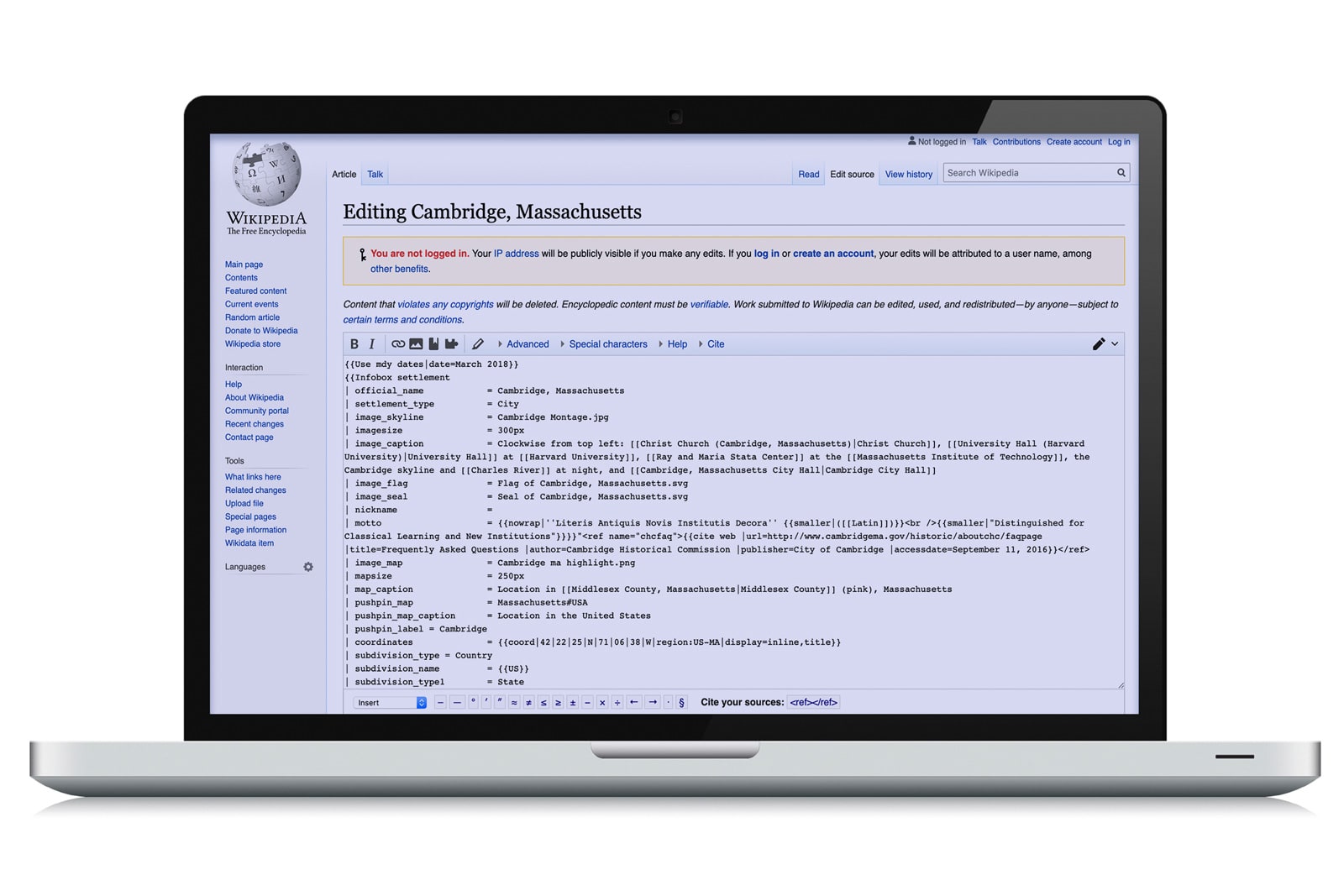
AI can automatically rewrite outdated text in Wikipedia articles
Android saw a 98 percent drop in apps asking for call and text data