Category: Tutorials
Tutorials,freelance,projects,joomla,php,mysql,wordpress,blancer.com
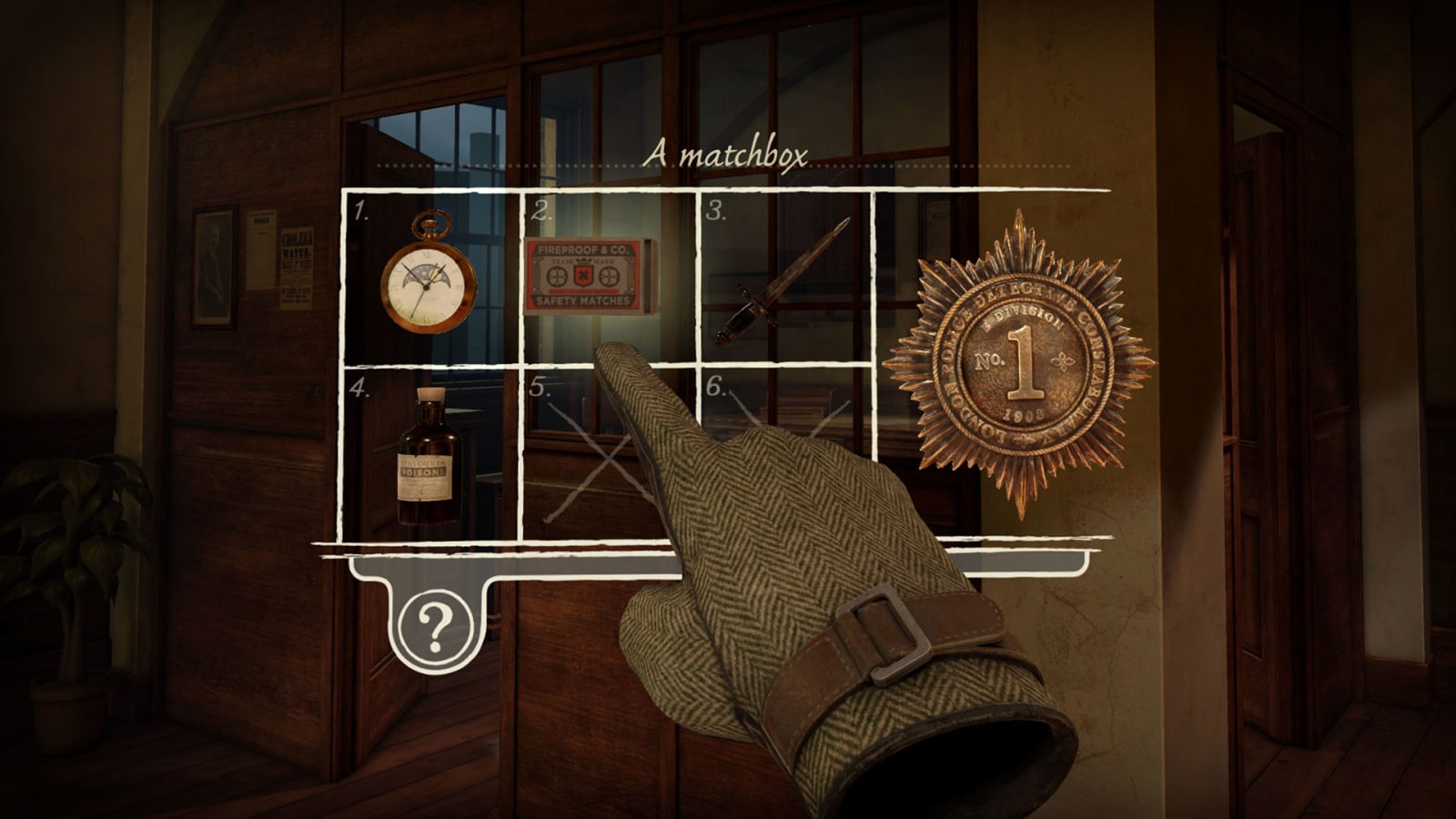
Facebook is hosting a virtual GDC for Oculus VR titles
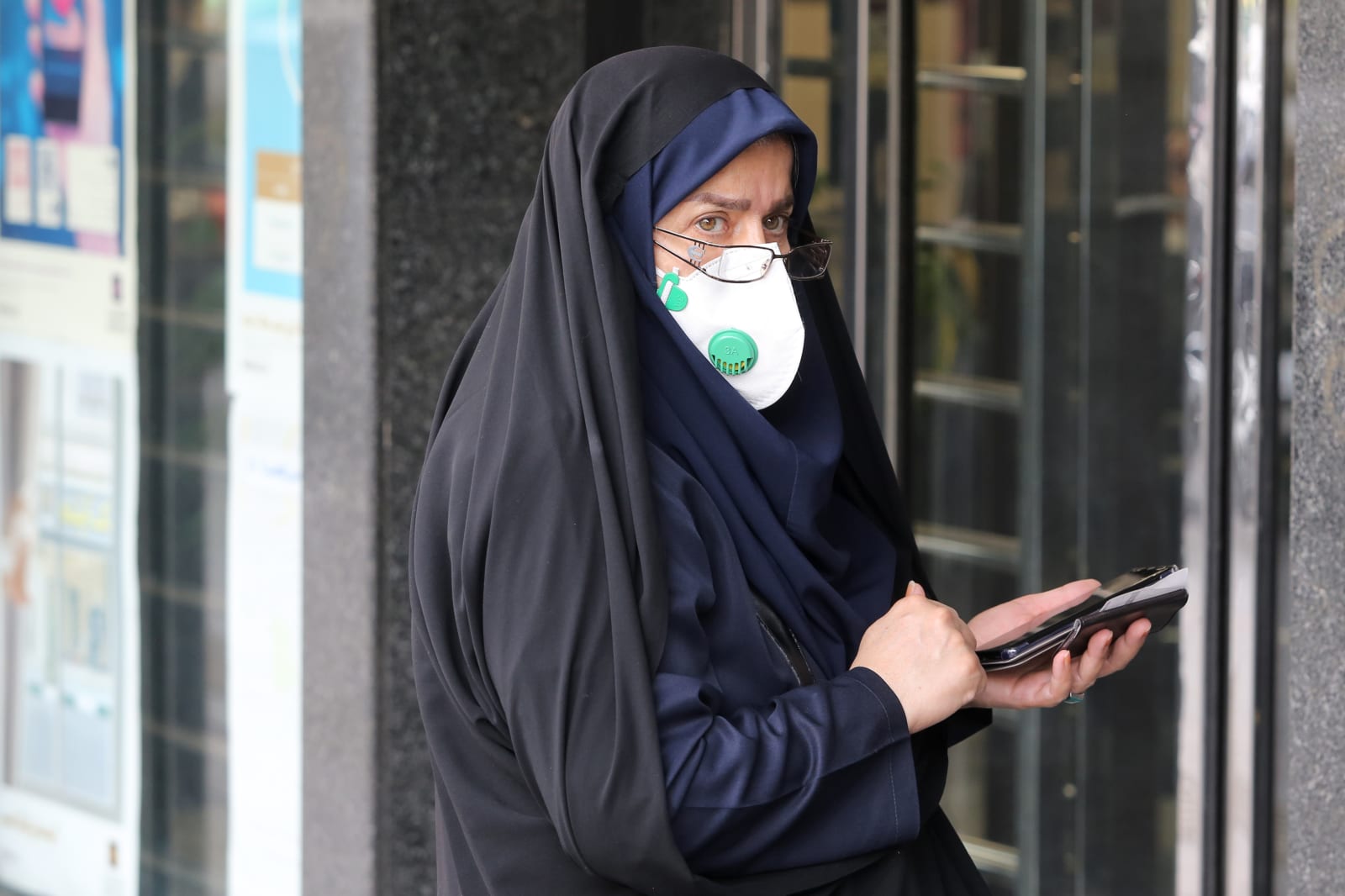
Iran’s coronavirus ‘diagnosis’ app looks more like a surveillance tool
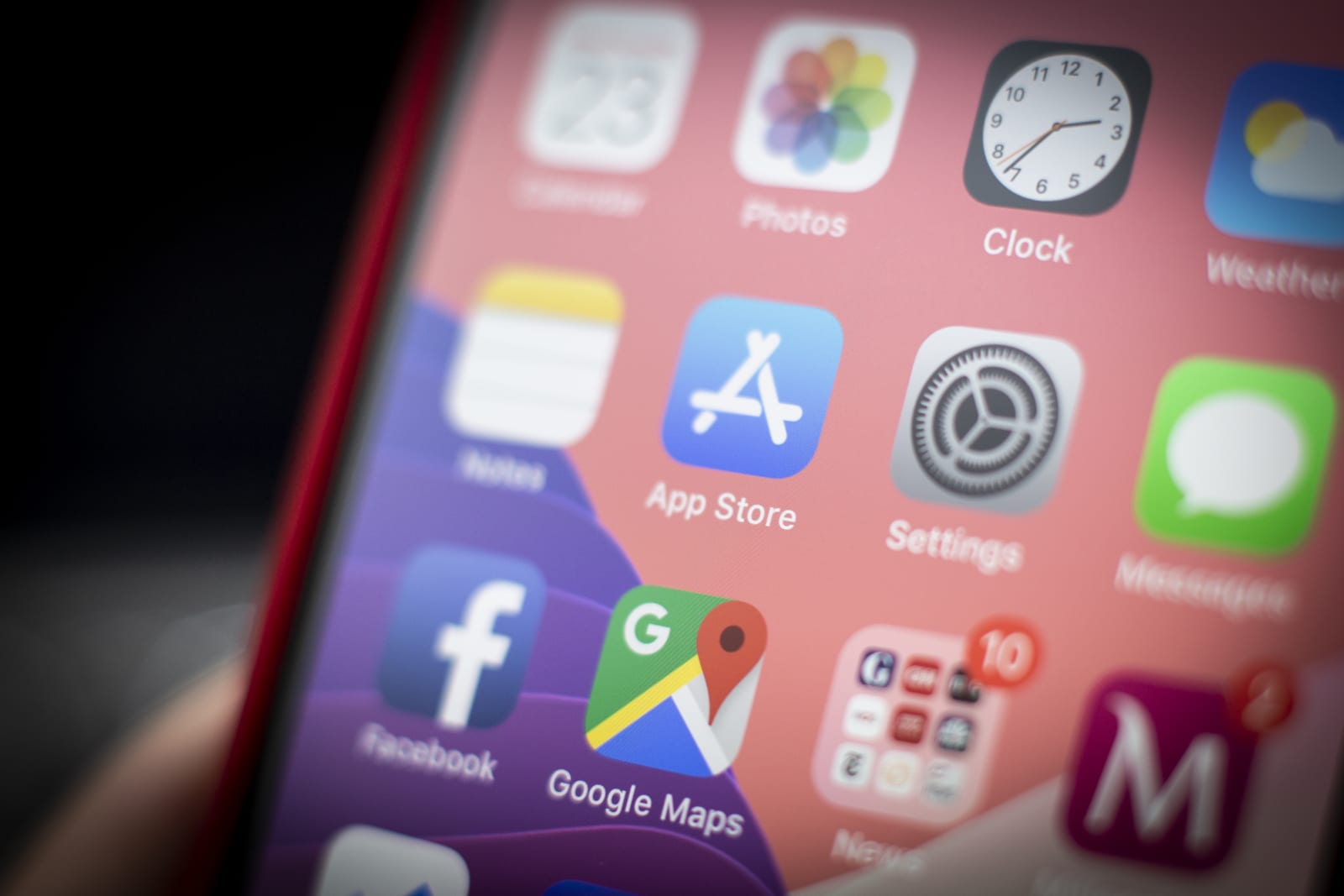
Apple sets clearer rules for coronavirus-related apps
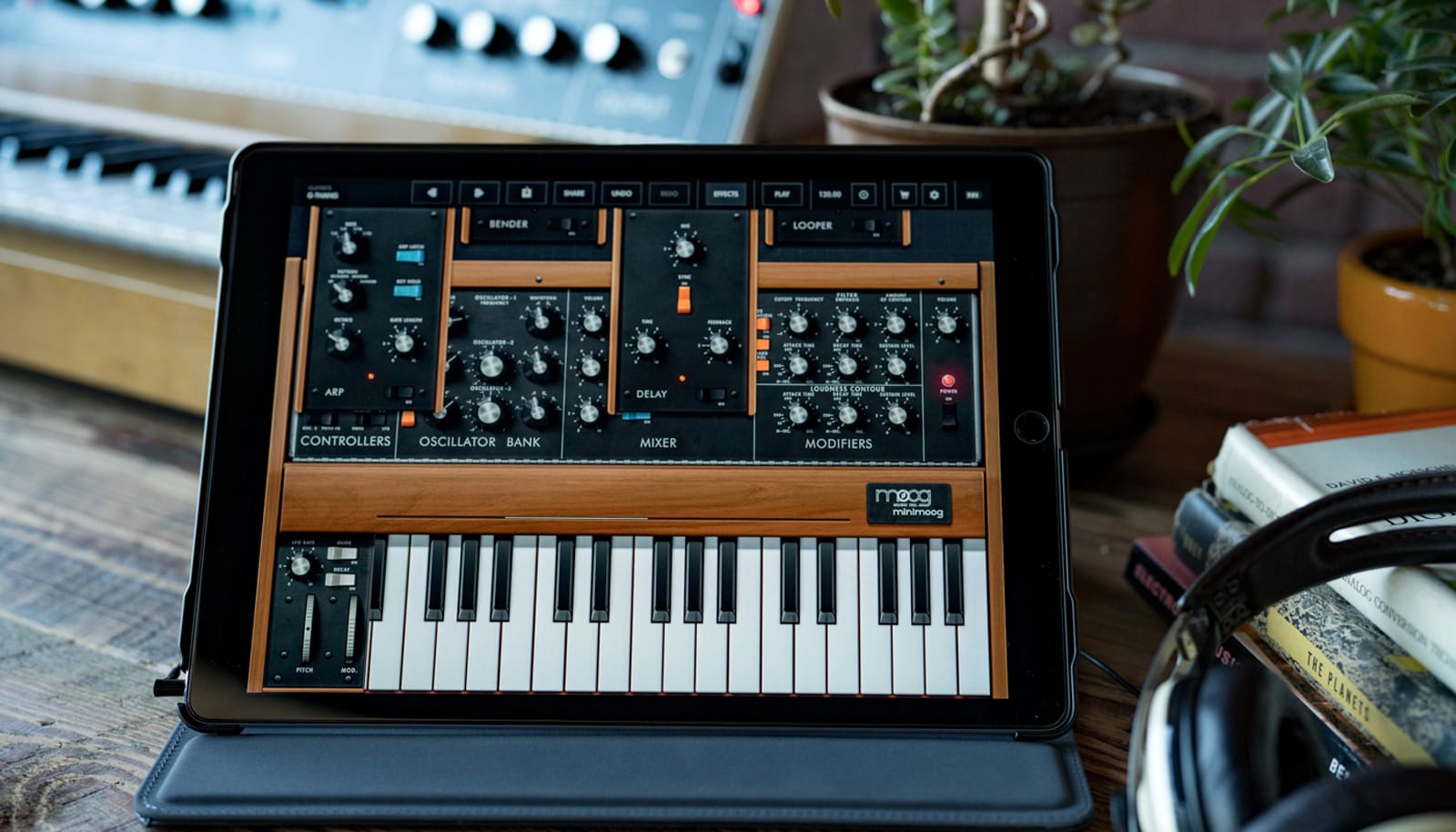
Moog and Korg make synth apps free to help musicians stuck at home
Sprint, T-Mobile pledge to keep subscribers connected amid outbreak

Windows 10’s built-in Linux kernel will be available to everyone soon
EA suspends live esports events due to coronavirus outbreak
‘Call of Duty: Warzone’ gets 15 million players in four days
Hitting the Books: Disney’s influence on America’s first stealth planes
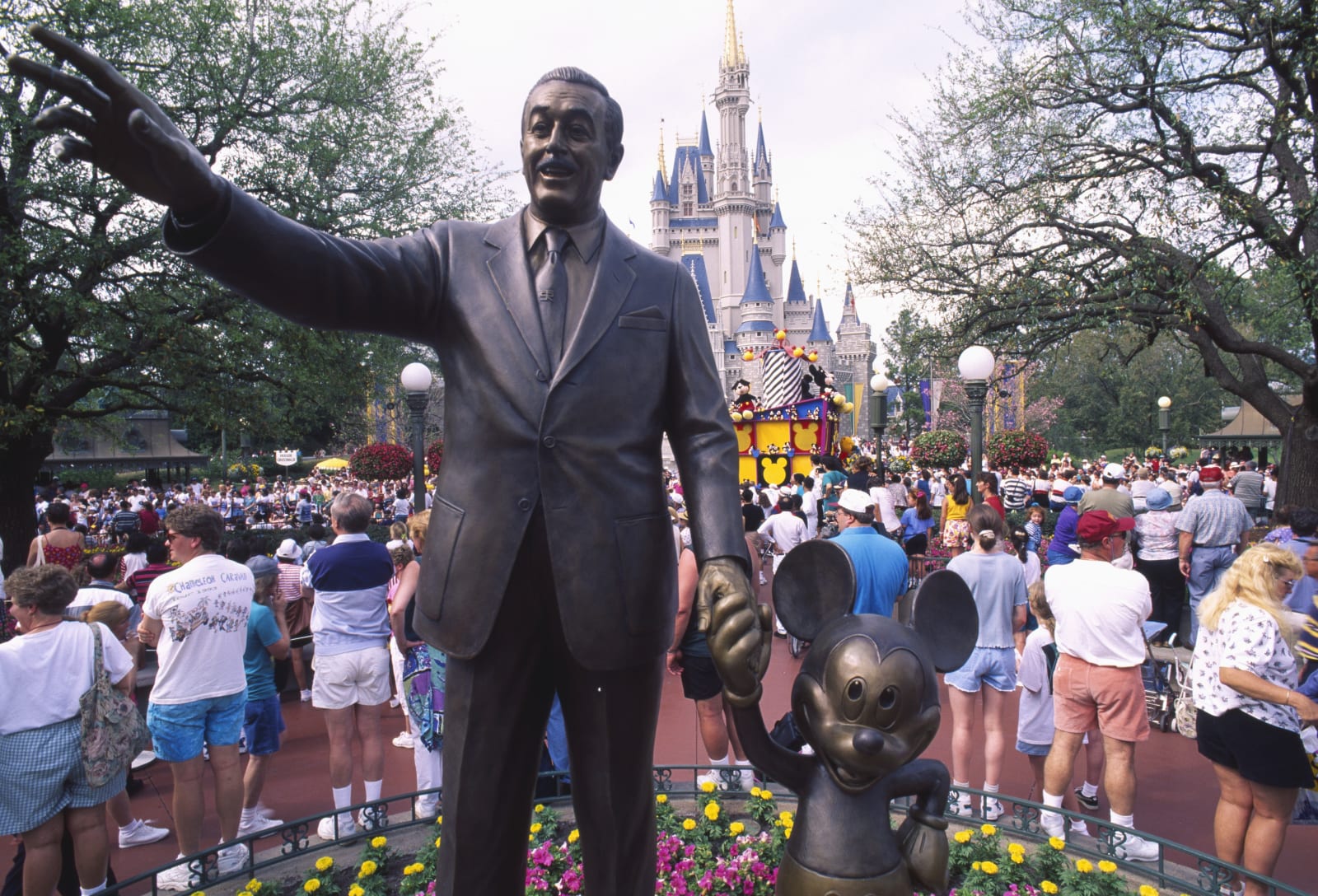
The Morning After: Disney released ‘The Rise of Skywalker’ early

As if this week didn't have enough happening (check below for a few highlights) Friday tossed in enough groundbreaking events for an entire week. At a White House press conference, the president announced Google…
Recommended Reading: Dead Sea Scroll fragments in DC are fakes
Exclusive: 'Dead Sea Scrolls' at the Museum of the Bible are all forgeries
Michael Greshko
National Geographic
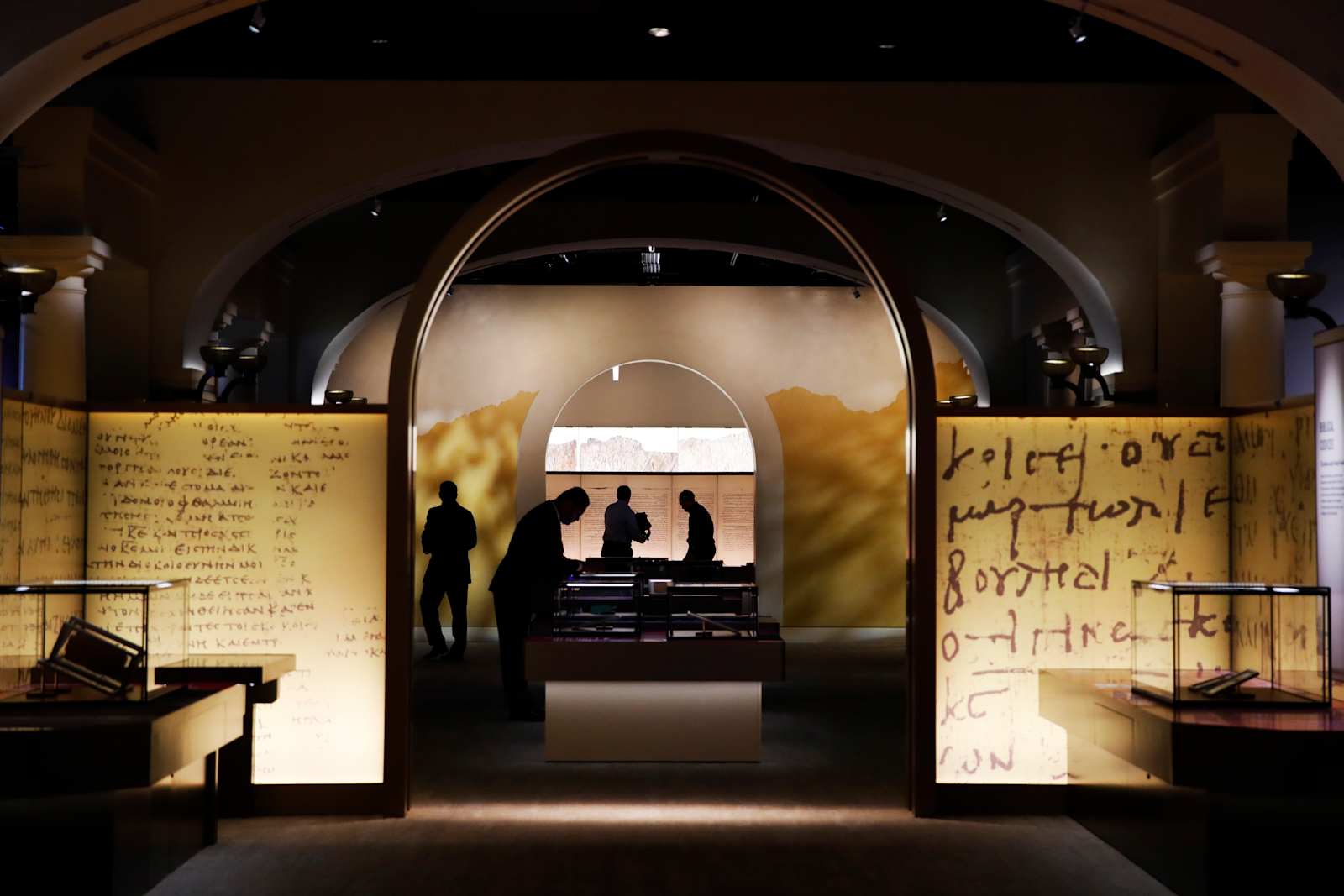
When the Museum of the Bible opened in Washington, DC in 2017, it funded a research project that examined pieces of what was thought to…
Pixel 4a will reportedly feature faster UFS 2.1 storage
50+ Best Glow and Light Effect Tutorials and Resources!
Do you want to add some movement to an image? Or maybe a little extra drama? Or you might want to bring out the detail you know is in your image, but is hiding behind all those dark shadows. There are countless reasons why amping up the lighting in your image is a smart move.

Light is one of the main factors when it comes to establishing mood and tone, so having a toolbox full of quick and easy lighting effects is a good idea for any designer, photographer, or illustrator—new or veteran!
So let’s take a look at the top 50+ lighting-based photo effects and tutorials that will jump-start your creativity!

How Do I Create a Light Effect in Photoshop?
Step 1
First, download a set of high-quality light leaks. I will be using the Bokeh & Light Leaks Backgrounds pack!
Set the light leaks layer to Screen.

Step 2
Create a Curves layer directly below the light leak.
Set the settings to what you see below.

Step 3
Next, set the layer’s Blend If to what you see below.

Step 4
Create a second Curves layer below the first, setting it to what you see below. We are bringing up the reds while bringing down the blues!


 Photoshop ActionsHow to Create a Light Leak Photoshop Color EffectIvan Gromov
 Adobe PhotoshopHow to Create a Light Particles Photoshop BrushJonathan Lam
 Photoshop ActionsHow to Create a Sunburst Effect Action in Adobe PhotoshopJohn Negoita
 Photo EffectsHow to Make a Soft Light Photoshop Action to Create a Backlight EffectMarko Kožokar
 Photoshop ActionsHow to Create a Light Leak Photoshop ActionMarko Kožokar
 Adobe PhotoshopHow to Create a Wall of Lights Photo Effect: Photoshop in 60 SecondsMelody Nieves
 Text EffectsHow to Create a Realistic Neon Light Text Effect in Adobe PhotoshopRose
 Graphic DesignHow to Create a Light Streak Effect for a Contemporary Ballet Poster in Adobe PhotoshopLaura Keung
 Photo EffectsHow to Create a Sparkle Overlay Effect in PhotoshopMonika Zagrobelna
 Photoshop ActionsHow to Create a Sparkle Effect Photoshop ActionMarko Kožokar
 Text EffectsHow to Create a Quick, Glamorous Light-Bulb Text Effect in Adobe InDesignGrace Fussell
 Photo EffectsHow to Brighten a Photo in PhotoshopMarko Kožokar
How Do I Create a Glow Effect in Photoshop?
Step 1
First, create a Brightness/Contrast layer above your subject. Set it to Brightness: 13 and Contrast: 35.

Step 2
Create a New Layer.
Now, using the Circular Marquee Tool, create a large circle.
Fill the circle in with a soft round Brush set to various vibrant red colors, layering them on top of each other from darkest to lightest to create a gradient effect.

Step 3
Next, duplicate the bubble.
Use the Warp Mode found in the Free Transform tool to warp and shape a more dynamic-looking bubble.
Place the bubble somewhere around the model.

Step 4
Repeat step 3 as many times as you want!
Copy, paste, and transform existing bubbles to speed up the process even more.

Step 5
Create a mixture of Soft Light and Overlay layers to add a soft glow coming from the bubbles. Soft Light and Overlay layers are going to be two of the best layer modes for adding both glow and light.
Paint using a soft round Brush set to either white or a vibrant red!

 Photo ManipulationHow to Create a Dreamy Glow Effect Photo Manipulation in PhotoshopMonika Zagrobelna
 Photoshop ActionsHow to Create a Stylish, Glowing Outline Text Effect in PhotoshopAnderson Luiz
 Photoshop ActionsHow to Add a Glowing Photo Effect to a Portrait in PhotoshopMonika Zagrobelna
 Layer StylesUnderstanding the Inner Glow Setting in PhotoshopJohn Shaver
 Photo ManipulationHow to Create a Glowing Winter Night Photo Manipulation in Adobe PhotoshopJenny Le
 Photoshop ActionsHow to Create a Dreamy Glow Effect Photoshop ActionMonika Zagrobelna
 Text EffectsHow to Create a Neon Glow in the Dark Text Effect in Adobe PhotoshopLaura Keung
 Layer StylesHow to Apply Outer Glow to Layer Styles in PhotoshopJohn Shaver
 Adobe PhotoshopHow to Create a Bokeh Effect Photoshop ActionMelody Nieves
 Photo ManipulationHow to Create a Haunting Fantasy Digital Art Photo Manipulation in Adobe PhotoshopJenny Le
Top 10 Light Effect Photoshop Actions
Photoshop actions are an artist’s best friend. Not only do they save you time, which in turn saves you money, but they offer you a great jumping-off point for when you are in a creative rut.
These professionally made light effect Photoshop actions were made to stun!
Double Light Photoshop Action
Create a dynamic, colorful, double light photo effect with just a couple of clips using this Double Light Photoshop Action. This action not only adds a soft yet vivid light, but also applies a subtle particle effect! It even includes its own double light effect tutorial.

Light Painting – Photoshop Action
Apply a light painting photo effect to any font or shape! Light painting took the photography world by storm, and now you can add this bright and vibrant Photoshop photo effect to your photos and designs with just one click of a button. This light effect even works on logos!

Lights Photoshop Action
The Lights Photoshop action adds both mystery and movement to your photos by not only adding blooms of light, but also a subtle grain effect. Another one-click Photoshop action to add a quick but powerful photo effect to any image.

Light & Dark – Photoshop Actions
Bring drama to any image using the Light & Dark Photoshop action pack. With a total of 20 color corrections, these Photoshop actions are fully editable and non-destructive, making this set the perfect tool for movie posters or any image that needs a bit more depth and story.

Lightum – Light Effects Photoshop Action
Lightum Light Effects Photoshop Action takes glamour to a whole new level by applying an ultra-vivid light photo effect to any image with just one click. It comes with ten different color presets; however, it can be customized to whichever color will fit your photo best. This photo effect works great as a glamour portrait effect!

Wall Of Lights – Photoshop Actions
Create a photo manipulation full of bright lights fit for any stage with the Wall of Lights Photoshop action! This action creates a giant wall of lights that can be set to different sizes, colors, and intensity, making for an ultra-customizable photo effect.

Thriller Lights Photoshop Actions
Add a shroud of mystery and detail to your image using the Thriller Lights Photoshop Action. It combines dark shadows with dazzling light and a subtle effect of particles to create the perfect mix of highlights and darkness. It’s a must-have for any photo effect lover!

Dual Light Photoshop Action
Need even more double light options? The Dual-Light Photoshop Action lets you apply a double light effect, while at the same time adding a smoke and bokeh photo effect, all with a single click. The action works perfectly as a portrait effect but also works well with figures, inanimate objects, and most other photos!

Aurora Light Photoshop Actions
Add a stunning aurora light leak effect to your photo using the Aurora Light Photoshop Actions pack! The pack includes 16 Photoshop actions and is both non-destructive and adjustable. This is a high-quality photo effect that will bring the perfect amount of both color and light to any portrait or landscape photo!

Fury 3 Photoshop Action
Bring action and intensity to your work with the Fury 3 Photoshop Action pack! This light photo effect moves with your photo, with a choice of five different effect directions, making it the perfect choice for dynamic figure or portrait effects. You can even change its color!

Top 10 Light Effect Photoshop Brushes
Photoshop offers you one thing that some Photoshop actions can’t: control. With brushes, you get to choose the color, placement, opacity, and layer mode!
Fill your toolbox with ten of the top lighting brushes that are sure not to let you down.
Firey Light Leak Kit – 10 Brushes & 50 Overlays
This Firey Light Leak Kit not only includes ten Photoshop brushes that you can use to create your own custom light leak photo effects, but also 50 overlay textures that you can add to any image for a quick and easy photo effect!

Light Smoke Waves Photoshop Brushes
Create futuristic designs with these abstract Light Flow Smoke Wave Photoshop brushes! The pack includes high-resolution brushes as well as ten transparent PNG files that can be used as an artistic texture on photo manipulations and photo effects.

Boke-Aji – 80 Large Bokeh Brushes
This is the ultimate round bokeh Photoshop brush pack, with over 80 different bokeh brushes to choose from! The Boke-Aji – 80 Large Bokeh Brushes pack is a must-have for any bokeh lover or someone who needs a quick and easy photo effect that can add vivid color and light.

75 Sunshine Photoshop Stamp Brushes
Add stunning light rays to any photo with these 75 Sunshine Photoshop Stamp Brushes! They can be used to add a little extra light to a photo or to create a whole new sun in a photo manipulation or painting. They are high resolution and a must-have for any artist’s toolkit!

100 Spotlight Photoshop Brushes
Another must-have for any digital artist, this pack of 100 Spotlight Photoshop Brushes will bring attention to whoever or whatever needs it the most! These brushes are high resolution and can be used to create several different photo effects.

30 Laser Photoshop Stamp Brushes
Add a streak of color to your photo with these 30 Laser Photoshop stamp brushes. Ideal for science fiction photo manipulations or even party flyers and designs. There are 30 brushes total, all going up to 2,500 pixels in size, and they work with any Photoshop version!

25 Bokeh Cluster Photoshop Stamp Brushes
Tired of the typical round bokeh? Mix it up with these hexagon bokeh brushes! The 25 Bokeh Cluster Photoshop Stamp Brushes are all high resolution and are perfect for adding a subtle light portrait effect or for adding some vivid detail to a photo manipulation or digital painting.

45 Lens Flare & Stars Photoshop Stamp Brushes
Lens flares and stars are the perfect way to add some drama and light to any photo! The 45 Lens Flare & Stars Photoshop Stamp Brushes pack not only contains 45 lens flare brushes, but they are all high resolution! Another must-have for any designer toolkit.

30 Sunburst Photoshop Stamp Brushes
Add a vertical burst of lights for more directional precision using one of the 30 brushes from the 30 Sunburst Photoshop Stamp Brushes pack!

Lens Flare & Stars Photoshop Brushes
The Lens Flare & Stars Photoshop Brushes pack contains 42 high-quality lens flares and star brushes that will add a bit of shine to any object or subject! Ideal for product retouching or for when you want to add just a subtle bit of shine to a portrait or photo. Another everyday tool for a graphic designer or illustrator.

Top 10 Glow Effect Photoshop Actions
Adding glow to an image is the perfect way to set the mood or establish an atmosphere. Do not underestimate the power of a good glow!
Here are ten of the best Photoshop actions to add some glow to your photos.
Glow in the Dark Photoshop Actions
Show off the glow that comes from the inside with this Glow in the Dark Photoshop action! This photo effect is adjustable, non-destructive, and easy to apply. So you can mix, match, and play with different photo effects until you get the perfect glow!

Gif Animated Luminance Photoshop Action
The Luminance Photoshop action not only adds a stick of subtle glow to any image, but it also creates moving GIFs to bring this photo effect to life! This action also comes with a tutorial.

Magic Dust Photoshop Action
Love all things glowy and magical? This Magic Dust Photoshop Action pack creates a cloud of magical dust on your image! You simply brush over your photo where you want to create the magic dust and play the action!

Soft Focus 3 Photoshop Action
Add a soft subtle glow to your subject using the Soft Focus 3 Photoshop Action pack. This action makes a soft and subtle glow that creates the perfect photo effect for classical portraits. A must-have for any photographer!

Zodiac Photoshop Action CS4+
Get in touch with your celestial side by adding some out-of-this-world glow to your images! Complete with glowy nebulas and shining stars, the Zodiac Photoshop Action creates a stunning photo effect that is perfect for both portrait and figure photos. It generates a new result every time you run it, for a unique result every time!

Starfield Photoshop Action
Create a professional Starfield effect filled with stars, glowing lines, and galaxies. The Starfield Photoshop Action pack turns average action shots into full-blown photo manipulations with just a couple of clicks! The final result is outstanding, with fully editable layers, colors, and elements, so you can customize it to fit your specific needs.

Ethereal Dream Photoshop Action CS4+
Add an ethereal glow to your portraits and action shots to add another layer of drama and detail. The perfect photo effect for party flyers, CD album covers, and edgy portraits! All the created layers are named, structured, and placed in folders for easy editing.

White Glow Mobile & Desktop Lightroom Presets
White Glow Mobile & Desktop Lightroom Presets will add bright, moody, and glowing tones with high contrast to your photographs within a few clicks! These presets work in both Lightroom and Photoshop and are perfect for indoor and outdoor photography, wedding photography, and fashion portraits.

Supernova CS4+ Photoshop Action
Add the ultimate glow of a supernova to your image. This photo effect is bursting with energy and color. The Supernova CS4+ Photoshop Action pack is striking enough to be used on promotional flyers and CD covers, while still being elegant enough to be used to create a fashion-forward photo manipulation or portrait effect.

Spectrum Photoshop Action
Who says glow can’t have some edge to it? Add a sharp glass-like photo effect using the Spectrum Photoshop Action pack! The action balances out the sharp edges by incorporating soft pastels and grey tones to create a modern abstract photo effect.

Conclusion
And there you have it! 50+ of the best glow and light effects around, along with some tips and tricks on how you might put your own glow and light effects on your photo, entirely from scratch!
As always, keep experimenting with different techniques and practicing. Don’t forget to post your version below, along with any questions, comments, or critiques!
Looking to learn more? Why not check out some of the following tutorials and resources:
 Fonts15 Fonts Similar to HelveticaGrace Fussell
 InDesign Templates38 Best InDesign Newsletter Templates (New for 2020)Melody Nieves
 Brochure28 Creative InDesign Portfolio Templates (Best for 2020)Melody Nieves
 Adobe Photoshop50 Best Design and Illustration Tutorials & Articles of 2019!Sharon Archer-Thomas
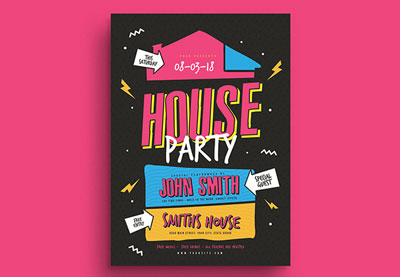 Flyers31 Best New Event Flyers for 2020Melody Nieves
 Graphic DesignThe Graphic Designer’s Resource KitMary Winkler

{excerpt}
Read More
All Apple Stores outside of Greater China are closing until March 27th