
Category: Tutorials
Tutorials,freelance,projects,joomla,php,mysql,wordpress,blancer.com
25 Top Wedding PowerPoint Slideshow Ideas (With Creative PPT Slide Templates)
PowerPoint slideshows have become ubiquitous at weddings and anniversaries. And why not?
A wedding slideshow is a terrific way to celebrate the couple—if it’s done well. If not, it can be corny and sentimental. Or worse, boring. Why not use a wedding PowerPoint template?

It’s a balancing act. Your PowerPoint wedding slideshow should be memorable, without being overblown. Romantic without being saccharine.
Whether you need wedding slideshow ideas for your own wedding, a friend’s, or a client’s, professionally-designed wedding PowerPoint templates are the best place to start. (And by the way, these templates are great for wedding anniversaries, too!)
Best Wedding PowerPoint Templates on Envato Elements (With Unlimited Use)
Make Envato Elements your one-stop creative source to put together the perfect wedding PowerPoint slideshow. For one small subscription price, you get unlimited downloads of PowerPoint templates.

And that’s not all.
You also get unlimited downloads of other elements you need: fonts, photos, background music, video clips, and more.
With thousands of creative elements at your fingertips, you’ll blow away your guests with your wedding photo slideshow.
Below, I’ve rounded up some of the best wedding PowerPoint templates from Elements.
Top 5 PowerPoint Wedding Program Templates (From Envato Elements for 2020)
These wedding templates for PowerPoint are the best starting point for a memorable, show-stopping wedding slideshow. Choose the one that best matches the wedding’s theme and the couple’s personalities.

All these wedding PowerPoint templates are easily customizable. Replace the placeholder text with your own. Drag and drop your images in place. Add background music (there are thousands of music tracks for you to choose from at Envato Elements). And you’ve got one jaw-dropping wedding slideshow!
Here’s a specially curated list of the best wedding slideshow ideas:
1. Wedding PowerPoint Presentation

These professionally designed slides make a stunning wedding presentation. The overlay picture effects will have guests wondering if you hired a professional slide designer. And the built-in slide animation will make the PowerPoint wedding photo slideshow look virtually like a video. Based on Master Slides, these PowerPoint wedding program templates will be easy to customize with your own color scheme and graphic elements.
2. Wedding PowerPoint Template
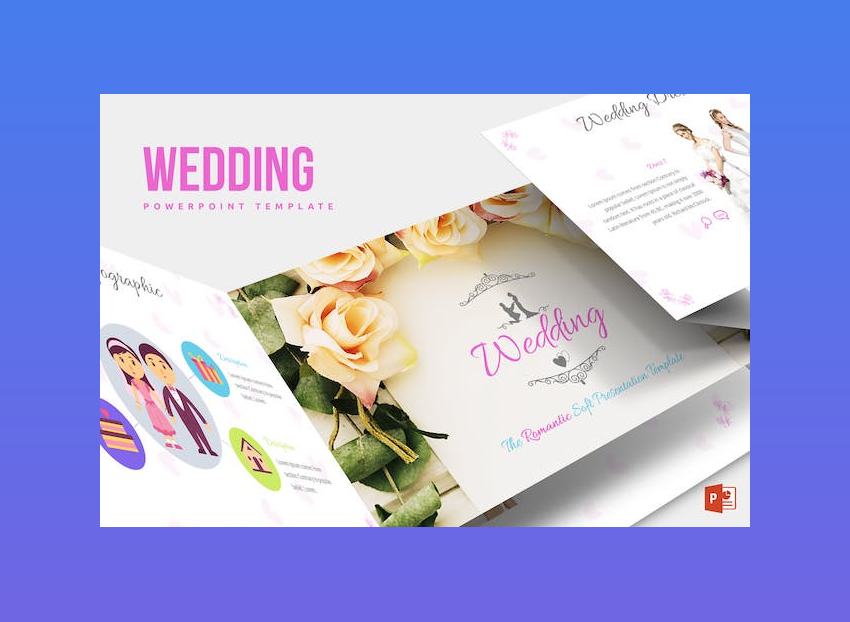
Want something romantic, yet playful? Check out the Wedding PowerPoint Template. Hand-drawn icons and illustrations come together in one unique wedding PowerPoint presentation. You can edit all the elements of this template right in PowerPoint. Choose from the five premade color schemes or make your own from scratch. You get 30 unique slide layouts and all slide animations and transitions already built in, which saves you a ton of time.
3. Suma – Wedding PowerPoint Template

Childhood and courtship photos take center stage in this wedding PowerPoint theme, with its creative use of image masks. It comes with 30 unique slide layouts and six premade color schemes. Drag and drop your images into the placeholders. Easily change colors—this wedding PowerPoint theme is fully customizable. And the theme documentation guides you through the entire process of making this PPT wedding template your own.
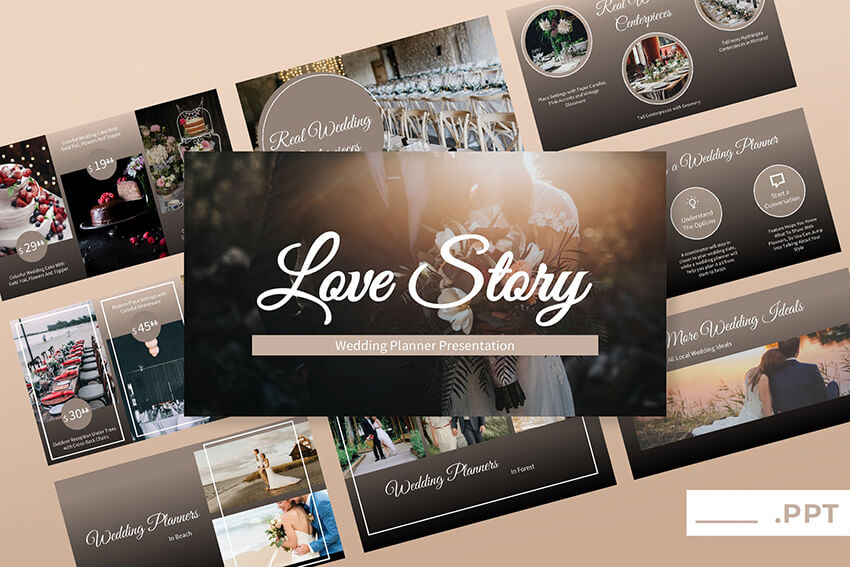
4. Love Story – Wedding PowerPoint Presentation

If your wedding or anniversary celebration is formal and sophisticated, then the Love Story Wedding PowerPoint Presentation template makes a great choice. Its clean and creative layouts cover over 50 unique slides. The use of slide master means you can easily make global changes to the presentation design. This PPT wedding template also comes with 500+ scalable vector icons that make your slides even more engaging.
5. Nikahin Template

Wow your wedding guests with the unique and creative layouts of the Nikahin Template. It comes with 30 slide layouts and five color variations. Use one of the handcrafted infographics to tell your love story. All graphic elements are resizable and editable in PowerPoint and adding your own pictures into the placeholders is drag-and-drop easy.
That’s only a small sampling of the many wedding PowerPoint templates available at Envato Elements where, for one small price, you get to download to your heart’s content.
You also get unlimited downloads of other ingredients to spice up your wedding slideshow: background music, stock photos, icons, and fonts, to name just a few.
Envato Elements (Design Without Limits)

Envato Elements has a single compelling (all inclusive) offer:
Sign up for Envato Elements and you get access to thousands of unlimited use graphics and template designs, from web themes to wedding presentation templates, and more—all for one low price.
That’s right! Download as many professional wedding PPT templates and graphics as you want, then customize them to fit any of your project needs. And once you’ve downloaded these items, you can use them in as many projects as you want.
Free Wedding Designs Versus Premium PowerPoint Templates
You may be thinking about downloading one of the many free wedding planner templates available online but remember that those may not be updated very often and likely don’t include support. Also, some free wedding planner templates aren’t created by professional designers.
While Envato Elements is a powerful option, if you prefer to buy new PowerPoint templates one at a time (instead of getting unlimited access to hundreds of designs), check out the selection from our GraphicRiver marketplace below.
20 Top Wedding Slideshow Templates for PowerPoint on GraphicRiver (for 2020)
If you’d rather pay as you go for the single use of a wedding slideshow template, then GraphicRiver is the place for you. Below, I’ve handpicked some wedding PowerPoint templates that are specifically designed for weddings, wedding planners, and parties. They’re all easy to customize.
Whether you’re putting together a slideshow for your own wedding, for a friend, or for a client, you’ll find something in GraphicRiver (for individual use):
1. Nefertari

Nefertari is a wedding PowerPoint template with a
classic design. This template has 36 total slides that you can use for your
presentation. Easily add any image you want by dragging and dropping the image
into the image placeholder.
2. Weddio

Weddio wedding presentation template has an
elegant design that comes in both light and dark versions. This template comes
with over ten color schemes to choose from and over eighty icons that you can
use in your presentation. Weddio has 64 total slides and over 35 master slides
3. Taya Wedding PowerPoint Template

With the help of the Taya template, you’ll be able to create a beautiful and minimalist wedding photo slideshow as well as write down all the details about your wedding. This is a great way to create journal about your wedding so if that’s something you’d like to do, consider this PPT wedding template.
4. Brand PowerPoint Template For Wedding Slideshows

The Brand PPT template is another template that’s got a high-end look and feel. You can easily showcase photos from your wedding and add an elegant overlay that captures the most important information about your wedding day, the venue, the guests, or anything else you’d like to remember.
5. Monita Wedding Presentation Template

Show off childhood photos of the happy couple in the minimalist and elegant design of Monita Wedding Presentation Template. It offers 68 unique slide layouts with a choice of light or dark color schemes. Of course, you can easily change it to match the ceremony’s color motif because this template uses master slides. And the wedding slideshow comes to life with custom animation and transitions pre-made for each slide.
6. Wedding – PowerPoint
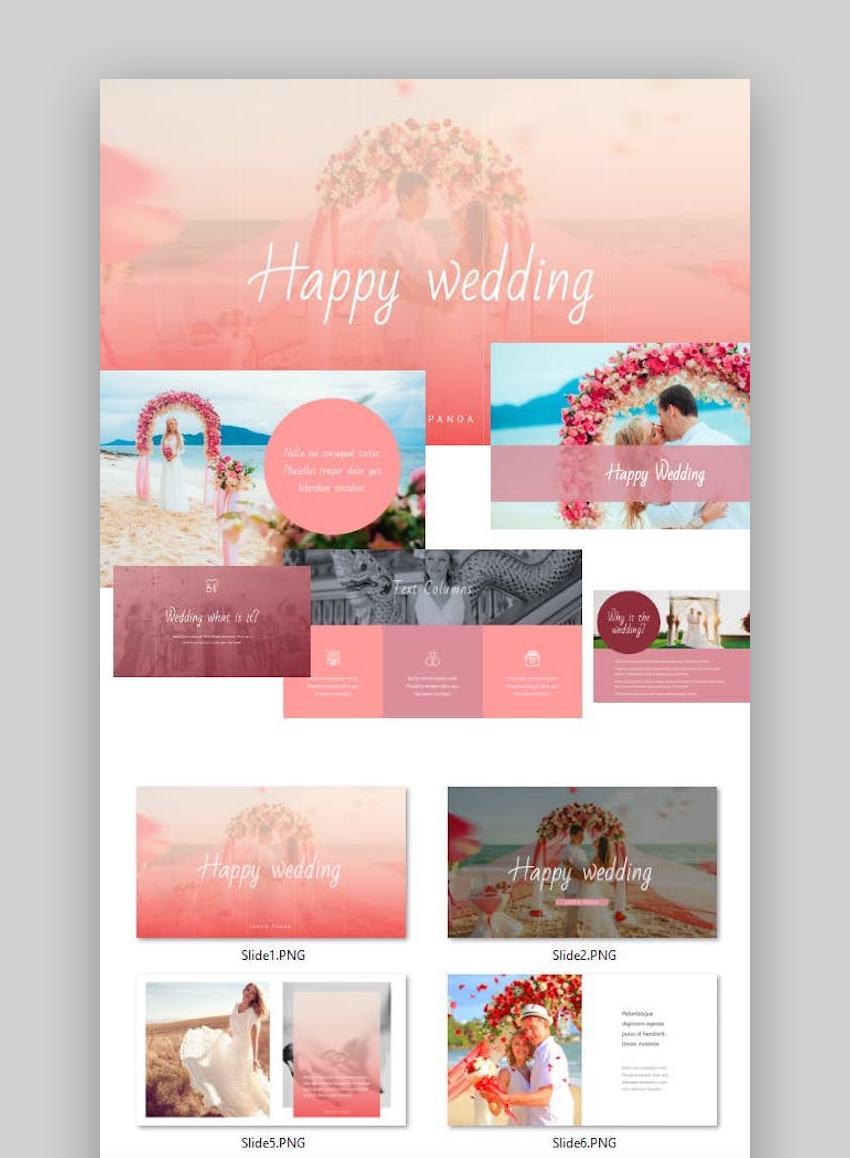
This wedding PowerPoint template is fully animated and editable. You can easily change the size and color of all graphic elements to suit the newlyweds and wedding ceremony. Using only free Google fonts, Wedding PowerPoint provides everything you need for a stunning wedding presentation.
7. Wedding Organizer Presentation Template

If you’re using an older version of PowerPoint, you’ve got nothing to worry about when you use the Wedding Organizer Presentation Template. It’s compatible with even PowerPoint version 2003, as well as the newer versions. The slides in the template are in widescreen 16:9 ratio and include icons related to love, romance, and weddings.
8. Cara PowerPoint Template

For the ultimate elegant wedding, look no farther than the Cara PowerPoint Template. It’s a huge package with 88 unique slide layouts, three color schemes to choose from, and timelines you can use to tell the couple’s love story. And if you eschew jarring slide transitions, Cara uses only minimal fade transitions in keeping with its subdued wedding PowerPoint theme.
9. Glam! PowerPoint Presentation Template

As the name suggests, Glam! Is the slideshow template for a glamorous wedding. Its signature look comes from metallic gold and silver leafed borders and graphics. This shiny package comes with 296 high-definition master slides, 140+ hand-crafted graphics, and light and dark paper textured backgrounds to give your slides more punch. Your wedding slideshow will truly sparkle with Glam!
10. CupCake PowerPoint Template

For the casual and creative couple on their wedding day, CupCake PowerPoint Template is a great choice. CupCake delivers a fun and clean aesthetic. You’ve got plenty of slide designs to choose from because this template offers more than 80 unique slide layouts. Beautiful photo gallery slides make it super easy to showcase the couple’s photos. With this wedding PPT template, you’ll create a PowerPoint wedding slideshow that’ll bring smiles on the faces of the wedding party and guests.
11. Sweet Valentine PowerPoint Template

For the ultimate romantic slideshow for a wedding, check out this Valentine-themed PowerPoint template. Its flat and minimalist design comes complete with love-infused handmade graphics. You get over 65 unique slide layouts built on master slides, so you can customize easily. You also have a choice of light and dark versions, although your color options are virtually unlimited. This pack also comes with free support from the template designer.
12. Cheerful PowerPoint Template

The Cheerful Attractive PowerPoint Template is a great choice for a casual wedding ceremony and reception. Its fun use of bright colors and organic shapes helps keep the mood bright, jolly, and joyful. The template offers 55 slide layouts, with 10 color schemes in addition to the built-in color options in PowerPoint. The animations have already been configured for your convenience.
13. Album PowerPoint Presentation Template
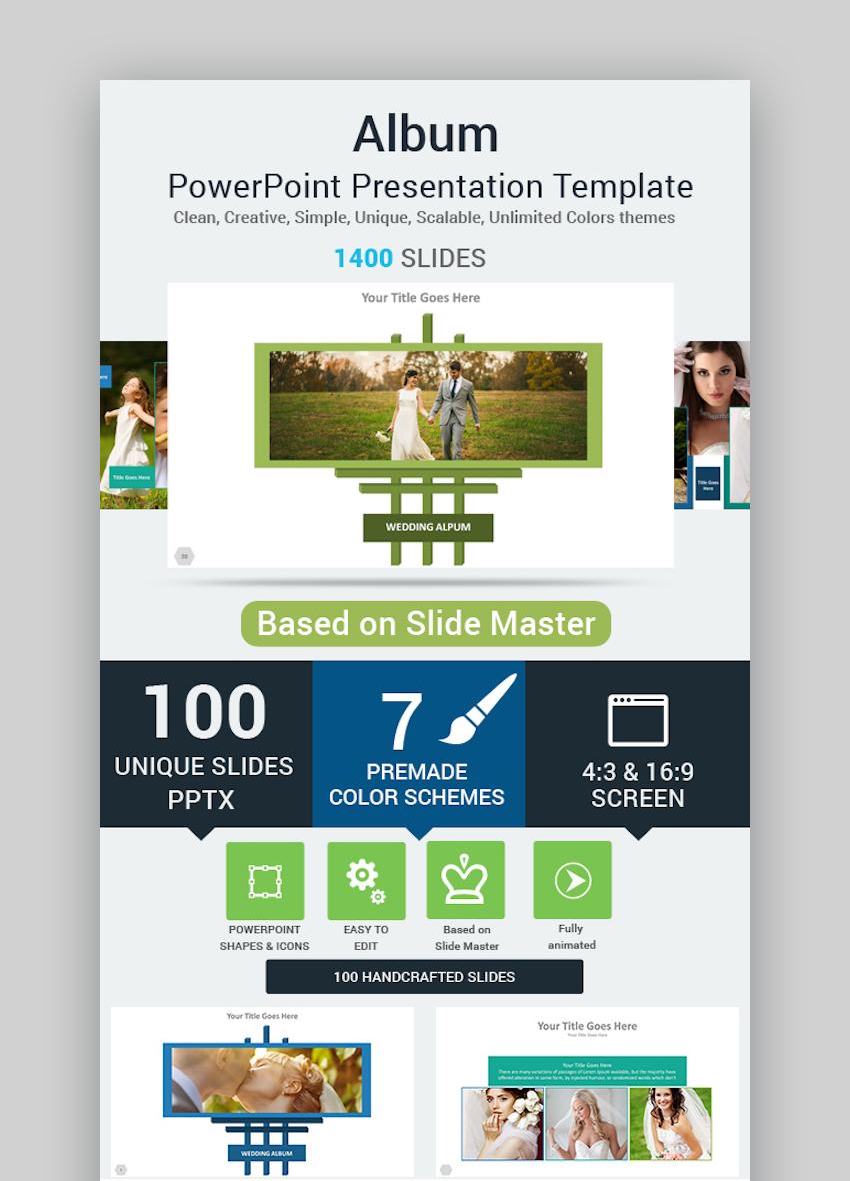
Showcase the wedding couple’s photos with the Album PowerPoint Presentation Template. This has plenty to offer: 100 multipurpose slide layouts in both 4:3 and 16:9 aspect ratios, seven premade color themes, vector images (easy to resize and recolor), and custom animation for each object. All it takes to switch color schemes is one click, and the entire wedding presentation PPT gets recolored.
14. Memories Presenter PowerPoint Template

Memories Presenter isn’t your run-of-the-mill PowerPoint template. With it, you can create an eye-catching video to share the couple’s most precious memories. Just add your photos, music, and text into the fully animated PPT wedding template, then export it as a video. Everyone will think you spent hours and hours on this masterpiece. Don’t worry, we won’t tell.
Watch the preview:
15. Uncover PowerPoint Template for Weddings

The Uncover PowerPoint template doesn’t look like a wedding template at first glance but when you take a closer look, you’ll notice it’s a great choice for wedding photo slideshows. It features a photography-based layout so you can easily add your best wedding photos along with a few lines that describe that perfect moment.
16. Great Luxury Premium Wedding Template for PowerPoint

Thanks to its high-end look and feel, the Great Luxury template lends itself well to the best wedding slideshows. You can easily create full picture slides as well as combination slides with both photos and text.
17. Sonata Elegant PowerPoint Template for Wedding Slideshows

Use this elegant template for your next Wedding PPT. The Sonata template has more than 170 unique slides that you can use to showcase photos from your special day. Use the combo slides to note down important details about the photo such as the location and use the full picture slides for the most memorable moments of your special day.
18. Wedding Organizer PowerPoint Template
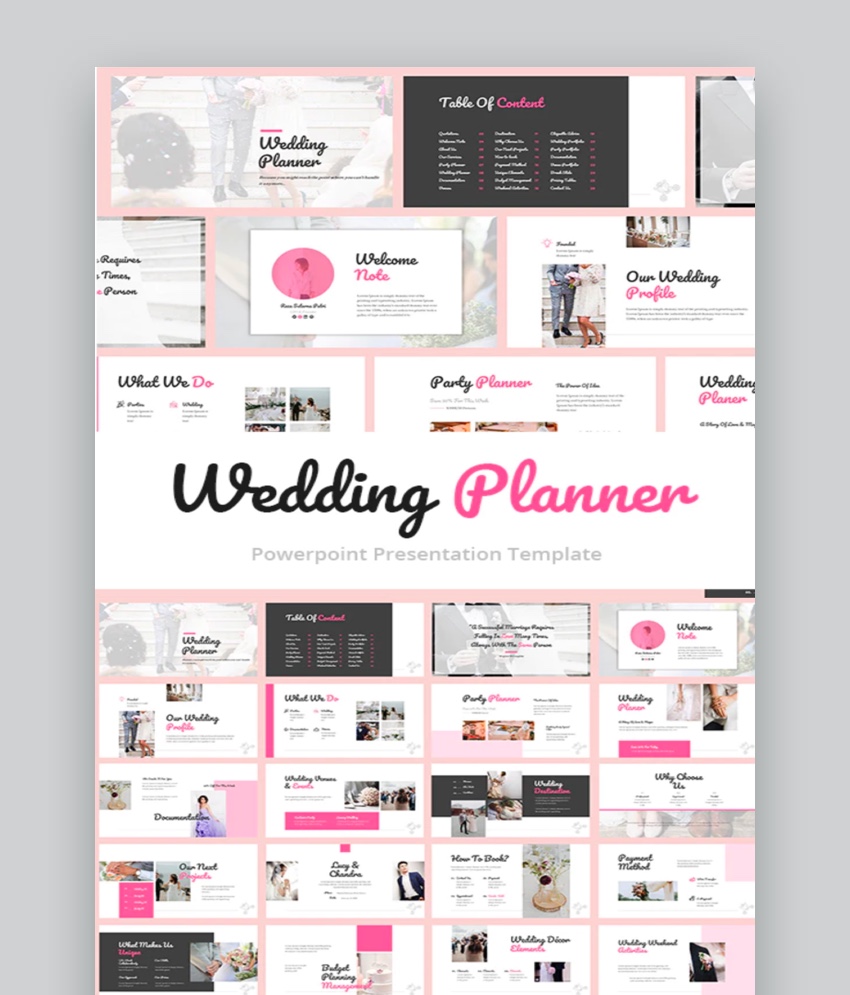
This wedding organizer PowerPoint template is perfect if
you’re a wedding planner and want to show your ideas to your client. This
wedding PowerPoint has 30 unique slides and all the slides are fully animated.
Wedding Organizer PowerPoint template has a minimal and modern design that’s
professionally crafted.
19. Wedding LookBook

Wedding LookBook is a wedding PowerPoint template that’s designed for a wedding album or can be used a professional lookbook. This
template has 35 total slides that come with icons you can use in your
presentation. Easily add an image to your presentation by dragging and dropping
the image of your choice into the image placeholder.
20. Event Organizer PowerPoint Template

This great event organizer PowerPoint template can be used
as a wedding PowerPoint template. This template
has 30 different slides that you can add information or pictures to. The Event Organizer PowerPoint template has a nice clean design that goes with any wedding theme.
5 Creative Ideas to Make Any Wedding Slideshow Presentation Better
Your wedding slideshow presentation needs to be as special as your wedding day was. Here are a few tips that’ll help you create a stellar wedding presentation.
1. Include Photos of You and Your Families
The first tip is to include photos of you and your families, from your birth to current ones. This will help you share the entire story about how you two met and came together instead of simply sharing the wedding photos.
2. Vary the Slide Layout
Use a mix of slide layouts to create a more dynamic and visually appealing wedding presentation in PPT. For example, you can use a picture slide followed by a slide that uses both photos and text or a slide that uses a gallery layout with multiple pictures.

3. Pay Attention to the Fonts
If possible, try to match the fonts in your PowerPoint wedding presentation slideshow to those that were used in your invitations and thank you cards or even your wedding website. This will make the entire wedding experience cohesive for both you and your guests.
4. Customize With Your Wedding Colors
As you did with the fonts, you can customize your wedding slideshow with the wedding theme colors. This is another way to create a cohesive experience, especially if you plan on sharing the PowerPoint wedding slideshow files with your guests.

5. Use Text Sparingly
There’s nothing wrong with using text to add notes about your wedding day or a particular photo. However, be careful not to overdo it. Use text sparingly by adding short paragraphs where you want to capture extra details and let the photos tell the story.
How to Make Great Wedding PowerPoint Slide Designs Quickly
After you’ve settled on a wedding PowerPoint template, you’ll need to customize it. Let’s look at how you can quickly make a great wedding PowerPoint slide design with one of our wedding presentation templates.
For the purposes of this tutorial, I’m using the Luci template from Envato Elements.
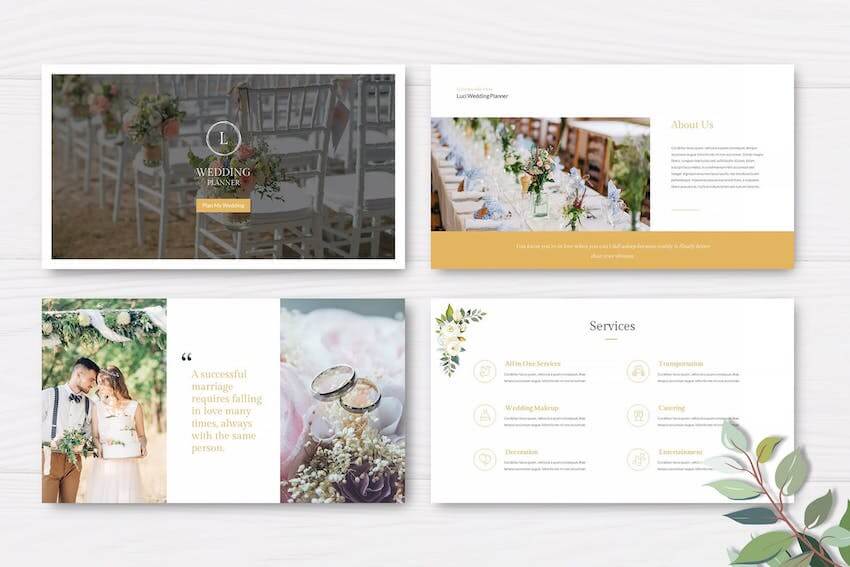
The template has a multipurpose layout that can be used by both members of the wedding party and wedding planners. To customize your template simply follow the steps below.
1. Replace the Content With Your Own
The first thing you’ll want to do is to replace the content with your own. Adding your own text is easy. Simply click on the existing dummy text, click CTRL or CMD + A to select all the text, and then start typing.

2. Customize Fonts and Colors
After you’ve replaced the content, it’s time to customize the colors and the fonts. If you want to recreate your wedding experience, be sure to use the same font you used in your invitations along with your wedding color scheme.
You can easily customize the fonts by selecting the text on the slides and choosing a different font from the drop-down menu in the Office ribbon area.

To change the colors, click on the colored area and select a different color from the right-hand sidebar.

3. Add Your Images
Now comes the most important part of your wedding presentation: your photos. Luckily, changing photos is easy. All you’ve got to do is click the picture icon and then upload your own image.

4. Duplicate Slides to Save Time
Finally, if you find that you need more slides than what the template offers, you can easily duplicate existing slides by right clicking the slide in the slide navigator and choosing Duplicate Slide. This will also help you save time if you want some of your slides to have the same layout.
Download Our eBook on Making Great Presentations (Free PDF)
Need
more help with your wedding presentation? We a helpful resource that’ll
walk you through the complete presentation process. While this eBook
isn’t specific for wedding slideshows, you’ll pick up some valuable
ideas that you can apply to your wedding slideshow or to a wedding
planner PowerPoint presentation.
Learn how to write your presentation, design it like a pro, and prepare it to present powerfully.
Grab our eBook: The Complete Guide to Making Great Presentations. It’s available for FREE with a subscription to the Tuts+ Business Newsletter.

Learn More About Using PowerPoint
Want to take your best wedding slideshow to the next level? We’ve got plenty of PowerPoint tutorials to help you out. Check out these related tutorials and articles:
 Microsoft PowerPointPowerPoint 101: Everything You Need to Make a Basic PresentationBob Flisser
 Microsoft PowerPointHow to Quickly Change PowerPoint Templates (Download & Import)Andrew Childress
 Microsoft PowerPointHow to Work With Images in PowerPoint (Complete PPT Picture Guide)Andrew Childress
Discover More Great PowerPoint Slideshow Templates for 2020
The wedding PPT templates in the post are just a small selection of what’s available on our marketplaces. If you want the best deal around, be sure to sign up for Envato Elements and download the perfect PowerPoint template for any type of presentation anytime you need it. If you prefer buying individual templates, then head on over to GraphicRiver and take a look at the amazing PowerPoint wedding PPT templates we’ve got on that marketplace.
Check out the following examples to get a taste for all the different PowerPoint slideshow templates you can find on our marketplaces:
 Microsoft PowerPoint35 Animated PowerPoint PPT Templates (With Cool Interactive Slides for 2020)Sean Hodge
 Microsoft PowerPoint34+ Best PowerPoint PPT Template Designs (For 2020 Presentations)Sean Hodge
 Presentations29+ Creative PowerPoint Templates: PPT Slides to Present Innovative Ideas (2020)Sean Hodge
Where to Find the Best Wedding PowerPoint Templates
in 2020 (Envato Elements vs GraphicRiver)
Envato Elements and GraphicRiver both have
professionally designed wedding PowerPoint templates. But you may wonder which
one should I use Envato Elements or GraphicRiver? Here are the benefits of both
Envato Elements and GraphicRiver:
1. Benefits of Envato Elements
Envato Elements is a service where you can
find unlimited wedding PowerPoint templates and other creative assets. All you need to do is subscribe and pay the
low monthly fee.
Envato Elements includes more than just Wedding PowerPoint templates. Envato Elements
also has fonts, audio, and graphics.

2. Benefits of GraphicRiver
GraphicRiver is a part of the Envato Market
online marketplace where you can purchase single-use wedding PPT templates. GraphicRiver is great if you need a wedding PowerPoint or template, but won’t need other templates or design elements.

Which Should I Choose?
If you make a lot of wedding presentations or need
a lot of templates, then consider Envato Elements. Envato Elements has
the best deal if you’re someone who uses templates and graphic design regularly. For example, maybe you’ve got a wedding planning business.
But maybe
you don’t use or need wedding presentation templates regularly. Maybe you just need a single wedding template. GraphicRiver is great for any single-use template
project you may have
Common PowerPoint Questions Answered (FAQ)
If you’re working on wedding slideshow ideas and working from a template, you’ve probably got some questions. Here are five common questions answered:
1. How Much Should I Put On My Wedding Presentation Slides?
If you’re adding text to a slide keep the text short and minimal. If you’ve got too much text on your slide, it’ll look like a big wall of text to your wedding guests.
Likewise, if you’re using images or infographics don’t put too many images and infographics on a slide because that can overwhelm the audience.

2. What Fonts Should I Use?
If you decide to change the font that comes with your template, use a font that’s easy to read from a distance. Stay away from fancy fonts since most of these can be hard to read from a distance.
If you want a different font color other than black, pick a font color that can be easily read. Don’t use a bright font on a dark background because sometimes those are hard to read.
.jpg)
3. What Color Scheme Should I Use?
Most wedding presentation templates come with color schemes and color scheme choices. If you don’t want to use the default colors, choose a color scheme where the colors go well together. Don’t choose colors that contrast too much or don’t go well together. For example: dark purple and black. This color scheme would clash and can be distracting to your wedding guests.
.jpg)
4. Which Wedding Template Should I Use?
Use the wedding template that works the best with what you need. If you’re using a lot of images but very little text, pick a template that allows room for images.
There are also many themed PowerPoint templates that work well for weddings even if they’re not designed as wedding PowerPoint themes.

5. How Do I Keep My Wedding Guests Interested?
There are many ways to keep your wedding guests interested. First, practice your presentation in advance. This lets you work out any mistakes. Another way to keep your guests interested is by including a short video.

Start Creating a Memorable Wedding Slideshow Today
Now you’ve seen a wide range of wonderful wedding slideshow ideas. Don’t be tricked into downloading an inferior template just because you’ve found a wedding planner template free online.
Instead, harness the talents of professional graphic designers by beginning with a high-quality wedding PowerPoint template. Whether it’s designed with a wedding in mind or not, a slideshow template is easy to customize to complement any wedding reception.
Get your wedding PowerPoint templates from Envato Elements for unlimited downloads for one low price. You read that right: you can download as many PowerPoint templates as you want. And then embellish them with the photos, music tracks, icons, fonts, and other graphic elements available in Elements. You get unlimited downloads of these as well in Envato Elements.
Or, get your wedding slideshow template from GraphicRiver and pay per use.
Either way, you’re sure to find the best wedding slideshow template for the most memorable wedding presentation slideshow.
Editorial Note: Our staff updates this post regularly—adding the best new memorable wedding slideshow templates with the best, high-quality designs.

{excerpt}
Read More
How to Create a Glass Text Effect in Photoshop Using Layer Styles

In this quick tip tutorial, we will show you how to create a glass text effect using layer styles in Photoshop. Let’s get started!
What you will learn in this glass effect Photoshop tutorial:
- How to create a vignette effect background in Photoshop
- How to create a glass text effect in Photoshop
- How to use Layer Styles to create 3D text in Photoshop
Follow along with us over on our Envato Tuts+ YouTube Channel:
Tutorial Assets
The following assets were used during the production of this tutorial:
- Font – The Nautigal
- Pattern used for the background (GraphicRiver)
- Background Image (Free)

1. How to Create a Gradient Background
Step 1
First, create a new PSD document, 600 x 400 pixels in RGB mode, 72 DPI with a white background color. Now prepare your assets. Install The Nautigal font on your computer and optionally open the PAT file to create a background. Or you can use the Background Image instead of starting a new document, so you can skip creating the background and jump to step 3 of this tutorial.

Step 2
To make the background, go to Layer > Layer Style > Blending Options and use the settings below.
You can also access the Blending Options in two faster ways. The first (and the fastest) way is to double-click on the layer in your Layers panel. The other way is to right-click on the layer in your Layers panel and choose Blending Options.
When you are done with all the settings below, don’t forget to hit OK in the Blending Options window! If you have downloaded the Patterns file, use pattern number 31. You can also leave the background without the pattern overlay or use any other pattern as the result will look great on any light background.


2. How to Create a Glass Text Effect in Photoshop
Step 1
Start by creating the first text layer. Now we can start making our text effect. First, choose the Type Tool and change the Font to The Nautigal, Size around 255 pt and Anti-Aliasing Sharp. Now type your text somewhere in the center of the image. You can write any word, but in this tutorial I’ll use “Wow”.


Step 2
This first text layer will be at the bottom of all the text layers. Go to Layer > Layer Style > Blending Options and use the settings below on your text.


Step 3
Now let’s create and customize the second text layer.
Duplicate your text layer, and select the new text layer. Select the text layer in the Layers panel and go to Layer > Duplicate layer and name it as you wish. Now go to Layer > Layer Style > Clear Layer Style as we will make a different style for this layer. Finally, go to Layer > Layer Style > Blending Options and use the settings below on your text.
You can also use the quicker methods to access the Blending Options from “Step 2” of this tutorial. When you are done with all the settings below, don’t forget to hit OK in the Blending Options window! This text layer will be in the middle of all three text layers in your Layers panel. So for now it should be above the first one.


Step 4
We are almost there. Now it’s time to create and customize our third and last text layer.
Start by duplicating the second text layer. Select the text layer in the Layers panel and go to Layer > Duplicate layer and name it as you wish. Now go to Layer > Layer Style > Clear Layer Style as we will make a different style for this layer. Finally, go to Layer > Layer Style > Blending Options and use the settings below on our text.
Again, you can use the quicker methods to access the Blending Options from “Step 2” of this tutorial. When you are done with all the settings below, don’t forget to hit OK in the Blending Options window! This text layer will make most of the effects and must be on top of all other text layers.


Photoshop Glass Effect Styles
If you need a glass effect for your text, you can also try one of these solutions:
Glass Text Effect Styles

Glass Pack – Text Styles

8 Premium Glass Text Effect

Glass Style

Simple Glass Style

That’s All!
If you enjoyed this tutorial, check out these as well:
 Text EffectsHow to Create an Elegant, Ornate 3D Photoshop Text EffectEnrique Eliçabe
 Text EffectsHow to Create a Flame Text Effect in Adobe PhotoshopRose
 Text EffectsQuick Tip: How to Create a Metallic Text Effect Using Layer Styles in PhotoshopEnrique Eliçabe
 Text EffectsHow to Create a Medieval Metallic Text Effect in Adobe PhotoshopJan Stverak
 Text EffectsHow to Make a 3D Text Effect in PhotoshopMonika Zagrobelna


{excerpt}
Read More
34 Stylish Vintage Fonts
Before the birth of modern technology, designers specialized in exquisite hand lettering, which gave us a legacy of amazing vintage font styles to draw from today.

In honour of these retro styles of times past, today we feature 34 of the best vintage fonts from Envato Elements and GraphicRiver.
If you’re inspired by our collection but need a more customised approach to vintage fonts, why not enlist the help of the professional designers at Envato Studio to create a retro vintage font just for you!
Unlimited Vintage Font Downloads at Envato Elements

Envato Elements distinguishes itself by providing thousands of the best vintage fonts by the most talented designers in the field, but what makes this service outstanding is that you can also download as many vintage font styles as you want, as often as you want, for one flat monthly fee.
Unbelievable, right? One low monthly fee = unlimited access to the best vintage fonts available on the internet today. What’s more, that monthly fee also allows you to access thousands of other premium digital assets like logos, graphic templates, mockups, photos, business card templates, and much more. It doesn’t get better than that!
Let’s take a look at some of the awesome retro vintage font offerings you can expect from Envato Elements.
1. Hemingwar Font

Ernest Hemingway’s legacy is truly felt with this incredible hand-crafted font. The Hemingwar typeface features a warm, approachable aesthetic, inspired by Hemingway’s adventurous life that started from humble beginnings. So start your own creative journey with this exceptional vintage cursive font.
2. Black Jack

This font combines elements of both vintage script fonts and vintage serif fonts to create a truly eye-catching look. Inspired by the old-style typefaces on posters, packaging, and labels from the 19th century, the font collection offers more than 400 glyphs with many stylistic characters, alternative characters, swashes, and ligatures, as well as multi-lingual support.
3. Stiquez Font

Get a classic retro typeface when you use the divine Stiquez font. With an extraordinary serif design, this vintage serif font features all the characters you need to complete any retro design. Use it for shop signs and more, or include it as the perfect addition to any retro style logo.
4. Westerdams

Another vintage serif font you won’t be able to resist, Westerdams is a bold hand-crafted calligraphy font that has a medieval feeling. The collection offers upper and lowercase Latin alphabet, numbers, and punctuation. A great vintage cursive font to use for cover art on books, albums, games, posters, etc.
5. Frankest

This vintage script font is great for T-shirts, logotypes, headlines, posters, and other projects with a vintage feel. The font is offered in lower and uppercase Latin alphabet.
6. Vintage Legends

Looking for vintage sign fonts to bring that 50s vibe to your next project? Then you’ve got to download Vintage Legends, a vintage script font that offers a wide range of customisation features like stylistic sets, alternates, swashes, and ligatures.
7. Aurellia Vintage Font

Aurellia is a hand-crafted vintage script font inspired by retro lettering. A great choice for those looking for a vintage postcard font or an eye-catching font for lettering and logotypes, labels, T-shirts, product packaging, invitations, etc. Aurellia comes with upper and lowercase Latin characters, punctuation, numerals, and a variety of glyphs you can use to customise your look.
8. Jibril – Vintage Style Font

Explore your love of retro design with this amazing vintage lettering font. This typeface includes a custom vintage font with four amazing styles. Use it in its regular form, or experiment with the grunge and inline versions for more options.
9. Soft Vintage Scandinavian Decor Font

A vintage cursive font for crafting and other creative projects, this typeface borrows from the Scandinavian lettering tradition. It comes in bother regular and bold styles in uppercase Latin characters.
10. Atara – Vintage Style Font

Create an epic movie title for your historical film with the gorgeous Atara font. A custom vintage sign font available in four styles, this font features a decorative design with unique character details. Get access to two font formats compatible with any industry standard software.
11. Vintage Modern Fonts

This incredible bundle of vintage lettering fonts contains three different typefaces inspired by retro design. Two of the fonts feature a round design with smooth and round edges, while the third combines a classic vintage feel with modern digital lines.
12. Rolla Font
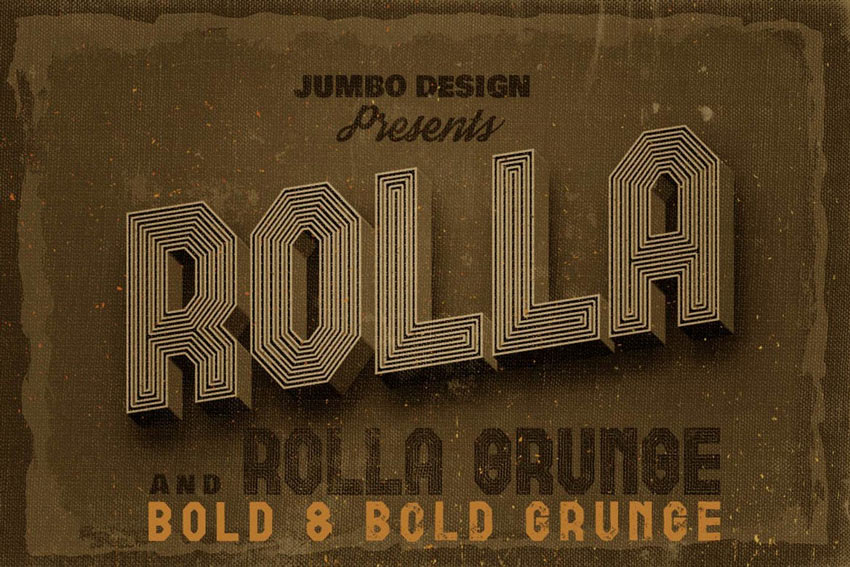
Looking for bold vintage sign fonts. There’s no font quite like the elaborate Rolla font. Make your designs stand out with an exquisite typeface that features four custom styles. Incorporate grunge into your designs for that awesome weathered look, or keep things simple with the bold and regular alternatives.
13. Lawless Font

Set the laws of design with the awesome Lawless font. Inspired by early American wood types from the 1800s, this vintage lettering font is bold and brash and ideal for any western aesthetic. Included in this file are four different styles you can easily mix together.
14. Fibre – Vintage Font

Font designers pride themselves on creating typefaces with wonderful details. And the Fibre font is certainly no different! In this handwritten vintage sign font, each character is uniquely designed with different levels of noise for added texture.
15. Troupe Font

Enjoy a classic font family with this amazing Troupe download. A vintage postcard font inspired by retro posters, this typeface features six different weights along with four different styles. Available in two convenient formats, this file also supports over 370 characters.
16. Bistro Font

Want to go for a coffee? Then check out this awesome Bistro font for a refreshing, vintage design. Inspired by the chill vibes of any local cafe, this vintage lettering font features a quirky feel with over 50 bonus glyphs. With three font weights and fill options available, you’ll be getting several incredible goodies in one convenient download!
17. Forbes

Looking for a vintage tattoo font to create your own unique lettering? Forbes is the font you’ve been looking for. This Victorian hand-crafted typeface combines modern and classic typography with some awesome alternates. Also a great choice for those looking for awesome vintage sign fonts.
18. Almeda

Almeda is a super cool vintage postcard font featuring uppercase and lowercase Latin characters, numbers, punctuation, multi-lingual characters, and alternates. This stylish font would look great on greeting cards, posters, and large-scale artwork. Give it a try.
19. Figuera Variable Fonts

Figuera is a vintage serif fonts that offers loads of variety and flexibility. The collection contains 15 different fonts of different weights and widths that can be combined to create your very own unique look.
20. Napoleon Vintage Typeface

Capture the Napoleonic spirit with this vintage lettering font inspired by the man himself. The collection contains eight styles: regular, grunge, inline, inline grunge, inline shadow, inline shadow grunge, shadow, and shadow grunge. Could also be a great option for those looking for a cool vintage tattoo font.
More Premium Vintage Font Styles From GraphicRiver

GraphicRiver is another service that offers thousands of premium retro vintage fonts. But it works differently from Envato Elements.
While Elements is the best source when you want to buy many fonts and other resources, GraphicRiver is better for those who are on a budget and only want to buy one font set at a time.
So if you’re interested in purchasing just one font instead of experimenting with several, then Graphic River may be a better choice for you. You can download a single font for one-time use for a low fee. Let’s take a look at some of the best vintage fonts available.
21. The Poisoned Heart

Not quite a vintage baseball font but close enough, The Poisoned Heart is a gorgeous vintage cursive font that will bring a touch of style to your next design project. This lovely font features upper and lower-case Latin characters, numbers, and punctuation, as well as 76 alternates and ten ligatures. Enough variety to create your own unique look.
22. Motherline Vintage Font

Decorate your designs with this beautiful vintage script font. Motherline is a monoline vintage typeface inspired by beautiful hand lettering. Included with this font are over 650 glyphs that support multi-lingual characters.
23. Heubeul Vintage Typeface

Get that handmade feel with the incredible Heubeul vintage postcard font. Crafted from hand-drawn letters, this font features a full set of letters, numbers, and punctuation. Textured with incredible detail, this font works well with any vintage-inspired project.
24. Sinara Font

The Victorian era of design featured stunning serif typefaces with exceptional details. And the wonderful Sinara font is inspired by that very era. Featuring letters, numbers, and punctuation, this vintage serif font has all the elements you need for amazing vintage logos.
25. Vanillate Font Duo

This delicious vintage script font will have you craving something sweet! The Vanillate font duo features a unique monoline script typeface with two styles of monoline. Download this font today to get access to 15 bonus logo templates with a variety of food themes.
26. Sakra Font Duo
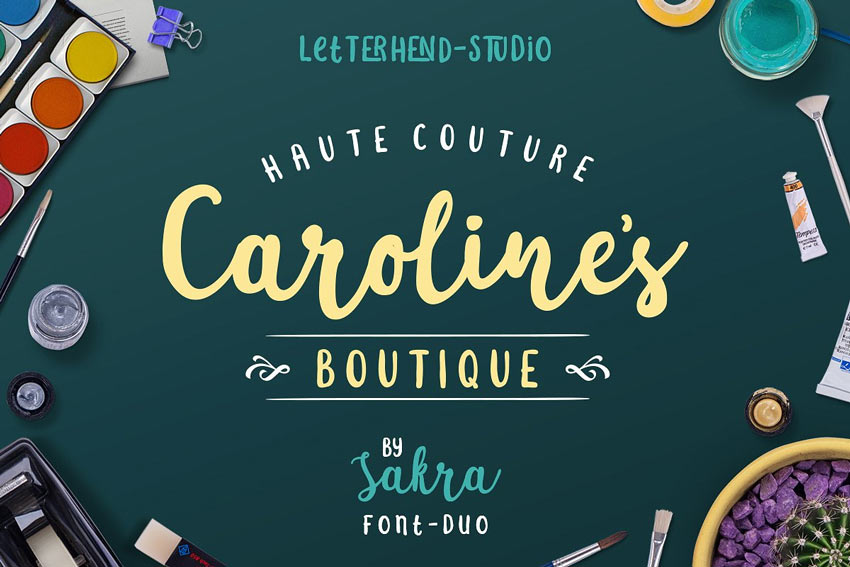
Talented font creators often pull a modern twist to retro vintage font design. And the Sakra font duo is a clever mixture of both old and new. Designed with curvy script letters and gorgeous swash details, this vintage script font includes all the letters, numbers, and symbols you need!
27. Trincha Typeface

Enjoy the grunge aesthetics of this custom hand-painted font. Inspired by the Portuguese word for the kind of brush used on vintage signs, this vintage sign font features a sans-serif design with bold letters. Download this file today and use the lowercase version for a more distressed look.
28. Moyers Typeface
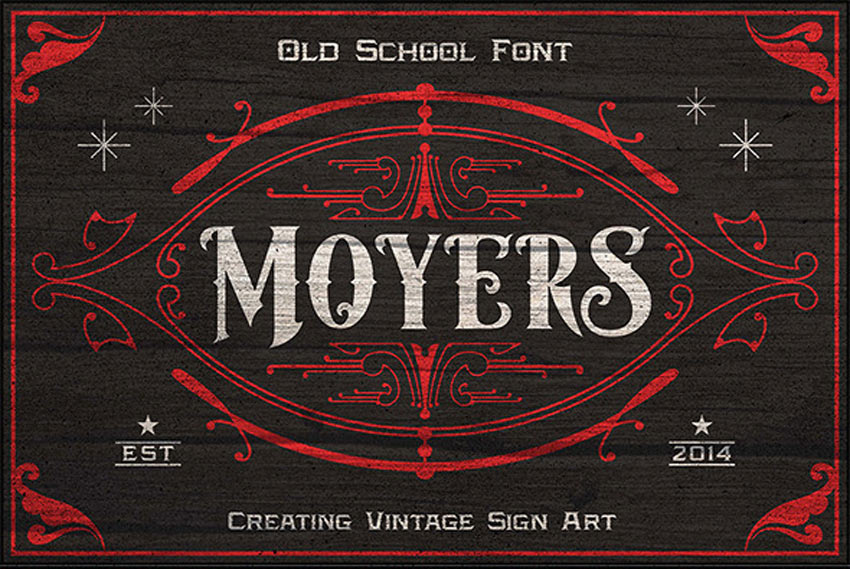
This old-fashioned typeface is certainly not out of style! The Moyers font features an elegant vintage design perfect for recreating old signs. Use it in combination with other vintage lettering fonts as an incredible addition to any poster design.
29. Vintage Font Bundle
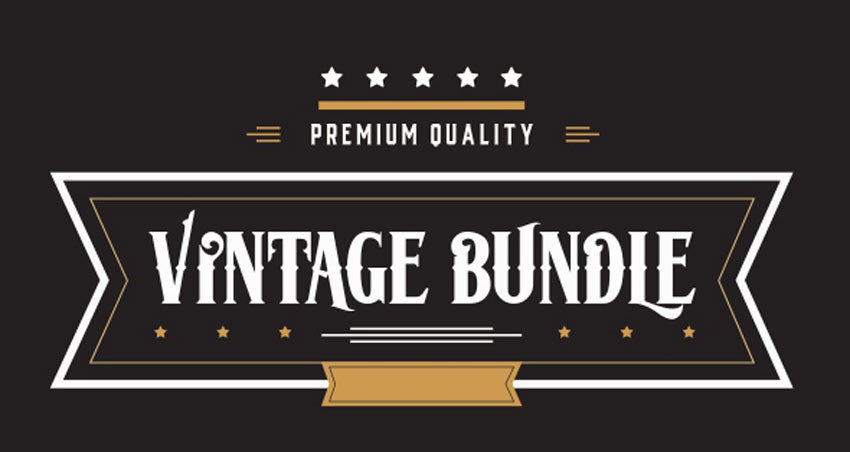
Get seven incredible vintage font styles for one amazing price! This bundle features premium quality fonts inspired by a variety of retro eras. It includes awesome fonts like Aliva, Backster, and more, and it’s perfect for any vintage project.
30. Blnc Vintage Font

Old western movies provide great inspiration for modern designers. And this incredible vintage sign font proves that with old western-inspired lettering perfect for any wanted poster. Use this font for your logos, headers, and more and enjoy access to two different font files.
31. Moonface Script Font

A flowing vintage script font with lovely swashes, Moonface Script font looks great on any coffee shop window! It’s based on a 20th century packaging typo and features a classic retro feel. With a full set of ligatures, alternatives, and swashes at your fingertips, you’ll be fully prepared with this amazing download.
32. Stanley Typeface

Bold and straightforward, this Stanley typeface is sure to grab your attention. Inspired by old school lettering, this font features a mix of sharp and curvy ornamental edges that might suit those looking for a vintage tattoo font or vintage sign fonts.
33. Adrena Typeface

An incredible mix of drama and elegance, this Adrena typeface just screams retro vintage font design. Included in this font file are upper and lowercase letters, numbers, and additional swashes for more detail. Download this font today for a one-of-a-kind vintage typeface.
34. Bronx Shoes Custom Font

Take a trip to the Bronx with this custom handwritten typeface. Inspired by vintage signs you’d see in the city, this font includes two versions and several formats. Enjoy the regular font style or upgrade your designs with the clean outlined version.
Choose Your Favourite Vintage Font Style Today
This list is jam-packed with exciting resources for the avid designer
familiar with OpenType and more. If you need additional
help creating a custom vintage font design, then enlist the skills of a talented
professional by choosing one of the amazing designers from Envato Studio.
With thousands of exceptional retro vintage fonts to choose from, chances are we’ve missed a few to add to your personal collection. Be sure to browse Envato Market and Envato Elements for more resources, and if you want more information on other terrific font styles, check out these really helpful articles below:
 FontsVintage Trend: Best Mid-Century FontsLaura Keung
 Fonts29 Best Heavy Metal FontsNona Blackman
 Fonts30 Beautiful Modern Script Fonts (Typefaces for 2020)Melody Nieves
 Fonts40 Most Popular Fonts of 2019Nona Blackman
 Fonts29 Best Chalkboard FontsMelody Nieves
 Fonts31 Best Fancy Fonts With Decorative Alphabet Letters (2020)Melody Nieves

{excerpt}
Read More
45 Free Transition Effects Templates to Make Cool Cuts in Premiere Pro
{excerpt}
Read More
45 Free Instagram Story Video Templates for Premiere Pro
{excerpt}
Read More
How to Use Procreate Layers

Procreate layers are a powerful tool for the digital artist—use them to separate, organize, preserve, and expand your work. There are a myriad of ways to use them, but we’ll start at the beginning with the fundamentals. Use this introduction to help you get started!
Follow along with us over on our Envato Tuts+ YouTube channel:
1. Getting Started With Procreate Layers
Step 1
If you’re unfamiliar, Procreate Layers work much like how they sound—they allow you to layer different pieces of content on top of each other, while maintaining a degree of independence. So, for example, I could draw something on one layer, and then create a new one for additional artwork. The two layers could then be moved and manipulated independently—as opposed to if they were one, dependent work in a shared space.
To reveal your Layers, tap on the Layers Icon in the upper right-hand corner of your work area.

Step 2
By default, in a New Document, you’ll see two layers: Layer 1 and Background Color. Note that your selected layer is highlighted in blue.
We can create a New Layer by tapping the Plus Sign in our Layers Menu.

Step 3
Swipe Left to reveal additional actions we can apply to our layers: Lock, Duplicate, and Delete.
Lock locks up the Layer so its contents are protected—you won’t be able to alter the contents until you Unlock them. You can Unlock your layers from this same location.
Duplicate creates a copy of the layer’s contents on a New Layer.
Delete deletes the selected layer. Note, if you only have one layer, you’ll see “Clear” instead of Delete, which will instead delete the layer’s contents.

Step 4
You can also rearrange your Procreate layers. To Move a Layer, Tap and Hold, and then Drag the Layer to the desired order.

Step 5
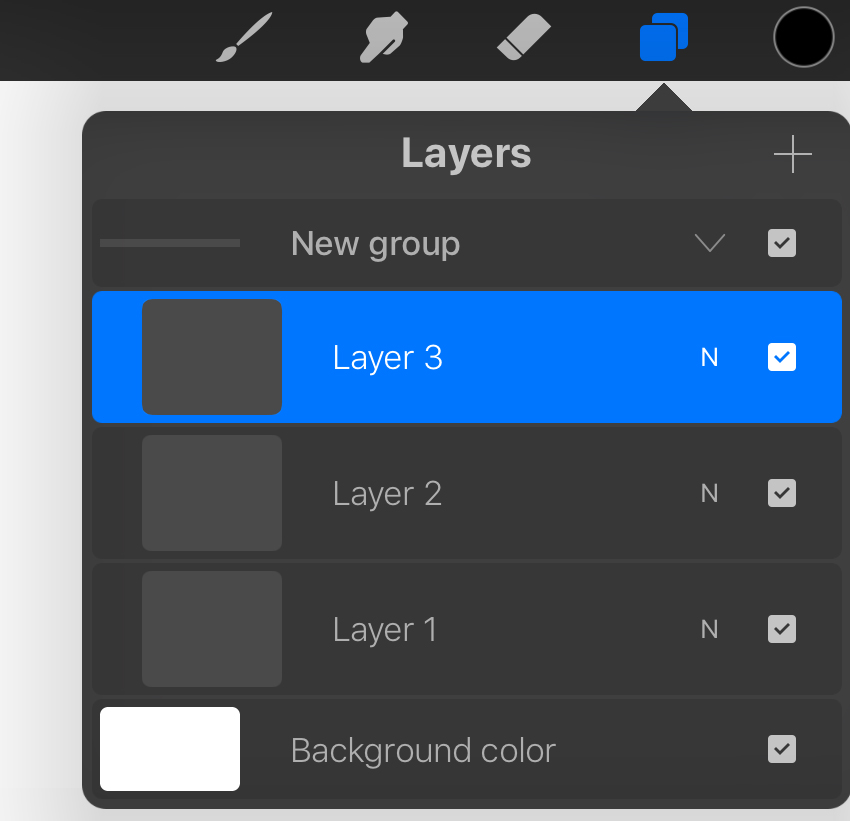
Layers can also be grouped together. In this example, I have three layers.
Swipe Right on the layers you would like to Group. Notice how the selected layers are highlighted in blue. Then, select the Group Icon in the upper right-hand corner.

Step 6
Here is what these layers look like grouped. In this example, the group is expanded, so we can see its contents. Tap on the Downwards Arrow to contract it and hide its contents.
Note that we can rearrange these layers within the group. You can also use this same method to move layers in and out of the group.
Swiping Left will give you the same Lock, Duplicate, and Delete options as you would see in a standard Procreate layer.
Step 7
Procreate Layer Visibility can be Toggled On and Off via the check boxes on the right-hand side of each Layer. The same applies to Layer Groups and Layers within Groups.

2. Layer Options in Procreate
Step 1
Tap on a layer to reveal additional options. Let’s start with some of the more straightforward ones:
- Rename allows you to rename your layer. This is particularly useful for organizational purposes.
- Select selects the contents of the layer.
- Copy copies the contents of the layer. You can then paste the contents from the Actions panel.
- Fill Layer fills the entire layer with your active color.
- Clear erases all of the contents of the selected layer.
- Invert inverts your layer. So, for example, if I had a layer filled with the color black—and then I selected Invert—it would make the contents white.
- Merge Down merges the layer down with the layer beneath it. The result is one merged layer.
- Combine Down, on the other hand, merges the active layer and the layer beneath it into a Layer Group.
Note, the visibility of these options can depend on the number of layers and/or their order. For example, if you only have one layer, you won’t see “Merge Down” or “Combine Down”. If you have Drawing Assist on, this can also be Toggled On or Off from these Layer Options.

Step 2
Now, let’s take a look at some of the more complicated options.
Alpha Lock locks the Layer’s Transparency.
In this example, I have a layer called “Circle” with a purple circle in it. I then Toggled the Alpha Lock On.
Now, I can draw within the purple circle area without worrying about going outside of my artwork—this is because the available drawing space has been locked to the area occupied by my original, purple circle. When I try to draw yellow lines, for example, they stay within the confines of the purple circle I’ve already drawn.

Step 3
Selecting Mask will attach a Procreate Layer Mask to the active layer.
In this example, I’ve given the layer “Example” a Fill Color—it’s all green. Note the Layer Mask on top of it in the Layers panel, below.
When looking at the Mask Preview, the black space is hidden and the white space is visible. For example, the white dots in the Mask Preview are the only space where the green will be visible.

Step 4
Procreate also has Clipping Masks, which we can access from our Layers—a similar but different way to mask your work.
This time, as an example, create a shape of some kind on a layer of its own.
Then, create a New Layer on top of this shape. Tap the layer preview and then select Clipping Mask. Now, this layer will act as a Clipping Mask—which means its visibility will be depending on the layer below it.
In the example below, notice how I could not draw the red lines “outside” of the black circle. That’s because the red lines were drawn on my Clipping Mask—the layer above the black circle layer.

Step 5
Reference makes the active layer a Reference Layer. Procreate Reference Layers are often used to easily keep Line Art and Color Fills separate.
In this example, I’ve created some simple line art on a Layer I’ve called “Line Layer”. I selected Reference to make this into a Reference Layer.
Then, Create a New Layer—I’ve named it “Color Layer”. The layer above the Reference Layer is the one that will rely on said reference. So “Color Layer” is going to reference “Line Layer”.
Procreate Reference Layers make it very easy to add Fills to your Line Art while still keeping your lines independent, on their own layer. With my “Color Layer” selected, all I have to do is drag my active color into the space I’d like filled with color.
Voila! It recognizes this space defined in my Reference Layer, yet keeps the color separate, on the above layer.

3. Layer Opacity and Blending Modes in Procreate
Step 1
We can also alter the layer’s Blending Modes and the Procreate Layer Opacity. To view these options, click on the N that sits beside the Visibility Toggle.

Step 2
Right under our layer’s Preview, you’ll notice the Opacity Slider. 100% is full opacity, while 0% would be invisible. Procreate Layer Opacity can also be applied to Groups and Grouped Layers.

Step 3
Blending Modes affect how the layer interacts with the other Procreate layers in your composition. By default, the Blending Mode is set to Normal.
Procreate has a whole host of blending modes to try out, including: Multiply, Darken, Color Burn, Linear Burn, Darker Color, Normal, Lighten, Screen, Color Dodge, Add, Lighter Color, Overlay, Soft Light, Hard Light, Vivid Light, Linear Light, Pin Light, Hard Mix, Difference, Exclusion, Subtract, Divide, Hue, Saturation, Color, and Luminosity.
Yeah, that’s a lot! And one of the best ways to get to know blending modes is to jump right in and test them out. View them as different relationships your layers can have with one another—ways that they will literally blend with each other.
Remember, you can always set the Blending Mode back to Normal, to go back to the layer’s default look.
Let’s try a brief example. Below is some line art, on its own layer. Then, on a layer above it, there’s a solid color. Notice the difference between the same layer with different Blending Modes.
On the left, the layer with the red color is set to Normal. In the middle, this same red layer is set to Lighten. On the right, this same layer’s Blending Mode is set to Multiply.
Try out the other ones too!

And There You Have It!
We’ve gone through the basics of Procreate layers. There’s plenty to experiment with and expand upon here—one of the best ways to get comfortable with Procreate layers is to jump right in and test them out! Good luck and happy drawing!

Check Out These Premium Procreate Brushes
Looking for some new Procreate brushes to add to your collection? Check out these awesome brushes available now on Envato Elements. They would all make a wonderful addition to any illustrator’s set!
1. Shader Brushes for Procreate
This beautiful collection of 35 brushes is perfect for adding texture to your work. Test out the shaders, add hatching, and experiment with adding some noise to your work.

2. Art Brushes for Procreate
Love real media? Try out these beautiful real media inspired brushes for Procreate. This collection of 21 brushes has so much to offer. Whether you’re looking for a little texture or a thick, painterly experience, this one is a must download.

3. Oil Paint Brushes for Procreate
Artist guerillacraft has made so many fantastic brushes—and his oil paint brush collection is no exception!

4. Flower Touch Procreate Brushes
Isn’t this decorative brush set a treat? The preview is just the tip of the iceberg—there are over 160 different pieces to this set, including both pattern brushes and stamp brushes. Add some fun florals to your illustrative work today.

5. Snow Brushes for Procreate
Whether you’re looking to add organic snowflakes to your work or to experiment with texture, this snow brush set for Procreate has a lot of content to explore. There are 16 brushes to experiment with and enjoy. Give them a try!

Love Procreate and want to learn more? From creating and customizing brushes to illustration walk-throughs, check out these free Procreate tutorials on Envato Tuts+! Happy drawing!
 BrushesHow to Create and Customize Procreate BrushesDaisy Ein
 ProcreateHow to Use Photoshop Brushes in ProcreateDaisy Ein
 ProcreateHow to Install and Use Procreate BrushesDaisy Ein
 ProcreateHow to Create a Summer Portrait With Ice Cream in ProcreateMaria Dimova
 ProcreateHow to Draw a Mystic Moon Illustration in Procreate on iPadYulia Sokolova

{excerpt}
Read More
15 Best WordPress Audio Player and Video Player Plugins
{excerpt}
Read More
Using ipdata for Geolocation
{excerpt}
Read More
50 Free Title and Opener Motion Graphics Templates for Premiere Pro
{excerpt}
Read More
Once Upon A Time Volume 2
The second volume of my anthology of ultra-short sci-fi / horror / etc stories is out now! You can find on Amazon/Kindle, Apple Books, and as a ePub ebook file (either as-is, or a special autographed-cover edition!). Once Upon A Time is a collection of flash fiction: standalone tales of 1,000–3,000 words, in genres including science fiction, horror, and the supernatural! The anthology also includes author’s notes on each tale, describing inspiration and background.
Website Hosting Experience Simplified With Cloudways’ Managed Platform
{excerpt}
Read More
‘Apex Legends’ tournaments get a new online-only schedule
What’s on TV this week: ‘The Matrix,’ ‘Sonic’ and ‘Star Wars’
This week March finally comes to an end and with the arrival of April, Netflix is adding some new licensed content to its catalog. Not that I don’t like the originals — as long as they keep making more Ozark, I’ll keep subscribing — but this week, be…
Snapchat’s new lenses use AR to encourage social distancing
